navigation system AUDI E-TRON 2019 User Guide
[x] Cancel search | Manufacturer: AUDI, Model Year: 2019, Model line: E-TRON, Model: AUDI E-TRON 2019Pages: 310, PDF Size: 81.91 MB
Page 196 of 310
Navigation
myAudi navigation functions:
— You can send destinations and routes from the
myAudi app to the vehicle > page 197.
— Active route guidance in the myAudi app can be
continued in the MMI.
— Depending on the situation, it may be possible
to continue active route guidance from the MMI
in the myAudi app to continue navigating to the
destination after leaving the vehicle.
@) Note
Read the information about Audi connect, and
be sure to note the connectivity costs section
=@ in General information on page 184.
Entering a destination
Select destination
Applies to: vehicles with navigation system
Ceasar)
4 © a
ete [use
per Beer destination ee
NS <)
Lcd occ
interest fares pa
Fig. 141 Upper display: Select destination menu
Opening a menu
Applies to: MMI
> Press NAVIGATION on the home screen.
> If the map is displayed, press aa @) > page 193,
fig. 140.
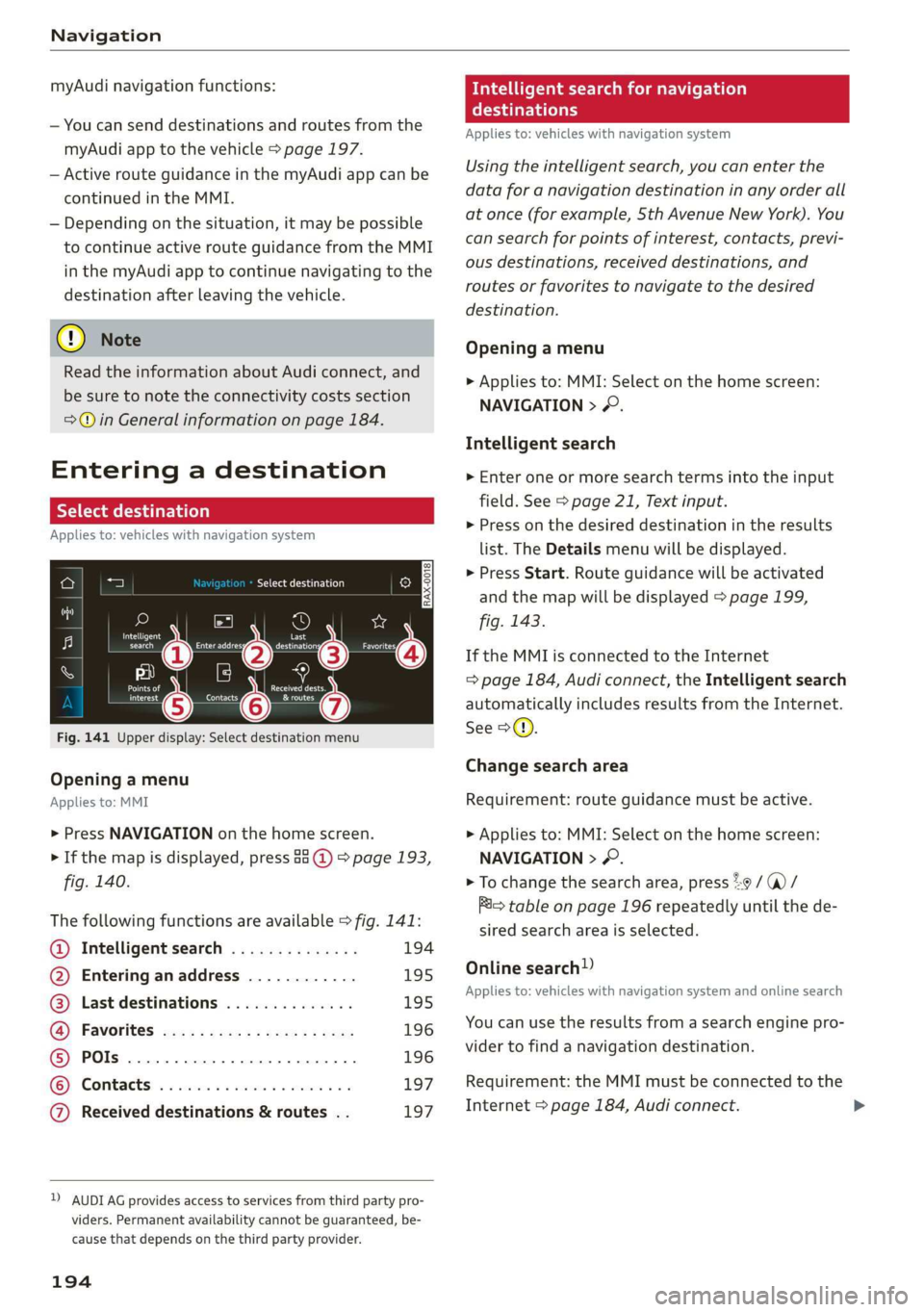
The following functions are available > fig. 141:
@ Intelligent search .............. 194
@ Entering anaddress ............ 195
@ Last destinations .............. 195
@ Favorites .................0.4. 196
© Pols .... 196
© Contacts 197
@ Received destinations & routes . . 197
2) AUDI AG provides access to services from third party pro-
viders. Permanent availability cannot be guaranteed, be-
cause that depends on the third party provider.
194
Intelligent search for navigation
era
Applies to: vehicles with navigation system
Using the intelligent search, you can enter the
data for a navigation destination in any order all
at once (for example, Sth Avenue New York). You
can search for points of interest, contacts, previ-
ous destinations, received destinations, and
routes or favorites to navigate to the desired
destination.
Opening a menu
> Applies to: MMI: Select on the home screen:
NAVIGATION > &.
Intelligent search
» Enter one or more search terms into the input
field. See > page 21, Text input.
> Press on the desired destination in the results
list. The Details menu will be displayed.
> Press Start. Route guidance will be activated
and the map will be displayed > page 199,
fig. 143.
If the MMI is connected to the Internet
=> page 184, Audi connect, the Intelligent search
automatically includes results from the Internet.
See >©.
Change search area
Requirement: route guidance must be active.
> Applies to: MMI: Select on the home screen:
NAVIGATION > 2.
> To change the search area, press %9 / (a)/
i= table on page 196 repeatedly until the de-
sired search area is selected.
Online search!)
Applies to: vehicles with navigation system and online search
You can use the results from a search engine pro-
vider to find a navigation destination.
Requirement: the MMI must be connected to the
Internet > page 184, Audi connect.
Page 197 of 310
4KE012721BB
Navigation
> Applies to: MMI: Select on the home screen:
NAVIGATION > © >G.
> Enter one or more search terms into the input
field.
> The search engine provider shows suggestions
£ to narrow down the search.
> Press on suggestions until the desired destina-
tion appears in the results list. If necessary, use
one finger to swipe upward or downward until
the suggestions © or destinations 9 appear.
> Press on the desired destination 9. The Details
menu will be displayed.
> Press Start.
Route guidance will be activated and the map will
be displayed. > page 199, fig. 143
@) Note
Read the information about Audi connect, and
be sure to note the connectivity costs section
=@ in General information on page 184.
@) Tips
— The MMI input suggestions depend on the
last navigated destinations.
— The navigation system always searches for
the fastest route. You can find information
on alternative routes under > page 202.
uate REL Lee)
Applies to: vehicles with navigation system
As an alternative to the intelligent search, you
can also enter an address in stages.
Opening a menu
> Applies to: MMI: Select on the home screen:
NAVIGATION > (G8) > Enter address.
Enter a destination using an address
> Press on the respective input field and enter an
address.
> Press on Apply. The Details menu will be dis-
played.
> Press Start.
Route guidance will be activated and the map will
be displayed > page 199, fig. 143.
Destination entry for a street intersection
> Select: Intersection > enter a street > Start.
Loading previous destinations
Applies to: vehicles with navigation system
Your last destinations and routes can be loaded
directly as a navigation destination.
As soon as you start route guidance, the destina-
tion is automatically saved in the last destina-
tions. Your previous destinations are marked with
the © symbol.
If you have met the requirements for myAudi
navigation, your previous destinations will be
synchronized with your myAudi account
> page 193.
Accessing previous destinations
> Applies to: MMI: Select on the home screen:
NAVIGATION > (5) > Last destinations > select
a desired destination > Start.
> Applies to: multifunction steering wheel: Select
in the instrument cluster: Navigation tab > [=]
button > Last destinations > desired destina-
tion.
Changing and loading a previous destination
> Applies to: MMI: Select on the home screen:
NAVIGATION > (88) > Last destinations > Z >
7 > change the address > Use address > Start.
Restore last tour
Requirement: a route with at least two stopovers
must have already been canceled.
Your last route is labeled with the © symbol.
> Applies to: MMI: Select on the home screen:
NAVIGATION > (G5) > Last destinations > Re-
store last tour. Route guidance will start imme-
diately.
Deleting previous destinations
> Applies to: MMI: Select on the home screen:
NAVIGATION > (8) > Last destinations > Z >
select one or more entries or Select all > Delete
> (Done).
195
>
Page 198 of 310
Navigation
@ Tips
The last route will be automatically deleted
from the list if you start a new route guidance
after canceling the route.
Setting a favorite as the destination
Applies to: vehicles with navigation system
You can access frequent destinations in the fa-
vorites. You can quickly and easily start route
guidance using the home address or business ad-
dress function.
Requirement: a favorite must be stored
=> page 202.
> Applies to: MMI: Select on the home screen:
NAVIGATION > (&8) > Favorites > select a de-
sired destination > Start. Or
> Applies to: multifunction steering wheel: Select
in the instrument cluster: Navigation tab > [=]
button > Favorites > desired destination.
POIs (point of interest)
Applies to: vehicles with a navigation system and Audi con-
nect Infotainment
Search for points of interest such as restaurants.
If the MMI is connected to the Internet, points of
interest will be automatically included in the
search.
> Applies to: MMI: Select on the home screen:
NAVIGATION > (G5) > Points of interest.
The system always searches in the search area
that is currently selected > table on page 196.
> Searching for points of interest: enter the
name of a POI.
> Searching for a point of interest in a specific
category: Select: a category (for example, res-
taurants) > a point of interest.
> Changing the search area: Requirement: route
guidance must be active. Press (a)/2:9/B! repeat-
edly until the desired search area > table on
page 196 is selected.
Sorting points of interest
Requirement: the MMI must be connected to the
Internet > page 184, Audi connect. You must
have a category selected.
196
> Press on the respective symbol for sorting until
the desired sorting order is selected.
Search areas in detail
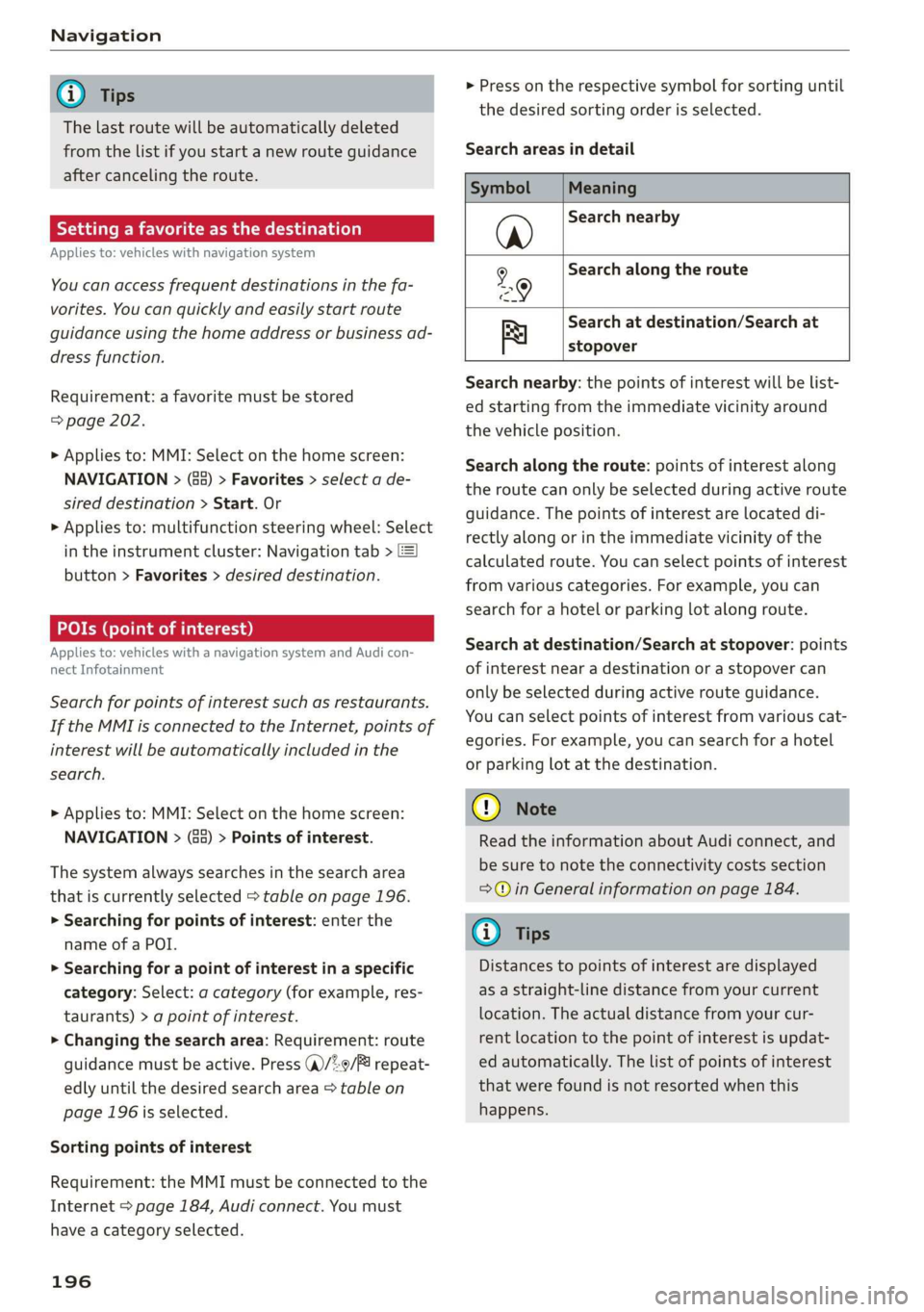
Symbol Meaning
@ Search nearby
9 Search along the route
Search at destination/Search at
Be stopover
Search nearby: the points of interest will be list-
ed starting from the immediate vicinity around
the vehicle position.
Search along the route: points of interest along
the route can only be selected during active route
guidance. The points of interest are located di-
rectly along or in the immediate vicinity of the
calculated route. You can select points of interest
from various categories. For example, you can
search for a hotel or parking lot along route.
Search at destination/Search at stopover: points
of interest near a destination or a stopover can
only be selected during active route guidance.
You can select points of interest from various cat-
egories. For example, you can search for a hotel
or parking lot at the destination.
CG) Note
Read the information about Audi connect, and
be sure to note the connectivity costs section
=@ in General information on page 184.
(i) Tips
Distances to points of interest are displayed
as a straight-line distance from your current
location. The actual distance from your cur-
rent location to the point of interest is updat-
ed automatically. The list of points of interest
that were found is not resorted when this
happens.
Page 199 of 310
4KE012721BB
Navigation
Selecting contacts as destinations
Applies to: vehicles with MMI and navigation system
You can navigate directly to contacts.
Requirement: an address with navigation data or
a navigation destination must already be as-
signed to a contact > page 203.
> Applies to: MMI: Select on the home screen:
NAVIGATION > (8) > Contacts > a contact.
> Press on an address.
> Check the address and change it, if necessary.
Start navigation > page 195, Entering an ad-
dress.
Route guidance will be activated and the map will
be displayed > page 199, fig. 143.
Additional functions for contacts in navigation
can be found under > page 203.
@ Tips
— Addresses that have been imported from
your mobile device into the MMI can also be
used as a destination.
— Ifa contact is grayed out in the directory,
this contact has neither a destination nor an
address assigned to it.
Loading received destinations and routes
Applies to: vehicles with a navigation system and Audi con-
nect Infotainment
You can search for destinations or routes in the
myAudi app and send to the vehicle.
Requirement: the MMI and the mobile device
must be connected to the Internet > page 184,
Audi connect. You must have the myAudi app in-
stalled on your mobile device.
» Send a destination or route in the myAudi app
to the vehicle.
> Applies to: MMI: Select on the home screen:
NAVIGATION > (Ga) > Received dests. & routes.
> Make sure you are logged into the vehicle and
the myAudi app with the same myAudi account.
The received destination and routes will be
loaded automatically.
> Navigating to a destination: press on a desti-
nation.
> Deleting destinations: select: Z > one or more
entries or Select all > Delete > (Done).
@) Note
Read the information about Audi connect, and
be sure to note the connectivity costs section
=@ in General information on page 184.
Destination details
Applies to: vehicles with navigation system
72.
Seu & a
l erty
Rate)
s | Parking avers
Fig. 142 Upper display: diagram: details
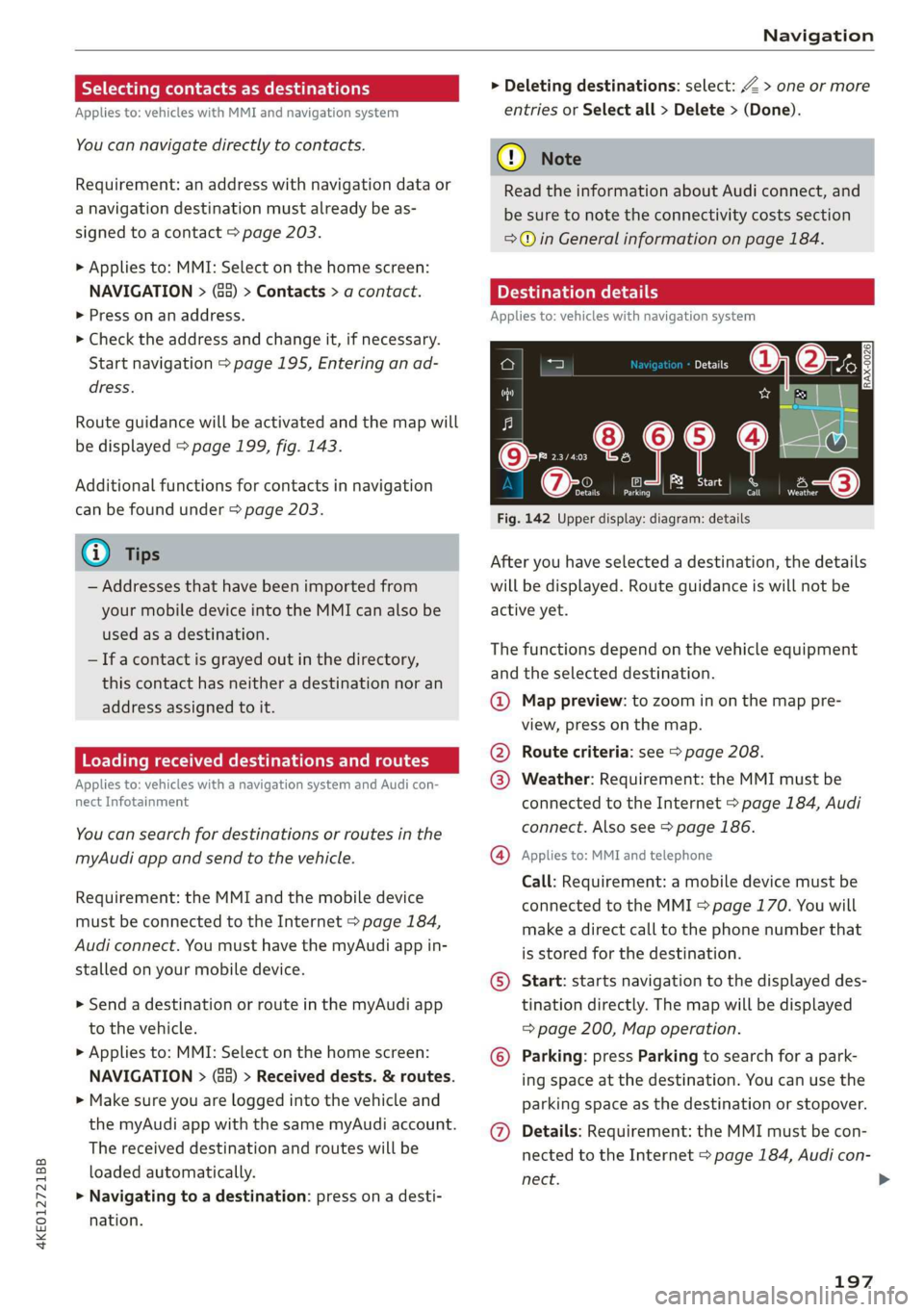
After you have selected a destination, the details
will be displayed. Route guidance is will not be
active yet.
The functions depend on the vehicle equipment
and the selected destination.
@ Map preview: to zoom in on the map pre-
view, press on the map.
@ Route criteria: see page 208.
@ Weather: Requirement: the MMI must be
connected to the Internet > page 184, Audi
connect. Also see > page 186.
@® Applies to: MMI and telephone
Call: Requirement: a mobile device must be
connected to the MMI > page 170. You will
make a direct call to the phone number that
is stored for the destination.
©) Start: starts navigation to the displayed des-
tination directly. The map will be displayed
= page 200, Map operation.
© Parking: press Parking to search for a park-
ing space at the destination. You can use the
parking space as the destination or stopover.
@ Details: Requirement: the MMI must be con-
nected to the Internet > page 184, Audi con-
nect.
197
>
Page 200 of 310
Navigation
Weather at the destination: Requirement:
the MMI must be connected to the Internet
= page 184, Audi connect.
©) Display of distance/driving time to the des-
tination
@) Note
Read the information about Audi connect, and
be sure to note the connectivity costs section
=@ in General information on page 184.
Selecting a destination from the map
Applies to: vehicles with navigation system
A point on the map can be used as the destina-
tion.
Opening the map
Applies to: MMI
> Press NAVIGATION on the home screen.
> If necessary, press A to display the map.
Adjusting the scale
> Select: 9/ > select a scale.
Marking the destination
> Press and hold a point on the map until a mark-
ing appears @i) > page 199, fig. 144. Or: the
address of the selected destination is displayed
> page 199, fig. 144.
Setting the map content (such as POIs) as
the destination
Requirement: map content must be displayed
=> page 207.
> Press on map content on the map (for example,
@) > page 199, fig. 144).
Selecting the destination
> Select: @) > page 199, fig. 144. Or:
> To display destination details, press on G6)
=> page 199, fig. 144 > Start.
Route guidance will be activated and the map will
be displayed > page 199, fig. 143.
198
Stopovers and route plan
Applies to: vehicles with navigation system
You can enter additional destinations during ac-
tive route guidance.
Entering a stopover
Requirement: route guidance must be active.
> Enter a destination > page 194.
Displaying stopovers or the route plan
All destinations are listed in the route plan.
> Press on (7) > page 199, fig. 143 on the map.
Editing stopovers
> Press on 2%) > page 199, fig. 143 on the map.
> Adding a stopover: Select: Add destination >
select a destination > Add.
> Moving a stopover: press Z. Touch the $ sym-
bol and move the entry to the desired position.
Press Done.
> Deleting a stopover: Select: Z > one or more
entries or Select all > Delete > (Done).
Coal welll e
Applies to: vehicles with navigation system and e-tron route
planner
The MMI includes the charging stations along
the route, if the destination cannot be reached
with the current battery charge level.
Requirement: the e-tron route planner must be
switched on > page 207. The charging target
must be set to at least 80% > page 110.
If the destination is out of range, a fast route
with stopovers for charging is automatically sug-
gested.
> To access alternative routes with stopovers for
charging, press (7 before you accept the e-tron
route plan.
> To start the suggested route guidance, press
Accept.
> To display the route, press 1 on the map
=> page 199, fig. 143.
> To access the route planner later, press @ on
the map when route guidance is active
Page 201 of 310
4KE012721BB
Navigation
=> page 199, fig. 143. The route plan will be
displayed. Press e-tron route planner.
The calculated arrival time, the estimated bat-
tery charge level (4, the suggested charging dura-
tion sG, and the distance from the current loca-
tion are displayed in the e-tron route planner for
the respective destination.
— The calculated arrival time incorporates the
suggested time for charging at the stop-
overs.
— If the charging target is set under 80%,
then the charging process will be canceled
prematurely and the charging time required
at the stopover will not be reached.
— Depending on the country, the information
for charging stations may not be available
nationwide at the time this manual was
printed. If this is the case, the e-tron route
planner may not be able to calculate any
routes. Check if there is a map update in the
MMI and start the map update, if necessary.
Enter your destination again in the e-tron
route planner. You can also turn off the e-
tron route planner > page 208 and open
navigation. Plan your route using familiar
charging stations as stopovers.
Stopping route guidance
Applies to: vehicles with navigation system
Requirement: route guidance must be active and
the map must be displayed.
> Applies to: MMI: Press & @ = page 199,
fig. 143. Or:
> Applies to: multifunction steering wheel: Select
in the instrument cluster: Navigation tab >
button > Cancel route guidance.
Map
Map functions
Applies to: vehicles with navigation system
eo -
Fig. 144 Upper display: diagram: marked map item (stand-
ard map)
Opening the map
Applies to: MMI
> Press NAVIGATION on the home screen.
> If necessary, press /\ to display the map.
The following list gives an overview of the infor-
mation displayed on the map. Press on any func-
tion (for example, alternative routes) to show ad-
ditional options.
Destination input > page 194
Intelligent search > page 194
Cancel route guidance > page 199
Current route
Request spoken prompt
Alternative routes > page 202
QOOOOOHO Display active destinations, stopovers, or
route plan. The distance to the destination
including the calculated arrival time is dis-
played = page 198. If the F! symbol appears,
the destination is out of range > page 198,
e-tron route planner.
For vehicles with trailer mode, the symbol in-
dicates that the function is switched on.
=> page 208
199
Page 202 of 310
Navigation
raffic information > page 206 pag
@ Altitude
@) Displays the maximum permitted speed”):
within city limits, on expressways, and on
highways.
Current vehicle position
Route information > page 208
Name of the street on which you are current-
ly driving
®
O08
Start route guidance for the marked destina-
tion @2 > page 198, Selecting a destination
from the map
Display details for the destination
=> page 197
POI search within the vicinity of a marking
O®
©
Adjust the map orientation. Also see
=> page 207
Navigation settings > page 207
©® Adjust the scale. Set scale. Or: press on the
magnifying glass shown to adjust the auto-
matic zoom > page 207.
Marked destination. See > page 198, Select-
ing a destination from the map
® ® Map contents (points of interest, favorites).
When there are multiple map contents in the
immediate vicinity, the symbols are shown
stacked on the map. To display a list of indi-
vidual symbols, press @6 > fig. 144. Press on
a POT in the list.
@3) Center the map to the current vehicle posi-
tion
Additional possible symbols on the map
Symbol Meaning
Home address > page 202, Favor-
@ ites
Business address = page 202, Fa-
a vorites
Favorites > page 202
*
By Previous destinations display
D_ Only applies to vehicles without camera-based speed limit
display.
200
Traffic information display on the map or
map preview
Color-coded markings along the route indicate
the traffic flow:
Green: traffic is flowing freely.
Yellow: stop-and-go traffic.
Red: traffic jam or traffic obstructions.
Shaded markings indicate the length of the area
with congestion.
Traffic information
— Colored warning symbols: traffic incidents
ahead that are on your route.
— Grayed out warning symbols: traffic incidents
that are not on your route.
— All traffic incidents will display in color when
route guidance is inactive.
— Warning symbols with arrow: traffic incident
that you have been routed around, for example
2.
You can adjust the display of colored markings
for traffic information on the maps > page 207.
Map operation
Applies to: vehicles with navigation system
You can operate the map > page 199, fig. 143
with the movements described in the following
information.
Moving the map
> Drag your finger across the map in the desired
direction.
Moving the map quickly
> Drag your finger across the map in the desired
direction and lift your finger off the screen.
Zooming in on the map
> Place two fingers on the map and pull your fin-
gers apart. Or: double tap on the map with one
finger.
Page 203 of 310
4KE012721BB
Navigation
Zooming out on the map
> Place two fingers on the map and pull your fin-
gers together. Or: double tap on the map with
two fingers.
Rotating the map
> Rotate the map using two fingers.
Tilting the map
> Drag upward or downward with two fingers.
G) Tips
Certain gestures may not be available on all
touch displays or in every menu.
Navigation view with route guidance
started
Applies to: vehicles with navigation system
Fig. 145 Instrument cluster: default view: Turning maneu-
ver when route guidance has started
Requirement: route guidance must be on
=> page 194.
The following information will be displayed in the
driver information system, if available:
@ Current vehicle position
@ A bar graph appears when there is an upcom-
ing turn. The fewer the bars that are shown, the
shorter the distance is until the turn. If there is
no upcoming turn immediately ahead, the dis-
tance to the destination or stopover, the calculat-
ed arrival time, and a direction arrow for the up-
coming maneuver will be displayed in the right
speedometer. If there is no upcoming maneuver,
the distance to the next maneuver will be dis-
played.
@® Lane recommendation
Personal route
assistance
Applies to: vehicles with navigation system and personal
route assistance
Your MMI can learn the routes that you drive fre-
quently (such as your daily commute to work and
back) and suggest route guidance based on the
current vehicle position.
When the function is switched on, the MMI re-
cords the routes driven regardless of whether or
not you are using navigation.
Without starting route guidance, your MMI
checks the traffic conditions and shows possible
traffic incidents for the possible routes to be driv-
en.
Opening personal routes
Requirement: personal route assistance must be
switched on > page 208. Route guidance must
not be active. A notification is displayed.
> The MMI displays up to three suggestions.
Press on a suggestion. Route guidance will
start.
Alternative routes
A message will be displayed if there is a major
traffic incident (more than a seven-minute delay)
regardless of which menu is selected; a notifica-
tion will appear. If the MMI has calculated an al-
ternative route, you can select it as the route.
> Press on the notification.
The alternative routes will be displayed
= page 202, Alternative routes.
As soon as you switch off personal route assis-
tance, your personal routes will no longer be re-
corded. Routes that were already stored remain
stored.
Deleting personal routes
> Applies to: MMI: Select on the home screen:
NAVIGATION > ©} > Personal route assistance
> Delete recordings from the last 24 hours or
Delete all personal routes and destinations.
201
>
Page 204 of 310
Navigation
@ Tips,
If personal route assistance is switched off
and you press F&, the personal route assis-
tance settings will be displayed > page 208.
Alternative routes
Applies to: vehicles with navigation system
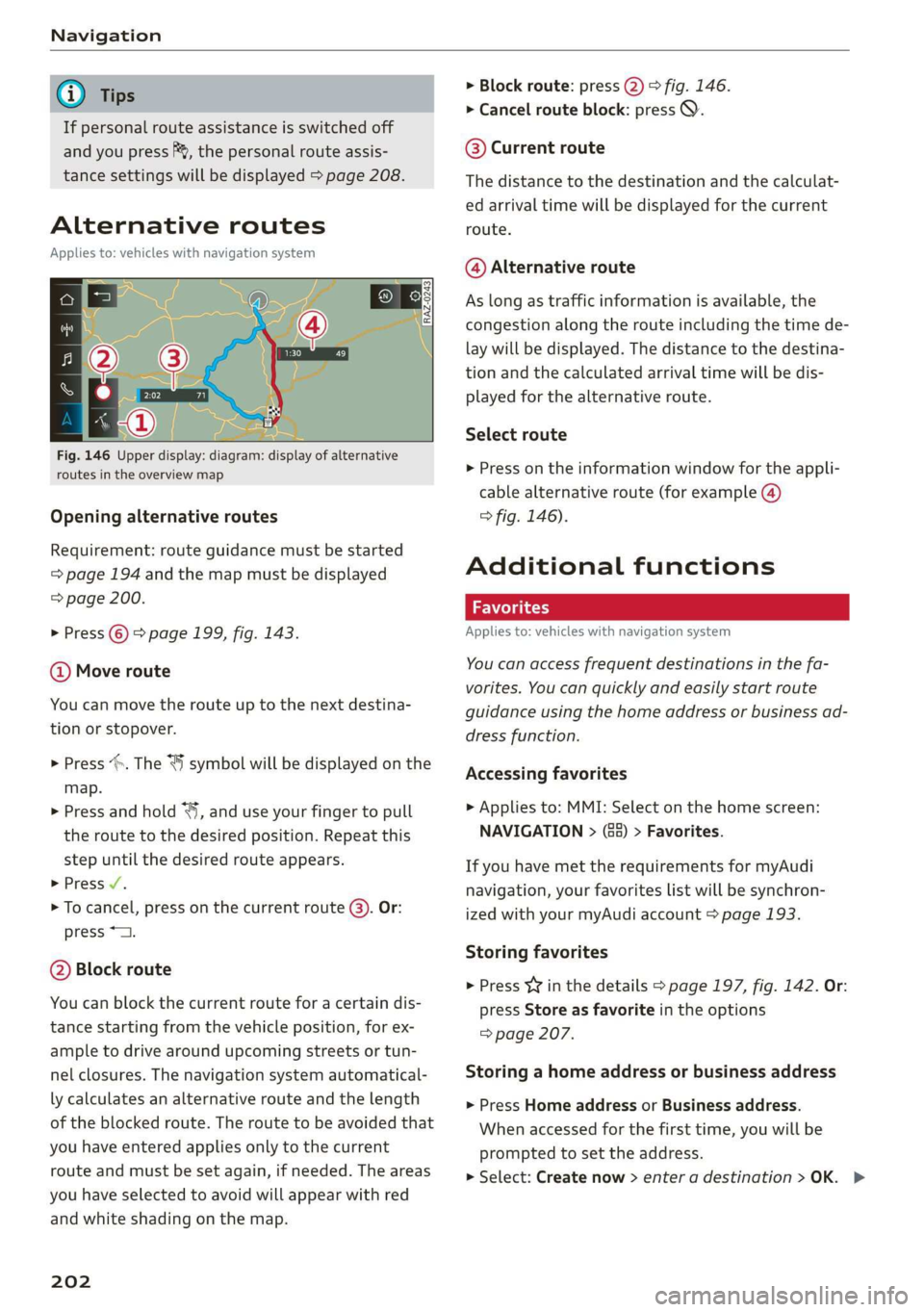
Fig. 146 Upper display: diagram: display of alternative
routes in the overview map
Opening alternative routes
Requirement: route guidance must be started
=> page 194 and the map must be displayed
=> page 200.
> Press © > page 199, fig. 143.
@ Move route
You can move the route up to the next destina-
tion or stopover.
> Press >. The “J symbol will be displayed on the
map.
> Press and hold “, and use your finger to pull
the route to the desired position. Repeat this
step until the desired route appears.
> Press /.
> To cancel, press on the current route (3). Or:
press *2.
@ Block route
You can block the current route for a certain dis-
tance starting from the vehicle position, for ex-
ample to drive around upcoming streets or tun-
nel closures. The navigation system automatical-
ly calculates an alternative route and the length
of the blocked route. The route to be avoided that
you have entered applies only to the current
route and must be set again, if needed. The areas
you have selected to avoid will appear with red
and white shading on the map.
202
> Block route: press 2) > fig. 146.
> Cancel route block: press Q.
@ Current route
The distance to the destination and the calculat-
ed arrival time will be displayed for the current
route.
@ Alternative route
As long as traffic information is available, the
congestion along the route including the time de-
lay will be displayed. The distance to the destina-
tion and the calculated arrival time will be dis-
played for the alternative route.
Select route
> Press on the information window for the appli-
cable alternative route (for example @)
> fig. 146).
Additional functions
wel a ie)
Applies to: vehicles with navigation system
You can access frequent destinations in the fa-
vorites. You can quickly and easily start route
guidance using the home address or business ad-
dress function.
Accessing favorites
> Applies to: MMI: Select on the home screen:
NAVIGATION > (68) > Favorites.
If you have met the requirements for myAudi
navigation, your favorites list will be synchron-
ized with your myAudi account > page 193.
Storing favorites
> Press v¥ in the details > page 197, fig. 142. Or:
press Store as favorite in the options
=> page 207.
Storing a home address or business address
> Press Home address or Business address.
When accessed for the first time, you will be
prompted to set the address.
> Select: Create now > enter a destination >OK. >
Page 205 of 310
4KE012721BB
Navigation
Editing a home address or business address
Requirement: the favorites list must be dis-
played. Your home address or business address
must be stored.
> Press Home address or Business address until
the Options menu is displayed.
> Select: Change address > enter a destination >
(Set as destination) or (Add to address) > OK.
Editing a favorite
Requirement: the favorites list must be dis-
played. At least one favorite must be stored.
> Setting a favorite as a destination: press ona
favorite.
> Rename favorite: press on a favorite until the
Options menu is displayed. Select: Change
name > select ad name > OK.
> Deleting a favorite: select: Z > one or more
entries or Select all > Delete > (Done).
Requirement: the favorites list must be dis-
played. At least two favorites must be stored.
> Moving a favorite: press Z. Touch the > sym-
bol and move the entry to the desired position.
Press Done.
G) Tips
— After deleting the home address or business
address, only the address is deleted and the
entry will still be displayed in the favorites.
— Please note when moving favorites that
items 1 and 2 are reserved for the home ad-
dress and business address.
(eae erie iat mesial ately
Applies to: vehicles with navigation system
Two addresses (private/business) can be added
as destinations for each contact. Addresses for
contacts on your mobile device are displayed as a
mailing address.
Accessing contacts
> Applies to: MMI: Select on the home screen:
NAVIGATION > (Gs) > Contacts.
Adding a destination to a contact
Requirement: a mobile device must be connected
to the MMI & page 170. Or: you must have im-
ported contacts > page 181, Importing and ex-
porting contacts. The Hide grayed-out contacts
option must be switched off > page 203. There
must be no business address or private address
stored for the desired contact.
> Select: a contact > |---| > Add destination.
> Follow the system instructions.
Settings
> Applies to: MMI: Select on the home screen:
NAVIGATION > (68) > Contacts > ©.
Hide grayed-out contacts
When the function is switched on, contacts that
have no address or navigation destination stored
will be hidden in navigation. You can find infor-
mation for additional settings under > page 181,
Directory settings.
@ Tips
If you add a navigation destination to a con-
tact, the destination will only be stored in the
MMI. The MMI does not change any contacts
on your phone.
le diem clearest)
Applies to: navigation system and parking information
In supported areas, you can display parking
along the route.
Requirement: the Parking notification must be
switched on > page 19, Notification center. The
MMI must be connected to the Internet
= page 184, Audi connect. Route guidance must
be active, you must be close to your destination,
and a notification must be displayed. Or: a point
is marked on the map.
> Press on the notification. Or: press on §| on the
map.
> To navigate to a parking: space, press ona col-
ored marking on the map.
> Select: F2 > Start.
203