ECU AUDI E-TRON 2019 Service Manual
[x] Cancel search | Manufacturer: AUDI, Model Year: 2019, Model line: E-TRON, Model: AUDI E-TRON 2019Pages: 310, PDF Size: 81.91 MB
Page 121 of 310
4KE012721BB
High-voltage system
> Tighten the screw (3) using the screwdriver pro-
vided.
ZA\ WARNING
— Note the warnings for charging > A in
Charging on page 109.
— Before switching the power cable, always
unplug the power cable from the socket.
— Only change cables in a dry environment.
— The Audi charging system may only be used
as a complete unit consisting of the power
cables, the control unit, and the vehicle ca-
ble. We recommend using only cables ap-
proved by Audi.
i) Tips
The power cable with the power connector for
industrial sockets and the Audi charging sys-
tem control unit are designed to work togeth-
er. Changing the power cable to another con-
nector type may reduce the available charging
power of the entire system.
Wall mount clip
Applies to: vehicles with wall mount clip
RAZ-0638
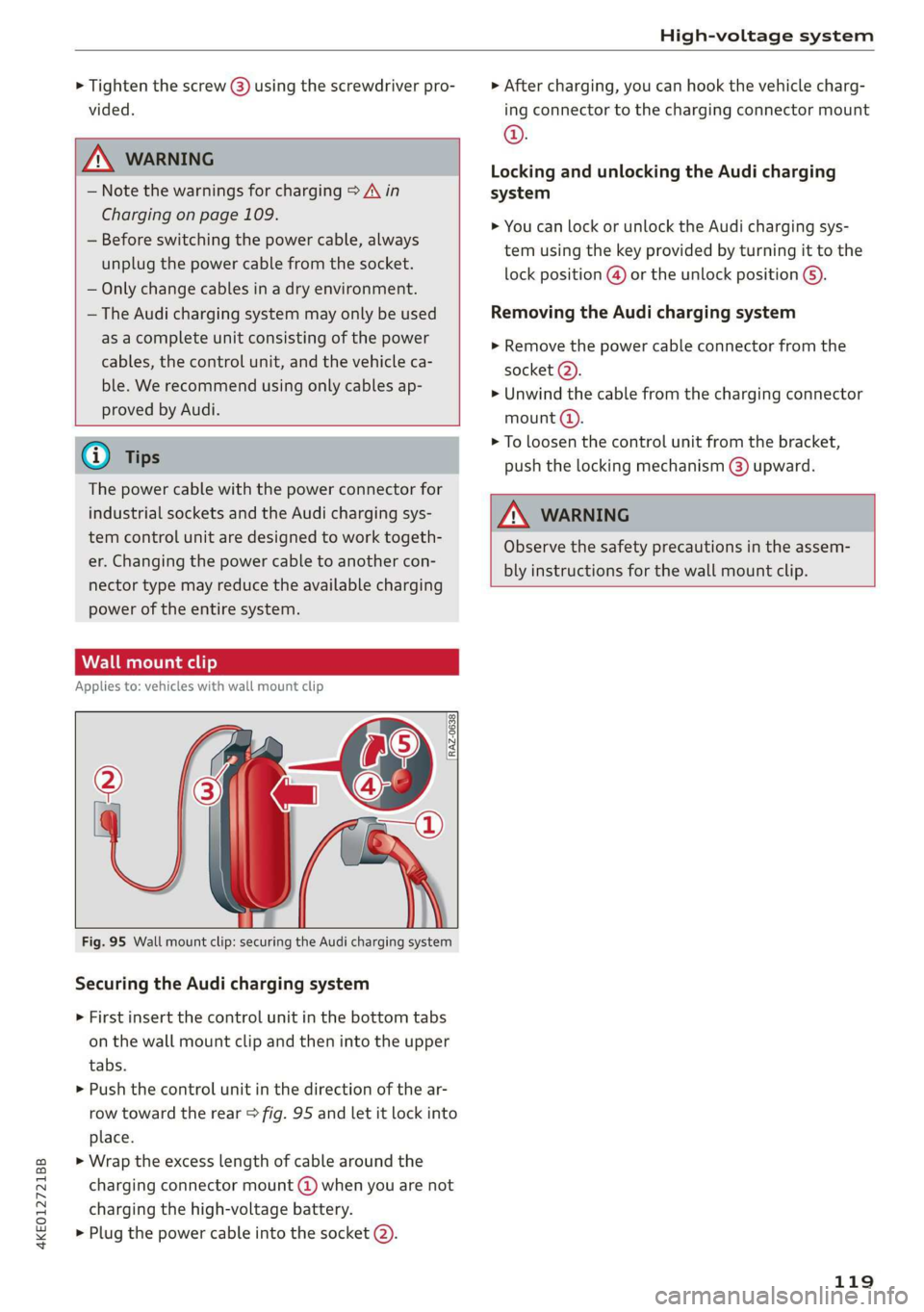
Fig. 95 Wall mount clip: securing the Audi charging system
Securing the Audi charging system
> First insert the control unit in the bottom tabs
on the wall mount clip and then into the upper
tabs.
> Push the control unit in the direction of the ar-
row toward the rear > fig. 95 and let it lock into
place.
> Wrap the excess length of cable around the
charging connector mount @) when you are not
charging the high-voltage battery.
> Plug the power cable into the socket (2).
> After charging, you can hook the vehicle charg-
ing connector to the charging connector mount
©.
Locking and unlocking the Audi charging
system
> You can lock or unlock the Audi charging sys-
tem using the key provided by turning it to the
lock position @) or the unlock position 6).
Removing the Audi charging system
> Remove the power cable connector from the
socket (2).
» Unwind the cable from the charging connector
mount @).
> To loosen the control unit from the bracket,
push the locking mechanism (@) upward.
ZA\ WARNING
Observe the safety precautions in the assem-
bly instructions for the wall mount clip.
119
Page 122 of 310
Trailer towing
Trailer towing
Driving with a trailer
ere eleurl lela)
Your vehicle is primarily intended for transport-
ing people and luggage. However, if you drive
with a trailer, follow the technical requirements,
the operation and driving tips, and the legal reg-
ulations.
Driving with a trailer affects the vehicle's energy
usage, performance, and wear. It also requires
higher concentration from the driver.
ZA WARNING
Do not transport any people in a trailer due to
the risk of fatal injury.
Technical requirements
Certain requirements must be met when towing
a trailer.
Trailer hitch
Only use a trailer hitch with a removable ball
hitch mount and ball hitch. The trailer hitch must
be permitted for the vehicle, the trailer and the
permitted total weight of the trailer being
pulled. Above all, it must be securely and safely
attached to the vehicle trailer.
Never mount a trailer hitch on the bumper. The
trailer hitch must be mounted in a way that does
not impair the function of the bumper. Do not
make any changes to the exhaust system and the
brake system.
Check regularly if the trailer hitch is securely
mounted. Always follow the instructions given by
the trailer hitch manufacturer.
Trailer brakes
If the trailer has its own brake system, then fol-
low the manufacturer specifications. However,
the brake system on the trailer must never be
connected to the vehicle brake system.
120
AN WARNING
— Never mount a "weight-distributing" or
"load-balancing" trailer coupler as the trailer
hitch. The vehicle was not designed for
these types of trailer hitches. The trailer
hitch can malfunction and the trailer can
break off from the vehicle.
— If the trailer is equipped with electronic
brakes, these brakes cannot be activated by
a factory-installed control system, which in-
creases the risk of an accident.
—To reduce the risk of injury, always remove
the ball hitch mount if no trailer is mount-
ed.
Oo} T-Te lalate mie as (olay
Towing capacity
The permitted towing capacity must not be ex-
ceeded under any circumstances > page 292.
You can drive up larger inclines if you are not us-
ing the maximum towing capacity.
The towing capacities given only apply to eleva-
tions up to 3,200 feet (1,000 m) above sea level.
As the elevation increases, the motor power de-
creases due to the decreasing air pressure. This
reduces the hill climbing ability and towing ca-
pacity. For every additional 3,200 ft (1,000 m),
the maximum permitted towing weight must be
reduced by approximately 10%. The permitted
towing weight is the combined weight of the
(loaded) vehicle and the (loaded) trailer.
Tongue weight
The maximum permitted tongue weight of the
trailer drawbar on the trailer hitch ball head must
not be exceeded.
Having the tongue weight too low affects the ve-
hicle's handling. For driving safety, always using
the maximum permitted tongue weight is recom-
mended, but not exceed it. Distributing the cargo
in the trailer correctly will help to achieve this
weight.
You can determine the tongue weight using a
tongue weight scale, a bathroom scale, or a pub-
lic weigh station, for example.
Page 123 of 310
4KE012721BB
Trailer towing
The permitted tongue weight of your vehicle can
be found in the vehicle documentation or in
=> page 292.
Load distribution
Poor cargo load and distribution can negatively
impact vehicle handling. Load the trailer based
on the following criteria as much as possible:
— Store objects in the vehicle luggage compart-
ment, if possible. The vehicle should always
carry the heaviest possible load and the trailer
should have the lightest possible load.
— Distribute the load in the trailer so that the
heavy objects are as close to the axle as possi-
ble.
— Secure objects so that they do not slide.
— Utilize the maximum permitted tongue weight
if possible.
Tires
Set the tire pressure on your vehicle for a “full
load”; see the tire pressure sticker > page 253. If
necessary, also adjust the tire pressure on the
trailer according to the manufacturer's specifica-
tions.
The trailer and the vehicle should be equipped
with winter tires when driving in winter tempera-
tures.
Outside mirrors
If you cannot see the traffic behind the trailer
with the standard exterior mirrors, then you
must attach additional exterior mirrors. Adjust
them so you have a sufficient visibility behind
you.
Exterior lighting
Follow the legal regulations for lighting on your
trailer that are applicable in the country where
you are operating the vehicle. Contact an author-
ized Audi dealer or authorized Audi Service Facili-
ty for more information.
Before you start driving, check all lighting equip-
ment on the trailer while it is hitched to the vehi-
cle.
The headlight range control automatically ad-
justs the light range of the headlights.
Safety chains
Make sure the safety chains are correctly applied
when pulling a trailer. The chains should hang
enough so that the trailer can drive around
curves. However, they must not touch the
ground.
Air suspension
The Audi drive select* comfort mode > page 98
must be selected before you adjust the tongue
weight on the trailer and hitch the trailer >@,
=> page 99.
For vehicles with a retrofitted trailer hitch, you
must switch on the air suspension trailer mode
manually.
Applies to: MMI: Select on the home screen: VE-
HICLE > Settings & Service > Air suspension:
trailer.
Switch it off again when you are no longer towing
a trailer.
When using carrier systems that are mounted di-
rectly on the trailer hitch ball head, you can also
switch trailer mode off manually.
If you must drive on roads that are in poor condi-
tion, you can raise the vehicle again after hitching
the trailer or after adjusting the tongue weight
> page 99.
You can also increase ground clearance by select-
ing the Audi drive select* offroad or allroad
modes > page 98.
Vehicle levels below the values set in the comfort
level will no Longer be available, even if you are
lowering the vehicle manually.
ZA WARNING
— Never turn off trailer mode while driving
when a trailer is hitched, because then the
restrictions for controlling the vehicle level
will be turned off.
— Driving with a trailer on unpaved roads when
the vehicle is raised may change the vehicle
handling. Adapt your speed.
121
Page 136 of 310
Driver assistance
Driver assistance
Cruise control system
Applies to: vehicles with cruise control system
The cruise control system assists the driver in
maintaining a constant speed above approxi-
mately 15 mph (20 km/h). The system maintains
the desired speed by braking and accelerating.
ZA WARNING
— Always pay attention to the traffic around
your vehicle when the cruise control system
is in operation. As the driver, you are always
responsible for controlling your vehicle
speed and the distance between your vehicle
and
other vehicles.
— For safety reasons, cruise control should not
be used in the city, in stop-and-go traffic, on
winding roads, and when road conditions are
poor (such as ice, fog, gravel, heavy rain,
and conditions that could lead to hydroplan-
ing), because this increases the risk of an ac-
cident.
— Switch the cruise control off temporarily
when driving in turning lanes, highway exits,
or in construction zones.
—To reduce the risk of an accident, you should
only resume the stored speed if it is suitable
for the current traffic conditions.
C) Note
Before driving downhill a long distance ona
steep hill, decrease your speed and use the
braking effect of recuperation > page 90. This
reduces the load on the brakes.
@) Tips
The brake lights turn on when the brakes are
applied automatically.
134
Switching the system on
Applies to: vehicles with cruise control system
BFV-0220
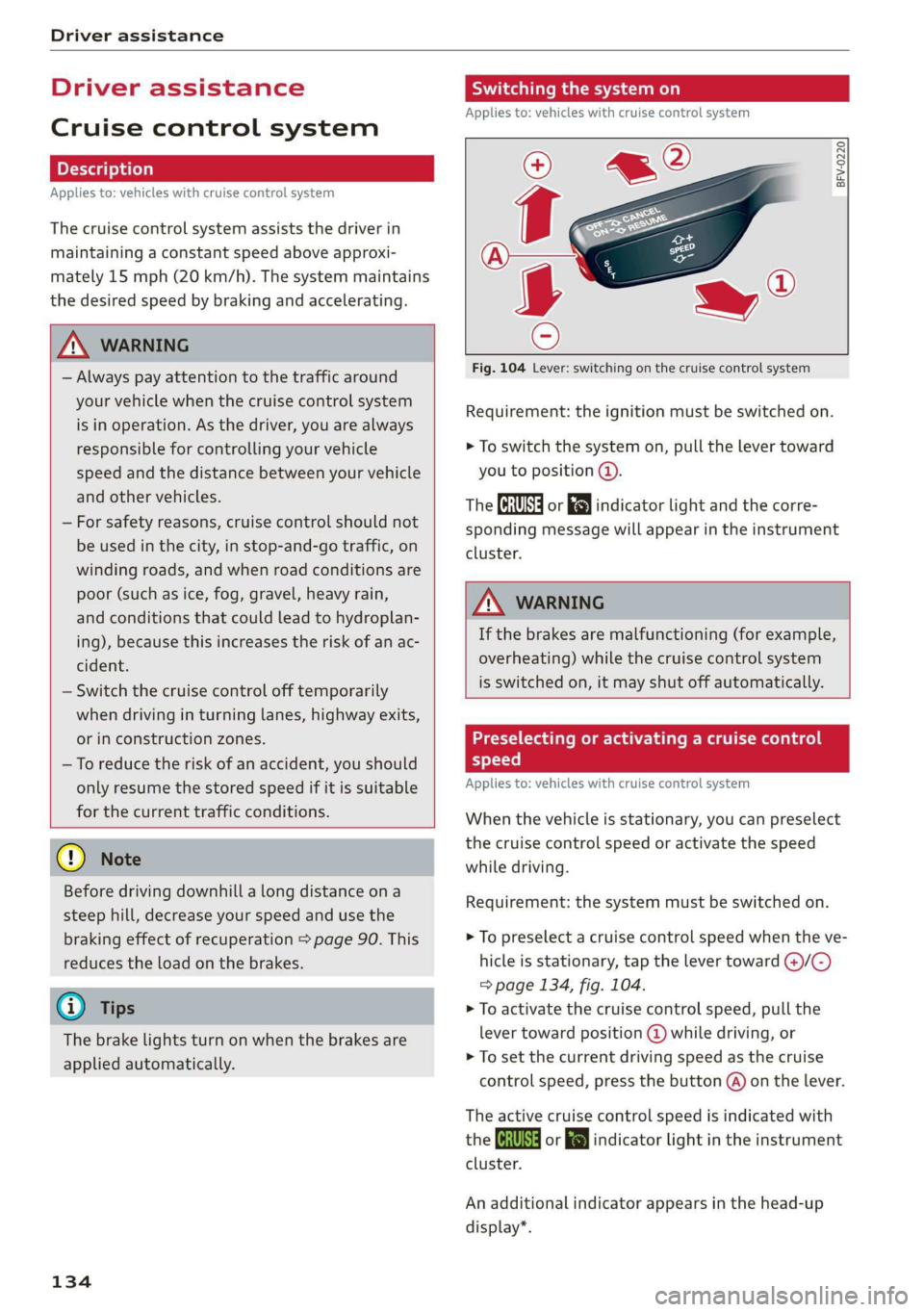
Fig. 104 Lever: switching on the cruise control system
Requirement: the ignition must be switched on.
> To switch the system on, pull the lever toward
you to position @.
The Ga or 8) indicator light and the corre-
sponding message will appear in the instrument
cluster.
A WARNING
If the brakes are malfunctioning (for example,
overheating) while the cruise control system
is switched on, it may shut off automatically.
Preselecting or activating a cruise control
speed
Applies to: vehicles with cruise control system
When the vehicle is stationary, you can preselect
the cruise control speed or activate the speed
while driving.
Requirement: the system must be switched on.
> To preselect a cruise control speed when the ve-
hicle is stationary, tap the lever toward @)/C)
=> page 134, fig. 104.
> To activate the cruise control speed, pull the
lever
toward position @ while driving, or
> To set the current driving speed as the cruise
control speed, press the button @) on the lever.
The active cruise control speed is indicated with
the Gs or kl indicator light in the instrument
cluster.
An additional indicator appears in the head-up
display*.
Page 137 of 310
4KE012721BB
Driver assistance
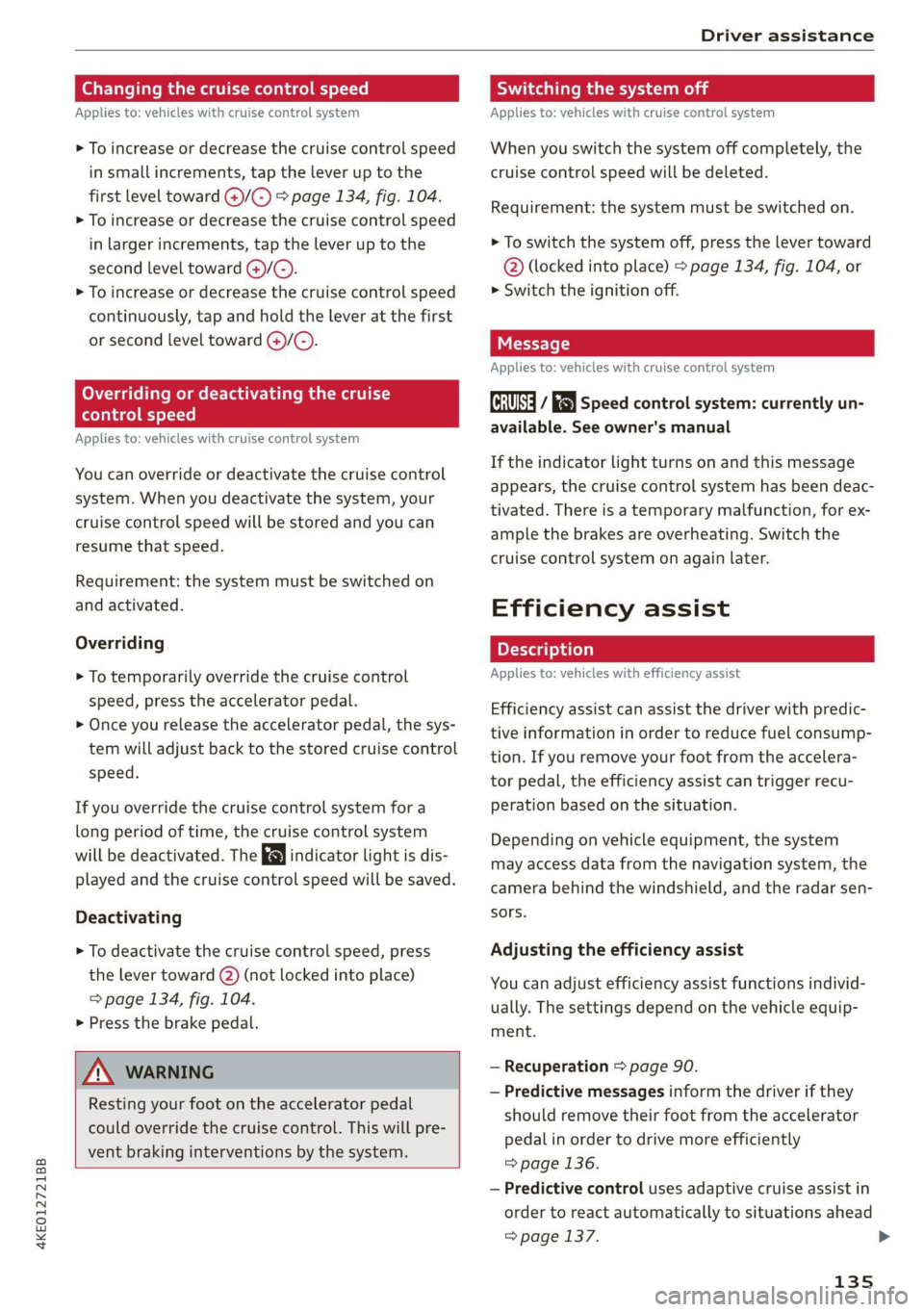
Changing the cruise control speed
Applies to: vehicles with cruise control system
> To increase or decrease the cruise control speed
in small increments, tap the lever up to the
first level toward @)/C) > page 134, fig. 104.
> To increase or decrease the cruise control speed
in larger increments, tap the lever up to the
second level toward ()/C).
> To increase or decrease the cruise control speed
continuously, tap and hold the lever at the first
or second level toward @)/G).
Overriding or deactivating the cruise
control speed
Applies to: vehicles with cruise control system
You can override or deactivate the cruise control
system. When you deactivate the system, your
cruise control speed will be stored and you can
resume that speed.
Requirement: the system must be switched on
and activated.
Overriding
> To temporarily override the cruise control
speed, press the accelerator pedal.
> Once you release the accelerator pedal, the sys-
tem will adjust back to the stored cruise control
speed.
If you override the cruise control system for a
long period of time, the cruise control system
will be deactivated. The indicator light is dis-
played and the cruise control speed will be saved.
Deactivating
> To deactivate the cruise control speed, press
the lever toward (2) (not locked into place)
=> page 134, fig. 104.
> Press the brake pedal.
Z\ WARNING
Resting your foot on the accelerator pedal
could override the cruise control. This will pre-
vent braking interventions by the system.
Seem Leal
Applies to: vehicles with cruise control system
When you switch the system off completely, the
cruise control speed will be deleted.
Requirement: the system must be switched on.
> To switch the system off, press the lever toward
@ (locked into place) > page 134, fig. 104, or
> Switch the ignition off.
Applies to: vehicles with cruise control system
Gk / 3) Speed control system: currently un-
available. See owner's manual
If the indicator light turns on and this message
appears, the cruise control system has been deac-
tivated. There is a temporary malfunction, for ex-
ample the brakes are overheating. Switch the
cruise control system on again later.
Efficiency assist
Applies to: vehicles with efficiency assist
Efficiency assist can assist the driver with predic-
tive information in order to reduce fuel consump-
tion. If you remove your foot from the accelera-
tor pedal, the efficiency assist can trigger recu-
peration based on the situation.
Depending on vehicle equipment, the system
may access data from the navigation system, the
camera behind the windshield, and the radar sen-
sors.
Adjusting the efficiency assist
You can adjust efficiency assist functions individ-
ually. The settings depend on the vehicle equip-
ment.
— Recuperation > page 90.
— Predictive messages inform the driver if they
should remove their foot from the accelerator
pedal in order to drive more efficiently
=> page 136.
— Predictive control uses adaptive cruise assist in
order to react automatically to situations ahead
=> page 137.
135
Page 138 of 310
Driver assistance
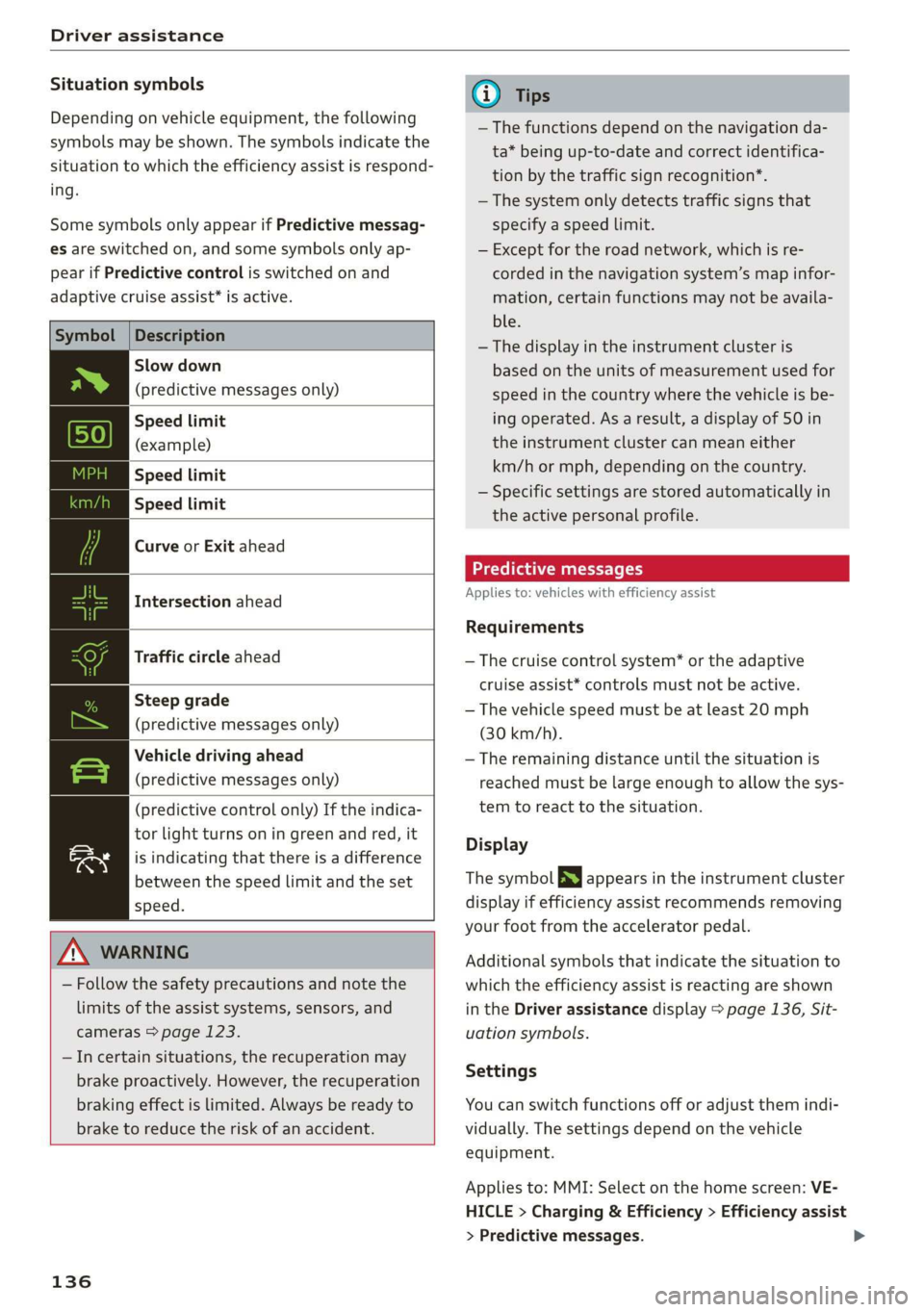
Situation symbols
Depending on vehicle equipment, the following
symbols may be shown. The symbols indicate the
situation to which the efficiency assist is respond-
ing.
Some symbols only appear if Predictive messag-
es are switched on, and some symbols only ap-
pear if Predictive control is switched on and
adaptive cruise assist* is active.
Description
Slow down
(predictive messages only)
Speed limit
(example)
Speed limit
Speed limit
Curve or Exit ahead
Intersection ahead
Traffic circle ahead
Steep grade
(predictive messages only)
Vehicle driving ahead
(predictive messages only)
(predictive control only) If the indica-
tor light turns on in green and red, it
is indicating that there is a difference
between the speed limit and the set
speed.
ZA\ WARNING
— Follow the safety precautions and note the
limits of the assist systems, sensors, and
cameras > page 123.
—Incertain situations, the recuperation may
brake proactively. However, the recuperation
braking effect is limited. Always be ready to
brake to reduce the risk of an accident.
136
G) Tips
— The functions depend on the navigation da-
ta* being up-to-date and correct identifica-
tion by the traffic sign recognition*.
— The system only detects traffic signs that
specify a speed limit.
— Except for the road network, which is re-
corded in the navigation system’s map infor-
mation, certain functions may not be availa-
ble.
— The display in the instrument cluster is
based on the units of measurement used for
speed in the country where the vehicle is be-
ing operated. As a result, a display of 50 in
the instrument cluster can mean either
km/h or mph, depending on the country.
— Specific settings are stored automatically in
the active personal profile.
Predictive messages
Applies to: vehicles with efficiency assist
Requirements
— The cruise control system* or the adaptive
cruise assist* controls must not be active.
— The vehicle speed must be at least 20 mph
(30 km/h).
— The remaining distance until the situation is
reached must be large enough to allow the sys-
tem to react to the situation.
Display
The symbol SS appears in the instrument cluster
display if efficiency assist recommends removing
your foot from the accelerator pedal.
Additional symbols that indicate the situation to
which the efficiency assist is reacting are shown
in the Driver assistance display > page 136, Sit-
uation symbols.
Settings
You can switch functions off or adjust them indi-
vidually. The settings depend on the vehicle
equipment.
Applies to: MMI: Select on the home screen: VE-
HICLE > Charging & Efficiency > Efficiency assist
> Predictive messages.
Page 140 of 310
Driver assistance
Set speed limit - Adjusts to speed limits. You can
also set With tolerance if desired. In this scenar-
io, you may fall below or exceed the set speed in
favor of increased efficiency.
Adjustment to curves along route - Can be
switched Off or be set individually from Slow to
Fast. The setting influences vehicle handling with
predictive control, for example the speed for
driving through curves.
Messages
as and a message with Adaptive cruise assist:
Predictive control is displayed when there is a
malfunction, the efficiency assist functions are
unavailable or limited.
A message that indicates the cause and possible
solution may appear with some displays. The
weather conditions may be too poor or a sensor
may be covered. Clean the area in front of the
sensors > page 124, fig. 97 and try to turn on
the systems again later.
If the malfunction remains, drive to an author-
ized Audi dealer or authorized Audi Service Facili-
ty immediately to have the malfunction correct-
ed.
along route setting to reduce the risk of an
accident.
ZA\ WARNING
— Follow the safety precautions and note the
limits of the assist systems, sensors, and
cameras > page 123.
— Pay attention to traffic and the area around
your vehicle when predictive control is
switched on. The driver is always responsible
for assessing the traffic situation.
— The system does not consider “right of way”
rules and does not respond to traffic lights,
so lack of driver attention in these situations
can increase the risk of an accident.
— The speed when driving through curves may
be different from what you as a driver would
do or may not be suitable for the weather
and road conditions. If necessary, apply the
brakes and reduce the selected speed to be
maintained in the Adjustment to curves
YD In certain countries
138
@) Tips
— Predictive control can exceed or drop below
the maximum permitted speed. The driver
is responsible for adhering to the permitted
speed limit.
— The traffic signs on the road always take pri-
ority over the display. The driver is always
responsible for adhering to the regulations
applicable in the country where the vehicle
is being operated.
— Ifa speed limit is detected, the marking @
of the set speed limit will be adjusted even
if the adaptive cruise assist is not actively
regulating.
— You may temporarily fall below or exceed
the set speed due to recuperation.
— Control by the system depends on which
adaptive cruise assist driving program is set
or on the selected Audi drive select* mode.
— After switching on the ignition and first
driving onto a freeway or similar road with-
out a speed limit, the system will regulate
the speed to 80 mph (130 km/h), Then
the system adjusts to the last speed set by
the driver.
— There is no adaptation to speed limits when
driving through highway interchanges and
when driving on or off the expressway.
— The system can fail to provide control or the
control may be faulty if the values from the
camera-based traffic sign recognition* are
incorrect or the navigation system map data
is outdated.
— When route guidance is switched on, the
system adapts to the route provided by the
navigation system. Driving without route
guidance or leaving a route can result in
faulty control.
— Specific settings are stored automatically in
the active personal profile.
Page 153 of 310
4KE012721BB
Driver assistance
ZA\ WARNING
Follow the safety precautions and note the
limits of the assist systems, sensors, and
cameras > page 123.
Audi pre sense front
Applies to: vehicles with Audi pre sense front
The Audi pre sense front uses the data from the
camera and calculates the probability of a rear-
end collision. Within the limits of the system, an
impending frontal impact with vehicles, pedes-
trians), or cyclists!) may be detected in both ur-
ban and rural speed ranges.
Audi pre sense front is active at speeds of approx-
imately 6 mph (10 km/h) and higher. It can react
to pedestrians” or cyclists) at speeds up to ap-
proximately 50 mph (85 km/h), and can react to
vehicles at speeds up to approximately 155 mph
(250 km/h).
Early warning/acute warning
The system can recognize various dangerous sit-
uations. The early warning occurs if:
—Avehicle driving ahead brakes suddenly
— Your own vehicle approaches a vehicle in front
of you that is traveling at a significantly slower
speed or that is stationary
—A pedestrian or cyclist!) is standing in the lane
or is moving into the lane
The message Audi pre sense [and a warning
tone will warn you about the danger.
The brakes may also be applied as an acute warn-
ing when there is an impending collision. You will
also be warned by an indicator in the instrument
cluster display. When this warning occurs, it may
only be possible to avoid a collision by swerving
or braking strongly.
Automatic deceleration
If you do not react to the acute warning, Audi pre
sense front can brake the vehicle to a full stop
within the limits of the system ). This reduces
the vehicle speed in the event of a collision.
D_ This is not available in some countries.
Automatic braking force increase
If Audi pre sense determines that you are not
braking strongly enough when a collision is immi-
nent, it can increase the braking force based on
the
situation.
Take-over
If the message Go Please take over! appears, the
vehicle has been braked to a stop by Audi pre
sense and you must resume control of the vehi-
cle.
Z\ WARNING
— Follow the safety precautions and note the
limits of the assist systems, sensors, and
cameras > page 123.
— Audi pre sense front cannot overcome natu-
ral physical laws. It is a system designed to
assist and it cannot prevent a collision in ev-
ery circumstance. The driver must always in-
tervene. The driver is always responsible for
braking at the correct time. Do not let the
increased safety provided tempt you into
taking risks. This could increase your risk of
a collision.
— Audi pre sense front does not react to cer-
tain objects, such as animals, crossing or on-
coming vehicles, bars, railings, or railcars.
— Audi pre sense front may be limited or un-
available when driving in curves.
—In trailer mode, the braking behavior of the
trailer can be different than usual during au-
tomatic braking.
G@) Tips
Keep in mind that Audi pre sense front can ap-
ply the brakes unexpectedly. Always secure
any cargo or objects that you are transporting
to reduce the risk of damage or injury.
Audi pre sense rear
Applies to: vehicles with Audi pre sense rear
Within the limits of the system, Audi pre sense
rear uses data from radar sensors in the rear area >
151
Page 172 of 310
Telephone
Setup
Connecting a mobile device to the MMI
Applies to: vehicles with telephone
Requirement
The vehicle must be stationary and the ignition
must be switched on.
The Bluetooth settings must be open on your
mobile device during the connection setup.
The Bluetooth function and visibility of the MMI
= page 233 and mobile device must be switched
on.
The mobile device that will be connected must
not be connected to any other Bluetooth device.
The MMI must only be connected to one mobile
device.
Connecting a cell phone using Bluetooth
> Select PHONE on the home screen.
> Follow the system instructions. The available
Bluetooth devices will be displayed after sever-
al seconds.
> Press on the desired mobile device in the list of
displayed Bluetooth devices.
> To update the list, press O.
> A PIN for a secure Bluetooth connection will be
generated.
> Confirm the PIN on your mobile device, or
> Enter the PIN for connecting on your cell
phone. The time allowed for entering the PIN is
limited to approximately 30 seconds.
> If necessary, enter your SIM card PIN in the
MMI.
> Pay attention to any additional system prompts
displayed on your mobile device or the MMI, for
example if the system should connect automat-
ically in the future. Depending on the mobile
device, you may also need to download con-
tacts and confirm access to your messages sep-
arately.
Connecting a mobile device via USB
> Select PHONE on the home screen.
> Follow the system instructions.
170
After connecting successfully
After connecting successfully, information about
the connected profiles will appear. You can also
change the profiles later > page 233.
In addition, the mobile device contacts will be
automatically loaded into the MMI. This process
can take several minutes, depending on the num-
ber of contacts.
You can also access the telephone functions in
the instrument cluster > page 182.
@) Note
Always follow the information found in
=> page 184.
(i) Tips
— You can apply additional settings to con-
nected mobile devices under Connected de-
vices > page 232.
— You can also search for the MMI on your mo-
bile device using the Bluetooth device
search.
— You only have to pair your device one time.
Bluetooth devices that are already paired
automatically connect to the MMI when the
Bluetooth function is switched on, when
they are within range, and when the ignition
is switched on. The last connected mobile
device is given first priority.
— Authorizing the MMI connection on your
mobile device will make it possible to con-
nect automatically.
— Pay attention to any system prompts dis-
played on your mobile device or the MMI,
for example if the system should connect
automatically in the future. Depending on
the mobile device, you may also need to
download contacts and confirm access to
your messages separately.
— You will receive the PIN (SIM) and the PUK
(Personal Unlocking Key) along with the SIM
card from your cell phone service provider.
If you enter a PIN (SIM) incorrectly three >
Page 174 of 310
Telephone
— Audi phone box with holder: open the Audi
phone box holder @). Position the mobile de-
vice so that the back of it is facing the @ symbol
@ between the Audi phone box and the holder.
Depending on the vehicle equipment, you may
then be able to use the following functions:
— Connect to the exterior vehicle antenna?)
— Wirelessly* charge the mobile device. Require-
ment: the ignition must be switched on. The
charging function must be switched on in the
MMI. You must have a Qi-capable2) mobile de-
vice.
You can also charge a mobile device using the
USB adapter: connect your mobile device to the
Audi music interface using a USB adapter cable
@ > page 220. You can charge your mobile de-
vice using specific USB adapters > page 220.
Reminder signal
When the device reminder signal is switched on,
you will be notified that your mobile device is still
in the Audi phone box when you leave the vehicle.
Requirement:
—A Qi-capable?) mobile device must be in the Au-
di phone box, or
— Your mobile device must be connected to the
Audi music interface by a USB adapter, and the
Audi smartphone interface must be active, or
— Your iPhone® must be connected to the MMI
via Bluetooth® > page 170 and must be charg-
ing through the Audi music interface using a
USB adapter.
Applies to: MMI: Select on the home screen: SET-
TINGS > General > Mobile device reminder sig-
nal.
The following settings are available:
— Signal tone
— Spoken cue”: this setting is switched on at the
factory.
— Off
Not available in every market. These are additional car
phone functions only in conjunction with Audi connect In-
fotainment*.
2) The Qi standard makes it possible to charge your mobile
device wirelessly.
172
— Show pop-ups*: when this function is switched
on, the charge status of your mobile device is
displayed. You will also be reminded not to for-
get your mobile device when leaving the vehi-
cle.
— Wireless charging*: when this function is
switched on, you can charge your Qi-capable
mobile device wirelessly in the Audi phone box.
ZA WARNING
— Loose objects can be thrown around the ve-
hicle interior during sudden driving or brak-
ing maneuvers, which increases the risk of
an accident. Store objects securely while
driving.
— The mobile device may become hot during
wireless charging. Pay attention to the tem-
perature of your mobile device and be care-
ful when removing it from the Audi phone
box.
— An alternating magnetic field is used for
wireless charging. Maintain a minimum dis-
tance of approximately 2.4 in (6 cm) to the
Audi phone box charging plate. The thresh-
olds for prolonged exposure at this distance
comply with ICNIRP1998. Therefore, inter-
actions such as irritation of sensory organs,
malfunctions of active implants (such as
pacemakers, infusion pumps, or neurosti-
mulators) or effects on passive implants
(such as prosthetic limbs) is highly unlikely.
If you have an implant, consult a medical
specialist if you have any questions. You can
also switch the function for wireless charg-
ing in the front* Audi phone box on and off
separately. You can continue to charge your
mobile device using a cable connection.