warning light AUDI E-TRON 2019 Service Manual
[x] Cancel search | Manufacturer: AUDI, Model Year: 2019, Model line: E-TRON, Model: AUDI E-TRON 2019Pages: 310, PDF Size: 81.91 MB
Page 125 of 310
4KE012721BB
Assist systems
Assist systems
General information
Sica eel delay
ZA WARNING
— As the driver, you are always completely re-
sponsible for all driving tasks. The assist
systems cannot replace the driver's atten-
tion. Give your full attention to driving the
vehicle, and be ready to intervene in the
traffic situation at all times.
— Activate the assist systems only if the sur-
rounding conditions permit it. Always adapt
your driving style to the current visual,
weather, road, and traffic conditions.
— Unexpected steering or braking interven-
tions may be initiated by the assist systems.
Note the information on storing luggage
items correctly > page 77.
— For the assist systems to be able to react
correctly, the function of the sensors and
cameras must not be restricted. Note the in-
formation on sensors and cameras
=>page 124 or > page 125.
G) Tips
— Pay attention to applicable local regulations
relating to driving tasks, leaving space for
emergency vehicles, vehicle distance, speed,
parking location, wheel placement, etc. The
driver is always responsible for following
the laws that are applicable in the location
where the vehicle is being operated.
— You can cancel a steering or braking inter-
vention by the system by braking or acceler-
ating noticeably, steering, or deactivating
the respective assist system.
— Always check the assist systems settings be-
fore driving. The settings could have been
changed, for example, by other drivers or if
another personal profile was used.
System limitations
ZA\ WARNING
—The use of an assist system cannot over-
come the natural laws of physics. A collision
cannot be prevented in certain circumstan-
ces.
— Warnings, messages, or indicator lights may
not be displayed or initiated on time or cor-
rectly, for example, if vehicles are approach-
ing very fast.
— Corrective interventions by the assist sys-
tems, such as steering or braking interven-
tions, may not be sufficient or they may not
occur. Always be ready to intervene.
@) Tips
— Due to the system limitations when detect-
ing the surrounding area, the systems may
warn or intervene unexpectedly or too late
in certain situations. The assist systems may
also interpret a driving maneuver incorrectly
and then warn the driver unexpectedly.
— The systems may not function as expected
in unusual driving situations, such as driving
offroad, on unpaved roads, on loose ground,
on inclines, or on grooves in the road.
— The systems may not function correctly in
unclear traffic situations, such as turning
lanes, exit ramps, construction zones, rises
or dips that obstruct visibility, intersections,
toll stations, or city traffic.
—In trailer mode, some assist systems may be
limited, may not react as usual, or may be
unavailable. Please refer to the instructions
for towing a trailer located in > page 120.
— If accessories have been mounted on the
steering wheel, the ability for the steering
systems to react may be limited.
123
Page 126 of 310
Assist systems
Surrounding area
detection
Sensor overview
RAZ-06T1
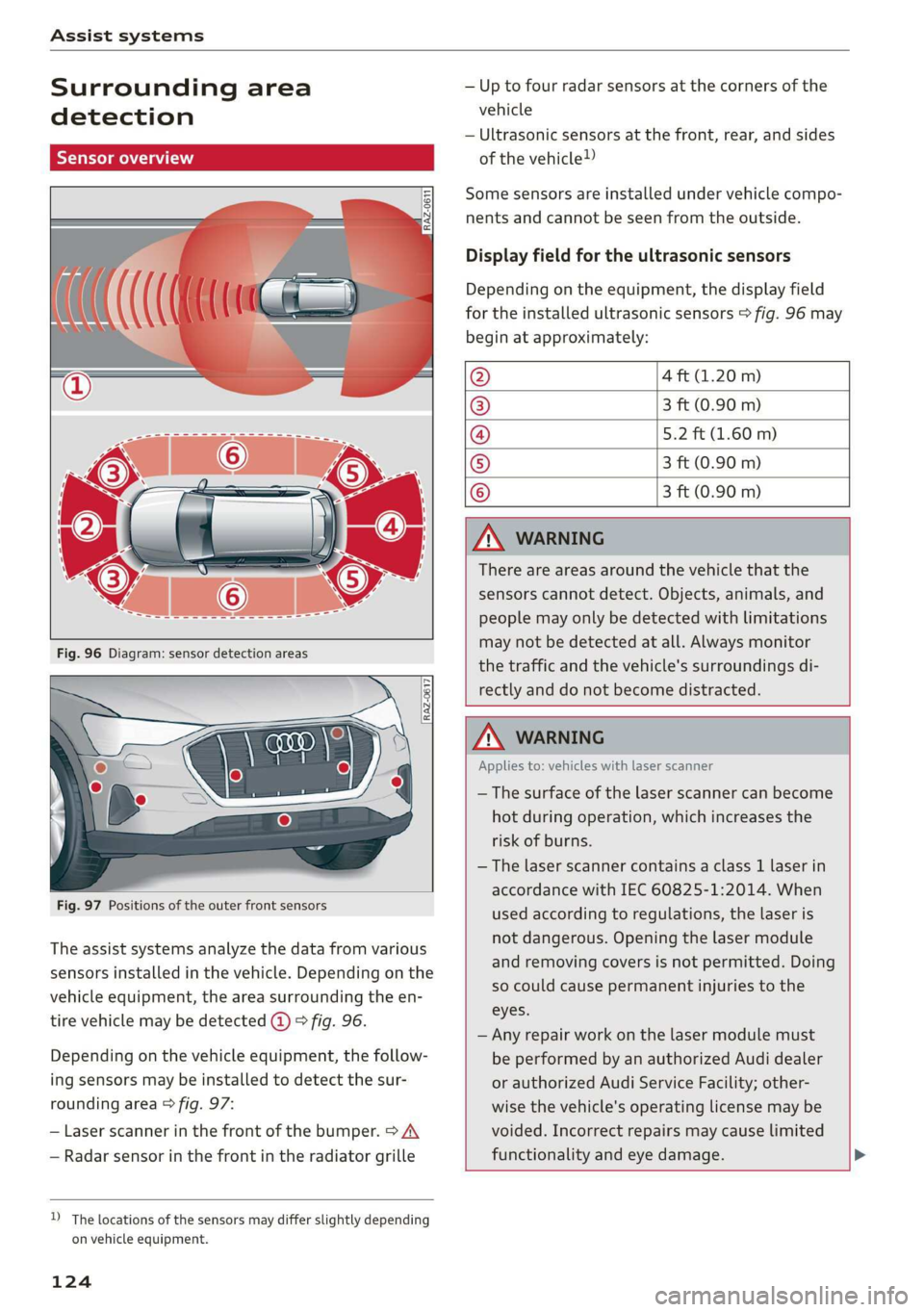
Fig. 97 Positions of the outer front sensors
The assist systems analyze the data from various
sensors installed in the vehicle. Depending on the
vehicle equipment, the area surrounding the en-
tire vehicle may be detected @ 9 fig. 96.
Depending on the vehicle equipment, the follow-
ing sensors may be installed to detect the sur-
rounding area > fig. 97:
— Laser scanner in the front of the bumper. > A\
— Radar sensor in the front in the radiator grille
D_ The locations of the sensors may differ slightly depending
on vehicle equipment.
124
— Up to four radar sensors at the corners of the
vehicle
— Ultrasonic sensors at the front, rear, and sides
of the vehicle!)
Some sensors are installed under vehicle compo-
nents and cannot be seen from the outside.
Display field for the ultrasonic sensors
Depending on the equipment, the display field
for the installed ultrasonic sensors > fig. 96 may
begin at approximately:
@ 4 ft (1.20 m)
® 3 ft (0.90 m)
@ 5.2 ft (1.60 m)
® 3 ft (0.90 m)
© 3 ft (0.90 m)
ZA\ WARNING
There are areas around the vehicle that the
sensors cannot detect. Objects, animals, and
people may only be detected with limitations
may not be detected at all. Always monitor
the traffic and the vehicle's surroundings di-
rectly and do not become distracted.
ZA WARNING
Applies to: vehicles with laser scanner
— The surface of the laser scanner can become
hot during operation, which increases the
risk of burns.
— The laser scanner contains a class 1 laser in
accordance with IEC 60825-1:2014. When
used according to regulations, the laser is
not dangerous. Opening the laser module
and removing covers is not permitted. Doing
so could cause permanent injuries to the
eyes.
— Any repair work on the laser module must
be performed by an authorized Audi dealer
or authorized Audi Service Facility; other-
wise the vehicle's operating license may be
voided. Incorrect repairs may cause limited
functionality and eye damage.
Page 128 of 310
Assist systems
@ Peripheral camera and night vision camera in
the radiator grille
The rearview camera can only detect the area
marked in red > fig. 99. Only this area is dis-
played on the upper display. > A\.
Z\ WARNING
There are areas that the cameras cannot de-
tect. Objects, animals, and people may only
be detected with limitations may not be de-
tected at all. Always monitor the traffic and
the vehicle's surroundings directly and do not
become distracted.
® Note
— Obstacles may disappear from the detection
area when approaching them, even if they
were already detected. Under certain cir-
cumstances, the detection and display of
certain surfaces and objects may be limited:
— Items and objects above the coverage
area, for example cars parked bumper-to-
bumper, half-open garage doors, or hang-
ing objects that do not touch the ground
— Low obstacles
—Thin or narrow objects, such as barrier
chains, foliage, poles or fences
— Projecting objects, such as trailer draw
bars
— Objects with certain surfaces and struc-
tures, such as fabric
@® Tips
— The coverage areas of the cameras > fig. 98
and > fig. 99 are diagrams and do not repre-
sent a true-to-scale image of the camera
coverage areas.
— Make sure all the cameras are clean, free of
snow and ice, and are not covered by stick-
ers, deposits or any other obstructions, be-
cause this may impair the function of the
systems. Follow the information about
cleaning > page 263.
— The camera can shift from an accident, man-
ual force, impacts, or from damage to the
radiator grill, bumper, wheel housing or un-
derbody. Have an authorized Audi dealer or
126
authorized Audi Service Facility check their
function.
—The function of the cameras may be limited
when light and visibility conditions are poor,
for example when driving into a tunnel,
when there is glare, or when there are re-
flective objects.
— Use the image on the display to assist you
only if it shows a good, clear picture. For ex-
ample, the image may be affected by the
sun shining into the lens, by dirt on the
lens, or if there is a malfunction.
— The camera view on the display portrays an
enlarged and distorted image. Under cer-
tain circumstances, objects may appear dif-
ferent and unclear on the display.
Switching the systems
on and off
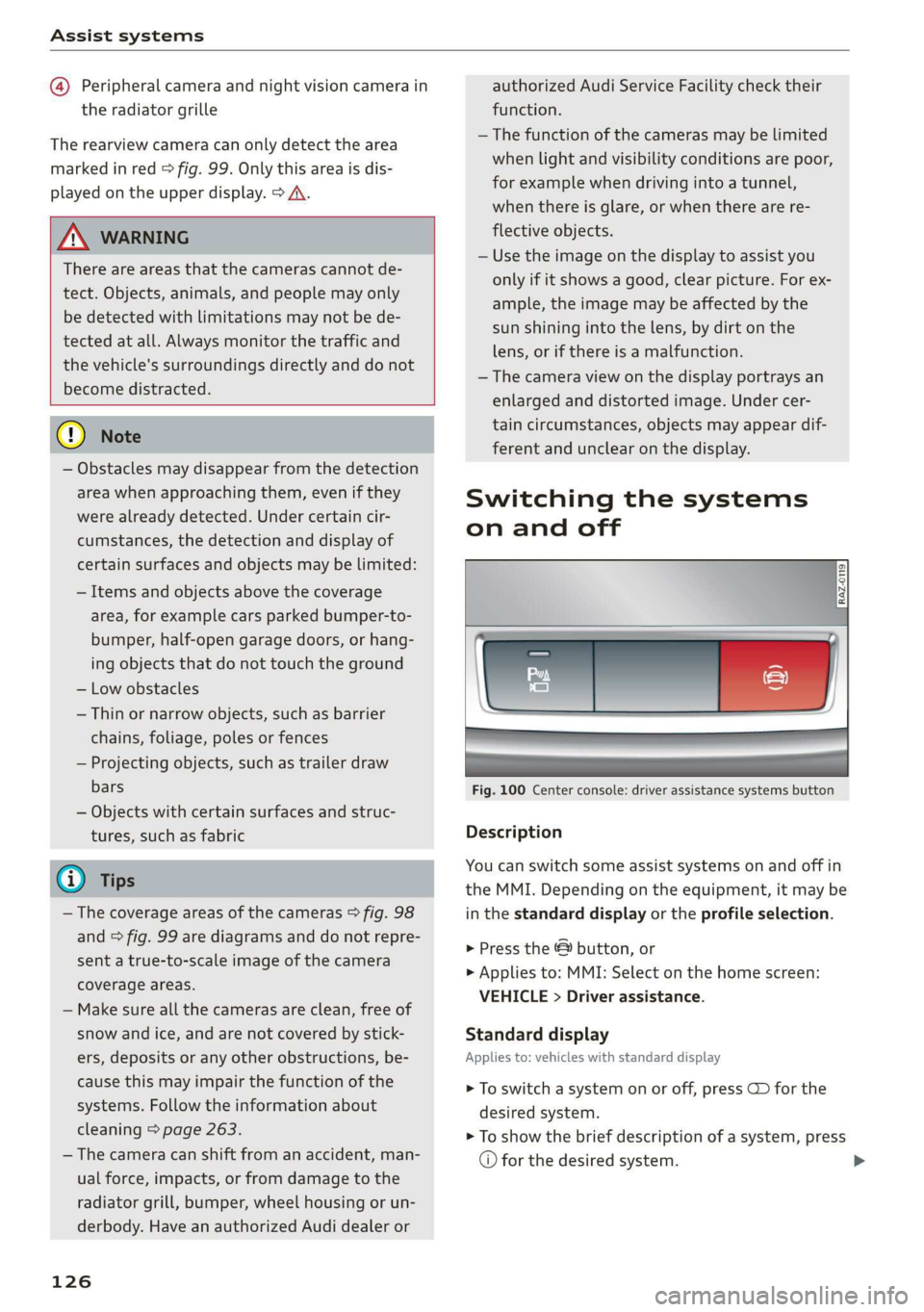
Fig. 100 Center console: driver assistance systems button
Description
You can switch some assist systems on and off in
the MMI. Depending on the equipment, it may be
in the standard display or the profile selection.
> Press the & button, or
> Applies to: MMI: Select on the home screen:
VEHICLE > Driver assistance.
Standard display
Applies to: vehicles with standard display
> To switch a system on or off, press CD for the
desired system.
> To show the brief description of a system, press
© for the desired system.
Page 130 of 310
Driving information
Driving information
Speed warning system
Applies to: vehicles with speed warning system
The speed warning system helps the driver to
stay below a specified maximum speed. A warn-
ing threshold can be set in the MMI for this pur-
pose.
Once the speed slightly exceeds the stored
threshold, the speed warning system will alert
the driver with an indicator in the instrument
cluster and a warning tone. Once the speed drops
below the stored maximum speed, the indicator
will turn off.
Setting a threshold is recommended if you would
like to be reminded when you reach a certain
maximum speed. Situations where you may want
to do so include driving in a country with a gener-
al speed limit or if there is a specified maximum
speed for winter tires.
@ Tips
Regardless of the speed warning system, you
should always monitor your speed using the
speedometer and make sure you are following
the legal speed limit.
Setting the warning threshold
Applies to: vehicles with speed warning system
> Applies to: MMI: Select on the home screen:
VEHICLE > Driver assistance > (<2) > Speed
warning.
@) Tips
Specific settings are stored automatically in
the active personal profile.
Py E NY
Applies to: vehicles with speed warning system
A display appears in the instrument cluster if the
stored speed is exceeded
by Manually set XX speed limit warning
threshold exceeded
128
Camera-based traffic
sign recognition
Applies to: vehicles with camera-based traffic sign recognition
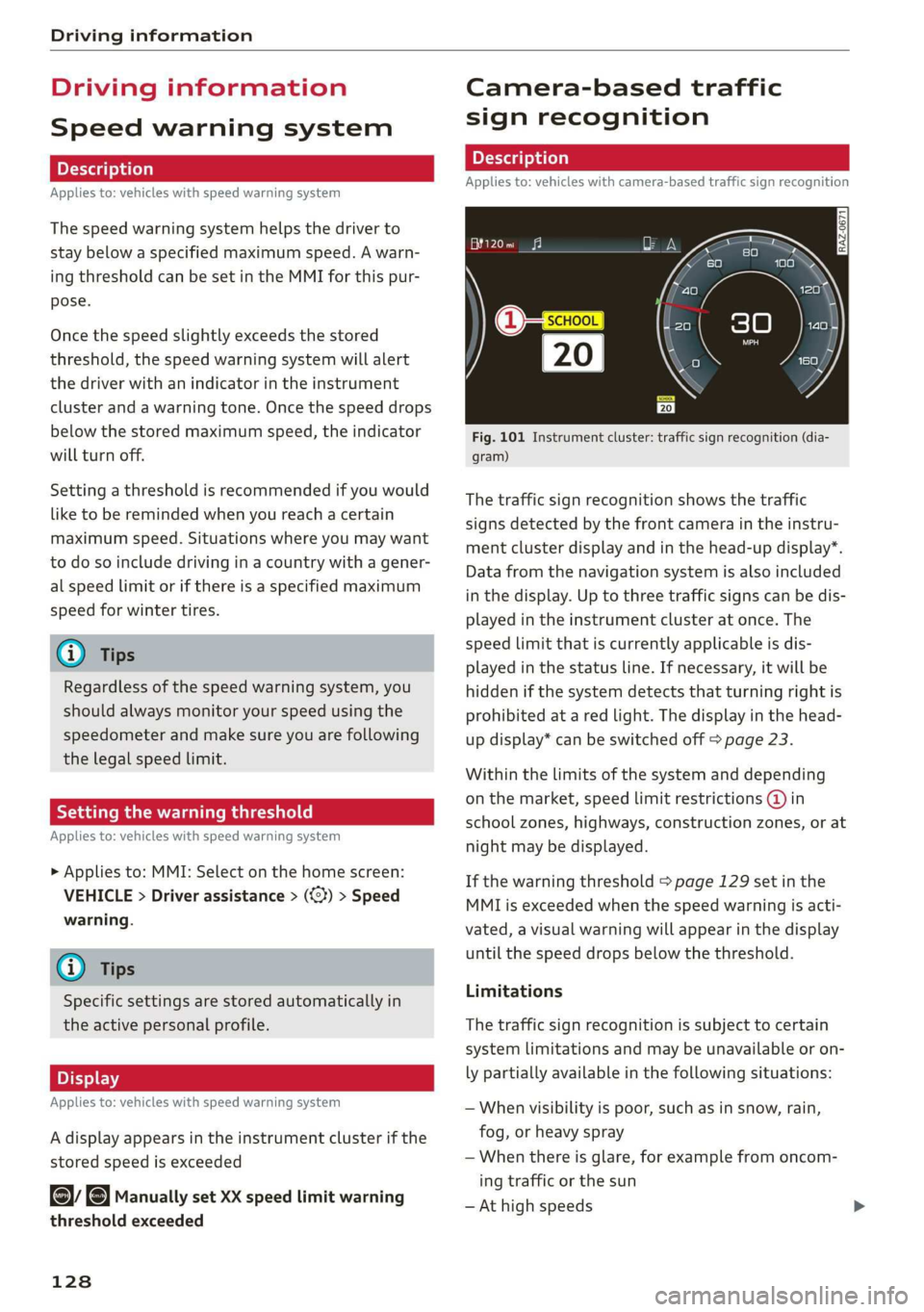
Fig. 101 Instrument cluster: traffic sign recognition (dia-
gram)
The traffic sign recognition shows the traffic
signs detected by the front camera in the instru-
ment cluster display and in the head-up display”.
Data from the navigation system is also included
in the display. Up to three traffic signs can be dis-
played in the instrument cluster at once. The
speed limit that is currently applicable is dis-
played in the status line. If necessary, it will be
hidden if the system detects that turning right is
prohibited at a red light. The display in the head-
up display* can be switched off > page 23.
Within the limits of the system and depending
on the market, speed limit restrictions @ in
school zones, highways, construction zones, or at
night may be displayed.
If the warning threshold > page 129 set in the
MMI is exceeded when the speed warning is acti-
vated, a visual warning will appear in the display
until the speed drops below the threshold.
Limitations
The traffic sign recognition is subject to certain
system limitations and may be unavailable or on-
ly partially available in the following situations:
— When visibility is poor, such as in snow, rain,
fog, or heavy spray
— When there is glare, for example from oncom-
ing traffic or the sun
— At high speeds
Page 131 of 310
4KE012721BB
Driving information
— If the camera's visual field > page 124 is cov-
ered, for example by dirt or stickers. Cleaning
information > page 263
— If the traffic signs are completely or partially
covered, for example by trees, snow, dirt, or
other vehicles
— If traffic signs do not conform to the standard
format
— If traffic signs are damaged or bent
— If traffic signs are displayed on sign holders
with electronic signs
— If the traffic signs or the roadways have
changed, and the navigation data is no longer
up-to-date
ZA\ WARNING
— Follow the safety precautions and respect
the limits of the assist systems, sensors,
and cameras > page 123.
— Under some circumstances, traffic sign rec-
ognition may not detect traffic signs correct-
ly or detect them at all. As a result, the sys-
tem may not display the correct speed limit
or any speed limit.
@ Tips
— Traffic sign recognition does not adapt your
vehicle's speed to match the speed limit.
— The display in the instrument cluster is
based on the units of measurement used for
speed in the country where the vehicle is be-
ing operated. As a result, a display of 50 in
the instrument cluster can mean either mph
or km/h, depending on the country.
Applies to: vehicles with camera-based traffic sign recognition
Accessing traffic sign recognition
> Select in the instrument cluster: vehicle func-
tions tab > Traffic signs.
Setting a traffic sign based speed warning
> Applies to: MMI: Select on the home screen:
VEHICLE > Driver assistance > (<3) > Speed
warning.
You can select a warning threshold. If exceeded,
the currently detected speed limit will be dis-
played with an exclamation point and it will flash
briefly.
@ Tips
Specific settings are stored automatically in
the active personal profile.
Messages
Applies to: vehicles with camera-based traffic sign recognition
Traffic sign recognition: currently unavaila-
ble. Camera view limited due to surroundings
The camera’s visual field is covered. Clean the
windshield.
Traffic sign recognition: currently limited.
See owner's manual
This message appears if navigation system data
is not available, for example on newly-construct-
ed roads. The speed limit display will be tempo-
rarily limited, which increases the risk of an incor-
rect display. If this message continues to appear,
drive immediately to an authorized Audi dealer or
authorized Audi Service Facility to have the mal-
function repaired.
No traffic sign information available
Depending on the area, there is no valid naviga-
tion data and no speed limits were detected. This
may also appear if there is a recommended
speed, but no speed limit (for example when
driving on and off the expressway).
Malfunction! See owner's manual
The system may not function correctly so it has
been switched off. See an authorized Audi dealer
or authorized Audi Service Facility for assistance.
Function currently unavailable. See owner's
manual
If this message appears on vehicles without cam-
era-based traffic sign recognition, then the traffic
light
information function is currently unavaila-
ble. Refer to > page 131.
129
Page 132 of 310
Driving information
Traffic light information
Applies to: vehicles with traffic light information
iS
S| >|
| ce|
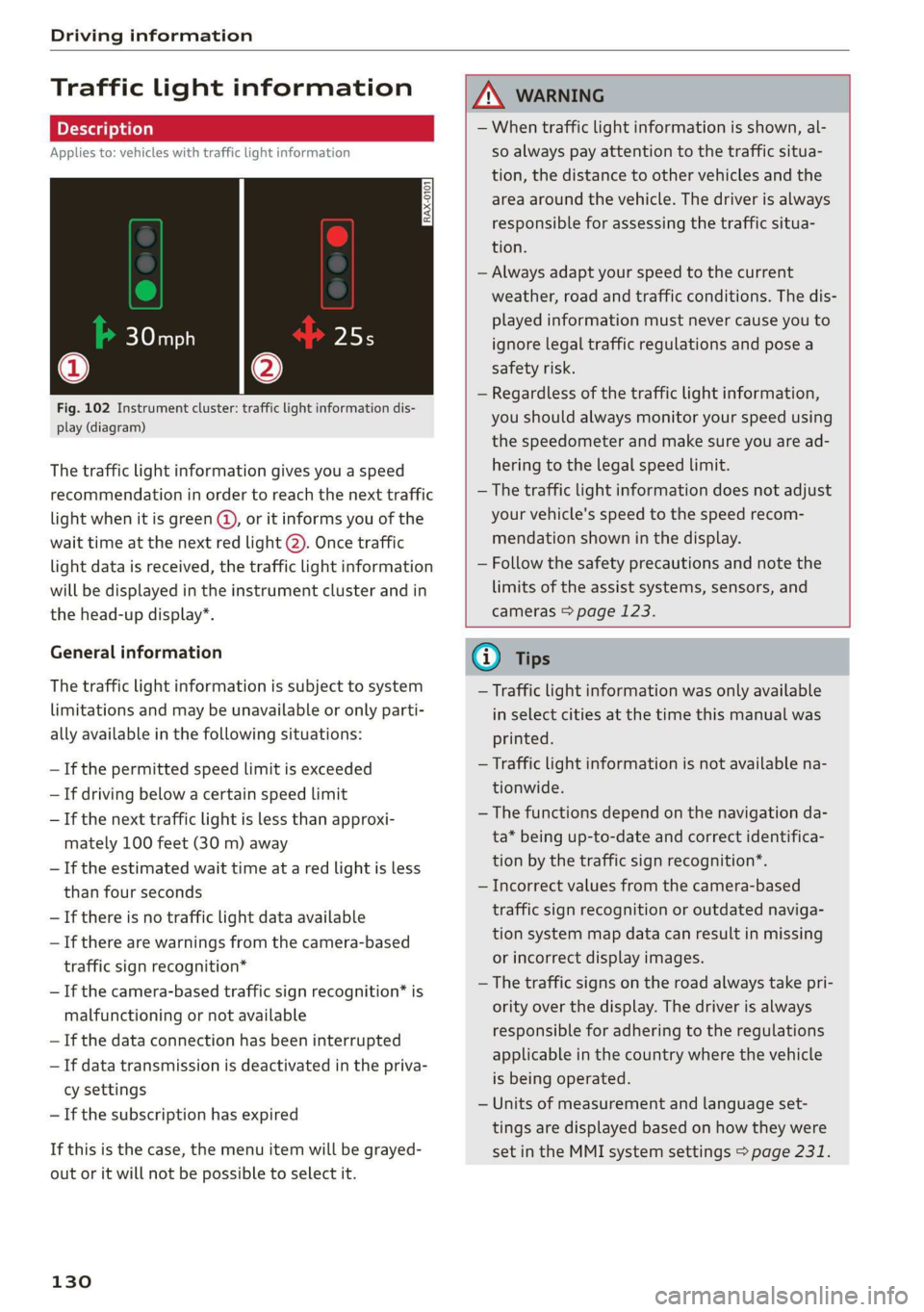
Fig. 102 Instrument cluster: traffic light information dis-
play (diagram)
The traffic light information gives you a speed
recommendation in order to reach the next traffic
light when it is green @, or it informs you of the
wait time at the next red light @). Once traffic
light data is received, the traffic light information
will be displayed in the instrument cluster and in
the head-up display*.
General information
The traffic light information is subject to system
limitations and may be unavailable or only parti-
ally available in the following situations:
— If the permitted speed limit is exceeded
— If driving below a certain speed limit
— If the next traffic light is less than approxi-
mately 100 feet (30 m) away
— If the estimated wait time at a red light is less
than four seconds
—If there is no traffic light data available
— If there are warnings from the camera-based
traffic sign recognition*
— If the camera-based traffic sign recognition* is
malfunctioning or not available
— If the data connection has been interrupted
— If data transmission is deactivated in the priva-
cy settings
— If the subscription has expired
If this is the case, the menu item will be grayed-
out or it will not be possible to select it.
130
ZA\ WARNING
— When traffic light information is shown, al-
so always pay attention to the traffic situa-
tion, the distance to other vehicles and the
area around the vehicle. The driver is always
responsible for assessing the traffic situa-
tion.
— Always adapt your speed to the current
weather, road and traffic conditions. The dis-
played information must never cause you to
ignore legal traffic regulations and pose a
safety risk.
— Regardless of the traffic light information,
you should always monitor your speed using
the speedometer and make sure you are ad-
hering to the legal speed limit.
— The traffic light information does not adjust
your vehicle's speed to the speed recom-
mendation shown in the display.
— Follow the safety precautions and note the
limits of the assist systems, sensors, and
cameras > page 123.
@) Tips
— Traffic light information was only available
in select cities at the time this manual was
printed.
— Traffic light information is not available na-
tionwide.
— The functions depend on the navigation da-
ta* being up-to-date and correct identifica-
tion by the traffic sign recognition*.
— Incorrect values from the camera-based
traffic sign recognition or outdated naviga-
tion system map data can result in missing
or incorrect display images.
— The traffic signs on the road always take pri-
ority over the display. The driver is always
responsible for adhering to the regulations
applicable in the country where the vehicle
is being operated.
— Units of measurement and language set-
tings are displayed based on how they were
set in the MMI system settings > page 231.
Page 133 of 310
4KE012721BB
Driving information
Applies to: vehicles with traffic light information
Switching traffic light information on and
off
The system can be switched on and off in the
MMI & page 126.
Accessing traffic light information
> Select in the instrument cluster: vehicle func-
tions tab > Traffic signs.
G) Tips
If another tab or another function is selected
in the instrument cluster, the traffic light in-
formation will appear in the Audi virtual cock-
pit* status bar or in the analog instrument
cluster.
Werle
Applies to: vehicles with traffic light information
Malfunction! See owner's manual
The system could not be configured, for example
due to a network malfunction. Restart the sys-
tem.
Function currently unavailable. See owner's
manual
There is a temporary system malfunction. Check
if one or more of the following situations applies
and correct the issue if necessary:
— Traffic light information is switched off
— Data transmission is deactivated
— Vehicle does not have traffic sign recognition
— There is no valid license
— Traffic light information is not available in that
area
Night vision assist
Applies to: vehicles with night vision assist
Night vision assist helps you when it is dark by
using an infrared camera to monitor the area in
front of your vehicle, within the limits of the sys-
tem. It can display objects up to a distance of ap-
proximately 1000 feet (300 m).
Pedestrian and wild animals are detected by
measuring the temperature difference between
the object and the background. Pedestrians and
wild animals will not be detected if the tempera-
ture difference is too small. The pedestrian and
wild animal marking feature is deactivated at
temperatures above approximately 77 °F (25 °C)
and when it is light outside.
The thermal image detected by the camera is dis-
played in the instrument cluster. Warm areas
generally appear lighter and cold areas appear
darker.
The camera for the night vision assist @)
=> page 125, fig. 98 is located in the vehicle's ra-
diator grille. Make sure the night vision camera is
not covered by stickers, deposits, or any other ob-
structions because this can impair the night vi-
sion assist function. Follow the information
about cleaning > page 263.
ZA\ WARNING
— Follow the safety precautions and note the
limits of the assist systems, sensors, and
cameras > page 123.
— Night vision assist can only detect pedes-
trians and wild animals located within the
range of the infrared camera.
— Night vision assist cannot detect pedes-
trians or wild animals and mark them if:
— They are not in an upright position, for ex-
ample if they are sitting or lying down
and/or
— The silhouette in the display appears in-
complete or interrupted, for example be-
cause the pedestrian is partially behind a
vehicle or an animal is partially covered by
tall grass.
— Never attempt to swerve around animals if
doing so would endanger you or other road
users.
(i) Tips
— Even though the system evaluates the
shape and heat given off by all detected
131
Page 134 of 310
Driving information
objects, there are limits to the system.
There may be false warnings.
— For technical reasons, the image pauses in
split second intervals.
Wiser mea ile Kel ai
Applies to: vehicles with night vision assist
The system can be switched on and off in the
MMI > page 126.
> The AUTO light function must be selected for
the night vision assist to automatically activate
when it is dark.
> Switch on the low beams manually to activate
night
vision assist immediately. To do so,
press @) on the light switch module and select
Ww
When activated, the {1 tab appears in the instru-
ment cluster.
> Select in the instrument cluster: tab %
@ Tips
When the night vision assist tab is selected in
the instrument cluster and the low beams are
switched off, the thermal image display dis-
appears only after you have exited the tab.
Marking and warning
Applies to: vehicles with night vision assist
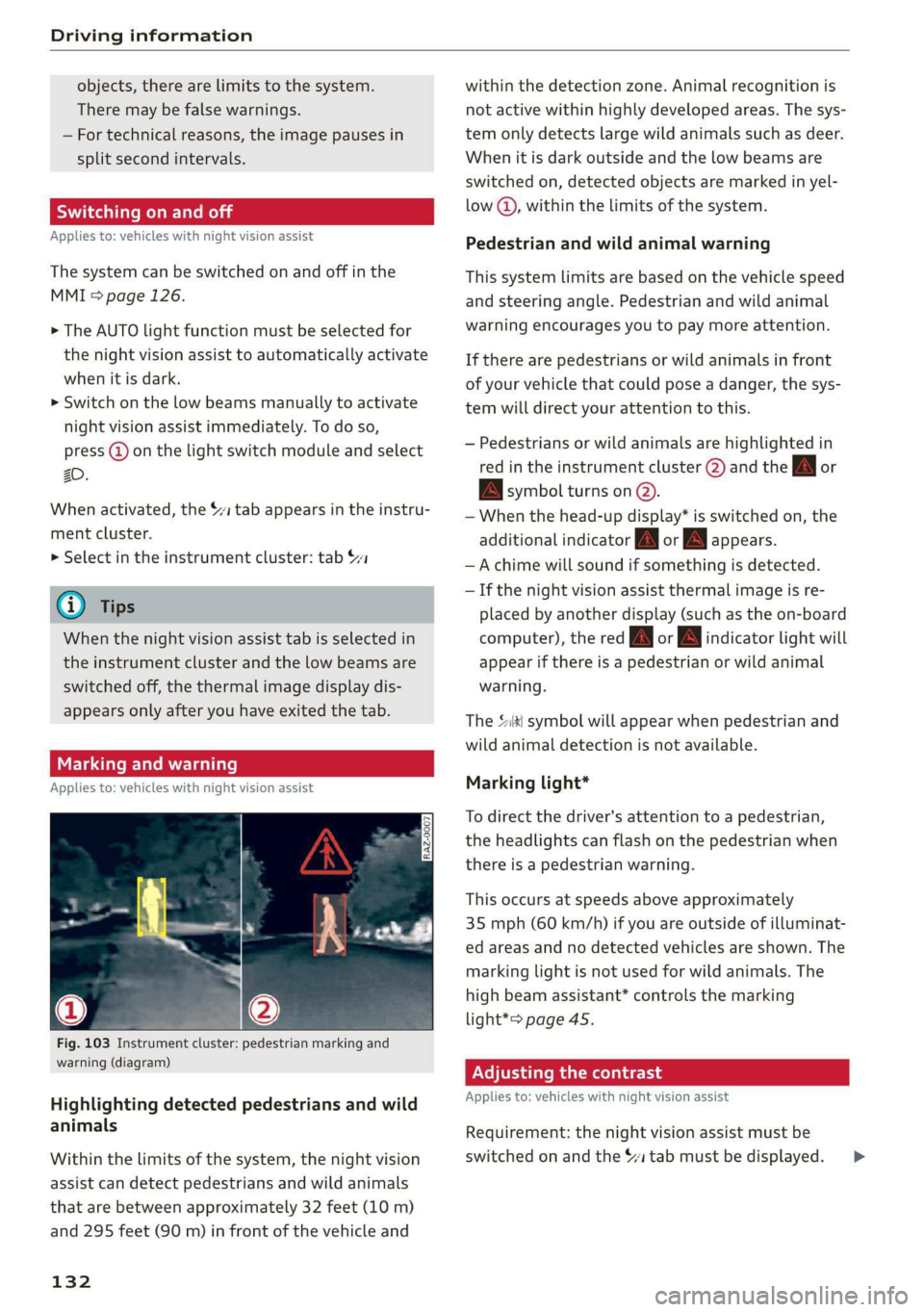
Fig. 103 Instrument cluster: pedestrian marking and
warning (diagram)
Highlighting detected pedestrians and wild
animals
Within the limits of the system, the night vision
assist can detect pedestrians and wild animals
that are between approximately 32 feet (10 m)
and 295 feet (90 m) in front of the vehicle and
132
within the detection zone. Animal recognition is
not active within highly developed areas. The sys-
tem only detects large wild animals such as deer.
When it is dark outside and the low beams are
switched on, detected objects are marked in yel-
low @), within the limits of the system.
Pedestrian and wild animal warning
This system limits are based on the vehicle speed
and steering angle. Pedestrian and wild animal
warning encourages you to pay more attention.
If there are pedestrians or wild animals in front
of your vehicle that could pose a danger, the sys-
tem will direct your attention to this.
— Pedestrians or wild animals are highlighted in
red in the instrument cluster (2) and the J or
BAN symbol turns on @.
— When the head-up display* is switched on, the
additional indicator [AM or EM appears.
—Achime will sound if something is detected.
— If the night vision assist thermal image is re-
placed by another display (such as the on-board
computer), the red A or wA indicator light will
appear if there is a pedestrian or wild animal
warning.
The Ski symbol will appear when pedestrian and
wild animal detection is not available.
Marking light*
To direct the driver's attention to a pedestrian,
the headlights can flash on the pedestrian when
there is a pedestrian warning.
This occurs at speeds above approximately
35 mph (60 km/h) if you are outside of illuminat-
ed areas and no detected vehicles are shown. The
marking light is not used for wild animals. The
high beam assistant* controls the marking
light*> page 45.
Adjusting the contrast
Applies to: vehicles with night vision assist
Requirement: the night vision assist must be
switched on and the $1 tab must be displayed. >
Page 136 of 310
Driver assistance
Driver assistance
Cruise control system
Applies to: vehicles with cruise control system
The cruise control system assists the driver in
maintaining a constant speed above approxi-
mately 15 mph (20 km/h). The system maintains
the desired speed by braking and accelerating.
ZA WARNING
— Always pay attention to the traffic around
your vehicle when the cruise control system
is in operation. As the driver, you are always
responsible for controlling your vehicle
speed and the distance between your vehicle
and
other vehicles.
— For safety reasons, cruise control should not
be used in the city, in stop-and-go traffic, on
winding roads, and when road conditions are
poor (such as ice, fog, gravel, heavy rain,
and conditions that could lead to hydroplan-
ing), because this increases the risk of an ac-
cident.
— Switch the cruise control off temporarily
when driving in turning lanes, highway exits,
or in construction zones.
—To reduce the risk of an accident, you should
only resume the stored speed if it is suitable
for the current traffic conditions.
C) Note
Before driving downhill a long distance ona
steep hill, decrease your speed and use the
braking effect of recuperation > page 90. This
reduces the load on the brakes.
@) Tips
The brake lights turn on when the brakes are
applied automatically.
134
Switching the system on
Applies to: vehicles with cruise control system
BFV-0220
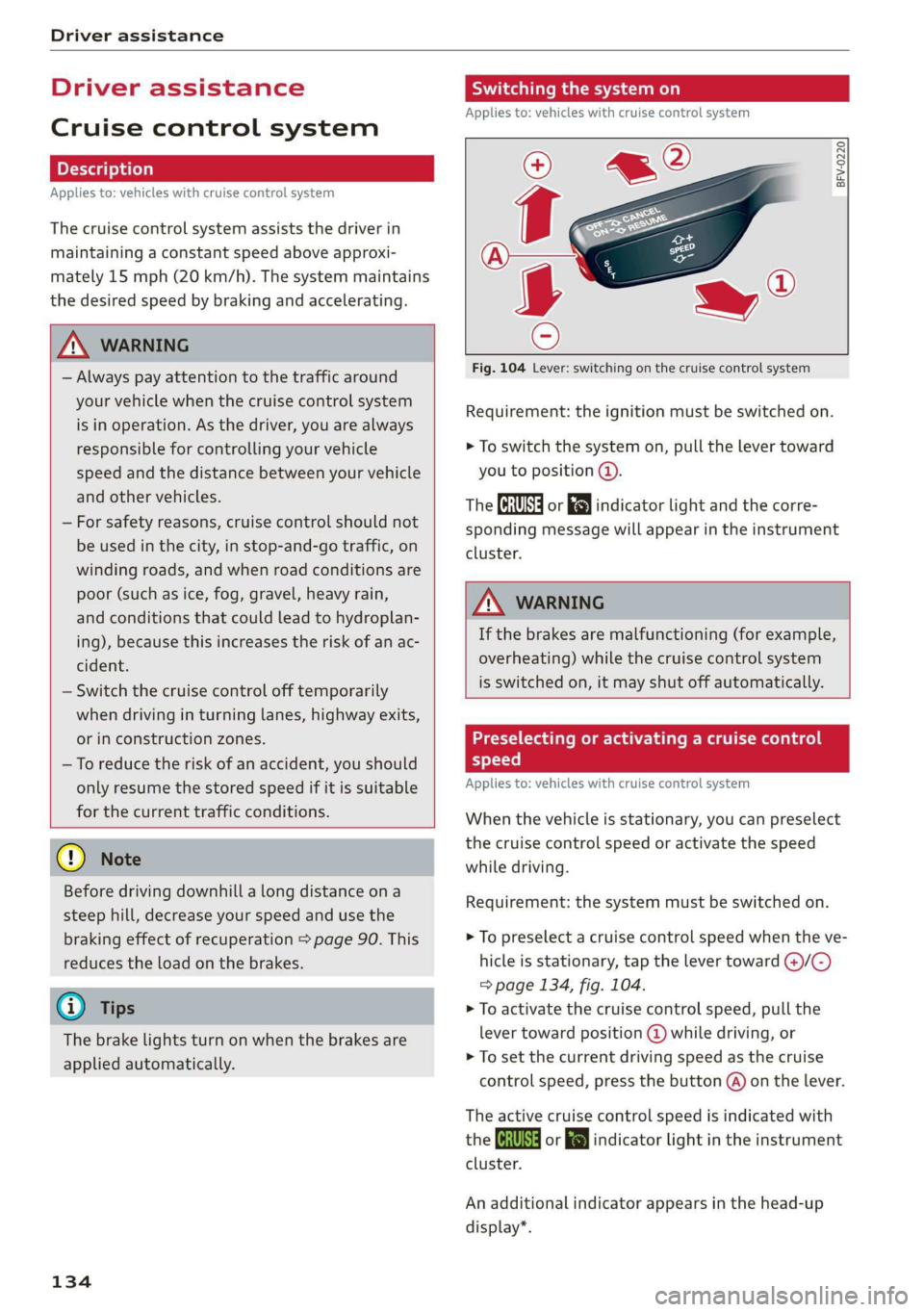
Fig. 104 Lever: switching on the cruise control system
Requirement: the ignition must be switched on.
> To switch the system on, pull the lever toward
you to position @.
The Ga or 8) indicator light and the corre-
sponding message will appear in the instrument
cluster.
A WARNING
If the brakes are malfunctioning (for example,
overheating) while the cruise control system
is switched on, it may shut off automatically.
Preselecting or activating a cruise control
speed
Applies to: vehicles with cruise control system
When the vehicle is stationary, you can preselect
the cruise control speed or activate the speed
while driving.
Requirement: the system must be switched on.
> To preselect a cruise control speed when the ve-
hicle is stationary, tap the lever toward @)/C)
=> page 134, fig. 104.
> To activate the cruise control speed, pull the
lever
toward position @ while driving, or
> To set the current driving speed as the cruise
control speed, press the button @) on the lever.
The active cruise control speed is indicated with
the Gs or kl indicator light in the instrument
cluster.
An additional indicator appears in the head-up
display*.
Page 137 of 310
4KE012721BB
Driver assistance
Changing the cruise control speed
Applies to: vehicles with cruise control system
> To increase or decrease the cruise control speed
in small increments, tap the lever up to the
first level toward @)/C) > page 134, fig. 104.
> To increase or decrease the cruise control speed
in larger increments, tap the lever up to the
second level toward ()/C).
> To increase or decrease the cruise control speed
continuously, tap and hold the lever at the first
or second level toward @)/G).
Overriding or deactivating the cruise
control speed
Applies to: vehicles with cruise control system
You can override or deactivate the cruise control
system. When you deactivate the system, your
cruise control speed will be stored and you can
resume that speed.
Requirement: the system must be switched on
and activated.
Overriding
> To temporarily override the cruise control
speed, press the accelerator pedal.
> Once you release the accelerator pedal, the sys-
tem will adjust back to the stored cruise control
speed.
If you override the cruise control system for a
long period of time, the cruise control system
will be deactivated. The indicator light is dis-
played and the cruise control speed will be saved.
Deactivating
> To deactivate the cruise control speed, press
the lever toward (2) (not locked into place)
=> page 134, fig. 104.
> Press the brake pedal.
Z\ WARNING
Resting your foot on the accelerator pedal
could override the cruise control. This will pre-
vent braking interventions by the system.
Seem Leal
Applies to: vehicles with cruise control system
When you switch the system off completely, the
cruise control speed will be deleted.
Requirement: the system must be switched on.
> To switch the system off, press the lever toward
@ (locked into place) > page 134, fig. 104, or
> Switch the ignition off.
Applies to: vehicles with cruise control system
Gk / 3) Speed control system: currently un-
available. See owner's manual
If the indicator light turns on and this message
appears, the cruise control system has been deac-
tivated. There is a temporary malfunction, for ex-
ample the brakes are overheating. Switch the
cruise control system on again later.
Efficiency assist
Applies to: vehicles with efficiency assist
Efficiency assist can assist the driver with predic-
tive information in order to reduce fuel consump-
tion. If you remove your foot from the accelera-
tor pedal, the efficiency assist can trigger recu-
peration based on the situation.
Depending on vehicle equipment, the system
may access data from the navigation system, the
camera behind the windshield, and the radar sen-
sors.
Adjusting the efficiency assist
You can adjust efficiency assist functions individ-
ually. The settings depend on the vehicle equip-
ment.
— Recuperation > page 90.
— Predictive messages inform the driver if they
should remove their foot from the accelerator
pedal in order to drive more efficiently
=> page 136.
— Predictive control uses adaptive cruise assist in
order to react automatically to situations ahead
=> page 137.
135