steering AUDI E-TRON 2020 Service Manual
[x] Cancel search | Manufacturer: AUDI, Model Year: 2020, Model line: E-TRON, Model: AUDI E-TRON 2020Pages: 316, PDF Size: 85.96 MB
Page 161 of 316
4KE012721BE
Driver assistance
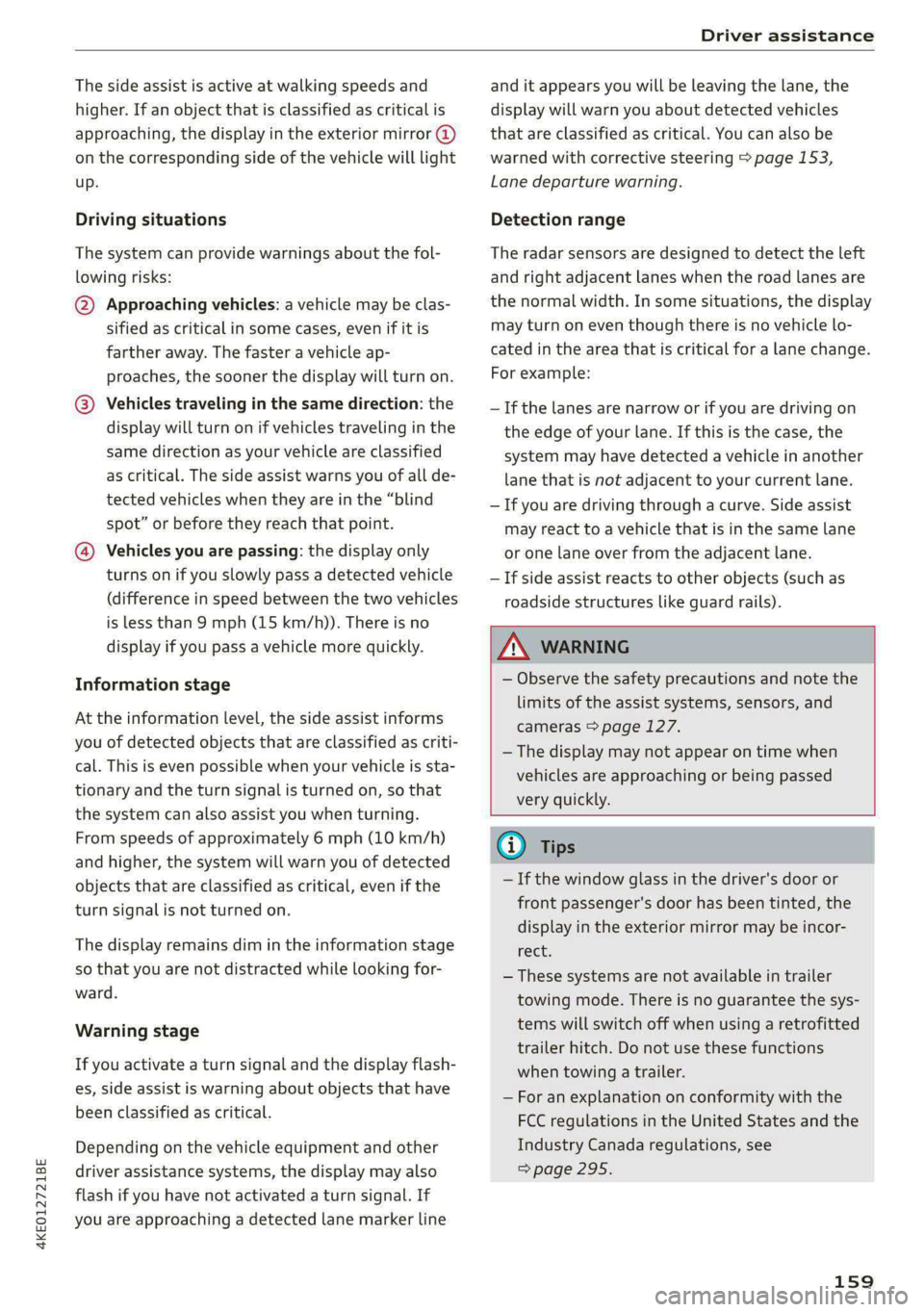
The side assist is active at walking speeds and
higher. If an object that is classified as critical is
approaching, the display in the exterior mirror @
on the corresponding side of the vehicle will light
up.
Driving situations
The system can provide warnings about the fol-
lowing risks:
@ Approaching vehicles: a vehicle may be clas-
sified as critical in some cases, even if it is
farther away. The faster a vehicle ap-
proaches, the sooner the display will turn on.
@®) Vehicles traveling in the same direction: the
display will turn on if vehicles traveling in the
same direction as your vehicle are classified
as critical. The side assist warns you of all de-
tected vehicles when they are in the “blind
spot” or before they reach that point.
@) Vehicles you are passing: the display only
turns on if you slowly pass a detected vehicle
(difference in speed between the two vehicles
is less than 9 mph (15 km/h)). There is no
display if you pass a vehicle more quickly.
Information stage
At the information level, the side assist informs
you of detected objects that are classified as criti-
cal. This is even possible when your vehicle is sta-
tionary and the turn signal is turned on, so that
the system can also assist you when turning.
From speeds of approximately 6 mph (10 km/h)
and higher, the system will warn you of detected
objects that are classified as critical, even if the
turn signal is not turned on.
The display remains dim in the information stage
so that you are not distracted while looking for-
ward.
Warning stage
If you activate a turn signal and the display flash-
es, side assist is warning about objects that have
been classified as critical.
Depending on the vehicle equipment and other
driver assistance systems, the display may also
flash if you have not activated a turn signal. If
you are approaching a detected lane marker line
and it appears you will be leaving the lane, the
display will warn you about detected vehicles
that are classified as critical. You can also be
warned with corrective steering > page 153,
Lane departure warning.
Detection range
The radar sensors are designed to detect the left
and right adjacent lanes when the road lanes are
the normal width. In some situations, the display
may turn on even though there is no vehicle lo-
cated in the area that is critical for a lane change.
For example:
— If the lanes are narrow or if you are driving on
the edge of your lane. If this is the case, the
system may have detected a vehicle in another
lane that is not adjacent to your current lane.
— If you are driving through a curve. Side assist
may react to a vehicle that is in the same lane
or one lane over from the adjacent lane.
—If side assist reacts to other objects (such as
roadside structures like guard rails).
ZA\ WARNING
— Observe the safety precautions and note the
limits of the assist systems, sensors, and
cameras > page 127.
— The display may not appear on time when
vehicles are approaching or being passed
very quickly.
(i) Tips
— If the window glass in the driver's door or
front passenger's door has been tinted, the
display in the exterior mirror may be incor-
recs
— These systems are not available in trailer
towing mode. There is no guarantee the sys-
tems will switch off when using a retrofitted
trailer hitch. Do not use these functions
when towing a trailer.
— For an explanation on conformity with the
FCC regulations in the United States and the
Industry Canada regulations, see
=> page 295.
159
Page 165 of 316

4KE012721BE
Driver assistance
As soon as the vehicle comes to a full stop, the
vehicle prepares for the vehicle passengers to be
rescued. The parking brake is set, “P” gear is en-
gaged, the doors are unlocked, and the interior
lighting is activated. The emergency call) will be
started if necessary once the vehicle has been
stationary
for several seconds.
Overriding the emergency assist
You can override emergency assist as follows
>A:
— Move the steering wheel. Or
— Press the brake pedal. Or
— Press the accelerator pedal distinctly.
When stationary, you can end the emergency as-
sist by leaving the "P" position or releasing the
parking brake > page 96.
Switching the emergency assist on and off
The system can be switched on and off in the
MMI = page 130.
Messages
rg or & is displayed when there is a malfunc-
tion, the emergency assist functions may be un-
available or may be limited.
A message that indicates the cause and possible
solution may appear with some displays. The
weather conditions may be too poor or a sensor
may be covered. Clean the area in front of the
sensors > page 129 and try to turn on the sys-
tems again later.
If the malfunction remains, drive to an author-
ized Audi dealer or authorized Audi Service Facili-
ty immediately to have the malfunction correct-
ed.
gency to take over control of the vehicle and
bring it to a stop.
ZA WARNING
— Observe the safety precautions and note the
limits of the assist systems, sensors, and
cameras > page 127.
— The emergency assist is an assist system
that should only be used in cases of emer-
) This function is not available in every market and on all ve-
hicle equipment levels.
(i) Tips
— Depending on the severity of the detected
situation, not all safety measures will be ini-
tiated. Certain functions can be adjusted or
skipped if necessary.
— If the emergency assist was triggered, it will
only be available again after a brief period.
—An indicator in the instrument cluster will
inform you when there is an intervention.
163
Page 167 of 316

4KE012721BE
Parking and maneuvering
Automatic deactivation
The distance indicator for the parking aid plus
will deactivate automatically when driving for-
ward faster than 6 mph (10 km/h).
ZA\ WARNING
Observe the safety precautions and note the
limits of the assist systems, sensors, and
cameras > page 127.
@ Note
Keep enough distance from the curb to avoid
damage to the rims.
@ Tips
— If the parking aid is deactivated, it can only
be reactivated automatically when one of
the following conditions is met:
— The vehicle speed exceeds 6 mph
(10 km/h)
— The ignition is switched off and back on
again
— The parking brake is set and then released
— The “P” gear is engaged and released
again
Applies to: vehicles with parking aid plus
Fig. 125 Upper display: distance indicator
If the sensors detect an obstacle, audible and vis-
ual signals will warn you.
Visual warnings
The visual warnings in the upper display help you
to detect the critical vehicle area and to estimate
the distance to an obstacle.
Red segments (@) show detected obstacles that
are in your vehicle's path. The red lines 2) mark
the expected direction of travel based on the
steering angle. A white segment (8) indicates a
detected obstacle that is outside of the vehicle's
path. The closer your vehicle comes to the obsta-
cle, the closer the segments will move to the ve-
hicle. The collision area has been reached when
the next to last segment is displayed. Obstacles
in the collision area, including those outside of
the vehicle's path, are shown in red. Do not con-
tinue driving farther.
Audio signals
The closer your vehicle gets to a detected obsta-
cle, the shorter the time between the audible sig-
nals. A continuous tone sounds when an obstacle
is less than approximately 1 foot (0.30 m) away
from the front or rear of the vehicle. A continu-
ous tone sounds when an obstacle is less than
approximately 0.7 feet (0.20 m) away from the
sides* of the vehicle. Do not continue driving for-
ward or in reverse >).
> To deactivate audio signals while parking, press
(Jin the upper display. The audio signals will be
automatically activated again the next time the
parking aid is activated.
Adjusting the volume
You can adjust the volume to your preferences.
The settings depend on the vehicle equipment.
> Applies to: MMI: Select on the home screen:
VEHICLE > Parking aid. Or
> Press|] in the upper display when the parking
aid is active.
Possible settings:
Front volume - Volume for the front and side*
area.
Rear volume - Volume for the rear area.
Entertainment fader - The volume of the audio/
video source is lowered when the parking aid is
activated.
The new level is demonstrated briefly* when the
volume is adjusted. >
165
Page 170 of 316

Parking and maneuvering
@ Use the blue markings to help you estimate
the distance to an obstacle. Each marking
represents approximately 3 feet (1 meter).
The blue area represents an extension of the
vehicle's outline by approximately 16 feet (5
meters) to the rear.
@® You can recognize the rear bumper in the
lower display.
@ You should stop driving in reverse when the
red orientation line touches the edge of an
object, at the latest.
Trailer view
Applies to: vehicles with trailer view
The trailer view > fig. 129 assists you in position-
ing the vehicle in front of a trailer.
— Applies to: vehicles with peripheral cameras:
Switch to the Rear view > page 169, fig. 130.
— Select Trailer view in the upper display when
the parking aid is active |---|.
Now you can position your vehicle in front of the
trailer. The orange orientation line ©) > fig. 129
indicates the expected path toward the trailer
hitch. Use the blue markings © to help you esti-
mate the distance to the trailer hitch. Each mark-
ing represents approximately 1 foot (0.30 me-
ters). The width of the blue surface represents
the maximum steering wheel angle.
Symbols
If 2/&9/< is displayed and the display area
represented by that symbol is not available, then
the camera on the that side is not available. The
power exterior mirrors may have been folded in
or a door or the luggage compartment lid may
have been opened.
If # is displayed, there is a system malfunction
and the display area represented by that symbol
is not available. The camera is not working in this
area.
If Avis displayed, the respective ultrasonic sensor
is icy or dirty. Clean the area in front of the sen-
sors > page 129.
If one of the symbols continues to be displayed,
drive immediately to an authorized Audi dealer or
168
authorized Audi Service Facility to have the mal-
function repaired.
ZA\ WARNING
— Observe the safety precautions and note the
limits of the assist systems, sensors, and
cameras > page 127.
— Sensors and cameras have spots in which
the surrounding area cannot be detected.
Objects, animals, and people may only be
detected with limitations may not be detect-
ed at all. Always monitor the traffic and the
vehicle's surroundings directly and do not
become distracted.
@) Note
— The orange orientation lines @ show the di-
rection the rear of the vehicle will be travel-
ing, based on the steering wheel angle. The
front of the vehicle swings out more than
the rear of the vehicle. Maintain plenty of
distance so that an exterior mirror or a cor-
ner of the vehicle does not collide with any
obstacles.
— Keep enough distance from the curb to
avoid damage to the rims.
— Only use the images provided by the camera
on the rear of the vehicle when the luggage
compartment lid is completely closed. Make
sure any objects you may have mounted on
the luggage compartment lid do not block
the rearview camera.
G) Tips
— Applies to: vehicles with air suspension: The
accuracy of the orientation lines and blue
surfaces on the camera display decreases
when the vehicle is raised or lowered with
the air suspension.
— There is no distance warning for the rear
and the sides* when trailer towing mode is
detected. The front sensors remain activat-
ed. The visual display switches to trailer
mode. There is no guarantee the functions
will be deactivated when using a retrofitted
trailer hitch.
Page 172 of 316

Parking and maneuvering
Symbol/Descrip-
tion
Description
psp
Switch between 3D surroundings and Surroundings
Front corner
or display the selec-
tion bar
This view makes it easier to drive out of tight parking spaces or areas and
intersections with poor visibility. It shows an almost 180° panorama view
in front of the vehicle.
Front
This view assists you in using the full area for maneuvering in front of the
vehicle.
Surroundings
This view helps you to maneuver and position the vehicle more precisely.
The area around the vehicle is shown using the camera images. The vehi-
cle image is shown by the system > A\.
Rear
This view assists you in using the full area for maneuvering behind the ve-
hicle. This is the rearview camera image.
Rear corner
This view can assist you when driving out of tight parking spaces or areas
with poor visibility. It shows an almost 180° panorama view behind the
vehicle.
Front tires
This view helps you to see the distance between the front tires and the
curb and the steering wheel angle when parking.
Rear tires
This view helps you to detect the distance between the rear wheels and
the curb when parking.
3D surroundings
In these views, you can see the areas surrounding the vehicle in 3D when
parking. The vehicle surrounding views are created from the camera im-
©f$;/@/e|
®
|o/e
|e]
e@
|e
ages and sensor data. The vehicle image is shown by the system > A\.
ZA\ WARNING
— Observe the safety precautions and note the
limits of the assist systems, sensors, and
cameras > page 127.
— The Surroundings and 3D surroundings are
created from the individual camera images.
The vehicle image is shown by the system.
Objects and obstacles above the camera are
not displayed.
@) Note
Only use the images provided by the camera
on the rear of the vehicle when the luggage
compartment lid is completely closed. Make
sure any objects you may have mounted on
the luggage compartment lid do not block the
rearview camera.
@) Tips
— Depending on the selected gear, it will auto-
matically switch between the Front and
170
Rear views. If you switch the view manually,
the automatic front/rear camera change will
be temporarily deactivated.
— When first activated while a forward gear is
engaged, the Front corner is displayed.
Page 182 of 316
Telephone
ZA\ WARNING
— Because your phone works with radio sig-
nals, a connection cannot be guaranteed un-
der all circumstances. Do not rely on only
your phone when it comes to essential com-
munication (such as a medical emergency).
— Always follow the instructions given by the
emergency personnel during an emergency
call and only end the call when they instruct
you to do so.
Answering/ending a call
Applies to: vehicles with telephone
> To accept or end a call, press the @ button on
the multifunction steering wheel. Operating
=> page 12 and > page 26.
You can use the following options on the MMI
when there is an incoming call:
> Answering an incoming call: press Answer.
> Declining a call: press Decline.
> Declining a call with a text message”: Require-
ment: the function must be enabled in the set-
tings. Press Decline with text message.
> Silencing the ringtone: press Mute.
G) Tips
The radio or media playback is muted during a
phone call.
During a phone call
Applies to: vehicles with telephone
The following options may be possible during a
call depending on the mobile device being used
and the type of connection:
— End call: ends the current phone call.
— Mute: the other person on the call will no lon-
ger be able to hear you. You will still be able to
hear the other person. To switch the micro-
phone back on, press Unmute.
— Hold/Resume: place your current phone call on
hold and answer another.
— Send tone sequence: press Numbers. You can
enter tone sequences (DTMF) and send them to
the other party on the call.
180
— Accepting an incoming call: if a phone call
comes in during another call, you can either Re-
place the current call with the incoming call, or
use Answer to put the current call on hold. The
incoming call will be answered.
— Declining an incoming call: press Decline to
decline an incoming call.
—Muting the incoming call: press Mute.
— Other call options: press More.
Requirement: two phone calls must be in prog-
ress.
— Conference call*: add a call on hold and up to
five active parties (depending on the cell phone
service provider) to the conference call.
— Swap call: alternate between two phone calls
while one of the calls is on hold. Press on the
respective call. Selecting End call will end the
active phone call. A call that was placed on hold
stays on hold and can be taken off hold with Re-
sume.
— Accepting an incoming call: if a phone call
comes in during another call and when there is
a call on hold, you can either Replace the cur-
rent call with the incoming call, or use Answer
to put the current call on hold. The incoming
call will be answered.
Press More.
— Transferring a call*: press Transfer call to mo-
bile device to transfer the existing call from the
MMI to your mobile device or Bluetooth head-
set*.
— Switch to hands-free mode*: Requirement: you
must have a phone call in progress on your cell
phone. Press Switch to hands-free to transfer
the call from your cell phone back to the MMI.
— Add call: Select: Call list/Contacts/Favorites >
select an entry from the list or press Dial
phone number and enter a phone number.
Then the active call will be on hold.
— Remove conf. member*: Requirement: you
must have started a conference call. You can re-
move conference call members individually
when a conference call is active. Press on the
contact you would like to remove.
— Microphone input level: you can adjust the mi-
crophone input level during a phone call using
the slider.
Page 187 of 316
4KE012721BE
Telephone
— Apple devices and MTP devices (such as
smartphones) are not recognized as USB
storage devices.
Mobile phone network settings
Applies to: vehicles with telephone
>» Applies to: MMI: Select on the home screen:
SETTINGS > Connection settings > Mobile
phone network.
Switching the car phone or data module on
Applies to: vehicles with car phone/data module
See > page 183.
Instrument cluster
Telephone
Applies to: vehicles with multifunction steering wheel and
telephone
In the instrument cluster display, you can control
the MMI functions with the multifunction steer-
ing wheel. Operating > page 12 and > page 26.
Troubleshooting
Applies to: vehicles with telephone
The information that follows lists some trouble-
shooting options. They depend on the equip-
ment.
Requirement: the Telephone tab must be select-
ed in the instrument cluster.
> Press the [] button.
Possible options:
— Call list: Requirement: the call list must con-
tain a phone number.
— Favorites: Requirement: favorites must be stor-
ed in the MMI.
— Switch telephones: Requirement: two cell
phones must be connected to the MMI.
— Back to call: Requirement: there must be a call
in progress.
G) Tips
Depending on the selected function, it may be
necessary to use the MMI.
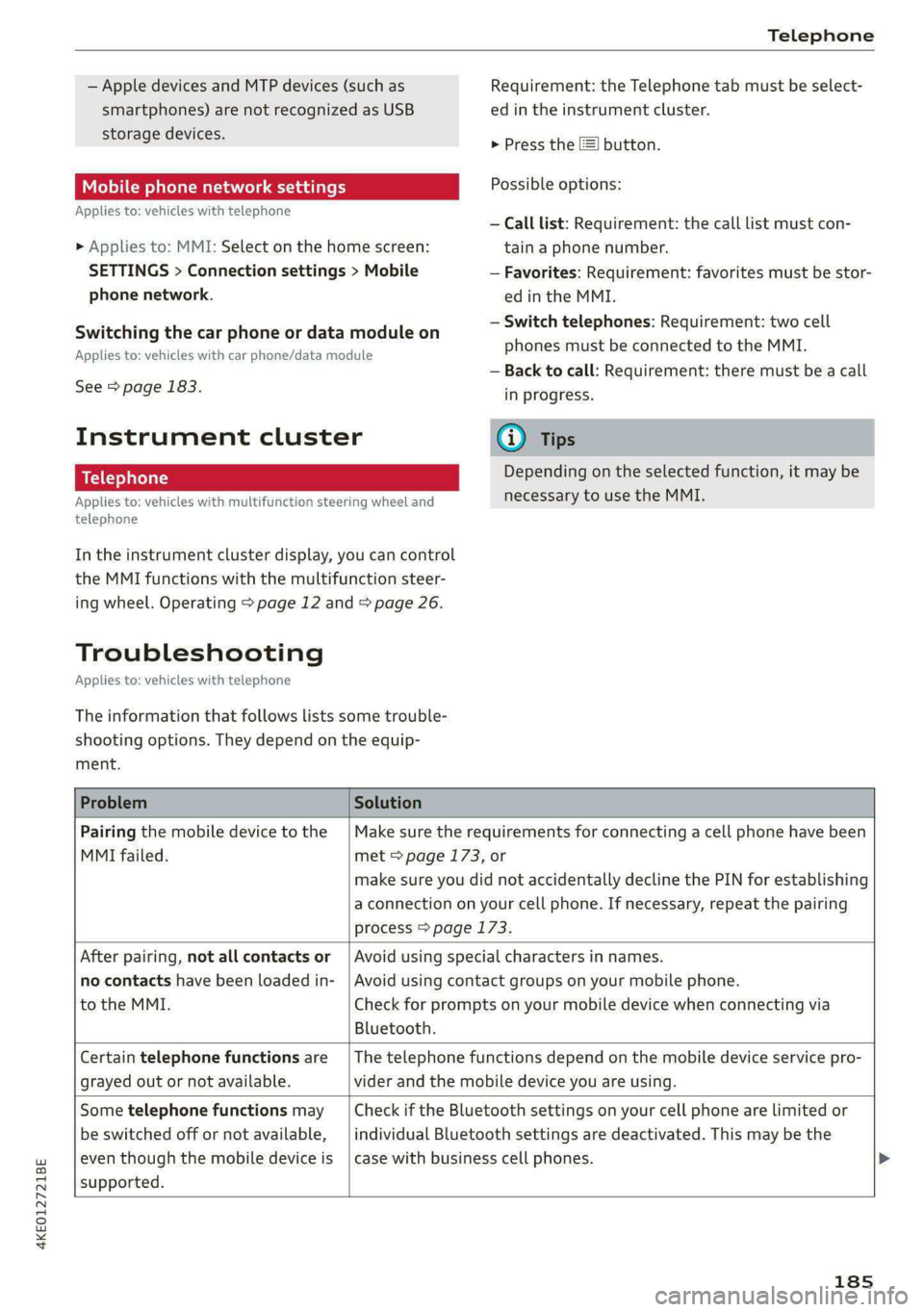
Problem Solution
Pairing the mobile device to the
MMI failed.
Make sure the requirements for connecting a cell phone have been
met > page 173, or
make sure you did not accidentally decline the PIN for establishing
a connection on your cell phone. If necessary, repeat the pairing
process > page 173.
After pairing, not all contacts or
no contacts have been loaded in-
to the MMI.
Bluetooth.
Avoid using special characters in names.
Avoid using contact groups on your mobile phone.
Check for prompts on your mobile device when connecting via
Certain telephone functions are
grayed out or not available.
The telephone functions depend on the mobile device service pro-
vider and the mobile device you are using.
Some telephone functions may
be switched off or not available,
even though the mobile device is
supported.
Check if the Bluetooth settings on your cell phone are limited or
individual Bluetooth settings are deactivated. This may be the
case with business cell phones.
185
Page 199 of 316
4KE012721BE
Navigation
Navigation
Opening navigation
Applies to: vehicles with navigation system
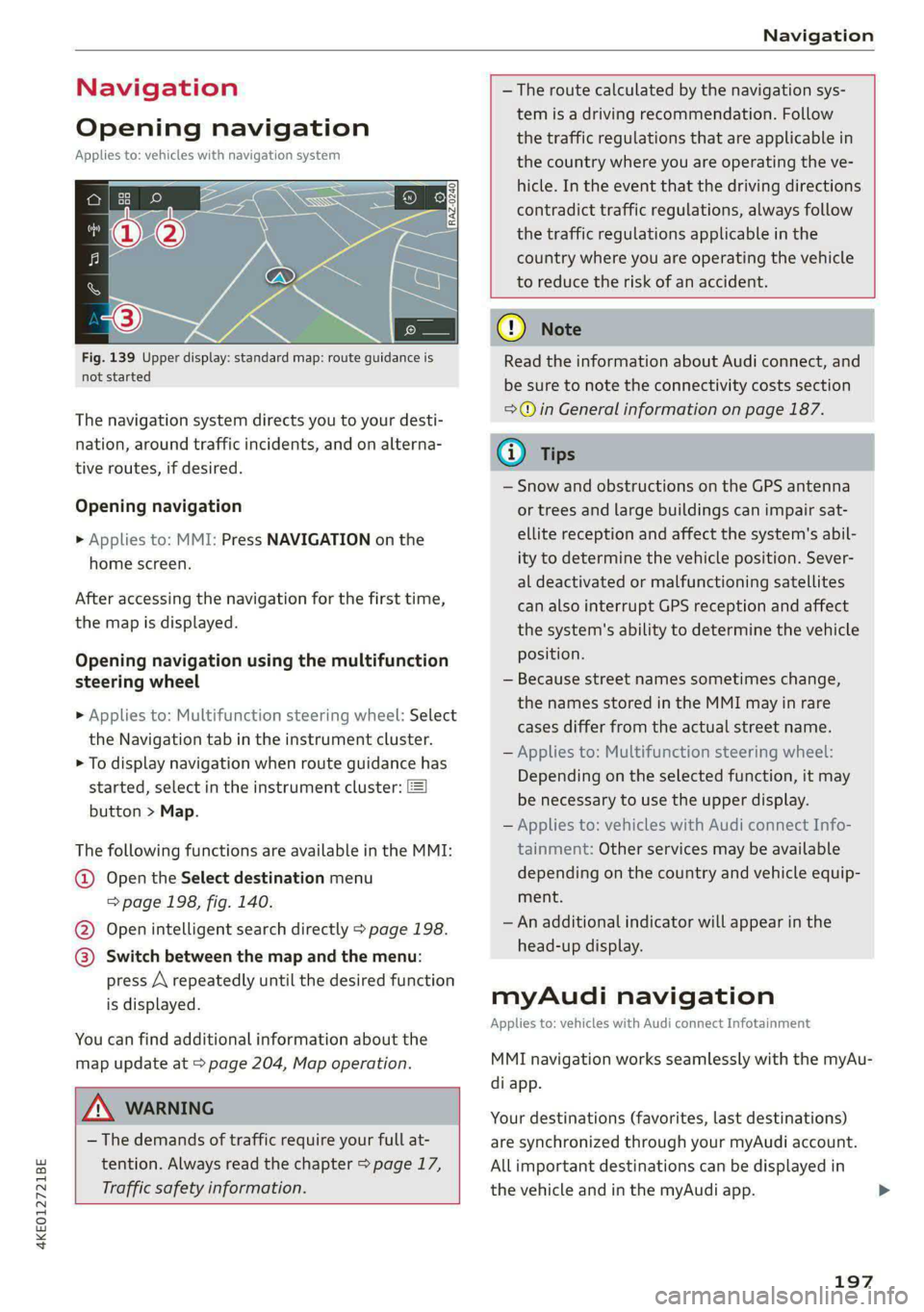
Fig. 139 Upper display: standard map: route guidance is
not started
The navigation system directs you to your desti-
nation, around traffic incidents, and on alterna-
tive routes, if desired.
Opening navigation
» Applies to: MMI: Press NAVIGATION on the
home screen.
After accessing the navigation for the first time,
the map is displayed.
Opening navigation using the multifunction
steering wheel
> Applies to: Multifunction steering wheel: Select
the Navigation tab in the instrument cluster.
> To display navigation when route guidance has
started, select in the instrument cluster:
button > Map.
The following functions are available in the MMI:
@ Open the Select destination menu
=> page 198, fig. 140.
@ Open intelligent search directly > page 198.
@ Switch between the map and the menu:
press A repeatedly until the desired function
is displayed.
You can find additional information about the
map update at > page 204, Map operation.
A WARNING
— The demands of traffic require your full at-
tention. Always read the chapter > page 17,
Traffic safety information.
—The route calculated by the navigation sys-
tem is a driving recommendation. Follow
the traffic regulations that are applicable in
the country where you are operating the ve-
hicle. In the event that the driving directions
contradict traffic regulations, always follow
the traffic regulations applicable in the
country where you are operating the vehicle
to reduce the risk of an accident.
@) Note
Read the information about Audi connect, and
be sure to note the connectivity costs section
=>©) in General information on page 187.
— Snow and obstructions on the GPS antenna
or trees and large buildings can impair sat-
ellite reception and affect the system's abil-
ity to determine the vehicle position. Sever-
al deactivated or malfunctioning satellites
can also interrupt GPS reception and affect
the system's ability to determine the vehicle
position.
— Because street names sometimes change,
the names stored in the MMI may in rare
cases differ from the actual street name.
— Applies to: Multifunction steering wheel:
Depending on the selected function, it may
be necessary to use the upper display.
— Applies to: vehicles with Audi connect Info-
tainment: Other services may be available
depending on the country and vehicle equip-
ment.
— An additional indicator will appear in the
head-up display.
myAudi navigation
Applies to: vehicles with Audi connect Infotainment
MMI navigation works seamlessly with the myAu-
di app.
Your destinations (favorites, last destinations)
are synchronized through your myAudi account.
Allimportant destinations can be displayed in
the vehicle and in the myAudi app.
197
Page 201 of 316
4KE012721BE
Navigation
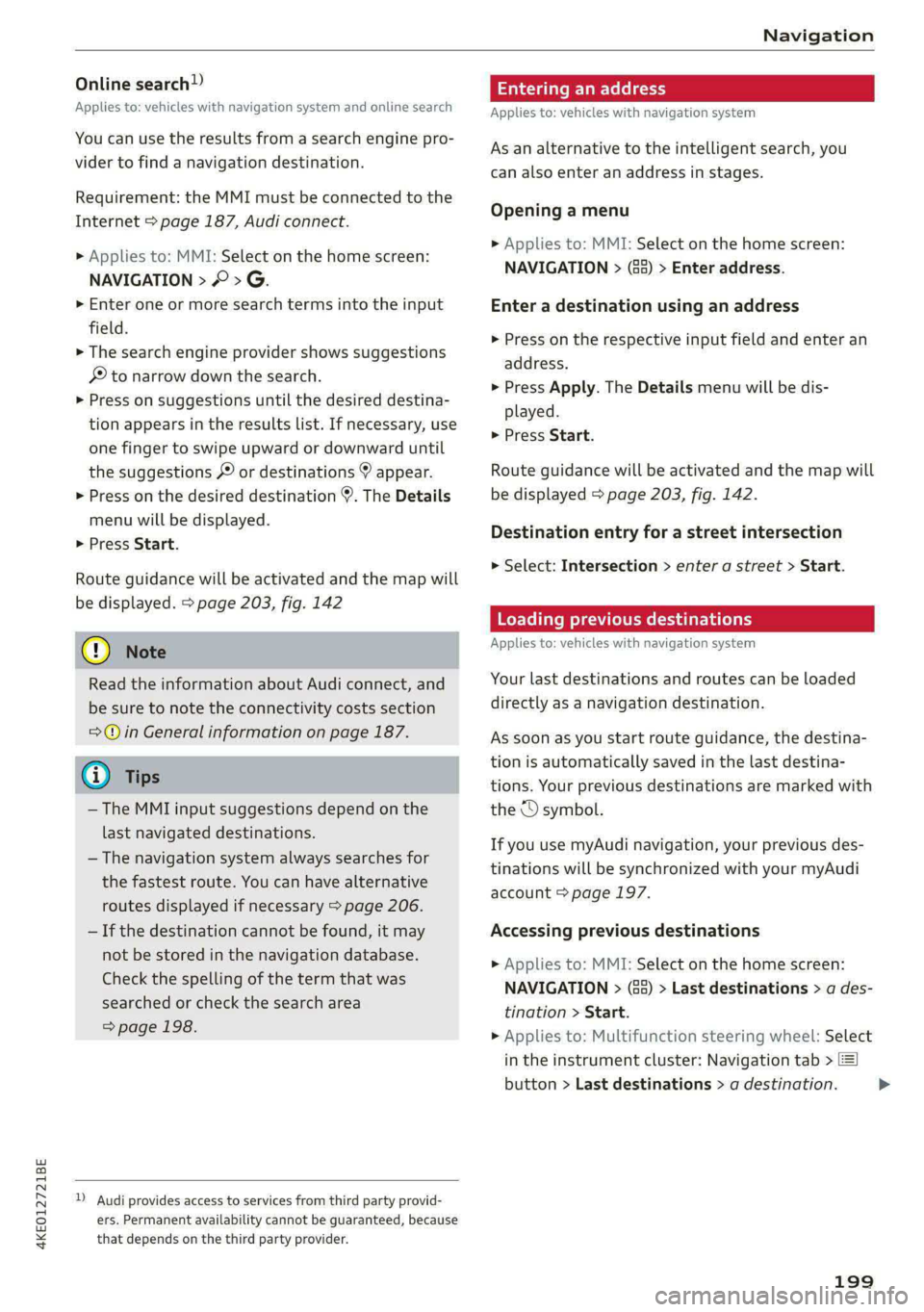
Online search!)
Applies to: vehicles with navigation system and online search
You can use the results from a search engine pro-
vider to find a navigation destination.
Requirement: the MMI must be connected to the
Internet > page 187, Audi connect.
> Applies to: MMI: Select on the home screen:
NAVIGATION > © > G.
> Enter one or more search terms into the input
field.
> The search engine provider shows suggestions
© to narrow down the search.
> Press on suggestions until the desired destina-
tion appears in the results list. If necessary, use
one finger to swipe upward or downward until
the suggestions {© or destinations 9 appear.
> Press on the desired destination 9. The Details
menu will be displayed.
> Press Start.
Route guidance will be activated and the map will
be displayed. > page 203, fig. 142
@) Note
Read the information about Audi connect, and
be sure to note the connectivity costs section
=@ in General information on page 187.
G) Tips
— The MMI input suggestions depend on the
last navigated destinations.
— The navigation system always searches for
the fastest route. You can have alternative
routes displayed if necessary > page 206.
— If the destination cannot be found, it may
not be stored in the navigation database.
Check
the spelling of the term that was
searched or check the search area
=> page 198.
)) Audi provides access to services from third party provid-
ers. Permanent availability cannot be guaranteed, because
that depends on the third party provider.
Entering an address
Applies to: vehicles with navigation system
As an alternative to the intelligent search, you
can also enter an address in stages.
Opening a menu
> Applies to: MMI: Select on the home screen:
NAVIGATION > (a) > Enter address.
Enter a destination using an address
> Press on the respective input field and enter an
address.
> Press Apply. The Details menu will be dis-
played.
> Press Start.
Route guidance will be activated and the map will
be displayed > page 203, fig. 142.
Destination entry for a street intersection
> Select: Intersection > enter a street > Start.
Loading previous destinations
Applies to: vehicles with navigation system
Your last destinations and routes can be loaded
directly as a navigation destination.
As soon as you start route guidance, the destina-
tion is automatically saved in the last destina-
tions. Your previous destinations are marked with
the © symbol.
If you use myAudi navigation, your previous des-
tinations will be synchronized with your myAudi
account > page 197.
Accessing previous destinations
> Applies to: MMI: Select on the home screen:
NAVIGATION > (5) > Last destinations > a des-
tination > Start.
> Applies to: Multifunction steering wheel: Select
in the instrument cluster: Navigation tab >
button > Last destinations > a destination.
199
>
Page 202 of 316
Navigation
Changing and loading a previous destination
> Applies to: MMI: Select on the home screen:
NAVIGATION > (88) > Last destinations > Z >
& > Change address > Use address > Start.
Restore last tour
Requirement: a route with at least two stopovers
must have already been canceled.
Your last route is labeled with the © symbol.
» Applies to: MMI: Select on the home screen:
NAVIGATION > (Gs) > Last destinations > Re-
store last tour. Route guidance will start imme-
diately.
Deleting previous destinations
» Applies to: MMI: Select on the home screen:
NAVIGATION > (G8) > Last destinations > Z >
one or more entries or Select all > Delete >
(Done).
@ Tips
The last route will be automatically deleted
from the list if you start a new route guidance
after canceling the route.
Setting a favorite as the destination
Applies to: vehicles with navigation system
You can access frequent destinations in the favor-
ites. You can quickly and easily start route guid-
ance using the home address or business address
function.
Requirement: a favorite must be stored
=> page 206.
» Applies to: MMI: Select on the home screen:
NAVIGATION > (Gs) > Favorites > a destination
> Start. Or
> Applies to: Multifunction steering wheel: Select
in the instrument cluster: Navigation tab >
button > Favorites > a destination.
POIs (Online Points of Interest)
Applies to: vehicles with a navigation system and Audi con-
nect Infotainment
Search for points of interest such as restaurants.
If the MMI is connected to the Internet, points of
200
interest will be automatically included in the
search.
> Applies to: MMI: Select on the home screen:
NAVIGATION > (&a) > Points of interest.
The system always searches in the search area
that is currently selected > table on page 200.
> Searching for points of interest: enter the
name of a POI.
> Searching for a point of interest in a specific
category: Select: a category (for example, res-
taurants) > a point of interest.
> Changing the search area: Requirement: route
guidance must be active. Press (4)/2:9/B! repeat-
edly until the desired search area > table on
page 200 is selected.
Sorting points of interest
Requirement: the MMI must be connected to the
Internet > page 187, Audi connect. You must
have a category selected.
> Press on the respective symbol for sorting until
the desired sorting order is selected.
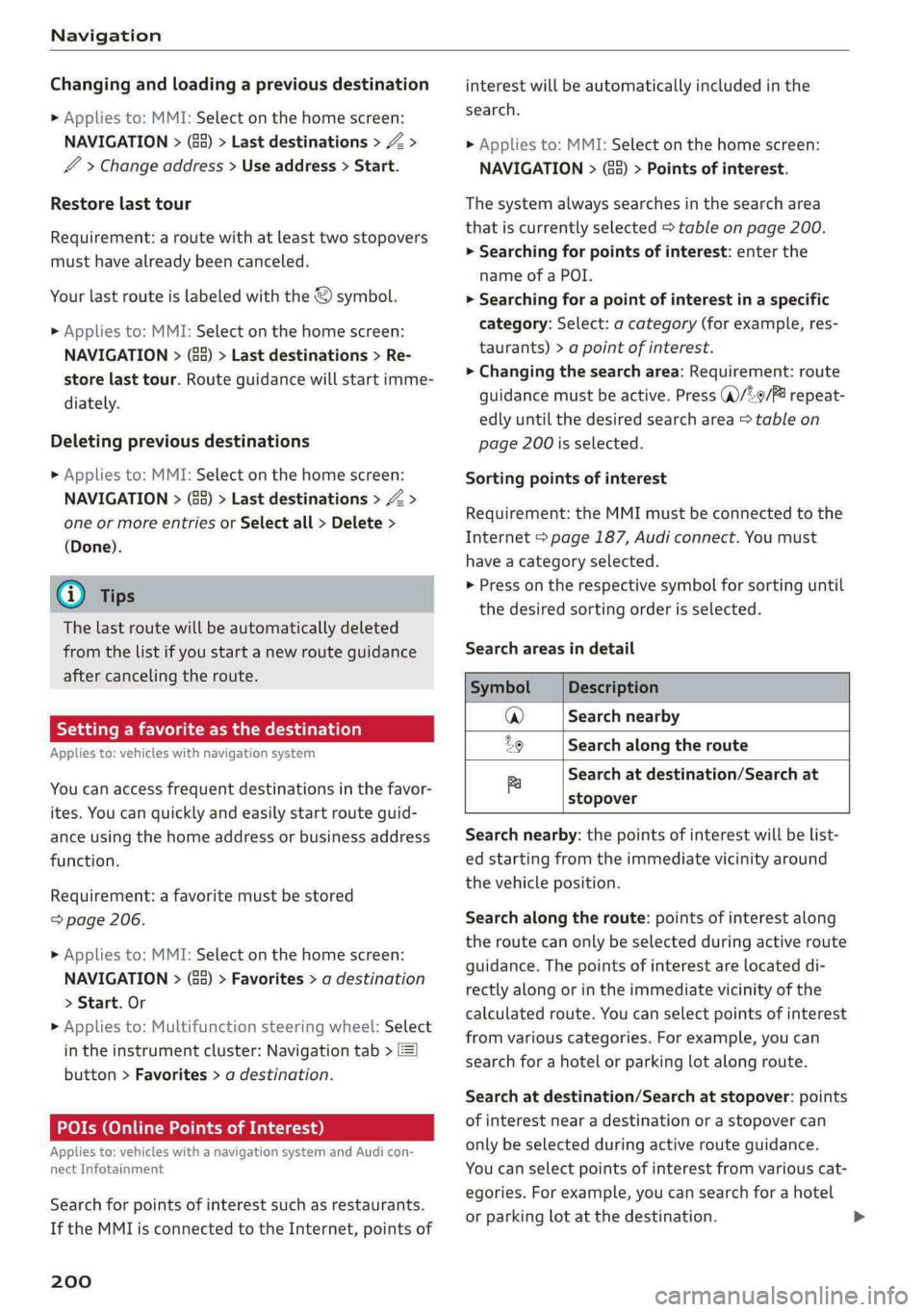
Search areas in detail
Symbol Description
7) Search nearby
£9 Search along the route
a Search at destination/Search at
stopover
Search nearby: the points of interest will be list-
ed starting from the immediate vicinity around
the vehicle position.
Search along the route: points of interest along
the route can only be selected during active route
guidance. The points of interest are located di-
rectly along or in the immediate vicinity of the
calculated route. You can select points of interest
from various categories. For example, you can
search for a hotel or parking lot along route.
Search at destination/Search at stopover: points
of interest near a destination or a stopover can
only be selected during active route guidance.
You can select points of interest from various cat-
egories. For example, you can search for a hotel
or parking lot at the destination.