ECU AUDI E-TRON 2020 Workshop Manual
[x] Cancel search | Manufacturer: AUDI, Model Year: 2020, Model line: E-TRON, Model: AUDI E-TRON 2020Pages: 316, PDF Size: 85.96 MB
Page 150 of 316

Driver assistance
is responsible for adhering to the permitted
speed limit.
— The traffic signs on the road always take pri-
ority over the display. The driver is always
responsible for adhering to the regulations
applicable in the country where the vehicle
is being operated.
— If a speed limit is detected, the marking @
of the set speed limit will be adjusted even
if the adaptive cruise assist is not actively
regulating.
— You may temporarily fall below or exceed
the set speed due to recuperation.
— Control by the system depends on which
adaptive cruise assist driving program is set
or on the selected Audi drive select* mode.
— After switching on the ignition and first
driving onto a freeway or similar road with-
out a speed limit, the system will regulate
the speed to 80 mph (130 km/h)”. Then
the system adjusts to the last speed set by
the driver.
— There is no adaptation to speed limits when
driving through highway interchanges and
when driving on or off the expressway.
— The system can fail to provide control or the
control may be faulty if the values from the
camera-based traffic sign recognition” are
incorrect or the navigation system map data
is outdated.
— When route guidance is switched on, the
system adapts to the route provided by the
navigation system. Driving without route
guidance or leaving a route can result in
faulty control.
D_Incertain countries
148
tting the distance
Applies to: vehicles with adaptive cruise assist
B4M-0234
Fig. 111 Operating lever: setting the distance
If you adjust the speed, you must also change the
time gap to the vehicle driving ahead. The higher
the speed, the greater the distance that is need-
ed.
> Tap the rocker switch to display the distance
that is currently set.
> To increase or decrease the distance in incre-
ments, tap the switch again toward G) or ().
The newly-set distance will be shown briefly, for
example with the indicator light. In the Driv-
er assistance display, a graphic display is shown
instead of the indicator lights > page 143,
fig. 106. The display matches the functions of
the indicator lights.
When approaching a vehicle driving ahead, the
adaptive cruise assist brakes to the set speed and
then maintains the set distance. If the vehicle
driving ahead accelerates, then the adaptive
cruise assist will also accelerate up to the speed
that you have set.
The following distances can be set:
Page 158 of 316
Driver assistance
Early warning/acute warning
The system can recognize various dangerous sit-
uations. The early warning occurs if:
— A vehicle driving ahead brakes suddenly
— Your own vehicle approaches a vehicle in front
of you that is traveling at a significantly slower
speed or that is stationary
—A pedestrian or cyclist!) is standing in the lane
or is moving into the lane
The message Audi pre sense [J and a warning
tone will warn you about the danger.
The brakes may also be applied as an acute warn-
ing when there is an impending collision. You will
also be warned by an indicator in the instrument
cluster display. When this warning occurs, it may
only be possible to avoid a collision by swerving
or braking strongly.
Automatic deceleration
If you do not react to the acute warning, Audi pre
sense front can brake the vehicle to a full stop
within the limits of the system ). This reduces
the vehicle speed in the event of a collision.
Automatic braking force increase
If Audi pre sense determines that you are not
braking strongly enough when a collision is immi-
nent, it can increase the braking force based on
the situation.
Take-over
If the message ao Please take over! appears, the
vehicle has been braked to a stop by Audi pre
sense and you must resume control of the vehi-
cle.
ZA WARNING
— Observe the safety precautions and note the
limits of the assist systems, sensors, and
cameras > page 127.
— Audi pre sense front cannot overcome natu-
ral physical laws. It is a system designed to
assist and it cannot prevent a collision in ev-
ery circumstance. The driver must always in-
D_ This is not available in some countries.
156
tervene. The driver is always responsible for
braking at the correct time. Do not let the
increased safety provided tempt you into
taking risks. This could increase your risk of
a collision.
— Audi pre sense front does not react to cer-
tain objects, such as animals, crossing or on-
coming vehicles, bars, railings, or railcars.
— Audi pre sense front may be limited or un-
available when driving in curves.
— Loose objects can be thrown around the ve-
hicle interior during sudden driving or brak-
ing maneuvers, which increases the risk of
an accident. Store objects securely while
driving.
—In trailer mode, the braking behavior of the
trailer can be different than usual during au-
tomatic braking.
(i) Tips
Certain pre sense front functions are switched
off when the hill descent assist is actively con-
trolling the vehicle.
Audi pre sense rear
Applies to: vehicles with Audi pre sense rear
Within the limits of the system, Audi pre sense
rear uses data from radar sensors in the rear area
of the vehicle and calculates the probability of a
rear-end collision with the vehicle behind you.
Audi pre sense preemptive safety measures can
be initiated if the risk of a collision with the vehi-
cle behind you is detected.
Z\ WARNING
— Observe the safety precautions and note the
limits of the assist systems, sensors, and
cameras © page 127.
— Audi pre sense rear does not react to pedes-
trians, animals, crossing objects, and ob-
jects not detected as vehicles. >
Page 175 of 316
4KE012721BE
Telephone
Telephone
Introduction
Applies to: vehicles with telephone
You can operate various telephone functions easi-
ly through the MMI in your vehicle.
Depending on the country and the vehicle equip-
ment, the following options may be available:
— Connecting a cell phone with Bluetooth
— Using two telephones
— Using the Audi phone box
ZA WARNING
— Medical experts warn that mobile devices
can interfere with the function of pacemak-
ers. Always maintain a minimum distance of
about 7.9 inches (20 cm) between the mo-
bile device antennas and the pacemaker.
— Do not carry the mobile device in a pocket
directly over the pacemaker when the
phone is switched on.
— Switch the mobile device off immediately
if you suspect it may be interfering with
the pacemaker.
— Do not use the voice recognition system*
=> page 24 in emergencies because your
voice may change in stressful situations. The
system may take longer to dial the number
or may not be able to dial it at all. Dial the
emergency number manually.
— Switch your mobile device off in areas where
there is a risk of an explosion. These loca-
tions are not always clearly marked. This
may include gas stations, fuel and chemical
storage facilities or transport vehicles, or lo-
cations where fuel vapors (such as propane
or gasoline vapor in vehicles or buildings),
chemicals or large quantities of dust parti-
cles (such as flour, sawdust or metal) may
be present in the air. This also applies to all
other locations where you would normally
turn your vehicle engine off.
— The demands of traffic require your full at-
tention. Always read the chapter > page 17,
Traffic safety information.
CG) Note
Read the information about Audi connect, and
be sure to note the connectivity costs section
=> page 187.
G@) Tips
— The Bluetooth connection range is limited
to inside the vehicle.
—Aselection of supported Bluetooth devices
can be found in the database for tested mo-
bile devices at www.audi.com/bluetooth.
Setup
Connecting a cell phone via Bluetooth
Applies to: vehicles with telephone
Requirement: the vehicle must be stationary and
the ignition must be switched on. The Bluetooth
settings must be open on your mobile device dur-
ing the connection setup. The mobile device to be
connected must not be actively connected to any
other Bluetooth device. The MMI must only be
connected to one mobile device.
> Enable the Bluetooth function and visibility on
the MMI => page 237 and the cell phone.
> Applies to: MMI: Select on the home screen:
PHONE.
> Follow the system instructions. The available
Bluetooth devices will be displayed after sever-
al seconds.
> Press on the desired mobile device in the list of
displayed Bluetooth devices.
> To update the list, press OQ.
A PIN for a secure Bluetooth connection will be
generated.
> Confirm the PIN on your mobile device, or
> Enter the PIN for connecting on your cell
phone. The time allowed for entering the PIN is
limited to approximately 30 seconds.
> Follow the system instructions.
> Pay attention to any other system prompts on
the MMI and on your cell phone.
173
>
Page 177 of 316
4KE012721BE
Telephone
A PIN for a secure Bluetooth connection will be
generated.
> Confirm the PIN on your mobile device, or
> Enter the PIN for connecting on your cell
phone. The time allowed for entering the PIN is
limited to approximately 30 seconds.
> Follow the system instructions.
> Pay attention to any other system prompts on
the MMI and on your cell phone.
After connecting successfully
See > page 174, After connecting successfully.
Switching between two mobile devices
Requirement: phone 1 and phone 2 must be con-
nected to the MMI.
>» Applies to: MMI: Select on the home screen:
PHONE > ¢{].
Disconnecting a mobile device
Applies to: vehicles with telephone
The mobile device will be disconnected from the
MMI and removed from the list of paired devices.
> To disconnect a connected device, use the con-
nection manager = page 238.
Using the Audi phone
box
Applies to: vehicles with Audi phone box
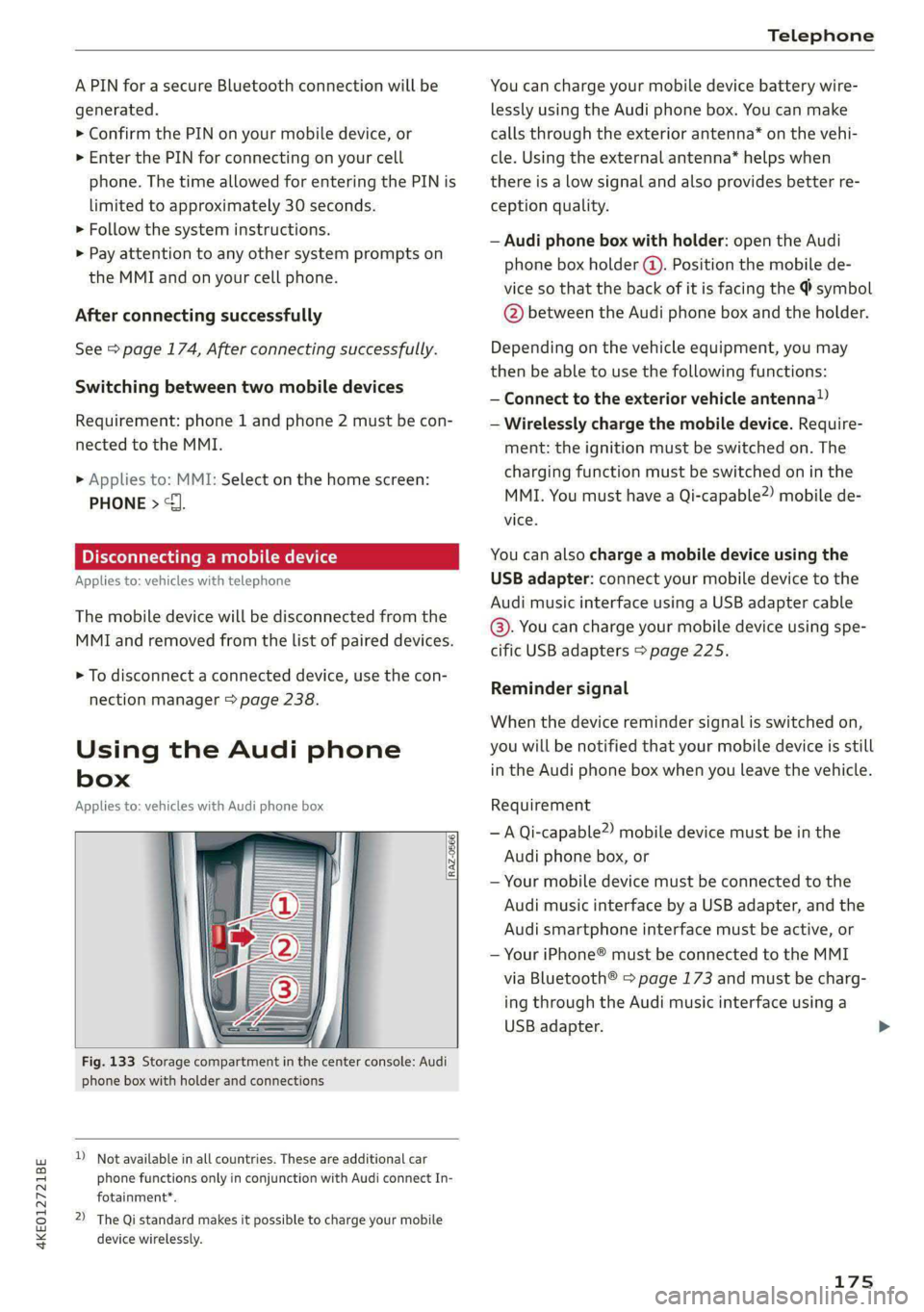
Fig. 133 Storage compartment in the center console: Audi
phone box with holder and connections
) Not available in all countries. These are additional car
phone functions only in conjunction with Audi connect In-
fotainment*.
2) The Qi standard makes it possible to charge your mobile
device wirelessly.
You can charge your mobile device battery wire-
lessly using the Audi phone box. You can make
calls through the exterior antenna* on the vehi-
cle. Using the external antenna* helps when
there is a low signal and also provides better re-
ception quality.
— Audi phone box with holder: open the Audi
phone box holder (@). Position the mobile de-
vice so that the back of it is facing the @ symbol
@ between the Audi phone box and the holder.
Depending on the vehicle equipment, you may
then be able to use the following functions:
— Connect to the exterior vehicle antenna?)
— Wirelessly charge the mobile device. Require-
ment: the ignition must be switched on. The
charging function must be switched on in the
MMI. You must have a Qi-capable2) mobile de-
vice.
You can also charge a mobile device using the
USB adapter: connect your mobile device to the
Audi music interface using a USB adapter cable
@. You can charge your mobile device using spe-
cific USB adapters > page 225.
Reminder signal
When the device reminder signal is switched on,
you will be notified that your mobile device is still
in the Audi phone box when you leave the vehicle.
Requirement
— A Qi-capable?) mobile device must be in the
Audi phone box, or
— Your mobile device must be connected to the
Audi music interface by a USB adapter, and the
Audi smartphone interface must be active, or
— Your iPhone® must be connected to the MMI
via Bluetooth® > page 173 and must be charg-
ing through the Audi music interface using a
USB adapter.
175
Page 178 of 316
Telephone
Applies to: MMI: Select on the home screen: SET-
TINGS > General > Reminder signal and mobile
device wireless charging.
The following settings are available:
— Signal tone
— Spoken cue*: this setting is switched on at the
factory.
— Off
— Mobile device charging notification*: when
this function is switched on, the charge status
of your mobile device is displayed. You will also
be reminded not to forget your mobile device
when leaving the vehicle.
— Mobile device wireless charging: when this
function is switched on, you can charge your Qi-
capable mobile device wirelessly in the Audi
phone box.
ZA\ WARNING
— Loose objects can be thrown around the ve-
hicle interior during sudden driving or brak-
ing maneuvers, which increases the risk of
an accident. Store objects securely while
driving.
— The mobile device may become hot during
wireless charging. Pay attention to the tem-
perature of your mobile device and be care-
ful when removing it from the Audi phone
box.
— An alternating magnetic field is used for
wireless charging. Maintain a minimum dis-
tance of approximately 2.4 in (6 cm) to the
Audi phone box charging plate. The thresh-
olds for prolonged exposure at this distance
comply with ICNIRP1998. Therefore, inter-
actions such as irritation of sensory organs,
malfunctions of active implants (such as
pacemakers, infusion pumps, or neurosti-
mulators) or effects on passive implants
(such as prosthetic limbs) is highly unlikely.
If you have an implant, consult a medical
specialist if you have any questions. You can
also switch the function for wireless charg-
ing in the Audi phone box on and off. You
can continue to charge your mobile device
using a cable connection.
176
@) Note
Applicable to U.S.A.
Operation of the Audi phone box is subject to
the following requirements of the Federal
Communications Commission:
— This is a CONSUMER device.
— BEFORE USE, you MUST REGISTER THIS DE-
VICE with your wireless provider and have
your provider’s consent. Most wireless pro-
viders consent to the use of signal boosters.
Some providers may not consent to the use
of this device on their network. If you are
unsure, contact your service provider.
— You MUST operate this device with approved
antennas and cables as specified by the
manufacturer. Antennas MUST be installed
at least 20 cm (8 inches) from any person.
— You MUST cease operating this device im-
mediately if requested by the FCC or a li-
censed wireless service provider.
— WARNING: E911 location information may
not be provided or may be inaccurate for
calls served by using this device.
@) Note
Applicable to Canada
In Canada, operation of a Zone Enhancer,
such as an Audi Phone Box, is subject to the
following requirements of the Innovation,
Science and Economic Development Canada
(ISED):
—This is a CONSUMER device.
— BEFORE USE, you MUST meet all require-
ments set out in CPC-2-1-05.
— You MUST operate this device with approved
antennas and cables as specified by the
manufacturer. Antennas MUST NOT be in-
stalled within 20 cm of any person.
— You MUST cease operating this device im-
mediately if requested by ISED or a licensed
wireless service provider.
— WARNING: £911 location information may
not be provided or may be inaccurate for
calls served by using this device.
Page 194 of 316
Audi connect
Always follow the information found in > AV
in General information on page 187.
Always follow the information found in >@ in
General information on page 187.
For more information on roaming charges,
contact your cell phone service provider.
Applies to: vehicles with Wi-Fi hotspot
Requirement: the ignition must be switched on.
» Applies to: MMI: Select on the home screen:
SETTINGS > Connection settings > Wi-Fi.
Depending on the country and the vehicle equip-
ment, the following functions may be available:
Wi-Fi
When the function is switched on, the MMI's Wi-
Fi hotspot is active and Wi-Fi devices can be con-
nected to the hotspot.
Wi-Fi hotspot settings
The Wi-Fi connection between the MMI and your
Wi-Fi device is encrypted. You can change the fol-
lowing information if needed.
— Access point (SSID): name of the Wi-Fi hot-
spot.
— Password: A random initial password was set in
the MMI at the factory. Audi recommends
changing the initial password. Only use secure
Troubleshooting
Applies to: vehicles with Audi connect Infotainment
The information that follows lists some trouble-
shooting options. They depend on the equip-
ment.
D_ Not available in every market.
192
passwords that conform to the general guide-
lines for secure passwords. For more informa-
tion, refer to reputable and current sources on
password security.
— Visible to others: you can switch the visibility
of the Wi-Fi hotspot on or off.
Always follow the information found in > AV
in General information on page 187.
Always follow the information found in >@ in
General information on page 187.
Data plans!)
Applies to: vehicles with data plans
Requirement: you must have created a myAudi
account at my.audi.com. Your vehicle must be
registered in your myAudi account.
You can purchase data plans at my.audi.com.
Always follow the information found in > AV
in General information on page 187.
Always follow the information found in >@® in
General information on page 187.
Depending on the country, applicable data
plans may need to be purchased when driving
in other countries.
Page 224 of 316
Media
Media
General information
There may be different media sources and con-
nections available depending on the vehicle
equipment. For example, you can play media files
using the SD card reader or connect your mobile
devices to the Audi music interface and operate
them through the MMI.
Media and format restrictions: the MMI (includ-
ing the SD card reader and the USB storage de-
vice connection) was tested with a variety of
products and media on the market. However,
there may be cases where individual devices or
media and audio/video files may not be recog-
nized, may play only with restrictions, or may not
play at all.
Restricted functionality: reset the Media to the
factory default settings if functionality is restrict-
ed > page 237.
Digital Rights Management: please note that
the audio/video files are subject to copyright pro-
tection.
Files that are protected by DRM and are identi-
fied with the symbol f@ will not play.
Data security: never store important data on SD
cards, CDs/DVDs, or mobile devices. Audi AG is
not responsible for damaged or lost files and me-
dia.
Loading times: the more files/folders/playlists
there are on a storage medium, the longer it will
take to load. To reduce the amount of time it
takes the audio/video files to load, use a storage
medium that only contains audio/video files, and
create subfolders (for example, for each artist or
album).
Additional information: when playing, audio
files are automatically displayed with any addi-
tional information that is stored (such as the ar-
tist, track and album cover). If this information is
not available on the storage medium, the MMI
will check the Gracenote metadata database.
However, in some cases, the additional informa-
tion may not be displayed.
222
C@) Note
Read the information about Audi connect, and
be sure to note the connectivity costs section
=@ in General information on page 187.
SD card reader
The SD card reader is in the storage compartment
under the front center armrest.
Inserting the SD card
> The angled corner of the SD card must face to-
ward the right front side when being inserted.
> Slide the SD card into the card reader slot until
the SD card clicks into place.
The SD card reader is accessed and operated
through the MMI = page 226.
@) Note
— Only use one-piece SD cards. If adapter
cards (SD cards with more than one piece)
are used, the card could fall out of the
adapter when driving because of vibrations.
Individual pieces could then become stuck
in the drive and impair the functionality.
—To reduce the risk of damaging drives and
data carriers, always keep data carriers ina
sleeve and never expose them to direct sun-
light.
DVD drive
General information
Applies to: vehicles with a DVD drive
The functionality of individual storage mediums
may be limited due to the variety of blank CDs/
DVDs available and the various capacities. Audio
CDs or video DVDs with copy protection, CDs/
DVDs that do not conform to the standard, and
multisession CDs may have limited playback or
may not play at all. AUDI AG recommends finaliz-
ing the recording process when creating multi-
session CDs. Multisession DVDs are not support-
ed.
Page 225 of 316
4KE012721BE
Media
@) Note
To reduce the risk of damaging the drive and
data carriers:
— Always store data carriers in a protective
sleeve and do not expose them to direct
sunlight
— Do not use damaged, dirty, or laminated da-
ta carriers
— Do not use single CDs/-DVDs with a 3.1 inch
(8 cm) diameter, non-circular CDs/DVDs
(shaped CDs), cleaning CDs, and protective
rings
— Never force CDs/DVDs into the drive. Discs
are pulled in automatically.
G) Tips
The thermal protection switch stops playback
temporarily when outside temperatures are
too high.
pe eli)
Applies to: vehicles with a DVD drive
—
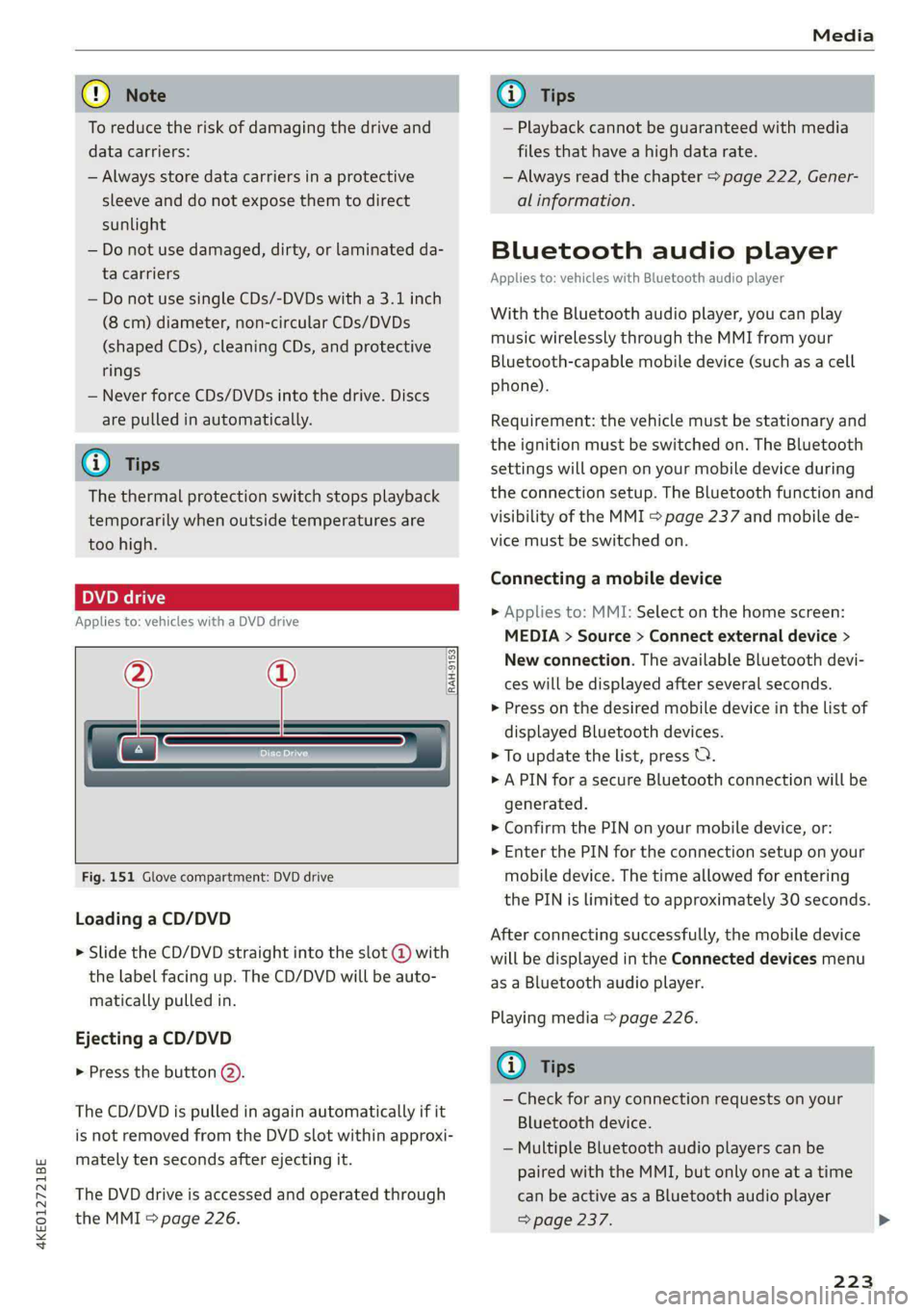
Fig. 151 Glove compartment: DVD drive
RAH-9153|
Loading a CD/DVD
> Slide the CD/DVD straight into the slot @ with
the label facing up. The CD/DVD will be auto-
matically pulled in.
Ejecting a CD/DVD
> Press the button @).
The CD/DVD is pulled in again automatically if it
is
not removed from the DVD slot within approxi-
mately ten seconds after ejecting it.
The DVD drive is accessed and operated through
the MMI > page 226.
@) Tips
— Playback cannot be guaranteed with media
files that have a high data rate.
— Always read the chapter > page 222, Gener-
al information.
Bluetooth audio player
Applies to: vehicles with Bluetooth audio player
With the Bluetooth audio player, you can play
music wirelessly through the MMI from your
Bluetooth-capable mobile device (such as a cell
phone).
Requirement: the vehicle must be stationary and
the ignition must be switched on. The Bluetooth
settings will open on your mobile device during
the connection setup. The Bluetooth function and
visibility of the MMI > page 237 and mobile de-
vice must be switched on.
Connecting a mobile device
> Applies to: MMI: Select on the home screen:
MEDIA > Source > Connect external device >
New connection. The available Bluetooth devi-
ces will be displayed after several seconds.
> Press on the desired mobile device in the list of
displayed Bluetooth devices.
> To update the list, press OQ.
> A PIN for a secure Bluetooth connection will be
generated.
> Confirm the PIN on your mobile device, or:
> Enter the PIN for the connection setup on your
mobile device. The time allowed for entering
the PIN is limited to approximately 30 seconds.
After connecting successfully, the mobile device
will be displayed in the Connected devices menu
as a Bluetooth audio player.
Playing media > page 226.
Gi) Tips
— Check for any connection requests on your
Bluetooth device.
— Multiple Bluetooth audio players can be
paired with the MMI, but only one at a time
can be active as a Bluetooth audio player
=> page 237.
223
Page 243 of 316
4KE012721BE
Checking and Filling
chemicals known to the State of California
to cause cancer and birth defects or other
reproductive harm.
— Battery posts, terminals and related acces-
sories contain lead and lead compounds,
chemicals known to the State of California
to cause cancer and reproductive harms.
Wash hands after handling.
@) Note
When filling fluids, be sure not to add any flu-
ids to the wrong reservoirs. Otherwise, severe
malfunctions and damage will occur.
@ For the sake of the environment
You should regularly check the ground under
your vehicle in order to detect leaks quickly. If
there are visible spots from oil or other fluids,
bring your vehicle to an authorized Audi deal-
er or authorized Audi Service Facility to be
checked.
Opening and closing the hood
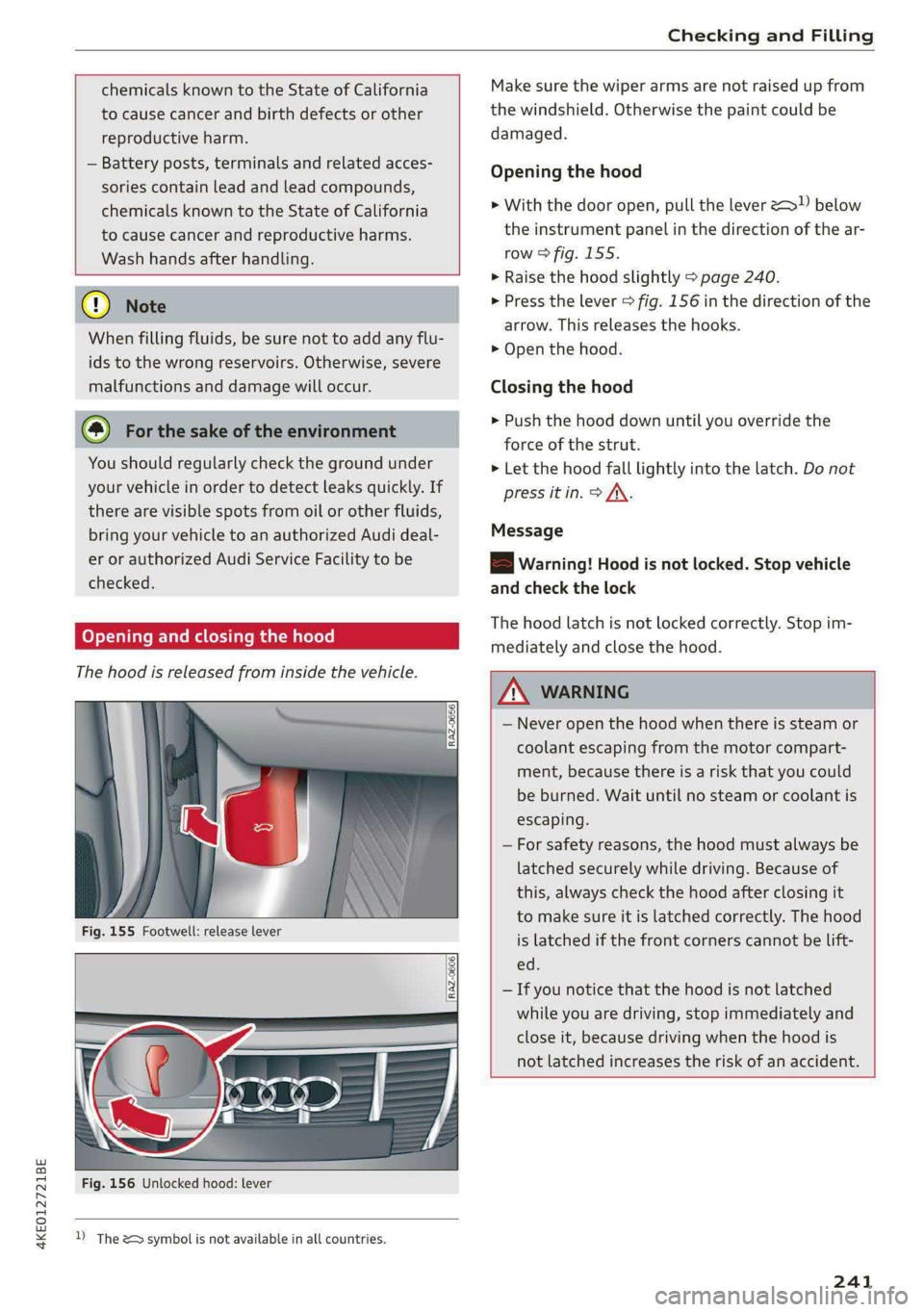
The hood is released from inside the vehicle.
RAZ-0606
Fig. 156 Unlocked hood: lever
2) The &> symbol is not available in all countries.
Make sure the wiper arms are not raised up from
the windshield. Otherwise the paint could be
damaged.
Opening the hood
> With the door open, pull the lever <>”) below
the instrument panel in the direction of the ar-
row > fig. 155.
> Raise the hood slightly > page 240.
> Press the lever > fig. 156 in the direction of the
arrow. This releases the hooks.
> Open the hood.
Closing the hood
> Push the hood down until you override the
force of the strut.
> Let the hood fall lightly into the latch. Do not
press it in. > /\.
Message
EB warning! Hood is not locked. Stop vehicle
and check the lock
The hood latch is not locked correctly. Stop im-
mediately and close the hood.
_ WARNING
— Never open the hood when there is steam or
coolant escaping from the motor compart-
ment, because there is a risk that you could
be burned. Wait until no steam or coolant is
escaping.
— For safety reasons, the hood must always be
latched securely while driving. Because of
this, always check the hood after closing it
to make sure it is latched correctly. The hood
is latched if the front corners cannot be lift-
ed.
— If you notice that the hood is not latched
while you are driving, stop immediately and
close it, because driving when the hood is
not latched increases the risk of an accident.
241
Page 278 of 316

Emergency assistance
> Inflate the tire to between 29 psi (200 kPA)
and 36 psi (250 kPA) and read the pressure on
the gauge.
> If this tire pressure is not reached, remove the
filler hose. Drive slowly approximately 33 feet
(10 m) forward or in reverse so that the sealant
can be distributed in the tire. Inflate the tire
again> A\.
Z\ WARNING
— Read and follow the manufacturer's safety
precautions on the compressor and in the in-
structions on the bottle of sealant.
— Ifa tire pressure of 29 psi (200 kPA) cannot
reached after inflating for 6 minutes, then
the tire is too severely damaged. Do not con-
tinue driving.
— If the tire cannot be repaired with the tire
sealant, see an authorized Audi dealer or au-
thorized Audi Service Facility for assistance.
@ Tips
Do not operate the compressor for more than
six minutes continuously, or it can overheat.
Once the compressor has cooled, you can con-
tinue to use it.
Completing
Applies to: vehicles with tire mobility kit
> Affix the sticker that says "max. 50 mph (max.
80 km/h)" that is provided with the tire mobili-
ty kit within the driver's field of vision.
> Stop the vehicle after driving for about 10 mi-
nutes and check the tire pressure.
> If the tire pressure is lower than 19 psi (130
kPA), then the tire is too severely damaged. Do
not continue driving.
ZX WARNING
Pay attention to the following after repairing
the tire:
— Do not drive faster than 50 mph (80 km/h).
— Avoid hard acceleration or braking and driv-
ing fast around curves.
— The vehicle may become more difficult to
control.
276
— If the tire is too severely damaged, see an
authorized Audi dealer or authorized Audi
Service Facility for assistance.
(@) For the sake of the environment
You can give the used tire sealant bottle to an
authorized Audi dealer or authorized Audi
Service Facility for disposal.
G) Tips
Remember to obtain a new bottle of sealant
from an authorized Audi dealer or authorized
Audi Service Facility after repairing a tire.
Replacing wheels
You must complete the preparation before
changing a tire.
> Read and follow the important safety precau-
tions > page 274.
> Set the parking brake.
> Select the “P” position.
> When towing a trailer: disconnect the trailer
from your vehicle.
> Lay out the vehicle tool kit > page 274 and the
spare tire > page 280.
> Applies to: vehicles with air suspension: Select
on the home screen: VEHICLE > Settings &
Service > Air suspension: wheel change.
> Switch the ignition off.
ZX WARNING
The vehicle must also be secured to prevent it
from rolling when using the vehicle jack*. Use
suitable objects to block the front and back of
the wheel that is diagonal from the wheel
with the flat tire.