phone AUDI E-TRON 2020 Owners Manual
[x] Cancel search | Manufacturer: AUDI, Model Year: 2020, Model line: E-TRON, Model: AUDI E-TRON 2020Pages: 316, PDF Size: 85.96 MB
Page 5 of 316
4KE012721BE
Table of contents
High-voltage system............. 107
Generalinformation................. 107
Charging the high-voltage battery...... 108
Charging equipment................. 115
Trailer ROwilne is «i wows «seas gs eeees 124
Driving witha trailer................. 124
Assist systems................... 127:
ASSIST SYSTCINIS§ 65 6 i onws 5 can so oe iZ7
General information................. 127
Surrounding area detection............ 128
Switching the systems on and off....... 130
Driving information.............. 132
Speed warning system..............-- 132
Camera-based traffic sign recognition... 132
Traffic light information.............. 134
Nightivision aSSiSti=x = «wm : » ase y s eon 135
Integrated Toll Module............... 137
Driver assistance................. 139
Cruise control system............00-5 139
Efficiency assist.............02.-000. 140
Adaptive cruise assist................ 142
Distance warning ..............00005. 152,
Lane departure warning............... 153
Audi presense...........0 cece eee 154
Sid@vassist sews: = s sexs = 2 sews & e Ae & ne 158
EXIE Warning sire x 6 cera oo were @ @ eee os 160
Intersection assistant................ 161
Emergency assist... ....:seeceeeevees 162
Parking and maneuvering....... 164
ThitrOdUCtiON « s sees ¢ = sees 5 ¢ sere ge ees 164
Parking‘aid plus « sissies avis oe aretes so aoe 164
Rearview camera and peripheral cameras. 166
Rear cross-traffic assist............... 171
Infotainment system............ L73
Telephone....................005- 173
INtROGUCtION « 2 sees » y sees 9 2 gees s 5 aes 173
SOLUP scsvine a 6 sssnase 2 0 soeaam + 6 oewoan © 6 coesern < 173
Using the Audi phone box............. 175
Using the telephone..............0005 177
MOSSAQCSiecies «i ssnsis 6 v suite + 0 oxime + 8 aie 181
Settings............0 0.0 ..0..00000. 183
Instrument cluster..............2.--- 185
Troubleshooting.................00 ee 185
AUP CONNECE « 6:65. 6 ev ee ews se os 187
General information................. 187
Audi connect Infotainment............ 187
Using a Wi-Fi hotspot................ 188
Audi connect Infotainment services..... 188
Audi connect vehicle control services.... 189
SGttiNGS mows ¢ » news © eww ¢ wor a 6 ateneg 191
Troubleshooting............... eee eee 192
Emergency call................... 194
OVERVIEW sscor xe creer wu eueiane & x cman © & ares 194
Emergency call..............-.000005 194
Online roadside assistance............ 195
Navigation....................000. Lg?
Opening navigation.................. 197
myAudi navigation...............0005 197
Entering a destination................ 198
Stopping route guidance.............. 203
Mapes 2 o socases 2 3 omer o 3 omrnom wo eau @ 3 vee 203
Personal route assistance............. 205
Alternative routes.............2.-04. 206
Additional functions...............-. 206
Satellite map........... 0.0.0.2 eee 208
Electric range... . 6... cece eee eee 208
Map‘update: « sees ys agus ye ees vo ees 209
Traffic information.................00- 210
Options and settings................- 211
RaACHON. seve. = soso we wien 4 weanene oe weaves 214
Opening the radio................... 214
Radio functions wc s 2 ees © s seen os reese 215
Onllime tadiOven « 2 senses av sewsece ov somes a im 218
Options and settings...............0. 219
TROUDIESHOOtING san ¢ x xoam « + some & 2 eo 221
Media............... 0. cece eee 222
General information................. 222
SDicard reader's + wees + 2 wows se wees s Gos 222
DVD drive...... 0... eee eee eee 222
Bluetooth audio player............... 223
Online Média « ¢ ese. ye cee ge eee ee eae 224
Amazon Alexa... ..... cee eee eee ee eee 225
Multimedia connections.............. 225
Playing media..............00--0000- 226
Page 6 of 316
Table of contents
Options and settings................. 230
Supported media and file formats...... 232
Troubleshooting wv s & wees se cows 6 bey 233
Audi smartphone interface...... 234
SGtUP = stain ¢ 2 eeuis = Hae x Rae GR ROE 234
Troubleshooting swies 2 osc se enw so exe 235
Additional settings.............. 236
SYStETISECLINGS: « + eaws « + caves 5 3 seems 5 236
Connected devices............0 000s 237
Legalinformation................... 238
Maintenance and Care........... 240
Checking and Filling............. 240
Motor'compartment’. sc. ¢ « wcen es oes 240
COOliMgISyStEIM ss sumsivs aw swseee ew smnvews oo ane 242
Brake fluid. ........ 0.0.0.0 c eee eee 243
Electrical SVSt@liccs « s scum 2 : sare o 2 wae 244
Battenyis ¢ «sic s 6 wen 2 9 ween oy were 2 ere 245
Windshield washer system...........- 246
Service interval display............... 246
WWINGOIS : ceciices co costes 6 a sncewvs ow oneners 0 at 248
Wheels and Tires . . 248
Tire pressure monitoring system....... 265
Care and cleaning................ 268
Generalinformation................. 268
Car washes « swe: vx awa: oo amin 0 x snanae #2 268
Cleaning and care information......... 269
Taking your vehicle out of service....... 273
Do It Yourself .................... 274
Emergency assistance........... 274
General information................. 274
Equipment............. 0c eee eee 274
Tire mobility kit..................00. 274
Replacing wheels. ........:cceeeeeees 276
Collapsible spare tire..............0.. 280
Jump starting ..............e eee eee 281
IQWING were: worms 5 cee 9 + eee + eee 281
Fuses and bulbs.................. 284
FUSES 3 2 amow 4 meme a 2 mee ay ome 2 284
Bel DSyonsn = secaais 2s omens a orate vw acct =e aa 287
Customer information........... 288
Data privacy..................008. 288
Image recording. ...........eeeeenees 288
Dataiimenmtoniess: ss scams x x wus ov eee o 3 6 288
Transmitted information.............. 289
Accessories and technical
CHANGE|S.... 1... eee eee 292
Warranty..........0. 000. e eee eee ee 292
Audi Literature Shop..............00. 292
Driving in other countries............. 292
Maintenance, repairs, and technical
MODIFICATIONS + sayse x e neu ¢ x caw x x cues 292
Accessories and parts................ 294
Reporting Safety Defects.............. 294
Declaration of compliance for
telecommunications equipment and
electronic systems............--.0005 295
Technical data... . «60.6 even ee ves 297
Identification data................04. 297
Vehicle data acc = s sews =: eens oy ees eee 297
INdeX 0... ee eee 299
Page 9 of 316
4KE012721BE
Quick access
— Audi musicinterface .......... 225
— Audi phone box ............... 175
—SDcardreader ............... 222
SOGKEE vcs sw isiness x x seein sw oem a ws 75
@ Electromechanical parking brake
BUtEON acces ox comme: « 2 sure 2 3 conte © 96
@® Selector lever ..............00. 90
@) [START STOP] button ............ 88
@) Steering wheel adjustment ...... 59
@3) Lever for:
— Cruise control system ......... 139
— Adaptive cruise assist .......... 142
@4 Connection port for the On Board
Diagnostic System (OBD) ........ 288
@3) Hood release ..........-..-0005 241
@8 Memory function buttons ........ 64
@) Buttons for:
PELIQHES ac x 2 wsvcene ao esezoss vo aenere @ s 45
—All-weather lights ............ 45
Luggage compartment lid button . 35
@9) Exterior mirror adjustment ...... 49
69 Buttons for:
— Power windows ............0. 39
—Child safety lock .............. 39
G) Tips
Some the equipment listed here is only instal-
led in certain models or is available as an op-
tion.
Indicator lights overview
The indicator lights in the instrument cluster
blink or turn on. They indicate functions or mal-
functions. Some warning and indicator lights
turn on when you switch the ignition on and must
turn off when the drive system is switched on or
while driving.
With some indicator lights, messages may ap-
pear and warning signals may sound. The indica-
tor lights and messages may be covered by other
displays. To show them again, select the second
tab for messages with the multifunction steering
wheel > page 12.
Some indicator lights in the display can display in
several colors.
A\ Central indicator light
If the A or indicator light turns on, check
the message in the instrument cluster.
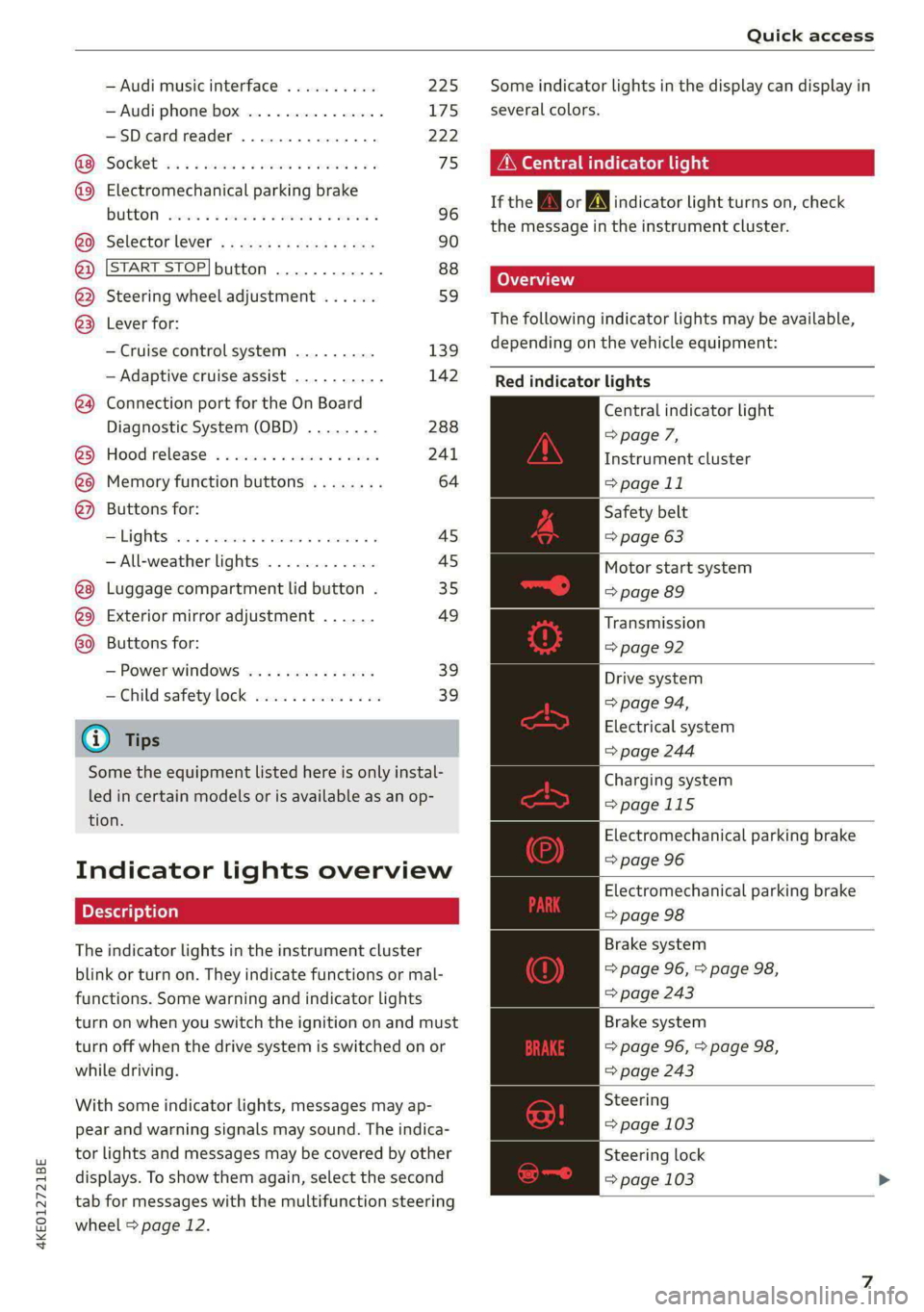
The following indicator lights may be available,
depending on the vehicle equipment:
Red indicator lights
Central indicator light
=> page 7,
Instrument cluster
=> page 11
Safety belt
=> page 63
Motor start system
=> page 89
Transmission
=> page 92
Drive system
=> page 94,
Electrical system
=> page 244
Charging system
=>page 115
Electromechanical parking brake
=> page 96
Electromechanical parking brake
=> page 98
Brake system
=> page 96, > page 98,
=> page 243
Brake system
=> page 96, > page 98,
=> page 243
Steering
=> page 103
Steering lock
=> page 103
Page 14 of 316

Instrument cluster
Requirement: the driver's door must have been Returning to functions at higher levels
opened and the ignition must not be switched > Press the + button ©).
on.
Opening and closing the men
> Confirm the displayed profile @), or pening ing 4
> To load another profile, select and confirm > Press the [I button ©).
Switch profile 2).
Selecti d firmi functi
> Select and confirm the desired profile. The ehecting ane’ confirming a function
user-specific settings will load. Requirement: a menu or list must be displayed.
PTo.canceL the seat,.mirtor,.and steeting-colllmin > To select a function, turn the left thumbwheel
adjustment, select Cancel. @ to the desired function.
> To confirm a selection, press the left thumb-
@ Tips wheel @.
For more information and usage options for
personal profiles, see > page 27. Switching the view
> Press the VIEW button @).
Operating The following tabs may be available, depending
on vehicle equipment:
First tab Vehicle functions > page 14
Second tab | Driver messages (this is only dis-
3:50 played if at least one indicator
light/message is being displayed)
2/17/2019
Third tab Night vision assist (this is only dis-
played if the night vision assist
Fig. 4 Instrument cluster: driver information system has been activated) > page 135
Fourth tab | Radio > page 214
Media > page 226
Fifth tab Telephone > page 185
Sixth tab Navigation > page 197
RAH-9206|
Adjusting the display
rm] S| 3|
I?) IN| Iz fac
Fig. 5 Left side of multifunction steering wheel
Information is organized within various tabs (@)
in the instrument cluster. The tab contents are
displayed in the central area (2).
Requirement: the ignition must be switched on. Fig. 6 Upper display: adjusting the display
Selecting a tab Switching the view
> Press the button @) repeatedly until the > Press the VIEW button to switch between the
desired tab is selected. default view @ and the enhanced view (2).
12
Page 17 of 316

4KE012721BE
Touch displays
General touch display
operation
Applies to: touch displays
The touch display is controlled through the
touchscreen. Operation is very similar to operat-
ing a smartphone.
All touch displays in the vehicle can be operated
with the gestures described in the following in-
formation.
G@) Tips
Certain gestures may not be available on all
touch displays or in every menu.
Applies to: touch displays
Fig. 8 Touch display: pressing
Selecting a function or button
> Press the desired function or button.
Applies to: touch displays
Fig. 9 Touch display: pressing and holding
Accessing options
For some items, you can access additional op-
tions that are not directly visible.
> Press and hold an item until the associated op-
tions are displayed.
Applies to: touch displays
Fig. 10 Touch display: pressing and pulling
Moving an item
You can position some items at any location on
the screen.
> Press and hold an item, and then use your fin-
ger to pull it to the desired location.
Pinching fingers t
Applies to: touch displays
Fig. 11 Touch display: pinching fingers together and pull-
ing them apart
Zooming in and out on an item
> To increase the size of an item, touch it with
two fingers and pull your fingers apart.
> To decrease the size of an item, touch it with
two fingers and pull your fingers together.
15
Page 19 of 316

4KE012721BE
Touch displays
> If the General button is not displayed, swipe
toward the left or right with one finger until it
appears.
>» Press the General button.
> If the Date & time button is not displayed,
swipe upward or downward with one finger un-
tilit appears.
> Press the Date & time button.
@ Tips
If a menu or symbol is in parentheses in the
path, for example, (General) or (423), then it is
an optional menu item that does not need to
be used in every system.
You can adjust or turn off the MMI touch display
feedback.
> Applies to: MMI: Select on the home screen:
SETTINGS > Display & brightness > MMI.
Possible settings:
— Brightness
— Touchscreen Feedback
Multi Media Interface
Traffic safety information
Audi recommends performing certain Infotain-
ment system functions, such as entering a desti-
nation, only when the vehicle is stationary. Al-
ways be prepared to stop operating the Infotain-
ment system in the interest of your safety and
the safety of other road users.
Z\ WARNING
Only use the Infotainment system when road,
traffic, weather, and visibility conditions per-
mit and always in a way that allows you to
maintain complete control over your vehicle.
@ Tips
Certain functions are not available while driv-
ing.
Switching on or off
Switching the MMI on or off
> To switch the MMI off, press and hold the
On/Off knob > page 26, fig. 21 until the up-
per
display and all Infotainment system func-
tions are switched off.
> To switch the MMI on, press the On/Off knob.
Restarting the MMI
>» Press and hold the On/Off knob for at least 10
seconds.
Switching displays on or off
> To switch the upper display off, press [1] on the
lower display.
> To switch the upper display on, touch the upper
display or press [@J on the lower display.
> To switch both displays on or off, press and hold
Co] on the lower display.
Introduction
You can display and operate Infotainment system
and vehicle functions using both of the Multi Me-
dia Interface (MMI) touch displays.
Configuration wizard
After starting for the first time, the configuration
wizard helps you to set up the vehicle, for exam-
ple to set the desired system language and con-
nect
a telephone.
> Follow the instructions in the display.
> Applies to: MMI: To access the configuration
wizard at a later time, select on the home
screen: HELP > Configuration wizard.
Tool tips
Tool tips are displayed on the upper display after
starting for the first time. They introduce various
MMI functions to you.
> Follow the instructions in the display.
> Applies to: MMI: To access the tool tips at a lat-
er time, select on the home screen: SETTINGS
> Help > Show tool tips.
> Applies to: MMI: To receive other tool tips, se-
lect on the home screen: HELP > Tool tips > Ba-
sic information or Expert information.
17
Page 21 of 316

4KE012721BE
Touch displays
Configuring quick access
> Press and hold a button on the home screen
display area or in the quick access bar.
> To move a button to the quick access bar, pull it
from the display area to the quick access bar.
> To adjust the placement of the buttons in the
quick access bar, pull them to the desired posi-
tion in the bar.
> Press Done to complete the configuration.
@ Tips
The position of © cannot be adjusted.
Display area
You can freely change the location of the buttons
on the home screen display area.
Configuring the display area
> Press and hold a button on the home screen
display area.
> To adjust the placement of the buttons, pull
them to the desired locations.
> Press Done to complete the configuration.
Switching between menu pages
If a menu contains multiple menu pages, Fema |S
displayed in the display area. The white bar
shows the location of the current menu page.
> To switch between menu pages, swipe your fin-
ger to the right or left.
O8 OB OB
Off Oo of
O88 O88 o8 of
Fig. 16 Upper display: common symbols in the status bar
[RAZ-0783
The symbols in the status bar show you informa-
tion at a glance, such as if a mobile device is con-
nected or if there is a data connection. The most
common symbols are listed in the table.
Description
There is a data connection. The bar indi-
@ | cates the signal strength of the data con-
nection. Data is being transmitted now.
There is a data connection. The bar indi-
@ | cates the signal strength of the data con-
nection. No data is being transmitted now.
A mobile device is connected. The bar indi-
@® | cates the signal strength of the cell phone
connection.
There is no data connection. ®
An error occurred with the mobile device
connection to the MMI. ©
The personal profiles are switched on. The
digits 1 - 6 indicate which personal profile
is currently active. The guest profile is ac-
tive if there are no digits.
A Bluetooth device is connected.
Bluetooth is switched on, but no Bluetooth
device is connected.
©® Ee
©
Audio playback was interrupted.
The audio source is muted.
Privacy settings are enabled. The additional
symbol indicates which privacy settings are
currently activated > page 289.
®
|O|©
The Integrated Toll Module is switched on.
The digits 1 - 3+ indicate how many passen- ®
gers are selected in the MMI.
Nl titelacme nies
diOo/e18 Pea
Eyre
RAX-0013
‘Active phone call 4
Core Pere
Cec)
[P] se i mE ee og ease ces
the destination.
Fig. 17 Upper display: notification center
Notifications can be displayed in the upper dis-
play. After a specified time, they will be hidden
and a corresponding symbol will appear in the
19
>
Page 26 of 316

Voice recognition system
Voice recognition system
General information
Applies to: vehicles with voice recognition system
You can operate many functions in the vehicle
easily using voice commands.
Using the voice recognition system optimally
> Speak clearly and distinctly at a normal volume.
Speak louder when driving faster.
> Emphasize the words in the commands evenly
and do not leave long pauses.
> Close the doors, the windows, and the sunroof*
to reduce background noise. Make sure that
passengers are not speaking when you are giv-
ing a voice command.
> Do not direct the vents toward the hands-free
microphone, which is in the roof headliner near
the front interior lights.
> Only the driver should speak to the system, be-
cause the handsfree microphone is aimed to-
ward this seating position.
ZA\ WARNING
— Direct your full attention to driving. As the
driver, you have complete responsibility for
safety in traffic. Only use the functions in
such a way that you always maintain com-
plete control over your vehicle in all traffic
situations.
— Do not use the voice recognition system in
emergencies because your voice may change
in stressful situations. The system may take
longer to dial the number or may not be
able to dial it at all. Dial the emergency
number manually.
G) Tips
There are no voice guidance* prompts when a
dialog is active.
24
Operating
Applies to: vehicles with voice recognition system
See
Dat)
Where is a
Connect
Diala
coy
Es
ea
cog
Fig. 19 Upper display: voice recognition system
Switching the voice recognition system on or
off
Requirement: the ignition and the MMI must be
switched on. A system language supported by
the voice recognition system must be set. There
must be no phone calls in progress and the park-
ing aid must not be active.
> To switch the voice recognition system on,
briefly press the «€ button on the multifunction
steering wheel, or depending on the context,
press wt in the upper display.
> To switch the voice recognition system off,
press and hold the « button on the multifunc-
tion steering wheel, or say or press Cancel (4).
Using the voice recognition system
In the voice recognition system menu, possible
commands or help settings are displayed for the
current dialog @).
> Say the desired command after the signal tone.
> To receive additional help for the current dia-
log, say or press Help (2).
> To pause voice recognition, say or press Pause
@. To reactivate voice recognition, press ()
again or briefly press the «€ button on the mul-
tifunction steering wheel.
> Applies to: MMI: Select on the home screen:
SETTINGS > General > (Speech dialog system)
> Allow commands during voice output. If the
function is switched on, you can simply say a
new command during a prompt.
Activating the online recognizer
Applies to: vehicles with online recognizer
You can activate the online recognizer for addi-
tional functions and to improve the results of >
Page 27 of 316

4KE012721BE
Voice recognition system
voice recognition. A supported menu language
must be selected. When there is an active Inter-
net connection, the spoken command is evaluat-
ed in the vehicle and online.
> When you switch on the voice recognition sys-
tem for the first time, a menu for the online
recognizer opens. Or:
> Applies to: MMI: Select on the home screen:
SETTINGS > General > Speech dialog system >
Consent to online speech recognizer.
> Read the licensing agreements and accept
them.
Activating Amazon Alexa!)
Applies to: vehicles with Amazon Alexa integration
You can activate Amazon Alexa to access special
additional functions. A supported menu lan-
guage must be selected. A reduced number of
commands are available during this.
Requirement: you must be logged in to your
myAudi account in the vehicle. The online recog-
nizer must be activated.
> Applies to: MMI: Select on the home screen:
USER > Connect with Amazon Alexa.
> Follow the instructions in the display.
> After connecting successfully, turn on the voice
recognition system as normal > page 24,
Switching the voice recognition system on or
off, say the activation word “Alexa”, and then
say the desired command.
©) Note
Read the information about Audi connect, and
be sure to note the connectivity costs section
=@ in General information on page 187.
External voice operation
Applies to: vehicles with external speech dialog system
You can access and control the voice operation on
a connected mobile device through your vehicle.
2) AUDI AG provides access to services from third party pro-
viders. Permanent availability cannot be guaranteed, be-
cause that depends on the third party provider.
Switching external voice operation on or off
Requirement: the ignition and the MMI must be
switched on. A cell phone must be connected to
the MMI with the Handsfree profile > page 173.
The mobile device being connected must have
voice control that can be controlled externally.
There must be no phone calls in progress and the
parking aid must not be active.
> To switch on the external voice operation, press
and hold the «€ button longer on the multifunc-
tion steering wheel.
> To switch off the external voice operation, press
and hold the «€ button longer on the multifunc-
tion steering wheel or press Cancel.
Using external voice operation
>» Say the desired command after the signal tone.
> To reactivate voice recognition when it is
paused, press the «¢ button briefly on the mul-
tifunction steering wheel or press Resume.
@ Tips
AUDI AG simply provides access to control
your mobile device with voice operation and
does not assume any responsibility for the
content and commands within the external
voice control.
25
Page 28 of 316
Global functions
Global functions
Additional function
buttons
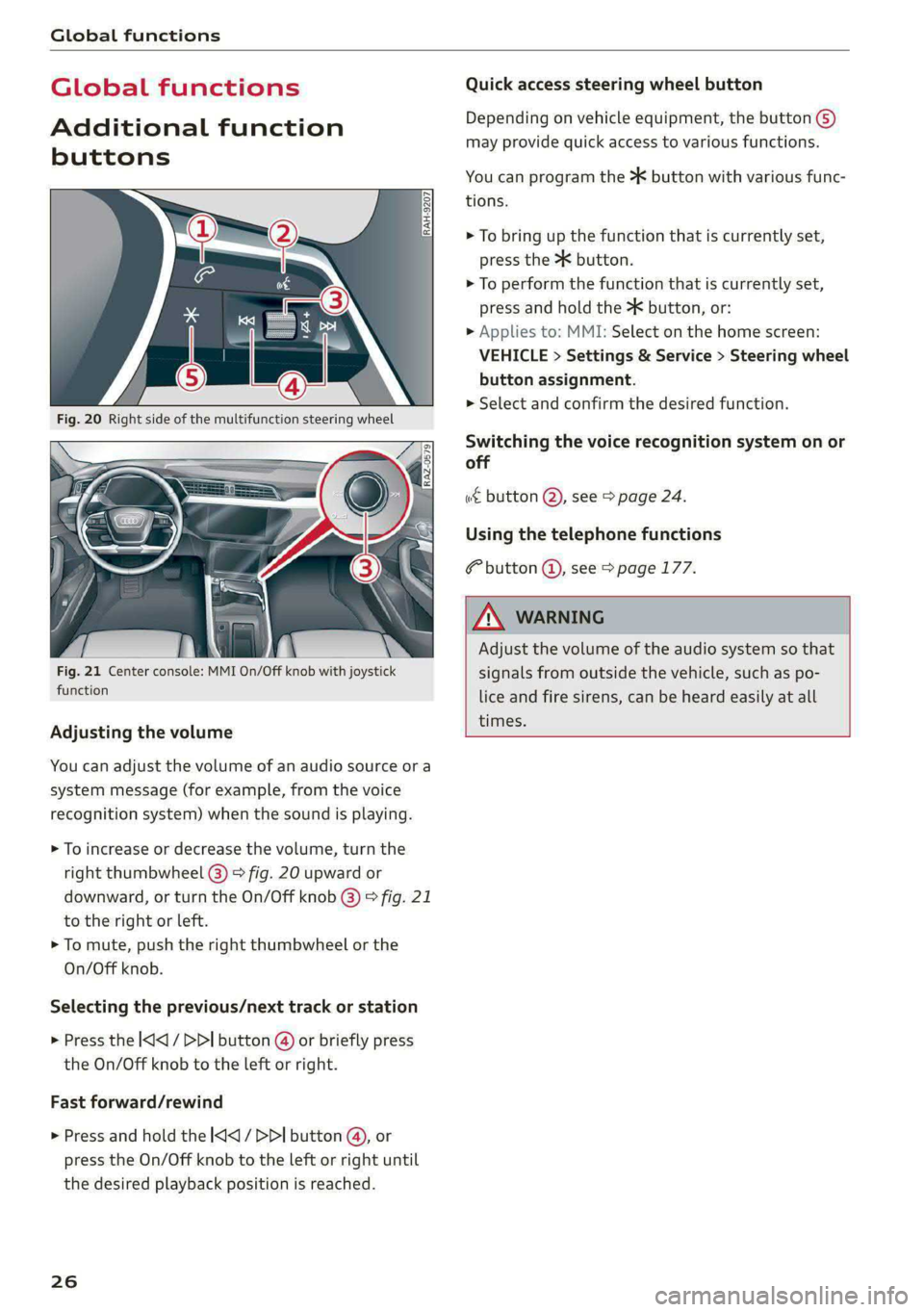
Fig. 21 Center console: MMI On/Off knob with joystick
function
Adjusting the volume
You can adjust the volume of an audio source or a
system message (for example, from the voice
recognition system) when the sound is playing.
> To increase or decrease the volume, turn the
right
thumbwheel @) © fig. 20 upward or
downward, or turn the On/Off knob @) © fig. 21
to the right or left.
> To mute, push the right thumbwheel or the
On/Off knob.
Selecting the previous/next track or station
> Press the |< / DDI button @ or briefly press
the On/Off knob to the left or right.
Fast forward/rewind
> Press and hold the
the desired playback position is reached.
26
Quick access steering wheel button
Depending on vehicle equipment, the button ©)
may provide quick access to various functions.
You can program the >K button with various func-
tions.
> To bring up the function that is currently set,
press the >K button.
> To perform the function that is currently set,
press and hold the >K button, or:
> Applies to: MMI: Select on the home screen:
VEHICLE > Settings & Service > Steering wheel
button assignment.
> Select and confirm the desired function.
Switching the voice recognition system on or
off
w& button @), see > page 24.
Using the telephone functions
button (@), see > page 177.
ZA\ WARNING
Adjust the volume of the audio system so that
signals from outside the vehicle, such as po-
lice and fire sirens, can be heard easily at all
times.