TOW MODE AUDI E-TRON 2021 User Guide
[x] Cancel search | Manufacturer: AUDI, Model Year: 2021, Model line: E-TRON, Model: AUDI E-TRON 2021Pages: 308, PDF Size: 83.91 MB
Page 129 of 308
4KE012721BF
Trailer towing
— Secure objects so that they do not slide.
— Utilize the maximum permitted tongue weight
if possible.
Tires
Set the tire pressure on your vehicle for a “full
load”; see the tire pressure sticker > page 251. If
necessary, also adjust the tire pressure on the
trailer according to the manufacturer's specifica-
tions.
The trailer and the vehicle should be equipped
with winter tires when driving in winter tempera-
tures.
Outside mirrors
Make sure that you can also observe the traffic
area behind the vehicle using the exterior mir-
rors, and use additional exterior mirrors if neces-
sary. Adjust the additional exterior mirrors so
that you have a sufficient visibility behind the ve-
hicle. Follow the local legal regulations for instal-
ling additional exterior mirrors.
Exterior lighting
Follow the legal regulations for lighting on your
trailer that are applicable in the country where
you are operating the vehicle. Contact an author-
ized Audi dealer or authorized Audi Service Facili-
ty for more information.
Before you start driving, check all lighting equip-
ment on the trailer while it is hitched to the vehi-
cle.
The headlight range control automatically ad-
justs the light range of the headlights.
Safety chains
Make sure the safety chains are correctly applied
when pulling a trailer. The chains should hang
enough so that the trailer can drive around
curves. However, they must not touch the
ground.
Air suspension
Applies to: vehicles with air suspension
The Audi drive select* comfort mode > page 102
must be selected before you adjust the tongue
weight on the trailer and hitch the trailer >@,
=> page 103.
The air suspension trailer mode must be switched
on.
Applies to MMI: select on the home screen: VE-
HICLE > Settings & Service > Air suspension:
trailer.
Switch trailer mode off again when you are no
longer towing a trailer.
For vehicles with a factory-installed trailer hitch,
the air suspension trailer mode will automatically
switch on if you connect the trailer connector to
the socket.
When using rear carrier systems that are mount-
ed directly on the trailer hitch ball head, you can
also switch trailer mode off manually.
If you must drive on roads that are in poor condi-
tion, you can raise the vehicle again after hitching
the trailer or after adjusting the tongue weight
=> page 103.
You can also increase ground clearance by select-
ing the Audi drive select* offroad or allroad
modes > page 102.
Vehicle levels below the values set in the comfort
level will no longer be available, even if you are
lowering the vehicle manually.
ZA WARNING
Applies to: vehicles with air suspension
— Never turn off trailer mode while driving
when a trailer is hitched, because then the
restrictions for controlling the vehicle level
will be turned off.
— Driving with a trailer on unpaved roads when
the vehicle is raised may change the vehicle
handling. Adapt your speed.
— Note that the vehicle will lower automatical-
ly at certain speeds if you have lifted the ve-
hicle manually.
@) Note
— Applies to: vehicles with air suspension: Se-
lect the Audi drive select* comfort mode.
127
Page 131 of 308
4KE012721BF
Assist systems
Assist systems
General information
Sra eel delay
ZA\ WARNING
— As the driver, you are always completely re-
sponsible for all driving tasks. The assist
systems cannot replace the driver's atten-
tion. Give your full attention to driving the
vehicle, and be ready to intervene in the
traffic situation at all times.
— Activate the assist systems only if the sur-
rounding conditions permit it. Always adapt
your driving style to the current visual,
weather, road, and traffic conditions.
— Loose objects can be thrown around the ve-
hicle interior during sudden driving or brak-
ing maneuvers, which increases the risk of
an accident. Store objects securely while
driving.
— For the assist systems to be able to react
correctly, the function of the sensors and
cameras must not be restricted. Note the in-
formation on sensors and cameras
= page 130.
@ Tips
— Pay attention to applicable local regulations
relating to driving tasks, leaving space for
emergency vehicles, vehicle distance, speed,
parking location, wheel placement, etc. The
driver is always responsible for following
the laws that are applicable in the location
where the vehicle is being operated.
— You can cancel a steering or braking inter-
vention by the system by braking or acceler-
ating noticeably, steering, or deactivating
the respective assist system.
— Always check the assist systems settings be-
fore driving. The settings could have been
changed, for example by other drivers or by
using another user.
System limitations
ZA\ WARNING
—The use of an assist system cannot over-
come the natural laws of physics. A collision
cannot be prevented in certain circumstan-
ces.
— Warnings, messages, or indicator lights may
not be displayed or initiated on time or cor-
rectly, for example, if vehicles are approach-
ing very fast.
— Corrective interventions by the assist sys-
tems, such as steering or braking interven-
tions, may not be sufficient or they may not
occur. Always be ready to intervene.
@) Tips
— Due to the system limitations when detect-
ing the surrounding area, the systems may
warn or intervene unexpectedly or too late
in certain situations. The assist systems may
also interpret a driving maneuver incorrectly
and then warn the driver unexpectedly.
— The systems may not function as expected
in unusual driving situations, such as driving
offroad, on unpaved roads, on loose ground,
on inclines, or on grooves in the road.
— The systems may not function correctly in
unclear traffic situations, such as turning
lanes, exit ramps, construction zones, rises
or dips that obstruct visibility, intersections,
toll stations, or city traffic.
— The detection of the surrounding area can
be limited, for example by vehicles driving
ahead or by rain, snow, heavy spray, or light
shining into the camera.
—In trailer mode, some assist systems may be
limited, may not react as usual, or may be
unavailable. Please refer to the instructions
for towing a trailer located in > page 126.
— The steering wheel touch recognition may
be limited when you wear gloves. Steering
intervention requests from the steering as-
sist systems may occur more frequently.
— If accessories have been mounted on the
steering wheel, the steering assist systems
may
be limited. The frequency of steering
129
>
Page 152 of 308
Driver assistance
— Control by the system depends on which
adaptive cruise assist driving program is set
or on the selected Audi drive select* mode.
— After switching on the ignition and first
driving onto a freeway or similar road with-
out a speed limit, the system will regulate
the speed to 80 mph (130 km/h). Then
the system adjusts to the last speed set by
the driver.
— There is no adaptation to speed limits when
driving through highway interchanges and
when driving on or off the expressway.
— The system can fail to provide control or the
control may be faulty if the values from the
camera-based traffic sign recognition* are
incorrect or the navigation system map data
is outdated.
— When route guidance is switched on, the
system adapts to the route provided by the
navigation system. Driving without route
guidance or leaving a route can result in
faulty control.
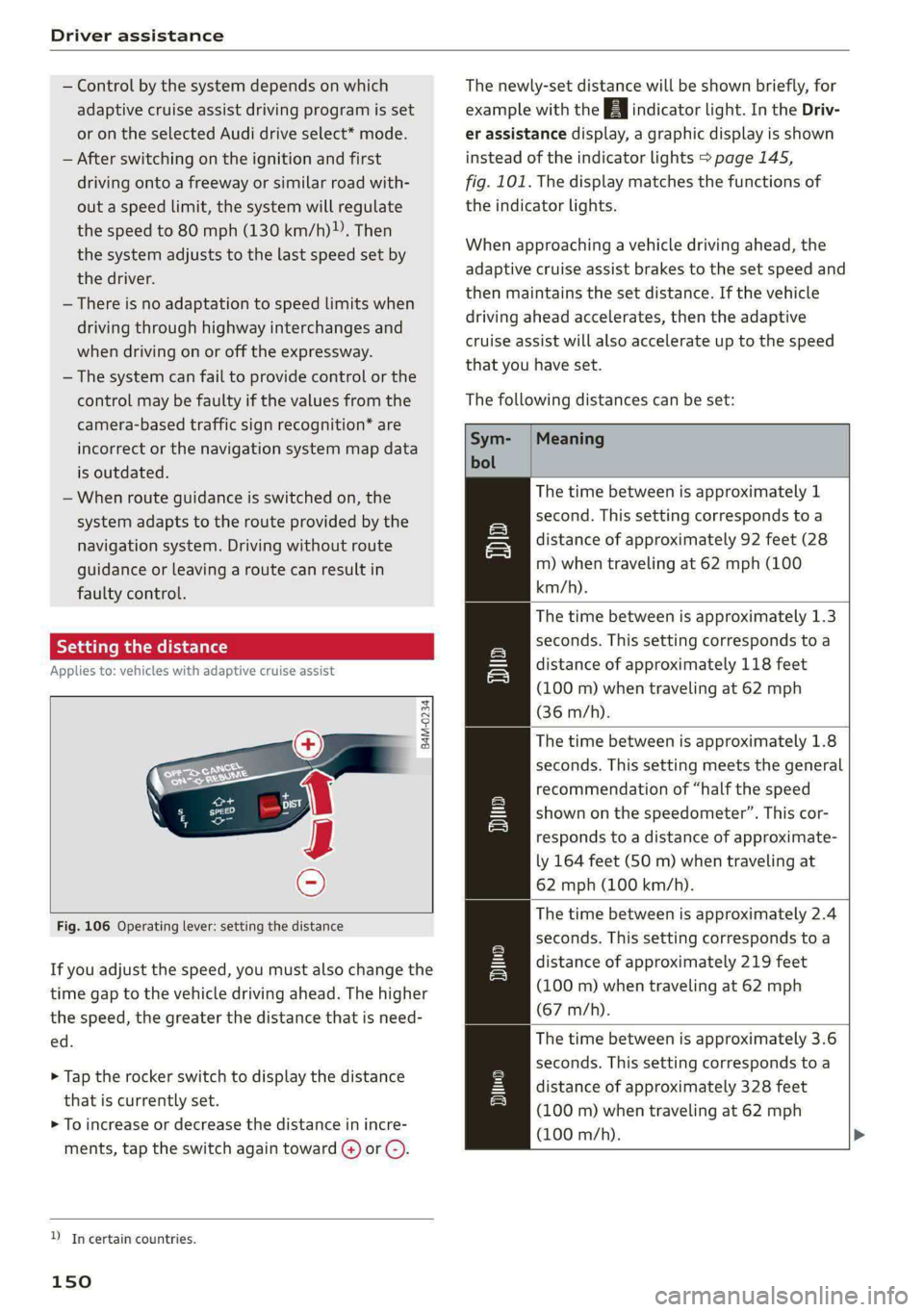
tting the distance
Applies to: vehicles with adaptive cruise assist
B4M-0234
Fig. 106 Operating lever: setting the distance
If you adjust the speed, you must also change the
time gap to the vehicle driving ahead. The higher
the speed, the greater the distance that is need-
ed.
> Tap the rocker switch to display the distance
that is currently set.
> To increase or decrease the distance in incre-
ments, tap the switch again toward @) or ().
D_ In certain countries.
150
The newly-set distance will be shown briefly, for
example with the a indicator light. In the Driv-
er assistance display, a graphic display is shown
instead of the indicator lights > page 145,
fig. 101. The display matches the functions of
the indicator lights.
When approaching a vehicle driving ahead, the
adaptive cruise assist brakes to the set speed and
then maintains the set distance. If the vehicle
driving ahead accelerates, then the adaptive
cruise assist will also accelerate up to the speed
that you have set.
The following distances can be set:
Meaning
The time between is approximately 1
second. This setting corresponds toa
distance of approximately 92 feet (28
m) when traveling at 62 mph (100
km/h).
The time between is approximately 1.3
seconds. This setting corresponds toa
distance of approximately 118 feet
(100 m) when traveling at 62 mph
(36 m/h).
The time between is approximately 1.8
seconds. This setting meets the general
recommendation of “half the speed
shown on the speedometer”. This cor-
responds to a distance of approximate-
ly 164 feet (50 m) when traveling at
62 mph (100 km/h).
The time between is approximately 2.4
seconds. This setting corresponds toa
distance of approximately 219 feet
(100 m) when traveling at 62 mph
(67 m/h).
The time between is approximately 3.6
seconds. This setting corresponds to a
distance of approximately 328 feet
(100 m) when traveling at 62 mph
(100 m/h).
me
Page 153 of 308
4KE012721BF
Driver assistance
ZA WARNING
Observe the safety precautions and note the
limits of the assist systems, sensors, and
cameras > page 129.
@) Tips
— When setting the distance, the driver is re-
sponsible for adhering to any applicable le-
gal regulations.
— Depending on the selected driving program
and distance, driving behavior when acceler-
ating may vary from moderate to sporty
=> page 152, Adjusting the adaptive cruise
assist.
— The distances provided are specified values.
Depending on the driving situation and how
the vehicle ahead is driving, the actual dis-
tance may be more or less than these target
distances.
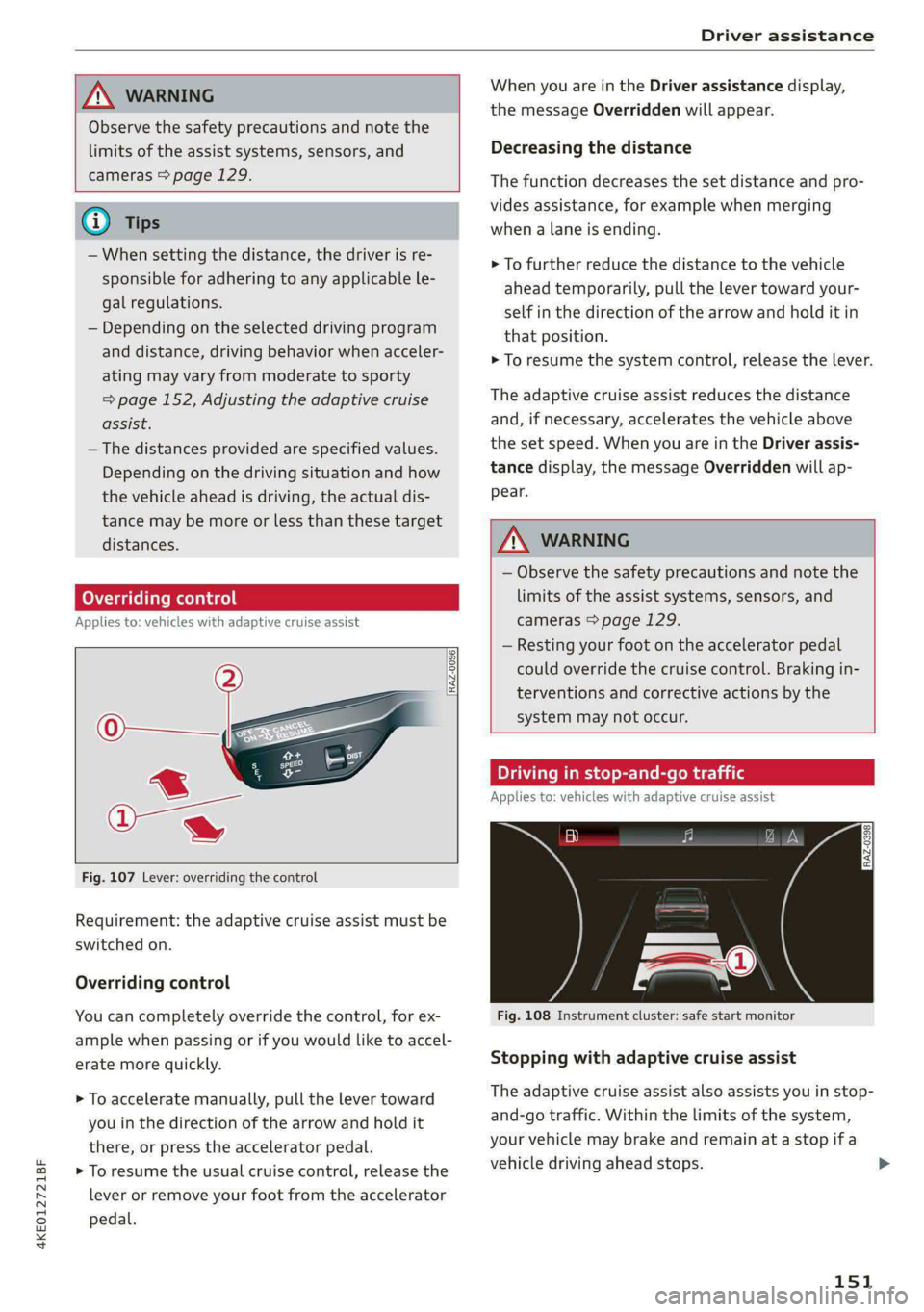
Overriding control
Applies to: vehicles with adaptive cruise assist
[RAZ-0096]
Fig. 107 Lever: overriding the control
Requirement: the adaptive cruise assist must be
switched on.
Overriding control
You can completely override the control, for ex-
ample when passing or if you would like to accel-
erate more quickly.
> To accelerate manually, pull the lever toward
you in the direction of the arrow and hold it
there, or press the accelerator pedal.
> To resume the usual cruise control, release the
lever or remove your foot from the accelerator
pedal.
When you are in the Driver assistance display,
the message Overridden will appear.
Decreasing the distance
The function decreases the set distance and pro-
vides assistance, for example when merging
when a lane is ending.
> To further reduce the distance to the vehicle
ahead temporarily, pull the lever toward your-
self in the direction of the arrow and hold it in
that position.
> To resume the system control, release the lever.
The adaptive cruise assist reduces the distance
and, if necessary, accelerates the vehicle above
the set speed. When you are in the Driver assis-
tance display, the message Overridden will ap-
pear.
Z\ WARNING
— Observe the safety precautions and note the
limits of the assist systems, sensors, and
cameras > page 129.
— Resting your foot on the accelerator pedal
could override the cruise control. Braking in-
terventions and corrective actions by the
system may not occur.
Driving in stop-and-go traffic
Applies to: vehicles with adaptive cruise assist
Fig. 108 Instrument cluster: safe start monitor
Stopping with adaptive cruise assist
The adaptive cruise assist also assists you in stop-
and-go traffic. Within the limits of the system,
your vehicle may brake and remain at a stop if a
vehicle driving ahead stops.
151
>
Page 163 of 308
4KE012721BF
Driver assistance
approaching from behind and provide a warning
when you are changing lanes and turning. The
system uses the data from the radar sensors at
the rear corners of the vehicle.
The side assist is active at walking speeds and
higher. If an object that is classified as critical is
approaching, the display in the exterior mirror @)
on the corresponding side of the vehicle will light
up.
Driving situations
The system can provide warnings about the fol-
lowing risks:
@ Approaching vehicles: a vehicle may be clas-
sified as critical in some cases, even if it is
farther away. The faster a vehicle ap-
proaches, the sooner the display will turn on.
@® Vehicles traveling in the same direction: the
display will turn on if vehicles traveling in the
same direction as your vehicle are classified
as critical. The side assist warns you of all de-
tected vehicles when they are in the “blind
spot” or before they reach that point.
@® Vehicles you are passing: the display only
turns on if you slowly pass a detected vehicle
(difference in speed between the two vehicles
is less than 9 mph (15 km/h)). There is no
display if you pass a vehicle more quickly.
Information stage
At the information level, the side assist informs
you of detected objects that are classified as criti-
cal. This is even possible when your vehicle is sta-
tionary and the turn signal is turned on, so that
the system can also assist you when turning.
From speeds of approximately 6 mph (10 km/h)
and higher, the system will warn you of detected
objects that are classified as critical, even if the
turn signal is not turned on.
The display remains dim in the information stage
so that you are not distracted while looking for-
ward.
Warning stage
If you activate a turn signal and the display flash-
es, side assist is warning about objects that have
been classified as critical.
Depending on the vehicle equipment and other
driver assistance systems, the display may also
flash if you have not activated a turn signal. If
you are approaching a detected lane marker line
and it appears you will be leaving the lane, the
display will warn you about detected vehicles
that are classified as critical. You can also be
warned with corrective steering > page 155,
Lane departure warning.
Detection range
The radar sensors are designed to detect the left
and right adjacent lanes when the road lanes are
the normal width. In some situations, the display
may turn on even though there is no vehicle lo-
cated in the area that is critical for a lane change.
For example:
— If the lanes are narrow or if you are driving on
the edge of your lane. If this is the case, the
system may have detected a vehicle in another
lane that is not adjacent to your current lane.
— If you are driving through a curve. Side assist
may react to a vehicle that is in the same lane
or one lane over from the adjacent lane.
— If side assist reacts to other objects (such as
roadside structures like guard rails).
ZA WARNING
— Observe the safety precautions and note the
limits of the assist systems, sensors, and
cameras > page 129.
— The display may not appear on time when
vehicles are approaching or being passed
very quickly.
@ Tips
— If the window glass in the driver's door or
front passenger's door has been tinted, the
display in the exterior mirror may be incor-
rect:
— These systems are not available in trailer
towing mode. There is no guarantee the sys-
tems will switch off when using a retrofitted
trailer hitch. Do not use these functions
when towing a trailer.
161
Page 170 of 308
Parking and maneuvering
Error messages
If P& appears, the sensor in the respective area
or the speaker is faulty. Drive immediately to an
authorized Audi dealer or authorized Audi Service
Facility to have the malfunction repaired.
If Av is displayed in the MMI, the ultrasonic sen-
sor indicated is icy or dirty. Clean the area in front
of the sensors > page 131.
iff or fa is displayed when there is a malfunc-
tion, the parking aid functions may be unavaila-
ble or may be limited.
A message that indicates the cause and possible
solution may appear with some displays. The
weather conditions may be too poor or a sensor
may be covered. Clean the area in front of the
sensors > page 131 and try to turn the system on
again later.
If the malfunction remains, drive to an author-
ized Audi dealer or authorized Audi Service Facili-
ty immediately to have the malfunction correct-
ed.
ZX WARNING
— Observe the safety precautions and note the
limits of the assist systems, sensors, and
cameras > page 129.
— Sensors and cameras have spots in which
the surrounding area cannot be detected.
Objects, animals, and people may only be
detected with limitations may not be detect-
ed at all. Always monitor the traffic and the
vehicle's surroundings directly and do not
become distracted.
@) Note
Keep enough distance from the curb to avoid
damage to the rims.
G) Tips
— The side area > page 130, fig. 90 is detect-
ed and evaluated when passing. There may
have been changes to the surrounding area
after switching the ignition off and on
again, after opening the doors, or if the ve-
hicle is left stationary for a period of time.
168
In this case, the area will appear black until
the area has been detected and evaluated.
— If the distance to an obstacle remains con-
stant, the volume of the distance warning
gradually lowers after a few seconds until it
is muted (this does not apply to the continu-
ous tone). If the obstacle comes closer than
it was before the sound was muted, the
tone will sound again. If the obstacle be-
comes farther away than it was before the
sound was muted, no tone will sound. Pay
attention to the vehicle's surroundings
when you start to drive.
— There is no distance warning for the rear
and the sides when trailer towing mode is
detected. The front sensors remain activat-
ed. There is no guarantee the functions will
be deactivated when using a retrofitted
trailer hitch.
Rearview camera and
peripheral cameras
Introduction
Applies to: vehicles with rearview camera/peripheral cameras
B8V-0629
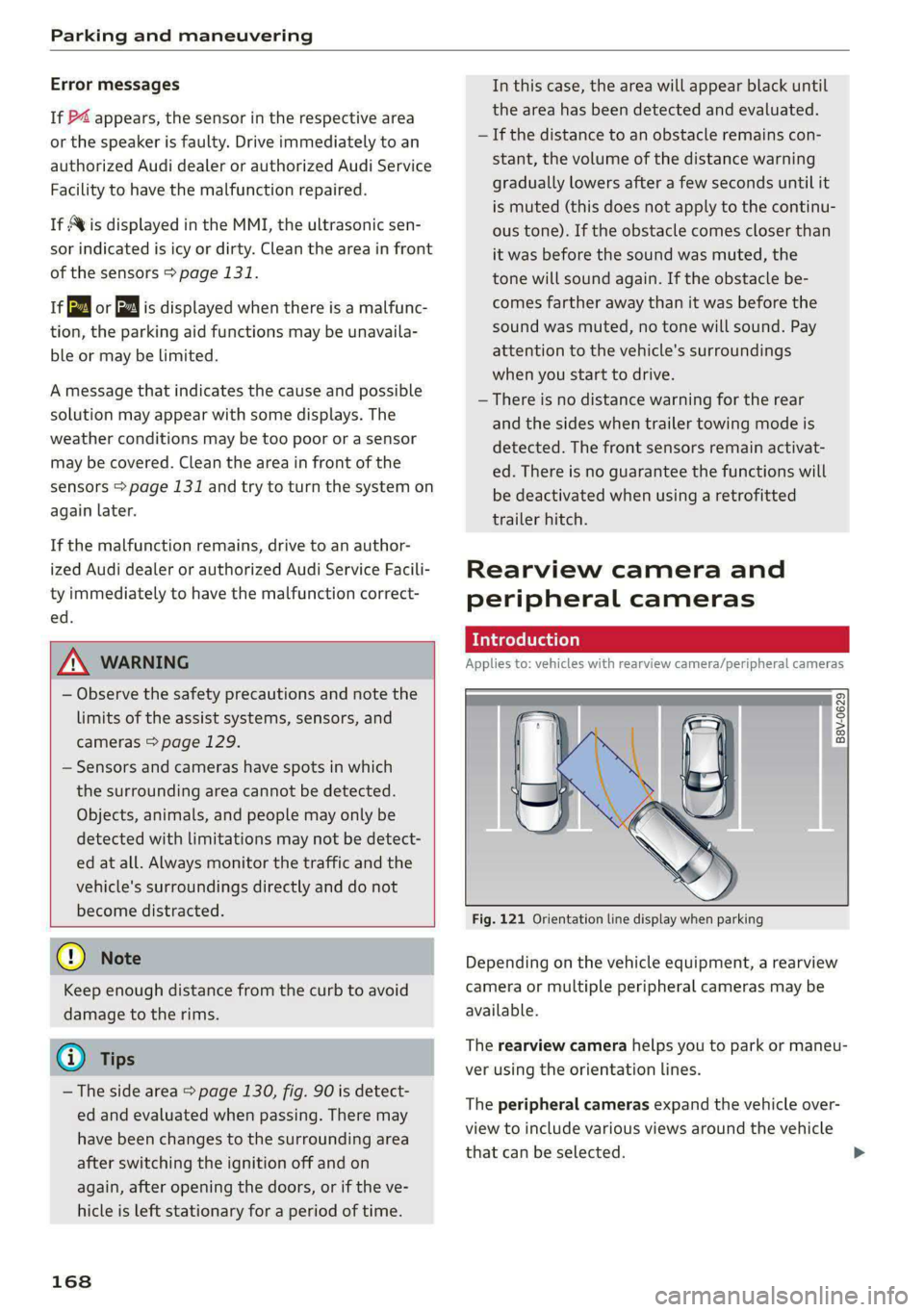
Fig. 121 Orientation line display when parking
Depending on the vehicle equipment, a rearview
camera or multiple peripheral cameras may be
available.
The rearview camera helps you to park or maneu-
ver using the orientation lines.
The peripheral cameras expand the vehicle over-
view to include various views around the vehicle
that can be selected.
Page 172 of 308
Parking and maneuvering
@ Use the blue markings to help you estimate
the distance to an obstacle. Each marking
represents approximately 3 feet (1 meter).
The blue area represents an extension of the
vehicle's outline by approximately 16 feet (5
meters) to the rear.
@® You can recognize the rear bumper in the
lower display.
@ You should stop driving in reverse when the
red orientation line touches the edge of an
object, at the latest.
Trailer view
Applies to: vehicles with trailer view
The trailer view > fig. 124 assists you in position-
ing the vehicle in front of a trailer.
— Applies to: vehicles with peripheral cameras:
Switch to the Rear view > page 171, fig. 125.
— Select || > Trailer view in the upper display
when the parking aid is active.
Now you can position your vehicle in front of the
trailer. The orange orientation line ©) > fig. 124
indicates the expected path toward the trailer
hitch. Use the blue markings © to help you esti-
mate the distance to the trailer hitch. Each mark-
ing represents approximately 1 foot (0.30 me-
ters). The width of the blue surface represents
the maximum steering wheel angle.
Symbols
If 2/&9/< is displayed and the display area
represented by that symbol is not available, then
the camera on the that side is not available. The
power exterior mirrors may have been folded in
or a door or the luggage compartment lid may
have been opened.
If # is displayed, there is a system malfunction
and the display area represented by that symbol
is not available. The camera is not working in this
area.
If Avis displayed, the respective ultrasonic sensor
is icy or dirty. Clean the area in front of the sen-
sors > page 131.
If one of the symbols continues to be displayed,
drive immediately to an authorized Audi dealer or
170
authorized Audi Service Facility to have the mal-
function repaired.
ZA\ WARNING
— Observe the safety precautions and note the
limits of the assist systems, sensors, and
cameras > page 129.
— Sensors and cameras have spots in which
the surrounding area cannot be detected.
Objects, animals, and people may only be
detected with limitations may not be detect-
ed at all. Always monitor the traffic and the
vehicle's surroundings directly and do not
become distracted.
@) Note
— The orange orientation lines @ show the di-
rection the rear of the vehicle will be travel-
ing, based on the steering wheel angle. The
front of the vehicle swings out more than
the rear of the vehicle. Maintain plenty of
distance so that an exterior mirror or a cor-
ner of the vehicle does not collide with any
obstacles.
— Keep enough distance from the curb to
avoid damage to the rims.
— Only use the images provided by the camera
on the rear of the vehicle when the luggage
compartment lid is completely closed. Make
sure any objects you may have mounted on
the luggage compartment lid do not block
the rearview camera.
G) Tips
— Applies to vehicles with air suspension: The
accuracy of the orientation lines and blue
surfaces on the camera display decreases
when the vehicle is raised or lowered with
the air suspension.
— There is no distance warning for the rear
and the sides when trailer towing mode is
detected. The front sensors remain activat-
ed. The visual display switches to trailer
mode. There is no guarantee the functions
will be deactivated when using a retrofitted
trailer hitch.
Page 278 of 308
Emergency assistance
If the towing loop is not tightened until it
stops when installing, the threads may be
pulled out when towing the vehicle and result
in an accident.
If the towing loop is not tightened until it
stops when installing, the threads may be
pulled out when towing the vehicle and result
in an accident.
Depending on the model, the shape of the cap
can vary.
Rear towing loop
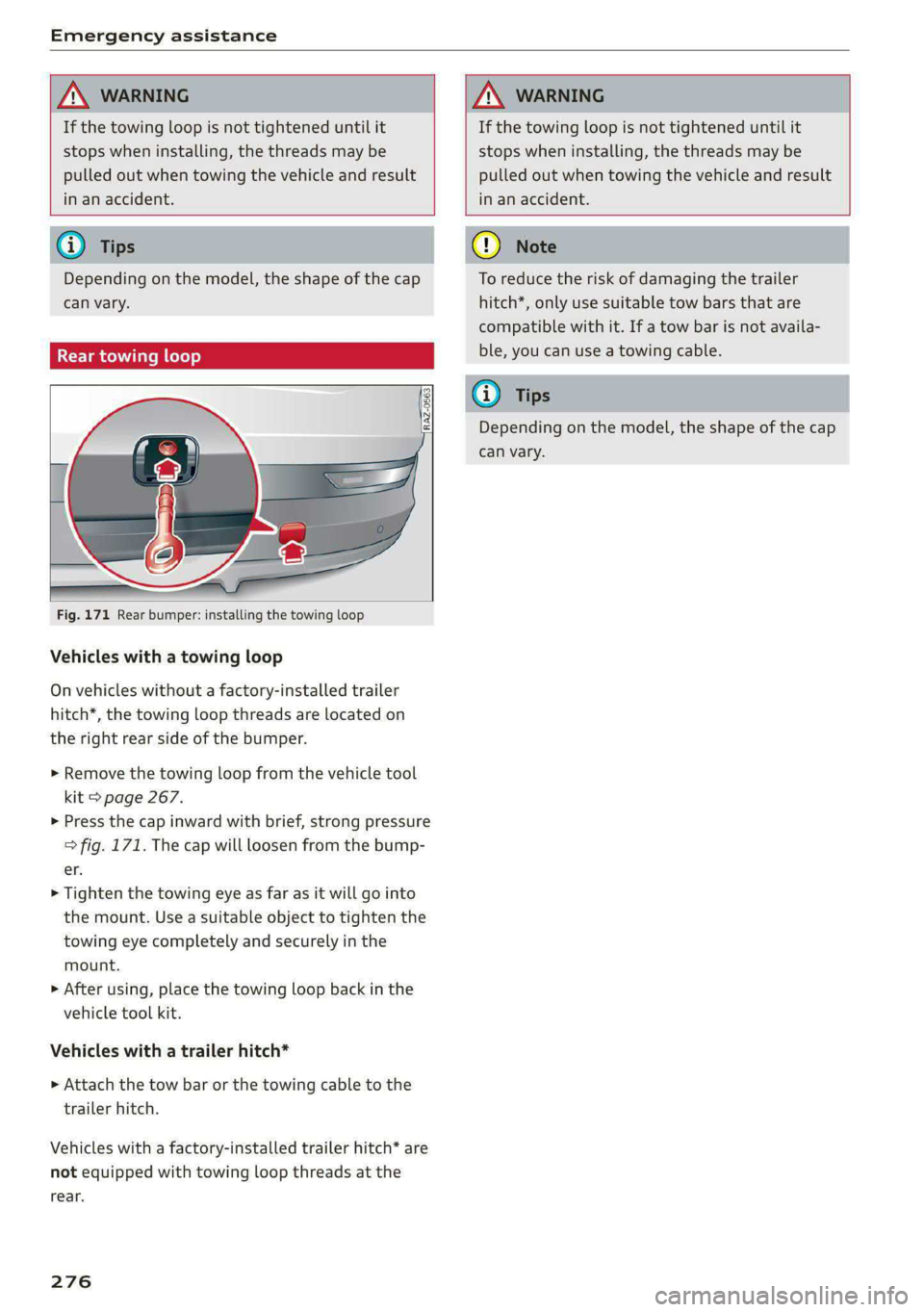
Fig. 171 Rear bumper: installing the towing loop
Vehicles with a towing loop
On vehicles without a factory-installed trailer
hitch*, the towing loop threads are located on
the right rear side of the bumper.
> Remove the towing loop from the vehicle tool
kit > page 267.
>» Press the cap inward with brief, strong pressure
=> fig. 171. The cap will loosen from the bump-
er.
> Tighten the towing eye as far as it will go into
the mount. Use a suitable object to tighten the
towing eye completely and securely in the
mount.
> After using, place the towing loop back in the
vehicle tool kit.
Vehicles with a trailer hitch*
» Attach the tow bar or the towing cable to the
trailer hitch.
Vehicles with a factory-installed trailer hitch* are
not equipped with towing loop threads at the
rear.
276
To reduce the risk of damaging the trailer
hitch*, only use suitable tow bars that are
compatible with it. If a tow bar is not availa-
ble, you can use a towing cable.
Depending on the model, the shape of the cap
can vary.
Page 305 of 308

4KE012721BF
Treadwear indicators................-. 250
Unidirectional................4.- 243, 272
Uniform tire quality grading............ 258
Tires and wheels
Glossary of tire and loading terminology .. 244
Tires and vehicle load limits............ 253
Toll Module
refer to Integrated Toll Module......... 139
Tools... cece eee 267
Tool tipS.... 6... eee eee eee eee eee 17
Top tether anchor (securing the child safety
S@at) eee 76
Touch display
Adjusting feedback................008. 17
OPerating ss seman so sesame ov semen + wenn w + cows 15
TOWING’: « 2 saves 5 ¢ ewe 5 9 ewes 2 2 ey + 2 ew 274
TOWING:OOD was ¢ ¢ exes 4 » eee 7s eres 275;276
Towing protection monitoring............. 35
TPMS
Tire pressure monitoring system........ 259
Traffic incidents
refer to Online traffic information....... 204
Traffic INFORMATION & sess 2s wee ¥ woes eo ores 204
Online traffic information.............. 204
Traffic light information................ 136
Traffic sign recognition. «cos. ss cee se ows 134
Thatfie SignSiesia 2 2 soon so semues ow cama oo oe 137
Trailer loadin: « = seam = 2 seme ys seme & y seme 291
Trailer mode
Air SUSPENSION & sissies & ceasice ve sonvee oo samen 126
Trailer towinGies ¢ « sean sv mown 4 5 ows 2 9 new 126
Tongue weight ........... 0... c eee eee 126
Trailer loads... ee eee eee 126
Trailer view. ......................000, 170
Turn assist... 2... cece ee eee ee 159
Turn signals .......... 0.00 cece eee eee 49
U
Uniform tire quality grading............. 258
Unlocking and locking. ...............605 32
By remote control..............-.000-- 37
Using the lock cylinder..............-.. 35
With Audi connect vehicle control........ 38
With the central locking switch.......... 34
With the convenience key............... 37
Update (software) .................0055 229
USB.adapter iin: 3 © sce oo eaaue sv mere 2 waver « 217
USB charging ports. « sis eo sess oo oan so ae 78
USB drive
Supported types/formats.............. 223
USB stick
refer to Audi music interface........... 217
Users
LOCAL USERS suas x 2 same < F Ree FY Skee GY Ga 29
IMYAUUSEDSicx: « «soe 2 x secre 2 een wom seem 29
V
Vanity Minor ces s s ses s saree 3 2 peeee 2 2 tee 54
Vehicle
Gare/cleaning « swan ¢ x isemus v ecninars « siamo 2 9 261
Dimensions .............0 00sec eee eee 290
Identification data................... 290
OULOFSERVICE ecsiie sé «owe ee ewe sv mmo ee 266
Raising........... 0... eee eee eee 271
StArtiiGies ¢ 3 mao g x eae 5 EMER sy eR 90
TRANS POPt cesccer s 2 essen 3 6 ame + eae as REE 103
Unlocking and locking...............05. 37
Weliclertaneinrs + seme ao neneue 2 a snimee 2 4 atene 261
Vehicle control services..............-.. 188
Vehicle data label...............-.0000. 290
Vehicle identification number............ 290
Vehicle jack: = sax « x sees = ¢ sees tp eee bee 267
LifEING POINESE. 5 o somes vo srmane «x cenwere w ¥ ceewe 271
Tire change mode.............00-000- 269
Vehicle key... 20... cee cece eee eee eee 32,36
Vehicle:SOunG icc 6 ces a 6 cere oo avaee ov concer 95
Vehicle: toolkits « cium: ox imma oe nase 2 e sernens 267
Ventilation’: « « wes «2 ween ¢ o wens oy eee a 84
VIEW BUttotiiay: « = coe ¢ 2 eens 2 5 sees 5 3 eee 12
VOIC@MGil « = s secs = = eee 2 y ees oy wee e ge 181
Voice recognition system................. 25,
EXtertial mcu s x noes s eaey ¢ wee as pees as 26
OPeratlings. « a cscs « merssee « scenes « & miedo « 6 a 25
WwW
Weallamountclip somsus & esses s+ crawece w & ceanen 9 125
Warning lights
refer to Indicator lights.................. 7
Washing matte finish paint.............. 261
Wave band
refer to Frequency band............... 207
303