Tire AUDI E-TRON 2021 User Guide
[x] Cancel search | Manufacturer: AUDI, Model Year: 2021, Model line: E-TRON, Model: AUDI E-TRON 2021Pages: 308, PDF Size: 83.91 MB
Page 105 of 308

4KE012721BF
Driving dynamic
Suspension
CET tes un) Led
Applies to: vehicles with suspension control
The adaptive dampers are an electronically-con-
trolled damping system. The firmness of the sus-
pension will adapt to the driving conditions and
the driving situation. The settings depend on the
selected Audi drive select* mode.
Air suspension
Applies to: vehicles with air suspension
The air suspension is an electronically-controlled
suspension and leveling system. The firmness of
the suspension will adapt to the driving condi-
tions and the driving situation. The system balan-
ces out changes in load. The vehicle level will also
adapt gradually to the vehicle speed in order to
reduce the wind resistance at high speeds and in-
crease the ground clearance at low speeds. The
settings depend on the selected Audi drive se-
lect* mode.
Displaying the vehicle level
> Applies to MMI: Select on the home screen: VE-
HICLE > Audi drive select.
The filled-in boxes represent the current vehicle
level. The more boxes that are filled in, the high-
er the ground clearance. The box that corre-
sponds with the current vehicle level will flash
while the vehicle is lifting or lowering. The target
level is highlighted in color.
Raising the vehicle
> Applies to MMI: Select on the home screen: VE-
HICLE > Audi drive select.
> Press Raise to reach the highest vehicle level
and thus the maximum ground clearance.
> Press Lower to lower the vehicle down again.
The Audi drive select* mode will be changed if
necessary when the vehicle is raised.
The vehicle will lower at speeds of approximately
22 mph (35 km/h) and below. This function may
only be used temporarily when increased ground
clearance is necessary. It is not intended for long
drives.
CG) Note
—Also refer to the information about ground
clearance > page 103.
— When transporting the vehicle on a road
carrier, rail carrier, ship carrier, or other car-
rier, it may only be secured at the running
surfaces of the tires (circumference). Secur-
ing the vehicle at the axle components, sus-
pension struts, or towing eyes is not permit-
ted because the pressure in the air suspen-
sion struts can change during transport. The
vehicle might not be secured sufficiently if
this happens.
Ground clearance
The vehicle height and clearance can be influ-
enced by the following factors:
— Change in temperature
— Change in load
— Change to the Audi drive select* mode
— Lifting and lowering via the air suspension*
ZA WARNING
To reduce the risk of injury, make sure no one
gets pinched when the vehicle level is chang-
ing, for example when cleaning the under-
body or the wheel housings.
CG) Note
Always make sure there is enough clearance
above and below the vehicle. This is especially
important for entrances with height restric-
tions, for example, before driving into under-
ground garages. You could also scrape the
ground when driving over the edges of curbs
or on steep ramps, which could damage your
vehicle.
B Air suspension: malfunction! You may con-
tinue driving slowly at max. XX mph (km/h)
103
>
Page 108 of 308
Driving dynamic
Selective wheel torque control
Selective wheel torque control is used when driv-
ing on curves. Braking is targeted toward the
wheels on the inside of the curve as needed. This
allows more precise driving in curves.
Power steering
The ESC can also support vehicle stability
through steering.
ZA\ WARNING
— The ESC and its integrated systems cannot
overcome the limits imposed by natural
physical laws. This is especially important on
slippery or wet roads. If the systems begin
acting to stabilize your vehicle, you should
immediately alter your speed to match the
road and traffic conditions. Do not let the in-
creased safety provided tempt you into tak-
ing risks. This could increase your risk of a
collision.
— Please note the risk of a collision increases
when driving fast, especially through curves
and on slippery or wet roads, and when driv-
ing too close to objects ahead. There is still
a risk of accidents because the ESC and its
integrated systems cannot always prevent
collisions.
— Accelerate carefully when driving on
smooth, slippery surfaces such as ice and
snow. The drive wheels can spin even when
these control systems are installed and this
can affect driving stability and increase the
risk of a collision.
— As the vehicle load increases, especially the
roof load, the vehicle's center of gravity also
increases along with the risk of the vehicle
tipping. To reduce the risk of an accident, al-
ways adapt your driving style to the current
conditions and avoid sudden driving maneu-
vers.
@) Tips
— The ABS and ASR only function correctly
when all four wheels have a similar wear
condition. Different tire sizes can lead toa
reduction in motor power.
106
— You may hear noises when the systems de-
scribed are working.
The So button (or #, depending on the model)
for controlling the ESC is located in the center
console, in front of the selector lever. The ESC is
automatically switched on when the ignition is
switched on.
Limiting ESC
In some situations, it may make sense to limit
the stabilizing function of the ESC so that the
wheels can spin, for example to rock a vehicle to
free it when it is stuck or to drive with snow
chains. The ESC can also be limited to provide
more sporty driving characteristics with fewer
stabilizing corrective actions.
—To limit the ESC, press the 0 button briefly.
The B indicator light will turn on.
— To completely reactivate the ESC stabilization
function, press the button again. The indicator
light turns off.
Depending on the Audi drive select mode that is
selected, one of the following ESC modes will be
selected automatically:
— sport - this mode is designed for driving ona
level surface. It is used in all Audi drive select
modes except offroad.
— offroad - this mode is suited for driving offroad
and is designed for uneven terrain or loose
ground. If you select the offroad Audi drive se-
lect mode, the offroad ESC mode will be auto-
matically used.
Switching off ESC
For a more active control of the vehicle where the
stabilizing functions of the ESC cannot intervene,
the ESC can be switched off.
— To switch off the ESC, press and hold the Sor
button for more than three seconds. The B
and Ea indicator lights turn on.
— To completely reactivate the ESC stabilization
function, press the button again. The indicator
lights turn off.
Page 127 of 308
4KE012721BF
High-voltage system
— Only change cables in a dry environment.
— The Audi charging system may only be used
as a complete unit consisting of the power
cables, the control unit, and the vehicle ca-
ble. Depending on the country, the total
length of the power cable, control panel and
vehicle cable may be restricted, for example
to 24.6 feet (7.5 m) in the USA. Audi recom-
mends using only cables approved by Audi.
@) Tips
The power cable with the power connector for
industrial sockets and the Audi charging sys-
tem control unit are designed to work togeth-
er. Changing the power cable to another con-
nector type may reduce the available charging
power of the entire system. Limitations on
the ability to transfer power (current capacity)
depending on the phase and the number of
available phases may affect the available
charging power.
Wall mo clip
Applies to: vehicles with wall mount clip
RAZ-0638,
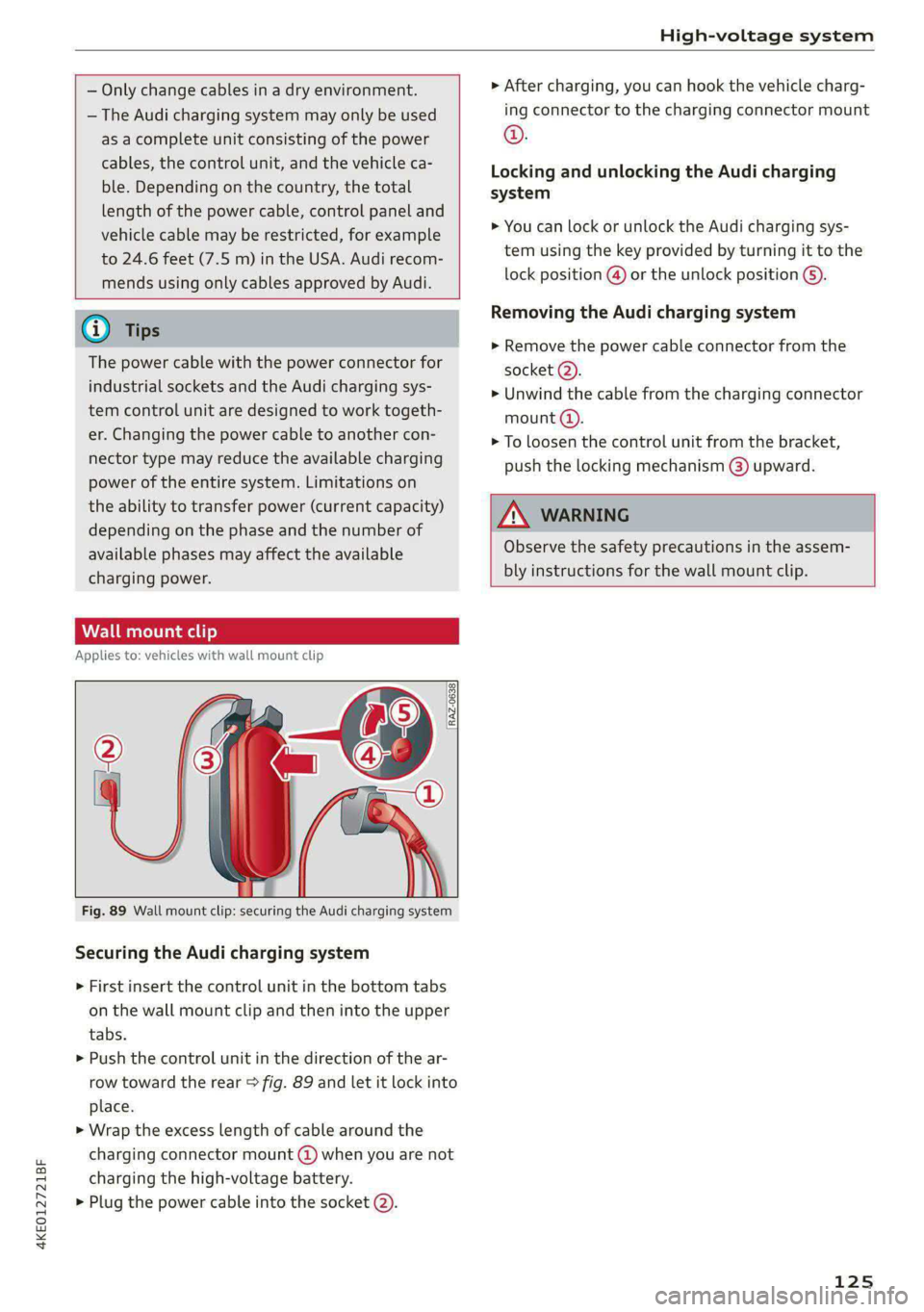
Fig. 89 Wall mount clip: securing the Audi charging system
Securing the Audi charging system
> First insert the control unit in the bottom tabs
on the wall mount clip and then into the upper
tabs.
> Push the control unit in the direction of the ar-
row toward the rear > fig. 89 and let it lock into
place.
> Wrap the excess length of cable around the
charging connector mount @ when you are not
charging the high-voltage battery.
> Plug the power cable into the socket (2).
> After charging, you can hook the vehicle charg-
ing connector to the charging connector mount
©.
Locking and unlocking the Audi charging
system
> You can lock or unlock the Audi charging sys-
tem using the key provided by turning it to the
lock position @) or the unlock position 6).
Removing the Audi charging system
> Remove the power cable connector from the
socket (2).
> Unwind the cable from the charging connector
mount (@).
> To loosen the control unit from the bracket,
push the locking mechanism @) upward.
ZX WARNING
Observe the safety precautions in the assem-
bly instructions for the wall mount clip.
125
Page 129 of 308
4KE012721BF
Trailer towing
— Secure objects so that they do not slide.
— Utilize the maximum permitted tongue weight
if possible.
Tires
Set the tire pressure on your vehicle for a “full
load”; see the tire pressure sticker > page 251. If
necessary, also adjust the tire pressure on the
trailer according to the manufacturer's specifica-
tions.
The trailer and the vehicle should be equipped
with winter tires when driving in winter tempera-
tures.
Outside mirrors
Make sure that you can also observe the traffic
area behind the vehicle using the exterior mir-
rors, and use additional exterior mirrors if neces-
sary. Adjust the additional exterior mirrors so
that you have a sufficient visibility behind the ve-
hicle. Follow the local legal regulations for instal-
ling additional exterior mirrors.
Exterior lighting
Follow the legal regulations for lighting on your
trailer that are applicable in the country where
you are operating the vehicle. Contact an author-
ized Audi dealer or authorized Audi Service Facili-
ty for more information.
Before you start driving, check all lighting equip-
ment on the trailer while it is hitched to the vehi-
cle.
The headlight range control automatically ad-
justs the light range of the headlights.
Safety chains
Make sure the safety chains are correctly applied
when pulling a trailer. The chains should hang
enough so that the trailer can drive around
curves. However, they must not touch the
ground.
Air suspension
Applies to: vehicles with air suspension
The Audi drive select* comfort mode > page 102
must be selected before you adjust the tongue
weight on the trailer and hitch the trailer >@,
=> page 103.
The air suspension trailer mode must be switched
on.
Applies to MMI: select on the home screen: VE-
HICLE > Settings & Service > Air suspension:
trailer.
Switch trailer mode off again when you are no
longer towing a trailer.
For vehicles with a factory-installed trailer hitch,
the air suspension trailer mode will automatically
switch on if you connect the trailer connector to
the socket.
When using rear carrier systems that are mount-
ed directly on the trailer hitch ball head, you can
also switch trailer mode off manually.
If you must drive on roads that are in poor condi-
tion, you can raise the vehicle again after hitching
the trailer or after adjusting the tongue weight
=> page 103.
You can also increase ground clearance by select-
ing the Audi drive select* offroad or allroad
modes > page 102.
Vehicle levels below the values set in the comfort
level will no longer be available, even if you are
lowering the vehicle manually.
ZA WARNING
Applies to: vehicles with air suspension
— Never turn off trailer mode while driving
when a trailer is hitched, because then the
restrictions for controlling the vehicle level
will be turned off.
— Driving with a trailer on unpaved roads when
the vehicle is raised may change the vehicle
handling. Adapt your speed.
— Note that the vehicle will lower automatical-
ly at certain speeds if you have lifted the ve-
hicle manually.
@) Note
— Applies to: vehicles with air suspension: Se-
lect the Audi drive select* comfort mode.
127
Page 132 of 308
Assist systems
intervention requests from the steering as-
sist systems may vary as well.
Surrounding area
detection
Sensor and camera coverage areas
RAZ-O6T1
Fig. 91 Rearview camera coverage area
The assist systems analyze the data from various
sensors and cameras installed in the vehicle. Do
not use any assist systems if there is damage to
the vehicle in an area where sensors and cameras
are located or on the vehicle underbody, or if the
vehicle was involved in a collision. The functional-
ity of the sensors and cameras could be impaired,
or they could malfunction. Have an authorized
130
Audi dealer or authorized Audi Service Facility
check their function.
Radar sensors
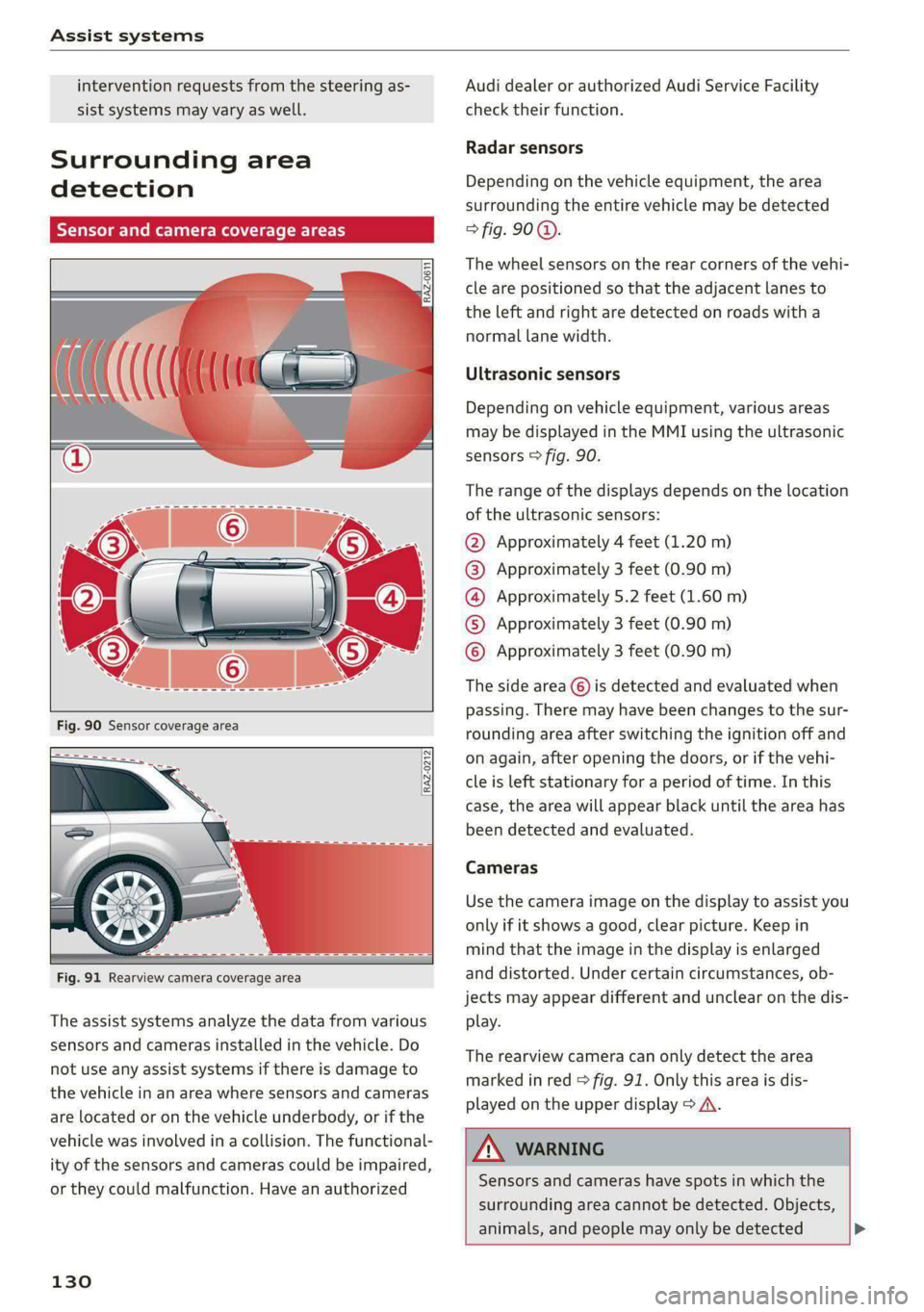
Depending on the vehicle equipment, the area
surrounding the entire vehicle may be detected
> fig. 90 ©.
The wheel sensors on the rear corners of the vehi-
cle are positioned so that the adjacent lanes to
the left and right are detected on roads with a
normal lane width.
Ultrasonic sensors
Depending on vehicle equipment, various areas
may be displayed in the MMI using the ultrasonic
sensors > fig. 90.
The range of the displays depends on the location
of the ultrasonic sensors:
@ Approximately 4 feet (1.20 m)
@® Approximately 3 feet (0.90 m)
@® Approximately 5.2 feet (1.60 m)
© Approximately 3 feet (0.90 m)
© Approximately 3 feet (0.90 m)
The side area ©) is detected and evaluated when
passing. There may have been changes to the sur-
rounding area after switching the ignition off and
on again, after opening the doors, or if the vehi-
cle is left stationary for a period of time. In this
case, the area will appear black until the area has
been detected and evaluated.
Cameras
Use the camera image on the display to assist you
only if it shows a good, clear picture. Keep in
mind that the image in the display is enlarged
and distorted. Under certain circumstances, ob-
jects may appear different and unclear on the dis-
play.
The rearview camera can only detect the area
marked in red > fig. 91. Only this area is dis-
played on the upper display > A\.
LN WARNING
Sensors and cameras have spots in which the
surrounding area cannot be detected. Objects,
animals, and people may only be detected >
Page 136 of 308
Driving information
Driving information
Speed warning system
Applies to: vehicles with speed warning system
The speed warning system helps the driver to
stay below a specified maximum speed. A warn-
ing threshold can be set in the MMI for this pur-
pose.
Once the speed slightly exceeds the stored
threshold, the speed warning system will alert
the driver with an indicator in the instrument
cluster and a warning tone. Once the speed drops
below the stored maximum speed, the indicator
will turn off.
Setting a threshold is recommended if you would
like to be reminded when you reach a certain
maximum speed. Situations where you may want
to do so include driving in a country with a gener-
al speed limit or if there is a specified maximum
speed for winter tires.
@ Tips
Regardless of the speed warning system, you
should always monitor your speed using the
speedometer and make sure you are following
the legal speed limit.
Setting the warning threshold
Applies to: vehicles with speed warning system
> Applies to MMI: Select on the home screen: VE-
HICLE > Driver assistance > (<3) > Speed warn-
ing.
Messages
Applies to: vehicles with speed warning system
ol Manually set speed limit XX mph
(km/h) exceeded
The stored speed was exceeded.
134
Camera-based traffic
sign recognition
Applies to: vehicles with camera-based traffic sign recognition
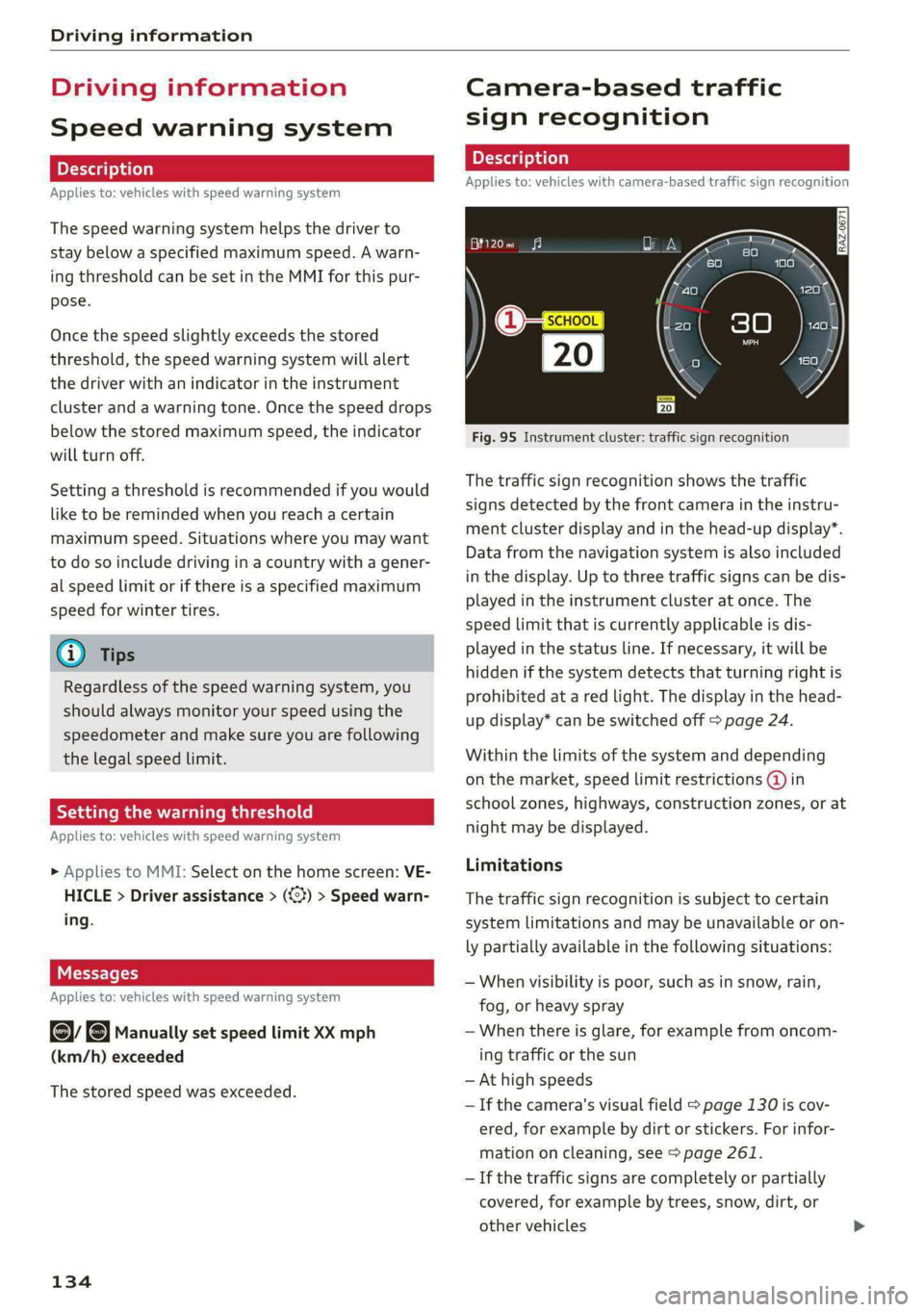
Fig. 95 Instrument cluster: traffic sign recognition
The traffic sign recognition shows the traffic
signs detected by the front camera in the instru-
ment cluster display and in the head-up display”.
Data from the navigation system is also included
in the display. Up to three traffic signs can be dis-
played in the instrument cluster at once. The
speed limit that is currently applicable is dis-
played in the status line. If necessary, it will be
hidden if the system detects that turning right is
prohibited at a red light. The display in the head-
up display* can be switched off > page 24.
Within the limits of the system and depending
on the market, speed limit restrictions @ in
school zones, highways, construction zones, or at
night may be displayed.
Limitations
The traffic sign recognition is subject to certain
system limitations and may be unavailable or on-
ly partially available in the following situations:
— When visibility is poor, such as in snow, rain,
fog, or heavy spray
— When there is glare, for example from oncom-
ing traffic or the sun
— At high speeds
—If the camera's visual field > page 130 is cov-
ered, for example by dirt or stickers. For infor-
mation on cleaning, see > page 261.
— If the traffic signs are completely or partially
covered, for example by trees, snow, dirt, or
other vehicles
Page 173 of 308
4KE012721BF
Parking and maneuvering
Operating the peripheral cameras
Applies to: vehicles with peripheral cameras
RAZ-0131
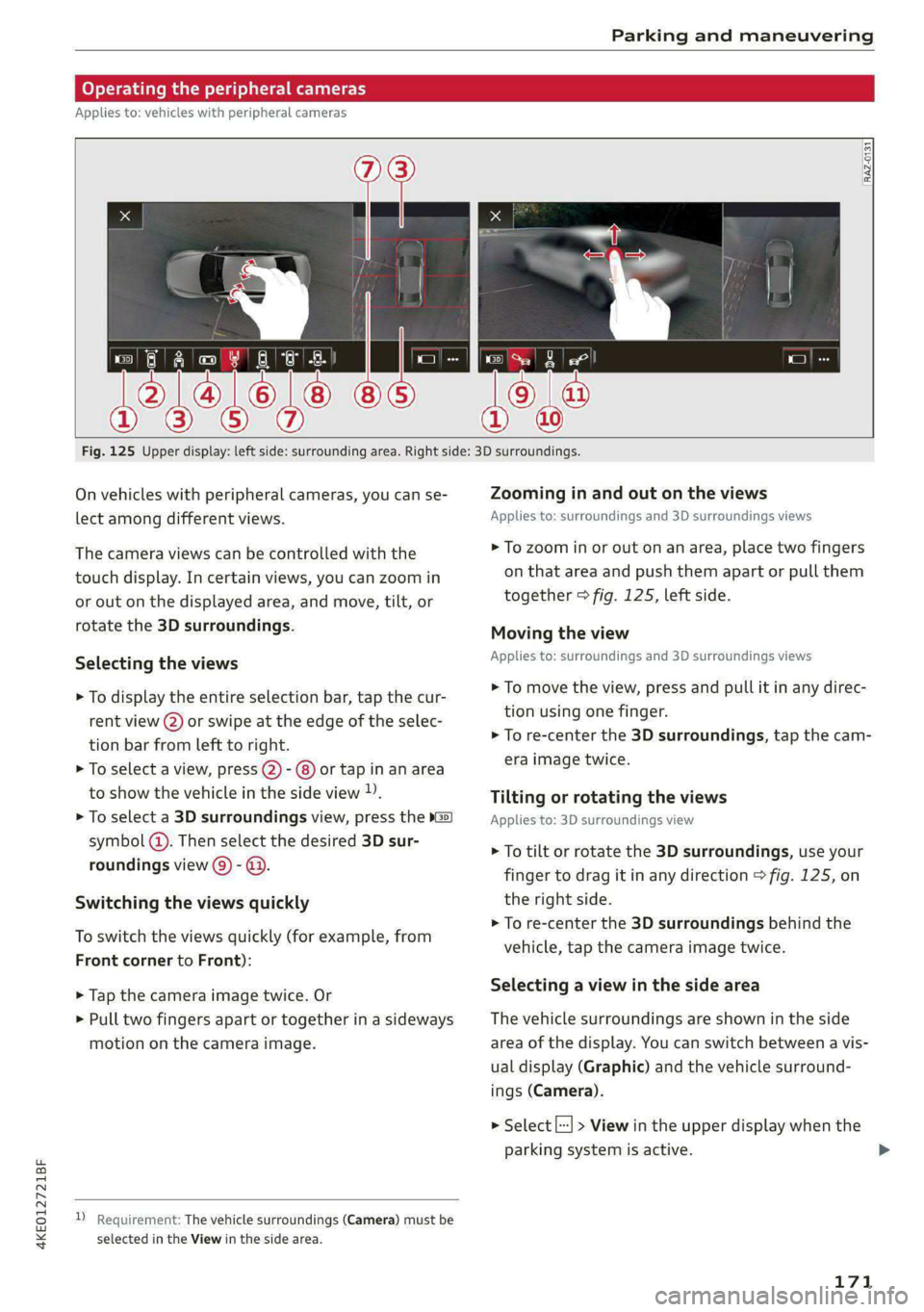
Fig. 125 Upper display: left side: surrounding area. Right side: 3D surroundings.
On vehicles with peripheral cameras, you can se-
lect among different views.
The camera views can be controlled with the
touch display. In certain views, you can zoom in
or out on the displayed area, and move, tilt, or
rotate the 3D surroundings.
Selecting the views
> To display the entire selection bar, tap the cur-
rent view (2) or swipe at the edge of the selec-
tion bar from left to right.
> To select a view, press (@) - (8) or tap in an area
to show the vehicle in the side view )).
> To select a 3D surroundings view, press the »G2)
symbol (). Then select the desired 3D sur-
roundings view @) - @.
Switching the views quickly
To switch the views quickly (for example, from
Front corner to Front):
> Tap the camera image twice. Or
> Pull two fingers apart or together in a sideways
motion on the camera image.
D Requirement: The vehicle surroundings (Camera) must be
selected in the View in the side area.
Zooming in and out on the views
Applies to: surroundings and 3D surroundings views
> To zoom in or out on an area, place two fingers
on that area and push them apart or pull them
together > fig. 125, left side.
Moving the view
Applies to: surroundings and 3D surroundings views
> To move the view, press and pull it in any direc-
tion using one finger.
> To re-center the 3D surroundings, tap the cam-
era image twice.
Tilting or rotating the views
Applies to: 3D surroundings view
> To tilt or rotate the 3D surroundings, use your
finger to drag it in any direction > fig. 125, on
the right side.
> To re-center the 3D surroundings behind the
vehicle, tap the camera image twice.
Selecting a view in the side area
The vehicle surroundings are shown in the side
area of the display. You can switch between a vis-
ual display (Graphic) and the vehicle surround-
ings (Camera).
> Select |--] > View in the upper display when the
parking system is active.
171
>
Page 174 of 308
Parking and maneuvering
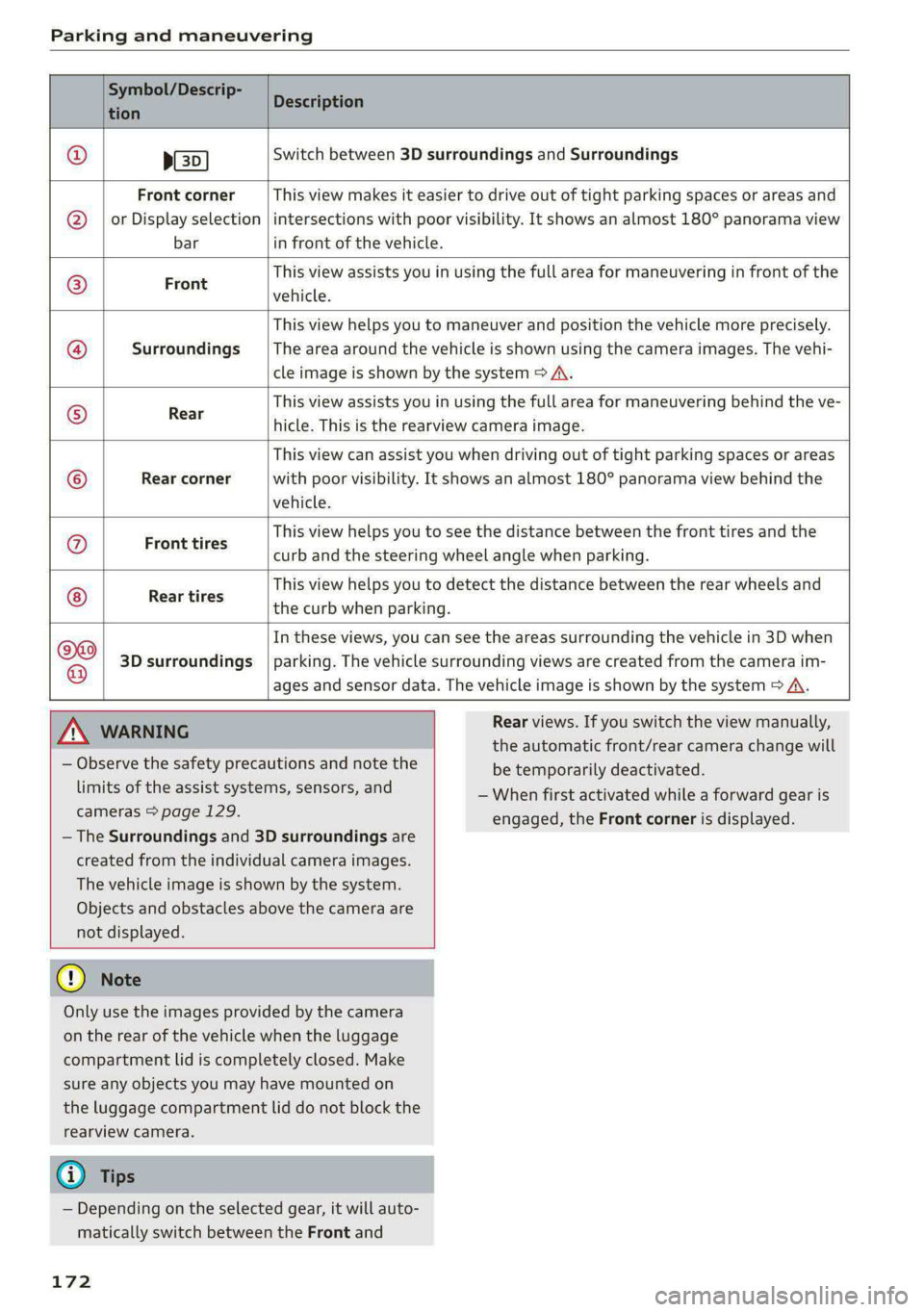
Symbol/Descrip-
tion
Description
psp
Switch between 3D surroundings and Surroundings
Front corner
or Display selection
bar
This view makes it easier to drive out of tight parking spaces or areas and
intersections with poor visibility. It shows an almost 180° panorama view
in front of the vehicle.
Front
This view assists you in using the full area for maneuvering in front of the
vehicle.
Surroundings
This view helps you to maneuver and position the vehicle more precisely.
The area around the vehicle is shown using the camera images. The vehi-
cle image is shown by the system > A\.
Rear
This view assists you in using the full area for maneuvering behind the ve-
hicle. This is the rearview camera image.
Rear corner
This view can assist you when driving out of tight parking spaces or areas
with poor visibility. It shows an almost 180° panorama view behind the
vehicle.
Front tires
This view helps you to see the distance between the front tires and the
curb and the steering wheel angle when parking.
Rear tires
This view helps you to detect the distance between the rear wheels and
the curb when parking.
3D surroundings
In these views, you can see the areas surrounding the vehicle in 3D when
parking. The vehicle surrounding views are created from the camera im-
©f$;/@/e|
®
|o/e
|e]
e@
|e
ages and sensor data. The vehicle image is shown by the system > A\.
ZA\ WARNING
— Observe the safety precautions and note the
limits of the assist systems, sensors, and
cameras > page 129.
— The Surroundings and 3D surroundings are
created from the individual camera images.
The vehicle image is shown by the system.
Objects and obstacles above the camera are
not displayed.
@) Note
Only use the images provided by the camera
on the rear of the vehicle when the luggage
compartment lid is completely closed. Make
sure any objects you may have mounted on
the luggage compartment lid do not block the
rearview camera.
@) Tips
— Depending on the selected gear, it will auto-
matically switch between the Front and
172
Rear views. If you switch the view manually,
the automatic front/rear camera change will
be temporarily deactivated.
— When first activated while a forward gear is
engaged, the Front corner is displayed.
Page 207 of 308
4KE012721BF
Navigation
information at regular intervals to the traf
fic data provider. You can switch off data
transfer at any time > page 283.
— The online traffic information network is
not available in all countries, and the cover-
age is not nationwide.
Settings
Applies to: vehicles with navigation system
You can adjust the navigation system settings in
the instrument cluster and in the MMI display
separately. The settings depend on the country
and vehicle equipment.
Accessing settings
> Applies to: MMI: Select on the home screen:
NAVIGATION > ©}.
Accessing settings using the multifunction
steering wheel
> Applies to: multifunction steering wheel: Select
in the instrument cluster: Navigation tab >
button.
Please note that a setting applied to the multi-
function steering wheel is only valid for the in-
strument cluster map.
Map settings
Satellite map: see > page 202.
Traffic: you can display current traffic informa-
tion on the map.
— Free flowing traffic
— Traffic obstructions
— Traffic incidents
Map colors
— Automatic: the map display adapts to the light-
ing conditions (for example, by changing from
day to night when driving through a tunnel).
— Day or Night
Map orientation
— 2D heading-up map/2D north-up map: the
current vehicle position is displayed. The map is
oriented in the direction of travel or to the
north.
— 3D heading-up map: the current vehicle posi-
tion is shown on a three-dimensional map and
is aligned to the direction of travel.
— Overview: the entire route from the vehicle po-
sition to the destination or the next stopover is
displayed on the map. The map is oriented to
the north.
Automatic zoom
— On: the map scale is adapted automatically de-
pending on the type of road being traveled (ex-
pressway, highway, other roads) so that you al-
ways have an optimal overview of the road
ahead. When route guidance is active, the scale
is adjusted automatically for a better detailed
view when there are upcoming maneuvers.
— Intersection: when route guidance is active, the
scale is adjusted automatically for a better de-
tailed view when there are upcoming maneu-
vers.
— Off
MMI map contents/Map content: you can switch
the display of additional information (such as
POIs) on the map in the upper display on or off.
Voice guidance
Voice guidance: you can adjust the navigation
prompts. With the Traffic setting, the MMI will
only give prompts if there are traffic incidents on
your route.
Voice guidance during phone call
Entertainment fader during navigation: the au-
dio playback volume is temporarily lowered when
navigation prompts are active.
Route criteria
You can adjust which route criteria should be al-
lowed or avoided for the route calculation.
HOV/carpool lanes
Highways
Toll roads
Ferries
e-tron route planner
This function can be switched on and off.
205
Page 224 of 308
![AUDI E-TRON 2021 User Guide
Not all functions are available in every source
and on every touch display.
ct-Me-y4ae tL]
Applies to: vehicles with free text search
You can search across all active sources, for ex-
ample f](/img/6/57622/w960_57622-223.png "AUDI E-TRON 2021 User Guide
Not all functions are available in every source
and on every touch display.
ct-Me-y4ae tL]
Applies to: vehicles with free text search
You can search across all active sources, for ex-
ample f")
Not all functions are available in every source
and on every touch display.
ct-Me-y4ae tL]
Applies to: vehicles with free text search
You can search across all active sources, for ex-
ample for tracks and video files.
Opening the search
Requirement: the selected source must support
the search function.
> Applies to: MMI: Select on the home screen:
MEDIA > Search.
Entries that contain the entered search term are
listed in the results list. Each result is marked
with the symbol for a category in the media cen-
ter > page 219.
You can search for the following categories:
— Artists
— Albums
— Tracks
— Genres
— Videos
Options and settings
Context-dependent functions and settings may
be available depending on the selected source,
the connected mobile device, and the connection
type.
Requirement: the playback view must be dis-
played @) > page 220, fig. 148.
> Press More @)..
Play more like this
The track currently playing is quickly analyzed for
features such as artist, genre, mood, and beat,
and a smart playlist with similar tracks will be
shown.
1) Depending on the DVD, this may not be possible during
playback.
222
Language)
You can set the language manually. The availabil-
ity of the language and audio format depend on
the video DVD.
Subtitles)
You can manually select subtitles for playback.
The languages available depend on the DVD.
Aspect ratio
Audi recommends the Auto setting for the pic-
ture format. If you press on an aspect ratio, you
will see a preview of the setting on the screen.
Press OK to apply the selected aspect ratio.
The following table gives an overview of the as-
pect ratios. The possible aspect ratios depend on
the source or video file being played.
pspect te Description
tio
The MMI detects the picture for-
Auto mat of the source and displays the
image in the optimal ratio.
The image is fixed in the corre-
4:3, sponding ratio. Select one of these
16:9, options if the image is distorted or
Cinema a section of the image is cut off or
blurry when Auto is selected.
The image is enlarged to fill the en-
Zoom sss
tire display.
The image is displayed in the ratio
of the source format. Select this
Original option if the image is distorted or a
section of the image is cut off or
blurry when Auto is selected.
Accessing settings
> Applies to: MMI: Select on the home screen:
MEDIA > ©.
Depending on the vehicle equipment, the follow-
ing settings may be available: >