Charge AUDI E-TRON 2021 Owner's Manual
[x] Cancel search | Manufacturer: AUDI, Model Year: 2021, Model line: E-TRON, Model: AUDI E-TRON 2021Pages: 308, PDF Size: 83.91 MB
Page 125 of 308
4KE012721BF
High-voltage system
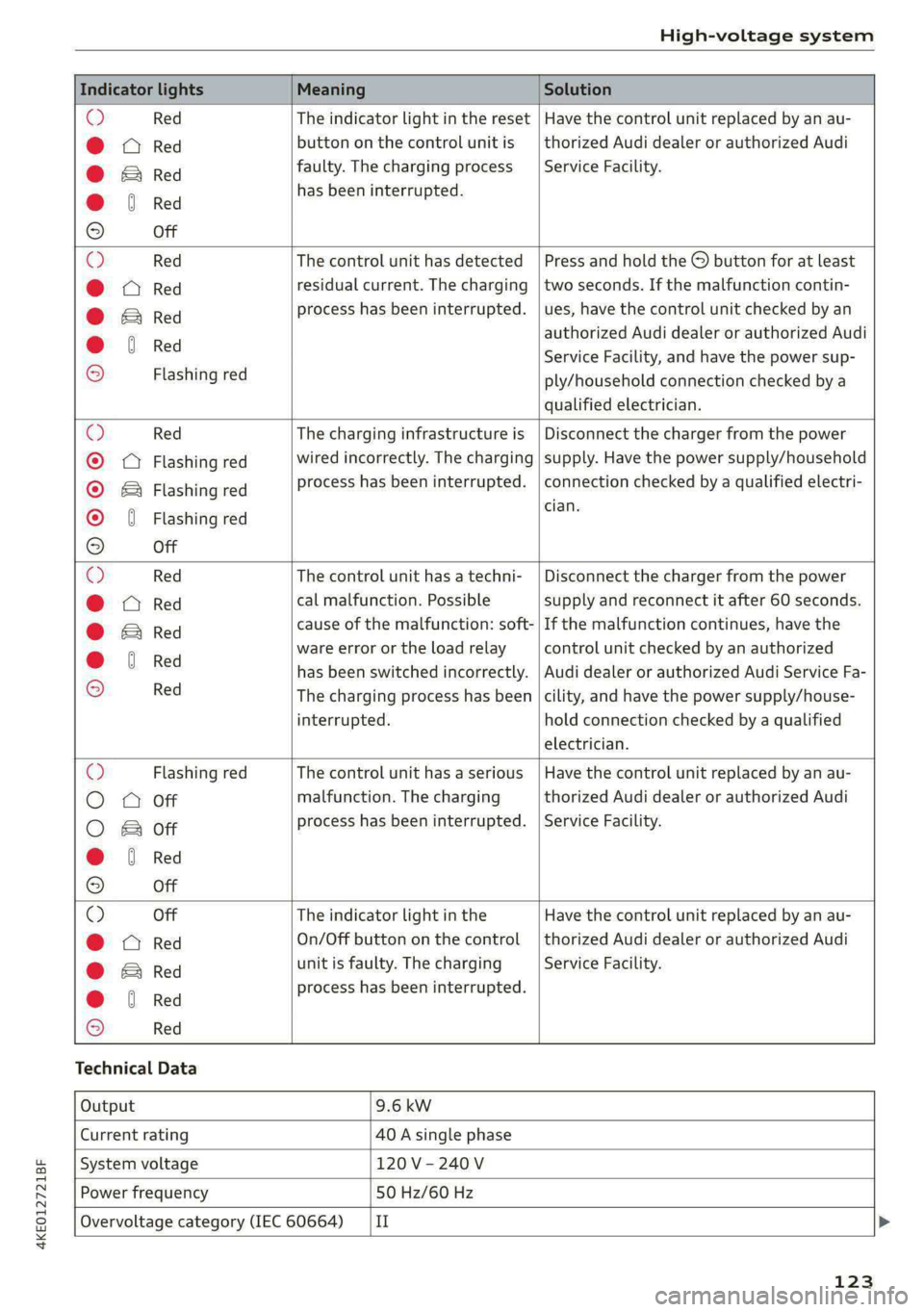
Indicator lights Meaning Solution
© Red The indicator light in the reset | Have the control unit replaced by an au-
@ CQ Red button on the control unit is | thorized Audi dealer or authorized Audi
@ BRe faulty. The charging process | Service Facility.
@ 6 Red has been interrupted.
9 Off
O Red The control unit has detected | Press and hold the © button for at least
@ X Red residual current. The charging | two seconds. If the malfunction contin-
@ Si Red process has been interrupted. | ues, have the control unit checked by an
@ 6 Red authorized Audi dealer or authorized Audi
© . Service Facility, and have the power sup-
2 Flashing red ply/household connection checked by a
qualified electrician.
O Red The charging infrastructure is | Disconnect the charger from the power
® QQ Flashing red wired incorrectly. The charging | supply. Have the power supply/household
© & Flashing red process has been interrupted. | connection checked by a qualified electri-
cian.
© { Flashing red
9 Off
O Red The control unit has atechni- | Disconnect the charger from the power
@ CO Red cal malfunction. Possible supply and reconnect it after 60 seconds.
@ Bred cause of the malfunction: soft- | If the malfunction continues, have the
@ 6 Red ware error or the load relay control unit checked by an authorized
© has been switched incorrectly. | Audi dealer or authorized Audi Service Fa-
2 Red The charging process has been |cility, and have the power supply/house-
interrupted. hold connection checked by a qualified
electrician.
O Flashing red The control unit has a serious | Have the control unit replaced by an au-
O QO Off malfunction. The charging thorized Audi dealer or authorized Audi
O 2 oft process has been interrupted. | Service Facility.
@ & Red
9 Off
© Off The indicator light in the Have the control unit replaced by an au-
@ A Red On/Off button on the control | thorized Audi dealer or authorized Audi
@ E&rRed unit is faulty. The charging Service Facility.
@ 6 Red process has been interrupted.
© Red
Technical Data
Output 9.6 kw
Current rating 40 A single phase
System voltage 120V-240V
Power frequency 50 Hz/60 Hz
Overvoltage category (IEC 60664) {II
123
Page 141 of 308
4KE012721BF
Driving information
The Sl symbol will appear when pedestrian and
wild animal detection is not available.
Marking light*
To direct the driver's attention to a pedestrian,
the headlights can flash on the pedestrian when
there is a pedestrian warning.
This occurs at speeds above approximately
35 mph (60 km/h) if you are outside of illuminat-
ed areas and no detected vehicles are shown. The
marking light is not used for wild animals. The
high beam assistant* controls the marking
light*> page 49.
Adjusting the contrast
Applies to: vehicles with night vision assist
Requirement: the night vision assist must be
switched on and the 1 tab must be displayed.
> Applies to MMI: Select on the home screen: VE-
HICLE > Driver assistance > (<2) > Night vision
assist.
> To set the desired contrast, move the slider.
Messages
Applies to: vehicles with night vision assist
Night vision assist: currently unavailable.
See owner's manual
The system is not functioning correctly at the
time, so it has been switched off. If the malfunc-
tion persists, drive immediately to an authorized
Audi dealer or authorized Audi Service Facility to
have the malfunction repaired.
Integrated Toll Module
Applies to: vehicles with Integrated Toll Module
Depending on the region, you can pay toll fees in
certain countries using the Integrated Toll Mod-
ule (ITM). It replaces a separate transponder for
detecting toll fees. The system electronics are in-
tegrated in the rearview mirror housing.
To use the ITM in toll zones, you must register
and activate it.
Registration
> Applies to MMI: Select on the home screen: VE-
HICLE > Settings & Service > Vehicle informa-
tion Toll module.
> Note the Integrated Toll Module ID.
> To register the ITM, go to the displayed web ad-
dress and follow the instructions.
Activation
> To activate the ITM, press CD in the MMI.
Entering the number of passengers
Depending on the number of passengers and the
region, a lower toll fee may be charged. You must
either enter the number of passengers or deacti-
vate the ITM based on the laws applicable in the
area where you are driving.
> To enter the number of passengers, select the
appropriate button in the MMI.
> To deactivate the ITM, press C in the MMI.
@) Tips
— The driver is responsible for specifying the
correct number of passengers and activat-
ing or deactivating the ITM.
— Malfunctions can occur when detecting tolls
if both the ITM and transponder are activat-
ed. Deactivate the system not being used or
remove it as necessary.
—Ifa rearview mirror is replaced, you must
register the new ITM and remove the old
ITM from the account.
—The system complies with United States FCC
regulations and ISED regulations
> page 288.
Display
Applies to: vehicles with Integrated Toll Module
The selected number of passengers is displayed
in the MMI status bar > page 20.
The ii symbol in the status bar and a notifica-
tion in the MMI will indicate if there is a faulty
connection between the ITM and the MMI or if
the ITM is faulty. If the connection interference
continues or the ITM is faulty, drive immediately >
139
Page 179 of 308
4KE012721BF
Telephone
Disconnecting a mobile device
Applies to: vehicles with telephone
> To disconnect a Bluetooth device from the MMI,
use the Connected devices menu > page 230.
Using the Audi phone
box
General information
Applies to: vehicles with Audi phone box
3
3 g ie
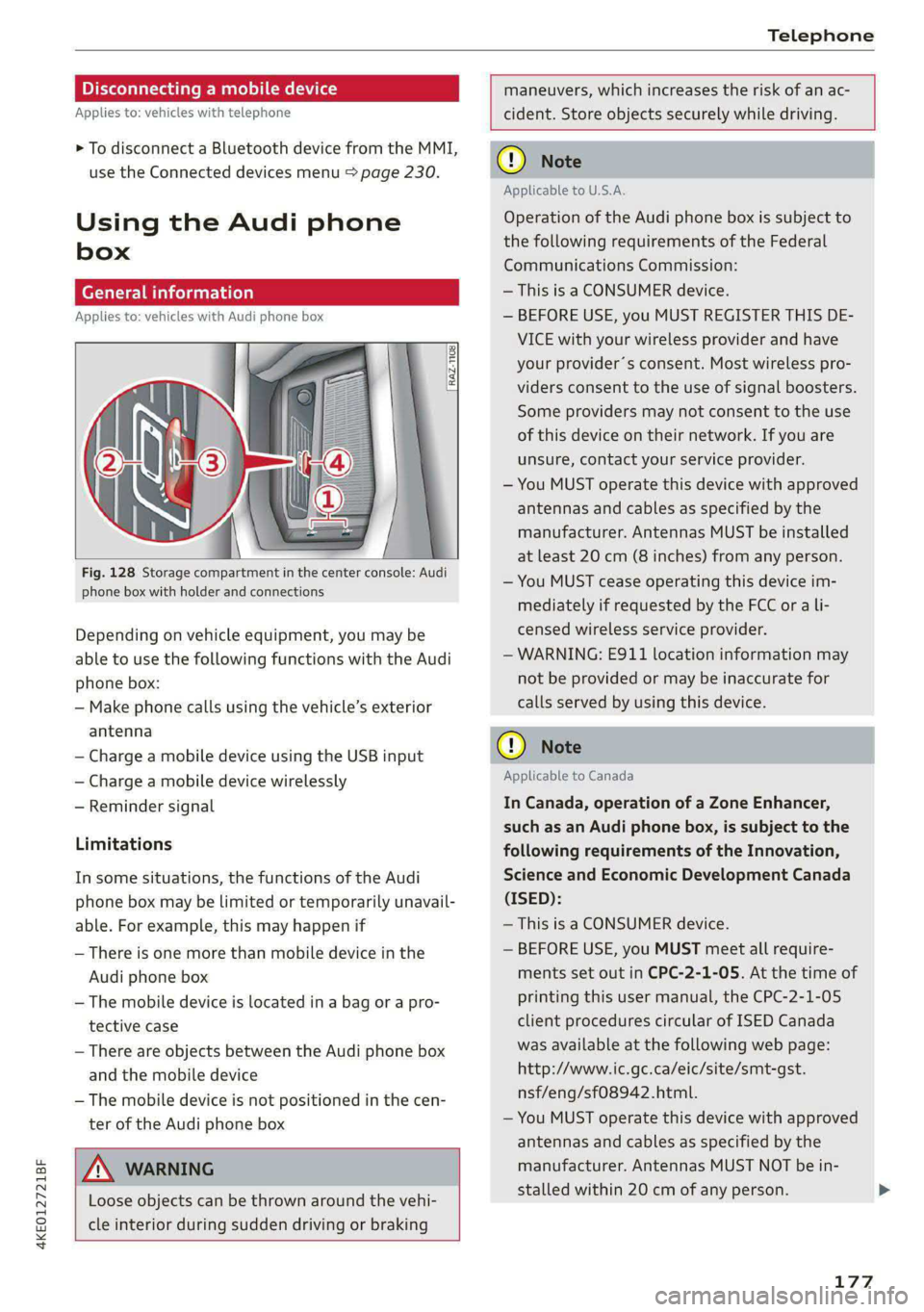
Fig. 128 Storage compartment in the center console: Audi
phone box with holder and connections
Depending on vehicle equipment, you may be
able to use the following functions with the Audi
phone box:
— Make phone calls using the vehicle’s exterior
antenna
— Charge a mobile device using the USB input
— Charge a mobile device wirelessly
— Reminder signal
Limitations
In some situations, the functions of the Audi
phone box may be limited or temporarily unavail-
able. For example, this may happen if
— There is one more than mobile device in the
Audi phone box
— The mobile device is located in a bag or a pro-
tective case
— There are objects between the Audi phone box
and the mobile device
— The mobile device is not positioned in the cen-
ter of the Audi phone box
maneuvers, which increases the risk of an ac-
cident. Store objects securely while driving.
ZA\ WARNING
Loose objects can be thrown around the vehi-
cle interior during sudden driving or braking
CG) Note
Applicable to U.S.A.
Operation of the Audi phone box is subject to
the following requirements of the Federal
Communications Commission:
— This is a CONSUMER device.
— BEFORE USE, you MUST REGISTER THIS DE-
VICE with your wireless provider and have
your provider’s consent. Most wireless pro-
viders consent to the use of signal boosters.
Some providers may not consent to the use
of this device on their network. If you are
unsure, contact your service provider.
— You MUST operate this device with approved
antennas and cables as specified by the
manufacturer. Antennas MUST be installed
at least 20 cm (8 inches) from any person.
— You MUST cease operating this device im-
mediately if requested by the FCC or a li-
censed wireless service provider.
— WARNING: E911 location information may
not be provided or may be inaccurate for
calls served by using this device.
@) Note
Applicable to Canada
In Canada, operation of a Zone Enhancer,
such as an Audi phone box, is subject to the
following requirements of the Innovation,
Science and Economic Development Canada
(ISED):
— This is a CONSUMER device.
— BEFORE USE, you MUST meet all require-
ments set out in CPC-2-1-05. At the time of
printing this user manual, the CPC-2-1-05
client procedures circular of ISED Canada
was available at the following web page:
http://www.ic.gc.ca/eic/site/smt-gst.
nsf/eng/sf08942.html.
— You MUST operate this device with approved
antennas
and cables as specified by the
manufacturer. Antennas MUST NOT be in-
stalled within 20 cm of any person.
177
Page 180 of 308
Telephone
— You MUST cease operating this device im-
mediately if requested by ISED or a licensed
wireless service provider.
— WARNING: £911 location information may
not be provided or may be inaccurate for
calls served by using this device.
@) Tips
The system complies with United States FCC
regulations and ISED regulations > page 288.
Making phone calls using the exterior
ental ar-)
Applies to: vehicles with Audi phone box
With the Audi phone box, you can make calls us-
ing the exterior antenna on the vehicle. Using the
external antenna helps when there is a low signal
and also provides better reception quality.
Requirement: the ignition must be switched on.
> Open the holder for the Audi phone box (4)
=> page 177, fig. 128.
> To make phone calls through the vehicle's exte-
rior antenna using your mobile device, lay your
device with the rear side against the phone
symbol (2) in the center of the Audi phone box
and holder (@).
ETc i Ue mana e Nati ae) MeL
Applies to: vehicles with Audi phone box
You can charge your mobile device using a special
USB adapter with the Audi phone box
=> page 217.
Requirement: the ignition must be switched on.
> To charge your mobile device via USB, connect it
to the USB input @ > page 177, fig. 128.
G) Tips
— You can purchase a USB adapter from an au-
thorized Audi dealer or authorized Audi
Service Facility, or at specialty stores.
— Audi recommends using Audi Genuine Ac-
cessories. Audi has verified their reliability,
safety, and suitability.
178
Charging a mobile device wirelessly
Applies to: vehicles with Audi phone box
You can charge your mobile device wirelessly us-
ing the Audi phone box.
Requirement: the ignition must be switched on.
Your mobile device must meet the Qi standard.
> Make sure that the wireless charging function is
switched on:
> Applies to: MMI: Select on the home screen:
SETTINGS > General > Reminder signal and
mobile device charging.
> Switch the Mobile device wireless charging
function on.
> Open the holder for the Audi phone box (@)
=> page 177, fig. 128.
> To charge your mobile device wirelessly, lay
your device with the rear side against the
symbol (3) between the Audi phone box and
holder @).
ZA WARNING
— The mobile device may become hot during
wireless charging. Pay attention to the tem-
perature of your mobile device and be care-
ful when removing it from the Audi phone
box.
— An alternating magnetic field is used for
wireless charging. Maintain a minimum dis-
tance of approximately 2.4 inches (6 cm) to
the Audi phone box charging plate. The
thresholds for prolonged exposure at this
distance comply with ICNIRP1998. There-
fore, interactions such as irritation of senso-
ry organs, malfunctions of active implants
(such as pacemakers, infusion pumps, or
neurostimulators) or effects on passive im-
plants (such as prosthetic limbs) is highly
unlikely. If you have an implant, consult a
medical specialist if you have any questions.
You can also switch the function for wireless
charging in the Audi phone box on and off.
You can continue to charge your mobile de-
vice using a cable connection.
@) Tips
—The maximum charging output is 5 W.
Page 181 of 308
4KE012721BF
Telephone
— The charging time and temperature will vary
depending on the mobile device being used.
Mobile device reminder signal
Applies to: vehicles with Audi phone box
When the device reminder signal is switched on,
you will be notified that your mobile device is still
in the Audi phone box when you leave the vehicle.
Requirement: your mobile device must be located
in the Audi phone box (if Qi-capable) or connect-
ed to the Audi music interface with a USB adapt-
er, and the Audi smartphone interface must be
active or your iPhone must be connected to the
MMI via Bluetooth and charging using a USB
adapter connected to the Audi music interface.
> Applies to: MMI: Select on the home screen:
SETTINGS > General > Reminder signal and
mobile device charging.
The following settings may be available, depend-
ing on vehicle equipment:
— Signal tone
— Off
Spoken cue
this setting is switched on at the factory.
Mobile device notes: reminder, charge level
When this function is switched on, the charge
status of your mobile device is displayed. You will
also be reminded not to forget your mobile de-
vice when leaving the vehicle.
Using the telephone
Accessing the telephone functions
Applies to: vehicles with telephone
rence?
Daa
Nerecunt Gis
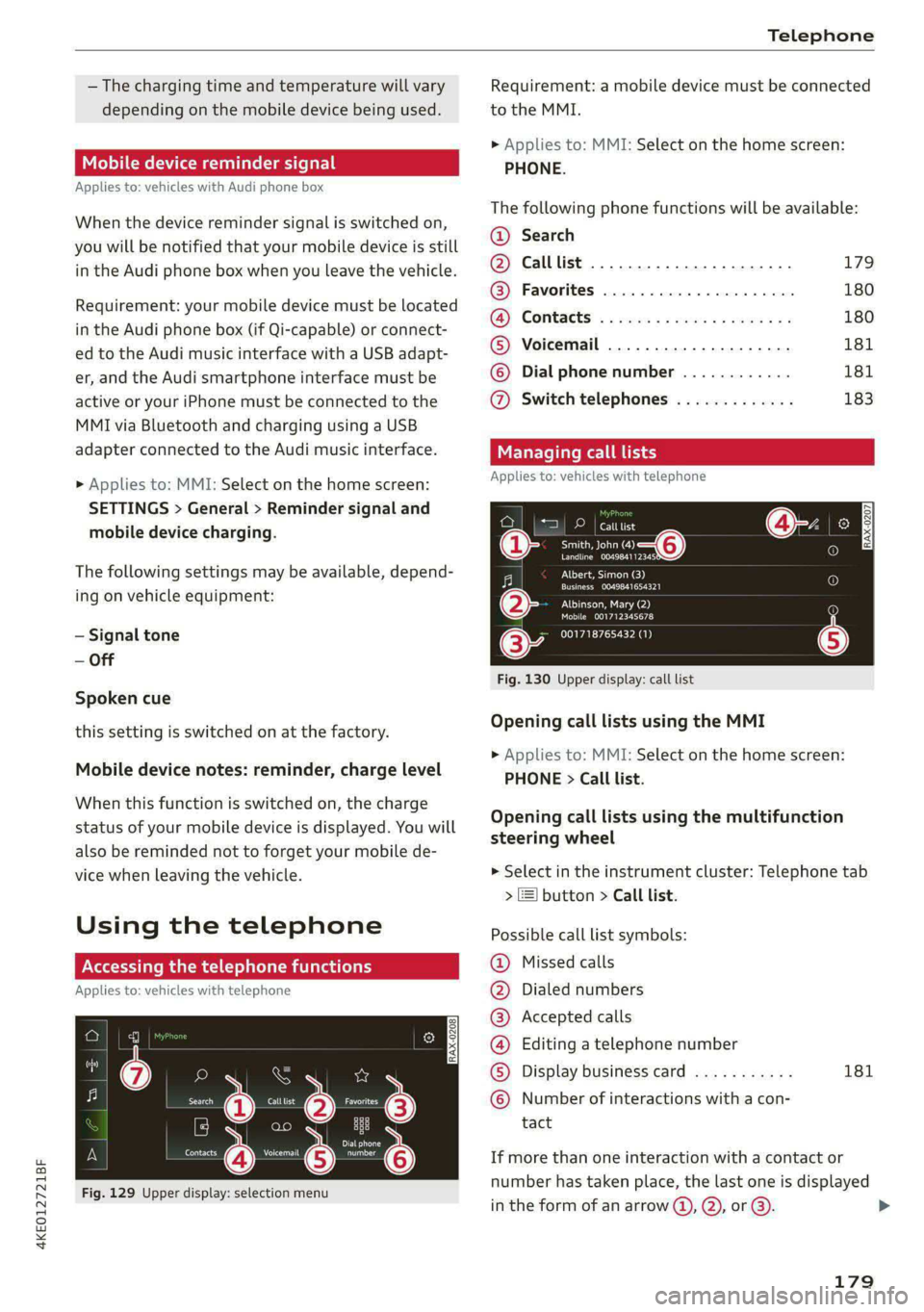
Fig. 129 Upper display: selection menu
Requirement: a mobile device must be connected
to the MMI.
> Applies to: MMI: Select on the home screen:
PHONE.
The following phone functions will be available:
@® Search
@ Calllist 20.0.0... eee. 179
@ Favorites ................0.00. 180
(@) Contacts: « ¢ esos ss cores ay cows yes 180
® Voicemail ..................2. 181
© Dial phone number ............ 181
@ Switch telephones ............. 183
Managing call
Applies to: vehicles with telephone
eae
Treas oT o—@
Landline 004984112345
Albert, Simon (3)
Cree acer)
PILE lea ea
Mobile 001712345678
001718765432 (1)
Fig. 130 Upper display: call list
Opening call lists using the MMI
> Applies to: MMI: Select on the home screen:
PHONE > Call list.
Opening call lists using the multifunction
steering wheel
> Select in the instrument cluster: Telephone tab
> ] button > Call list.
Possible call list symbols:
Missed calls
Dialed numbers
Accepted calls
Editing a telephone number
Display business card 181
QOOOCOLO Number of interactions with a con-
tact
If more than one interaction with a contact or
number has taken place, the last one is displayed
in the form of an arrow (4), Q), or @).
179
>
Page 188 of 308
Audi connect
Audi connect
General information
Applies to: vehicles with Audi connect
Depending on the country and the vehicle equip-
ment, the following functions may be available:
— Audi connect Infotainment
— Audi connect vehicle control
ZA WARNING
—To reduce the risk of an accident, only use
Audi connect services and the Wi-Fi hotspot
only if the traffic situation permits it. Read
and follow the guidelines provided in
= page 17, Traffic safety information.
— It is only safe to use tablets, laptops, mobile
devices and other similar devices when the
vehicle is stationary because, like all loose
objects, they could be thrown around the in-
side of the vehicle in a crash and cause seri-
ous injuries. Store these types of devices se-
curely while driving. Also read the warnings
in the chapter > page 68.
@) Note
—The connection costs of Audi connect Info-
tainment services are included in the price
of Audi connect Infotainment during the
subscription period with some exceptions.
Please note that there may be additional
charges when using some services. For ex-
ample, this applies to online radio/
podcasts, additional online data, or for In-
ternet connections and services that use the
Wi-Fi hotspot. Depending on the country,
data plans may need to be purchased for
these Internet connections and services
= page 190. For additional information, see
my.audi.com.
— In certain situations, the Wi-Fi hotspot data
connection may be established as a replace-
ment for the SIM card on your Wi-Fi device.
This feature depends on the configuration
of your Wi-Fi device and operating system.
This could result in fees depending on your
cell phone service provider, especially if you
are using this feature while abroad. A flat
186
rate data plan is strongly recommended. For
more information, contact your cell phone
service provider or refer to the owner's man-
ual for your Wi-Fi device.
— You are responsible for all precautions taken
for data protection, anti-virus protection,
and protection against loss of data on mo-
bile devices that are used, for example, to
access the Internet through the Wi-Fi hot-
spot.
— In areas with poor GPS reception or outside
the coverage range of the respective cell
phone service provider, some functions
and/or services may not be available, it may
not be possible to send or receive data, or
functionality may be limited.
@) Tips
— The availability of services depends on the
subscription.
— Audi merely provides access to third party
services through the MMI and does not as-
sume any responsibility for the content and
availability of these services.
— Use of the most up-to-date mobile network
standard is not available in every country.
Contact an authorized Audi dealer or au-
thorized Audi Service Facility or your cell
phone service provider for additional infor-
mation.
— Availability, scope, providers, screen display,
and costs of services may vary depending on
the country, model, model year, end device
and rates.
— All services can be modified, activated/deac-
tivated, renamed, and enhanced without
further notification.
Audi connect
Infotainment
Applies to: vehicles with Audi connect Infotainment
With Audi connect Infotainment services, online
information is transmitted directly to the vehicle.
An Internet connection is required to use Audi
connect Infotainment. The Internet connection is >
Page 191 of 308
4KE012721BF
Audi connect
ZA WARNING
— Always follow the information found in > AA
in General information on page 186.
— Driver messages, text messages, and illumi-
nated warning and indicator lights in the ve-
hicle always take priority over information
from the Audi connect services. The infor-
mation displayed by the Audi connect serv-
ices should not cause you to take safety
risks. This can result in the vehicle breaking
down in traffic and to serious injuries or ac-
cidents.
— Applies to: vehicles with electric drive: Only
perform the Audi connect climate control
functions if your vehicle was shut off cor-
rectly and the ignition is switched off.
— Applies to: vehicles with electric drive: Only
perform charging functions on the high-
voltage battery if the vehicle is shut off cor-
rectly, is connected to a suitable socket ,and
if the ignition is switched off.
@) Tips
— Accessing specific data or controlling func-
tions remotely depends on the charge level
of the vehicle battery. Therefore, these
functions only have limited availability after
switching off the ignition.
— An eSIM card establishes the Internet con-
nection for Audi connect vehicle control
services. The costs for this are included in
the price of Audi connect vehicle control
services. The cell phone network, for exam-
ple, must be available to use these services.
Applies to: vehicles with Audi connect vehicle control
Create a myAudi account by registering in the
myAudi app or at my.audi.com, depending on
your country.
>» Set the key user > page 29.
> Install the myAudi app on your mobile device
and log in with your access information.
@) Tips
Some services require you to enter a 4-digit
PIN that you set up during registration.
Settings
Applies to: vehicles with Wi-Fi hotspot
Requirement: the ignition must be switched on.
> Applies to: MMI: Select on the home screen:
SETTINGS > Connection settings > Wi-Fi
Depending on the country and the vehicle equip-
ment, the following functions may be available:
Wi-Fi
When the function is switched on, the MMI's Wi-
Fi hotspot is active and Wi-Fi devices can be con-
nected to the hotspot.
Wi-Fi hotspot settings
The Wi-Fi connection between the MMI and your
Wi-Fi device is encrypted. You can change the fol-
lowing information if needed.
— Access point (SSID): name of the Wi-Fi hot-
spot.
— Password: an initial password was set at the
factory in the MMI. Audi recommends changing
the initial password. Only use secure passwords
that conform to the general guidelines for se-
cure passwords. For more information, refer to
reputable and current sources on password se-
curity.
Allow data connection through Wi-Fi
When the function is switched on, mobile devices
can use the Internet connection through the Wi-
Fi hotspot. A data plan is needed to do this.
Z\ WARNING
Always follow the information found in > AA
in General information on page 186.
@) Note
Always follow the information found in S@ in
General information on page 186.
189
Page 200 of 308
Navigation
Selecting map content (such as POIs) as the
destination
Requirement: map content must be displayed
=> page 205.
> Press on map content on the map (for example,
fib.
Selecting the destination
> Select: F4 > Start.
Route guidance will be activated and the map will
be displayed > page 199, fig. 136.
Stopovers and route plan
Applies to: vehicles with navigation system
You can enter additional destinations during ac-
tive route guidance.
Entering a stopover
Requirement: route guidance must be active.
> Enter a destination > page 195.
Displaying stopovers or the route plan
All destinations are listed in the route plan.
> Press on fin the side menu on the map
=> page 199, fig. 136.
Editing stopovers
> Press on Pin the side menu on the map
=> page 199, fig. 136.
> Adding a stopover: Select: Add destination >
select a destination > Add to route.
> Moving a stopover: press Z. Touch the > sym-
bol and move the entry to the desired position.
Press Done.
> Deleting a stopover: Select: Z > one or more
entries or Select all > Delete > (Done).
Ce eels
Applies to: vehicles with navigation system and e-tron route
planner
The MMI includes the charging stations along the
route, if the destination cannot be reached with
the current battery charge level.
Requirement: the e-tron route planner must be
switched on > page 205.
198
Entering a destination using e-tron route
planner
> Enter a destination.
If the destination is out of range, a fast route
with stopovers for charging is automatically sug-
gested.
> To start the suggested route guidance, press
Accept.
> To display the route, press F) > page 199,
fig. 136 in the map side menu.
The destination is located outside of the
range
The F! symbol will be displayed if the destination
in the current route plan cannot be reached.
> Press on on the map. The route plan will be
displayed.
> Press e-tron route planner to calculate an al-
ternative route with suitable charging stations.
In the e-tron route planner, the following items
will be shown for each destination: the calculated
arrival time and the estimated battery charge
level at arrival (6 and after charging >, as well as
the suggested charging duration s= and the dis-
tance from the current location.
Gi) Tips
— The calculated arrival time at the destina-
tion incorporates the suggested time for
charging at the stopovers.
— The e-tron route planner continuously calcu-
lates the fastest route while taking into ac-
count the charging times at various charg-
ing stations. Therefore, a route with multi-
ple charging stops could be faster than a
route with fewer charging stops.
Stopping route guidance
Applies to: vehicles with navigation system
Requirement: route guidance must be active and
the map must be displayed.
> Applies to: MMI: Press BX > page 199, fig. 136.
> Applies to: multifunction steering wheel: Select
in the instrument cluster: Navigation tab >
button > Cancel route guidance.
Page 208 of 308
Navigation
Prefer Electrify America charger station
When this function is switched on, the e-tron
route planner will give preference to Electrify
America charging stations.
Route information
When this function is switched on and route
guidance is active, route information
= page 199, fig. 136 is displayed. The next ma-
neuver will be displayed at the bottom. POIs and
traffic information will also be displayed. Press
route
information to display a preview of the next
maneuver on the map. You can switch the follow-
ing information on or off in route information.
— Points of interest along the route
— Traffic incidents
Presentation mode
In presentation mode, the system simulates driv-
ing on the display along the planned route with-
out the vehicle actually moving. You can use
Specify starting point when you would like to
calculate a route starting from a location other
than the current vehicle position, for example.
Simulating route guidance: start route guidance
and press presentation mode.
G@) Tips
You can change the volume of navigation an-
nouncements while one is playing > page 28.
206
Page 219 of 308

4KE012721BF
Media
» Applies to: MMI: Select on the home screen:
MEDIA > Source > Amazon Alexa.
@) Note
Read the information about Audi connect, and
be sure to note the connectivity costs section
=> page 186.
Multimedia connections
Oy ETE Tela
ae
a| =
oS
Fig. 146 Audi Genuine Accessories: USB adapter
RAH-9202
\
You can connect your mobile devices through the
Audi music interface to the MMI using the USB
adapter and charge the battery at the same time.
You can purchase the USB adapter cable from an
authorized Audi dealer or at specialty stores:
@ USB adapter for devices with a mi-
cro USB connection
@ USB adapter for Apple devices with
a Lightning connection
@ USB adapter for devices with USB
type C connection
@) Note
Handle the USB adapter carefully. Do not al-
low it to be pinched.
@) Tips
Apple devices with a dock connector can only
be charged using a USB adapter designed for
devices with a dock connector. Data cannot be
transmitted.
Audi music interface
Connect your mobile devices to the Audi music in-
terface in order to operate them through the
MMI and charge the batteries.
The Audi music interface USB ports are located in
the storage compartment under the front and
rear* center armrest and are labeled with the «<>
symbol. If multiple USB devices are connected to
the USB ports (for example, a smartphone anda
USB flash drive), all of these devices can be used
as the playback source.
Connecting or charging mobile devices using
a USB adapter
> Connect the matching USB adapter to the Audi
music interface USB port and connect it to the
mobile device, such as a smartphone.
The battery will charge automatically.
Mobile devices connected to the Audi music inter:
face can be started and operated using the MMI
> page 218.
Disconnecting a mobile device from the Audi
music interface
> Remove the USB adapter cable from the Audi
music interface.
ZA\ WARNING
Driving requires your complete and undivided
attention. As the driver, you have complete re-
sponsibility for safety in traffic. Never operate
mobile devices while driving, because this in-
creases the risk of an accident.
@) Note
— Pull the cable out of the Audi music inter-
face carefully so that the USB ports are not
damaged.
— Use a USB extension cable to connect devi-
ces that have an integrated USB connector
(such as a USB stick) to reduce the risk of
damage to your USB device and the Audi
music interface.
— Extremely high or low temperatures that
can occur inside vehicles can damage mobile
devices and/or impair their performance.
217
>