audio AUDI E-TRON 2021 Owner's Manual
[x] Cancel search | Manufacturer: AUDI, Model Year: 2021, Model line: E-TRON, Model: AUDI E-TRON 2021Pages: 308, PDF Size: 83.91 MB
Page 220 of 308
Media
Never leave mobile devices in the vehicle in
extremely high or low temperatures.
@) Tips
— Always follow the information found in
=> page 78.
— When you switch the ignition off, the USB
ports are still supplied with power until the
energy management intervenes.
— Do not use an additional adapter cable or
USB extension cable to connect mobile devi-
ces to the Audi music interface that already
have a cable or that must be connected with
a USB adapter cable (> page 217, fig. 146).
Using an additional adapter or US extension
cable may impair functionality.
— Functionality is not guaranteed for mobile
devices that do not conform to the USB 2.0
specification.
— USB hubs are not supported.
— Video playback through the Audi music in-
terface is not supported on Apple devices
and MTP devices (such as smartphones).
— iPod touch or iPhone malfunctions also af-
fect the operation of the MMI. Reset your
mobile device in these situations.
— Audi recommends updating the iPod touch
or iPhone software to the latest version. Re-
fer to your mobile device owner's manual
for more information.
— The USB adapter on the Audi music inter-
face will support iPod touch or iPhone devi-
ces from the 5th generation or newer with
the lightning connector.
—Aselection of supported devices can be
found in the database for tested mobile de-
vices at www.audi.com/mp3.
Playing media
The following sources can be selected depending
on the vehicle equipment:
— Amazon Alexa > page 216.
— USB device > page 217.
— DVD © page 216.
218
— External device: you can connect external devi-
ces via Bluetooth and use the Bluetooth audio
player > page 216, or you can connect an exter-
nal device directly to the Audi music interface
> page 217.
Accessing media
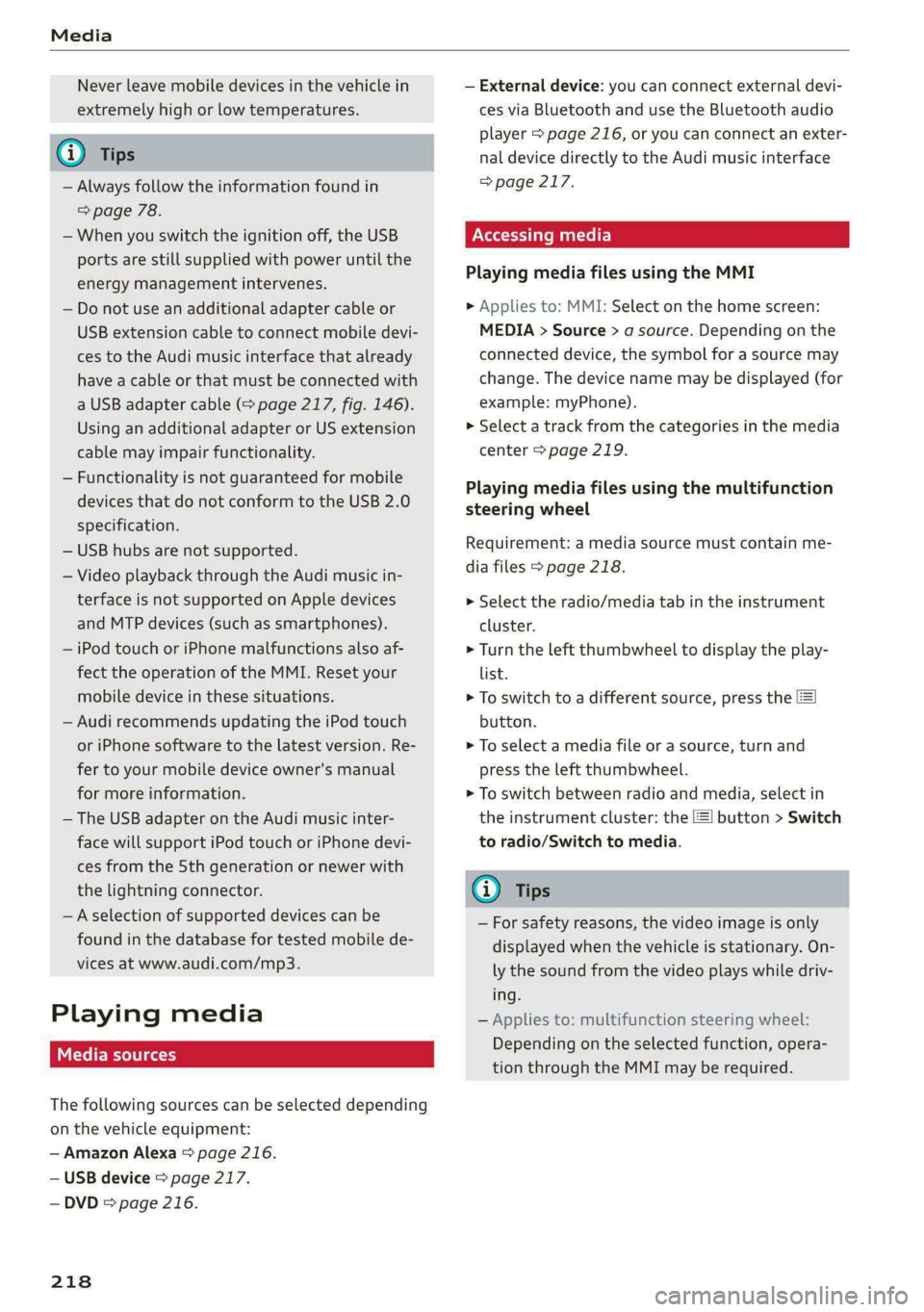
Playing media files using the MMI
> Applies to: MMI: Select on the home screen:
MEDIA > Source > a source. Depending on the
connected device, the symbol for a source may
change. The device name may be displayed (for
example: myPhone).
> Select a track from the categories in the media
center > page 219.
Playing media files using the multifunction
steering wheel
Requirement: a media source must contain me-
dia files > page 218.
> Select the radio/media tab in the instrument
cluster.
> Turn the left thumbwheel to display the play-
list.
> To switch to a different source, press the
button.
> To select a media file or a source, turn and
press the left thumbwheel.
> To switch between radio and media, select in
the instrument cluster: the EE] button > Switch
to radio/Switch to media.
G) Tips
— For safety reasons, the video image is only
displayed when the vehicle is stationary. On-
ly the sound from the video plays while driv-
ing.
— Applies to: multifunction steering wheel:
Depending on the selected function, opera-
tion through the MMI may be required.
Page 221 of 308
![AUDI E-TRON 2021 Owners Manual 4KE012721BF
Media
Cel Me staieig
Teco Re is
a] | 3
| x 2
ES
Fig. 147 Upper display: media center
There are various categories available in the me-
dia center. You can also search for](/img/6/57622/w960_57622-220.png "AUDI E-TRON 2021 Owners Manual 4KE012721BF
Media
Cel Me staieig
Teco Re is
a] | 3
| x 2
ES
Fig. 147 Upper display: media center
There are various categories available in the me-
dia center. You can also search for")
4KE012721BF
Media
Cel Me staieig
Teco Re is
a] | 3
| x 2
ES
Fig. 147 Upper display: media center
There are various categories available in the me-
dia center. You can also search for media files
across sources. The current music track continues
playing while you search the MMI.
Opening the media center
> Applies to: MMI: Select on the home screen:
MEDIA > Source > a source > a category.
@ Source symbol
The symbol for the source that is currently in use
is displayed. Depending on the connected device,
the symbol for the source may change. As an ex-
ample, a USB stick is shown connected to the
Audi music interface.
@ Source device name
The device name of the source that is currently in
use is displayed.
@® Categories
The media center will display categories depend-
ing on the connected device, the selected source
content, and the connection type.
Last played tracks
The last played media file will be played.
Artists
All available artists are displayed.
> Select: an artist > an album > a song.
Playlists
All playlists and smart playlists in the source are
displayed.
> Select: a playlist > a song.
Smart playlists
Last played tracks: the tracks that were dis-
played last are displayed.
Most played tracks: the tracks that are played
most frequently are displayed.
Folders
The folder structure or track/chapter list is dis-
played.
> Select: a folder > a song.
Compilations
You can control your compilations through the
MMI.
> Select: a compilation > a song.
Composers
All available composers are displayed.
> Select: ad composer > an album > a song.
iTunes Radio
>» Press on a radio station.
Audio books
You can control your audio books on the MMI.
> Press on an audio book.
Podcasts
You can control your podcasts through the MMI.
> Select: a podcast > a podcast episode.
Genres
All available genres are displayed.
>» Select: a genre > an artist > an album > a song.
Videos
All available video files are displayed.
> Press on a video.
Tracks
All available tracks are displayed.
> Press ona track.
219
Page 224 of 308
![AUDI E-TRON 2021 Owners Manual
Not all functions are available in every source
and on every touch display.
ct-Me-y4ae tL]
Applies to: vehicles with free text search
You can search across all active sources, for ex-
ample f](/img/6/57622/w960_57622-223.png "AUDI E-TRON 2021 Owners Manual
Not all functions are available in every source
and on every touch display.
ct-Me-y4ae tL]
Applies to: vehicles with free text search
You can search across all active sources, for ex-
ample f")
Not all functions are available in every source
and on every touch display.
ct-Me-y4ae tL]
Applies to: vehicles with free text search
You can search across all active sources, for ex-
ample for tracks and video files.
Opening the search
Requirement: the selected source must support
the search function.
> Applies to: MMI: Select on the home screen:
MEDIA > Search.
Entries that contain the entered search term are
listed in the results list. Each result is marked
with the symbol for a category in the media cen-
ter > page 219.
You can search for the following categories:
— Artists
— Albums
— Tracks
— Genres
— Videos
Options and settings
Context-dependent functions and settings may
be available depending on the selected source,
the connected mobile device, and the connection
type.
Requirement: the playback view must be dis-
played @) > page 220, fig. 148.
> Press More @)..
Play more like this
The track currently playing is quickly analyzed for
features such as artist, genre, mood, and beat,
and a smart playlist with similar tracks will be
shown.
1) Depending on the DVD, this may not be possible during
playback.
222
Language)
You can set the language manually. The availabil-
ity of the language and audio format depend on
the video DVD.
Subtitles)
You can manually select subtitles for playback.
The languages available depend on the DVD.
Aspect ratio
Audi recommends the Auto setting for the pic-
ture format. If you press on an aspect ratio, you
will see a preview of the setting on the screen.
Press OK to apply the selected aspect ratio.
The following table gives an overview of the as-
pect ratios. The possible aspect ratios depend on
the source or video file being played.
pspect te Description
tio
The MMI detects the picture for-
Auto mat of the source and displays the
image in the optimal ratio.
The image is fixed in the corre-
4:3, sponding ratio. Select one of these
16:9, options if the image is distorted or
Cinema a section of the image is cut off or
blurry when Auto is selected.
The image is enlarged to fill the en-
Zoom sss
tire display.
The image is displayed in the ratio
of the source format. Select this
Original option if the image is distorted or a
section of the image is cut off or
blurry when Auto is selected.
Accessing settings
> Applies to: MMI: Select on the home screen:
MEDIA > ©.
Depending on the vehicle equipment, the follow-
ing settings may be available: >
Page 225 of 308
4KE012721BF
Media
Online additional data
Requirement: the MMI must be connected to the
Internet. A data plan must be available
=> page 190.
When the function is switched on, additional in-
formation (such as album cover, artist, track) will
be loaded depending on the availability from the
different providers.
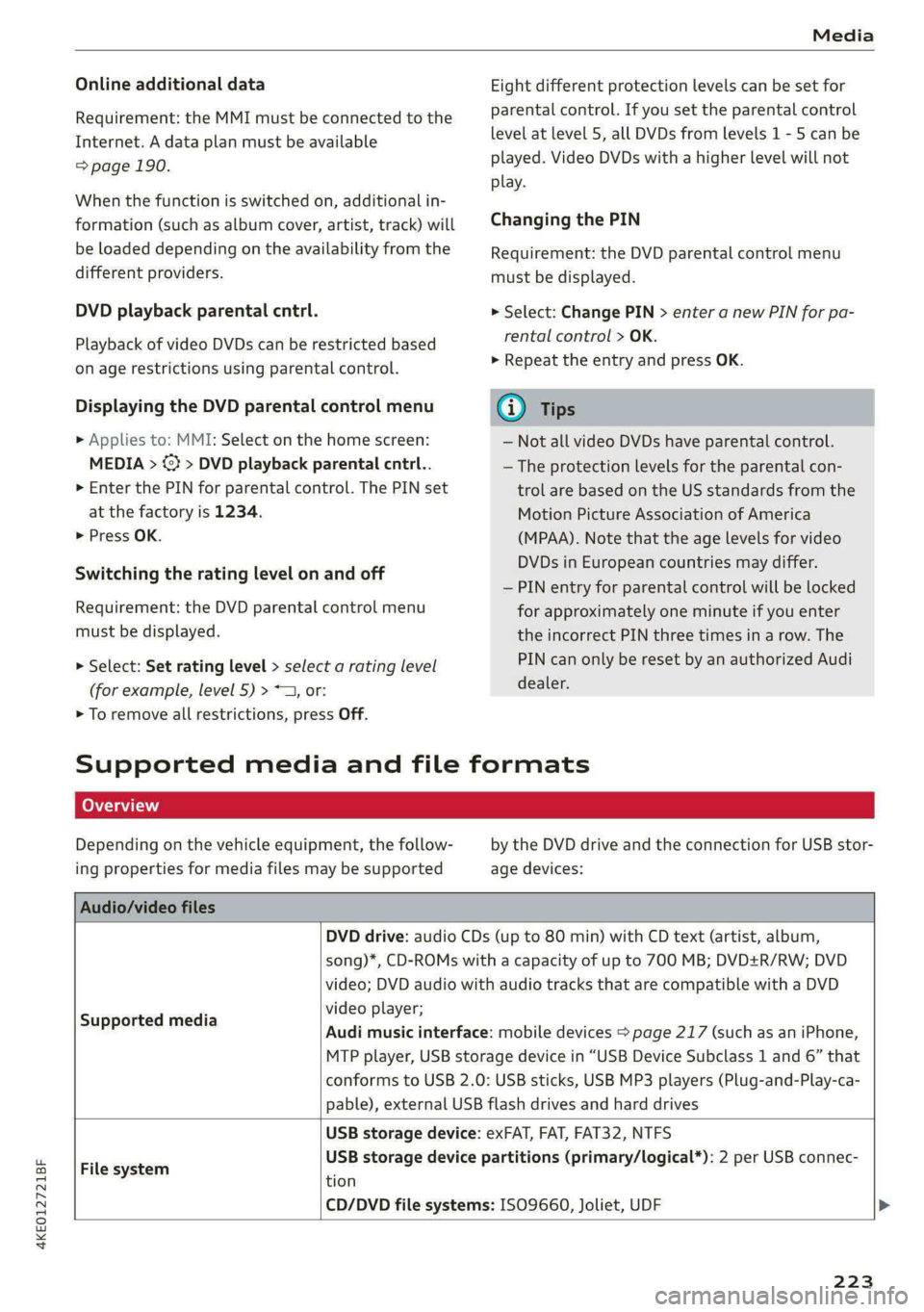
DVD playback parental cntrl.
Playback of video DVDs can be restricted based
on age restrictions using parental control.
Displaying the DVD parental control menu
> Applies to: MMI: Select on the home screen:
MEDIA > ©} > DVD playback parental cntrl..
> Enter the PIN for parental control. The PIN set
at the factory is 1234.
> Press OK.
Switching the rating level on and off
Requirement: the DVD parental control menu
must be displayed.
> Select: Set rating level > select a rating level
(for example, level 5) > *2, or:
> To remove all restrictions, press Off.
Eight different protection levels can be set for
parental control. If you set the parental control
level at level 5, all DVDs from levels 1 - 5 can be
played. Video DVDs with a higher level will not
play.
Changing the PIN
Requirement: the DVD parental control menu
must be displayed.
> Select: Change PIN > enter a new PIN for pa-
rental control > OK.
> Repeat the entry and press OK.
@) Tips
— Not all video DVDs have parental control.
— The protection levels for the parental con-
trol are based on the US standards from the
Motion Picture Association of America
(MPAA). Note that the age levels for video
DVDs in European countries may differ.
— PIN entry for parental control will be locked
for approximately one minute if you enter
the incorrect PIN three times in a row. The
PIN can only be reset by an authorized Audi
dealer.
Supported media and file formats
Depending on the vehicle equipment, the follow-
ing properties for media files may be supported
by the DVD drive and the connection for USB stor-
age devices:
Audio/video files
DVD drive: audio CDs (up to 80 min) with CD text (artist, album,
song)*, CD-ROMs with a capacity of up to 700 MB; DVD+R/RW; DVD
video; DVD audio with audio tracks that are compatible with a DVD
video player;
Audi music interface: mobile devices > page 217 (such as an iPhone,
MTP player, USB storage device in “USB Device Subclass 1 and 6” that
conforms to USB 2.0: USB sticks, USB MP3 players (Plug-and-Play-ca-
pable), external USB flash drives and hard drives
Supported media
USB storage device: exFAT, FAT, FAT32, NTFS
USB storage device partitions (primary/logical*): 2 per USB connec-
File system .
tion
CD/DVD file systems: ISO9660, Joliet, UDF >
223
Page 226 of 308
Media
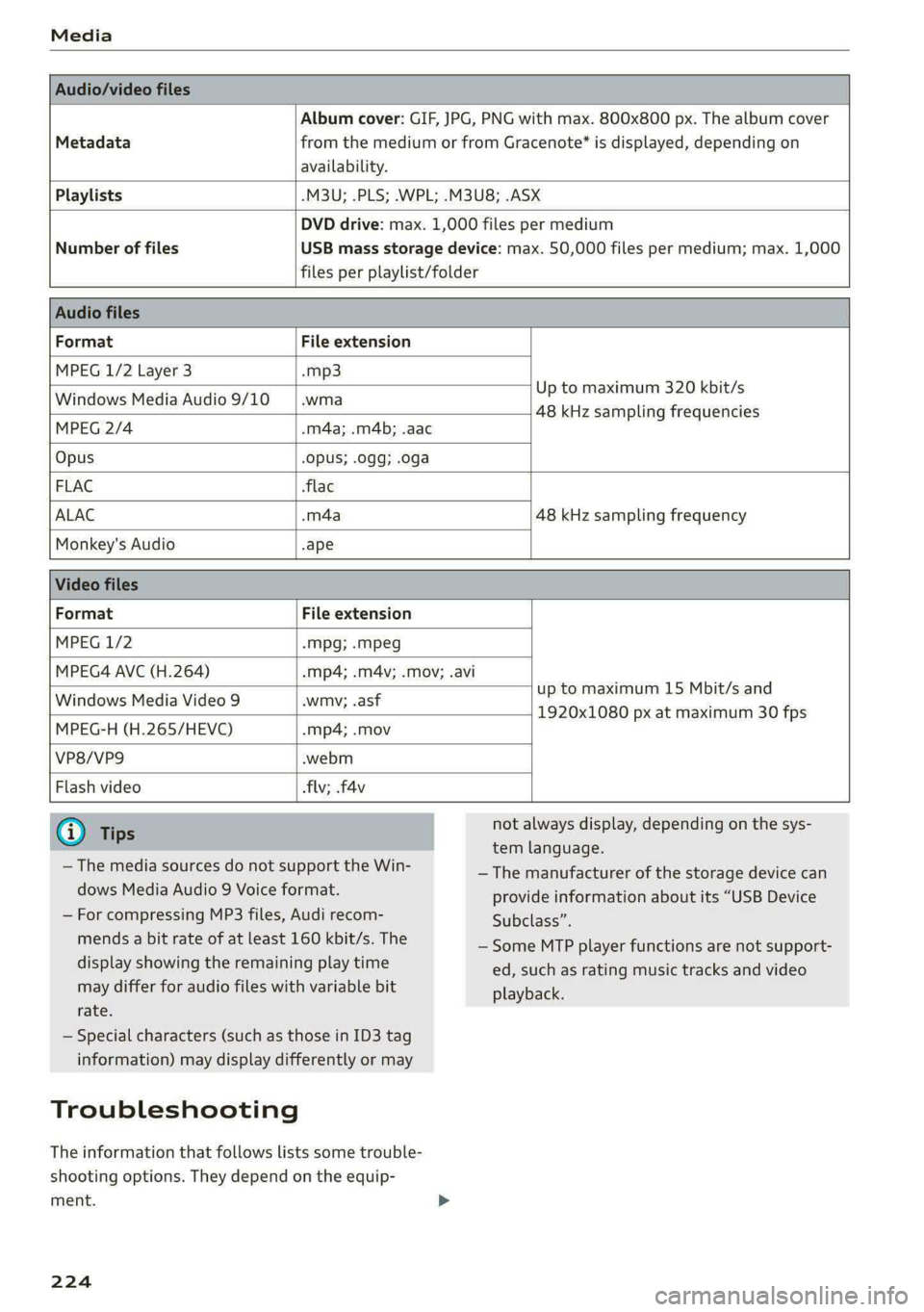
Album cover: GIF, JPG, PNG with max. 800x800 px. The album cover
Metadata from the medium or from Gracenote®* is displayed, depending on
availability.
Playlists -M3U; .PLS; .WPL; .M3U8; .ASX
Number of files
DVD drive: max. 1,000 files per medium
USB mass storage device: max. 50,000 files per medium; max. 1,000
files per playlist/folder
Format File extension
MPEG 1/2 Layer 3 -mp3
Windows Media Audio 9/10 .wma
Up to maximum 320 kbit/s
MPEG 2/4 -m4a; .m4b; .aac
48 kHz sampling frequencies
Opus Opus; .0gg; .oga
FLAC flac
ALAC .m4a 48 kHz sampling frequency
Monkey's Audio -ape
Format File extension
MPEG 1/2 -Mpg; -mpeg
MPEG4 AVC (H.264) mp4; .m4v; .mov; .avi
up to maximum 15 Mbit/s and
1920x1080 px at maximum 30 fps
Windows Media Video 9 wmv; .asf
MPEG-H (H.265/HEVC) mp4; .mov
VP8/VP9 webm
Flash video flv; .f4v
— The media sources do not support the Win-
dows Media Audio 9 Voice format.
— For compressing MP3 files, Audi recom-
mends a bit rate of at least 160 kbit/s. The
display showing the remaining play time
may differ for audio files with variable bit
rate.
— Special characters (such as those in ID3 tag
information) may display differently or may
Troubleshooting
The information that follows lists some trouble-
shooting options. They depend on the equip-
ment.
224
not always display, depending on the sys-
tem language.
— The manufacturer of the storage device can
provide information about its “USB Device
Subclass”.
— Some MTP player functions are not support-
ed, such as rating music tracks and video
playback.
Page 227 of 308
4KE012721BF
Media
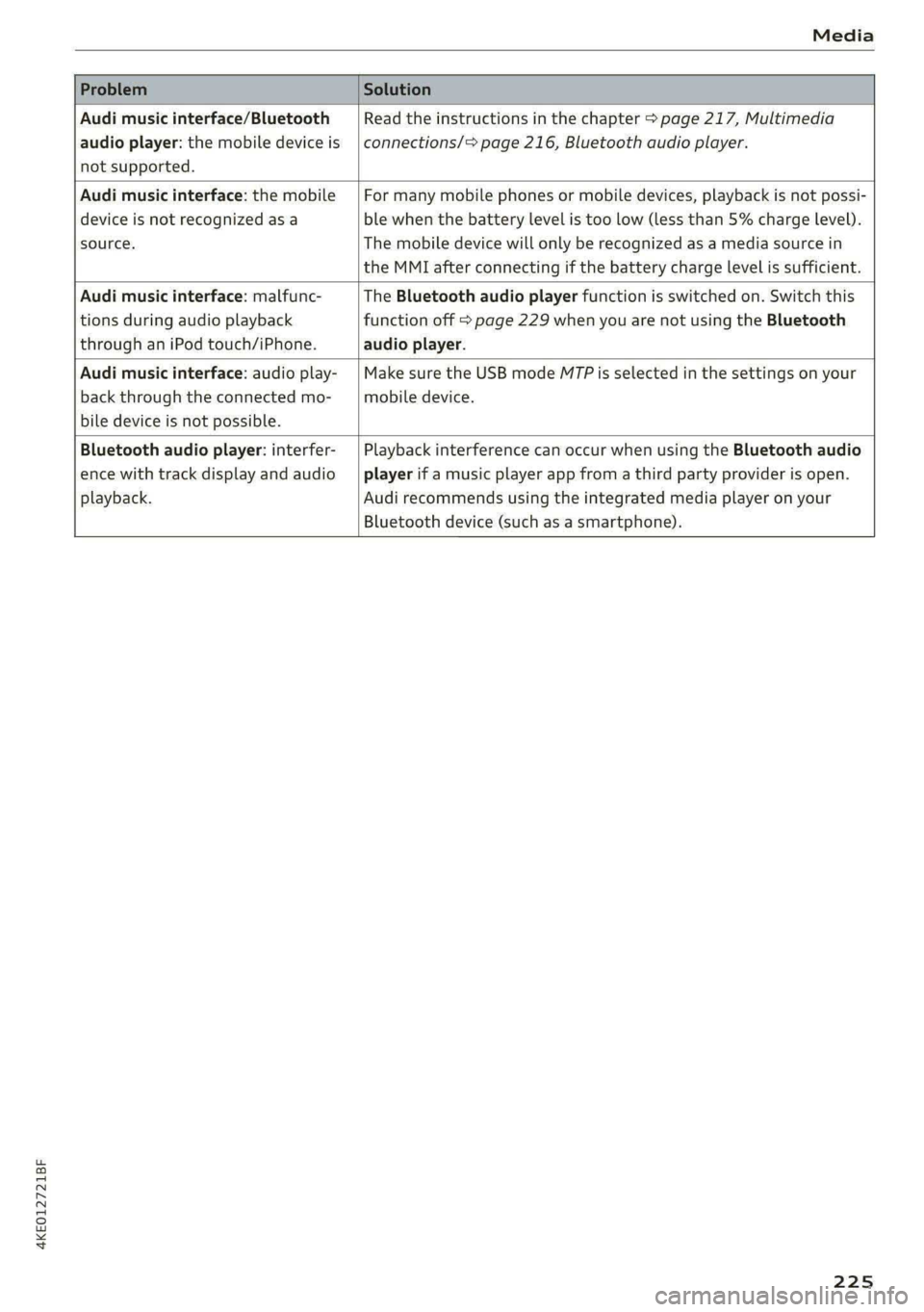
Problem Solution
Audi music interface/Bluetooth
audio player: the mobile device is
not supported.
Read the instructions in the chapter > page 217, Multimedia
connections/> page 216, Bluetooth audio player.
Audi music interface: the mobile
device is not recognized as a
source.
For many mobile phones or mobile devices, playback is not possi-
ble when the battery level is too low (less than 5% charge level).
The mobile device will only be recognized as a media source in
the MMI after connecting if the battery charge level is sufficient.
Audi music interface: malfunc-
tions during audio playback
through an iPod touch/iPhone.
The Bluetooth audio player function is switched on. Switch this
function off > page 229 when you are not using the Bluetooth
audio player.
Audi music interface: audio play-
back through the connected mo-
bile device is not possible.
Make sure the USB mode M7P is selected in the settings on your
mobile device.
Bluetooth audio player: interfer-
ence with track display and audio
playback.
Playback interference can occur when using the Bluetooth audio
player if a music player app from a third party provider is open.
Audi recommends using the integrated media player on your
Bluetooth device (such as a smartphone).
225
Page 230 of 308
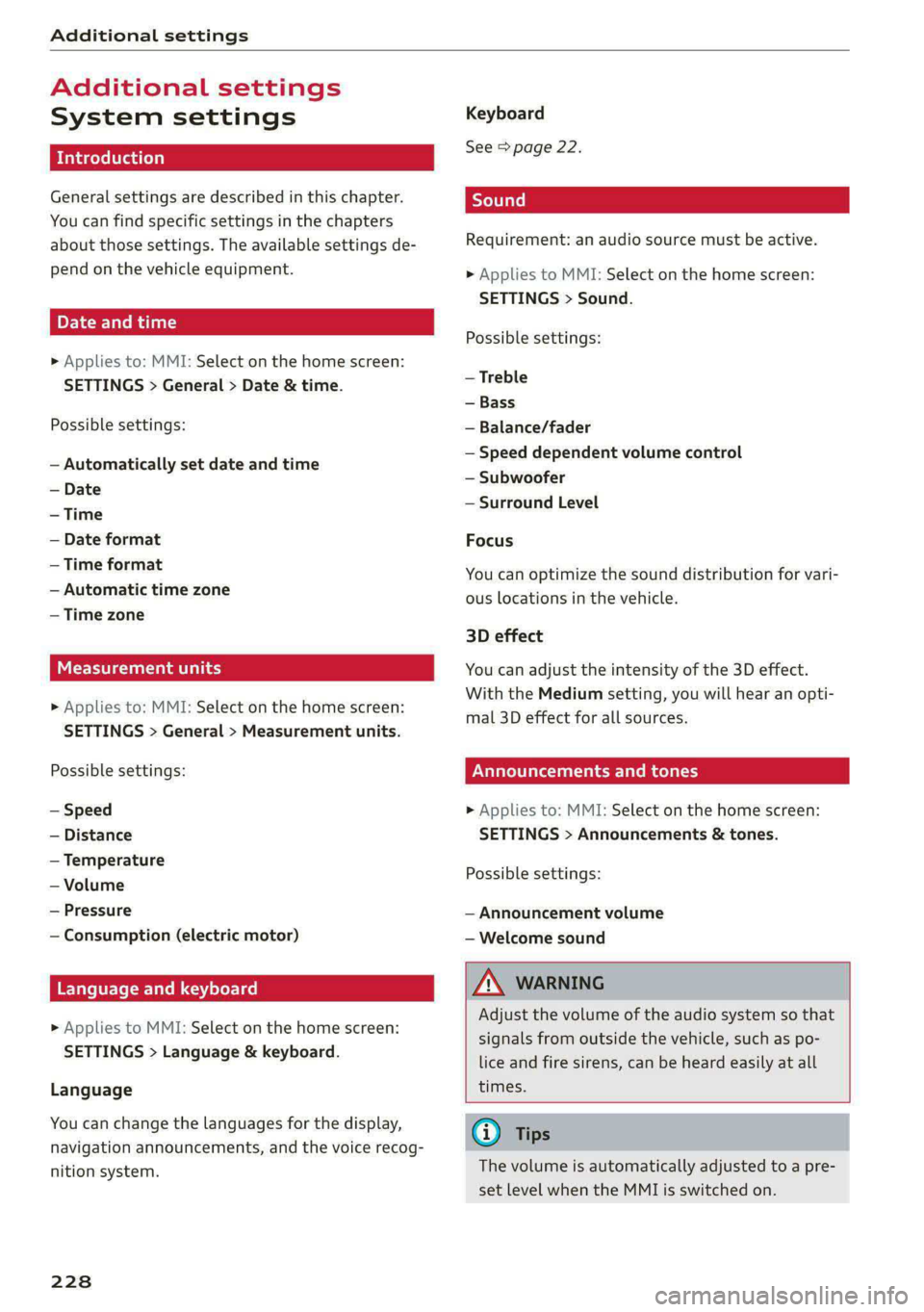
Additional settings
Additional settings
System settings
Introduction
General settings are described in this chapter.
You can find specific settings in the chapters
about those settings. The available settings de-
pend on the vehicle equipment.
Date and time
» Applies to: MMI: Select on the home screen:
SETTINGS > General > Date & time.
Possible settings:
— Automatically set date and time
— Date format
— Time format
— Automatic time zone
— Time zone
Cental ah ey
» Applies to: MMI: Select on the home screen:
SETTINGS > General > Measurement units.
Possible settings:
— Speed
— Distance
— Temperature
— Volume
— Pressure
— Consumption (electric motor)
Language and keyboard
» Applies to MMI: Select on the home screen:
SETTINGS > Language & keyboard.
Language
You can change the languages for the display,
navigation announcements, and the voice recog-
nition system.
228
Keyboard
See > page 22.
Requirement: an audio source must be active.
» Applies to MMI: Select on the home screen:
SETTINGS > Sound.
Possible settings:
— Treble
— Bass
— Balance/fader
— Speed dependent volume control
— Subwoofer
— Surround Level
Focus
You can optimize the sound distribution for vari-
ous locations in the vehicle.
3D effect
You can adjust the intensity of the 3D effect.
With the Medium setting, you will hear an opti-
mal 3D effect for all sources.
Plea ee ely
> Applies to: MMI: Select on the home screen:
SETTINGS > Announcements & tones.
Possible settings:
— Announcement volume
— Welcome sound
ZA WARNING
Adjust the volume of the audio system so that
signals from outside the vehicle, such as po-
lice and fire sirens, can be heard easily at all
times.
Gi) Tips
The volume is automatically adjusted to a pre-
set level when the MMI is switched on.
Page 231 of 308
4KE012721BF
Additional settings
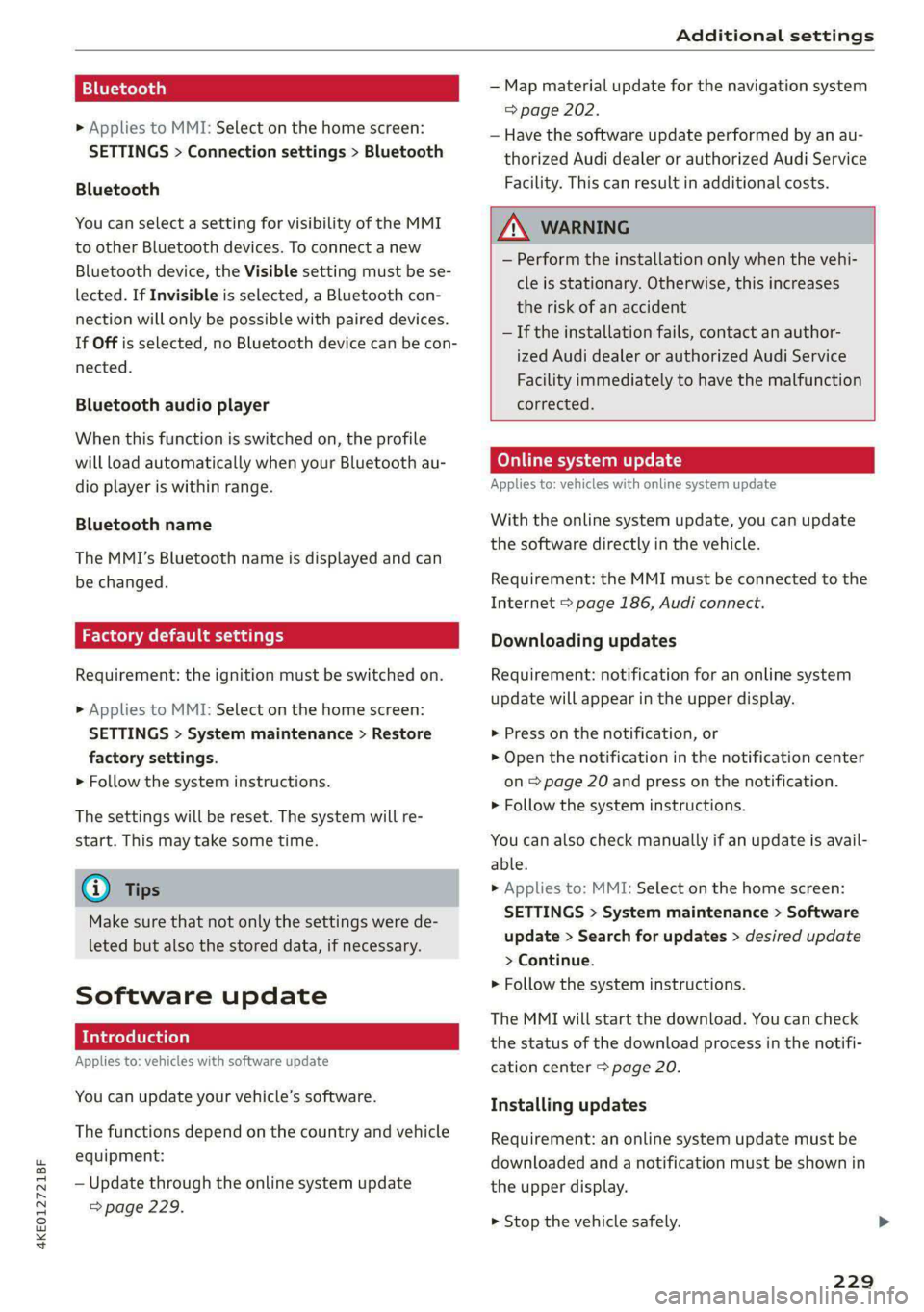
Bluetooth
> Applies to MMI: Select on the home screen:
SETTINGS > Connection settings > Bluetooth
Bluetooth
You can select a setting for visibility of the MMI
to other Bluetooth devices. To connect a new
Bluetooth device, the Visible setting must be se-
lected. If Invisible is selected, a Bluetooth con-
nection will only be possible with paired devices.
If Off is selected, no Bluetooth device can be con-
nected.
Bluetooth audio player
When this function is switched on, the profile
will load automatically when your Bluetooth au-
dio player is within range.
Bluetooth name
The MMI’s Bluetooth name is displayed and can
be changed.
Factory default settings
Requirement: the ignition must be switched on.
> Applies to MMI: Select on the home screen:
SETTINGS > System maintenance > Restore
factory settings.
> Follow the system instructions.
The settings will be reset. The system will re-
start. This may take some time.
@ Tips
Make sure that not only the settings were de-
leted but also the stored data, if necessary.
Software update
Introduction
Applies to: vehicles with software update
You can update your vehicle’s software.
The functions depend on the country and vehicle
equipment:
— Update through the online system update
=> page 229.
— Map material update for the navigation system
=> page 202.
— Have the software update performed by an au-
thorized Audi dealer or authorized Audi Service
Facility. This can result in additional costs.
ZA\ WARNING
— Perform the installation only when the vehi-
cle is stationary. Otherwise, this increases
the risk of an accident
— If the installation fails, contact an author-
ized Audi dealer or authorized Audi Service
Facility immediately to have the malfunction
corrected.
Online system update
Applies to: vehicles with online system update
With the online system update, you can update
the software directly in the vehicle.
Requirement: the MMI must be connected to the
Internet > page 186, Audi connect.
Downloading updates
Requirement: notification for an online system
update will appear in the upper display.
> Press on the notification, or
> Open the notification in the notification center
on page 20 and press on the notification.
> Follow the system instructions.
You can also check manually if an update is avail-
able.
> Applies to: MMI: Select on the home screen:
SETTINGS > System maintenance > Software
update > Search for updates > desired update
> Continue.
> Follow the system instructions.
The
MMI will start the download. You can check
the status of the download process in the notifi-
cation center > page 20.
Installing updates
Requirement: an online system update must be
downloaded and a notification must be shown in
the upper display.
> Stop the vehicle safely.
229
Page 232 of 308
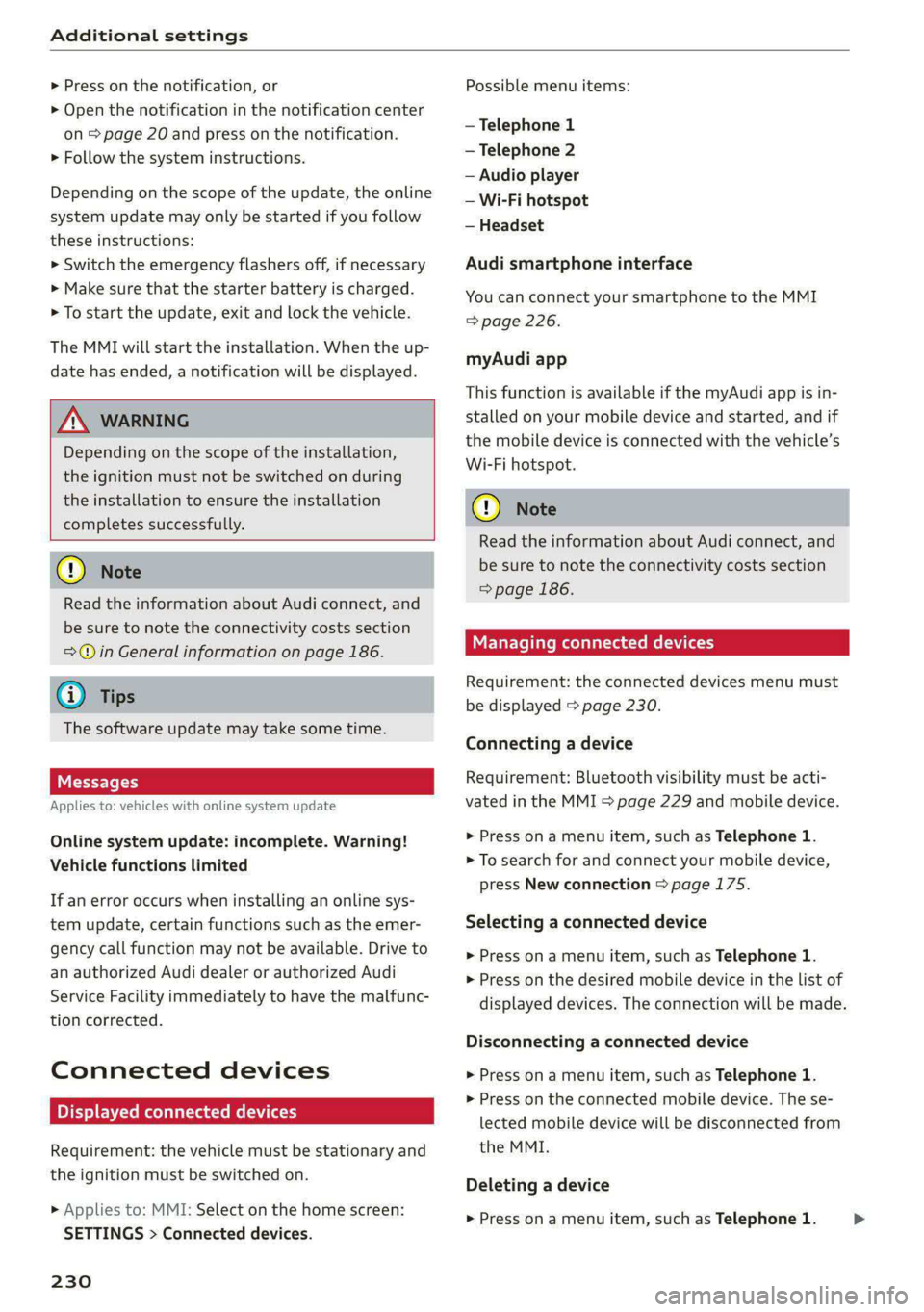
Additional settings
> Press on the notification, or
> Open the notification in the notification center
on > page 20 and press on the notification.
> Follow the system instructions.
Depending on the scope of the update, the online
system update may only be started if you follow
these instructions:
> Switch the emergency flashers off, if necessary
> Make sure that the starter battery is charged.
> To start the update, exit and lock the vehicle.
The MMI will start the installation. When the up-
date has ended, a notification will be displayed.
Z\ WARNING
Depending on the scope of the installation,
the ignition must not be switched on during
the installation to ensure the installation
completes successfully.
©) Note
Read the information about Audi connect, and
be sure to note the connectivity costs section
=) in General information on page 186.
@ Tips
The software update may take some time.
WEE Tel
Applies to: vehicles with online system update
Online system update: incomplete. Warning!
Vehicle functions limited
If an error occurs when installing an online sys-
tem update, certain functions such as the emer-
gency call function may not be available. Drive to
an authorized Audi dealer or authorized Audi
Service Facility immediately to have the malfunc-
tion corrected.
Connected devices
Displayed connected devices
Requirement: the vehicle must be stationary and
the ignition must be switched on.
> Applies to: MMI: Select on the home screen:
SETTINGS > Connected devices.
230
Possible menu items:
— Telephone 1
— Telephone 2
— Audio player
— Wi-Fi hotspot
— Headset
Audi smartphone interface
You can connect your smartphone to the MMI
=> page 226.
myAudi app
This function is available if the myAudi app is in-
stalled on your mobile device and started, and if
the mobile device is connected with the vehicle’s
Wi-Fi hotspot.
() Note
Read the information about Audi connect, and
be sure to note the connectivity costs section
=> page 186.
Managing connected devices
Requirement: the connected devices menu must
be displayed > page 230.
Connecting a device
Requirement: Bluetooth visibility must be acti-
vated in the MMI > page 229 and mobile device.
> Press on a menu item, such as Telephone 1.
> To search for and connect your mobile device,
press New connection > page 175.
Selecting a connected device
> Press on a menu item, such as Telephone 1.
> Press on the desired mobile device in the list of
displayed devices. The connection will be made.
Disconnecting a connected device
> Press on a menu item, such as Telephone 1.
> Press on the connected mobile device. The se-
lected mobile device will be disconnected from
the MMI.
Deleting a device
> Press on a menu item, such as Telephone 1. >
Page 295 of 308
4KE012721BF
Index
High-voltage battery.................. 108
Vehicle battery (12 Volt)............... 238
Winter operation (12 Volt vehicle battery) . 238
Battery (vehicle)
refer to High-voltage battery........... 108
Blinds
refer to Panoramic glass roof............ 44
Block TOU C cms & oscars ao aes oe eeeee & wae 201
BLOWERS woven: ae onsen 2 2 comes 2 2 cme ooo avo 85
Bluetooth
Audio playeh sre x 6 ceca ve wacene ao erties ow 216
Connecting adevice...............0-0- 230
Connecting a mobile phone............ 175
Deleting a device
Device overview..............02.0000-
Disconnecting adevice................ 230
Displaying/profiles « sscvie + » ensue 6 « seowee sv 6 231
Selecting adevice.............0..000. 230
Specifying a favorite.................. 23:1
Boost function...................000 eee 93
Brake fluid
Checking the brake fluid level........... 236
BrakeSiss « ¢ sas s & ewes 5 hee oe eee se eS 96
Brake tluidis ss sass 2 maim o wana ys won ee 236
Emergency braking function............. 99
HGCisu ¢ s sayou & @ Sayan % § MaWE ¢ & BaeoR 5 SeRDR 100
New brake pads..........-...--0000005 97
Brands = wee s 2 owen x ¢ eeu < eee 2 tom FE 232
Break-in security feature...............-. 35
Breaking in
New brake pads..............--0000005 97
ING WEEITOSE. « sxctons co sucesin wo semen oe 6 azectinn on a 248
Bulbireplacementss. «x issn s « sesrve + & arent w vo 280
Business'address’s « « sss os wows oo mewn ow 201
{.
California Proposition 65 Warning........ 233
Battery specific........... cece 238
GALLUISE cesses » sense @ © amscans a o omens a 6 emNEAU & 179
GaMOKaSiiwse 2 wim + mem o 6 emu ee om a Yo 130
Locations ..... 2... ee eee eee e ee eee 131
Capacities
Washer fluid reservoir................. 291
Cargo floor. ....... eee eee eee eee 83
Cargonet....... 2... eee eee ee 82
Garwash «5 sce so aspen «ome oo iene: © stents 261
Cell phone
refer to Telephone...........-.0eee eee 175
Cell phone compartment
refer to Audi phone box............... 177
Central locking....... eee eee cree eens 32
AULOILOGK « coos 2 5 canes 5 5 ten so ees Go eG 32
Convenience key sie + « soccais 2 6 seve + 6 sone « 37
Convenience opening and closing......... 44
Luggage compartment lid............... 40
Mechanically unlocking and locking....... 35
MessageS ......--. 0c cece eects 34
Remote control key.........0eee eee eee 37
SeGUING): © wwe: s 2 wesems x arene @ een aH ewe 33
Vehicle key... 0... cece eee ee eee ee 37
Central locking switch................5-5 34
Gentifieatiomis a < cvessus eo mano we wannew © a caste 288
Changing light bulbs................0.. 280
Charging
refer to Power sourceS.........--.000005 78
Charging clip
refer to Wall mount clip............... 125
Charging display...............2--000-- 114
Charging the battery
USB... eee 178, 217
Wirelessi. « wos « < auc a 2 sogee 4 2 mee 2 2 oe 178
Charging times « eves sz eee ee eews e ewewse 110
Child safety lock
Climate control system controls in the rear. 42
Power windows.............2.020 eee 42
Rear dGGFSs: « s saan x « seme as eee oo ew eo 42
Child safety seats.............0..000 eee 72
Securing to the top tether anchor........ 76
Securing with a safety belt.............. 75
Securing with LATCH..............--00. 74
Cleaning........... eee eee 261
Cleaning Alcantara................0000. 264
Cleaning artificial leather............... 264
Cleaning carbon components........ 263, 264
Cleaning controls « ses ss eens se cee s 6 ves 264
Cleaning decorative parts andtrim........ 263
Cleaning plastic parts.................. 263
Cleaning textiles...................... 264
Climate control system ...............0-- 84
Climate control system controls in the rear
CHINA SARELY LOCK wer ss saan ¢ seen Fo eee 2 42
293