brake AUDI E-TRON 2021 Owner's Manual
[x] Cancel search | Manufacturer: AUDI, Model Year: 2021, Model line: E-TRON, Model: AUDI E-TRON 2021Pages: 308, PDF Size: 83.91 MB
Page 116 of 308

High-voltage system
charging ports at the same time, because — Remove ice and snow in the charging unit
this could damage the charging equipment. using a hand brush and solvent-free deicing
Gy Tips
spray.
— The vehicle radio and TV systems may have
— If the parking brake is set, it could create limited reception when charging the vehicle.
noises when the charging connector is con-
nected.
Charging display
The charging display is an LED light on the charg- informs you about the various displays. The fol-
ing unit @) that indicates the charging status. A lowing table explains the displays.
label on the charging unit @) > page 112, fig. 84
LED on the charging unit Meaning
Off
Vehicle charging system is in sleep mode. A timer may be active,
but charging has not started yet.
Charging process is interrupted.
White Pulsing
Connection between the power source and the vehicle is being
established.
Pulsing The high-voltage battery is charging.
Green Flashing A timer is active, but charging has not started yet.
On High-voltage battery charging process is completed.
On
Yellow
When using the Audi charging system, make sure the power
plug is inserted in the power socket > page 119. No power sup-
ply was recognized even though the charging cable is plugged
in. Have the power supply or power supply system inspected.
When using the Audi charging system, check the status displays
on the unit > table on page 120. See an authorized Audi dealer
or authorized Audi Service Facility for assistance if necessary.
Flashing
The vehicle is not secured from rolling away. Check if “P” is se-
lected and the parking brake is set. If the LED continues to
flash, see an authorized Audi dealer or authorized Audi Service
Facility for assistance.
114
Page 128 of 308
Trailer towing
Trailer towing
Driving with a trailer
er else)
Your vehicle is primarily intended for transport-
ing people and luggage. However, if you drive
with a trailer, follow the technical requirements,
the operation and driving tips, and the legal reg-
ulations.
Driving with a trailer affects the vehicle's energy
usage, performance, and wear. It also requires
higher concentration from the driver.
ZA\ WARNING
Do not transport any people in a trailer due to
the risk of fatal injury.
Technical requirements
Trailer hitch
Only use a trailer hitch with a removable ball
hitch mount and ball hitch. The trailer hitch must
be permitted for the vehicle, the trailer and the
permitted total weight of the trailer being
pulled. Above all, it must be securely and safely
attached to the vehicle trailer.
Never mount a trailer hitch on the bumper. The
trailer hitch must be mounted in a way that does
not impair the function of the bumper. Do not
make any modifications to the brake system.
Check regularly if the trailer hitch is securely
mounted. Always follow the instructions given by
the trailer hitch manufacturer.
Trailer brakes
If the trailer has its own brake system, then fol-
low the manufacturer specifications. However,
the brake system on the trailer must never be
connected to the vehicle brake system.
ZA WARNING
— Never mount a "weight-distributing" or
"load-balancing" trailer coupler as the trailer
hitch. The vehicle was not designed for
these types of trailer hitches. The trailer
126
hitch can malfunction and the trailer can
break off from the vehicle.
— If the trailer is equipped with electronic
brakes, these brakes cannot be activated by
a factory-installed control system, which in-
creases the risk of an accident.
—To reduce the risk of injury, always remove
the ball hitch mount if no trailer is mount-
ed.
Operating instructions
Towing capacity
The permitted towing capacity must not be ex-
ceeded under any circumstances > page 291.
You can drive up larger inclines if you are not us-
ing the maximum towing capacity.
Tongue weight
The maximum permitted tongue weight of the
trailer drawbar on the trailer hitch ball head must
not be exceeded.
For driving safety, Audi recommends always us-
ing
the maximum permitted tongue weight, but
do not exceed this weight. Distributing the cargo
in the trailer correctly will help to achieve this
weight. Having the tongue weight too low affects
the vehicle's handling.
You can determine the tongue weight using a
tongue weight scale, a bathroom scale, or a pub-
lic weigh station, for example.
The permitted tongue weight of your vehicle can
be found in the vehicle documentation or in
=> page 291.
Load distribution
Poor cargo load and distribution can negatively
impact vehicle handling. Load the trailer based
on the following criteria as much as possible:
— Store objects in the vehicle luggage compart-
ment, if possible. The vehicle should always
carry the heaviest possible load and the trailer
should have the lightest possible load.
— Distribute the load in the trailer so that the
heavy objects are as close to the axle as possi-
ble.
Page 130 of 308
Trailer towing
Otherwise, the tongue load specified for
your vehicle will no longer be applicable.
— Attachments retrofitted on the vehicle may
cause damage, especially on the trailer
hitch ball head. In cases of damage, have
the function checked by an authorized Audi
dealer or authorized Audi Service Facility.
@) Tips
— Block the wheels with chocks when parking
on inclines if the trailer is loaded.
— Audi recommends having the vehicle in-
spected between the inspection intervals if
you tow a trailer frequently.
Driving with a trailer
Driving with a trailer requires extra caution.
Speed
Adhere to the legal speed limits. Follow the legal
regulations that are applicable in the country
where you are operating the vehicle.
As the speed increases, the driving stability of
the trailer decreases. Therefore you should not
exceed the maximum legal speed limit when
there are unfavorable road, weather, and/or wind
conditions. This especially applies when driving
downhill.
Hill
When you start driving uphill or downhill, trailers
may tilt or sway sooner than when driving ona
level surface. If small swaying movements have
already occurred, you can stabilize the trailer by
firmly braking immediately. Never attempt to
“straighten out” the trailer by accelerating.
reduce the speed and use the recuperation brak-
ing effect > page 94 to relieve the brakes > A\.
Brakes
When using a trailer with overrun brakes, first
brake gently then quickly. This reduces the risk of
jerking while braking if the trailer wheels lock up.
128
AN WARNING
Constant braking causes the brakes to over-
heat and can substantially reduce braking per-
formance, increase braking distance, or cause
complete failure of the brake system.
Page 143 of 308
4KE012721BF
Driver assistance
Driver assistance
Cruise control system
Applies to: vehicles with cruise control system
The cruise control system assists the driver in
maintaining a constant speed above approxi-
mately 15 mph (20 km/h). The system maintains
the desired speed by braking and accelerating.
ZA WARNING
— Always pay attention to the traffic around
your vehicle when the cruise control system
is in operation. As the driver, you are always
responsible for controlling your vehicle
speed and the distance between your vehicle
and
other vehicles.
— For safety reasons, cruise control should not
be used in the city, in stop-and-go traffic, on
winding roads, and when road conditions are
poor (such as ice, fog, gravel, heavy rain,
and conditions that could lead to hydroplan-
ing), because this increases the risk of an ac-
cident.
— Switch the cruise control off temporarily
when driving in turning lanes, highway exits,
or in construction zones.
—To reduce the risk of an accident, you should
only resume the stored speed if it is suitable
for the current traffic conditions.
() Note
Before driving downhill a long distance ona
steep hill, decrease your speed and use the
braking effect of recuperation > page 94. This
reduces the load on the brakes.
@) Tips
The brake lights turn on when the brakes are
applied automatically.
Switching the system on
Applies to: vehicles with cruise control system
BFV-0220
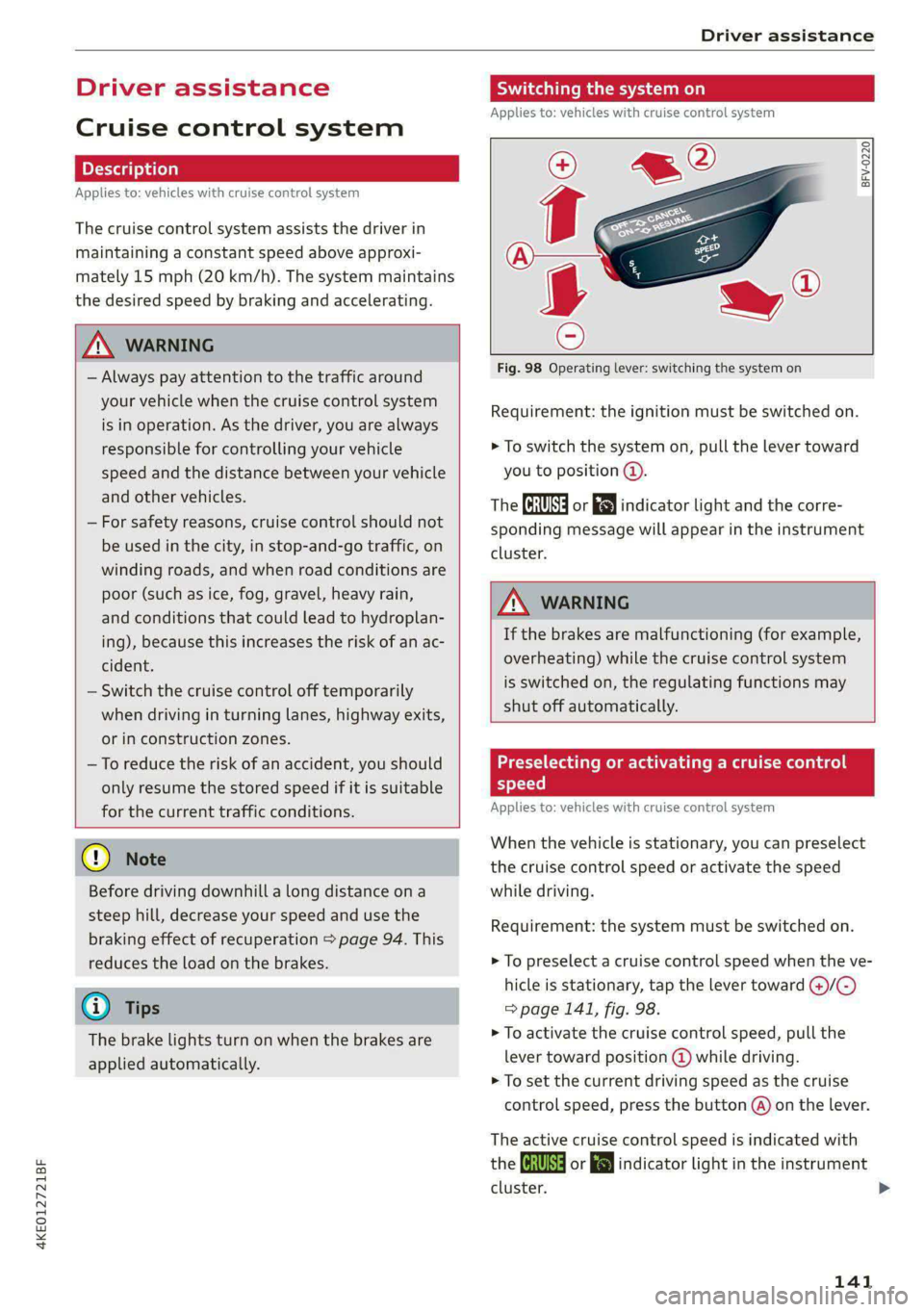
Fig. 98 Operating lever: switching the system on
Requirement: the ignition must be switched on.
> To switch the system on, pull the lever toward
you to position @.
The Gia or i$) indicator light and the corre-
sponding message will appear in the instrument
cluster.
ZA\ WARNING
If the brakes are malfunctioning (for example,
overheating) while the cruise control system
is switched on, the regulating functions may
shut off automatically.
estate Rem lad lite: Rag ena)
speed
Applies to: vehicles with cruise control system
When the vehicle is stationary, you can preselect
the cruise control speed or activate the speed
while driving.
Requirement: the system must be switched on.
> To preselect a cruise control speed when the ve-
hicle is stationary, tap the lever toward @)/G)
=> page 141, fig. 98.
> To activate the cruise control speed, pull the
lever
toward position @ while driving.
> To set the current driving speed as the cruise
control speed, press the button @) on the lever.
The active cruise control speed is indicated with
the Gg or kl indicator light in the instrument
cluster. >
141
Page 144 of 308
Driver assistance
An additional indicator will appear in the head-up
display*.
Changing the cruise control speed
Applies to: vehicles with cruise control system
Requirement: the system must be switched on.
> To increase or decrease the cruise control speed
in small increments, tap the lever up to the
first level toward @)/G) & page 141, fig. 98.
> To increase or decrease the cruise control speed
in larger increments, tap the lever up to the
second level toward @)/G).
> To increase or decrease the cruise control speed
continuously, tap and hold the lever at the first
or second level toward @)/G).
Overriding or deactivating the cruise
control speed
Applies to: vehicles with cruise control system
You can override or deactivate the cruise control
system. When you deactivate the system, your
cruise control speed will be stored and you can
resume that speed.
Requirement: the system must be switched on
and the regulated speed must be activated.
Overriding
> To temporarily override the cruise control
speed, press the accelerator pedal.
> To resume the stored regulated speed, remove
your foot from the accelerator pedal.
If you override the cruise control system for a
long period of time, the cruise control system
will be deactivated. The [Ud or [RM indicator
light will be displayed and the cruise control
speed will be saved.
Deactivating
> To deactivate the cruise control speed, press
the lever toward @) (not locked into place)
=> page 141, fig. 98, or
> Press the brake pedal.
142
ZA WARNING
Resting your foot on the accelerator pedal
could override the cruise control. This will pre-
vent braking interventions by the system.
See me Lai
Applies to: vehicles with cruise control system
When you switch the system off, the cruise con-
trol speed will be erased.
Requirement: the system must be switched on.
> To switch the system off, press the lever toward
@ (locked into place) > page 141, fig. 98, or
> Switch the ignition off.
Applies to: vehicles with cruise control system
Gir / 3) Speed control system: currently un-
available. See owner's manual
If the indicator light turns on and this message
appears, the cruise control system has been deac-
tivated. There is a temporary malfunction, for ex-
ample the brakes are overheating. Switch the
cruise control system on again later.
Efficiency assist
Applies to: vehicles with efficiency assist
Efficiency assist can assist the driver with predic-
tive information in order to reduce fuel consump-
tion. Depending on vehicle equipment, the sys-
tem may access data from the navigation system,
the camera behind the windshield, and the radar
sensors.
If you remove your foot from the accelerator ped-
al, the efficiency assist can trigger recuperation
based on the situation.
Adjusting the efficiency assist
You can adjust efficiency assist functions individ-
ually. The settings depend on the vehicle equip-
ment.
— Recuperation > page 95.
— Predictive messages > page 143.
Page 145 of 308
4KE012721BF
Driver assistance
— Predictive control > page 152, Adjusting the
adaptive cruise assist.
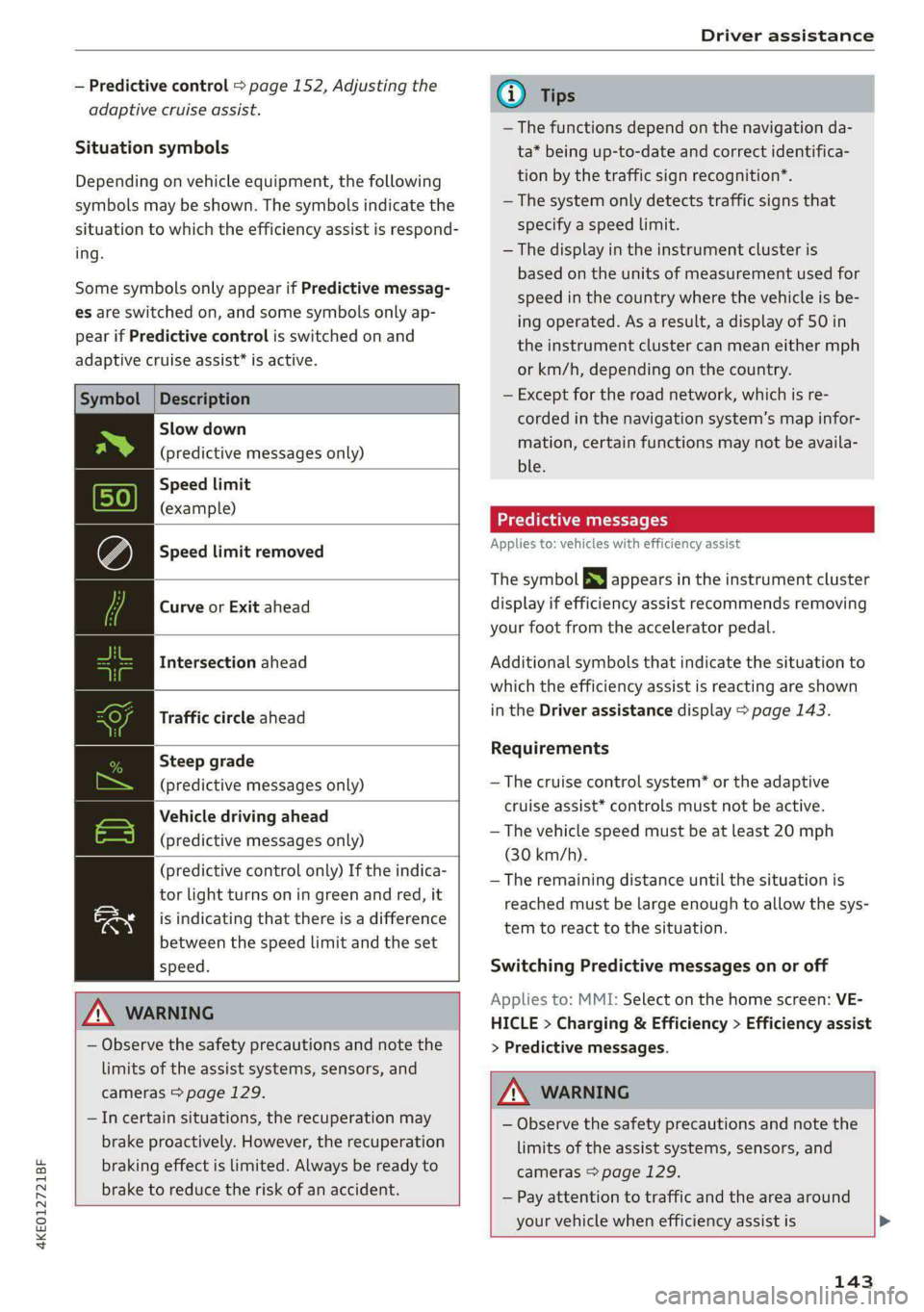
Situation symbols
Depending on vehicle equipment, the following
symbols may be shown. The symbols indicate the
situation to which the efficiency assist is respond-
ing.
Some symbols only appear if Predictive messag-
es are switched on, and some symbols only ap-
pear if Predictive control is switched on and
adaptive cruise assist* is active.
Symbol Description
Slow down
(predictive messages only)
Speed limit
(example)
Speed limit removed
Curve or Exit ahead
Intersection ahead
Traffic circle ahead
Steep grade
(predictive messages only)
Vehicle driving ahead
(predictive messages only)
(predictive control only) If the indica-
tor light turns on in green and red, it
is indicating that there is a difference
between the speed limit and the set
speed.
ZA\ WARNING
— Observe the safety precautions and note the
limits of the assist systems, sensors, and
cameras > page 129.
—Incertain situations, the recuperation may
brake proactively. However, the recuperation
braking effect is limited. Always be ready to
brake to reduce the risk of an accident.
@) Tips
— The functions depend on the navigation da-
ta* being up-to-date and correct identifica-
tion by the traffic sign recognition*.
— The system only detects traffic signs that
specify a speed limit.
— The display in the instrument cluster is
based on the units of measurement used for
speed in the country where the vehicle is be-
ing operated. As a result, a display of 50 in
the instrument cluster can mean either mph
or km/h, depending on the country.
— Except for the road network, which is re-
corded in the navigation system’s map infor-
mation, certain functions may not be availa-
ble.
Predictive messages
Applies to: vehicles with efficiency assist
The symbol BS appears in the instrument cluster
display if efficiency assist recommends removing
your foot from the accelerator pedal.
Additional symbols that indicate the situation to
which the efficiency assist is reacting are shown
in the Driver assistance display > page 143.
Requirements
— The cruise control system* or the adaptive
cruise assist* controls must not be active.
— The vehicle speed must be at least 20 mph
(30 km/h).
— The remaining distance until the situation is
reached must be large enough to allow the sys-
tem to react to the situation.
Switching Predictive messages on or off
Applies to: MMI: Select on the home screen: VE-
HICLE > Charging & Efficiency > Efficiency assist
> Predictive messages.
ZA WARNING
— Observe the safety precautions and note the
limits of the assist systems, sensors, and
cameras > page 129.
— Pay attention to traffic and the area around
your vehicle when efficiency assist is >
143
Page 146 of 308
Driver assistance
switched on. The driver is always responsible
for assessing the traffic situation.
@ Tips
— The traffic signs on the road always take pri-
ority over the display. The driver is always
responsible for adhering to the regulations
applicable in the country where the vehicle
is being operated.
— When a route is planned using the naviga-
tion system*, then system displays messag-
es based on an assumed route. Without
route guidance, the system displays mes-
sages based on an assumed route.
— The wording of the message may vary de-
pending on the selected Audi drive select*
mode and the selected gear. No messages
are displayed when in the "S" driving pro-
gram.
— Additional messages are displayed when in
the efficiency* Audi drive select mode or in
Range mode.
Adaptive cruise assist
General information
Applies to: vehicles with adaptive cruise assist
Depending on the vehicle equipment, the adap-
tive cruise assist may consist of the following
functions:
Within the limits of the system, the adaptive
speed
assist assists the driver in controlling the
speed and the set distance to the vehicle driving
ahead. If the system detects a vehicle driving
ahead, the adaptive speed assist can brake and
accelerate your vehicle within the limits of the
system. On open roads with no traffic, it func-
tions like a cruise control system. The stored
speed is maintained. When approaching a vehicle
driving ahead, the adaptive speed assist auto-
matically brakes to match that vehicle's speed
and then maintains the set distance as much as
possible. Once the system does not detect a vehi-
cle driving ahead, adaptive speed assist will ac-
celerate up to the set speed.
The additional lane guidance assists the driver
with corrective steering in order to stay in the
144
lane. You can adjust if the adaptive cruise assist
will provide support with lane guidance
= page 147, Switching lane guidance on and off.
In stop-and-go traffic and in traffic jams, the ve-
hicle may brake to a full stop and then may also
start driving again automatically under certain
conditions.
Applies to: vehicles with efficiency assist: Predic-
tive control can adjust the speed based on traffic
and road conditions > page 148, Predictive con-
trol.
Observe the safety precautions and note the
limits of the assist systems, sensors, and
cameras > page 129.
@) Tips
The system complies with United States FCC
regulations and ISED regulations > page 288.
Applies to: vehicles with adaptive cruise assist
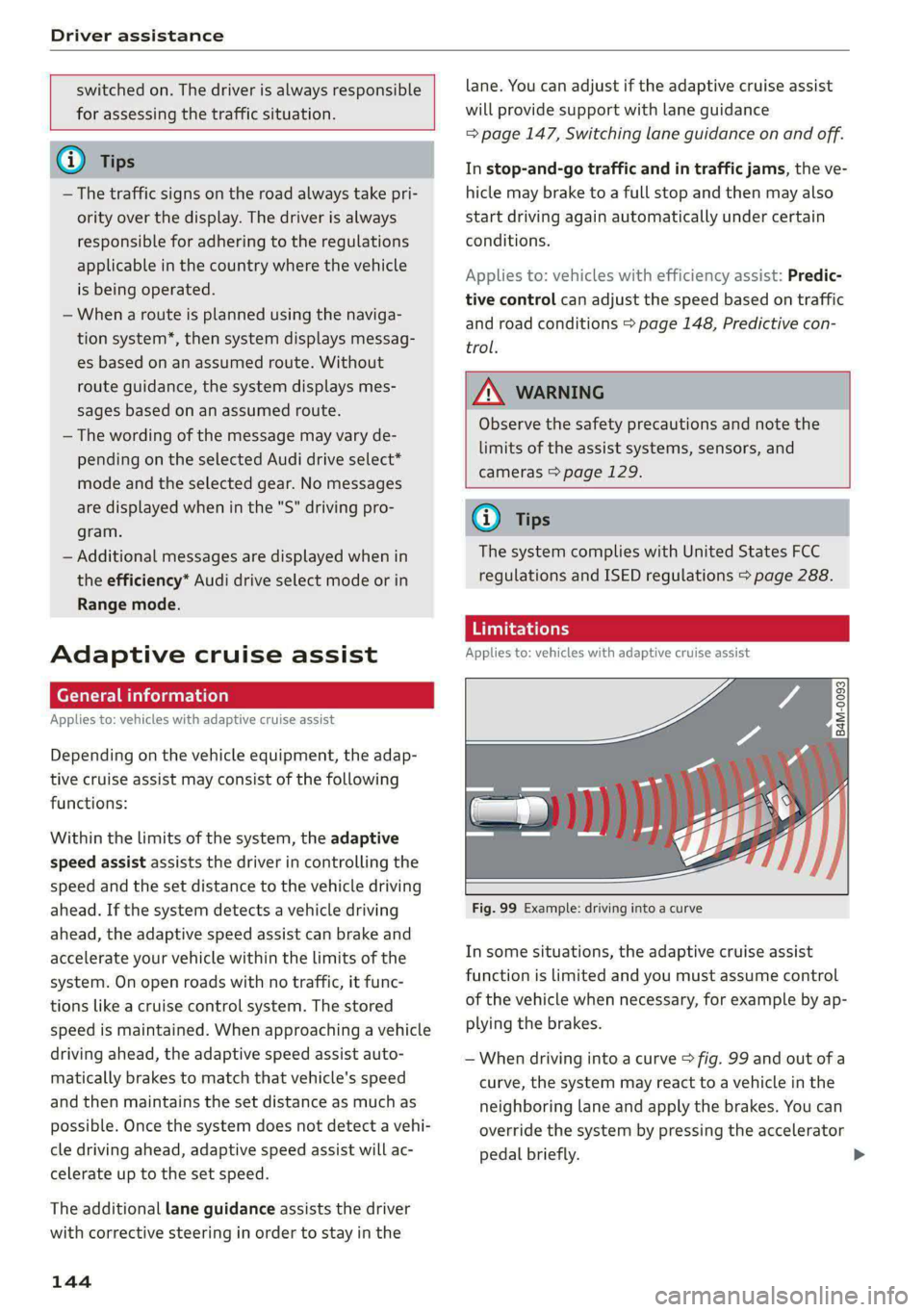
Fig. 99 Example: driving into a curve
In some situations, the adaptive cruise assist
function is limited and you must assume control
of the vehicle when necessary, for example by ap-
plying the brakes.
— When driving into a curve > fig. 99 and out of a
curve, the system may react to a vehicle in the
neighboring lane and apply the brakes. You can
override the system by pressing the accelerator
pedal briefly.
Page 148 of 308
Driver assistance
speed and distance from the vehicle driving
ahead, and accelerates and brakes automatically.
Al - The speed/distance control is active but the
vehicle is not ready to drive. A vehicle was de-
tected ahead. Your vehicle is stationary and will
not start driving automatically.
BS - The speed/distance control is active but the
vehicle is not ready to drive. No vehicles were de-
tected ahead. Your vehicle is stationary and will
not start driving automatically.
a - The automatic braking is not enough to
maintain a sufficient distance from a vehicle driv-
ing ahead. You must intervene > page 152, Driv-
er intervention request.
> 4] - Lane guidance is active.
> 4] - Lane guidance is switched on but not active.
> 4| - The limits of the system have been reached.
Take over steering.
A if ey) - The indicator light turns on if the
steering intervention request is providing a warn-
ing. Always keep your hands on the steering
wheel so you can be ready to steer at any time
=> page 148.
A WARNING
Observe the safety precautions and note the
limits of the assist systems, sensors, and
cameras > page 129.
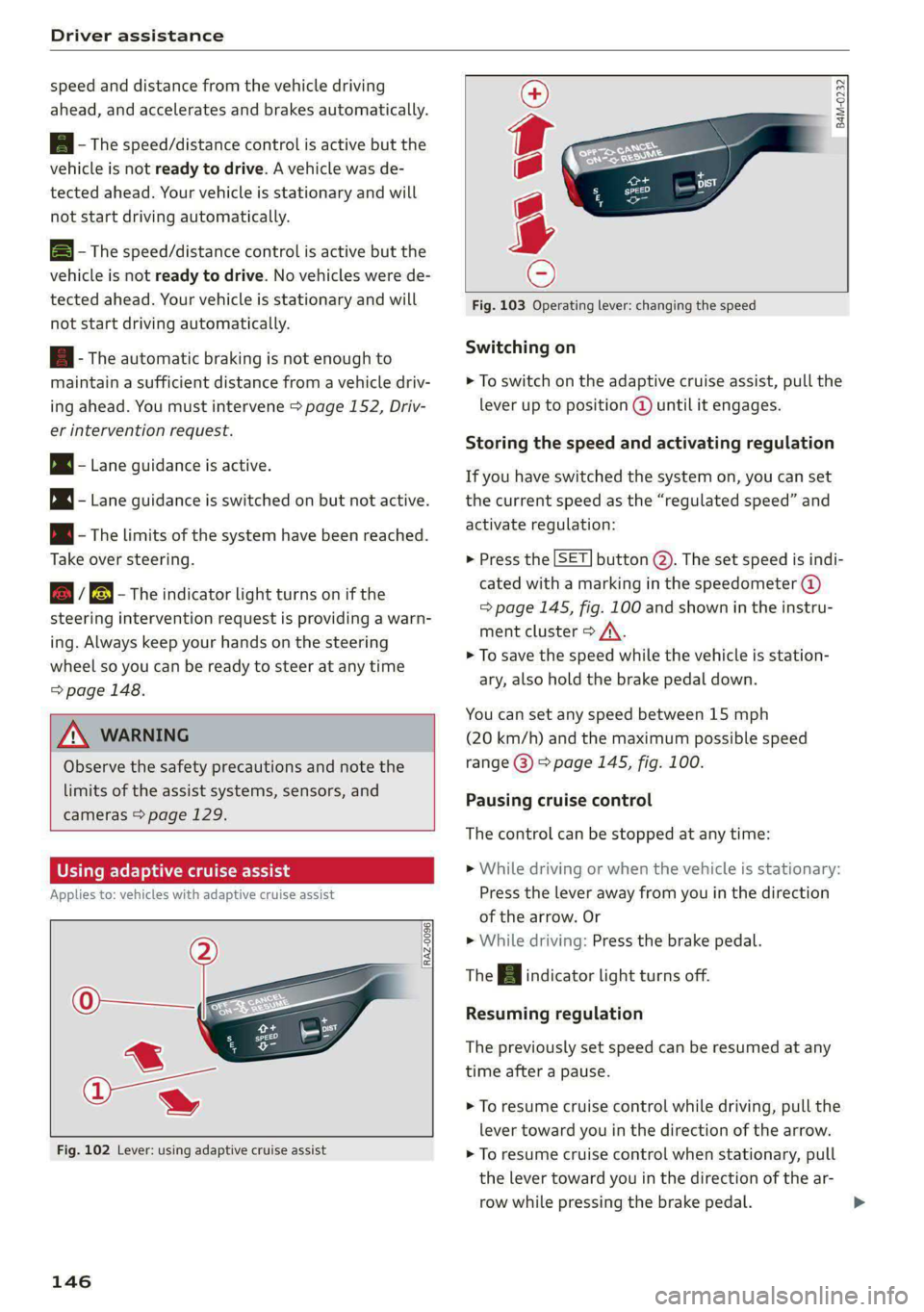
Using adaptive cruise assist
Applies to: vehicles with adaptive cruise assist
RAZ-0096
Fig. 102 Lever: using adaptive cruise assist
146
B4M-0232
Fig. 103 Operating lever: changing the speed
Switching on
> To switch on the adaptive cruise assist, pull the
lever up to position @ until it engages.
Storing the speed and activating regulation
If you have switched the system on, you can set
the current speed as the “regulated speed” and
activate regulation:
> Press the [SET] button (2). The set speed is indi-
cated with a marking in the speedometer @)
=> page 145, fig. 100 and shown in the instru-
ment cluster > /\.
> To save the speed while the vehicle is station-
ary, also hold the brake pedal down.
You can set any speed between 15 mph
(20 km/h) and the maximum possible speed
range @) > page 145, fig. 100.
Pausing cruise control
The control can be stopped at any time:
>» While driving or when the vehicle is stationary:
Press the lever away from you in the direction
of the arrow. Or
» While driving: Press the brake pedal.
The a indicator light turns off.
Resuming regulation
The previously set speed can be resumed at any
time after a pause.
> To resume cruise control while driving, pull the
lever
toward you in the direction of the arrow.
> To resume cruise control when stationary, pull
the lever toward you in the direction of the ar-
row while pressing the brake pedal.
Page 151 of 308
4KE012721BF
Driver assistance
With predictive control, efficiency assist adapts
the set speed in adaptive cruise control (@) based
on detected speed limits and the upcoming
route. Once the system no longer detects any in-
cidents, adaptive cruise control will accelerate
back up to the last speed that the driver set. Af-
ter switching on the ignition, the availability of
predictive control is indicated by a message when
the adaptive cruise assist is first activated.
Incident symbols indicate the situation to which
predictive control is reacting > page 143, Situa-
tion symbols.
Requirements
— Predictive control is switched on in the MMI
=> page 152.
— The adaptive cruise assist must be actively reg-
ulating > page 146.
— The system can only react to speed limits that
are 15 mph (20 km/h) or higher.
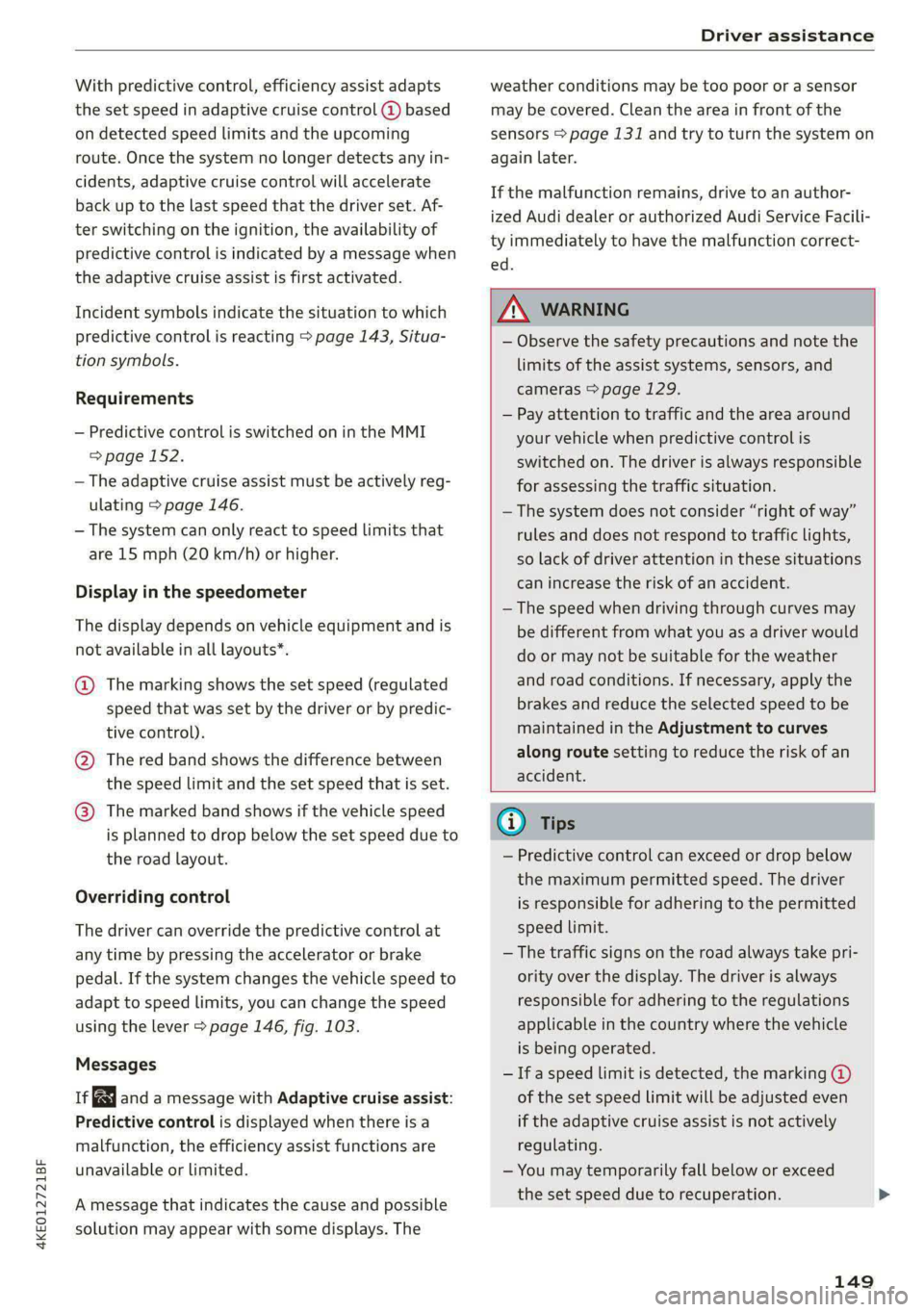
Display in the speedometer
The display depends on vehicle equipment and is
not available in all layouts”.
@ The marking shows the set speed (regulated
speed that was set by the driver or by predic-
tive control).
@ The red band shows the difference between
the speed limit and the set speed that is set.
@ The marked band shows if the vehicle speed
is planned to drop below the set speed due to
the road layout.
Overriding control
The driver can override the predictive control at
any time by pressing the accelerator or brake
pedal. If the system changes the vehicle speed to
adapt to speed limits, you can change the speed
using the lever > page 146, fig. 103.
Messages
ia and a message with Adaptive cruise assist:
Predictive control is displayed when there is a
malfunction, the efficiency assist functions are
unavailable or limited.
A message that indicates the cause and possible
solution may appear with some displays. The
weather conditions may be too poor or a sensor
may be covered. Clean the area in front of the
sensors > page 131 and try to turn the system on
again later.
If the malfunction remains, drive to an author-
ized Audi dealer or authorized Audi Service Facili-
ty immediately to have the malfunction correct-
ed.
ZA\ WARNING
— Observe the safety precautions and note the
limits of the assist systems, sensors, and
cameras > page 129.
— Pay attention to traffic and the area around
your vehicle when predictive control is
switched on. The driver is always responsible
for assessing the traffic situation.
—The system does not consider “right of way”
rules and does not respond to traffic lights,
so lack of driver attention in these situations
can increase the risk of an accident.
— The speed when driving through curves may
be different from what you as a driver would
do or may not be suitable for the weather
and road conditions. If necessary, apply the
brakes and reduce the selected speed to be
maintained in the Adjustment to curves
along route setting to reduce the risk of an
accident.
(i) Tips
— Predictive control can exceed or drop below
the maximum permitted speed. The driver
is responsible for adhering to the permitted
speed limit.
— The traffic signs on the road always take pri-
ority over the display. The driver is always
responsible for adhering to the regulations
applicable in the country where the vehicle
is being operated.
— Ifa speed limit is detected, the marking @
of the set speed limit will be adjusted even
if the adaptive cruise assist is not actively
regulating.
— You may temporarily fall below or exceed
the set speed due to recuperation.
149
Page 152 of 308
Driver assistance
— Control by the system depends on which
adaptive cruise assist driving program is set
or on the selected Audi drive select* mode.
— After switching on the ignition and first
driving onto a freeway or similar road with-
out a speed limit, the system will regulate
the speed to 80 mph (130 km/h). Then
the system adjusts to the last speed set by
the driver.
— There is no adaptation to speed limits when
driving through highway interchanges and
when driving on or off the expressway.
— The system can fail to provide control or the
control may be faulty if the values from the
camera-based traffic sign recognition* are
incorrect or the navigation system map data
is outdated.
— When route guidance is switched on, the
system adapts to the route provided by the
navigation system. Driving without route
guidance or leaving a route can result in
faulty control.
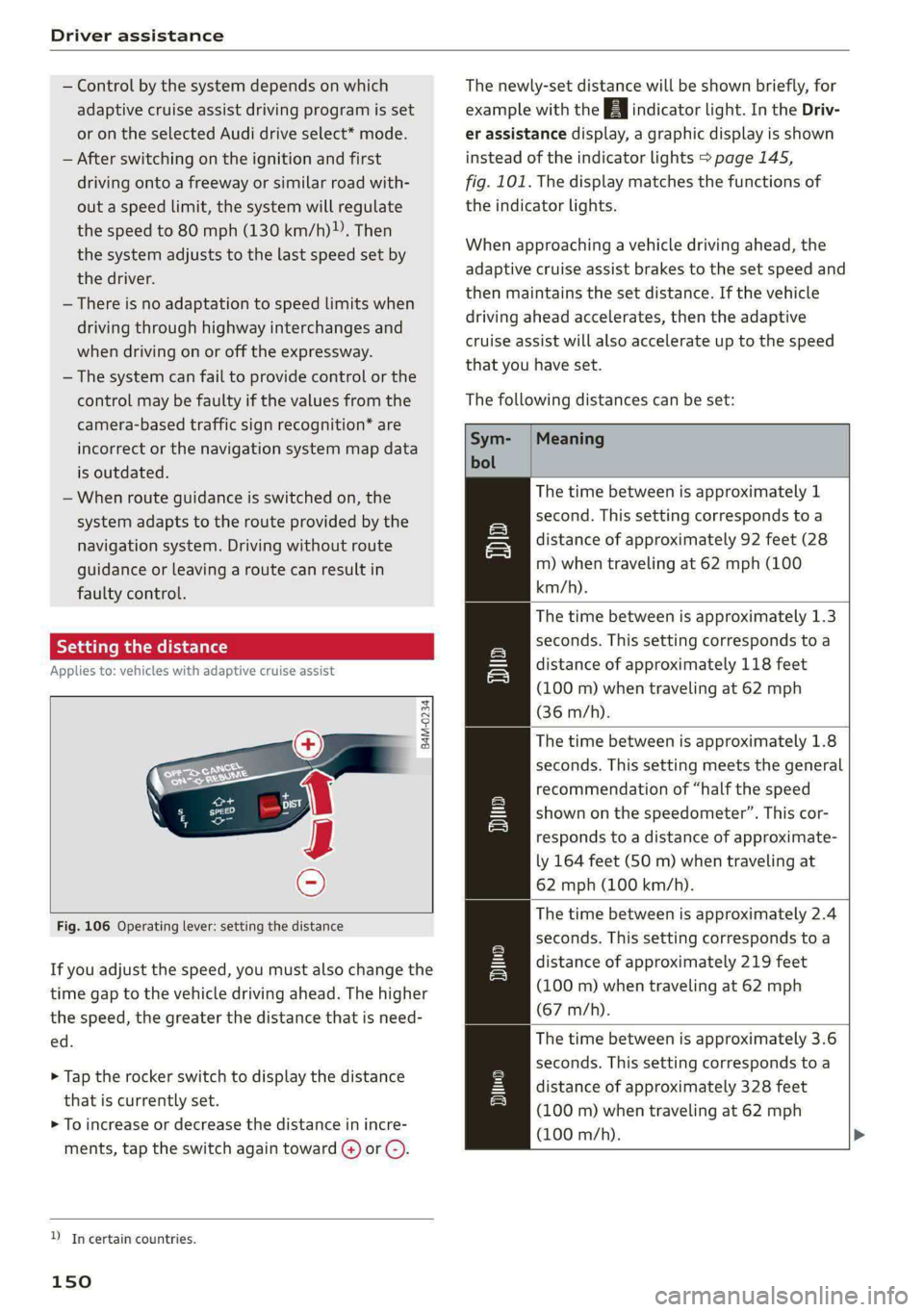
tting the distance
Applies to: vehicles with adaptive cruise assist
B4M-0234
Fig. 106 Operating lever: setting the distance
If you adjust the speed, you must also change the
time gap to the vehicle driving ahead. The higher
the speed, the greater the distance that is need-
ed.
> Tap the rocker switch to display the distance
that is currently set.
> To increase or decrease the distance in incre-
ments, tap the switch again toward @) or ().
D_ In certain countries.
150
The newly-set distance will be shown briefly, for
example with the a indicator light. In the Driv-
er assistance display, a graphic display is shown
instead of the indicator lights > page 145,
fig. 101. The display matches the functions of
the indicator lights.
When approaching a vehicle driving ahead, the
adaptive cruise assist brakes to the set speed and
then maintains the set distance. If the vehicle
driving ahead accelerates, then the adaptive
cruise assist will also accelerate up to the speed
that you have set.
The following distances can be set:
Meaning
The time between is approximately 1
second. This setting corresponds toa
distance of approximately 92 feet (28
m) when traveling at 62 mph (100
km/h).
The time between is approximately 1.3
seconds. This setting corresponds toa
distance of approximately 118 feet
(100 m) when traveling at 62 mph
(36 m/h).
The time between is approximately 1.8
seconds. This setting meets the general
recommendation of “half the speed
shown on the speedometer”. This cor-
responds to a distance of approximate-
ly 164 feet (50 m) when traveling at
62 mph (100 km/h).
The time between is approximately 2.4
seconds. This setting corresponds toa
distance of approximately 219 feet
(100 m) when traveling at 62 mph
(67 m/h).
The time between is approximately 3.6
seconds. This setting corresponds to a
distance of approximately 328 feet
(100 m) when traveling at 62 mph
(100 m/h).
me