wheel AUDI E-TRON 2021 Workshop Manual
[x] Cancel search | Manufacturer: AUDI, Model Year: 2021, Model line: E-TRON, Model: AUDI E-TRON 2021Pages: 308, PDF Size: 83.91 MB
Page 182 of 308

Telephone
Press and hold a contact or a phone number in
the list until the Options menu appears.
Depending on your mobile device, the following
options may be available:
— Save as a shortcut > page 21, Shortcuts.
— Store as favorite > page 180.
— Send text message > page 183.
— Send e-mail > page 184.
Edit number
Edit a phone number before dialing it.
Show history
Requirement: you must have had more than one
interaction with a contact.
All interactions with a contact or a number are
displayed.
Managing favorites
Applies to: vehicles with telephone
You can store contacts for all connected mobile
devices as shortcuts in the favorites list.
Selecting favorites using the MMI
» Applies to: MMI: Select on the home screen:
PHONE > Favorites.
Opening favorites using the multifunction
steering wheel
> Select in the instrument cluster: Telephone tab
> EE] button > Favorites.
Storing favorites
> Press YY > page 181 in the business card, or
> Press Store as favorite in the options
=>page 179.
Deleting favorites
> Press Ww © page 181 in the business card, or
> Select: Favorites > Z > one or multiple favor-
ites or Select all > Delete > (Done).
@ Tips
The favorites can only be edited via the MMI.
180
Managing the directory
Applies to: vehicles with telephone
You can manage up to four directories in the
MMI.
Requirement: a mobile device must be connected
to the MMI.
Opening the directory
> Applies to: MMI: Select on the home screen:
PHONE > Contacts.
The contacts will be displayed. You can change
the sort order > page 183, Sort order.
Deleting imported contacts
Requirement: you must have imported at least
one contact > page 183.
> Select: Contacts > Z > one or more text mes-
sages > Delete > (Done). The imported contacts
are deleted.
Directory options
> Press and hold a contact in the directory until
the Options menu appears.
Depending on your mobile device, the following
options may be available:
— Store as favorite > page 180.
— Send contact: you can select Text message or
E-mail > page 183.
— Send text message > page 183.
— Send e-mail > page 184.
— Save as a shortcut > page 21, Shortcuts.
Gi) Tips
— Pay attention to any synchronization
prompts on your mobile device when down-
loading contacts.
—The contacts from the mobile device may
not be transferred in alphabetical order. If
there are too many entries, contacts with
different first letters may be missing in the
MMI.
— Only the contacts from the active connected
mobile device are displayed.
Page 183 of 308
4KE012721BF
Telephone
— The contacts in the local MMI memory are
always visible and can be accessed by other
users.
— After switching off the ignition and exiting
the vehicle, the mobile device directory will
be loaded when the MMI is started again if
the mobile device is within range and the
Bluetooth function is switched on in the mo-
bile device and the MMI.
— Only the contacts in the local MMI memory
can be deleted.
Opening business cards
Applies to: vehicles with telephone
The business card shows you details about a con-
tact.
> To open a business card, press on a contact in
the directory, or
> Press © in the call list ©) > page 179, fig. 130.
Possible options in the business card:
> Call: press on a phone number.
> Storing a favorite: press W.
> Deleting a favorite: press W.
> Sending a text message: press {1.
>» Starting navigation: press on an address.
> Sending an e-mail: press on an e-mail address.
> Send contact: you can select Text message or
E-mail > page 183.
» Save as a shortcut > page 21, Shortcuts.
Listening to voicemail
Applies to: vehicles with telephone
> Applies to: MMI: Select on the home screen:
PHONE > Voicemail.
Requirement: there must be no voicemail num-
ber stored.
> Entering the voicemail number: enter the de-
sired number. Press OK.
Requirement: a voicemail number must be stor-
ed.
> Dialing the voicemail number: press Voice-
mail. The call begins immediately.
@) Tips
This service must be set up and activated by
the mobile phone service provider.
Dialing a telephone number
Applies to: vehicles with telephone
Depending on the vehicle equipment, you may
have the following options for dialing a phone
number:
— Using text input in the MMI > page 22.
— Using voice operation > page 25.
Call options
Applies to: vehicles with telephone
> To accept or end a call, press the @ button on
the multifunction steering wheel. Operating
=> page 12 and > page 28.
Depending on your mobile device, the following
options may be available in the MMI when there
is an incoming call:
— Answer
— Decline
— Message
If you exit the vehicle during a phone call, the
Bluetooth connection will be disconnected. De-
pending on your mobile device, phone calls in
progress may be automatically transferred from
the MMI to your mobile device.
G) Tips
The radio or media playback is muted during a
phone call.
PTT Tae RW urea]
Applies to: vehicles with telephone
Depending on your mobile device and the type of
connection, the following options may be availa-
ble during a call:
— End call
— Mute
181
Page 196 of 308
Navigation
Navigation
Opening navigation
Applies to: vehicles with navigation system
Fig. 133 Route guidance not started
The navigation system directs you to your desti-
nation, around traffic incidents, and on alterna-
tive routes, if desired.
Opening navigation
>» Applies to: MMI: Press NAVIGATION on the
home screen.
After accessing the navigation for the first time,
the map is displayed.
Opening navigation using the multifunction
steering wheel
> Applies to: multifunction steering wheel: Select
the Navigation tab in the instrument cluster.
> To display navigation when route guidance has
started, select in the instrument cluster: the
button > Map.
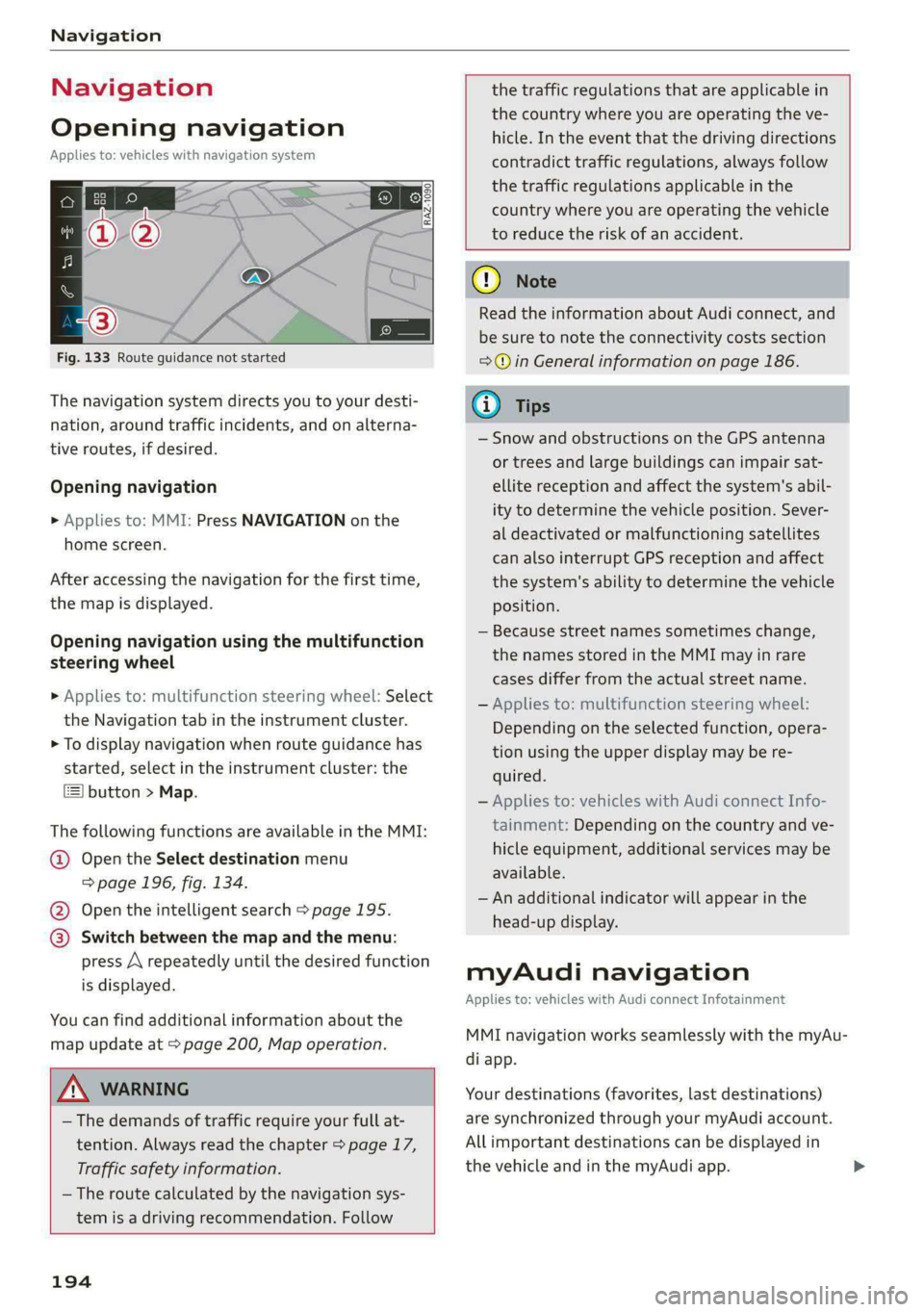
The following functions are available in the MMI:
@ Open the Select destination menu
=> page 196, fig. 134.
@ Open the intelligent search > page 195.
@ Switch between the map and the menu:
press A repeatedly until the desired function
is displayed.
You can find additional information about the
map update at > page 200, Map operation.
ZA\ WARNING
— The demands of traffic require your full at-
tention. Always read the chapter > page 17,
Traffic safety information.
— The route calculated by the navigation sys-
tem is a driving recommendation. Follow
194
the traffic regulations that are applicable in
the country where you are operating the ve-
hicle. In the event that the driving directions
contradict traffic regulations, always follow
the traffic regulations applicable in the
country where you are operating the vehicle
to reduce the risk of an accident.
() Note
Read the information about Audi connect, and
be sure to note the connectivity costs section
=>@ in General information on page 186.
(i) Tips
— Snow and obstructions on the GPS antenna
or trees and large buildings can impair sat-
ellite reception and affect the system's abil-
ity to determine the vehicle position. Sever-
al deactivated or malfunctioning satellites
can also interrupt GPS reception and affect
the system's ability to determine the vehicle
position.
— Because street names sometimes change,
the names stored in the MMI may in rare
cases differ from the actual street name.
— Applies to: multifunction steering wheel:
Depending on the selected function, opera-
tion using the upper display may be re-
quired.
— Applies to: vehicles with Audi connect Info-
tainment: Depending on the country and ve-
hicle equipment, additional services may be
available.
— An additional indicator will appear in the
head-up display.
myAudi navigation
Applies to: vehicles with Audi connect Infotainment
MMI navigation works seamlessly with the myAu-
di app.
Your destinations (favorites, last destinations)
are synchronized through your myAudi account.
All important destinations can be displayed in
the vehicle and in the myAudi app.
Page 198 of 308
Navigation
Check the spelling of the term that was
searched or check the search area
=> page 195.
— Distances to points of interest are displayed
as a straight-line distance from your current
location. The actual distance from your cur-
rent location to the point of interest is up-
dated automatically. The list of points of in-
terest that were found is not resorted when
this happens.
Select destinati
Applies to: vehicles with navigation system
eer er
RAX-0146 cr) m
& wv
A Last
need Cee
a)
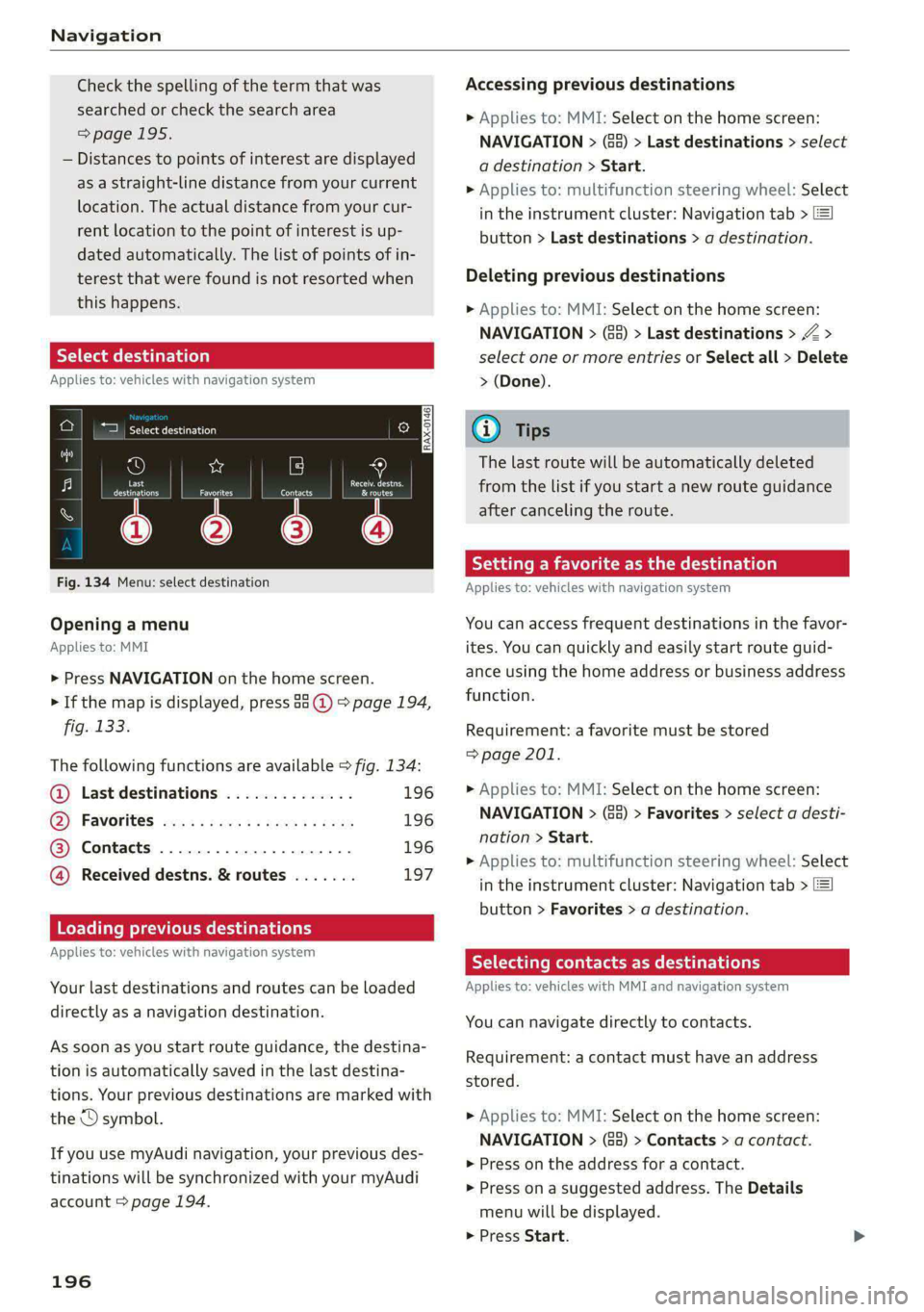
Fig. 134 Menu: select destination
Opening a menu
Applies to: MMI
> Press NAVIGATION on the home screen.
> If the map is displayed, press aa (1) > page 194,
fig. 133.
The following functions are available > fig. 134:
© Last destinations 196
@® Favorites ...............000008 196
@® Contacts ..................0., 196
@ Received destns. & routes ....... 197
Loading previous destinations
Applies to: vehicles with navigation system
Your last destinations and routes can be loaded
directly as a navigation destination.
As soon as you start route guidance, the destina-
tion is automatically saved in the last destina-
tions. Your previous destinations are marked with
the © symbol.
If you use myAudi navigation, your previous des-
tinations will be synchronized with your myAudi
account > page 194.
196
Accessing previous destinations
> Applies to: MMI: Select on the home screen:
NAVIGATION > (Ga) > Last destinations > select
a destination > Start.
> Applies to: multifunction steering wheel: Select
in the instrument cluster: Navigation tab > [=]
button > Last destinations > a destination.
Deleting previous destinations
> Applies to: MMI: Select on the home screen:
NAVIGATION > (88) > Last destinations > Z >
select one or more entries or Select all > Delete
> (Done).
Gi) Tips
The last route will be automatically deleted
from the list if you start a new route guidance
after canceling the route.
Setting a favorite as the destination
Applies to: vehicles with navigation system
You can access frequent destinations in the favor-
ites. You can quickly and easily start route guid-
ance using the home address or business address
function.
Requirement: a favorite must be stored
=> page 201.
> Applies to: MMI: Select on the home screen:
NAVIGATION > (G8) > Favorites > select a desti-
nation > Start.
> Applies to: multifunction steering wheel: Select
in the instrument cluster: Navigation tab >
button > Favorites > a destination.
Yaad deme aee eRe dir tliry
Applies to: vehicles with MMI and navigation system
You can navigate directly to contacts.
Requirement: a contact must have an address
stored.
> Applies to: MMI: Select on the home screen:
NAVIGATION > (8) > Contacts > a contact.
> Press on the address for a contact.
> Press on a suggested address. The Details
menu will be displayed.
> Press Start.
Page 200 of 308
Navigation
Selecting map content (such as POIs) as the
destination
Requirement: map content must be displayed
=> page 205.
> Press on map content on the map (for example,
fib.
Selecting the destination
> Select: F4 > Start.
Route guidance will be activated and the map will
be displayed > page 199, fig. 136.
Stopovers and route plan
Applies to: vehicles with navigation system
You can enter additional destinations during ac-
tive route guidance.
Entering a stopover
Requirement: route guidance must be active.
> Enter a destination > page 195.
Displaying stopovers or the route plan
All destinations are listed in the route plan.
> Press on fin the side menu on the map
=> page 199, fig. 136.
Editing stopovers
> Press on Pin the side menu on the map
=> page 199, fig. 136.
> Adding a stopover: Select: Add destination >
select a destination > Add to route.
> Moving a stopover: press Z. Touch the > sym-
bol and move the entry to the desired position.
Press Done.
> Deleting a stopover: Select: Z > one or more
entries or Select all > Delete > (Done).
Ce eels
Applies to: vehicles with navigation system and e-tron route
planner
The MMI includes the charging stations along the
route, if the destination cannot be reached with
the current battery charge level.
Requirement: the e-tron route planner must be
switched on > page 205.
198
Entering a destination using e-tron route
planner
> Enter a destination.
If the destination is out of range, a fast route
with stopovers for charging is automatically sug-
gested.
> To start the suggested route guidance, press
Accept.
> To display the route, press F) > page 199,
fig. 136 in the map side menu.
The destination is located outside of the
range
The F! symbol will be displayed if the destination
in the current route plan cannot be reached.
> Press on on the map. The route plan will be
displayed.
> Press e-tron route planner to calculate an al-
ternative route with suitable charging stations.
In the e-tron route planner, the following items
will be shown for each destination: the calculated
arrival time and the estimated battery charge
level at arrival (6 and after charging >, as well as
the suggested charging duration s= and the dis-
tance from the current location.
Gi) Tips
— The calculated arrival time at the destina-
tion incorporates the suggested time for
charging at the stopovers.
— The e-tron route planner continuously calcu-
lates the fastest route while taking into ac-
count the charging times at various charg-
ing stations. Therefore, a route with multi-
ple charging stops could be faster than a
route with fewer charging stops.
Stopping route guidance
Applies to: vehicles with navigation system
Requirement: route guidance must be active and
the map must be displayed.
> Applies to: MMI: Press BX > page 199, fig. 136.
> Applies to: multifunction steering wheel: Select
in the instrument cluster: Navigation tab >
button > Cancel route guidance.
Page 207 of 308
4KE012721BF
Navigation
information at regular intervals to the traf
fic data provider. You can switch off data
transfer at any time > page 283.
— The online traffic information network is
not available in all countries, and the cover-
age is not nationwide.
Settings
Applies to: vehicles with navigation system
You can adjust the navigation system settings in
the instrument cluster and in the MMI display
separately. The settings depend on the country
and vehicle equipment.
Accessing settings
> Applies to: MMI: Select on the home screen:
NAVIGATION > ©}.
Accessing settings using the multifunction
steering wheel
> Applies to: multifunction steering wheel: Select
in the instrument cluster: Navigation tab >
button.
Please note that a setting applied to the multi-
function steering wheel is only valid for the in-
strument cluster map.
Map settings
Satellite map: see > page 202.
Traffic: you can display current traffic informa-
tion on the map.
— Free flowing traffic
— Traffic obstructions
— Traffic incidents
Map colors
— Automatic: the map display adapts to the light-
ing conditions (for example, by changing from
day to night when driving through a tunnel).
— Day or Night
Map orientation
— 2D heading-up map/2D north-up map: the
current vehicle position is displayed. The map is
oriented in the direction of travel or to the
north.
— 3D heading-up map: the current vehicle posi-
tion is shown on a three-dimensional map and
is aligned to the direction of travel.
— Overview: the entire route from the vehicle po-
sition to the destination or the next stopover is
displayed on the map. The map is oriented to
the north.
Automatic zoom
— On: the map scale is adapted automatically de-
pending on the type of road being traveled (ex-
pressway, highway, other roads) so that you al-
ways have an optimal overview of the road
ahead. When route guidance is active, the scale
is adjusted automatically for a better detailed
view when there are upcoming maneuvers.
— Intersection: when route guidance is active, the
scale is adjusted automatically for a better de-
tailed view when there are upcoming maneu-
vers.
— Off
MMI map contents/Map content: you can switch
the display of additional information (such as
POIs) on the map in the upper display on or off.
Voice guidance
Voice guidance: you can adjust the navigation
prompts. With the Traffic setting, the MMI will
only give prompts if there are traffic incidents on
your route.
Voice guidance during phone call
Entertainment fader during navigation: the au-
dio playback volume is temporarily lowered when
navigation prompts are active.
Route criteria
You can adjust which route criteria should be al-
lowed or avoided for the route calculation.
HOV/carpool lanes
Highways
Toll roads
Ferries
e-tron route planner
This function can be switched on and off.
205
Page 210 of 308

Radio
> Select the radio/media tab in the instrument > To select a station or a source, turn and press
cluster. the left thumbwheel.
> To switch between radio and media, select the
button > Switch to radio/Switch to media. @) Tips
> Turn the left thumbwheel to display the station
Applies to: multifunction steering wheel: De-
list. 5 .
, : = pending on the selected function, operation
> fe switch to a different source, press the [=] through the MMI may be required.
utton.
Radio functions
[RAX-0166)
Sire.
Relive classic SiriusXM perfor...
Cora)
ee
Fig. 144 Upper display: left side: playback view of radio functions, right side: sources
Operating The following functions may be available depend-
ing on the selected radio station/podcast* and > Applies to: MMI: To open the playback view @,
the vehicle equipment: select on the home screen: RADIO > Source > a
category > a station/podcast*.
> Applies to: MMI: To open the sources (2), select
on the home screen: RADIO > Source.
Symbol/Description | Description
® ao Displaying categories in a frequency band.
@ Source Displays sources in the Radio menu.
© Frequency band Shows the current station frequency band.
Indicates that on demand content is playing. The MMI must be con-
© ON nected to the Internet and a data plan must be available for this
=> page 190.
@ w/e See > page 210.
& Settings > page 213.
Depending on availability, you can switch between the image views:
press on the station logo. Use one finger to swipe to the right or left
to switch between the Station logo and Cover art (album cover). Al-
so see > page 213, Online additional data.
© Station logo
208
Page 220 of 308
Media
Never leave mobile devices in the vehicle in
extremely high or low temperatures.
@) Tips
— Always follow the information found in
=> page 78.
— When you switch the ignition off, the USB
ports are still supplied with power until the
energy management intervenes.
— Do not use an additional adapter cable or
USB extension cable to connect mobile devi-
ces to the Audi music interface that already
have a cable or that must be connected with
a USB adapter cable (> page 217, fig. 146).
Using an additional adapter or US extension
cable may impair functionality.
— Functionality is not guaranteed for mobile
devices that do not conform to the USB 2.0
specification.
— USB hubs are not supported.
— Video playback through the Audi music in-
terface is not supported on Apple devices
and MTP devices (such as smartphones).
— iPod touch or iPhone malfunctions also af-
fect the operation of the MMI. Reset your
mobile device in these situations.
— Audi recommends updating the iPod touch
or iPhone software to the latest version. Re-
fer to your mobile device owner's manual
for more information.
— The USB adapter on the Audi music inter-
face will support iPod touch or iPhone devi-
ces from the 5th generation or newer with
the lightning connector.
—Aselection of supported devices can be
found in the database for tested mobile de-
vices at www.audi.com/mp3.
Playing media
The following sources can be selected depending
on the vehicle equipment:
— Amazon Alexa > page 216.
— USB device > page 217.
— DVD © page 216.
218
— External device: you can connect external devi-
ces via Bluetooth and use the Bluetooth audio
player > page 216, or you can connect an exter-
nal device directly to the Audi music interface
> page 217.
Accessing media
Playing media files using the MMI
> Applies to: MMI: Select on the home screen:
MEDIA > Source > a source. Depending on the
connected device, the symbol for a source may
change. The device name may be displayed (for
example: myPhone).
> Select a track from the categories in the media
center > page 219.
Playing media files using the multifunction
steering wheel
Requirement: a media source must contain me-
dia files > page 218.
> Select the radio/media tab in the instrument
cluster.
> Turn the left thumbwheel to display the play-
list.
> To switch to a different source, press the
button.
> To select a media file or a source, turn and
press the left thumbwheel.
> To switch between radio and media, select in
the instrument cluster: the EE] button > Switch
to radio/Switch to media.
G) Tips
— For safety reasons, the video image is only
displayed when the vehicle is stationary. On-
ly the sound from the video plays while driv-
ing.
— Applies to: multifunction steering wheel:
Depending on the selected function, opera-
tion through the MMI may be required.
Page 233 of 308
4KE012721BF
Additional settings
> Press and hold an element until the Options
menu is displayed.
> Press Delete.
If a device is listed multiple times, it will be de-
leted from all menu items.
PXe Keli a Cela] Mey Lately
Depending on the selected function, additional
options
may be available.
Requirement: the connected devices menu must
be displayed > page 230.
> Press ona menu item, such as Telephone 1.
» Press and hold an element until the Options
menu is displayed.
Bluetooth profile
You can switch desired profiles on or off sepa-
rately in the MMI.
Favorite
To set a paired mobile device as the default
phone, activate this function in the MMI.
When the mobile device is in range and the Blue-
tooth function on the mobile device and in the
MMI is switched on, the default phone will be
given priority over the other Bluetooth devices
and will be connected directly to the MMI.
Legal information
General information
Information on the software licenses can be
found online at www.audi.com/softwareinfo.
Multi Media Interface
> Applies to: MMI: Select on the home screen:
SETTINGS > General.
Subscriptions
Version information
Legal notes
Possible options:
— Software information
— About Audi connect
— About the data memory
Audi smartphone interface
Applies to: vehicles with Audi smartphone interface
Requirement: a smartphone must be connected
to the MMI > page 226.
> Applies to: MMI: Select on the home screen:
SETTINGS > Connected devices > Audi smart-
phone interface.
> Press and hold an element until the Options
menu is displayed.
> Press Legal notes.
Requirement: the vehicle must be stationary and
the ignition must be switched on.
> Select in the instrument cluster: vehicle func-
tions tab > page 12.
>» Press and hold the EI button on the multifunc-
tion steering wheel until the display appears.
Possible options:
— Motor code
— Software information
— Version information
Head-up display
Applies to: vehicles with head-up display
Requirement: the vehicle must be stationary and
the ignition must be switched on. The head-up
display is switched on.
> Applies to: MMI: Select on the home screen:
SETTINGS > Display & brightness > Head-up
display > Display contents > Show the license
text in the head-up display.
231
Page 243 of 308
4KE012721BF
Wheels
Wheels Wheels
and Tires
General information
> Check your tires regularly for
damage, such as punctures,
cuts, cracks, and bulges. Remove
foreign objects from the tire
tread.
>If driving over curbs or similar
obstacles, drive slowly and ap-
proach the curb at an angle.
> Have faulty tires or rims re-
placed immediately.
>Protect your tires from oil,
grease, and fuel.
>Mark tires before removing
them so that the same running
direction can be maintained if
they are reinstalled.
>Lay tires flat when storing and
store them ina cool, dry location
with as little exposure to light as
possible.
A WARNING
—Never drive faster than the
maximum permitted speed for
your tires. This could cause the
tires to heat up too much. This
increases the risk of an acci-
dent because it can cause the
tire to burst.
—Always adapt your driving to
the road and traffic condi-
tions. Drive carefully and re-
duce your speed on icy or slip-
pery roads. Even winter tires
can lose traction on black ice.
() Note
—Please note that summer and
winter tires are designed for
the conditions that are typical
in those seasons. Audi recom-
mends winter tires during the
winter months. Low tempera-
tures significantly decrease
the elasticity of summer tires,
which affects traction and
braking ability. If summer
tires are used in very cold tem-
peratures, cracks can form on
the tread bars, resulting in
permanent tire damage that
can cause loud driving noise
and unbalanced tires.
—Burnished, polished or
chromed rims must not be
used in winter driving condi-
tions. The surface of the rims
does not have sufficient corro-
sion protection for this and
could be permanently dam-
aged by road salt or similar
substances.
241