audio AUDI E-TRON 2021 Owners Manual
[x] Cancel search | Manufacturer: AUDI, Model Year: 2021, Model line: E-TRON, Model: AUDI E-TRON 2021Pages: 308, PDF Size: 83.91 MB
Page 5 of 308
4KE012721BF
Table of contents
High-voltage system............. 108
General information................. 108
Charging the high-voltage battery...... 109
Charging equipment................. 117
Trailer ROwilne is «i wows «seas gs eeees 126
Driving witha trailer................. 126
Assist systems................... 129
ASSIST SYSTCINIS§ 65 6 i onws 5 can so oe 129:
General information................. 129
Surrounding area detection............ 130
Switching the systems on and off....... 132
Driving information.............. 134
Speed warning system..............-- 134
Camera-based traffic sign recognition... 134
Traffic light information.............. 136
Nightivision aSSiSti=x = «wm : » ase y s eon 137
Integrated Toll Module............... 139
Driver assistance................. 141
Cruise control system............00-5 141
Efficiency assist.............02.-000. 142
Adaptive cruise assist................ 144
Distance warning ..............00005. 154
Lane departure warning............... 155
Audi presense...........0 cece eee 156
Sid@vassist sews: = s sexs = 2 sews & e Ae & ne 160
EXIE Warning sire x 6 cera oo were @ @ eee os 162
Intersection assistant................ 163
Emergency assist... ....:seeceeeevees 164
Parking and maneuvering....... 166
IMEROUWECION « = ems x y ses 5 o were 2 x ews 166
Parking‘aid plus « sissies avis oe aretes so aoe 166
Rearview camera and peripheral cameras. 168
Rear cross-traffic assist............... 173
Infotainment system............ L75
Telephone....................005- t75
INtROGUCtION « 2 sees » y sees 9 2 gees s 5 aes 175
SOLUP scsvine a 6 sssnase 2 0 soeaam + 6 oewoan © 6 coesern < 175
Using the Audi phone box............. 177
Using the telephone..............0005 179
SOUS cass os awusse oo means o & seanoe @ seeMaRD & 182
Messages .............0 000200 e eee 183
ThOubLESHOOtING ices s weces s eeee ss pee 185
PRCT COMMBCE 's. cosves 5 6 sivas 6 6 snes 8 oo 186
General information................- 186
Audi connect Infotainment............ 186
Using a Wi-Fi hotspot................ 187
Audi connect Infotainment services..... 187
Functions on demand................ 188
Audi connect vehicle control services.... 188
Settings............. 0.0.00 002 eee 189
TRGUBIESHOOLING sass ¢ scm s 3 Hae 5 tee 190
Emergency call................... 191,
Overview... 12.0... eee eee eee 191
Emergenicy'call « css s sees 6 s gems © + eeu 191
Online roadside assistance............ 192
NaViGGationtc: « « meus « & seu sc poms + «oe 194
Opening navigation............0..005 194
myAudi navigation...............000. 194
Entering a destination................ 195
Stopping route guidance.............. 198
Map... .. see cece eee eee 199
Alternative
routes.............2-.00. 201
Additional functions................. 201
Satellite map.......... 2.0... ee eee 202
Electric:ranGe ccs «2 was ss eee ys ees 202
Map update’: « snes os anes 2s oiws oo ews 202
Traffic incidents ........ 0.0... cece eee 204
Settings............0..0 0.0202 205
Radio...... 02... eee eee ee 207
Generalinformation................. 207
Radio functions sas ss sees ss peee ss Hews 208
Online radiObi. «sacs x x sere @ armen 6 one 211
Options and settings................. 212
Troubleshooting zass x s eae s 3 come & a aw 213
Media........... 0. cece eee ee 215
General information................. 215
DVDidrive « sisi 2 5 semen 2 6 were 2 8 women 2 oe 215
Bluetooth audio player............... 216
Amazon Alexa.........0..:ee eee ee eee 216
Multimedia connections.............. 217
Playing media. ....... 0. cece ee eee eee 218
Options and settings................. 222
Supported media and file formats...... 223
Troubleshooting...............-.0005 224
Page 22 of 308

Touch displays
Using favorites
> Applies to: MMI: Select on the home screen:
FAVORITES. The stored favorites will be dis-
played.
> To access a stored favorite, press that favorite.
Stored favorites can only be deleted or config-
ured in the corresponding menu (such as RADIO).
Arranging information tiles
» Applies to: MMI: Select on the home screen:
FAVORITES.
> Press and hold the desired information tile.
> Pull the information tile into the desired posi-
tion.
> Press Done to confirm the configuration.
Of OB o8
O88 o@ af
O88 o8 of ef
Fig. 15 Upper display: common symbols in the status bar
[RAZ-1078,
The symbols in the status bar show you informa-
tion at a glance, such as if a mobile device is con-
nected or if there is a data connection. The most
common symbols are listed in the table.
Description
There is a data connection. The bar indi-
cates the signal strength of the data con-
nection. Data is being transmitted now.
@
There is a data connection. The bar indi-
cates the signal strength of the data con-
nection. No data is being transmitted now.
A mobile device is connected. The bar indi-
cates the signal strength of the cell phone
connection.
There is no data connection. ®
An error occurred with the mobile device
connection to the MMI. ©
20
Description
A user is selected. If a question mark ap-
pears in the symbol ;\, the guest user is ac-
tive.
A Bluetooth device is connected.
Bluetooth is switched on, but no Bluetooth
device is connected. ©
|Q|
©
Audio playback was interrupted.
The audio source is muted. ©|©
Privacy settings are enabled. The additional
symbol indicates which privacy settings are
currently activated > page 283.
©
The Integrated Toll Module is switched on.
The numbers 1 - 3+ indicate how many pas-
sengers are selected in the MMI.
®
Notification center
ales)
en
RAX-0013
Om ) fo) oO
rice 4
Ceres
Cer Tue)
Sen se ear her ea eee
econ
My
fr}
Fig. 16 Upper display: notification center
Notifications can be displayed in the upper dis-
play. After a specified time, they will be hidden
and a corresponding symbol will appear in the
status bar © > page 18, fig. 14. In the notifica-
tion center, you can view these notifications @
= fig. 16 and apply quick settings @.
Using the notification center
> To open the notification center, pull the status
bar downward, or
> Press the =] button on the status bar.
> To apply quick settings, press the respective
symbol @).
> To obtain additional information about a notifi-
cation, press it.
> To delete a notification, pull it toward the right
edge of the screen.
> If there are more than four notifications in the
notification center, the older notifications will >
Page 30 of 308

Global functions
Global functions
Additional function
buttons
Fig. 20 Center console: MMI On/Off knob with joystick
function
Adjusting the volume
You can adjust the volume of an audio source or a
system message (for example, from the voice
recognition system) when the sound is playing.
> To increase or decrease the volume, turn the
right
thumbwheel @) © fig. 19 upward or
downward, or turn the On/Off knob @) 9 fig. 20
to the right or left.
> To mute, push the right thumbwheel or the
On/Off knob.
Selecting the previous/next track or station
> Press the |< / DDI button @ or briefly press
the On/Off knob to the left/right.
Fast forward/rewind
> Press and hold the
the desired playback position is reached.
28
Quick access steering wheel button
Depending on vehicle equipment, the button ©)
may provide quick access to various functions.
You can program the >K button with various func-
tions.
> To bring up the function that is currently set,
press the >K button.
> To perform the function that is currently set,
press and hold the >K button, or:
> Applies to MMI: Select on the home screen: VE-
HICLE > Settings & Service > Steering wheel
button assignment.
> Select and confirm the desired function.
Switching the voice recognition system on or
off
w& button @), see > page 25.
Using the telephone functions
button @), see > page 179.
ZA\ WARNING
Adjust the volume of the audio system so that
signals from outside the vehicle, such as po-
lice and fire sirens, can be heard easily at all
times.
Page 36 of 308
Opening and closing
vehicle key or in the driver's door. In vehicles with
a convenience key*, you can still open the lug-
gage compartment lid using the handle if an au-
thorized convenience key is detected > page 39.
Fold mirrors
You can select if the exterior mirrors automatical-
ly fold in when locking.
Tone when locking!)
You can select if an audio signal sounds when
locking the vehicle.
Open with convenience key
Applies to: vehicles with convenience key
You can deactivate the feature for unlocking us-
ing
the sensor. The function for locking via the
sensor will still be enabled > page 37.
ete] ole cine uaa)
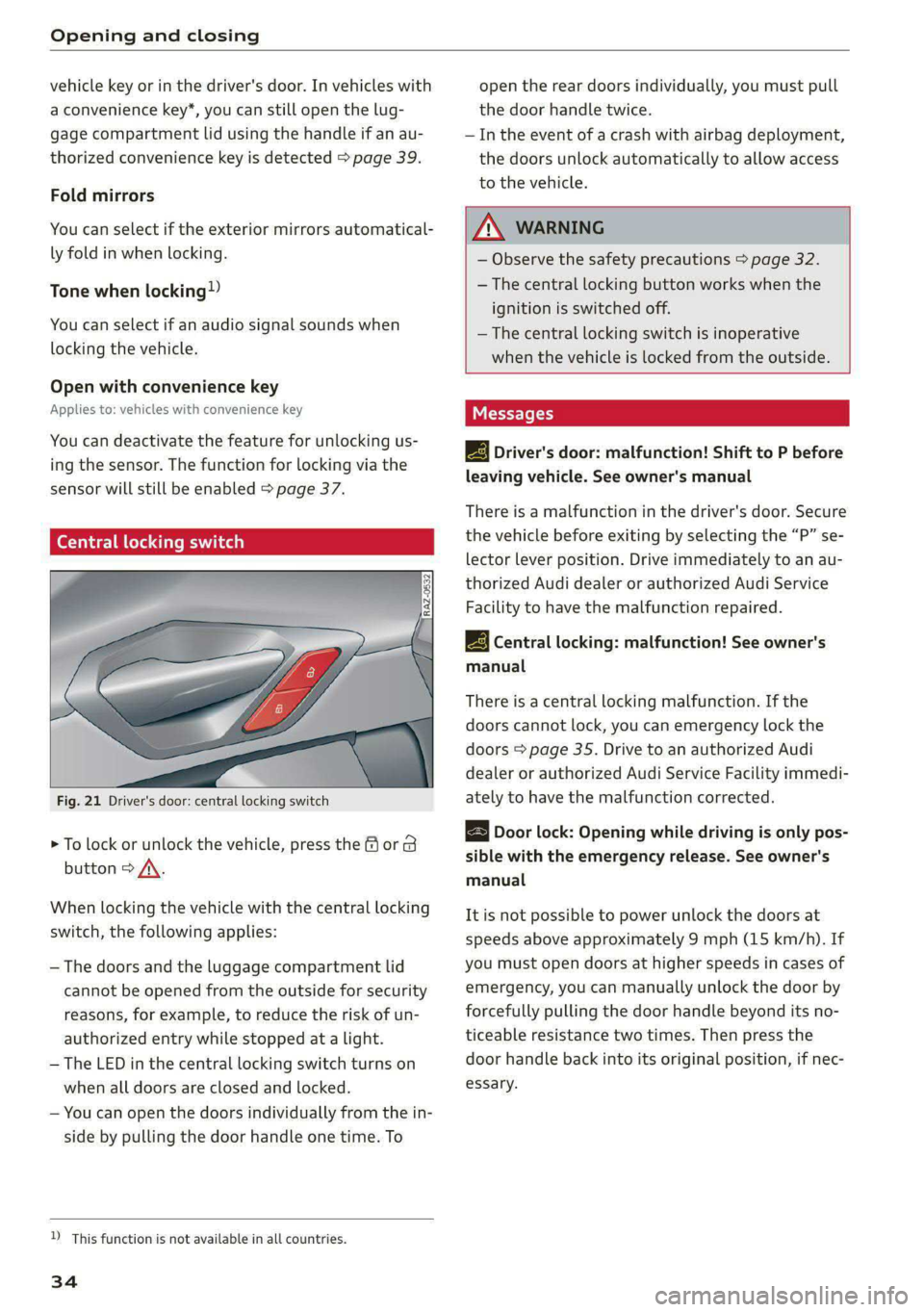
Fig. 21 Driver's door: central locking switch
> To lock or unlock the vehicle, press the for B
button > /\.
When locking the vehicle with the central locking
switch,
the following applies:
— The doors and the luggage compartment lid
cannot be opened from the outside for security
reasons, for example, to reduce the risk of un-
authorized entry while stopped at a light.
— The LED in the central locking switch turns on
when all doors are closed and locked.
— You can open the doors individually from the in-
side by pulling the door handle one time. To
D_ This function is not available in all countries.
34
open the rear doors individually, you must pull
the door handle twice.
— In the event of a crash with airbag deployment,
the doors unlock automatically to allow access
to the vehicle.
ZA WARNING
— Observe the safety precautions > page 32.
— The central locking button works when the
ignition is switched off.
— The central locking switch is inoperative
when the vehicle is locked from the outside.
Messages
EB Driver's door: malfunction! Shift to P before
leaving vehicle. See owner's manual
There is a malfunction in the driver's door. Secure
the vehicle before exiting by selecting the “P” se-
lector lever position. Drive immediately to an au-
thorized Audi dealer or authorized Audi Service
Facility to have the malfunction repaired.
2B Central locking: malfunction! See owner's
manual
There is a central locking malfunction. If the
doors cannot lock, you can emergency lock the
doors > page 35. Drive to an authorized Audi
dealer or authorized Audi Service Facility immedi-
ately to have the malfunction corrected.
Door lock: Opening while driving is only pos-
sible with the emergency release. See owner's
manual
It is not possible to power unlock the doors at
speeds above approximately 9 mph (15 km/h). If
you must open doors at higher speeds in cases of
emergency, you can manually unlock the door by
forcefully pulling the door handle beyond its no-
ticeable resistance two times. Then press the
door handle back into its original position, if nec-
essary.
Page 37 of 308
4KE012721BF
Opening and closing
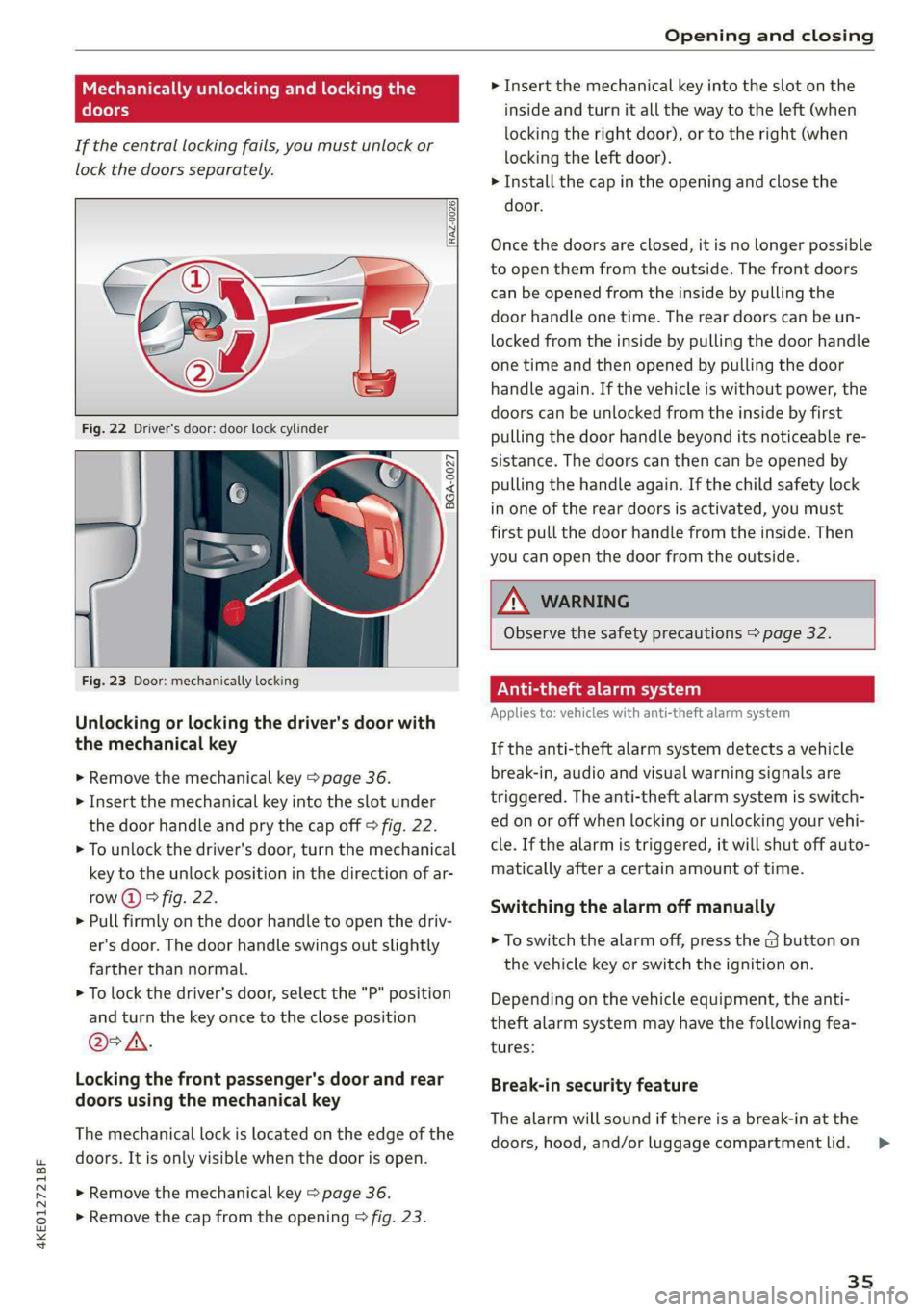
Mechanically unlocking and locking the
doors
If the central locking fails, you must unlock or
lock the doors separately.
[RAZ-0026|
5 a
Ss
2
<=
go a
Fig. 23 Door: mechanically locking
Unlocking or locking the driver's door with
the mechanical key
> Remove the mechanical key > page 36.
> Insert the mechanical key into the slot under
the door handle and pry the cap off > fig. 22.
> To unlock the driver's door, turn the mechanical
key to the unlock position in the direction of ar-
row (2) > fig. 22.
> Pull firmly on the door handle to open the driv-
er's door. The door handle swings out slightly
farther than normal.
> To lock the driver's door, select the "P" position
and turn the key once to the close position
@° A.
Locking the front passenger's door and rear
doors using the mechanical key
The mechanical lock is located on the edge of the
doors. It is only visible when the door is open.
> Remove the mechanical key > page 36.
> Remove the cap from the opening > fig. 23.
> Insert the mechanical key into the slot on the
inside and turn it all the way to the left (when
locking the right door), or to the right (when
locking the left door).
> Install the cap in the opening and close the
door.
Once the doors are closed, it is no longer possible
to open them from the outside. The front doors
can be opened from the inside by pulling the
door handle one time. The rear doors can be un-
locked from the inside by pulling the door handle
one time and then opened by pulling the door
handle again. If the vehicle is without power, the
doors can be unlocked from the inside by first
pulling the door handle beyond its noticeable re-
sistance. The doors can then can be opened by
pulling the handle again. If the child safety lock
in one of the rear doors is activated, you must
first pull the door handle from the inside. Then
you can open the door from the outside.
ZA\ WARNING
Observe the safety precautions > page 32.
Vea ela)
Applies to: vehicles with anti-theft alarm system
If the anti-theft alarm system detects a vehicle
break-in, audio and visual warning signals are
triggered. The anti-theft alarm system is switch-
ed on or off when locking or unlocking your vehi-
cle. If the alarm is triggered, it will shut off auto-
matically after a certain amount of time.
Switching the alarm off manually
> To switch the alarm off, press the G button on
the vehicle key or switch the ignition on.
Depending on the vehicle equipment, the anti-
theft alarm system may have the following fea-
tures:
Break-in security feature
The alarm will sound if there is a break-in at the
doors, hood, and/or luggage compartment lid.
35
Page 43 of 308
4KE012721BF
Opening and closing
> Press the <3 button in the luggage compart-
ment lid. Or
» Applies to vehicles with convenience key: When
the ignition is switched off, press the a /f}
button in the luggage compartment lid. The ve-
hicle key must not be more than approximately
4 feet (1.5 m) away from the luggage compart-
ment and it must not be inside the vehicle. If
you press the f}* button, then the vehicle will
lock.
Storing the luggage compartment lid
opening position
The position must be at a certain height or higher
to store.
> Bring the luggage compartment lid into the de-
sired open position. If you want to move the
luggage compartment lid to a lower position,
move it slowly in small increments; otherwise,
the luggage compartment lid will close auto-
matically.
> Press and hold the <3 button in the luggage
compartment lid for at least four seconds to
store the new opening position. A visual and
audio signal will follow.
> To set a higher open position, wait at least five
seconds and then carefully press the luggage
compartment lid upward.
> Press and hold the <3 button again for at least
four seconds to store the desired opening posi-
tion.
The automatic opening or closing will stop if:
— You press the < button or press the handle in
the luggage compartment lid again Or
— If something blocks the luggage compartment
lid or makes it difficult for the lid to move.
If you press the << button or press the handle in
the luggage compartment lid again, the luggage
compartment lid will open again.
ZA WARNING
Observe the safety precautions > page 39.
D_ The closing function applies to vehicles that also have au-
tomatic luggage compartment lid operation.
@ Tips
The luggage compartment lid can be operat-
ed manually if the vehicle battery is low. It is
necessary to use more force when doing this.
Move the lid slowly to reduce the amount of
force needed.
Opening and closing the luggage
oYnale- adnate eM tam cole) Manele MC dce dle]
movement)
Applies to: vehicles with sensor-controlled luggage compart-
ment lid
re a Ss
9
<
go a
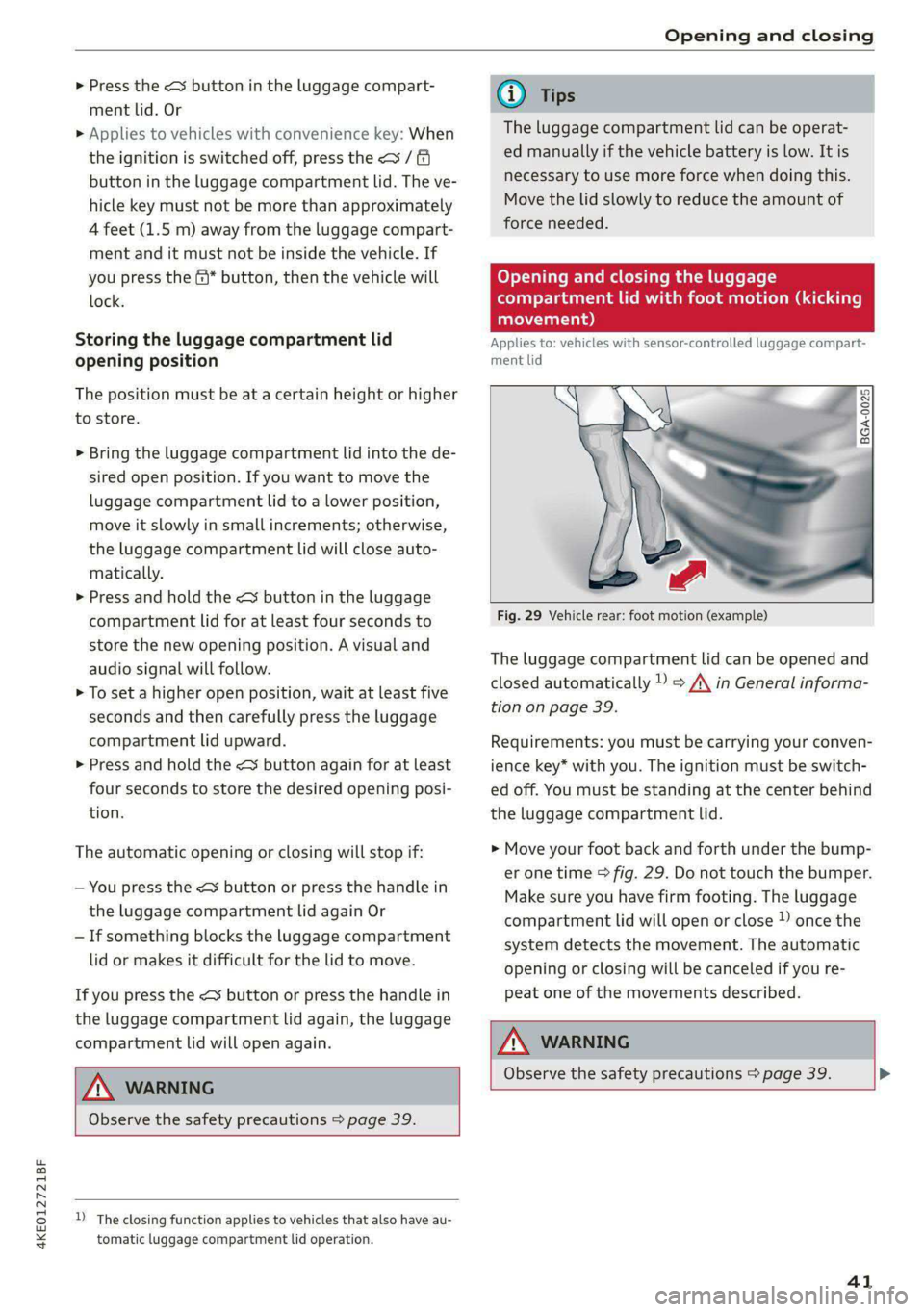
Fig. 29 Vehicle rear: foot motion (example)
The luggage compartment lid can be opened and
closed automatically 1) > /A\ in General informa-
tion on page 39.
Requirements: you must be carrying your conven-
ience key* with you. The ignition must be switch-
ed off. You must be standing at the center behind
the luggage compartment lid.
> Move your foot back and forth under the bump-
er one time > fig. 29. Do not touch the bumper.
Make sure you have firm footing. The luggage
compartment lid will open or close ) once the
system detects the movement. The automatic
opening or closing will be canceled if you re-
peat one of the movements described.
ZA\ WARNING
Observe the safety precautions > page 39. >
41
Page 101 of 308
4KE012721BF
Driving
rolling before exiting the vehicle > page 91.
See an authorized Audi dealer or authorized
Audi Service Facility for assistance.
G) Tips
— On steep inclines, especially when in trailer
mode, the vehicle may roll backwards unin-
tentionally when starting to drive. To reduce
the risk of this happening, pull and hold the
switch while pressing the accelerator
pedal. If enough drive power has built up at
the wheels and the vehicle does not roll
backwards, then release the switch to start
to drive.
— If you leave the vehicle when “D” or “R” are
engaged, the parking brake will be set auto-
matically.
— Noises when the parking brake is set and re-
leased are normal and are not a cause for
concern.
— The parking brake goes through a self-test
cycle at regular intervals when the vehicle is
stopped. Any noises associated with this are
normal.
atl Cei- ty
Applies to: vehicles with hold assist
If the vehicle is stopping frequently, the system
can assist the driver in a comfortable transition
when starting to drive from a stop, for example,
at a red light, ona hill, or in stop-and-go traffic.
Switching the hold assist on and off
You can switch the hold assist on and off in the
MMI.
> Applies to: MMI: Select on the home screen:
VEHICLE > Settings & Service > Hold assist.
Starting to drive with hold assist
Requirement: the driver's door must be closed
and the drive system must be active.
> Press and hold the brake pedal for several sec-
onds while the vehicle is stationary.
> r@ appears, the hold assist is holding the ve-
hicle. You can remove your foot from the brake
pedal.
> Press the accelerator pedal to start to drive.
In certain situations, the hold assist may transfer
the function of holding the vehicle to the parking
brake.
Depending on the equipment, hold assist may be
switched off when in “R” gear to help improve
maneuverability. If this is the case, press the
brake pedal to secure the vehicle.
Z\ WARNING
—The hold assist cannot hold the vehicle on
inclines in every scenario (for example, on
slippery or icy ground). Be ready to apply the
brakes at all times when using the hold as-
sist.
—To reduce the risk of an accident, always
make sure the vehicle is situated safely
while stationary.
® Note
Switch hold assist off before driving your vehi-
cle into a car wash with a conveyor belt. Oth-
erwise, the parking brake could engage auto-
matically.
CALA mi ad(ela)
Emergency braking should only be used in an
emergency, if the standard brake pedal is mal-
functioning or obstructed. When the emergency
braking function is activated, the braking effect is
similar to a heavy braking maneuver.
> Pull and hold the ©) switch while driving.
> An audio warning signal will sound and emer-
gency
braking will begin.
> If you press the accelerator pedal, emergency
braking will be canceled.
Z\ WARNING
Heavy braking while driving through curves or
in poor road or weather conditions can cause
the vehicle to slide or the rear of the vehicle to
swerve, which increases the risk of an acci-
dent.
99
Page 150 of 308
Driver assistance
Ina traffic jam, lane guidance also helps with
leaving a space for emergency vehicles )) by
steering your vehicle as close to the edge of your
lane as possible.
Switching lane guidance on and off
Requirement: lane guidance must be preselected
in the MMI > page 152.
> To activate or deactivate the availability of the
lane guidance, press the button on the turn sig-
nal lever > fig. 104.
The system will assist the driver by providing cor-
rective steering only when adaptive cruise assist
is actively regulating and availability is switched
on.
Overview of displays and lane guidance
limitations
The availability of lane guidance is shown with in-
dicator lights and with arrows @i) > page 145,
fig. 101 in the Driver assistance display.
> 4 - Lane guidance is active.
> 4 - This indicator light turns on if the limits of
the system have been reached (for example, the
system’s steering force is not sufficient to handle
tight curves). Take over steering.
ri turns white, lane guidance is switched on
but is not active. This may occur due to the fol-
lowing system limits or situations:
— The necessary lane marker lines have not been
detected (for example, in a construction zone
or because the lines are obstructed by snow,
dirt, water, or lighting)
— The lane is too narrow or too wide
— The curve is too narrow
— Visibility is obstructed by a rise or dip.
— The driver's hands are not on the steering
wheel
— The turn signal was activated.
Steering intervention request
If no steering activity is detected or the limits of
the system are reached, the driver steering inter-
vention request will alert the driver using audio
D_ In certain countries.
148
and visual signals, such as & or fy. Take over
the steering and keep your hands on the steering
wheel so that you will be ready to steer at any
time. The system will become inactive after a
short time and will only be active again later.
If the driver does not take over steering, adaptive
cruise assist will be canceled. If the vehicle is
equipped with emergency assist and it is ready to
function, it will be activated if possible
=> page 164.
ZA WARNING
Observe the safety precautions and note the
limits of the assist systems, sensors, and
cameras > page 129.
@ Tips
— Always keep your hands on the steering
wheel so you can be ready to steer at any
time. The driver is always responsible for
adhering to the regulations applicable in
the country where the vehicle is being oper-
ated.
— Audi recommends only switching on lane
guidance on well-constructed roads.
—The > fig. 104 button switches lane guid-
ance availability and the lane departure
warning on or off simultaneously, if lane
guidance is preset in the adaptive cruise as-
sist settings.
Predictive control
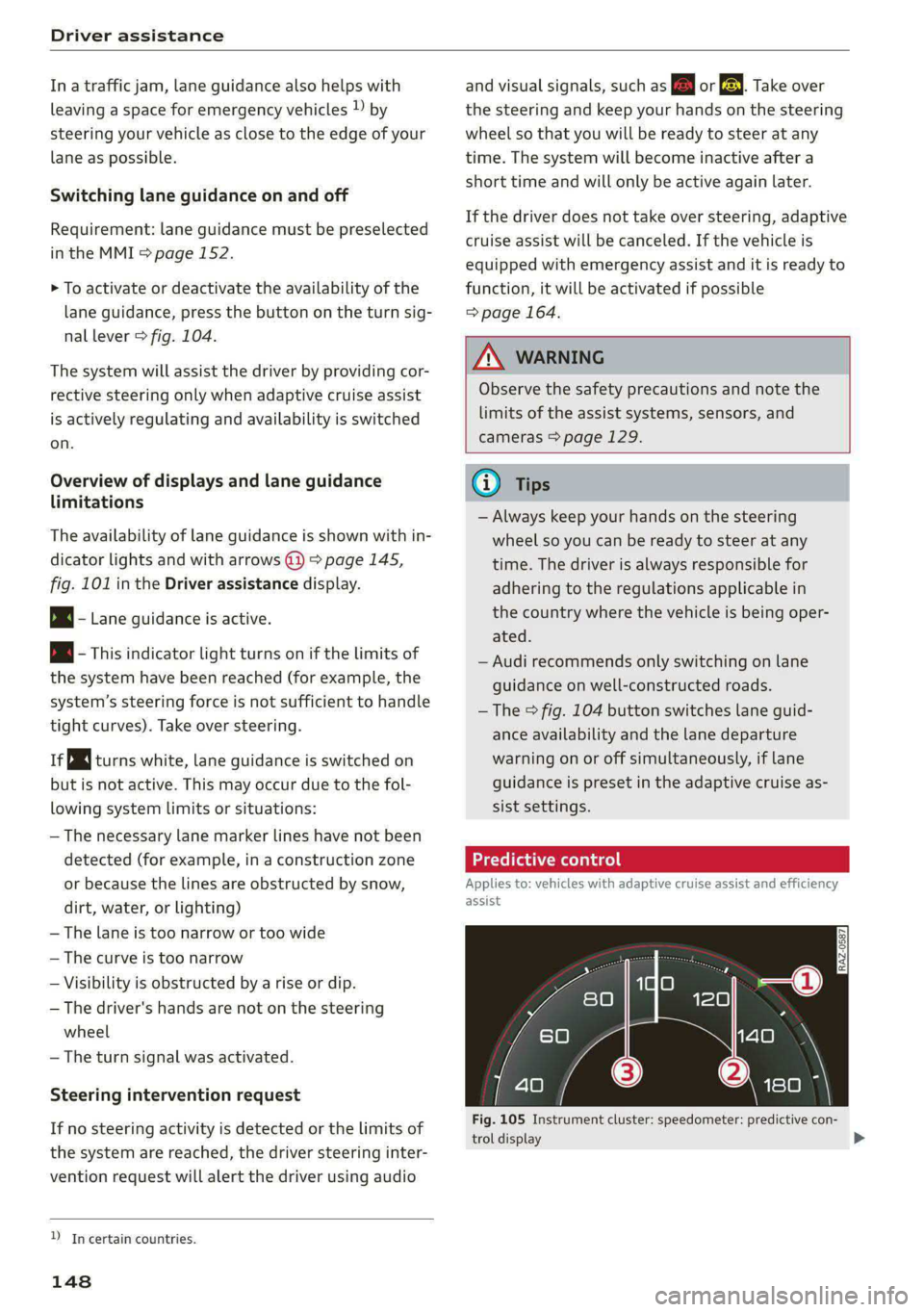
Applies to: vehicles with adaptive cruise assist and efficiency
assist
53] | Se | x ac
Fig. 105 Instrument cluster: speedometer: predictive con-
trol display
Page 154 of 308
Driver assistance
Starting to drive with adaptive cruise assist)
As long as the message ready to drive and a is
displayed, your vehicle will begin driving when
the vehicle ahead starts to move > /\.
If you are stopped for several seconds, your vehi-
cle will no longer drive autonomously for safety
reasons, and the message will turn off.
> To extend ready to drive for several seconds or
reactivate, pull the lever briefly towards you in
the direction of the arrow > page 151, fig. 107.
> To resume manual control of the vehicle, tap
the accelerator pedal.
Safe start monitor
The vehicle can still start to drive even if certain
obstacles are detected when starting to drive
=> /\. If the surrounding area detection detects
an obstacle, you will be alerted to the danger by
the A indicator light.
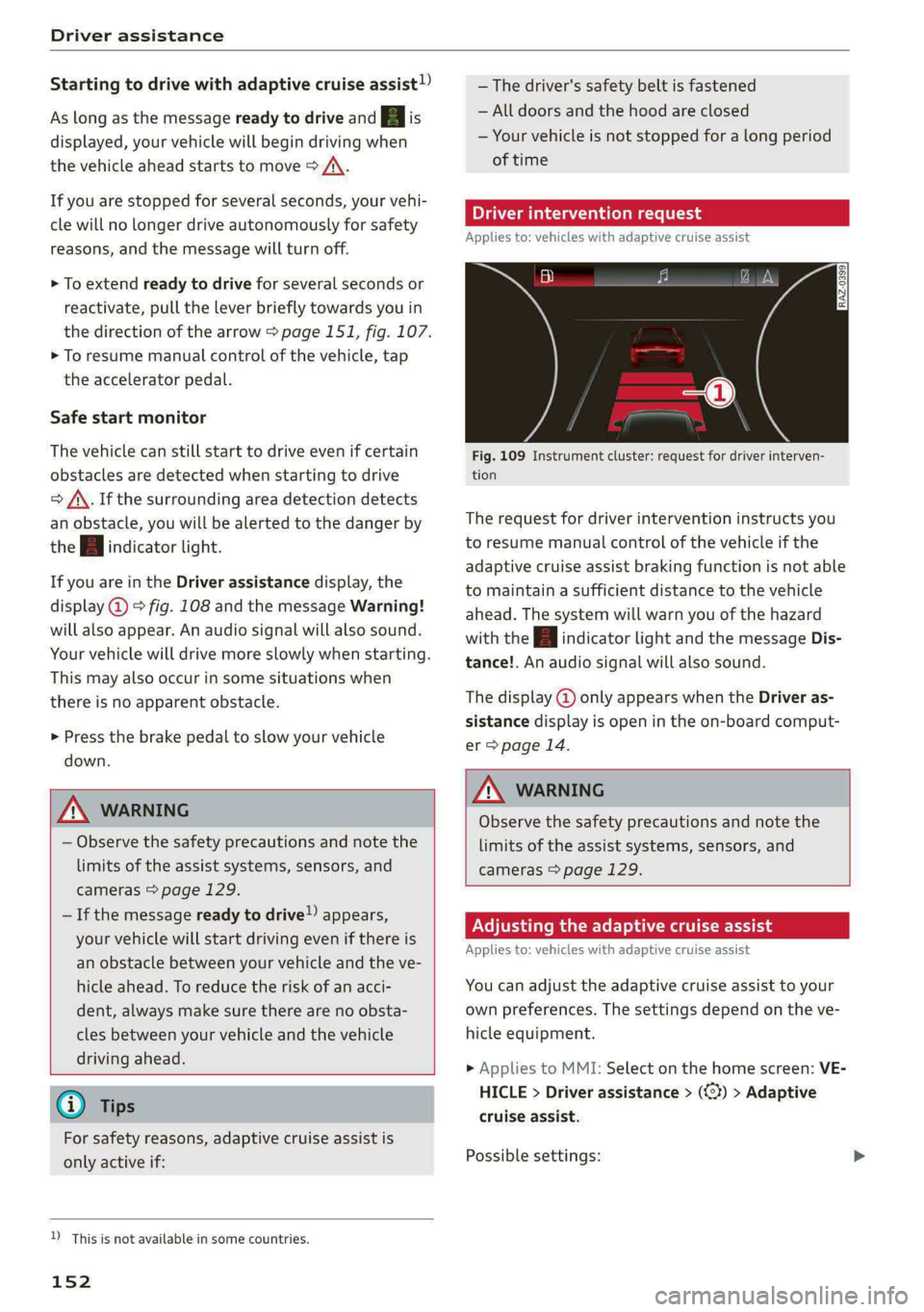
If you are in the Driver assistance display, the
display @ © fig. 108 and the message Warning!
will also appear. An audio signal will also sound.
Your vehicle will drive more slowly when starting.
This may also occur in some situations when
there is no apparent obstacle.
>» Press the brake pedal to slow your vehicle
down.
ZA WARNING
— Observe the safety precautions and note the
limits of the assist systems, sensors, and
cameras > page 129.
— If the message ready to drive) appears,
your vehicle will start driving even if there is
an obstacle between your vehicle and the ve-
hicle ahead. To reduce the risk of an acci-
dent, always make sure there are no obsta-
cles between your vehicle and the vehicle
driving ahead.
@) Tips
For safety reasons, adaptive cruise assist is
only active if:
D_ This is not available in some countries.
152
— The driver's safety belt is fastened
— All doors and the hood are closed
— Your vehicle is not stopped for a long period
of time
al 3 3
iF Ny Pe fac
Fig. 109 Instrument cluster: request for driver interven-
tion
The request for driver intervention instructs you
to resume manual control of the vehicle if the
adaptive cruise assist braking function is not able
to maintain a sufficient distance to the vehicle
ahead. The system will warn you of the hazard
with the A indicator light and the message Dis-
tance!. An audio signal will also sound.
The display @ only appears when the Driver as-
sistance display is open in the on-board comput-
er > page 14.
ZA\ WARNING
Observe the safety precautions and note the
limits of the assist systems, sensors, and
cameras > page 129.
Adjusting the adaptive cruise assist
Applies to: vehicles with adaptive cruise assist
You can adjust the adaptive cruise assist to your
own preferences. The settings depend on the ve-
hicle equipment.
> Applies to MMI: Select on the home screen: VE-
HICLE > Driver assistance > (<3) > Adaptive
cruise assist.
Possible settings:
Page 157 of 308
4KE012721BF
Driver assistance
Lane departure warning
General information
Applies to: vehicles with lane departure warning
The lane departure warning can detect lane
marker lines within the limits of the system. If
you are approaching a detected lane marker and
it appears likely that you will leave the lane, the
system can warn you with corrective steering and
a steering wheel vibration, if necessary.
The system functions in the speed range of ap-
proximately 40 mph - 155 mph (65 km/h -
250 km/h).
ZX WARNING
Observe the safety precautions and note the
limits of the assist systems, sensors, and
cameras > page 129.
Applies to: vehicles with lane departure warning
B8V-0692
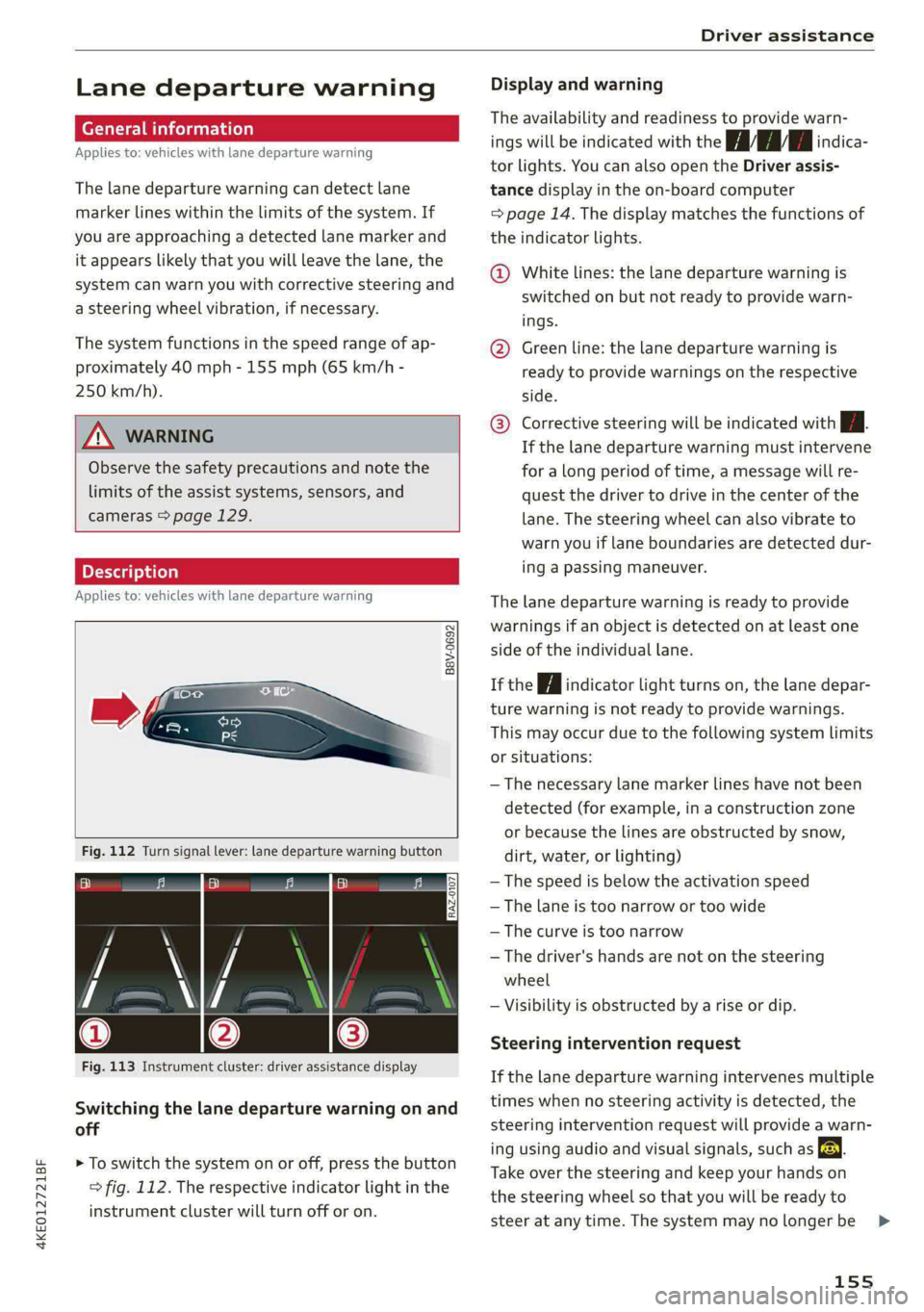
Fig. 112 Turn signal lever: lane departure warning button
RAZ-0107
Fig. 113 Instrument cluster: driver assistance display
Switching the lane departure warning on and
off
> To switch the system on or off, press the button
=> fig. 112. The respective indicator light in the
instrument cluster will turn off or on.
Display and warning
The availability and readiness to provide warn-
ings will be indicated with the HH indica-
tor lights. You can also open the Driver assis-
tance display in the on-board computer
=> page 14. The display matches the functions of
the indicator lights.
@ White lines: the lane departure warning is
switched on but not ready to provide warn-
ings.
@ Green line: the lane departure warning is
ready to provide warnings on the respective
side.
® Corrective steering will be indicated with i.
If the lane departure warning must intervene
for a long period of time, a message will re-
quest the driver to drive in the center of the
lane. The steering wheel can also vibrate to
warn you if lane boundaries are detected dur-
ing a passing maneuver.
The lane departure warning is ready to provide
warnings if an object is detected on at least one
side of the individual lane.
If the | i | indicator light turns on, the lane depar-
ture warning is not ready to provide warnings.
This may occur due to the following system limits
or situations:
— The necessary lane marker lines have not been
detected (for example, in a construction zone
or because the lines are obstructed by snow,
dirt, water, or lighting)
— The speed is below the activation speed
— The lane is too narrow or too wide
—The curve is too narrow
— The driver's hands are not on the steering
wheel
— Visibility is obstructed by a rise or dip.
Steering intervention request
If the lane departure warning intervenes multiple
times when no steering activity is detected, the
steering intervention request will provide a warn-
ing using audio and visual signals, such as EE.
Take over the steering and keep your hands on
the steering wheel so that you will be ready to
steer at any time. The system may no longer be
155
>