display AUDI Q2 2021 Owner´s Manual
[x] Cancel search | Manufacturer: AUDI, Model Year: 2021, Model line: Q2, Model: AUDI Q2 2021Pages: 364, PDF Size: 87.77 MB
Page 185 of 364

Telephone
CO
<
O
rN
IN
rN
t-H
o <
Reply*
You can reply to a text message you have selec
ted in the Inbox.
Forward
You can forward a text message you have selec
ted to another recipient.
Resend*
You can re-send a text message you have selec
ted.
Delete this text message*
You can delete a text message you have selected.
Read1)
You can have the MMI read an opened text mes
sage
to
you.
Delete text messages from SIM
A crossed-out envelope symbol is displayed in the
status line of the infotainment display if the SIM
card memory is
full.
You can still send text mes
sages but will not be able to receive any new
ones.
Select Delete sent text messages to delete
all sent text messages from the SIM
card.
Select
Delete read text messages to delete all read text
messages from the SIM
card.
Text message settings*
Activate Text message notifications to have a no
tification displayed when a new text message is
received.
An envelope symbol
El
is displayed in
the status line of the infotainment display if
there are any new text messages.
The number of your mobile network service pro
vider's Text message centre is displayed. If no
number has been stored, you can enter the num
ber of the text message centre. For more infor
mation,
contact your service provider.
Text
msg
diet,
declaration of
consent2):
Agree
ment that spoken data are forwarded to the serv
ice provider via AUDI AG.
11
Not available in all languages.
2)
Only available with Audi connect (infotainment).
Connection manager
Refer to
^>page
257.
Wi-Fi settings
Refer to
^>page
201.
Telephone settings
Refer to
^>page
187.
(T)
Not
Messages deleted using the MMI are also au
tomatically deleted on the mobiLe phone.
E-mail*
Applies to: mobile phones with Bluetooth Message Access
Profile
Depending
on
your mobile phone, you may be
able to send and
receive
e-mails
via the MMI.
You
can also use the speech dialogue system* to
dictate e-mails.
Important: A mobile phone with Bluetooth MAP
(Message Access Profile) must be connected to
the MMI
*$page
173. Please refer to the operat
ing instructions foryour mobiLe phone to find out
whether it supports this function.
•
Select:
|MENU|
button
>
Telephone
>
left
con
trol button >
E-mail
(MyPhone)/E-mail (addi
tional phone)*.
Write new e-mail
SeLect and confirm Write new e-mail.
- To use a template: SeLect and confirm the tem
plate you require from the
list.
- To enter your own text*: Select and confirm Do
not use template. Enter
a
text using the MMI
touch
pad*
or the speller for letters/numbers.
- Enter one or more recipients.
- Select and confirm Send.
Dictate
e-mail2)
Refer to
^>page
167, Messages - Audi connect
(infotainment).
183
Page 186 of 364

Telephone
Inbox
ALI
the e-mails you have received are displayed.
Sent
All the e-mails you have sent are displayed.
Outbox
All the e-mails to be sent are displayed.
Drafts
All
the e-mails which have been stored but not
yet sent are displayed.
CAUTIOl
Please always observe the information
•=>©
in
Wi-Fi hotspot on page 202.
(J) Note
- For more information on which mobile
phones are supported, please go online
(e.g.
www.audi.com/bluetooth) or contact
an Audi dealer.
- Please connect your mobile phone to the ve
hicle's Wi-Fi hotspot* so that the e-mail app
on your mobile phone retains access to the
Internet. This helps to ensure that e-mails
can be sent and received. If
you
cannot re
ceive e-mails despite being successfully
con
nected,
please contact your e-mail service
provider or your mobile network provider.
Message options
Applies to: mobile phones with Bluetooth Message Access
Profile
•
Select:
|MENU|
button
>
Telephone
>
left
con
trol button >
E-mail
(MyPhone)/E-mail (addi
tional phone)*
> Inbox/Sent/Outbox >
right
control button.
The following options may be available depend
ing on which menu you have selected:
Storing an e-mail as a template
There are already ten e-mail templates stored on
the MMI. You can store up to ten additional
tem
plates.
- Create an e-mail.
- SeLect and confirm Store as template.
Continue with last edited e-mail
You can continue with the e-mail you last edited.
Reply*
You can reply to an e-mail you have selected in
the Inbox.
Reply
to
all*
You can reply to all the recipients of an e-mail
you have selected in the Inbox.
Forward
You can forward an e-mail you have selected to
another recipient.
Delete this message*
You can delete an e-mail you have selected.
Read15
You can have the MMI read an opened e-mail to
you.
E-mail
settings*
Activate
E-mail
notifications to have a notifica
tion displayed when a new e-mail is received. An
envelope symbol
E
is displayed in the status line
of the infotainment display if there are any new
e-mails.
Connection manager
Refer to
opage
257.
Wi-Fi settings
Refer to
^>page
201.
Telephone settings
Refer to
opage
187.
(T) Note
Messages deleted using the MMI are also au
tomatically deleted on the mobile phone
con
nected.
l)
Not available in all languages.
184
Page 187 of 364
Telephone
CO
rN
IN
rN
•-H
00
Listening
to
voicemaiL
messages
Applies
to: vehicles with telephone
•
Select:
|MENU|
button
>
Telephone
>
left
con
trol button. Select and confirm Call list/Direc
tory/Favourites
>
Mailbox.
- To enter the mailbox number: Enter the num
ber desired. Select and confirm
OK.
- To dial the mailbox number: Select and
con
firm Mailbox.
® Note
- This service must be
set up
and activated
by
your mobiLe network service provider before
you can use
it. For
more information,
con
tact your service provider.
-The mailbox number depends on your serv
ice provider.
Directory
Calling
up the
directory
Applies to: vehicles with telephone
After a mobile phone has been connected suc
cessfully,
the
contacts from
the
mobile phone
are automatically imported into
the
directory
of
the MMI system.
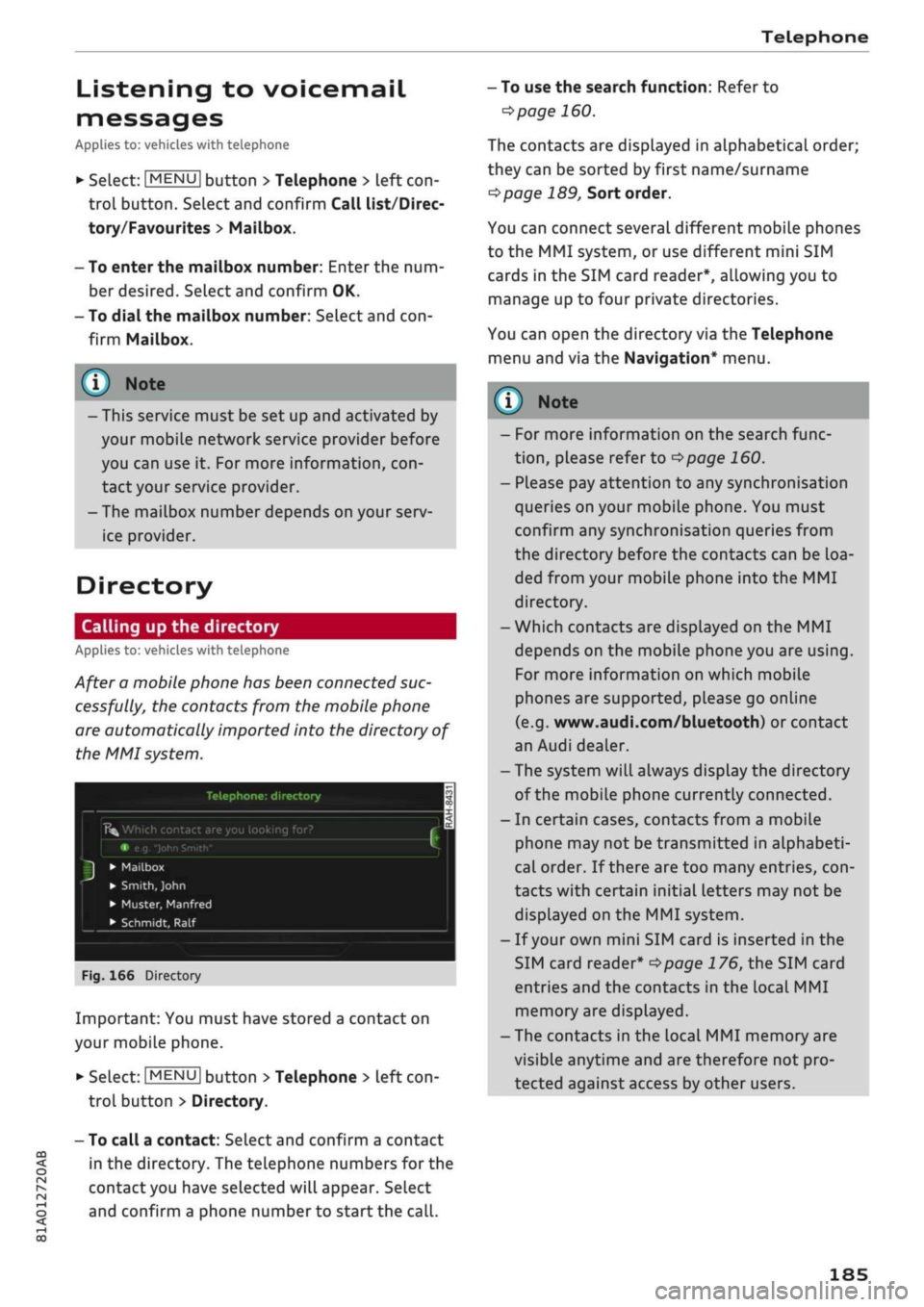
Telephone:
directory
Î5fc
Which contact are you looking for?
e.g.
"John
Smith"
•
Mailbox
•
Smith,
John
• Muster, Manfred
• Schmidt,
Ralf
Fig.
166
Directory
Important: You must have stored a contact
on
your mobile phone.
*•
Select:
|MENU|
button
>
Telephone
>
left
con
trol button > Directory.
- To call a contact: Select and confirm a contact
in
the
directory. The telephone numbers
for the
contact you have selected will appear. Select
and confirm a phone number
to
start the
call.
- To use the search function: Refer
to
^>page
160.
The contacts are displayed
in
alphabetical order;
they can be sorted by first name/surname
^page
189,
Sort order.
You can connect several different mobile phones
to
the
MMI system,
or
use different mini
SIM
cards
in the
SIM card reader*, allowing you
to
manage up
to
four private directories.
You can open
the
directory via the Telephone
menu and
via the
Navigation* menu.
y
Note
-
For
more information
on the
search func
tion,
please refer
to
^>page
160.
- Please pay attention
to
any synchronisation
queries on your mobile phone. You must
confirm any synchronisation queries from
the directory before
the
contacts can
be
loa
ded from your mobiLe phone into
the MMI
directory.
- Which contacts are displayed
on the MMI
depends on
the
mobile phone you
are
using.
For more information
on
which mobile
phones are supported, please
go
online
(e.g.
www.audi.com/bluetooth)
or
contact
an Audi dealer.
- The system will always display the directory
of the mobile phone currently connected.
-
In
certain cases, contacts from a mobile
phone may
not
be transmitted
in
alphabeti
cal order.
If
there are
too
many entries,
con
tacts with certain initial letters may
not be
displayed
on the
MMI system.
-
If
your own mini SIM card
is
inserted
in the
SIM card reader*
^>page
176, the
SIM card
entries and
the
contacts
in the
local
MMI
memory are displayed.
- The contacts
in the
local MMI memory are
visible anytime and are therefore
not
pro
tected against access
by
other users.
185
Page 190 of 364
Telephone
the settings of your mobile phone apply. You can
use Check status to check whether this function
is activated or deactivated.
Telephone mode*
On vehicles with a car telephone kit, you can
choose between three different telephone modes
to optimise the mobile network response:
- Automatic: The car telephone automatically
switches between the GSM (2G), UMTS (3G)
and LTE networks. This depends on the mobile
network's availability and reception, and on the
position of the vehicle. In this mode, there
might be restrictions when using Google Earth
or Wi-Fi.
- Telephony optimised: The car telephone kit
registers with the GSM network (2G). In this
mode,
the reception is prioritised for making
and receiving calls. There may be restrictions
when using Google Earth or Wi-Fi.
- Data service optimised: The car telephone
reg
isters with the GSM (2G), UMTS (3G) or LTE net
work. This depends on the mobile network, its
reception,
and the position of the vehicle. In
this mode, the reception is prioritised for the
use of data services. There may be restrictions
when making and receiving calls.
Ring tone and volume
settings1'
You can use the Mute telephone function to
switch ring tone playback via the MMI loudspeak
ers on/off. Ring tones are played when you select
the function Ring tone. Select an entry from the
list and confirm it. For the settings Ring tone
volume/Message volume, see
^>page
261. You
can adjust the Microphone input level during an
active phone call using the rotary pushbutton.
Network settings*
Refer to
^>page
259.
Serial number
(IMEI)*
The serial number of the telephone module in
stalled in the MMI system is displayed.
Switch on telephone/Switch off telephone
Applies to: vehicles with car telephone kit
The car telephone will be turned "on" automati
cally when the ignition is switched on, as long as
it was nor switched off separately the last time it
was used.
- You can bond several mobile phones to the
MMI system; however only two connections
are active at a time.
-All bonded Bluetooth devices can be deleted
by resetting the Bluetooth function to the
factory settings
^page
256.
- If you select the telephone mode Automatic
or Telephony optimised, there may be net
work restrictions if you try to use Audi
con
nect infotainment services* and make tele
phone calls at the same time.
Further options
•
Select:
[MENU|
button > Telephone > right
con
trol button.
Connection manager
Refer to
^>page
257.
Bluetooth settings*
Refer to
opage
258.
Online settings*
Refer to
^page
258.
Wi-Fi settings*
Refer to
^>page
201, Wi-Fi hotspot.
Data connection settings*
Refer to
^>page
203, Configuring the data con
nection.
11
Depends on the connected mobile phone
188
Page 191 of 364
Telephone
Import contacts/Export contacts
Refer to
^>page
187.
Download directory
To update the contacts in the MMI, you can
download the contacts from your mobile phone
manually. Depending on the mobile phone you
are using, the Bluetooth connection may have to
be disconnected and re-established before you
can update the contacts.
Hiding contacts without a number
If this function is switched on
0
and if no num
ber has been stored for
a
contact, the contact is
displayed greyed out in the directory.
Troubleshooting
Applies to: vehicles with telephone
Subject
Connecting the mobile phone to
the
MMI fails.
The mobile phone does not sup
port the remote SIM Access Pro
file (e.g. iPhone).
Using the MMI with two SIM
cards (in the SIM card reader
oncf
in a mobile phone).
After the mobile phone was
con
nected not all/none of the
con
tacts were loaded into the MMI.
Advice
Check if the requirements for connecting a mobile phone are met
^>page
173.
Or: Check if
you
have accidentally declined the PIN for setting up
the connection on your mobile phone. If necessary, repeat the
connection procedure
^>page
173.
Insert your own mini SIM card in the SIM card reader* and use the
functions of the car telephone kit independently of your mobile
phone.
When the mini SIM card is inserted, you can also use the contacts
from your mobile phone by connecting the mobiLe phone to the
system via the Directory profile
^>page
258.
The MMI only ever accesses one SIM card at
a
time. A mini SIM
card inserted in the SIM card reader* has priority over one in a mo
bile phone.
However, you can still access the contacts on another mobile
phone via Bluetooth if
a
mini SIM card is inserted
^>page
258.
Avoid using special characters in names.
Avoid using contact groups on your mobile phone.
CO
rN
IN
rN
i-H
00
189
Directory settings
Applies to: vehicles with telephone
•
Select:
|MENU|
button
>
Telephone
>
left
con
trol button > Directory
>
right control button >
Directory settings.
Memory capacity
The Memory capacity of the directory will be dis
played.
You can manage up to 17,000 contacts with the
directory. Up to 4,000 contacts can be loaded
from your mobile phone into each directory, and
up to 1,000 contacts can be imported from a
storage device.
Sort order
You can sort the contacts in your directory alpha
betically according to their surname or first
Page 195 of 364
Audi connect (infotainment)
CO
<
O
rN
IN
rN
i—i
§
00
•
The missing corner of the mini SIM card should
be at the front left. Slide the mini SIM card into
the slot in the SIM card reader
^>Fig.
168 until
you feel it engage.
•
Select and confirm Enter PIN. Enter the PIN for
your mini SIM card in the MMI.
•
Select and confirm OK.
•
To allow the MMI to connect automatically in
the future, select and confirm Yes.
After connecting successfully
After connecting successfully, the signal strength
and type of connection will appear in the status
line of the infotainment display ©/©
^>page
161.
•
Select the desired type of connection for tele
phone calls: Telephone installed in vehicle
(SIM card) or Personal mobile phone (Blue
tooth)
•=>
page 173.
*-
Confirm the system query of whether an Inter
net connection should be established with Yes,
always connect if necessary.
You can now use Audi connect infotainment serv
ices.
Removing a mini SIM card
• Briefly press the mini SIM
card.
The mini SIM
card will then be ejected from the slot and can
be removed.
CAUTION
- The connection via the eSIM card
^>page
191 is disconnected when you use
your own mini SIM
card.
All data connec
tions for all Audi connect infotainment serv
ices will use your SIM
card.
Depending on
your network provider, you may be charged
for
this service, especially if you are using
the system abroad. We therefore strongly
recommend
that
you use an unlimited data
plan.
For more information, contact your
service provider.
-To avoid damaging the SIM card reader, on
ly use mini SIM cards (25 mm x 15 mm)
^>Fig.
168. Please contact your service pro
vider for more information on mini SIM
cards.
- Should you have inserted a different SIM
card size in the SIM card reader, do not un
der any circumstances attempt to remove it
yourself as this may damage the SIM card
reader. Please contact a qualified workshop.
- If you use SIM card adapters, the vibrations
caused
by
the movement of the vehicle may
cause the SIM card to become detached
from the adapter - risk of damage to the
SIM card reader.
- You can connect a mobile phone via Blue
tooth (Handsfree) to make phone calls
^>page
173.
- You can determine when the MMI system
establishes an Internet connection
o
page 203.
- The mini SIM card must not be removed
from the SIM card reader while Audi
con
nect infotainment services are being used.
- In order to use your own mini SIM card for
Audi connect infotainment services, you will
need a mini SIM card with a data option; to
use LTE*, the SIM card will also need to
have an LTE data option.
Option 2.2: Connecting an rSAP enabled
mobile phone via Bluetooth
Applies to: vehicles with Audi connect (infotainment) and
Audi phone box
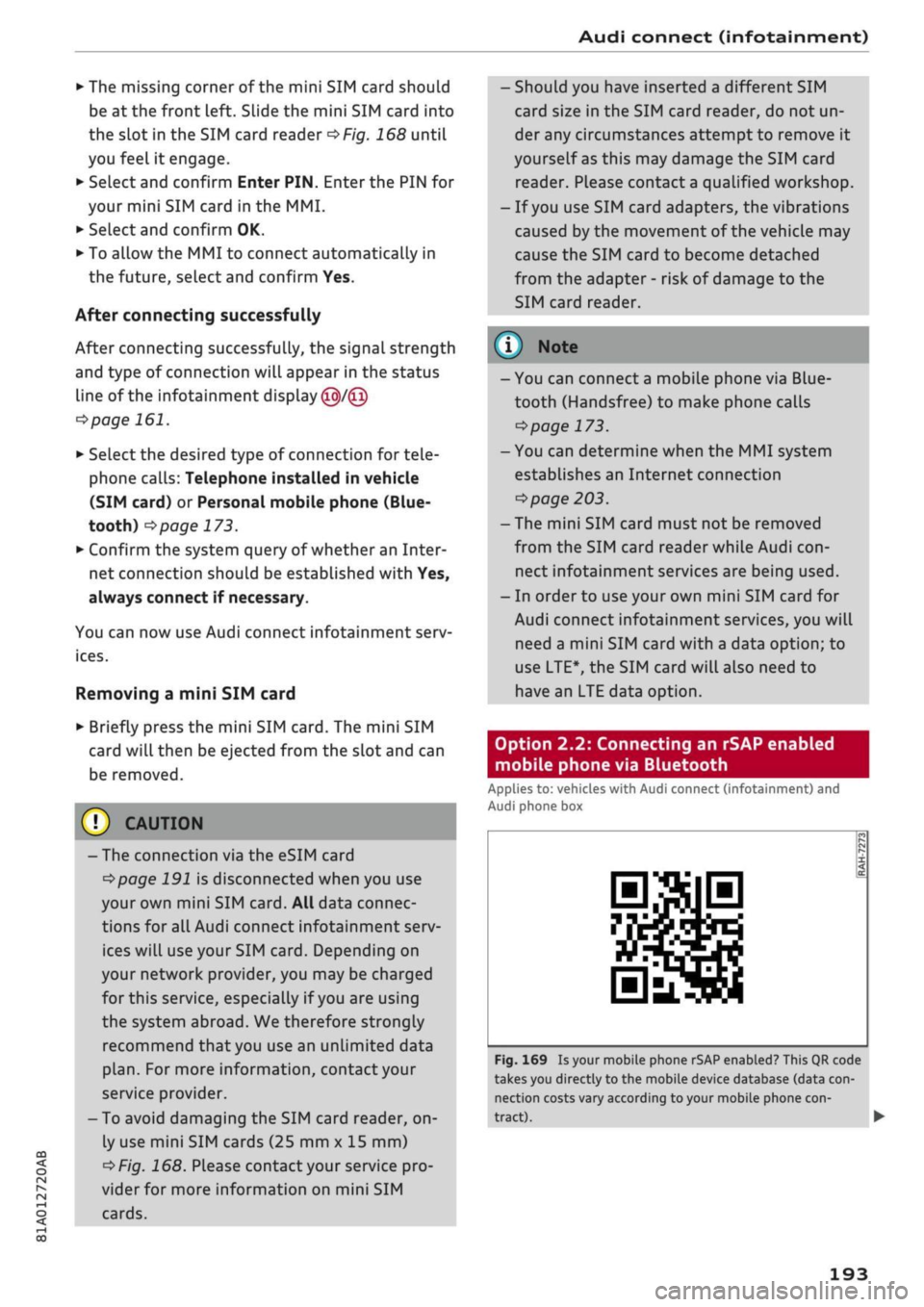
Fig.
169 Is your mobile phone rSAP enabled? This QR code
takes you directly to the mobile device database (data
con
nection costs vary according to your mobile phone
con
tract).
•
193
Page 196 of 364
Audi connect (infotainment)
Important1'
Your mobile phone must support the Bluetooth
remote SIM Access Profile (Bluetooth rSAP).
For information regarding which Bluetooth
con
nections and functions your mobile phone sup
ports,
contact your mobile network service pro
vider or consult the mobile device database at
www.audi.com/bluetooth
oF/g.
169.
The vehicle must be stationary, and the ignition
must be switched on.
The Bluetooth function and the discoverability
option of the MMI system
•=>page
202 and the
mobile phone must be activated.
The mobile phone you would like to connect must
not be connected activeLy to any other Bluetooth
device. The MMI must not be connected to a mo
bile phone.
Access to your SIM card (SIM
Access)
must be ac
tivated on your mobile phone.
Connecting a mobile phone
•
Select:
|MENU|
button
>
Audi connect.
•
SeLect and confirm Activate data connection.
•
Select and confirm Connect mobile phone >
Continue.
•
Select and confirm the desired mobile phone
from the list of Bluetooth devices shown. Or:
Search for the MMI system via the Bluetooth
device search function on your mobile phone.
•
Enter the PIN to establish a connection on your
mobile phone. If the PIN is already being dis
played on your mobile phone, confirm it on the
phone and the MMI. You have about 30 sec
onds to enter the PIN.
Please note any additional system queries on
your mobile phone, e.g. whether the phone
should connect automatically in the future. On
some mobiLe phones, you may aLso need to
download the directory separately.
•
You can now enter the PIN code for your SIM
card on the MMI.
Not available in all markets. Applies to mobile phones
with Bluetooth remote SIM Access Profile on vehicles with
Audi connect (infotainment) and Audi phone box*.
•
To allow the MMI to connect automatically in
the future, select and confirm Yes.
After connecting successfully
After the connection has been established suc
cessfully, you will be shown a short message
con
taining information on the profiles used to estab
lish the connection. You can make changes to the
profiles via
|MENU|
>
Settings > left control but
ton > MMI settings > Connection manager
ï>page
258. This can also be done at
a
later
time.
The signal strength symbol ©, connection type
symbol®
and Bluetooth
symbol
© will appear
in the status line of the infotainment dispLay
when the mobiLe phone has been connected suc
cessfully
^>page
161.
•
Confirm the system query of whether an Inter
net connection should be established with Yes,
always connect if necessary.
You can now use Audi connect infotainment serv
ices.
(7) CAUTION
- The connection via the eSIM card
^>page
191 is disconnected when you use
your own SIM
card.
All data connections for
all Audi connect infotainment services will
use your SIM
card.
Depending on your net
work provider, you may be charged for this
service, especially if
you
are using the sys
tem abroad. We therefore strongly recom
mend
that
you use an unlimited data
plan.
For more information, contact your service
provider.
- In order to use Audi connect infotainment
services via the remote SIM Access Profile,
you will need a SIM card with a data option;
to use LTE*, the SIM card will also need to
have an LTE data option. •
194
Page 197 of 364

Audi connect (infotainment)
CO
<
O
rN
IN
rN
t-H
o < 00
- It is only possible to connect a mobile
phone via the remote SIM Access Profile on
vehicles with the Audi phone box.
- Bluetooth devices only have to be bonded
once.
Depending on the mobile phone you
are using, any devices that have already
been bonded to the MMI system are connec
ted automatically when they are within
range and the ignition is on. You can bond
several mobile phones to the MMI system;
however only one connection is active at a
time.
- You receive the SIM PIN and the PUK from
your mobile network service provider to
gether with the SIM
card.
If
you
enter the
SIM PIN code incorrectly three
times1)
in a
row, the SIM card will be be blocked. A PUK
(personal unblocking key) must be entered
in order to reactivate the SIM
card.
-The Bluetooth connection between the sys
tem and the mobile phone is automatically
terminated when you leave the car.
- For further information regarding your mo
bile phone, contact your mobile network
service provider or refer to the operating in
structions for your mobile phone. For infor
mation on using a phone in your car, please
go online (e.g. www.audi.com/bluetooth)
or ask an Audi dealer.
Option 2.3: Using a personal Wi-Fi hotspot
Applies to: vehicles with Audi connect (infotainment) and per
sonal Wi-Fi hotspot
Important
The vehicle must be stationary, and the ignition
must be switched on.
Your mobile device and mobile network provider
must support the mobile Wi-Fi hotspot function.
The personal Wi-Fi hotspot on your mobiLe device
must be activated.
Other devices must be permitted to access the
mobiLe hotspot.
Connecting the MMI to a personal hotspot
•
Select:
|MENU|
button
>
Telephone
>
right
con
trol button
>
Wi-Fi settings
>
Wi-Fi
>
on.
•
Then select and confirm Network search. The
devices found will be shown on the infotain
ment display.
• Select and confirm your personal Wi-Fi hotspot
from the List.
•
You may need to enter the password specified
by your mobile device.
• Select and confirm OK.
A
WARNINf
Mobile devices, tablet and Laptop computers
and devices of
a
similar weight can only be
operated safely when the vehicLe is stationary.
Like any loose object, they can be catapulted
through the vehicle in an accident and cause
serious injuries. Always make sure that such
devices are securely stowed while you are
driving.
(T)
CAUTION
I
The connection via the eSIM card
^>page
191
is disconnected when you use your own SIM
card.
All data connections for all Audi connect
infotainment services will use your SIM
card.
Depending on your network provider, you may
be charged for this service, especially if you
are using the system abroad. We therefore
strongly recommend
that
you use an unlimi
ted data
plan.
For more information, contact
your service provider.
- The Connection to personal hotspot option
cépage
202 will be switched on
([vf)
auto
matically during the network search.
- Please contact your mobile network service
provider to find out which functions your
mobiLe device supports.
x)
The number of possible attempts depends on the SIM
card.
195
Page 199 of 364

Audi connect (infotainment)
•
If necessary, confirm the message shown by se
lecting Accept.
The Audi connect infotainment services available
will be listed on the infotainment display
^Fig.
171.
You can also filter the Audi connect infotainment
services by category:
•
Select: 1MENU| button
>
Audi connect
>
left
control button > e.g. Navigation for the Audi
connect infotainment services in the navigation
menu
•=>page
200.
Audi connect
infotainment services
Basic functions
Applies to: vehicles with Audi connect (infotainment)
Specific functions for individual Audi connect in
fotainment services may be available in the serv
ice's selection menu
<=s>page
154. Basic functions
can be accessed in the relevant options menu:
•
Select: |MENU| button
>
Audi connect
>
desired
Audi connect infotainment
service
> right
con
trol button.
Depending on the Audi connect infotainment
service you wish to use, the following basic func
tions may be available:
Save as a preview*
You can save every Audi connect (infotainment)
service as a preview and have it displayed on the
Audi connect infotainment homepage
(Î)
opage
196, Fig. 171.
Show on map
You can have selected content displayed on the
map and use
it
for route guidance.
Login
Refer to
^>page
196, Logging into myAudi in the
vehicle.
Read"
You can have the MMI read out some types of
content.
Call*
If
a
telephone number has been stored for an en
try, you can call the number
and,
for example, re
serve tickets.
Start route guidance
If
an
entry contains a location, e.g. in City
events,
this can be used as a navigation destina
tion.
The route guidance function will be started
immediately.
Change search area
The search area selected can be changed at any
time.
For more information on search areas,
please refer to
^>page
211.
Closing an Audi connect infotainment service
You can close an Audi connect infotainment serv
ice at any time and go back to the homepage
^>page
196, Fig. 171, regardless of which func
tion you were using.
Data plans
Applies to: vehicles with an embedded SIM card
In connection with the eSIM for Audi connect in
fotainment
services
which use the Wi-Fi hotspot
(e.g. online media), you can purchase data plans
directly in the vehicle from a selected mobile
network provider.
Important:
You must be registered as the eSIM card owner
(SIM owner)
Opage
191 in the mobile network
provider's customer portal and have purchased a
data
plan.
Further information can be found on
the Internet at my.audi.com.
You must have activated the in-car data plan pur
chases function in the network provider's cus
tomer
portal.
•
CO
rN
IN
rN
t-H
o
<
x)
Not available in all languages.
197
Page 200 of 364
Audi connect (infotainment)
•
Select:
|MENU|
button
>
Audi connect
>
Data
plans.
The following functions are available:
Current data plans
An overview of your current data plans, including
the plan period and data volume, is shown on the
infotainment display.
Purchase data plan
- Select and confirm the desired data plan from
the list.
- Confirm your purchase of the selected data
plan.
Delete SIM owner
You can delete the SIM owner at any time in the
vehicle, for instance when selling the vehicle.
This will delete the SIM owner in the vehicle, and
you will not be able to purchase any data plans.
Support
You can
call
the support hotline if
you
require as
sistance or have any questions regarding data
plans.
© CAUTION
- Please note that, when using your own SIM
card,
you will be unable to use any current
data plans or purchase any new ones.
- Please always observe the information
<=>©
in Wi-Fi hotspot on page 202.
© Note
- Please note that any vehicle passenger can
delete the SIM owner.
- Please note that any passenger can pur
chase data plans at the SIM owner's ex
pense when the in-car data plan purchases
function is activated. You can set
a
purchase
limit in the mobiLe network provider's cus
tomer portal.
- When selling your vehicle, you should de
lete the vehicle in the network provider's
customer portal to prevent any further pur
chases at your expense.
-The vehicle and the associated VIN which
are stored in the network provider's custom
er portal are not be deleted automatically
when you delete the SIM owner in the
vehi
cle.
This must be done separately in the cus
tomer
portal.
- For journeys abroad, you will need to pur
chase appropriate data plans.
Parking information
Applies
to: vehicles with Audi connect (infotainment)
Information on places to park and parking fees in
the search area seLected (e.g. In immediate vi
cinity).
•
Select and confirm Parking information.
You can use the right control button to sort the
car parks by distance or by availability.
Travel information
Applies
to: vehicles with Audi connect (infotainment)
Information on landmarks in the search area se
lected.
•
SeLect an confirm a Landmark to have details
displayed.
Fuel prices
Applies
to: vehicles with Audi connect (infotainment)
Information on filling stations with the cheapest
prices for your vehicle in the search area selected.
•
Select and confirm Fuel prices.
You can use the right control button to sort the
fuel prices by price or by distance.
Weather
Applies
to: vehicles with Audi connect (infotainment)
Information on the current weather and weather
forecasts for the search area selected.
•
Select and confirm Weather.
You can also have the current weather displayed,
e.g.
on the map.
•
Select: left control button > an
entry.
198