infotainment AUDI Q2 2021 Owner´s Manual
[x] Cancel search | Manufacturer: AUDI, Model Year: 2021, Model line: Q2, Model: AUDI Q2 2021Pages: 364, PDF Size: 87.77 MB
Page 236 of 364
Radio
fixed:
Scroll texts transmitted by FM stations will
not appear in the infotainment display. The cur
rent scroll text on the dispLay will freeze.
FM/AM HD Radio1'
You can switch the reception of HD Radio on or
off.
Station sorting (FM)2'
A-Z: The stations are displayed in the station list
in alphabetical order. Radio stations with variable
station names are displayed after the stations
which have been sorted alphabetically. Radio sta
tions with a frequency as their station name are
displayed
at
the end of the list.
ID:
The stations in the station list are sorted ac
cording to the station's ID (e.g. all BBC radio sta
tions are sorted together). Radio stations with a
frequency as their station name are displayed at
the end of the list.
Station sorting
(DAB*)2'
A-Z: The stations are displayed in the station list
in alphabetical order.
Ensemble: Ensembles comprise various radio
stations of
a
specific area (e.g. a town or region);
they are listed together as an ensemble in the
station list. To open/close the list of radio sta
tions in an ensemble, select and confirm the en
semble. Available sub-programmes* (additional
services provided by DAB* radio stations) are
lis
ted beneath the radio station (indented).
Detailed station information
When this function is switched on
Ef
and the sta
tion or favourites list is open, the system
switches to the Detailed station information
view
<^page
230 after approximately five sec
onds.
Where available, information on the seLec
ted station (e.g. station name, artist, slide show,
station logo3') may be shown.
11
This function is only available in the Mexican market.
2^
This function is not available in the Mexican market.
3)
Station logos may not be available in all countries.
Preferred image* (DAB*, HD Radio
waveband1', FM)
You can specify your preferred image for the De
tailed station information option
^>page
230.
- station logo3': The station logo is displayed if
available.
- cover art: Album covers are displayed if availa
ble.
- slide show:2' Depending on availability,
addi
tional information as a supplement to the nor
mal programme may be shown (e.g. images
from the studio, current photographs of artists
or album covers).
Update station list* (AM, DAB*2')
The station list will be updated.
Gracenote online database*
Important: The MMI must be connected to the
Internet. The cover art option must be selected
^>page
232, Preferred image*
(DAB*,
HD Radio
waveband, FM).
When this function is switched on
[vj,
album cov
ers or genre artwork
will,
if available, be down
loaded from the Gracenote online database for
the track currently playing.
Region for station logos*3'
We recommend using the setting automatic.
When driving abroad, or if the station Logo is not
displayed correctly, select and confirm the appro
priate region.
Applies
to
journeys in Russia: SeLect and confirm
the city in Russia from the list which is the near
est distance to your vehicle's current Location.
(T)
Note
If the Traffic announcements or DAB an
nouncements* function is switched on
playback is interrupted for announcements
You can cancel an announcement while it is
232
Page 243 of 364
Media
cause a short interruption in the audio
playback of some media players.
- Please always note the information in the
chapter
^>page
204, General notes on Audi
connect (infotainment).
- Please note that the Wi-Fi connection does
not automatically enable you to use the In
ternet. Further information can be found
from
^>page
191 onwards.
-To avoid interruptions in audio playback, de
activate the energy saving function on your
media player, or connect the player to a
charger.
- The time it takes to load audio files depends
on the media player in use and on the num
ber of files stored.
- A maximum of 2,000 entries per directory
are shown on the MMI.
-Tracks downloaded from music streaming
services for use offline may be stored on
your mobile device (e.g. smartphone) with
DRM protection. Please note that files with
DRM protection cannot be played by the Wi-
Fi audio player.
- Audi dealerships will be able to provide you
with further information on Wi-Fi audio
players.
Online media and
Internet radio
Applies
to: vehicles with Audi connect (infotainment)
You
can start and operate Internet radio and
various online media services via the MMI.
Online media
Fig.
195
Online media
CO
rN
IV
rN
i-H
00
Press
the|MEDIA|
button. Press the left control
button repeatedly until the source overview
^>Fig.
195 is displayed.
Applies
to: using online media and Internet radio
Important:
- The Audi MMI connect app must have been in
stalled and started on your mobiLe device.
- You must be logged in to your myAudi account
in the Audi MMI connect app and must have
selected your vehicLe.
- The Wi-Fi function must be activated on the
mobile device and on the MMI.
- If necessary, open the connection manager
^page
257 and check that the mobile device
you have connected is selected under MMI
con
nect App
(|vf).
- A network connection must be set up on the
MMI
^page
203.
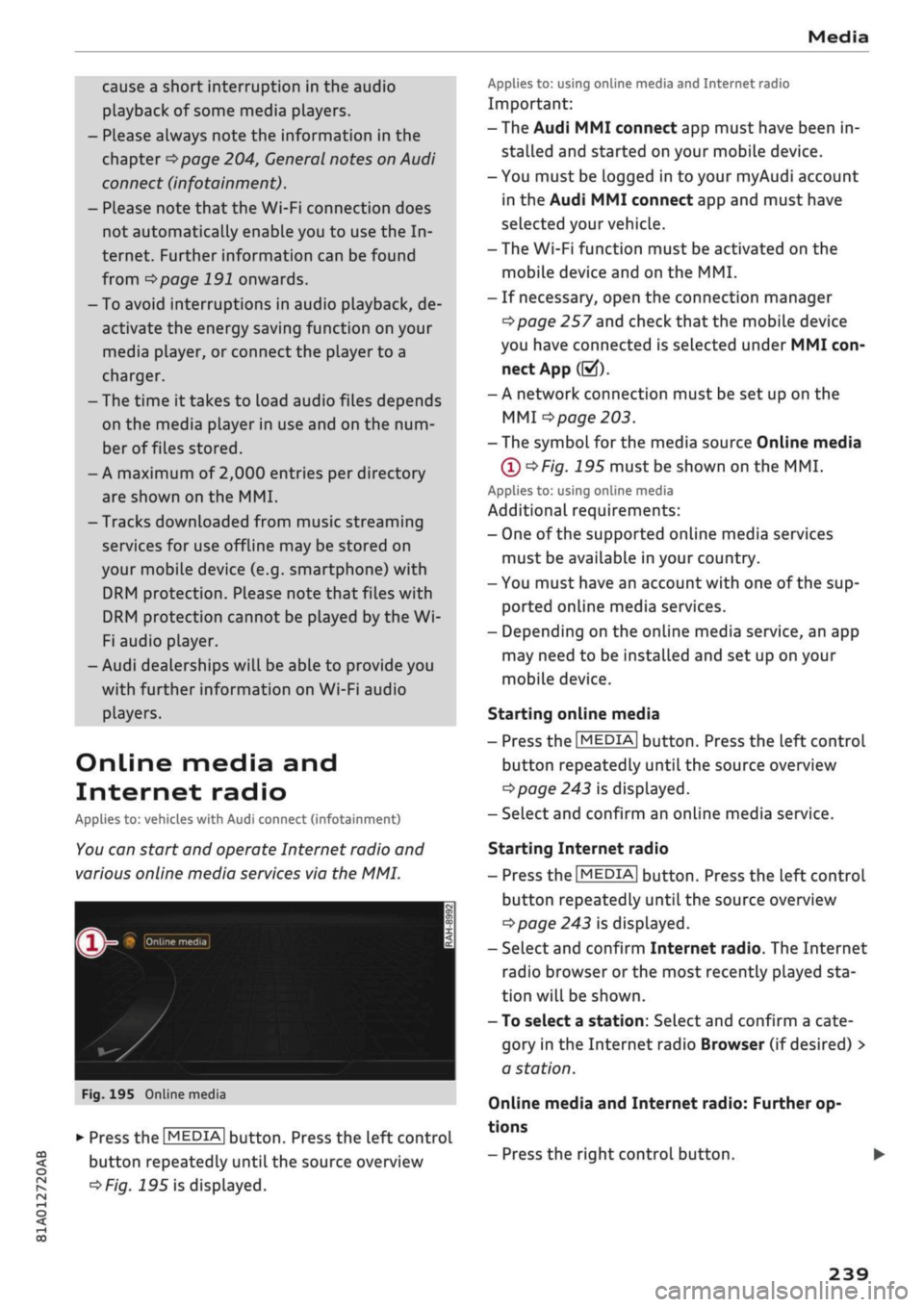
- The symbol for the media source Online media
@^Fig.
195 must be shown on the MMI.
Applies
to: using online media
Additional requirements:
- One of the supported online media services
must be available in your country.
- You must have an account with one of the sup
ported online media services.
- Depending on the online media service, an app
may need to be installed and set up on your
mobile device.
Starting online media
- Press
the|MEDIA|
button. Press the Left controL
button repeatedly until the source overview
^>page
243 is displayed.
- Select and confirm an online media service.
Starting Internet radio
- Press the
|MEDIA|
button. Press the left control
button repeatedly until the source overview
Opage
243 is displayed.
- Select and confirm Internet radio. The Internet
radio browser or the most recently played sta
tion will be shown.
- To select a station: Select and confirm a cate
gory in the Internet radio Browser (if desired) >
a station.
Online media and Internet radio: Further op
tions
- Press the right control button.
239
Page 244 of 364
Media
The following options may be available depend
ing on the information displayed (e.g. the sta
tion/track currently playing):
- Sound settings: Refer to
^>page
260.
- Wi-Fi settings: Refer to
Opage
201, Wi-Fi hot-
spot.
- Connection manager: Refer to
<>page
257.
- Additional options may be available depending
on the active online media service or Internet
radio function.
A WARNING
- Mobile devices, tablet and laptop computers
and devices of
a
similar weight can only be
operated safely when the vehicle is station
ary. Like any Loose object, they can be cata
pulted through the vehicle in an accident
and cause serious injuries. Always make sure
that such devices are securely stowed while
you are driving.
- No Wi-Fi devices may be used from the front
seats in the areas around the airbags while
the vehicle is being driven. Please also ob
serve the safety warnings on
^>page
282,
Front airbags.
© CAUTION
- Please always observe the information
•=>©
in Wi-Fi hotspot on page 202.
- In order to use online media, you generally
have
to
set up an account with an online
media service, which may lead
to
additional
costs,
especially if
you
are using the service
abroad.
© Note
- Depending on the Internet connection and
network
load,
playback of the online media
services may be interrupted.
- Whether online media and Internet radio
can be used depends on the availability
of
services provided by third parties.
- AUDI AG only enables you
to
access online
media services via the MMI system and ac
cepts no responsibility for the content of
online media services.
- Please always note the information in the
chapter
^>page
204, General notes on Audi
connect (infotainment).
- Depending on the mobile device you are us
ing,
you may experience interruptions
in
media playback when using the Audi MMI
connect app. To avoid interruptions, keep
the Audi MMI connect app running in the
foreground and do not lock the screen on
your mobile device.
- Audi dealerships will be able
to
provide you
with further information on online media.
Multimedia connections
USB adapters for Audi music interface or
USB charging socket
Depending on the vehicle equipment, you may be
able
to
connect your mobile devices (e.g. smart-
phones, MP3 players)
to
the Audi music interface
or the
USB
charging socket using the special
USB
adapters.
<
Fig.
196 Audi USB adapters
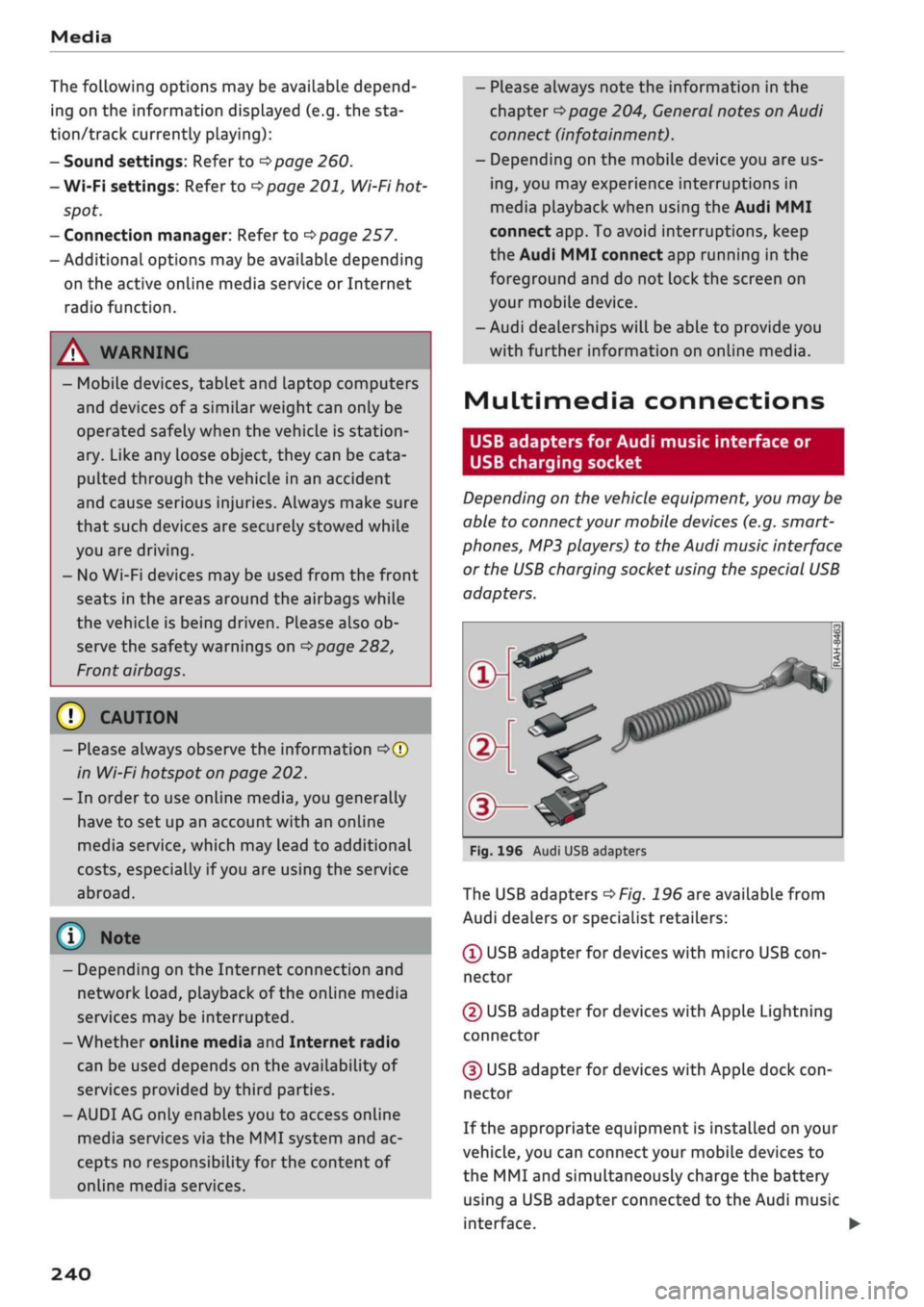
The USB adapters
^>Fig.
196 are available from
Audi dealers or specialist retailers:
® USB adapter for devices with micro USB
con
nector
© USB adapter for devices with Apple Lightning
connector
© USB adapter for devices with Apple dock
con
nector
If the appropriate equipment is installed on your
vehicle, you can connect your mobiLe devices
to
the MMI and simultaneously charge the battery
using a USB adapter connected
to
the Audi music
interface.
•
240
Page 252 of 364

Media
Display DVD menu
The DVD main menu will be called up on the info
tainment display.
- To select a menu option: Select and confirm a
menu option. Or: Move your finger on the MMI
touch
pad*
and press the rotary pushbutton.
Audio track1
'
You can adjust the audio track (language and au
dio format) manually. It depends on the video
DVD whether different languages and audio for
mats are available.
Subtitles1'
You can select subtitles manually. It depends on
the video DVD whether different languages are
available.
Picture format
We recommend using the automatic setting for
the picture format. Depending on the active file
or source (e.g. video file*, DVD*), you may be able
to adjust the picture format.
Picture for
mat
automatic
zoom
Description
The MMI detects the picture for
mat of the source and dispLays the
picture using the best possibLe
width-to-height ratio. Depending
on the source format and the info
tainment display installed, black
bars may be displayed on the edges
of the picture.
The picture is enlarged to fill the
infotainment display. Switch this
function off if the picture is distor
ted.
Picture for
mat
cinema
scope
original
4:3
16:9
Description
Use this setting for films in the
cin
ema format 21:9. Black bars will
be shown on the upper and Lower
edges of the infotainment display.
The picture will be displayed using
the picture ratio of the source for
mat. Select this option if the pic
ture shown with auto selected is
distorted or partially cut off.
The picture is set to a width-to-
height ratio of
4:3.
Black bars will
be shown on the edges of the info
tainment display.
The picture is set to a width-to-
height ratio of 16:9. Black bars will
be shown on the upper and lower
edges of the infotainment display.
(T)
Note
- Not all video DVDs have a child lock feature.
- The child lock safety levels comply with the
US standards of the Motion Picture Associa
tion of America (MPAA). Please note that
age ratings for DVDs may vary between
dif
ferent European countries.
- If
you
enter the wrong child lock password
three times in a row, you will not be able to
enter
a
password for approximately one mi
nute.
The password can only be reset by an
Audi workshop.
automatic
zoom
The MMI detects the picture for
mat of the source and dispLays the
picture using the best possibLe
width-to-height ratio. Depending
on the source format and the info
tainment display installed, black
bars may be displayed on the edges
of the picture.
The picture is enlarged to fill the
infotainment display. Switch this
function off if the picture is distor
ted.
May not be possible during playback (depends on the
DVD).
248
Page 260 of 364

System settings
phone in the Audi phone box*. The following set
tings are available:
- off: Switches the reminder signal off.
-
sound:
A sound is played as the reminder
sig
nal.
- spoken: The reminder signal is spoken by the
system.
Reminder signal volume: You can adjust the
vol
ume of the reminder signal by turning the rotary
pushbutton.
Switch off pop-up: This function is switched off
at the factory. When this function is switched on
fcTf,
the messages about the charging status of
the mobile phone in the Audi phone box* on the
infotainment display will not appear. The re
minder not to forget the mobile phone when
leaving the vehicle will also be switched off.
Usage tips
Your MMI dispLays usage tips when this function
is switched on
5f.
They will appear less often as
time goes by.
Speech dialogue system
Applies to: vehicles with speech dialogue system
The following functions are available depending
on the equipment installed in your vehicLe:
Command display: The MMI displays possible
voice commands in the corresponding menu
when this function is switched on
Sf.
Short dialogue: When this function is switched
on
(vj,
the spoken cues are shortened.
Command during speech dialogue*: This option
is activated when the vehicle leaves the factory.
When this option is activated
(vf,
you can say a
new command while the system is giving a spo
ken cue, rather than waiting for the beep. When
this option is deactivated
O,
wait until you hear
the beep to say
a
command.
Volume: You can adjust the volume of the spoken
cues by turning the rotary pushbutton.
Individual speech training (only possibLe when
the vehicle is stationary): You can use the individ
ual speech training to adapt the speech dialogue
system to your voice or pronunciation so that the
speech dialogue system can then better recog
nise what you are saying. The individual speech
training prompts you to repeat 20 spoken phra
ses that consist of certain commands and blocks
of digits. If
you
would like to delete the stored
speech training setup, you can use the function
Reset individual speech training.
Display brightness
Display brightness: You can adjust the bright
ness of the infotainment display by turning the
rotary pushbutton.
Factory settings
You can reset the following functions to the fac
tory settings:
- Sound settings
- Radio
- Media settings
-Jukebox*
- Directory
-Telephone
- Bluetooth and Wi-Fi*
- Navigation settings*
- Navigation and online memory*
- Speech dialogue system*
- Message settings*
- Apps*
-Usage tips
-Audi connect*
- Audi smartphone interface*
You can select the desired options individually or
mark Select all entries. SeLect and confirm Re
store factory settings.
Please note that not only settings will be de
Leted
when you do this; saved data may also
be erased
256
Page 261 of 364

System settings
Connection manager
Introduction
The
connection manager
gives
you an overview
of your connected
devices
and their connection
status.
Settings
Connection manager
*
MyPhone
• Additional
phone:
-• Data
connection:
• MMI connect app:
• Audi smartphone:
Fig.
205 Connection manager
•
Select: IMENUI button > Settings
>
Left control
button > MMI settings > Connection manager.
•
Select and confirm a menu option.
If
a
mobile device has already been connected
and you then select and confirm the correspond
ing menu item, the device's name and connection
mode is displayed under this menu item
^Fig.
205.
You can connect
((vj)
or disconnect
O)
a connec
ted device individually.
Telephone
Applies
to: vehicles with telephone
- Connect new device: You can search for and
connect
a
mobile phone.
- List of devices already bonded: Select your mo
bile phone from the List of all devices which
have already been bonded. Or: Insert your own
mini SIM card in the SIM card reader*
^>page
176.
Second phone
Applies
to: vehicles with Audi phone box
- Connect new device: You can search for and
connect
a
mobile phone.
- List of devices already bonded: Select your mo
bile phone from the List of all devices which
have already been bonded.
Data connection
Applies
to: vehicles with Audi connect (infotainment)
Applies
to: option using the embedded SIM card
- The embedded SIM
card1)
will be used for the
data connection
^>page
191. You do not need
to adjust any other settings.
Applies
to: option using your own SIM card
- Connect new device: You can search for and
connect
a
mobile device (e.g. a smartphone).
- List of devices already bonded: Select your mo
bile phone from the List of all devices which
have already been bonded. Or: Insert your own
mini SIM card in the SIM card reader*.
© CAUTION
Please always observe the information
•=>©
in
Wi-Fi hotspot on page 202.
MMI connect app
Applies
to: vehicles with Audi connect (infotainment)
Important: The Audi MMI connect app must be
installed on your mobile device and have been
started.
- Connect new device: You can search for and
connect
a
mobile device (e.g. a smartphone).
- List of devices already bonded: Select your mo
bile device from the List of all devices which
have already been bonded.
Music
Applies
to: vehicles with Bluetooth audio player or Wi-Fi au
dio
player
Audio player*
Important: The Bluetooth function and the dis
coverability option of both the MMI system
opage
258 and the mobile phone must be
acti
vated.
CO
rN
IV
rN
t-H
o <
x)
SIM card installed in vehicle at factory.
257
Page 308 of 364
Checking and topping up fluids
© CAUTIO
-The anti-freeze concentration must be
matched to the climate of the country in
which you are driving. If the concentration
is too
high,
damage to the car may result.
- Never put in radiator anti-freeze or other
additives.
- Never use washer fluid which contains paint
thinners or solvents as it can damage the
paintwork.
Service interval display
The
service interval display detects when the
next
service
is due
for
your vehicle.
There are two service interval dispLay levels:
- Inspection or oil change reminder: After a cer
tain mileage, a service reminder will appear in
the instrument cluster dispLay each time the ig
nition is switched on/off. The distance or time
remaining will be shown briefly.
- Inspection or oil change due: When your
vehi
cle is due for an inspection, oil change or
both,
the corresponding reminder Inspection
due!,
Oil change due! or Oil change and inspection
due!
will appear briefly after you switch the ig
nition on/off.
Checking the service intervals
On the infotainment system, you can look up the
distance and time remaining until the next oil
change or next service inspection. Select the
fol
lowing on the infotainment system:
|MENU|
but
ton > Car
>
left control button > Servicing &
checks
>
Service intervals.
Applies
to: vehicles with flexible oil change service
You cannot check the service interval on a new
vehicle until it has been driven for about 500 km.
Qualified workshops reset the service interval af
ter the oil is changed. The distance to the next oil
change is initially displayed based on the driving
profile prior to the oil change. Your own personal
driving profile is used subsequently to calculate
the remaining distance. Frequent cold starts or
short trips place extra demands on the engine oil
with the result that the oil has to be changed
more often.
Resetting the display
Your qualified workshop resets the service inter
val display after each service.
It is very important that you reset the oil change
dispLay if
you
change the oil yourself. The
next
oil
change will be due after
a
fixed service interval.
To reset the display, select the following on the
infotainment system:
|MENU|
button > Car
>
left
control button > Servicing & checks
>
Service in
tervals
>
Reset oil change interval.
(J) CAUTION
- Do not reset the oil change interval display
unless you have changed the oil.
- Keeping to the correct service intervals is
crucial for the operation, service life and re
sidual value of the vehicle (and especially
for the life of the engine). Services must al
ways be carried out promptly, even if the
mileage is Low.
304
Page 315 of 364
Storing tyre pressure settings
Applies to: vehicles with tyre pressure loss indicator
When
you change a tyre or the tyre pressure on
your vehicle, you must confirm the change on the
system.
Before storing the new tyre pressures, check that
the current pressures on all four wheels corre
spond to the specified values and adapt the pres
sures to the current Load
^>page
306.
•
Select the following on the infotainment sys
tem:
|MENU|
button > Car
>
left control button
Servicing & checks
>
Tyre pressure loss indica
tor
>
Store tyre pressures
>
Yes, store now.
Do not store the tyre pressures if
you
are driv
ing with snow chains.
Page 328 of 364

Mobility
not possible to tighten the bolts to the re
quired torque using the hexagonal socket
risk
of accident!
© CAUTION
When removing/fitting the wheel the rim
may hit and damage the brake disc. For this
reason,
please take care and get
a
second per
son to assist you.
(T) Note
The wheel bolts are easier to remove from the
wheel rim if
you
use the hexagonal socket in
the screwdriver handle. The reversible screw
driver blade should be removed as a precau
tionary measure when the tool is used for this
purpose.
Tyres with directional tread pattern
A directional tread pattern can be identified by
arrows on the sidewall that point in the direction
of rotation. Always note the direction of rotation
indicated when mounting the wheel. This is im
portant so that these tyres can give maximum
grip and avoid excessive noise, tread wear and
aquaplaning.
If
you
ever have a puncture and need to fit the
spare wheel* in the wrong direction, please drive
with extra care because the tyre will not give op
timum performance in this situation. Bear this in
mind particularly when driving on wet roads.
To benefit from the advantages of tyres with this
type of tread pattern, the defective tyre should
be replaced and refitted as soon as possible so
that all tyres again rotate in the correct direction.
After changing a wheel
• Fit the hubcap or wheel bolt caps back on, as
required.
• Put the tools and jack back in the luggage com
partment.
• If the replaced wheel will not fit into the spare
wheel
well,
stow it safely in the luggage com
partment
*page
272.
• Check the tyre pressure of the fitted wheel as
soon as possible.
• On vehicles with tyre pressure loss indicator,
adjust the tyre pressures and store them via the
infotainment system
opage
311.
• The wheel bolts should be tightened to 140
Nm.
Have this checked as soon as possibLe with
a torque wrench. Until
then,
drive with caution.
• Have the flat tyre replaced as quickly as possi
ble.
Spare wheel
General notes
Applies to: vehicles with compact temporary spare wheel
Fig.
266 Luggage compartment: Floor panel folded up
Fig.
267 Compact temporary spare wheel (example)
The compact temporary spare wheel
*Fig.
267 is
only intended for temporary use over short dis
tances. Have the damaged wheel checked as soon
as possible by
a
qualified workshop and, if neces
sary, replaced.
PLease note the following restrictions when using
the compact temporary spare wheel. The com
pact temporary spare wheel is designed specifi
cally for this model. For this reason, do not use a
spare wheel from a different type of
vehicle.
•
324
Page 337 of 364
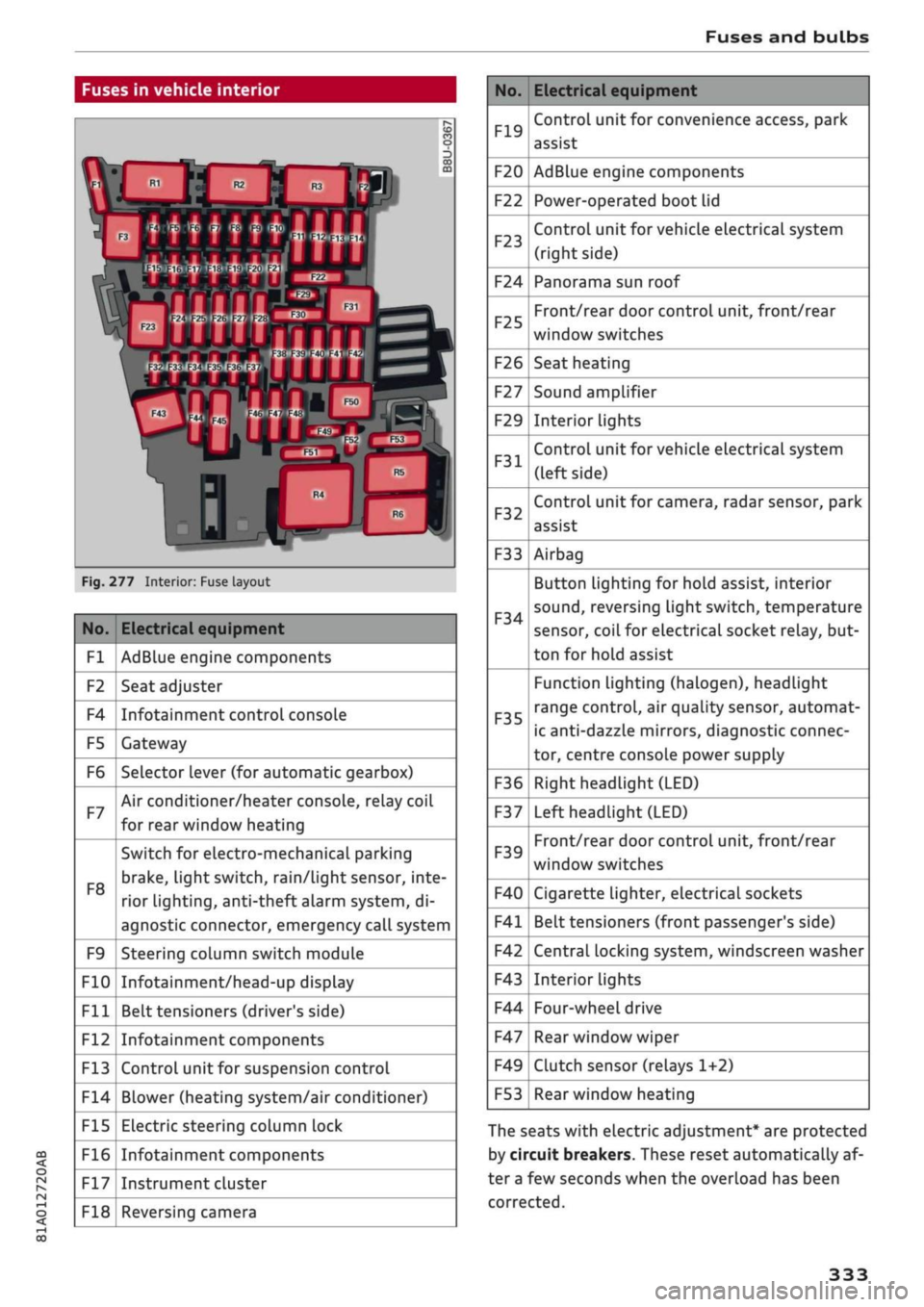
Fuses and bulbs
: -•.
-
i:i
m
R2 R3
F22
F-XII
F31
F30
:-:-.'
'.,
FM F43
F49
F!)3
F52
F51
R!,
a
R6
Fig.
277 Interior: Fuse layout
No.
Fl
F2
F4
F5
F6
F7
F8
F9
F10
Fll
F12
F13
F14
F15
F16
F17
F18
Electrical equipment
AdBlue engine components
Seat adjuster
Infotainment control console
Gateway
Selector lever (for automatic gearbox)
Air conditioner/heater console, relay coil
for rear window heating
Switch for electro-mechanical parking
brake,
light switch,
rain/Light
sensor, inte
rior lighting, anti-theft
aLarm
system, di
agnostic connector, emergency call system
Steering column switch module
Infotainment/head-up display
Belt tensioners (driver's side)
Infotainment components
Control unit for suspension control
Blower (heating system/air conditioner)
Electric steering column lock
Infotainment components
Instrument cluster
Reversing camera
No.
F19
F20
F22
F23
F24
F25
F26
F27
F29
F31
F32
F33
F34
F35
F36
F37
F39
F40
F41
F42
F43
F44
F47
F49
F53
Electrical equipment
Control unit for convenience access, park
assist
AdBlue engine components
Power-operated boot lid
Control unit for vehicle electrical system
(right side)
Panorama sun roof
Front/rear door control unit, front/rear
window switches
Seat heating
Sound amplifier
Interior lights
Control unit for vehicle electrical system
(left side)
Control unit for camera, radar sensor, park
assist
Airbag
Button Lighting for hold assist, interior
sound,
reversing light switch, temperature
sensor, coiL for electrical socket reLay, but
ton for hold assist
Function lighting (halogen), headlight
range control, air quality sensor, automat
ic anti-dazzle mirrors, diagnostic connec
tor, centre console power supply
Right headlight (LED)
Left headlight (LED)
Front/rear door control unit, front/rear
window switches
Cigarette lighter, electrical sockets
Belt tensioners (front passenger's side)
Central locking system, windscreen washer
Interior lights
Four-wheel drive
Rear window wiper
Clutch sensor (relays 1+2)
Rear window heating
The seats with electric adjustment* are protected
by circuit breakers. These reset automatically af
ter a few seconds when the overload has been
corrected.
333