ECU AUDI Q2 2021 Owner´s Manual
[x] Cancel search | Manufacturer: AUDI, Model Year: 2021, Model line: Q2, Model: AUDI Q2 2021Pages: 364, PDF Size: 87.77 MB
Page 101 of 364

Towing
a
trailer
CO
< o rN
iv
rN
t-H
o < 00
have friction linings at the sides to prevent exces
sive wear. Degrease and clean the ball joint be
fore using a stabiLiser. The stabiliser can be pur
chased and installed
at
a qualified workshop.
Electronic stabilisation control
The
ESC
-
in particular in conjunction with the
trailer stabilisation system
o^page
97 - makes
it
easier to stabilise a trailer
if it
starts to skid
or
sway. You should therefore keep the
ESC
switch
ed on
at
all times.
Overheating
In hot weather, keep an eye on the coolant
tem
perature gauge
^page
13. When climbing long
hills with the engine running fast in low gear, the
coolant temperature can increase. Reduce speed
immediately
if
the needle moves to the right end
of the scale. For information on the warning
lamp
||
refer to
opage
30.
Rear carrier systems
When using rear carrier systems (e.g. bicycle
racks) on the towing bracket,
it
is important not
to exceed the maximum load.
The total weight
of
the rear carrier system and
its
load must not exceed
75
kg for this vehicle. How
ever,
it
is also important to observe the maxi
mum permissible load for the rear carrier sys
tem.
The greater the distance from the towing brack
et, the smaller the maximum permissible Load
on
the rear carrier system. For this reason, you
should secure heavy objects as near as possible
to the towing bracket.
Note the instructions provided by the manufac
turer of the rear carrier system.
Please make sure that the rear carrier system
is
approved for use on your vehicle.
l
Note
A WARNING
The use of an unsuitable rear carrier system
could cause severe damage
to
the towing
bracket. The towing bracket could then break
and cause an accident.
Degrease and clean the ball joint before using
a rear carrier system.
Removable towing
bracket
Introduction
Applies to: vehicles with removable towing bracket
Special care is required when fitting and remov
ing the towing bracket.
Fig.
84 Luggage compartment:
Ball
joint for towing brack
et (stowage example)
The removable ball joint attachment for the tow
ing bracket is stored under the floor panel or in a
separate bag on the floor of the luggage com
partment.
The ball joint can be fitted and removed by hand.
WARNING
Never use tools of any kind when fitting and
removing the ball joint. This could damage
the mechanism which locks the
ball
joint
in
place and impair its safety
-
risk of accident!
© Note
- Do not attempt to modify or repair the ball
joint or other towing bracket components.
- Should you have any difficulties when using
the towing bracket, or suspect that
it
is not
fitted properly, contact
a
qualified work
shop.
- Before setting off, always check that the
ball
joint is secured properly
Opage
101.
99
Page 102 of 364
Towing a trailer
- Never disengage the ball joint with the cara
van / trailer still hitched or with a bicycle
rack or similar accessory still attached.
- It is advisable to remove the ball joint when
you are not towing a trailer. Check whether
the plug is properly inserted in the mount
ing fixture and that the bumper cover is fit
ted.
-The
ball
joint must be removed if
you
intend
to clean the car with a steam cleaning at
tachment. Check whether the plug is prop
erly inserted in the mounting fixture and
that the bumper cover is fitted.
- For installation and removal of the ball joint
we recommend using the gloves provided
for
this purpose.
Fitting the ball joint (step 1)
Applies to: vehicles with removable towing bracket
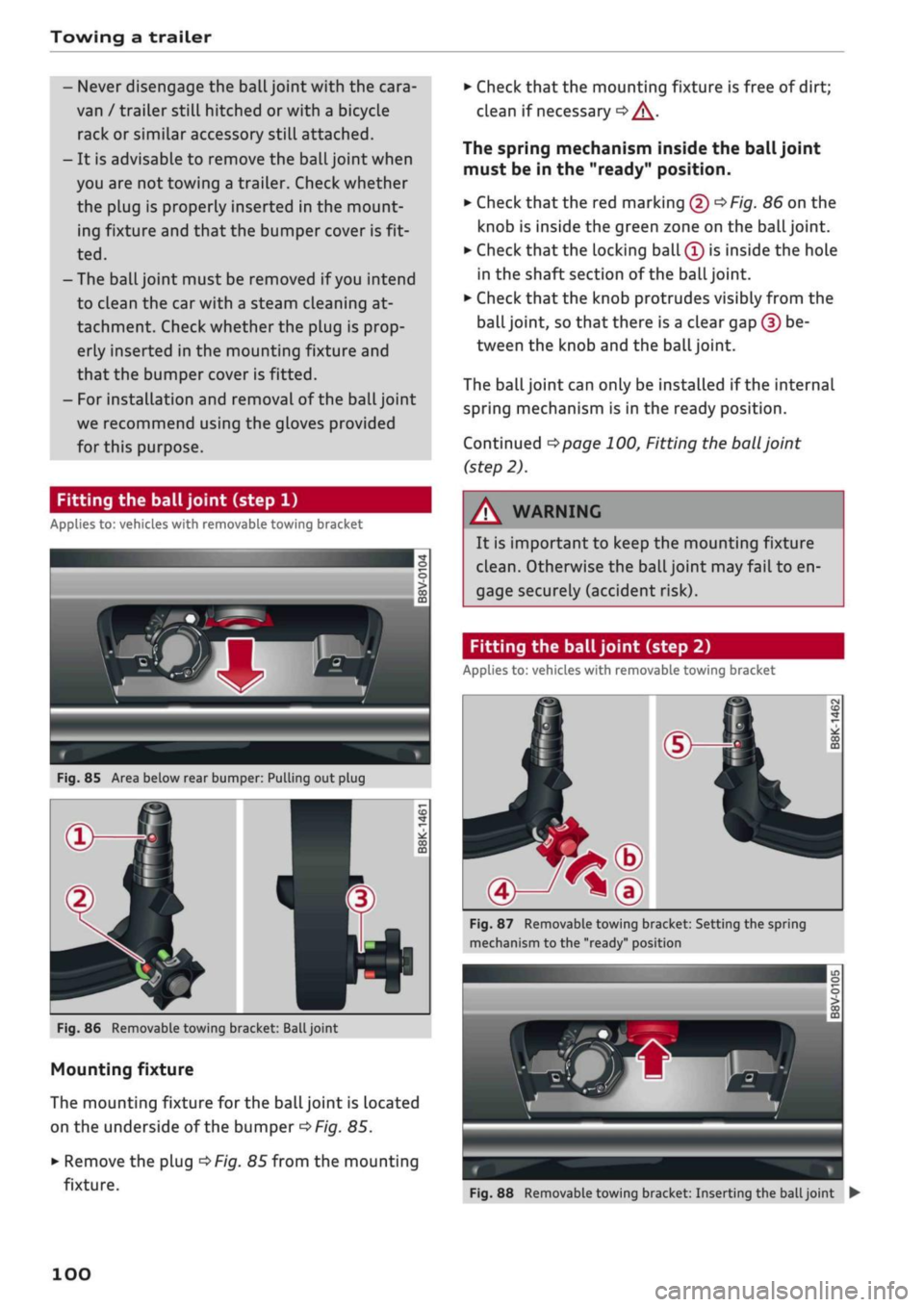
Fig.
85 Area below rear bumper: Pulling out plug
Fig.
86 Removable towing bracket:
Ball
joint
Mounting fixture
The mounting fixture for the ball joint is located
on the underside of the bumper
^>Fig.
85.
•
Remove the plug
^>Fig.
85 from the mounting
fixture.
•
Check that the mounting fixture is free of dirt;
clean if necessary
•=> /\.
The spring mechanism inside the ball joint
must be in the "ready" position.
•
Check
that
the red marking (5)
^>Fig.
86 on the
knob is inside the green zone on the
ball
joint.
•
Check that the locking ball
(Î)
is inside the hole
in the shaft section of the
ball
joint.
•
Check that the knob protrudes visibly from the
ball joint, so that there is a clear gap (?) be
tween the knob and the
ball
joint.
The
ball
joint can only be installed if the internal
spring mechanism is in the ready position.
Continued
^>page
100, Fitting the
ball
joint
(step 2).
WARNING
It is important to keep the mounting fixture
clean.
Otherwise the ball joint may fail to en
gage securely (accident risk).
Fitting the ball joint (step 2)
Applies to: vehicles with removable towing bracket
Fig.
87 Removable towing bracket: Setting the spring
mechanism to the "ready" position
Fig.
88 Removable towing bracket: Inserting the
ball
joint •
100
Page 104 of 364
Towing a trailer
ball joint must be fitted again properly
^>page
100. Please contact a qualified work
shop in the event of
a
technical fault.
(T) Note
•
The eye ® on the towing bracket is intended
only for securing the safety cable of the
trail
er.
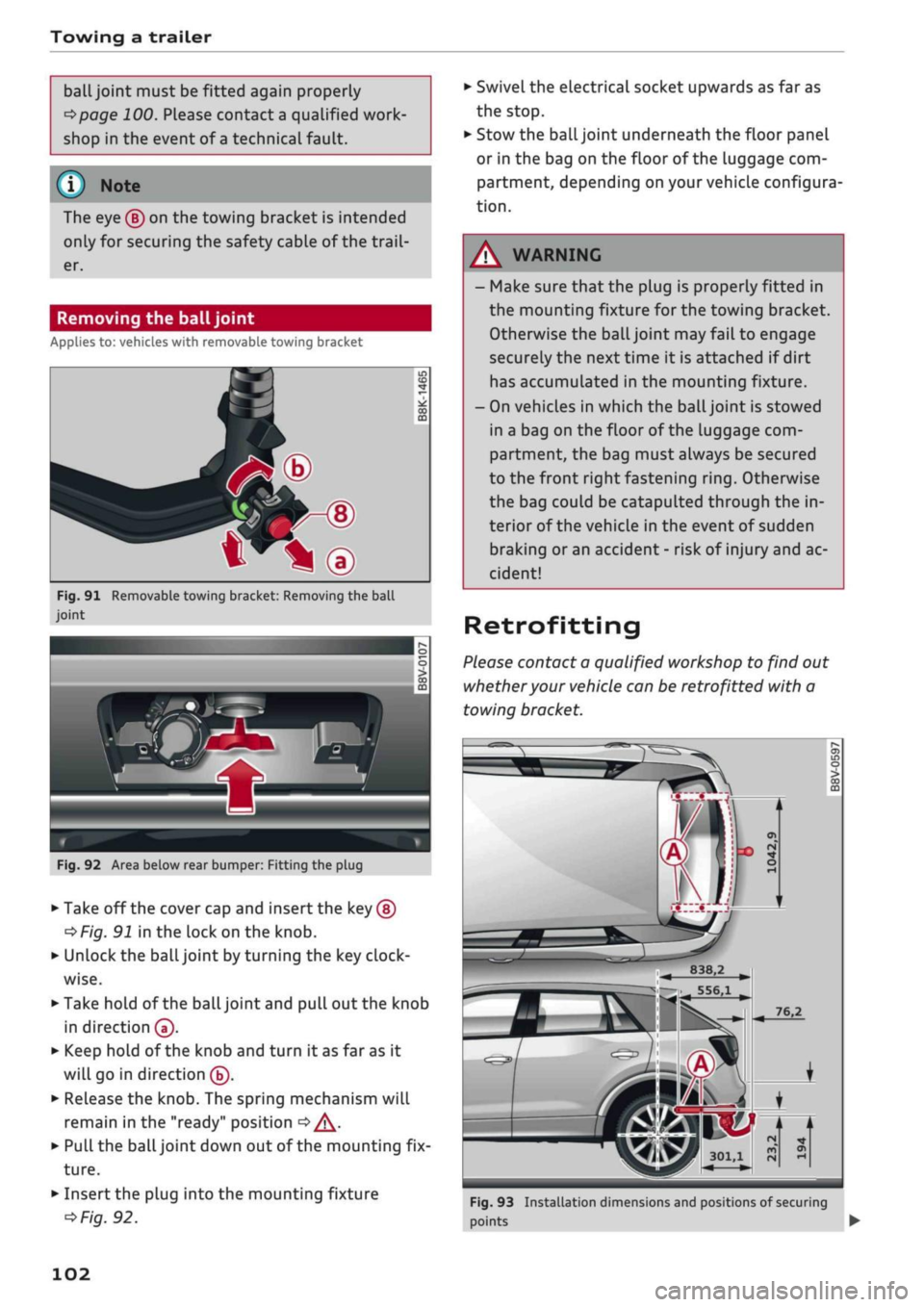
Removing the ball joint
Applies to: vehicles with removable towing bracket
*—d
^•^Pfip-®
—
t*\®
Fig.
91 Removable towing bracket: Removing the ball
joint
IT)
CD
CO
m
Fig.
92 Area below rear bumper: Fitting the plug
•
Take off the cover cap and insert the key ®
^Fig.
91 in the lock on the knob.
•
Unlock the ball joint by turning the key
clock
wise.
•
Take hold of the ball joint and pull out the knob
in direction®.
•
Keep hold of the knob and turn it as far as it
will go in direction ®.
•
Release the knob. The spring mechanism will
remain in the "ready" position
<=> /\.
•
Pull the ball joint down out of the mounting fix
ture.
•
Insert the plug into the mounting fixture
^>Fig.
92.
•
Swivel the electrical socket upwards as far as
the stop.
•
Stow the ball joint underneath the floor panel
or in the bag on the floor of the Luggage com
partment, depending on your vehicle configura
tion.
- Make sure that the plug is properly fitted in
the mounting fixture for the towing bracket.
Otherwise the ball joint may fail to engage
securely the next time it is attached if dirt
has accumulated in the mounting fixture.
- On vehicles in which the
ball
joint is stowed
in a bag on the floor of the luggage com
partment, the bag must always be secured
to the front right fastening
ring.
Otherwise
the bag could be catapulted through the in
terior of the vehicle in the event of sudden
braking or an accident - risk of injury and ac
cident!
Retrofitting
Please contact a qualified workshop to find out
whether your vehicle can be retrofitted with a
towing bracket.
I
B38.2
556,1
301,1
Fig.
93 Installation dimensions and positions of securing
points •
102
Page 105 of 364
Towing a trailer
CO
rN
rN
•-i
00
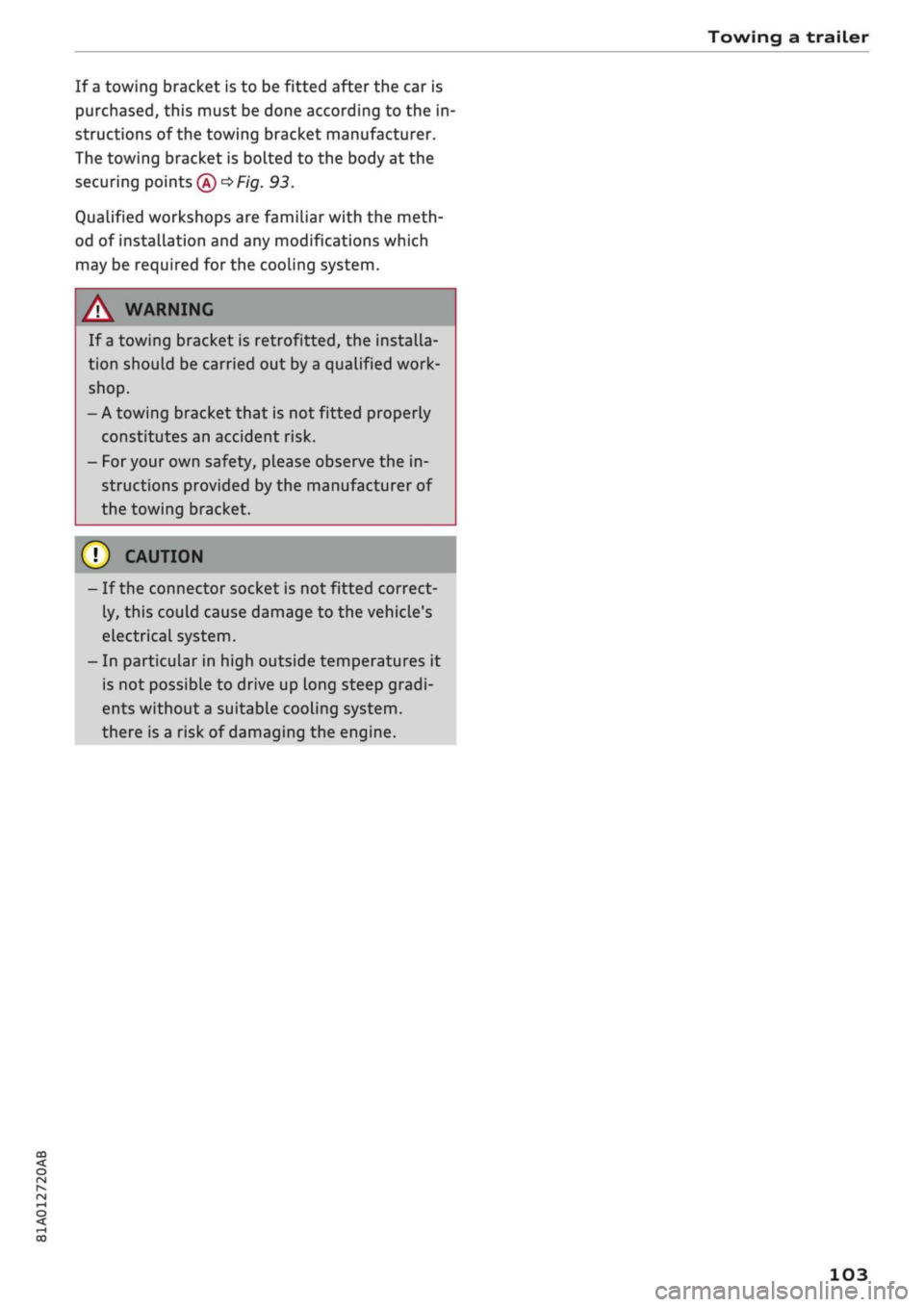
If a towing bracket is to be fitted after the car is
purchased,
this must be done according to the in
structions of the towing bracket manufacturer.
The towing bracket is bolted to the body at the
securing points®
^F/'g.
93.
Qualified workshops are familiar with the meth
od of installation and any modifications which
may be required for the cooling system.
/\
WARNING
If a towing bracket is retrofitted, the installa
tion should be carried out by a qualified work
shop.
- A towing bracket that is not fitted properly
constitutes an accident risk.
- For your own safety, please observe the in
structions provided by the manufacturer of
the towing bracket.
©
1
CAUTION
- If the connector socket is not fitted correct
ly, this could cause damage to the vehicle's
electrical system.
- In particular in high outside temperatures it
is not possible to drive up Long steep gradi
ents without a suitable cooling
system,
there is a risk of damaging the engine.
103
Page 124 of 364
Driver assist systems
provided tempt you into taking any risks when
driving - this can cause accidents.
- Please note that pre sense front can give
warnings or apply the brakes unexpectedly.
Always secure your luggage to prevent dam
age and possible injury.
- Due to inherent system limitations, false ac
tivation of the system is possible.
- Please note that the sensor is not always
able to detect all objects which may repre
sent a potential hazard - risk of accident!
- Pre sense front does not react to the follow
ing:
oncoming traffic in the same lane, sta
tionary or stopped persons, pedestrians
crossing the road at an angle, groups of
people, animals, or objects that are hard to
recognise •=>
A in General notes on
page 112.
A WARNING
The pre sense front functions may be restric
ted or unavailable in situations such as the
following:
- If objects such as crash barriers or other
vehicles are reflecting additional light.
- At tunnel entrances.
- In heavy fog,
rain,
road spray or snow.
- If the radar sensor is dirty, frosted, dam
aged or covered.
- When driving through a corner.
-Applies to: front-wheel drive vehicles: If the
ESC system has been partially or fully deac
tivated.
© CAUTION
Impacts or damage to the bumper, wheel
arches or underbody can cause misalignment
of the sensor. This can impair the function of
the pre sense front system. Have the systems
checked by a
quaLified
workshop.
© Note
-The automatic brake application with in
creasing brake force can be cancelled by ap
plying the brakes yourself or by pressing the
accelerator firmly or by taking evasive ac
tion.
- Applies to: front-wheel drive vehicles: Cer
tain pre sense front functions are deactiva
ted when the ESC
offroad
mode is switched
on and when reversing.
- Applies to: front-wheel drive vehicles: The
pre sense is deactivated if you restrict or
switch off the ESC
^>page
146.
Settings on the infotainment system
Applies to: vehicles with Audi pre sense front/Audi adaptive
cruise control
•
Select the following on the infotainment sys
tem:
|MENU|
button > Car > left control button
> Driver assist > Audi pre sense.
System - The pre sense functions can be switched
on/off.
Advance
warning15
- You can switch the advance
warning off or set the warning time for pre sense
front (early/medium/late).
Start by setting the advance warning to early. If
you then find that the system warns you earlier
than desired, you can set the advance warning to
medium.
The advance warning should be set to
late only in exceptional cases, such as during very
dynamic driving.
If a system or the advance warning function is
switched off, it will be automatically activated
again the next time you switch on the
ignition15.
Driver messages
Applies to: vehicles with Audi pre sense
Audi pre sense: fault. Please contact work
shop
This message appears if the functions of the pre
sense system are impaired. An impairment can
occur, for example, if a sensor fails. If the mes
sage remains displayed permanently, drive to a
qualified workshop soon and have the fault
recti
fied.
•
x)
Not available on vehicles for some markets.
122
Page 132 of 364
Driver assist systems
Rear cross-traffic assist
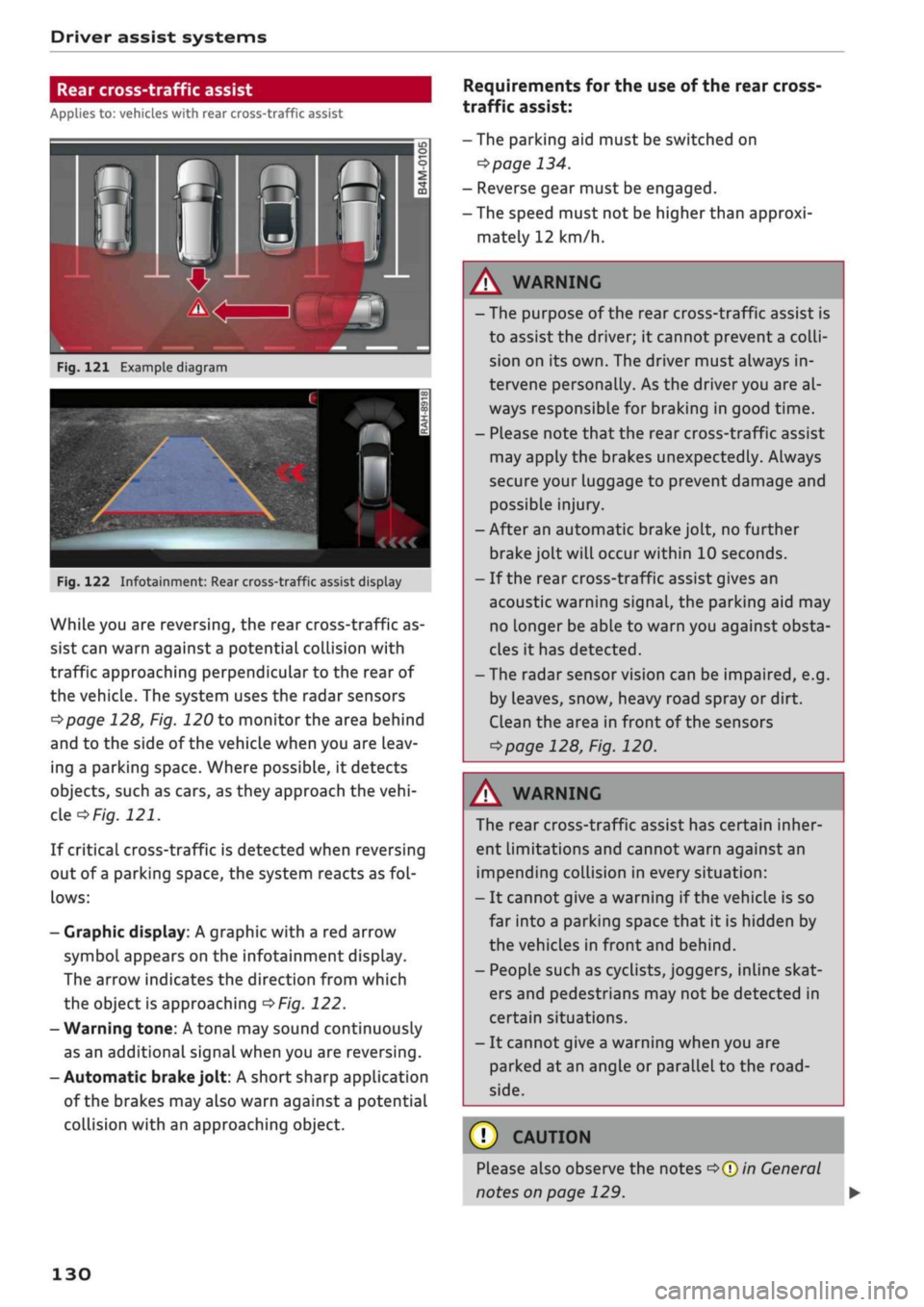
Applies to: vehicles with rear cross-traffic assist
Fig.
121 Example diagram
Fig.
122 Infotainment: Rear cross-traffic assist display
While you are reversing, the rear cross-traffic as
sist can warn against a potential collision with
traffic approaching perpendicular to the rear of
the vehicle. The system uses the radar sensors
^page
128, Fig. 120 to monitor the area behind
and to the side of the vehicle when you are leav
ing a parking space. Where possible, it detects
objects, such as cars, as they approach the
vehi
cle
of/g.
121.
If critical cross-traffic is detected when reversing
out of a parking space, the system reacts as
fol
lows:
- Graphic display: A graphic with a red arrow
symbol appears on the infotainment display.
The arrow indicates the direction from which
the object is approaching
^>Fig.
122.
- Warning tone: A tone may sound continuously
as an additional signal when you are reversing.
-Automatic
brake
jolt: A short sharp application
of the brakes may also warn against a potential
collision with an approaching object.
Requirements for the use of the rear cross-
traffic assist:
-The parking aid must be switched on
^>page
134.
- Reverse gear must be engaged.
- The speed must not be higher than approxi
mately 12 km/h.
A
WARNING
- The purpose of the rear cross-traffic assist is
to assist the driver; it cannot prevent a
colli
sion on its own. The driver must always in
tervene personally. As the driver you are al
ways responsible for braking in good time.
- Please note that the rear cross-traffic assist
may apply the brakes unexpectedly. Always
secure your luggage to prevent damage and
possible injury.
-After an automatic brake jolt, no further
brake jolt will occur within 10 seconds.
- If the rear cross-traffic assist gives an
acoustic warning signal, the parking aid may
no Longer be able to warn you against obsta
cles it has detected.
- The radar sensor vision can be impaired, e.g.
by leaves, snow, heavy road spray or dirt.
Clean the area in front of the sensors
*>page
128, Fig. 120.
A
WARNING
The rear cross-traffic assist has certain inher
ent limitations and cannot warn against an
impending collision in every situation:
- It cannot give a warning if the vehicle is so
far into a parking space that it is hidden by
the vehicles in front and behind.
- People such as cyclists, joggers, inline skat
ers and pedestrians may not be detected in
certain situations.
- It cannot give a warning when you are
parked at an angle or parallel to the
road
side.
(T)
CAUTION
Please also observe the notes
^>©in
General
notes on page 129.
130
Page 197 of 364

Audi connect (infotainment)
CO
<
O
rN
IN
rN
t-H
o < 00
- It is only possible to connect a mobile
phone via the remote SIM Access Profile on
vehicles with the Audi phone box.
- Bluetooth devices only have to be bonded
once.
Depending on the mobile phone you
are using, any devices that have already
been bonded to the MMI system are connec
ted automatically when they are within
range and the ignition is on. You can bond
several mobile phones to the MMI system;
however only one connection is active at a
time.
- You receive the SIM PIN and the PUK from
your mobile network service provider to
gether with the SIM
card.
If
you
enter the
SIM PIN code incorrectly three
times1)
in a
row, the SIM card will be be blocked. A PUK
(personal unblocking key) must be entered
in order to reactivate the SIM
card.
-The Bluetooth connection between the sys
tem and the mobile phone is automatically
terminated when you leave the car.
- For further information regarding your mo
bile phone, contact your mobile network
service provider or refer to the operating in
structions for your mobile phone. For infor
mation on using a phone in your car, please
go online (e.g. www.audi.com/bluetooth)
or ask an Audi dealer.
Option 2.3: Using a personal Wi-Fi hotspot
Applies to: vehicles with Audi connect (infotainment) and per
sonal Wi-Fi hotspot
Important
The vehicle must be stationary, and the ignition
must be switched on.
Your mobile device and mobile network provider
must support the mobile Wi-Fi hotspot function.
The personal Wi-Fi hotspot on your mobiLe device
must be activated.
Other devices must be permitted to access the
mobiLe hotspot.
Connecting the MMI to a personal hotspot
•
Select:
|MENU|
button
>
Telephone
>
right
con
trol button
>
Wi-Fi settings
>
Wi-Fi
>
on.
•
Then select and confirm Network search. The
devices found will be shown on the infotain
ment display.
• Select and confirm your personal Wi-Fi hotspot
from the List.
•
You may need to enter the password specified
by your mobile device.
• Select and confirm OK.
A
WARNINf
Mobile devices, tablet and Laptop computers
and devices of
a
similar weight can only be
operated safely when the vehicLe is stationary.
Like any loose object, they can be catapulted
through the vehicle in an accident and cause
serious injuries. Always make sure that such
devices are securely stowed while you are
driving.
(T)
CAUTION
I
The connection via the eSIM card
^>page
191
is disconnected when you use your own SIM
card.
All data connections for all Audi connect
infotainment services will use your SIM
card.
Depending on your network provider, you may
be charged for this service, especially if you
are using the system abroad. We therefore
strongly recommend
that
you use an unlimi
ted data
plan.
For more information, contact
your service provider.
- The Connection to personal hotspot option
cépage
202 will be switched on
([vf)
auto
matically during the network search.
- Please contact your mobile network service
provider to find out which functions your
mobiLe device supports.
x)
The number of possible attempts depends on the SIM
card.
195
Page 202 of 364
Audi connect (infotainment)
- Audi connect (infotainment) enables you to
access the Twitter service. Audi cannot
guarantee that these services will be availa
ble indefinitely; this is the responsibility of
Twitter.
Travel guide
Applies to: vehicles with Audi connect (infotainment)
Using the Audi MMI connect app, you can store
special destinations
on
your mobile device (e.g.
smartphone) and
use
them for route guidance
on the MMI.
Important:
The Audi MMI connect app must have been in
stalled and started on your mobile device.
You must be logged in to your myAudi account in
the Audi MMI connect app and must have selec
ted your vehicle.
The Wi-Fi function must be activated on your mo
bile device and on the MMI.
A network connection must be set up on the MMI
opage
203.
*•
Select:
|MENU|
button
>
Audi connect
>
left
control button > Category Information
>
Trav
el.
After you call up the travel guide, you will be
shown travel tips for the area you are currently
in.
These include current ratings and the category
they belong to.
•
Press the left control button to change the cat
egory (e.g. bars nearby).
A WARNING
- MobiLe devices, tablet and laptop computers
and devices of
a
similar weight can only be
operated safely when the vehicle is station
ary. Like any loose object, they can be cata
pulted through the vehicle in an accident
and cause serious injuries. Always make sure
that such devices are securely stowed while
you are driving.
- No Wi-Fi devices may be used from the front
seats in the areas around the airbags while
the vehicle is being driven. Please also ob
serve the safety warnings in the chapter on
tapage
282, Front airbags.
® CAUTION
Please always observe the information
•=>©
in
Wi-Fi hotspot on page 202.
© Note
- Measurement units, language settings and
times are displayed on the infotainment dis
play according to the how they are set in the
system settings
^>page
255.
Audi connect (infotainment) in the
navigation system
Applies to: vehicles with navigation system and Audi connect
(infotainment)
•
Select:
|MENU|
button
>
Audi connect
>
left
control button > Navigation.
The following Audi connect infotainment services
are currently available:
- Navigation with Google Earth and Google
Street View
opage
222.
- Online point of interest search with speech
dialogue system (e.g. restaurants): For
plan
ning a route using the MMI control console
^page
212 and the speech dialogue system
^>page
164.
- Adding a destination to your MMI via your
myAudi account or Google Maps
^>page
222.
- Online traffic information: Up-to-the-minute
reception of information on accidents,
road
works and other incidents
^>page
226.
- myAudi special destinations: Personal special
destinations can be imported to your MMI di
rectly in the vehicle as an online update
•=>
page 224.
- Map update: Navigation map updates can be
imported directly into the vehicle via SD card or
as an online update*
ipage
223.
© Note
- The Audi connect infotainment map update
service using an SD card allows you to find
out which software version is installed in
your vehicle. You can then check whether a
200
Page 203 of 364
Audi connect (infotainment)
CO
< o rN
IN
rN
•-H
00
new version is available at my.audi.com.
You can also have the new navigation data
installed by an Audi deaLer (carries addition
al charges).
- Further information on the myAudi special
destinations and the map update can be
found online at my.audi.com.
Audi connect (infotainment) for telephones
Applies
to: vehicles with Audi connect (infotainment)
© CAUTION
•
Select: |MENU| button
>
Audi connect
>
left
control button
>
Communication.
The following Audi connect infotainment services
are currently available:
- Creating contacts on your
PC
via your myAudi
account and loading the contacts into the di
rectory of your MMI system
^>page
187.
- Dictating text messages or e-mails and having
them read out*
^>page
182, Messages.
Audi connect (infotainment) in the media
menu
Applies
to: vehicles with Wi-Fi audio player and Audi connect
(infotainment)
*•
Select: |MENU| button
>
Audi connect
>
left
control button > Entertainment.
- Wi-Fi audio player: To access the media centre
of your player (e.g. smartphone) connected via
Wi-Fi
<=>
page 238.
- Online media and Internet radio: With assis
tance from the Audi MMI connect app, this
function allows you to access and operate
vari
ous online media services using the MMI.
A WARNING
Mobile devices, tablet and Laptop computers
and devices of
a
similar weight can only be
operated safely when the vehicle is stationary.
Like any Loose object, they can be catapulted
through the vehicle in an accident and cause
serious injuries. Always make sure that such
devices are securely stowed while you are
driving.
Please always observe the information
=>®
in
Wi-Fi hotspot on page 202.
- Also refer to
opage
204, General notes on
Audi connect (infotainment).
- Please contact an Audi dealer for more in
formation on Wi-Fi audio players and for a
list of supported devices.
Further options
Applies
to: vehicles with Audi connect (infotainment)
•
Select: |MENU| button
>
Audi connect
>
right
control button.
The following options are available in the over
view of the Audi connect infotainment services:
Login*
Refer to
^>page
196, Logging into myAudi in the
vehicle.
Connection manager
Refer to
^>page
257.
Licence periods
The validity and the time remaining on your licen
ces is displayed. If the Licence expiry warning
function is switched on
(vj,
a message will be dis
played before the licence expires.
Refresh
The content of the Audi connect infotainment
service selected or the entire Audi connect (info
tainment) list is updated.
Wi-Fi hotspot
Applies
to: vehicles with Wi-Fi hotspot
You
can
use
your MMI system as a Wi-Fi hotspot
for connecting to the Internet on up to eight Wi-
Fi
devices.
Small, light Wi-Fi
devices
that are not
permanently attached to the vehicle must only
be operated from the rear seats while the vehicle
is moving.
Important: The ignition must be switched on.
201
Page 206 of 364
Audi connect (infotainment)
•
Select:
1MENU[
button
>
Telephone
>
right
con
trol button
>
Wi-Fi settings.
The following settings can be made:
Wi-Fi
The Wi-Fi hotspot is deactivated when the vehicle
leaves the factory. Switch the Wi-Fi hotspot on
before establishing an Internet connection be
tween your vehicle and your Wi-Fi device.
-
on:
The
MMI's
Wi-Fi hotspot is activated and
visible to other devices. You can connect your
Wi-Fi device to the MMI.
- off: The MMI's Wi-Fi hotspot is deactivated.
Wi-Fi devices will not be able to connect to the
Internet.
Network
key
The Wi-Fi connection between your vehicle and
the Wi-Fi device (laptop or mobile phone) is en
crypted.
Before a connection can be established,
you must enter the following values/settings
when setting up your Wi-Fi device (these values
can be edited as required):
-Access point
(SSID):
Name of the Wi-Fi net
work.
- Password: A random MMI password is set at
the factory. This password can be changed. The
encryption type WPA2 requires the password to
be at least 8 characters
long.
Please select
a
se
cure password.
- Discoverability: To switch the discoverability of
your Wi-Fi network on
([vj)
or off.
Network
search15
A list of the Wi-Fi networks available near you is
displayed.
Connection to personal hotspot15
The Wi-Fi hotspot of the MMI is activated. The
MMI can establish an Internet connection to a
personal Wi-Fi hotspot (e.g. smartphone). You
can search for your personal hotspot and connect
to the MMI using Network search. For more in
formation,
please refer to
^>page
195.
Not available in all markets.
This mode is not available if your own mini SIM
card is inserted in the SIM card reader.
A<
i
WARNING
- The Audi connect infotainment services
should only be used via a Wi-Fi hotspot
when the vehicle is stationary or from the
rear seats if the vehicLe is in motion - risk of
accident!
- Mobile devices, tablet and laptop computers
and devices of
a
similar weight can only be
operated safely when the vehicle is station
ary. Like any loose object, they can be cata
pulted through the vehicle in an accident
and cause serious injuries. Always make sure
that such devices are securely stowed while
you are driving.
- No Wi-Fi devices may be used from the front
seats in the areas around the airbags while
the vehicLe is being driven. Please also ob
serve the safety warnings in the chapter on
<3>page
282, Front airbags.
- Do not allow the features of the Wi-Fi hot-
spot to distract you from watching the traf
fic - taking your eyes off the road can cause
an accident.
© CAUTION
- Depending on the configuration of the Wi-Fi
device you are using (refer to the operating
manual of your Wi-Fi device for more de
tails),
the SIM card of the device may be
used in certain cases to provide the data
connection for Internet-supported apps and
services which use the MMI Wi-Fi hotspot.
Depending on your network provider, you
may be charged for this service, especially if
you are using the system abroad. We there
fore strongly recommend that you use an
unlimited data
plan.
For more information,
contact your service provider. Some exam
ple cases are described below:
- Data plan expired/used up
- Data plan not valid abroad •
202