All weather AUDI Q2 2021 Owner´s Manual
[x] Cancel search | Manufacturer: AUDI, Model Year: 2021, Model line: Q2, Model: AUDI Q2 2021Pages: 364, PDF Size: 87.77 MB
Page 131 of 364

Driver assist systems
CO
rN
r>
rN
•-i
00
- In certain situations, the system may not
function properly, or the functionality of the
system may be restricted. For example:
- If other vehicles are approaching very
quickly, or if
you
are overtaking other
vehicles quickly. The warning lamp may
not light up
intime.
- In poor weather conditions, such as heavy
rain,
snow or road spray.
- If
you
are travelling in very wide lanes, in
tight bends or over crests. The system
may not detect vehicles in the adjacent
lane because they are outside the area
covered by the sensors.
© CAUTION
Impacts or damage to the bumper, wheel
arches or underbody can cause misalignment
of the sensors. This can impair the functional
ity of the system. Have the systems checked
by
a
qualified workshop.
The warning lamps on the exterior mirrors
may not be properly visible if tinted foil is af
fixed to the side windows on the driver's or
passenger's side.
Switching on/off
Applies to: vehicles with Audi side assist
The
system can be switched on and off
on
the in
fotainment system.
The warning Lamps in the exterior mirrors light
up briefly each time the ignition is switched on to
indicate that the system is activated.
•
Select the following on the infotainment sys
tem:
|MENU|
button > Car
>
left control button
> Driver assist
>
Audi side assist. SeLect off to
switch off the system.
Adjusting brightness of warning lamp
Applies to: vehicles with Audi side assist
The
brightness of the warning lamp can be ad
justed on the infotainment system.
•
Select the following on the infotainment sys
tem:
|MENU|
button > Car
>
left controL button
> Driver assist
>
Audi side assist.
The brightness of the warning lamp in both the
information and warning modes is regulated au
tomatically according to the ambient Light Level.
If
you
are in very dark
or
very Light surroundings
when you adjust the brightness of the warning
lamp,
the automatic brightness control may al
ready have reached the lowest or the brightest
setting.
In such a case it is possible
that
you
won't notice a difference while you are adjusting
the brightness or that you will only notice it once
the light surroundings have changed.
Please adjust the brightness of the warning lamp
for the information mode so that it does not dis
tract you while you are looking at the road in
front. When you change the brightness, the
warning lamp on the exterior mirror will light up
briefly with the intensity set for the information
mode.
The intensity of the lamp in the warning
mode is Linked to the intensity in the information
mode and is adjusted automatically.
© Note
- The side assist is not active while the set
tings are being adjusted.
- Your personal settings are stored automati
cally and assigned to the remote control key
which is being used.
129
Page 136 of 364
Parking aids
Parking aids
General notes
Applies to: vehicles with rear parking aid/parking system
plus/reversing camera/park assist
Various systems are available to help you when
parking or manoeuvring in tight spaces, depend
ing on the equipment fitted on your vehicLe.
The rear parking aid gives an acoustic warning if
there are any obstacles behind the car
cépage
135.
When you are parking, the parking system plus
warns you acoustically and optically about obsta
cles detected in front of and behind the vehicLe
^page
135.
The reversing camera uses the infotainment sys
tem display to show a picture of the area behind
the vehicle captured by the camera. This picture
helps you to park the vehicle parallel or perpen
dicular to the roadside. In addition, you are assis
ted by the functions of the parking system plus
^>page
137.
The park assist helps you to find suitable parking
spaces, to manoeuvre the vehicLe into spaces par
allel or perpendicular to the roadside and to drive
out of spaces parallel to the kerb
^>page
139. It
also includes the functions of the parking system
plus
^page
135 and additionally monitors the
area at the side of the vehicle
(f) ^page
135,
Fig. 124.
A
WARNING
- Always watch the road and the area sur
rounding the vehicLe. The electronic systems
cannot replace the full concentration of the
driver. The driver is always responsible for
safety during parking and all other manoeu
vres.
- Please note that certain surfaces, such as
clothing fabrics, cannot be detected or dis
played by the system - risk of accident!
- The sensors and cameras have bLind spots in
which neither people nor objects are regis
tered.
It is particularly important to ensure
that there are no small children or animals
near the vehicLe - risk of accident!
- Always keep a close watch on the area
around the vehicLe and make full use of the
rear-view mirrors.
- Impacts or damage to the radiator grille,
bumper, wheel arches or underbody can
cause misalignment of the sensors. This can
impair the effectiveness of the parking aids.
Have the systems checked by a qualified
workshop.
(T)
CAUTION
- The system may not always be able to de
tect objects such as the following:
- Chains, trailer draw bars, posts or fences
- Objects above the sensors, such as wall
protrusions, etc.
- Objects with certain surfaces or struc
tures,
such as wire fences or powder snow
- As your car moves closer to low obstacles,
they may disappear from the sensors' field
of vision. Please note
that
you will no longer
be warned about these obstacles.
- Remember to maintain sufficient clearance
from the kerb to avoid damaging the wheel
rims.
(T)
Note
- In certain situations, a warning may be giv
en by the system even if there is no obstacle
within range of the sensors. This can be
caused by the following, for instance:
- Certain road surfaces or long grass
- External ultrasound sources, e.g. from
street cleaning vehicles
- Heavy rain or snow or dense exhaust
fumes
-To familiarise yourself with the system, we
recommend
that
you practise parking in a
quiet location or a car park. The weather
and light conditions should be good.
- You can change the display and adjust the
volume and pitch of the beeps
^>page
143.
- Please refer to the notes on the use of a
towing bracket
^page
144.
- There is a slight delay in the picture dis
played on the infotainment display. •
134
Page 165 of 364
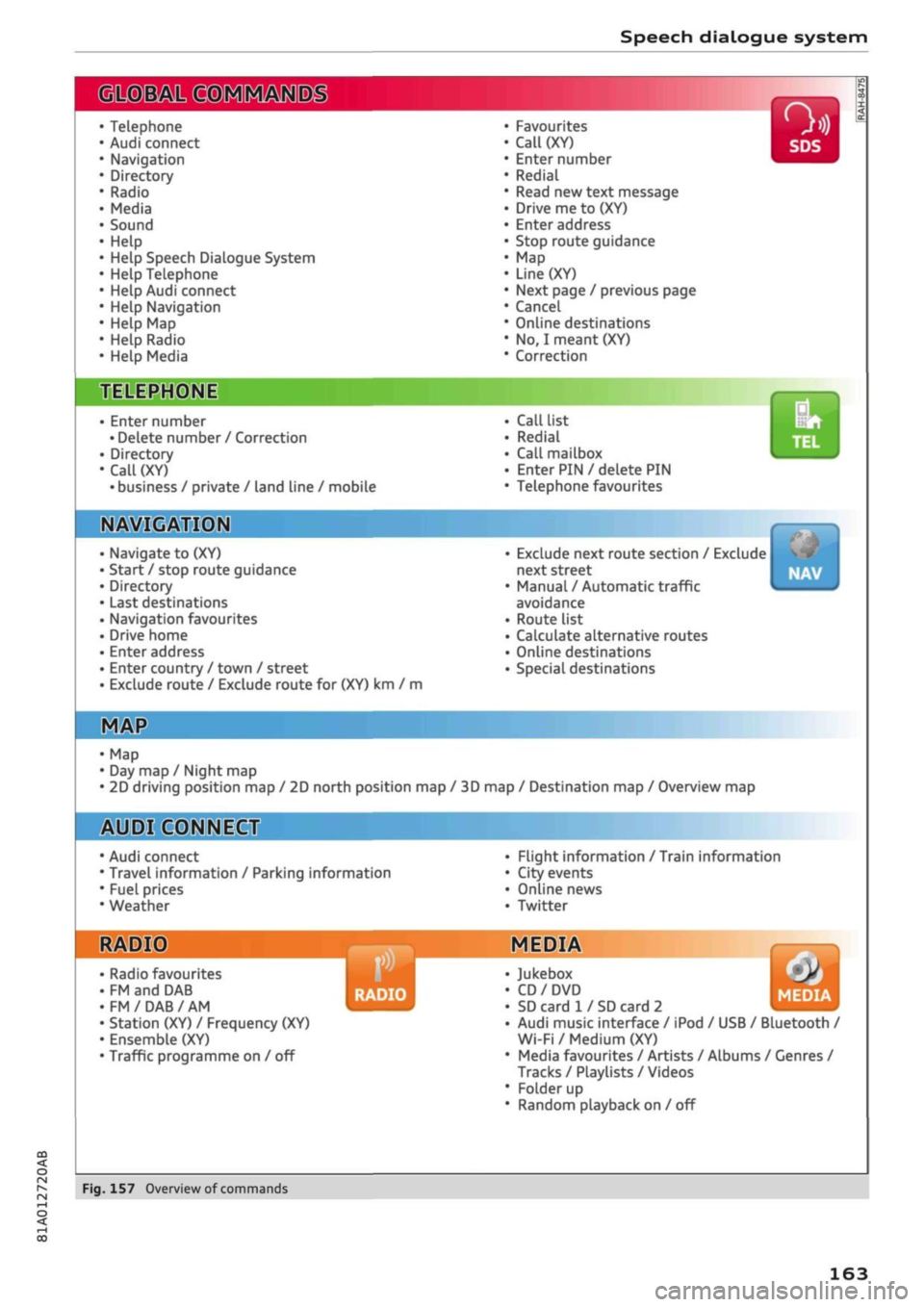
Speech dialogue system
• Telephone
• Audi connect
• Navigation
• Directory
• Radio
• Media
• Sound
• Help
• Help Speech Dialogue System
• Help Telephone
• Help Audi connect
• Help Navigation
• Help
Map
• Help Radio
• Help Media
SIIPCMI
Enter number
• Delete number
/
Correction
Directory
Call (XY)
• business
/
private
/
land line
/
mobile
NAVIGi
mm
• Navigate
to (XY)
• Start
/
stop route guidance
• Directory
• Last destinations
• Navigation favourites
• Drive home
• Enter address
• Enter country
/
town
/
street
• Exclude route
/
Exclude route
for
(XY)
km / m
• Favourites
• Call
(XY)
• Enter number
• Redial
• Read
new
text message
• Drive
me to (XY)
• Enter address
• Stop route guidance
•
Map
• Line
(XY)
• Next page
/
previous page
• Cancel
• Online destinations
•
No, I
meant
(XY)
• Correction
Call list
Redial
Call mailbox
Enter PIN
/
delete
PIN
Telephone favourites
Exclude next route section
/
Exclude
next street
Manual
/
Automatic traffic
avoidance
Route list
Calculate alternative routes
Online destinations
Special destinations
Map
Day
map /
Night
map
2D driving position
map / 2D
north position
map / 3D map /
Destination
map /
Overview
map
Flight information
/
Train information
City events
Online news
Twitter
^iuiDit(5.Q:NiNE:(aH
• Audi connect
• Travel information
/
Parking information
• Fuel prices
• Weather
RADIO MEDIA
RADIO MEDIA
• Radio favourites
• FM
and DAB
•FM/DAB/AM
• Station (XY)
/
Frequency
(XY)
• Ensemble
(XY)
• Traffic programme
on / off
Jukebox
CD/DVD
SD card
1 /
SD card
2
Audi music interface
/
iPod
/
USB
/
Bluetooth
/
Wi-Fi/Medium
(XY)
Media favourites
/
Artists
/
Albums
/
Genres
/
Tracks
/
Playlists
/
Videos
Folder
up
Random playback
on / off
Fig.
157
Overview
of
commands
00
163
Page 168 of 364

Speech dialogue system
Function
Dialling a phone number when an
address card is open
Calling a contact from the favour
ites list
Displaying the call list
Calling the last number dialled
Dialling a telephone number
Correcting an entered phone num
ber
Displaying contact information
Listening to voice mail messages
Entering the SIM PIN code
Correcting an entered PIN
Correcting an entry
Closing the full List of commands
Say:
Call / Call business number / Call private number / Call land
line / Call business mobile
Telephone favourites
>
desired contact when requested
>
Dial
Call list
Redial
Enter number
>
enter phone number in blocks of individual dig
its when requested, e.g. 07441 234
567
> Dial
Correction / Delete number
Directory
>
desired contact when requested,
e.g.
John Smith
Call mailbox
Enter PIN
>
enter PIN in individual digits when requested >
Store
Correction / Delete PIN
No,
I meant (XY)
Close
© Note
- If
you
have a mobile phone that transmits
first names and surnames separately, you
can select directory contacts both by enter
ing the full name
("first
name, surname" or
"surname, first name") and by saying only
the first name or surname.
- Please note that commands can only be
spoken for the main teLephone*
^>page
173.
- For more information on which mobile
phones are supported, please go online
(e.g.
www.audi.com/bluetooth) or contact
an Audi dealer.
Audi connect (infotainment)
Applies to: vehicles with speech dialogue system and Audi connect (infotainment)
Important: The requirements for Audi connect
(infotainment) must be met
^>page
191.
Function
Calling up an Audi connect infotain
ment service
Audi connect infotainment services
Search areas for Audi connect info
tainment services
Correcting an entry
Say:
Audi connect
>
follow the directions given by the system
Weather / Online news / Fuel prices / Parking information /
Travel information / Twitter / Online traffic information / City
events / Flight information / Train information
In vicinity of destination / In immediate vicinity / In new town
No,
I meant (XY)
166
Page 200 of 364
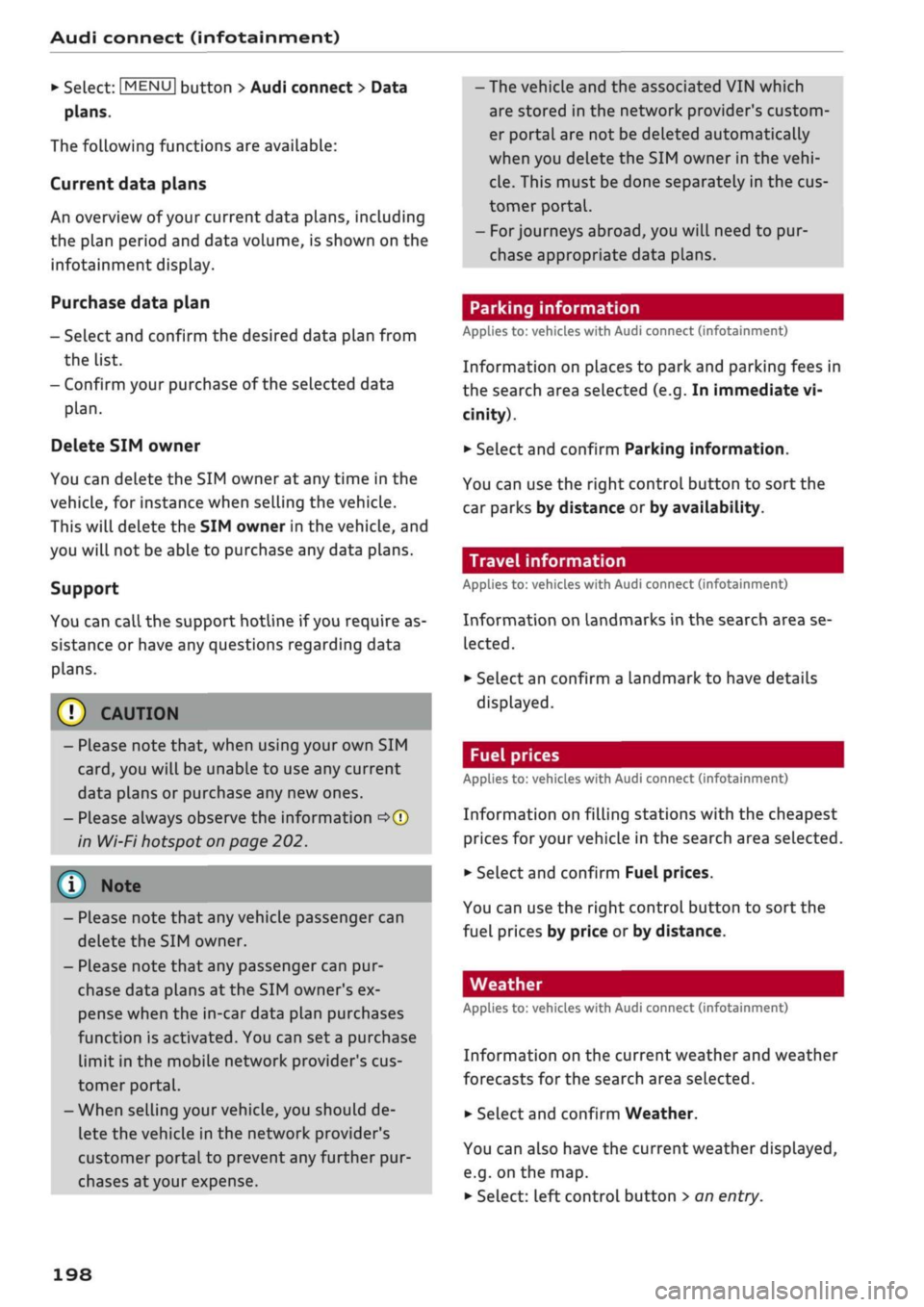
Audi connect (infotainment)
•
Select:
|MENU|
button
>
Audi connect
>
Data
plans.
The following functions are available:
Current data plans
An overview of your current data plans, including
the plan period and data volume, is shown on the
infotainment display.
Purchase data plan
- Select and confirm the desired data plan from
the list.
- Confirm your purchase of the selected data
plan.
Delete SIM owner
You can delete the SIM owner at any time in the
vehicle, for instance when selling the vehicle.
This will delete the SIM owner in the vehicle, and
you will not be able to purchase any data plans.
Support
You can
call
the support hotline if
you
require as
sistance or have any questions regarding data
plans.
© CAUTION
- Please note that, when using your own SIM
card,
you will be unable to use any current
data plans or purchase any new ones.
- Please always observe the information
<=>©
in Wi-Fi hotspot on page 202.
© Note
- Please note that any vehicle passenger can
delete the SIM owner.
- Please note that any passenger can pur
chase data plans at the SIM owner's ex
pense when the in-car data plan purchases
function is activated. You can set
a
purchase
limit in the mobiLe network provider's cus
tomer portal.
- When selling your vehicle, you should de
lete the vehicle in the network provider's
customer portal to prevent any further pur
chases at your expense.
-The vehicle and the associated VIN which
are stored in the network provider's custom
er portal are not be deleted automatically
when you delete the SIM owner in the
vehi
cle.
This must be done separately in the cus
tomer
portal.
- For journeys abroad, you will need to pur
chase appropriate data plans.
Parking information
Applies
to: vehicles with Audi connect (infotainment)
Information on places to park and parking fees in
the search area seLected (e.g. In immediate vi
cinity).
•
Select and confirm Parking information.
You can use the right control button to sort the
car parks by distance or by availability.
Travel information
Applies
to: vehicles with Audi connect (infotainment)
Information on landmarks in the search area se
lected.
•
SeLect an confirm a Landmark to have details
displayed.
Fuel prices
Applies
to: vehicles with Audi connect (infotainment)
Information on filling stations with the cheapest
prices for your vehicle in the search area selected.
•
Select and confirm Fuel prices.
You can use the right control button to sort the
fuel prices by price or by distance.
Weather
Applies
to: vehicles with Audi connect (infotainment)
Information on the current weather and weather
forecasts for the search area selected.
•
Select and confirm Weather.
You can also have the current weather displayed,
e.g.
on the map.
•
Select: left control button > an
entry.
198
Page 224 of 364
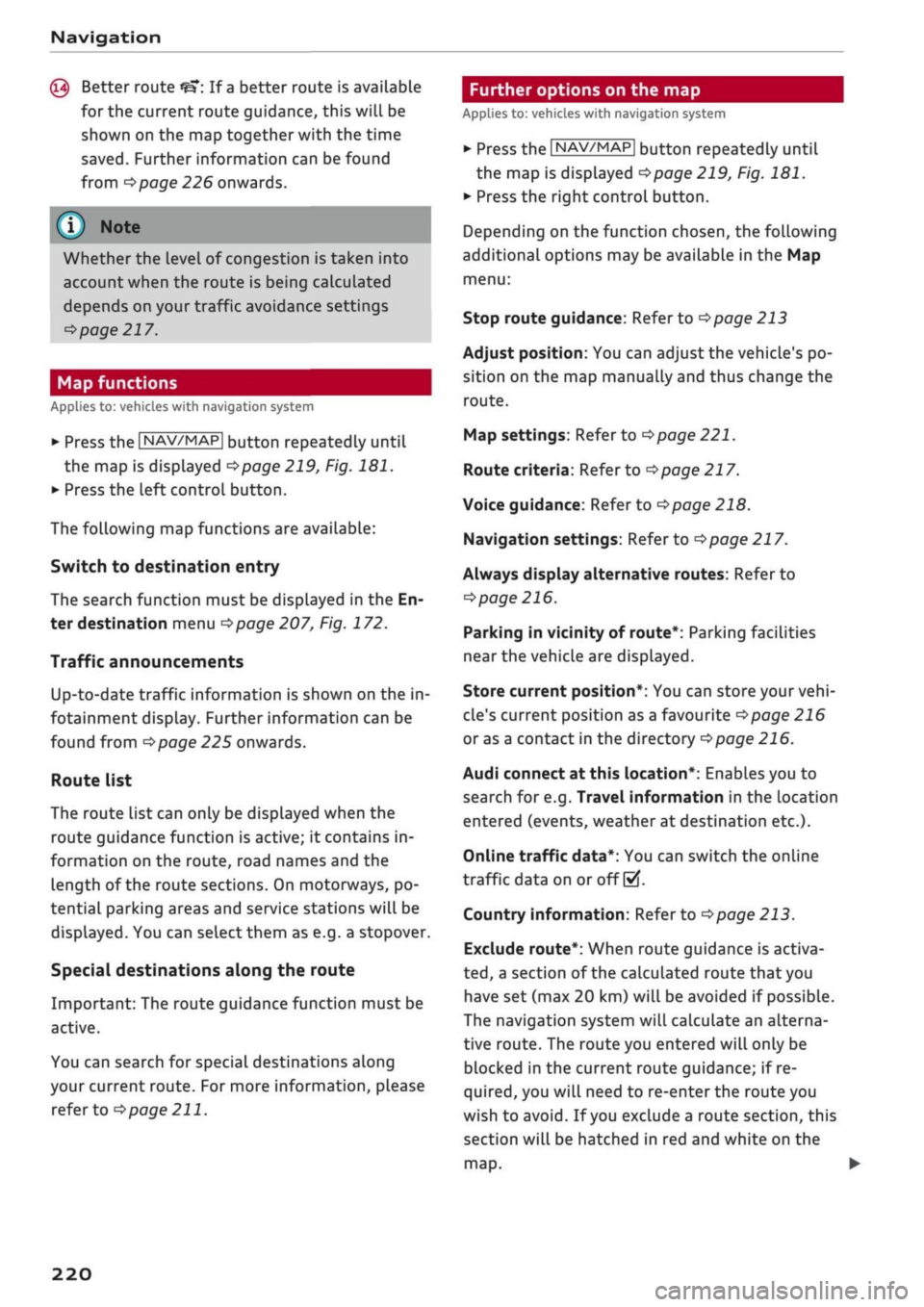
Navigation
© Better route
If
a
better route is available
for the current route guidance, this will be
shown on the map together with the time
saved.
Further information can be found
from
^>page
226 onwards.
Further options on the map
Applies to: vehicles with navigation system
©
Whether the level of congestion is taken into
account when the route is being calculated
depends on your traffic avoidance settings
<=>
page 217.
Map functions
Applies to: vehicles with navigation system
•
Press the |NAV/MAP| button repeatedly until
the map is displayed
•=>page
219, Fig. 181.
•
Press the left control button.
The following map functions are available:
Switch to destination entry
The search function must be displayed in the En
ter destination menu
•=>page
207, Fig. 172.
Traffic announcements
Up-to-date traffic information is shown on the in
fotainment display. Further information can be
found from
^page
225 onwards.
Route list
The route list can only be displayed when the
route guidance function is active; it contains in
formation on the route, road names and the
length of the route sections. On motorways, po
tential parking areas and service stations will be
displayed.
You can select them as e.g. a stopover.
Special destinations along the route
Important: The route guidance function must be
active.
You can search for special destinations along
your current route. For more information, please
refer to
opage
211.
»•
Press the |NAV/MAP| button repeatedly until
the map is displayed
^>page
219, Fig. 181.
•
Press the right controL button.
Depending on the function chosen, the following
additional options may be available in the Map
menu:
Stop route guidance: Refer to
^>page
213
Adjust position: You can adjust the vehicle's po
sition on the map manually and thus change the
route.
Map settings: Refer to
^>page
221.
Route criteria: Refer to
•=>page
217.
Voice guidance: Refer to
^>page
218.
Navigation settings: Refer to
<=>page
217.
Always display alternative routes: Refer to
<=>page
216.
Parking in vicinity of route*: Parking facilities
near the vehicle are displayed.
Store current position*: You can store your
vehi
cle's current position as a favourite
opage
216
or as a contact in the directory
<^page
216.
Audi connect at this location*: Enables you to
search for e.g. Travel information in the location
entered (events, weather at destination etc.).
Online traffic data*: You can switch the onLine
traffic data on or off
(vf.
Country information: Refer to
^>page
213.
Exclude route*: When route guidance is activa
ted,
a section of the calculated route that you
have set (max 20 km) will be avoided if possible.
The navigation system will calculate an alterna
tive route. The route you entered will only be
blocked in the current route guidance; if re
quired,
you will need to re-enter the route you
wish to avoid. If
you
exclude a route section, this
section will be hatched in red and white on the
map.
•
220
Page 225 of 364
Navigation
Adjust route*: Move your finger
over
the MMI
touch padVrotary pushbutton to adjust the route
on the overview map.
Map settings
Applies
to: vehicles with navigation system
•
Press the
|NAV/MAP|
button repeatedly until
the map is displayed.
•
Select: right control button > Map settings.
Depending on the function seLected, you can use
the following settings:
Map colours
day/night: The map is displayed with a
Light/dark
background colour.
automatic: The colour of the map changes to
match the current light conditions (e.g. from day
to night when driving through tunnels).
Map display
Standard: Refer to
opage
219, Fig. 182.
Google Earth*: Refer to
^>page
222, Fig. 183.
Traffic*1);
Refer to
^>page
225, Fig. 187.
Map orientation
destination: The map indicates the destination
and is set to face north.
2D driving position/2D north map: The map de
picts the vehicle's current position. The map is
set to face the direction of travel or north.
3D driving position*: The current vehicle
posi
tion is displayed in a three-dimensional map, and
the map is set to face the direction of
travel.
If
the map scale is more than 100 km, the map is
set to
face north.
overview: The entire route from the vehicle
posi
tion to the final destination or next stopover is
displayed on the map. The map scale varies ac
cording to the Length of the route and is adapted
automatically. The map is set to face north.
Route information
The display of route information such as the
street you are currently on, upcoming turn-offs,
traffic information or special destinations on the
current route can be switched on/off.
Automatic zoom
on:
The map scale is adjusted automatically ac
cording to the category of the road you are on
(motorway, major
road,
other road) to ensure
that
you always have the best possible overview
of the route ahead. When there is an upcoming
turn-off, the map display will also be automati
cally adjusted so that you have a more detailed
view.
intersection: When route guidance is active and
there are upcoming turn-offs, the map dispLay
will temporarily switch to a more detailed scale
so that the road layout can be identified more
easily.
off: The map scale you have set will remain
unal
tered.
Map content
The dispLay of map content such as weather in
formation,
traffic information or favourite desti
nations can be switched on and off.
The weather* is shown on the map if the scale is
set to 5 km or more
^>page
216, Fig. 179.
CO
rN
IV
rN
t-H
o <
x)
This function is not available in the Mexican market.
221
Page 233 of 364
Radio
Further options
• Select: |RADI0| button > right control button.
The following options may be available to you de
pending on the waveband:
- Sound settings: Refer to
^>page
260.
- Store as favourite: Refer to
^>page
231, Fa
vourites.
-Tag this song for
iTunes*:1)2)
Connect your Ap
ple device to the Audi music interface*. Select
and confirm Tag this song for iTunes. The track
that is currently playing will be copied to your
Apple device. Synchronise your Apple device
with iTunes. The next time you call up your
iTunes library, the tagged tracks
wiLl
be dis
played.
If no Apple device is connected, the
tagged tracks will be stored temporarily on the
MMI system (max.
50
tracks). As soon as you
connect your Apple device to the Audi music in
terface, the tags will be imported to the device.
- Programme
guide*:3'
The current and next ra
dio programmes are Listed in the digital pro
gramme guide* for all supported stations. Se
lect and confirm a radio programme to have
more details on the programme displayed.
- Manual station search:4' The frequency bar is
displayed.
Select and confirm the desired
fre
quency.
- Seek:5' The previous/next receivable frequency
will be set.
- Radio settings: Refer to
^>page
231.
Announcements
• Select: |RADI0| button > right control button >
Announcements.
Traffic
announcements*:6'
- off: Traffic announcements are not played.
- FM: Traffic announcements can be received via
FM and played
by
the system irrespective of the
selected waveband.
- FM/DAB*: You receive traffic announcements
from both wavebands. If DAB traffic announce
ments are not available from the station cur
rently set, they will be received from the FM
waveband.
DAB announcements*:6'
Depending on station availability, information
(e.g.
news, weather information) may be played
when the function
Fvf
is switched on.
Volume of announcements:6'
Refer to
•=>page
261.
Radio text
• Select: [RADIO] button > left control button > a
waveband (e.g. FM) > a station.
*•
Select: right control button > Radio text.
Additional information on the programme (e.g.
artist, composer, track) is shown.
To browse radio text entries: Turn the rotary
pushbutton clockwise or anti-clockwise.
Important: A radio text entry must be displayed,
and the station must be transmitting a telephone
number, navigation destination or a text mes
sage number as Radio Text Plus information.
If a location, telephone number or text message
number has been stored for a radio text entry,
the entry will be displayed with a coloured frame.
The following options are available:
CallVStart route guidanceVWrite text mes
sage*:
- Select a radio text entry with Radio Text Plus in
formation and press the rotary pushbutton.
CO
<
O
rN
IV
rN
t-H
o <
W
This function is only available in the Mexican market.
2'
Still under development at the time of print.
3)
Not in the FM, AM station lists
4)
Not in the DAB* waveband or in the mixed FM/DAB* sta
tion list.
5)
Not in the mixed station list FM/DAB*
6)
This function is not available in the Mexican market.
229
Page 267 of 364
Safe driving
Safe driving
General notes
Safety is the first priority
The safety features in your vehicle are harmon
ised to provide you and your passengers with the
best possible protection in accident situations.
However, they can only be effective if you and
your passengers sit in the correct position and
adjust and use the safety equipment properly.
For these reasons, this chapter explains why
these safety features are so important, how they
can protect you, what you need to remember
when using them, and
how
you and your passen
gers can gain the most benefit from them. There
are also a number of important safety warnings
which you and your passengers should always ob
serve in order to minimise the risk of injury.
WARNING
- The information in this chapter is important
for the driver of the vehicle and all passen
gers.
The other chapters in this manual
(and,
where applicable, in the other litera
ture supplied with the vehicle) contain fur
ther important notes which you should read
and observe for your own safety and that of
your passengers.
- Ensure that the complete vehicle wallet is
always in the vehicle. This is especially im
portant when you lend or sell the vehicle to
others.
CO
<
O
rN
iv
rN
i—i
o < 00
Before every trip
The driver is responsible for the safety of the
passengers and the safe operation of the vehicle
at all times.
For
your own safety and the safety of your pas
sengers, always note the following points before
every trip:
•
Make sure that all lights and turn signals are
working properly.
•
Check the tyre pressures.
•
Make sure that all windows are clean and give
good visibility to the outside.
•
Secure all luggage and other items carefully
•=>
page 272.
• Make sure that no objects can interfere with
the pedals.
•
Adjust the front seat, head restraint and mir
rors correctly.
• Applies to: adjustable head restraints: Make
sure that the front passenger's head restraint is
adjusted to the correct position.
• Applies to: adjustable head restraints: Make
sure that the head restraints for the rear pas
sengers are in the fully raised position.
•
Make sure that children are protected with suit
able safety seats and properly worn seat belts
•=>
page 267.
•
Sit in the correct position in your seat. Make
sure
that
your passengers are sitting in the cor
rect positions
^>page
58.
•
Fasten your seat belt correctly. Make sure that
your passengers do the same
^page
275.
What factors can impair your safety?
Safety on the road is directly related to
how
you
drive, and can also be affected by the passengers
in the vehicle.
• The driver is responsible for the safety of the
vehicle and all its occupants. If your ability to
drive is impaired in any way, you endanger
yourself and other road users
,=>^.
Therefore:
• Do not let yourself be distracted by passengers
or by using a mobile phone, etc.
•
Never drive when your driving ability is im
paired (by medication, alcohol, drugs, etc.).
• Obey all traffic regulations and speed limits
and always maintain a safe distance to the
vehi
cle in front.
•
Always adjust your speed to suit the
road,
traf
fic and weather conditions.
•
Take frequent breaks on long trips. Do not drive
for more than two hours without a stop.
•
If possible, avoid driving when you are tired or
stressed.
•
263
Page 306 of 364
Checking and topping up fluids
the reservoir in certain circumstances and
cause damage to the vehicle.
- Brake fluid must not be allowed to come in
to contact with the vehicle's body, other
wise it will attack the paintwork.
©
For the sake of the environment
1?
Batteries contain toxic substances including
sulphuric acid and
lead.
PLease contact a
qualified workshop if
you
have any questions.
Battery
General warnings for batteries
Because of the complexity of the power supply,
any battery work, such as disconnection, replace
ment, etc. must be carried out by
a
qualified
workshop
^A-
The term "vehicle battery" refers to the 12 Volt
battery in your vehicle.
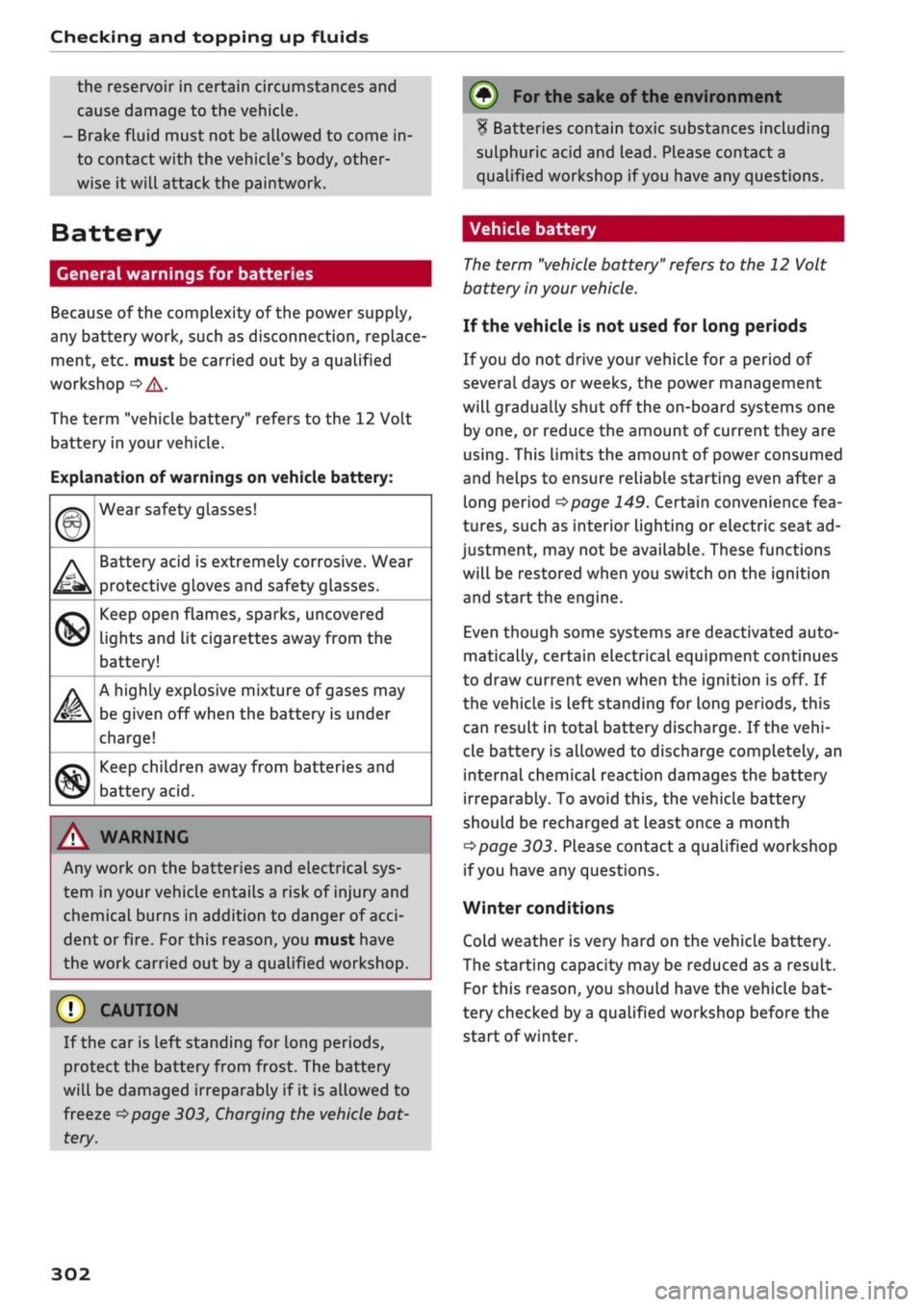
Explanation of warnings on vehicle battery:
m
Wear safety glasses!
Battery acid is extremely corrosive. Wear
protective gloves and safety glasses.
A
Keep open flames, sparks, uncovered
Lights and lit cigarettes away from the
battery!
A highly explosive mixture of gases may
~\
be given off when the battery is under
charge!
Keep children away from batteries and
battery
acid.
A WARNING
Any work on the batteries and electrical sys
tem in your vehicLe entails a risk of injury and
chemical burns in addition to danger of
acci
dent or fire. For this reason, you must have
the work carried out by a qualified workshop.
©
CA UTION
If the car is left standing for long periods,
protect the battery from frost. The battery
will be damaged irreparably if it is allowed to
freeze
^>page
303, Charging the vehicle
bat
tery.
Vehicle battery
The
term "vehicle battery" refers to the 12 Volt
battery in your vehicle.
If the vehicle is not used for long periods
If
you
do not drive your vehicle for a period of
several days or weeks, the power management
will gradually shut off the on-board systems one
by one, or reduce the amount of current they are
using.
This limits the amount of power consumed
and helps to ensure reliable starting even after a
long period
^>page
149. Certain convenience fea
tures,
such as interior lighting or electric seat ad
justment, may not be available. These functions
will be restored when you switch on the ignition
and start the engine.
Even though some systems are deactivated auto
matically, certain electrical equipment continues
to draw current even when the ignition is off. If
the vehicLe is left standing for long periods, this
can result in total battery discharge. If the
vehi
cle battery is allowed to discharge completely, an
internal
chemicaL
reaction damages the battery
irreparably. To avoid this, the vehicle battery
should be recharged at Least once a month
^>page
303. PLease contact a qualified workshop
if
you
have any questions.
Winter conditions
Cold weather is very hard on the vehicle battery.
The starting capacity may be reduced as a result.
For this reason, you should have the vehicle bat
tery checked by
a
qualified workshop before the
start of winter.
302