radio AUDI Q2 2021 Owner´s Manual
[x] Cancel search | Manufacturer: AUDI, Model Year: 2021, Model line: Q2, Model: AUDI Q2 2021Pages: 364, PDF Size: 87.77 MB
Page 232 of 364
Radio
Radio
Calling up the radio
menu
The
radio supports the following wavebands:
FM,
AM, DAB* (digital radio).
You
can use the HD
Radio
receiver*
to receive radio stations from the
FM/AM wavebands
digitally.
© Note
„
. Radio: FM/DAB
BS
AKT
^j9
BAYERN 1
-^
The Rock Band - Hymn
"
BAYERN 2
BAYERN 3
'Hf»l)
BR-KLASS
Events
Culture
News
Light
/Z^
O
•^^
•
T^M
:
m
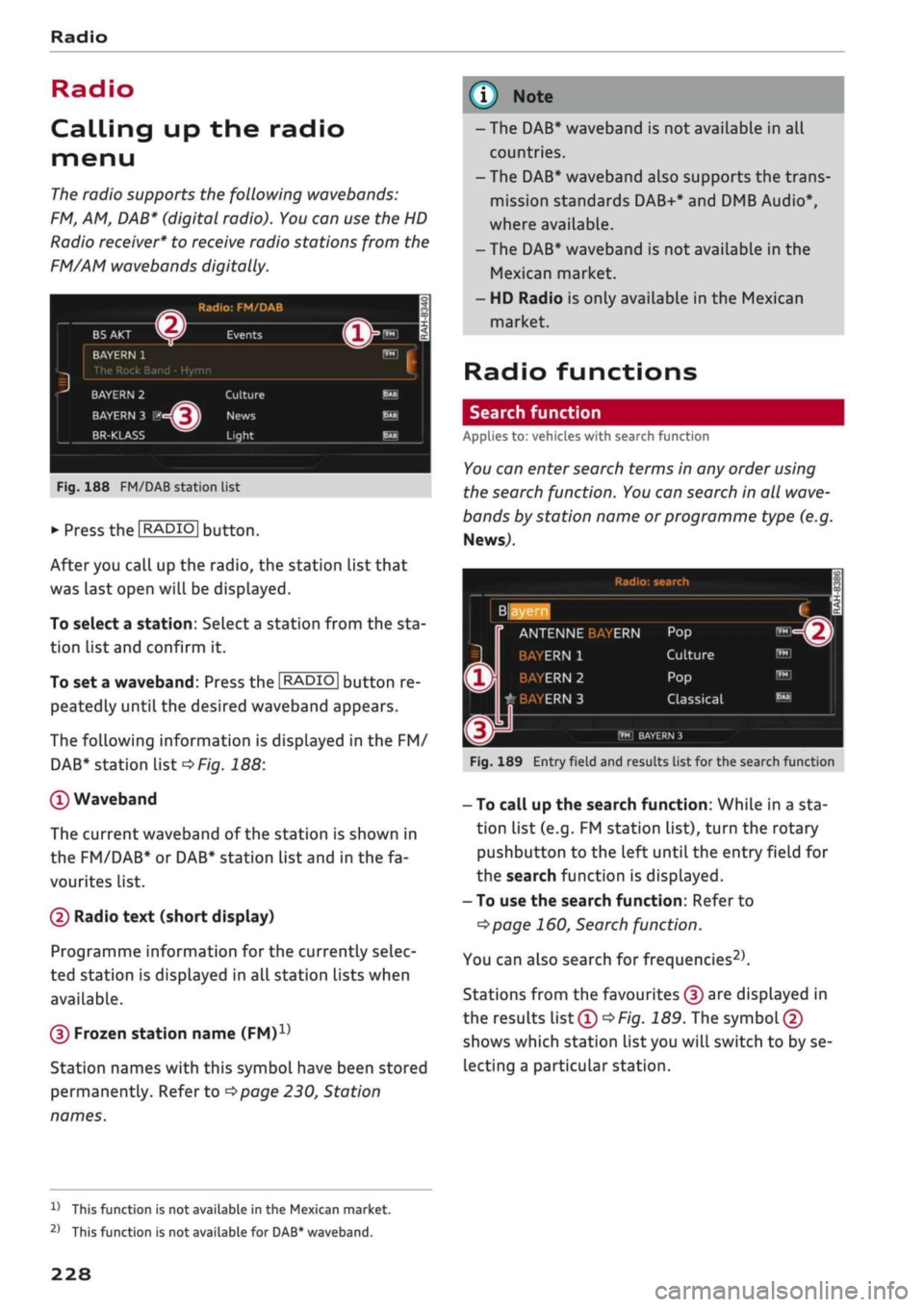
Fig.
188 FM/DAB station list
•
Press the
I
RADIO[
button.
After you call up the radio, the station list that
was last open will be displayed.
To select a station: SeLect
a
station from the sta
tion List and confirm it.
To set a waveband: Press the
I RADIO |
button re
peatedly until the desired waveband appears.
The following information is displayed in the FM/
DAB*
station List
<*Fig.
188:
©Waveband
The current waveband of the station is shown in
the FM/DAB* or DAB* station list and in the fa
vourites list.
(D Radio text (short display)
Programme information for the currently seLec
ted station is displayed in all station lists when
available.
(D Frozen station name
(FM)1'
Station names with this symbol have been stored
permanently. Refer to
^page
230, Station
names.
- The DAB* waveband is not available in all
countries.
- The DAB* waveband also supports the trans
mission standards DAB+* and DMB Audio*,
where available.
- The DAB* waveband is not available in the
Mexican market.
- HD Radio is only available in the Mexican
market.
Radio functions
Search function
Applies to: vehicles with search function
You
can enter
search
terms in any order using
the search function.
You
can search in all
wave
bands by station name or programme type (e.g.
News,).
Radio: search
ANTENNE
ERN
Culture ERN 1
ERN 2
#BAYERN3
Classical
r'M
BAYERN 3
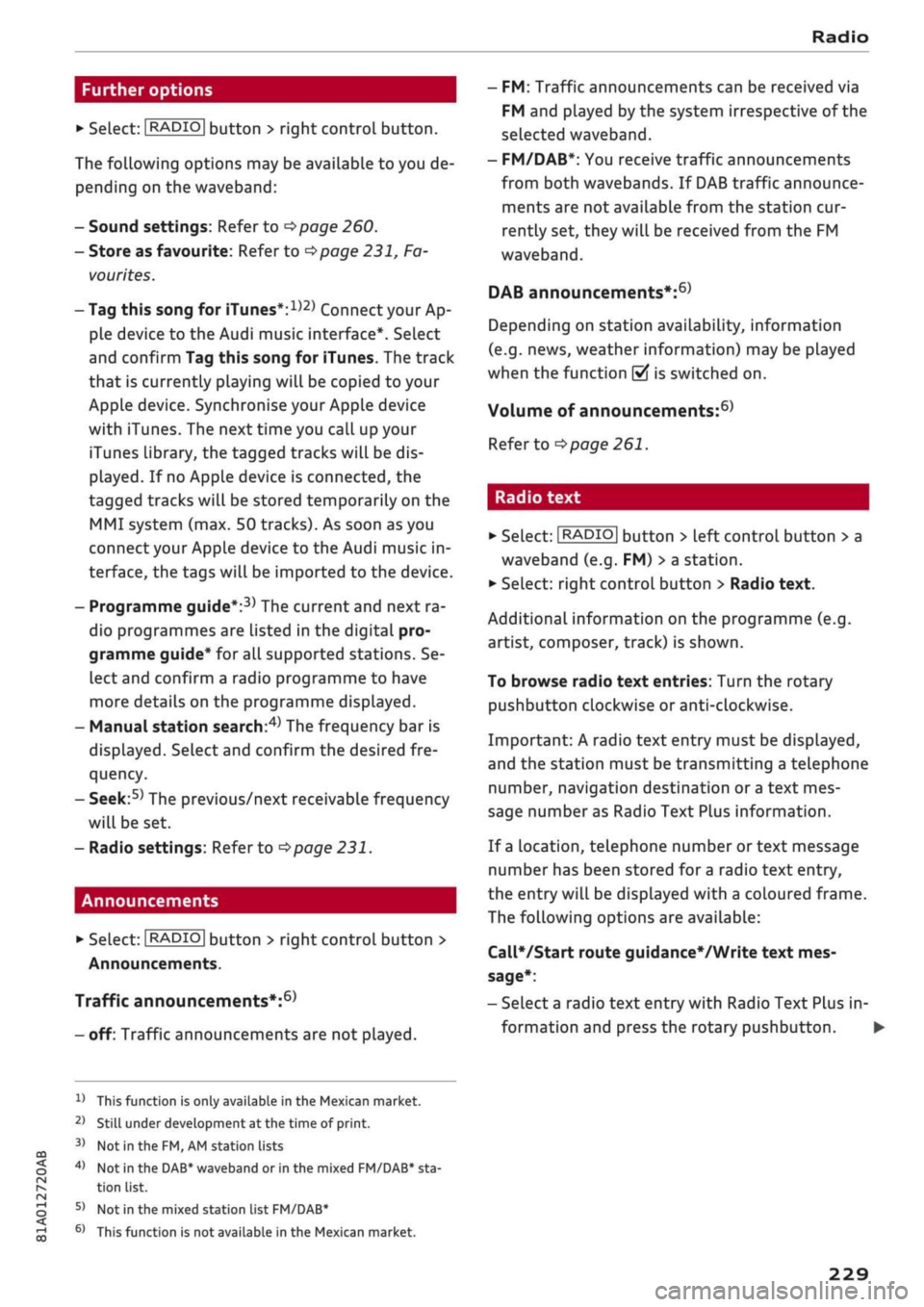
Fig.
189 Entry field and results list for the search function
- To call up the search function: While in a sta
tion list (e.g. FM station list), turn the rotary
pushbutton to the left until the entry field for
the search function is displayed.
- To use the search function: Refer to
^>page
160, Search function.
You can also search for frequencies2'.
Stations from the favourites
(f)
are displayed in
the results list®
^>Fig.
189. The symbol©
shows which station list you will switch to by se
lecting a particular station.
V
This function is not available in the Mexican market.
2)
This function is not available for DAB* waveband.
228
Page 233 of 364
Radio
Further options
• Select: |RADI0| button > right control button.
The following options may be available to you de
pending on the waveband:
- Sound settings: Refer to
^>page
260.
- Store as favourite: Refer to
^>page
231, Fa
vourites.
-Tag this song for
iTunes*:1)2)
Connect your Ap
ple device to the Audi music interface*. Select
and confirm Tag this song for iTunes. The track
that is currently playing will be copied to your
Apple device. Synchronise your Apple device
with iTunes. The next time you call up your
iTunes library, the tagged tracks
wiLl
be dis
played.
If no Apple device is connected, the
tagged tracks will be stored temporarily on the
MMI system (max.
50
tracks). As soon as you
connect your Apple device to the Audi music in
terface, the tags will be imported to the device.
- Programme
guide*:3'
The current and next ra
dio programmes are Listed in the digital pro
gramme guide* for all supported stations. Se
lect and confirm a radio programme to have
more details on the programme displayed.
- Manual station search:4' The frequency bar is
displayed.
Select and confirm the desired
fre
quency.
- Seek:5' The previous/next receivable frequency
will be set.
- Radio settings: Refer to
^>page
231.
Announcements
• Select: |RADI0| button > right control button >
Announcements.
Traffic
announcements*:6'
- off: Traffic announcements are not played.
- FM: Traffic announcements can be received via
FM and played
by
the system irrespective of the
selected waveband.
- FM/DAB*: You receive traffic announcements
from both wavebands. If DAB traffic announce
ments are not available from the station cur
rently set, they will be received from the FM
waveband.
DAB announcements*:6'
Depending on station availability, information
(e.g.
news, weather information) may be played
when the function
Fvf
is switched on.
Volume of announcements:6'
Refer to
•=>page
261.
Radio text
• Select: [RADIO] button > left control button > a
waveband (e.g. FM) > a station.
*•
Select: right control button > Radio text.
Additional information on the programme (e.g.
artist, composer, track) is shown.
To browse radio text entries: Turn the rotary
pushbutton clockwise or anti-clockwise.
Important: A radio text entry must be displayed,
and the station must be transmitting a telephone
number, navigation destination or a text mes
sage number as Radio Text Plus information.
If a location, telephone number or text message
number has been stored for a radio text entry,
the entry will be displayed with a coloured frame.
The following options are available:
CallVStart route guidanceVWrite text mes
sage*:
- Select a radio text entry with Radio Text Plus in
formation and press the rotary pushbutton.
CO
<
O
rN
IV
rN
t-H
o <
W
This function is only available in the Mexican market.
2'
Still under development at the time of print.
3)
Not in the FM, AM station lists
4)
Not in the DAB* waveband or in the mixed FM/DAB* sta
tion list.
5)
Not in the mixed station list FM/DAB*
6)
This function is not available in the Mexican market.
229
Page 234 of 364
Radio
Select and confirm Call*/Start route guid-
anceVWrite text message*. Or: Press the
|BACK|
button to cancel the process.
The availability of radio text and Radio Text
Plus depends on the radio station.
Station names
•
Select:
I
RADIO
|
button > left control button >
FM.
Select the desired station from the station
list.
Variable station names:
Some stations use variable station names. De
pending on how the station names are sorted,
the position of
a
variable station name may
change in the station list. You can lock the cur
rent name of
a
selected station permanently by
selecting the Lock station name1' option.
- Lock station name: Select the right control
button > Confirm. The locked station name will
be marked with the symbol (J)
^>page
228,
Fig. 188.
- Unlock station name: Select the right control
button > Unlock station name. The name re
ceived for the radio station will be displayed.
Detailed station information view
BR-Klassik
btreichquartett
Es-Dur, D
87
, op.p
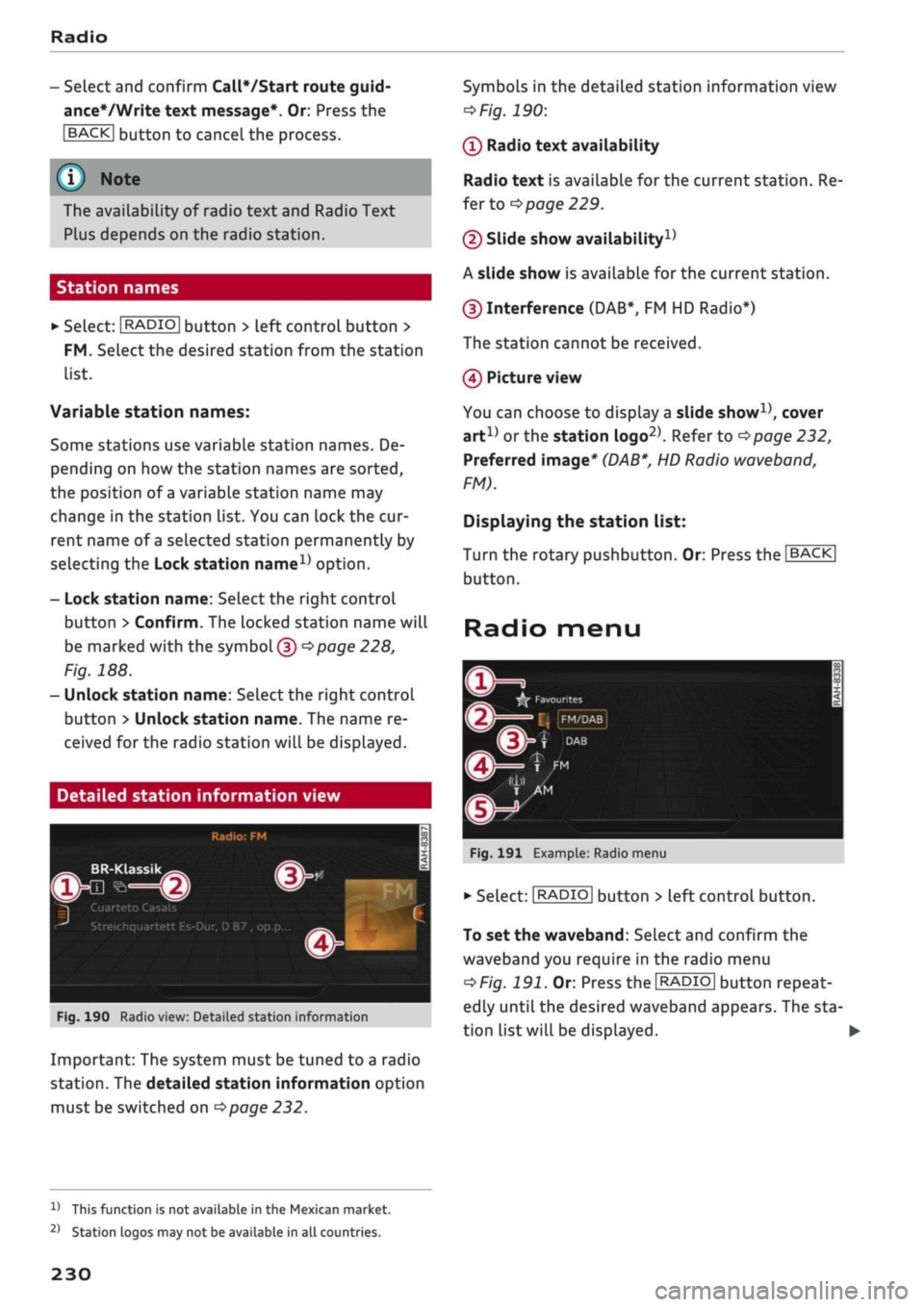
Fig.
190 Radio view: Detailed station information
Important: The system must be tuned to a radio
station.
The detailed station information option
must be switched on
^>page
232.
Symbols in the detailed station information view
OFig.
190:
(T)
Radio text availability
Radio text is available for the current station. Re
fer to
•=>
page 229.
(2) Slide show availability1'
A slide show is available for the current station.
(3) Interference (DAB*, FM HD Radio*)
The station cannot be received.
0
Picture view
You can choose to dispLay a slide show1', cover
art1' or the station logo2'. Refer to
Opage
232,
Preferred image*
(DAB*,
HD Radio waveband,
FM).
Displaying the station list:
Turn the rotary pushbutton. Or: Press the |BACK|
button.
Radio menu
©-!
^
Favourites
|J |
FM/DAB |
f
DAB
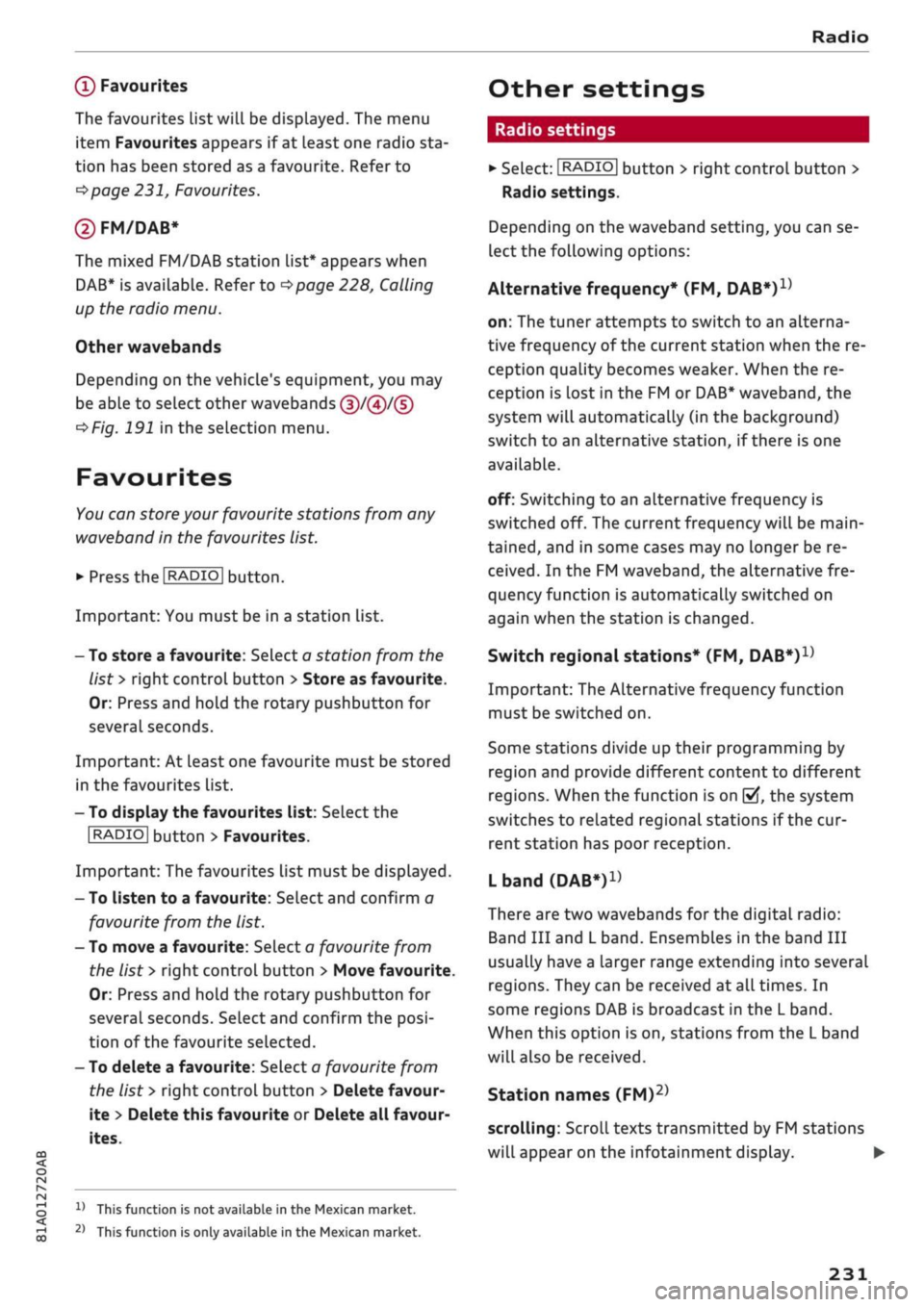
Fig.
191 Example: Radio menu
•
Select:
I
RADIO
I
button > left control button.
To set the waveband: SeLect and confirm the
waveband you require in the radio menu
<=>F/g.
191. Or: Press the
[RADIO|
button repeat
edly until the desired waveband appears. The sta
tion list will be displayed. •
V
This function is not available in the Mexican market.
2)
Station logos may not be available in all countries.
230
Page 235 of 364
Radio
(T)
Favourites
The favourites List will be displayed. The menu
item Favourites appears if at least one radio sta
tion has been stored as a favourite. Refer to
*$page
231, Favourites.
©FM/DAB*
The mixed FM/DAB station List* appears when
DAB*
is available. Refer to
opage
228, Calling
up the radio menu.
Other wavebands
Depending on the vehicle's equipment, you may
be able to select other wavebands
©/@/(s)
^>Fig.
191 in the selection menu.
Favourites
You can store your favourite stations from any
waveband in the favourites
list.
Other settings
Radio settings
CO
<
O
rN
IV
rN
t-H
o <
•
Press the
I
RADIO
|
button.
Important: You must be in a station List.
- To store a favourite: Select a station from the
list > right control button > Store as favourite.
Or: Press and hold the rotary pushbutton for
several seconds.
Important: At least one favourite must be stored
in the favourites list.
- To display the favourites list: Select the
I
RADIO
|
button > Favourites.
Important: The favourites list must be displayed.
- To listen to a favourite: SeLect and confirm a
favourite from the
list.
- To move a favourite: SeLect a favourite from
the list > right control button > Move favourite.
Or: Press and hold the rotary pushbutton for
several seconds. Select and confirm the
posi
tion of the favourite selected.
- To delete a favourite: Select a favourite from
the list > right control button > Delete favour
ite > Delete this favourite or Delete all favour
ites.
*'
This function is not available in the Mexican market.
2)
This function is only available in the Mexican market.
•
Select: |RADI0| button > right control button >
Radio settings.
Depending on the waveband setting, you can se
lect the following options:
Alternative frequency* (FM, DAB*)1'
on:
The tuner attempts to switch to an alterna
tive frequency of the current station when the re
ception quality becomes weaker. When the re
ception is lost in the FM or DAB* waveband, the
system will automatically (in the background)
switch to an alternative station, if there is one
available.
off: Switching to an alternative frequency is
switched off. The current frequency will be main
tained,
and in some cases may no longer be re
ceived.
In the FM waveband, the alternative
fre
quency function is automatically switched on
again when the station is changed.
Switch regional stations* (FM,
DAB*)1'
Important: The Alternative frequency function
must be switched on.
Some stations divide up their programming by
region and provide different content to different
regions. When the function is on
(vf,
the system
switches to related regional stations if the cur
rent station has poor reception.
Lband
(DAB*)1'
There are two wavebands for the digital radio:
Band III and L band. Ensembles in the band III
usually have a larger range extending into several
regions. They can be received at all times. In
some regions DAB is broadcast in the
L
band.
When this option is on, stations from the L band
will
also be received.
Station names (FM)2'
scrolling:
Scroll texts transmitted by FM stations
will appear on the infotainment display. •
231
Page 236 of 364
Radio
fixed:
Scroll texts transmitted by FM stations will
not appear in the infotainment display. The cur
rent scroll text on the dispLay will freeze.
FM/AM HD Radio1'
You can switch the reception of HD Radio on or
off.
Station sorting (FM)2'
A-Z: The stations are displayed in the station list
in alphabetical order. Radio stations with variable
station names are displayed after the stations
which have been sorted alphabetically. Radio sta
tions with a frequency as their station name are
displayed
at
the end of the list.
ID:
The stations in the station list are sorted ac
cording to the station's ID (e.g. all BBC radio sta
tions are sorted together). Radio stations with a
frequency as their station name are displayed at
the end of the list.
Station sorting
(DAB*)2'
A-Z: The stations are displayed in the station list
in alphabetical order.
Ensemble: Ensembles comprise various radio
stations of
a
specific area (e.g. a town or region);
they are listed together as an ensemble in the
station list. To open/close the list of radio sta
tions in an ensemble, select and confirm the en
semble. Available sub-programmes* (additional
services provided by DAB* radio stations) are
lis
ted beneath the radio station (indented).
Detailed station information
When this function is switched on
Ef
and the sta
tion or favourites list is open, the system
switches to the Detailed station information
view
<^page
230 after approximately five sec
onds.
Where available, information on the seLec
ted station (e.g. station name, artist, slide show,
station logo3') may be shown.
11
This function is only available in the Mexican market.
2^
This function is not available in the Mexican market.
3)
Station logos may not be available in all countries.
Preferred image* (DAB*, HD Radio
waveband1', FM)
You can specify your preferred image for the De
tailed station information option
^>page
230.
- station logo3': The station logo is displayed if
available.
- cover art: Album covers are displayed if availa
ble.
- slide show:2' Depending on availability,
addi
tional information as a supplement to the nor
mal programme may be shown (e.g. images
from the studio, current photographs of artists
or album covers).
Update station list* (AM, DAB*2')
The station list will be updated.
Gracenote online database*
Important: The MMI must be connected to the
Internet. The cover art option must be selected
^>page
232, Preferred image*
(DAB*,
HD Radio
waveband, FM).
When this function is switched on
[vj,
album cov
ers or genre artwork
will,
if available, be down
loaded from the Gracenote online database for
the track currently playing.
Region for station logos*3'
We recommend using the setting automatic.
When driving abroad, or if the station Logo is not
displayed correctly, select and confirm the appro
priate region.
Applies
to
journeys in Russia: SeLect and confirm
the city in Russia from the list which is the near
est distance to your vehicle's current Location.
(T)
Note
If the Traffic announcements or DAB an
nouncements* function is switched on
playback is interrupted for announcements
You can cancel an announcement while it is
232
Page 237 of 364
Radio
being played by briefly pressing the ON/OFF
button (î)
cépage
152, Fig. 141.
- Not all radio settings for the FM and DAB*
wavebands are available in the mixed sta
tion list FM/DAB*.
Troubleshooting
Subject
A station with poor reception is no longer
Listed in the station List after you switch to
another station.
Advice
Store the station as a favourite in advance and call it up
via the favourites List
opage
231.
CO
rN
IV
rN
i-H
00
233
Page 242 of 364
Media
Depending on the device you are using, the me
dia are started and operated using the mobile de
vice
or
the MMI.
©
i
Note
- Pay attention to any connection queries on
your Bluetooth device.
-You can bond several Bluetooth audio play
ers to the MMI system; however only one
connection can be active at
a
time.
- The system supports the Bluetooth proto
cols AVRCP (1.0/1.3/1.4) and A2DP.
- Please consider the volume control on your
Bluetooth device. Audi recommends setting
the volume of mobile devices to maximum
when they are being used as Bluetooth au
dio players.
- Which media functions (e.g. random play
back) are supported depends on the Blue
tooth device you are using.
- For more information on which devices are
supported,
please go online (e.g.
www.audi.com/bluetooth) or contact an
Audi dealer.
Wi-Fi audio players
Applies to: vehicles with Wi-Fi
The
MMI's Wi-Fi audio player media source al
lows you to connect and operate your Wi-Fi me
dia player (e.g. smartphone) to play music wire
lessly from your player's media centre.
The
me
dia player is connected via the vehicle's Wi-Fi
hotspot. A
UPnP
server app or an integrated
UPnP/DLNA
server on the media player is re
quired to
access
the media centre of your media
player.
Important: The Wi-Fi function of the media play
er must be switched on. The Audi MMI connect
app or
a
UPnP server app must be installed on
your media player. Or: You must be using a
UPnP/DLNA server integrated in the media play
er.
-
To
connect a media player: Select the |MEDIA|
button.
Press the left control button repeatedly
until the source overview
^>page
243 is dis
played.
Select and confirm Wi-Fi audio player
® tapage
243, Fig. 200.
- You may need to select and confirm Wi-Fi off >
Activate Wi-Fi to switch Wi-Fi on in the MMI.
Select Wi-Fi settings if necessary. Use the set
tings of the Wi-Fi hotspot for the media player
you are using.
- To start the Wi-Fi audio player: Start the Audi
MMI connect app or
a
UPnP server app, or ena
ble media sharing on your media player.
To use the media player: The media player is op
erated using the MMI.
- Press the left control button repeatedly until
the menu item Folders appears. Select and
con
firm Folders.
- To play music from a media player: Select and
confirm Media centre.
Internet radio: See
^>page
239.
(7) CAUTION
Please always observe the information
>=>©/n
Wi-Fi hotspot on page 202.
(T)
Note
- Inserting or removing the mini SIM card
from the SIM card reader* causes the Wi-Fi
connection to be reconfigured. This may •
A
WARNING
- Do not allow the features of the Wi-Fi hot-
spot to distract you from watching the traf
fic - taking your eyes off the road can cause
an accident.
- Mobile devices, tablet and Laptop computers
and devices of
a
similar weight can only be
operated safely when the vehicle is station
ary. Like any Loose object, they can be cata
pulted through the vehicle in an accident
and cause serious injuries. Always make sure
that such devices are securely stowed while
you are driving.
- No Wi-Fi devices may be used from the front
seats in the areas around the airbags while
the vehicle is being driven. Please also ob
serve the safety warnings on
^>page
282,
Front airbags.
238
Page 243 of 364
Media
cause a short interruption in the audio
playback of some media players.
- Please always note the information in the
chapter
^>page
204, General notes on Audi
connect (infotainment).
- Please note that the Wi-Fi connection does
not automatically enable you to use the In
ternet. Further information can be found
from
^>page
191 onwards.
-To avoid interruptions in audio playback, de
activate the energy saving function on your
media player, or connect the player to a
charger.
- The time it takes to load audio files depends
on the media player in use and on the num
ber of files stored.
- A maximum of 2,000 entries per directory
are shown on the MMI.
-Tracks downloaded from music streaming
services for use offline may be stored on
your mobile device (e.g. smartphone) with
DRM protection. Please note that files with
DRM protection cannot be played by the Wi-
Fi audio player.
- Audi dealerships will be able to provide you
with further information on Wi-Fi audio
players.
Online media and
Internet radio
Applies
to: vehicles with Audi connect (infotainment)
You
can start and operate Internet radio and
various online media services via the MMI.
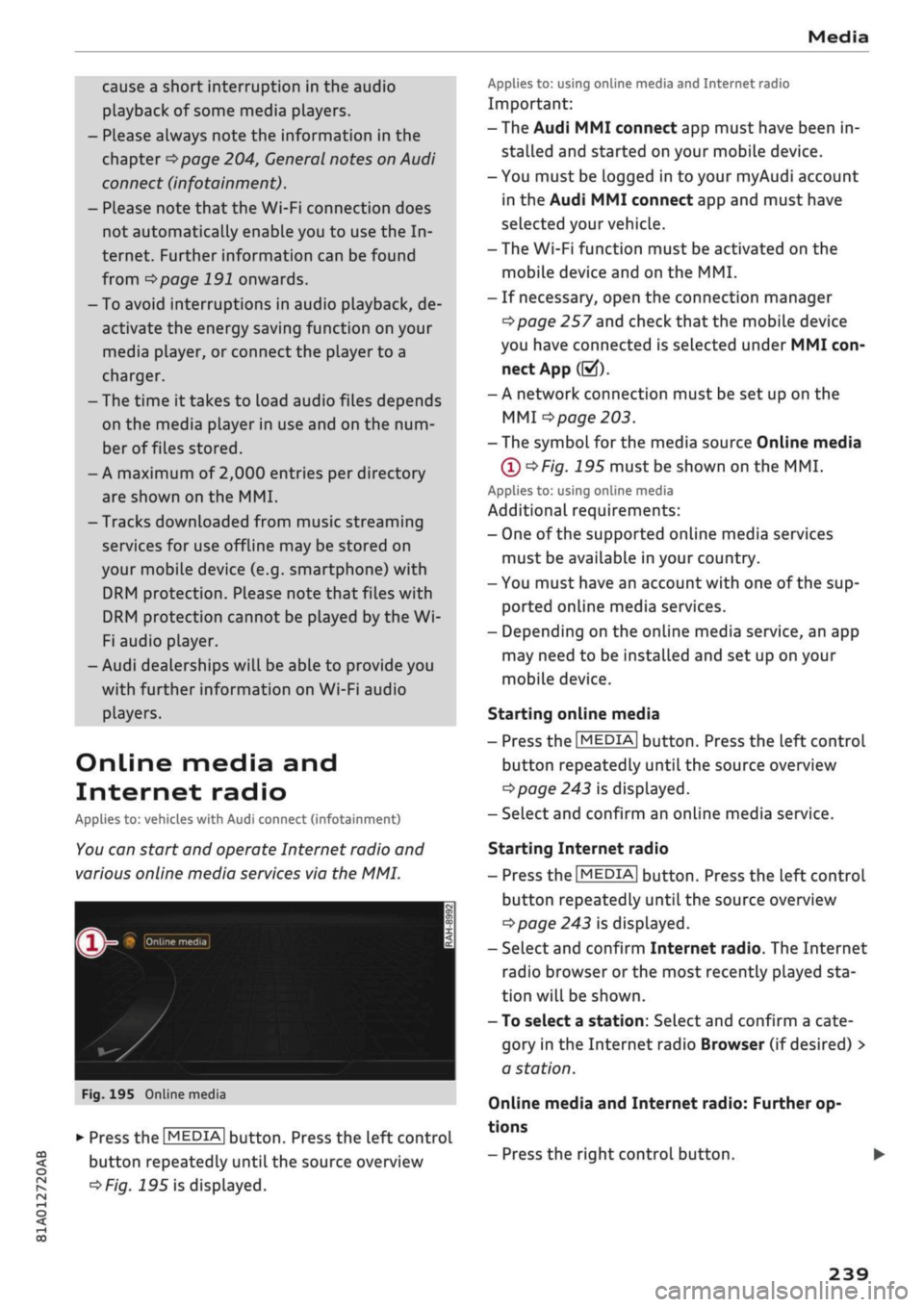
Online media
Fig.
195
Online media
CO
rN
IV
rN
i-H
00
Press
the|MEDIA|
button. Press the left control
button repeatedly until the source overview
^>Fig.
195 is displayed.
Applies
to: using online media and Internet radio
Important:
- The Audi MMI connect app must have been in
stalled and started on your mobiLe device.
- You must be logged in to your myAudi account
in the Audi MMI connect app and must have
selected your vehicLe.
- The Wi-Fi function must be activated on the
mobile device and on the MMI.
- If necessary, open the connection manager
^page
257 and check that the mobile device
you have connected is selected under MMI
con
nect App
(|vf).
- A network connection must be set up on the
MMI
^page
203.
- The symbol for the media source Online media
@^Fig.
195 must be shown on the MMI.
Applies
to: using online media
Additional requirements:
- One of the supported online media services
must be available in your country.
- You must have an account with one of the sup
ported online media services.
- Depending on the online media service, an app
may need to be installed and set up on your
mobile device.
Starting online media
- Press
the|MEDIA|
button. Press the Left controL
button repeatedly until the source overview
^>page
243 is displayed.
- Select and confirm an online media service.
Starting Internet radio
- Press the
|MEDIA|
button. Press the left control
button repeatedly until the source overview
Opage
243 is displayed.
- Select and confirm Internet radio. The Internet
radio browser or the most recently played sta
tion will be shown.
- To select a station: Select and confirm a cate
gory in the Internet radio Browser (if desired) >
a station.
Online media and Internet radio: Further op
tions
- Press the right control button.
239
Page 244 of 364
Media
The following options may be available depend
ing on the information displayed (e.g. the sta
tion/track currently playing):
- Sound settings: Refer to
^>page
260.
- Wi-Fi settings: Refer to
Opage
201, Wi-Fi hot-
spot.
- Connection manager: Refer to
<>page
257.
- Additional options may be available depending
on the active online media service or Internet
radio function.
A WARNING
- Mobile devices, tablet and laptop computers
and devices of
a
similar weight can only be
operated safely when the vehicle is station
ary. Like any Loose object, they can be cata
pulted through the vehicle in an accident
and cause serious injuries. Always make sure
that such devices are securely stowed while
you are driving.
- No Wi-Fi devices may be used from the front
seats in the areas around the airbags while
the vehicle is being driven. Please also ob
serve the safety warnings on
^>page
282,
Front airbags.
© CAUTION
- Please always observe the information
•=>©
in Wi-Fi hotspot on page 202.
- In order to use online media, you generally
have
to
set up an account with an online
media service, which may lead
to
additional
costs,
especially if
you
are using the service
abroad.
© Note
- Depending on the Internet connection and
network
load,
playback of the online media
services may be interrupted.
- Whether online media and Internet radio
can be used depends on the availability
of
services provided by third parties.
- AUDI AG only enables you
to
access online
media services via the MMI system and ac
cepts no responsibility for the content of
online media services.
- Please always note the information in the
chapter
^>page
204, General notes on Audi
connect (infotainment).
- Depending on the mobile device you are us
ing,
you may experience interruptions
in
media playback when using the Audi MMI
connect app. To avoid interruptions, keep
the Audi MMI connect app running in the
foreground and do not lock the screen on
your mobile device.
- Audi dealerships will be able
to
provide you
with further information on online media.
Multimedia connections
USB adapters for Audi music interface or
USB charging socket
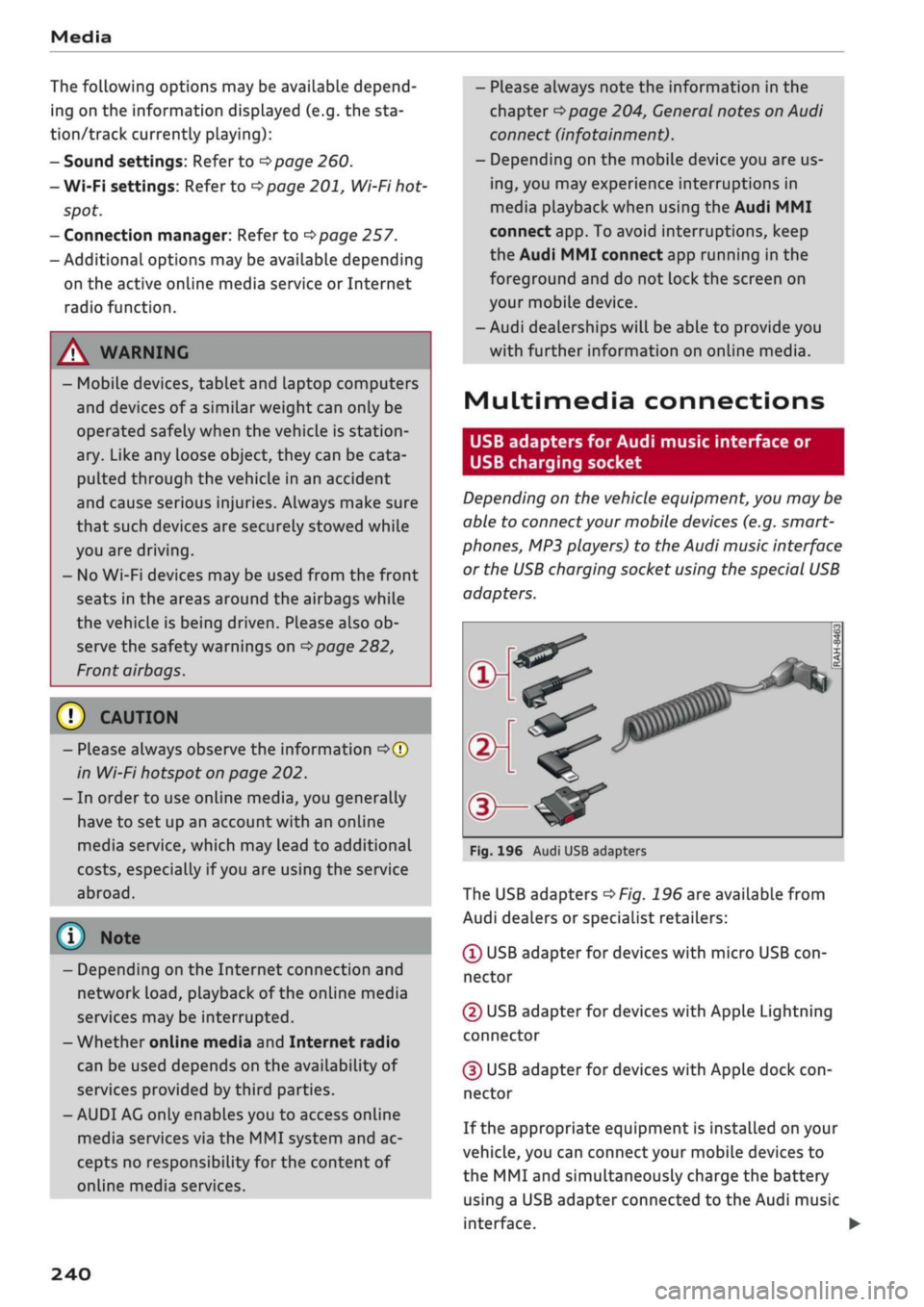
Depending on the vehicle equipment, you may be
able
to
connect your mobile devices (e.g. smart-
phones, MP3 players)
to
the Audi music interface
or the
USB
charging socket using the special
USB
adapters.
<
Fig.
196 Audi USB adapters
The USB adapters
^>Fig.
196 are available from
Audi dealers or specialist retailers:
® USB adapter for devices with micro USB
con
nector
© USB adapter for devices with Apple Lightning
connector
© USB adapter for devices with Apple dock
con
nector
If the appropriate equipment is installed on your
vehicle, you can connect your mobiLe devices
to
the MMI and simultaneously charge the battery
using a USB adapter connected
to
the Audi music
interface.
•
240
Page 248 of 364

Media
® Jukebox* 236
© DVD/CD drive*
235,
236
© SD card reader
235
© Audi music interface* 241
e.g.
iPod,
USB stick
© External audio player 242
e.g.
an MP3 player connected to
the
AUX input
© Bluetooth audio player* 237
© Wi-Fi audio player* 238
© Online media* and Internet radio* .. 239
- To play audio/video files: Select a source in the
Media menu > category (e.g. artist > album >
track/title).
- To access the next level up in the structure of
folders: Press the |BACK| button. Or: Select and
confirm Go up.
- To select the previous/next
item1^:
Briefly
press the ON/OFF button on the MMI controL
console to the left/right
(KM/»I).
- To rewind/fast forward audio/video* files:
Move and hold the ON/OFF button to the left/
right (KM/»)).
-To pause/resume playback: Briefly press the
ON/OFF button on the MMI control console.
(T)
Note
- You can scroll rapidly through long lists by
turning the rotary pushbutton quickly. The
scrolling speed depends on the number of
entries in the list.
- If the Traffic announcements
Opage
229
or DAB announcements* function is switch
ed on, playback is interrupted for announce
ments. You can cancel an announcement
while it is being played by briefly pressing
the ON/OFF button on the MMI controL
con
sole.
- For safety reasons, the video picture is not
available while the vehicle is moving. While
you are driving, only the sound is played.
Media centre
Several categories for selecting
audio/video1
files are available in the media centre.
Favourites
Artists
fl*
Albums
Fig.
201 Example: Categories for a USB stick
L
La
Fig.
fc V
!~
202
' /
Example
Orchestra Tracks
V\
Folders
J3
J
Playlists
/Videos
Categories for
a
USB stick
L
B
5
1
•
Press the |MEDIA| button. Press the left control
button repeatedly until the source overview is
displayed.
Select and confirm the desired
source.
©Active source
The active source is highlighted. The symbol for
the active source © may change depending on
the device connected or the online media* or In
ternet radio* service in use. The device name may
be displayed (e.g. MyPhone). A USB stick connec
ted via the Audi music interface* is shown as an
example
^>Fig.
201.
Depending on the active source, you can select
audio/video* files from the following categories
and copy them into the
playlist:
®
Favourites
The category Favourites appears if at least one
item has been stored as a favourite. Refer to
•=>page
246, Favourites.
l)
May not be possible during playback (depends on the
DVD).
244