sim AUDI Q2 2021 Owner´s Manual
[x] Cancel search | Manufacturer: AUDI, Model Year: 2021, Model line: Q2, Model: AUDI Q2 2021Pages: 364, PDF Size: 87.77 MB
Page 176 of 364

Telephone
mobile network provider via the embedded SIM
card1)
^page
191. Your mobile phone will be
connected via Handsfree only
^>page
172, and
you will not be able to use the car telephone
function*
^>page
172.
•
No: All data connections for all Audi connect in
fotainment services will use your own SIM
card.
All connections via the embedded SIM
card1*
will be disconnected, and you will be able to
use the car telephone function*
^>page
172.
You can now use Audi connect infotainment serv
ices.
Applies to: vehicles with Audi connect (infotainment)
•
You can configure your vehicle's mobiLe Wi-Fi
hotspot*2)
and the Audi connect infotainment
services* immediately after connecting an
rSAP-enabled
mobile phone
^page
191. Or:
Select [TÊT]
button > right control button >
Connection manager
>
right controL button >
Wi-Fi settings.
Using the function Store as default telephone in
the Connection manager, you can store one of
your connected mobile phones as the default
phone
^>page
258.
(T)
CAUTION
Please always observe the information
^©/n
Wi-Fi hotspot on page 202.
- You can adjust further settings for connec
ted mobile phones using the connection
manager
^>page
257.
- You can also search for the MMI system via
the Bluetooth device search function on
your mobiLe phone.
- Bluetooth devices only have to be bonded
once.
Any devices that have already been
bonded to the MMI system are connected
automatically when the Bluetooth function
11
SIM card installed in vehicle at factory.
2'
Not available in all markets.
3)
The number of possible attempts depends on the SIM
card.
is switched on, the devices are within range
of the car and the ignition is on. The mobile
phone last connected is given priority.
-You will need to authorise the MMI connec
tion on your mobile phone to enable auto
matic connection.
- Please note any system queries on your mo
bile phone, e.g. whether the phone should
connect automatically in the future. On
some mobile phones, you may also need to
download the directory and allow access to
your text messages separately.
- You receive the SIM PIN code from your mo
bile network service provider together with
the SIM
card.
If
you
enter the SIM PIN code
incorrectly three
times35
in a row, the SIM
card will be be blocked. A PUK (personal un
blocking key) must be entered in order to
reactivate the SIM
card.
-The Bluetooth connection between the sys
tem and the mobile phone is automatically
terminated when you leave the car. Depend
ing on the mobile phone, telephone calls
may be transferred automatically from the
MMI to your mobile phone so that you can
continue talking.
- For further information regarding your mo
bile phone, contact your mobile network
service provider or refer to the operating in
structions for your mobile phone. For infor
mation on using a phone in your car, please
go online (e.g. www.audi.com/bluetooth)
or ask an Audi dealer.
174
Page 177 of 364

Telephone
Operating two phones via the MMI
Applies to: vehicles with Audi phone box
You
can connect two mobile phones to the MMI
system using the Audi phone box (e.g. your
busi
ness mobile as the primary phone and your
per
sonal mobile as an additional phone).
You
can
then be reached inside the vehicle on both mo
bile phones.
The first mobiLe phone that you connect is shown
as the primary phone on the MMI system. The
second mobile phone is connected as an
addi
tional phone.
The system will always display the phone book on
the primary phone while it is connected. To use
the phone book on the additional phone, you
have to swap the primary phone and additional
phone
^>page
175.
Connecting a mobile phone as the primary
phone
Connect your mobile phone to the MMI system
via Bluetooth. The first mobiLe phone that you
connect is shown as the primary phone on the
MMI system.
Refer to
^page
173,
Connecting a mobile phone
via Bluetooth.
Connecting a mobile phone as an additional
phone
Important: A mobile phone must be connected
to the MMI system as the primary phone. Or:
Your own mini SIM
card15
for making and receiv
ing calls must be inserted in the SIM card
read
er*.
CO
<
O
rN
IN
rN
t-H
o < 00
Select:
|MENU|
button
>
Telephone > right
con
trol button > Connect additional phone.
Refer to
^>page
173,
Connecting a mobile phone
via Bluetooth.
For example, you have connected your business
mobile to the MMI system as the primary phone
and your personal mobile as the additional
phone.
To call
a
contact stored in your personal
x)
Not available in all markets. On vehicles with Audi connect
(infotainment)* and Audi phone box*
phone book, you now have to swap the primary
phone with the additional phone because the sys
tem always displays the phone book from the
pri
mary phone.
Inserting your own mini SIM card in the SIM
card reader*
Important: The MMI must not be connected to a
mobile phone.
Refer to
^>page
176,
Making and receiving calls
using your own mini SIM card.
If
you
want to use your mini SIM card in the SIM
card reader* as an additional phone, please refer
to
*$page
189.
Swapping the primary phone and additional
phone
Important: A primary phone and additional
phone must be connected.
To swap the primary phone with the additional
phone, select:
|MENU|
button
>
Telephone
>
right
control button > Switch primary & additional
phone.
- Please note that the system only ever dis
plays the directory on the primary phone.
- Please note that, when your mini SIM card is
inserted in the SIM card reader*, any mobile
phones for making and receiving calls which
are already connected to the MMI via Blue
tooth will be disconnected.
- You can see in the connection manager
^>page
257 whether your mobile phone is
connected as a primary phone or an
addi
tional phone. Or: The device name of the
primary phone connected to the system
(e.g.
MyPhone) is displayed in the Tele
phone menu.
- If the primary phone is not connected to the
MMI automatically when the ignition is
switched on, e.g. because it is out of range
of the vehicle or because the Bluetooth
function is switched off, a phone which was
175
Page 178 of 364
Telephone
previously connected as an additional phone
will be connected automatically as the
pri
mary phone.
-You can send and receive messages on both
the primary phone and additional phone
^>page
178, Fig. 162. You do not have to
swap the primary phone and additional
phone to do so.
- Using the function Store as default tele
phone in the Connection manager, you can
store one of your connected mobile phones
as the default phone
^>page
258.
Making and receiving calls using your own
mini SIM card
Applies to: vehicles with Audi connect (infotainment) and
Audi phone box
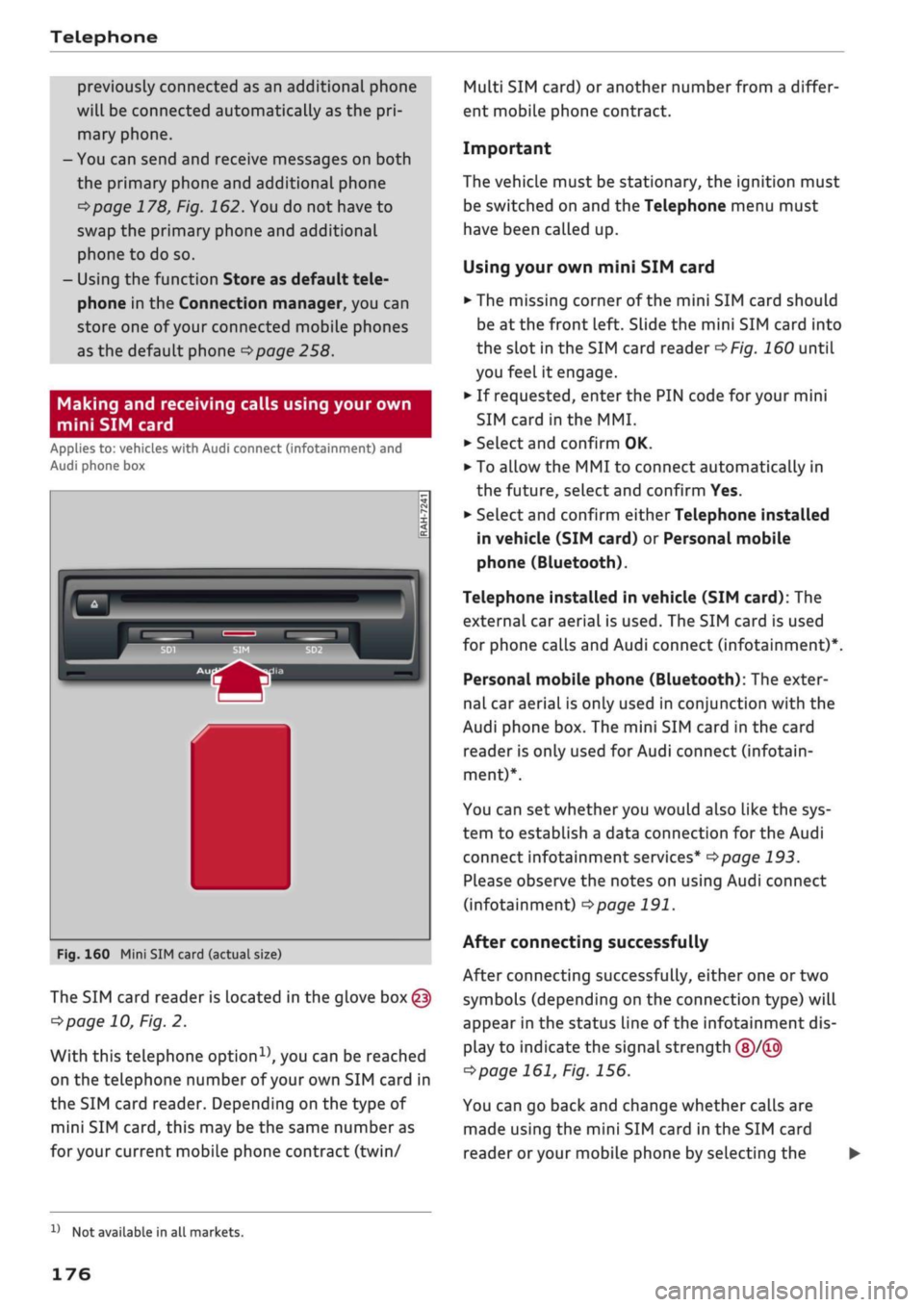
Fig.
160 Mini SIM card (actual size)
The SIM card reader is located in the glove
box@
^>page
10, Fig. 2.
With this telephone
option15,
you can be reached
on the telephone number of your own SIM card in
the SIM card reader. Depending on the type of
mini SIM
card,
this may be the same number as
for
your current mobile phone contract (twin/
Multi SIM card) or another number from a differ
ent mobile phone contract.
Important
The vehicle must be stationary, the ignition must
be switched on and the Telephone menu must
have been called up.
Using your own mini SIM card
• The missing corner of the mini SIM card should
be at the front Left. Slide the mini SIM card into
the slot in the SIM card reader
of/g.
160 until
you feel it engage.
•
If requested, enter the PIN code for your mini
SIM card
in
the MMI.
•
SeLect and confirm OK.
•
To allow the MMI to connect automatically in
the future, select and confirm Yes.
•
Select and confirm either Telephone installed
in vehicle (SIM card) or Personal mobile
phone (Bluetooth).
Telephone installed in vehicle (SIM card): The
external car aerial is used. The SIM card is used
for phone calls and Audi connect (infotainment)*.
Personal mobile phone (Bluetooth): The exter
nal car aerial is only used in conjunction with the
Audi phone box. The mini SIM card in the card
reader is only used for Audi connect (infotain
ment)*.
You can set whether you would also like the sys
tem to establish a data connection for the Audi
connect infotainment services*
^>page
193.
Please observe the notes on using Audi connect
(infotainment)
°=>page
191.
After connecting successfully
After connecting successfully, either one or two
symbols (depending on the connection type) will
appear in the status line of the infotainment dis
play to indicate the signal strength
(§)/©
tapage
161, Fig. 156.
You can go back and change whether
caLls
are
made using the mini SIM card in the SIM card
reader
or
your mobile phone by selecting the
x)
Not available in all markets.
176
Page 179 of 364

Telephone
|MENU|
button
>
Settings
>
left control button >
MMI settings > Connection manager
•=>
page 257.
In addition, the contacts on the mobile phone are
automatically loaded into the directory of the
MMI.
This may take several minutes, depending
on how many contacts are stored on the mobile
phone.
Removing a mini SIM card
• Briefly press the mini SIM
card.
The card will
then eject from the slot. Remove the mini SIM
card.
© CAUTION
-To avoid damaging the SIM card reader, on
ly use mini SIM cards
(25
mm x
15
mm)
^Fig.
160. Please contact your service pro
vider for more information on mini SIM
cards.
- Should you have inserted a different SIM
card size in the SIM card reader, do not un
der any circumstances attempt to remove it
yourself as this may damage the SIM card
reader. Please contact
a
qualified workshop.
- If
you
use SIM card adapters, the vibrations
caused by the movement of the vehicle may
cause the SIM card to become detached
from the adapter - risk of damage to the
SIM card reader.
If your mobile phone does not support the re
mote SIM Access Profile (e.g. iPhone), you can
use the contacts from your mobile phone by
connecting the mobiLe phone to the system
via the Directory/contacts profile
•=>
page 258.
Using the Audi phone
box
Applies
to: vehicles with Audi phone box
You
can use the Audi phone box to charge your
mobile phone's battery.
You
can use the vehicle's
external aerial to make calls, which reduces
radi
ation in the vehicle and also ensures better re
ception quality.*
Fig.
161 Audi phone
box
with
connections
The Audi phone box is Located in the centre
con
sole beneath the armrest©
opage
10, Fig. 2
Important: A mobile phone must be connected
via Bluetooth
^>page
173.
The following options are available:
- To establish a connection with the external car
aerial15:
Place your mobiLe phone onto the
mid
dle of the telephone symbol in the Audi phone
box
^>Fig.
161 with the phone's display facing
upwards. When doing so, make sure that there
are no objects between the Audi phone box and
the mobile phone.
- To charge a mobile phone wirelessly: Place
your
Qi
compatible25 mobile phone onto the
middle of the
<]>
symbol in the Audi phone box
oFig.
161 with the phone's display facing up
wards. The mobile phone
wiLl
be charged.
- To charge a mobile phone via a USB adapter:
Connect your mobile phone to the USB charging
socket
(TjoF/g.
161 using a USB adapter cable.
You can charge your mobiLe phone using special
USB adapters
^>page
240, Fig. 196. •
CO
<
O
rN
IN
rN
t-H
o
< 00
^
Not available in all markets. Additional car telephone
function
only with Audi connect (infotainment)*.
2)
The Qi standard enables you to charge your mobile phone
wirelessly.
177
Page 180 of 364
Telephone
A WARNING
- Loose objects can be flung around in the
passenger compartment in the event of
sud
den driving or braking manoeuvres. This
could result in serious injuries and also
cause you to lose control of the vehicle. Al
ways keep the centre armrest closed when
driving.
- The mobile phone may become hot while
charging wirelessly. Consider the tempera
ture of your mobile phone when removing
it.
Take the mobile phone out of the Audi
phone box carefully.
© Note
- The Audi phone box is not available in all
countries. Your Audi dealer will be able to
provide you with more detailed information.
- If the mobile phone is placed in the Audi
phone box in a bag or
a
protective case, this
may interfere with the connection to the ex
ternal aerial*.
- Any metal objects in the Audi phone box will
prevent the mobile phone from charging
wirelessly or being used to make calls via
the external aerial*.
- The charging time and the temperature vary
depending on the mobile phone being used.
-The ignition must be switched on to charge
a mobile phone in the Audi phone box.
- To avoid malfunctions, ensure that the mo
biLe phone is correctly placed inside the
Audi phone box.
-The maximum charging capacity is 5 W.
- An enhanced transmission quality cannot be
guaranteed if more than one mobile phone
is placed inside.*
-Audi recommends the use of Audi Genuine
Accessories. Audi has tested these products
for suitability, reliability and safety.
- USB adapters are available from Audi
deal
ers or specialist retailers.
- When you charge your mobile phone wire
lessly, the charging procedure may be inter
rupted if
you
place your remote control key
in the Audi phone box together with the
mobile phone.
Using the telephone
Calling up the telephone
Applies
to: vehicles with telephone
~~ .*|
Call
list
^^
•£?
Favourites
i
'^
Directory
y»
^ Enter
phone number
^^f
I
Text message (SIM card)
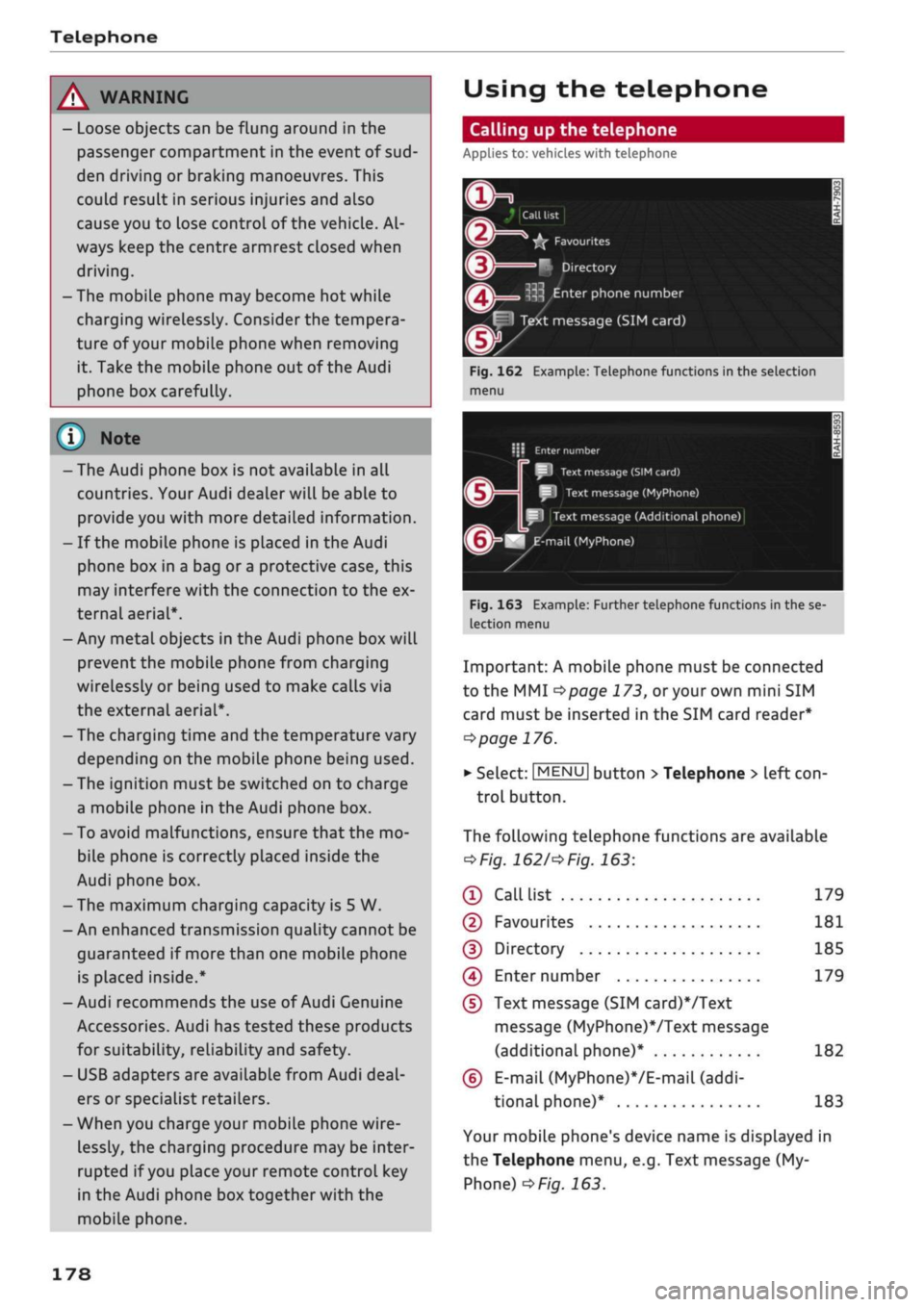
Fig.
162 Example: Telephone functions in the selection
menu
i\ï
Enter
number
SI
Text
message
(SIM
card)
I
Text message (MyPhone)
Text
message (Additional phone)
^mail
(MyPhone)
Fig.
163 Example: Further telephone functions in the se
lection
menu
Important: A mobile phone must be connected
to the MMI
<^>page
173,
or
your own mini SIM
card must be inserted in the SIM card reader*
^>page
176.
• Select: |MENU| button
>
Telephone > left
con
trol button.
The following telephone functions are available
*Fig.
1621'*
Fig.
163:
® Call
list 179
©
Favourites 181
(D Directory 185
(4) Enter number 179
(D
Text message (SIM card)*/Text
message (MyPhone)VText message
(additional phone)* 182
(6)
E-mail
(MyPhone)*/E-mail
(addi
tional phone)* 183
Your mobile phone's device name is displayed in
the Telephone menu, e.g. Text message (My
Phone)
^>Fig.
163.
178
Page 184 of 364

Telephone
Messages
Text messages
Applies to: vehicles with car telephone function or mobile
phones with Bluetooth Message Access Profile
Depending
on
your mobile phone and your mo
bile phone contract, you may be able to send and
receive text messages via the MMI.
You
can also
use the
speech
dialogue system* to dictate text
messages.
Important
Your own mini SIM card with a messaging option
must be inserted in the control console's SIM
card reader*
^>page
176, Fig. 160.
Or: A mobile phone with Bluetooth MAP (Mes
sage Access Profile) must be connected to the
MMI
^page
173.
>
SeLect:
|TEL|
button > left control button
>
Text
message (SIM card)*/Text message (My-
Phone)/Text message (additional phone)*.
Write new text message
SeLect and confirm Write new text message.
- To use a template: Select and confirm the
tem
plate you require from the list.
- To enter your own text*: Select and
confirm
Do
not use template. Enter
a
text using the MMI
touch
pad*
or the speller for letters/numbers.
- Enter one or more recipients.
- Select and confirm Send.
Dictate text
message^
Refer to
^page
167, Messages -Audi connect
(infotainment).
Inbox
All the text messages you have received are dis
played.
Sent
All the text messages you have sent are dis
played.
Outbox
All the text messages to be sent are displayed.
Drafts
All the text messages which have been stored but
not yet sent are displayed.
- Please note that, depending on your SIM
card (e.g. if
you
are using a Multi SIM card),
you may need to activate the function for
sending and receiving text messages. For
further information, contact your mobile
network service provider or refer to the op
erating instructions for your mobile phone.
- For more information on which mobile
phones are supported, please go online
(e.g.
www.audi.com/bluetooth) or contact
an Audi dealer.
- In order to send text messages via the MMI,
you will require a mobile phone with the
Message Access Profile which also supports
sending messages.
Message options
Applies to: vehicles with car telephone function or mobile
phones with Bluetooth Message Access Profile
•
Select: [TEL] button > left control button
>
Text
message (SIM card)/Text message (My-
Phone)/Text message (additional phone)* >
Inbox/Sent/Outbox >
right control button.
The following options may be available depend
ing on which menu you have selected:
Storing a text message as a template
There are already ten text message templates
stored on the MMI. You can store up to ten
addi
tional templates.
- Create a text message.
- SeLect and confirm Store as template.
Continue with last text message
You can continue with the text message you last
edited.
•
l)
Only available with Audi connect (infotainment).
182
Page 185 of 364

Telephone
CO
<
O
rN
IN
rN
t-H
o <
Reply*
You can reply to a text message you have selec
ted in the Inbox.
Forward
You can forward a text message you have selec
ted to another recipient.
Resend*
You can re-send a text message you have selec
ted.
Delete this text message*
You can delete a text message you have selected.
Read1)
You can have the MMI read an opened text mes
sage
to
you.
Delete text messages from SIM
A crossed-out envelope symbol is displayed in the
status line of the infotainment display if the SIM
card memory is
full.
You can still send text mes
sages but will not be able to receive any new
ones.
Select Delete sent text messages to delete
all sent text messages from the SIM
card.
Select
Delete read text messages to delete all read text
messages from the SIM
card.
Text message settings*
Activate Text message notifications to have a no
tification displayed when a new text message is
received.
An envelope symbol
El
is displayed in
the status line of the infotainment display if
there are any new text messages.
The number of your mobile network service pro
vider's Text message centre is displayed. If no
number has been stored, you can enter the num
ber of the text message centre. For more infor
mation,
contact your service provider.
Text
msg
diet,
declaration of
consent2):
Agree
ment that spoken data are forwarded to the serv
ice provider via AUDI AG.
11
Not available in all languages.
2)
Only available with Audi connect (infotainment).
Connection manager
Refer to
^>page
257.
Wi-Fi settings
Refer to
^>page
201.
Telephone settings
Refer to
^>page
187.
(T)
Not
Messages deleted using the MMI are also au
tomatically deleted on the mobiLe phone.
E-mail*
Applies to: mobile phones with Bluetooth Message Access
Profile
Depending
on
your mobile phone, you may be
able to send and
receive
e-mails
via the MMI.
You
can also use the speech dialogue system* to
dictate e-mails.
Important: A mobile phone with Bluetooth MAP
(Message Access Profile) must be connected to
the MMI
*$page
173. Please refer to the operat
ing instructions foryour mobiLe phone to find out
whether it supports this function.
•
Select:
|MENU|
button
>
Telephone
>
left
con
trol button >
E-mail
(MyPhone)/E-mail (addi
tional phone)*.
Write new e-mail
SeLect and confirm Write new e-mail.
- To use a template: SeLect and confirm the tem
plate you require from the
list.
- To enter your own text*: Select and confirm Do
not use template. Enter
a
text using the MMI
touch
pad*
or the speller for letters/numbers.
- Enter one or more recipients.
- Select and confirm Send.
Dictate
e-mail2)
Refer to
^>page
167, Messages - Audi connect
(infotainment).
183
Page 187 of 364
Telephone
CO
rN
IN
rN
•-H
00
Listening
to
voicemaiL
messages
Applies
to: vehicles with telephone
•
Select:
|MENU|
button
>
Telephone
>
left
con
trol button. Select and confirm Call list/Direc
tory/Favourites
>
Mailbox.
- To enter the mailbox number: Enter the num
ber desired. Select and confirm
OK.
- To dial the mailbox number: Select and
con
firm Mailbox.
® Note
- This service must be
set up
and activated
by
your mobiLe network service provider before
you can use
it. For
more information,
con
tact your service provider.
-The mailbox number depends on your serv
ice provider.
Directory
Calling
up the
directory
Applies to: vehicles with telephone
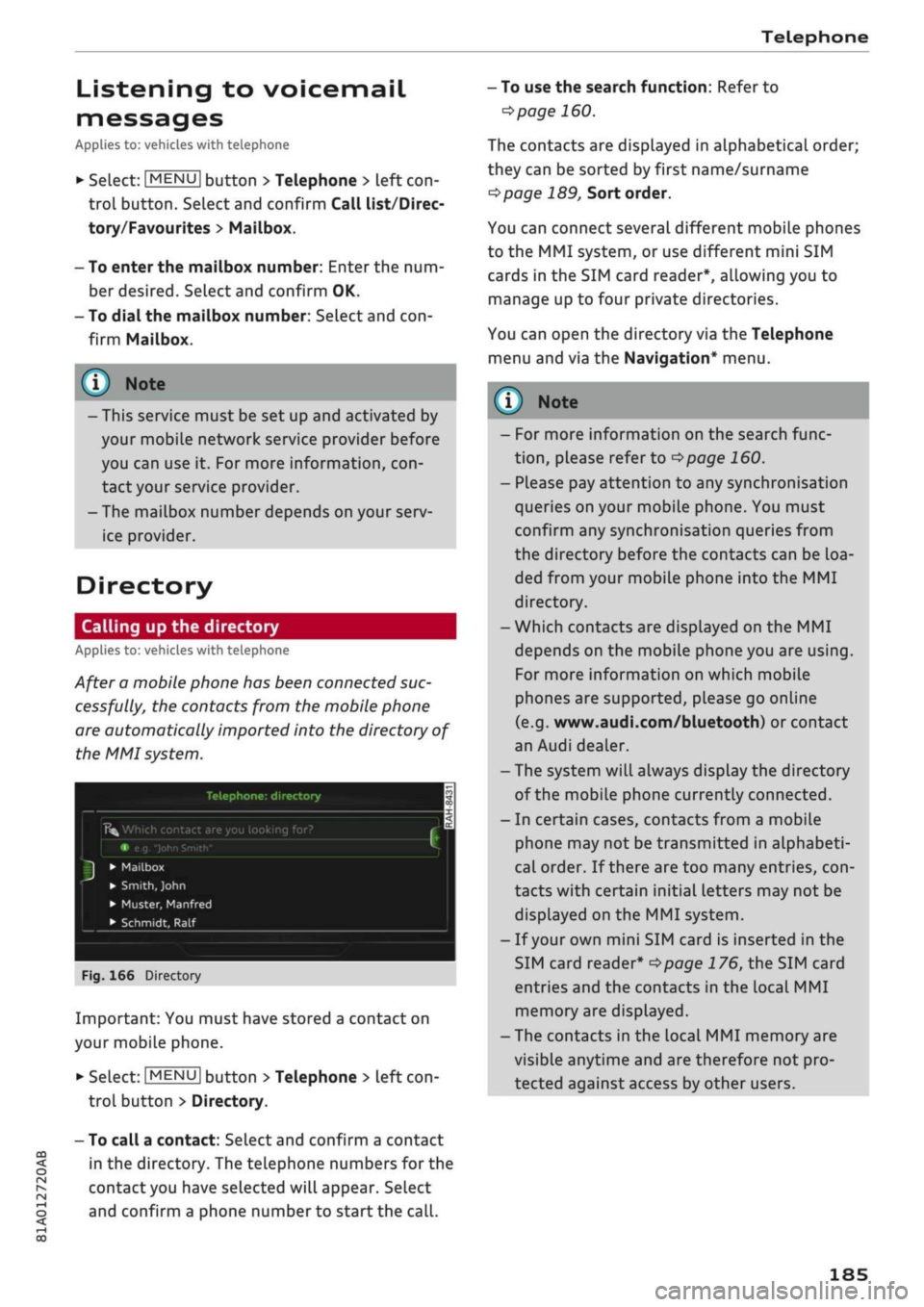
After a mobile phone has been connected suc
cessfully,
the
contacts from
the
mobile phone
are automatically imported into
the
directory
of
the MMI system.
Telephone:
directory
Î5fc
Which contact are you looking for?
e.g.
"John
Smith"
•
Mailbox
•
Smith,
John
• Muster, Manfred
• Schmidt,
Ralf
Fig.
166
Directory
Important: You must have stored a contact
on
your mobile phone.
*•
Select:
|MENU|
button
>
Telephone
>
left
con
trol button > Directory.
- To call a contact: Select and confirm a contact
in
the
directory. The telephone numbers
for the
contact you have selected will appear. Select
and confirm a phone number
to
start the
call.
- To use the search function: Refer
to
^>page
160.
The contacts are displayed
in
alphabetical order;
they can be sorted by first name/surname
^page
189,
Sort order.
You can connect several different mobile phones
to
the
MMI system,
or
use different mini
SIM
cards
in the
SIM card reader*, allowing you
to
manage up
to
four private directories.
You can open
the
directory via the Telephone
menu and
via the
Navigation* menu.
y
Note
-
For
more information
on the
search func
tion,
please refer
to
^>page
160.
- Please pay attention
to
any synchronisation
queries on your mobile phone. You must
confirm any synchronisation queries from
the directory before
the
contacts can
be
loa
ded from your mobiLe phone into
the MMI
directory.
- Which contacts are displayed
on the MMI
depends on
the
mobile phone you
are
using.
For more information
on
which mobile
phones are supported, please
go
online
(e.g.
www.audi.com/bluetooth)
or
contact
an Audi dealer.
- The system will always display the directory
of the mobile phone currently connected.
-
In
certain cases, contacts from a mobile
phone may
not
be transmitted
in
alphabeti
cal order.
If
there are
too
many entries,
con
tacts with certain initial letters may
not be
displayed
on the
MMI system.
-
If
your own mini SIM card
is
inserted
in the
SIM card reader*
^>page
176, the
SIM card
entries and
the
contacts
in the
local
MMI
memory are displayed.
- The contacts
in the
local MMI memory are
visible anytime and are therefore
not
pro
tected against access
by
other users.
185
Page 188 of 364
Telephone
Using contacts from another mobile phone
Applies to: vehicles with Audi connect (infotainment) and
Audi phone box
If your own mini SIM card is inserted in the SIM
card reader and is used for telephone calls, you
can
access
the directory on another mobile
phone.
Important: A mini SIM card must be inserted in
the SIM card reader.
•
Refer to
opage
258, Directory.
- When the MMI system has downloaded the
directory from the mobile phone, the
con
tacts from the SIM card will no longer be
shown in the MMI directory.
- When you switch the ignition on again after
switching it off and leaving the car, the MMI
system will load the mobile phone's directo
ry if the phone is within range and Blue
tooth is activated both on the phone and on
the MMI system. If this is not the case, the
MMI system
wiLl
show the contacts from the
mini SIM card in the SIM card reader.
Searching for a contact
Applies to: vehicles with telephone
•
Select:
IMENU|
button
>
Telephone > left
con
trol button > Directory.
•
To Limit the search, enter the initials of the
con
tact you are looking for individually in the entry
field,
separating them with a space. Enter
addi
tional Letters if necessary.
•
Select and confirm a contact in the directory.
The telephone numbers for the contact you
have selected will appear.
•
SeLect and confirm a phone number to start the
call.
scrolling speed depends on the number of
entries in the List.
- For more information on the search func
tion,
please refer to
^page
160.
Show contact details*
Applies to: vehicles with telephone
You
may
be
able to have contact details dis
played, depending on the equipment in your
ve
hicle.
John Smith
m
,n
0049841123456
£
B
001701239873
BE
Berlin
m
[email protected]
m
'
1
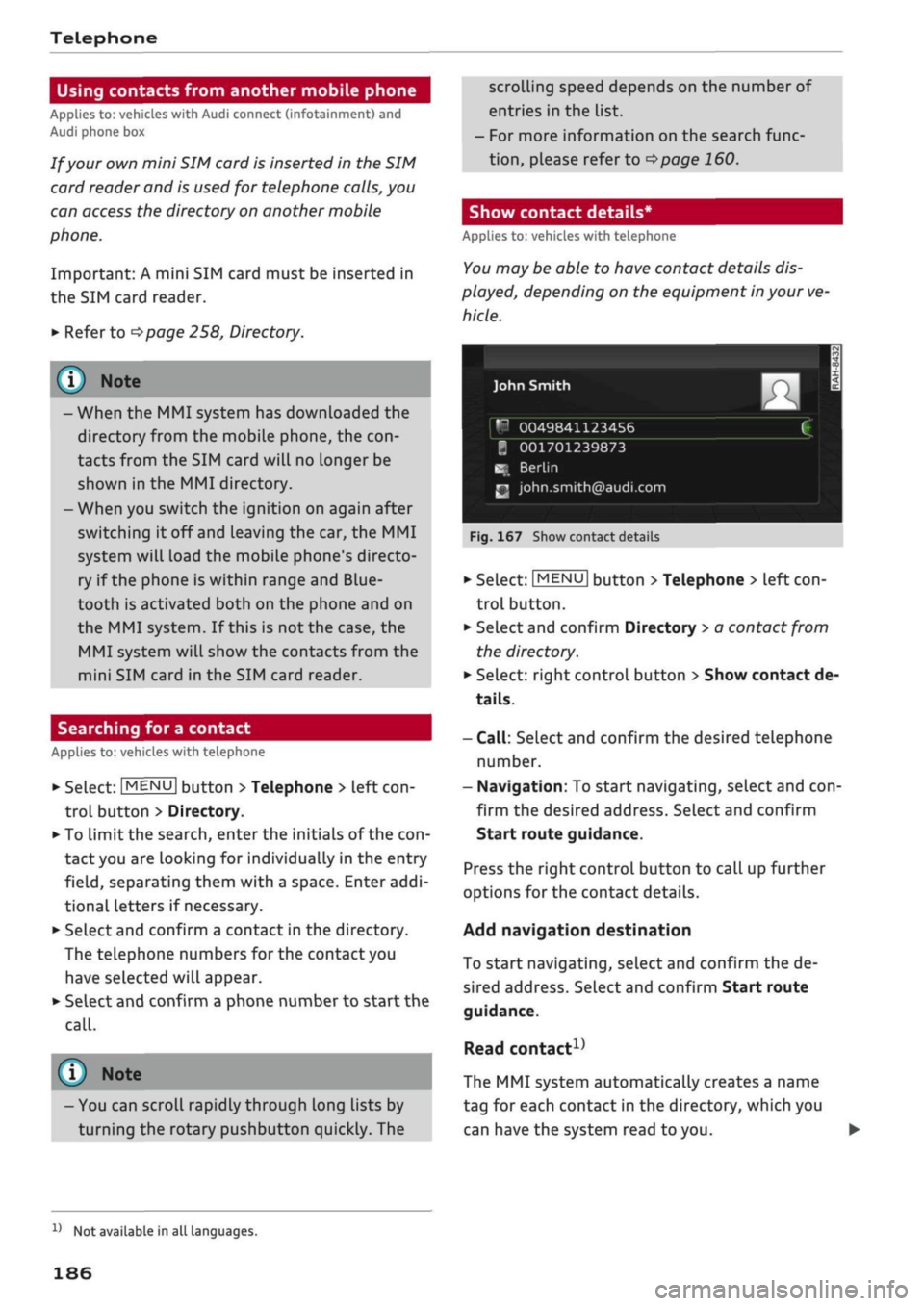
Fig.
167 Show contact details
(i)
Note
- You can scroll rapidly through long lists by
turning the rotary pushbutton quickly. The
•
SeLect:
|MENU|
button
>
Telephone
>
left
con
trol button.
•
Select and confirm Directory
>
a contact from
the directory.
•
SeLect: right control button > Show contact de
tails.
-
Call:
Select and confirm the desired telephone
number.
- Navigation: To start navigating, select and
con
firm the desired address. SeLect and confirm
Start route guidance.
Press the right control button to
caLl
up further
options for the contact details.
Add navigation destination
To start navigating, select and confirm the de
sired address. Select and confirm Start route
guidance.
Read
contact1}
The MMI system automatically creates a name
tag for each contact in the directory, which you
can have the system read to you.
x)
Not available in all languages.
186
Page 191 of 364
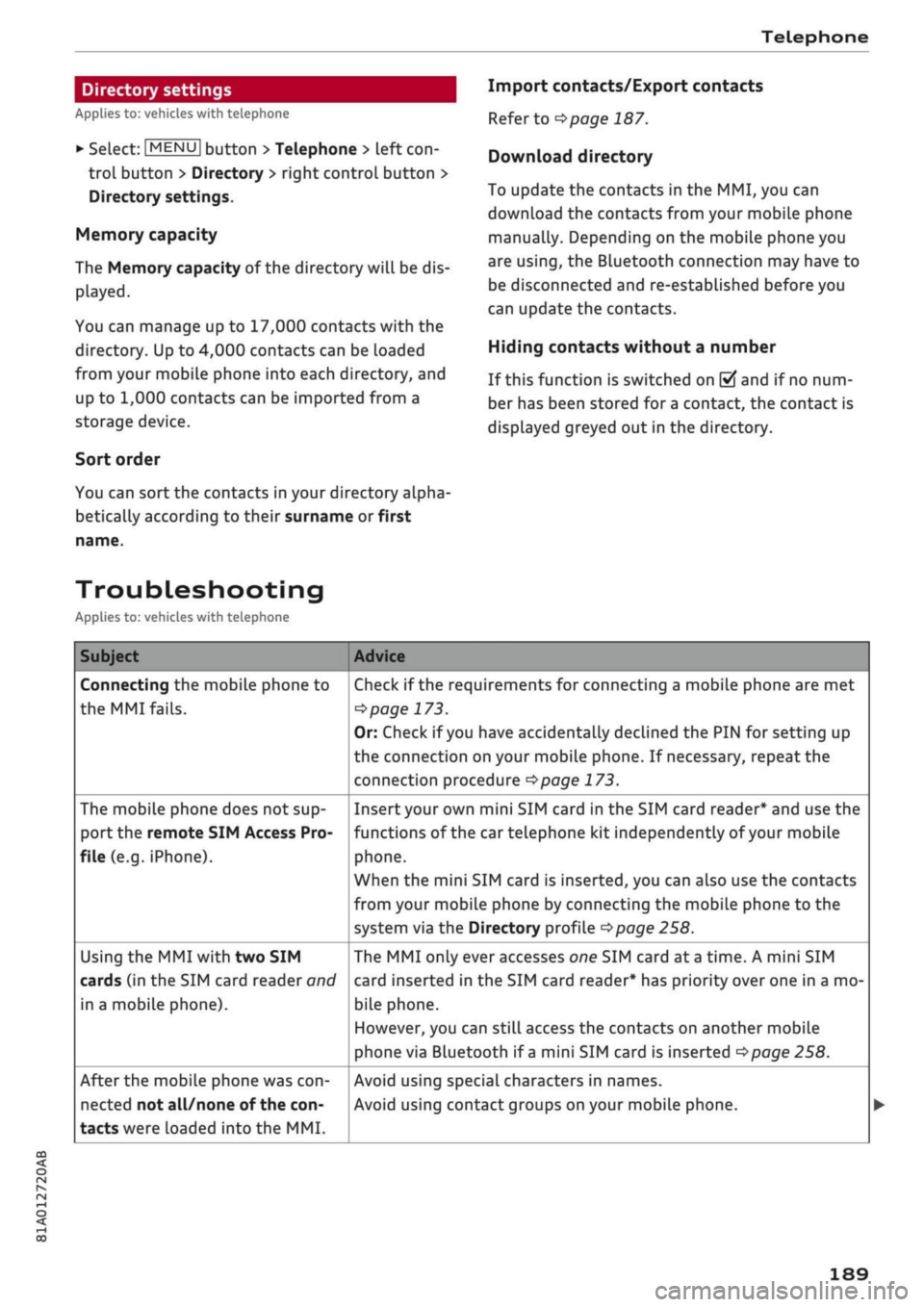
Telephone
Import contacts/Export contacts
Refer to
^>page
187.
Download directory
To update the contacts in the MMI, you can
download the contacts from your mobile phone
manually. Depending on the mobile phone you
are using, the Bluetooth connection may have to
be disconnected and re-established before you
can update the contacts.
Hiding contacts without a number
If this function is switched on
0
and if no num
ber has been stored for
a
contact, the contact is
displayed greyed out in the directory.
Troubleshooting
Applies to: vehicles with telephone
Subject
Connecting the mobile phone to
the
MMI fails.
The mobile phone does not sup
port the remote SIM Access Pro
file (e.g. iPhone).
Using the MMI with two SIM
cards (in the SIM card reader
oncf
in a mobile phone).
After the mobile phone was
con
nected not all/none of the
con
tacts were loaded into the MMI.
Advice
Check if the requirements for connecting a mobile phone are met
^>page
173.
Or: Check if
you
have accidentally declined the PIN for setting up
the connection on your mobile phone. If necessary, repeat the
connection procedure
^>page
173.
Insert your own mini SIM card in the SIM card reader* and use the
functions of the car telephone kit independently of your mobile
phone.
When the mini SIM card is inserted, you can also use the contacts
from your mobile phone by connecting the mobiLe phone to the
system via the Directory profile
^>page
258.
The MMI only ever accesses one SIM card at
a
time. A mini SIM
card inserted in the SIM card reader* has priority over one in a mo
bile phone.
However, you can still access the contacts on another mobile
phone via Bluetooth if
a
mini SIM card is inserted
^>page
258.
Avoid using special characters in names.
Avoid using contact groups on your mobile phone.
CO
rN
IN
rN
i-H
00
189
Directory settings
Applies to: vehicles with telephone
•
Select:
|MENU|
button
>
Telephone
>
left
con
trol button > Directory
>
right control button >
Directory settings.
Memory capacity
The Memory capacity of the directory will be dis
played.
You can manage up to 17,000 contacts with the
directory. Up to 4,000 contacts can be loaded
from your mobile phone into each directory, and
up to 1,000 contacts can be imported from a
storage device.
Sort order
You can sort the contacts in your directory alpha
betically according to their surname or first