Message AUDI Q2 2021 Owner´s Manual
[x] Cancel search | Manufacturer: AUDI, Model Year: 2021, Model line: Q2, Model: AUDI Q2 2021Pages: 364, PDF Size: 87.77 MB
Page 219 of 364
Navigation
CO
< o rN
IV
rN
•-H
•H
00
The distance to the destination and the estima
ted time of arrival are also displayed for your per
sonal routes. Even before route guidance is star
ted,
your MMI system monitors the traffic situa
tion for your personal routes and the infotain
ment display shows possible traffic disruptions
along the route you will probably take (2)
*>Fig.
177.
A message is displayed if there are any Larger
traffic disruptions (more than 7 minutes delay),
irrespective of which menu is selected
<=>Fig.
178.
Select and confirm one of the following options:
- Start route guidance: The MMI starts route
guidance for the personal route shown and
searches for
a
faster route (if one is available).
- Ignore this route and this message: The desti
nation shown and all of the corresponding per
sonal routes are no Longer taken into account
on the current trip. No more messages are dis
played for the destination shown. The destina
tion shown and
all
the corresponding personal
routes are ignored until the car is parked and
the ignition is subsequently switched on again.
- Ignore all messages: All of the personal routes
are ignored for the current trip. No more mes
sages are displayed. Messages for traffic dis
ruptions on the personal routes are not dis
played again until the car is parked and the ig
nition is subsequently switched on again.
The symbol disappears from the status line and
your trips are no longer recorded as soon as you
switch off the personal route assist function.
Trips which have already been recorded remain
stored.
Deleting a personal route:
- Select the desired personal route in the Enter
destination menu
®
^>Fig.
177.
- SeLect: right control button > Delete destina
tion.
Deleting all personal routes:
- Select:
|MENU]
button > Settings
>
left control
button > MMI settings > Factory settings.
- Select: Navigation and online memory
>
Re
store factory settings
^page
256.
- Personal routes are memorised depending
on your vehicle's location. Routes are priori
tised depending on how often you drive to a
destination.
- Up to three personal routes are displayed in
the Enter destination menu. The traffic sit
uation is always monitored for the three
routes most likely to be followed depending
on your vehicle's current location.
- Please note that, once a personal route has
been stored, it remains stored after the
function is deactivated (i.e. it has to be de
leted manually).
- This function is not available in the Mexican
market.
Home address
Applies to: vehicles with navigation system
•
Press the |NAV/MAP| button repeatedly until
the Enter destination menu is displayed
<> page
207, Fig. 172.
Storing a home address
- Select and confirm Home address (2)
<=>page
207, Fig. 172. After calling up the
home address for the first time, you will be
asked to set
a
home address.
- Select and confirm Create now.
- Enter
a
destination or select
a
destination from
the list. Or:
- Select and confirm a destination > right control
button > Store as home address.
A home address is stored in the MMI regardless
of any mobile phone which may be connected.
This home address is always available, even if no
mobiLe phone is connected to the MMI.
Editing home address
- Select the Home address (2)
Opage
207,
Fig. 172.
- Select: right controL button > Edit home ad
dress.
- Select and confirm a new destination as the
home address.
215
Page 221 of 364
Navigation
CO
â
rN
rN
t-H
O
<
Other settings
Navigation settings
Applies
to:
vehicles with navigation system
•
Press
the |NAV/MAP|
button repeatedly until
the Enter destination menu
is
displayed
o
page
207,
Fig.
172.
•
Select: right control button
>
Navigation set
tings.
Depending
on the
function seLected,
you can use
the following settings:
Display alternative routes
When this function
is
switched
on
|vj,
up to
three
route suggestions
are
displayed
on the map
^>page
216,
Alternative routes.
Fuel warning
When
the
fuel gauge
is in the
reserve zone,
a
message will appear when this function
is on
[vf.
A list
of
nearby filling stations will
be
displayed
when you confirm this message. When
you
select
one
of
the filling stations,
the
route
to its
loca
tion will
be
calculated based
on the
current
posi
tion
of
your
car.
Trailer mode*
Trailer mode
is
switched
off
when
the
vehicle
leaves
the
factory.
When this function
is
switched
on
|vf,
the MMI
will take
the
speed limit
for
vehicles towing
a
trailer into account and
the
calculated arrival
time will
be
adjusted accordingly. Trailer mode
is
indicated
on the
map's legend menu
by the
sym
bol-*!.
Personal route assist*1)
The personal route assist function
is
switched
off
by default
in the
factory settings.
When this function
is
activated
EÎ,
your trips
are
recorded
and
destinations
are
suggested by
the
MMI system
^>page
214.
Arrival notification*
The arrival notification
is
switched
off
when
the
vehicle leaves
the
factory.
When this function
is
switched
on
@f,
the MMI
will inform
you
when
you are
approaching selec
ted special destinations (e.g. imported myAudi
special destinations). You
can
also have a sound
played using
the
Play notification tone function.
Delete myAudi special destinations*11
Destinations that you import from your myAudi
account
to
your
MMI are
automatically saved.
You
can
delete them individually
or all at
once.
Presentation mode
Use
the
Presentation mode
to
plan
and
"drive"
a
journey effectively without
the
need
to
move
the
vehicle. You
can
choose your start Location
man
ually (Select start location)
if, for
example,
you
would like
to
calculate a route starting from
a
different position than
the
current position
of the
vehicle. Start
the
Presentation mode
to
simulate
a route guidance.
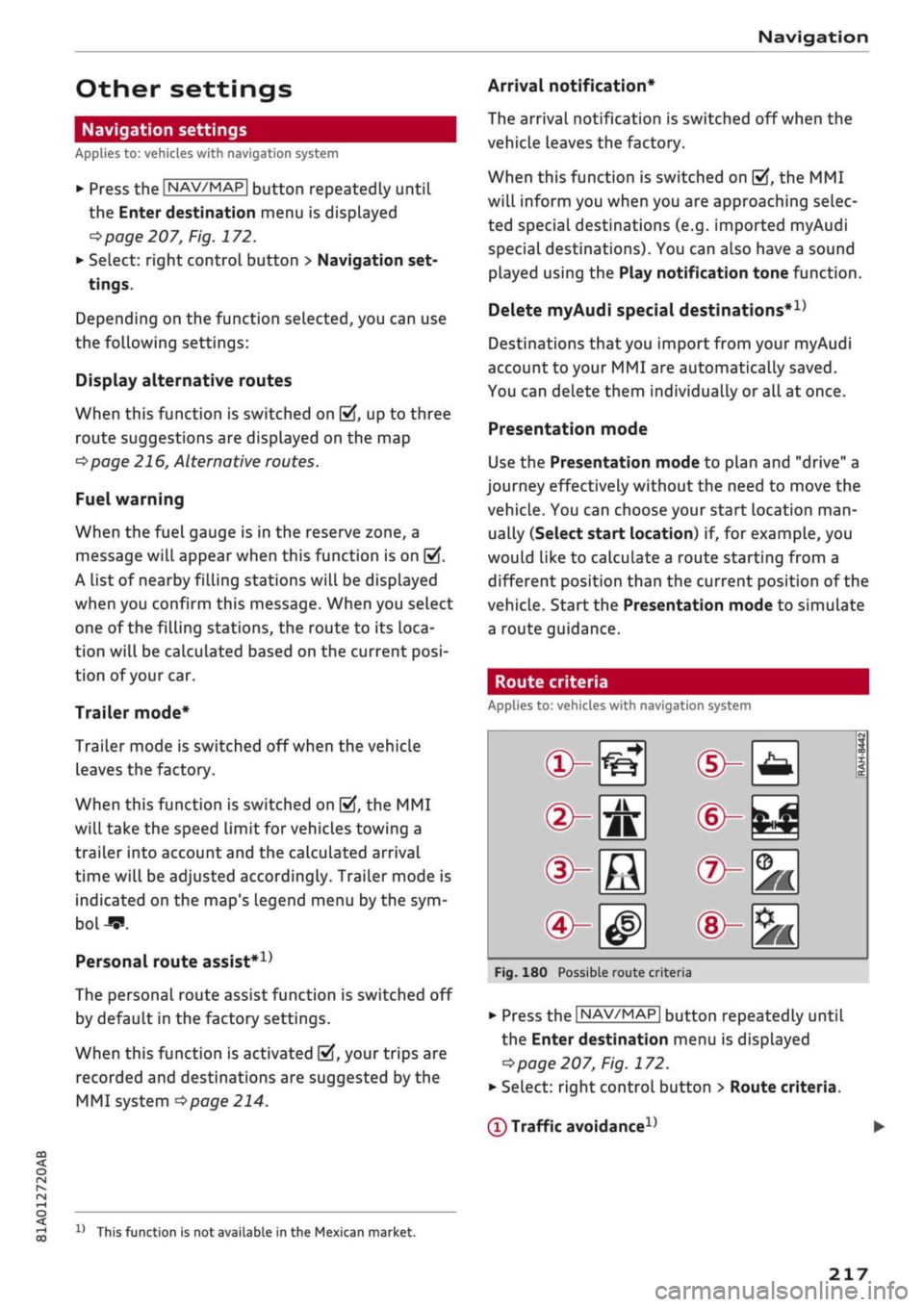
Route criteria
Applies
to:
vehicles with navigation system
®-«?
dHft
d^e
(S^#
Fig.
180
Possible route crite
1 1
1
®-feJ
®-fc
®-3K
ria
•
Press
the |NAV/MAP|
button repeatedly until
the Enter destination menu
is
displayed
=>page
207,
Fig.
172.
•
Select: right control button > Route criteria.
(T)
Traffic avoidance
D
x)
This function
is
not
available
in the
Mexican market.
217
Page 227 of 364

Navigation
Map
update
CO
< o rN
r^
rN
t-H
O
<
Introduction
Applies to: vehicles with navigation system
There are severaL different ways of updating the
map:
- Map updates via the online map update* func
tion
^
page 223.
- Map updates via the online map update* func
tion
•=>
page 223
1).
- Importing a map update to your MMI using an
SD card*
1).
Further information can be found
on the Internet at my.audi.com.
- Map update at your Audi dealer, who may
charge for this service.
Online map update
Applies to: vehicles with navigation system and Audi connect
(infotainment)
With the online map update function you can up
date the map material
of
your navigation system
directly in the vehicle.
New navigation database
-S>
Eastern Europe
An update is available for your destination
region (Eastern Europe).
"\
Updates can also be downloaded from
' my.audi.com and installed via an SD
card.
Switch to online update
Fig.
185 Example: Display of
a
new online map update
Eastern Europe
—>
Recommended regions
| Belarus
3,3 MB
O
O
j
T
m
Albania 18,2 MB
D
Packets required OB
Start download
Cancel
Fig.
186 Example: Selection of
a
country package
Important:
The requirements for Audi connect infotainment
services must be met
<=>page
191.
x)
This function is not available in the Mexican market.
You must have a myAudi account and have added
your vehicle to it.
The MMI uses the vehicle's position to establish
which regions you are most often in. The MMI
uses this information to suggest update pack
ages for these regions if any are available
<*Fig.
185.
•
Select and confirm
(T)
Switch to online update
oFig.
185 when the message informing you of
a new map update appears on the infotainment
display. Or:
•
Select:
IMENU|
button > Settings > left control
button > System maintenance > System up
date > Online update.
A list of the available update packages is shown
on the infotainment display
^>Fig.
186.
Selecting online map update
- Select an update package from the list
(5f).
If
update packages with a large volume of data
are available for certain countries (e.g. France),
you can choose to update individual regions
(e.g.
only southern France).
- Press the
I
BACK
|
button to confirm your selec
tion and return the list of available update
packages.
Starting download
- Select and confirm Start download.
- Confirm the safety query by selecting Start
download again.
The update packages will be downloaded, and
the download status will be shown on the info
tainment display.
Installing online map update
The installation of the downloaded maps only oc
curs after the vehicLe has been parked. The new
update packages are installed after the ignition is
switched off. When you restart the MMI, a mes
sage indicating
that
the updates have been in
stalled successfully will appear on the infotain
ment dispLay.
- Confirm the successful update with OK.
223
Page 229 of 364
Navigation
CO
â
rN
r^
rN
•-H
•H
00
Activating myAudi
special
destinations in the
map view
The myAudi special destinations must now be ac
tivated in the map display so that they can be
used for the navigation system.
Traffic information (TMC/TMCpro*)
Applies to: vehicles with navigation system
- Select: |NAV/MAP| button > right control but
ton > Map settings
>
Map content. The impor
ted myAudi special destinations are Listed and
can be identified by the list names you assigned
to them.
- SeLect all myAudi special destinations that you
would like to be shown in the map dispLay.
- Press the
I
BACK|
button.
The selected myAudi special destinations are now
displayed in the map view and can be used for
route guidance.
Please always note the information in the
chapter
opage
204, General notes on Audi
connect (infotainment).
Calling
up
traffic
information
Dynamic traffic avoidance
Applies to: vehicles with navigation system
Using the traffic information received via TMC/
TMCproVonline
-
depending on availability - you
can have the MMI guide you past traffic obstruc
tions whenever possible. For this, the traffic
avoidance must be switched on
^>page
217.
(T) Note
The "Traffic information" function is not avail
able for the markets of the Gulf Cooperation
Council (GCC) member states or for the Mexi
can market.
Map:
Traffic messages
*?
A
better route
is
available Time saving: 30 min
Nùrnberg ^
Halle/Leipzig
NUrnberg •*
Halle/Leipzig
A. in
122 km
Nurnberg -•
Halle/Leipzig
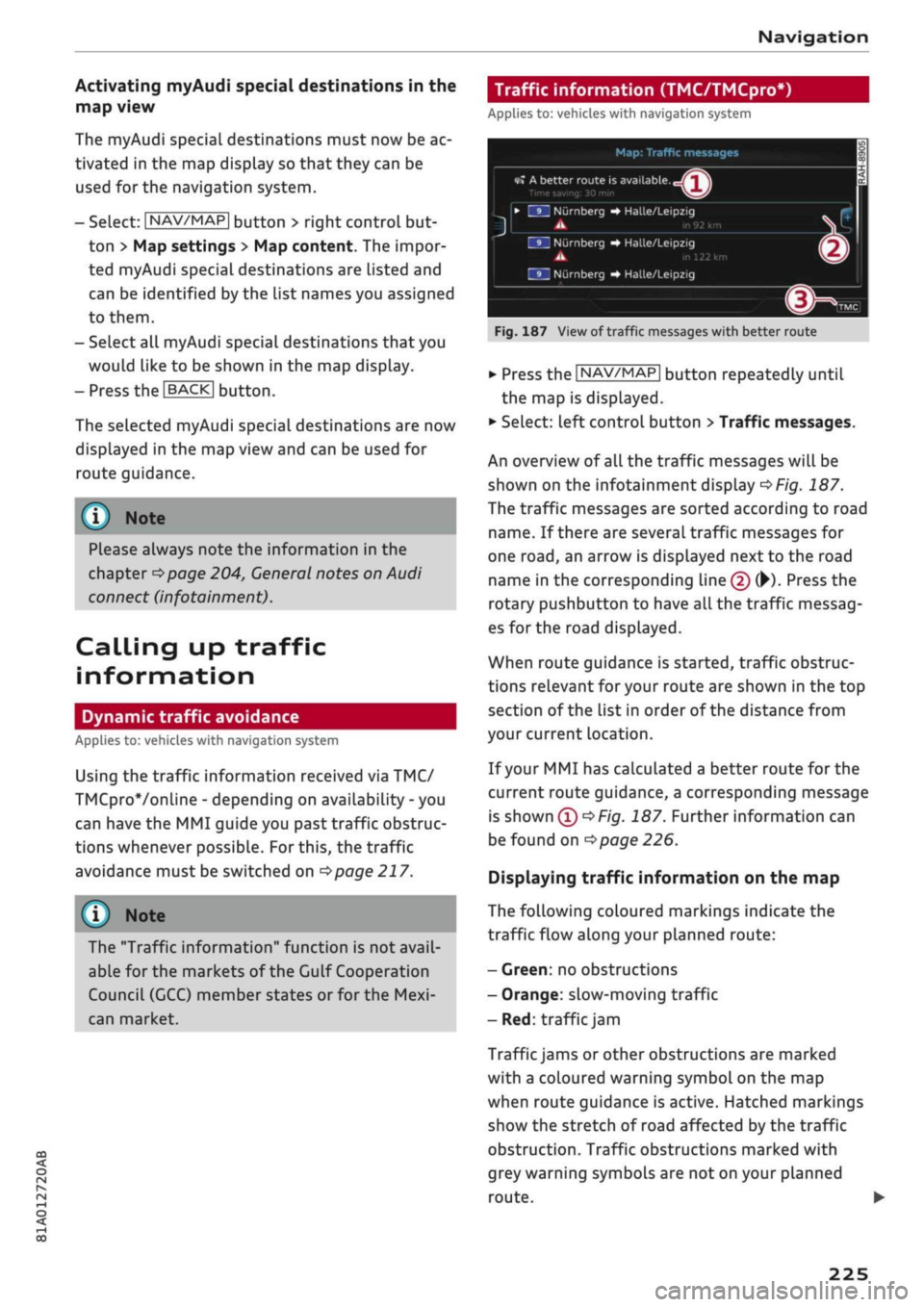
Fig.
187 View of traffic messages with better route
*•
Press the |NAV/MAP| button repeatedly until
the map is displayed.
•
Select: left control button
>
Traffic messages.
An overview
of all
the traffic messages will be
shown on the infotainment dispLay
^>Fig.
187.
The traffic messages are sorted according to road
name.
If
there are several traffic messages for
one
road,
an arrow is displayed next to the road
name in the corresponding line
(f)
(•)•
Press the
rotary pushbutton
to
have all the traffic messag
es for the road displayed.
When route guidance is started, traffic obstruc
tions relevant for your route are shown in the top
section of the list in order of the distance from
your current location.
If your MMI has calculated a better route for the
current route guidance, a corresponding message
is
shown
(T)<=>F/g.
187. Further information can
be found on
^>page
226.
Displaying traffic information on the map
The following coloured markings indicate the
traffic flow along your planned route:
-
Green:
no obstructions
- Orange: slow-moving traffic
- Red: traffic
jam
Traffic jams or other obstructions are marked
with a coloured warning symbol on the map
when route guidance is active. Hatched markings
show the stretch of road affected by the traffic
obstruction. Traffic obstructions marked with
grey warning symbols are not on your planned
route.
•
225
Page 230 of 364

Navigation
All traffic jams or other obstructions are marked
with a coloured warning symbol on the map
when route guidance is not active.
You can adjust the settings for the display of the
coloured markings, warning symbols etc. in the
Map content menu
^>page
221.
Reception of traffic information is also indicated
by the
[TMc1/|TMCpro|*/|ONLiNE>
symbol in the
status Line of the infotainment display
(f)
OFig.
187.
- Urgent traffic information, such as a car
travelling in the wrong direction on the mo
torway, is displayed automatically. To hide
the traffic information, press the |BACK|
button or the rotary pushbutton.
- The "Traffic information" function is not
available for the markets of the Gulf Coop
eration Council (GCC) member states or for
the Mexican market.
Better route
Applies to: vehicles with navigation system
By
receiving traffic information via
TMC,
your
MMI calculates a better route (if
one
is availa
ble) and any possible time saving for the current
route guidance.
You
can then choose which route
you would like to use.
•
Press the |NAV/MAP| button repeatedly until
the map is displayed.
Important: The route guidance function must be
active.
Dynamic traffic avoidance must be set to manual
•=>poge 217
and the map must be displayed.
If your MMI has calculated a better route
for
the
current route guidance, the message A better
route is
available,
and the time saving will be
displayed on the map. In the map view, the
symbol
^page
219, Fig. 182
draws
your atten
tion to a better route.
Using a better route
- Press the rotary pushbutton. Or: Select the left
control button
>
Traffic messages. The better
route will be displayed along with your calcula
ted arrival time.
- SeLect and confirm the better route.
- The better route will be used for the continuing
route guidance.
Online traffic information
Applies to: vehicles with navigation system and Audi connect
(infotainment)
The
MMI system can receive real-time informa
tion from the Internet regarding traffic conges
tion, accidents, roadworks and other incidents.
Important: The requirements for Audi connect
(infotainment) must be met
^>page
191.
•
Press the |NAV/MAP| button repeatedly until
the map is displayed.
•
Select: right control button
>
Online traffic da
ta on (ED.
- To switch on the traffic map display: To have
the traffic information displayed in the best
possible way, select the
I
NAV/MAP]
button >
right control button > Map settings
>
Map dis
play
>
Traffic.
You can also have the traffic information dis
played on the Google Earth map
^>page
222 or
the standard map
•=>page
219, Fig. 181.
If online traffic information cannot be received,
the traffic information will automatically be re
ceived via
|TMC|/|TMCpro|» ^>
page 225.
Prayer
compass*15
Applies to: vehicles with prayer compass
Important: The display must be set to the map
view
<=>page
219.
- SeLect: Left controL button > Mecca. The direc
tion of prayer in relation to the current vehicle
position will then be shown on the infotain
ment display.
11
This function is only available
for
the markets of the Gulf
Cooperation Council (GCC) member states.
226
Page 233 of 364
Radio
Further options
• Select: |RADI0| button > right control button.
The following options may be available to you de
pending on the waveband:
- Sound settings: Refer to
^>page
260.
- Store as favourite: Refer to
^>page
231, Fa
vourites.
-Tag this song for
iTunes*:1)2)
Connect your Ap
ple device to the Audi music interface*. Select
and confirm Tag this song for iTunes. The track
that is currently playing will be copied to your
Apple device. Synchronise your Apple device
with iTunes. The next time you call up your
iTunes library, the tagged tracks
wiLl
be dis
played.
If no Apple device is connected, the
tagged tracks will be stored temporarily on the
MMI system (max.
50
tracks). As soon as you
connect your Apple device to the Audi music in
terface, the tags will be imported to the device.
- Programme
guide*:3'
The current and next ra
dio programmes are Listed in the digital pro
gramme guide* for all supported stations. Se
lect and confirm a radio programme to have
more details on the programme displayed.
- Manual station search:4' The frequency bar is
displayed.
Select and confirm the desired
fre
quency.
- Seek:5' The previous/next receivable frequency
will be set.
- Radio settings: Refer to
^>page
231.
Announcements
• Select: |RADI0| button > right control button >
Announcements.
Traffic
announcements*:6'
- off: Traffic announcements are not played.
- FM: Traffic announcements can be received via
FM and played
by
the system irrespective of the
selected waveband.
- FM/DAB*: You receive traffic announcements
from both wavebands. If DAB traffic announce
ments are not available from the station cur
rently set, they will be received from the FM
waveband.
DAB announcements*:6'
Depending on station availability, information
(e.g.
news, weather information) may be played
when the function
Fvf
is switched on.
Volume of announcements:6'
Refer to
•=>page
261.
Radio text
• Select: [RADIO] button > left control button > a
waveband (e.g. FM) > a station.
*•
Select: right control button > Radio text.
Additional information on the programme (e.g.
artist, composer, track) is shown.
To browse radio text entries: Turn the rotary
pushbutton clockwise or anti-clockwise.
Important: A radio text entry must be displayed,
and the station must be transmitting a telephone
number, navigation destination or a text mes
sage number as Radio Text Plus information.
If a location, telephone number or text message
number has been stored for a radio text entry,
the entry will be displayed with a coloured frame.
The following options are available:
CallVStart route guidanceVWrite text mes
sage*:
- Select a radio text entry with Radio Text Plus in
formation and press the rotary pushbutton.
CO
<
O
rN
IV
rN
t-H
o <
W
This function is only available in the Mexican market.
2'
Still under development at the time of print.
3)
Not in the FM, AM station lists
4)
Not in the DAB* waveband or in the mixed FM/DAB* sta
tion list.
5)
Not in the mixed station list FM/DAB*
6)
This function is not available in the Mexican market.
229
Page 234 of 364
Radio
Select and confirm Call*/Start route guid-
anceVWrite text message*. Or: Press the
|BACK|
button to cancel the process.
The availability of radio text and Radio Text
Plus depends on the radio station.
Station names
•
Select:
I
RADIO
|
button > left control button >
FM.
Select the desired station from the station
list.
Variable station names:
Some stations use variable station names. De
pending on how the station names are sorted,
the position of
a
variable station name may
change in the station list. You can lock the cur
rent name of
a
selected station permanently by
selecting the Lock station name1' option.
- Lock station name: Select the right control
button > Confirm. The locked station name will
be marked with the symbol (J)
^>page
228,
Fig. 188.
- Unlock station name: Select the right control
button > Unlock station name. The name re
ceived for the radio station will be displayed.
Detailed station information view
BR-Klassik
btreichquartett
Es-Dur, D
87
, op.p
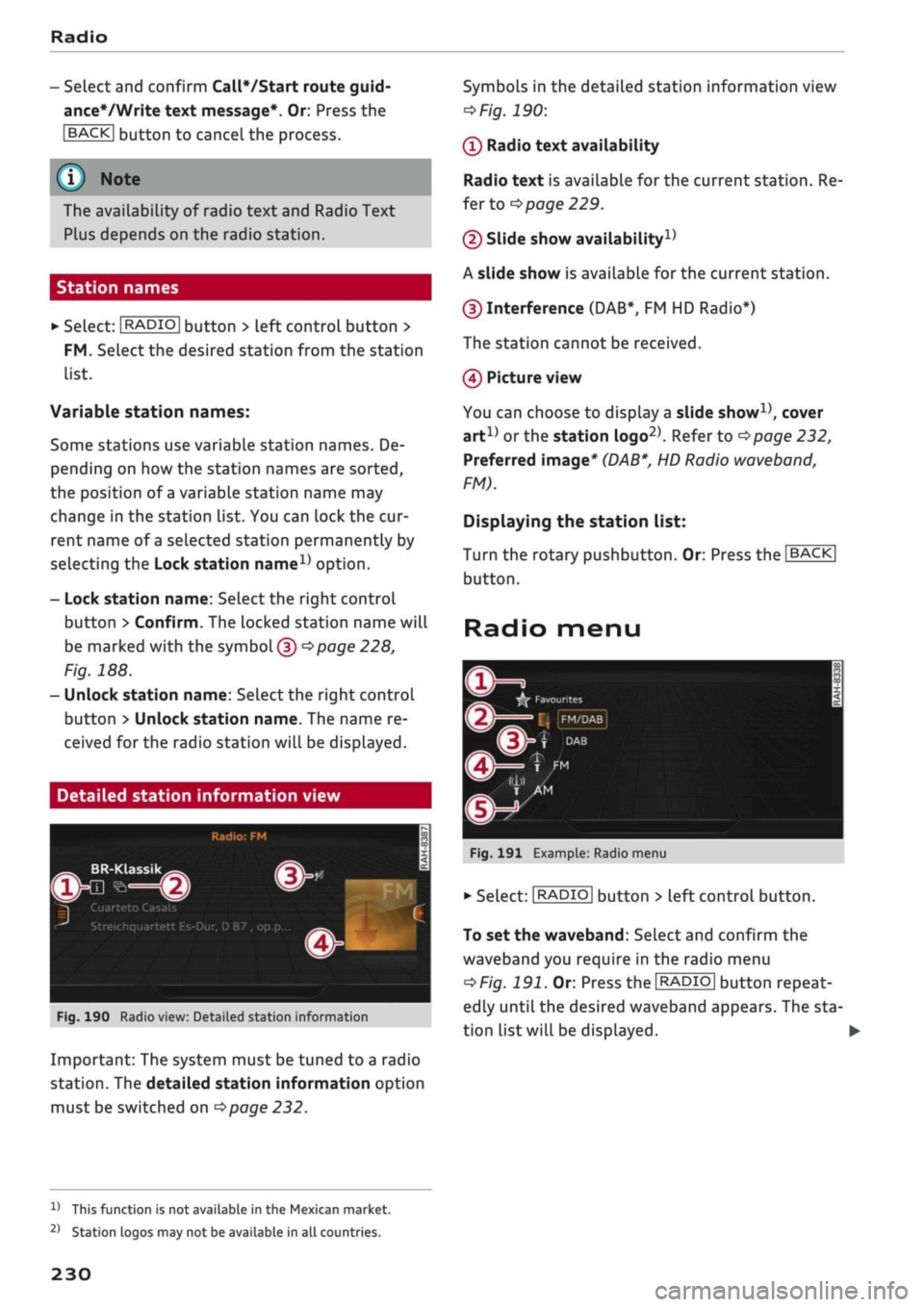
Fig.
190 Radio view: Detailed station information
Important: The system must be tuned to a radio
station.
The detailed station information option
must be switched on
^>page
232.
Symbols in the detailed station information view
OFig.
190:
(T)
Radio text availability
Radio text is available for the current station. Re
fer to
•=>
page 229.
(2) Slide show availability1'
A slide show is available for the current station.
(3) Interference (DAB*, FM HD Radio*)
The station cannot be received.
0
Picture view
You can choose to dispLay a slide show1', cover
art1' or the station logo2'. Refer to
Opage
232,
Preferred image*
(DAB*,
HD Radio waveband,
FM).
Displaying the station list:
Turn the rotary pushbutton. Or: Press the |BACK|
button.
Radio menu
©-!
^
Favourites
|J |
FM/DAB |
f
DAB
Fig.
191 Example: Radio menu
•
Select:
I
RADIO
I
button > left control button.
To set the waveband: SeLect and confirm the
waveband you require in the radio menu
<=>F/g.
191. Or: Press the
[RADIO|
button repeat
edly until the desired waveband appears. The sta
tion list will be displayed. •
V
This function is not available in the Mexican market.
2)
Station logos may not be available in all countries.
230
Page 260 of 364

System settings
phone in the Audi phone box*. The following set
tings are available:
- off: Switches the reminder signal off.
-
sound:
A sound is played as the reminder
sig
nal.
- spoken: The reminder signal is spoken by the
system.
Reminder signal volume: You can adjust the
vol
ume of the reminder signal by turning the rotary
pushbutton.
Switch off pop-up: This function is switched off
at the factory. When this function is switched on
fcTf,
the messages about the charging status of
the mobile phone in the Audi phone box* on the
infotainment display will not appear. The re
minder not to forget the mobile phone when
leaving the vehicle will also be switched off.
Usage tips
Your MMI dispLays usage tips when this function
is switched on
5f.
They will appear less often as
time goes by.
Speech dialogue system
Applies to: vehicles with speech dialogue system
The following functions are available depending
on the equipment installed in your vehicLe:
Command display: The MMI displays possible
voice commands in the corresponding menu
when this function is switched on
Sf.
Short dialogue: When this function is switched
on
(vj,
the spoken cues are shortened.
Command during speech dialogue*: This option
is activated when the vehicle leaves the factory.
When this option is activated
(vf,
you can say a
new command while the system is giving a spo
ken cue, rather than waiting for the beep. When
this option is deactivated
O,
wait until you hear
the beep to say
a
command.
Volume: You can adjust the volume of the spoken
cues by turning the rotary pushbutton.
Individual speech training (only possibLe when
the vehicle is stationary): You can use the individ
ual speech training to adapt the speech dialogue
system to your voice or pronunciation so that the
speech dialogue system can then better recog
nise what you are saying. The individual speech
training prompts you to repeat 20 spoken phra
ses that consist of certain commands and blocks
of digits. If
you
would like to delete the stored
speech training setup, you can use the function
Reset individual speech training.
Display brightness
Display brightness: You can adjust the bright
ness of the infotainment display by turning the
rotary pushbutton.
Factory settings
You can reset the following functions to the fac
tory settings:
- Sound settings
- Radio
- Media settings
-Jukebox*
- Directory
-Telephone
- Bluetooth and Wi-Fi*
- Navigation settings*
- Navigation and online memory*
- Speech dialogue system*
- Message settings*
- Apps*
-Usage tips
-Audi connect*
- Audi smartphone interface*
You can select the desired options individually or
mark Select all entries. SeLect and confirm Re
store factory settings.
Please note that not only settings will be de
Leted
when you do this; saved data may also
be erased
256
Page 262 of 364

System settings
- To connect a new device: Press the rotary push
button.
Select Bluetooth audio player. Search
for and connect a mobile device.
- List of devices already bonded: Select a Blue
tooth device from the list of all devices which
have already been bonded.
Wi-Fi audio player*
Important: The Wi-Fi hotspot* on the MMI sys
tem
<=>page
201 and your mobiLe phone must be
activated.
- To connect a new device: Press the rotary push
button.
Search for and connect
a
Wi-Fi enabled
device.
- To disconnect a Wi-Fi audio player: Deactivate
Wi-Fi on your Wi-Fi enabled device. The device
will be removed from the list automatically.
© CAUTION
Please always observe the information
•=>©
in
Wi-Fi hotspot on page 202.
Directory
Applies to: vehicles with telephone
You
can display the contacts from (other) mobile
phones.
Important: No mobiLe phones are connected to
the MMI via the Bluetooth remote SIM Access
Profile or the Handsfree profile.
- Connect new device: You can search for and
connect
a
new mobile phone. Or: Slide your
own mini SIM card into the slot in the SIM card
reader* until you feel it engage
^>page
176,
Fig. 160.
- List of devices already bonded: Select your mo
bile phone from the list of all mobiLe phones
which have already been bonded.
Audi smartphone
Applies to: vehicles with Audi smartphone interface
-
Connect
your mobile phone to the Audi music
interface
^>page
241 via a USB adapter
•=>page
240, Fig. 196.
- SeLect your mobile phone from the List of mo
bile phones already connected.
Further options
Further options may be available in the connec
tion manager via the right control button de
pending on the function selected.
Delete Bluetooth device*
The selected mobile phone/mobile device will be
disconnected from the MMI system and removed
from the list of devices already connected.
Display Bluetooth profiles*
You can Connect or Disconnect the Handsfree,
Car phone*, Messages*, Directory/contacts and
Bluetooth audio player profiles individually.
Bluetooth settings*
- Bluetooth: Select and confirm a discoverability
setting
for
the Bluetooth connection. Select
visible to make the MMI visible to other
devi
ces.
Select invisible to make the MMI invisible
to other devices. Devices which have already
been bonded can connect via Bluetooth even
when discoverability is deactivated. Select off
to switch discoverability off. It is then not pos
sible to establish a Bluetooth connection.
- Bluetooth audio player: When this function is
switched on
(vf,
the Bluetooth audio player is
available as a source in the Media menu.
- Bluetooth name: The Bluetooth name of the
MMI system (e.g. "AUDI MMI 2017") is dis
played and can be changed.
Online settings*
- Data connection settings: Refer to
^>page
203,
Configuring the data connection.
- Data usage meter: The number of the data
packets sent/received via the MMI system is
displayed.
Select Reset data meter to reset the
usage statistics to zero.
- Connection status: The mobiLe network provid
er for data services and the network status are
displayed.
Wi-Fi settings*
Refer to
^>page
201, Wi-Fi hotspot.
258
Page 265 of 364
System settings
CO
< o rN
iv
rN
•-i
00
Sound effects
SeLect and confirm a setting for Focus:
-
all:
All the loudspeakers in the vehicle are ac
tive (evenly distributed sound focus).
- front: Only the loudspeakers in the front of the
vehicle are active.
- rear*: Only the loudspeakers in the rear of the
vehicle are active.
Surround level
You can adjust the surround sound by turning the
rotary pushbutton.
Subwoofer*
You can adjust the subwoofer by turning the ro
tary pushbutton.
Speed-dependent volume control
You can adjust the automatic volume adaption to
the interior noise level by turning the rotary
pushbutton.
Volume settings
Adjusting the volume
Using the
ON/OFF
button, you can adjust the
vol
ume of
an
audio source or system message (e.g.
during a speech dialogue*) directly while it is be
ing played.
- Volume up/down: Turn the ON/OFF button
(T)
^>page
152, Fig. 141 clockwise or
anti-clock
wise.
- Mute/pause: Briefly press the ON/OFF button.
Or: Turn the ON/OFF button anti-clockwise un
til the
sy m bol @ •=>
page 161 appears. Any ac
tive audio/video source will then be paused.
- Unmute/resume: Briefly press the ON/OFF but
ton.
Or: Turn the ON/OFF button clockwise.
Â
WARNING
The audio system volume should be set at a
level which enables you to hear external
sig
nals (such as the sirens of police and emer
gency vehicles)
clearly-failure
to do so could
result in an accident.
When you switch on the MMI system, very
high/very low volume levels are automatically
reduced/increased to a preset level.
Setting the system volume
•
Select:
|MENU|
button > Sound > left control
button.
Telephone
Applies to: vehicles with telephone
Mute telephone: Message and ring tones are si
lenced.
Ring tone: Refer to
^>page
188, Ring tone and
volume settings.
Ring tone volume: You can adjust the volume of
the ring tone currently selected by turning the ro
tary pushbutton.
Message volume: You can adjust the volume of
the tone informing you of
a
new message by
turning the rotary pushbutton.
Microphone input level: You can adjust the tele
phone volume during a call by turning the rotary
pushbutton.
Navigation
Applies to: vehicles with navigation system
Voice guidance: Refer to
^>page
218.
Voice guidance during calls: Refer to
•=>
page 218.
Volume of spoken cues: You can adjust the
vol
ume of the spoken cues by turning the rotary
pushbutton. Or: You can adjust the volume of the
spoken cues while route guidance is active by
turning the ON/OFF button.
Entertainment fader: This option allows the
vol
ume of the current audio source to be temporari
ly reduced when the parking aid is active or while
a navigation cue is being played.
Announcements*
Traffic announcements: Refer to
^>page
229.
DAB announcements*: Refer to
^>page
229. •
261