Message AUDI Q2 2021 Owner´s Manual
[x] Cancel search | Manufacturer: AUDI, Model Year: 2021, Model line: Q2, Model: AUDI Q2 2021Pages: 364, PDF Size: 87.77 MB
Page 153 of 364
Intelligent technology
CO
< o rN
iv
rN
t-H
o < 00
event of faults or anomalies in the vehicLe data,
only these data are saved. As a rule, faults are
shown by the warning lamps in the instrument
cluster.
Data saved in the control units can only be read
and analysed with special equipment.
A qualified workshop is only able to recognise
and deal with faults by using the relevant saved
data.
Among other things, the saved data may
contain the following information:
- Data relating to the engine and the gearbox
-Speed
- Direction of travel
- Braking force
- Seat belt warning system data
The control units installed will not under any cir
cumstances record conversations in the vehicle.
Event data recorder
Your vehicLe is not equipped with an event data
recorder.
In an event data recorder, information about the
vehicle is temporarily saved. In the event of an
accident, you can therefore obtain detaiLed infor
mation about the course of events. On vehicles
with an airbag system, accident-related data
such as impact speed, seat belt status, seat
posi
tions and trigger times can be saved. The exact
information saved depends on the manufacturer.
The installation of an event data recorder is sub
ject to the agreement of the vehicle's owner. This
process is governed by legislation in some coun
tries.
Reprogramming control units
All data for controlling components are saved in
the control units. Some convenience features,
such as one-touch signalling, single door unlock
ing and display messages can be reprogrammed
using special workshop equipment. If any
con
venience features are reprogrammed, the infor
mation in this Owner's Manual will no longer be
accurate for the features that have been
changed.
We recommend having the reprogram
ming approved.
Your Audi dealer will be able to provide you with
information about possibLe reprogramming op
tions.
Event memory
There is a diagnostic connection for reading out
the event memory Located in the
footweLL
on the
driver's side of the vehicle. Information regard
ing the operation and status of the vehicle's elec
tronic control units is stored in the event memo
ry. The event memory should only be read out
and erased by
a
qualified workshop.
A WARNING
The diagnostic connection must not be used
for other purposes. Incorrect use can cause
malfunctions - risk of accident!
151
Page 165 of 364
Speech dialogue system
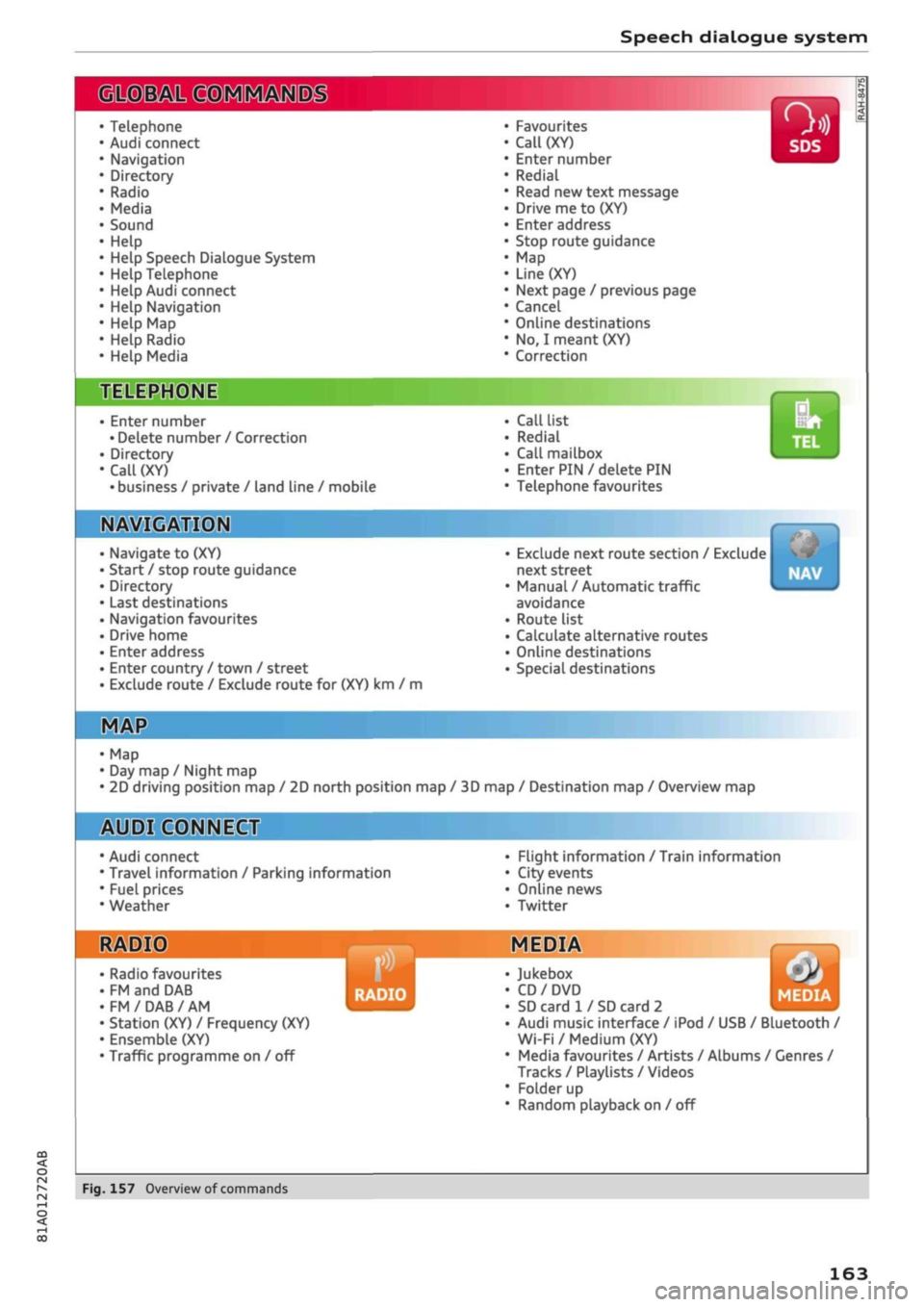
• Telephone
• Audi connect
• Navigation
• Directory
• Radio
• Media
• Sound
• Help
• Help Speech Dialogue System
• Help Telephone
• Help Audi connect
• Help Navigation
• Help
Map
• Help Radio
• Help Media
SIIPCMI
Enter number
• Delete number
/
Correction
Directory
Call (XY)
• business
/
private
/
land line
/
mobile
NAVIGi
mm
• Navigate
to (XY)
• Start
/
stop route guidance
• Directory
• Last destinations
• Navigation favourites
• Drive home
• Enter address
• Enter country
/
town
/
street
• Exclude route
/
Exclude route
for
(XY)
km / m
• Favourites
• Call
(XY)
• Enter number
• Redial
• Read
new
text message
• Drive
me to (XY)
• Enter address
• Stop route guidance
•
Map
• Line
(XY)
• Next page
/
previous page
• Cancel
• Online destinations
•
No, I
meant
(XY)
• Correction
Call list
Redial
Call mailbox
Enter PIN
/
delete
PIN
Telephone favourites
Exclude next route section
/
Exclude
next street
Manual
/
Automatic traffic
avoidance
Route list
Calculate alternative routes
Online destinations
Special destinations
Map
Day
map /
Night
map
2D driving position
map / 2D
north position
map / 3D map /
Destination
map /
Overview
map
Flight information
/
Train information
City events
Online news
Twitter
^iuiDit(5.Q:NiNE:(aH
• Audi connect
• Travel information
/
Parking information
• Fuel prices
• Weather
RADIO MEDIA
RADIO MEDIA
• Radio favourites
• FM
and DAB
•FM/DAB/AM
• Station (XY)
/
Frequency
(XY)
• Ensemble
(XY)
• Traffic programme
on / off
Jukebox
CD/DVD
SD card
1 /
SD card
2
Audi music interface
/
iPod
/
USB
/
Bluetooth
/
Wi-Fi/Medium
(XY)
Media favourites
/
Artists
/
Albums
/
Genres
/
Tracks
/
Playlists
/
Videos
Folder
up
Random playback
on / off
Fig.
157
Overview
of
commands
00
163
Page 166 of 364
Speech dialogue system
Speech dialogue system
How to use the speech
dialogue system
Applies to: vehicles with speech dialogue system
You
can operate many infotainment functions
conveniently by voice.
Important: The ignition and the MMI system
must be switched on
^>page
152, you must not
be talking on the phone, and the parking aid
must not be active.
•
To switch on: Briefly press the
0
button (J)
^>page
17, Fig. 12/(3)
^>page
18, Fig. 14 on
the multi-function steering wheel and give a
spoken command after the beep signal.
*•
To switch off: Press and hold the
0
button for
several seconds. Or: Press the
0
button.
•
To pause: Say the command Pause. To end the
pause,
press the
S
button.
•
To make a correction: Say the command Cor
rection.
Input help
The system guides you through the input routine
with cues and messages.
- Input help messages on screen: After the
speech dialogue system is switched on, a selec
tion of possible commands will be shown. The
command display can be switched on or off as
required.
Select:
|MENU|
button
>
Settings >
left control button > MMI settings
>
Speech
dialogue system.
- Spoken input help
cues:
To have the system
play the commands currently possible, switch
on the speech dialogue system and say Help.
How to help the system understand you
Speak clearly in a normal volume. Speak louder if
you are driving fast.
Speak in a normal tone without long pauses.
Close doors, windows and sun roof* to reduce
background noise. Make sure that passengers are
not talking when you say a command.
Keep the air outlets of the air distribution system
pointed away from the microphone, which is fit
ted in the vicinity of the front interior lights in
the headliner.
The system should only be operated by the driv
er, since the handsfree microphone is directed
towards the driver.
Other settings
Refer to
^>page
262.
© No
-The dialogue is paused when an incoming
telephone call is received; you can continue
the dialogue by ignoring the
call.
If
you
an
swer the
call,
the dialogue will be cancelled.
- No navigation cues* or traffic announce
ments are played when a dialogue is
run
ning.
- You can select an entry from a list both via
the speech dialogue system and using the
rotary pushbutton.
- The speech dialogue system does not sup
port commands in Arabic, Norwegian or
Hungarian.
Notes on the overviews
of commands
Applies to: vehicles with speech dialogue system
The following overviews show you the commands
that you can give to operate the MMI via the
speech dialogue system. •
A WARNING
- Please direct your full attention to the road
at all times! As the driver, you have full re
sponsibility for the safety of the vehicle and
other road users.
For
this reason, you should
only use the functions in a manner that al
lows you to maintain control of the vehicle
in all situations - accident risk!
- The speech dialogue system must not be
used in cases of emergency, since the voice
changes in stressful situations. This could
result in a failed or delayed telephone
con
nection.
Always dial emergency numbers
manually!
164
Page 167 of 364
Speech dialogue system
Alternative commands are separated by the sym
bol "/"; for example you can say: Telephone /(or)
Navigation /(or) Radio.
Commands that belong together and should be
spoken as a sequence are marked with the sym
bol ">"; for example you can say: Enter address >
(and subsequently) Enter country.
As a rule, only the main commands are displayed.
However, the system may also recognise some
synonyms. For example, for business address
you can also say work address, office address,
the office or at work.
Commands
Global commands
Applies to: vehicles with speech dialogue system
You can give global commands any time, irre
spective of the menu currently selected.
Function
Calling up the menu
Having the system play the possible
commands
Telephone functions
Navigation functions*
Calling up the favourites
Selecting an entry from a List
Scrolling through a list
Correcting a command
Switching off the speech dialogue
system
Say:
Telephone / Directory / Navigation / Radio / Media / Audi
con
nect*/Car/Tone
Help / Help Speech dialogue system / Help Telephone /
Help Navigation / Help Map / Help Radio / Help Media / Help
Audi connect*
Call (XY), e.g.
Call John
Smith /
Enter number / Redial / Directory / Read new text message /
Read new e-mail / Dictate text message
Drive me to (XY) or Navigate to (XY), e.g. Navigate to John
Smith /
Enter address / Stop route guidance / Map / Online destina
tions*
/ Online destination (XY)*
Favourites
>
follow the directions given by the system
Line (XY)
Next page / Previous page
Correction
Cancel
CO
<
O
rN
IN
rN
00
Telephone
Applies to: vehicles with speech dialogue system and telephone
Important: A mobile phone must be connected
to the MMI
^>page
173, and the Telephone
menu must be open
stable
on page 165.
You may be able to say the following commands
depending on the menu item selected:
Function
Calling a contact from the directory
Dialling a specific number stored
fora
contact
Say:
Call (XY), e.g. Call
John
Smith
Call (XY) business / private / land line / mobile,
e.g.
Call
John
Smith private
165
Page 168 of 364

Speech dialogue system
Function
Dialling a phone number when an
address card is open
Calling a contact from the favour
ites list
Displaying the call list
Calling the last number dialled
Dialling a telephone number
Correcting an entered phone num
ber
Displaying contact information
Listening to voice mail messages
Entering the SIM PIN code
Correcting an entered PIN
Correcting an entry
Closing the full List of commands
Say:
Call / Call business number / Call private number / Call land
line / Call business mobile
Telephone favourites
>
desired contact when requested
>
Dial
Call list
Redial
Enter number
>
enter phone number in blocks of individual dig
its when requested, e.g. 07441 234
567
> Dial
Correction / Delete number
Directory
>
desired contact when requested,
e.g.
John Smith
Call mailbox
Enter PIN
>
enter PIN in individual digits when requested >
Store
Correction / Delete PIN
No,
I meant (XY)
Close
© Note
- If
you
have a mobile phone that transmits
first names and surnames separately, you
can select directory contacts both by enter
ing the full name
("first
name, surname" or
"surname, first name") and by saying only
the first name or surname.
- Please note that commands can only be
spoken for the main teLephone*
^>page
173.
- For more information on which mobile
phones are supported, please go online
(e.g.
www.audi.com/bluetooth) or contact
an Audi dealer.
Audi connect (infotainment)
Applies to: vehicles with speech dialogue system and Audi connect (infotainment)
Important: The requirements for Audi connect
(infotainment) must be met
^>page
191.
Function
Calling up an Audi connect infotain
ment service
Audi connect infotainment services
Search areas for Audi connect info
tainment services
Correcting an entry
Say:
Audi connect
>
follow the directions given by the system
Weather / Online news / Fuel prices / Parking information /
Travel information / Twitter / Online traffic information / City
events / Flight information / Train information
In vicinity of destination / In immediate vicinity / In new town
No,
I meant (XY)
166
Page 169 of 364
Speech dialogue system
Please always note the information in the
chapter
<^>page
204, General notes on Audi
connect (infotainment).
Messages - Audi connect (infotainment)
Applies to: vehicles with speech dialogue system and Audi connect (infotainment)
Important
A SIM card with a messaging and data option
must be inserted in the SIM card reader*
<^>page
192.
Alternatively, a SIM card with a data option must
be inserted in the SIM card reader and a mobile
phone with activated MAP (Message Access Pro
file) must be connected to the MMI
^>page
173.
The declaration of consent must have been ac
cepted
^page
183.
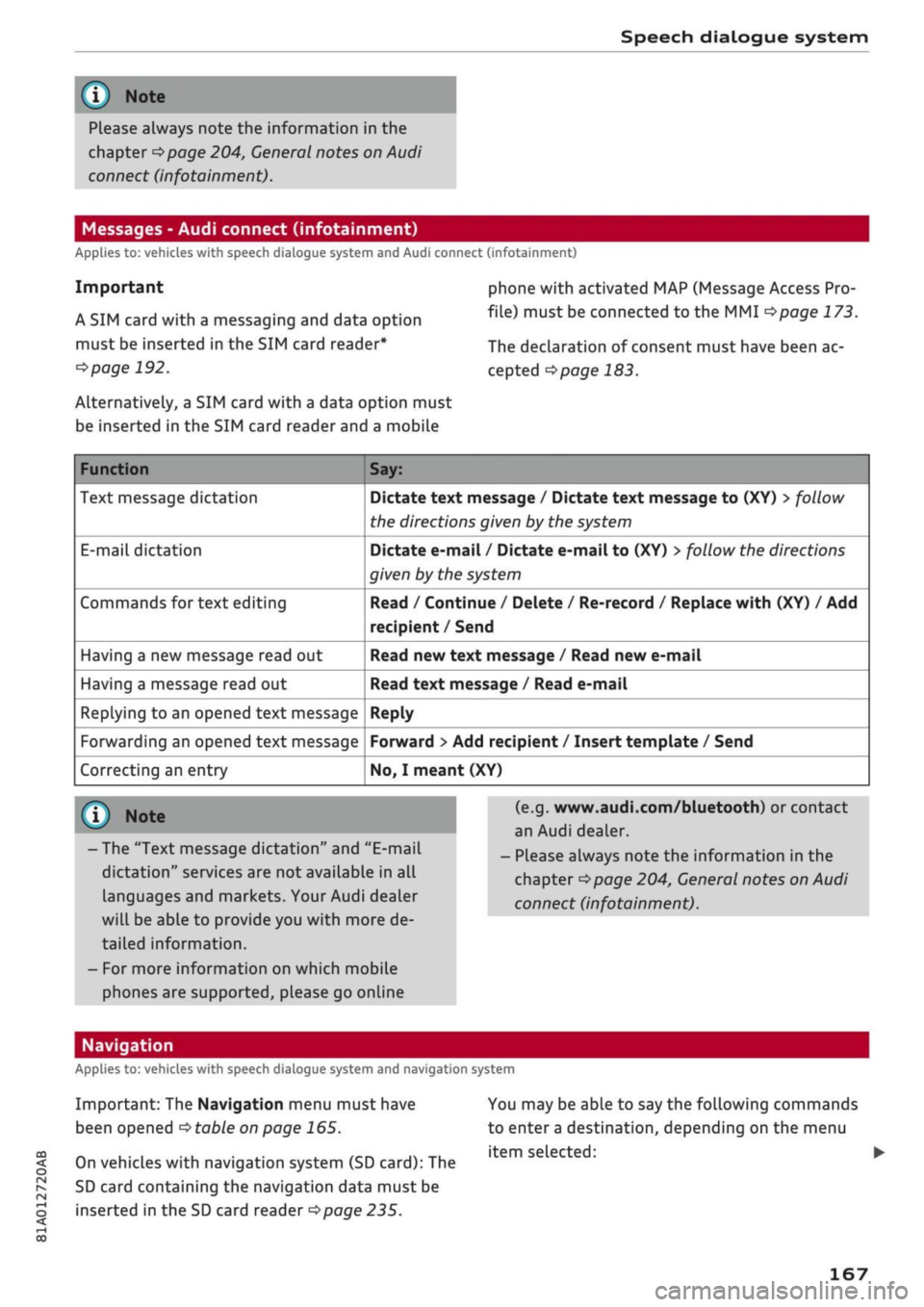
Function
Text message dictation
E-mail
dictation
Commands for text editing
Having a new message read out
Having a message read out
Replying to an opened text message
Forwarding an opened text message
Correcting an entry
Say:
Dictate text message / Dictate text message to (XY) > follow
the directions given by the system
Dictate e-mail / Dictate e-mail to (XY)
>
follow the directions
given by the system
Read / Continue / Delete / Re-record / Replace with (XY) / Add
recipient /Send
Read new text message / Read new e-mail
Read text message / Read e-mail
Reply
Forward
>
Add recipient / Insert template / Send
No,
I meant (XY)
© Note
- The "Text message dictation" and "E-mail
dictation"
services are not available in all
languages and markets. Your Audi dealer
will be able to provide you with more de
tailed information.
- For more information on which mobile
phones are supported, please go online
(e.g.
www.audi.com/bluetooth) or contact
an Audi dealer.
- Please always note the information in the
chapter
Opage
204, General notes on Audi
connect (infotainment).
CO
< o rN
IN
rN
t-H
o < 00
Navigation
Applies to: vehicles with speech dialogue system and navigation system
Important: The Navigation menu must have
been opened
•=>
table on page
165.
On vehicles with navigation system (SD card): The
SD card containing the navigation data must be
inserted in the SD card reader
<=s>page
235.
You may be able to say the following commands
to enter a destination, depending on the menu
item selected: •
167
Page 175 of 364

Telephone
- We recommend using the vehicle's Wi-Fi
hotspot* when the car phone* is in use so
that
your mobile phone's apps retain access
to the Internet.
- When the car phone function* is active, Audi
connect (infotainment)* is only available us
ing
your
own SIM card
^>page
191.
Setting up
Connecting a mobile phone via Bluetooth
Applies
to: vehicles with telephone
Does
this PIN match the PIN on your
Bluetooth
device?
967536
Fig.
159
PIN display for entry on mobile phone
Important
The vehicle must be stationary, and the ignition
must be switched on.
The Bluetooth function and the discoverability
option of the MMI system
Opcge
258 and the
mobile phone must be activated.
The mobile phone you would like to connect must
not be connected to any other Bluetooth device.
The MMI must not be connected to a mobile
phone.
A mini SIM card must not be inserted in the SIM
card reader*.
Connecting a mobile phone
•
Select: |MENU| button
>
Telephone
>
Connect
mobile phone
>
Find new devices > Continue.
The available Bluetooth devices will be shown
on the infotainment display. Or: Select:
|MENU|
button > Settings > left control button > MMI
settings > Connection manager
^>page
257.
•
Select and confirm the desired mobile phone
from the list of Bluetooth devices shown.
• The MMI will generate a PIN for the connection
*Fig.
159.
•
Select and confirm Yes.
•
Enter the PIN to establish a connection on your
mobiLe phone. Or: If the PIN is already being
displayed on your mobile phone, confirm it on
the phone and on the MMI. You have about 30
seconds to enter the PIN.
•
You may need to enter the PIN for your SIM
card
intheMMl".
•
Please note any additional system queries on
your mobiLe phone, e.g. whether the phone
should connect automatically in the future. On
some mobiLe phones, you may also need to
download the directory and allow access to
your messages separately.
After connecting successfully
After the connection has been established suc
cessfully, you will be shown a short message
con
taining information on the profiles used to estab
lish the connection. You can also change the pro
files afterwards. Select: |MENU| button > Set
tings > left control button > MMI settings
>
Con
nection manager
<=$page
257.
In addition, the contacts on the mobile phone are
automatically loaded into the directory of the
MMI.
This may take several minutes, depending
on how many contacts are stored on the mobile
phone.
Applies
to: vehicles with Audi connect (infotainment)
•
If
you
have successfully connected your mobile
phone via the Bluetooth remote SIM Access
Profile, you can use either the embedded SIM
card
2)
or your own SIM card to use Audi
con
nect infotainment services.
•
Confirm the system query with either Yes or
No.
For more information on Audi connect (in
fotainment), please refer to
^>page
191.
*•
Yes:
All data connections for all Audi connect
infotainment services will be established by a
CO
<
o
rN
IN
rN
t-H
o
<
-1'
Not available in all markets. Applies to mobile phones
with
Bluetooth remote SIM Access Profile on vehicles with
Audi
connect (infotainment)* and Audi phone box*.
2)
SIM card installed in vehicle at factory.
173
Page 176 of 364

Telephone
mobile network provider via the embedded SIM
card1)
^page
191. Your mobile phone will be
connected via Handsfree only
^>page
172, and
you will not be able to use the car telephone
function*
^>page
172.
•
No: All data connections for all Audi connect in
fotainment services will use your own SIM
card.
All connections via the embedded SIM
card1*
will be disconnected, and you will be able to
use the car telephone function*
^>page
172.
You can now use Audi connect infotainment serv
ices.
Applies to: vehicles with Audi connect (infotainment)
•
You can configure your vehicle's mobiLe Wi-Fi
hotspot*2)
and the Audi connect infotainment
services* immediately after connecting an
rSAP-enabled
mobile phone
^page
191. Or:
Select [TÊT]
button > right control button >
Connection manager
>
right controL button >
Wi-Fi settings.
Using the function Store as default telephone in
the Connection manager, you can store one of
your connected mobile phones as the default
phone
^>page
258.
(T)
CAUTION
Please always observe the information
^©/n
Wi-Fi hotspot on page 202.
- You can adjust further settings for connec
ted mobile phones using the connection
manager
^>page
257.
- You can also search for the MMI system via
the Bluetooth device search function on
your mobiLe phone.
- Bluetooth devices only have to be bonded
once.
Any devices that have already been
bonded to the MMI system are connected
automatically when the Bluetooth function
11
SIM card installed in vehicle at factory.
2'
Not available in all markets.
3)
The number of possible attempts depends on the SIM
card.
is switched on, the devices are within range
of the car and the ignition is on. The mobile
phone last connected is given priority.
-You will need to authorise the MMI connec
tion on your mobile phone to enable auto
matic connection.
- Please note any system queries on your mo
bile phone, e.g. whether the phone should
connect automatically in the future. On
some mobile phones, you may also need to
download the directory and allow access to
your text messages separately.
- You receive the SIM PIN code from your mo
bile network service provider together with
the SIM
card.
If
you
enter the SIM PIN code
incorrectly three
times35
in a row, the SIM
card will be be blocked. A PUK (personal un
blocking key) must be entered in order to
reactivate the SIM
card.
-The Bluetooth connection between the sys
tem and the mobile phone is automatically
terminated when you leave the car. Depend
ing on the mobile phone, telephone calls
may be transferred automatically from the
MMI to your mobile phone so that you can
continue talking.
- For further information regarding your mo
bile phone, contact your mobile network
service provider or refer to the operating in
structions for your mobile phone. For infor
mation on using a phone in your car, please
go online (e.g. www.audi.com/bluetooth)
or ask an Audi dealer.
174
Page 178 of 364
Telephone
previously connected as an additional phone
will be connected automatically as the
pri
mary phone.
-You can send and receive messages on both
the primary phone and additional phone
^>page
178, Fig. 162. You do not have to
swap the primary phone and additional
phone to do so.
- Using the function Store as default tele
phone in the Connection manager, you can
store one of your connected mobile phones
as the default phone
^>page
258.
Making and receiving calls using your own
mini SIM card
Applies to: vehicles with Audi connect (infotainment) and
Audi phone box
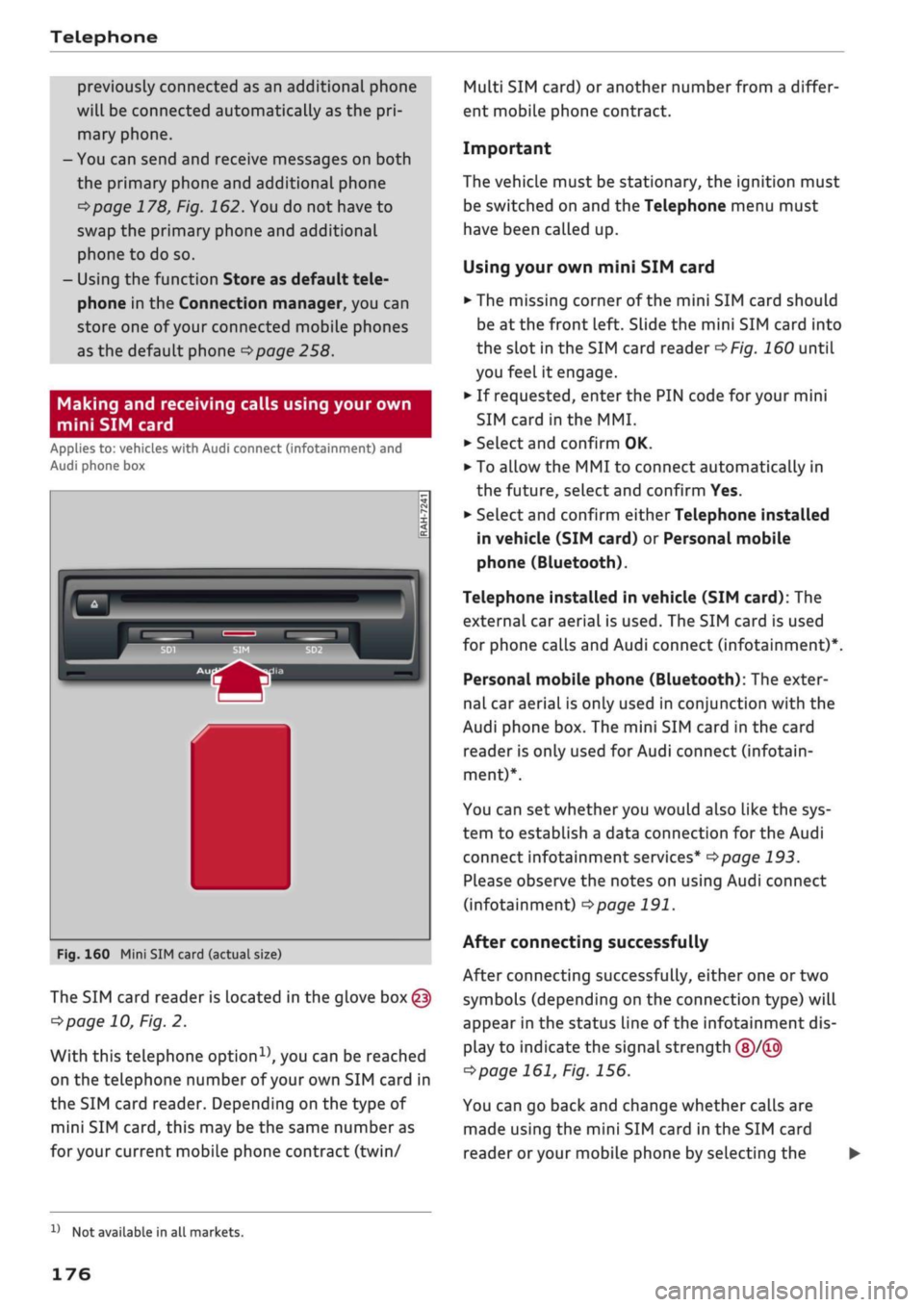
Fig.
160 Mini SIM card (actual size)
The SIM card reader is located in the glove
box@
^>page
10, Fig. 2.
With this telephone
option15,
you can be reached
on the telephone number of your own SIM card in
the SIM card reader. Depending on the type of
mini SIM
card,
this may be the same number as
for
your current mobile phone contract (twin/
Multi SIM card) or another number from a differ
ent mobile phone contract.
Important
The vehicle must be stationary, the ignition must
be switched on and the Telephone menu must
have been called up.
Using your own mini SIM card
• The missing corner of the mini SIM card should
be at the front Left. Slide the mini SIM card into
the slot in the SIM card reader
of/g.
160 until
you feel it engage.
•
If requested, enter the PIN code for your mini
SIM card
in
the MMI.
•
SeLect and confirm OK.
•
To allow the MMI to connect automatically in
the future, select and confirm Yes.
•
Select and confirm either Telephone installed
in vehicle (SIM card) or Personal mobile
phone (Bluetooth).
Telephone installed in vehicle (SIM card): The
external car aerial is used. The SIM card is used
for phone calls and Audi connect (infotainment)*.
Personal mobile phone (Bluetooth): The exter
nal car aerial is only used in conjunction with the
Audi phone box. The mini SIM card in the card
reader is only used for Audi connect (infotain
ment)*.
You can set whether you would also like the sys
tem to establish a data connection for the Audi
connect infotainment services*
^>page
193.
Please observe the notes on using Audi connect
(infotainment)
°=>page
191.
After connecting successfully
After connecting successfully, either one or two
symbols (depending on the connection type) will
appear in the status line of the infotainment dis
play to indicate the signal strength
(§)/©
tapage
161, Fig. 156.
You can go back and change whether
caLls
are
made using the mini SIM card in the SIM card
reader
or
your mobile phone by selecting the
x)
Not available in all markets.
176
Page 180 of 364
Telephone
A WARNING
- Loose objects can be flung around in the
passenger compartment in the event of
sud
den driving or braking manoeuvres. This
could result in serious injuries and also
cause you to lose control of the vehicle. Al
ways keep the centre armrest closed when
driving.
- The mobile phone may become hot while
charging wirelessly. Consider the tempera
ture of your mobile phone when removing
it.
Take the mobile phone out of the Audi
phone box carefully.
© Note
- The Audi phone box is not available in all
countries. Your Audi dealer will be able to
provide you with more detailed information.
- If the mobile phone is placed in the Audi
phone box in a bag or
a
protective case, this
may interfere with the connection to the ex
ternal aerial*.
- Any metal objects in the Audi phone box will
prevent the mobile phone from charging
wirelessly or being used to make calls via
the external aerial*.
- The charging time and the temperature vary
depending on the mobile phone being used.
-The ignition must be switched on to charge
a mobile phone in the Audi phone box.
- To avoid malfunctions, ensure that the mo
biLe phone is correctly placed inside the
Audi phone box.
-The maximum charging capacity is 5 W.
- An enhanced transmission quality cannot be
guaranteed if more than one mobile phone
is placed inside.*
-Audi recommends the use of Audi Genuine
Accessories. Audi has tested these products
for suitability, reliability and safety.
- USB adapters are available from Audi
deal
ers or specialist retailers.
- When you charge your mobile phone wire
lessly, the charging procedure may be inter
rupted if
you
place your remote control key
in the Audi phone box together with the
mobile phone.
Using the telephone
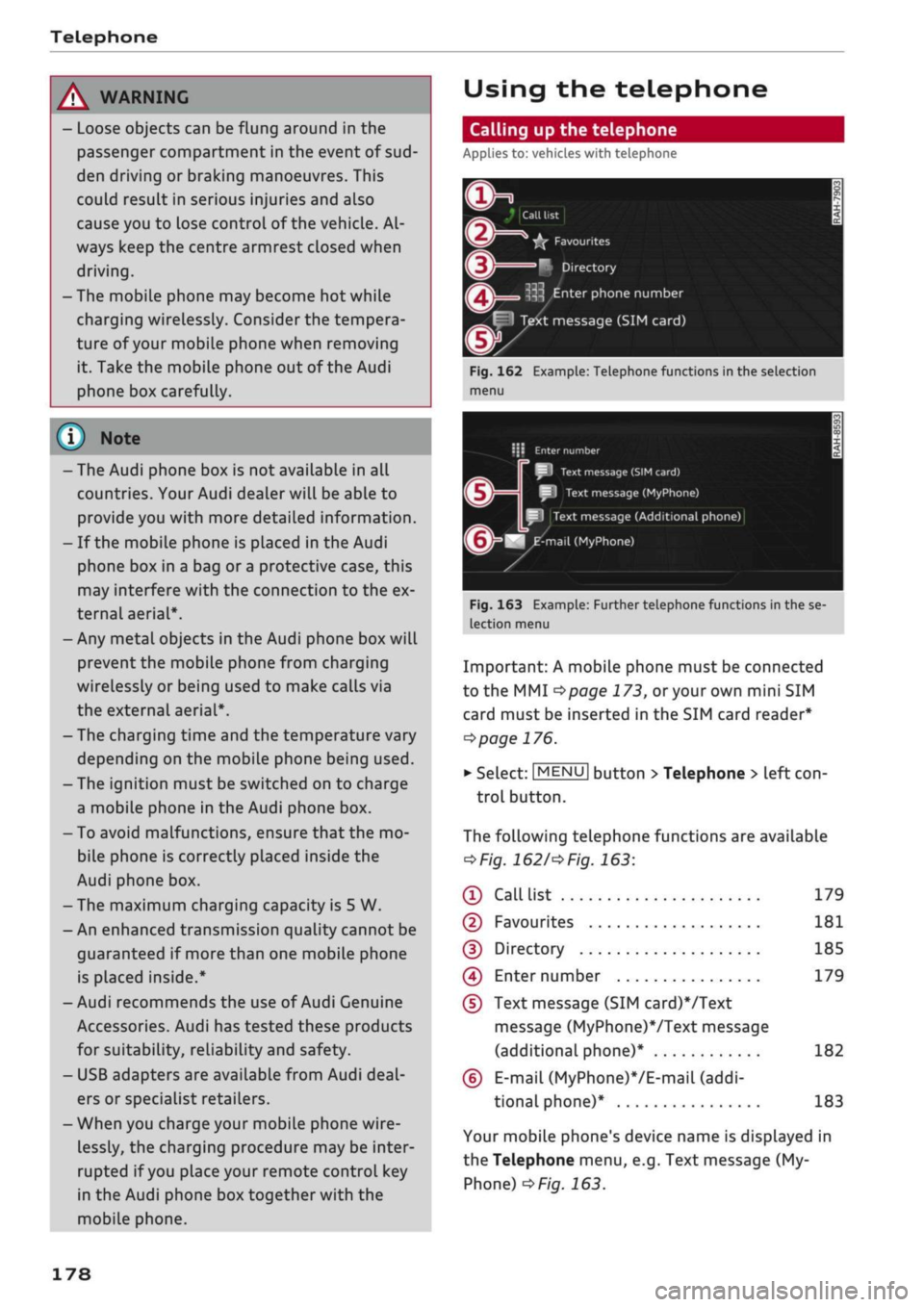
Calling up the telephone
Applies
to: vehicles with telephone
~~ .*|
Call
list
^^
•£?
Favourites
i
'^
Directory
y»
^ Enter
phone number
^^f
I
Text message (SIM card)
Fig.
162 Example: Telephone functions in the selection
menu
i\ï
Enter
number
SI
Text
message
(SIM
card)
I
Text message (MyPhone)
Text
message (Additional phone)
^mail
(MyPhone)
Fig.
163 Example: Further telephone functions in the se
lection
menu
Important: A mobile phone must be connected
to the MMI
<^>page
173,
or
your own mini SIM
card must be inserted in the SIM card reader*
^>page
176.
• Select: |MENU| button
>
Telephone > left
con
trol button.
The following telephone functions are available
*Fig.
1621'*
Fig.
163:
® Call
list 179
©
Favourites 181
(D Directory 185
(4) Enter number 179
(D
Text message (SIM card)*/Text
message (MyPhone)VText message
(additional phone)* 182
(6)
E-mail
(MyPhone)*/E-mail
(addi
tional phone)* 183
Your mobile phone's device name is displayed in
the Telephone menu, e.g. Text message (My
Phone)
^>Fig.
163.
178