bluetooth AUDI Q3 2019 User Guide
[x] Cancel search | Manufacturer: AUDI, Model Year: 2019, Model line: Q3, Model: AUDI Q3 2019Pages: 280, PDF Size: 72.73 MB
Page 150 of 280
Telephone
Requirement: your mobile device must be con-
nected to the MMI via Bluetooth Message Access
Profile (MAP) > page 140.
> Applies to: MMI: Select on the home screen:
MESSAGES > (=) > Text message (SIM)*/text
message (telephone 1)/text message (tele-
phone 2)*.
Inboxes
— New text message: press on a template in the
list or dictate a text message. Press Add and
select one or more recipients from your con-
tacts. To remove a recipient, press Delete. Press
Send.
— Inbox: displays all received text messages.
— Sent: displays all sent text messages.
— Outbox: displays all text messages to be sent.
— Drafts*: text messages that have not been sent
yet by the mobile device are displayed on the
MMI.
— Deleted*: deleted text messages are displayed.
— User-defined*: folders defined by the user are
transferred from your mobile device.
Message options
The following options are available when you se-
lect a text message:
— Read out* the text message).
— Reply: a reply can be sent to the selected mes-
sage in the Inbox.
—To switch to the previous or the next message,
press < or >.
— More: options.
When you press More, the following options are
available:
— Call: Requirement: a number must be stored.
You
can call the contact.
— Forward: the selected text message can be for-
warded to other recipients. Text can also be
added before sending.
— Navigate: Requirement: the contact must have
a navigation address stored with it in the direc-
tory. You can start route guidance.
D_ Not available in all languages.
2) Function is not supported on all mobile devices.
148
— Extract numbers: Requirement: the message
must contain a number. You can extract a num-
ber from a text message.
— Send again: Requirement: the text message
must be in the Outbox. The selected text mes-
sage can be resent.
Press
on an entry in the Inbox until the Options
menu appears.
— Reply: a reply can be sent to the selected mes-
sage in the Inbox.
— Forward: the selected text message can be for-
warded to other recipients. Text can also be
added before sending.
Settings
Press ©}.
— Automatically forward text message to mobile
device*2): when this function is switched on,
text messages will be automatically stored on
your mobile device.
— New text message notification: when this
function is switched on, you will be notified
when new text messages are received. New text
messages are indicated with an envelope Min
the MMI status bar.
— Text message center*: the number for the text
message center of your cell phone service pro-
vider is displayed. If no number has been stor-
ed yet, you can enter the text message center
number. You can obtain more information from
your cell phone service provider.
— Delete text messages from SIM card": if the
memory capacity on the SIM card is full, an en-
velope with a line through it is displayed in the
MMI status bar. You can continue to send text
messages, but you cannot receive new text
messages. To delete all sent text messages
from the SIM card, select All sent messages. To
delete all read text messages from the SIM
card, select All read messages.
Delete text message
Select: a mailbox > Z > one or more text mes-
sages > Delete > Done.
Page 151 of 280
83A012721BA
Telephone
@) Tips
— Please note that you may have to activate
the receiving and sending of text messages
depending on the SIM card being used (for
example, when using a multi-SIM). You can
obtain more information from your mobile
device service provider or from your mobile
device user guide.
— For more information on compatible mobile
devices, visit www.audiusa.com/bluetooth
or contact an authorized Audi dealer or au-
thorized Audi Service Facility.
— You need a mobile device with Message Ac-
cess Profile that also supports the sending
function to be able to send text messages
through the MMI.
— Messages that are deleted in the MMI are
also deleted in the mobile device automati-
cally.
— Only new received messages may be dis-
played depending on your mobile device.
Applies to: vehicles with telephone
Depending on the type of mobile device being
used, you may be able to receive and send e-
mails through the MMI.
Requirement: your mobile device must be con-
nected to the MMI via Bluetooth Message Access
Profile (MAP) = page 140. You can find out if
your mobile device supports this function by
checking your mobile device owner's manual.
> Applies to: MMI: Select on the home screen:
MESSAGES > (:=) > e-mail (telephone 1)/e-
mail (telephone 2)*.
Inboxes
— New e-mail: press on a template in the list.
Press Add and select one or more recipients
from your contacts. To remove one or all recipi-
ents, press Delete. Press Send.
— Inbox: All received e-mails are displayed. To up-
date the list, press Q.
— Sent: displays all sent e-mails.
) Not available in all languages.
— Outbox: displays all e-mails to be sent.
— Drafts: e-mails that have not been sent yet are
displayed.
— Deleted: deleted e-mails are displayed.
— User-defined*: folders defined by the user are
transferred from your mobile device.
Message options
The following options are available when you se-
lect an e-mail:
— Read out* the e-mail).
— Reply: A reply can be sent for the selected e-
mail in the Inbox.
— To switch to the previous or the next message,
press or >.
— More: Options
When you press More, the following options may
be displayed depending on your mobile device
and the applicable mail folder:
— Call: Requirement: a number must be stored.
You can call the contact.
— Forward: the selected e-mail can be forwarded
to other recipients. Text can also be added be-
fore sending.
— Extract e-mail add.: you can extract the e-mail
address from an e-mail.
— Navigate: Requirement: the contact must have
a navigation address stored with it in the direc-
tory. You can start route guidance.
— Extract numbers: Requirement: the text in the
e-mail must contain a number. You can extract
a number from an e-mail.
— Show all recipients*: you can display the recipi-
ents of an e-mail.
— Show attachmts.”: you can display a list of at-
tachments to an e-mail.
— Send again: the selected e-mail in the Outbox
and Sent mailboxes can be sent again.
Press on an entry in the Inbox until the Options
menu appears.
— Reply: a reply can be sent to the selected e-
mail.
149
Page 152 of 280
Telephone
— Reply all: a reply can be sent for the selected e-
mail and it will be sent to all of the entered
recipients.
— Forward: The selected e-mail can be forwarded
to a different recipient.
Settings
Press ©}.
— New e-mail notification: when this function is
switched on, you will be notified when new e-
mails are received. New e-mails are indicated
with an envelope Min the MMI status bar.
Deleting e-mails
Select: a mailbox > Z > one or more e-mails >
Delete > (Done).
@) Note
Always follow the information found in
=> page 154.
@ Tips
For more information on compatible mobile
devices, visit www.audiusa.com/bluetooth or
contact an authorized Audi dealer or author-
ized Audi Service Facility.
Settings
Phone settings
Applies to: vehicles with telephone
> Applies to: MMI: Select on the home screen:
PHONE ©}.
Switching between two mobile devices
Requirement: phone 1 and phone 2 must be con-
nected to the MMI.
Switch telephones: The device name of your ac-
tive mobile device will be displayed. You can
switch the phone by pressing the button.
Declining a call with a text message*
When this function is switched on, you can de-
cline an incoming call with a text message.
150
Call options*
The following options may be available depend-
ing on the mobile device:
— Call forwarding: you can switch the forwarding
of incoming calls to your voicemail or to anoth-
er phone number on and off. You can check if
the function is activated or deactivated with
Status.
— Call waiting: you will be alerted to an incoming
call during a phone call when the function is
switched on. You can check if the function is ac-
tivated or deactivated with Status.
— Send own number: sending your phone num-
ber with an outgoing call can be switched on
and off. With the Net.-depen. setting, the set-
ting listed in the contract with the cell phone
service provider is used. The settings only apply
to the PHONE menu in the MMI. Please note
that the settings on your mobile device will ap-
ply after disconnecting the Bluetooth connec-
tion. You can determine which setting is active
with Status.
Ringtone and volume settings
— Ringtone and message volume: you can adjust
the volume of the selected ringtone and the no-
tification volume when a message is received by
moving the position of the slider.
— Ringtone”: available ringtones are played using
the Ringtone function. Press on an entry in the
list.
— Microphone input level: you can adjust the mi-
crophone input during a phone call using the
slider.
Turn on car phone or data module
Applies to: vehicles with car phone/data module
When this function is switched on, you can use
the car phone or data module.
As long as the car phone was not turned off sepa-
rately the last time it was used, it will turn on au-
tomatically when the ignition is switched on.
Edit voicemail number
You can change your voicemail number.
Page 153 of 280
83A012721BA
Telephone
Enable VoLTE
When this function is switched on, Voice over
LTE* will be supported.
Network settings
— Login to mobile phone network: select to log
into your cell phone service provider network
automatically or manually.
— Network selection: Requirement: the data
module must be switched on and Login to mo-
bile phone network must be set to Manual. Se-
lect a network manually from the list of availa-
ble networks at the present location.
Car phone serial number (IMEI):
Applies to: vehicles with car phone
The serial number (IMEI) of your car phone is dis-
played.
G) Tips
— Several mobile devices can be paired with
the MMI, but only two* mobile devices can
be actively connected.
—To delete all paired Bluetooth devices, the
Bluetooth function can be reset to the fac-
tory default settings > page 196.
Directory settings
Applies to: vehicles with telephone
> Applies to: MMI: Select on the home screen:
PHONE > Contacts > ©).
Switching between two mobile devices
Requirement: telephone 1 and telephone 2 must
be connected.
Switch telephones: The device name of your ac-
tive mobile device will be displayed. You can
switch the phone by pressing the button.
The directory for the selected phone will be dis-
played.
Hide grayed-out contacts
When this function is switched on, contacts that
have no phone numbers stored for them will be
hidden.
Sort order
You can sort the contacts in alphabetical order by
Last name or First name.
Download contacts
Requirement: A cell phone must be connected to
the MMI.
To update the contacts in the MMI, you can man-
ually download your mobile device contacts. De-
pending on the mobile device, you may need to
disconnect and reconnect the Bluetooth connec-
tion to update the contacts.
Memory capacity
You can manage up to 23,000 contacts. You can
also download up to 5,000 contacts from maxi-
mum four mobile devices. You can also import up
to 3,000 contacts from a storage medium.
Importing and exporting contacts
Requirement: an SD card must be in the SD card
reader* > page 182 or a USB storage device must
be connected to the Audi music interface
> page 184.
Contacts in vCard format (.vcf) can be imported
or exported from the MMI.
— Applies to: MMI: Importing contacts from a
storage device: Select: Import contacts >
Search for import data > SD card 1 or USB de-
vice 1/USB device 2 > desired contacts or Se-
lect all contacts > Start import.
— Applies to: MMI: Exporting contacts to a stor-
age device: Requirement: Only previously im-
ported contacts can be exported. Select: Export
contacts > Find source for exporting > SD card
1 or USB device 1/USB device 2 > desired con-
tacts or Select all contacts > Start export.
G) Tips
— Always read the chapter > page 154.
— For additional information on the myAudi
account, visit my.audi.com.
— The imported contacts are stored in the lo-
cal MMI memory.
— Never save important data on memory cards
or USB storage devices. Audi is not responsi-
ble for damaged or lost files and media.
151
>
Page 154 of 280
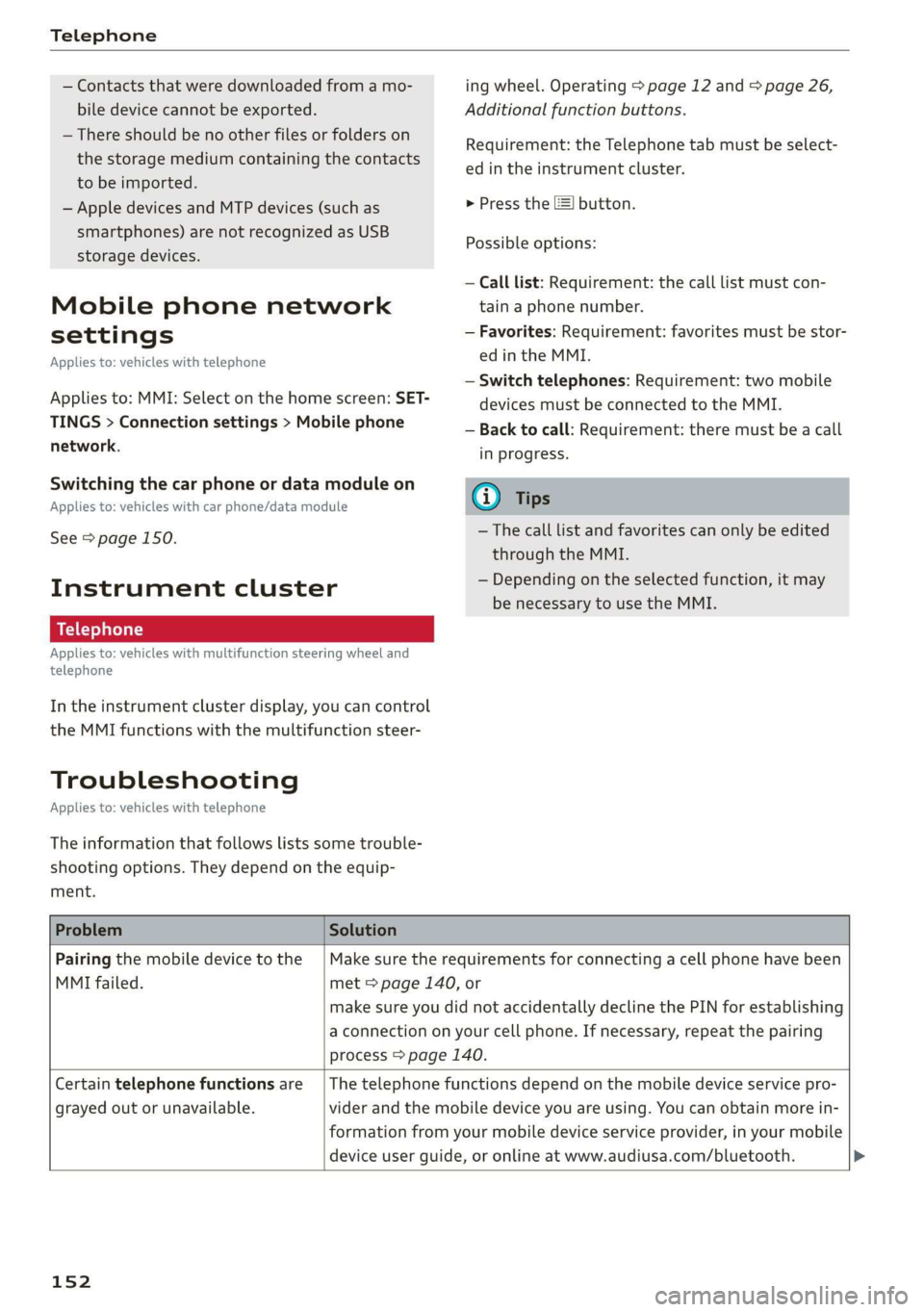
Telephone
— Contacts that were downloaded from a mo-
bile device cannot be exported.
— There should be no other files or folders on
the storage medium containing the contacts
to be imported.
— Apple devices and MTP devices (such as
smartphones) are not recognized as USB
storage devices.
Mobile phone network
settings
Applies to: vehicles with telephone
Applies to: MMI: Select on the home screen: SET-
TINGS > Connection settings > Mobile phone
network.
Switching the car phone or data module on
Applies to: vehicles with car phone/data module
See > page 150.
Instrument cluster
Telephone
Applies to: vehicles with multifunction steering wheel and
telephone
In the instrument cluster display, you can control
the MMI functions with the multifunction steer-
Troubleshooting
Applies to: vehicles with telephone
The information that follows lists some trouble-
shooting options. They depend on the equip-
ment.
ing wheel. Operating > page 12 and > page 26,
Additional function buttons.
Requirement: the Telephone tab must be select-
ed in the instrument cluster.
> Press the [=] button.
Possible options:
— Call list: Requirement: the call list must con-
tain a phone number.
— Favorites: Requirement: favorites must be stor-
ed inthe MMI.
— Switch telephones: Requirement: two mobile
devices must be connected to the MMI.
— Back to call: Requirement: there must be a call
in progress.
(i) Tips
—The call list and favorites can only be edited
through the MMI.
— Depending on the selected function, it may
be necessary to use the MMI.
Problem Solution
Pairing the mobile device to the
MMI failed.
Make sure the requirements for connecting a cell phone have been
met > page 140, or
make sure you did not accidentally decline the PIN for establishing
a connection on your cell phone. If necessary, repeat the pairing
process > page 140.
Certain telephone functions are
grayed out or unavailable.
The telephone functions depend on the mobile device service pro-
vider and the mobile device you are using. You can obtain more in-
formation from your mobile device service provider, in your mobile
device user guide, or online at www.audiusa.com/bluetooth.
152
Page 155 of 280
83A012721BA
Telephone
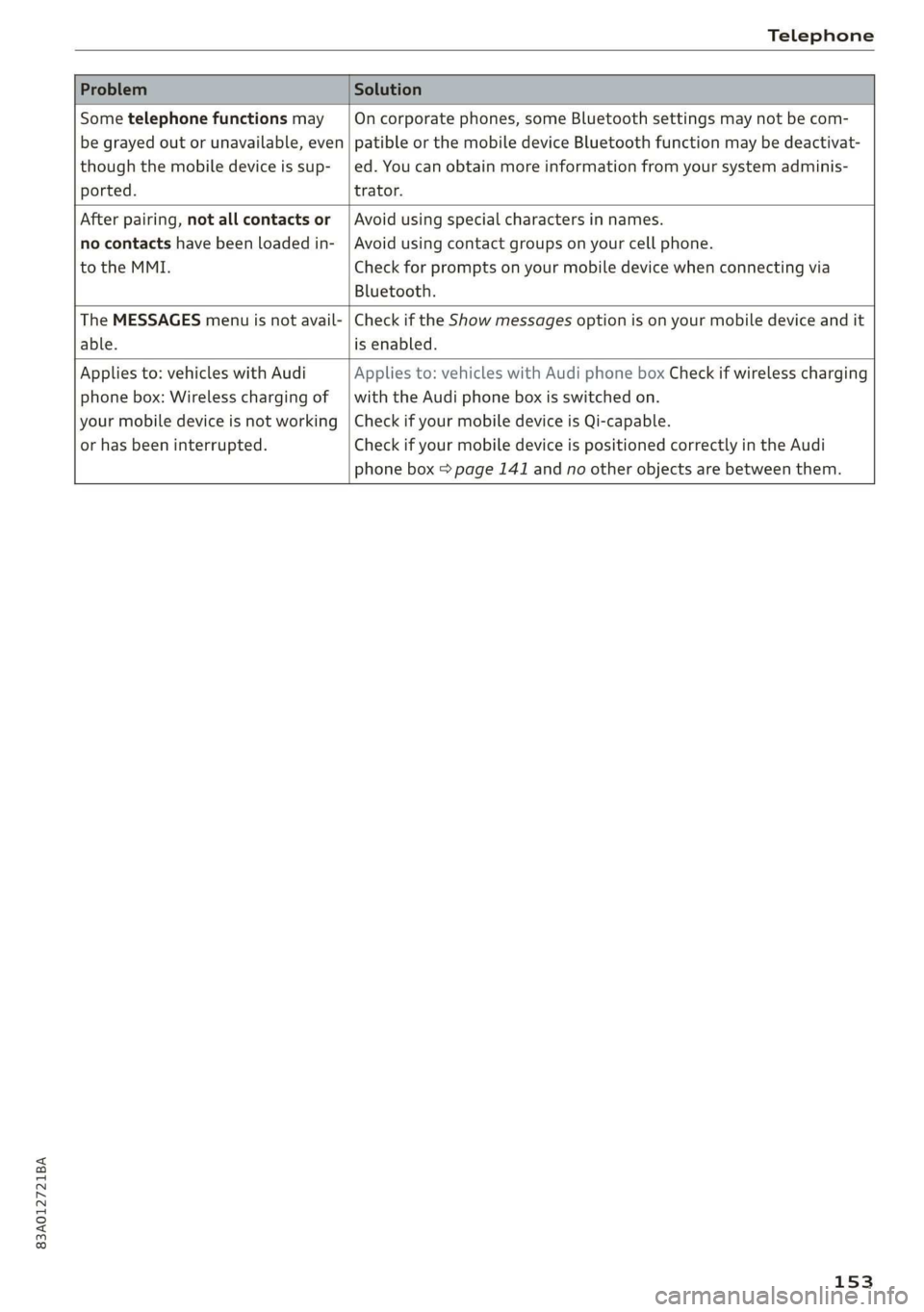
Problem Solution
Some telephone functions may
be grayed out or unavailable, even
though the mobile device is sup-
ported.
On corporate phones, some Bluetooth settings may not be com-
patible or the mobile device Bluetooth function may be deactivat-
ed. You can obtain more information from your system adminis-
trator.
After pairing, not all contacts or
no contacts have been loaded in-
to the MMI.
Avoid using special characters in names.
Avoid using contact groups on your cell phone.
Check for prompts on your mobile device when connecting via
Bluetooth.
The MESSAGES menu is not avail-
able.
Check if the Show messages option is on your mobile device and it
is enabled.
Applies to: vehicles with Audi
phone box: Wireless charging of
your mobile device is not working
or has been interrupted.
Applies to: vehicles with Audi phone box Check if wireless charging
with the Audi phone box is switched on.
Check if your mobile device is Qi-capable.
Check if your mobile device is positioned correctly in the Audi
phone box > page 141 and no other objects are between them.
153
Page 184 of 280

Media
Media
General information
There may be different media drives and connec-
tions available depending on the vehicle equip-
ment. For example, you can play media files us-
ing the SD card reader or connect your mobile de-
vices to the Audi music interface and operate
them through the MMI.
Media and format restrictions: the MMI (includ-
ing the SD card reader and the USB storage de-
vice connection) was tested with a variety of
products and media on the market. However,
there may be cases where individual devices or
media and audio/video files may not be recog-
nized, may play only with restrictions, or may not
play at all.
Restricted functionality: reset the Media to the
factory default settings if functionality is restrict-
ed.
Digital Rights Management: please note that
the audio/video files are subject to copyright pro-
tection.
The media drives do not play files that are pro-
tected by DRM and are identified with the symbol
&.
Data security: never store important data on SD
cards, CDs/DVDs, or mobile devices. Audi AG is
not responsible for damaged or lost files and me-
dia.
Loading times: the more files/folders/playlists
there are on a storage medium, the longer it will
take to load. To reduce the amount of time it
takes the audio/video files to load, use a storage
medium that only contains audio/video files, and
create subfolders (for example, for each artist or
album).
Additional information: When playing, audio
files are automatically displayed with any addi-
tional information that is stored (such as the ar-
tist, track and album cover). If this information is
not available on the storage medium, the MMI
will check the Gracenote metadata database.
However, in some cases, the additional informa-
tion may not be displayed.
182
C@) Note
Read the information about Audi connect, and
be sure to note the connectivity costs section
=@ in General information on page 154.
SD card reader
The SD card reader is located in the glove com-
partment.
Inserting the SD card
>» The angled corner of the SD card must face to-
ward the right front side when being inserted.
> Slide the SD card into the card reader slot until
the SD card clicks into place.
The SD card reader is accessed and operated
through the MMI > page 185.
@) Note
— Only use one-piece SD cards. If adapter
cards (SD cards with more than one piece)
are used, the card could fall out of the
adapter when driving because of vibrations.
Individual pieces could then become stuck
in the drive and impair the functionality.
—To reduce the risk of damaging drives and
data carriers, always keep data carriers ina
sleeve and never expose them to direct sun-
light.
Bluetooth audio player
Applies to: vehicles with Bluetooth audio player
With the Bluetooth audio player, you can play
music wirelessly through the MMI from your
Bluetooth-capable mobile device (such as a cell
phone).
Requirement: The vehicle must be stationary and
the ignition must be switched on. The Bluetooth
settings will open on your mobile device during
the connection setup. The Bluetooth function and
visibility of the MMI > page 196 and mobile de-
vice must be switched on.
Page 185 of 280

83A012721BA
Media
Connecting a mobile device using the center
display
> Applies to: MMI: Select on the home screen:
MEDIA > Source > Connect external device >
New connection. The available Bluetooth devi-
ces will be displayed after several seconds.
> Press on the desired mobile device in the list of
displayed Bluetooth devices.
> To update the list, press O.
> A PIN for a secure Bluetooth connection will be
generated.
> Confirm the PIN on your mobile device, or enter
the PIN for the connection setup on your mo-
bile device. The time allowed for entering the
PIN is limited to approximately 30 seconds.
After connecting successfully, the mobile device
will be displayed in the Connected devices menu
as a Bluetooth audio player.
Playing media > page 185.
G) Tips
— Check for any connection requests on your
Bluetooth device.
— Multiple Bluetooth audio players can be
connected to the MMI, but only one ata
time can be active as a Bluetooth audio
player > page 196.
— The supported media functions (such as
shuffle, list view, categories, search, op-
tions) depend on the Bluetooth device being
used.
— Note the volume setting on your Bluetooth
device. AUDI AG recommends setting your
mobile device to the maximum volume
when using it as a Bluetooth audio player.
— For more information on supported devices,
visit www.audiusa.com/bluetooth or con-
tact an authorized Audi dealer or authorized
Audi Service Facility.
Online media
Applies to: vehicles with Audi connect Infotainment and on-
line media
You can play and operate various online media
services, such as music streaming services, using
the MMI.
Requirement: A supported online media service
must be available in the country where the vehi-
cle is being operated.
Connect online media
> Connect the MMI to the Internet > page 154.
> Switch on the Wi-Fi hotspot in the MMI
=> page 157.
> Applies to: MMI: Select on the home screen:
MEDIA > Source > Connect online media.
> Switch the Wi-Fi function on in your mobile de-
vice and connect it to the MMI Wi-Fi hotspot
=> page 155.
> Install and start the myAudi app on your mo-
bile device.
> Log in to your myAudi account in the myAudi
app and select your vehicle.
Your mobile device must be connected to the
MMI and must be highlighted. When you press
the highlighted device, it will be disconnected.
Starting online media
> Applies to: MMI: Select on the home screen:
MEDIA > Source. All online media services sup-
ported in your country will be displayed.
> Press on the desired online media service and
follow the system instructions.
ZA\ WARNING
— It is only safe to use tablets, laptops, mobile
devices and other similar devices when the
vehicle is stationary because, like all loose
objects, they could be thrown around the in-
side of the vehicle in a crash and cause seri-
ous injuries. Store these types of devices se-
curely while driving.
— Do not use any wireless devices on the front
seats within range of the airbags while driv-
ing. Also read and follow the warnings in
=>
page 61, Airbag system.
() Note
— Read the information about Audi connect,
and be sure to note the connectivity costs
section >@ in General information on
page 154.
183
Page 187 of 280
83A012721BA
Media
mobile devices while driving, because this in-
creases the risk of an accident.
@) Note
— Pull the cable out of the Audi music inter-
face carefully so that the USB ports are not
damaged.
— Use a USB extension cable to connect devi-
ces that have an integrated USB connector
(such as a USB stick) to reduce the risk of
damage to your USB device and the Audi
music interface.
— Extremely high or low temperatures that
can occur inside vehicles can damage mobile
devices and/or impair their performance.
Never leave mobile devices in the vehicle in
extremely high or low temperatures.
@ Tips
— Always follow the information found in
=> page 72.
— When you switch the ignition off, the USB
ports are still supplied with power until the
energy management intervenes.
— Do not use an additional adapter cable or
USB extension cable to connect mobile devi-
ces to the Audi music interface that already
have a cable or that must be connected with
a USB adapter cable (> page 184, fig. 134).
Using an additional adapter or US extension
cable may impair functionality.
— Functionality is not guaranteed for mobile
devices that do not conform to the USB 2.0
specification.
— USB hubs are not supported.
— Video playback through the Audi music in-
terface is not supported on Apple and MTP
devices (such as smartphones).
— iPod or iPhone malfunctions also affect the
operation of the MMI. Reset your mobile de-
vice in these situations.
— Audi recommends updating the iPod or
iPhone software to the latest version. Refer
to your mobile device owner's manual for
more information.
— The USB adapter on the Audi music inter-
face will support iPod touch or iPhone devi-
ces from the 5th generation or newer with
the lightning connector.
— For more information about the Audi music
interface and supported devices, check the
Audi database for mobile devices at www.
audiusa.com/mp3 or contact an authorized
Audi dealer or authorized Audi Service Fa-
cility.
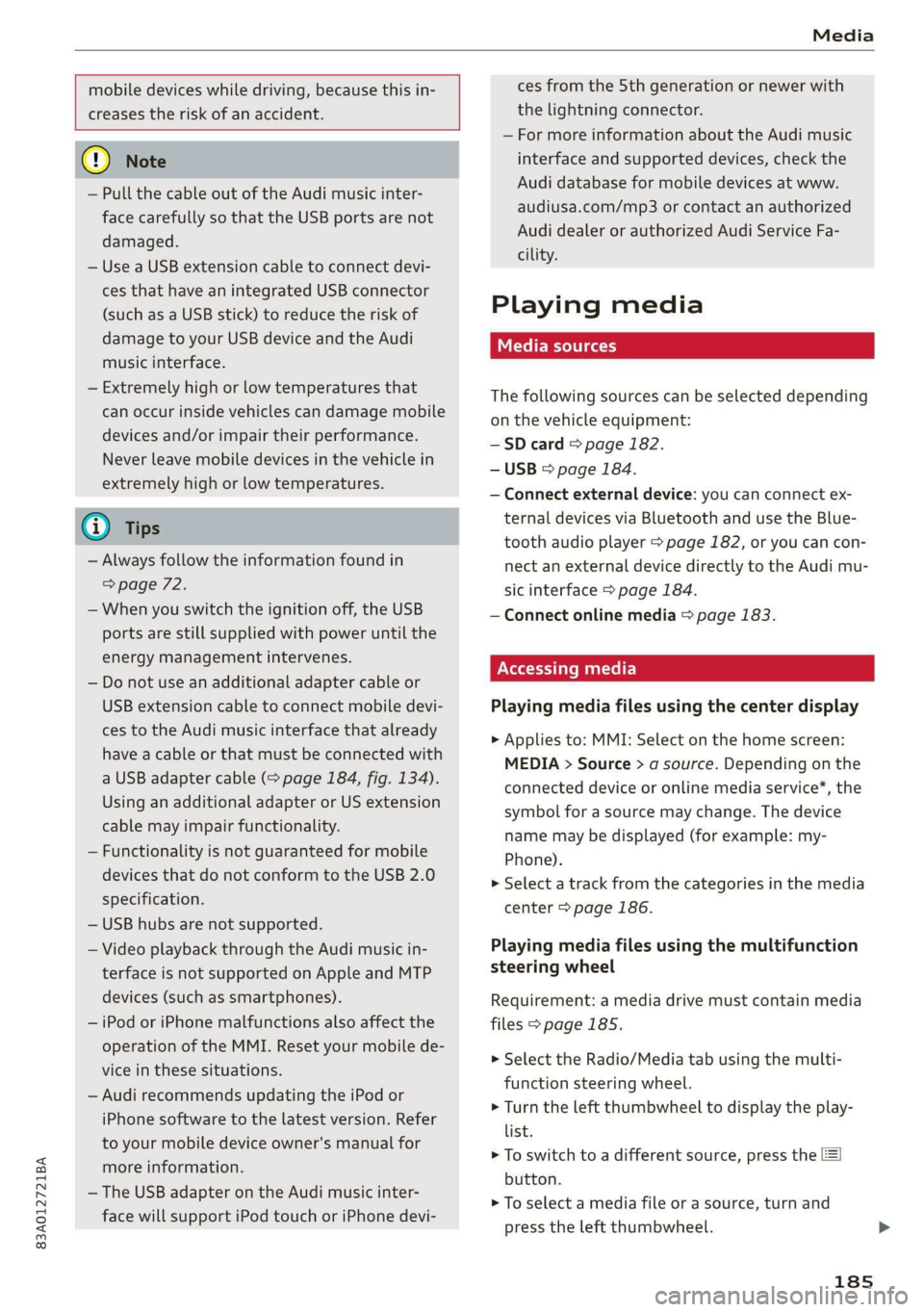
Playing media
The following sources can be selected depending
on the vehicle equipment:
—SD card > page 182.
— USB © page 184.
— Connect external device: you can connect ex-
ternal devices via Bluetooth and use the Blue-
tooth audio player > page 182, or you can con-
nect an external device directly to the Audi mu-
sic interface > page 184.
— Connect online media > page 183.
Accessing media
Playing media files using the center display
> Applies to: MMI: Select on the home screen:
MEDIA > Source > a source. Depending on the
connected device or online media service”, the
symbol for a source may change. The device
name may be displayed (for example: my-
Phone).
>» Select a track from the categories in the media
center > page 186.
Playing media files using the multifunction
steering wheel
Requirement: a media drive must contain media
files > page 185.
> Select the Radio/Media tab using the multi-
function steering wheel.
> Turn the left thumbwheel to display the play-
list.
> To switch to a different source, press the
button.
> To select a media file or a source, turn and
press the left thumbwheel.
185
Page 193 of 280
83A012721BA
Media
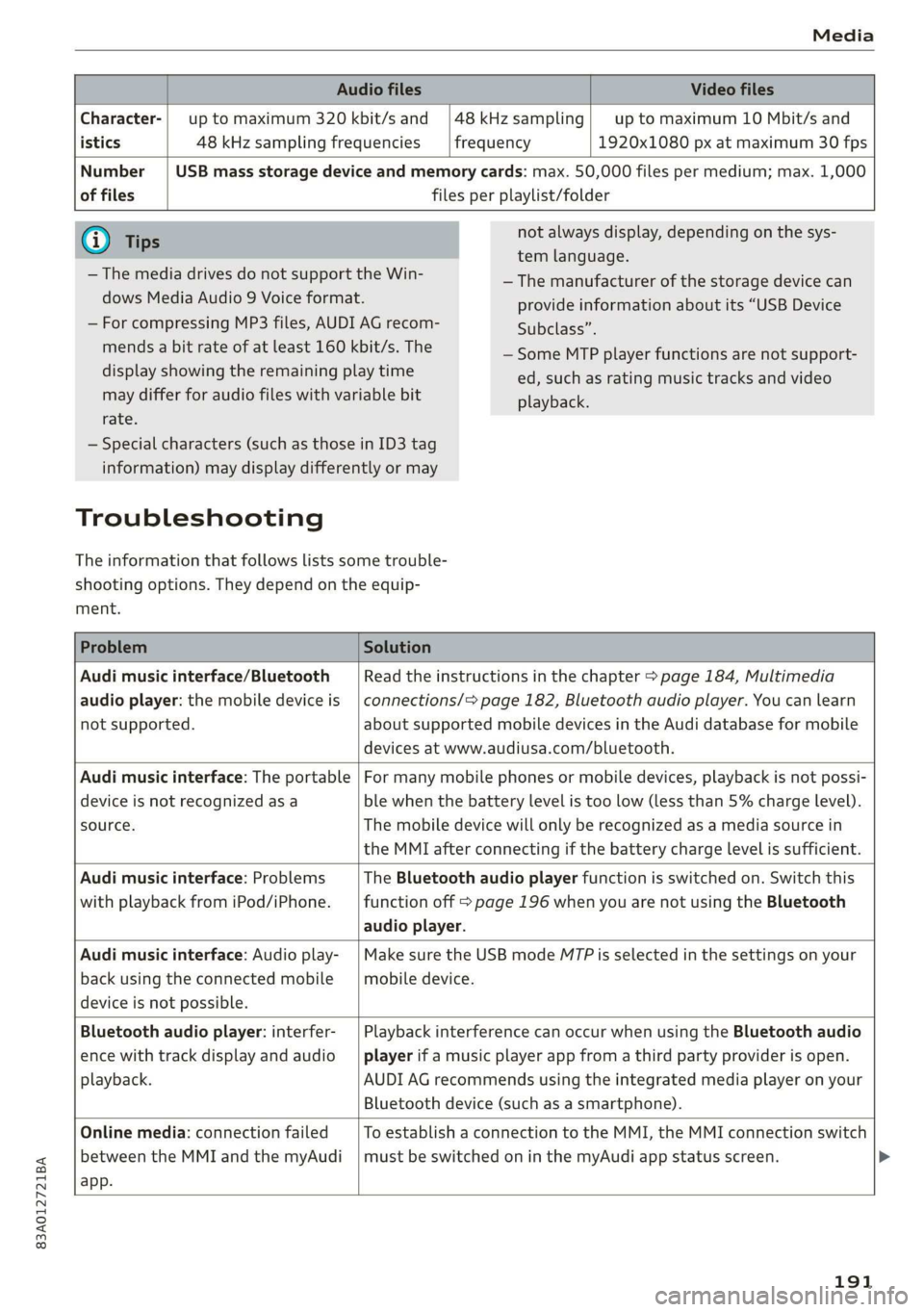
Audio files Video files
Character-| up to maximum 320 kbit/s and |48kHzsampling| up to maximum 10 Mbit/s and
istics 48 kHz sampling frequencies frequency 1920x1080 px at maximum 30 fps
Number | USB mass storage device and memory cards: max. 50,000 files per medium; max. 1,000
of files files per playlist/folder
G) Tips
— The media drives do not support the Win-
dows Media Audio 9 Voice format.
— For compressing MP3 files, AUDI AG recom-
mends a bit rate of at least 160 kbit/s. The
display showing the remaining play time
may differ for audio files with variable bit
rate.
not always display, depending on the sys-
tem language.
— The manufacturer of the storage device can
provide information about its “USB Device
Subclass”.
— Some MTP player functions are not support-
ed, such as rating music tracks and video
playback.
— Special characters (such as those in ID3 tag
information) may display differently or may
Troubleshooting
The information that follows lists some trouble-
shooting options. They depend on the equip-
ment.
Problem Solution
Audi music interface/Bluetooth
audio player: the mobile device is
not supported.
Read the instructions in the chapter > page 184, Multimedia
connections/=> page 182, Bluetooth audio player. You can learn
about supported mobile devices in the Audi database for mobile
devices at www.audiusa.com/bluetooth.
Audi music interface: The portable
device is not recognized as a
source.
For many mobile phones or mobile devices, playback is not possi-
ble when the battery level is too low (less than 5% charge level).
The mobile device will only be recognized as a media source in
the MMI after connecting if the battery charge level is sufficient.
Audi music interface: Problems
with playback from iPod/iPhone.
The Bluetooth audio player function is switched on. Switch this
function off > page 196 when you are not using the Bluetooth
audio player.
Audi music interface: Audio play-
back using the connected mobile
device is not possible.
Make sure the USB mode M7P is selected in the settings on your
mobile device.
Bluetooth audio player: interfer-
ence with track display and audio
playback.
Playback interference can occur when using the Bluetooth audio
player if a music player app from a third party provider is open.
AUDI AG recommends using the integrated media player on your
Bluetooth device (such as a smartphone).
Online media: connection failed
between the MMI and the myAudi
app.
To establish a connection to the MMI, the MMI connection switch
must be switched on in the myAudi app status screen.
191