change time AUDI Q3 2019 User Guide
[x] Cancel search | Manufacturer: AUDI, Model Year: 2019, Model line: Q3, Model: AUDI Q3 2019Pages: 280, PDF Size: 72.73 MB
Page 130 of 280
Parking and maneuvering
ZA WARNING
Follow the safety precautions and note the
limits of the assist systems, sensors, and
cameras > page 104.
@) Note
Keep enough distance from the curb to avoid
damage to the rims.
G) Tips
If the parking aid is switched off, it can only
be reactivated automatically when one of the
following conditions is met:
— The vehicle speed exceeds 6 mph (10 km/h)
— The ignition is switched off and back on
again
— The parking brake is set and then released
— The "P" gear is engaged and released again
Applies to: vehicles with parking system plus
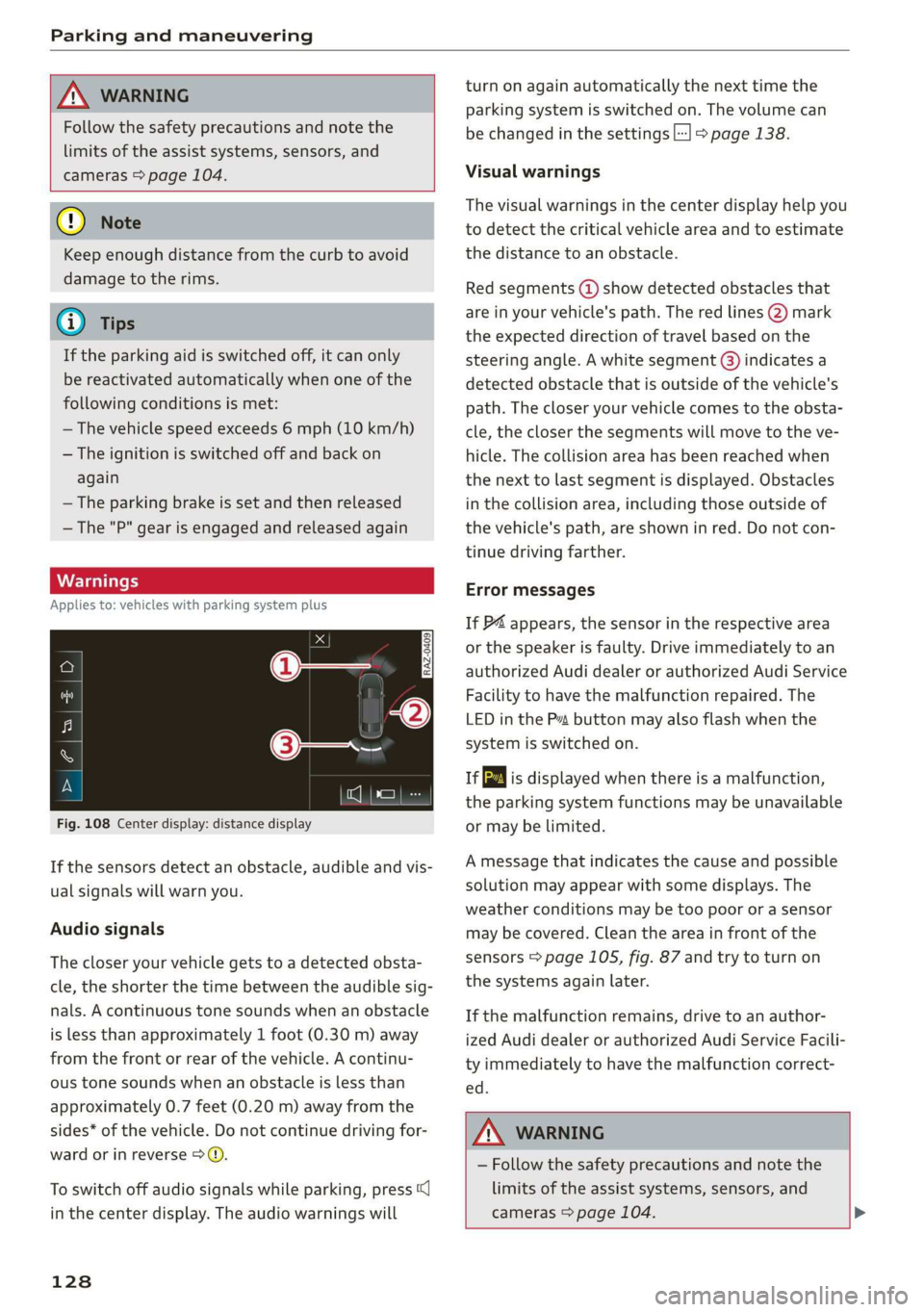
Fig. 108 Center display: distance display
If the sensors detect an obstacle, audible and vis-
ual signals will warn you.
Audio signals
The closer your vehicle gets to a detected obsta-
cle, the shorter the time between the audible sig-
nals. A continuous tone sounds when an obstacle
is less than approximately 1 foot (0.30 m) away
from the front or rear of the vehicle. A continu-
ous tone sounds when an obstacle is less than
approximately 0.7 feet (0.20 m) away from the
sides* of the vehicle. Do not continue driving for-
ward or in reverse >.
To switch off audio signals while parking, press
in the center display. The audio warnings will
128
turn on again automatically the next time the
parking system is switched on. The volume can
be changed in the settings |] > page 138.
Visual warnings
The visual warnings in the center display help you
to detect the critical vehicle area and to estimate
the distance to an obstacle.
Red segments (2) show detected obstacles that
are in your vehicle's path. The red lines (2) mark
the expected direction of travel based on the
steering angle. A white segment @) indicates a
detected obstacle that is outside of the vehicle's
path. The closer your vehicle comes to the obsta-
cle, the closer the segments will move to the ve-
hicle. The collision area has been reached when
the next to last segment is displayed. Obstacles
in the collision area, including those outside of
the vehicle's path, are shown in red. Do not con-
tinue driving farther.
Error messages
If P4 appears, the sensor in the respective area
or the speaker is faulty. Drive immediately to an
authorized Audi dealer or authorized Audi Service
Facility to have the malfunction repaired. The
LED
in the Ps button may also flash when the
system is switched on.
ff is displayed when there is a malfunction,
the parking system functions may be unavailable
or may be limited.
A message that indicates the cause and possible
solution may appear with some displays. The
weather conditions may be too poor or a sensor
may be covered. Clean the area in front of the
sensors > page 105, fig. 87 and try to turn on
the systems again later.
If the malfunction remains, drive to an author-
ized Audi dealer or authorized Audi Service Facili-
ty immediately to have the malfunction correct-
ed.
Z\ WARNING
— Follow the safety precautions and note the
limits of the assist systems, sensors, and
cameras > page 104. >
Page 131 of 280
83A012721BA
Parking and maneuvering
— Sensors and cameras have spots in which
the surrounding area cannot be detected.
Objects, animals, and people may only be
detected with limitations may not be detect-
ed at all. Always monitor the traffic and the
vehicle's surroundings directly and do not
become distracted.
@) Note
— Keep enough distance from the curb to
avoid damage to the rims.
— Applies to: vehicles with park assist: If you
park in short parking spaces using park as-
sist, a continuous tone sounds from the
parking system when the distance to an ob-
ject is less than approximately 0.7 ft
(0.20 m). Do not continue driving farther.
G) Tips
— The segments in the side area* are detected
and analyzed when passing. There may have
been changes to the surrounding area after
switching the ignition off and on again, af-
ter opening the doors, or if the vehicle is left
stationary for a long period of time. In this
scenario, the side area* will appear black
until the area has been detected and evalu-
ated.
— If the distance to an obstacle remains con-
stant, the volume of the distance warning
gradually lowers after a few seconds until it
is muted (this does not apply to the continu-
ous tone). If the obstacle comes closer than
it was before the sound was muted, the
tone will sound again. If the obstacle be-
comes farther away than it was before the
sound was muted, no tone will sound. Pay
attention to the vehicle's surroundings
when you start to drive.
— There is no distance warning for the rear
and the sides* when trailer towing mode is
detected. The front sensors remain activat-
ed. The visual display switches to trailer
mode. There is no guarantee the functions
will switch off when using a retrofitted trail-
er hitch.
Rearview camera and
peripheral cameras
Introduction
Applies to: vehicles with rearview camera/peripheral cameras
B8V-0629
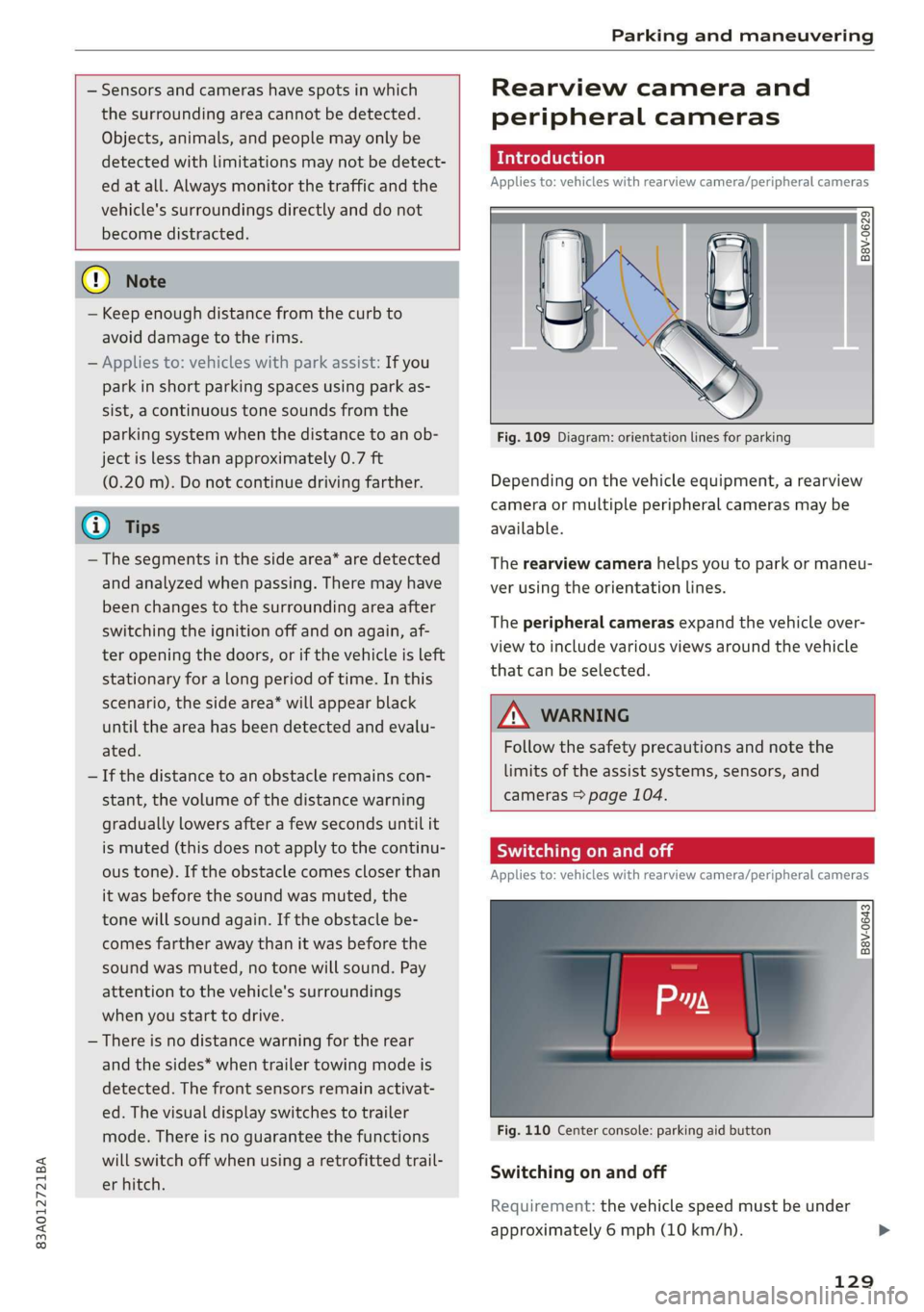
Fig. 109 Diagram: orientation lines for parking
Depending on the vehicle equipment, a rearview
camera or multiple peripheral cameras may be
available.
The rearview camera helps you to park or maneu-
ver using the orientation lines.
The peripheral cameras expand the vehicle over-
view to include various views around the vehicle
that can be selected.
Z\ WARNING
Follow the safety precautions and note the
limits of the assist systems, sensors, and
cameras > page 104.
Switching on and off
Applies to: vehicles with rearview camera/peripheral cameras
B8V-0643
Fig. 110 Center console: parking aid button
Switching on and off
Requirement: the vehicle speed must be under
approximately 6 mph (10 km/h).
129
Page 138 of 280
Parking and maneuvering
The driver must decide if the parking space
displayed is suitable for the vehicle.
— Certain conditions near the parking space
may cause the parking process to fail, such
as if the parking space is near trees or posts,
or if the ground is covered, for example,
with gravel, snow, or ice.
G) Tips
— If you did not drive past a suitable parking
space too quickly, you can also select Pe to
activate the system afterwards.
— The Electronic Stabilization Control (ESC)
must not be switched off during the parking
process. If the ESC intervenes, the parking
process
will be canceled.
— You can also drive into a perpendicular park-
ing space yourself and then activate the sys-
tem. If this is the case, the front of the vehi-
cle should already be in the space (4)
= page 134, fig. 116 so that the sensors
can measure the space.
— You cannot park with the parking assist sys-
tems when you are towing a trailer or have
the connector inserted in the trailer socket.
— The system is not available when certain as-
sist systems are switched on.
— If there are suitable parking spaces on both
sides of the street, for example on a one-
way street, you can change the side where
the system is searching for parking spaces
by activating the turn signal for the other
side or by pressing on that side in the center
display.
— The park systems do not provide support for
assisted parking on tight curves.
Park assist
(eT eeeeue lela)
Applies to: vehicles with park assist
The park assist helps you when parking and exit-
ing parking spaces after the parking space
search. The park assist takes over the steering of
the vehicle while the driver accelerates, brakes,
and
monitors the vehicle's surroundings. Park as-
sist can be interrupted at any time.
136
Z\ WARNING
— Follow the safety precautions and note the
limits of the assist systems, sensors, and
cameras > page 104.
— The driver is always responsible when enter-
ing or exiting a parking space and during
similar maneuvers.
— Do not use this function if the vehicle cannot
move freely, for example when on a vehicle
jack.
— Sensors and cameras have spots in which
the surrounding area cannot be detected.
Objects, animals, and people may only be
detected with limitations may not be detect-
ed at all. Always monitor the traffic and the
vehicle's surroundings directly and do not
become distracted.
@) Note
— Do not use the park assist systems when
transporting cargo that extends out of the
vehicle, when snow chains are mounted, or
when the parking space is on a hill or in-
cline.
— Park assist guides the vehicle either away
from curbs or onto them if other vehicles
are parked on the curb. Make sure that your
vehicle's tires and rims are not damaged.
Resume control of the vehicle in time or
stop the parking process if needed to pre-
vent damage.
G) Tips
Follow the legal regulations in the country
where you are located when using Park assist.
dem ne eee
Applies to: vehicles with park assist
Requirement: a suitable parking space must be
found and selected > page 134. The vehicle must
initially be stationary.
> Select the reverse gear after stopping briefly.
> Remove your hands from the steering wheel.
> Pay attention to the path of the vehicle. If the
traffic situation permits, accelerate carefully
of.
Page 142 of 280
Telephone
Setup
Connecting a mobile device to the MMI
Applies to: vehicles with telephone
Requirement
The vehicle must be stationary and the ignition
must be switched on.
The Bluetooth settings must be open on your
mobile device during the connection setup.
The Bluetooth function and visibility of the MMI
= page 197 and mobile device must be switched
on.
The mobile device that will be connected must
not be connected to any other Bluetooth device.
The MMI must only be connected to one mobile
device.
Connecting a cell phone using Bluetooth
» Applies to: MMI: Select on the home screen:
PHONE
> Follow the system instructions. The available
Bluetooth devices will be displayed after sever-
al seconds.
>» Press on the desired mobile device in the list of
displayed Bluetooth devices.
> To update the list, press O.
> A PIN for a secure Bluetooth connection will be
generated.
> Confirm the PIN on your mobile device, or
> Enter the PIN for connecting on your cell
phone. The time allowed for entering the PIN is
limited to approximately 30 seconds.
> If necessary, enter your SIM card PIN in the
MMI.
Connecting a mobile device via USB
> Applies to: MMI: Select on the home screen:
PHONE
> Follow the system instructions.
After connecting successfully
After connecting successfully, information about
the connected profiles will appear. You can also
change the profiles later > page 197.
In addition, the mobile device contacts will be
automatically loaded into the MMI. This process
140
can take several minutes, depending on the num-
ber of contacts.
@) Note
Always follow the information found in
=> page 154.
G) Tips
— You can apply additional settings to con-
nected mobile devices under Connected de-
vices > page 196.
— You can also search for the MMI on your mo-
bile device using the Bluetooth device
search.
— You only have to pair your device one time.
Bluetooth devices that are already paired
automatically connect to the MMI when the
Bluetooth function is switched on, when
they are within range, and when the ignition
is switched on. The last connected mobile
device is given first priority.
— Authorizing the MMI connection on your
mobile device will make it possible to con-
nect automatically.
— Pay attention to any system prompts dis-
played on your mobile device or the MMI,
for example if the system should connect
automatically in the future. Depending on
the mobile device, you may also need to
download contacts and confirm access to
your messages separately.
— You will receive the PIN (SIM) and the PUK
(Personal Unlocking Key) along with the SIM
card from your cell phone service provider.
If you enter a PIN (SIM) incorrectly multiple
times in a row, the SIM card will be locked
and must be unlocked by entering the PUK.
— When leaving the vehicle, the Bluetooth
connection to the mobile device will auto-
matically disconnect. Depending on your
mobile device, phone calls in progress may
be automatically redirected from the MMI
to your mobile device so that you can con-
tinue the call on your phone.
— You can obtain more information from your
mobile device service provider or from your
mobile device user guide. For information
on using the telephone, visit www.audiusa. >
Page 152 of 280
Telephone
— Reply all: a reply can be sent for the selected e-
mail and it will be sent to all of the entered
recipients.
— Forward: The selected e-mail can be forwarded
to a different recipient.
Settings
Press ©}.
— New e-mail notification: when this function is
switched on, you will be notified when new e-
mails are received. New e-mails are indicated
with an envelope Min the MMI status bar.
Deleting e-mails
Select: a mailbox > Z > one or more e-mails >
Delete > (Done).
@) Note
Always follow the information found in
=> page 154.
@ Tips
For more information on compatible mobile
devices, visit www.audiusa.com/bluetooth or
contact an authorized Audi dealer or author-
ized Audi Service Facility.
Settings
Phone settings
Applies to: vehicles with telephone
> Applies to: MMI: Select on the home screen:
PHONE ©}.
Switching between two mobile devices
Requirement: phone 1 and phone 2 must be con-
nected to the MMI.
Switch telephones: The device name of your ac-
tive mobile device will be displayed. You can
switch the phone by pressing the button.
Declining a call with a text message*
When this function is switched on, you can de-
cline an incoming call with a text message.
150
Call options*
The following options may be available depend-
ing on the mobile device:
— Call forwarding: you can switch the forwarding
of incoming calls to your voicemail or to anoth-
er phone number on and off. You can check if
the function is activated or deactivated with
Status.
— Call waiting: you will be alerted to an incoming
call during a phone call when the function is
switched on. You can check if the function is ac-
tivated or deactivated with Status.
— Send own number: sending your phone num-
ber with an outgoing call can be switched on
and off. With the Net.-depen. setting, the set-
ting listed in the contract with the cell phone
service provider is used. The settings only apply
to the PHONE menu in the MMI. Please note
that the settings on your mobile device will ap-
ply after disconnecting the Bluetooth connec-
tion. You can determine which setting is active
with Status.
Ringtone and volume settings
— Ringtone and message volume: you can adjust
the volume of the selected ringtone and the no-
tification volume when a message is received by
moving the position of the slider.
— Ringtone”: available ringtones are played using
the Ringtone function. Press on an entry in the
list.
— Microphone input level: you can adjust the mi-
crophone input during a phone call using the
slider.
Turn on car phone or data module
Applies to: vehicles with car phone/data module
When this function is switched on, you can use
the car phone or data module.
As long as the car phone was not turned off sepa-
rately the last time it was used, it will turn on au-
tomatically when the ignition is switched on.
Edit voicemail number
You can change your voicemail number.
Page 161 of 280
83A012721BA
Navigation
Navigation
Opening navigation
Applies to: vehicles with navigation system
The navigation system directs you to your desti-
nation, around traffic incidents, and on alterna-
tive routes, if desired.
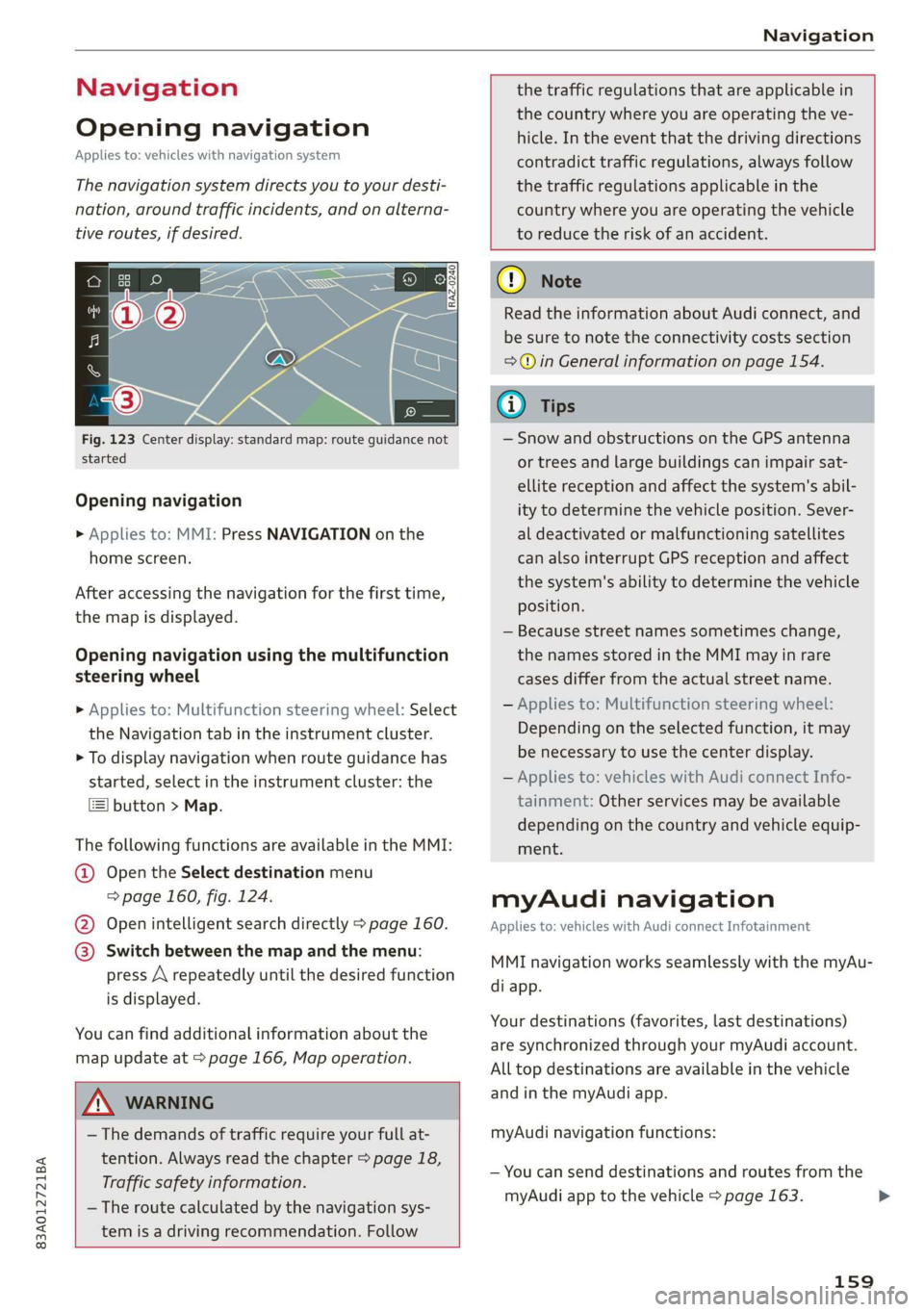
Fig. 123 Center display: standard map: route guidance not
started
Opening navigation
> Applies to: MMI: Press NAVIGATION on the
home screen.
After accessing the navigation for the first time,
the map is displayed.
Opening navigation using the multifunction
steering wheel
> Applies to: Multifunction steering wheel: Select
the Navigation tab in the instrument cluster.
> To display navigation when route guidance has
started, select in the instrument cluster: the
button > Map.
The following functions are available in the MMI:
@ Open the Select destination menu
=> page 160, fig. 124.
@ Open intelligent search directly > page 160.
@ Switch between the map and the menu:
press A repeatedly until the desired function
is displayed.
You can find additional information about the
map update at > page 166, Map operation.
the traffic regulations that are applicable in
the country where you are operating the ve-
hicle. In the event that the driving directions
contradict traffic regulations, always follow
the traffic regulations applicable in the
country where you are operating the vehicle
to reduce the risk of an accident.
ZX WARNING
— The demands of traffic require your full at-
tention. Always read the chapter > page 18,
Traffic safety information.
— The route calculated by the navigation sys-
tem is a driving recommendation. Follow
@) Note
Read the information about Audi connect, and
be sure to note the connectivity costs section
=>© in General information on page 154.
@ Tips
— Snow and obstructions on the GPS antenna
or trees and large buildings can impair sat-
ellite reception and affect the system's abil-
ity to determine the vehicle position. Sever-
al deactivated or malfunctioning satellites
can also interrupt GPS reception and affect
the system's ability to determine the vehicle
position.
— Because street names sometimes change,
the names stored in the MMI may in rare
cases differ from the actual street name.
— Applies to: Multifunction steering wheel:
Depending on the selected function, it may
be necessary to use the center display.
— Applies to: vehicles with Audi connect Info-
tainment: Other services may be available
depending on the country and vehicle equip-
ment.
myAudi navigation
Applies to: vehicles with Audi connect Infotainment
MMI navigation works seamlessly with the myAu-
di app.
Your destinations (favorites, last destinations)
are synchronized through your myAudi account.
All top destinations are available in the vehicle
and
in the myAudi app.
myAudi navigation functions:
— You can send destinations and routes from the
myAudi app to the vehicle > page 163.
159
>
Page 170 of 280
Navigation
you have selected to avoid will appear with red
and white shading on the map.
> Block route: press @) > fig. 129.
> Cancel route block: press Q.
@ Current route
The distance to the destination and the calculat-
ed arrival time will be displayed for the current
route.
@ Alternative route
As long as traffic information is available, the
congestion along the route including the time de-
lay will be displayed. The distance to the destina-
tion and the calculated arrival time will be dis-
played for the alternative route.
Select route
> Press on the information window for the appli-
cable alternative route (for example (@)
> fig. 129).
Additional functions
a Wol gia)
Applies to: vehicles with navigation system
You can access frequent destinations in the fa-
vorites. You can quickly and easily start route
guidance using the home address or business ad-
dress function.
Accessing favorites
> Applies to: MMI: Select on the home screen:
NAVIGATION > (G8) > Favorites.
If you have met the requirements for myAudi
navigation, your favorites list will be synchron-
ized with your myAudi account > page 159.
Storing favorites
> Press yY¥ in the details > page 163, fig. 125. Or:
press Store as favorite in the options
> page 172.
Storing a home address or business address
> Press Home address or Business address.
When accessed for the first time, you will be
prompted to set the address.
> Select: Create now > enter a destination > OK.
168
Editing a home address or business address
Requirement: the favorites list must be dis-
played. Your home address or business address
must be stored.
> Press Home address or Business address until
the Options menu is displayed.
> Select: Change address > enter a destination >
(Set as destination) or (Add to address) > OK.
Editing a favorite
Requirement: the favorites list must be dis-
played. At least one favorite must be stored.
> Setting a favorite as a destination: press ona
favorite.
> Rename favorite: press on a favorite until the
Options menu is displayed. Select: Change
name > enter a name > OK.
> Deleting a favorite: select: 2 > one or more
entries or Select all > Delete > (Done).
Requirement: the favorites list must be dis-
played. At least two favorites must be stored.
> Moving a favorite: Press Z. Touch the $ sym-
bol and move the entry to the desired position.
Press Done.
@) Tips
— After deleting the home address or business
address, only the address is deleted and the
entry will still be displayed in the favorites.
— Please note when moving favorites that
items 1 and 2 are reserved for the home ad-
dress and business address.
(ey era marae lac me(ia rhe (elay
Applies to: vehicles with navigation system
Two addresses (private/business) can be added
as destinations for each contact. Addresses for
contacts on your mobile device are displayed as a
mailing address.
Accessing contacts
> Applies to: MMI: Select on the home screen:
NAVIGATION > (G2) > Contacts.
Page 174 of 280
Navigation
Tad ite
Applies to: vehicles with navigation system
By receiving traffic, your MMI calculates a better
route if available and the possible time saved
compared to the current route. You can decide
which route you would like to use.
A notification will appear for several seconds if
your MMI calculates a better route for the cur-
rent route guidance.
A message will also appear in the traffic informa-
tion overview @) > page 171, fig. 130.
Accept better route
Requirement: A notification about a better route
is displayed.
> Press PF. The better route is used for route
guidance and the route is recalculated. Or:
press the notification in the central area. The
better route with the calculated arrival time is
displayed > page 167, Alternative routes. Press
on a better route (for example @) > page 167,
fig. 129).
CON eee aie leleurliela)
Applies to: vehicles with navigation system and online traffic
information
The MMI can receive real-time online traffic in-
formation about congestion, accidents, road
construction, and other incidents.
Requirement: The MMI must be connected to the
Internet > page 154, Audi connect. Traffic infor-
mation must be switched on in the MMI
=> page 173.
Traffic information will be displayed on the
standard map > page 165, fig. 126.
Online traffic information is also displayed on the
standard map > page 169.
@) Note
Read the information about Audi connect, and
be sure to note the connectivity costs section
=@ in General information on page 154.
172
G) Tips
— Having the Online traffic information func-
tion switched on provides the most accurate
reports of traffic situations and traffic fore-
casting. Your vehicle transmits and process-
es its anonymous, encrypted position infor-
mation at regular intervals to the traffic da-
ta provider. You can switch off data transfer
at any time > page 256.
— The online traffic information network is
not available in all countries, and the cover-
age is not nationwide.
Options and settings
Applies to: vehicles with navigation system
Context-specific functions and settings may be
available depending on the vehicle equipment.
Requirement: a list with navigation destinations
(such as last destinations) must be displayed.
> Press and hold an element until the Options
menu is displayed.
Storing a favorite
See > page 168.
Edit address
You can edit an address for the next destination
entry and navigate to the destination. Select: Ed-
it address > enter a street > Use address > Start.
If the address is permanently stored (for exam-
ple, in the favorites), the stored entry will not be
changed.
Change address
See > page 168, Favorites.
Entering an address
See > page 168, Contacts as navigation destina-
tions.
Change name
See > page 168, Favorites.
Save as a shortcut
See > page 21, Shortcuts.
Page 197 of 280
83A012721BA
Additional settings
Additional settings
System settings
Introduction
General settings are described in this chapter.
You can find specific settings in the chapters
about
those settings. The available settings de-
pend on the vehicle equipment.
Date and time
> Applies to: MMI: Select on the home screen:
SETTINGS > General > Date & time.
Possible settings:
— Set date and time automatically
— Date format
— Use 24h time format
— Automatic time zone
— Time zone
— Automatic daylight saving time
— Manual daylight saving time
CERT Taal lat ae ay
> Applies to: MMI: Select on the home screen:
SETTINGS > General > Measurement units.
Possible settings:
— Speed
— Distance
— Temperature
— Pressure
— Consumption (engine)
— Volume
Language and keyboard
> Applies to MMI: Select on the home screen:
SETTINGS > Language & keyboard.
Language
You can change the languages for the display,
navigation announcements, and the voice recog-
nition system.
Keyboard
See > page 22.
Requirement: an audio source must be selected.
> Applies to MMI: Select on the home screen:
SETTINGS > Sound.
Possible settings:
— Treble
— Bass
— Balance/fader
— Speed-dependent volume control
— Subwoofer
— Surround Level
Focus
You can optimize the sound distribution for vari-
ous locations in the vehicle.
3D effect
You can adjust the intensity of the 3D effect.
With the Medium setting, you will hear an opti-
mal 3D effect for all sources.
Announcements and tones
> Applies to: MMI: Select on the home screen:
SETTINGS > Announcements & tone.
Possible settings:
— Volume of announcements
— Welcome sound
ZA\ WARNING
To reduce the risk of an accident, adjust the
volume of the audio system so that audible
signals from outside the vehicle, such as po-
lice and fire sirens, can be heard easily at all
times.
G) Tips
The volume is automatically adjusted to a pre-
set level when the MMI is switched on.
195
Page 201 of 280
83A012721BA
Checking and Filling
Checking and Filling
Fuel
Types of gasoline
The correct gasoline grade is stated on the inside
of the fuel filler door.
The vehicle is equipped with a catalytic converter
and must only be driven with unleaded gasoline.
Audi recommends using TOP TIER Detergent Gas-
oline. For additional information on TOP TIER De-
tergent Gasoline, visit www.toptiergas.com.
The individual gasoline grades are differentiated
by octane ratings. This value is given with (R
+M)/2 equating to AKI or in RON.
The headings below match the sticker in the fuel
filler door (examples):
UNLEADED FUEL ONLY MIN. (R+M)/2 87
Regular / MIN. RON 91 Regular
Use regular gasoline with minimum 87 AKI /
91 RON > ©.
UNLEADED FUEL ONLY PREMIUM MIN. (R
+M)/2 91 / SUPER MIN. RON 95
Using premium gasoline with minimum 91 AKI /
95 RON is recommended.
If premium gasoline is not available, you can also
use regular gasoline 87 AKI / 91 RON. However
this does reduce the engine power slightly.
@) Note
— Filling the tank just one time with leaded
fuel or other metallic additives will cause
permanent deterioration to the catalytic
converter function.
— When gasoline with an octane rating that is
too low is used, high speeds or heavy engine
load can lead to engine damage.
@ Tips
The vehicle may be filled with fuel that has a
higher octane rating than what is required by
the engine.
Gasoline mixture
Gasoline with alcohol or MTBE (Methyl-Tert-
Butyl-Ether)
You can use unleaded gasoline mixed with alco-
hol or MTBE (generally labeled as oxygenated
compounds) as long as the fuel meets the follow-
ing conditions:
Gasoline with methanol content (methyl alco-
hol or methanol)
— Anti-Knock Index is at least 87 AKI
—No more than 3% methanol
— More than 2% solvent
Gasoline with ethanol content (ethyl alcohol or
ethanol)
— Anti-Knock Index is at least 87 AKI
—No more than 15% ethanol
Gasoline with MTBE content
— Anti-Knock Index is at least 87 AKI
—No more than 15% MTBE
Gasoline adapted to the season
Many gasoline fuels are adapted to the seasons.
When the season changes, we recommend refu-
eling at high-traffic gas stations. It is more likely
that the gasoline will be suitable for the season
there.
() Note
— Gasoline with methanol content that does
not meet the specified conditions may cause
corrosion damage and damage to plastic or
rubber components in the fuel system.
— Do not use gasoline that does not meet the
specifications.
— If you are unable to find out if a specific gas-
oline mixture meets the specifications, ask
the gas station operator or their fuel suppli-
er.
— Do not use any gasoline mixture whose
composition cannot be identified.
— Audi does not assume any responsibility for
damage to the fuel system or for perform-
ance problems caused by using gasoline
mixtures different from those specified.
This type of damage also does not fall under
199
>