trailer AUDI Q3 2019 User Guide
[x] Cancel search | Manufacturer: AUDI, Model Year: 2019, Model line: Q3, Model: AUDI Q3 2019Pages: 280, PDF Size: 72.73 MB
Page 127 of 280
83A012721BA
Driver assistance
Warning stage
If the display in a mirror blinks brightly when you
activate a turn signal, side assist is warning you
about detected objects classified as critical.
Depending on the vehicle equipment and other
driver assistance systems, the display on the re-
spective mirror may also flash if you have not
turned on the turn signal: If you are approaching
a detected lane marker line and it appears you
will be leaving the lane, the display on the mirror
will warn you about detected vehicles that it has
classified as critical. You can also be warned with
corrective steering > page 119, Lane departure
warning.
Detection range
The radar sensors are designed to detect the left
and right adjacent lanes when the road lanes are
the normal width. In some situations, the display
in the exterior mirror may turn on even though
there is no vehicle located in the area that is criti-
cal for a lane change. For example:
— If the lanes are narrow or if you are driving on
the edge of your lane. If this is the case, the
system may have detected a vehicle in another
lane that is not adjacent to your current lane.
— If you are driving through a curve. Side assist
may react to a vehicle that is in the same lane
or one lane over from the adjacent lane.
—If side assist reacts to other objects (such as
roadside structures like guard rails).
ZA\ WARNING
— Follow the safety precautions and note the
limits of the assist systems, sensors, and
cameras > page 104.
— The display may not appear on time when
vehicles are approaching or being passed
very quickly.
@ Tips
— The system is not available when towing a
trailer. There is no guarantee the system
will switch off when using a retrofitted trail-
er hitch. Do not use these functions when
towing a trailer.
— For an explanation on conformity with the
FCC regulations in the United States and the
Industry Canada regulations, see
=> page 261.
Oe ees
Applies to: vehicles with side assist
You can adjust the side assist to your preferences.
The settings depend on the vehicle equipment.
> Applies to: MMI: Select on the home screen:
VEHICLE > Driver assistance > Side assist.
Possible settings:
The system can be switched on and off. If the sys-
tem is switched on, the displays in the exterior
mirrors will turn on briefly each time the ignition
is switched on.
Brightness - Change the brightness only when
side assist is switched on, so that the selected
setting can be checked in the exterior mirror dis-
plays. Adjust the brightness to a level where the
display will not interfere with your view ahead.
The display brightness is automatically adapted
to the ambient light. If the surrounding area is
very dark or bright, the display may have already
adjusted automatically to the lower or upper lev-
el
@® Tips
If the window glass in the driver's door or
front passenger's door has been tinted, the
display in the exterior mirror may be incor-
rect.
Messages
Applies to: vehicles with side assist
fg or Eg is displayed in the instrument cluster
when there is a malfunction, the side assist func-
tions may be unavailable or may be limited.
A message that indicates the cause and possible
solution may appear with some displays. The
weather conditions may be too poor or a sensor
may be covered. Clean the sensor area in the ve-
hicle rear and try to turn the systems on again
later.
125
Page 131 of 280
83A012721BA
Parking and maneuvering
— Sensors and cameras have spots in which
the surrounding area cannot be detected.
Objects, animals, and people may only be
detected with limitations may not be detect-
ed at all. Always monitor the traffic and the
vehicle's surroundings directly and do not
become distracted.
@) Note
— Keep enough distance from the curb to
avoid damage to the rims.
— Applies to: vehicles with park assist: If you
park in short parking spaces using park as-
sist, a continuous tone sounds from the
parking system when the distance to an ob-
ject is less than approximately 0.7 ft
(0.20 m). Do not continue driving farther.
G) Tips
— The segments in the side area* are detected
and analyzed when passing. There may have
been changes to the surrounding area after
switching the ignition off and on again, af-
ter opening the doors, or if the vehicle is left
stationary for a long period of time. In this
scenario, the side area* will appear black
until the area has been detected and evalu-
ated.
— If the distance to an obstacle remains con-
stant, the volume of the distance warning
gradually lowers after a few seconds until it
is muted (this does not apply to the continu-
ous tone). If the obstacle comes closer than
it was before the sound was muted, the
tone will sound again. If the obstacle be-
comes farther away than it was before the
sound was muted, no tone will sound. Pay
attention to the vehicle's surroundings
when you start to drive.
— There is no distance warning for the rear
and the sides* when trailer towing mode is
detected. The front sensors remain activat-
ed. The visual display switches to trailer
mode. There is no guarantee the functions
will switch off when using a retrofitted trail-
er hitch.
Rearview camera and
peripheral cameras
Introduction
Applies to: vehicles with rearview camera/peripheral cameras
B8V-0629
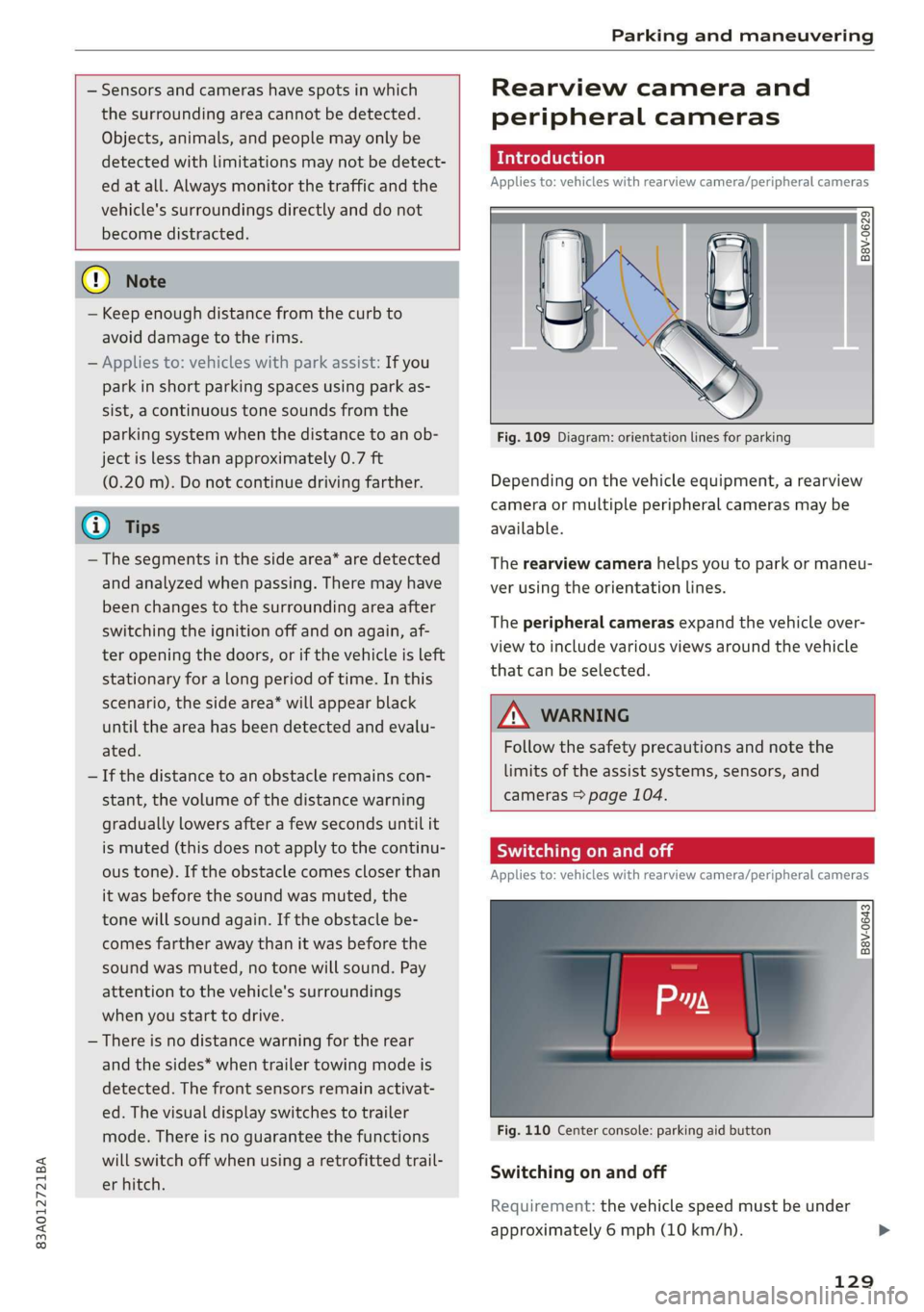
Fig. 109 Diagram: orientation lines for parking
Depending on the vehicle equipment, a rearview
camera or multiple peripheral cameras may be
available.
The rearview camera helps you to park or maneu-
ver using the orientation lines.
The peripheral cameras expand the vehicle over-
view to include various views around the vehicle
that can be selected.
Z\ WARNING
Follow the safety precautions and note the
limits of the assist systems, sensors, and
cameras > page 104.
Switching on and off
Applies to: vehicles with rearview camera/peripheral cameras
B8V-0643
Fig. 110 Center console: parking aid button
Switching on and off
Requirement: the vehicle speed must be under
approximately 6 mph (10 km/h).
129
Page 132 of 280
Parking and maneuvering
> Press the P4 button in the center console. Or
> Select J on the center display if the visual dis-
tance indicator is shown > page 128, fig. 108.
When switching on, a brief tone sounds and the
LED in the button turns on.
Switching on automatically
The system switches on automatically when re-
verse gear is engaged while the engine is run-
ning. A brief tone will sound.
Switching off automatically
The system switches off automatically when driv-
ing forward faster than approximately 6 mph (10
km/h).
ZX WARNING
Follow the safety precautions and note the
limits of the assist systems, sensors, and
cameras > page 104.
Warnings
Applies to: vehicles with rearview camera/peripheral cameras
Fig. 112 -Applies to: vehicles with trailer view-Center dis-
play: trailer view
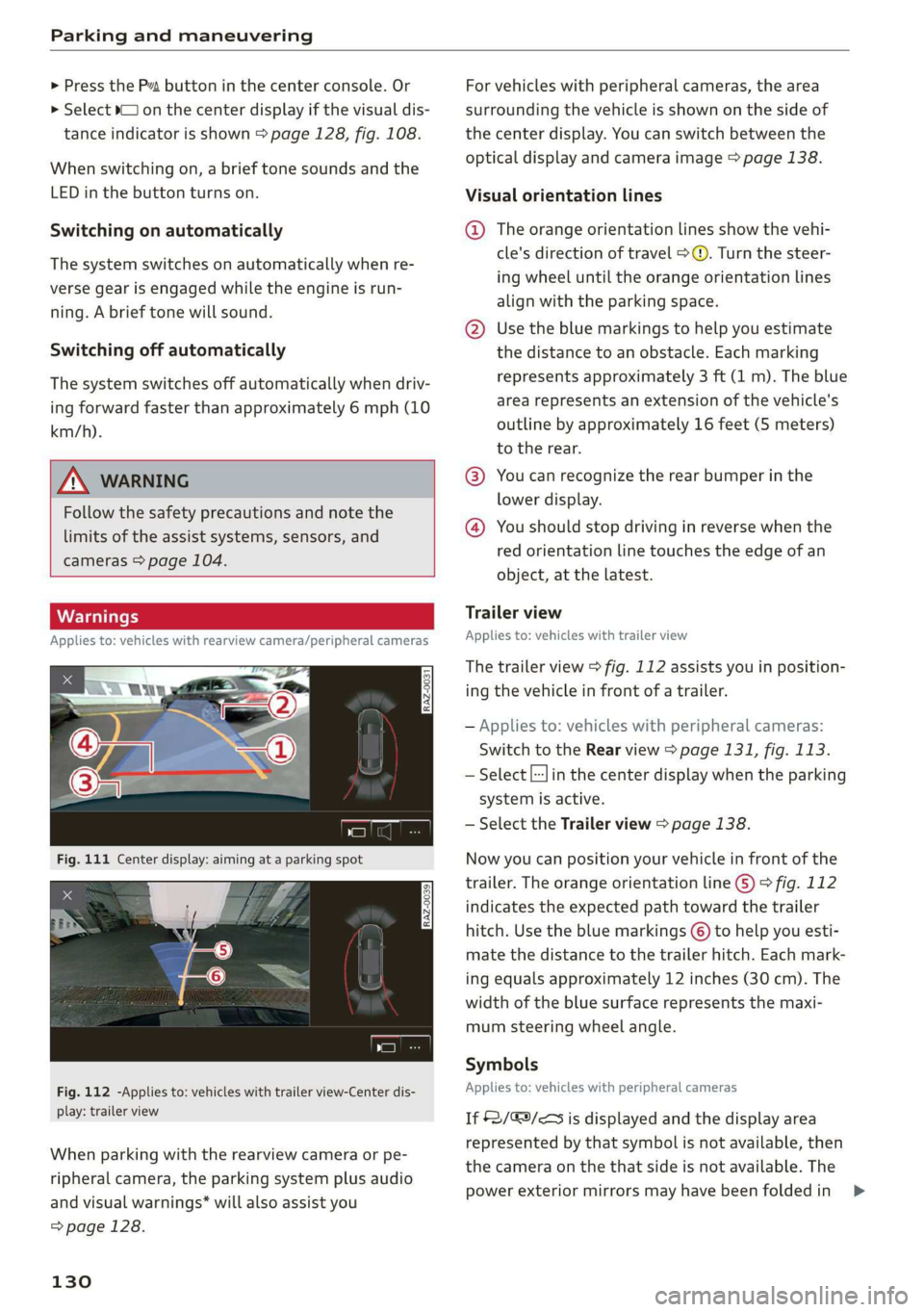
When parking with the rearview camera or pe-
ripheral camera, the parking system plus audio
and visual warnings* will also assist you
=> page 128.
130
For vehicles with peripheral cameras, the area
surrounding the vehicle is shown on the side of
the center display. You can switch between the
optical display and camera image > page 138.
Visual orientation lines
@ The orange orientation lines show the vehi-
cle's direction of travel > ©. Turn the steer-
ing wheel until the orange orientation lines
align with the parking space.
@ Use the blue markings to help you estimate
the distance to an obstacle. Each marking
represents approximately 3 ft (1 m). The blue
area represents an extension of the vehicle's
outline by approximately 16 feet (5 meters)
to the rear.
@® You can recognize the rear bumper in the
lower display.
@ You should stop driving in reverse when the
red orientation line touches the edge of an
object, at the latest.
Trailer view
Applies to: vehicles with trailer view
The trailer view > fig. 112 assists you in position-
ing the vehicle in front of a trailer.
— Applies to: vehicles with peripheral cameras:
Switch to the Rear view > page 131, fig. 113.
— Select |--Jin the center display when the parking
system is active.
— Select the Trailer view > page 138.
Now you can position your vehicle in front of the
trailer. The orange orientation line ©) ° fig. 112
indicates the expected path toward the trailer
hitch. Use the blue markings © to help you esti-
mate the distance to the trailer hitch. Each mark-
ing equals approximately 12 inches (30 cm). The
width of the blue surface represents the maxi-
mum steering wheel angle.
Symbols
Applies to: vehicles with peripheral cameras
If $2/&9/< is displayed and the display area
represented by that symbol is not available, then
the camera on the that side is not available. The
power exterior mirrors may have been folded in >
Page 133 of 280
83A012721BA
Parking and maneuvering
or a door or the luggage compartment lid may
have been opened.
If # is displayed, there is a system malfunction
and the display area represented by that symbol
is not available. The camera is not working in this
area.
If one of the symbols continues to be displayed,
drive immediately to an authorized Audi dealer or
authorized Audi Service Facility to have the mal-
function repaired.
IX WARNING
— Follow the safety precautions and note the
limits of the assist systems, sensors, and
cameras > page 104.
— Sensors and cameras have spots in which
the surrounding area cannot be detected.
Objects, animals, and people may only be
detected with limitations may not be detect-
ed at all. Always monitor the traffic and the
vehicle's surroundings directly and do not
become distracted.
@) Note
— The orange orientation lines @ show the di-
rection the rear of the vehicle will be travel-
ing, based on the steering wheel angle. The
front of the vehicle swings out more than
the rear of the vehicle. Maintain plenty of
distance so that an exterior mirror or a cor-
ner of the vehicle does not collide with any
obstacles.
— Keep enough distance from the curb to
avoid damage to the rims.
— Only use the images provided by the camera
on the rear of the vehicle when the luggage
compartment lid is completely closed. Make
sure any objects you may have mounted on
the luggage compartment lid do not block
the rearview camera.
@) Tips
There is no distance warning for the rear and
the sides* when trailer towing mode is detect-
ed. The front sensors remain activated. The
visual display switches to trailer mode. The
rearview camera image will not show the ori-
entation lines and the blue surfaces. There is
no guarantee the functions will switch off
when using a retrofitted trailer hitch.
CO) eee mat eel ee
Applies to: vehicles with peripheral cameras
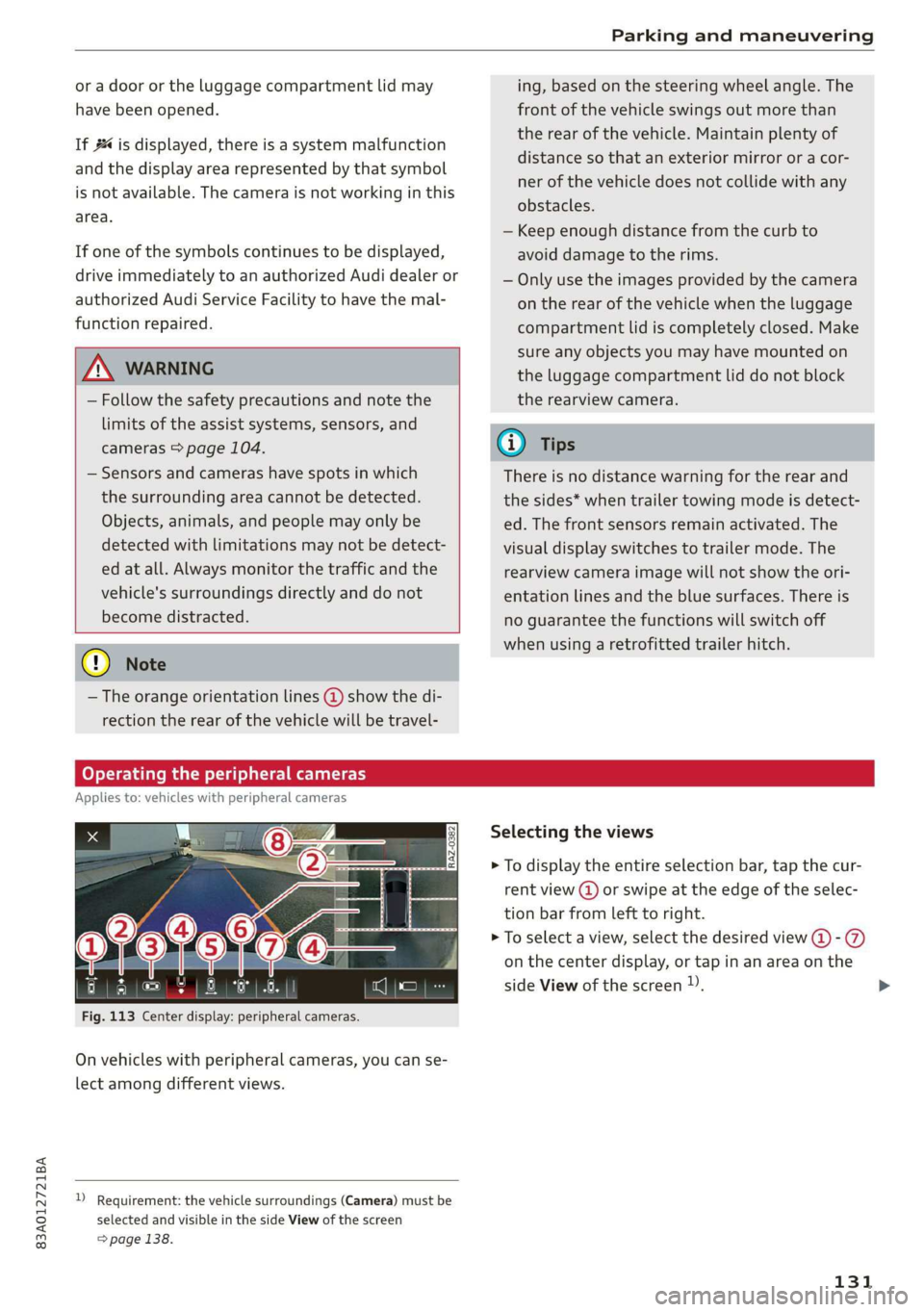
Fig. 113 Center display: peripheral cameras.
On vehicles with peripheral cameras, you can se-
lect among different views.
) Requirement: the vehicle surroundings (Camera) must be
selected and visible in the side View of the screen
=> page 138.
Selecting the views
> To display the entire selection bar, tap the cur-
rent view (@) or swipe at the edge of the selec-
tion bar from left to right.
> To select a view, select the desired view @-@
on the center display, or tap in an area on the
side View of the screen )).
131
Page 136 of 280
Parking and maneuvering
— Once an automatic brake activation occurs,
the system cannot brake automatically
again for several seconds.
—If there is an acoustic warning signal from
the rear cross-traffic assist, then the park-
ing system may not warn you of detected
obstacles under certain circumstances.
— The system is not available when the vehicle
detects that you are towing a trailer. There
is no guarantee the functions will switch off
when using a retrofitted trailer hitch. Do not
use
these functions when towing a trailer.
— For an explanation on conformity with the
FCC regulations in the United States and the
Industry Canada regulations, see
=> page 261.
Assisted parking
(er eee)
Applies to: vehicles with park assist
If your vehicle is equipped with park assist, this
system helps you find suitable parking spaces.
Parking spaces are measured using ultrasonic
sensors on the sides of the vehicle.
If a parking space is found, the system helps you
to park while the driver monitors the vehicle's
surroundings with the parking aids, cameras”,
and direct eye contact. The vehicle moves the
steering wheel autonomously.
Follow the safety precautions and note the
limits of the assist systems, sensors, and
cameras > page 104.
134
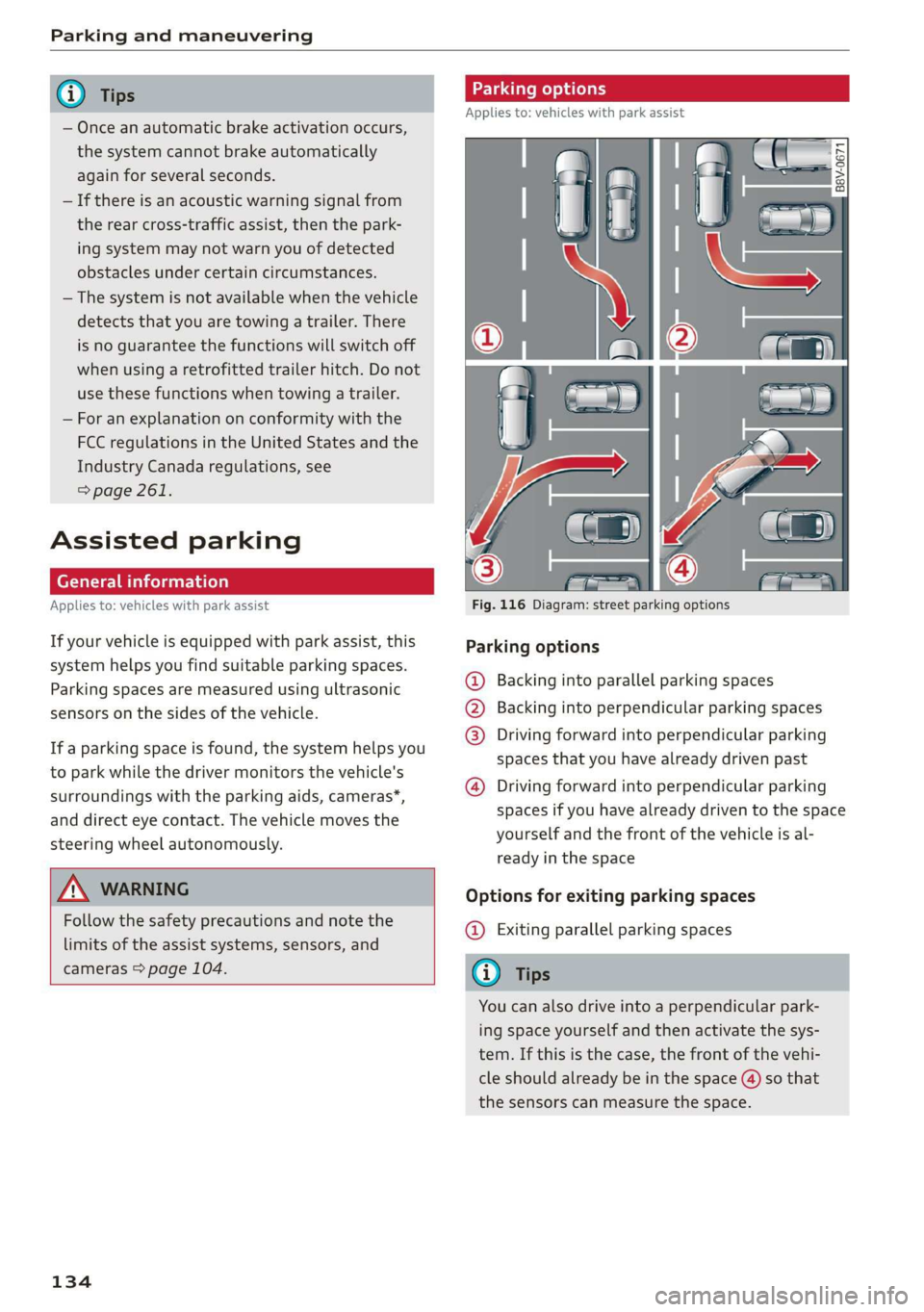
Parking options
Applies to: vehicles with park assist
Fig. 116 Diagram: street parking options
Parking options
Backing into parallel parking spaces
Backing into perpendicular parking spaces
Driving forward into perpendicular parking
spaces that you have already driven past
®
©80
Driving forward into perpendicular parking
spaces if you have already driven to the space
yourself and the front of the vehicle is al-
ready in the space
Options for exiting parking spaces
@ Exiting parallel parking spaces
You can also drive into a perpendicular park-
ing space yourself and then activate the sys-
tem. If this is the case, the front of the vehi-
cle should already be in the space (4) so that
the sensors can measure the space.
Page 138 of 280
Parking and maneuvering
The driver must decide if the parking space
displayed is suitable for the vehicle.
— Certain conditions near the parking space
may cause the parking process to fail, such
as if the parking space is near trees or posts,
or if the ground is covered, for example,
with gravel, snow, or ice.
G) Tips
— If you did not drive past a suitable parking
space too quickly, you can also select Pe to
activate the system afterwards.
— The Electronic Stabilization Control (ESC)
must not be switched off during the parking
process. If the ESC intervenes, the parking
process
will be canceled.
— You can also drive into a perpendicular park-
ing space yourself and then activate the sys-
tem. If this is the case, the front of the vehi-
cle should already be in the space (4)
= page 134, fig. 116 so that the sensors
can measure the space.
— You cannot park with the parking assist sys-
tems when you are towing a trailer or have
the connector inserted in the trailer socket.
— The system is not available when certain as-
sist systems are switched on.
— If there are suitable parking spaces on both
sides of the street, for example on a one-
way street, you can change the side where
the system is searching for parking spaces
by activating the turn signal for the other
side or by pressing on that side in the center
display.
— The park systems do not provide support for
assisted parking on tight curves.
Park assist
(eT eeeeue lela)
Applies to: vehicles with park assist
The park assist helps you when parking and exit-
ing parking spaces after the parking space
search. The park assist takes over the steering of
the vehicle while the driver accelerates, brakes,
and
monitors the vehicle's surroundings. Park as-
sist can be interrupted at any time.
136
Z\ WARNING
— Follow the safety precautions and note the
limits of the assist systems, sensors, and
cameras > page 104.
— The driver is always responsible when enter-
ing or exiting a parking space and during
similar maneuvers.
— Do not use this function if the vehicle cannot
move freely, for example when on a vehicle
jack.
— Sensors and cameras have spots in which
the surrounding area cannot be detected.
Objects, animals, and people may only be
detected with limitations may not be detect-
ed at all. Always monitor the traffic and the
vehicle's surroundings directly and do not
become distracted.
@) Note
— Do not use the park assist systems when
transporting cargo that extends out of the
vehicle, when snow chains are mounted, or
when the parking space is on a hill or in-
cline.
— Park assist guides the vehicle either away
from curbs or onto them if other vehicles
are parked on the curb. Make sure that your
vehicle's tires and rims are not damaged.
Resume control of the vehicle in time or
stop the parking process if needed to pre-
vent damage.
G) Tips
Follow the legal regulations in the country
where you are located when using Park assist.
dem ne eee
Applies to: vehicles with park assist
Requirement: a suitable parking space must be
found and selected > page 134. The vehicle must
initially be stationary.
> Select the reverse gear after stopping briefly.
> Remove your hands from the steering wheel.
> Pay attention to the path of the vehicle. If the
traffic situation permits, accelerate carefully
of.
Page 140 of 280
Parking and maneuvering
Interrupting the park assists
Applies to: vehicles with park assist
Park assist will be canceled automatically in the
following scenarios:
— You switch the system off.
— You start steering.
— The speed is too high.
— The time limit is exceeded.
— An obstacle is detected.
— ESC intervenes.
Resume control of the vehicle, end the parking
Process manually, or:
— You can resume the parking process in some sit-
uations. Press the Pe button.
— To continue exiting the parking space, switch
the engine off and on. Press the Pe button.
Z\ WARNING
Follow the safety precautions and note the
limits of the assist systems, sensors, and
cameras > page 104.
Applies to: vehicles with park assist
If the roe" indicator light turns on, the park
assist is not available or was interrupted. The dis-
played message indicates the cause and possible
solutions. Try switching the systems on again lat-
er. If one of the messages does not turn off, drive
immediately to an authorized Audi dealer or au-
thorized Audi Service Facility to have the mal-
function repaired.
Adjusting the parking
aids
You can adjust the parking aid to your preferen-
ces. The settings depend on the vehicle equip-
ment.
> Applies to: MMI: Select on the home screen:
VEHICLE > Parking aid.
> Applies to: MMI: Select L-] in the center display
when the parking system is active.
Possible settings:
138
Activating automatically
Trailer view - Shows the trailer view. In vehicles
with peripheral cameras, this can only be opened
in the Rear view.
View - Switches between the visual display
(Graphic) and vehicle surroundings (Camera) in
the side view on the screen.
Front volume - Volume for the front and side*
area.
Rear volume - Volume for the rear area.
Entertainment fader - The volume of the audio/
video source is lowered when the parking system
is turned on.
Rear cross-traffic assist
@) Tips
The new level is demonstrated briefly* when
the volume is adjusted.
Page 167 of 280
83A012721BA
Navigation
Map
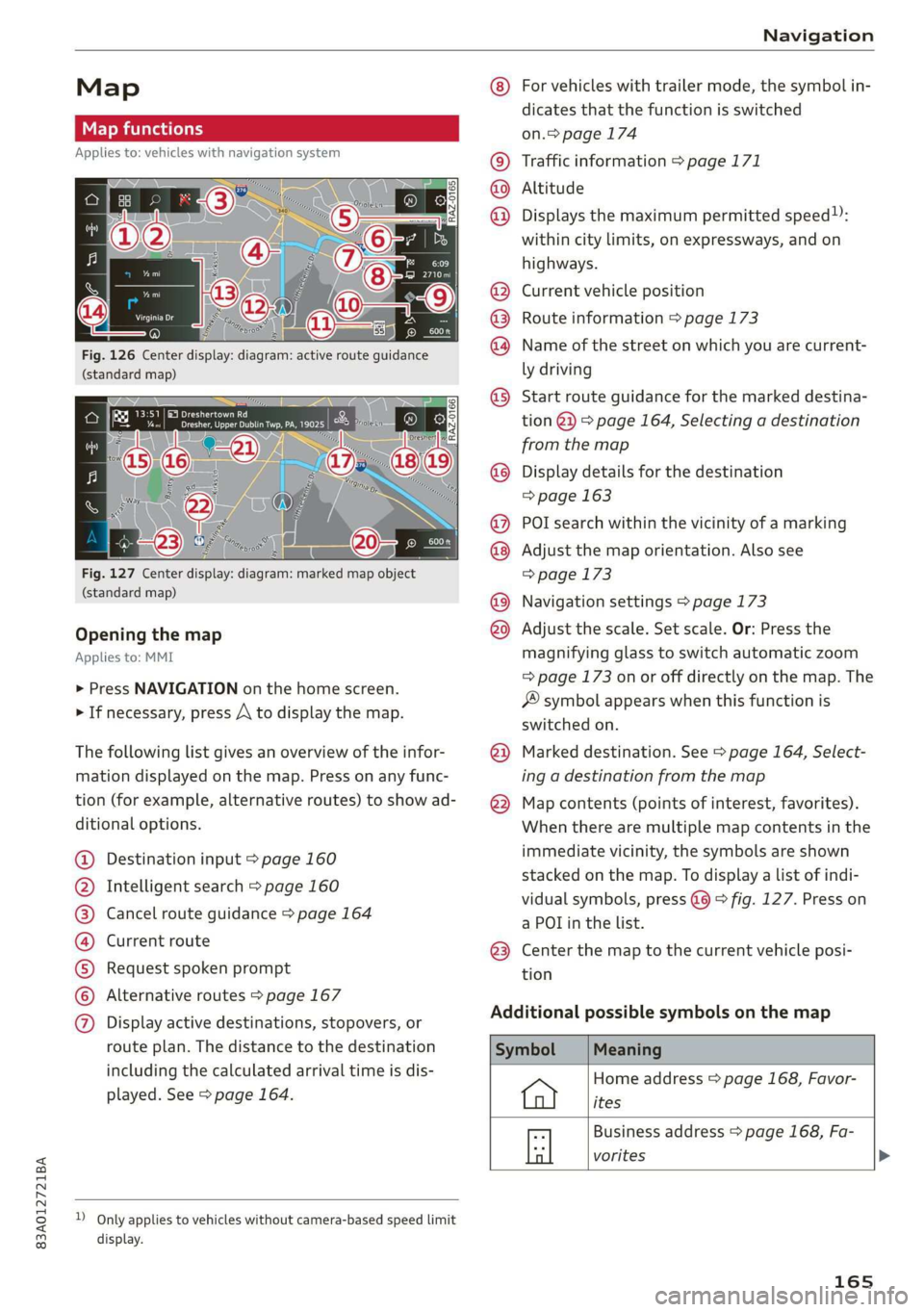
Map functions
Applies to: vehicles with navigation system
Fig. 126 Center display: diagram: active route guidance
(standard map)
Fig. 127 Center display: diagram: marked map object
(standard map)
Opening the map
Applies to: MMI
> Press NAVIGATION on the home screen.
> If necessary, press A to display the map.
The following list gives an overview of the infor-
mation displayed on the map. Press on any func-
tion (for example, alternative routes) to show ad-
ditional options.
Destination input > page 160
Intelligent search > page 160
Cancel route guidance > page 164
Current route
Request spoken prompt
Alternative routes > page 167
CGOOOOLOHO Display active destinations, stopovers, or
route plan. The distance to the destination
including the calculated arrival time is dis-
played. See > page 164.
D_ Only applies to vehicles without camera-based speed limit
display.
OOo
®
®0O®8
®®
O88
@
®
®
@
For vehicles with trailer mode, the symbol in-
dicates that the function is switched
on.> page 174
Traffic information > page 171
Altitude
Displays
the maximum permitted speed):
within city limits, on expressways, and on
highways.
Current vehicle position
Route information > page 173
Name of the street on which you are current-
ly driving
Start
route guidance for the marked destina-
tion @}) > page 164, Selecting a destination
from the map
Display details for the destination
=> page 163
POI search within the vicinity of a marking
Adjust the map orientation. Also see
=> page 173
Navigation settings > page 173
Adjust the scale. Set scale. Or: Press the
magnifying glass to switch automatic zoom
=> page 173 on or off directly on the map. The
® symbol appears when this function is
switched on.
Marked destination. See > page 164, Select-
ing a destination from the map
Map contents (points of interest, favorites).
When there are multiple map contents in the
immediate vicinity, the symbols are shown
stacked on the map. To display a list of indi-
vidual symbols, press @@ > fig. 127. Press on
a POT in the list.
Center the map to the current vehicle posi-
tion
Additional possible symbols on the map
Home address > page 168, Favor-
ites
Business address > page 168, Fa-
a vorites >
165
Page 176 of 280
Navigation
traffic information will also be displayed. Press
route information to display a preview of the next
maneuver on the map. You can switch the follow-
ing information on or off in route information.
— POIs along the route
— Traffic information
Personal route assistance
Personal route assistance is switched off at the
factory.
Your trips are recorded and destinations are sug-
gested by the MMI when this function is switched
on > page 167.
Trailer mode
Trailer mode is switched off at the factory.
When the function is switched on, the maximum
permitted speed for vehicles with trailers is in-
cluded during route guidance and the calculated
arrival time is adjusted accordingly. When the
function is switched on, the symbol
= page 165, fig. 126 is displayed on the map.
Troubleshooting
Applies to: vehicles with navigation system
The information that follows lists some trouble-
shooting options. They depend on the equip-
ment.
Presentation mode
In presentation mode, the system simulates driv-
ing on the center display along the planned route
without the vehicle actually moving. You can use
Specify starting point when you would like to
calculate a route starting from a location other
than the current vehicle position, for example.
Simulating route guidance: start route guidance
and press Presentation mode.
() Note
Read the information about Audi connect, and
be sure to note the connectivity costs section
=@ in General information on page 154.
G) Tips
You can adjust the volume of navigation
prompts during voice guidance using the
On/Off knob = page 18. Also see > page 195.
Problem Solution
Intelligent search: the desired
destination cannot be found.
essary.
The destination might not be entered in the navigation database.
Or: check the spelling of the term that was searched.
Check the current search area > page 160 and use another, if nec-
174
Page 231 of 280
83A012721BA
Wheels
passengers that the vehicle is in-
tended to carry (“seating capaci-
ty”) with an assumed weight of
150 lbs. (68 kg) for each passen-
ger at a designated seating posi-
tion and the total weight of any
luggage in the vehicle. If you tow
a trailer, the weight of the trailer
hitch and the tongue weight of
the loaded trailer must be includ-
ed as part of the vehicle load.
The Gross Axle Weight Rating
(“GAWR”) is the maximum load
that can be applied at each of the
vehicle’s two axles.
The fact that there is an upper
limit to your vehicle’s Gross Vehi-
cle Weight Rating means that the
total weight of whatever is being
carried in the vehicle (including
the weight of a trailer hitch and
the tongue weight of the loaded
trailer) is limited. The more pas-
sengers in the vehicle or passen-
gers who are heavier than the
standard weights assumed mean
that less weight can be carried as
luggage.
The Gross Vehicle Weight Rating
and the Gross Axle Weight Rating
are listed on the safety compli-
ance sticker label located on the
driver’s side B-pillar.
AN WARNING
Overloading a vehicle can cause
loss of vehicle control, a crash
or other accident, serious per-
sonal injury, and even death.
—Carrying more weight than
your vehicle was designed to
carry will prevent the vehicle
from handling properly and in-
crease the risk of the loss of
vehicle control.
—The brakes on a vehicle that
has been overloaded may not
be able to stop the vehicle
within a safe distance.
—Tires ona vehicle that has
been overloaded can fail sud-
denly, including a blowout and
sudden deflation, causing loss
of control and a crash.
—Always make sure that the to-
tal load being transported -
including the weight of a trail-
er hitch and the tongue
weight of a loaded trailer -
does not make the vehicle
heavier than the vehicle’s
Gross Vehicle Weight Rating.
229