ESP AUDI Q3 2019 Owners Manual
[x] Cancel search | Manufacturer: AUDI, Model Year: 2019, Model line: Q3, Model: AUDI Q3 2019Pages: 280, PDF Size: 72.73 MB
Page 7 of 280
83A012721BA
About this Owner's Manual
This Owner's Manual applies to all versions of
this model. It contains important information,
tips, suggestions, and warnings for using your ve-
hicle.
Keep this manual and any other applicable docu-
ments in your vehicle at all times. This is espe-
cially important if you loan your vehicle to others
or sell it.
This owner's manual describes the equipment
range specified for this model at the time of
printing. Individual equipment options described
may only be available at a later date or may only
be offered in certain countries.
Some sections in this manual do not apply to all
vehicles. When this is the case, the beginning of
the section indicates the validity, for example
“Applies to: vehicles with speed warning sys-
tem”. Optional or vehicle-specific equipment is
also identified with an asterisk “*”.
The illustrations in this manual are a guide.
Some of the details in your vehicle may differ
from the illustration.
All directions, such as “Left”, “right”, “front” and
“rear”, are based on the vehicle's direction of
travel.
* — Optional equipment or vehicle-specific equip-
ment
b> The section continues on the next page.
=> A\ Cross reference to a “WARNING” within a
section. If a page number is indicated, the
WARNING is located outside of the section.
Z\ WARNING
Text with this symbol contains information
about safety and how to reduce the risk of se-
rious personal injury or death.
C) Note
Text with this symbol contains information
about reducing the risk of damage to your ve-
hicle.
@ For the sake of the environment
Text with this symbol contains information on
protecting the environment.
@) Tips
Text with this symbol contains additional use-
ful information.
Page 22 of 280
Touch display
@) Tips
The position of © cannot be adjusted.
Display area
You can freely change the location of the buttons
on the home screen display area.
Configuring the display area
> Press and hold a button on the home screen
display area.
> To adjust the placement of the buttons, pull
them to the desired locations.
Switching between menu pages
If a menu contains multiple menu pages, Feit is
displayed in the display area. The white bar
shows the location of the current menu page.
> To switch between menu pages, swipe your fin-
ger to the right or left.
yeh mele) EN]
Of 8 68 of
8 OB OB om
[RAZ-0513,
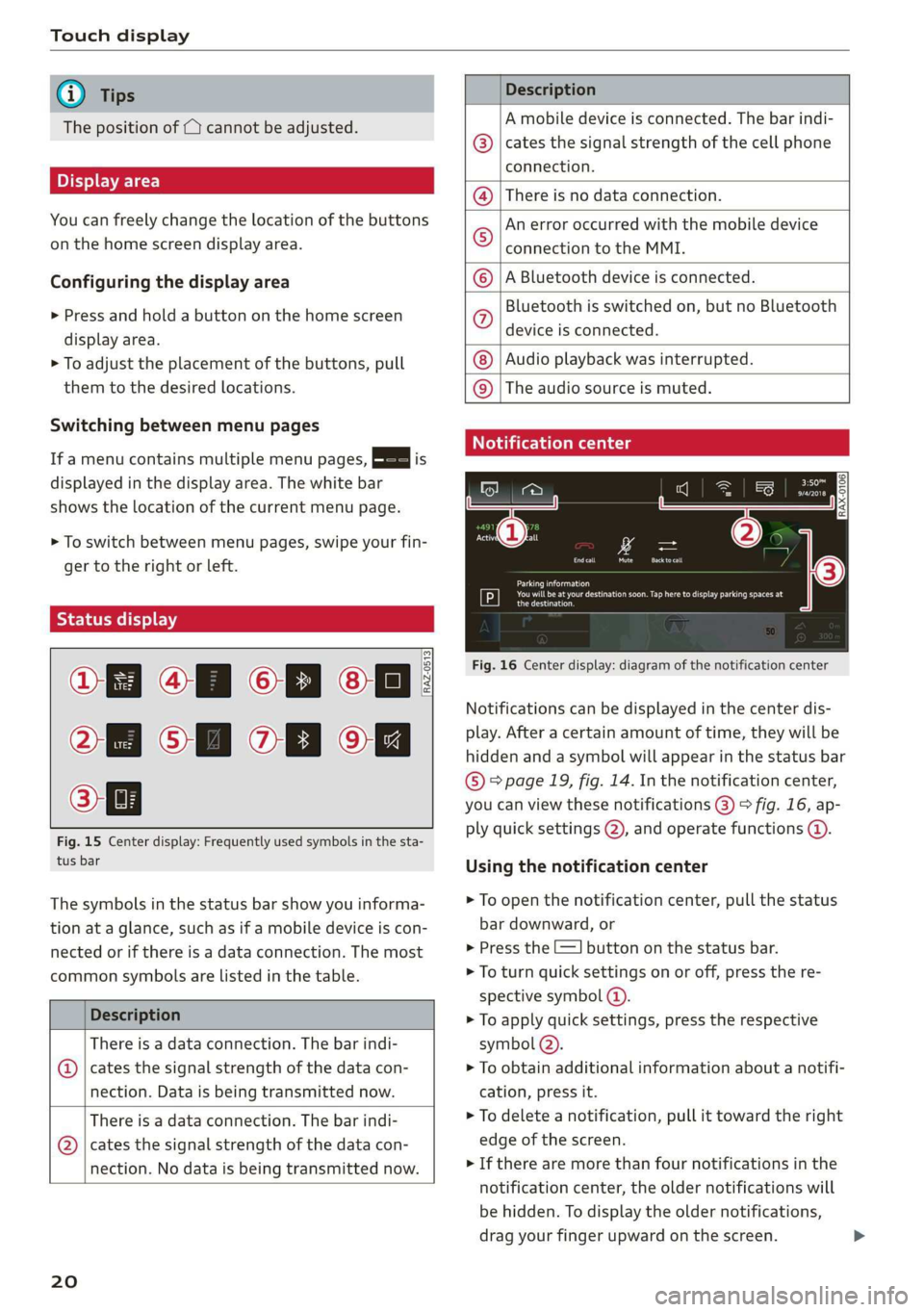
Fig. 15 Center display: Frequently used symbols in the sta-
tus bar
The symbols in the status bar show you informa-
tion at a glance, such as if a mobile device is con-
nected or if there is a data connection. The most
common symbols are listed in the table.
Description
There is a data connection. The bar indi-
@ | cates the signal strength of the data con-
nection. Data is being transmitted now.
There is a data connection. The bar indi-
@ | cates the signal strength of the data con-
nection. No data is being transmitted now.
20
Description
A mobile device is connected. The bar indi-
cates the signal strength of the cell phone
connection.
There is no data connection.
An error occurred with the mobile device
connection to the MMI.
A Bluetooth device is connected.
Bluetooth is switched on, but no Bluetooth
device is connected.
Audio playback was interrupted.
©O|©|
© |E|
©
|@|
@
The audio source is muted.
Notification center
RAX-0106
Parking information
aeons
Regier
Fig. 16 Center display: diagram of the notification center
Notifications can be displayed in the center dis-
play. After a certain amount of time, they will be
hidden and a symbol will appear in the status bar
® page 19, fig. 14. In the notification center,
you can view these notifications @) > fig. 16, ap-
ply quick settings (2), and operate functions @.
Using the notification center
> To open the notification center, pull the status
bar downward, or
> Press the E=] button on the status bar.
> To turn quick settings on or off, press the re-
spective symbol ().
> To apply quick settings, press the respective
symbol (2).
> To obtain additional information about a notifi-
cation, press it.
> To delete a notification, pull it toward the right
edge of the screen.
> If there are more than four notifications in the
notification center, the older notifications will
be hidden. To display the older notifications,
drag your finger upward on the screen.
Page 23 of 280
83A012721BA
Touch display
Setting displayed content
You can set whether some notifications should be
displayed.
> To set the displayed content, press &S, or
> Applies to MMI: Select on the home screen:
SETTINGS > Notifications.
>» Select and confirm which notifications should
be displayed.
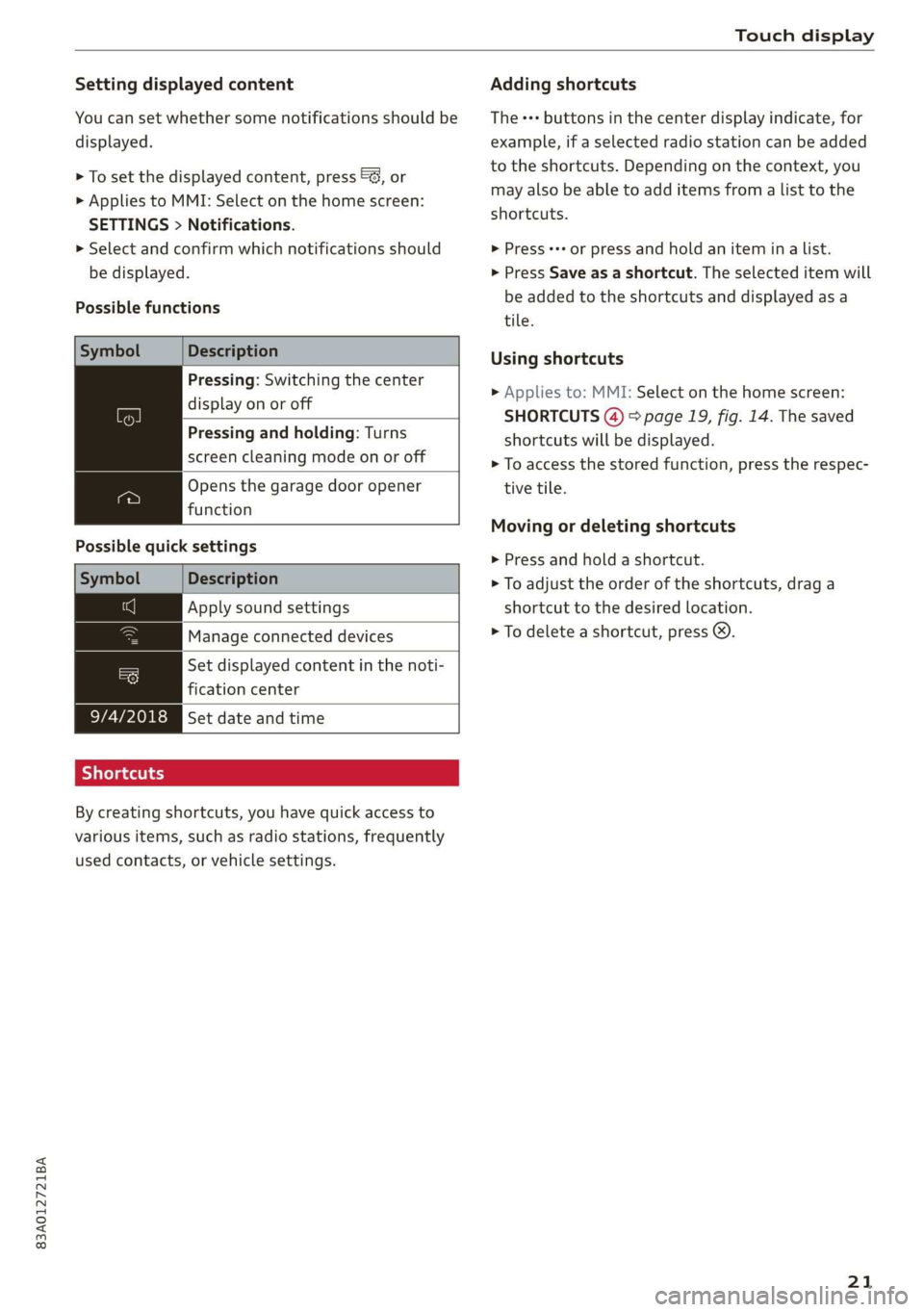
Possible functions
Symbol Description
Pressing: Switching the center
display on or off
Pressing and holding: Turns
screen cleaning mode on or off
Opens the garage door opener
function
Possible quick settings
Symbol Description
Apply sound settings
Manage connected devices
= Set displayed content in the noti-
fication center
9/4/2018 Set date and time
SJielana eg ay
By creating shortcuts, you have quick access to
various items, such as radio stations, frequently
used contacts, or vehicle settings.
Adding shortcuts
The «++ buttons in the center display indicate, for
example, if a selected radio station can be added
to the shortcuts. Depending on the context, you
may also be able to add items from a list to the
shortcuts.
> Press +++ or press and hold an item ina list.
> Press Save as a shortcut. The selected item will
be added to the shortcuts and displayed as a
tile.
Using shortcuts
> Applies to: MMI: Select on the home screen:
SHORTCUTS (4) > page 19, fig. 14. The saved
shortcuts will be displayed.
> To access the stored function, press the respec-
tive tile.
Moving or deleting shortcuts
> Press and hold a shortcut.
> To adjust the order of the shortcuts, drag a
shortcut to the desired location.
> To delete a shortcut, press ®.
21
Page 26 of 280
Voice operation
Voice operation
General information
You can operate many functions in the vehicle
easily using voice commands.
Using the voice operation system effectively
> Speak clearly and distinctly at a normal volume.
Speak louder when driving faster.
> Emphasize the words in the commands evenly
and do not leave long pauses.
> Close the doors, the windows, and the sunroof*
to reduce background noise. Make sure that
passengers are not speaking when you are giv-
ing a voice command.
> Do not direct the vents toward the hands-free
microphone, which is in the roof headliner near
the front interior lights.
> Only the driver should speak to the system, be-
cause the handsfree microphone is aimed to-
ward this seating position.
ZA\ WARNING
— Direct your full attention to driving. As the
driver, you have complete responsibility for
safety in traffic. Only use the functions in
such a way that you always maintain com-
plete control over your vehicle in all traffic
situations.
— Do not use voice operation in emergencies
because your voice may change in stressful
situations. The system may take longer to
dial the number or may not be able to dial it
at all. Dial the emergency number manually.
@ Tips
There are no voice guidance* prompts when a
dialog is active.
24
Voice recognition system
Applies to: vehicles with voice recognition system
See
Dat)
Where is a
Connect
Diala
coy
Es
ea
cog
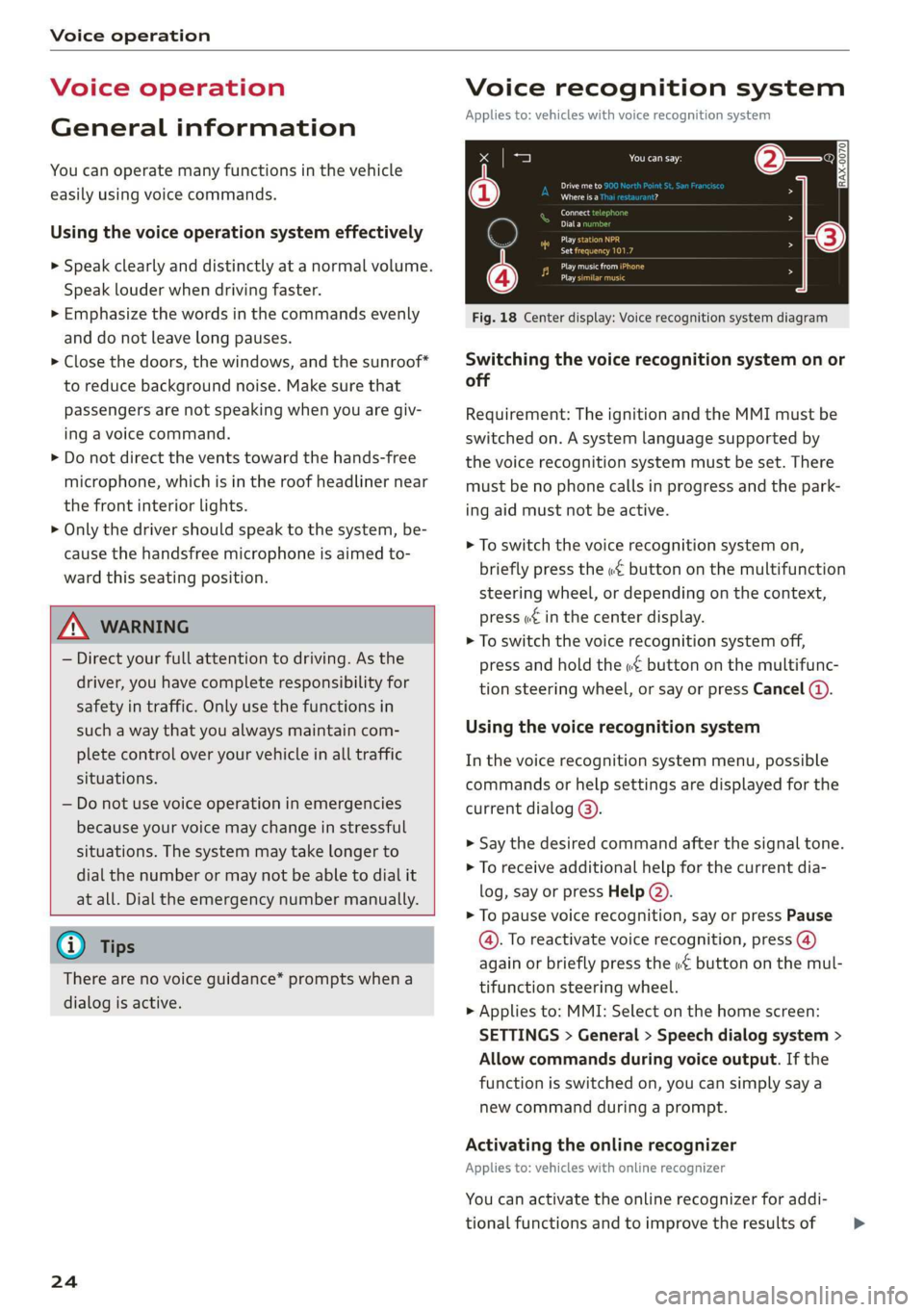
Fig. 18 Center display: Voice recognition system diagram
Switching the voice recognition system on or
off
Requirement: The ignition and the MMI must be
switched on. A system language supported by
the voice recognition system must be set. There
must be no phone calls in progress and the park-
ing aid must not be active.
> To switch the voice recognition system on,
briefly press the «€ button on the multifunction
steering wheel, or depending on the context,
press w£ in the center display.
> To switch the voice recognition system off,
press and hold the « button on the multifunc-
tion steering wheel, or say or press Cancel (a).
Using the voice recognition system
In the voice recognition system menu, possible
commands or help settings are displayed for the
current dialog @).
> Say the desired command after the signal tone.
> To receive additional help for the current dia-
log, say or press Help (2).
> To pause voice recognition, say or press Pause
@. To reactivate voice recognition, press (@)
again or briefly press the «€ button on the mul-
tifunction steering wheel.
> Applies to: MMI: Select on the home screen:
SETTINGS > General > Speech dialog system >
Allow commands during voice output. If the
function is switched on, you can simply say a
new command during a prompt.
Activating the online recognizer
Applies to: vehicles with online recognizer
You can activate the online recognizer for addi-
tional functions and to improve the results of >
Page 27 of 280
83A012721BA
Voice operation
voice recognition. When there is an active Inter-
net connection, the spoken command is evaluat-
ed in the vehicle and online.
> When you switch on the voice recognition sys-
tem for the first time, a menu for the online
recognizer opens. Or:
> Applies to: MMI: Select on the home screen:
SETTINGS > General > Speech dialog system >
Consent to speech dialog system online recog-
nizer.
> Read the licensing agreements and accept
them.
@) Note
Read the information about Audi connect, and
be sure to note the connectivity costs section
=@ in General information on page 154.
External voice operation
Applies to: vehicles with external speech dialog system
You can access and control the voice operation on
a connected mobile device through your vehicle.
Switching external voice operation on or off
Requirement: The ignition and the MMI must be
switched on. A cell phone must be connected to
the MMI with the Handsfree profile > page 140.
The mobile device being connected must have
voice control that can be controlled externally.
There must be no phone calls in progress and the
parking aid must not be active.
> To switch on the external voice operation, press
and hold the «€ button longer on the multifunc-
tion steering wheel.
> To switch the external voice operation off, press
and hold the «€ button on the multifunction
steering wheel or press @) 9 page 24, fig. 18.
Using external voice operation
» Say the desired command after the signal tone.
> To reactivate voice recognition when it is
paused, press the wf button briefly on the mul-
tifunction steering wheel or press (4)
=> page 24, fig. 18.
@) Tips
AUDI AG simply provides access to control
your mobile device with voice operation and
does not assume any responsibility for the
content and commands within the external
voice control.
25
Page 30 of 280
Opening and closing
Opening and closing
Central locking
erasure)
ZA WARNING
— If you leave the vehicle, switch the ignition
off and take the key with you. This applies
particularly when children remain in the ve-
hicle. Otherwise, children could start the en-
gine or operate electrical equipment (such
as power windows), which increases the risk
of an accident.
— Applies to: vehicles with anti-theft alarm
system: When the vehicle is locked from the
outside, no one - especially children - should
remain in the vehicle, because the windows
can no longer be opened from the inside
= page 31, Anti-theft alarm system.
Locked doors make it more difficult for
emergency workers to enter the vehicle,
which puts lives at risk.
All doors and the luggage compartment lid can
be centrally unlocked and locked at once. You can
select in the MMI if the entire vehicle or only the
driver's door should unlock when unlocking the
vehicle > page 29. The turn signals flash twice
when you unlock the vehicle and flash once when
you lock the vehicle. If they do not flash when
locking, check if all doors and lids are closed.
Depending on the vehicle equipment, you may
have different options for centrally unlocking and
locking your vehicle.
— Vehicle key > page 33
— Sensors in the front door handles > page 33
— Lock cylinder on the driver's door > page 30
— Central locking switch inside > page 29
Key / vehicle key
The term “key” can refer to the remote control or
convenience key*, or to a mobile device.
The term “vehicle key” refers to the remote con-
trol key or convenience key*. The convenience
238
key* is a remote control key with special func-
tions > page 33 and > page 80.
Automatic locking
If you unlock the vehicle but then do not open
any of the doors, the luggage compartment, or
the hood within a short period time, the vehicle
locks again automatically. This feature prevents
the vehicle from being accidentally left unlocked
for a long period of time.
Automatic locking (Auto Lock)
The Auto Lock function locks all doors and the
luggage compartment lid once the speed has ex-
ceeded approximately 9 mph (15 km/h).
The vehicle will unlock again if the unlock func-
tion in the central locking switch is pressed, one
of the door handles is pulled, the “P” gear is en-
gaged, or the ignition is switched off.
In the event of a crash with airbag deployment,
the doors will also automatically unlock to allow
access to the vehicle.
Unintentionally locking yourself out
Only lock your vehicle when all of the doors and
the luggage compartment lid are closed and
there is no key in the vehicle. This reduces the
risk of locking yourself out accidentally.
The
following features help to reduce the risk of
locking your vehicle key in the vehicle:
— If the driver's door is open, the vehicle cannot
be locked by pressing the & button on the re-
mote control key or by touching the locking
sensor* on one of the front doors.
—If the most recently used convenience key” is
inside the luggage compartment, the luggage
compartment lid will automatically open again
after closing it.
— If the last convenience key* that was used is de-
tected inside the vehicle, the vehicle cannot be
locked from the outside for a brief time > ©.
Z\ WARNING
Follow the safety precautions > page 28. >
Page 33 of 280

83A012721BA
Opening and closing
> Install the cap in the opening and close the
door.
Once the front passenger’s door or rear doors
close, it will no longer be possible to open them
from the outside. The front doors can be opened
from the inside by pulling the door handle one
time. The rear doors can be unlocked from the in-
side by pulling the door handle one time and
then opened by pulling the door handle again. If
the child safety lock in one of the rear doors is ac-
tivated, you must first pull the door handle from
the inside. Then you can open the door from the
outside.
ZA WARNING
Follow the safety precautions > page 28.
Pee
Applies to: vehicles with anti-theft alarm system
If the anti-theft alarm system detects a vehicle
break-in, audio and visual warning signals are
triggered. The anti-theft alarm system is switch-
ed on or off when locking or unlocking your vehi-
cle. If the alarm is triggered, it will shut off auto-
matically after a certain amount of time.
Switching the alarm off manually
> To switch the alarm off, press the G button on
the vehicle key or switch the ignition on.
Depending on the vehicle equipment, the anti-
theft alarm system may have the following fea-
tures:
Break-in security feature
The alarm will sound if there is a break-in at the
doors, hood, and/or luggage compartment lid.
Interior/towing protection monitor
The alarm will be triggered if there are move-
ments detected in the vehicle interior (for exam-
ple, by animals) or if there is a change in the vehi-
cle angle (for example, when the vehicle is being
towed).
You can prevent the alarm from being triggered
by deactivating the interior/towing protection
monitor.
Deactivating the interior/towing protection
monitor
There are the following options for deactivating
the interior/towing protection monitor:
> Press the ff button on the vehicle key a second
time within two seconds. Or
> Applies to: vehicles with convenience key:
Touch the sensor on a front door handle a sec-
ond time within two seconds. Or
> Turn the vehicle key in the door lock to the close
position a second time within two seconds.
If you lock the vehicle, then the interior/towing
protection monitor will stay off until the next
time the vehicle is unlocked.
ZA\ WARNING
No one, especially children, should stay in the
vehicle when it is locked from the outside, be-
cause the windows can no longer be opened
from the inside. Locked doors make it more
difficult for emergency workers to enter the
vehicle, which puts lives at risk.
@) Tips
The interior/towing protection monitoring on-
ly functions correctly when the windows and
the roof* are closed.
31
Page 36 of 280
Opening and closing
@) Tips
— Only use the vehicle key when you can see
the
vehicle.
— The vehicle can only be locked when the "P”
selector lever position is engaged.
— Do not use the vehicle key to lock and un-
lock when you are inside the vehicle. Other-
wise, you could trigger the anti-theft
alarm*. If this happens, press the @ unlock
button.
@ Tips
Applies to: vehicles with convenience key
— When unlocking or locking the vehicle, the
convenience key cannot be more than ap-
proximately 4 feet (1.5 m) away from the
door handle or luggage compartment.
— Unlocking with the convenience key (keyless
access) can be deactivated > page 33.
— To prevent the vehicle battery from dis-
charging, the energy management gradual-
ly switches off convenience functions that
are not needed. You then may no longer be
able to unlock your vehicle with the sensors.
LED and batteries in the remote control key
B8X-0506
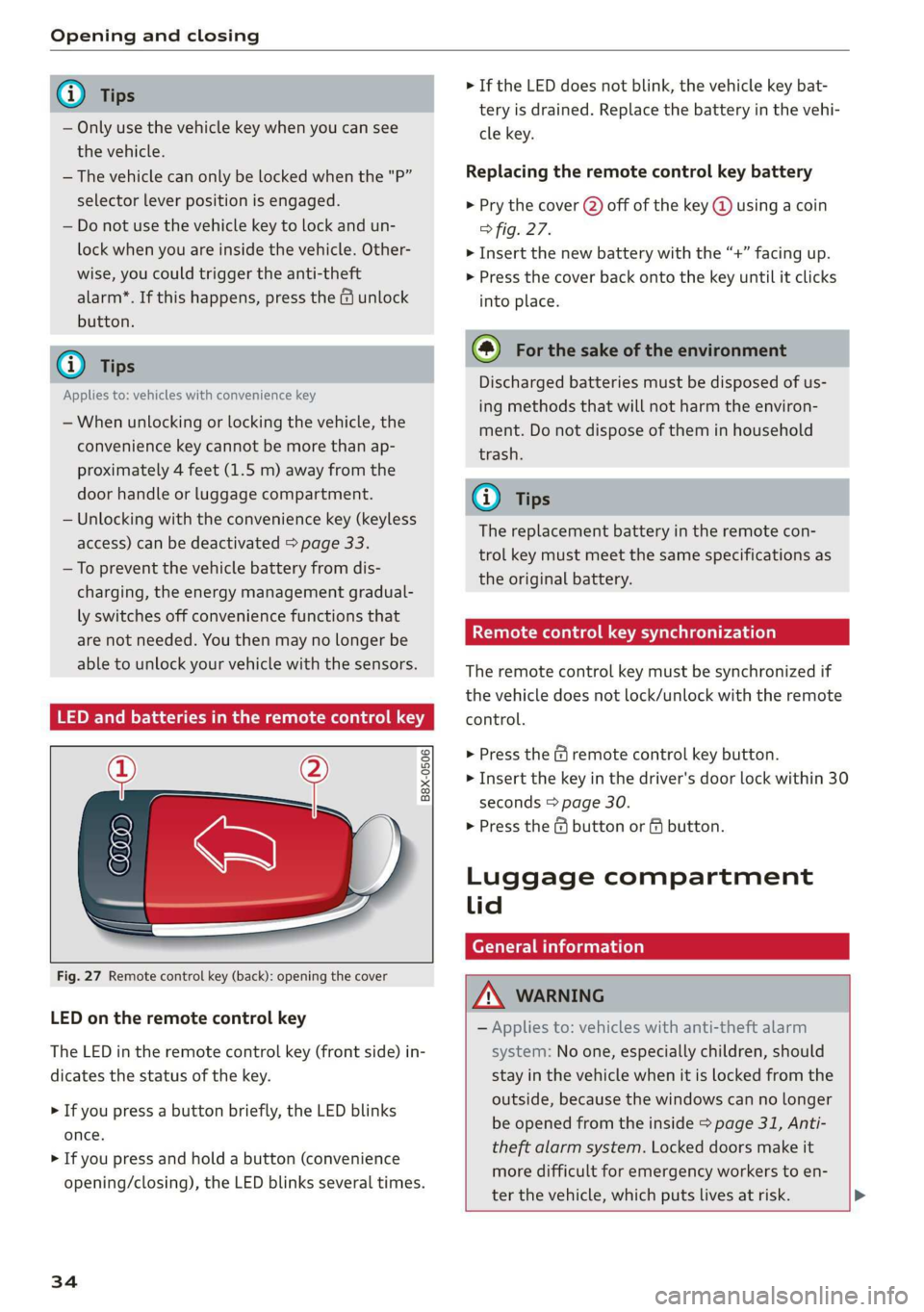
Fig. 27 Remote control key (back): opening the cover
LED on the remote control key
The LED in the remote control key (front side) in-
dicates the status of the key.
> If you press a button briefly, the LED blinks
once.
> If you press and hold a button (convenience
opening/closing), the LED blinks several times.
34
> If the LED does not blink, the vehicle key bat-
tery is drained. Replace the battery in the vehi-
cle key.
Replacing the remote control key battery
> Pry the cover (2) off of the key @ using a coin
fig. 27.
> Insert the new battery with the “+” facing up.
> Press the cover back onto the key until it clicks
into place.
@) For the sake of the environment
Discharged batteries must be disposed of us-
ing
methods that will not harm the environ-
ment. Do not dispose of them in household
trash.
G) Tips
The replacement battery in the remote con-
trol key must meet the same specifications as
the original battery.
etree wate ee Cele)
The remote control key must be synchronized if
the vehicle does not lock/unlock with the remote
control.
> Press the f remote control key button.
> Insert the key in the driver's door lock within 30
seconds > page 30.
> Press the ( button or fj button.
Luggage compartment
lid
General information
ZA WARNING
— Applies to: vehicles with anti-theft alarm
system: No one, especially children, should
stay in the vehicle when it is locked from the
outside, because the windows can no longer
be opened from the inside > page 31, Anti-
theft
alarm system. Locked doors make it
more difficult for emergency workers to en-
ter the vehicle, which puts lives at risk. >
Page 43 of 280
83A012721BA
Opening and closing
objects are in the area immediately sur-
rounding the equipment. People can be in-
jured or property can be damaged if struck
when closing.
— Do not allow yourself to be distracted from
traffic by the viewing and operating the dis-
plays.
@) Tips
— If you sell your vehicle, reset all settings to
the factory default settings > page 196.
— For an explanation on conformity with the
FCC regulations in the United States and the
Industry Canada regulations, see
=> page 261.
@ Tips
Before you program your system to the ga-
rage door opener, first check the compatibili-
ty:
— Ask an authorized Audi dealer or authorized
Audi Service Facility or check at www.
homelink.com. You can also find more infor-
mation about HomeLink there.
— You can display information about Home-
Link (compatibility level/status/country
code/HomeLink generation) in the MMI:
— Select on the home screen: VEHICLE > Set-
tings & Service > Garage door opener > (0.
Applies to: vehicles with garage door opener
Requirements: the remote control transmitter
must be programmed © page 41, the vehicle
must be within range of the system, and the igni-
tion must be switched on.
There are multiple options to open or close the
system (such as the garage door).
> To display the -& button (garage door opener
button) for the garage door opener, press the
[=] button in the status bar > page 20.
> If you have only programmed one remote con-
trol transmitter, press the - button in the sta-
tus bar on the display > page 19. Or
> If you have programmed multiple remote con-
trol transmitters, press the - button in the
status bar on the display > page 19 and then
press the button for the respective system. Or
> If you have configured the programmable
steering wheel button*, press the >K button
= page 26 and then press the respective button
for the system. Or
>» Applies to: vehicles with GPS pairing: If you
have programmed GPS pairing, press the re-
spective button in the center display (notifica-
tion center > page 20). As you approach the
system, the button is displayed on the MMI. Or
> When reverse gear is selected, the parking sys-
tem* / rearview camera* / peripheral camera*
will appear in the display. To display the but-
tons of the first three garage door openers,
press the E=] button in the status bar and then
press the button for the respective system.
If transmission was successful, the message:
Send to: XXX will appear.
Applies to: vehicles with garage door opener
You can program both fixed code and rolling code
systems in the MMI using the procedure that is
described.
Requirement: The ignition must be switched on.
Programming the system
Requirement: the hand transmitter must be
present and the vehicle must be within range of
the system (such as the garage door) that you
would like to program. If you program more than
three remote control transmitters, assign the
first three spots to the systems that you would
also like to use when driving in reverse.
> To display the - button for the garage door
opener, press the E=] button in the status bar
=> page 20.
> If you are programming the garage door opener
for the first time, press the r button on the
display. Follow the instructions in the MMI. Or
> If you want to program more systems, select
on the home screen: VEHICLE > Settings &
Service > Garage door opener. Select the de-
sired button: @). Follow the instructions in the
MMI.
41
>
Page 45 of 280
83A012721BA
Lights and Vision
Lights and Vision
Exterior lighting
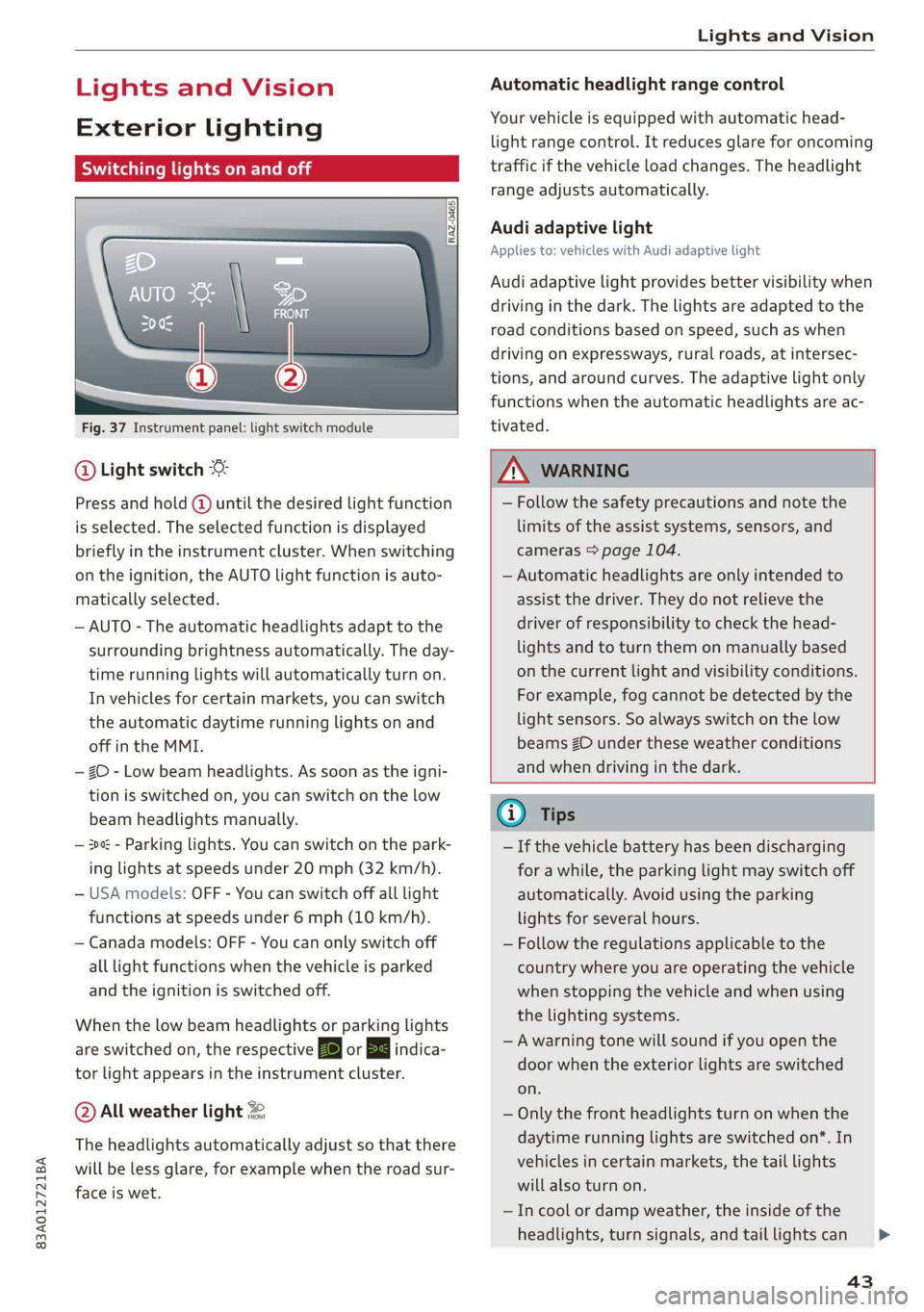
Stare MUL Las eal
Fig. 37 Instrument panel: light switch module
@ Light switch
Press and hold @ until the desired light function
is selected. The selected function is displayed
briefly in the instrument cluster. When switching
on the ignition, the AUTO light function is auto-
matically selected.
— AUTO - The automatic headlights adapt to the
surrounding brightness automatically. The day-
time running lights will automatically turn on.
In vehicles for certain markets, you can switch
the automatic daytime running lights on and
off in the MMI.
— 20 - Low beam headlights. As soon as the igni-
tion is switched on, you can switch on the low
beam headlights manually.
— 30a - Parking lights. You can switch on the park-
ing lights at speeds under 20 mph (32 km/h).
— USA models: OFF - You can switch off all light
functions at speeds under 6 mph (10 km/h).
— Canada models: OFF - You can only switch off
all light functions when the vehicle is parked
and the ignition is switched off.
When the low beam headlights or parking lights
are switched on, the respective Ba or Ea indica-
tor light appears in the instrument cluster.
@ All weather light 2
The headlights automatically adjust so that there
will be less glare, for example when the road sur-
face is wet.
Automatic headlight range control
Your vehicle is equipped with automatic head-
light range control. It reduces glare for oncoming
traffic if the vehicle load changes. The headlight
range adjusts automatically.
Audi adaptive light
Applies to: vehicles with Audi adaptive light
Audi adaptive light provides better visibility when
driving in the dark. The lights are adapted to the
road conditions based on speed, such as when
driving on expressways, rural roads, at intersec-
tions, and around curves. The adaptive light only
functions when the automatic headlights are ac-
tivated.
Z\ WARNING
— Follow the safety precautions and note the
limits of the assist systems, sensors, and
cameras > page 104.
— Automatic headlights are only intended to
assist the driver. They do not relieve the
driver of responsibility to check the head-
lights and to turn them on manually based
on the current light and visibility conditions.
For example, fog cannot be detected by the
light sensors. So always switch on the low
beams ZO under these weather conditions
and when driving in the dark.
@) Tips
— If the vehicle battery has been discharging
for a while, the parking light may switch off
automatically. Avoid using the parking
lights for several hours.
— Follow the regulations applicable to the
country where you are operating the vehicle
when stopping the vehicle and when using
the lighting systems.
—Awarning tone will sound if you open the
door when the exterior lights are switched
on.
— Only the front headlights turn on when the
daytime running lights are switched on*. In
vehicles in certain markets, the tail lights
will also turn on.
—In cool or damp weather, the inside of the
headlights, turn signals, and tail lights can
43