infotainment AUDI Q3 2019 Owners Manual
[x] Cancel search | Manufacturer: AUDI, Model Year: 2019, Model line: Q3, Model: AUDI Q3 2019Pages: 280, PDF Size: 72.73 MB
Page 5 of 280
83A012721BA
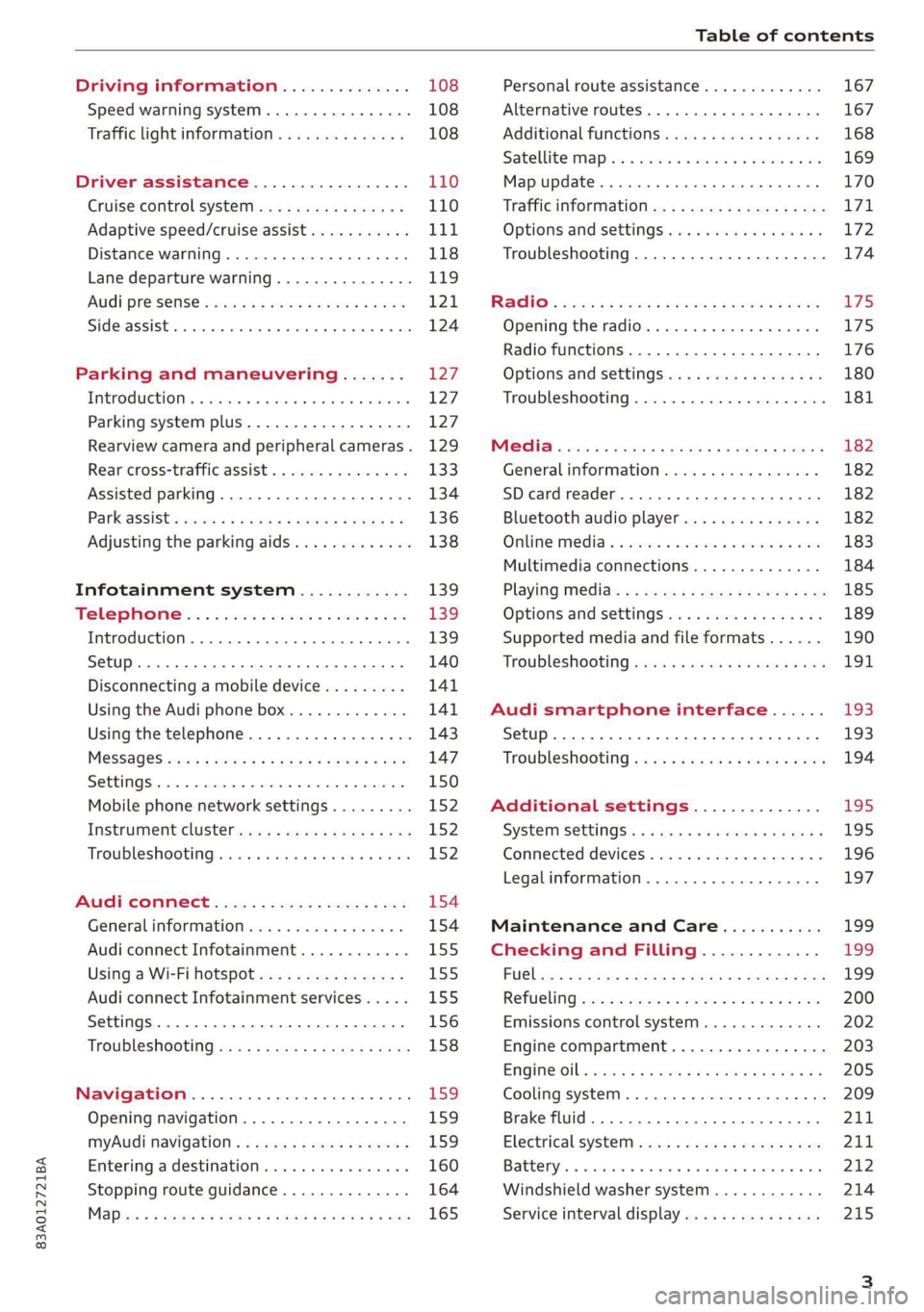
Table of contents
Driving information.............. 108
Speed warning system.........-..000- 108
Traffic light information.............. 108
Driver assistance................. 110
Cruise control systeM.......... 000 eee 110
Adaptive speed/cruise assist........... 111
Distance warning.................005 118
Lane departure warning............... 119
AUdi PrOSONsSe & seis + 2 mews 2» nee 2 oem 121
Side assist... 2... eee eee eee eee 124
Parking and maneuvering....... 127
IMtroduetion « x cicvers < e ersuens + x enavane oo saree 127
Parking system plus...............04. 127
Rearview camera and peripheral cameras. 129
Rear cross-traffic assist. ............-. 133
Assisted parking .............0.00005- 134
Parkassist': sexs « s neem sg aes + e wae 2 136
Adjusting the parking aids............. 138
Infotainment system............ 139
Telephone
Introduction
Setup..........
Disconnecting a mobile device......... 141
Using the Audi phone box............. 141
Using the telephone................0. 143
MESSAGES crus + ¢ ween ¢ 3 eeuen xy eee 4 2 ae 147
SOttiMGSicraice o saaneme « u eneneve © icameneies © eyeaeite 150
Mobile phone network settings......... 152
Instrument cluster.............2-.00. 152
Troubleshooting sais . eves 6 coarse es cae 152
AU CONMECE ces ¢ s xeee x 2 ews a i ee 154
Generalinformation................. 154
Audi connect Infotainment............ 155
Using a Wi-Fi hotspot................ 155
Audi connect Infotainment services..... 155
Settings............0 0.0000... 0000. 156
Troubleshooting sass ss eee ss ees ss ees 158
IIS VIG ABI. 5 cccccas os cones o enemies aoe 15S:
Opening navigation.................. 159
myAudi navigation.................0. 159
Entering adestination................ 160
Stopping route guidance.............. 164
Maize: = 2 sews ¢ 2 Som & eee Ee ees Fe eee 165
Personal route assistance............. 167
Alternative routes............02e000 167
Additional functions................. 168
Satellite mapiee e «sons e siemens ae aacens 2 4 ve 169
Map update............. 0. eee eee eee 170
Tratficintoritiationie: « : waa: xs seen 6 2 eu LZ)
Options and settings.............000e 172
Troubleshooting...............-.000- 174
R&GIO’: onic cs wea ss wens se eee & o Hews 175
Opening the radio................04. 175
Radio functions..................-4. 176
Options and settings...............0. 180
Troubleshooting.................0005 181
MG@Gias = acs ¢ = secs s © seme « s Seems so SeURS 182
General information ................. 182
SD card reader..........0.-..00 eee 182
Bluetooth audio player.............0. 182
Online Medias « ssi + exes ae omens oo veer 183
Multimedia connections.............. 184
Playing tedia. = s sees s 2 sees se wees ee 185
Options and settings...............0. 189
Supported media and file formats...... 190
Troubleshooting «ess 2s secu se vee ss ees 191
Audi smartphone interface...... 193
Setup... ee eee eee eee eee 193
Troubleshooting............ee eee eee 194
Additional settings.............. 195
SySteMm Settings: < saws ss sews se eee & 195
Connected devices............ 0 cee ee 196
Legal information................... 197
Maintenance and Care........... 199
Checking and Filling............. 199
FUGlaias s os08,8 & aay @ § aovon & § Sanne 8 OF eee 199
RePUCLING: is «a cms so ewes oe ese vB seen 200
Emissions control system............. 202
Engine compartment................. 203
EMGIMeiOils: acre « ¢ qaiea & © meee s 2 seNoN 8 Es 205
Cooling system. ............--00 00 eee 209
Brake fluid... . 0... eee eee eee 211
Electrical system.........--.0----05- 211
Battery. =o cecness « ommnaine « 0 omecwne 6 3 oats = oe 212
Windshield washer system............ 214
Service interval display............... 215
Page 20 of 280
Touch display
> If the Date & time button is not displayed,
swipe upward or downward with one finger un-
til it appears.
> Press the Date & time button.
@ Tips
If a menu or symbol is in parentheses in the
path, for example, (General) or (423), then it is
an optional menu item that does not need to
be used in every system.
Settings
> Applies to MMI: Select on the home screen:
SETTINGS > Display & brightness > MMI.
Possible settings:
— Brightness
— Audio feedback during touch input
Multi Media Interface
sic laitet inmate)
Audi recommends performing certain Infotain-
ment system functions, such as entering a desti-
nation, only when the vehicle is stationary. Al-
ways remember: Take a break from using your In-
fotainment system if needed for the benefit of
your safety and the safety of others on the road.
ZA\ WARNING
Only use the Infotainment system when road,
traffic, weather, and visibility conditions per-
mit and always in a way that allows you to
maintain complete control over your vehicle.
@ Tips
Certain functions are not available while driv-
ing.
Switching on or off
Switching the MMI on or off
> To switch the MMI off, press and hold the vol-
ume knob > page 26, fig. 20 until all Infotain-
ment functions are switched off.
18
> To switch the MMI on, press the volume knob.
Restarting the MMI
> Press and hold the volume knob for at least 10
seconds.
Switching the center display on or off
> To switch the center display off, press [Jin the
notification center > page 20.
> To switch the center display on, touch the dis-
play or press LwJagain.
Introduction
You can display and operate Infotainment system
and vehicle functions using the touch display in
the Multi Media Interface, abbreviated MMI.
Configuration wizard
After starting for the first time, the configuration
wizard helps you to set up the vehicle, for exam-
ple to set the desired system language and con-
nect a telephone.
> Follow the instructions in the center display.
> Applies to: MMI: To access the configuration
wizard at a later time, select on the home
screen: HELP > Configuration wizard.
Tool tips
Tool
tips are displayed on the center display after
starting for the first time. They introduce various
MMI functions to you.
> Follow the instructions in the center display.
> Applies to: MMI: To access the tool tips at a lat-
er time, select on the home screen: SETTINGS
> Help > Show tool tips.
> Applies to: MMI: To receive additional tool tips,
select on the home screen: HELP > Tool tips >
Basic information or Expert information.
Page 29 of 280
83A012721BA
Personalization
Personalization
User
Applies to: vehicles with myAudi login
Requirement: you must have successfully regis-
tered at my.audi.com.
Logging in from the vehicle
Applies to: MMI
> Select on the home screen: USER > myAudi
login.
> Log in to myAudi in the vehicle using your e-
mail address and password.
You can select if and when an automatic login to
myAudi in the vehicle should occur.
Bluetooth device 1/Bluetooth device 2*: Re-
quirement: after a Bluetooth device has been
paired with the MMI, you must be logged in to
myAudi in the vehicle. Follow the system instruc-
tions and save the desired Bluetooth device. You
will be automatically logged in when your Blue-
tooth device is connected to the MMI, and auto-
matically logged out when the Bluetooth connec-
tion to your mobile device is disconnected.
To transfer existing destinations from the MMI to
your myAudi account one time, confirm the sys-
tem prompts with Yes.
G) Tips
— For some Audi connect Infotainment serv-
ices, you may also have to enter your myAu-
di access information when accessing serv-
ices in the MMI.
— You can only connect one myAudi account to
your vehicle.
27
Page 141 of 280
83A012721BA
Telephone
Telephone
Introduction
Applies to: vehicles with telephone
You can make calls in your vehicle using the MMI.
You have various options for this depending on
the vehicle equipment and the range of functions
on your cell phone.
Handsfree
Once you have connected your mobile device to
the MMI via Bluetooth, you can use the hands-
free system. You can make calls using the anten-
na on your mobile device.
Car
phone function
Applies to: vehicles with car phone
In conjunction with Audi connect Infotainment*,
the car phone function ) is available via an em-
bedded SIM card.
With the car phone function and the Audi phone
box*, calls are made using the exterior antenna
on the vehicle. Using the external antenna helps
when there is a low signal and also provides bet-
ter reception quality > page 141.
or may not be able to dial it at all. Dial the
emergency number manually.
— Switch your mobile device off in areas where
there is a risk of an explosion. These loca-
tions are not always clearly marked. This
may include gas stations, fuel and chemical
storage facilities or transport vehicles, or lo-
cations where fuel vapors (such as propane
or gasoline vapor in vehicles or buildings),
chemicals or large quantities of dust parti-
cles (such as flour, sawdust or metal) may
be present in the air. This also applies to all
other locations where you would normally
turn your vehicle engine off.
— The demands of traffic require your full at-
tention. Always read the chapter > page 18,
Traffic safety information.
Z\ WARNING
— Medical experts warn that mobile devices
can interfere with the function of pacemak-
ers. Always maintain a minimum distance of
about 7.9 inches (20 cm) between the mo-
bile device antennas and the pacemaker.
— Do not carry the mobile device in a pocket
directly over the pacemaker when the
phone is switched on.
— Switch the mobile device off immediately
if you suspect it may be interfering with
the pacemaker.
— Do not use the voice recognition system*
= page 24 in emergencies because your
voice may change in stressful situations. The
system may take longer to dial the number
1) Not available in all countries. Only in conjunction with Au-
di connect Infotainment* and Audi phone box*.
2) SIM card installed in the vehicle at the factory.
3) Not available in all countries.
q@) Note
Read the information about Audi connect, and
be sure to note the connectivity costs section
=> page 154.
(Gi) Tips
— The Bluetooth connection range is limited
to inside the vehicle. It can also be affected
by local conditions and interference with
other devices.
—To learn which Bluetooth connections and
which of the functions in your mobile device
are supported, check with your mobile de-
vice service provider or the database for mo-
bile devices at www.audiusa.com/
bluetooth.
— If you use the car phone function’, it is rec-
ommended to use the Wi-Fi hotspot* in the
vehicle > page 155 so that the apps on your
mobile device continue to have Internet ac-
cess.
— When the car phone function* is active, Audi
connect Infotainment* is available through
the embedded SIM card2)3).
139
Page 156 of 280
Audi connect
Audi connect
General information
Depending on the country and the vehicle equip-
ment, the following functions may be available:
— Audi connect Infotainment
You can also find more information on Audi con-
nect
online at www.audiusa.com.
ZA\ WARNING
— To reduce the risk of an accident, only use
Audi connect services when road and traffic
conditions permit. Always read and follow
the notes in > page 18, Traffic safety infor-
mation.
— It is only safe to use tablets, laptops, mobile
devices and other similar devices when the
vehicle is stationary because, like all loose
objects, they could be thrown around the in-
side of the vehicle in a crash and cause seri-
ous injuries. Store these types of devices se-
curely while driving.
— As the driver, do not allow usage of the Wi-
Fi hotspot to distract you from driving, as
this could increase the risk of an accident.
— Do not use any wireless devices on the front
seats within range of the airbags while driv-
ing. Also read the warnings in the chapter
=> page 61, Airbag system.
—To reduce the risk of an accident, use the Au-
di connect Infotainment services with a Wi-
Fi hotspot only in the rear seat when the ve-
hicle is in motion, or only when the vehicle is
stationary.
@) Note
— Applies to: embedded SIM card usage: The
connection costs of Audi connect Infotain-
ment services are included in the price of
Audi connect Infotainment during the sub-
scription period with some exceptions.
Please note that there may be additional
charges when using some services. For ex-
ample, this applies to Internet radio/
podcasts or for Internet connections and
services that use the Wi-Fi hotspot, such as
154
online media sources. Depending on the
country, data plans may need to be pur-
chased for these services > page 157. For
additional information, see my.audi.com.
— In certain situations, the Wi-Fi hotspot data
connection may be established as a replace-
ment for the SIM card on your Wi-Fi device.
This feature depends on the configuration
of your Wi-Fi device and operating system.
This could result in fees depending on your
cell phone service provider, especially if you
are using this feature while abroad. A flat
rate data plan is strongly recommended. For
more information, contact your cell phone
service provider or refer to the owner's man-
ual for your Wi-Fi device.
— You are responsible for all precautions taken
for data protection, anti-virus protection,
and protection against loss of data on mo-
bile devices that are used, for example, to
access the Internet through the Wi-Fi hot-
spot.
G) Tips
— The availability of services depends on the
subscription.
— AUDI AG provides access to services from
third party providers. Permanent availability
cannot be guaranteed, because that de-
pends on the third party provider.
— Use of the most up-to-date mobile network
standard is not available in every country.
Contact an authorized Audi dealer or au-
thorized Audi Service Facility or your cell
phone service provider for additional infor-
mation.
— Audi connect Infotainment services are only
available within the cell phone network cov-
erage from your cell phone service provider.
— Availability, scope, providers, screen display,
and costs of services may vary depending on
the country, model, model year, end device
and rates.
Page 157 of 280
83A012721BA
Audi connect
Audi connect
Infotainment
Applies to: vehicles with Audi connect Infotainment
With Audi connect Infotainment services, online
information is transmitted directly to the vehicle.
An Internet connection is required to use Audi
connect Infotainment. Depending on the country
and the vehicle equipment, the following options
may be available:
— Embedded SIM card
Z\ WARNING
Always follow the information found in > A\
in General information on page 154.
@) Note
Always follow the information found in >@ in
General information on page 154.
Embedded SIM card
Applies to: vehicles with Audi connect Infotainment and an
embedded SIM card
The data connection for Audi connect Infotain-
ment services is made through an embedded SIM
card (eSIM card) that is installed in the vehicle.
You can use the Audi connect Infotainment serv-
ices immediately.
@) Note
Always follow the information found in >@ in
General information on page 154.
Using a Wi-Fi hotspot
Applies to: vehicles with Wi-Fi hotspot
You can connect up to eight Wi-Fi devices (such
as smartphones) with the MMI Wi-Fi hotspot. If
the MMI is connected to the Internet
= page 155, the connected Wi-Fi devices can also
use the MMI’s Internet connection.
Requirement: The ignition must be switched on.
> Applies to: MMI: Select on the home screen:
SETTINGS > Connection settings > Wi-Fi
Switch on the Wi-Fi hotspot.
> Applies to: MMI: Select on the home screen:
SETTINGS > Connection settings > Wi-Fi > Wi-
Fi hotspot settings. The access data for the Wi-
Fi hotspot is displayed. Switch on the visibility
of the Wi-Fi hotspot if necessary.
> Switch the Wi-Fi function on in your mobile de-
vice and connect it to the MMI Wi-Fi hotspot
using the authentication data that is shown.
> Follow any additional system prompts on your
Wi-Fi device if necessary.
Your device is successfully connected with the
MMI's Wi-Fi hotspot.
Z\ WARNING
Always follow the information found in > AV
in General information on page 154.
CG) Note
Always follow the information found in >@ in
General information on page 154.
@) Tips
For an explanation on conformity with the
FCC regulations in the United States and the
Industry Canada regulations, see > page 261.
Audi connect
Infotainment services
Applies to: vehicles with Audi connect Infotainment
Some Audi connect Infotainment services must
be configured through your personal myAudi ac-
count before using them for the first time
=> page 27.
G) Tips
— For some Audi connect Infotainment serv-
ices, you may also have to enter your myAu-
di access information when accessing serv-
ices in the MMI.
— Some Audi connect Infotainment services
must be activated at my.audi.com.
155
Page 158 of 280
Audi connect
— You can only connect one myAudi account to
your vehicle.
— For detailed information on configuration,
visit my.audi.com.
Yate)
Applies to: vehicles with Audi connect Infotainment
Depending on the country and the vehicle equip-
ment, the following services may be available:
Weather
Applies to: MMI
> Press WEATHER on the home screen.
Editing settings: Select: WEATHER > GE.
Adding a location: select: In a new city > enter
the desired location.
> To permanently set weather for a location,
press on a location.
> To always show the weather based on the vehi-
cle position, press on the crosshairs.
Requirement: Route guidance must be active.
> To show the weather at the destination, press
on.
Removing a location: select: Z > one or more lo-
cations or Select all > Delete.
News
> Applies to: MMI: Select on the home screen:
NEWS.
If you logged in to myAudi in your vehicle
=> page 27, personalized newsfeeds can be dis-
played.
Twitter
Requirement: You must have connected your ve-
hicle with myAudi > page 27. You must have con-
nected your myAudi account with Twitter.
You can only connect one Twitter account with
your myAudi account. Not all settings can be ad-
justed in the MMI. Some can only be adjusted
through the Twitter website.
> Applies to: MMI: Select on the home screen:
NEWS > Ga. Press on a Twitter entry in the list.
156
Calendar
Requirement: the myAudi app must be installed
and open on your mobile device. Access to your
calendar must be enabled on your mobile device.
You must be logged into the myAudi app with
your myAudi login data and you must have select-
ed your vehicle. The Wi-Fi function on your mo-
bile device and the MMI must be enabled and
your mobile device must be paired to the MMI
Wi-Fi hotspot > page 157, Wi-Fi settings.
You can display the your mobile device calendar
on the MMI.
> Applies to: MMI: Press CALENDAR on the home
screen.
ZA WARNING
Always follow the information found in > A\
in General information on page 154.
@) Note
Always follow the information found in >@ in
General information on page 154.
Settings
Ce) telat -mar-iau cola 4
> Applies to: MMI: Select on the home screen:
SETTINGS > Connection settings > Mobile
phone network.
Depending on the country, vehicle equipment,
and connection type, the following functions may
be available:
Data connection settings
Using the Data connection settings menu, you
can set when the system should connect to the
Internet. The Internet connection disconnects
automatically once the requested Audi connect
Infotainment service no longer requires any data.
— Data roaming: data roaming is switched off at
the factory. To use a data connection outside of
the country, data roaming must be switched
on. The setting is stored for the current SIM
card or the mobile device that is currently con-
nected.
Page 159 of 280
83A012721BA
Audi connect
— Allow MMI online services: when this function
is switched on, a data connection is automati-
cally established in order to use Audi connect
Infotainment services.
— Allow Wi-Fi devices: when this function is
switched on, you can allow or deny Internet
connections.
Access point
The connection is configured automatically based
on the SIM card being used. The following values
can be changed. You can obtain more information
from your cell phone service provider.
— Access Point Name (APN): The access point de-
pends on the cell phone service provider and is
assigned automatically.
— User name: your cell phone service provider as-
signs the user name for your online profile.
— Password: your cell phone service provider as-
signs the password for your online profile.
— Apply settings: saves the changed settings.
— Reset configuration: resets the connection set-
tings.
Data usage counter
Your current data usage is displayed.
— Reset counter: you can reset your usage statis-
tics to zero.
— Warning limit: you can set a warning limit for
your data usage (GB/MB).
Wi-Fi settings
Applies to: vehicles with Wi-Fi hotspot
Requirement: The ignition must be switched on.
> Applies to: MMI: Select on the home screen:
SETTINGS > Connection settings > Wi-Fi
Depending on the country and the vehicle equip-
ment, the following functions may be available:
Wi-Fi
When the function is switched on, the MMI's Wi-
Fi hotspot is active and Wi-Fi devices can be con-
nected to the hotspot.
Wi-Fi hotspot settings
The Wi-Fi connection between the MMI and your
Wi-Fi device is encrypted. You can change the fol-
lowing information if needed.
— Access point (SSID): Wi-Fi hotspot name.
— Password: a random password was set in the
MMI at the factory. The password can be
changed. The encryption method requires a
password to be at least eight characters long.
Choose a secure password.
— Visible to others: you can switch the visibility
of the Wi-Fi hotspot on or off.
Z\ WARNING
Always follow the information found in > A,
in General information on page 154.
ZA WARNING
Always follow the information found in > A\
in General information on page 154.
@) Note
Always follow the information found in >@ in
General information on page 154.
G) Tips
For more information on roaming charges,
contact your cell phone service provider.
))_ Not available in every market.
@) Note
Always follow the information found in >@ in
General information on page 154.
Applies to: vehicles with data plans
Requirement: You must have a registered myAudi
account at my.audi.com. Your vehicle must be
registered in your myAudi account.
You can purchase data plans at my.audi.com.
157
Page 160 of 280
Audi connect
Always follow the information found in > AV If driving out of the country, applicable data
in General information on page 154. plans must be purchased.
Always follow the information found in >@ in
General information on page 154.
Troubleshooting
Applies to: vehicles with Audi connect Infotainment
The information that follows lists some trouble-
shooting options. They depend on the equip-
ment.
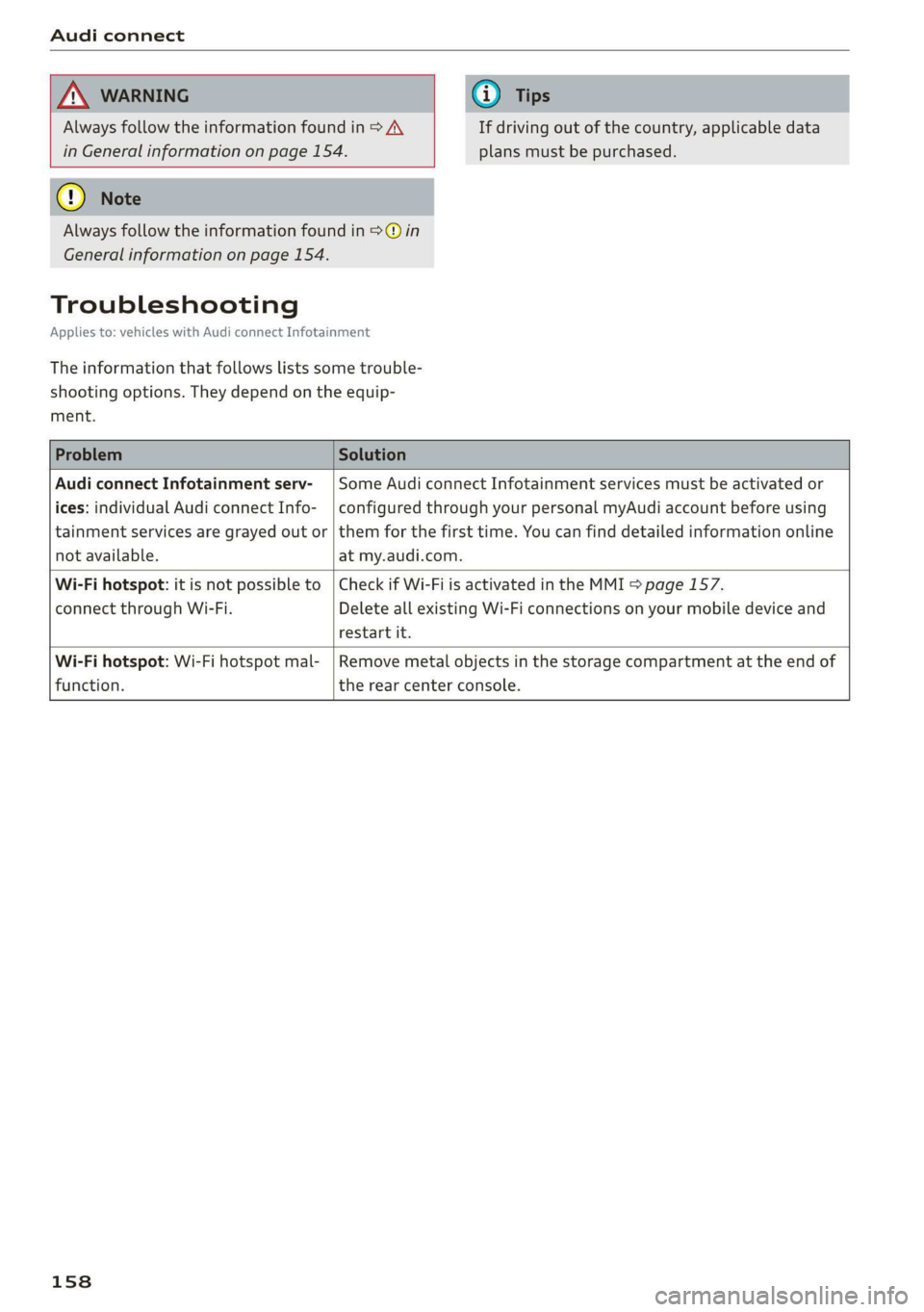
Audi connect Infotainment serv- | Some Audi connect Infotainment services must be activated or
ices: individual Audi connect Info- | configured through your personal myAudi account before using
tainment services are grayed out or | them for the first time. You can find detailed information online
not available. at my.audi.com.
Wi-Fi hotspot: it is not possible to | Check if Wi-Fi is activated in the MMI > page 157.
connect through Wi-Fi. Delete all existing Wi-Fi connections on your mobile device and
restart it.
Wi-Fi hotspot: Wi-Fi hotspot mal- |Remove metal objects in the storage compartment at the end of
function. the rear center console.
158
Page 161 of 280
83A012721BA
Navigation
Navigation
Opening navigation
Applies to: vehicles with navigation system
The navigation system directs you to your desti-
nation, around traffic incidents, and on alterna-
tive routes, if desired.
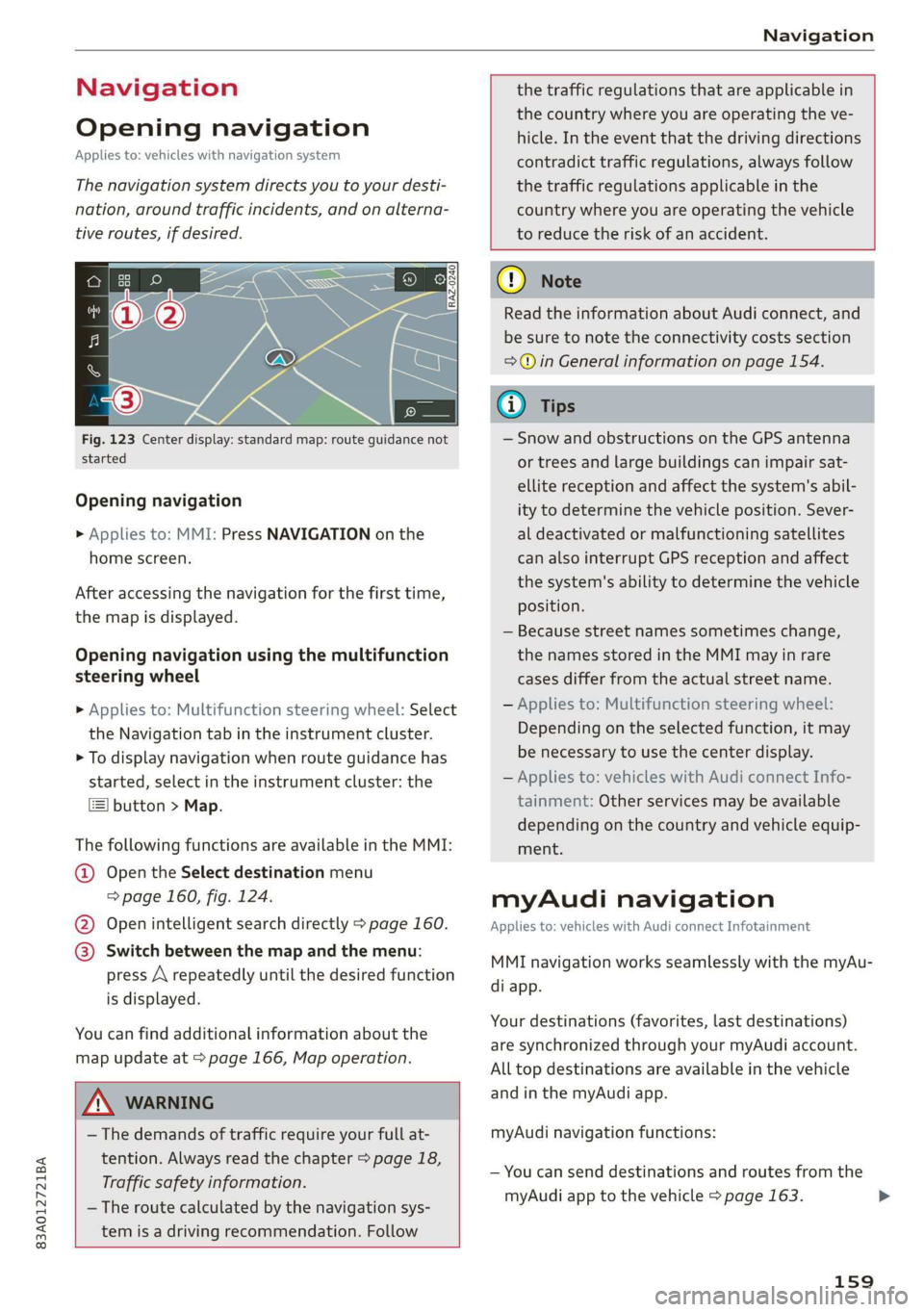
Fig. 123 Center display: standard map: route guidance not
started
Opening navigation
> Applies to: MMI: Press NAVIGATION on the
home screen.
After accessing the navigation for the first time,
the map is displayed.
Opening navigation using the multifunction
steering wheel
> Applies to: Multifunction steering wheel: Select
the Navigation tab in the instrument cluster.
> To display navigation when route guidance has
started, select in the instrument cluster: the
button > Map.
The following functions are available in the MMI:
@ Open the Select destination menu
=> page 160, fig. 124.
@ Open intelligent search directly > page 160.
@ Switch between the map and the menu:
press A repeatedly until the desired function
is displayed.
You can find additional information about the
map update at > page 166, Map operation.
the traffic regulations that are applicable in
the country where you are operating the ve-
hicle. In the event that the driving directions
contradict traffic regulations, always follow
the traffic regulations applicable in the
country where you are operating the vehicle
to reduce the risk of an accident.
ZX WARNING
— The demands of traffic require your full at-
tention. Always read the chapter > page 18,
Traffic safety information.
— The route calculated by the navigation sys-
tem is a driving recommendation. Follow
@) Note
Read the information about Audi connect, and
be sure to note the connectivity costs section
=>© in General information on page 154.
@ Tips
— Snow and obstructions on the GPS antenna
or trees and large buildings can impair sat-
ellite reception and affect the system's abil-
ity to determine the vehicle position. Sever-
al deactivated or malfunctioning satellites
can also interrupt GPS reception and affect
the system's ability to determine the vehicle
position.
— Because street names sometimes change,
the names stored in the MMI may in rare
cases differ from the actual street name.
— Applies to: Multifunction steering wheel:
Depending on the selected function, it may
be necessary to use the center display.
— Applies to: vehicles with Audi connect Info-
tainment: Other services may be available
depending on the country and vehicle equip-
ment.
myAudi navigation
Applies to: vehicles with Audi connect Infotainment
MMI navigation works seamlessly with the myAu-
di app.
Your destinations (favorites, last destinations)
are synchronized through your myAudi account.
All top destinations are available in the vehicle
and
in the myAudi app.
myAudi navigation functions:
— You can send destinations and routes from the
myAudi app to the vehicle > page 163.
159
>