warning AUDI Q3 2020 Owners Manual
[x] Cancel search | Manufacturer: AUDI, Model Year: 2020, Model line: Q3, Model: AUDI Q3 2020Pages: 278, PDF Size: 72.66 MB
Page 144 of 278
Telephone
braking maneuvers, which increases the risk
of
an accident. Store objects securely while
driving.
— The mobile device may become hot during
wireless charging. Pay attention to the tem-
perature of your mobile device and be care-
ful when removing it from the Audi phone
box.
— An alternating magnetic field is used for
wireless charging. Maintain a minimum dis-
tance of approximately 2.4 in (6 cm) to the
Audi phone box charging plate. The thresh-
olds for prolonged exposure at this distance
comply with ICNIRP1998. Therefore, inter-
actions such as irritation of sensory organs,
malfunctions of active implants (such as
pacemakers, infusion pumps, or neurosti-
mulators) or effects on passive implants
(such as prosthetic limbs) is highly unlikely.
If you have an implant, consult a medical
specialist if you have any questions. You can
also switch the function for wireless charg-
ing in the Audi phone box on and off. You
can continue to charge your mobile device
using a cable connection.
@) Note
Applicable to U.S.A.
Operation of the Audi phone box is subject to
the following requirements of the Federal
Communications Commission:
— This is a CONSUMER device.
— BEFORE USE, you MUST REGISTER THIS DE-
VICE with your wireless provider and have
your provider’s consent. Most wireless pro-
viders consent to the use of signal boosters.
Some providers may not consent to the use
of this device on their network. If you are
unsure, contact your service provider.
— You MUST operate this device with approved
antennas and cables as specified by the
manufacturer. Antennas MUST be installed
at least 20 cm (8 inches) from any person.
— You MUST cease operating this device im-
mediately if requested by the FCC or a li-
censed wireless service provider.
142
— WARNING: E911 location information may
not be provided or may be inaccurate for
calls served by using this device.
C) Note
Applicable to Canada
In Canada, operation of a Zone Enhancer,
such as an Audi Phone Box, is subject to the
following requirements of the Innovation,
Science and Economic Development Canada
(ISED):
— This is a CONSUMER device.
— BEFORE USE, you MUST meet all require-
ments set out in CPC-2-1-05.
— You MUST operate this device with approved
antennas
and cables as specified by the
manufacturer. Antennas MUST NOT be in-
stalled within 20 cm of any person.
— You MUST cease operating this device im-
mediately if requested by ISED or a licensed
wireless service provider.
— WARNING: £911 location information may
not be provided or may be inaccurate for
calls served by using this device.
@ Tips
— Only one mobile device at a time can be
charged wirelessly in the Audi phone box.
— Strong transmission quality* cannot be
guaranteed if more than one mobile device
is in the box.
— To reduce the risk of malfunctions, make
sure the mobile device is positioned correct-
ly in the Audi phone box.
— Make sure there are no objects between the
Audi phone box and the mobile device.
— Placing the mobile device in a bag or protec-
tive sleeve inside the Audi phone box can in-
terfere with the connection to the external
antenna”*.
— Metallic objects in the Audi phone box block
the wireless charging of your mobile device
and calls made using the exterior antenna”*.
—The maximum charging output is 5 W.
—The charging time and temperature will vary
depending on the mobile device being used. >
Page 147 of 278
83A012721BB
Telephone
Deleting contacts
— Deleting all contacts: select: Contacts > Z >
Delete all. All contacts are deleted only in the
MMI.
— Deleting imported contacts: requirement: you
must have imported at least one contact. Se-
lect: Contacts > Z > one or more contacts, or
Select all > Delete imported contacts > Done.
The imported contacts are deleted.
@ Tips
— Pay attention to any synchronization
prompts on your mobile device when down-
loading contacts.
— Only the contacts of the mobile device being
actively used are displayed.
— The contacts from the mobile device may
not be transferred in alphabetical order. If
there are too many entries, contacts with
different first letters may be missing in the
MMI.
— If contacts are loaded from the mobile de-
vice into the MMI, the contacts on the SIM
card will no longer be displayed in the MMI.
— The contacts in the local MMI memory are
always visible and can be accessed by other
users.
— After switching off the ignition and exiting
the vehicle, the mobile device directory will
be loaded when the MMI is started again if
the mobile device is within range and the
Bluetooth function is switched on in the mo-
bile device and the MMI.
— Only the contacts in the local MMI memory
can be deleted.
eS Tale mem LL
Applies to: vehicles with telephone
>» Applies to: MMI: Select on the home screen:
PHONE > Voicemail.
Requirement: there must be no voicemail num-
ber stored.
> Entering the voicemail number: enter the de-
sired number. Press OK.
Requirement: a voicemail number must be stor-
ed.
> Dialing the voicemail number: press Voice-
mail. The call begins immediately.
@) Tips
This service must be set up and activated in
advance by the cell phone service provider.
Dialing a phone number
Applies to: vehicles with telephone
Depending on the vehicle equipment, you may
have the following options for dialing a phone
number:
— Using text input in the center display
=> page 21.
— Using voice operation > page 24.
Making an emergency call
Applies to: vehicles with telephone
Requirement: a mobile device must be connected
to the MMI via Bluetooth.
> Applies to: MMI: Select on the home screen:
PHONE > Dial number > the emergency call
number specific to the country (for example,
911) > Dial.
ZX WARNING
— Because your phone works with radio sig-
nals, a connection cannot be guaranteed un-
der all circumstances. Do not rely on only
your phone when it comes to essential com-
munication (such as during a medical emer-
gency).
— Always follow the instructions given by the
emergency personnel during an emergency
call and only end the call when they instruct
you to do so.
Answering/ending a call
Applies to: vehicles with telephone
Accepting or ending a call
> To accept or end a call, press the @ button on
the multifunction steering wheel. Operating
=> page 12.
145
Page 154 of 278
Audi connect
Audi connect
General information
Applies to: vehicles with Audi connect
Depending on the country and the vehicle equip-
ment, the following functions may be available:
— Audi connect Infotainment
You can also find more information on Audi con-
nect online at www.audi.com.
ZA\ WARNING
—To reduce the risk of an accident, only use
Audi connect services and the Wi-Fi hotspot
only if the traffic situation permits it. Read
and follow the guidelines provided in
= page 18, Traffic safety information.
— It is only safe to use tablets, laptops, mobile
devices and other similar devices when the
vehicle is stationary because, like all loose
objects, they could be thrown around the in-
side of the vehicle in a crash and cause seri-
ous injuries. Store these types of devices se-
curely while driving. Also read the warnings
in the chapter > page 62.
©) Note
— Applies to: embedded SIM card usage: The
connection costs for Audi connect Infotain-
ment services are included in the price of
Audi connect Infotainment during the sub-
scription period with some exceptions.
Please note that there may be additional
charges when using some services. For ex-
ample, this applies to online radio/
podcasts, additional online data, or for In-
ternet connections and services that use the
Wi-Fi hotspot, such as online media sour-
ces. Depending on the country, data plans
may need to be purchased for these services
=> page 155. For additional information, see
my.audi.com.
—Incertain situations, the Wi-Fi hotspot data
connection may be established as a replace-
ment for the SIM card on your Wi-Fi device.
This feature depends on the configuration
of your Wi-Fi device and operating system.
This could result in fees depending on your
152
cell phone service provider, especially if you
are using this feature while abroad. A flat
rate data plan is strongly recommended. For
more information, contact your cell phone
service provider or refer to the owner's man-
ual for your Wi-Fi device.
— You are responsible for all precautions taken
for data protection, anti-virus protection,
and protection against loss of data on mo-
bile devices that are used, for example, to
access the Internet through the Wi-Fi hot-
spot.
— In areas with poor GPS reception or outside
the coverage range of the respective cell
phone service provider, some functions
and/or services may not be available, it may
not be possible to send or receive data, or
functionality may be limited.
@ Tips
— The availability of services depends on the
subscription.
— AUDI AG provides access to services from
third party providers. Permanent availability
cannot be guaranteed, because that de-
pends on the third party provider.
— Use of the most up-to-date mobile network
standard is not available in every country.
Contact an authorized Audi dealer or au-
thorized Audi Service Facility or your cell
phone service provider for additional infor-
mation.
— Availability, scope, providers, screen display,
and costs of services may vary depending on
the country, model, model year, end device
and rates.
Audi connect
Infotainment
Applies to: vehicles with Audi connect Infotainment
With Audi connect Infotainment services, online
information is transmitted directly to the vehicle.
An Internet connection is required to use Audi
connect Infotainment. Depending on the country >
Page 155 of 278
83A012721BB
Audi connect
and the vehicle equipment, the following options
may be available:
— Embedded SIM card
ZA WARNING
Always follow the information found in > AV
in General information on page 152.
@) Note
Always follow the information found in >@ in
General information on page 152.
Embedded SIM card
Applies to: vehicles with Audi connect Infotainment and an
embedded SIM card
The data connection for Audi connect Infotain-
ment services is made through an embedded SIM
card (eSIM card) that is installed in the vehicle.
You can use the Audi connect Infotainment serv-
ices immediately.
@) Note
Always follow the information found in >@ in
General information on page 152.
Using a Wi-Fi hotspot
Applies to: vehicles with Wi-Fi hotspot
You can connect up to eight Wi-Fi devices (such
as smartphones) with the MMI Wi-Fi hotspot. If
the MMI is connected to the Internet
= page 152, the connected Wi-Fi devices can also
use the MMI’s Internet connection.
Requirement: the ignition must be switched on.
> Applies to: MMI: Select on the home screen:
SETTINGS > Connection settings > Wi-Fi
Switch on the Wi-Fi hotspot.
> Applies to: MMI: Select on the home screen:
SETTINGS > Connection settings > Wi-Fi > Wi-
Fi hotspot settings. The access data for the Wi-
Fi hotspot is displayed. Switch on the visibility
of the Wi-Fi hotspot if necessary.
> Switch the Wi-Fi function on in your mobile de-
vice and connect it to the MMI Wi-Fi hotspot
using the authentication data that is shown.
> Follow any additional system prompts on your
Wi-Fi device if necessary.
Your device is successfully connected with the
MMI's Wi-Fi hotspot.
ZA WARNING
Always follow the information found in > A\
in General information on page 152.
C) Note
Always follow the information found in >@ in
General information on page 152.
@) Tips
For an explanation on conformity with the
FCC regulations in the United States and the
Industry Canada regulations, see > page 259.
Audi connect
Infotainment services
Applies to: vehicles with Audi connect Infotainment
Some Audi connect Infotainment services must
be configured through your personal myAudi ac-
count at my.audi.com before using them for the
first time.
Gi) Tips
— For some Audi connect Infotainment serv-
ices, you may also have to enter your myAu-
di access information when accessing serv-
ices in the MMI.
— Some Audi connect Infotainment services
must be activated at my.audi.com.
— You can only connect one myAudi account to
your vehicle.
— Depending on the country, you may be able
to use the myAudi app or my.audi.com.
— For detailed information on configuration,
visit my.audi.com.
Applies to: vehicles with Audi connect Infotainment
Depending on the country and the vehicle equip-
ment, the following services may be available: >
153
Page 156 of 278
Audi connect
Weather information
Applies to: MMI
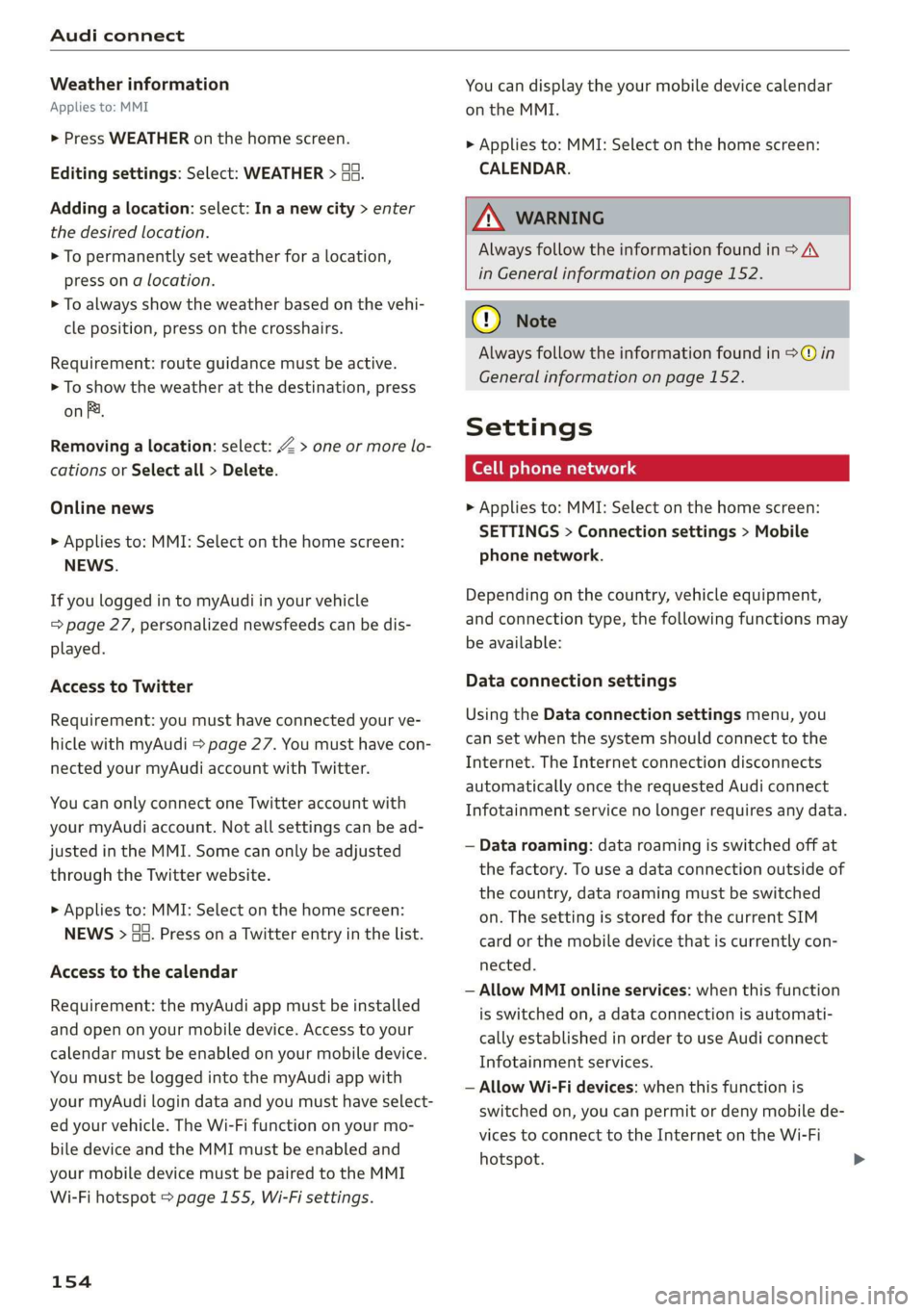
> Press WEATHER on the home screen.
Editing settings: Select: WEATHER > Ga.
Adding a location: select: In a new city > enter
the desired location.
> To permanently set weather for a location,
press on a location.
> To always show the weather based on the vehi-
cle position, press on the crosshairs.
Requirement: route guidance must be active.
> To show the weather at the destination, press
on B.
Removing a location: select: Z > one or more lo-
cations or Select all > Delete.
Online news
> Applies to: MMI: Select on the home screen:
NEWS.
If you logged in to myAudi in your vehicle
= page 27, personalized newsfeeds can be dis-
played.
Access to Twitter
Requirement: you must have connected your ve-
hicle with myAudi > page 27. You must have con-
nected your myAudi account with Twitter.
You can only connect one Twitter account with
your myAudi account. Not all settings can be ad-
justed in the MMI. Some can only be adjusted
through the Twitter website.
> Applies to: MMI: Select on the home screen:
NEWS > aa. Press ona Twitter entry in the list.
Access to the calendar
Requirement: the myAudi app must be installed
and open on your mobile device. Access to your
calendar must be enabled on your mobile device.
You must be logged into the myAudi app with
your myAudi login data and you must have select-
ed your vehicle. The Wi-Fi function on your mo-
bile device and the MMI must be enabled and
your mobile device must be paired to the MMI
Wi-Fi hotspot > page 155, Wi-Fi settings.
154
You can display the your mobile device calendar
on the MMI.
> Applies to: MMI: Select on the home screen:
CALENDAR.
Z\ WARNING
Always follow the information found in > AV
in General information on page 152.
C) Note
Always follow the information found in © in
General information on page 152.
Settings
Ce oan Mari nucle
> Applies to: MMI: Select on the home screen:
SETTINGS > Connection settings > Mobile
phone network.
Depending on the country, vehicle equipment,
and connection type, the following functions may
be available:
Data connection settings
Using the Data connection settings menu, you
can set when the system should connect to the
Internet. The Internet connection disconnects
automatically once the requested Audi connect
Infotainment service no longer requires any data.
— Data roaming: data roaming is switched off at
the factory. To use a data connection outside of
the country, data roaming must be switched
on. The setting is stored for the current SIM
card or the mobile device that is currently con-
nected.
— Allow MMI online services: when this function
is switched on, a data connection is automati-
cally established in order to use Audi connect
Infotainment services.
— Allow Wi-Fi devices: when this function is
switched on, you can permit or deny mobile de-
vices to connect to the Internet on the Wi-Fi
hotspot.
Page 157 of 278
83A012721BB
Audi connect
Access point
The connection is configured automatically based
on the SIM card being used. The following values
can be changed. You can obtain more information
from your cell phone service provider.
— Access Point Name (APN): the access point de-
pends on the cell phone service provider and is
assigned automatically.
— User name: your cell phone service provider as-
signs the user name for your online profile.
— Password: your cell phone service provider as-
signs the password for your online profile.
— Apply settings: saves the changed settings.
— Reset configuration: resets the connection set-
tings.
Data usage counter
Your current data usage is displayed.
— Reset counter: you can reset your usage statis-
tics to zero.
— Warning limit: you can set a warning limit for
your data usage (GB/MB).
Z\ WARNING
Always follow the information found in > A\
in General information on page 152.
@) Note
Always follow the information found in >@ in
General information on page 152.
G) Tips
For more information on roaming charges,
contact your cell phone service provider.
Wi-Fi settings
Applies to: vehicles with Wi-Fi hotspot
Requirement: the ignition must be switched on.
> Applies to: MMI: Select on the home screen:
SETTINGS > Connection settings > Wi-Fi
Depending on the country and the vehicle equip-
ment, the following functions may be available:
))_ Not available in every market.
Wi-Fi
When the function is switched on, the MMI's Wi-
Fi hotspot is active and Wi-Fi devices can be con-
nected to the hotspot.
Wi-Fi hotspot settings
The Wi-Fi connection between the MMI and your
Wi-Fi device is encrypted. You can change the fol-
lowing information if needed.
— Access point (SSID): name of the Wi-Fi hot-
spot.
— Password: a random password was set at the
factory in the MMI. The password can be
changed. The encryption method requires a
password to be at least eight characters long.
Choose a secure password.
— Visible to others: you can switch the visibility
of the Wi-Fi hotspot on or off.
Z\ WARNING
Always follow the information found in > AV
in General information on page 152.
@) Note
Always follow the information found in >@ in
General information on page 152.
Applies to: vehicles with data plans
Requirement: you must have created a myAudi
account at my.audi.com. Your vehicle must be
registered in your myAudi account.
You can purchase data plans at my.audi.com.
ZA\ WARNING
Always follow the information found in > AV
in General information on page 152.
C) Note
Always follow the information found in >@ in
General information on page 152.
155
>
Page 159 of 278
83A012721BB
Navigation
Navigation
Opening navigation
Applies to: vehicles with navigation system
The navigation system directs you to your desti-
nation, around traffic incidents, and on alterna-
tive routes, if desired.
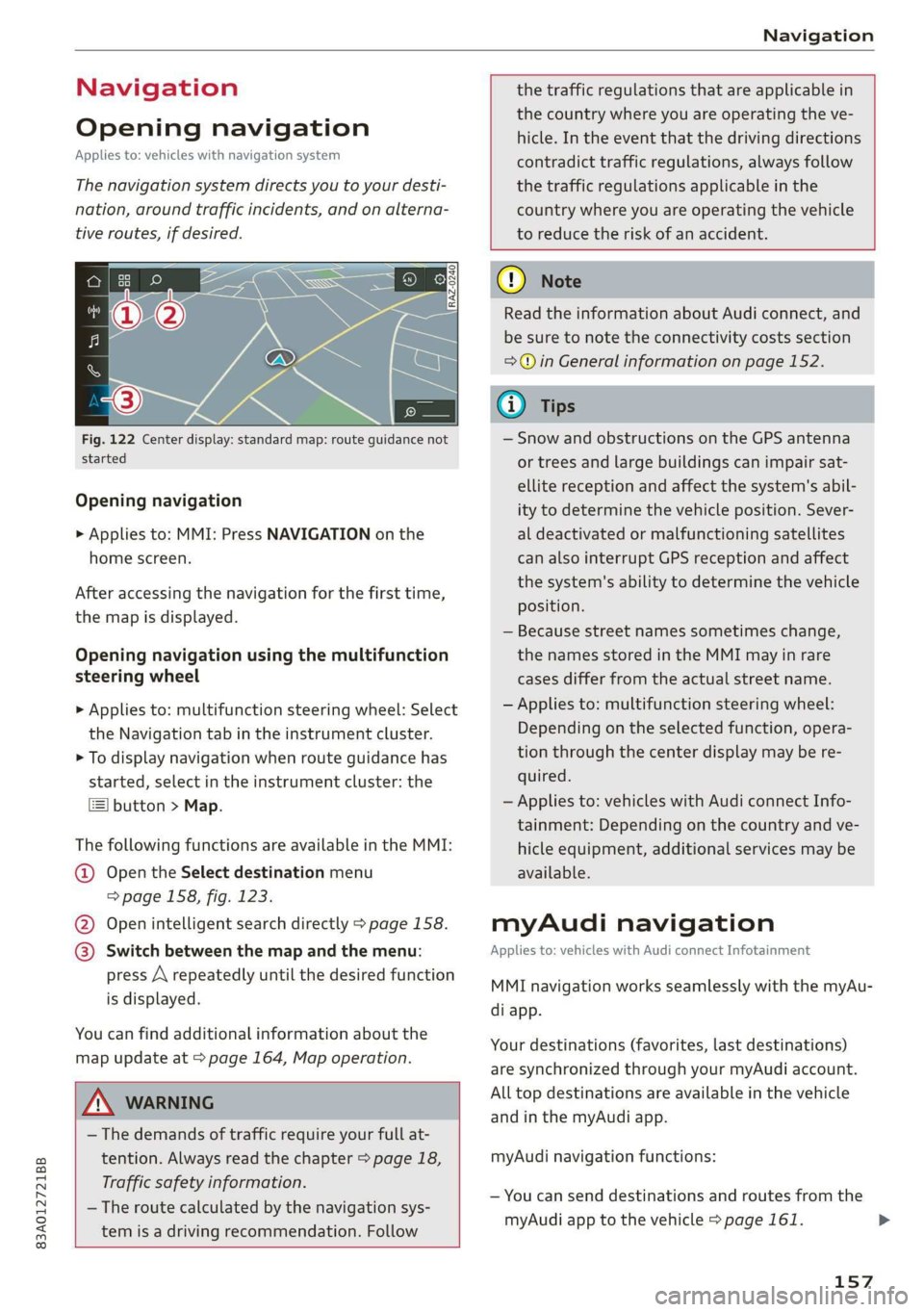
Fig. 122 Center display: standard map: route guidance not
started
Opening navigation
> Applies to: MMI: Press NAVIGATION on the
home screen.
After accessing the navigation for the first time,
the map is displayed.
Opening navigation using the multifunction
steering wheel
> Applies to: multifunction steering wheel: Select
the Navigation tab in the instrument cluster.
> To display navigation when route guidance has
started, select in the instrument cluster: the
button > Map.
The following functions are available in the MMI:
@ Open the Select destination menu
=> page 158, fig. 123.
@ Open intelligent search directly > page 158.
@ Switch between the map and the menu:
press A repeatedly until the desired function
is displayed.
You can find additional information about the
map update at > page 164, Map operation.
the traffic regulations that are applicable in
the country where you are operating the ve-
hicle. In the event that the driving directions
contradict traffic regulations, always follow
the traffic regulations applicable in the
country where you are operating the vehicle
to reduce the risk of an accident.
ZX WARNING
— The demands of traffic require your full at-
tention. Always read the chapter > page 18,
Traffic safety information.
— The route calculated by the navigation sys-
tem is a driving recommendation. Follow
@) Note
Read the information about Audi connect, and
be sure to note the connectivity costs section
=>@ in General information on page 152.
iG) Tips
— Snow and obstructions on the GPS antenna
or trees and large buildings can impair sat-
ellite reception and affect the system's abil-
ity to determine the vehicle position. Sever-
al deactivated or malfunctioning satellites
can also interrupt GPS reception and affect
the system's ability to determine the vehicle
position.
— Because street names sometimes change,
the names stored in the MMI may in rare
cases differ from the actual street name.
— Applies to: multifunction steering wheel:
Depending on the selected function, opera-
tion through the center display may be re-
quired.
— Applies to: vehicles with Audi connect Info-
tainment: Depending on the country and ve-
hicle equipment, additional services may be
available.
myAudi navigation
Applies to: vehicles with Audi connect Infotainment
MMI navigation works seamlessly with the myAu-
di app.
Your destinations (favorites, last destinations)
are synchronized through your myAudi account.
All top destinations are available in the vehicle
and
in the myAudi app.
myAudi navigation functions:
— You can send destinations and routes from the
myAudi app to the vehicle > page 161.
157
>
Page 166 of 278
Navigation
Symbol
*
By Previous destinations display
Meaning
Favorites > page 166
Traffic information display on the map or
map preview
Color-coded markings along the route indicate
the traffic flow:
Green: traffic is flowing freely.
Orange: stop-and-go traffic
Red: traffic jam or traffic obstructions.
Shaded markings indicate the length of the area
with congestion.
Traffic information
— Colored warning symbols: traffic incidents
ahead that are on your route.
— Grayed out warning symbols: traffic incidents
that are not on your route.
— All traffic incidents will display in color when
route guidance is inactive.
— Warning symbols with arrow: traffic incident
that you have been routed around, for example
3.
You can adjust the display of colored markings
for traffic information on the maps > page 170.
Applies to: vehicles with navigation system
You can operate the map > page 163, fig. 125
with the movements described in the following
information.
Moving the map
> Drag your finger across the map in the desired
direction.
Moving the map quickly
> Drag your finger across the map in the desired
direction and lift your finger off the screen.
164
Zooming in on the map
> Place two fingers on the map and pull your fin-
gers apart. Or: double tap on the map with one
finger.
Zooming out on the map
> Place two fingers on the map and pull your fin-
gers together. Or: double tap on the map with
two fingers.
Rotating the map
> Rotate the map using two fingers.
Tilting the map
> Drag upward or downward with two fingers.
(Gi) Tips
Certain gestures may not be available on all
touch displays or in every menu.
Navigation view with route guidance
Berar
Applies to: vehicles with navigation system and Audi virtual
cockpit
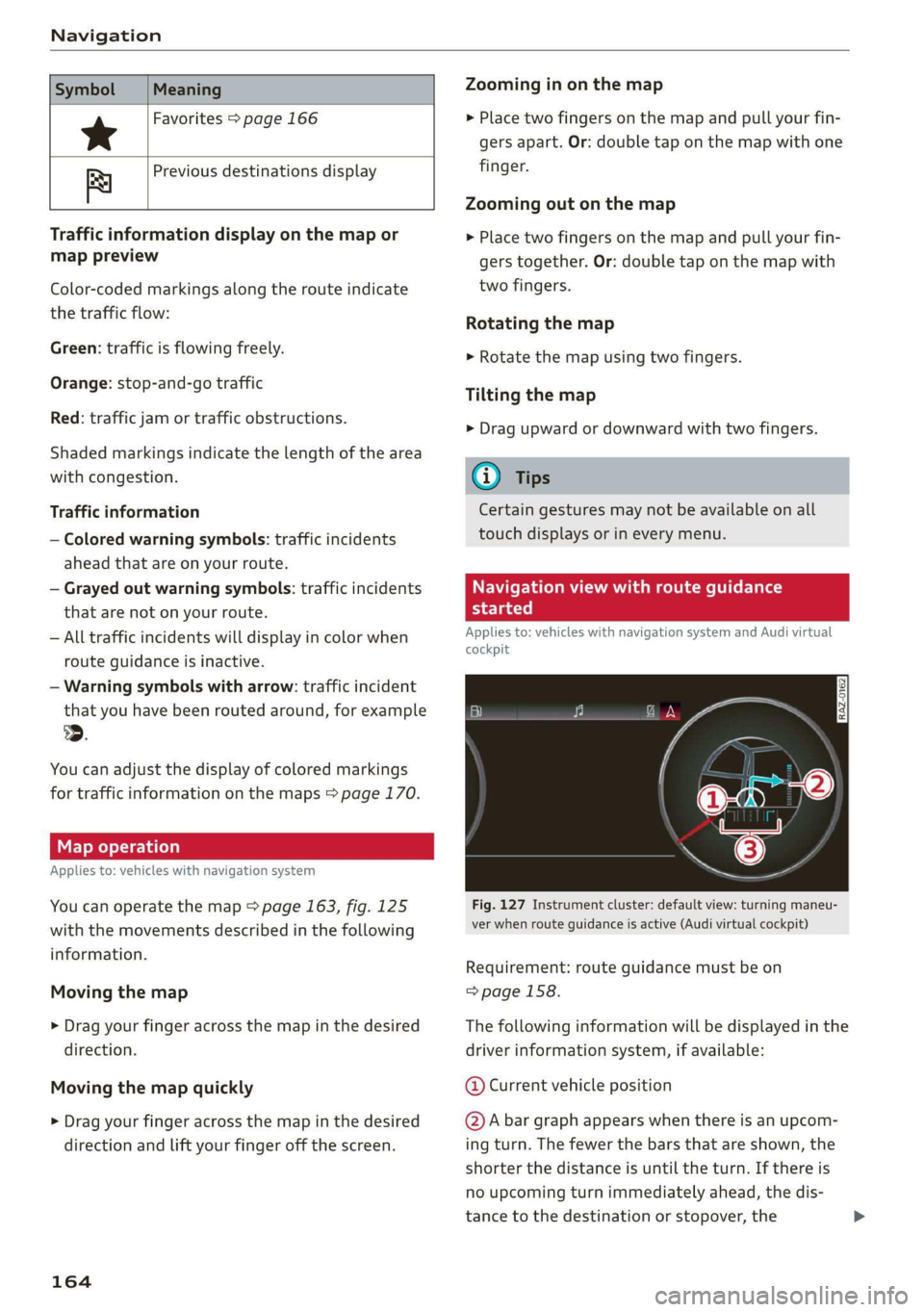
Fig. 127 Instrument cluster: default view: turning maneu-
ver when route guidance is active (Audi virtual cockpit)
Requirement: route guidance must be on
=> page 158.
The following information will be displayed in the
driver information system, if available:
@ Current vehicle position
@A bar graph appears when there is an upcom-
ing turn. The fewer the bars that are shown, the
shorter the distance is until the turn. If there is
no upcoming turn immediately ahead, the dis-
tance to the destination or stopover, the
Page 171 of 278
83A012721BB
Navigation
Start map update
Requirement: a map update for your vehicle must
be onan SD card or a USB flash drive.
> Insert the SD card in your vehicle's SD card
reader > page 180. Or: connect the USB flash
drive to the Audi music interface > page 182.A
notification for a map update will appear in the
center display.
> Press on the notification. Or: access the notifi-
cation in the notification center on > page 20
and press on the notification. The update pack-
age is shown.
> Press Next. The status of the installation is
shown in the center display.
> When the update has ended, a notification will
be displayed.
Map updates settings
Applies
to: vehicles with a navigation system and Audi con-
nect Infotainment
> Applies to: MMI: Select on the home screen:
SETTINGS > System maintenance.
Automatic online map update: when the func-
tion is switched on, map updates will be auto-
matically downloaded and installed.
@) Note
Read the information about Audi connect, and
be sure to note the connectivity costs section
=>@ in General information on page 152.
Traffic information
Introduction
Applies to: vehicles with navigation system
sO}
RAX-0136 MA PR eae niches ni
eee en
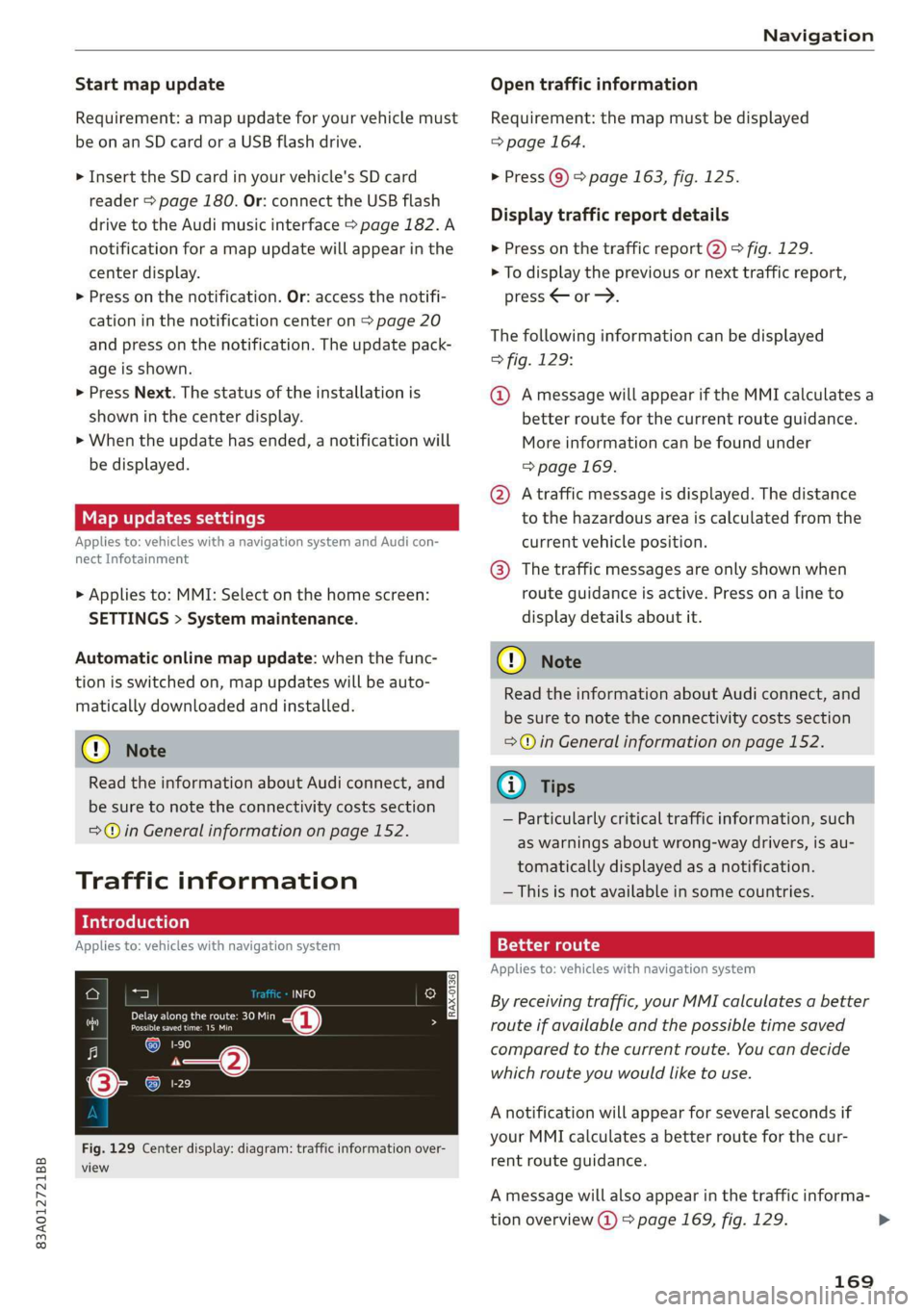
Fig. 129 Center display: diagram: traffic information over-
view
Open traffic information
Requirement: the map must be displayed
=> page 164.
> Press Q) > page 163, fig. 125.
Display traffic report details
> Press on the traffic report 2) > fig. 129.
> To display the previous or next traffic report,
press < or.
The following information can be displayed
> fig. 129:
@ Amessage will appear if the MMI calculates a
better route for the current route guidance.
More information can be found under
=> page 169.
@ Atraffic message is displayed. The distance
to the hazardous area is calculated from the
current vehicle position.
@® The traffic messages are only shown when
route guidance is active. Press on a line to
display details about it.
@) Note
Read the information about Audi connect, and
be sure to note the connectivity costs section
=@ in General information on page 152.
@) Tips
— Particularly critical traffic information, such
as warnings about wrong-way drivers, is au-
tomatically displayed as a notification.
— This is not available in some countries.
Better route
Applies to: vehicles with navigation system
By receiving traffic, your MMI calculates a better
route if available and the possible time saved
compared to the current route. You can decide
which route you would like to use.
A notification will appear for several seconds if
your MMI calculates a better route for the cur-
rent route guidance.
A message will also appear in the traffic informa-
tion overview @) > page 169, fig. 129.
169
>
Page 183 of 278
83A012721BB
Media
Connecting a mobile device using the center
display
> Applies to: MMI: Select on the home screen:
MEDIA > Source > Connect external device >
New connection. The available Bluetooth devi-
ces will be displayed after several seconds.
> Press on the desired mobile device in the list of
displayed Bluetooth devices.
> To update the list, press O.
> A PIN for a secure Bluetooth connection will be
generated.
> Confirm the PIN on your mobile device, or:
> Enter the PIN for the connection setup on your
mobile device. The time allowed for entering
the PIN is limited to approximately 30 seconds.
After connecting successfully, the mobile device
will be displayed in the Connected devices menu
as a Bluetooth audio player.
Playing media > page 183.
G) Tips
— Check for any connection requests on your
Bluetooth device.
— Multiple Bluetooth audio players can be
paired with the MMI, but only one at a time
can be active as a Bluetooth audio player
=> page 194.
— The supported media functions (such as
shuffle, list view, categories, search, op-
tions) depend on the Bluetooth device being
used.
— Note the volume setting on your Bluetooth
device. AUDI AG recommends setting your
mobile device to the maximum volume
when using it as a Bluetooth audio player.
—Aselection of supported Bluetooth devices
can be found in the database for tested mo-
bile devices at www.audi.com/bluetooth.
Online media
Applies to: vehicles with Audi connect Infotainment and on-
line media
You can play and operate various online media
services, such as music streaming services, using
the MMI.
Requirement: a supported online media service
must be available in the country where the vehi-
cle is being operated.
Connect online media
> Connect the MMI to the Internet > page 152.
> Switch on the Wi-Fi hotspot in the MMI
=> page 155.
> Applies to: MMI: Select on the home screen:
MEDIA > Source > Connect online media.
> Switch the Wi-Fi function on in your mobile de-
vice and connect it to the MMI Wi-Fi hotspot
=> page 153.
> Install and start the myAudi app on your mo-
bile device.
> Log in to your myAudi account in the myAudi
app and select your vehicle.
Your mobile device must be connected to the
MMI and must be highlighted. When you press
the highlighted device, it will be disconnected.
Starting online media
> Applies to: MMI: Select on the home screen:
MEDIA > Source. All online media services sup-
ported in your country will be displayed.
> Press on the desired online media service and
follow the system instructions.
Z\ WARNING
—To reduce the risk of an accident, only use
Audi connect services and the Wi-Fi hotspot
only if the traffic situation permits it. Read
and follow the guidelines provided in
=> page 18, Traffic safety information.
— It is only safe to use tablets, laptops, mobile
devices and other similar devices when the
vehicle is stationary because, like all loose
objects, they could be thrown around the in-
side of the vehicle in a crash and cause seri-
ous injuries. Store these types of devices se-
curely while driving. Also read the warnings
in the chapter > page 62.
CG) Note
— Read the information about Audi connect,
and be sure to note the connectivity costs
181
>