center console AUDI Q3 2020 User Guide
[x] Cancel search | Manufacturer: AUDI, Model Year: 2020, Model line: Q3, Model: AUDI Q3 2020Pages: 278, PDF Size: 72.66 MB
Page 99 of 278
83A012721BB
Driving dynamic
Driving dynamic
Audi drive select
Introduction
Applies to: vehicles with Audi drive select
Drive select makes it possible to experience dif-
ferent types of vehicle characteristics in one vehi-
cle. With different driving modes, the driver can
switch the setting, for example from sporty to
comfortable. This allows you to adjust the set-
tings to your personal preferences. This makes it
possible to combine settings such as a sporty
drivetrain setting with comfortable steering.
Selecting an Audi drive select mode
Applies to: vehicles with Audi drive select
The ssise button is located above the selector lever
in the center console.
> Press the sis@ button repeatedly until the de-
sired mode appears in the instrument cluster or
center display, or:
> Select on the home screen: VEHICLE > Audi
drive select.
You can change the driving mode when the vehi-
cle is stationary or while driving. If traffic per-
mits, briefly remove your foot from the accelera-
tor pedal after changing modes so that the mode
you have selected will be activated for the drive
system.
The following modes are available depending on
the equipment:
offroad - Provides assistance when driving off-
road. The vehicle will exit this mode after the ig-
nition is switched off.
comfort - Provides a comfort-oriented vehicle
setup and is suited for long drives on highways.
auto - Provides an overall comfortable yet dy-
namic driving feel and is suited for everyday use.
dynamic - Gives the driver a sporty driving feel
and is suited to a sporty driving style. The “S”
driving program is selected on vehicles with an
automatic transmission
individual - Provides the option for personalized
vehicle settings. Press % to configure the mode
= page 97, Individual settings.
G) Tips
When the ignition is being switched on, indi-
vidual systems, such as the drive system, will
be reset to a balanced setting. Select the cur-
rent mode again to attain its full configura-
tion.
Individual settings
Applies to: vehicles with Audi drive select
The equipment in your vehicle will determine
which settings you can adjust.
Drive
The drive system will react to accelerator pedal
moves more quickly or in a more balanced man-
ner. The shift points are located in higher or low-
er engine speed ranges on vehicles with automat-
ic transmissions.
Depending on the equipment, certain driver as-
sistance systems can also become more sporty or
efficient.
Steering
The power steering will adapt. Light steering is
suitable for long trips on highways or smooth
driving around curves, for example.
Suspension
The suspension adjusts to be tighter or more
comfort-oriented when it comes to compensat-
ing for uneven spots on the road.
Engine sound
The engine sound adapts and can be subtle to
sporty.
Suspension
Adaptive dampers
Applies to: vehicles with suspension control
The adaptive dampers are an electronically-con-
trolled damping system. The firmness of the sus-
pension will adapt to the driving conditions and >
97
Page 102 of 278
Driving dynamic
brake assist system may react with increased sen-
sitivity.
Anti-Slip Regulation (ASR)
ASR reduces drive power when the wheels begin
spinning and adapts the power to the road condi-
tions. This will increase the driving stability.
Electronic Differential Lock (EDL)
The EDL applies the brakes to wheels that are
slipping and transfers the drive power to the oth-
er wheels. This function is not available at higher
speeds.
In extreme cases, EDL automatically switches off
to keep the brake on the braked wheel from over-
heating. The vehicle is still functioning correctly.
EDL will switch on again automatically when con-
ditions have returned to normal.
Power steering
The ESC can also support vehicle stability
through steering.
Selective wheel torque control
Selective wheel torque control is used when driv-
ing on curves. Braking is targeted toward the
wheels on the inside of the curve as needed. This
allows more precise driving in curves.
Automatic post-collision braking system
The automatic post-collision braking system can
help to reduce the risk of sliding and of addition-
al collisions after an accident. If the airbag con-
trol module detects a collision, the vehicle is
braked by the ESC.
The vehicle does not brake automatically if one of
the following occurs:
— The driver presses the accelerator pedal, or
— The braking force generated by the pressed
brake pedal is greater than the braking force
that
would be initiated by the system
— The ESC, the brake system, or the vehicle elec-
trical system is not functioning
physical laws. This is especially important on
slippery or wet roads. If the systems begin
acting to stabilize your vehicle, you should
immediately alter your speed to match the
road and traffic conditions. Do not let the in-
creased safety provided tempt you into tak-
ing risks. This could increase your risk of a
collision.
— Please note the risk of a collision increases
when driving fast, especially through curves
and on slippery or wet roads, and when driv-
ing too close to objects ahead. There is still
a risk of accidents because the ESC and its
integrated systems cannot always prevent
collisions.
— Accelerate carefully when driving on
smooth, slippery surfaces such as ice and
snow. The drive wheels can spin even when
these control systems are installed and this
can affect driving stability and increase the
ZA WARNING
— The ESC and its integrated systems cannot
overcome the limits imposed by natural
100
risk of a collision.
@) Tips
— The ABS and ASR only function correctly
when all four wheels have a similar wear
condition. Different tire sizes can lead toa
reduction in engine power.
— You may hear noises when the systems de-
scribed are working.
The So button is located above the selector lev-
er in the center console.
The ESC is automatically switched on when the
ignition is switched on. It may make sense in
some situations to limit the ESC so that the
wheels can spin:
— Rocking the vehicle to free it when it is stuck
— Driving in deep snow, on unpaved ground, or
with snow chains
— Driving downhill while braking on loose ground
— Driving with axle articulation
Limiting ESC (Offroad mode)
—To limit the ESD, press the £20 button briefly.
The Fj indicator light turns on.
Page 129 of 278

83A012721BB
Parking and maneuvering
Parking and
maneuvering
Introduction
Depending on the vehicle equipment, various
parking aids will help you when parking and ma-
neuvering.
Parking system
The parking system plus assists you while park-
ing using audio and visual signals to warn you
about objects detected in front of, behind, and
next to* the vehicle > page 127.
The rearview camera shows the area behind the
vehicle in the center display. The lines in the rear-
view camera image help you to park and maneu-
ver > page 129.
The peripheral cameras are an addition to the
rearview camera and help you to see various
areas around the vehicle while parking and ma-
neuvering > page 129.
The rear cross-traffic assist can warn you of ap-
proaching cross traffic when driving in reverse or
exiting a parking space > page 133.
Assisted parking
Park assist helps you to find suitable parking
spaces and to park in and exit these spaces while
the driver monitors the area around the vehicle
and
controls the parking process. Park assist con-
trols the steering movements when parking in
free parking spaces. The driver is still responsible
for accelerating, braking, and shifting gears
=> page 134.
Settings options
You can adjust parking system functions individu-
ally. The adjustment options depend on the vehi-
cle equipment.
— Activating automatically > page 127
— Front and rear volume > page 128
— Entertainment fader > page 128
— Trailer view > page 131
— View > page 132
— Rear cross-traffic assist > page 133
ZX WARNING
Follow the safety precautions and note the
limits of the assist systems, sensors, and
cameras > page 105.
@ Tips
Practicing parking in a traffic-free location or
parking lot to become familiar with the sys-
tems is recommended. Practice parking in
good light and weather conditions.
Parking system plus
ONS eel ete rcs (ae)
Applies to: vehicles with parking system plus
B8V-0643|
Fig. 106 Center console: parking aid button
General information
The parking system assists when parking and ma-
neuvering by providing warnings about obstacles.
If the ultrasonic sensors on the vehicle
= page 106 detect an obstacle, the system will
provide audio and visual warnings.
Activating/deactivating
Requirement: the vehicle speed must be under
approximately 6 mph (10 km/h).
> Press the Pa button in the center console.
When activating, a brief tone will sound and
the LED in the button will turn on.
Automatic activation
> The system activates automatically when re-
verse gear is engaged while the engine is run-
ning. A brief tone will sound.
> If Automatic activation is switched on in the
MMI and if the vehicle approaches ) an obstacle >
127
Page 132 of 278

Parking and maneuvering
Depending on the vehicle equipment, a rearview
camera or multiple peripheral cameras may be
available.
The rearview camera helps you to park or maneu-
ver using the orientation lines.
The peripheral cameras expand the vehicle over-
view to include various views around the vehicle
that can be selected.
ZX WARNING
Follow the safety precautions and note the
limits of the assist systems, sensors, and
cameras > page 105.
Activating/deactivating
Applies to: vehicles with rearview camera/peripheral cameras
B8V-0643
Fig. 109 Center console: parking aid button
Activating/deactivating
Requirement: the vehicle speed must be below
approximately 6 mph (10 km/h).
> Press the Pz button in the center console.
When activating, a brief tone will sound and
the LED in the button will turn on. Or
> Press bin the center display if the visual dis-
tance indicator is shown > page 128, fig. 107.
Automatic activation
The system activates automatically when reverse
gear is engaged while the engine is running. A
brief tone will sound.
Automatic deactivation
The system deactivates automatically when driv-
ing forward faster than approximately 6 mph (10
km/h).
130
ZA WARNING
Follow the safety precautions and note the
limits of the assist systems, sensors, and
cameras > page 105.
Warnings
Applies to: vehicles with rearview camera/peripheral cameras
Fig. 111 -Applies to: vehicles with trailer view- Center dis-
play: trailer view
When parking with the rearview camera or pe-
ripheral camera, the parking system plus audio
and visual warnings* will also assist you
=> page 128.
Visual orientation lines
@ The orange orientation lines show the vehi-
cle's direction of travel > ©. Turn the steer-
ing wheel until the orange orientation lines
align with the parking space.
@ Use the blue markings to help you estimate
the distance to an obstacle. Each marking
represents approximately 3 feet (1 meter).
The blue area represents an extension of the
vehicle's outline by approximately 16 feet (5
meters) to the rear.
@® You can recognize the rear bumper in the
lower display.
Page 137 of 278
83A012721BB
Parking and maneuvering
|
he
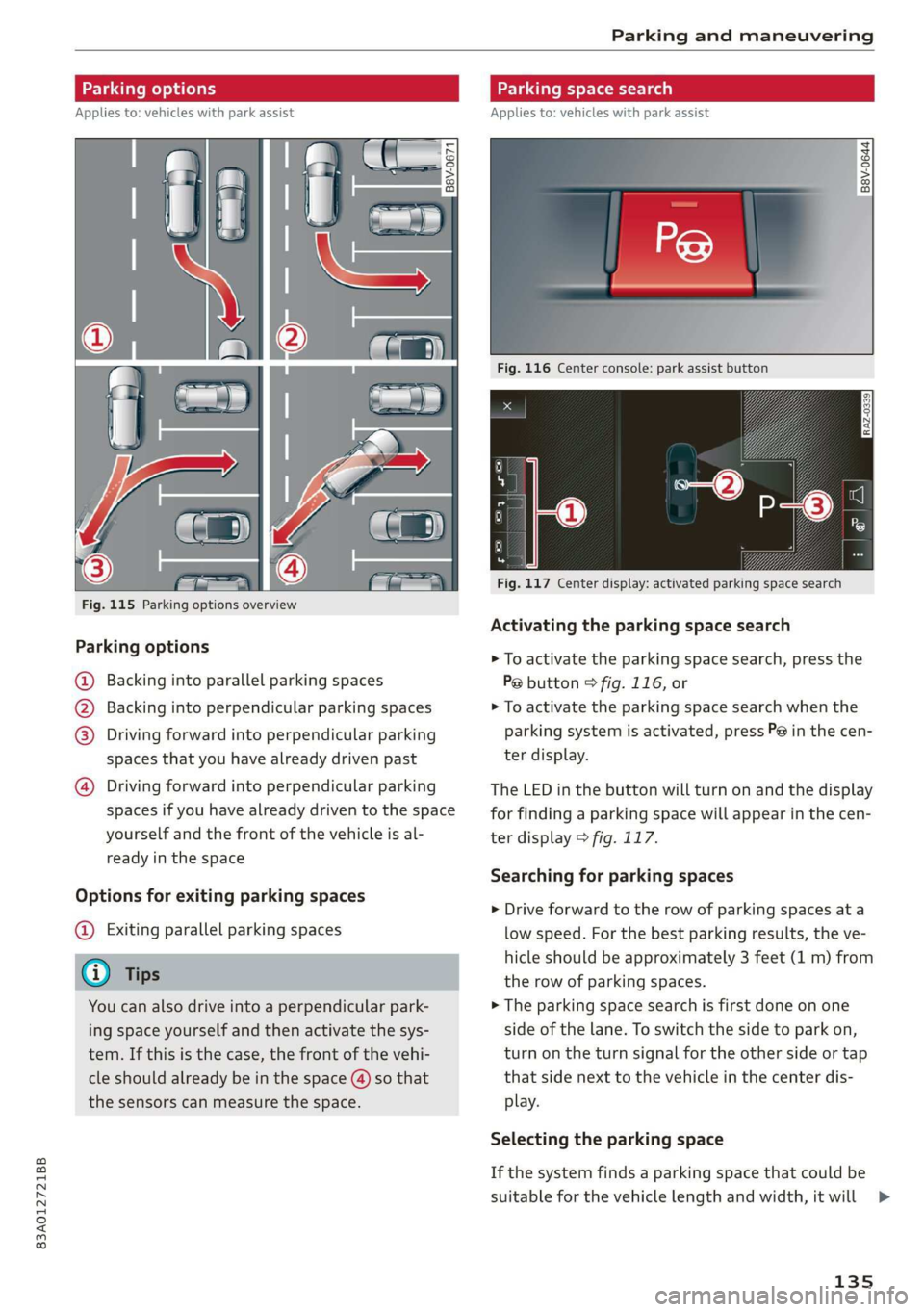
Fig. 115 Parking options overview
Parking options
@ Backing into parallel parking spaces
) Backing into perpendicular parking spaces
Driving forward into perpendicular parking
spaces that you have already driven past
Driving forward into perpendicular parking
spaces if you have already driven to the space
yourself
and the front of the vehicle is al-
ready in the space
Options for exiting parking spaces
@ Exiting parallel parking spaces
You can also drive into a perpendicular park-
ing space yourself and then activate the sys-
tem. If this is the case, the front of the vehi-
the sensors can measure the space.
Applies to: vehicles with park assist
= +
3}
g > io ao
Fig. 116 Center console: park assist button
RAZ-0339
Fig. 117 Center display: activated parking space search
Activating the parking space search
> To activate the parking space search, press the
P@ button © fig. 116, or
> To activate the parking space search when the
parking system is activated, press P@ in the cen-
ter display.
The LED in the button will turn on and the display
for finding a parking space will appear in the cen-
ter display > fig. 117.
Searching for parking spaces
> Drive forward to the row of parking spaces ata
low speed. For the best parking results, the ve-
hicle should be approximately 3 feet (1 m) from
the row of parking spaces.
> The parking space search is first done on one
side of the lane. To switch the side to park on,
turn on the turn signal for the other side or tap
that side next to the vehicle in the center dis-
play.
Selecting the parking space
If the system finds a parking space that could be
suitable for the vehicle length and width, it will
135
>
Page 143 of 278
83A012721BB
Telephone
Disconnecting a mobile device
Applies to: vehicles with telephone
The mobile device will be disconnected from the
MMI and removed from the list of paired devices.
> To disconnect a connected device, use the con-
nection manager > page 195.
Using the Audi phone
box
Applies to: vehicles with Audi phone box
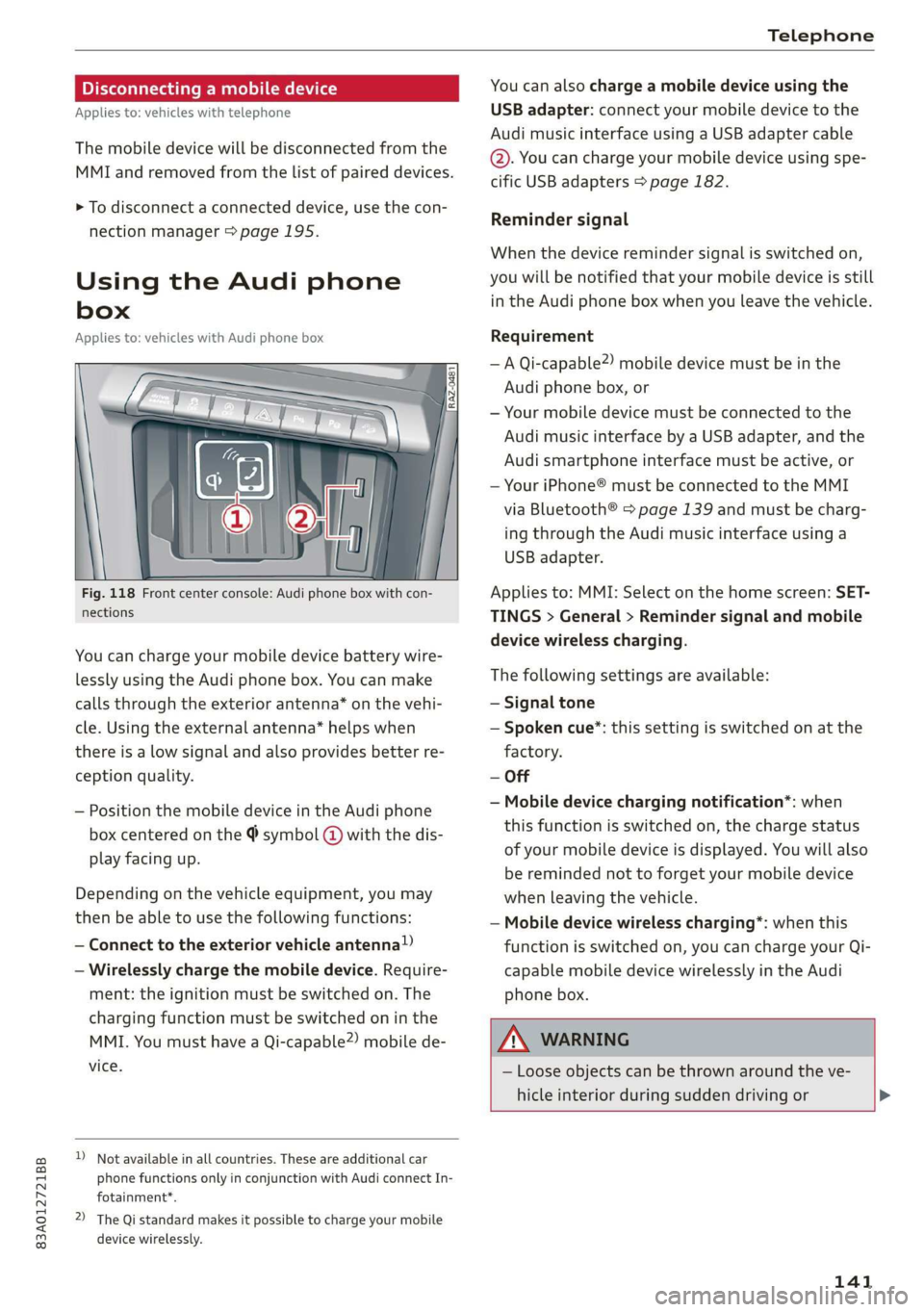
Fig. 118 Front center console: Audi phone box with con-
nections
You can charge your mobile device battery wire-
lessly using the Audi phone box. You can make
calls through the exterior antenna” on the vehi-
cle. Using the external antenna* helps when
there is a Low signal and also provides better re-
ception quality.
— Position the mobile device in the Audi phone
box centered on the @ symbol @ with the dis-
play facing up.
Depending on the vehicle equipment, you may
then be able to use the following functions:
— Connect to the exterior vehicle antenna”)
— Wirelessly charge the mobile device. Require-
ment: the ignition must be switched on. The
charging function must be switched on in the
MMI. You must have a Qi-capable2) mobile de-
vice.
D_ Not available in all countries. These are additional car
phone functions only in conjunction with Audi connect In-
fotainment*.
2) The Qi standard makes it possible to charge your mobile
device wirelessly.
You can also charge a mobile device using the
USB adapter: connect your mobile device to the
Audi music interface using a USB adapter cable
©. You can charge your mobile device using spe-
cific USB adapters > page 182.
Reminder signal
When the device reminder signal is switched on,
you will be notified that your mobile device is still
in the Audi phone box when you leave the vehicle.
Requirement
—A Qi-capable2) mobile device must be in the
Audi phone box, or
— Your mobile device must be connected to the
Audi music interface by a USB adapter, and the
Audi smartphone interface must be active, or
— Your iPhone® must be connected to the MMI
via Bluetooth® > page 139 and must be charg-
ing through the Audi music interface using a
USB adapter.
Applies to: MMI: Select on the home screen: SET-
TINGS > General > Reminder signal and mobile
device wireless charging.
The following settings are available:
— Signal tone
— Spoken cue”: this setting is switched on at the
factory.
— Off
— Mobile device charging notification*: when
this function is switched on, the charge status
of your mobile device is displayed. You will also
be reminded not to forget your mobile device
when leaving the vehicle.
— Mobile device wireless charging*: when this
function is switched on, you can charge your Qi-
capable mobile device wirelessly in the Audi
phone box.
\ WARNING
— Loose objects can be thrown around the ve-
hicle interior during sudden driving or >
141
Page 158 of 278
Audi connect
If driving out of the country, applicable data
plans must be purchased.
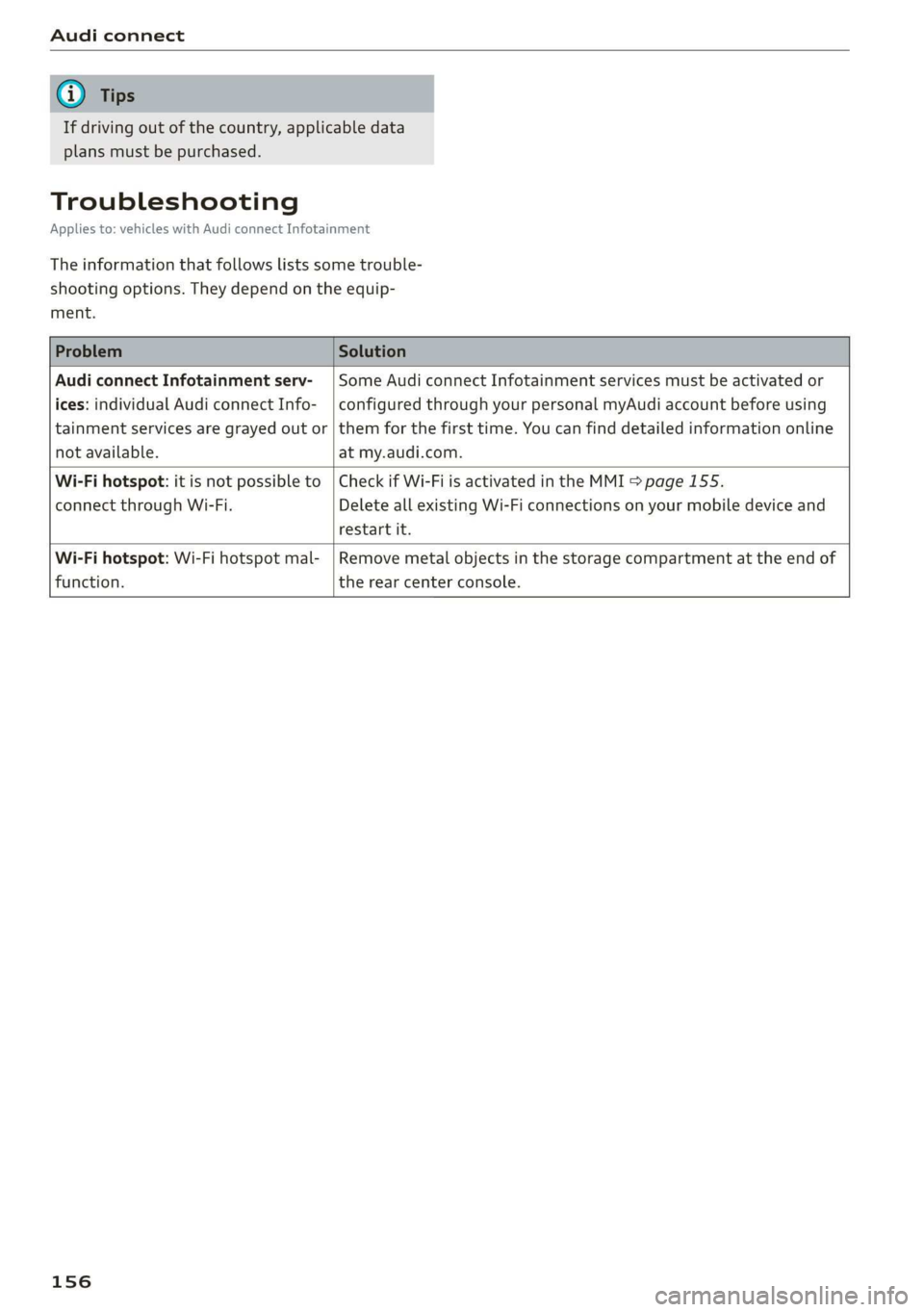
Troubleshooting
Applies to: vehicles with Audi connect Infotainment
The information that follows lists some trouble-
shooting options. They depend on the equip-
ment.
Audi connect Infotainment serv- | Some Audi connect Infotainment services must be activated or
ices: individual Audi connect Info- | configured through your personal myAudi account before using
tainment services are grayed out or | them for the first time. You can find detailed information online
not available. at my.audi.com.
Wi-Fi hotspot: it is not possible to | Check if Wi-Fi is activated in the MMI > page 155.
connect through Wi-Fi. Delete all existing Wi-Fi connections on your mobile device and
restart it.
Wi-Fi hotspot: Wi-Fi hotspot mal- |Remove metal objects in the storage compartment at the end of
function. the rear center console.
156
Page 184 of 278
Media
section >@ in General information on
page 152.
— There generally are additional costs when
using an online media service account, espe-
cially when it is used internationally.
G) Tips
— Depending on the Internet connection and
network traffic, the connection may discon-
nected when online media sources are play-
ing.
— Online media usage depends on the service
availability of the third party provider.
— Audi AG simply makes the access to online
media services possible through the MMI
and does not take any responsibility for the
contents of the online media services.
— Depending on the mobile device being used,
there may be interruptions during media
playback and when using the myAudi app.
To avoid interruptions, do not lock the
screen on your mobile device and keep the
myAudi app in the foreground.
Amazon Alexa
Applies to: vehicles with Amazon Alexa Integration
You can play various Amazon Alexa content using
the MMI. The voice recognition system is used to
operate it.
Requirement: Amazon Alexa must be activated
=> page 25.
> Start Amazon Alexa using the voice recognition
system.
> Applies to: MMI: Select on the home screen:
MEDIA > Source > Amazon Alexa.
@) Note
Read the information about Audi connect, and
be sure to note the connectivity costs section
=> page 152.
182
Multimedia connections
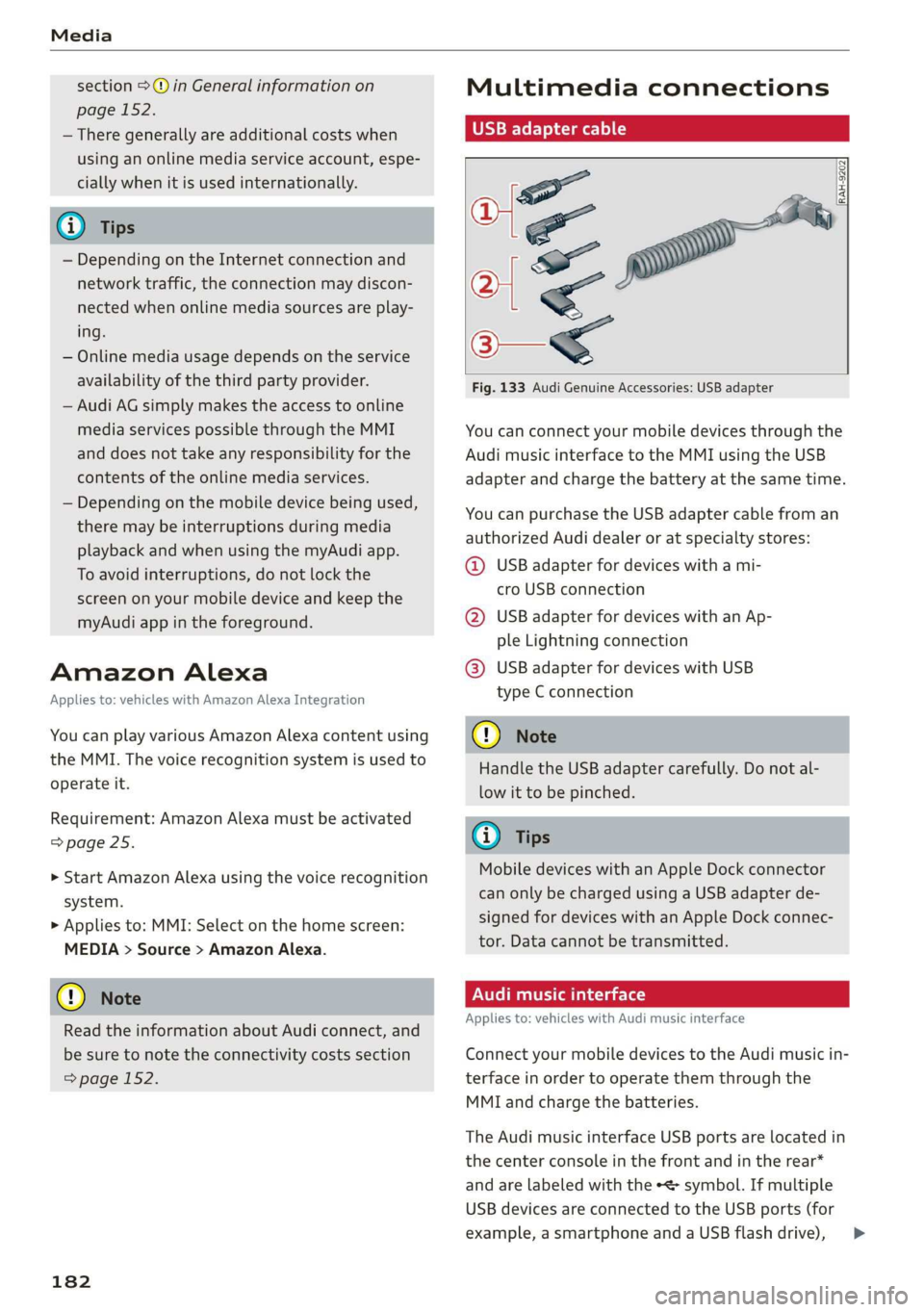
USB adapter cable
[RAH-9202]
Fig. 133 Audi Genuine Accessories: USB adapter
You can connect your mobile devices through the
Audi music interface to the MMI using the USB
adapter
and charge the battery at the same time.
You can purchase the USB adapter cable from an
authorized Audi dealer or at specialty stores:
@ USB adapter for devices with a mi-
cro USB connection
@ USB adapter for devices with an Ap-
ple Lightning connection
@ USB adapter for devices with USB
type C connection
@) Note
Handle the USB adapter carefully. Do not al-
low it to be pinched.
G) Tips
Mobile devices with an Apple Dock connector
can only be charged using a USB adapter de-
signed for devices with an Apple Dock connec-
tor. Data cannot be transmitted.
Audi music interface
Applies to: vehicles with Audi music interface
Connect your mobile devices to the Audi music in-
terface in order to operate them through the
MMI and charge the batteries.
The Audi music interface USB ports are located in
the center console in the front and in the rear*
and are labeled with the symbol. If multiple
USB devices are connected to the USB ports (for
example, a smartphone and a USB flash drive), >