audio AUDI Q3 2020 Owner's Manual
[x] Cancel search | Manufacturer: AUDI, Model Year: 2020, Model line: Q3, Model: AUDI Q3 2020Pages: 278, PDF Size: 72.66 MB
Page 192 of 278
Media
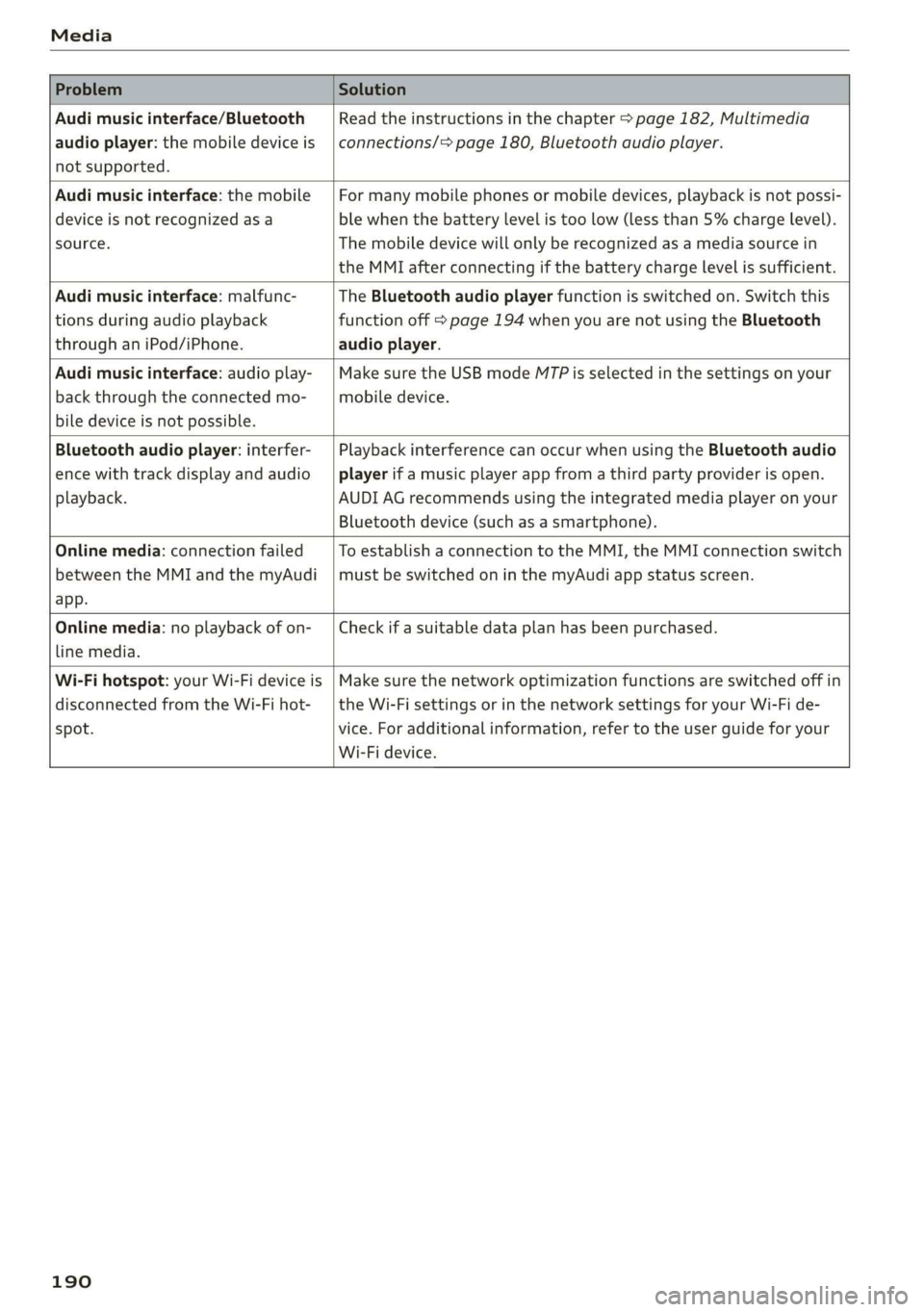
Problem Solution
Audi music interface/Bluetooth
audio player: the mobile device is
not supported.
Read the instructions in the chapter > page 182, Multimedia
connections/> page 180, Bluetooth audio player.
Audi music interface: the mobile
device is not recognized as a
source.
For many mobile phones or mobile devices, playback is not possi-
ble when the battery level is too low (less than 5% charge level).
The mobile device will only be recognized as a media source in
the MMI after connecting if the battery charge level is sufficient.
Audi music interface: malfunc-
tions during audio playback
through an iPod/iPhone.
The Bluetooth audio player function is switched on. Switch this
function off > page 194 when you are not using the Bluetooth
audio player.
Audi music interface: audio play-
back through the connected mo-
bile device is not possible.
Make sure the USB mode MTP is selected in the settings on your
mobile device.
Bluetooth audio player: interfer-
ence with track display and audio
playback.
Playback interference can occur when using the Bluetooth audio
player if a music player app from a third party provider is open.
AUDI AG recommends using the integrated media player on your
Bluetooth device (such as a smartphone).
Online media: connection failed
between the MMI and the myAudi
app.
To establish a connection to the MMI, the MMI connection switch
must be switched on in the myAudi app status screen.
Online media: no playback of on-
line media.
Check if a suitable data plan has been purchased.
Wi-Fi hotspot: your Wi-Fi device is
disconnected from the Wi-Fi hot-
spot.
Make sure the network optimization functions are switched off in
the Wi-Fi settings or in the network settings for your Wi-Fi de-
vice. For additional information, refer to the user guide for your
Wi-Fi device.
190
Page 195 of 278
83A012721BB
Additional settings
Additional settings
System settings
Introduction
General settings are described in this chapter.
You can find specific settings in the chapters
about
those settings. The available settings de-
pend on the vehicle equipment.
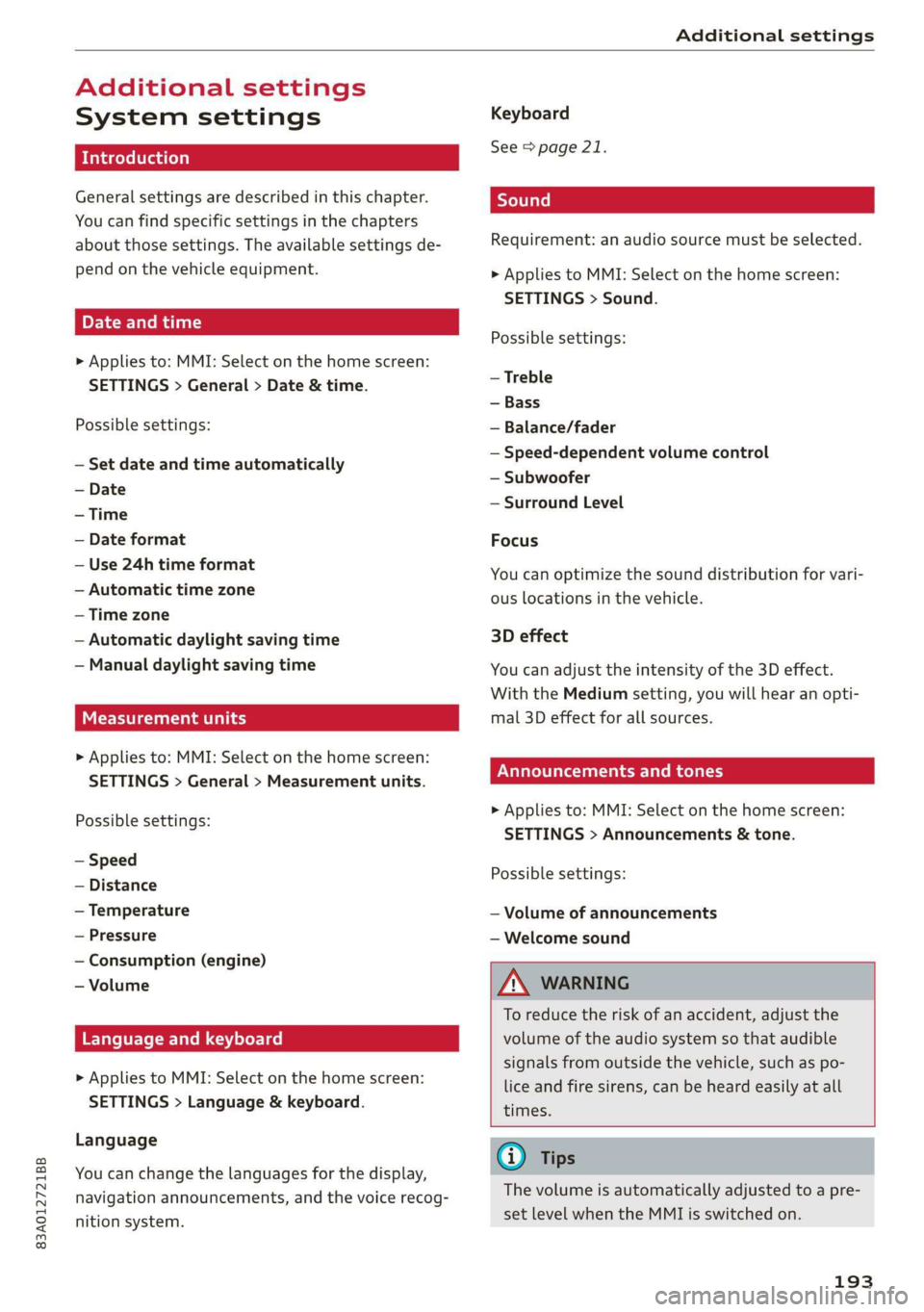
Date and time
> Applies to: MMI: Select on the home screen:
SETTINGS > General > Date & time.
Possible settings:
— Set date and time automatically
— Date format
— Use 24h time format
— Automatic time zone
— Time zone
— Automatic daylight saving time
— Manual daylight saving time
CERT Taal lat ae ay
> Applies to: MMI: Select on the home screen:
SETTINGS > General > Measurement units.
Possible settings:
— Speed
— Distance
— Temperature
— Pressure
— Consumption (engine)
— Volume
Language and keyboard
> Applies to MMI: Select on the home screen:
SETTINGS > Language & keyboard.
Language
You can change the languages for the display,
navigation announcements, and the voice recog-
nition system.
Keyboard
See > page 21.
Requirement: an audio source must be selected.
> Applies to MMI: Select on the home screen:
SETTINGS > Sound.
Possible settings:
— Treble
— Bass
— Balance/fader
— Speed-dependent volume control
— Subwoofer
— Surround Level
Focus
You can optimize the sound distribution for vari-
ous locations in the vehicle.
3D effect
You can adjust the intensity of the 3D effect.
With the Medium setting, you will hear an opti-
mal 3D effect for all sources.
Announcements and tones
> Applies to: MMI: Select on the home screen:
SETTINGS > Announcements & tone.
Possible settings:
— Volume of announcements
— Welcome sound
ZA\ WARNING
To reduce the risk of an accident, adjust the
volume of the audio system so that audible
signals from outside the vehicle, such as po-
lice and fire sirens, can be heard easily at all
times.
G) Tips
The volume is automatically adjusted to a pre-
set level when the MMI is switched on.
193
Page 196 of 278
Additional settings
Bluetooth
Applies to: vehicles with Bluetooth
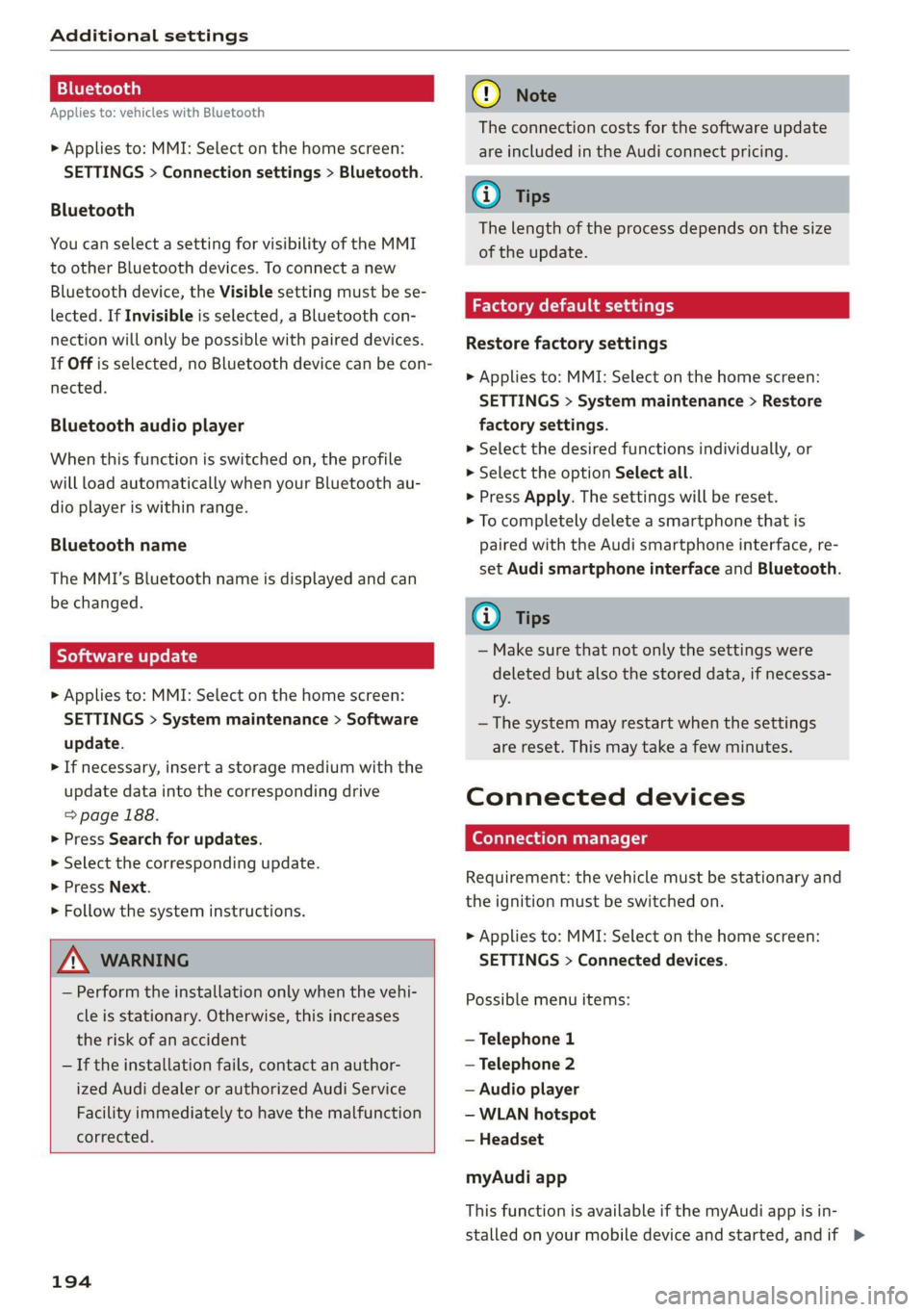
> Applies to: MMI: Select on the home screen:
SETTINGS > Connection settings > Bluetooth.
Bluetooth
You can select a setting for visibility of the MMI
to other Bluetooth devices. To connect a new
Bluetooth device, the Visible setting must be se-
lected. If Invisible is selected, a Bluetooth con-
nection will only be possible with paired devices.
If Off is selected, no Bluetooth device can be con-
nected.
Bluetooth audio player
When this function is switched on, the profile
will load automatically when your Bluetooth au-
dio player is within range.
Bluetooth name
The MMI’s Bluetooth name is displayed and can
be changed.
Toya MU olor ha)
> Applies to: MMI: Select on the home screen:
SETTINGS > System maintenance > Software
update.
> If necessary, insert a storage medium with the
update data into the corresponding drive
=> page 188.
> Press Search for updates.
> Select the corresponding update.
> Press Next.
> Follow the system instructions.
A WARNING
— Perform the installation only when the vehi-
cle is stationary. Otherwise, this increases
the risk of an accident
— If the installation fails, contact an author-
ized Audi dealer or authorized Audi Service
Facility immediately to have the malfunction
corrected.
194
@) Note
The connection costs for the software update
are included in the Audi connect pricing.
G) Tips
The length of the process depends on the size
of the update.
Factory default settings
Restore factory settings
> Applies to: MMI: Select on the home screen:
SETTINGS > System maintenance > Restore
factory settings.
> Select the desired functions individually, or
> Select the option Select all.
> Press Apply. The settings will be reset.
> To completely delete a smartphone that is
paired with the Audi smartphone interface, re-
set Audi smartphone interface and Bluetooth.
G) Tips
— Make sure that not only the settings were
deleted but also the stored data, if necessa-
ry.
— The system may restart when the settings
are reset. This may take a few minutes.
Connected devices
(atau ele (1s
Requirement: the vehicle must be stationary and
the ignition must be switched on.
> Applies to: MMI: Select on the home screen:
SETTINGS > Connected devices.
Possible menu items:
— Telephone 1
— Telephone 2
— Audio player
— WLAN hotspot
— Headset
myAudi app
This function is available if the myAudi app is in-
stalled on your mobile device and started, andif >
Page 265 of 278
83A012721BB
Index
A
A/C cooling mode............. ee eee eee ee 79
Accelerator pedal.............--00000005 87
also refer to Accelerator pedal........... 87
AccessorieS .. 0.00... cece eee eee ee 258
Active lane assist
refer to Lane departure warning......... 120
Adaptive cruise assist................00. 112
Cleaning the sensors...............--- 235
Adaptive dampers...........--000e-0 eee 97
Adaptive speed assist.................. 112
also refer to Adaptive cruise assist....... 112
Adjusting the air distribution. ............ 79
Adjusting the brightness................. 48
Adjusting the sound..............-...-- 193
Adjusting the temperature............... 79
Adjusting the vents............. eee eee 80
Adjusting the volume..............000005 26
Adjusting the volume (announcements) .... 193
Adjusting the welcome sound............ 193
Airbagisystem « s sesuew « wainwn @ + ween eo scams sw 0 62
Alarm system
refer to Anti-theft alarm system.......... 31
Alignment pin (changing the wheel)....... 240
Alleweather lights:esi: « s mss « © seve ov ewes 6 y 44
AL S@aSON IFES a5 6s caenu vs saws oe Hews oo He 230
All wheel drive
He fer Co quattro cies cv cess wv cero « 0 nsw oo 99
Amazon Alexa integration
Media playback.................00000. 182
OPCTATION ¢ cows « y wasps 5 ¥ eves s 7 ew ea ee 25
AMI
refer to Audi music interface........... 182
Android Auto
refer to Audi smartphone interface...... 191
Anti-freeze
Windshield washer system............. 212
Anti-lock braking system.............0005 99
AntisSlip: Regulation sso ss sissies 0 seme 6 8 os 100
Anti-theft alarm system..............005. 31
Anti-theft wheel bolts.................. 241
Apple CarPlay
refer to Audi smartphone interface...... 191
Aspect ratio (video)................ 186, 187
refer to Anti-Slip Regulation
Audi adaptive light
Audi connect
refer to connect
Audi drive select
Audi music interface
Audio files
Audi phone box
Audi pre sense
Messages
Audi pre sense front
Audi side assist
refer to Side assist
Audi smartphone interface
Legal information
Audi virtual cockpit
refer to Instrument cluster
AUTO
Automatic headlights
Climate control system
Auto Lock (central locking)
Automatic luggage compartment lid....
Automatic transmission
Automatic wipe/wash system
Average consumption
Average speed
Bag hooks
Battery
Charging
Winter operation
Block route
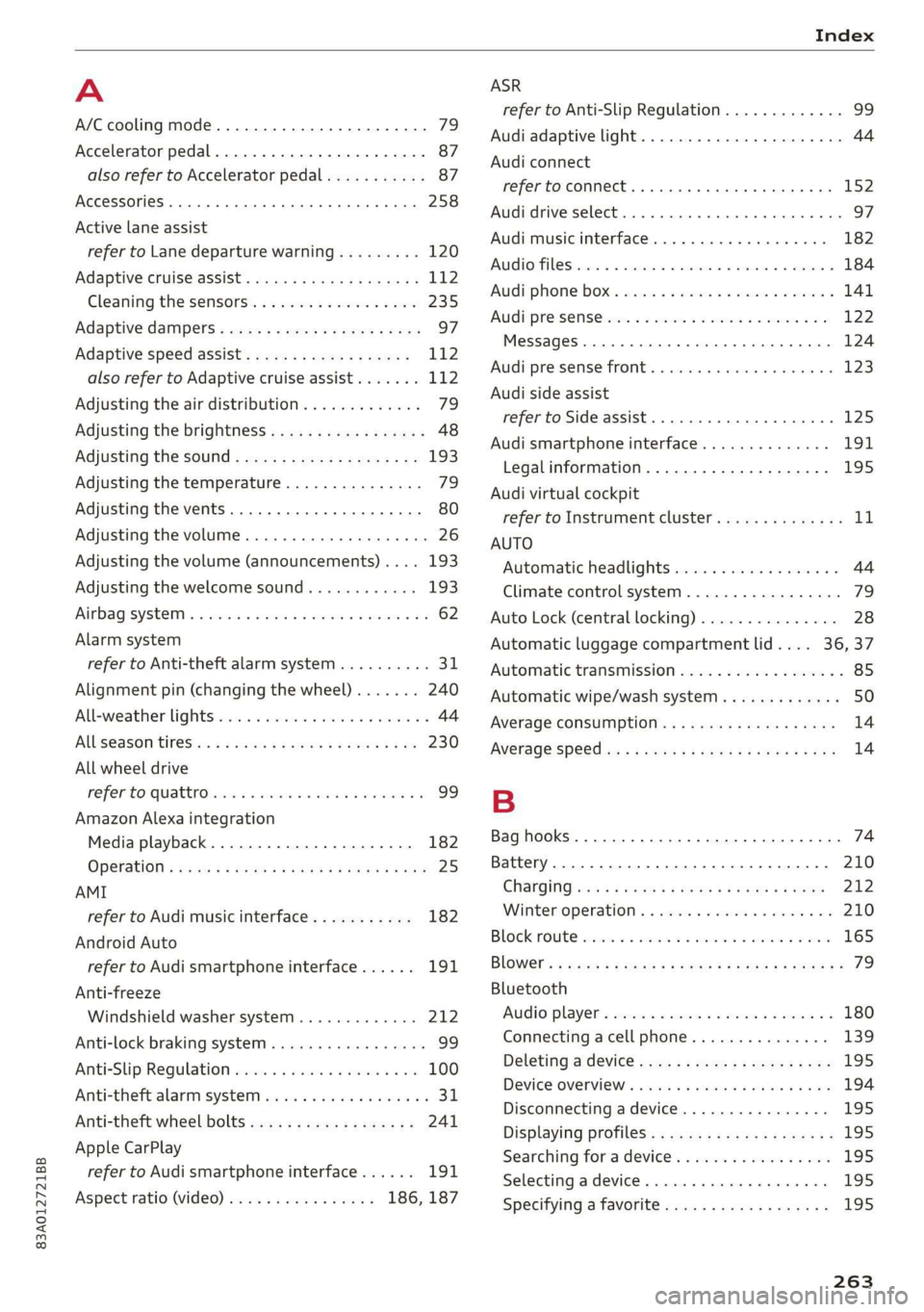
Bluetooth
Audio player
Connecting a cell phone
Deleting a device
Device overview
Disconnecting a device
Displaying profiles
Searching for a device
Selecting a device
Specifying a favorite
263