audio AUDI Q3 2020 User Guide
[x] Cancel search | Manufacturer: AUDI, Model Year: 2020, Model line: Q3, Model: AUDI Q3 2020Pages: 278, PDF Size: 72.66 MB
Page 124 of 278
Driver assistance
ZA WARNING
— Follow the safety precautions and note the
limits of the assist systems, sensors, and
cameras > page 105.
— The system warns the driver that the vehicle
is leaving the lane using corrective steering.
The driver is always responsible for keeping
the vehicle within the lane.
— Corrective steering may not occur at all in
certain situations, such as during heavy
braking. Always be ready to intervene.
G) Tips
— Always keep your hands on the steering
wheel. The driver is always responsible for
adhering to the regulations applicable in
the country where the vehicle is being oper-
ated.
— The system does not provide any corrective
steering or steering wheel vibrations if it de-
tects that you are passing another vehicle.
Neem CCM R Clear}
Applies to: vehicles with lane departure warning
You can switch the optional steering wheel vibra-
tion warning for the lane departure warning on
and off. The settings depend on the vehicle
equipment.
— Applies to: MMI: Select on the home screen:
VEHICLE > Driver assistance > Lane departure
warning > Vibration warning.
Messages
Applies to: vehicles with lane departure warning
ray of AY is displayed when there is a malfunc-
tion, the lane guidance functions may be unavail-
able or may be limited.
A message that indicates the cause and possible
solution may appear with some displays. The
weather conditions may be too poor or the cam-
era may be covered. Clean the area in front of the
camera > page 107, fig. 87 and try to turn on the
systems again later.
If the malfunction remains, drive to an author-
ized Audi dealer or authorized Audi Service Facili-
122
ty immediately to have the malfunction correct-
ed.
Audi pre sense
Introduction
Applies to: vehicles with Audi pre sense
Within the limits of the system, the Audi pre
sense functions can initiate measures in certain
driving situations to protect the vehicle occu-
pants and other road users. Depending on the ve-
hicle equipment, various Audi pre sense systems
may
be installed:
— Audi pre sense basic can react during emergen-
cy and dangerous braking maneuvers and un-
stable driving situations (such as oversteering
or understeering).
— Audi pre sense front can detect an impending
frontal impact and react with warnings, braking
interventions, and preemptive safety measures
for the vehicle occupants.
Audi pre sense preemptive safety measures
Applies to: vehicles with Audi pre sense
Depending on the vehicle speed and the vehicle
equipment, the following functions may be initi-
ated in certain situations:
— Visual and audio warnings
— Reversible tensioning of the front safety belts
— Closing the windows and panoramic glass roof
ZA WARNING
Follow the safety precautions and note the
limits of the assist systems, sensors, and
cameras > page 105.
@ Tips
— Depending on the dangerous situation that
is detected and the selected Audi drive se-
lect* mode, all preemptive safety measures
may not be initiated under certain circum-
stances. Certain functions can be adjusted
or skipped if necessary.
— Audi pre sense may also be limited or un-
available under certain circumstances, for
example if:
Page 129 of 278

83A012721BB
Parking and maneuvering
Parking and
maneuvering
Introduction
Depending on the vehicle equipment, various
parking aids will help you when parking and ma-
neuvering.
Parking system
The parking system plus assists you while park-
ing using audio and visual signals to warn you
about objects detected in front of, behind, and
next to* the vehicle > page 127.
The rearview camera shows the area behind the
vehicle in the center display. The lines in the rear-
view camera image help you to park and maneu-
ver > page 129.
The peripheral cameras are an addition to the
rearview camera and help you to see various
areas around the vehicle while parking and ma-
neuvering > page 129.
The rear cross-traffic assist can warn you of ap-
proaching cross traffic when driving in reverse or
exiting a parking space > page 133.
Assisted parking
Park assist helps you to find suitable parking
spaces and to park in and exit these spaces while
the driver monitors the area around the vehicle
and
controls the parking process. Park assist con-
trols the steering movements when parking in
free parking spaces. The driver is still responsible
for accelerating, braking, and shifting gears
=> page 134.
Settings options
You can adjust parking system functions individu-
ally. The adjustment options depend on the vehi-
cle equipment.
— Activating automatically > page 127
— Front and rear volume > page 128
— Entertainment fader > page 128
— Trailer view > page 131
— View > page 132
— Rear cross-traffic assist > page 133
ZX WARNING
Follow the safety precautions and note the
limits of the assist systems, sensors, and
cameras > page 105.
@ Tips
Practicing parking in a traffic-free location or
parking lot to become familiar with the sys-
tems is recommended. Practice parking in
good light and weather conditions.
Parking system plus
ONS eel ete rcs (ae)
Applies to: vehicles with parking system plus
B8V-0643|
Fig. 106 Center console: parking aid button
General information
The parking system assists when parking and ma-
neuvering by providing warnings about obstacles.
If the ultrasonic sensors on the vehicle
= page 106 detect an obstacle, the system will
provide audio and visual warnings.
Activating/deactivating
Requirement: the vehicle speed must be under
approximately 6 mph (10 km/h).
> Press the Pa button in the center console.
When activating, a brief tone will sound and
the LED in the button will turn on.
Automatic activation
> The system activates automatically when re-
verse gear is engaged while the engine is run-
ning. A brief tone will sound.
> If Automatic activation is switched on in the
MMI and if the vehicle approaches ) an obstacle >
127
Page 130 of 278

Parking and maneuvering
at speeds below approximately 6 mph (10
km/h), the parking aid will activate automati-
cally. Audible signals will sound once the obsta-
cle is within the sensor detection area.
> Applies to: MMI: To switch Automatic activa-
tion on or off, select on the home screen: VEHI-
CLE > Parking aid > Automatic activation.
Automatic deactivation
The distance indicator for the parking system
plus will deactivate automatically when driving
forward faster than approximately 6 mph (10
km/h).
ZA WARNING
Follow the safety precautions and note the
limits of the assist systems, sensors, and
cameras > page 105.
@) Note
Keep enough distance from the curb to avoid
damage to the rims.
@ Tips
If the parking aid is deactivated, it can only be
reactivated automatically when one of the fol-
lowing conditions is met:
— The vehicle speed exceeds 6 mph (10 km/h)
— The ignition is switched off and back on
again
— The parking brake is set and then released
— The “P” gear is engaged and released again
Applies to: vehicles with parking system plus
Fig. 107 Center display: distance display
If the sensors detect an obstacle, audible and vis-
ual signals will warn you.
128
Visual warnings
The visual warnings in the center display help you
to detect the critical vehicle area and to estimate
the distance to an obstacle.
Red segments (4) show detected obstacles that
are in your vehicle's path. The red lines (2) mark
the expected direction of travel based on the
steering angle. A white segment (8) indicates a
detected obstacle that is outside of the vehicle's
path. The closer your vehicle comes to the obsta-
cle, the closer the segments will move to the ve-
hicle. The collision area has been reached when
the next to last segment is displayed. Obstacles
in the collision area, including those outside of
the vehicle's path, are shown in red. Do not con-
tinue driving farther.
Audio signals
The closer your vehicle gets to a detected obsta-
cle, the shorter the time between the audible sig-
nals. A continuous tone sounds when an obstacle
is less than approximately 1 foot (0.30 m) away
from the front or rear of the vehicle. A continu-
ous tone sounds when an obstacle is less than
approximately 0.7 feet (0.20 m) away from the
sides* of the vehicle. Do not continue driving for-
ward or in reverse >(@).
> To deactivate audio signals while parking, press
(Jin the center display. The audio signals will
be automatically activated again the next time
the parking system is activated.
Adjusting the volume
You can adjust the volume to your preferences.
The settings depend on the vehicle equipment.
> Applies to: MMI: Select on the home screen:
VEHICLE > Parking aid. Or:
> Press|] in the center display when the parking
system is active.
Possible settings:
Front volume - Volume for the front and side*
area.
Rear volume - Volume for the rear area.
Page 131 of 278

83A012721BB
Parking and maneuvering
Entertainment fader - The volume of the audio/
video source is Lowered when the parking system
is activated.
The new level is demonstrated briefly* when the
volume is adjusted.
Error messages
If P4 appears, the sensor in the respective area
or the speaker is faulty. Drive immediately to an
authorized Audi dealer or authorized Audi Service
Facility to have the malfunction repaired. The
LED in the Ps button may also flash when the
system is activated.
iff or Ba is displayed when there is a malfunc-
tion, the parking system functions may be un-
available or may be limited.
A message that indicates the cause and possible
solution may appear with some displays. The
weather conditions may be too poor or a sensor
may be covered. Clean the area in front of the
sensors > page 106, fig. 86 and try to turn on
the systems again later.
If the malfunction remains, drive to an author-
ized Audi dealer or authorized Audi Service Facili-
ty immediately to have the malfunction correct-
ed.
ZA WARNING
— Follow the safety precautions and note the
limits of the assist systems, sensors, and
cameras > page 105.
— Sensors and cameras have spots in which
the surrounding area cannot be detected.
Objects, animals, and people may only be
detected with limitations may not be detect-
ed at all. Always monitor the traffic and the
vehicle's surroundings directly and do not
become distracted.
© Note
— Keep enough distance from the curb to
avoid damage to the rims.
— Applies to: vehicles with park assist: If you
park in short parking spaces using park as-
sist, a continuous tone will sound from the
parking system when the distance to an ob-
ject is less than approximately 0.7 ft
(0.20 m). Do not continue driving farther.
G) Tips
— The segments in the side area* are detected
and analyzed when passing. There may have
been changes to the surrounding area after
switching the ignition off and on again, af-
ter opening the doors, or if the vehicle is left
stationary for a long period of time. In this
scenario, the side area* will appear black
until the area has been detected and evalu-
ated.
— If the distance to an obstacle remains con-
stant, the volume of the distance warning
gradually lowers after a few seconds until it
is muted (this does not apply to the continu-
ous tone). If the obstacle comes closer than
it was before the sound was muted, the
tone will sound again. If the obstacle be-
comes farther away than it was before the
sound was muted, no tone will sound. Pay
attention to the vehicle's surroundings
when you start to drive.
— There is no distance warning for the rear
and the sides* when trailer towing mode is
detected. The front sensors remain activat-
ed. The visual display switches to trailer
mode. There is no guarantee the functions
will be deactivated when using a retrofitted
trailer hitch.
Rearview camera and
peripheral cameras
Introduction
Applies to: vehicles with rearview camera/peripheral cameras
B8V-0629
Fig. 108 Orientation line display when parking
129
Page 132 of 278

Parking and maneuvering
Depending on the vehicle equipment, a rearview
camera or multiple peripheral cameras may be
available.
The rearview camera helps you to park or maneu-
ver using the orientation lines.
The peripheral cameras expand the vehicle over-
view to include various views around the vehicle
that can be selected.
ZX WARNING
Follow the safety precautions and note the
limits of the assist systems, sensors, and
cameras > page 105.
Activating/deactivating
Applies to: vehicles with rearview camera/peripheral cameras
B8V-0643
Fig. 109 Center console: parking aid button
Activating/deactivating
Requirement: the vehicle speed must be below
approximately 6 mph (10 km/h).
> Press the Pz button in the center console.
When activating, a brief tone will sound and
the LED in the button will turn on. Or
> Press bin the center display if the visual dis-
tance indicator is shown > page 128, fig. 107.
Automatic activation
The system activates automatically when reverse
gear is engaged while the engine is running. A
brief tone will sound.
Automatic deactivation
The system deactivates automatically when driv-
ing forward faster than approximately 6 mph (10
km/h).
130
ZA WARNING
Follow the safety precautions and note the
limits of the assist systems, sensors, and
cameras > page 105.
Warnings
Applies to: vehicles with rearview camera/peripheral cameras
Fig. 111 -Applies to: vehicles with trailer view- Center dis-
play: trailer view
When parking with the rearview camera or pe-
ripheral camera, the parking system plus audio
and visual warnings* will also assist you
=> page 128.
Visual orientation lines
@ The orange orientation lines show the vehi-
cle's direction of travel > ©. Turn the steer-
ing wheel until the orange orientation lines
align with the parking space.
@ Use the blue markings to help you estimate
the distance to an obstacle. Each marking
represents approximately 3 feet (1 meter).
The blue area represents an extension of the
vehicle's outline by approximately 16 feet (5
meters) to the rear.
@® You can recognize the rear bumper in the
lower display.
Page 182 of 278
Media
Media
General information
There may be different media drives and connec-
tions available depending on the vehicle equip-
ment. For example, you can play media files us-
ing the SD card reader or connect your mobile de-
vices to the Audi music interface and operate
them through the MMI.
Media and format restrictions: the MMI (includ-
ing the SD card reader and the USB storage de-
vice connection) was tested with a variety of
products and media on the market. However,
there may be cases where individual devices or
media and audio/video files may not be recog-
nized, may play only with restrictions, or may not
play at all.
Restricted functionality: reset the Media to the
factory default settings if functionality is restrict-
ed.
Digital Rights Management: please note that
the audio/video files are subject to copyright pro-
tection.
The media drives do not play files that are pro-
tected by DRM and are identified with the symbol
&.
Data security: never store important data on SD
cards, CDs/DVDs, or mobile devices. Audi AG is
not responsible for damaged or lost files and me-
dia.
Loading times: the more files/folders/playlists
there are on a storage medium, the longer it will
take to load. To reduce the amount of time it
takes the audio/video files to load, use a storage
medium that only contains audio/video files, and
create subfolders (for example, for each artist or
album).
Additional information: when playing, audio
files are automatically displayed with any addi-
tional information that is stored (such as the ar-
tist, track and album cover). If this information is
not available on the storage medium, the MMI
will check the Gracenote metadata database.
However, in some cases, the additional informa-
tion may not be displayed.
180
C@) Note
Read the information about Audi connect, and
be sure to note the connectivity costs section
=@ in General information on page 152.
SD card reader
The SD card reader is located in the glove com-
partment.
Inserting the SD card
>» The angled corner of the SD card must face to-
ward the right front side when being inserted.
> Slide the SD card into the card reader slot until
the SD card clicks into place.
The SD card reader is accessed and operated
through the MMI = page 184.
@) Note
— Only use one-piece SD cards. If adapter
cards (SD cards with more than one piece)
are used, the card could fall out of the
adapter when driving because of vibrations.
Individual pieces could then become stuck
in the drive and impair the functionality.
—To reduce the risk of damaging drives and
data carriers, always keep data carriers ina
sleeve and never expose them to direct sun-
light.
Bluetooth audio player
Applies to: vehicles with Bluetooth audio player
With the Bluetooth audio player, you can play
music wirelessly through the MMI from your
Bluetooth-capable mobile device (such as a cell
phone).
Requirement: the vehicle must be stationary and
the ignition must be switched on. The Bluetooth
settings will open on your mobile device during
the connection setup. The Bluetooth function and
visibility of the MMI > page 194 and mobile de-
vice must be switched on.
Page 183 of 278
83A012721BB
Media
Connecting a mobile device using the center
display
> Applies to: MMI: Select on the home screen:
MEDIA > Source > Connect external device >
New connection. The available Bluetooth devi-
ces will be displayed after several seconds.
> Press on the desired mobile device in the list of
displayed Bluetooth devices.
> To update the list, press O.
> A PIN for a secure Bluetooth connection will be
generated.
> Confirm the PIN on your mobile device, or:
> Enter the PIN for the connection setup on your
mobile device. The time allowed for entering
the PIN is limited to approximately 30 seconds.
After connecting successfully, the mobile device
will be displayed in the Connected devices menu
as a Bluetooth audio player.
Playing media > page 183.
G) Tips
— Check for any connection requests on your
Bluetooth device.
— Multiple Bluetooth audio players can be
paired with the MMI, but only one at a time
can be active as a Bluetooth audio player
=> page 194.
— The supported media functions (such as
shuffle, list view, categories, search, op-
tions) depend on the Bluetooth device being
used.
— Note the volume setting on your Bluetooth
device. AUDI AG recommends setting your
mobile device to the maximum volume
when using it as a Bluetooth audio player.
—Aselection of supported Bluetooth devices
can be found in the database for tested mo-
bile devices at www.audi.com/bluetooth.
Online media
Applies to: vehicles with Audi connect Infotainment and on-
line media
You can play and operate various online media
services, such as music streaming services, using
the MMI.
Requirement: a supported online media service
must be available in the country where the vehi-
cle is being operated.
Connect online media
> Connect the MMI to the Internet > page 152.
> Switch on the Wi-Fi hotspot in the MMI
=> page 155.
> Applies to: MMI: Select on the home screen:
MEDIA > Source > Connect online media.
> Switch the Wi-Fi function on in your mobile de-
vice and connect it to the MMI Wi-Fi hotspot
=> page 153.
> Install and start the myAudi app on your mo-
bile device.
> Log in to your myAudi account in the myAudi
app and select your vehicle.
Your mobile device must be connected to the
MMI and must be highlighted. When you press
the highlighted device, it will be disconnected.
Starting online media
> Applies to: MMI: Select on the home screen:
MEDIA > Source. All online media services sup-
ported in your country will be displayed.
> Press on the desired online media service and
follow the system instructions.
Z\ WARNING
—To reduce the risk of an accident, only use
Audi connect services and the Wi-Fi hotspot
only if the traffic situation permits it. Read
and follow the guidelines provided in
=> page 18, Traffic safety information.
— It is only safe to use tablets, laptops, mobile
devices and other similar devices when the
vehicle is stationary because, like all loose
objects, they could be thrown around the in-
side of the vehicle in a crash and cause seri-
ous injuries. Store these types of devices se-
curely while driving. Also read the warnings
in the chapter > page 62.
CG) Note
— Read the information about Audi connect,
and be sure to note the connectivity costs
181
>
Page 185 of 278
83A012721BB
Media
all of these devices can be used as the playback
source.
Connecting or charging mobile devices using
a USB adapter
> Connect the matching USB adapter to the Audi
music interface USB port and connect it to the
mobile device, such as a smartphone.
The battery will charge automatically.
Mobile devices connected to the Audi music inter-
face can be started and operated using the MMI
=> page 184.
Disconnecting a mobile device from the Audi
music interface
> Remove the USB adapter cable from the Audi
music interface.
ZA WARNING
Driving requires your complete and undivided
attention. As the driver, you have complete re-
sponsibility for safety in traffic. Never operate
mobile devices while driving, because this in-
creases the risk of an accident.
@) Note
— Pull the cable out of the Audi music inter-
face carefully so that the USB ports are not
damaged.
— Use a USB extension cable to connect devi-
ces that have an integrated USB connector
(such as a USB stick) to reduce the risk of
damage to your USB device and the Audi
music interface.
— Extremely high or low temperatures that
can occur inside vehicles can damage mobile
devices and/or impair their performance.
Never leave mobile devices in the vehicle in
extremely high or low temperatures.
@) Tips
— Always follow the information found in
=> page 73.
— When you switch the ignition off, the USB
ports are still supplied with power until the
energy management intervenes.
— Do not use an additional adapter cable or
USB extension cable to connect mobile devi-
ces to the Audi music interface that already
have a cable or that must be connected with
a USB adapter cable (= page 182, fig. 133).
Using an additional adapter or US extension
cable may impair functionality.
— Functionality is not guaranteed for mobile
devices that do not conform to the USB 2.0
specification.
— USB hubs are not supported.
— Video playback through the Audi music in-
terface is not supported on Apple and MTP
devices (such as smartphones).
— iPod or iPhone malfunctions also affect the
operation of the MMI. Reset your mobile de-
vice in these situations.
— Audi recommends updating the iPod or
iPhone software to the latest version. Refer
to your mobile device owner's manual for
more information.
— The USB adapter on the Audi music inter-
face will support iPod touch or iPhone devi-
ces from the 5th generation or newer with
the lightning connector.
— For more information about the Audi music
interface and supported devices, check the
Audi database for mobile devices at www.
audi.com/mp3 or contact an authorized
Audi dealer or authorized Audi Service Fa-
cility.
Playing media
The following sources can be selected depending
on the vehicle equipment:
— Amazon Alexa > page 182.
—SD card > page 180.
— USB > page 182.
— Connect external device: you can connect ex-
ternal devices via Bluetooth and use the Blue-
tooth audio player > page 180, or you can con-
nect an external device directly to the Audi mu-
sic interface > page 182.
— Connect online media > page 181.
183
Page 187 of 278
83A012721BB
Media
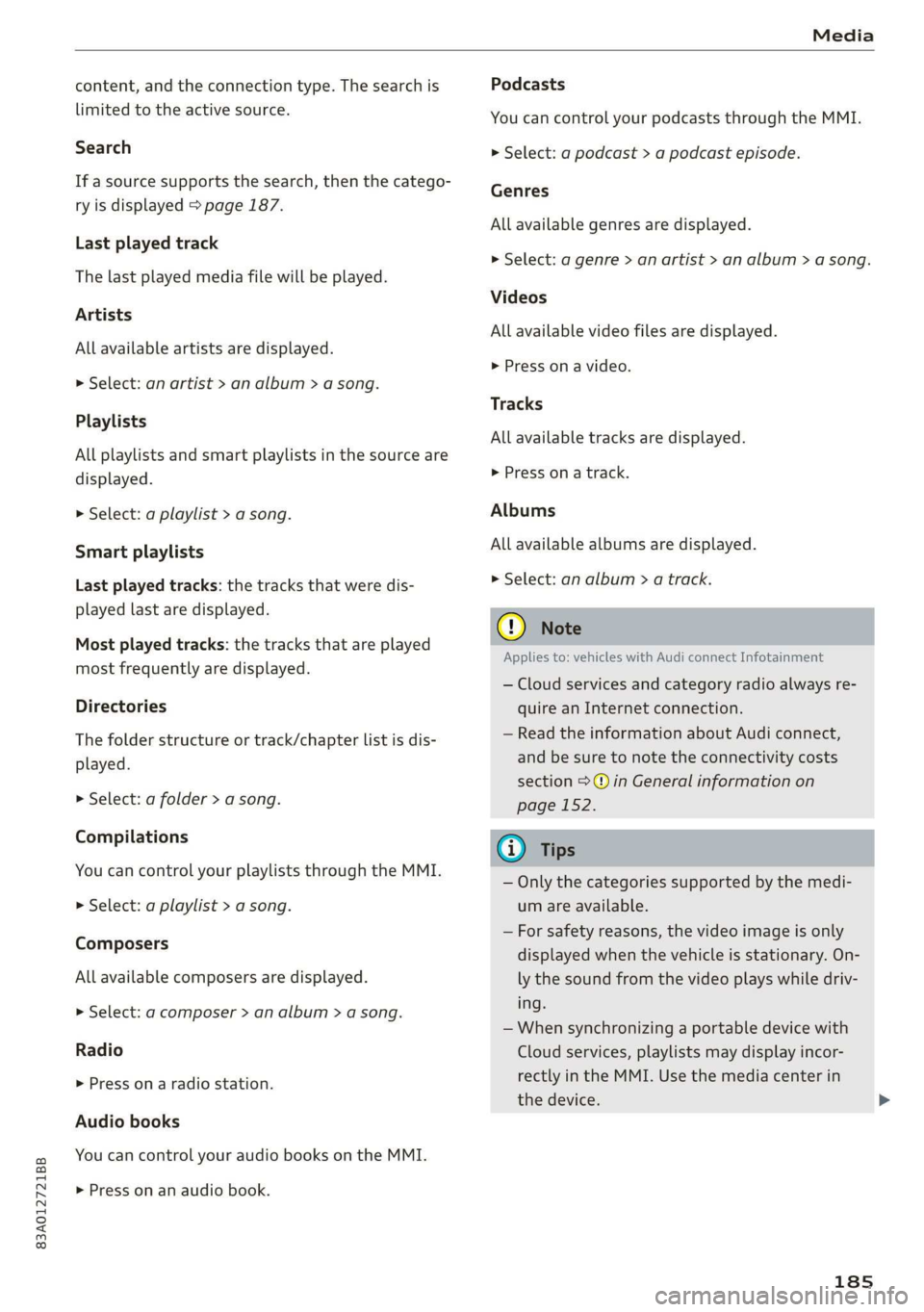
content, and the connection type. The search is
limited to the active source.
Search
If a source supports the search, then the catego-
ry is displayed > page 187.
Last played track
The last played media file will be played.
Artists
All available artists are displayed.
> Select: an artist > an album > a song.
Playlists
All playlists and smart playlists in the source are
displayed.
> Select: a playlist > a song.
Smart playlists
Last played tracks: the tracks that were dis-
played last are displayed.
Most played tracks: the tracks that are played
most frequently are displayed.
Directories
The folder structure or track/chapter list is dis-
played.
> Select: a folder > a song.
Compilations
You can control your playlists through the MMI.
> Select: a playlist > a song.
Composers
All available composers are displayed.
> Select: a composer > an album > a song.
Radio
> Press ona radio station.
Audio books
You can control your audio books on the MMI.
> Press on an audio book.
Podcasts
You can control your podcasts through the MMI.
> Select: a podcast > a podcast episode.
Genres
All available genres are displayed.
>» Select: a genre > an artist > an album > a song.
Videos
All available video files are displayed.
> Press on a video.
Tracks
All available tracks are displayed.
> Press ona track.
Albums
All available albums are displayed.
> Select: an album > a track.
@) Note
Applies to: vehicles with Audi connect Infotainment
— Cloud services and category radio always re-
quire an Internet connection.
— Read the information about Audi connect,
and be sure to note the connectivity costs
section >© in General information on
page 152.
@) Tips
— Only the categories supported by the medi-
um are available.
— For safety reasons, the video image is only
displayed when the vehicle is stationary. On-
ly the sound from the video plays while driv-
ing.
— When synchronizing a portable device with
Cloud services, playlists may display incor-
rectly in the MMI. Use the media center in
the device.
185
Page 191 of 278
83A012721BB
Media
Audio files Video files
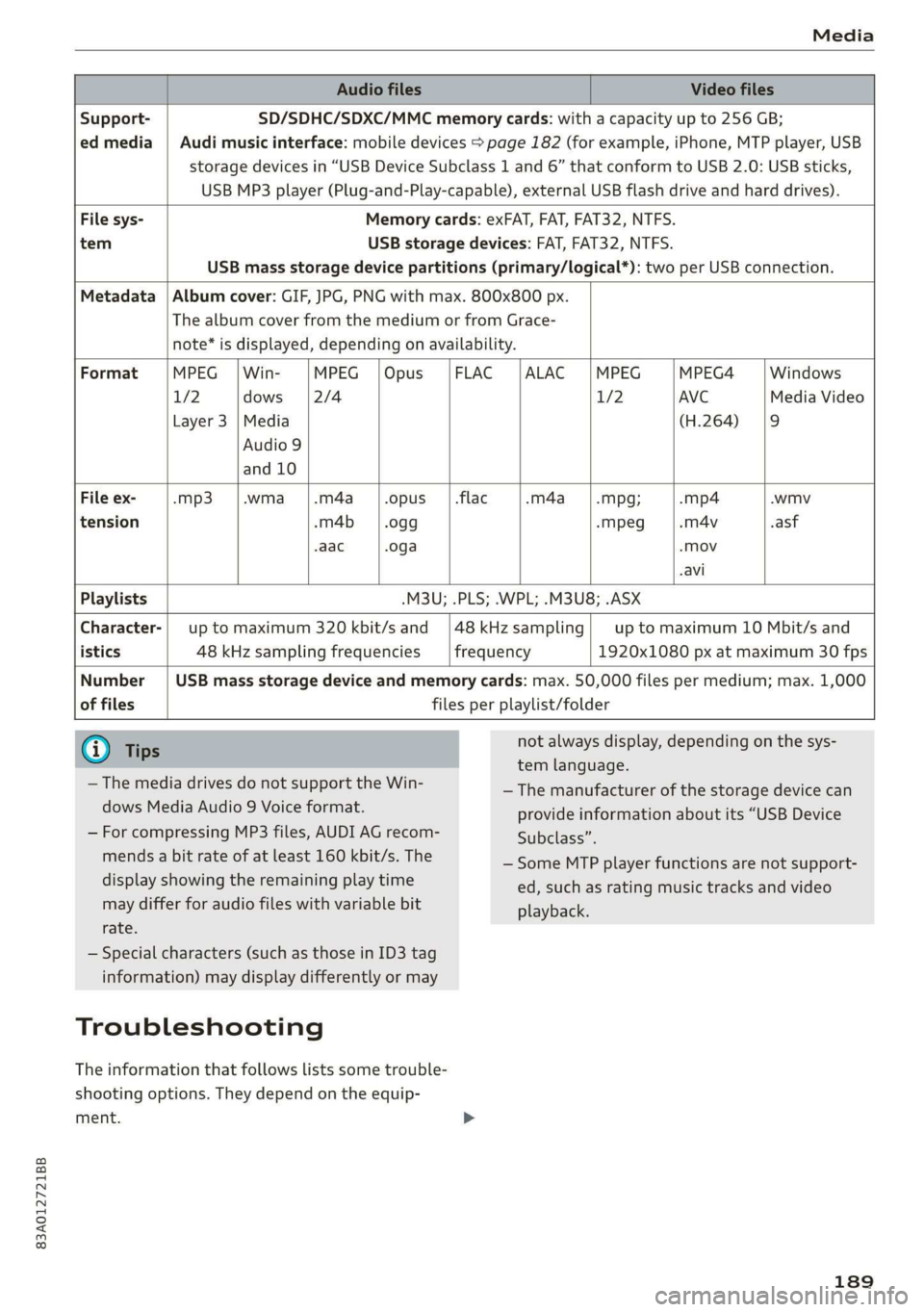
Support- SD/SDHC/SDXC/MMC memory cards: with a capacity up to 256 GB;
ed media | Audi music interface: mobile devices > page 182 (for example, iPhone, MTP player, USB
storage devices in “USB Device Subclass 1 and 6” that conform to USB 2.0: USB sticks,
USB MP3 player (Plug-and-Play-capable), external USB flash drive and hard drives).
File sys- Memory cards: exFAT, FAT, FAT32, NTFS.
tem USB storage devices: FAT, FAT32, NTFS.
USB mass storage device partitions (primary/logical*): two per USB connection.
Metadata | Album cover: GIF, JPG, PNG with max. 800x800 px.
The album cover from the medium or from Grace-
note* is displayed, depending on availability.
Format MPEG | Win- MPEG |Opus |FLAC |ALAC |MPEG MPEG4 Windows
1/2 dows [2/4 1/2 AVC Media Video
Layer 3 |Media (H.264) |9
Audio 9
and 10
File ex- -mp3 |.wma |.m4a_ |.opus_ |.flac -m4a__—|.mpg; -mp4 .wmv
tension .m4b__|.ogg -mpeg -m4v .asf
-aac .oga -Mov
-avi
Playlists .M3U; .PLS; .WPL; .M3U8; .ASX
Character-| up to maximum 320 kbit/s and |48 kHz sampling up to maximum 10 Mbit/s and
istics 48 kHz sampling frequencies frequency 1920x1080 px at maximum 30 fps
Number | USB mass storage device and memory cards: max. 50,000 files per medium; max. 1,000
of files files per playlist/folder
@ Tips
— The media drives do not support the Win-
dows Media Audio 9 Voice format.
— For compressing MP3 files, AUDI AG recom-
mends a bit rate of at least 160 kbit/s. The
display showing the remaining play time
may differ for audio files with variable bit
rate.
— Special characters (such as those in ID3 tag
information) may display differently or may
Troubleshooting
The information that follows lists some trouble-
shooting options. They depend on the equip-
ment.
not always display, depending on the sys-
tem language.
— The manufacturer of the storage device can
provide information about its “USB Device
Subclass”.
— Some MTP player functions are not support-
ed, such as rating music tracks and video
playback.
189