lights AUDI Q3 2020 Owner's Manual
[x] Cancel search | Manufacturer: AUDI, Model Year: 2020, Model line: Q3, Model: AUDI Q3 2020Pages: 278, PDF Size: 72.66 MB
Page 105 of 278
83A012721BB
Trailer towing
Having the tongue weight too low affects the ve-
hicle's handling. For driving safety, always using
the maximum permitted tongue weight is recom-
mended, but not exceed it. Distributing the cargo
in the trailer correctly will help to achieve this
weight.
You can determine the tongue weight using a
tongue weight scale, a bathroom scale, or a pub-
lic weigh station, for example.
The permitted tongue weight of your vehicle can
be found in the vehicle documentation or in
=> page 262.
Load distribution
Poor cargo load and distribution can negatively
impact vehicle handling. Load the trailer based
on the following criteria as much as possible:
— Store objects in the vehicle luggage compart-
ment, if possible. The vehicle should always
carry the heaviest possible load and the trailer
should have the lightest possible load.
— Distribute the load in the trailer so that the
heavy objects are as close to the axle as possi-
ble.
— Secure objects so that they do not slide.
— Utilize the maximum permitted tongue weight
if possible.
Tires
Set the tire pressure on your vehicle for a “full
load”; see the tire pressure sticker > page 224. If
necessary, also adjust the tire pressure on the
trailer according to the manufacturer's specifica-
tions.
The trailer and the vehicle should be equipped
with winter tires when driving in winter tempera-
tures.
Outside mirrors
If you cannot see the traffic behind the trailer
with the standard exterior mirrors, then you
must attach additional exterior mirrors. Adjust
them so you have a sufficient visibility behind
you.
Exterior lighting
Follow the legal regulations for lighting on your
trailer that are applicable in the country where
you are operating the vehicle. Contact an author-
ized Audi dealer or authorized Audi Service Facili-
ty for more information.
Before you start driving, check all lighting equip-
ment on the trailer while it is hitched to the vehi-
cle.
The headlight range control automatically ad-
justs the light range of the headlights.
Safety chains
Make sure the safety chains are correctly applied
when pulling a trailer. The chains should hang
enough so that the trailer can drive around
curves. However, they must not touch the
ground.
() Note
Attachments retrofitted on the vehicle may
cause damage, especially on the trailer hitch
ball head. In cases of damage, have the func-
tion checked by an authorized Audi dealer or
authorized Audi Service Facility.
@) Tips
— Block the wheels with chocks when parking
on inclines if the trailer is loaded.
— Having the vehicle inspected between the
inspection intervals is recommended if you
tow a trailer frequently.
— Avoid driving with a trailer during the vehi-
cle break-in period.
Driving with a trailer
Driving with a trailer requires extra caution.
Speed
Adhere to the legal speed limits. Follow the legal
regulations that are applicable in the country
where you are operating the vehicle.
As the speed increases, the driving stability of
the trailer decreases. Therefore you should not
exceed the maximum legal speed limit when
103
>
Page 107 of 278

83A012721BB
Assist systems
Assist systems
General information
Sica eel delay
ZA WARNING
— As the driver, you are always completely re-
sponsible for all driving tasks. The assist
systems cannot replace the driver's atten-
tion. Give your full attention to driving the
vehicle, and be ready to intervene in the
traffic situation at all times.
— Activate the assist systems only if the sur-
rounding conditions permit it. Always adapt
your driving style to the current visual,
weather, road, and traffic conditions.
— Loose objects can be thrown around the ve-
hicle interior during sudden driving or brak-
ing maneuvers, which increases the risk of
an accident. Store objects securely while
driving.
— For the assist systems to be able to react
correctly, the function of the sensors and
cameras must not be restricted. Note the in-
formation on sensors and cameras
= page 106 or page 107.
@ Tips
— Pay attention to applicable local regulations
relating to driving tasks, leaving space for
emergency vehicles, vehicle distance, speed,
parking location, wheel placement, etc. The
driver is always responsible for following
the laws that are applicable in the location
where the vehicle is being operated.
— You can cancel a steering or braking inter-
vention by the system, by braking or accel-
erating noticeably, steering, or deactivating
the respective assist system.
— Always check the assist systems settings be-
fore driving.
System limitations
ZA\ WARNING
—The use of an assist system cannot over-
come the natural laws of physics. A collision
cannot be prevented in certain circumstan-
ces.
— Warnings, messages, or indicator lights may
not be displayed or initiated on time or cor-
rectly, for example, if vehicles are approach-
ing very fast.
— Corrective interventions by the assist sys-
tems, such as steering or braking interven-
tions, may not be sufficient or they may not
occur. Always be ready to intervene.
@) Tips
— Due to the system limitations when detect-
ing the surrounding area, the systems may
warn or intervene unexpectedly or too late
in certain situations. The assist systems may
also interpret a driving maneuver incorrectly
and then warn the driver unexpectedly.
— The systems may not function as expected
in unusual driving situations, such as driving
offroad, on unpaved roads, on loose ground,
on inclines, or on grooves in the road.
— The systems may not function correctly in
unclear traffic situations, such as turning
lanes, exit ramps, construction zones, rises
or dips that obstruct visibility, intersections,
toll stations, or city traffic.
— The detection of the surrounding area can
be limited, for example by vehicles driving
ahead or by rain, snow, heavy spray, or light
shining into the camera.
—In trailer mode, some assist systems may be
limited, may not react as usual, or may be
unavailable. Please refer to the instructions
for towing a trailer located in > page 102.
— If accessories have been mounted on the
steering wheel, the ability for the steering
systems to react may be limited.
105
Page 111 of 278
83A012721BB
Driving information
Driving information
Speed warning system
Applies to: vehicles with speed warning system
The speed warning system helps the driver to
stay below a specified maximum speed. A warn-
ing threshold can be set for this purpose.
Once the speed slightly exceeds the stored
threshold, the speed warning system will alert
the driver with an indicator in the instrument
cluster and a warning tone. Once the speed drops
below the stored maximum speed, the indicator
will turn off.
Setting a threshold is recommended if you would
like to be reminded when you reach a certain
maximum speed. Situations where you may want
to do so include driving in a country with a gener-
al speed limit or if there is a specified maximum
speed for winter tires.
G) Tips
Regardless of the speed warning system, you
should always monitor your speed using the
speedometer and make sure you are following
the legal speed limit.
Setting the warning threshold
Applies to: vehicles with speed warning system
> Applies to: MMI: Select on the home screen:
VEHICLE > Driver assistance > Speed warning.
Applies to: vehicles with speed warning system
cy Manually set XX warning threshold ex-
ceeded
The stored speed was exceeded.
Traffic light information
Applies to: vehicles with traffic light information
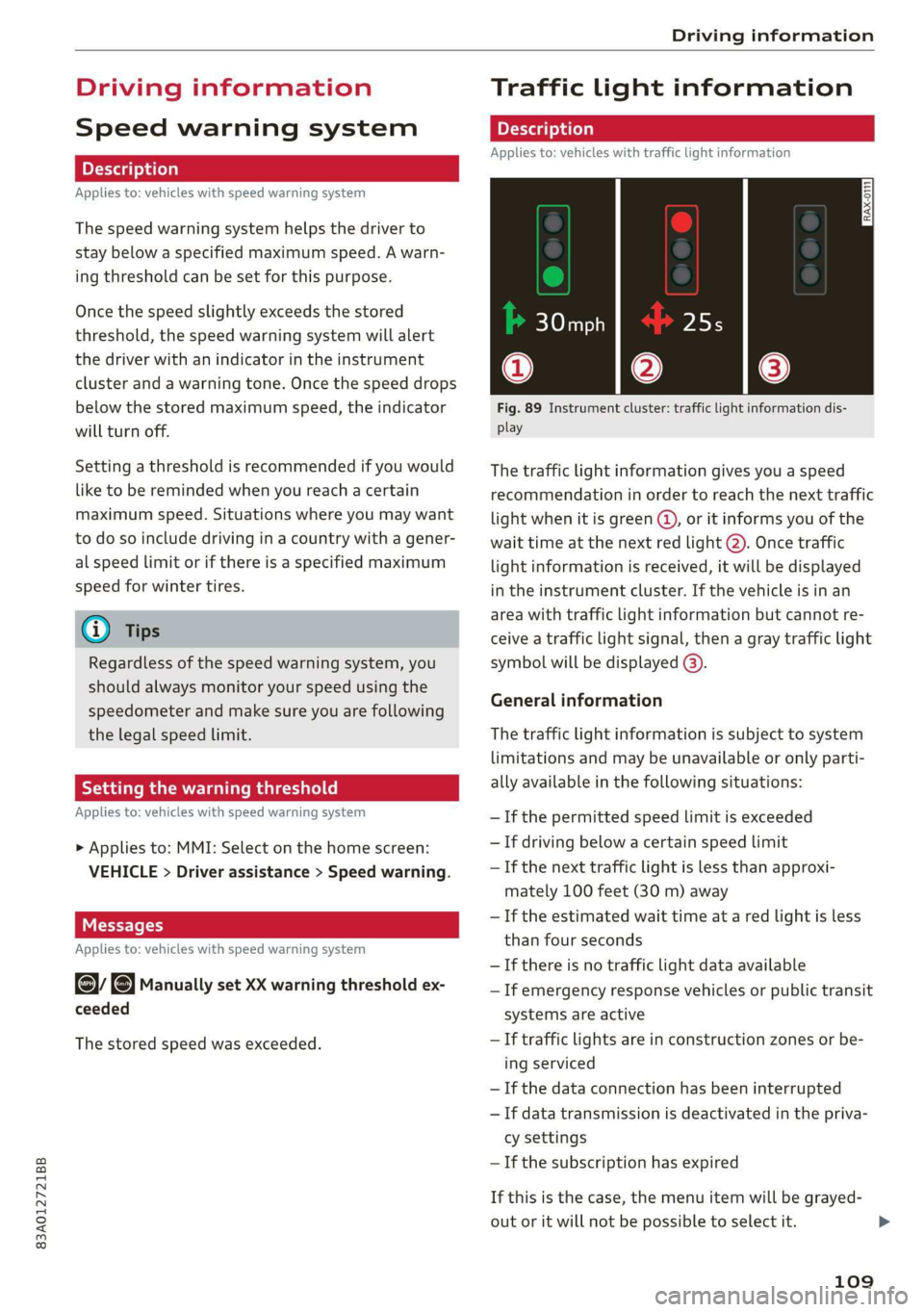
Fig. 89 Instrument cluster: traffic light information dis-
play
The traffic light information gives you a speed
recommendation in order to reach the next traffic
light
when it is green @, or it informs you of the
wait time at the next red light 2). Once traffic
light information is received, it will be displayed
in the instrument cluster. If the vehicle is in an
area with traffic light information but cannot re-
ceive a traffic light signal, then a gray traffic light
symbol will be displayed @).
General information
The traffic light information is subject to system
limitations and may be unavailable or only parti-
ally available in the following situations:
—If the permitted speed limit is exceeded
— If driving below a certain speed limit
— If the next traffic light is less than approxi-
mately 100 feet (30 m) away
—If the estimated wait time at a red light is less
than four seconds
— If there is no traffic light data available
— If emergency response vehicles or public transit
systems are active
— If traffic lights are in construction zones or be-
ing serviced
—If the data connection has been interrupted
— If data transmission is deactivated in the priva-
cy settings
—If the subscription has expired
If this is the case, the menu item will be grayed-
out or it will not be possible to select it.
109
>
Page 112 of 278
Driving information
ZA WARNING
— When traffic light information is shown, al-
so always pay attention to the traffic situa-
tion, the distance to other vehicles and the
area around the vehicle. The driver is always
responsible for assessing the traffic situa-
tion.
— Always adapt your speed to the current
weather, road and traffic conditions. The dis-
played information must never cause you to
ignore legal traffic regulations and pose a
safety risk.
— Regardless of the traffic light information,
you should always monitor your speed using
the speedometer and make sure you are ad-
hering to the legal speed limit.
— The traffic light information does not adjust
your vehicle's speed to the speed recom-
mendation shown in the display.
— Follow the safety precautions and note the
limits of the assist systems, sensors, and
cameras > page 105.
@ Tips
— Traffic light information was only available
in select cities at the time this manual was
printed.
— Traffic light information is not available na-
tionwide.
— These functions depend on how up-to-date
the navigation data’ is.
— Outdated map content in the navigation
system* can cause information on the dis-
play to be omitted or incorrect.
— Certain traffic lights can automatically ad-
just to the current traffic situation. If this
occurs, the display of traffic light informa-
tion can change suddenly.
— The traffic signs on the road always take pri-
ority over the display. The driver is always
responsible for adhering to the regulations
applicable in the country where the vehicle
is being operated.
— Units of measurement and language set-
tings are displayed based on how they were
set in the MMI system settings > page 193.
110
Applies to: vehicles with traffic light information
Switching traffic light information on and
off
The system and be switched on and off in the
MMI.
> Applies to: MMI: Select on the home screen:
VEHICLE > Driver assistance > Traffic light in-
formation.
Accessing traffic light information
> Select in the instrument cluster: vehicle func-
tions tab > Traffic signs.
G) Tips
If another tab or another function is selected
in the instrument cluster, the traffic light in-
formation will appear in the status bar on the
instrument cluster.
Messages
Applies to: vehicles with traffic light information
Malfunction! See owner's manual
The system could not be configured, for example
due to a network malfunction. Switch the igni-
tion off and shut down the vehicle to restart the
system. Wait several minutes until the vehicle
has shut down completely and then switch the
ignition back on.
Function currently unavailable. See owner's
manual
There is a temporary system malfunction. Check
if one or more of the following situations applies
and correct the issue if necessary:
— Traffic light information is switched off
— Data transmission is deactivated
— There is no valid license
— Traffic light information is not available in that
area
Page 113 of 278
83A012721BB
Driver assistance
Driver assistance
Cruise control system
Applies to: vehicles with cruise control system
The cruise control system assists the driver in
maintaining a constant speed above approxi-
mately 15 mph (20 km/h). The system maintains
the desired speed by braking and accelerating.
ZA\ WARNING
— Always pay attention to the traffic around
your vehicle when the cruise control system
is in operation. As the driver, you are always
responsible for controlling your vehicle
speed and the distance between your vehicle
and
other vehicles.
— For safety reasons, cruise control should not
be used in the city, in stop-and-go traffic, on
winding roads, and when road conditions are
poor (such as ice, fog, gravel, heavy rain,
and conditions that could lead to hydroplan-
ing), because this increases the risk of an ac-
cident.
— Switch the cruise control off temporarily
when driving in turning lanes, highway exits,
or in construction zones.
—To reduce the risk of an accident, you should
only resume the stored speed if it is suitable
for the current traffic conditions.
() Note
Before driving downhill a long distance ona
steep hill, decrease your speed and select a
lower gear. This makes use of the engine brak-
ing effect and reduces the load placed on the
brakes.
@) Tips
The brake lights turn on when the brakes are
applied automatically.
Switching the system on
Applies to: vehicles with cruise control system
BFV-0220
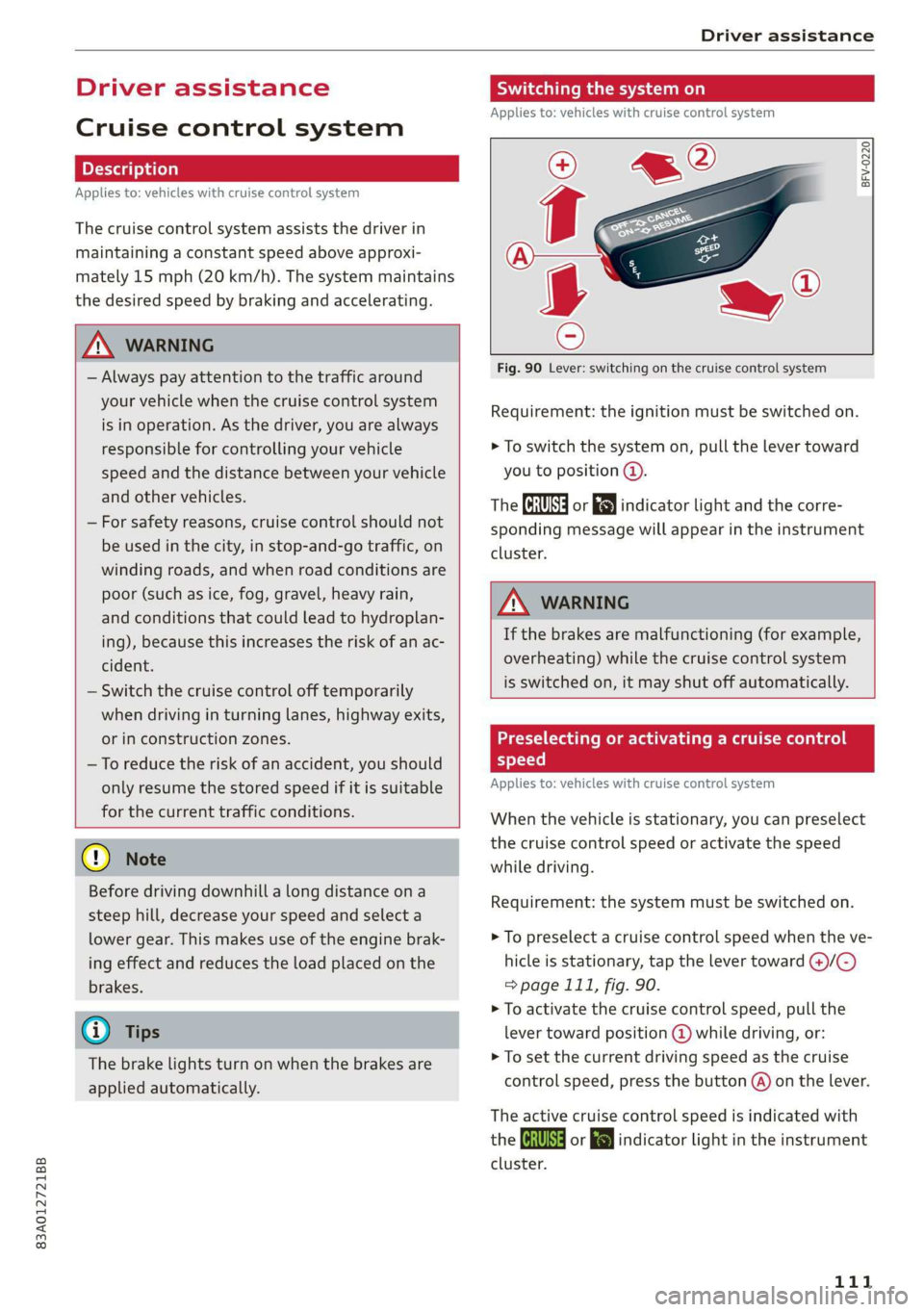
Fig. 90 Lever: switching on the cruise control system
Requirement: the ignition must be switched on.
> To switch the system on, pull the lever toward
you to position @.
The ICRUISE| or i$) indicator light and the corre-
sponding message will appear in the instrument
cluster.
ZA\ WARNING
If the brakes are malfunctioning (for example,
overheating) while the cruise control system
is switched on, it may shut off automatically.
Preselecting or activating a cruise control
speed
Applies to: vehicles with cruise control system
When the vehicle is stationary, you can preselect
the cruise control speed or activate the speed
while driving.
Requirement: the system must be switched on.
> To preselect a cruise control speed when the ve-
hicle is stationary, tap the lever toward @)/C)
=> page 111, fig. 90.
> To activate the cruise control speed, pull the
lever toward position @ while driving, or:
> To set the current driving speed as the cruise
control speed, press the button @) on the lever.
The active cruise control speed is indicated with
the Gs or El indicator light in the instrument
cluster.
111
Page 116 of 278
Driver assistance
PYRE aad (ai)
Applies to: vehicles with adaptive cruise assist
2 S
Sy e ee
RAZ-0397
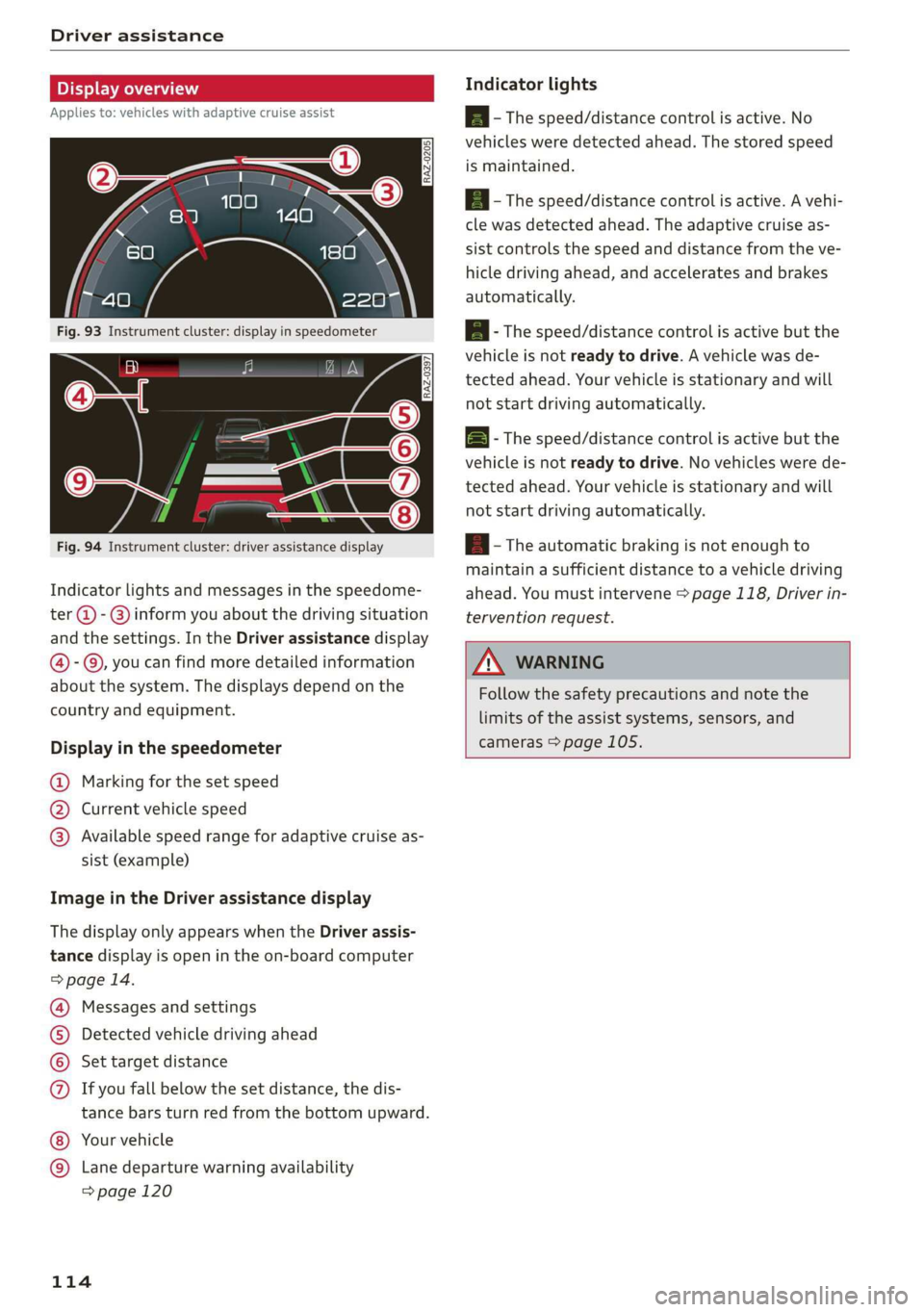
Fig. 94 Instrument cluster: driver assistance display
Indicator lights and messages in the speedome-
ter @ -@ inform you about the driving situation
and the settings. In the Driver assistance display
@-©, you can find more detailed information
about the system. The displays depend on the
country and equipment.
Display in the speedometer
@ Marking for the set speed
@ Current vehicle speed
@® Available speed range for adaptive cruise as-
sist (example)
Image in the Driver assistance display
The display only appears when the Driver assis-
tance display is open in the on-board computer
> page 14.
Messages and settings
Detected vehicle driving ahead
Set target distance
If you fall below the set distance, the dis-
tance bars turn red from the bottom upward.
Your vehicle
©®
CO®
Lane departure warning availability
=> page 120
114
Indicator lights
Ba - The speed/distance control is active. No
vehicles were detected ahead. The stored speed
is maintained.
Aa - The speed/distance control is active. A vehi-
cle was detected ahead. The adaptive cruise as-
sist controls the speed and distance from the ve-
hicle driving ahead, and accelerates and brakes
automatically.
AB - The speed/distance control is active but the
vehicle is not ready to drive. A vehicle was de-
tected ahead. Your vehicle is stationary and will
not start driving automatically.
BS - The speed/distance control is active but the
vehicle is not ready to drive. No vehicles were de-
tected ahead. Your vehicle is stationary and will
not start driving automatically.
B- The automatic braking is not enough to
maintain a sufficient distance to a vehicle driving
ahead. You must intervene > page 118, Driver in-
tervention request.
ZA WARNING
Follow the safety precautions and note the
limits of the assist systems, sensors, and
cameras > page 105.
Page 118 of 278
Driver assistance
responsible for controlling the vehicle. The
driver is especially responsible for braking,
starting to drive, controlling the speed, and
maintaining the distance to other vehicles.
— Turn on the adaptive cruise assist only if the
surrounding conditions permit it. Always
adapt your driving style to the current visu-
al, weather, road, and traffic conditions.
— Switch the adaptive cruise assist off tempo-
rarily when driving in turning lanes or high-
way exits. This prevents the vehicle from ac-
celerating to the stored speed when in these
situations.
ZA WARNING
If you press the SETK2) button when driving
at speeds below 20 mph (30 km/h), then 20
mph (30 km/h) will be set because that is the
minimum speed that can be set. If no vehicle
is detected ahead of you, the vehicle will ac-
celerate up to that speed.
@ Tips
— Always keep your hands on the steering
wheel. The driver is always responsible for
adhering to the regulations applicable in
the country where the vehicle is being oper-
ated.
— If you switch the ignition or the adaptive
cruise assist off, the stored speed is erased
for safety reasons.
— When the adaptive cruise assist is switched
on, the ESC and the ASR are switched on au-
tomatically.
— The system cannot be switched off if the
road exceeds the maximum possible grade
for safe operation.
— If you signal to pass and the adaptive cruise
assist suggests a passing maneuver, the
adaptive cruise assist will accelerate just be-
fore changing lanes to shorten the distance
to the vehicle driving ahead.
116
Setting the distance
Applies to: vehicles with adaptive cruise assist
B4M-0234
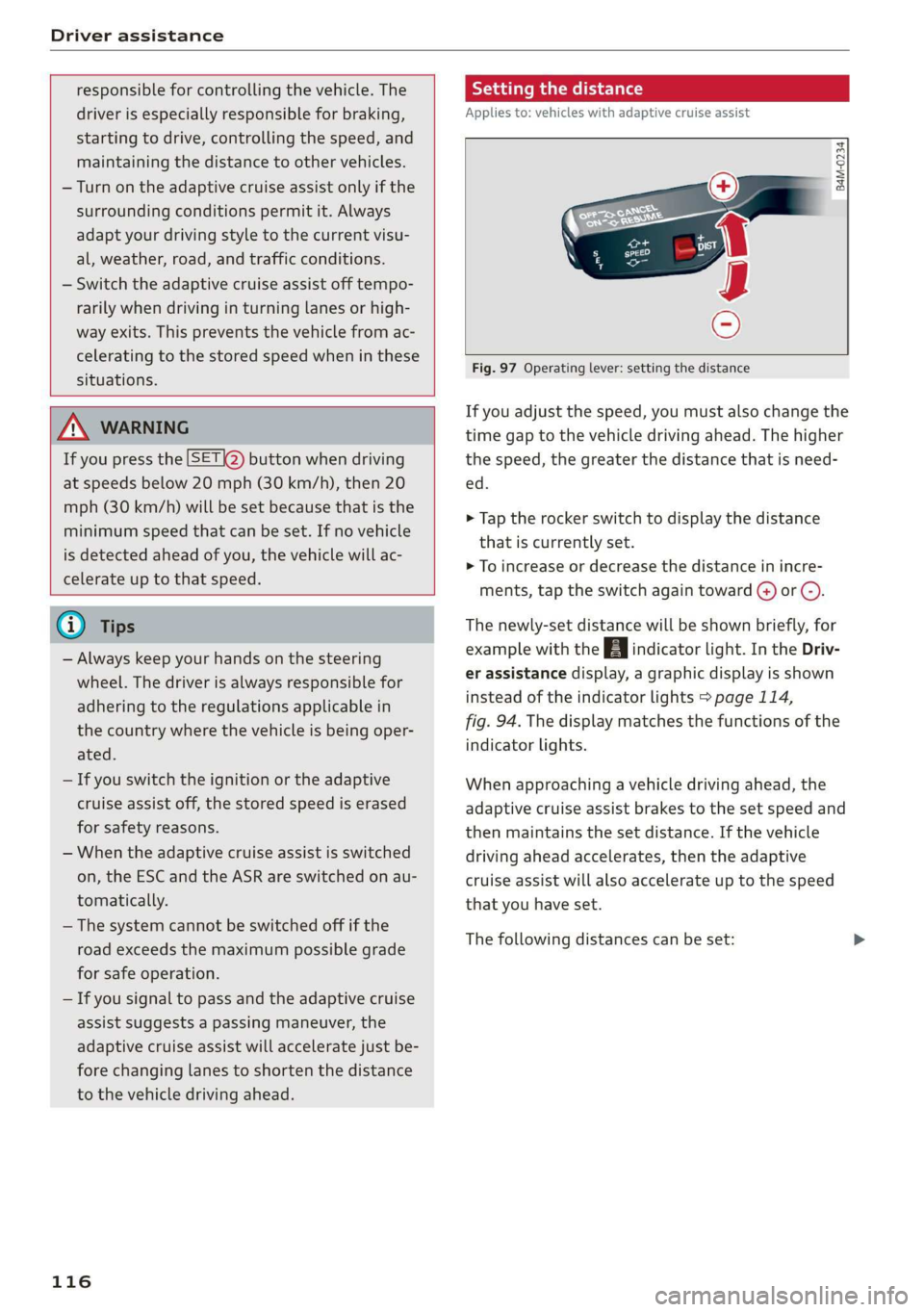
Fig. 97 Operating lever: setting the distance
If you adjust the speed, you must also change the
time gap to the vehicle driving ahead. The higher
the speed, the greater the distance that is need-
ed.
> Tap the rocker switch to display the distance
that is currently set.
> To increase or decrease the distance in incre-
ments, tap the switch again toward G) or ().
The newly-set distance will be shown briefly, for
example with the indicator light. In the Driv-
er assistance display, a graphic display is shown
instead of the indicator lights > page 114,
fig. 94. The display matches the functions of the
indicator lights.
When approaching a vehicle driving ahead, the
adaptive cruise assist brakes to the set speed and
then maintains the set distance. If the vehicle
driving ahead accelerates, then the adaptive
cruise assist will also accelerate up to the speed
that you have set.
The following distances can be set:
Page 123 of 278
83A012721BB
Driver assistance
Applies to: vehicles with lane departure warning
B4M-0064
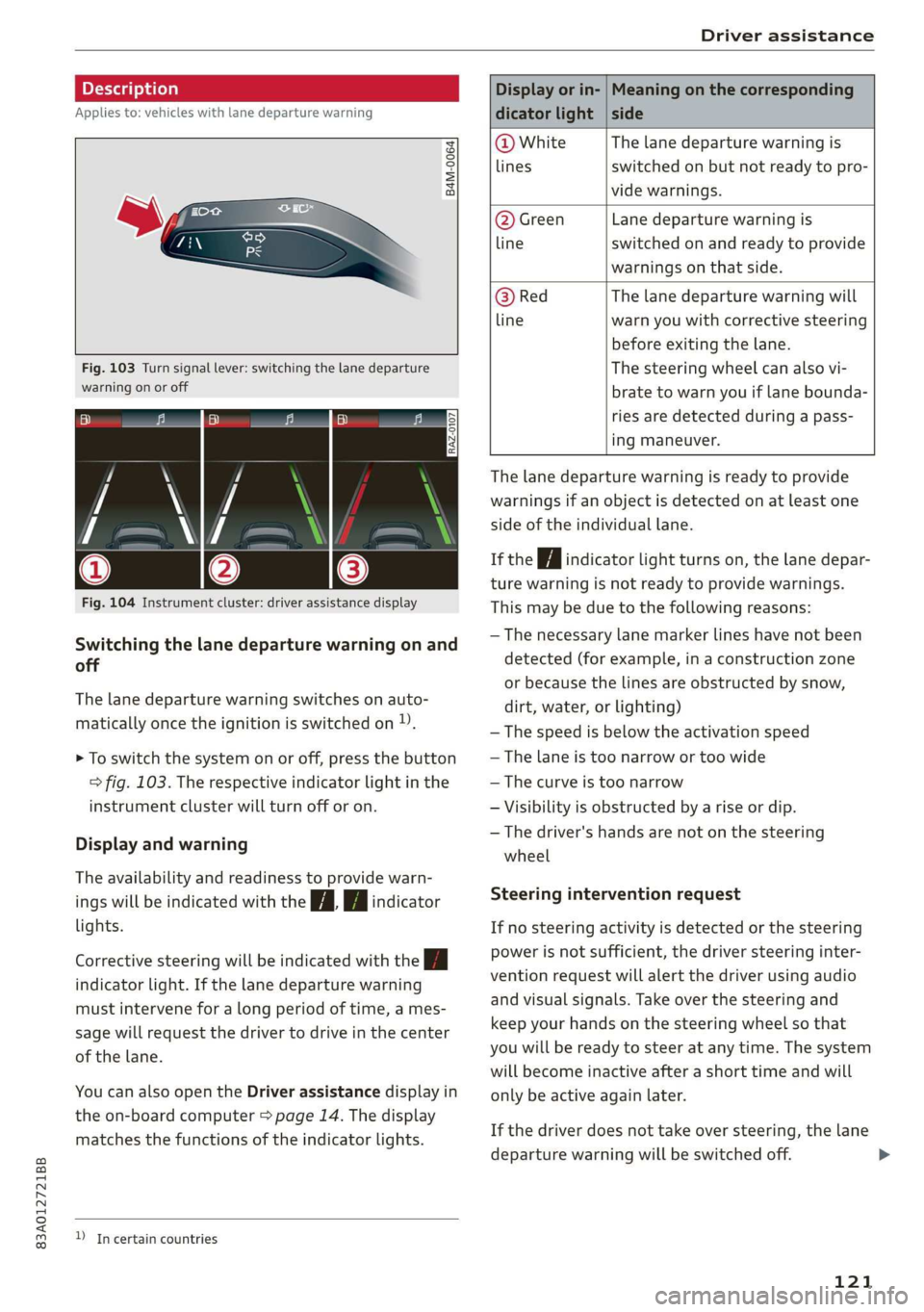
Fig. 103 Turn signal lever: switching the lane departure
warning on or off
RAZ-0107
Fig. 104 Instrument cluster: driver assistance display
Switching the lane departure warning on and
off
The lane departure warning switches on auto-
matically once the ignition is switched on )).
> To switch the system on or off, press the button
=> fig. 103. The respective indicator light in the
instrument cluster will turn off or on.
Display and warning
The availability and readiness to provide warn-
ings will be indicated with the i | fA indicator
lights.
Corrective steering will be indicated with the |
indicator light. If the lane departure warning
must intervene for a long period of time, a mes-
sage will request the driver to drive in the center
of the lane.
You can also open the Driver assistance display in
the on-board computer > page 14. The display
matches the functions of the indicator lights.
D_ In certain countries
Display or in- | Meaning on the corresponding
dicator light | side
@ White The lane departure warning is
lines switched on but not ready to pro-
vide warnings.
@ Green Lane departure warning is
line switched on and ready to provide
warnings on that side.
@ Red The lane departure warning will
line warn you with corrective steering
before exiting the lane.
The steering wheel can also vi-
brate to warn you if lane bounda-
ries are detected during a pass-
ing maneuver.
The lane departure warning is ready to provide
warnings if an object is detected on at least one
side of the individual lane.
If the Hi indicator light turns on, the lane depar-
ture warning is not ready to provide warnings.
This may be due to the following reasons:
— The necessary lane marker lines have not been
detected (for example, in a construction zone
or because the lines are obstructed by snow,
dirt, water, or lighting)
—The speed is below the activation speed
— The lane is too narrow or too wide
— The curve is too narrow
— Visibility is obstructed by a rise or dip.
— The driver's hands are not on the steering
wheel
Steering intervention request
If no steering activity is detected or the steering
power is not sufficient, the driver steering inter-
vention request will alert the driver using audio
and visual signals. Take over the steering and
keep your hands on the steering wheel so that
you will be ready to steer at any time. The system
will become inactive after a short time and will
only be active again later.
If the driver does not take over steering, the lane
departure warning will be switched off.
121
>
Page 188 of 278
Applies to: iPod/iPhone
Also read the information on the Audi music
interface and the supported devices
= page 182.
tele mitataatelary
RAX-0098
The Rock Band
Hymn
BUR ladle)
ait)
later)
eid
ele iac)
ri
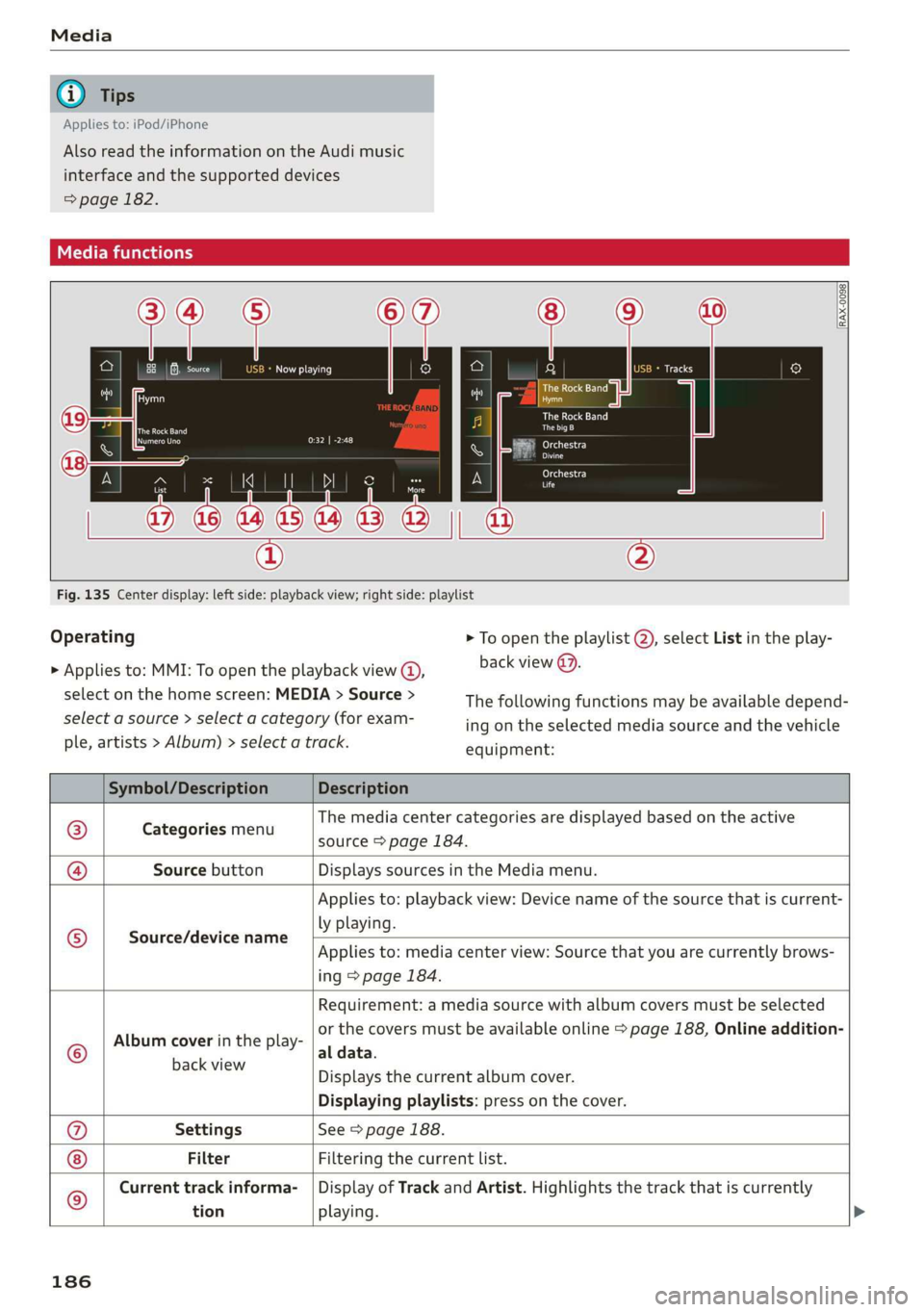
Fig. 135 Center display: left side: playback view; right side: playlist
Operating
> Applies to: MMI: To open the playback view @,
select on the home screen: MEDIA > Source >
select a source > select a category (for exam-
ple, artists > Album) > select a track.
> To open the playlist (2), select List in the play-
back view @).
The following functions may be available depend-
ing on the selected media source and the vehicle
equipment:
Symbol/Description Description
@ Categories menu
The media center categories are displayed based on the active
source > page 184.
@ Source button Displays sources in the Media menu.
Source/device name
Applies to: playback view: Device name of the source that is current-
ly playing.
Applies to: media center view: Source that you are currently brows-
ing > page 184.
©
Album cover in the play-
Requirement: a media source with album covers must be selected
or the covers must be available online > page 188, Online addition-
al data.
BaceviEW Displays the current album cover.
Displaying playlists: press on the cover.
@ Settings See > page 188.
Filter Filtering the current list.
) Current track informa- | Display of Track and Artist. Highlights the track that is currently
tion playing.
186
Page 235 of 278
83A012721BB
Wheels
— Tires that are only partially used are replaced
with new tires
Indicator lights
@ - Loss of pressure in at least one tire > A\.
Check the tires and replace or repair if necessary.
Check and correct the pressures of all four tires
and store the pressure again > page 233.
ia (Tire Pressure Monitoring System) Tire pres-
sure: malfunction! See owner's manual. if
appears after switching the ignition on or while
driving and the @ indicator light in the instru-
ment cluster blinks for approximately one minute
and then stays on, there is system malfunction.
Try to store the correct tire pressures
=> page 233. In some cases, you must drive for
several minutes after storing the pressures until
the indicator light turns off. If the indicator light
does turn off or turns on again after a short peri-
od of time, drive to an authorized Audi dealer or
authorized Audi Service Facility immediately to
have the malfunction corrected.
ZA WARNING
— If the tire pressure indicator appears in the
display, reduce your speed immediately and
avoid any hard steering or braking maneu-
vers. Stop as soon as possible and check the
tires and their pressure.
— The driver is responsible for maintaining the
correct tire pressure. You must check the
tire pressure regularly.
— Under certain conditions (such as a sporty
driving style, winter conditions, or unpaved
roads), the tire pressure monitoring system
indicator may be delayed.
(i) Tips
—The tire pressure monitoring system can al-
so stop working when there is an ESC mal-
function.
— Using snow chains may result in a system
malfunction.
—The tire pressure monitoring system in your
Audi was calibrated with “Audi Original
Tires” > page 221. Using these tires is rec-
ommended.
Storing tire pressures
If the tire pressure changes or a tire is replaced,
it must be confirmed in the system.
> Before storing the tire pressures, make sure the
tire pressures in all four tires meet the speci-
fied values and are adapted to the load
=> page 224.
> Switch the ignition on.
> Select on the home screen: VEHICLE > Settings
& Service > Tire pressure monitoring > Store
tire pressure > Yes, store now.
(i) Tips
Do not store the tire pressures if snow chains
are installed.
233