tow AUDI Q3 2020 Owner's Guide
[x] Cancel search | Manufacturer: AUDI, Model Year: 2020, Model line: Q3, Model: AUDI Q3 2020Pages: 278, PDF Size: 72.66 MB
Page 117 of 278
83A012721BB
Driver assistance
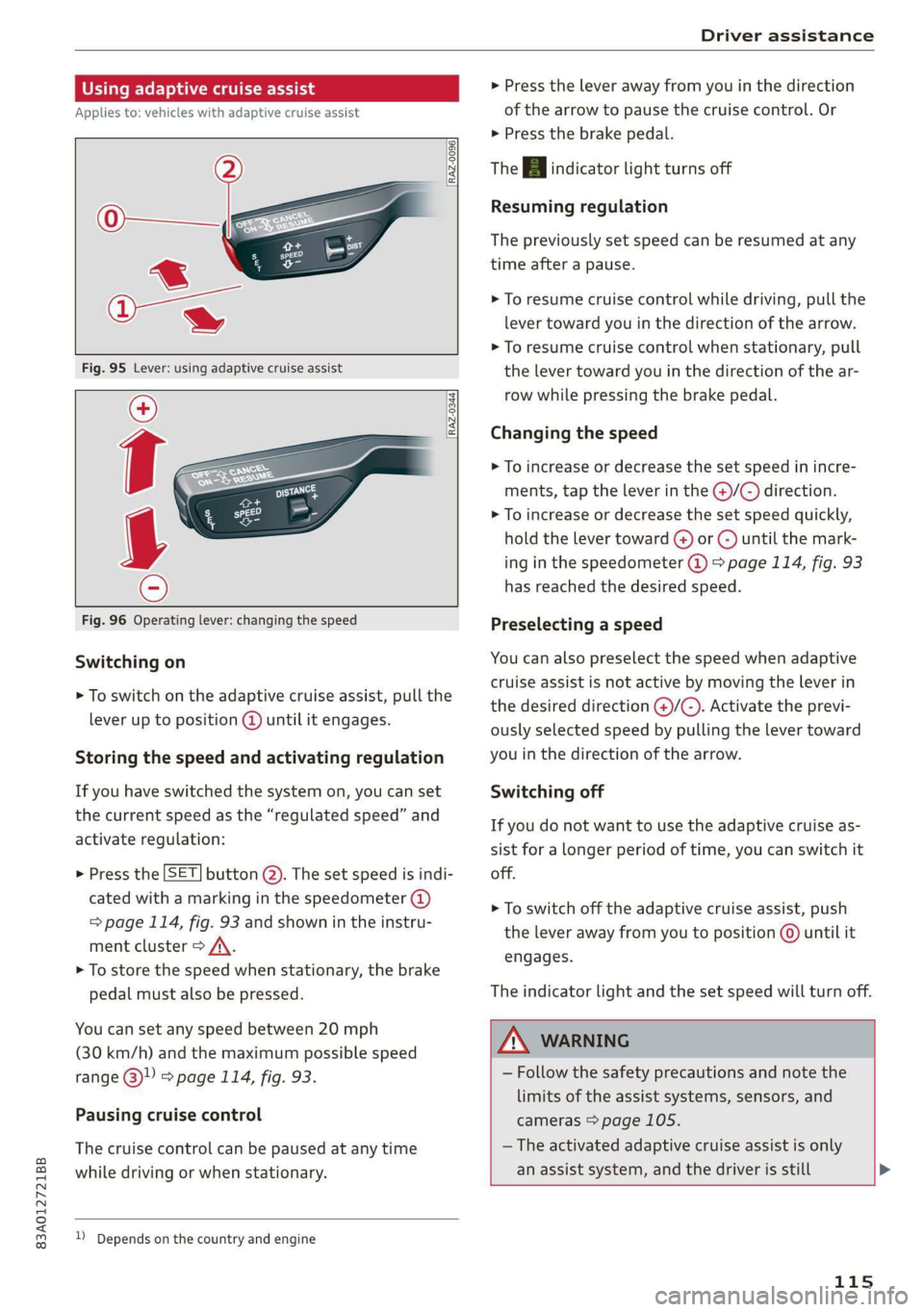
Using adaptive cruise assist
Applies to: vehicles with adaptive cruise assist
RAZ-0096
RAZ-0344)
Fig. 96 Operating lever: changing the speed
Switching on
> To switch on the adaptive cruise assist, pull the
lever up to position @ until it engages.
Storing the speed and activating regulation
If you have switched the system on, you can set
the current speed as the “regulated speed” and
activate regulation:
> Press the [SET] button @). The set speed is indi-
cated with a marking in the speedometer (@)
=> page 114, fig. 93 and shown in the instru-
ment cluster > /\.
> To store the speed when stationary, the brake
pedal must also be pressed.
You can set any speed between 20 mph
(30 km/h) and the maximum possible speed
range @» & page 114, fig. 93.
Pausing cruise control
The cruise control can be paused at any time
while driving or when stationary.
2) Depends on the country and engine
> Press the lever away from you in the direction
of the arrow to pause the cruise control. Or
> Press the brake pedal.
The A indicator light turns off
Resuming regulation
The previously set speed can be resumed at any
time after a pause.
> To resume cruise control while driving, pull the
lever
toward you in the direction of the arrow.
> To resume cruise control when stationary, pull
the lever toward you in the direction of the ar-
row while pressing the brake pedal.
Changing the speed
> To increase or decrease the set speed in incre-
ments, tap the lever in the @)/@) direction.
> To increase or decrease the set speed quickly,
hold the lever toward () or () until the mark-
ing in the speedometer @) > page 114, fig. 93
has reached the desired speed.
Preselecting a speed
You can also preselect the speed when adaptive
cruise assist is not active by moving the lever in
the desired direction @)/©). Activate the previ-
ously selected speed by pulling the lever toward
you in the direction of the arrow.
Switching off
If you do not want to use the adaptive cruise as-
sist for a longer period of time, you can switch it
off.
> To switch off the adaptive cruise assist, push
the lever away from you to position © until it
engages.
The indicator light and the set speed will turn off.
Z\ WARNING
— Follow the safety precautions and note the
limits of the assist systems, sensors, and
cameras > page 105.
— The activated adaptive cruise assist is only
an assist system, and the driver is still >
115
Page 118 of 278
Driver assistance
responsible for controlling the vehicle. The
driver is especially responsible for braking,
starting to drive, controlling the speed, and
maintaining the distance to other vehicles.
— Turn on the adaptive cruise assist only if the
surrounding conditions permit it. Always
adapt your driving style to the current visu-
al, weather, road, and traffic conditions.
— Switch the adaptive cruise assist off tempo-
rarily when driving in turning lanes or high-
way exits. This prevents the vehicle from ac-
celerating to the stored speed when in these
situations.
ZA WARNING
If you press the SETK2) button when driving
at speeds below 20 mph (30 km/h), then 20
mph (30 km/h) will be set because that is the
minimum speed that can be set. If no vehicle
is detected ahead of you, the vehicle will ac-
celerate up to that speed.
@ Tips
— Always keep your hands on the steering
wheel. The driver is always responsible for
adhering to the regulations applicable in
the country where the vehicle is being oper-
ated.
— If you switch the ignition or the adaptive
cruise assist off, the stored speed is erased
for safety reasons.
— When the adaptive cruise assist is switched
on, the ESC and the ASR are switched on au-
tomatically.
— The system cannot be switched off if the
road exceeds the maximum possible grade
for safe operation.
— If you signal to pass and the adaptive cruise
assist suggests a passing maneuver, the
adaptive cruise assist will accelerate just be-
fore changing lanes to shorten the distance
to the vehicle driving ahead.
116
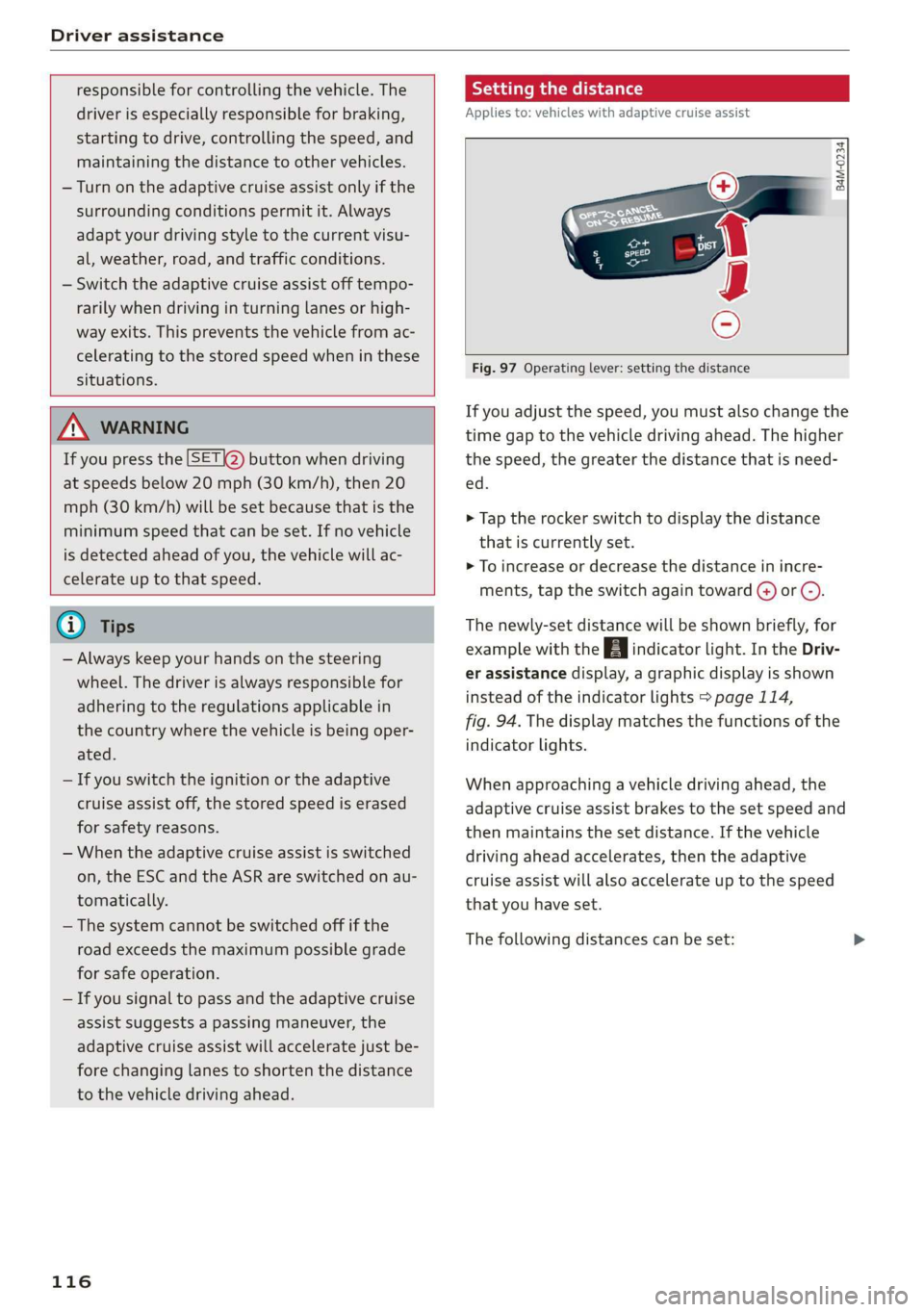
Setting the distance
Applies to: vehicles with adaptive cruise assist
B4M-0234
Fig. 97 Operating lever: setting the distance
If you adjust the speed, you must also change the
time gap to the vehicle driving ahead. The higher
the speed, the greater the distance that is need-
ed.
> Tap the rocker switch to display the distance
that is currently set.
> To increase or decrease the distance in incre-
ments, tap the switch again toward G) or ().
The newly-set distance will be shown briefly, for
example with the indicator light. In the Driv-
er assistance display, a graphic display is shown
instead of the indicator lights > page 114,
fig. 94. The display matches the functions of the
indicator lights.
When approaching a vehicle driving ahead, the
adaptive cruise assist brakes to the set speed and
then maintains the set distance. If the vehicle
driving ahead accelerates, then the adaptive
cruise assist will also accelerate up to the speed
that you have set.
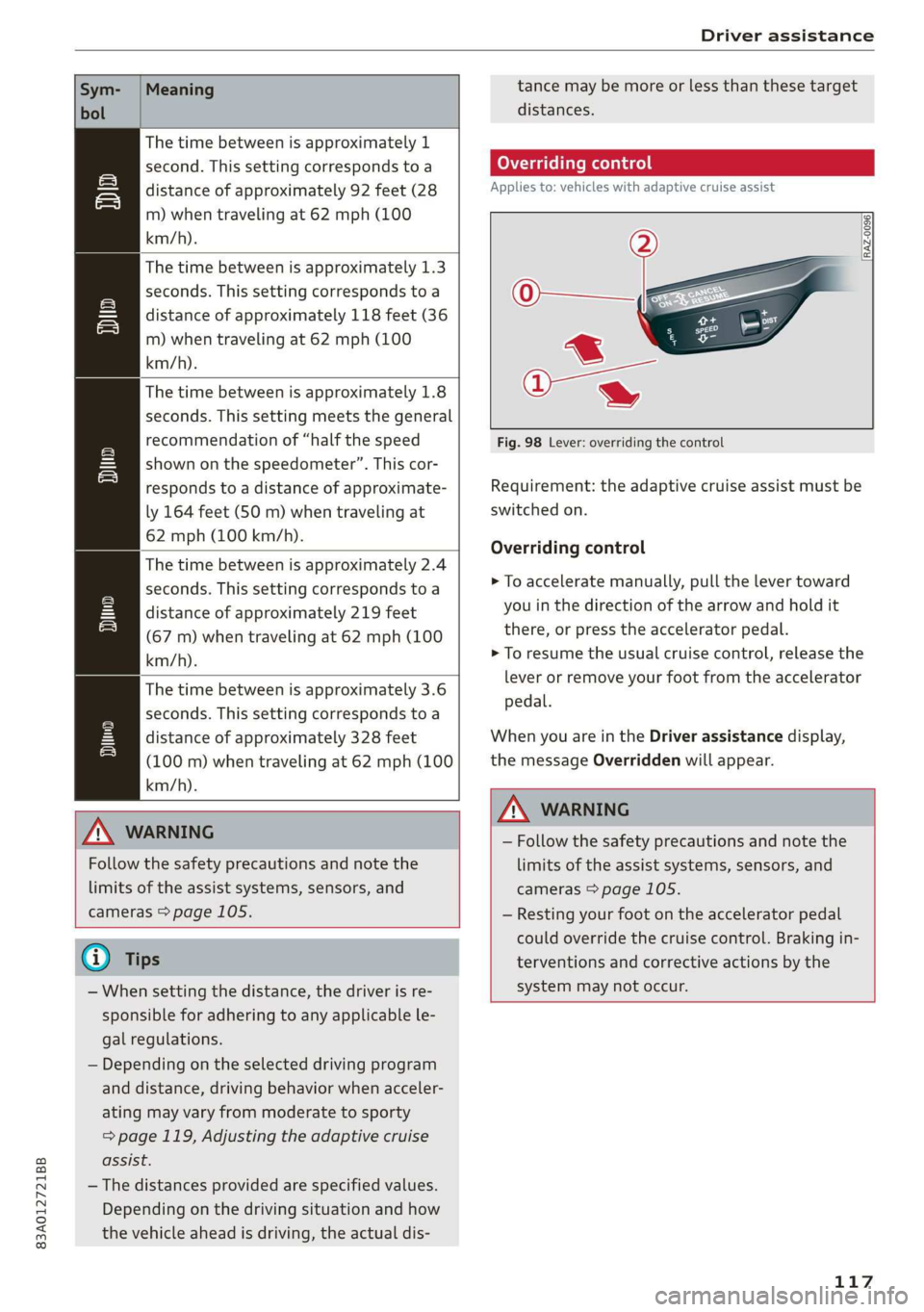
The following distances can be set:
Page 119 of 278
83A012721BB
Driver assistance
Meaning
The time between is approximately 1
second. This setting corresponds toa
distance of approximately 92 feet (28
m) when traveling at 62 mph (100
km/h).
The time between is approximately 1.3
seconds. This setting corresponds toa
distance of approximately 118 feet (36
m) when traveling at 62 mph (100
km/h).
My
The time between is approximately 1.8
seconds. This setting meets the general
recommendation of “half the speed
shown on the speedometer”. This cor-
responds to a distance of approximate-
ly 164 feet (SO m) when traveling at
62 mph (100 km/h).
The time between is approximately 2.4
seconds. This setting corresponds toa
distance of approximately 219 feet
(67 m) when traveling at 62 mph (100
km/h).
i)
1)
The time between is approximately 3.6
seconds. This setting corresponds toa
distance of approximately 328 feet
(100 m) when traveling at 62 mph (100
km/h).
D
ZA WARNING
Follow the safety precautions and note the
limits of the assist systems, sensors, and
cameras > page 105.
G@) Tips
— When setting the distance, the driver is re-
sponsible for adhering to any applicable le-
gal regulations.
— Depending on the selected driving program
and distance, driving behavior when acceler-
ating may vary from moderate to sporty
= page 119, Adjusting the adaptive cruise
assist.
— The distances provided are specified values.
Depending on the driving situation and how
the vehicle ahead is driving, the actual dis-
tance may be more or less than these target
distances.
Overriding control
Applies to: vehicles with adaptive cruise assist
[RAZ-0096|
Fig. 98 Lever: overriding the control
Requirement: the adaptive cruise assist must be
switched on.
Overriding control
> To accelerate manually, pull the lever toward
you in the direction of the arrow and hold it
there, or press the accelerator pedal.
> To resume the usual cruise control, release the
lever
or remove your foot from the accelerator
pedal.
When you are in the Driver assistance display,
the message Overridden will appear.
ZA WARNING
— Follow the safety precautions and note the
limits of the assist systems, sensors, and
cameras > page 105.
— Resting your foot on the accelerator pedal
could override the cruise control. Braking in-
terventions and corrective actions by the
system may not occur.
117
Page 120 of 278

Driver assistance
Driving in stop-and-go traffic
Applies to: vehicles with adaptive cruise assist
> Press the brake pedal to slow your vehicle
down.
aI
3 Ka | |
cc
Fig. 99 -Applies to: vehicles with safe start monitor-Instru-
ment cluster: safe start monitor
Stopping with adaptive cruise assist
The adaptive cruise assist also assists you in stop-
and-go traffic. Within the limits of the system,
your vehicle may brake and remain at a stop if a
vehicle driving ahead stops.
Starting to drive with adaptive cruise assist
As long as the message ready to drive and A is
displayed, your vehicle will begin driving when
the vehicle ahead starts to move > /\.
If you are stopped for several seconds, your vehi-
cle will no longer drive autonomously for safety
reasons, and the message will turn off.
> To extend ready to drive for several seconds or
reactivate, pull the lever briefly towards you in
the direction of the arrow > page 117, fig. 98.
> To resume manual control of the vehicle, tap
the accelerator pedal.
Safe start monitor
Applies to: vehicles with safe start monitor
The vehicle can still start to drive even if certain
obstacles are detected when starting to drive
=> /\. For example, if an obstacle is detected by
the ultrasonic sensors for the parking system,
the A indicator light will warn you of the dan-
ger.
If you are in the Driver assistance display, the
display @ > fig. 99 and the message Warning!
will also appear. An audio signal will also sound.
Your vehicle will drive more slowly when starting.
This may also occur in some situations when
there is no apparent obstacle.
118
ZA\ WARNING
— Follow the safety precautions and note the
limits of the assist systems, sensors, and
cameras > page 105.
— If the message ready to drive appears, your
vehicle will start driving even if there is an
obstacle between your vehicle and the vehi-
cle ahead. To reduce the risk of an accident,
always make sure there are no obstacles be-
tween your vehicle and the vehicle driving
ahead.
@ Tips
For safety reasons, adaptive cruise assist is
only active if:
— The driver's safety belt is fastened
— All doors and the hood are closed
— Your vehicle is not stopped for a long period
of time
Tama c-a-e celta -te [Ct
Applies to: vehicles with adaptive cruise assist
Fig. 100 Instrument cluster: request for driver interven-
tion
The request for driver intervention instructs you
to resume manual control of the vehicle if the
adaptive cruise assist braking function is not able
to maintain a sufficient distance to the vehicle
ahead. The system will warn you of the hazard
with the A indicator light and the message Dis-
tance!.
The display @ only appears when the Driver as-
sistance display is open in the on-board comput-
er > page 14.
Page 126 of 278

Driver assistance
Take-over
If the message Bo Please take over! appears, the
vehicle has been braked to a stop by Audi pre
sense and you must resume control of the vehi-
cle.
ZA WARNING
— Follow the safety precautions and note the
limits of the assist systems, sensors, and
cameras > page 105.
— Audi pre sense front cannot overcome natu-
ral physical laws. It is a system designed to
assist and it cannot prevent a collision in ev-
ery circumstance. The driver must always in-
tervene. The driver is always responsible for
braking at the correct time. Do not let the
increased safety provided tempt you into
taking risks. This could increase your risk of
a collision.
— Among other things, Audi pre sense front
does not react to pedestrians who are sta-
tionary, stopped, oncoming, and crossing at
an angle. It also does not react to cyclists,
groups of people, animals, crossing vehicles,
or oncoming vehicles and objects, such as
posts, guardrails, and railway vehicles.
— Audi pre sense front may be limited or un-
available when driving in curves.
— Loose objects can be thrown around the ve-
hicle interior during sudden driving or brak-
ing maneuvers, which increases the risk of
an accident. Store objects securely while
driving.
— In trailer mode, the braking behavior of the
trailer can be different than usual during au-
tomatic braking.
G) Tips
— If you switch off the ESC, Audi pre sense al-
so switches off automatically.
— Certain Audi pre sense front functions are
unavailable or have limited availability for
approximately 20 seconds after starting the
vehicle (may be longer depending on the
driving situation).
YD In certain countries
124
Adjusting Audi pre sense
Applies to: vehicles with Audi pre sense
You can adjust the Audi pre sense functions to
your preferences. The settings depend on the ve-
hicle equipment.
> Applies to MMI: Select on the home screen: VE-
HICLE > Driver assistance > Audi pre sense.
Possible settings:
The system can be switched off and on.
Prewarning!) - The prewarning can be switched
off or the Audi pre sense warning time can be set
(Early/Medium/Late).
Set the warning time for the early warning to
Early at first. If you feel that the prewarnings ap-
pear too early, then set the warning time to Me-
dium. The Late warning time should only be set
in special circumstances.
G) Tips
— If Audi pre sense is switched off, it switches
on again automatically once the ignition is
switched on again.)
— Switch Audi pre sense off when you are not
using public streets, when loading the vehi-
cle onto a vehicle carrier, train, ship, or oth-
er type of transportation, or when towing
the vehicle. This can help to prevent an un-
desired intervention from the Audi pre
sense system.
Messages
Applies to: vehicles with Audi pre sense
a | or fal is displayed when there is a malfunc-
tion, the Audi pre sense functions may be un-
available or may be limited.
A message that indicates the cause and possible
solution may appear with some displays. The
weather conditions may be too poor or a sensor
may be covered. Clean the area in front of the
sensors > page 106, fig. 86 and try to turn on
the systems again later.
Page 128 of 278
Driver assistance
Detection range
The radar sensors are designed to detect the left
and right adjacent lanes when the road lanes are
the normal width. In some situations, the display
in the exterior mirror may turn on even though
there is no vehicle located in the area that is criti-
cal for a lane change. For example:
— If the lanes are narrow or if you are driving on
the edge of your lane. If this is the case, the
system may have detected a vehicle in another
lane that is not adjacent to your current lane.
— If you are driving through a curve. Side assist
may react to a vehicle that is in the same lane
or one lane over from the adjacent lane.
—If side assist reacts to other objects (such as
roadside structures like guard rails).
ZA WARNING
— Follow the safety precautions and note the
limits of the assist systems, sensors, and
cameras > page 105.
— The display may not appear in time when
vehicles are falling behind or approaching
very quickly.
@ Tips
— If the window glass in the driver's door or
front passenger's door has been tinted, the
display in the exterior mirror may be incor-
rect.
— The system is not available when towing a
trailer. There is no guarantee the system
will switch off when using a retrofitted trail-
er hitch. Do not use these functions when
towing a trailer.
— For an explanation on conformity with the
FCC regulations in the United States and the
Industry Canada regulations, see
=> page 259.
One eC
Applies to: vehicles with side assist
You can adjust the side assist to your preferences.
The settings depend on the vehicle equipment.
> Applies to: MMI: Select on the home screen:
VEHICLE > Driver assistance > Side assist.
126
Possible settings:
The system can be switched on and off. If the sys-
tem is switched on, the displays in the exterior
mirrors will turn on briefly each time the ignition
is switched on.
Brightness - Change the brightness only when
side assist is switched on, so that the selected
setting can be checked in the exterior mirror dis-
plays. Adjust the brightness to a level where the
display will not interfere with your view ahead.
Because the display brightness automatically
adapts to the ambient light, it may have already
been adjusted to the highest or lowest setting
during the automatic adaptation.
Applies to: vehicles with side assist
if fg or is displayed when there is a malfunc-
tion, the side assist functions may be unavailable
or may be limited.
A message that indicates the cause and possible
solution may appear with some displays. The
weather conditions may be too poor or a sensor
may be covered. Clean the sensor area in the ve-
hicle rear and try to turn the systems on again
later.
If the malfunction remains, drive to an author-
ized Audi dealer or authorized Audi Service Facili-
ty immediately to have the malfunction correct-
ed.
Page 131 of 278

83A012721BB
Parking and maneuvering
Entertainment fader - The volume of the audio/
video source is Lowered when the parking system
is activated.
The new level is demonstrated briefly* when the
volume is adjusted.
Error messages
If P4 appears, the sensor in the respective area
or the speaker is faulty. Drive immediately to an
authorized Audi dealer or authorized Audi Service
Facility to have the malfunction repaired. The
LED in the Ps button may also flash when the
system is activated.
iff or Ba is displayed when there is a malfunc-
tion, the parking system functions may be un-
available or may be limited.
A message that indicates the cause and possible
solution may appear with some displays. The
weather conditions may be too poor or a sensor
may be covered. Clean the area in front of the
sensors > page 106, fig. 86 and try to turn on
the systems again later.
If the malfunction remains, drive to an author-
ized Audi dealer or authorized Audi Service Facili-
ty immediately to have the malfunction correct-
ed.
ZA WARNING
— Follow the safety precautions and note the
limits of the assist systems, sensors, and
cameras > page 105.
— Sensors and cameras have spots in which
the surrounding area cannot be detected.
Objects, animals, and people may only be
detected with limitations may not be detect-
ed at all. Always monitor the traffic and the
vehicle's surroundings directly and do not
become distracted.
© Note
— Keep enough distance from the curb to
avoid damage to the rims.
— Applies to: vehicles with park assist: If you
park in short parking spaces using park as-
sist, a continuous tone will sound from the
parking system when the distance to an ob-
ject is less than approximately 0.7 ft
(0.20 m). Do not continue driving farther.
G) Tips
— The segments in the side area* are detected
and analyzed when passing. There may have
been changes to the surrounding area after
switching the ignition off and on again, af-
ter opening the doors, or if the vehicle is left
stationary for a long period of time. In this
scenario, the side area* will appear black
until the area has been detected and evalu-
ated.
— If the distance to an obstacle remains con-
stant, the volume of the distance warning
gradually lowers after a few seconds until it
is muted (this does not apply to the continu-
ous tone). If the obstacle comes closer than
it was before the sound was muted, the
tone will sound again. If the obstacle be-
comes farther away than it was before the
sound was muted, no tone will sound. Pay
attention to the vehicle's surroundings
when you start to drive.
— There is no distance warning for the rear
and the sides* when trailer towing mode is
detected. The front sensors remain activat-
ed. The visual display switches to trailer
mode. There is no guarantee the functions
will be deactivated when using a retrofitted
trailer hitch.
Rearview camera and
peripheral cameras
Introduction
Applies to: vehicles with rearview camera/peripheral cameras
B8V-0629
Fig. 108 Orientation line display when parking
129
Page 133 of 278

83A012721BB
Parking and maneuvering
@ You should stop driving in reverse when the
red orientation line touches the edge of an
object, at the latest.
Trailer view
Applies to: vehicles with trailer view
The trailer view > fig. 111 assists you in position-
ing the vehicle in front of a trailer.
— Applies to: vehicles with peripheral cameras:
Switch to the Rear view > page 132, fig. 112.
— Select || > Trailer view in the center display
when the parking system is active.
Now you can position your vehicle in front of the
trailer. The orange orientation line ©) > fig. 111
indicates the expected path toward the trailer
hitch. Use the blue markings © to help you esti-
mate the distance to the trailer hitch. Each mark-
ing represents approximately 1 foot (0.30 me-
ters). The width of the blue surface represents
the maximum steering wheel angle.
Symbols
Applies to: vehicles with peripheral cameras
If 2/&9/< is displayed and the display area
represented by that symbol is not available, then
the camera on the that side is not available. The
power exterior mirrors may have been folded in
or a door or the luggage compartment lid may
have been opened.
If # is displayed, there is a system malfunction
and the display area represented by that symbol
is not available. The camera is not working in this
area.
If one of the symbols continues to be displayed,
drive immediately to an authorized Audi dealer or
authorized Audi Service Facility to have the mal-
function repaired.
ZA WARNING
— Follow the safety precautions and note the
limits of the assist systems, sensors, and
cameras > page 105.
— Sensors and cameras have spots in which
the surrounding area cannot be detected.
Objects, animals, and people may only be
detected with limitations may not be detect-
ed at all. Always monitor the traffic and the
vehicle's surroundings directly and do not
become distracted.
@) Note
— The orange orientation lines @ show the di-
rection the rear of the vehicle will be travel-
ing, based on the steering wheel angle. The
front of the vehicle swings out more than
the rear of the vehicle. Maintain plenty of
distance so that an exterior mirror or a cor-
ner of the vehicle does not collide with any
obstacles.
— Keep enough distance from the curb to
avoid damage to the rims.
— Only use the images provided by the camera
on the rear of the vehicle when the luggage
compartment lid is completely closed. Make
sure any objects you may have mounted on
the luggage compartment lid do not block
the rearview camera.
@) Tips
There is no distance warning for the rear and
the sides* when trailer towing mode is detect-
ed. The front sensors remain activated. The
visual display switches to trailer mode. The
rearview camera image will not show the ori-
entation lines and the blue surfaces. There is
no guarantee the functions will be deactivat-
ed when using a retrofitted trailer hitch.
131
Page 136 of 278

Parking and maneuvering
Messages
if or > is displayed when there is a mal-
function, the rear cross traffic assist functions
may be unavailable or may be limited.
A message that indicates the cause and possible
solution may appear with some displays. The
weather conditions may be too poor or a sensor
may be covered. Clean the sensor area in the ve-
hicle rear and try to turn the systems on again
later.
If the malfunction remains, drive to an author-
ized Audi dealer or authorized Audi Service Facili-
ty immediately to have the malfunction correct-
ed.
ZA WARNING
— Follow the safety precautions and note the
limits of the assist systems, sensors, and
cameras > page 105.
— The rear cross-traffic assist will not provide
alerts about people and cannot warn you
about every type of approaching objects,
such as cyclists. Always monitor the traffic
as well as the vehicle's surroundings with di-
rect eye contact.
— The system may not react if objects are ap-
proaching very quickly.
— The rear cross-traffic assist will not provide
alerts if your vehicle is parallel or diagonally
parked or if your vehicle is pulled too far in-
to the parking space so that it is hidden by
adjacent vehicles.
@ Tips
— Once an automatic brake activation occurs,
the system cannot brake automatically
again for several seconds.
— System functions may not be available if the
ESC is limited or switched off, or if there is a
malfunction.
— If there is an acoustic warning signal from
the rear cross-traffic assist, then the park-
ing system may not warn you of detected
obstacles under certain circumstances.
— The system is not available when the vehicle
detects that you are towing a trailer. There
134
is no guarantee the functions will be deacti-
vated when using a retrofitted trailer hitch.
Do not use these functions when towing a
trailer.
— For an explanation on conformity with the
FCC regulations in the United States and the
Industry Canada regulations, see
=> page 259.
— The coverage areas of the sensors > fig. 113
are diagrams and do not represent a true-
to-scale image of the sensor ranges.
Assisted parking
General information
Applies to: vehicles with park assist
If your vehicle is equipped with park assist, this
system helps you find suitable parking spaces.
Parking spaces are measured using ultrasonic
sensors on the sides of the vehicle.
If a parking space is found, the system helps you
to park while the driver monitors the vehicle's
surroundings with the parking aids, cameras”,
and direct eye contact. The vehicle moves the
steering wheel autonomously.
ZA\ WARNING
Follow the safety precautions and note the
limits of the assist systems, sensors, and
cameras > page 105.
Page 138 of 278
Parking and maneuvering
be displayed. The system automatically suggests
a parking option @.
If the parking space allows different parking op-
tions, they can be selected manually. Press one of
the suggested parking options (@ in the center
display.
Starting the parking process
As soon as the vehicle has reached the correct po-
sition, a P will appear in the center display above
the selected parking space @). The roof in the
parking system display @) may show the required
braking or driving direction.
> Keep the vehicle as parallel as possible to the
parked vehicles or to the side of the road.
> Make sure that the parking space is suitable for
your vehicle >@).
Start parking using the park assist > page 137.
Maneuvering area
The vehicle can go off course during the parking
process
> A\. If there are obstacles within the
maneuvering area that block or endanger the
parking process, for example on the opposite
side of the street, a message may appear. You
may need to drive farther forward and stay closer
to the row of parking spaces.
ZA WARNING
— Follow the safety precautions and note the
limits of the assist systems, sensors, and
cameras > page 105.
— The driver is always responsible when enter-
ing or exiting a parking space and during
similar maneuvers.
— Sensors and cameras have spots in which
the surrounding area cannot be detected.
Objects, animals, and people may only be
detected with limitations may not be detect-
ed at all. Always monitor the traffic and the
vehicle's surroundings directly and do not
become distracted.
@) Note
— Parking spaces classified as suitable by the
system may have been detected incorrectly.
136
The driver must decide if the parking space
displayed is suitable for the vehicle.
— Certain conditions near the parking space
may cause the parking process to fail, such
as if the parking space is near trees or posts,
or if the ground is covered, for example,
with gravel, snow, or ice.
(i) Tips
— If you did not drive past a suitable parking
space too quickly, the system can also be ac-
tivated afterwards by pressing P@ in the cen-
ter display.
— The Electronic Stabilization Control (ESC)
must not be switched off during the parking
process. If the ESC intervenes, the parking
process will be canceled.
— You can also drive into a perpendicular park-
ing space yourself and then activate the sys-
tem. If this is the case, the front of the vehi-
cle should already be in the space @)
=> page 135, fig. 115 so that the sensors
can measure the space.
— You cannot park with the parking assist sys-
tems when you are towing a trailer or have
the connector inserted in the trailer socket.
— The system is not available when certain as-
sist systems are switched on.
—If there are suitable parking spaces on both
sides of the street, for example on a one-
way street, you can change the side where
the system is searching for parking spaces
by activating the turn signal for the other
side or by pressing on that side in the center
display.
— The park systems do not provide support for
assisted parking on tight curves.
Park assist
General information
Applies to: vehicles with park assist
The park assist helps you when parking and exit-
ing parking spaces after the parking space
search. The park assist takes over the steering of
the vehicle while the driver accelerates, brakes,
and monitors the vehicle's surroundings. Park as-
sist can be interrupted at any time.