steering AUDI Q3 2020 Workshop Manual
[x] Cancel search | Manufacturer: AUDI, Model Year: 2020, Model line: Q3, Model: AUDI Q3 2020Pages: 278, PDF Size: 72.66 MB
Page 161 of 278
83A012721BB
Navigation
> Applies to: MMI: Select on the home screen:
NAVIGATION > © >G.
> Enter one or more search terms into the input
field.
> The search engine provider shows suggestions
£ to narrow down the search.
> Press on suggestions until the desired destina-
tion appears in the results list. If necessary, use
one finger to swipe upward or downward until
the suggestions © or destinations 9 appear.
> Press on the desired destination 9. The Details
menu will be displayed.
> Press Start.
Route guidance will be activated and the map will
be displayed. > page 163, fig. 125
@) Note
Read the information about Audi connect, and
be sure to note the connectivity costs section
=@ in General information on page 152.
@) Tips
— The MMI input suggestions depend on the
last navigated destinations.
— The navigation system always searches for
the fastest route. You can find information
on alternative routes under > page 165.
uate REL Lee)
Applies to: vehicles with navigation system
As an alternative to the intelligent search, you
can also enter an address in stages.
Opening a menu
> Applies to: MMI: Select on the home screen:
NAVIGATION > (G8) > Enter address.
Enter a destination using an address
> Press on the respective input field and enter an
address.
> Press on Apply. The Details menu will be dis-
played.
> Press Start.
Route guidance will be activated and the map will
be displayed > page 163, fig. 125.
Destination entry for a street intersection
Requirement: you must have entered a street.
> Select: Intersection > enter a street > Start.
Loading previous destinations
Applies to: vehicles with navigation system
Your last destinations and routes can be loaded
directly as a navigation destination.
As soon as you start route guidance, the destina-
tion is automatically saved in the last destina-
tions. Your previous destinations are marked with
the © symbol.
If you have met the requirements for myAudi
navigation, your previous destinations will be
synchronized with your myAudi account
=> page 157.
Accessing previous destinations
> Applies to: MMI: Select on the home screen:
NAVIGATION > (68) > Last destinations > select
a desired destination > Start.
> Applies to: multifunction steering wheel: Select
in the instrument cluster: Navigation tab > [|
button > Last destinations > desired destina-
tion.
Changing and loading a previous destination
> Applies to: MMI: Select on the home screen:
NAVIGATION > (88) > Last destinations > Z >
¥ > change the address > Use address > Start.
Restore last tour
Requirement: a route with at least two stopovers
must have already been canceled.
Your last route is labeled with the ® symbol.
> Applies to: MMI: Select on the home screen:
NAVIGATION > (68) > Last destinations > Re-
store last tour. Route guidance will start imme-
diately.
Deleting previous destinations
> Applies to: MMI: Select on the home screen:
NAVIGATION > (Gs) > Last destinations > Z >
select one or more entries or Select all > Delete
> (Done).
159
>
Page 162 of 278
Navigation
@ Tips
The last route will be automatically deleted
from the list if you start a new route guidance
after canceling the route.
Setting a favorite as the destination
Applies to: vehicles with navigation system
You can access frequent destinations in the fa-
vorites. You can quickly and easily start route
guidance using the home address or business ad-
dress function.
Requirement: a favorite must be stored
=> page 166.
> Applies to: MMI: Select on the home screen:
NAVIGATION > (&8) > Favorites > select a de-
sired destination > Start. Or
> Applies to: multifunction steering wheel: Select
in the instrument cluster: Navigation tab > [=]
button > Favorites > desired destination.
POIs (Online Points of Interest)
Applies to: vehicles with a navigation system and Audi con-
nect Infotainment
Search for points of interest such as restaurants.
If the MMI is connected to the Internet, points of
interest will be automatically included in the
search.
> Applies to: MMI: Select on the home screen:
NAVIGATION > (G5) > Points of interest.
The system always searches in the search area
that is currently selected > table on page 160.
> Searching for points of interest: enter the
name of a POI.
> Searching for a point of interest in a specific
category: Select: a category (for example, res-
taurants) > a point of interest.
> Changing the search area: Requirement: route
guidance must be active. Press (a)/2:9/B! repeat-
edly until the desired search area > table on
page 160 is selected.
Sorting points of interest
Requirement: the MMI must be connected to the
Internet > page 152, Audi connect. You must
have a category selected.
160
> Press on the respective symbol for sorting until
the desired sorting order is selected.
Search areas in detail
Symbol Meaning
@ Search nearby
9 Search along the route
Search at destination/Search at
Be stopover
Nearby: the points of interest will be listed start-
ing from the immediate vicinity around the vehi-
cle position.
Search along the route: points of interest along
the route can only be selected during active route
guidance. The points of interest are located di-
rectly along or in the immediate vicinity of the
calculated route. You can select points of interest
from various categories. For example, you can
search for a hotel or parking lot along route.
Search at destination/Search at stopover: points
of interest near a destination or a stopover can
only be selected during active route guidance.
You can select points of interest from various cat-
egories. For example, you can search for a hotel
or parking lot at the destination.
CG) Note
Read the information about Audi connect, and
be sure to note the connectivity costs section
=>@ in General information on page 152.
(i) Tips
Distances to points of interest are displayed
as a straight-line distance from your current
location. The actual distance from your cur-
rent location to the point of interest is updat-
ed automatically. The list of points of interest
that were found is not resorted when this
happens.
Page 164 of 278
Navigation
@© Weather at the destination: Requirement:
the MMI must be connected to the Internet
= page 152, Audi connect.
Display of distance/driving time to the des-
tination
@) Note
Read the information about Audi connect, and
be sure to note the connectivity costs section
=@ in General information on page 152.
Selecting a destination from the map
Applies to: vehicles with navigation system
A point on the map can be used as the destina-
tion.
Opening the map
Applies to: MMI
> Press NAVIGATION on the home screen.
> If necessary, press A to display the map.
Adjusting the scale
> Select: 9/ > select a scale.
Marking the destination
> Press and hold a point on the map until a mark-
ing appears @i) > page 163, fig. 126. Or: the
address of the selected destination is displayed
> page 163, fig. 126.
Setting the map content (such as POIs) as
the destination
Requirement: map content must be displayed
=> page 170.
> Press on map content on the map (for example,
@) > page 163, fig. 126).
Selecting the destination
> Select: @ > page 163, fig. 126. Or:
> To display destination details, press on G6)
=> page 163, fig. 126 > Start.
Route guidance will be activated and the map will
be displayed > page 163, fig. 125.
162
Stopovers and route plan
Applies to: vehicles with navigation system
You can enter additional destinations during ac-
tive route guidance.
Entering a stopover
Requirement: route guidance must be active.
> Enter a destination > page 158.
Displaying stopovers or the route plan
All destinations are listed in the route plan.
> Press on (7) > page 163, fig. 125 on the map.
Editing stopovers
> Press on 2) > page 163, fig. 125 on the map.
> Adding a stopover: Select: Add destination >
select a destination > Add.
> Moving a stopover: press Z. Touch the $ sym-
bol and move the entry to the desired position.
Press Done.
> Deleting a stopover: Select: Z > one or more
entries or Select all > Delete > (Done).
Stopping route guidance
Applies to: vehicles with navigation system
Requirement: route guidance must be active and
the map must be displayed.
> Applies to: MMI: Press € in the center display
@ © page 163, fig. 125. Or:
> Applies to: multifunction steering wheel: Select
in the instrument cluster: Navigation tab >
button > Cancel route guidance.
Page 173 of 278
83A012721BB
Navigation
Accessing settings
> Applies to: MMI: Select on the home screen:
NAVIGATION > ©.
Accessing settings using the multifunction
steering wheel
> Applies to: multifunction steering wheel: Select
in the instrument cluster: Navigation tab >
button.
Please note that a setting applied to the multi-
function steering wheel is only valid for the in-
strument cluster map.
Map settings
Satellite map: see > page 167.
Traffic: you can display current traffic informa-
tion on the map. See > page 164, Traffic infor-
mation display on the map or map preview
— Free flow of traffic
— Traffic obstructions
— Traffic information
Map colors
— Automatic: the map display adapts to the light-
ing conditions (for example, by changing from
day to night when driving through a tunnel).
— Day or Night
Map orientation
— 2D map or 2D north: the current vehicle posi-
tion is displayed. The map is oriented in the di-
rection of travel or to the north.
— 3D map: the current vehicle position is shown
ona three-dimensional map and is oriented in
the direction of travel.
— Overview: the entire route from the vehicle po-
sition to the destination or the next stopover is
displayed on the map. The map is oriented to
the north.
Automatic zoom
— On: the map scale is adapted automatically de-
pending on the type of road being traveled (ex-
pressway, highway, other roads) so that you al-
ways have an optimal overview of the road
ahead. When route guidance is active, the scale
is adjusted automatically for a better detailed
view when there are upcoming maneuvers.
— Intersection: when route guidance is active, the
scale is adjusted automatically for a better de-
tailed view when there are upcoming maneu-
vers.
— Off
MMI map contents/Map content: you can switch
the display of additional information (such as
POIs) on the map in the center display on or off.
Note the following for the 3D city model > ©.
Voice guidance
Voice guidance: you can adjust the navigation
prompts. With the Traffic setting, the MMI will
only give prompts if there are traffic incidents on
your route.
Voice guidance during phone call
Entertainment fader during navigation: the au-
dio playback volume is temporarily lowered when
navigation prompts are active.
Route criteria
You can adjust which route criteria should be al-
lowed or avoided for the route calculation.
HOV/carpool lanes
Highways
Toll roads
Ferries
Route information
When this function is switched on and route
guidance is active, route information ®
=> page 163, fig. 125 is displayed. The next ma-
neuver will be displayed at the bottom. POIs and
traffic information will also be displayed. Press
route information to display a preview of the next
maneuver on the map. You can switch the follow-
ing information on or off in route information.
— POIs along the route
— Traffic information
Personal route assistance
Personal route assistance is switched off at the
factory.
171
Page 175 of 278
![AUDI Q3 2020 Workshop Manual 83A012721BB
Radio
Radio
Opening the radio
Cec’ Sita
SPP HD1
ACPA :) HD2
een)
a ae DE)
Sean
Ce Cie 0}
RAZ-0324 (olelo um 7-\)(o)10)
(ole) Me ac aT]
eV
The Rock Band - Numero uno](/img/6/57625/w960_57625-174.png "AUDI Q3 2020 Workshop Manual 83A012721BB
Radio
Radio
Opening the radio
Cec’ Sita
SPP HD1
ACPA :) HD2
een)
a ae DE)
Sean
Ce Cie 0}
RAZ-0324 (olelo um 7-\)(o)10)
(ole) Me ac aT]
eV
The Rock Band - Numero uno")
83A012721BB
Radio
Radio
Opening the radio
Cec’ Sita
SPP HD1
ACPA :) HD2
een)
a ae DE)
Sean
Ce Cie 0}
RAZ-0324 (olelo um 7-\)(o)10)
(ole) Me ac aT]
eV
The Rock Band - Numero uno
(ole It
Set
CORT y
Fig. 131 Center display: SiriusXM station list
Depending on the vehicle equipment, the radio
may support the FM, AM, and SiriusXM (satellite
radio) frequency bands. Using the HD Radio re-
ceiver also allows you to receive radio stations on
the FM and AM bands in digital format.
Depending on the station list, the following in-
formation may be displayed:
@ Station list
Shows the station that is currently playing.
The station list updates automatically.
@ Stations
Depending on availability, the station name
as well as program information, for example,
may be displayed.
@ HD Radio technology
FM/AM stations that can be received by digi-
tal radio are marked with the HD Radio tech-
nology symbol H).
If reception quality declines, the radio auto-
matically switches to the analog FM/AM sta-
tion depending on availability.
@® Additional stations
Digital HD Radio stations may contain multi-
ple additional stations. If you lose reception,
the additional stations will be muted since
they can no longer be received.
© Radio ID
Your radio ID and contact data for your satel-
lite radio provider are displayed.
© Channel number
@ Smart Favorite
See > page 176.
Adjusting the radio using the MMI
> Applies to: MMI: To set a frequency band, select
on the home screen: RADIO > Source a fre-
quency band.
> Applies to: MMI: To set a station, select on the
home screen: RADIO > Source > select a sta-
tion list > select a station.
> To select a frequency, follow the instructions
under > page 175, Free text search.
Adjusting the radio using the multifunction
steering wheel
Requirement: radio mode must be on.
» Select the Radio/Media tab using the multi-
function steering wheel.
> To switch between radio and media, select the
button > Switch to radio/Switch to media.
> Turn the left thumbwheel to display the station
list.
> To switch to a different source, press the
button.
> To select a station or a source, turn and press
the left thumbwheel.
G) Tips
— Contact the SiriusXM* provider if you would
like to receive satellite programming.
— Buildings, tunnels, bridges, open areas, oth-
er vehicles or objects on the vehicle roof can
affect reception.
— Satellite radio is not available in Alaska and
Hawaii.
— Applies to: multifunction steering wheel:
Depending on the selected function, opera-
tion through the MMI may be required.
173
Page 186 of 278
Media
Accessing media
Playing media files using the center display
> Applies to: MMI: Select on the home screen:
MEDIA > Source > a source. Depending on the
connected device or online media service*, the
symbol for a source may change. The device
name may be displayed (for example: my-
Phone).
> Select a track from the categories in the media
center > page 184.
Playing media files using the multifunction
steering wheel
Requirement: a media drive must contain media
files > page 183.
> Select the Radio/Media tab using the multi-
function steering wheel.
> Turn the left thumbwheel to display the play-
list.
> To switch to a different source, press the
button.
> To select a media file or a source, turn and
press the left thumbwheel.
> To switch between radio and media, select the
button > Switch to radio/Switch to media.
@) Tips
— For safety reasons, the video image is only
displayed when the vehicle is stationary. On-
ly the sound from the video plays while driv-
ing.
— Applies to: multifunction steering wheel:
Depending on the selected function, opera-
tion through the center display may be re-
quired.
3 § 3 &
ey |
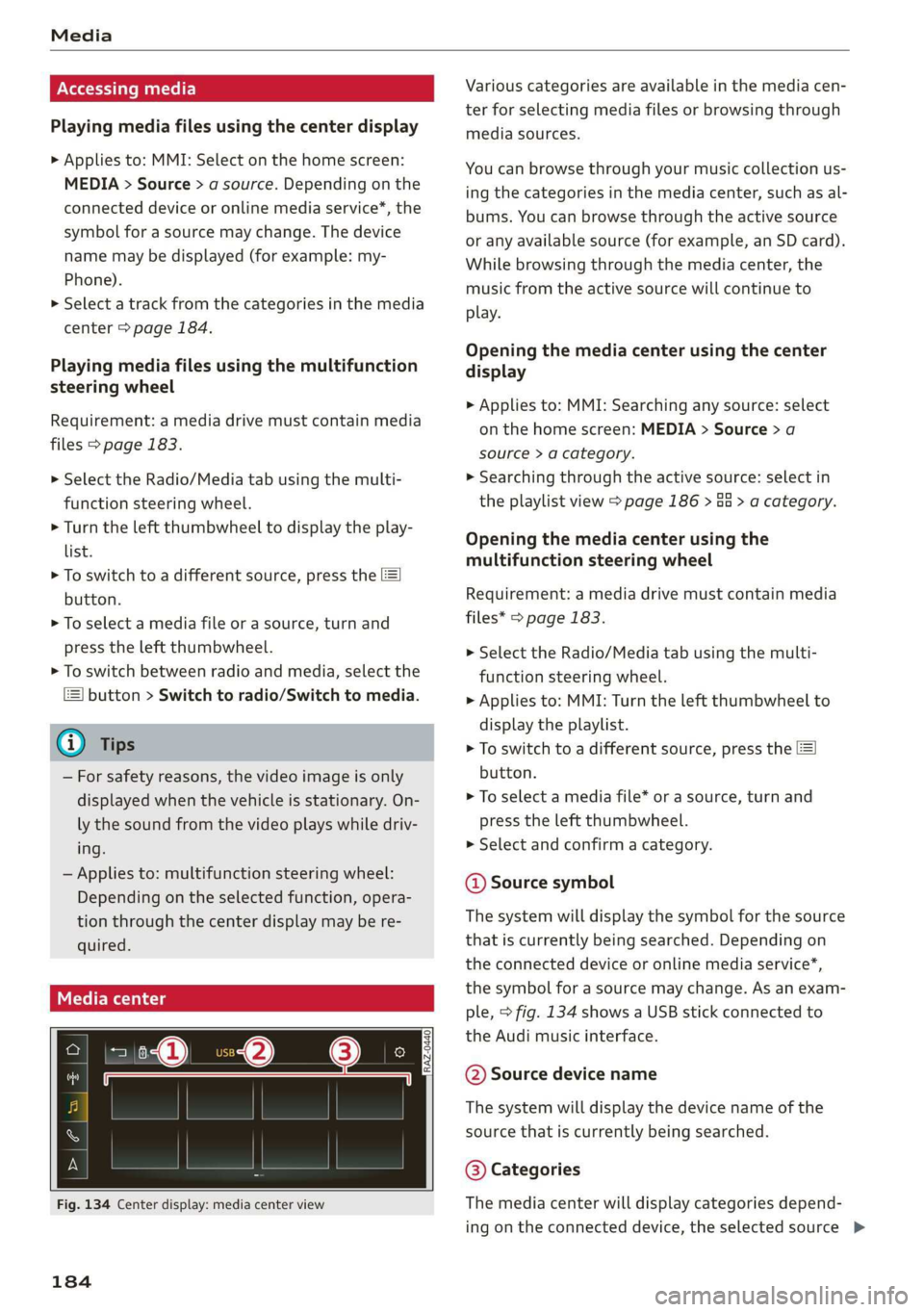
Fig. 134 Center display: media center view
184
Various categories are available in the media cen-
ter for selecting media files or browsing through
media sources.
You can browse through your music collection us-
ing the categories in the media center, such as al-
bums. You can browse through the active source
or any available source (for example, an SD card).
While browsing through the media center, the
music from the active source will continue to
play.
Opening the media center using the center
display
> Applies to: MMI: Searching any source: select
on the home screen: MEDIA > Source > a
source > a category.
> Searching through the active source: select in
the playlist view > page 186 > Ga > a category.
Opening the media center using the
multifunction steering wheel
Requirement: a media drive must contain media
files* > page 183.
> Select the Radio/Media tab using the multi-
function steering wheel.
> Applies to: MMI: Turn the left thumbwheel to
display the playlist.
> To switch to a different source, press the
button.
> To select a media file* or a source, turn and
press the left thumbwheel.
> Select and confirm a category.
@ Source symbol
The system will display the symbol for the source
that is currently being searched. Depending on
the connected device or online media service”,
the symbol for a source may change. As an exam-
ple, > fig. 134 shows a USB stick connected to
the Audi music interface.
@ Source device name
The system will display the device name of the
source that is currently being searched.
@ Categories
The media center will display categories depend-
ing on the connected device, the selected source >
Page 225 of 278
83A012721BB
Wheels
not permitted can lead to ve-
hicle damage or accidents.
—If you install wheel covers on
the vehicle, make sure they al-
low enough air circulation to
cool the brake system. If they
do not, this could increase the
risk of an accident.
Tire wear and damage
B4H-0415
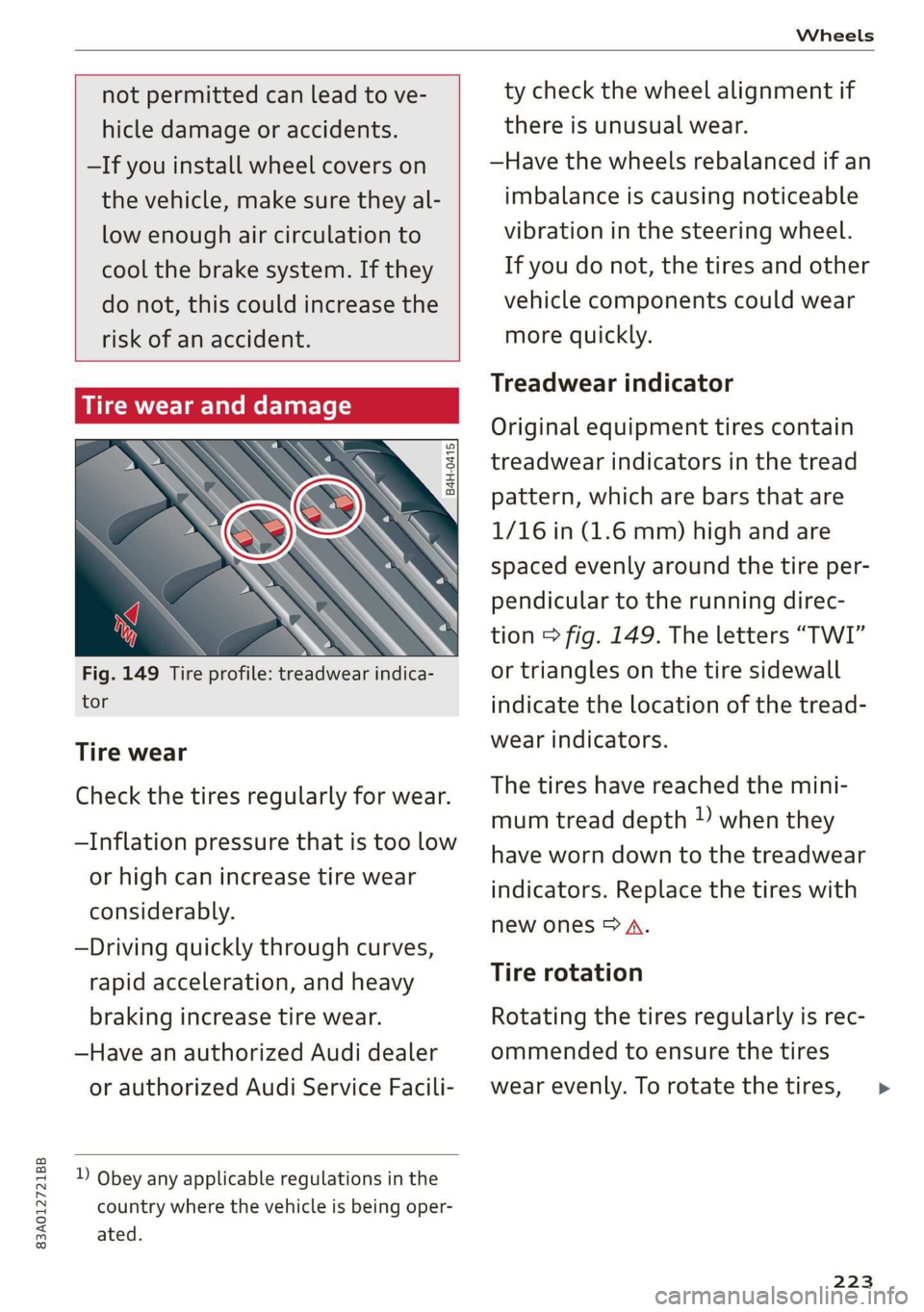
Fig. 149 Tire profile: treadwear indica-
tor
Tire wear
Check the tires regularly for wear.
—Inflation pressure that is too low
or high can increase tire wear
considerably.
—Driving quickly through curves,
rapid acceleration, and heavy
braking increase tire wear.
—Have an authorized Audi dealer
or authorized Audi Service Facili-
D Obey any applicable regulations in the
country where the vehicle is being oper-
ated.
ty check the wheel alignment if
there is unusual wear.
—Have the wheels rebalanced if an
imbalance is causing noticeable
vibration in the steering wheel.
If you do not, the tires and other
vehicle components could wear
more quickly.
Treadwear indicator
Original equipment tires contain
treadwear indicators in the tread
pattern, which are bars that are
1/16 in (1.6 mm) high and are
spaced evenly around the tire per-
pendicular to the running direc-
tion > fig. 149. The letters “TWI”
or triangles on the tire sidewall
indicate the location of the tread-
wear indicators.
The tires have reached the mini-
mum tread depth !) when they
have worn down to the treadwear
indicators. Replace the tires with
new ones > A.
Tire rotation
Rotating the tires regularly is rec-
ommended to ensure the tires
wear evenly. To rotate the tires,
223
>
Page 231 of 278
83A012721BB
Wheels
>Check the tire sidewall
(=> page 215, fig. 148) to deter-
mine the designated load rating
for a specific tire.
Wheel bolts and rims
Wheel bolts
Wheel bolts must be clean and loosen/tighten
easily. You will need a special adapter to loosen
the anti-theft wheel bolts* > page 241.
Rims
Rims with a bolted rim ring* or with bolted wheel
covers* consist of multiple pieces. These compo-
nents were bolted together using special bolts
and a special procedure. You must not repair or
disassemble them > A.
ZA WARNING
Wheel bolts that are tightened or repaired in-
correctly can become loose and result in loss
of vehicle control, which increases the risk of
an accident. For the correct tightening specifi-
cation, see > page 243, Finishing.
— Always keep the wheel bolts and the threads
in the wheel hub clean and free of grease.
— Only use wheel bolts that fit the rim.
— Always have damaged rims repaired by an
authorized Audi dealer or authorized Audi
Service Facility. Never repair or disassemble
rims yourself, because this increases the risk
of
an accident.
Loose wheel warning
Applies to: vehicles with loose wheel warning
Within the limits of the system, the loose wheel
warning in the instrument cluster warns you if
one or more wheels are loose.
Using the ABS sensors, the loose wheel warning
system compares the vibration characteristics of
the individual tires. If one or more wheels are
loose, it will be indicated in the instrument clus-
ter display with the & indicator light and a mes-
sage. If only one wheel is affected, the location
of that wheel will be indicated.
Messages
fi Wheel bolts loose. Please safely stop the ve-
hicle and check all wheel bolts!
Loose wheel warning for at least one wheel > A\.
Check the wheel bolts on all wheels with the
wheel wrench (vehicle tool kit). Have the tighten-
ing specification checked as soon as possible with
a torque wrench. Drive carefully until then. For
the correct tightening specification, see
=> page 243, Finishing.
fl Wheel assessment active. Please continue
driving carefully
After this message appears and you have checked
the wheel bolts, the assessment phase begins
when the vehicle is in motion. This may take sev-
eral minutes.
| | Loose wheel warning: malfunction! See
owner's manual
There is a system malfunction. Drive immediately
to an authorized Audi dealer or authorized Audi
Service Facility to have the malfunction repaired.
ZA WARNING
Wheel bolts that are tightened incorrectly can
become loose and result in loss of vehicle con-
trol, which increases the risk of an accident.
— If a message appears, reduce your speed im-
mediately and avoid any hard steering or
braking maneuvers. Stop as soon as possible
and check the wheel bolts.
— Check your wheels for damage. Have the
damaged wheels checked and/or replaced
immediately by an authorized Audi dealer or
authorized Audi Service Facility.
— Under certain conditions (such as a sporty
driving style, winter conditions, or unpaved
roads), the message may be delayed.
— The driver is responsible for ensuring that
the wheels are attached correctly.
229
Page 235 of 278
83A012721BB
Wheels
— Tires that are only partially used are replaced
with new tires
Indicator lights
@ - Loss of pressure in at least one tire > A\.
Check the tires and replace or repair if necessary.
Check and correct the pressures of all four tires
and store the pressure again > page 233.
ia (Tire Pressure Monitoring System) Tire pres-
sure: malfunction! See owner's manual. if
appears after switching the ignition on or while
driving and the @ indicator light in the instru-
ment cluster blinks for approximately one minute
and then stays on, there is system malfunction.
Try to store the correct tire pressures
=> page 233. In some cases, you must drive for
several minutes after storing the pressures until
the indicator light turns off. If the indicator light
does turn off or turns on again after a short peri-
od of time, drive to an authorized Audi dealer or
authorized Audi Service Facility immediately to
have the malfunction corrected.
ZA WARNING
— If the tire pressure indicator appears in the
display, reduce your speed immediately and
avoid any hard steering or braking maneu-
vers. Stop as soon as possible and check the
tires and their pressure.
— The driver is responsible for maintaining the
correct tire pressure. You must check the
tire pressure regularly.
— Under certain conditions (such as a sporty
driving style, winter conditions, or unpaved
roads), the tire pressure monitoring system
indicator may be delayed.
(i) Tips
—The tire pressure monitoring system can al-
so stop working when there is an ESC mal-
function.
— Using snow chains may result in a system
malfunction.
—The tire pressure monitoring system in your
Audi was calibrated with “Audi Original
Tires” > page 221. Using these tires is rec-
ommended.
Storing tire pressures
If the tire pressure changes or a tire is replaced,
it must be confirmed in the system.
> Before storing the tire pressures, make sure the
tire pressures in all four tires meet the speci-
fied values and are adapted to the load
=> page 224.
> Switch the ignition on.
> Select on the home screen: VEHICLE > Settings
& Service > Tire pressure monitoring > Store
tire pressure > Yes, store now.
(i) Tips
Do not store the tire pressures if snow chains
are installed.
233
Page 249 of 278

83A012721BB
Emergency assistance
Read and follow the important information under
=> page 246.
Preparations
> Only secure the towing cable or tow bar at the
designated towing loops > page 247,
=> page 247.
> Make sure the towing cable is not twisted. Oth-
erwise it could disconnect from the towing loop
while towing.
> Switch the emergency flashers on in both
vehicles > page 46. However, do not do this if it
prohibited by law.
Towing vehicle (front)
> Only start to drive when the towing cable is
taut.
> Press the brake pedal very carefully.
> Avoid sudden braking or driving maneuvers.
Vehicle being towed (rear)
> Make sure the ignition is switched on so that
the steering wheel is not locked and so that you
can use the turn signals, the horn, and the
windshield wipers if needed > A\.
> Switching it off before the vehicle has stopped
may impair the function of the brake booster
and power steering. You would then need to
use more force to steer and brake the vehicle.
> Release the parking brake > page 93.
» Select the “N” selector lever position.
> Make sure the towing cable is always taut.
ZX WARNING
Never tow a vehicle using a tow bar or towing
cable if the vehicle does not have electrical
power.
Front towing loop
Fig. 163 Front bumper: installing the towing loop
The threaded opening for the towing loop is lo-
cated on the right side of the front bumper.
> Remove the towing loop from the vehicle tool
kit > page 240.
> Press the cap inward with brief, strong pressure
> fig. 163. The cap will loosen from the bump-
er.
> Tighten the towing loop in the threaded open-
ing until it stops and then tighten it with a
wheel wrench.
> After using, place the towing loop back in the
vehicle tool kit.
ZX WARNING
If the towing loop is not tightened until it
stops when installing, the threads may be
pulled out when towing the vehicle and result
in an accident.
@) Tips
Depending on the model, the shape of the
cover can vary.
Rear towing loop
Fig. 164 Rear bumper: installing the towing loop
247