page 95 AUDI Q5 2018 Owners Manual
[x] Cancel search | Manufacturer: AUDI, Model Year: 2018, Model line: Q5, Model: AUDI Q5 2018Pages: 392, PDF Size: 60.56 MB
Page 136 of 392
Parking aid
(D Note
-Always read and follow the applicable warn
ings
¢ 0in General information on
page
130.
- The orange-colored orientation lines in the
Infotainment display show the vehicle path based on the steering wheel angle. The
front of the vehicle swings out more than
the rear of the vehicle. Maintain plenty of
distance so that an exterior mirror or a cor
ner of the vehicle does not collide with any
obstacles.
Switching on/off
A pp lies to: ve hicles w ith rearview ca mera
Switching on/off
Requirement: the vehicle speed must be under
approx imately
6 mph (10 km/h).
• Press the P,11A button in the center console
¢ page 132, fig . 129. A short confirmat ion
tone sounds and the LED in the button turns
on.
Switching on automatically
The system switches on automat ically when re
verse gear is engaged while the engine is run
n ing. A brief confirmation tone will sound.
Switching off automatically
The system switches off automatically when driv
ing forward faster than 6 mph
(10 km/h) .
Perpendicular parking
App lies to: ve hicles w ith rearview ca mera
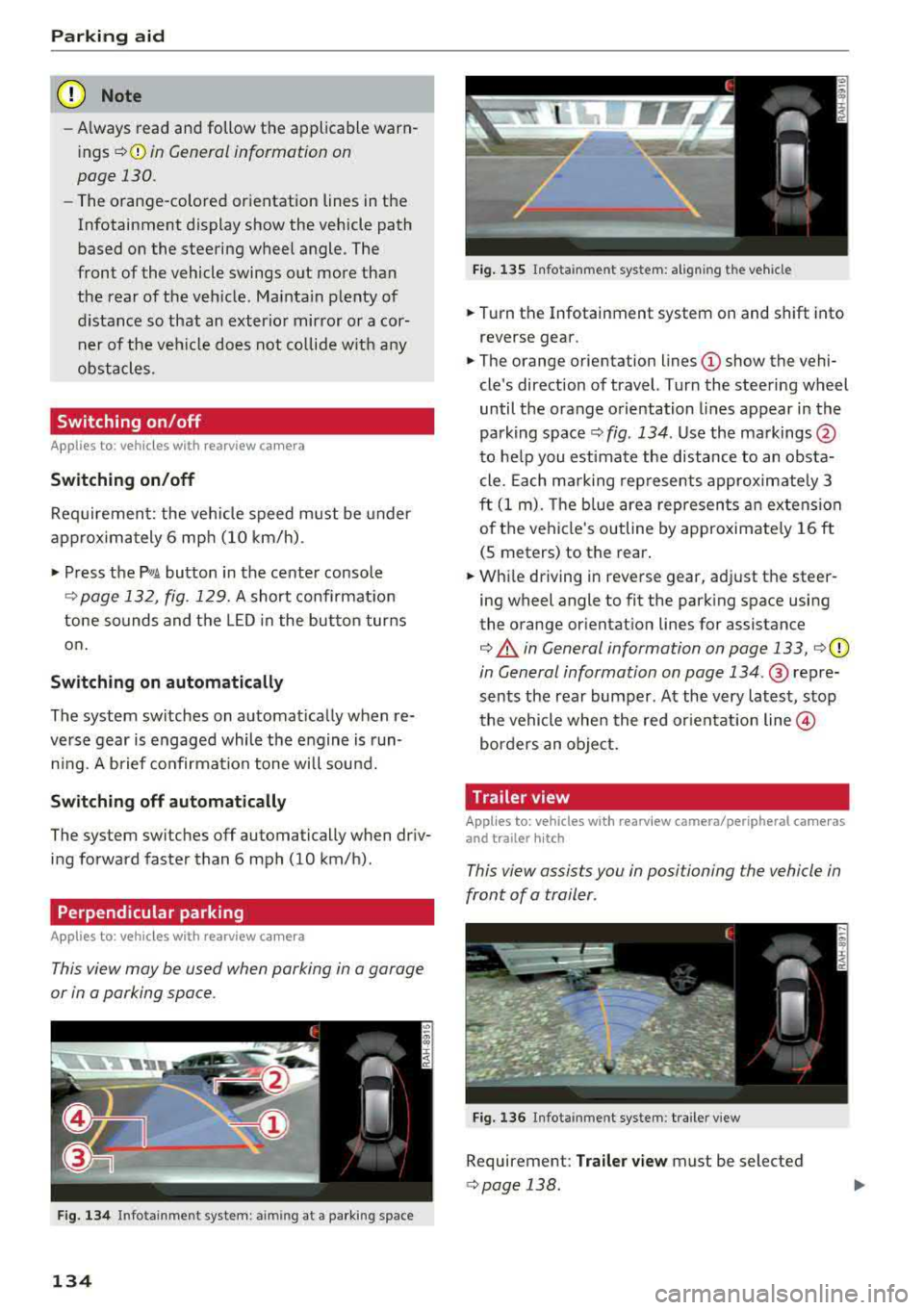
This view may be used when parking in a garage
or in a parking space .
Fig. 134 In fotainme nt system: a iming at a parking space
134
Fig. 135 Infota inment system: al ign ing the vehicle
• Turn the Infotainment system on and shift into
reverse gear.
• The orange orientation lines (D show the vehi
cle's direction of travel. Turn the steering wheel
until the orange orientation lines appear in the
parking
space ¢ fig. 134 . Use the markings @
to help you estimate the distance to an obsta
cle. Each mark ing represents approximately 3
ft
(1 m). The b lue area represents an extension
of the vehicle's outline by approximate ly
16 ft
(5 meters) to the rear.
• While driving in reverse gear, adjust the steer
ing wheel angle to fit the parking space using
the orange orientat ion lines for assistance
¢ .&. in General information on page 133, i=>(D
in General information on page 134 .@ repre
sents the rear bumper. At the very latest, stop
the vehicle when the red orientation
line @
borders an object.
Trailer view
Applies to: vehicl es with rearv iew camera/peripheral ca meras
and trailer hitch
This view assists you in positioning the vehicle in
front of a trailer .
Fig. 136 Infotainment system : trailer view
Requirement: Trailer view must be selected
¢page 138 .
Page 137 of 392
u co ..... N r-N .....
~ 0 co
~ Now you can position your vehicle in front of
the trailer ¢
A in General information on
page 135,
¢ (Din General information on
page 135.
The orange orientation line indi
cates the expected path toward the trailer
hitch . Use the blue lines to help you estimate
the d ista nce to the trailer h itch.
Peripheral cameras
Introduction
Applies to: vehicles with peripheral cameras
With this equipment, the parking system plus*
¢
page 131 is supplemented w ith various periph
eral cameras. The four cameras give you the fol
lowing views : area around the vehicle, front cor
ner v iew and rear corner v iew, view in front of the
veh icle and beh ind the veh icle .
General information
App lies to: veh icles with peripheral cameras
i
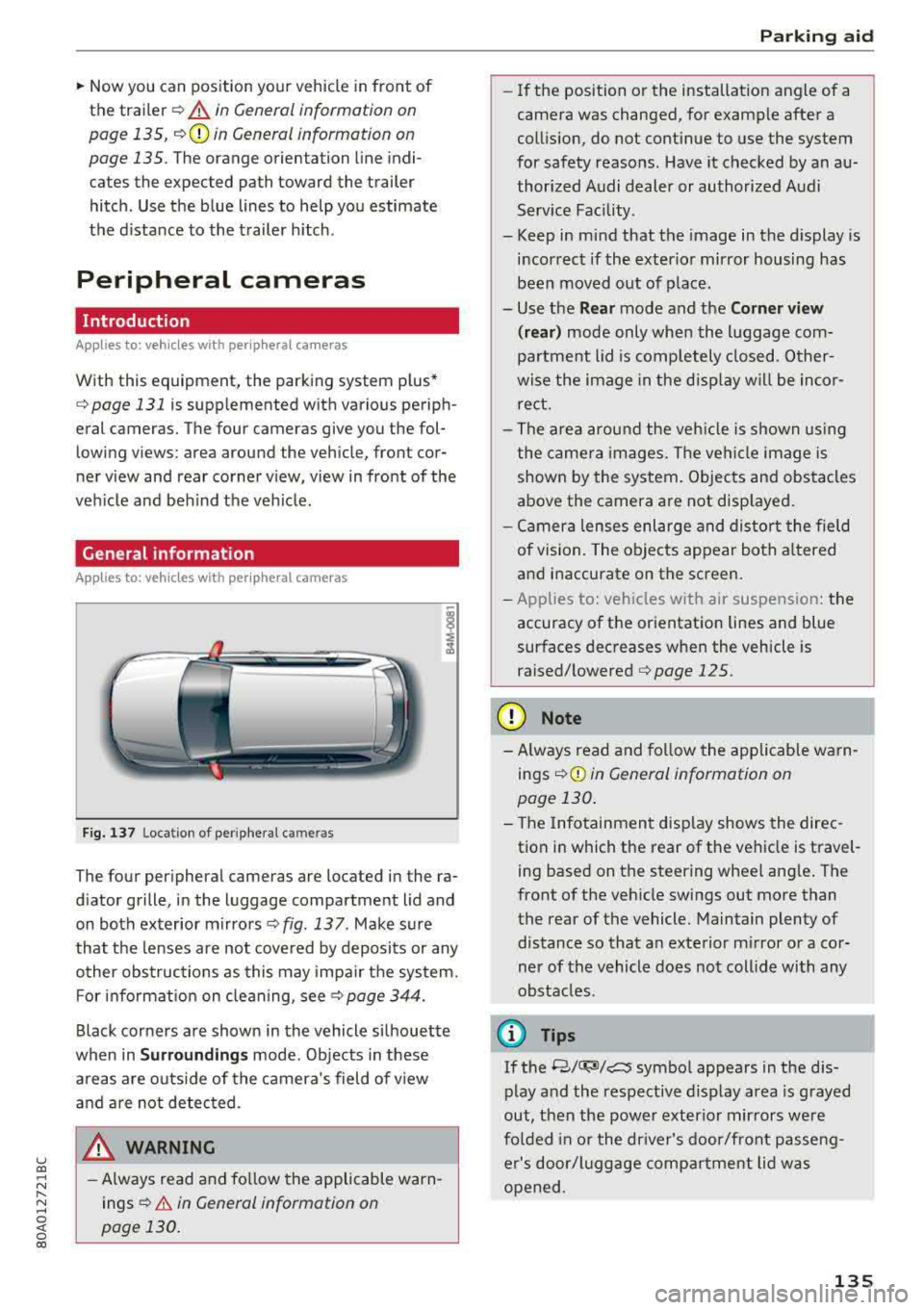
Fig. 137 Locat ion of periphera l ca mera s
The four per ipheral cameras are located in the ra
d iator grille, in the luggage compartment lid and
on both exterior mirrors ¢
fig. 13 7 . Make sure
that the lenses are not covered by deposits or any
other obstructions as this may impa ir the system.
F or info rmat io n on cleaning, see
c::> page 344.
Black corners are shown in the vehicle si lhouette
when in
Surroundings mode. Objects in these
a reas a re outside of the camera 's field of v iew
and a re not detec ted .
_& WARNING
-Always read and follow the applicable warn
ings ¢
A in General information on
page 130.
P ark ing aid
- If the position or the installation angle of a
camera was changed, for example after a
coll is ion, do not cont inue to use the system
for safety reasons. Have it checked by a n au
thorized A udi dealer or authorized Audi
Serv ice Facility.
- Keep in mind that the image in the display is
i n correct if the exterior mirror housing has
been
moved out of p la ce.
- Use the
Rear mode and the Corner view
( rear )
mode only when the luggage com
pa rtment lid is comp letely closed. Other
wise the image in the disp lay w ill be inco r
re ct.
- The area around the veh icle is shown using
the camera images. The vehi cle image is
shown by the system. Objects and obs tacles
above the camera are not disp layed .
- Ca mera lenses enl arge and distort the field
of vision. The o bjects appear both a ltered
a nd inaccurate on the screen.
- Applies to: vehicle s with air suspension: the
accuracy of the orientation lines and blue
surfaces dec reases whe n the vehicle is
raised/lowered <=>
page 125.
(D Note
-Always read and fo llow the applicable wa rn
ings
c::> (D in General information on
page 130 .
- The Info tainmen t display shows the direc
tion i n which the rear of the vehicle is travel
ing based on t he steering wheel ang le . The
front of the veh icle swings out mo re than
the rear of the vehicle. Maintain plenty of
distance so that a n exterior m irror or a cor
ner of the vehicle does not coll ide with any
obstacles.
(0 Tips
If the 8/0";JJ/c:5 symbo l appears in the d is
play a nd the res pect ive d isplay area is grayed
out, then the power exter ior mir rors we re
fo lded in or the dr iver's door/front passeng
e r's door/luggage comp artme nt lid w as
opened .
135
Page 138 of 392
Parking aid
Switching on/off
Applies to: ve hicles w ith per ip heral cameras
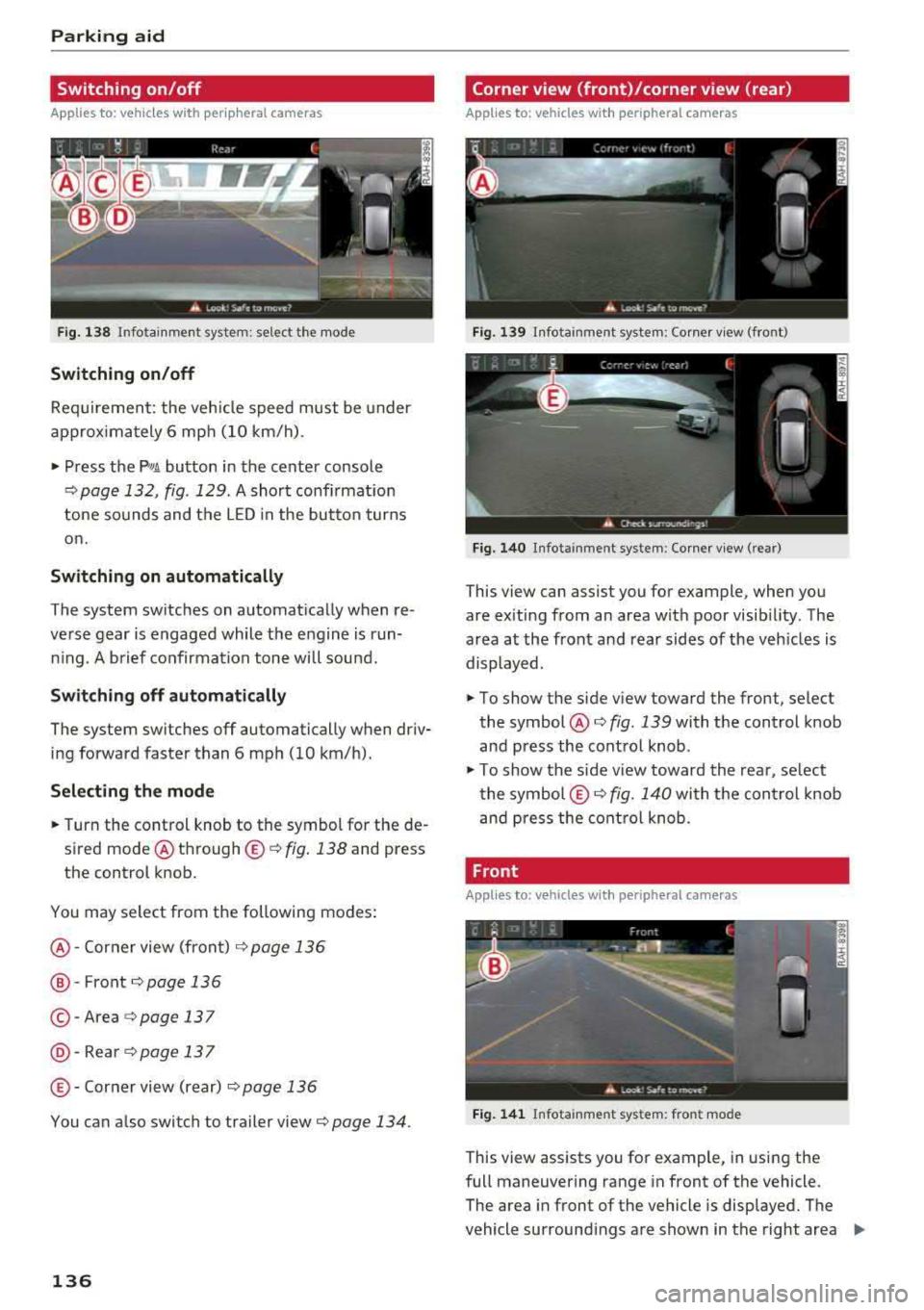
Fig. 1 38 Infotainment system: se lect the mode
Switch ing on /off
Req uirement: the veh icle speed must be under
approx imately 6 mp h (10 km/h).
• Press the P'I/ A button in the center console
¢ page 132, fig . 129 . A short confi rmat ion
tone so unds and the
LED in the but to n turns
on.
Switching on automatically
The system switches on automat ica lly when re
verse gear is engaged while the engine is run n ing . A brief confirma tion tone wi ll soun d.
Sw it c hing off automat ically
The system switches off automatically when dr iv
ing forward faster than 6 mph (10 km/h).
Selecting the mode
• Turn the control knob to the symbol for the de
sired mode @
th rough ©¢ fig. 138 and press
the control knob.
You may select from the following modes:
@ -Corner view (front) c;> page 136
@-Front¢ page 136
© -Area c;> page 137
@ -Rea rc;> page137
© - Corner view (rear) ¢ page 136
You can a lso switch to trailer view c;> page 134 .
136
Corner view (front)/corner view (rear)
Applies to : vehicles with peripheral cameras
Fi g. 139 In fota inment system: Corner v iew (front)
Fig. 14 0 Infota inment sy stem : Corner v iew (re ar)
This view can assist you for example, when you
are ex iting from an area with poor visib ility. The
area at the front and rear sides of the veh icles is
displayed.
• To show the side v iew toward the front, select
the symbol @
c;> fig. 139 with the control knob
and press the contro l knob .
• To show the s ide v iew toward the rea r, se lect
the symbol ©
c;> fig. 140 with the con trol knob
and p ress the control knob .
Front
Applies to: vehicles wi th peripheral ca meras
Fi g. 141 Info ta in ment sys tem: fron t mode
This view assists you for example, in using the
full maneuvering range in front of the vehicle.
The area in front of the vehicle is displayed. The
vehicle surround ings are shown in the right area
..,
Page 139 of 392
u co ..... N r-N .....
~ 0 co
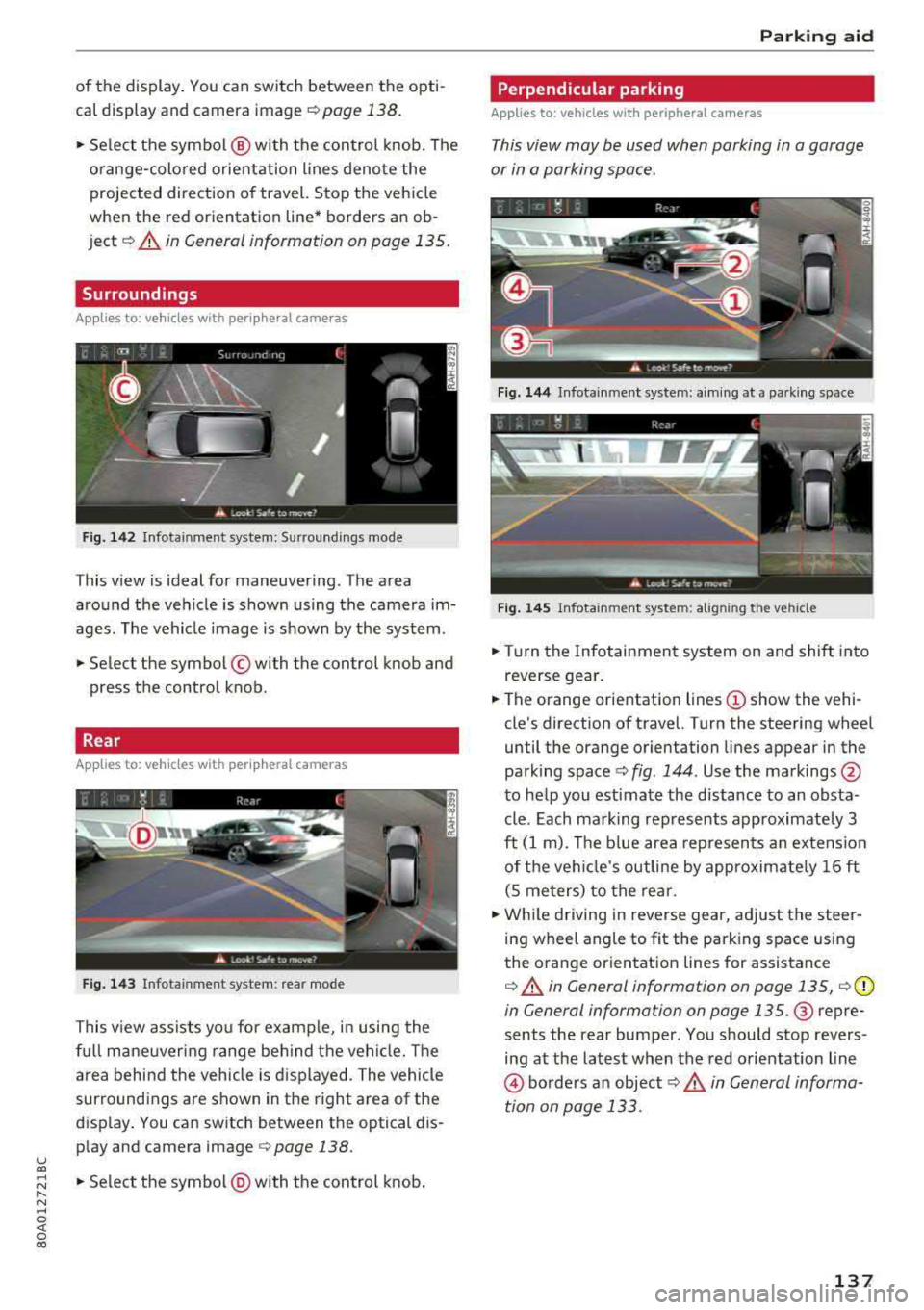
of the display. You can switch between the opti
cal display and camera image
¢page 138.
"'Select the symbol @ with the control knob. The
orange-colored orientation lines denote the
projected direction of travel. Stop the vehicle
when the red orientation line* borders an ob
ject¢ &. in General information on page 135.
Surroundings
Applies to: vehicles with peripheral cameras
Fig. 142 Infotainment system: Surroundings mode
This view is ideal for maneuvering. The area
around the vehicle is shown using the camera im
ages. The vehicle image is shown by the system.
"'Select the symbol © with the control knob and
press the control knob.
Rear
Applies to: vehicles with peripheral cameras
Fig. 143 Infotainment system: rear mode
This view assists you for example, in using the
full maneuvering range behind the vehicle. The
area behind the vehicle is displayed. The vehicle
surroundings are shown in the right area of the
display. You can switch between the optical dis
play and camera image <=>
page 138.
"'Select the symbol@) with the control knob .
Parking aid
Perpendicular parking
Applies to: vehicles with peripheral cameras
This view may be used when parking in a garage
or in a parking space.
Fig. 144 Infotainment system: aiming at a parking space
Fig. 145 Infotainment system: al igning the vehicle
"'Turn the Infotainment system on and shift into
reverse gear.
"'The orange orientation lines (!) show the vehi
cle's direction of travel. Turn the steering wheel
until the orange orientation lines appear in the
parking space
c:> fig . 144. Use the markings @
to help you estimate the distance to an obsta
cle. Each marking represents approximately 3
ft
(1 m). The blue area represents an extension
of the vehicle's outline by approximately
16 ft
(S meters) to the rear.
"'While driving in reverse gear, adjust the steer
ing wheel angle to fit the parking space using
the orange orientation lines for assistance
c:> &. in General information on page 135, ¢ (D
in General information on page 135. @ repre
sents the rear bumper. You should stop revers
ing at the latest when the red orientation line
@ borders an object c:> .& in General informa
tion on page 133.
137
Page 140 of 392
Parking aid
Adjusting the parking aid
Applies to: vehicles with a rear parking system/parking sys
tem plus/rearview camera/peripheral cameras
The functions are adjusted in the Infotainment
system .
.,. Select in the Infota in m ent system: IMENU I but
t on
> Vehicle > left co ntro l bu tton > Driver a s
sistance > Parking aid .
Or
.,. When the par kin g aid is active, se lect in the In -
fotainment system : rig ht contro l butto n*.
End sy stem * -stop t he pa rking aid
Activate automatically * -switch automatic acti
vation on/off
Front volume * -volume for the front area
Rear volume -vo lume for t he rear area
Entertainment fader -the vol ume o f th e aud io/
video so urce is lowered when t he parking system
is turned on.
T he new value is g iven b riefly du ring the a djus t
men t.
View * -sw itch betwee n an optical d isplay
( Graphic ) and camera image ( Camera ) in the
r ight section of the disp lay.
Trail er view * -show trailer view
*Auto. front /rear came ra change* -the view be
h ind the veh icle
( Rear mode) is displayed auto
mat ica lly w hen you shift into reverse gear. The
v iew in front of the vehicle
( Front mode) is d is
p layed automat ically whe n you sh ift into the for
ward gea rs. When first activat ing in a forward
gea r with t he
P,,1~ bu tto n, the front s ide v iew is
d isp layed
(Corner view (front) mode).
If you do not set
the./, t h e view behind the vehi
cle
( Rear mode) is a lways d isp layed and it does
no t swi tch to the
Front mode whe n a forwar d
ge ar is se lec ted .
(0 Tips
-Seve ral menus can be accessed w ith the
r ight contr ol butt on o nly w hen the p ark ing
a id is active.
138
- The set tings for vo lume and automa tic ac ti
vation * are stored automatically and as
signe d to the remote control key in use.
Error messages
Applies to: vehicles with a rear parking system/parking sys
tem plus/rearview camera/peripheral cameras
Ill Rear parking aid: malfunction! Ob stacl es
cannot be detected
Ill Front parking aid: malfunction! Obstacles
cannot be detect ed
Ill Parking aid : malfunct ion! Obstacles cannot
be detected
When one of these messages appears, there is a
system malfunction. The LED in t he
Pw, button al
so blinks whe n sw itchi ng it on. The releva nt mes
sage o nly appears again w hen you manually acti
vate the par king a id wi th t he b utton .
[ii Rear parking aid : obstacle detection restrict
ed
The rea r cross-traffic ass ist* c:!;> page 124, Rear
cross-traffic assist is no t ava ilable. Either the ESC
is sw itched off, or the radar sensors may be cov
ered by a bike rack, stickers, leaves, snow or oth
er objects . Switch t he ESC on , or clean the area in
front of the sensors if necessary
c:!;> page 121,
fig. 121 .
If this message cont inues to be d is
played, drive immed iate ly to an author ized A udi
de aler or au thor ized A udi Servi ce Facili ty to h ave
t h e mal funct ion repai red .
Parking system plus*
If a senso r or speaker is faulty, the.!¼ symbo l
will appear i n fro nt of/behind the vehicle in the
I nfotai nment syste m disp lay. If a rear sensor is
f aulty, only obs tacles th at are in areas @ and @
a re show n
<:!;>page 131, fig . 128 . If a front senso r
i s fa ulty, o nly obstacles that a re in a reas © and
@ are s hown.
Peripheral cameras*
There is a system malfunction if t he % symbo l
appe ars and the co rresponding area of the dis
play is shown in black . The camera is not wo rking
i n th is area.
...
Page 146 of 392
Intelligent Technology
(D Tips
-If the brake booster is not working, you
must press the brake pedal with much more
force than normal.
- If you retrofit your vehicle with a front spoil
er, whee l covers or similar items, make sure
that the a ir flow to the front wheels is not
in terrupted. Otherw ise the brake system
can become too hot .
Electromechanical
steering, Dynamic
steering
The electromechanical steering supports the
driver's steering movements.
Power steering adapts electronically based on
the vehicle speed.
Indicator lights and messages
• Steering: malfunction! Please stop vehicle
If th is ind icator light turns on and stays on and
this message appears, the power steering may
have fa iled.
Stop the vehicle in a safe location as soon as pos
sible . Do
not continue driving . See an author ized
Aud i deale r or authorized Aud i Serv ice Facility fo r
assistance .
,~n Steering: malfunction! You can continue
driving
If the indicator light turns on and the message
appears, the steering wheel may be more diffi
cult to move or more sensit ive than usual. The
steer ing wheel may also be at an angle when
driving st raight.
Drive slowly to an au thorized Audi dealer or au
thor ized Audi Service Fac il ity to have the mal
function corrected .
I@ Dynamic steering: correcting steering wheel
position
If the indicator light turns on and this message
appears, the dynamic steering* is reinitializing.
The steering wheel will be easy to move after
starting the engine. Re initialization might be
144
necessary if the steering wheel was moved while
the engine was switched
off. T he disp lay turns
off if the initialization was successfu l.
(D Tips
-If the . or Erfl indicator light only stays on
for a short time, you may continue driving.
- T he dynamic steering stability systems
¢page 140 are not avai lab le in the event of
a system malfunction .
- For additional information on dynamic
steering, see
¢ page 125.
All-wheel drive (quattro)
General information
In all wheel drive, the driv in g power is distribut
ed between all four whee ls when needed. This
happens automatically depending on your driving
behavior as well as the current road conditions.
Also see
c> page 140 , Electronic Stabilization
Con trol (ESC).
The all-whee l drive system distributes the driving
power variably to the front and rear axle. It works
together with selective wheel torque control,
which activates when driving through curves
c> page 140. With the sport differential*, power
distribution to the rear wheels is variable and can
be adjusted using the drive select
c>poge 125 .
The all wheel drive concept is designed for high
engine power . Your vehicle is excep tionally pow
erful and has excellent driving characteristics
both under normal driving conditions and on
snow and ice. Always read and follow safety pre
cautions ¢.&. .
Winter tires
By using all wheel dr ive, your veh icle has good
forward motion w ith standard tires in winter con
ditions. However, using winter or all season t ires
o n oil four wheels in the winter is recommended,
because this w ill imp rove the braking effect.
Snow chains
If there are snow chain laws, snow chains must
also be used on veh icles with all wheel drive
c> page 340, Snow chains . .,.
Page 147 of 392
u co ..... N r--N ..... 0 <( 0 00
Replacing tires
F or vehicles w it h all whee l dr ive, only wheels w ith
the same ro lling circumference should be used .
Avoid using tires with different tread depths
~ page 332, New tires or wheels.
A WARNING
- Also, in vehicles with all wheel drive, adapt your dr iv ing style to the current road and
traff ic conditions. Do not let the increased
safety provided tempt you into tak ing risks,
because th is increases the r isk of an acci
dent .
- The braking ability of your veh icle is limited
to the tract ion of the wheels. In this way, it
is not diffe rent from a two wheel dr ive vehi
cle. Do not be tempted to accelerate to a
high speed when the road is slippery, be
cause this increases the risk of an accident.
- Note that on wet streets, the front wheels
can "hydroplane" if driving at speeds that
are too high . Unlike front whee l drive
vehicles, the engine does not rev higher sud
denly when the vehicle begins hydroplaning.
For this reason, adapt your speed to the
road conditions to reduce the risk of an acc i
dent .
Energy management
Your vehicle is equipped with an intelligent ener
gy management system for distributing electrici
ty . This s ignificantly improves the starting ab ility
and increases the vehicle battery life .
(D Tips
- If you drive short distances frequently, the
vehicle battery may not charge enough
while dr iving . As a resu lt, convenience func
tions for elect rical equipment may be tem
porarily unavailable.
- The vehicle battery will gradua lly drain if
the vehicle is not driven fo r long pe riods of
time, or if electrical equipment is used
when the engine is not running . To ensure
that the vehicle can still be started, the electrica l equipment will be reduced or
switched off.
Intelligent Technology
Notice about data
recorded by the Event
Data Recorder and
vehicle control modules
Event Data Recorder
T his vehicle is equipped with an Event Data Re
corder (EDR). The main purpose of an EDR is to
record, in certain crash or near crash-like situa
tions, such as an airbag deployment or hitting a road obstacle, data that will assist in understand
ing how a vehicle's systems performed. The EDR
is designed to record data related to vehicle dy
nam ics and safety systems for a short per iod of
t ime, typ ically 30 seconds or less. The EDR in this
vehicle is designed to record such data as:
- How various systems in your vehicle were oper
ating;
- Whether or not the driver and passenger safety
belts were buckled/fastened;
- How far (if at all) the driver was depressing the
accelerator and/or brake pedal; and,
- How fast the vehicle was traveling.
These data can help provide a better understand
ing of the circumstances in which crashes and in
juries occur. NO TE: EDR data are recorded by your
vehicle only if a non-trivial crash situation occurs;
no data are recorded by the EDR under normal
driv ing cond itions and no personal data (e.g .,
name, gender, age, and crash location) are re
corded. However, othe r parties, such as law en
forcement, could comb ine t he EDR data with the
type of personally identifying data routinely ac
quired during a crash investigation.
T o read data recorded by an EDR, special equip
ment is required, and access to the vehicle or the
EDR is needed. In addition to th e ve hicle manu
facturer, other parties, such as law en forcement,
that have the special equipment, can read the in
formation if they have access to the vehicle or the
EDR.
Some state laws restrict the retrieval or down
l oading of data stored by ED Rs installed in a vehi
cle for the express purpose of retrieving data af
ter an accident or crash event without the own- er 's consent .
II>-
145
Page 150 of 392
Multi Media Interface
MMI On/Off knob with
joystick function
Operating
Fig.149 MMI On/Off knob wi th joystick functio n
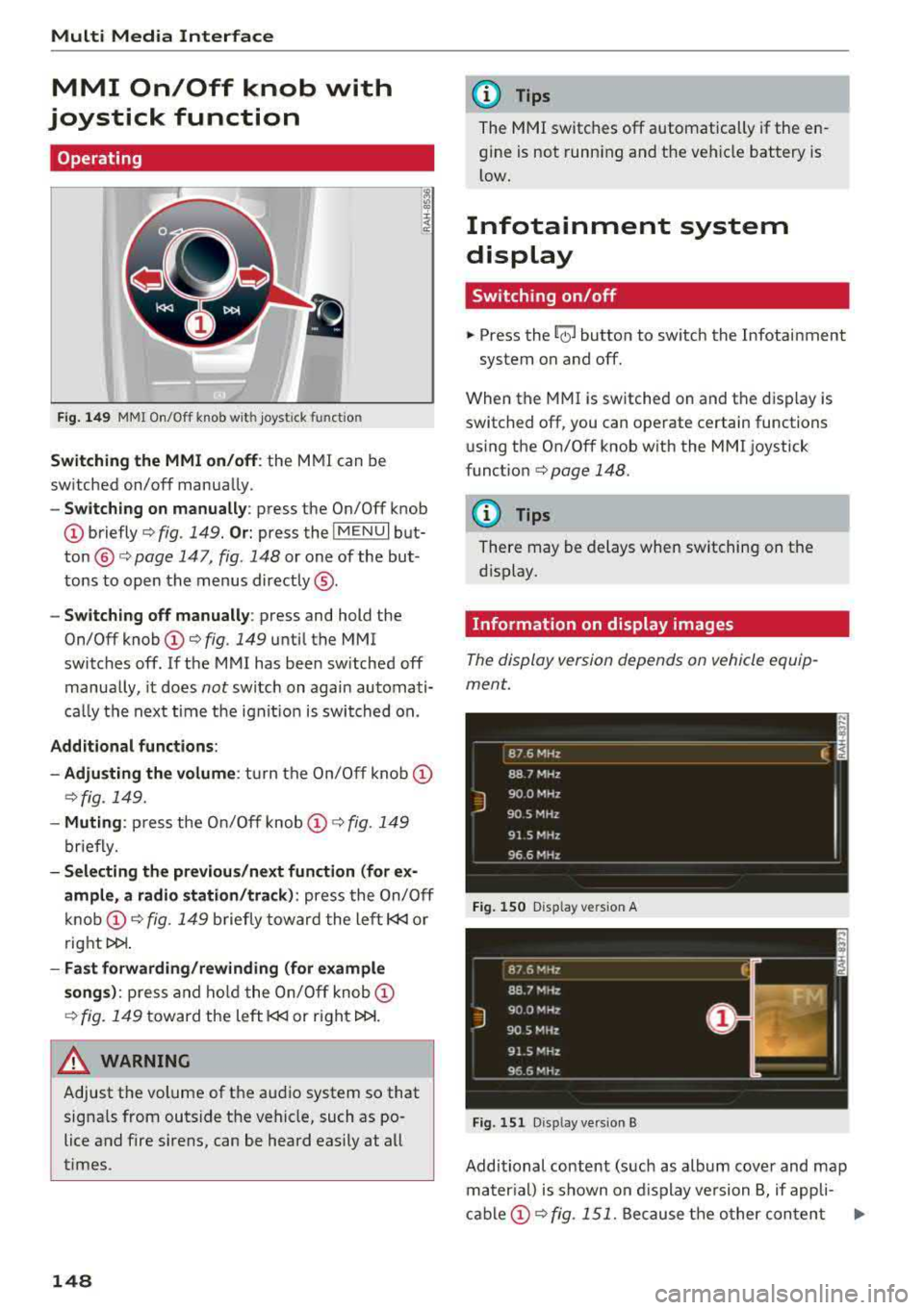
Switching the MMI on/off: the MMI can be
switched on/off manually .
-Switching on manually : press the On/Off knob
@briefly c:> fig. 149. Or: press the IMENUI but
ton @ c:> page 147, fig. 148 or one of the but
tons to open the menus directly ®·
-Switching off manually: press and hold the
On/Off knob
(D c:> fig. 149 until the MMI
switches off. If the MMI has been switched off
manually, it does
not switch on again automati
ca lly the next time the ignit ion is switched on.
Additional functions:
- Adju sting the volume :
turn the On/Off knob (D
c:>fig. 149.
-Muting : press the On/Off knob (D c:> fig. 149
briefly.
- Selecting the previous /next function (for ex
ample, a radio station/track):
press the On/Off
knob
(D c:> fig . 149 briefly toward the left l
t>l>I .
-Fast forwarding/rewinding (for example
songs): press and hold the On/Off knob (D
c:> fig. 149 toward the left l
.&_ WARNING
Adjust the volume of the audio system so that
signals from outside the vehicle, such as po
lice and fire sirens, can be heard easily at all
times.
148
@ Tips
The MMI switches off automatically if the en
gine is not running and the vehicle battery is
low.
Infotainment system
display
Switching on/off
.. Press the~ button to switch the Infotainment
system on and off.
When the MMI is switched on and the display is
switched off, you can operate certain functions using the On/Off knob with the MMI joystick
funct ion
c:> page 148 .
{!) Tips
There may be delays when switching on the
display.
Information on display images
The display version depends on vehicle equip
ment.
_ 8_ 7_ 6
_ M_H _z ____________ ____ f. ;
88 7 MHz
J
900 MHz
90.5 MHz
91 5 MHz
96 6 MHz - -------------
Fig. 150 D isp lay vers ion A
Fig. 151 D isp lay vers ion B
Additional content (such as album cover and map
mater ial) is shown on display version B, if appli-
cable
(D c:> fig . 151. Because the other content Ill-
Page 151 of 392
u co ..... N r-N .....
~ 0 co
shown on the displays is nearly identical between
the two versions, this manual will primarily de
scr ibe display version A .
MMI operation
Selecting and confirming a function
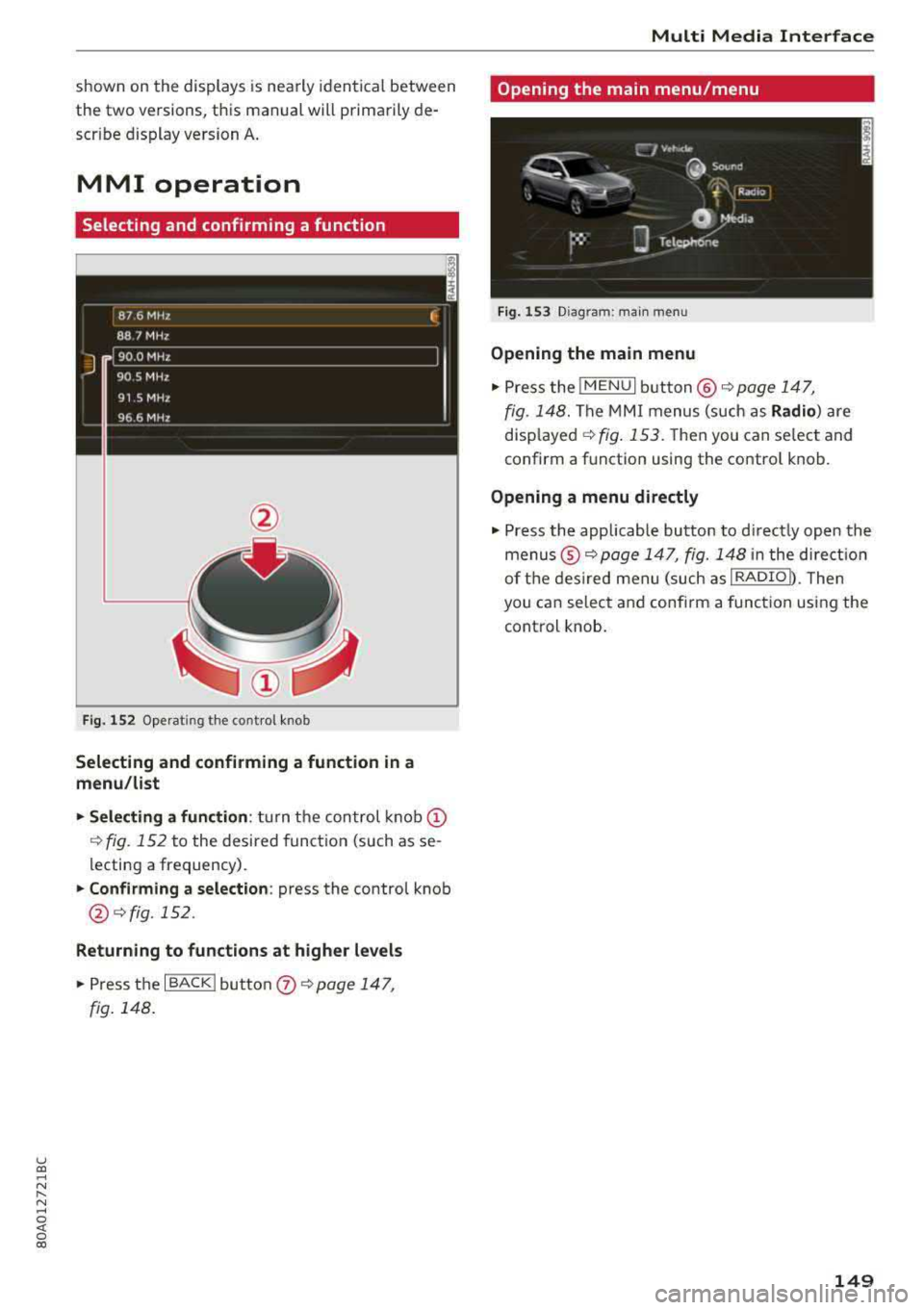
Fig. 152 Operating the contro l knob
Selecting and confirming a function in a
menu /list
"'Selecting a function : turn the control knob (D
¢fig. 152 to the desired function (such as se
lecting a frequency) .
"'Confirming a selection: press the control knob
@¢fig, 152.
Returning to functions at higher levels
"'Press the I BACK I button 0 ¢ page 147,
fig. 148.
Multi Media Inte rface
Opening the main menu/menu
Fig. 153 Diag ram: main menu
Opening the main menu
"'Press the lMENUI button @ ¢page 147,
fig . 148. The MMI menus (such as Radio) are
disp layed
¢ fig. 153. Then you can select and
confirm a function using the contro l knob.
Opening a menu directly
"' Press the applicable button to d irectly open the
menus ®
¢page 147, fig. 148 in the direct ion
of the desired menu (such as
I RADIO b. Then
you can select and confirm a function using the
control knob.
149
Page 153 of 392
u co ..... N r-N .....
~ 0 co
MMI touch
MMI touch control pad
Applies to: vehicles with MMI touch
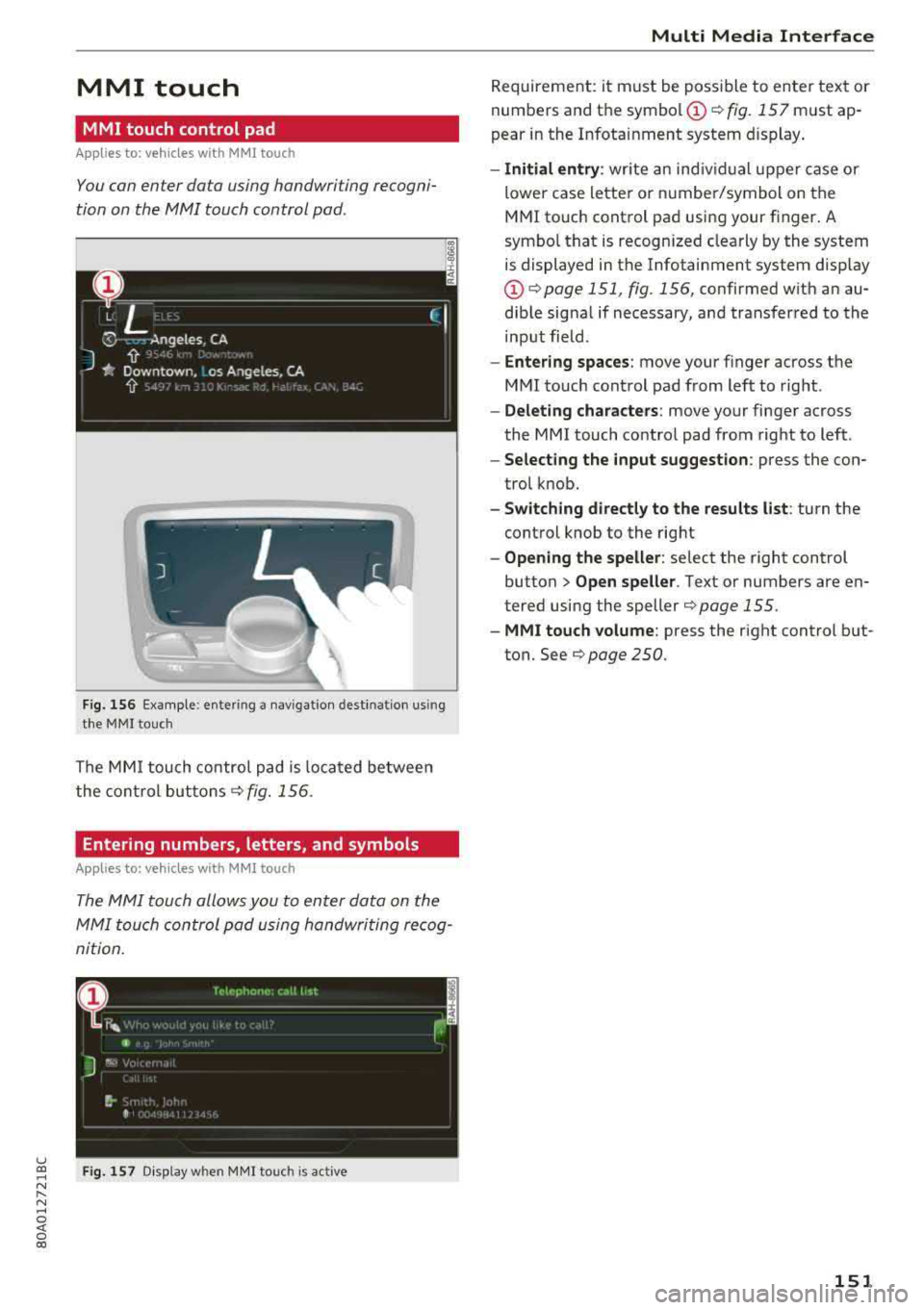
You can enter data using handwriting recogni
tion on the MMI touch control pad.
F ig . 1 56 Examp le : enter ing a nav igation dest ination us in g
t h e MMI touc h
The MMI touch control pad is loca ted be twee n
the cont ro l
buttons¢ fig. 156 .
Entering numbers, letters, and symbols
Applies to: veh icles with MMI touch
The MMI touch allo ws you to enter data on the
MMI touch con trol pad using handwriting rec og
ni tion .
Fig . 15 7 Disp lay w hen MMI touc h is act ive
Multi Media Inte rface
Requirement: it must be poss ible to enter text or
numbers and the
symbol (!) q fig. 157 must ap
pear in the Infotainment system d isplay .
-Initial entry : write an ind iv idual upper case or
lower case letter or n umbe r/symbol on the
MMI touch cont rol pad using your finger . A
symbo l that is recogn ized clearly by the system
is displayed in the Infotainment system disp lay
(D q page 151 , fig. 156, confirmed w ith an au
dib le sig na l if necessary, and transferred to the
input field.
- Enter ing spaces : move your finger across the
M MI touch control pad from left to right .
-Delet ing characters : move your finger across
the MMI touch contro l pad from right to left .
-Select ing the input suggestion : press the con
trol k nob.
- Switching directly to the results list : turn the
control knob to the rig ht
- Opening the speller : select the right control
button>
Open speller . Text or numbers are en
tered using the
speller¢ page 155.
- MMI touch volume : press the right control b ut
ton. See
¢ page 250 .
151