radio AUDI Q5 2018 User Guide
[x] Cancel search | Manufacturer: AUDI, Model Year: 2018, Model line: Q5, Model: AUDI Q5 2018Pages: 392, PDF Size: 60.56 MB
Page 160 of 392
Multi Media Interface
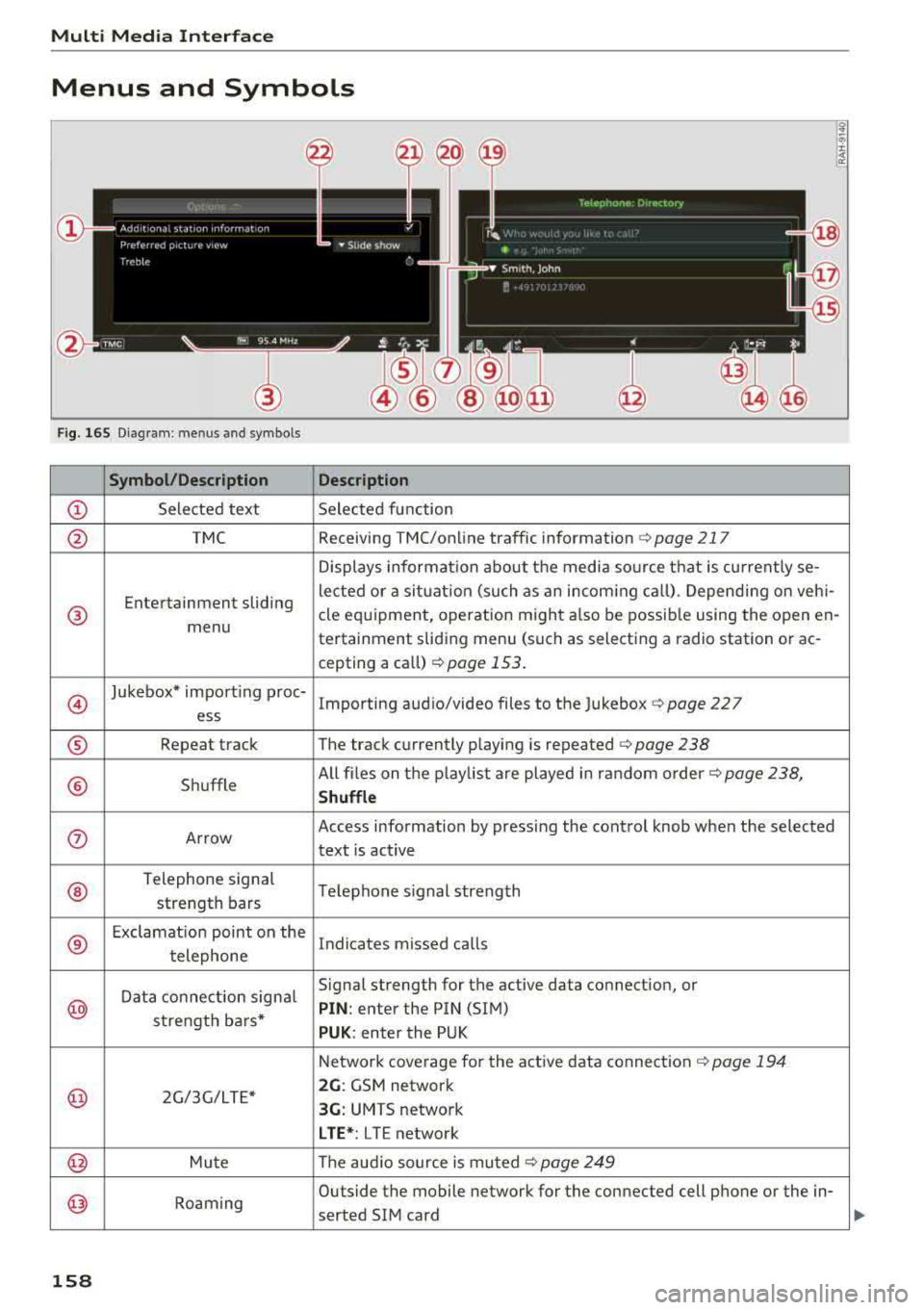
Menus and Symbols
Fig. 165 Diagram: menus and symbols
Symbol /Description Description
CD Selected text Selected function
@ TMC Receiving TMC/online traffic information c> page 217
Displays informat ion about the media so urce that is currently se-
Entertainment sliding lected or
a situat ion (such as an incom ing ca ll). Depending on veh i-
® cle equipment, operation might also be possible using the open en-
menu tertainment sliding menu (such as select ing a radio station or ac-
cepting a call)
<=> page 153 .
@
Jukebox* import ing proc-
Importing audio/video files to the Jukebox <=>page 227
ess
® Repeat track The track currently playing is repeated c> page 238
® Shuffle All files on
the playlist are played in random order c> page 238,
Shuffle
0 Arrow Access information by pressing the control knob when the selected
text is active
®
Telephone signal
Telephone signal strength
strength bars
®
Exclamation point on the
Indicates missed calls
telephone
Data connection signal Signal strength for the active data connection, or
@ PIN
: enter the PIN (SIM)
strength bars*
PUK : enter the PUK
Network coverage for the active data connection
c> page 194
@ 2G/3G/LTE* 2G: GSM network
3G: UMTS network
LTE* : LTE network
@ Mute The aud io source is muted <=>page 249
@) Roaming Outside the mobile network for the
connected cell phone or the in-
serted SIM card
158
Page 162 of 392
Multifunction steering wheel
Multifunction steering
wheel
Introduction
Applies to: vehicles with multifunction steering wheel
In the driver information system display, you can
control numerous Infotainment functions using
the multifunction steering wheel plus*
¢ page 12 or the mult ifunct ion steer ing wheel*
¢pag e 15.
You can control additional Infotainment func
tions using the
MMI control panel¢ page 147 in
the Infota inment system display.
.&_ WARNING
Direct your full attention to driving. As the
dr iver, yo u have complete responsibility for
safety in traffic. Only use the functions in
-
such a way that you a lways maintain com
plete control over your vehicle in all traffic sit-
uations.
Radio
Applies to: vehicles with multifunction steering wheel and ra
dio
Applies to: vehicles with multifunction steering wheel
"' Press the I MODE I button on the multifunction
steering wheel repeatedly until the Rad io/Me
dia tab is displayed.
Applies to: vehicles with multifunction steering wheel plus
"'Press the l<1 t>I button on the multifunction
steering wheel repeatedly until the Radio/Me
dia tab is displayed.
"' Press the le ft contro l button ¢ page 13.
Dep ending on vehicle equipm ent, the following
functions may be available in the drive r informa
tion system.
- Selecting the frequency band: select and con
firm a frequency band .
-Selecting a station from the station list: select
and confirm a radio station.
- Selecting a station from the presets list : select
and confirm
Presets and then a radio station .
160
-Opening a media source: select and confirm
Switch to media.
Additional settings
-Select: r ight cont rol button> desired entry.
See¢ page 223 .
Q) Tips
Pay attention to the Infotainment system dis
play if necessary. Depending on the selected
funct ion, it may be necessary to use the MMI
control panel.
Media
Applies to: vehicles with multifunction steering wheel and media
Requirement: a media drive must contain audio/
video
files¢ page 226.
Applies to: vehicles with multifunction steering wheel
"'Press th e I MODE ! button on the mu ltifunction
steering whee l repeatedly unti l the Radio/Me
dia tab is d isp layed.
Applies to: vehicles with multifunction steering wheel plus
"' Press the l<1 C> I button on the multifunction
steer ing whee l repeatedly unt il the Radio/Me
dia tab is displa yed.
"' Press the left control button ¢ page 13.
Depending on veh icle equipment, the following
funct io ns may be available in the driver informa
tion system .
-Selecting a media source: select and confirm a
source such as the SD card.
-Switching to the radio : select and confirm
Switch to radio.
- Playing an audio/video file:
select and confirm
a file .
-Pausing/resuming playback : press the right
thumbwheel @¢page 14, fig . 11 . To resume
playback, press the right thumbwheel again.
-Opening additional track information: select:
r ight control button >
Show "Now Playing "
screen .
For additional information, see ¢page 238.
Page 168 of 392
Voice recognition system
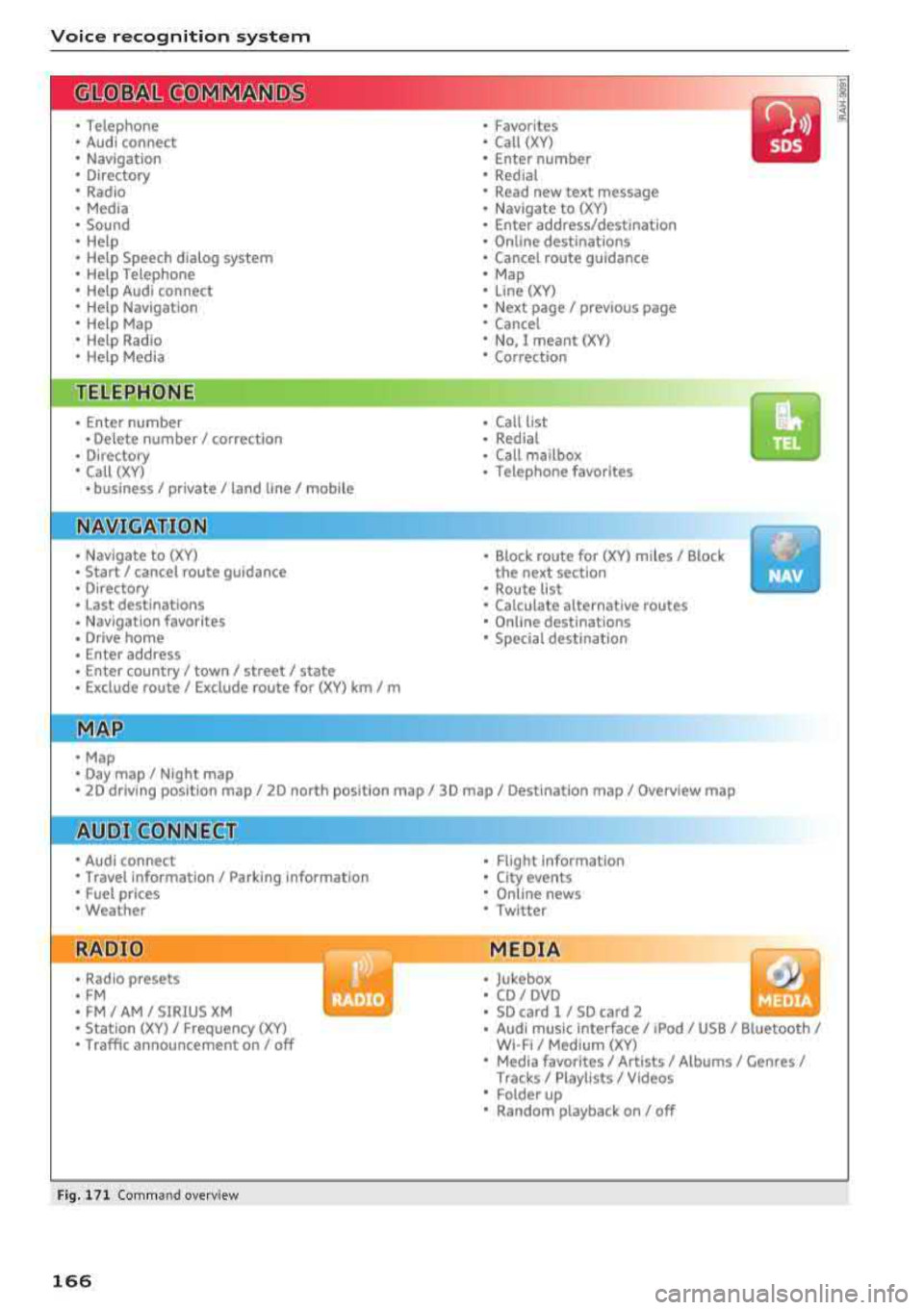
• Telephone
• Audi connect •
Favorites
• Call (XV)
• Navigation
• Directory
• Radio
• Media
• Enter number
• Redial
• Read new text message
• Nav igate to
(XY)
• Sound • Enter address/destination
• Help • Online destinations
• Help Speech dialog system
• Help Telephone •
Cancel route guidance
• Map
• Help Aud i connect •
Line
(XY)
• Help Navigation
• Help
Map
• Help Radio •
Next page/ previous page
• Cancel
• No. I meant (XV)
• Help Media • Correction
TE ~EPflON ~
• Enter number • Call list
• Delete number/ correction
• Redial
• Directory
• Call
(XV)
• Call mailbox
• Telephone favorites
• business
I private/ land tine I mobile
N~~It ~JION
• Nav igate to (XY)
• Start/ cancel route guidance
• Directory
• Last destinations • Block
route for
(XV) miles I Block
the next section
• Route list
• Calculate alternative routes
• Nav igation favorites
• Drive home
• Enter address •
Online destinations
• Special destination
• Enter country
I town I street I state
• Exclude route/ Exclude route for
(XV) km/ m
• Map
• Day map/ Night map
• 2D driving position map/ 2D north position map/ 3D map/ Destination map
I Overview map
~l!IDI CONNECT
• Audi connect
• Travel Information/ Parking Information
• Fuel prices
• Weather
RADIO
• Radio presets
• FM
• FM /AM/ SIRIUS XM
• Station (XV) / Frequency (XV)
• Traffic announcement on/ off
Fig. 171 Comm and overv iew
166
• Flight Informa tion
•
City events
• Online news
• Twitter
MEDIA
• Jukebox
• CD
I DVD
• SD card
l / SD card 2
• Audi music Interface/ I Pod/ USB / Bluetooth
I
WI -Fl I Med ium (XV)
• Media favorites
I Artists/ Albums/ Genres I
Tracks I Playll sts / Videos
• Folder up
• Random playback on / off
Page 169 of 392
u co ..... N r--N ..... 0 <( 0 00
Voice recognition system Operating
Applies to: vehicles with voice recognitio n system
You con operate many Infotainment functions
conveniently by speaking.
Requirement: the ignition and the MM I must be
switched on ¢
page 148, there must not be any
phone call in progress and the park ing system
must not be active .
~ Switching on: press the~ button @
¢page 14, fig . 11 o r ¢ page 15, fig. 13 br iefly
on the mu ltifunction stee ring wheel and say
the des ired command after the
Beep .
~ Switching off : press and hold the [2;J b utton.
Or : press the [2] but to n.
~ Pausing : say the command Pause . To resume,
press the
[2;J b utton .
~ Correcting : say the com mand Correction . Or :
simp ly say a new comm and d uring an an
no uncement
¢ page 245.
Input assistance
The system gu ides you throug h the input with
v isua l and audio feedbac k.
- Visual input assistance : after switching on
vo ice recogn it ion, a display w ith a selection of
poss ible commands appea rs . This command
display can be sw itched on o r off. Se lec t:
IMEN UI butt on> Settings > left cont ro l button
> MMI settings > Speech dialog system .
- Audio input assistance :
to have the poss ible
comm ands read, tu rn th e voice rec ogn ition sys
tem o n and say
Help.
For the system to understand you:
Speak clearly and dis tinct ly a t a normal vo lume .
Speak lo uder when d riving faste r.
Emphasize the words in the commands even ly
a n d do no t leave long pauses .
C lose the doors, the windows and the sunroof* to
reduce background noise . Make s ure that passen
gers a re not speaking when you a re giving a voice
command .
Voice recognition system
D o not d irect the vents towa rd the hands -free mi
c ro p hone, wh ich is in the roof head liner nea r the
front interior lig hts.
O nly use the system from the dr ive r's sea t be
ca use the hands -free microphone is di rected to
ward that seat .
Additional settings
See¢ page 245, Speech dialog system .
_&. WARNING
- Dir e ct y ou r full a tte ntio n to dr iv in g. A s the
d river, you have com ple te re sponsibili ty fo r
safety in t raff ic . O nly use the functions in
such a way t hat you a lways maintai n com
p lete contro l over your vehicle in all traffic
situations.
- Do not use t he voice recognition system in
emergencies beca use your voice may change
in st ressfu l situations. It may take longe r to
d ia l the number o r th e system may not be
ab le to d ia l it at all. Dia l the emergency
number manually.
(D Tips
-The d ialog pauses w hen the re is a n incom
ing phone call a nd will con tinue if yo u ig
nore the ca ll. The dia log ends if yo u answer
t he ca ll.
- Yo u can select an item in the list using ei
t her the vo ice recogn it io n sys tem o r the
cont ro l knob .
Command overview
information
Applies to: vehicles with voice recognition system
T he following overv iews des cribe the comm ands
t h at can be used to ope rate the MMI using the
vo ice recognit ion system.
Alte rnative co m mand s ar e separate d using
a"/ ",
fo r ex ample say: Telephone / (or) Navigation /
(or) Radio.
Sequences of com mands used to perfo rm an a c
t io n a re iden tified w it h
a ">", fo r ex am ple s ay:
Enter address > ( then) Enter country/state . ..,
167
Page 170 of 392
Voice recognition system
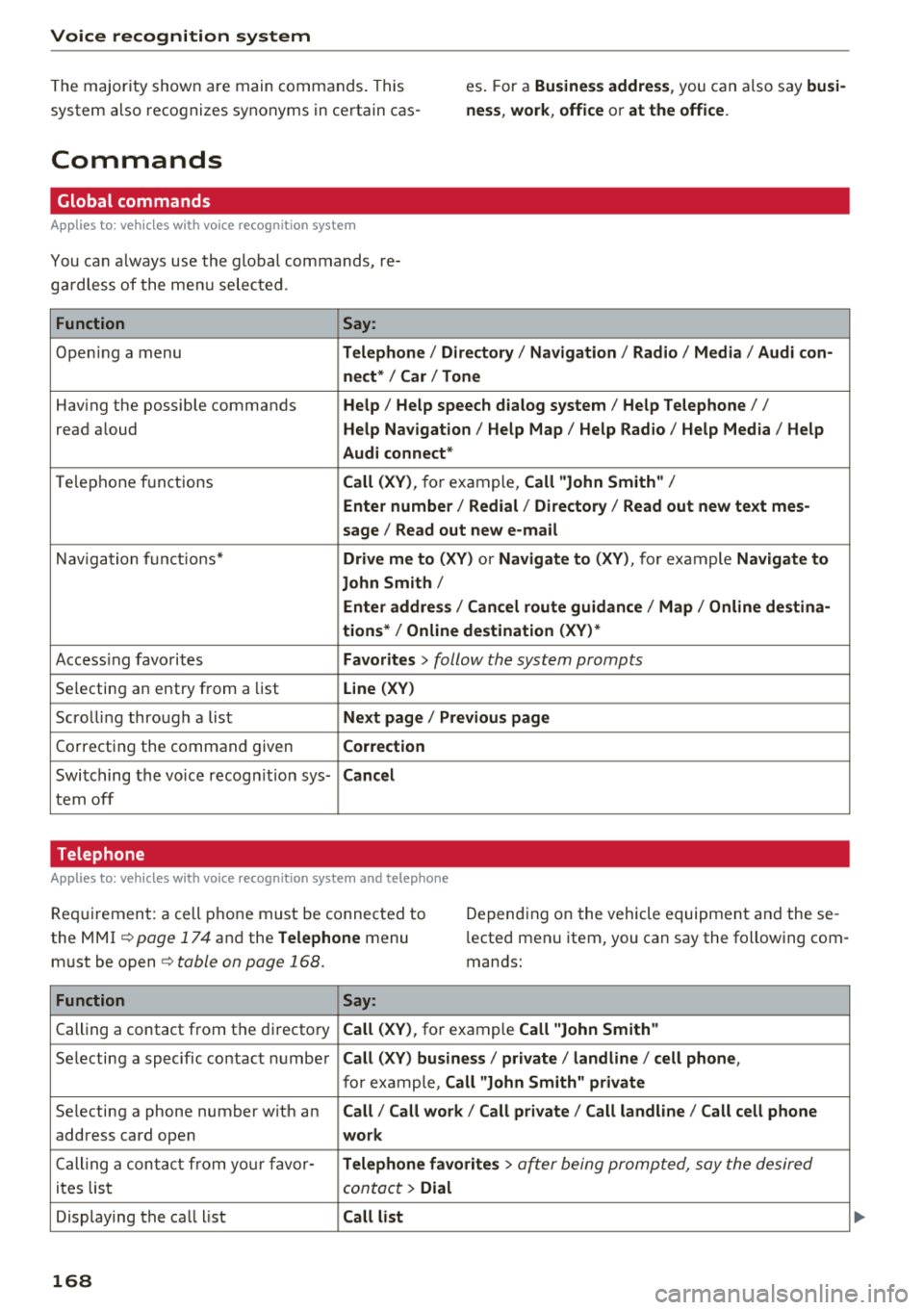
The major ity shown are main commands. This
system also recognizes synonyms in certain cas -es
. F or a Business address , you can also say busi
ness , work , office or at the office .
Commands
Global commands
App lies to: ve hicles w it h vo ice recogn ition system
You can a lways use the global commands, re
ga rdless of the menu selected.
Function Say:
Opening a menu Telephone / Directory / Navigation / Radio / Media / Audi con-
nect * /Car / Tone
Hav ing the possible commands Help / Help speech dialog system / Help Telephone //
read aloud Help Navigation / Help Map / Help Radio / Help Media / Help
Audi connect *
Telephone f unctions Call (XV), for example, Call "John Smith" /
Enter number / Redial / Directory / Read out new text mes-
sage
I Read out new e-mail
Navigation functions* Drive me to (XV) or Navigate to (XV) , for example Navigate to
John Smith/
Enter address / Cancel route guidance / Map / Online destina-
tions* / Online destination (XV) *
Accessing favorites Favorites > follow the system prompts
Selecting an entry from a list Line (XV)
Scrolling through a list Next page / Previous page
Correcting the command given Correction
Switching the voice recogn ition sys-Cancel
tern off
Telephone
A pp lies to: ve hicles w ith vo ice recog nition sys te m and telep hone
Req uir ement: a cell phone must be connected to
the
MMI ~ page 174 and the Telephone menu
must be
open ~ table on page 168.
Depending on the vehicle equipment and these
l ected menu item, you can say the following com
mands:
Function Say:
Calling a contact from the directory Call (XV), for example Call "John Smith"
Selecting a specific contact number Call (XV) business / private / land line / cell phone ,
for example, Call "John Smith" private
Selecting a phone number w ith an Call/ Call work/ Call private/ Call land line / Call cell phone
address card open work
Calling a contact from your favor-Telephone favorites > a~er being prompted, say the desired
ites list contact > Dial
Displaying the call list Call list
168
Page 174 of 392
Voice recognition s ystem
-Always read the chapter ¢ page 194, Audi
connect (Infotainment) general informa tion .
Radio
Applies to: vehicles with voice recognition system
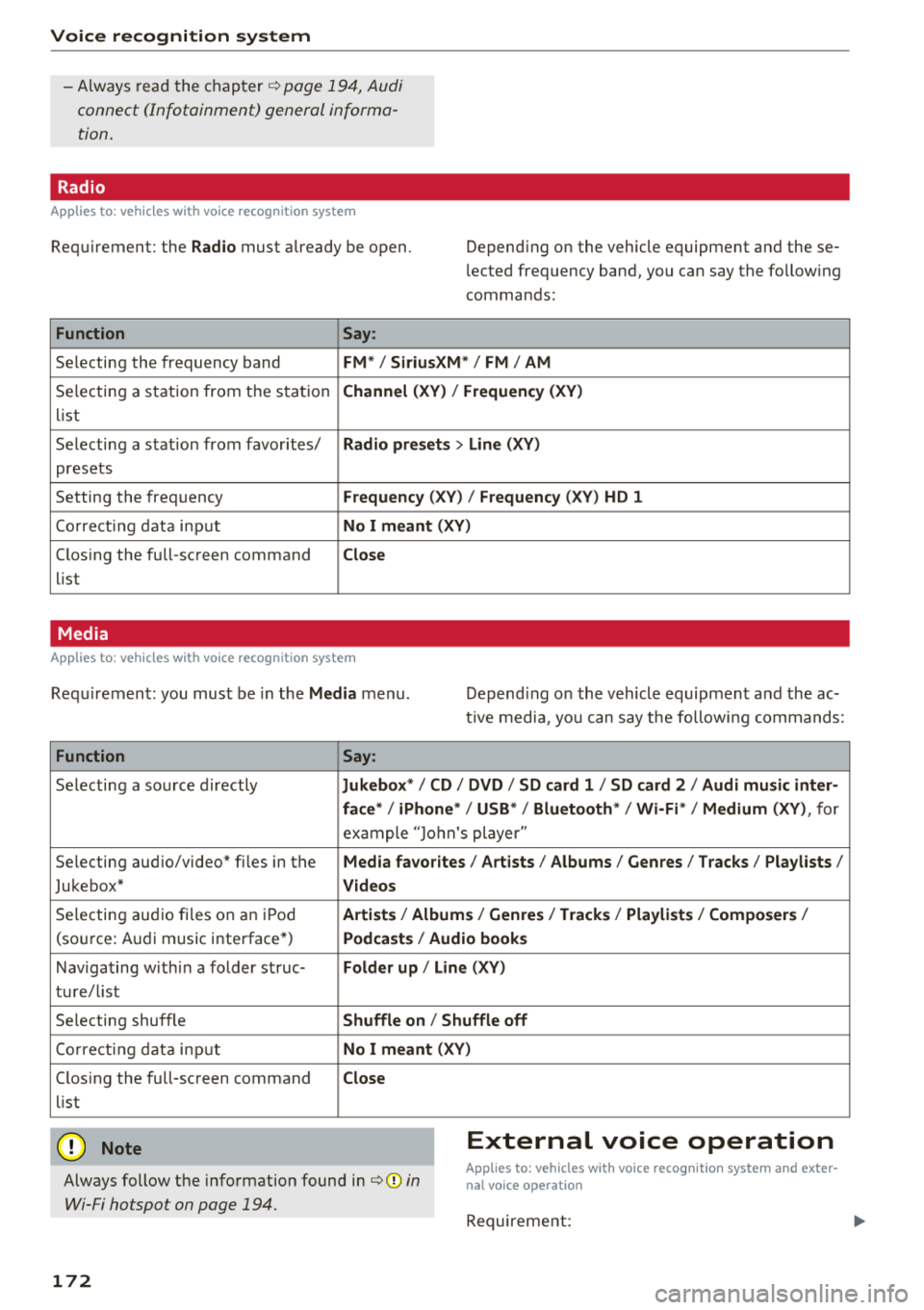
Requirement: the Radio must already be open. Depend ing on the vehicle equipment and these
lected frequency band, you ca n say the fo llow ing
commands :
Function Say:
Selecting the frequency band FM*/ Siriu sXM* / FM / AM
Selecting a station from t he s ta tion Channel (XV ) / !Frequenc y (XV)
list
Selecting a stat ion from favorites/
Radio presets > Line (XV)
presets
Setting the frequency
F requency (X V ) / Frequency ( XV) HO 1
Correct ing data inp ut No I meant (XV )
Closing the full-screen command Close
list
Media
Applies to: vehicles with voice recognition system
Requirement: you mus t be in the Media menu . Depending on the vehicle equipment and the ac
t ive media, yo u can say the following commands :
Function Say:
Selecting a sou rce directly Ju kebox* / CO / DVD / SO card 1 / SO card 2 / Audi music inter-
face */ iPhone * / USB * / Bluetooth * / Wi -Fi * / Medium (XV) ,
for
exa mple "J o hn's player "
Selecting aud io/video" fi les in the
Media fa vorites I Artists / Albums / Genres I Tracks / Playlists /
Jukebox* Videos
Selecting aud io fi les on a n iP od Artists / Albu m is/ Genres I Track s/ Playlists / Compo sers I
(so urce: A udi music i nterface*) Podca st s / Aud io books
Nav iga ting with in a folder s truc-Folder up / Line (XV )
tu re/l ist
Selecting shuffle
Shuffle on / Shuffle off
Co rre ct in g data inp ut No I meant (XV )
Closing the full-screen command Close
list
@ Note External voice operation
Always follow the info rmation found in ¢@) in
Wi-Fi hotspot on page 194.
Applies to: vehicles with voice recognition system and exter·
nal voice operation
Requireme nt:
172
Page 180 of 392
Telephone
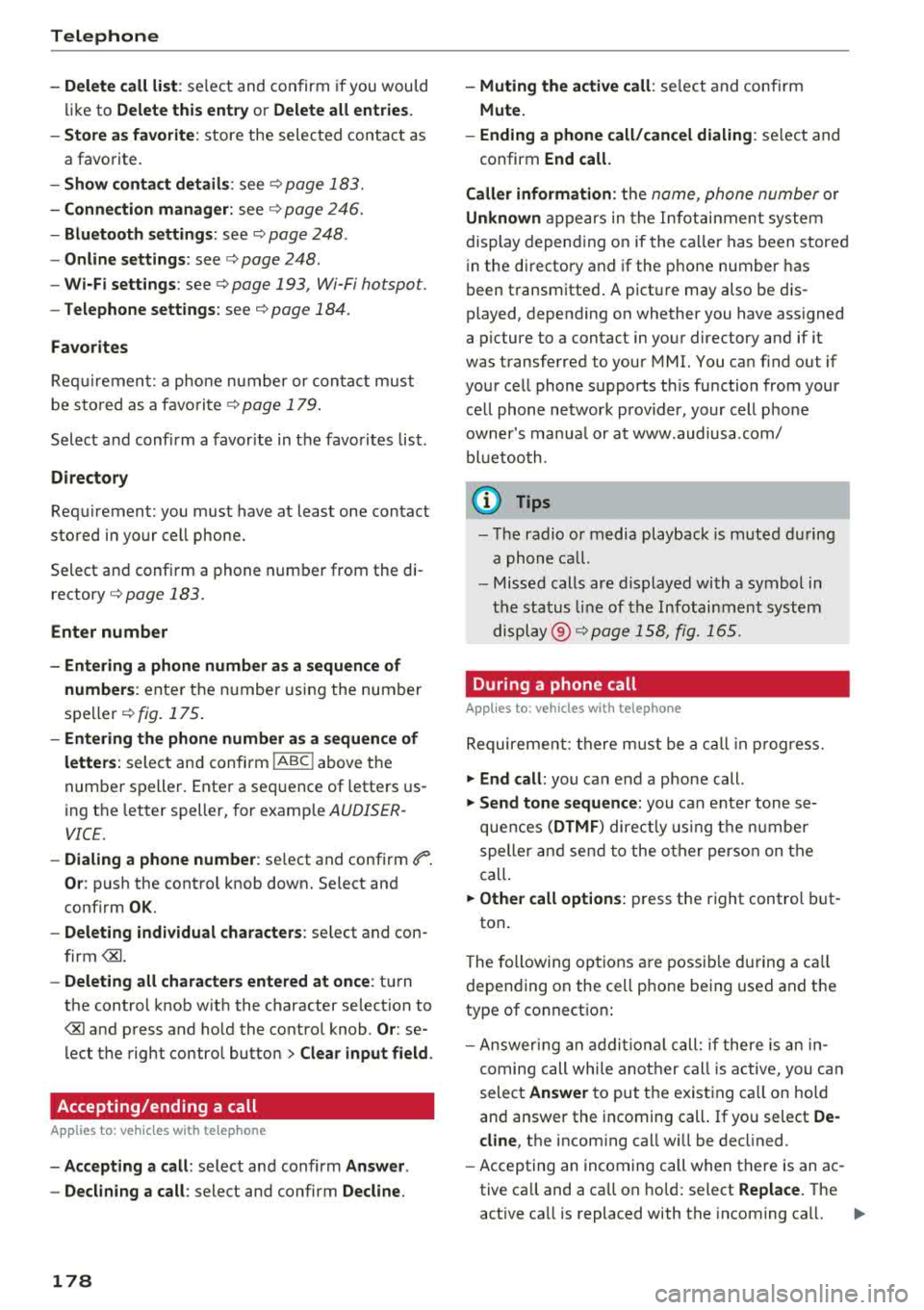
- Delete call list :
select and con firm if you would
lik e to
Delete this entry or Delete all entries.
- Store as favorite :
store the selec ted cont act a s
a favo rite.
- Show contact details : see ¢ page 1 83.
-Connection manager: see ¢ page 246.
-Bluetooth settings : see ¢ page 248.
-Online settings : see¢ page 248.
-Wi-Fi settings : see¢ page 193, Wi-Fi hotspot.
-Telephone settings : see¢ page 1 84.
Favorites
Requir em en t: a phon e numb er or c onta ct mu st
be s to re d a s a f avo rit e
¢ p age 1 79.
Selec t and conf irm a favor ite in t he favo rit es list.
Directory
Req uirement: you must have at least one contact
sto red in yo ur cell phone .
Select an d confirm a phone num ber from the di
rectory
¢ page 183.
Enter number
- Entering a phone number as a sequence of
numbers :
enter th e n umber usi ng the number
s p ell er
¢fig. 1 75.
- Entering the phone number as a sequence of
letters :
select an d con firm !ABC ! above the
num ber sp elle r. Ente r a se quence of lette rs us
ing t he letter speller, for examp le
AUDISER
VICE.
- Dialing a phone number : select and confi rm ef1" .
Or : push the cont rol knob down . Select an d
confi rm
OK.
- Deleting individual characters : select and con
f irm
t h e control knob w it h the character se lection to
> Clear input field .
Accepting/ending a call
A pp lies to: ve hicles w ith tele phone
-Accepting a call : select and confirm Answer .
- Declining a call :
select and confirm Decline.
178
-Muting the active call : select and conf irm
Mute.
- Ending a phone call/cancel dialing :
select and
confirm
End call.
Caller information :
the name, ph one number o r
Unknown app ea rs in th e Info ta inm en t syst em
d isplay depen ding o n if the ca ll er has been store d
i n the di rectory and if the p hone number has
b een t ransmitted . A pict ure may also be dis
played, depen ding on whether you have assigned
a p ictu re to a contact in yo ur directory and if it
was transfe rred to your MMI. You ca n find out if
you r ce ll phone s upports t his fu nction from your
c ell phone ne twor k prov ider, your cell p ho ne
owner 's ma nual or at www.a udiusa .co m/
bl uet ooth .
(D Tips
- The radio or media playback is m uted dur ing
a phone call.
- Missed calls ar e displ ayed wi th a symbol i n
the status line o f th e Info tai nme nt syst em
di spl ay @ ¢pa ge 158 , fig. 165 .
During a phone call
App lies to: vehicl es wi th telepho ne
Re quire ment : th ere must b e a call in pr ogress.
~ End call: you ca n end a phone call.
~ Send tone sequence: you can e nter tone s e
que nces
(DTMF ) direct ly usin g t he nu mbe r
speller and s end t o the o ther pers on on t he
call.
~ Other call options : press the r ight control but-
ton .
T he followi ng op tions are poss ible du ring a call
d epen din g on the ce ll phone be ing used and t he
type of connect io n:
- Answer ing an add iti on al c all: if there is an in
c omin g ca ll while a not her ca ll is a ctive, you can
sele ct
Answer to put t he exist ing c all on ho ld
an d answer t he in comin g call. If you select
De
cline ,
the incom ing ca ll w ill b e de clined .
- Accepting an incomin g call when t here is an ac
tive ca ll and a ca ll on ho ld: sel ect
Replace. T he
ac tive ca ll is replaced with the incoming ca ll.
.,.
Page 194 of 392
Audi conn ect (Infotainment)
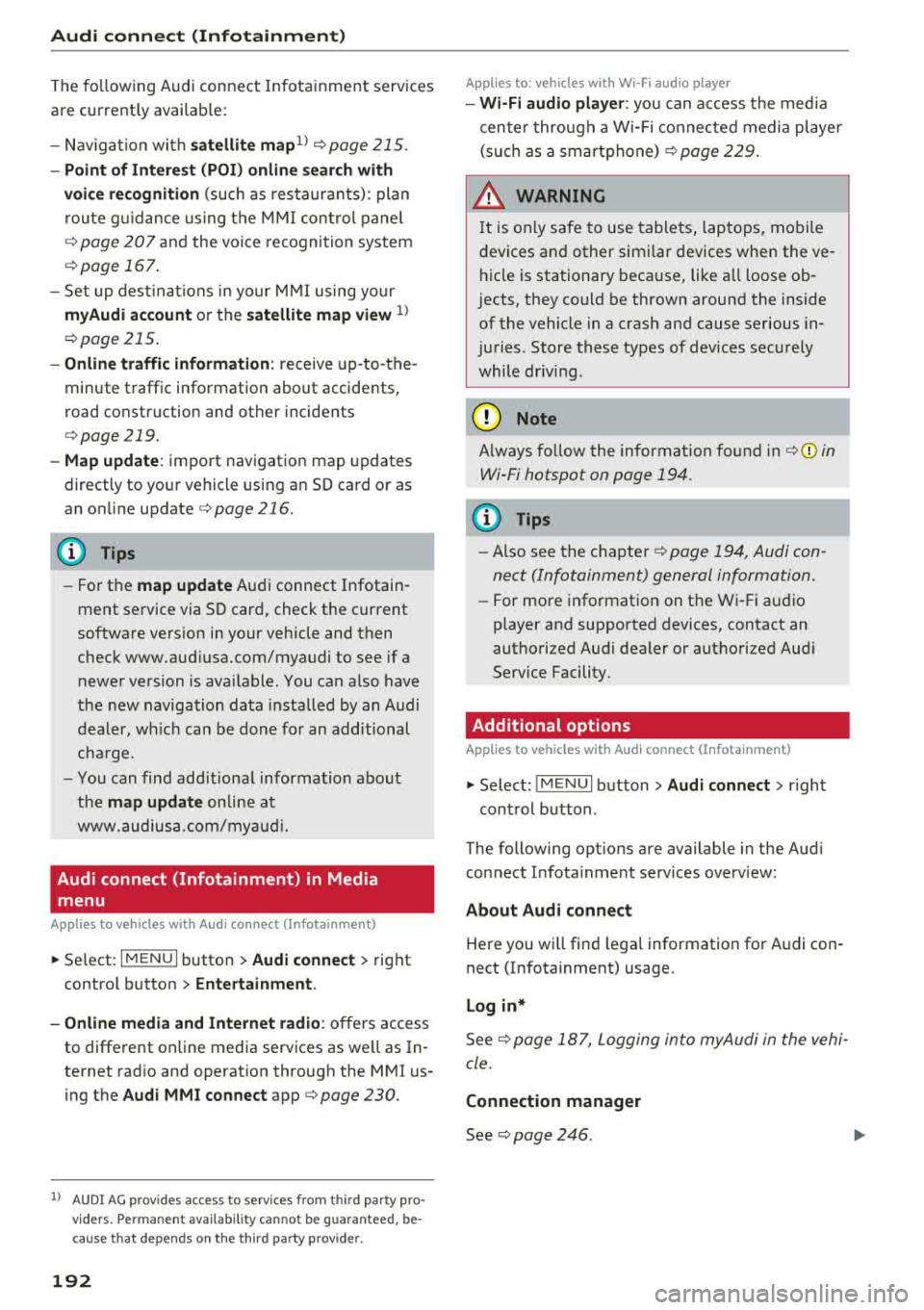
The fo llowing A udi connect Infotainment services
are current ly availab le:
- Nav igat ion with
s atellit e map1> ¢page 215.
- Po int of Int eres t (POI) online search with
v o ic e re cogni tion
(such as restaurants) : plan
r oute g uidance using t he M MI con trol panel
¢ pag e 207 and the voice recognition system
¢ page 167 .
- Set up dest ina tions in your MMI using yo ur
myAudi account or the satellite map vie w l)
¢ page 215 .
-Onlin e traffic inform ation : receive up-to -the
minute traffic information about accidents,
road construction and other incidents
¢ page 219.
- Map updat e: import navigation map updates
directly to your v ehicl e using an SD card or as
an on line
update ¢ page 216.
(D Tips
-For the map update Audi connect Infotain
ment service via SD card, check the current
software vers ion in your vehicle and then
check www.aud iusa.com/myaudi to see if a
newer version is ava ilable. You can a lso have
the new navigation data installed by an Audi
dealer, wh ich can be done for an additional
ch arge.
- You can find add itiona l information abo ut
the
map updat e on line at
www.audiusa.com/myaud i.
Audi connect (Infotainment) in Media
menu
Applies to vehicles with Audi connect (Infotainment)
~ Select : IMENUI button> Audi conne ct > right
cont rol button >
Ente rt a inment .
- Online m edia and Internet radio :
offers access
to different online media servic es as we ll as In
ternet radio and operation through the MM I us
ing the
Audi MMI connect app ¢ page 230.
ll AU DI AG pr ovide s access to services fro m third party pro
v ider s. Pe rma ne nt ava ilabil ity c anno t be guara nteed, be
c a use that depen ds on th e th ird party provider.
192
Applies to: vehicles with Wi-Fi audio player
-Wi -F i audio pla yer: you can access the med ia
center through a Wi-Fi connected media player (such as a smartphone)
¢ page 229.
& WARNING
It is only safe to use tablets, laptops, mobile
devices and other simi lar devices when the ve
hicle is stationary beca use, like a ll loose ob
jects, they could be thrown around the inside
of the vehicle in a crash and cause serious in
juries . Store these types of devices securely
while driv ing .
@ Note
Always fo llow the information fo und in ¢ \@ in
Wi-Fi hotspot on page 194.
(D Tips
-Also see the chapter ¢ page 194, Audi con
nect (Infotainment) general information.
- For more information on t he Wi -Fi audio
player and supported devices, contact an
authori zed Aud i dealer or autho riz ed Aud i
Service Facility.
Additional options
Applies to vehicles with Audi connect (Infotainment)
~ Select: ! M ENUI button> Audi conn ect > right
cont rol button .
The following options are available in the Aud i
connect In fota inment services overview :
About Audi connect
Here you wi ll find lega l information for Audi con
nect (Infotainment) usage.
L o g in *
See ¢page 187, Logging into myAudi in the vehi
cle.
Connection manager
See ¢ page 246 .
Page 222 of 392
Radio
Radio
Opening the radio
The radio supports the FM, AM and SiriusXM*
(satellite radio) bonds. Using the HO Radio re
ceiver also allows you to receive radio stations
on the FM and AM bonds in digital format.
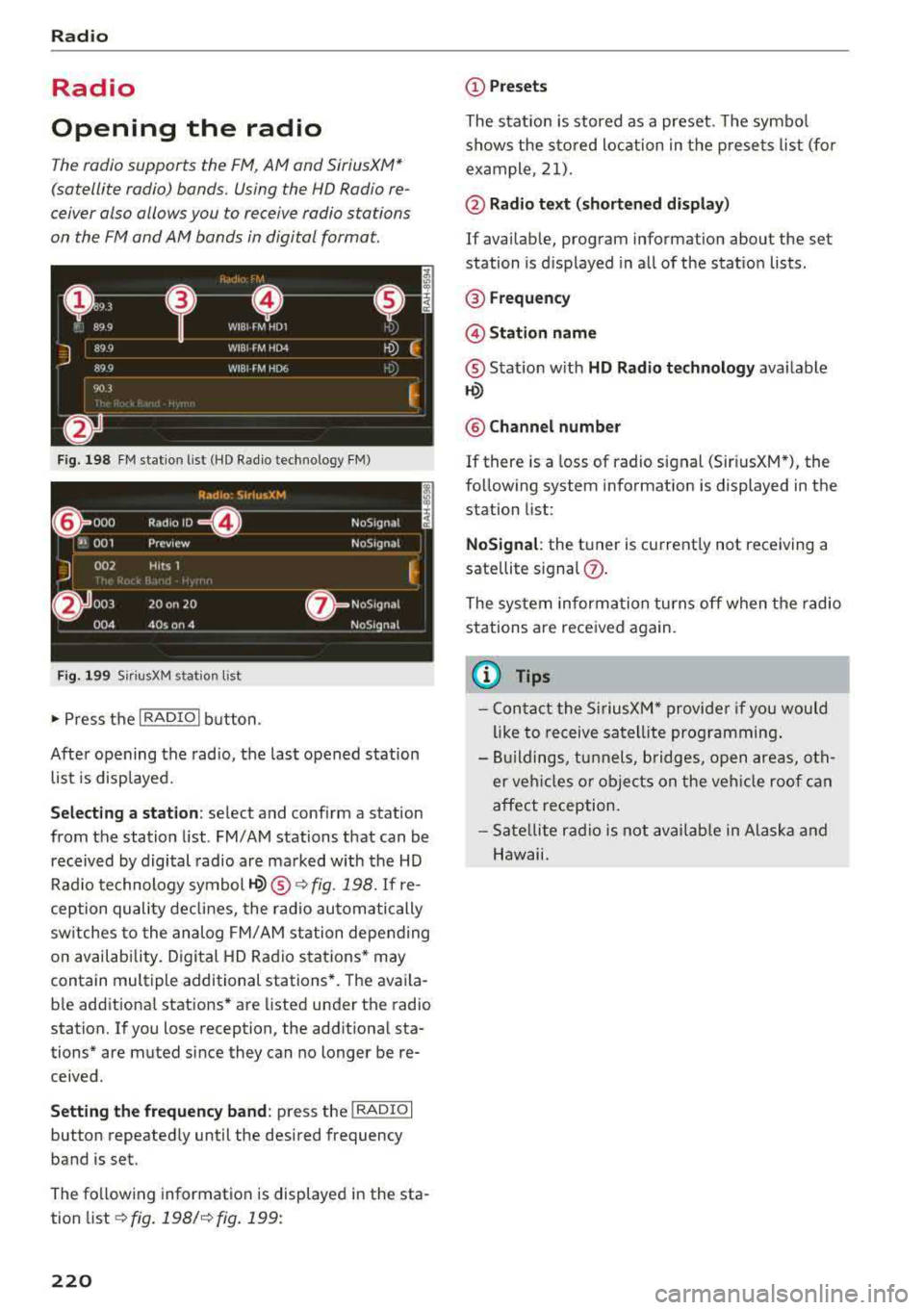
F ig. 19 8 FM stat ion list (HD Radio technology FM)
R,1d10 : 5irius.XM
~ 000 Rad,olD e NoS19n,1l
''JI 001 Preview NoS,gnal
J 002 H its 1
~
6 003 20 on 20 · NoS19nal
004 40s on 4 NoS19nal
Fig. 1 99 Sir iu sXM stat ion list
..., Press t he I RADIO I bu tton .
After opening the radio, t he last opened station
list is displayed.
.
I
Selecting a station : select and conf irm a stat ion
from the station list . FM/AM stations that can be
received by digital radio are ma rked with the HD
Rad io technology
symbol ~® ¢ fig. 198. If re
ception quality de clin es, the r ad io automatically
sw itches to the analog FM/ AM station depending
on availab ility. D igital HD Rad io sta tions * may
contain multiple additional stations *. The ava ila
b le add itiona l stations* are listed under the radio
station. If yo u lose reception, the add itiona l sta
tions* are muted since they can no longer be re ceived .
Setting the frequency band : press the I RADIO I
button repeated ly until the desired frequency
band is set.
The fo llow ing information is displayed in the sta
tion list
¢ fig. 198/ ¢fig . 199:
220
(D Presets
The stat ion is stored as a preset. The symbo l
shows the s to red loc ation in the p rese ts list (fo r
example, 21).
@ Radio te xt (shortened di spla y)
If availab le, program information about the set
station is d isplayed in al l of the stat io n lists .
® Frequency
@Stati on name
® Stat ion w ith HD Radio technolog y available
1-W
@ Channel number
If there is a loss of radio signal (Sir iusXM*), the
fo llow ing system information is displayed in the
station list:
NoSignal : the tuner is cu rrent ly not receiving a
sate llite s ignal
(J) .
The system informa tion turns off when the radio
stations are received again.
(I} Tips
- Con tact the SiriusXM" provide r if you would
like to receive satel lite prog ramming .
- Bui ldings, tu nnels, bridges, open areas, oth
er veh icles o r obje cts on the veh icle roof can
affect reception.
- Sate llite r ad io is not av aila ble in Alaska and
Hawaii.
Page 223 of 392
Radio functions
Free text search
App lies to: ve hicles with free text search
Using the free text search, you can select the or
der that the search terms are entered in the in
put field . Search in all frequency bands for a sta
tion name or program type, such as
News .
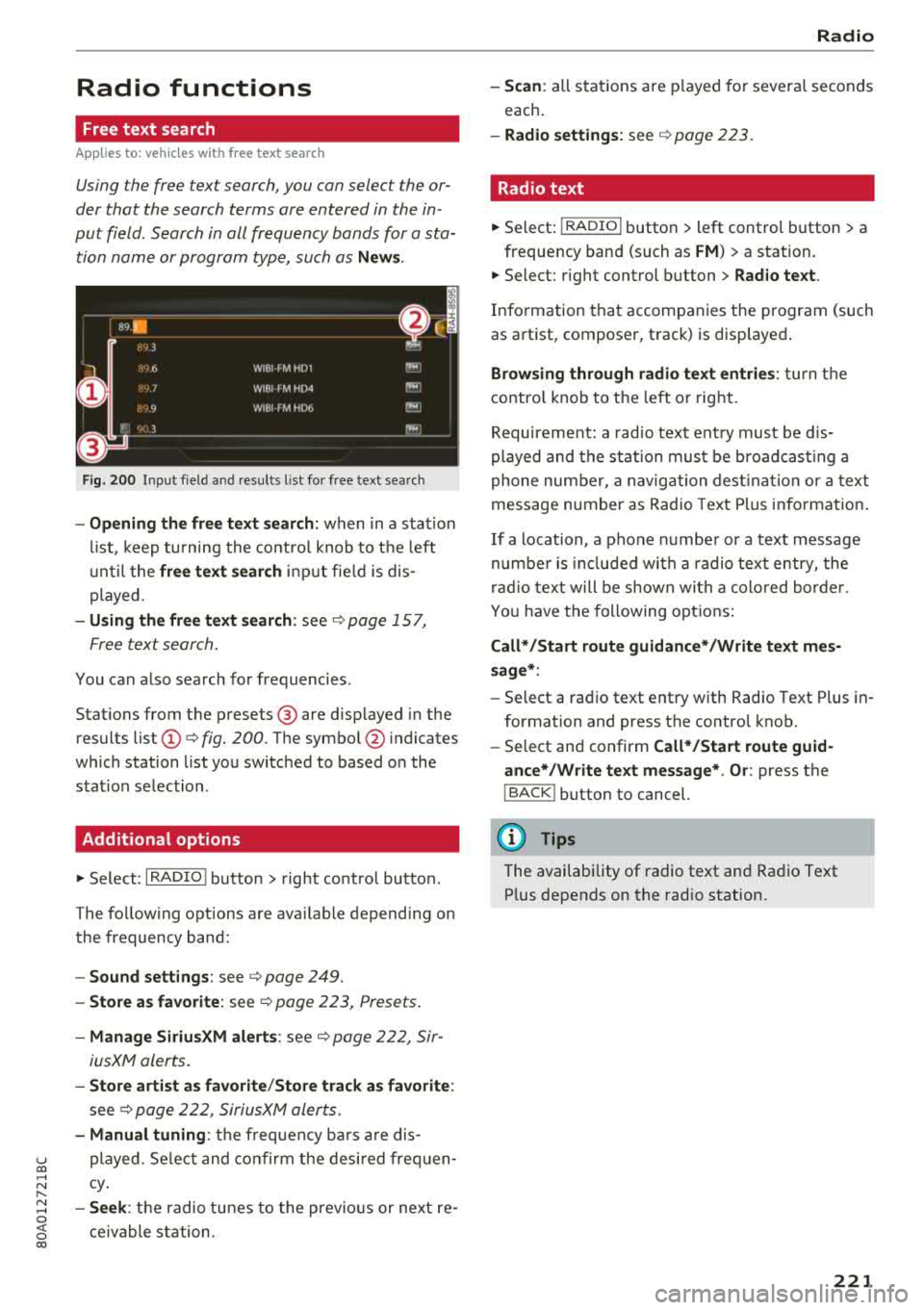
Fig . 20 0 Input f ield and results l ist fo r free text search
- Opening the free text search: when in a s tat ion
li st, keep tu rning the contro l knob to t he left
u nti l the
free text s ear ch in put fie ld is dis
played.
- Using th e free text search : see¢ page 157,
F ree text search.
You can a lso search for frequencies .
Stat ions from the p resets ® are disp layed in the
results list
(D ¢ fig. 200. T he symbo l@ indicates
which station list yo u switched to based o n the
s tat ion se lection .
Additional options
"'Se lect: I RADIO ! button > right co ntro l butto n.
The fo llow ing options are ava ilable depend ing on
the frequency band:
- Sound settings : see ¢page 249.
- Store a s favorite : see ¢ page 223, Presets .
-Manage SiriusXM alerts : see¢ page 222, Sir-
iusXM alerts.
- Store arti st a s favorite /Store track as favorite :
see¢ page 222, SiriusXM alerts.
- Manual tuning : the frequency ba rs a re dis-
u played. Se lect and co nf irm the desi red frequen -co ..... N Cy. I"-
~ - Se ek: th e radio tunes to the previo us or next re -o
~ ceivable station . 00
Radio
-Scan : all stat ions a re p layed fo r severa l seconds
each.
- Radio settings: see ¢ page 223.
Radio text
"' Select: I RADIO I button > left control button > a
frequency band (such as
FM ) > a station.
"' Select: r ight control b utton > Radio te xt.
Info rmation tha t accompanies the program (such
as art ist, composer, track) is disp layed .
Browsing through radio text entrie s: turn the
contro l kno b to t he left or rig ht.
Requirement: a rad io tex t ent ry must be d is
played and the sta tion mus t be b road cas tin g a
phone nu mber, a navig ation des tina tion or a text
message number as Radio Text Plus informat io n.
If a location, a phone numbe r or a text message
numbe r is incl ud ed wi th a radio text entry, the
ra dio tex t will be shown wi th a colo red bor der.
Y ou have the following opt ions :
Call* /Start route guidance* /Write text mes
sage* :
-Select a rad io text ent ry with Radio Text Plus in
formation and press the control knob.
- Select and confirm
Call* /Start route guid
ance* /W rite text message* . O r:
press the
I BACK ! button to cancel.
(D Tips
The availability of radio text a nd Rad io Text
P lus depends on the rad io station.
221