stop start AUDI Q5 2018 Owner's Manual
[x] Cancel search | Manufacturer: AUDI, Model Year: 2018, Model line: Q5, Model: AUDI Q5 2018Pages: 392, PDF Size: 60.56 MB
Page 97 of 392
u co ..... N r-N .....
~ 0 co
Assistance systems Speed warning system
Description
App lies to: vehicles with speed warning system
The speed warning system helps you to stay be
low a specified maximum speed that can be set,
changed or deleted in the Infotainment system .
The speed warning system warns you if you are
exceeding the maximum speed that you have set .
A warning tone will sound as soon as your speed
exceeds the stored value slightly. The
(Ol (USA
models)/
(01 (Canada models) indicato r light
and a message appear i n the ins trumen t cluster
d isplay at the same time. The
(Sl / (Ol indicator
light and the message turn
off if the speed falls
back below the stored maximum speed .
Sett ing a threshold is recommended if you would
like to be reminded when yo u reach a certa in
maximum speed . Situations where you may want
to do so include driving in a country with a gener
al speed limit or if there is a specified maximum
speed for winter tires.
Setting the warning threshold
Select in the I nfotai nment system: IMENU I but
ton
> Ve hicle > le ft control button > Dri ver a ssis
tan ce
> Speed warning > Manual.
@ Tips
Regard less of the speed warning system, you
should always monitor your speed using the
speedometer and make sure you are following
the legal speed limit.
A ssi st a nce systems
Cruise control system
Switching on
Applies to: vehicles with cruise control system
The cruise control system makes it possible to
drive at a constant speed starting at 15 mph
(20 km/h).
0
f
~
0
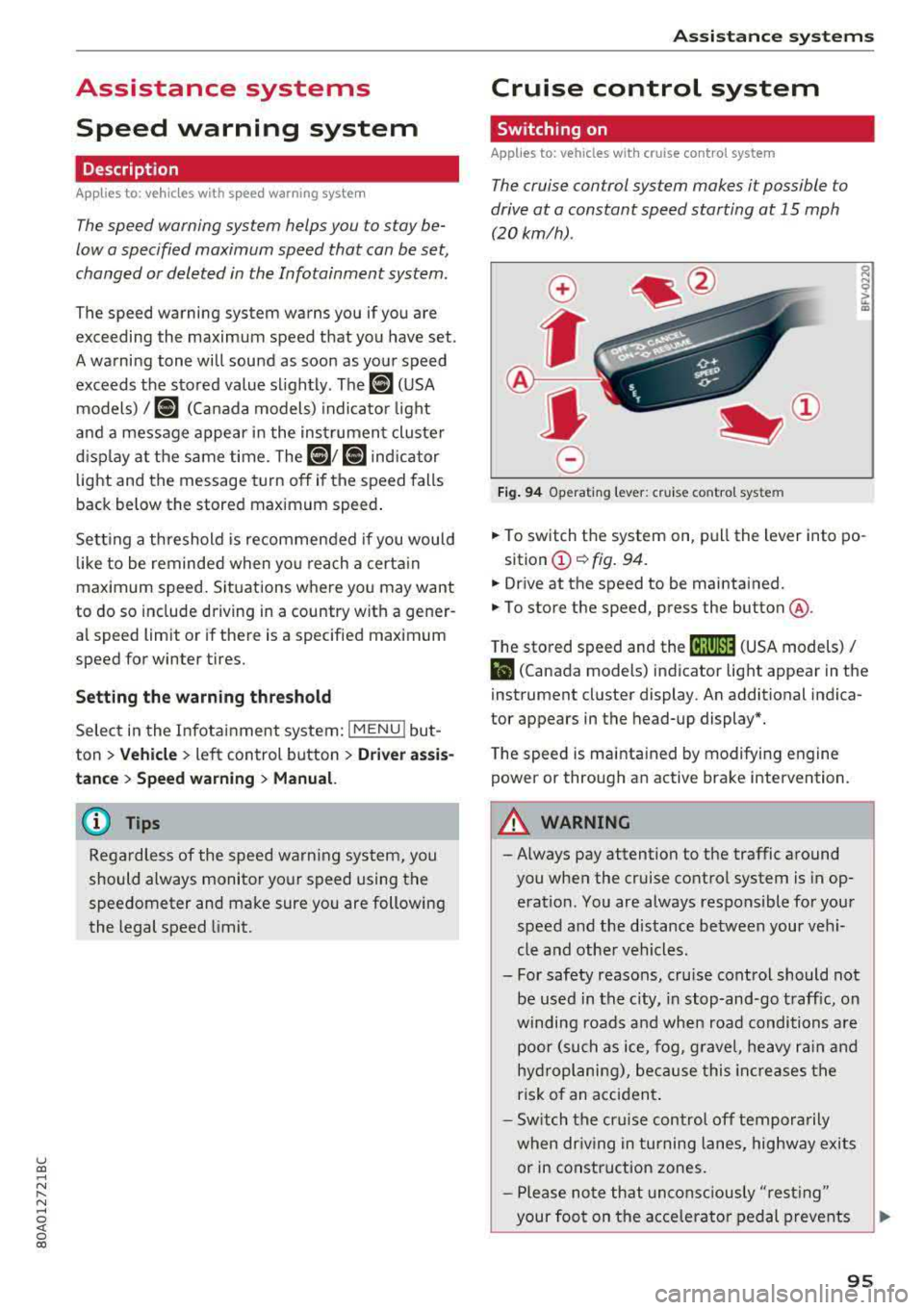
Fig . 94 Operat ing leve r: cru ise control system
.,. To switch t he system on, pull the lever into po-
sition
(D ¢ fig. 94.
.,. Drive at the speed to be maintained.
.,. To store the speed, press the button @.
T he stored speed and the
@jltJ~i, (USA models) /
l'I (Canada models) ind icator lig ht appear in the
instrument cluster display. An additional indica
tor appears in the head-up display*.
T he speed is mainta ined by modifyi ng engine
power or through an active brake intervention.
A WARNING
-Always pay attention to the traffic around
you when the cruise control system is in op
eration. You are always responsible for you r
speed and the distance between your vehi
cle and othe r vehicles .
- For safety reasons, cru ise control should not
be used in the city, in stop -and-go t raff ic, on
winding roads a nd when road conditions a re
poor (such as ice, fog, g rave l, heavy ra in and
hy droplani ng), bec ause this in cr eases the
risk of an acciden t.
- S witch the cr uise con trol
off tempor arily
when dr iv ing in turning lanes, highway exits
or in construction zones.
- P lease no te th at unconsc iously
"rest ing"
your foot on the accelerator ped al prevents
95
Page 101 of 392
u co .... N ,..._
N ..... 0 <( 0 00
Operating the lap timer
.,. On the mult if u nct ion s teer ing whee l, tur n the
l e ft thumbw hee l
0 ~ page 12 unt il t he desired
menu item is displayed in the instrument cl us
ter .
.,. Press the left thumbwhee l to confirm the selec
t ion.
A WARNING
Your focus should always be on driving your
veh icle safely . As the dr ive r, yo u have com
plete responsib ility for safety in traffic. Only
use t he f unctions s uch as the lap time r in s uch
a way tha t you alw ays ma int ain com plete con
tr ol ove r your vehicle in all tra ffic s itu ations.
(D Tips
You ca n ret rieve information from the t rip
computer while t he lap t ime r stopwatch i s
r u nning.
Lap times and timing
Applies to: vehicles with lap timer
Requirement: the lap t imer must be o pen
~ page 98 .
Timing laps
.,. To start tim ing manually, se lect Start lap 1 in
the menu .
-
.,. To start tim ing a utomat ica lly as soon as you
begin to drive, select
Drive off to start lap 1 or
Start by driving off in the men u .
.,. To measure the lap t ime, select New lap in the
menu. T his starts timing the next lap at the
same t ime.
After completing a lap, the difference between
the last lap and the previous best lap time w ill be
ind icated with
a" -" or" +".
Pausing timing and displaying a split time
.,. To insert a pa use m , se lect Pau se in t he menu.
.,. T o resume timing, se lect Re sume in the men u .
.,. To display a split time, se lect Split time in the
men u. The split t ime
[fw] appears for approxi
mately 10 seconds in the instrument cluste r.
The timing of the current lap continues.
A ss istance systems
Resetting timing
.,. Using the mul tifun cti on steer ing whee l, sele ct
Re set time s in the menu.
(D Tips
- A m axim um of 99 lap t imes can be meas
ure d.
- If tim ing is pa used, you can continue i t later
even if yo u swi tc h t he ign ition o ff.
- Saved lap ti mes ca nnot be indiv id ua lly de
le ted from the tot al results.
- Th e saved lap t ime r va lues w ill remain after
sw itching the ign ition off.
Lap statistics
Applies to: vehicles with lap timer
Displaying lap statistics
You can display the numbe r of laps dr iven, the
fas test lap" +", the slowes t lap" -", and the aver
age t ime
"0" in t he instr ument cluster .
.,. On the multifunc tion steering w heel, select the
left contro l bu tton
> Lap stati stic s o r Sta tis
tics .
.,. Turn the thumbwheel down o r up to display the
individual lap times .
.,. To return to t he lap timing that was begun,
press the left thumbwheel.
Resetting lap statistics
.,. On the mul tif unc tion stee ring w heel, selec t:
the right control button
> Reset statistics.
(D Tips
The lap st atis tic s lis t the lap t imes fo r th e l ast
3 0 l aps . The fastest and slowes t lap time o ut
of up to 99 meas ured laps are a lso d isplayed.
Predictive efficiency
assist
Introduction
T he predict ive e fficiency assist he lps the driver to
drive with anticipation and therefore helps to
save fuel. The system accesses p redictive t rip da -
ta (including speed limits, inclines and the radius
Iii"
99
Page 105 of 392
u co ..... N r-N .....
~ 0 co
On open roads with no traffic, it functions like a
cruise control syst em . Th e stored spe ed is main
tained. When approach ing a veh icle driving
ahead, the adaptive c ruise control system auto
mat ica lly brakes to mat ch that vehicle's speed
and then maintains the set distance . As soon as
the system does not detect a vehicle driving ahead, adaptive cruise contro l accelerates up to
the stored speed.
In stop -and -go traff ic, adaptive cru ise control can
brake unt il the vehicle is stat io nary and then can
also start driving again automatically under cer
tain
condi tions ¢ page 106.
In traffic jams or stop -and -go traffic, traffic jam
assist can assist the
driver ¢ page 109 .
Which function s can be contr olled ?
When you switch adapt ive cruise control on, you
can set the current speed as the "control speed"
¢ page 104, Swi tching on/off.
When driving, you can stop c ruise contro l
¢ page 107 or change the speed ¢ page 106 at
any time.
You can a lso set the distance to the vehicle driv
ing ah ead and s et the driv ing mode of the adap
tive cruise
control ¢ page 10 7.
General information
Applies to: ve hicles with Audi adaptive cruise co ntro l
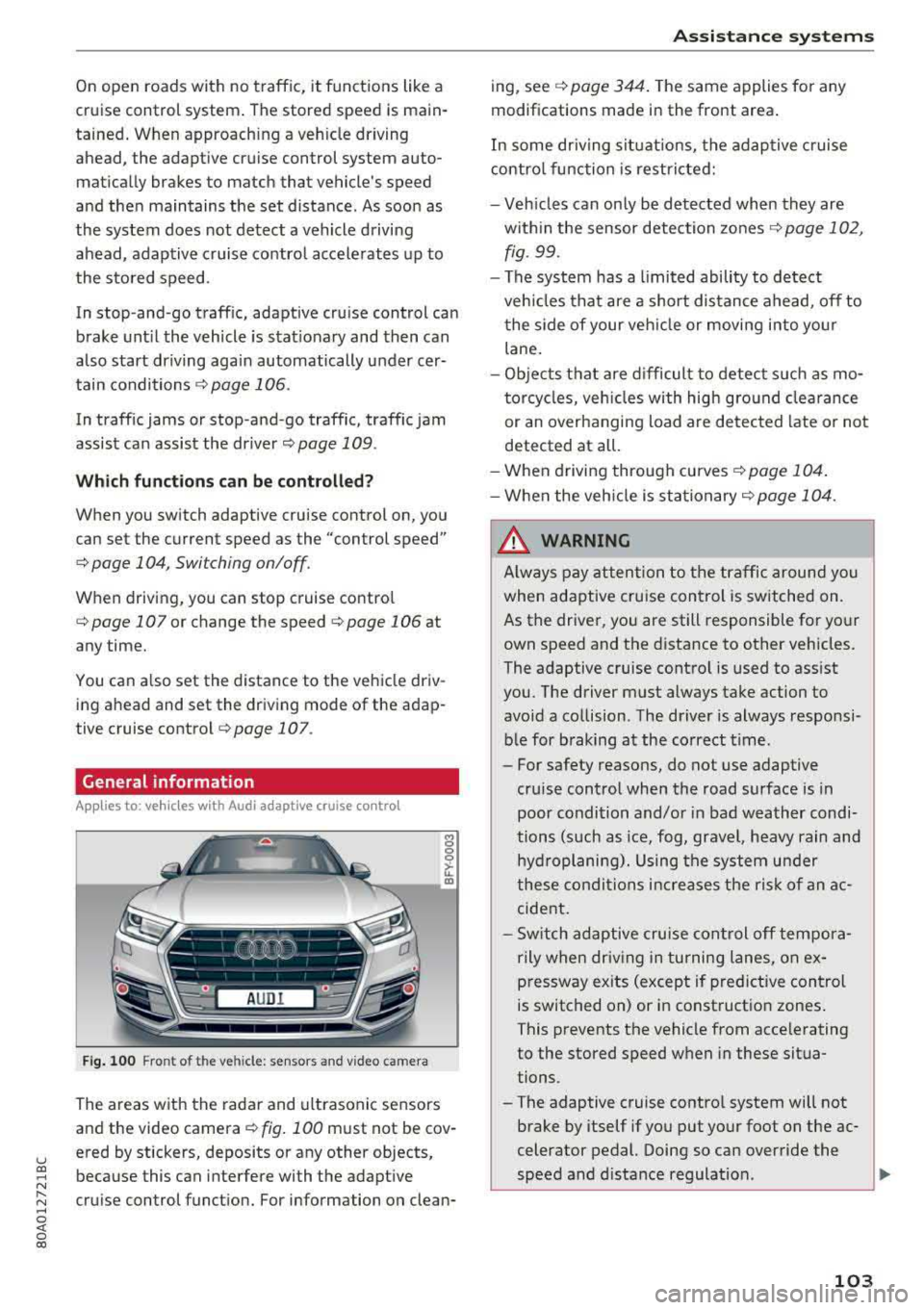
Fig. 10 0 Fro nt of the v ehi cle : se nso rs a nd v ideo cam era
The areas w ith the rada r and u ltrasonic sensors
and the video
camera ¢ fig. 100 must not be cov
ered by stickers, deposits or any other objects ,
because this can interfe re with the adapt ive
cru is e control funct ion. For information on clean-
A ssi st a nce systems
ing, see ¢ page 344 . The same applies fo r any
modifications made in the front area .
In some dr iving s it u ations, the adaptive c ruise
contro l func tion is restricte d:
- Veh icles can on ly be de tected when they are
w ith in the sensor detection zones
¢ page 102,
fig.
99 .
- The system has a limited ability to detect
ve hicles that are a short dis tance ahead, off to
t he side of your ve hicle or movi ng i nto yo ur
lane.
- Ob jects that are d ifficult to detect s uch as mo
torcycles, veh icles with high gro und clea rance
or an overhanging load are detec ted late or not
detected at all.
- When driving through curve s
¢page 104 .
-W he n the veh icle is sta tionary r=;, page 104 .
A WARNING
Always pay at ten tion to the traffic around you
when adaptive cru ise con trol is switched on .
As the driver, you are still responsible for your
own speed and the d istance to other veh icles.
The adaptive cruise cont rol is used to assist
you. The driver must always take action to
avoid a collision . The driver is always responsi
bl e for braking at the correct t ime.
- For safety reasons, do not use adaptive
cr uise control when the road surface is in
poor condi tion and/or in bad weather condi
tions (such as ice, fog, gravel, heavy rain and
hyd roplani ng) . Using the system under
these co ndi tions i ncrea ses the r is k of an a c
cide nt.
- Sw itch adaptive cru ise con trol
off tempora
r ily when dr iv ing in tu rning lanes, on e x
p re ssway ex its (except if predictive con trol
is switched on) or in construct io n zones .
This prevents the vehicle from acce lerating
to the stored speed w hen in these situa
tions.
- The adaptive cruise contro l system will not
brake by itself if you put yo ur foot on the ac
celerator pedal. Doing so can over ride the
speed and d ista nce regulation .
~
103
Page 108 of 392
Assistance systems
Changing the speed
Applies to: vehicles with Audi adaptive cruise contro l
0
f
' 0
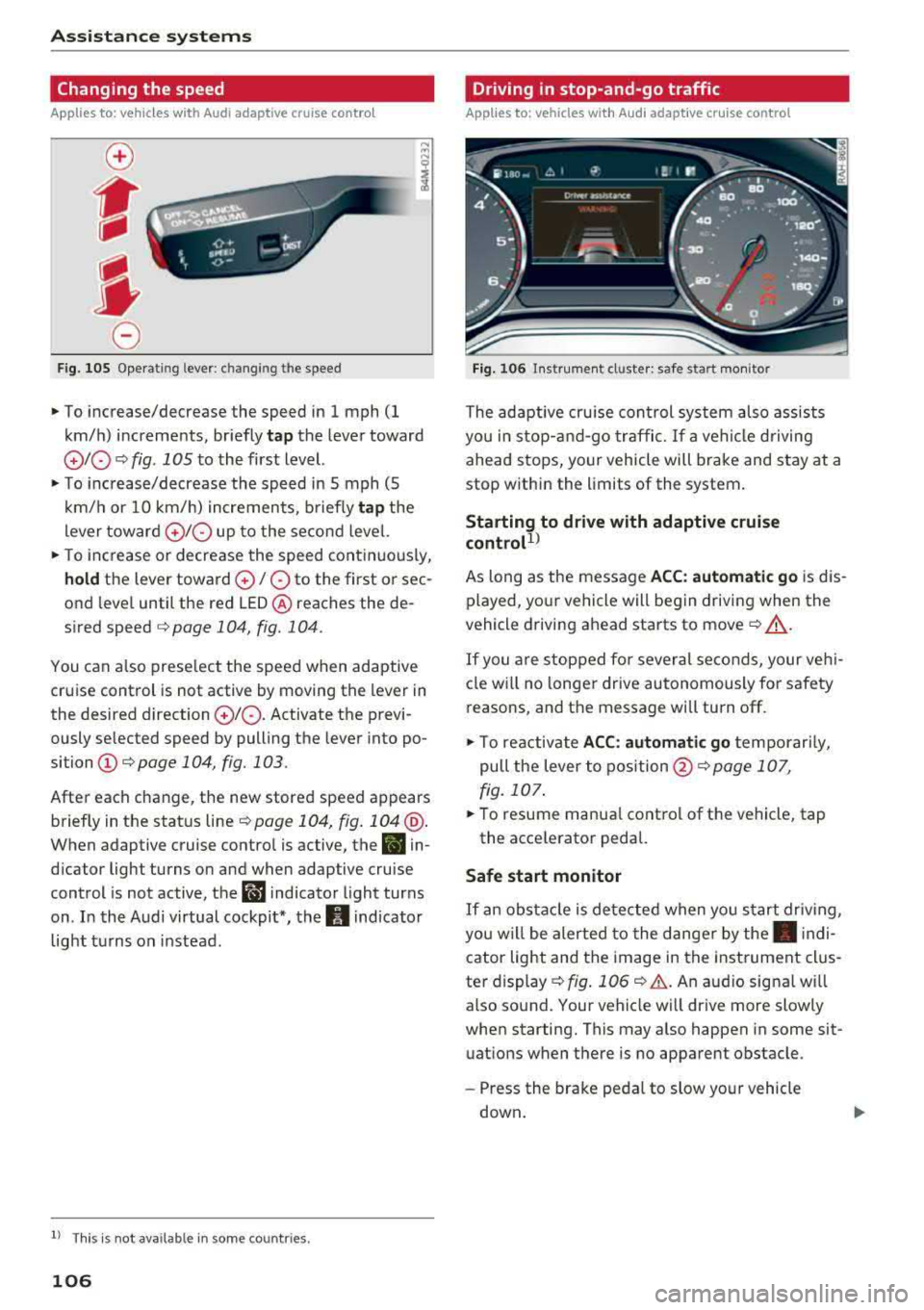
Fig. 105 Operat ing lever : c h ang ing the speed
~ To increase/decrease the speed in 1 mph (1
km/h) increments, br iefly
tap the lever toward
010 ¢ fig . 1 OS to the first level.
~ To increase/decrease the speed in 5 mph (5
km/h or 10 km/h) increments, briefly
tap the
lever toward
0 10 up to the second level.
~ To increase or decrease the speed continuously,
hold the lever toward 0 / 0 to the first o r sec
ond level until the red
LED @ reaches the de
s ir ed speed
¢ page 104 , fig. 104 .
You can also preselect the speed when adaptive
cruise control is not active by moving the lever in
the desired direction
010 . Activate the previ
ously se lected speed by pulling the lever into po
sition
(D ¢ page 104, fig. 103.
After each change, the new stored speed appears
briefly in the status
line ¢ page 104, fig. 104 @.
When adaptive cruise control is active, the B in
dicator light turns on and when adaptive cruise
control is not active, the
ll'J indicator light turns
on . In the Audi virtual cockpit*, the
II indicator
light turns on instead.
ll Thi s is not ava ilab le in som e coun tri es .
106
Driving in stop-and-go traffic
Applies to: vehicles with Audi adaptive cruise control
Fig. 106 In strume nt cl uster: safe s tart mo nitor
The adaptive cruise con trol system also assists
you in stop-and-go traffic.
If a vehicle driving
ahead stops, your vehicle will brake and stay at a
stop within the limits of the system.
Starting to drive with adaptive cruise
controt1>
As long as the message ACC: automatic go is dis
played, your vehicle will begin driving when the
vehicle driving ahead starts to move
c::> A_.
If you are stopped for several seconds, your veh i
cle will no lon ger drive autonomously for safety
reasons, and the message will turn off.
~ To reactivate ACC: automatic go temporarily,
pull the lever to
position @¢ page 107,
fig. 107.
~ To resume manua l control of the vehicle, tap
the accelerator pedal.
Safe start monitor
If an obstacle is detected when you start driv in g,
you w ill be alerted to the danger by
the. indi
cator light and the image in the instrument clus
ter display
c::> fig. 106 c::> &. . An audio signa l w ill
also sound. Your vehicle will drive more slowly
when starting. This may also happen in some sit
uations when there is no apparent obstacle .
-Press the brake pedal to slow your vehicle
down .
Page 109 of 392
u co ..... N r-N .....
~ 0 co
A WARNING
If the message ACC: autom atic go1
) appears,
your veh icle will start driving even if there is
an obstacle between your vehicle and the ve
hicle driv ing ahead . This increases the risk of
an ac cident.
@ Tips
- For safety reasons, your veh icle w ill only
start to drive automatical ly if:
- t he driver's safety belt is fastened
- all doors and the hood a re cl osed
- your vehicle is not stopped for a long per i-
od.
Interrupting cruise control
Applies to: vehicles with Audi adaptive cruise contro l
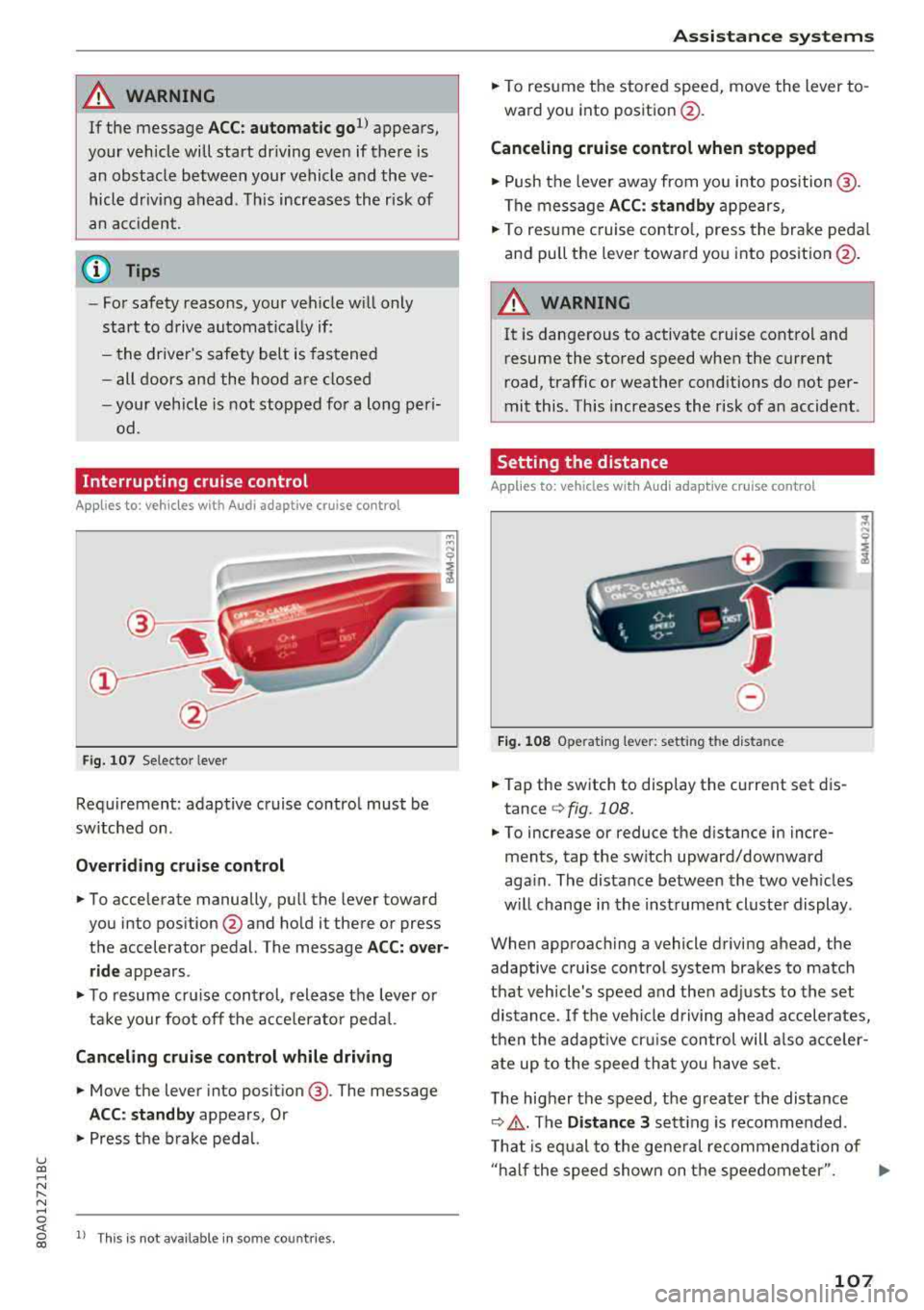
Fig . 107 Selecto r lever
Requirement: adaptive cruise contro l must be
sw itched on .
Overriding crui se control
"' To accelerate manually, pull the lever toward
you into position
@ and hold it there or press
the accelerator pedal. The message
ACC: over
ride
appears .
... To resume cr uise cont rol, release the leve r or
ta ke your foot off the acce le rato r peda l.
Canceling cruise control while driving
"'Move the lever into position @. The message
ACC: standby appears, Or
"'Press the b rake peda l.
l) This is no t available in some countries.
Assi st a nce systems
"' To resume the stored speed, move the lever to
ward you into position @.
Canceling cruise control when stopped
"' Push the lever away from you into position @.
The message
ACC: standby appears,
"' To resume c ruise contro l, press the brake peda l
and pull the lever toward you i nto position @.
A WARNING
It is dangerous to activate cruise contro l an d
resume the stored speed when the current
road, traffic or weather conditions do not per
mit this . This increases the risk of an accident .
Setting the distance
Applies to: vehicles with A udi ada ptive c ruise control
,
0
Fig. 1 08 Opera tin g lever: setting the distance
... Tap the switch to display the current set dis
tance
¢ fig. 108.
"'To increase or reduce the distance in incre
ments, tap the switch upward/downward
aga in . The distance between the two veh icles
w ill change in the inst rument cluste r display .
When approaching a vehicle driving ahead, the
adaptive cruise control system brakes to match
that vehicle's speed a nd then adj usts to the set
distance. If the veh icle d riving ahead accelerates,
t h en the adapt ive cr uise con trol will also acce ler
ate up to the speed th at you h ave set.
T he higher the speed, t he g reater the distance
¢ .&, .The Distance 3 sett ing is recommended .
T hat is eq ual to the ge ne ral recommendation of
" ha lf the speed shown on t he speedometer ".
..,.
107
Page 129 of 392
u co ..... N r--N ..... 0 <( 0 00
(D Tips
The "S" selector lever position automatically
engages when the
Dynamic mode is se lected .
Selecting the driving mode
Applies to: ve hicles with Audi drive select
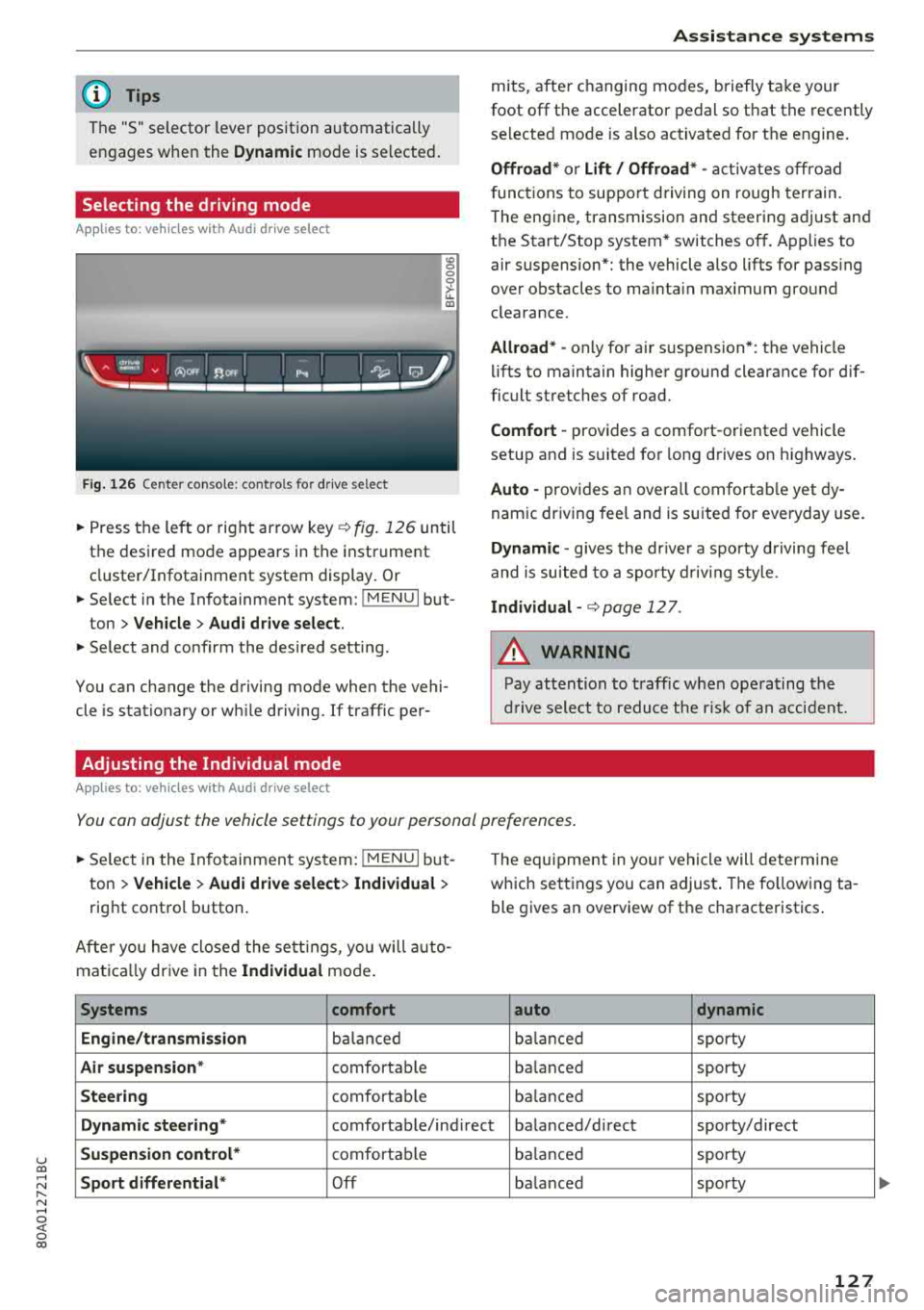
Fig. 126 Center conso le: controls for drive select
0 >'-LL ID
~ Press the left o r right arrow key¢ fig. 126 until
the desired mode appears in the instrument
cluster/Infotainment system display . Or
~ Se lect in the Infotainment system: !MENUI but-
ton
> Vehicle > Audi drive select.
~ Select and confirm the desired setting.
You can change the driving mode when the vehi
cle is stationary or wh ile driving. If traffic per-
Adjusting the Individual mode
Applies to: ve hicles with Audi drive select
Assistance systems
mits, after changing modes, briefly take your
foot
off the accelerator pedal so that the recently
selected mode is also activated for the engine.
Offroad* or Lift/ Offroad* -activates off road
f unct ions to support driving on rough terrain.
T he engine, transmission and steering adjust and
the Start/Stop system* switches
off. Applies to
air suspension*: the vehicle also lifts for pass ing
over obstacles to mainta in maximum ground
clearance.
Allroad * -only for ai r suspension *: the vehicle
lifts to maintain higher ground clearance for dif
ficult stretches of road.
Comfort -provides a comfort -oriented vehicle
setup and is suited fo r long d rives on h ighways .
Auto -provides an overall comfortable yet dy
namic driving feel and is suited for everyday use.
Dynamic -gives the drive r a sporty driving feel
and is suited to a sporty driving style .
Individual -¢ page 12 7.
A WARNING
-
Pay attention to traffic when operating the
drive select to reduce the risk of an accident.
You can adjust the vehicle settings to your personal preferences .
~ Select in the Infotainment system: !MENUI but
ton
> Vehicle > Audi drive select> Individual >
right contro l button.
Afte r you have closed the settings, you will auto
mat ica lly dr ive in the
Individual mode.
Systems comfort
Engine/transmission
balanced
Air suspension * comfortable
Steering comfortable Th
e equipment in yo ur vehicle will determine
which settings you can adjust . The fo llowing ta
ble gives an overview of the characteristics .
auto dynamic
balanced
sporty
ba lanced sporty
balanced sporty
Dynamic
steering* comfortable/ind irect ba lanced/direct sporty/direct
Suspension control* comfortab le balanced sporty
Sport differential* Off balanced sporty
127
...
Page 146 of 392
Intelligent Technology
(D Tips
-If the brake booster is not working, you
must press the brake pedal with much more
force than normal.
- If you retrofit your vehicle with a front spoil
er, whee l covers or similar items, make sure
that the a ir flow to the front wheels is not
in terrupted. Otherw ise the brake system
can become too hot .
Electromechanical
steering, Dynamic
steering
The electromechanical steering supports the
driver's steering movements.
Power steering adapts electronically based on
the vehicle speed.
Indicator lights and messages
• Steering: malfunction! Please stop vehicle
If th is ind icator light turns on and stays on and
this message appears, the power steering may
have fa iled.
Stop the vehicle in a safe location as soon as pos
sible . Do
not continue driving . See an author ized
Aud i deale r or authorized Aud i Serv ice Facility fo r
assistance .
,~n Steering: malfunction! You can continue
driving
If the indicator light turns on and the message
appears, the steering wheel may be more diffi
cult to move or more sensit ive than usual. The
steer ing wheel may also be at an angle when
driving st raight.
Drive slowly to an au thorized Audi dealer or au
thor ized Audi Service Fac il ity to have the mal
function corrected .
I@ Dynamic steering: correcting steering wheel
position
If the indicator light turns on and this message
appears, the dynamic steering* is reinitializing.
The steering wheel will be easy to move after
starting the engine. Re initialization might be
144
necessary if the steering wheel was moved while
the engine was switched
off. T he disp lay turns
off if the initialization was successfu l.
(D Tips
-If the . or Erfl indicator light only stays on
for a short time, you may continue driving.
- T he dynamic steering stability systems
¢page 140 are not avai lab le in the event of
a system malfunction .
- For additional information on dynamic
steering, see
¢ page 125.
All-wheel drive (quattro)
General information
In all wheel drive, the driv in g power is distribut
ed between all four whee ls when needed. This
happens automatically depending on your driving
behavior as well as the current road conditions.
Also see
c> page 140 , Electronic Stabilization
Con trol (ESC).
The all-whee l drive system distributes the driving
power variably to the front and rear axle. It works
together with selective wheel torque control,
which activates when driving through curves
c> page 140. With the sport differential*, power
distribution to the rear wheels is variable and can
be adjusted using the drive select
c>poge 125 .
The all wheel drive concept is designed for high
engine power . Your vehicle is excep tionally pow
erful and has excellent driving characteristics
both under normal driving conditions and on
snow and ice. Always read and follow safety pre
cautions ¢.&. .
Winter tires
By using all wheel dr ive, your veh icle has good
forward motion w ith standard tires in winter con
ditions. However, using winter or all season t ires
o n oil four wheels in the winter is recommended,
because this w ill imp rove the braking effect.
Snow chains
If there are snow chain laws, snow chains must
also be used on veh icles with all wheel drive
c> page 340, Snow chains . .,.
Page 165 of 392
u co ..... N r-N .....
~ 0 co
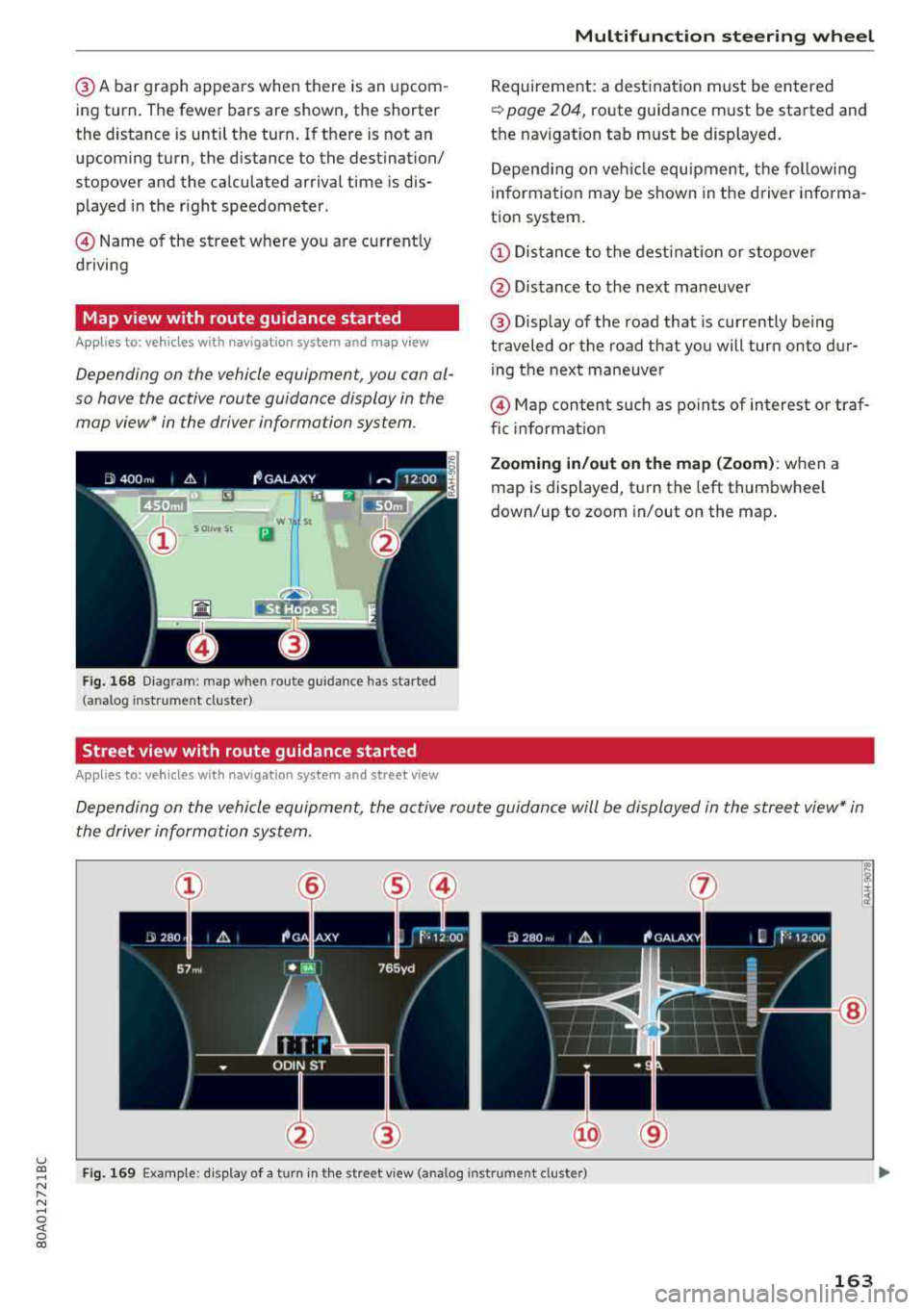
@A bar graph appears when there is an upcom
ing tu rn. The fewer bars are shown, the shorter
the distance is until the turn. If there is not an
upcoming turn, the distance to the dest ination/
stopover and the ca lculated arrival time is dis
played in the right speedometer .
© Name of the street where you are currently
driving
Map view with route guidance started
Ap plies to: ve hicles with navigation system and map v iew
Depending on the vehicle equipment, you con al
so hove the active route guidance display in the
mop view* in the driver informa tion system .
w 1 St
Ill
Ho est
Fig. 168 Diagram : map when rou te g uidance has started
( an alog inst rum en t cluster)
Street view with route guidance started
Applies to: veh icles with navigation system and street view
Multifunction steering wheel
Requirement: a destination must be entered
<=> page 204, route guidance must be started and
the navigation tab must be displayed.
Depending on vehicle equ ipment, the following
information may be shown in the d river i nforma
tion system.
(D Distance to the destination or stopo ver
@ Distance to the next maneuver
@ Display of the road that is currently being
traveled or the road that you will turn onto dur ing the next maneuver
© Map content such as points of interest or traf
fic informat ion
Zooming in/out on the map (Zoom): when a
map is displayed, turn the left thumbwhee l
down/up to zoom in/out on the map .
Depending on the vehicle equipment, the active route guidance will be displayed in the street view* in
the driver information system.
@
Fig. 169 Example: d is play of a t urn in th e street v iew (a nalog instr um ent cl ust er)
163
Page 166 of 392
Multifunctio n ste ering whe el
Requirement: a destination must be entered
r::!> page 204, route guidance must be started and
the navigation tab must be disp layed.
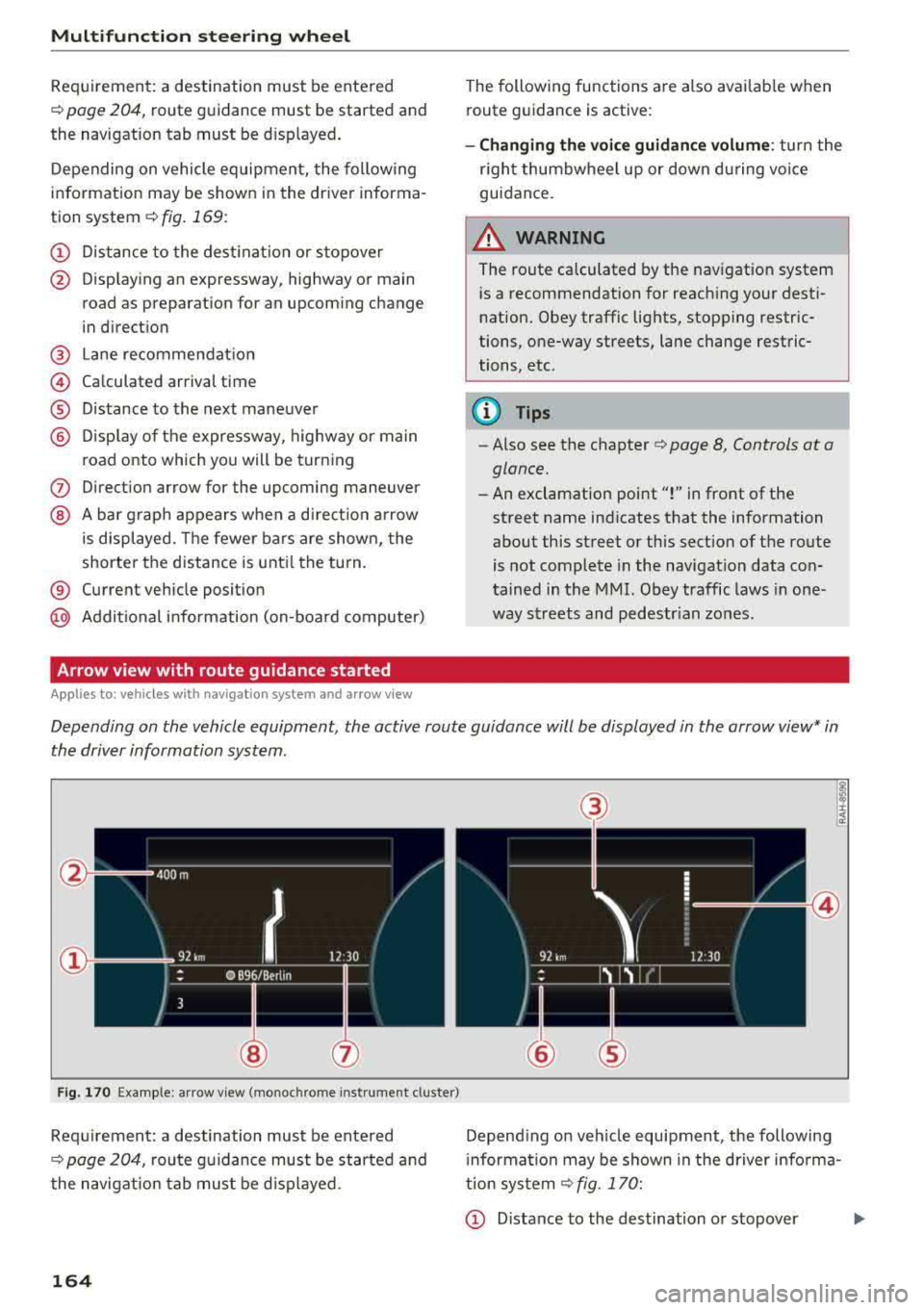
Depending on vehicle equipment, the following
information may be shown in the driver informa
tion system
r::!> fig . 169 :
CD Distance to the dest inat ion or stopover
@ Disp laying an expressway, highway or main
road as preparation for an upcoming change
in direction
@ L ane recommendation
@ Ca lculated arrival time
® D istance to the next maneuver
@ D isp lay of the expressway, highway or main
road onto which you will be turning
(J) Direct ion arrow for the upcoming maneuver
@ A bar graph appears when a di rect io n arrow
is displayed. The fewer bars are shown, the
shorter the d istance is unt il the turn .
® Current vehicle posit ion
@ Addit ional info rmation (on-board computer)
Arrow view with route guidance started
Applies to: ve hicles with navigat ion system and arrow view
The following functions are also avai lab le when
route guidance is act ive :
-Changing the voice guidance volume : turn the
r igh t thumbwheel up or down du ring voice
guidance.
A WARNING
The route calculated by the nav igation system
is a recommendation for reaching your desti
nation. Obey traffic lights, stopp ing restric
tions, one-way streets, lane change restric
tions, etc .
@ Tips
- Also see the chapter
r::!> page 8, Controls at a
glance.
- An exclamation point ''!'' in front of the
street name indicates that the information
about this street or this sect ion of the route
is not complete in the navigation data con
tained in the
MMI. Obey traffic laws in one
way streets and pedestr ian zones.
Depending on the vehicle equipment , the active route guidance will be displayed in the arrow view* in
the driver information system.
F ig . 170 Example : a rr ow v iew (monoc hrome inst rument cluster)
Requirement: a destination must be entered
r::!> page 204, route gu idance must be started and
the navigation tab mus t be d isp layed .
164
(3)
@
Depend ing on veh icle equipment, the following
i nformation may be shown in the driver info rma
tion system
r::!> fig . 170:
CD Distance to the destination or stopover ...,
Page 173 of 392
u co .... N r--N ..... 0 <( 0 00
Voice recognition system
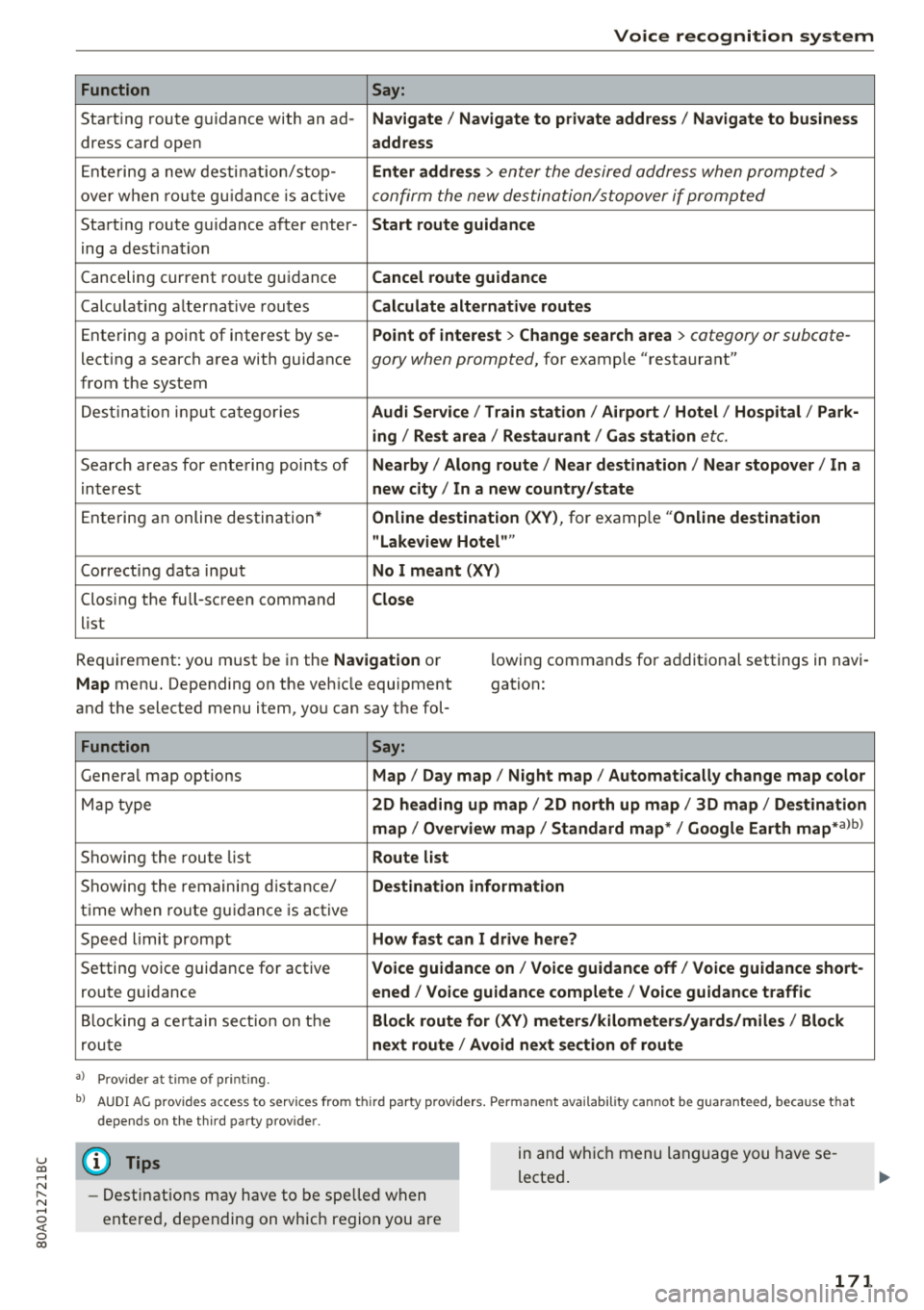
Function
Say:
Start ing route g uidance with an ad- Navigate/ Navigate to p riv ate addre ss/ Navig ate to business
dress card open address
E nte ring a new desti nat ion/stop -Enter addr ess
> enter the desired address when prompted>
over w hen ro ut e gu idance is ac tive confirm the new destination/stopover if prompted
Start ing route guidance after enter- Start route guidance
ing a dest ination
Canceling current ro ute g uidance Cancel route guidance
Calc ulat ing a lternat ive routes Calculate alternative route s
Ente ring a point of interest by se -Point of intere
st
> Change sea rch a rea > category or subcote-
lecting a search area with guidance gory when prompted, for example "restaurant"
from the system
Dest ina tion input ca tegor ies Audi Service / Train station /Airport / Hot el / Ho spital / Park-
ing / Re st area / Restaurant / Gas station
etc.
Search areas for entering points of Nearby/ Along route / Near de stination / Near stopover / In a
interest new city/ In a new country /state
Entering an online destination* Online dest
ination (XV), for examp le "Online de stination
" Lakeview Hotel" "
Correct ing data input No I meant (XV)
Clos ing the full -screen command
Close
list
Requirement: you must be in the Navigation or
Map menu. Depending on the veh icle equipment
and the selected menu item, you can say t he fol- l
owing commands for additional settings in navi
gation:
Function Say:
Genera l map options Map/ Day map / Night map / Automat ically change map color
Map type 2D heading up map/ 2D north up map / 3D map / De stination
map / Overview map / Standard map */ Google Earth
map* albl
Showing the route list Route list
Showing the remaini ng d istance/ Destination information
time w hen route guidance is active
Speed limit prompt How fast can I drive here?
Setting voice guidance for active Voice guidance on/ Voice guidance off / Voice guidance short-
route guidance ened / Voice guidance complete / Voice guidan ce traffic
B locking a ce rtain sect ion on t he Block route for (XV) meter s/kilometers /yards /miles / Block
rou te next route / Avoid n ext se ction of route
a ) Pro vid er a t tim e of pr inting .
bl AU DI AG provi des acc ess to s ervi ce s fro m thir d par ty prov id ers. P ermane nt a vailabi lity canno t be guarant eed, beca use tha t
de pen ds on the th ird party p ro vid er.
(D Tips
- Destinations may have to be spelled when
entered, depending on which region you are in and wh
ich menu language you have se
lected .
171