can and menu button AUDI Q5 2021 Owner´s Manual
[x] Cancel search | Manufacturer: AUDI, Model Year: 2021, Model line: Q5, Model: AUDI Q5 2021Pages: 332, PDF Size: 118.86 MB
Page 97 of 332
80B012721BA
Warm and cold
@) Tips
— Using the auxiliary climate control while
charging can also reduce the charge level of
the high-voltage battery.
— Starting or stopping the vehicle will not
switch off the auxiliary climate control auto-
matically.
— The auxiliary climate control system will not
turn on automatically or will turn off earlier
if the high-voltage battery charge level is
too low, even if the vehicle is being charged
at the time.
Applies to: vehicles with auxiliary climate control
Applies to: MMI: Select on the home screen: VE-
HICLE > Air conditioning > Auxiliary air condi-
tioning.
Immediate start
You can immediately switch the auxiliary climate
control on and off using the f button. When this
function is switched on, a colored bar lights up
over the button and the remaining time is dis-
played.
The auxiliary climate control will run for a maxi-
mum of 30 minutes after the immediate start.
Timer programming
You can set up and activate up to two timers for
the departure time.
> Select a timer using >.
> Set the date and press Next.
> Set the time (departure time) and press OK.
The timer will be activated automatically once
itis set.
>» Set the second timer, if necessary.
By setting the departure time, you determine
when your vehicle should reach the desired tem-
perature. The departure time can be a maximum
of six days in the future. The auxiliary climate
control will continue to run approximately ten
minutes after the departure time is reached.
After switching off the ignition
Information about the active timer will appear in
the display after switching off the ignition. You
can start the set climate control settings imme-
diately with the f button, or go to the auxiliary
climate control menu with the > button.
(i) Tips
— Make sure the time and date match in the
system settings so that the timer can func-
tion correctly > page 236.
— The auxiliary climate control can also be
switched on and off immediately when a
timer is set.
— You can operate the climate control in the
vehicle interior when the high-voltage bat-
tery is charging using the charging timer
=> page 123. The climate control output de-
pends on the power supply capacity.
Additional settings
Applies to: vehicles with auxiliary climate control
>» Applies to: MMI: Select on the home screen:
VEHICLE > Air conditioning > Auxiliary air con-
ditioning > ©.
Start A/C after unlocking
If this function is activated, the climate control
will continue to run for five minutes after the ve-
hicle has been unlocked.
Comfort aux. A/C
Applies to: vehicles with comfort auxiliary climate control
You can set if the steering wheel heating* and
seat heating* or seat ventilation* should also be
automatically activated with auxiliary climate
control. You can select the respective zones.
Window and mirror heating*
Applies to: vehicles with comfort auxiliary climate control
You can set if the rear window and mirrors should
also be heated during auxiliary climate control.
Messages
Applies to: vehicles with auxiliary climate control
2— There is a malfunction in the auxiliary air
conditioning.
95
Page 150 of 332
Driving information
— The traffic signs on the road always take pri-
ority over the display. The driver is always
responsible for adhering to the regulations
applicable in the country where the vehicle
is being operated.
— Units of measurement and language set-
tings are displayed based on how they were
set in the MMI system settings > page 236.
Applies to: vehicles with traffic light information
Switching traffic light information on and
off
» Applies to: MMI: Select on the home screen:
VEHICLE > Driver assistance > Traffic light in-
formation.
Accessing traffic light information
> Select in the instrument cluster: vehicle func-
tions tab > Traffic signs.
@® Tips
If another tab or another function is selected
in the instrument cluster, the traffic light in-
formation will appear in the status bar on the
instrument cluster.
Messages
Applies to: vehicles with traffic light information
Malfunction! See owner's manual
The system could not be configured, for example
due to a network malfunction. Switch the igni-
tion off and shut down the vehicle to restart the
system. Wait several minutes until the vehicle
has shut down completely and then switch the
ignition back on.
Function currently unavailable. See owner's
manual
There is a temporary system malfunction. Check
if one or more of the following situations applies
and correct the issue if necessary:
— Traffic light information is switched off
— Data transmission is deactivated
148
— The vehicle is not equipped with traffic sign rec-
ognition.
— There is no valid license
— Traffic light information is not available in that
area
Lap timer
Introduction
Applies to: vehicles with lap timer
You can record and evaluate lap times with the
lap timer. You can operate the lap timer using the
multifunction steering wheel > page 13.
Opening the lap timer
> Select in the instrument cluster: Vehicle func-
tions tab > [| button > Lap times.
An additional indicator appears in the head-up
display*.
ZA\ WARNING
Your focus should always be on driving your
vehicle safely. As the driver, you have com-
plete responsibility for safety in traffic. To re-
duce the risk of an accident, only use the lap
timer functions in such a way that you always
maintain complete control over your vehicle in
all traffic situations.
G) Tips
You can retrieve information from the trip
computer while the lap timer stopwatch is
running.
ey sae |
Applies to: vehicles with lap timer
Requirement: the lap timer must be open
=> page 148.
Timing laps
> To start timing manually, select Start lap 1 in
the menu.
> To start timing automatically as soon as you be-
gin to drive, select Start lap 1 by driving off or
Start by driving off in the menu.
Page 151 of 332

80B012721BA
Driving information
> To start timing a new lap after driving a lap, se-
lect New lap in the menu. This starts timing
the next lap at the same time.
After completing a lap, the difference between
the last lap and the previous best lap time will be
won an indicated with a “~” or “+”.
Pausing timing and displaying a split time
> To insert a pause @ select Pause in the menu.
> To resume timing, select Resume in the menu.
> To display a split time, select Split time in the
menu. The split time appears for approxi-
mately ten seconds in the instrument cluster.
The current lap timing will continue running.
Canceling lap timing
The timing of the current lap will stop. The lap
time will be erased and will not be included in the
statistics.
> Select Cancel lap in the menu.
Resetting the time
> Select Reset lap times in the menu.
G) Tips
— A maximum of 99 lap times can be meas-
ured.
— If timing is paused, you can continue it later
even if you switch the ignition off.
— Saved lap times cannot be individually de-
leted from the total results.
— The saved lap timer values will remain after
switching the ignition off.
yo e-) a(t)
Applies to: vehicles with lap timer
Displaying lap statistics
You can display the number of laps driven
the fastest lap “+”, the slowest lap “-”, and the
average time “®” in the instrument cluster.
> Select in the instrument cluster: Vehicle func-
tions tab > E] button > Lap statistics.
> Turn the thumbwheel down or up to display the
individual lap times.
> To return to the lap timing that was started, se-
lect the [I button > Lap times.
Resetting lap statistics
Requirement: the lap statistics menu must be
displayed.
> To reset the lap statistics, press and hold the
left thumbwheel until the message No lap
times have been recorded yet. appears.
@) Tips
The lap statistics list the lap times for the last
30 laps. The fastest and slowest lap times out
of up to 99 measured laps are also displayed.
Integrated Toll Module
Applies to: vehicles with Integrated Toll Module
Depending on the region, you can pay toll fees in
certain countries using the Integrated Toll Mod-
ule (ITM). It replaces a separate transponder for
detecting toll fees. The system electronics are in-
tegrated in the rearview mirror housing.
Gi) Tips
The system complies with United States FCC
regulations and ISED regulations > page 311.
Applies to: vehicles with Integrated Toll Module
To use the ITM in toll zones, you must register
and activate it.
Registration
> Applies to MMI: Select on the home screen: VE-
HICLE > Settings & Service > Vehicle informa-
tion Toll module.
> Note the Integrated Toll Module ID.
> To register the ITM, go to the displayed web ad-
dress and follow the instructions.
Activation
> To activate the ITM, press CD in the MMI.
Entering the number of passengers
Depending on the number of passengers and the
region, a lower toll fee may be charged. You must
either enter the number of passengers or
149
>
Page 193 of 332
80B012721BA
Telephone
Possible call list symbols:
Missed calls
Dialed numbers
Accepted calls
Editing a telephone number
Display business card ........... 192
QOOCOLO Number of interactions with a con-
tact
If more than one interaction with a contact or
number has taken place, the last one is displayed
in the form of an arrow (a), Q), or @).
Press and hold a contact or a phone number in
the list until the Options menu appears.
Depending on your mobile device, the following
options may be available:
— Store as favorite > page 191.
— Send text message > page 194.
— Send e-mail > page 195.
Edit number
Edit a phone number before dialing it.
Show history
Requirement: you must have had more than one
interaction with a contact.
All interactions with a contact or a number are
displayed.
Managing favorites
Applies to: vehicles with telephone
You can store contacts for all connected mobile
devices as shortcuts in the favorites list.
Selecting favorites using the MMI
> Applies to: MMI: Select on the home screen:
PHONE > Favorites.
Opening favorites using the multifunction
steering wheel
> Select in the instrument cluster: Telephone tab
> EE] button > Favorites.
Storing favorites
> Press YY > page 192 in the business card, or
> Press Store as favorite in the options
=> page 190.
Deleting favorites
> Press We > page 192 in the business card, or
> Select: Favorites > Z > one or multiple favor-
ites or Select all > Delete > (Done).
@) Tips
The favorites can only be edited via the MMI.
Managing the directory
Applies to: vehicles with telephone
You can manage up to four directories in the
MMI.
Requirement: a mobile device must be connected
to the MMI.
Opening the directory
> Applies to: MMI: Select on the home screen:
PHONE > Contacts.
The contacts will be displayed. You can change
the sort order > page 194, Sort order.
Deleting imported contacts
Requirement: you must have imported at least
one contact > page 194.
> Select: Contacts > Z > one or more text mes-
sages > Delete > (Done). The imported contacts
are deleted.
Directory options
> Press and hold a contact in the directory until
the Options menu appears.
Depending on your mobile device, the following
options may be available:
— Store as favorite > page 191
— Send contact: you can select Text message or
E-mail > page 194.
— Send text message > page 194.
— Send e-mail > page 195.
191
Page 207 of 332
80B012721BA
Navigation
Navigation
Opening navigation
Applies to: vehicles with navigation system
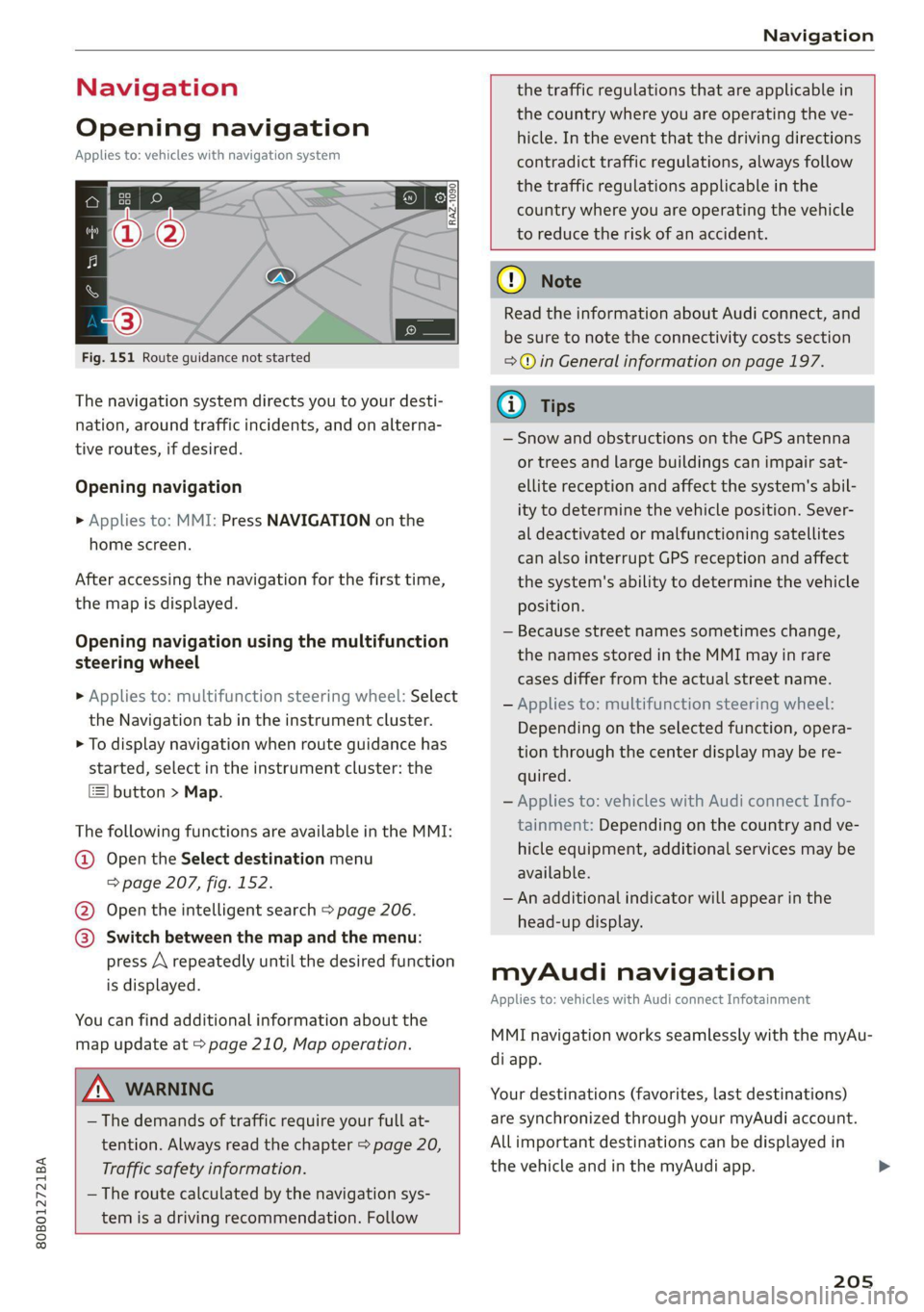
Fig. 151 Route guidance not started
The navigation system directs you to your desti-
nation, around traffic incidents, and on alterna-
tive routes, if desired.
Opening navigation
» Applies to: MMI: Press NAVIGATION on the
home screen.
After accessing the navigation for the first time,
the map is displayed.
Opening navigation using the multifunction
steering wheel
> Applies to: multifunction steering wheel: Select
the Navigation tab in the instrument cluster.
> To display navigation when route guidance has
started, select in the instrument cluster: the
button > Map.
The following functions are available in the MMI:
@ Open the Select destination menu
=> page 207, fig. 152.
@ Open the intelligent search > page 206.
@ Switch between the map and the menu:
press A repeatedly until the desired function
is displayed.
You can find additional information about the
map update at > page 210, Map operation.
the traffic regulations that are applicable in
the country where you are operating the ve-
hicle. In the event that the driving directions
contradict traffic regulations, always follow
the traffic regulations applicable in the
country where you are operating the vehicle
to reduce the risk of an accident.
ZA WARNING
— The demands of traffic require your full at-
tention. Always read the chapter > page 20,
Traffic safety information.
— The route calculated by the navigation sys-
tem is a driving recommendation. Follow
() Note
Read the information about Audi connect, and
be sure to note the connectivity costs section
=@ in General information on page 197.
(i) Tips
— Snow and obstructions on the GPS antenna
or trees and large buildings can impair sat-
ellite reception and affect the system's abil-
ity to determine the vehicle position. Sever-
al deactivated or malfunctioning satellites
can also interrupt GPS reception and affect
the system's ability to determine the vehicle
position.
— Because street names sometimes change,
the names stored in the MMI may in rare
cases differ from the actual street name.
— Applies to: multifunction steering wheel:
Depending on the selected function, opera-
tion through the center display may be re-
quired.
— Applies to: vehicles with Audi connect Info-
tainment: Depending on the country and ve-
hicle equipment, additional services may be
available.
— An additional indicator will appear in the
head-up display.
myAudi navigation
Applies to: vehicles with Audi connect Infotainment
MMI navigation works seamlessly with the myAu-
di app.
Your destinations (favorites, last destinations)
are synchronized through your myAudi account.
All important destinations can be displayed in
the vehicle and in the myAudi app.
205
Page 209 of 332
80B012721BA
Navigation
Check the spelling of the term that was
searched or check the search area
=> page 206.
— Distances to points of interest are displayed
as a straight-line distance from your current
location. The actual distance from your cur-
rent location to the point of interest is up-
dated automatically. The list of points of in-
terest that were found is not resorted when
this happens.
Select destination
Applies to: vehicles with navigation system
| perce cae
D || w 9
A Last Cea a
| Cesare Pics
a
RAX-0146
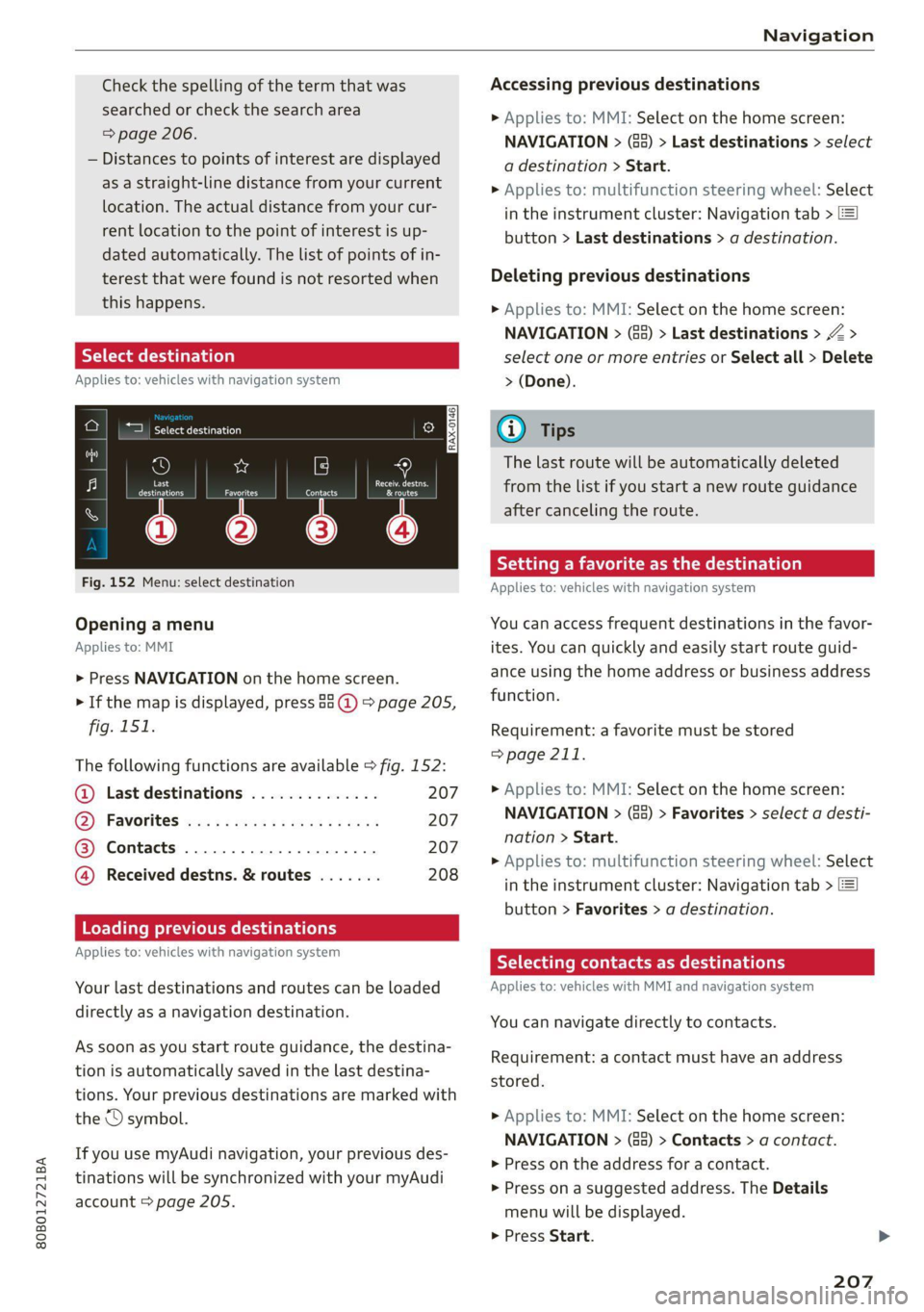
Fig. 152 Menu: select destination
Opening a menu
Applies to: MMI
> Press NAVIGATION on the home screen.
> If the map is displayed, press 88 @) > page 205,
fig. 151.
The following functions are available > fig. 152:
@ Last destinations e 207
Q), FaVOrites was scenes sy ones es eras 207
@ Contacts ...................., 207
@ Received destns. & routes ....... 208
Loading previous destinations
Applies to: vehicles with navigation system
Your last destinations and routes can be loaded
directly as a navigation destination.
As soon as you start route guidance, the destina-
tion is automatically saved in the last destina-
tions. Your previous destinations are marked with
the © symbol.
If you use myAudi navigation, your previous des-
tinations will be synchronized with your myAudi
account > page 205.
Accessing previous destinations
> Applies to: MMI: Select on the home screen:
NAVIGATION > (8) > Last destinations > select
a destination > Start.
> Applies to: multifunction steering wheel: Select
in the instrument cluster: Navigation tab >
button > Last destinations > a destination.
Deleting previous destinations
>» Applies to: MMI: Select on the home screen:
NAVIGATION > (85) > Last destinations > Z >
select one or more entries or Select all > Delete
> (Done).
Gi) Tips
The last route will be automatically deleted
from the list if you start a new route guidance
after canceling the route.
Setting a favorite as the destination
Applies to: vehicles with navigation system
You can access frequent destinations in the favor-
ites. You can quickly and easily start route guid-
ance using the home address or business address
function.
Requirement: a favorite must be stored
=>page 211.
> Applies to: MMI: Select on the home screen:
NAVIGATION > (Ga) > Favorites > select a desti-
nation > Start.
> Applies to: multifunction steering wheel: Select
in the instrument cluster: Navigation tab >
button > Favorites > a destination.
SY lad dled ee Cully
Applies to: vehicles with MMI and navigation system
You can navigate directly to contacts.
Requirement: a contact must have an address
stored.
» Applies to: MMI: Select on the home screen:
NAVIGATION > (5) > Contacts > a contact.
> Press on the address for a contact.
> Press on a suggested address. The Details
menu will be displayed.
> Press Start.
207
Page 211 of 332

80B012721BA
Navigation
Selecting map content (such as POIs) as the
destination
Requirement: map content must be displayed
=>page 215.
> Press on map content on the map (for example,
ii).
Selecting the destination
> Select: 4 > Start.
Route guidance will be activated and the map will
be displayed > page 209, fig. 154.
ST) ee mee EL
Applies to: vehicles with navigation system
You can enter additional destinations during ac-
tive route guidance.
Entering a stopover
Requirement: route guidance must be active.
> Enter a destination > page 206.
Displaying stopovers or the route plan
All destinations are listed in the route plan.
> Press on Pin the side menu on the map
=> page 209, fig. 154.
Editing stopovers
> Press on Pin the side menu on the map
=> page 209, fig. 154.
> Adding a stopover: Select: Add destination >
select a destination > Add to route.
> Moving a stopover: press Z. Touch the > sym-
bol and move the entry to the desired position.
Press Done.
> Deleting a stopover: Select: Z > one or more
entries or Select all > Delete > (Done).
Stopping route guidance
Applies to: vehicles with navigation system
Requirement: route guidance must be active and
the map must be displayed.
> Applies to: MMI: Press BX 2 page 209, fig. 154.
> Applies to: multifunction steering wheel: Select
in the instrument cluster: Navigation tab >
button > Cancel route guidance.
Map
Map functions
Applies to: vehicles with navigation system
eee)
Pn ae
ie ie [Mena
Fig. 155 Marked map object
Opening the map
Applies to: MMI
> Press NAVIGATION on the home screen.
> If necessary, press /\ to display the map.
The following list gives an overview of the infor-
mation displayed on the map. Press on any func-
tion (for example, alternative routes) to show ad-
ditional options.
Select destination > page 207
Enter a destination using intelligent search
=> page 206
Cancel route guidance > page 209
Current route
Request spoken prompt
Alternative routes > page 211
COOH
OO
Display active destinations, stopovers, or
route plan > page 209. The distance to the
destination including the calculated arrival
time is displayed.
Online traffic information > page 214
Altitude ©®
209
Page 220 of 332
Radio
> Select the radio/media tab in the instrument > To select a station or a source, turn and press
cluster. the left thumbwheel.
> To switch between radio and media, select the
button > Switch to radio/Switch to media. @) Tips
> Turn the left thumbwheel to display the station
Applies to: multifunction steering wheel: De-
list. 5 .
, : = pending on the selected function, operation
> fe switch to a different source, press the [=] through the MMI may be required.
utton.
Radio functions
[RAX-0191
Cora ei)
tee
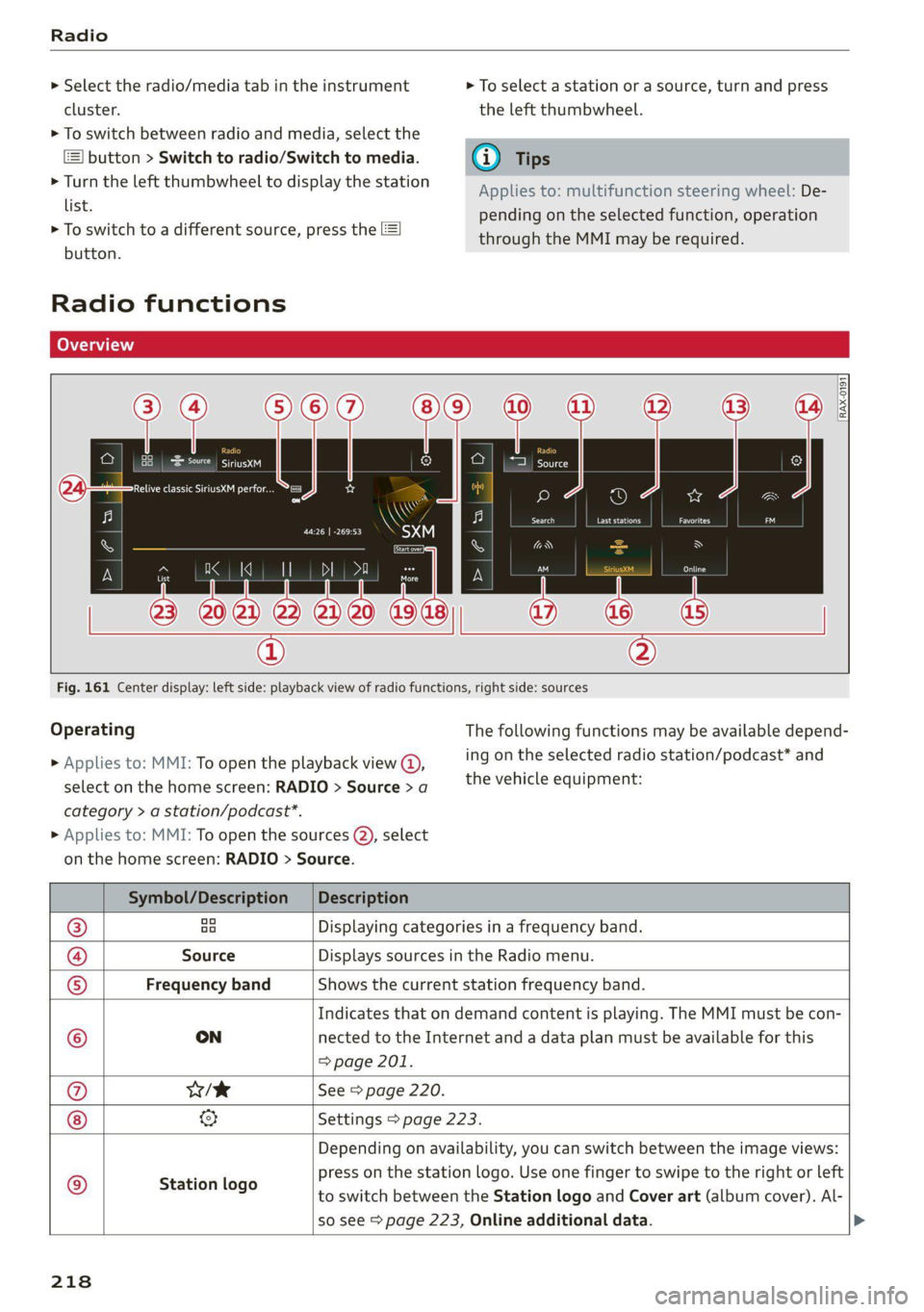
Fig. 161 Center display: left side: playback view of radio functions, right side: sources
Operating The following functions may be available depend-
ing on the selected radio station/podcast* and > Applies to: MMI: To open the playback view @,
the vehicle equipment: select on the home screen: RADIO > Source > a
category > a station/podcast*.
> Applies to: MMI: To open the sources (2), select
on the home screen: RADIO > Source.
Symbol/Description | Description
® ao Displaying categories in a frequency band.
@ Source Displays sources in the Radio menu.
© Frequency band Shows the current station frequency band.
Indicates that on demand content is playing. The MMI must be con-
© ON nected to the Internet and a data plan must be available for this
=> page 201.
@ w/e See > page 220.
& Settings > page 223.
Depending on availability, you can switch between the image views:
press on the station logo. Use one finger to swipe to the right or left
to switch between the Station logo and Cover art (album cover). Al-
so see > page 223, Online additional data.
© Station logo
218
Page 241 of 332
80B012721BA
Additional settings
> Press and hold an element until the Options
menu is displayed.
> Press Delete.
If a device is listed multiple times, it will be de-
leted from all menu items.
PXe Keli a Cela] Mey Lately
Depending on the selected function, additional
options
may be available.
Requirement: the connected devices menu must
be displayed > page 238.
> Press ona menu item, such as Telephone 1.
» Press and hold an element until the Options
menu is displayed.
Bluetooth profile
You can switch desired profiles on or off sepa-
rately in the MMI.
Favorite
To set a paired mobile device as the default
phone, activate this function in the MMI.
When the mobile device is in range and the Blue-
tooth function on the mobile device and in the
MMI is switched on, the default phone will be
given priority over the other Bluetooth devices
and will be connected directly to the MMI.
Legal information
General information
Information on the software licenses can be
found online at www.audi.com/softwareinfo.
Multi Media Interface
> Applies to: MMI: Select on the home screen:
SETTINGS > General.
Subscriptions
Version information
Legal notes
Possible options:
— Software information
— About Audi connect
ONC lad nel M nail
Applies to: vehicles with Audi smartphone interface
Requirement: a smartphone must be connected
to the MMI > page 234.
> Applies to: MMI: Select on the home screen:
SETTINGS > Connected devices > Audi smart-
phone interface.
> Press and hold an element until the Options
menu is displayed.
> Press Legal notes.
Requirement: the vehicle must be stationary and
the ignition must be switched on.
> Select in the instrument cluster: vehicle func-
tions tab > page 13.
>» Press and hold the E=] button on the multifunc-
tion steering wheel until the display appears.
Possible options:
— Engine code
— Software information
— Version information
Head-up display
Applies to: vehicles with head-up display
Requirement: the vehicle must be stationary and
the ignition must be switched on. The head-up
display is switched off.
> To display the license text in the head-up dis-
play, press and hold the S? button @
=> page 26, fig. 21 until the display appears.
239