can and menu button AUDI Q5 2021 Owner´s Manual
[x] Cancel search | Manufacturer: AUDI, Model Year: 2021, Model line: Q5, Model: AUDI Q5 2021Pages: 332, PDF Size: 118.86 MB
Page 15 of 332
80B012721BA
Instrument cluster
ZA WARNING
Applies to: vehicles with Audi virtual cockpit
If there is a severe malfunction in the instru-
ment cluster, the display may turn off. The /\|
indicator light may also turn on. Stop the ve-
hicle safely. See an authorized Audi dealer or
authorized Audi Service Facility for assistance.
@) Tips
— The following pages primarily show illustra-
tions of the Audi virtual cockpit*. The dis-
play or location of the items that are shown
may vary on the different versions of the in-
strument cluster.
— You can select the units used for tempera-
ture, speed, and other measurements
> page 236.
— Speeds are displayed in mph (miles per
hour) or km/h (kilometers per hour).
— Certain instrument cluster content can also
be displayed in the head-up display*
=> page 26.
Operating
3:50™
12/5/2018
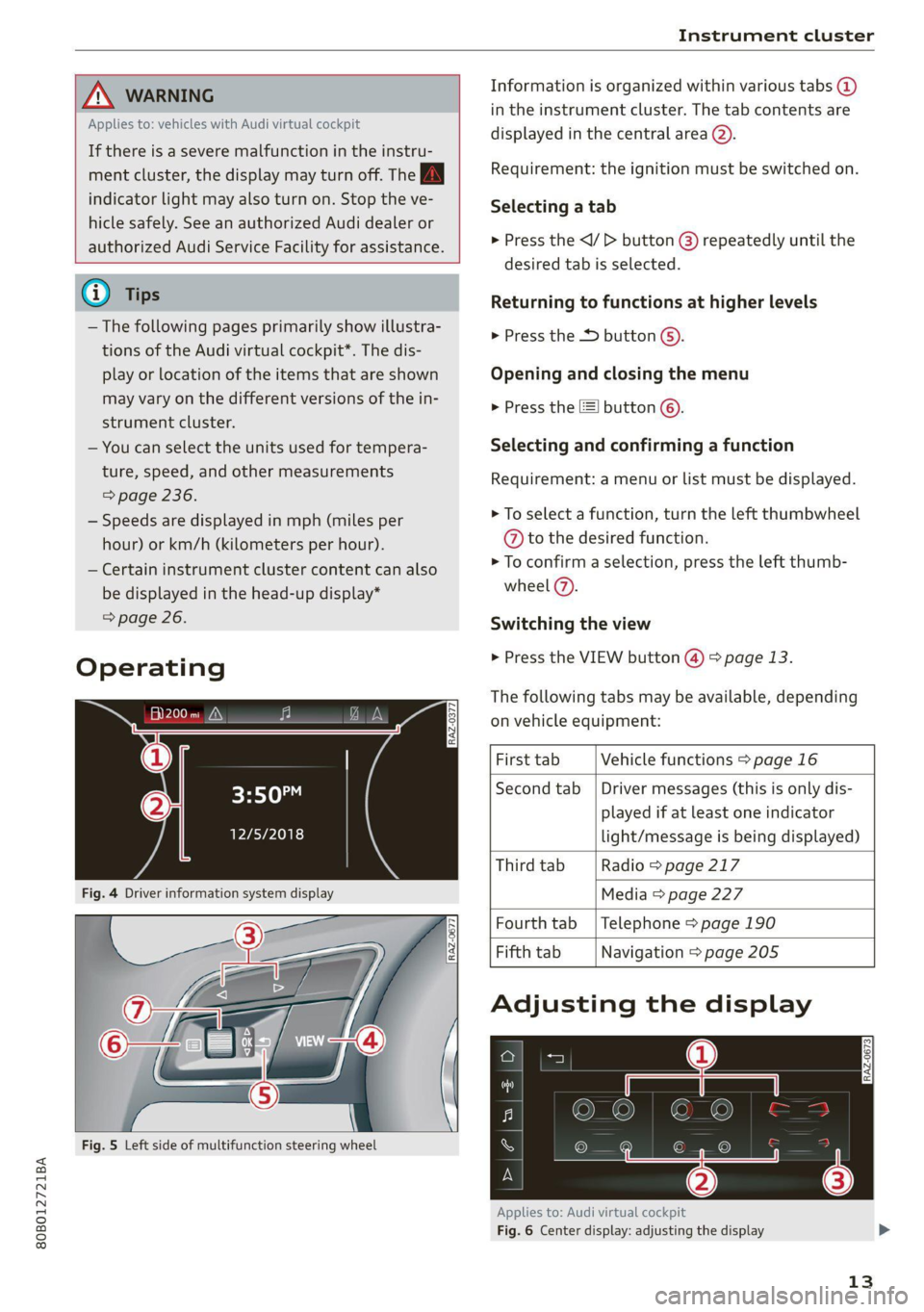
Fig. 4 Driver information system display
Fig. 5 Left side of multifunction steering wheel
Information is organized within various tabs @
in the instrument cluster. The tab contents are
displayed in the central area (2).
Requirement: the ignition must be switched on.
Selecting a tab
> Press the
desired tab is selected.
Returning to functions at higher levels
> Press the D button ©).
Opening and closing the menu
> Press the =] button ©.
Selecting and confirming a function
Requirement: a menu or list must be displayed.
> To select a function, turn the left thumbwheel
@ to the desired function.
> To confirm a selection, press the left thumb-
wheel (7).
Switching the view
> Press the VIEW button @) > page 13.
The following tabs may be available, depending
on vehicle equipment:
First tab Vehicle functions > page 16
Second tab | Driver messages (this is only dis-
played if at least one indicator
light/message is being displayed)
Third tab Radio > page 217
Media > page 227
Fourth tab | Telephone > page 190
Fifth tab Navigation > page 205
Adjusting the display
Applies to: Audi virtual cockpit
Fig. 6 Center display: adjusting the display
13
Page 20 of 332
Touch display
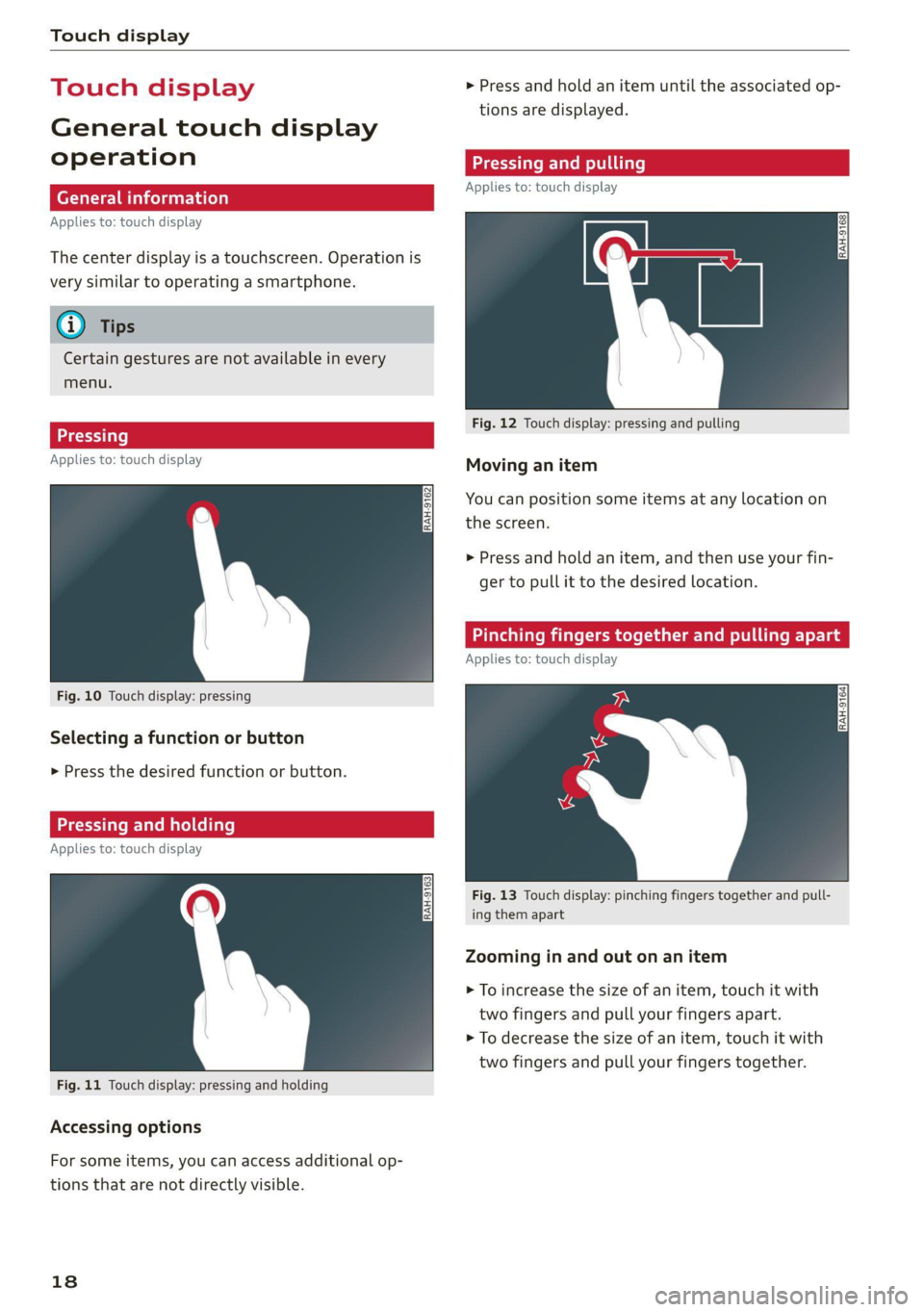
Touch displa > Press and hold an item until the associated op-
tions are displayed.
General touch display
operation Teen LCR ite
Applies to: touch display
Applies to: touch display
The center display is a touchscreen. Operation is
very similar to operating a smartphone.
@) Tips
Certain gestures are not available in every
menu.
Fig. 12 Touch display: pressing and pulling
>)
Applies to: touch display : Moving an item
You can position some items at any location on
the screen.
>» Press and hold an item, and then use your fin-
ger to pull it to the desired location.
inching fingers together and ling a
Applies to: touch display
Fig. 10 Touch display: pressing
Selecting a function or button
> Press the desired function or button.
Applies to: touch dis play
Fig. 13 Touch display: pinching fingers together and pull-
ing them apart
Zooming in and out on an item
> To increase the size of an item, touch it with
two fingers and pull your fingers apart.
> To decrease the size of an item, touch it with
two fingers and pull your fingers together.
Fig. 11 Touch display: pressing and holding
Accessing options
For some items, you can access additional op-
tions that are not directly visible.
18
Page 22 of 332
Touch display
> Press the General button.
> If the Date & time button is not displayed,
swipe upward or downward with one finger un-
tilit appears.
> Press the Date & time button.
G) Tips
If a menu or symbol is in parentheses in the
path, for example, (General) or ({23), then it is
an optional menu item that does not need to
be used in every system.
> Applies to MMI: Select on the home screen:
SETTINGS > Display & Brightness > MMI.
Possible settings:
— Brightness
— Touchscreen Feedback
Multi Media Interface
Cem lucien)
Audi recommends performing certain Infotain-
ment system functions, such as entering a desti-
nation, only when the vehicle is stationary. Al-
ways be prepared to stop operating the Infotain-
ment system in the interest of your safety and
the safety of other road users.
Z\ WARNING
Only use the Infotainment system when road,
traffic, weather, and visibility conditions per-
mit and always in a way that allows you to
maintain complete control over your vehicle.
@) Tips
Certain functions are not available while driv-
ing.
Sica memes
Switching the MMI on or off
> To switch the MMI off, press and hold the
On/Off knob > page 30, fig. 24 until all Info-
tainment functions are switched off.
20
> To switch the MMI on, press the On/Off knob.
Restarting the MMI
> Press and hold the On/Off knob for at least 10
seconds.
Switching the center display on or off
> To switch the center display on or off, press the
fo] button in the center console above the se-
lector lever, or
> To switch the center display off, press LJin the
notification center > page 23.
> To switch the center display on, touch the dis-
play or press lwJagain.
Introduction
You can display and operate Infotainment system
and vehicle functions using the touch display in
the Multi Media Interface, abbreviated MMI.
Configuration wizard
After starting for the first time, the configuration
wizard helps you to set up the vehicle, for exam-
ple to set the desired system language and con-
nect a telephone.
> Follow the instructions in the center display.
>» Applies to: MMI: To access the configuration
wizard at a later time, select on the home
screen: HELP > Configuration wizard.
Tool tips
You can have tool tips displayed if necessary.
They introduce various MMI functions to you.
> Applies to: MMI: To open the tool tips, select on
the home screen: HELP > Tool tips > Basic in-
formation or Expert information.
> Follow the instructions in the display.
Page 24 of 332
Touch display
Configuring the overview screen
> Press and hold an information tile on the over-
view screen.
> To change the position of an information tile,
press and hold it and then slide it to the desired
position.
> To replace an information tile, press Z and se-
lect the desired information tile.
> Press Done to complete the configuration.
Quick access
With quick access, you can return to the home
screen and quickly switch between four menus
that can be individually configured.
Returning to the home screen or opening a
menu quickly
> Press ( or one of the four buttons.
Configuring quick access
> Press and hold a button on the home screen
display area or in the quick access bar.
> To move a button to the quick access bar, pull it
from the display area to the quick access bar.
> To adjust the placement of the buttons in the
quick access bar, pull them to the desired posi-
tion in the bar.
> Press Done to complete the configuration.
G) Tips
The position of © cannot be adjusted.
Display area
You can freely change the location of the buttons
on the home screen display area.
Configuring the display area
> Press and hold a button on the home screen
display area.
> To adjust the placement of the buttons, pull
them to the desired locations.
> Press Done to complete the configuration.
22
Switching between menu pages
If a menu contains multiple menu pages, Bas is
displayed in the display area. The white bar
shows the location of the current menu page.
> To switch between menu pages, swipe your fin-
ger to the right or left.
Wedgie sty
By creating favorites, you can have quick access
to various items, such as radio stations, frequent-
ly-used contacts, or vehicle settings. In the FA-
VORITES menu, the stored favorites are sorted
by topic into information tiles.
Adding a favorite
A YY button indicates if you can add a favorite,
such as a selected radio station. Depending on
the context, you may also be able to add items
without the yy button to the favorites, such as
entries ina list.
> Press YY, or
> Press and hold an item ina list.
> Press Store as favorite. The selected item will
be added as a favorite.
Using favorites
> Applies to: MMI: Select on the home screen:
FAVORITES. The stored favorites will be dis-
played.
> To access a stored favorite, press that favorite.
Stored favorites can only be deleted or config-
ured in the corresponding menu (such as RADIO).
Arranging information tiles
> Applies to: MMI: Select on the home screen:
FAVORITES.
>» Press and hold the desired information tile.
> Pull the information tile into the desired posi-
tion.
> Press Done to confirm the configuration.
Page 26 of 332
Touch display
Possible functions
Description
Press: switches the center display
on or off (this can also be done us-
ing
the button in the center con-
sole)
Press and hold: switches the
screen clearing mode on or off
(can also be done using the but-
ton in the center console)
Opens the garage door opener
function
Possible quick settings
Symbol Description
Apply sound settings
Manage connected devices
Manage users
= Set displayed content in the noti-
fication center
OWES Set date and time YP
a catillt ia
RAZ-0955,
ce
Prac
cH
Prac
Los Angeles,
Dandy
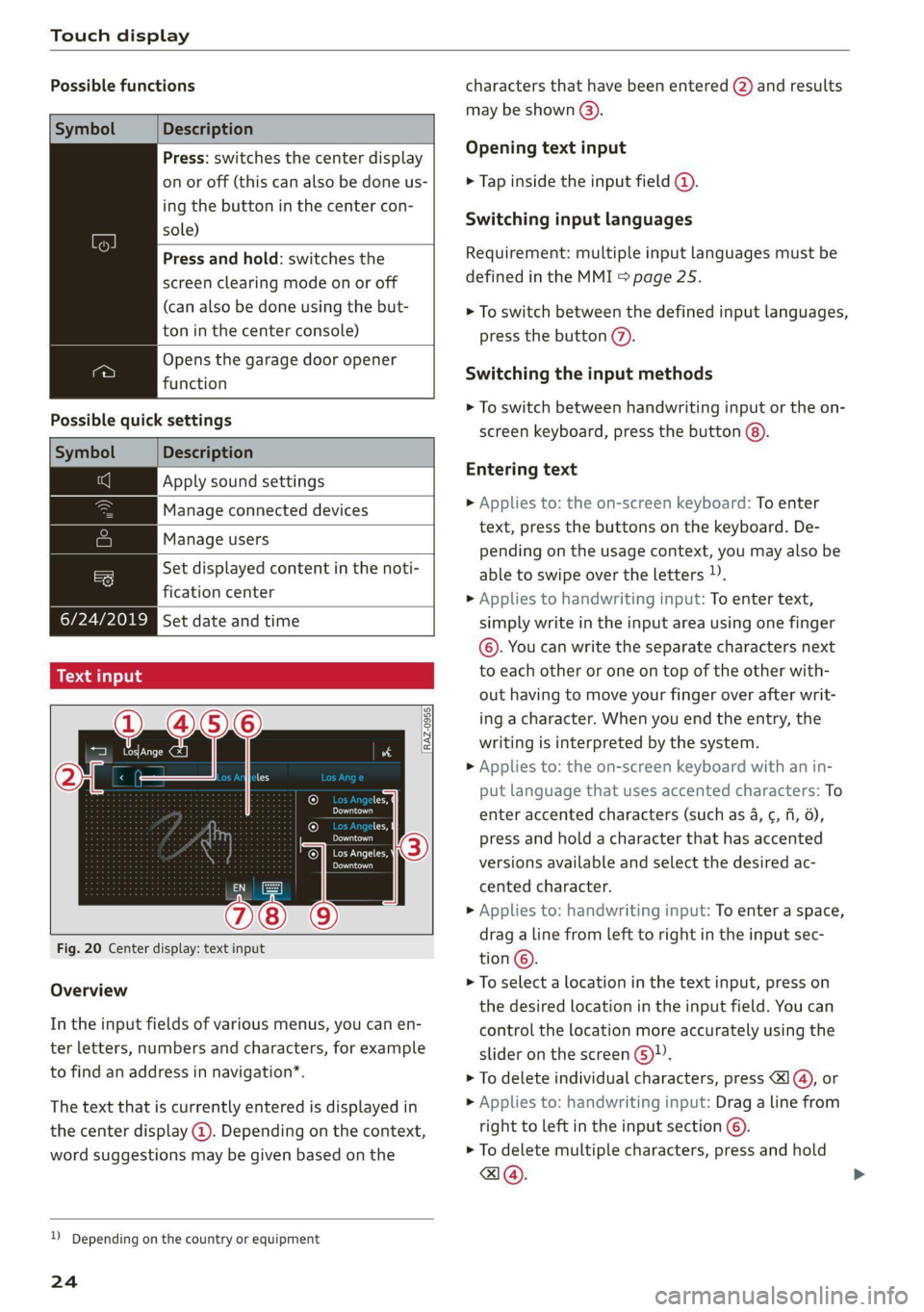
Fig. 20 Center display: text input
Overview
In the input fields of various menus, you can en-
ter letters, numbers and characters, for example
to find an address in navigation”.
The text that is currently entered is displayed in
the center display @). Depending on the context,
word suggestions may be given based on the
2) Depending on the country or equipment
24
characters that have been entered @) and results
may be shown @).
Opening text input
> Tap inside the input field @.
Switching input languages
Requirement: multiple input languages must be
defined in the MMI > page 25.
> To switch between the defined input languages,
press the button (2).
Switching the input methods
> To switch between handwriting input or the on-
screen keyboard, press the button @).
Entering text
> Applies to: the on-screen keyboard: To enter
text, press the buttons on the keyboard. De-
pending on the usage context, you may also be
able to swipe over the letters )).
> Applies to handwriting input: To enter text,
simply write in the input area using one finger
©. You can write the separate characters next
to each other or one on top of the other with-
out having to move your finger over after writ-
ing a character. When you end the entry, the
writing is interpreted by the system.
> Applies to: the on-screen keyboard with an in-
put language that uses accented characters: To
enter accented characters (such as 4, ¢, fi, 6),
press and hold a character that has accented
versions available and select the desired ac-
cented character.
> Applies to: handwriting input: To enter a space,
drag a line from left to right in the input sec-
tion©.
> To select a location in the text input, press on
the desired location in the input field. You can
control the location more accurately using the
slider on the screen 6)”.
> To delete individual characters, press
> Applies to: handwriting input: Drag a line from
right to left in the input section ©.
> To delete multiple characters, press and hold
a@.
Page 29 of 332
80B012721BA
Voice recognition system
Voice recognition system
General information
Applies to: vehicles with voice recognition system
You can operate many functions in the vehicle
easily using voice commands.
Using the voice recognition system optimally
> Speak clearly and distinctly at a normal volume.
Speak louder when driving faster.
» Emphasize the words in the commands evenly
and do not leave long pauses.
> Close the doors, the windows, and the sunroof*
to reduce background noise. Make sure that
passengers are not speaking when you are giv-
ing a voice command.
> Do not direct the vents toward the hands-free
microphone, which is in the roof headliner near
the front interior lights.
> Only the driver should speak to the system, be-
cause the handsfree microphone is aimed to-
ward this seating position.
ZA\ WARNING
— Direct your full attention to driving. As the
driver, you have complete responsibility for
safety in traffic. Only use the functions in
such a way that you always maintain com-
plete control over your vehicle in all traffic
situations.
— Do not use the voice recognition system in
emergencies because your voice may change
in stressful situations. The system may take
longer to dial the number or may not be
able to dial it at all. Dial the emergency
number manually.
G) Tips
There are no voice guidance* prompts when a
dialog is active.
Description
eye aU mame ees eR
Applies to: vehicles with voice recognition system
Se
Drive me to
Where is a a
Connect
Pre)
Play
Eg
Maes
coy
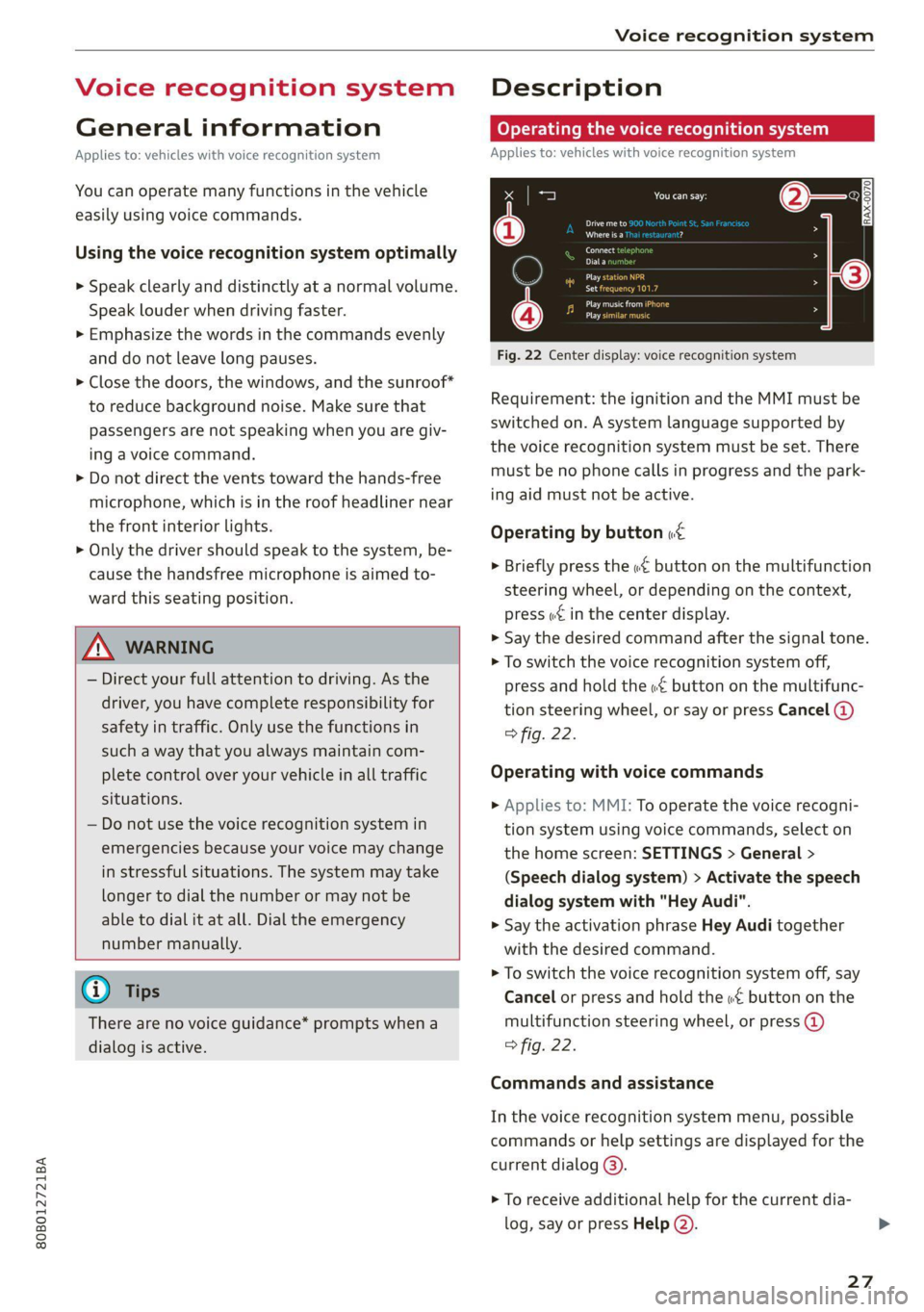
Fig. 22 Center display: voice recognition system
Requirement: the ignition and the MMI must be
switched on. A system language supported by
the voice recognition system must be set. There
must be no phone calls in progress and the park-
ing aid must not be active.
Operating by button «£
> Briefly press the «€ button on the multifunction
steering wheel, or depending on the context,
press we in the center display.
> Say the desired command after the signal tone.
> To switch the voice recognition system off,
press and hold the «€ button on the multifunc-
tion steering wheel, or say or press Cancel (@)
> fig. 22.
Operating with voice commands
> Applies to: MMI: To operate the voice recogni-
tion system using voice commands, select on
the home screen: SETTINGS > General >
(Speech dialog system) > Activate the speech
dialog system with "Hey Audi".
> Say the activation phrase Hey Audi together
with the desired command.
> To switch the voice recognition system off, say
Cancel or press and hold the «£ button on the
multifunction steering wheel, or press @)
> fig. 22.
Commands and assistance
In the voice recognition system menu, possible
commands or help settings are displayed for the
current dialog @).
> To receive additional help for the current dia-
log, say or press Help (2).
27
Page 30 of 332
Voice recognition system
> To pause voice recognition, say or press Pause
@. To reactivate voice recognition, press @)
again or briefly press the «€ button on the mul-
tifunction steering wheel.
Additional functions
Applies to: vehicles with voice recognition system
Command during voice output
If the function is switched on, you can simply say
a new command during a prompt.
> Applies to: MMI: Select on the home screen:
SETTINGS > General > Speech dialog system >
Allow commands during voice output.
Online recognizer
Applies to: vehicles with online recognizer
You can activate the online recognizer for addi-
tional functions and to improve the results of
voice recognition. A supported menu language
must be selected. When there is an active Inter-
net connection, the spoken command is evaluat-
ed in the vehicle and online.
> When you switch on the voice recognition sys-
tem for the first time, a menu for the online
recognizer will open, or
> Applies to MMI: Select on the home screen:
SETTINGS > General > Speech dialog system >
Consent to online speech recognizer.
> Read the licensing agreements and accept
them.
Amazon Alexa
Applies to: vehicles with Amazon Alexa Integration
You can activate Amazon Alexa to access certain
functions. A reduced number of commands for
Amazon Alexa are available during this.
Requirement: you must be logged in to your
myAudi account in the vehicle. The online recog-
nizer must be activated. A system language that
is supported by both the voice recognition system
and Amazon Alexa must be selected.
> Applies to: MMI: Select on the home screen:
USER > Connect to Amazon Alexa.
> Follow the instructions in the display.
> Applies to: MMI: To operate Amazon Alexa us-
ing voice commands, select on the home
28
screen: SETTINGS > General > (Speech dialog
system) > Activate the speech dialog system
with "Hey Audi".
>» Say the activation phrase “Alexa” together with
the desired command.
() Note
Read the information about Audi connect, and
be sure to note the connectivity costs section
=@ in General information on page 197.
Gi) Tips
Audi provides access to services from third
party providers. Permanent availability cannot
be guaranteed, because that depends on the
third party provider.
External voice operation
Applies to: vehicles with external speech dialog system
You can access and control the voice operation on
a connected mobile device through your vehicle.
Switching external voice operation on or off
Requirement: the ignition and the MMI must be
switched on. A cell phone must be connected to
the MMI with the Handsfree profile > page 186.
The mobile device being connected must have
voice control that can be controlled externally.
There must be no phone calls in progress and the
parking aid must not be active.
> To switch on the external voice operation, press
and hold the «€ button longer on the multifunc-
tion steering wheel.
> To switch off the external voice operation, press
and hold the «€ button longer on the multifunc-
tion steering wheel or press Cancel.
Using external voice operation
>» Say the desired command after the signal tone.
> To reactivate voice recognition when it is
paused, press the w€ button briefly on the mul-
tifunction steering wheel or press Resume.
G) Tips
Audi simply provides access to control your
cell phone with voice operation and does not >
Page 54 of 332
Lights and Vision
> To activate the high beams manually, tap the
lever forward @) > page 51, fig. 41. The =0} in-
dicator light will turn on.
> To deactivate the high beams manually, pull
the lever back @) > page 51, fig. 41. The high
beam assistant is deactivated.
Operating the headlight flasher
> To operate the headlight flashers, pull the lever
back @ © page 51, fig. 41. If the high beam
headlights are not switched on, the high beam
assistant will remain activated.
ZA WARNING
— Observe the safety precautions and note the
limits of the assist systems, sensors, and
cameras > page 141.
— High beam assistant is only intended to as-
sist the driver. The driver is responsible for
controlling the high beam headlights and
adjusting them to match the lighting and
visibility conditions.
— High beams can cause glare for other driv-
ers, which increases the risk of an accident.
For this reason, only use the high beams or
the headlight flasher when they will not cre-
ate glare for other drivers.
@) Tips
Adhere to any local applicable regulations
when using the lighting equipment, for exam-
ple in regard to reducing glare for other driv-
ers. The driver is always responsible for adher-
ing to the regulations applicable in the coun-
try where the vehicle is being operated.
Adjusting the exterior lighting
You can adjust the exterior lighting separately.
The settings depend on the vehicle equipment.
> Applies to: MMI: Select on the home screen:
VEHICLE > Light & Visibility > Exterior light-
ing.
Automatic headlights
You can adjust the following settings in the Auto-
matic
headlights menu:
52
Activation time - You can adjust if the headlights
switch on Early, Medium, or Late based on the
sensitivity of the light sensor.
High beam assistant - You can switch the high
beam assistant on and off.
Entry/exit lighting
The Entry/exit lighting illuminates the area
around the vehicle when the vehicle is unlocked
or when the driver’s door is opened while the ig-
nition is off. The entry/exit lighting works when it
is dark and the light switch is in the AUTO posi-
tion. The front and rear daytime running lights*
switch on automatically each time the vehicle is
unlocked regardless of how bright it is outside
the vehicle.
Daytime running lights
USA models: The daytime running lights can be
switched on and off.
Canada models: This function cannot be switched
off. They activate automatically each time the ig-
nition is switched on.
Emergency flashers
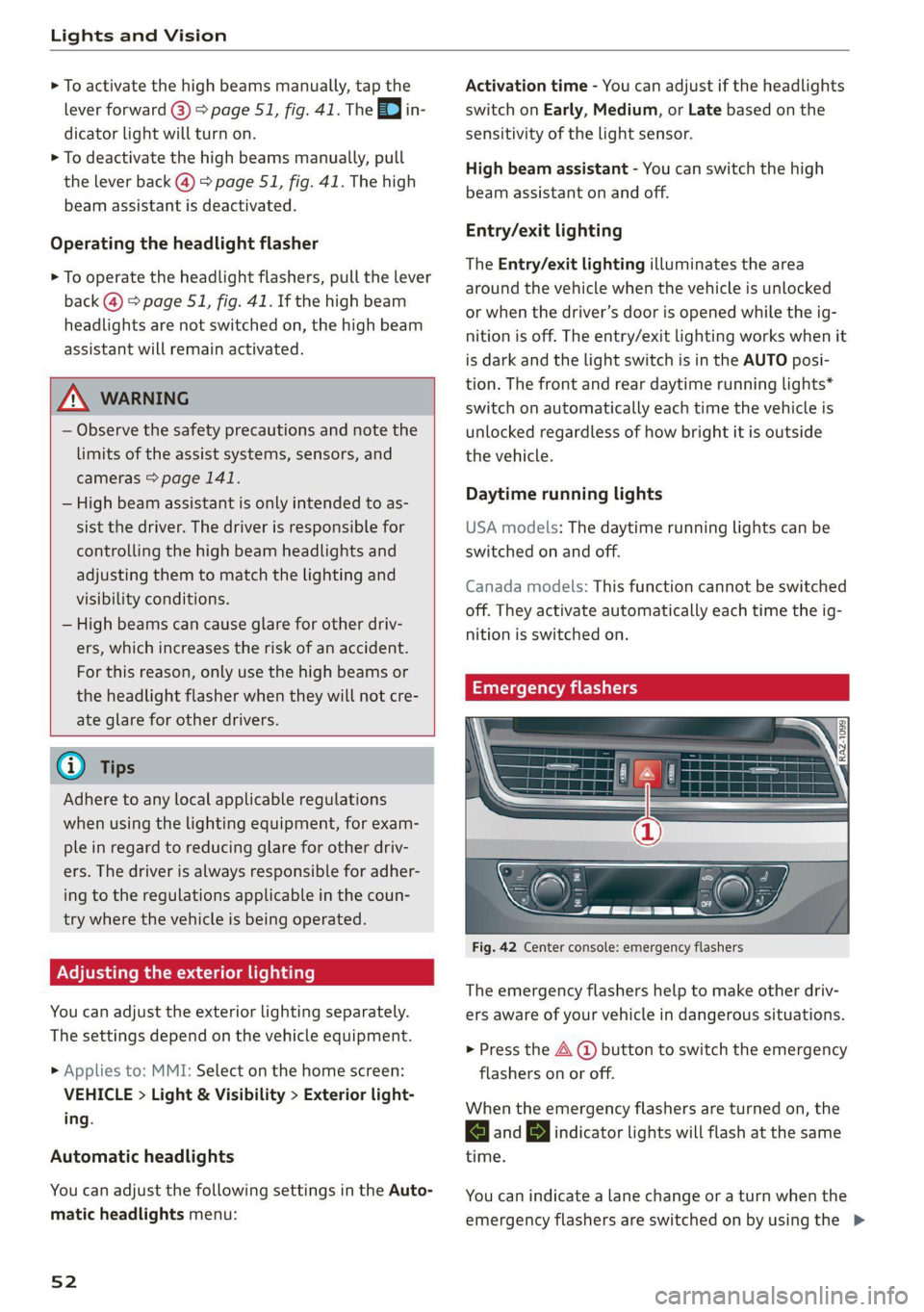
Fig. 42 Center console: emergency flashers
The emergency flashers help to make other driv-
ers aware of your vehicle in dangerous situations.
> Press the A @ button to switch the emergency
flashers on or off.
When the emergency flashers are turned on, the
and BJ indicator lights will flash at the same
time.
You can indicate a lane change or a turn when the
emergency flashers are switched on by using the >
Page 66 of 332
Sitting correctly and safely
Massage function
> To switch the massage function on or off, press
the button ©) > fig. 56.
ZA WARNING
—To reduce the risk of an accident, only adjust
the driver's seat when the vehicle is station-
ary.
— The power front seats can also be adjusted
when the ignition is switched off. To reduce
the risk of injury, children should never be
left unattended in the vehicle for this rea-
son.
— Exercise caution when adjusting the seat
height. Unsupervised or careless seat adjust-
ment could cause parts of the body to get
pinched, which increases the risk of injury.
— The front seat backrests must not be re-
clined too far back when driving, because
this impairs the effectiveness of the safety
belts and airbag system, which increases the
risk of injury.
Adjusting the front seats in the MMI
Applies to: vehicles with seat settings in the MMI
3a
RAZ-0873
@-—S
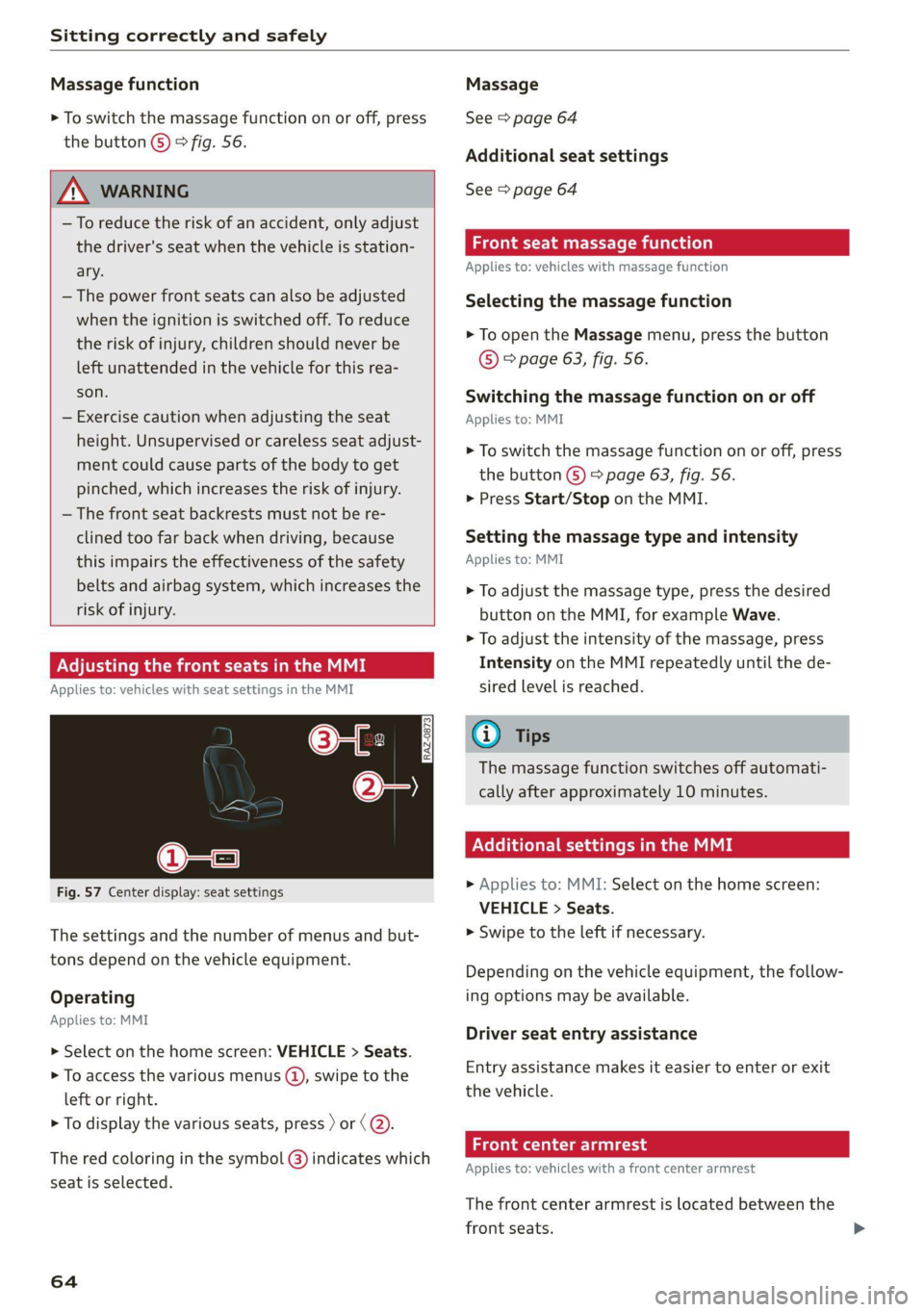
Fig. 57 Center display: seat settings
The settings and the number of menus and but-
tons depend on the vehicle equipment.
Operating
Applies to: MMI
> Select on the home screen: VEHICLE > Seats.
> To access the various menus (@), swipe to the
left or right.
> To display the various seats, press ) or (@).
The red coloring in the symbol @) indicates which
seat is selected.
64
Massage
See > page 64
Additional seat settings
See > page 64
Front seat massage function
Applies to: vehicles with massage function
Selecting the massage function
> To open the Massage menu, press the button
© > page 63, fig. 56.
Switching the massage function on or off
Applies to: MMI
> To switch the massage function on or off, press
the button ©) > page 63, fig. 56.
> Press Start/Stop on the MMI.
Setting the massage type and intensity
Applies to: MMI
> To adjust the massage type, press the desired
button on the MMI, for example Wave.
> To adjust the intensity of the massage, press
Intensity on the MMI repeatedly until the de-
sired level is reached.
G@) Tips
The massage function switches off automati-
cally after approximately 10 minutes.
Xe Tie Cea etal MME
> Applies to: MMI: Select on the home screen:
VEHICLE > Seats.
> Swipe to the left if necessary.
Depending on the vehicle equipment, the follow-
ing options may be available.
Driver seat entry assistance
Entry assistance makes it easier to enter or exit
the vehicle.
Front center armrest
Applies to: vehicles with a front center armrest
The front center armrest is located between the
front seats.
Page 95 of 332
80B012721BA
Warm and cold
The cooling mode only functions with the blower
turned on. The air is not cooled and humidity is
not reduced when cooling mode is switched off.
This can cause fog on the windows. The cooling
mode switches off automatically at low outside
temperatures.
If you activate A/C ON, the cooling mode will be
automatically regulated. A/C OFF switches cool-
ing mode off.
If you activate A/C MAX*, the cooling mode will
operate with maximum output. To reduce unnec-
essary energy usage, only use this function brief-
ly.
= Recirculation mode
In recirculation mode, the air inside the vehicle is
circulated and filtered. This prevents the unfil-
tered air outside the vehicle from entering the
vehicle interior A\ in Description on page 91.
Pressing the <> button switches recirculation
mode on or off manually. You can also switch the
recirculation mode off by pressing the knob (@ or
the §& button.
AUTO Automatic mode
Automatic mode maintains a constant tempera-
ture inside the vehicle. Air temperature, airflow
and air distribution are controlled automatically.
You can switch automatic mode on or off by
pressing the knob (@).
Temperature
You can adjust the temperature between 60°F
(+16°C) and 84°F (+28°C) by turning the knob
©. If outside of this range, LO or HI will appear
in the climate control system display. In both set-
tings, the climate control runs constantly at the
maximum cooling or heating level. The tempera-
ture is not regulated.
The temperature can be adjusted in the rear us-
ing
the rear controls > fig. 92.
=z Blower
You can adjust the volume of air generated by the
blower to your preference using the rocker switch
@. The blower should always run at a low setting
to prevent the windows from fogging and to en-
sure a continuous exchange of air inside the vehi-
cle. To have the blower regulated automatically,
press one of the knobs ().
Air distribution
You can use the rocker switches @) to adjust the
vents where the air will flow out of. Press the
rocker switches (2) repeatedly until the desired
air distribution setting is displayed in the climate
control system controls. To have the air distribu-
tion regulated automatically, press one of the
knobs (a).
SYNC Synchronization
Use the rocker switch (5) to select the function.
When synchronization is switched on, the set-
tings for the driver's side are applied to the front
passenger's side and the rear (except for seat
heating/ventilation*). If the settings on the front
passenger's side or in the rear are changed, the
synchronization will automatically switch off and
3-ZONE will appear in the display.
SET REAR Function
Use the rocker switch (5) to select the function.
When the function is switched on, you can adjust
all settings for the rear using the climate control
system controls in the cockpit. The rear climate
control system controls cannot be operated at
the same time. This function switches off auto-
matically after a certain period of time or after
leaving the menu.
a Seat heating*
The seat heating temperature can be set at mul-
tiple levels. Press the w button once to switch on
the highest level. Press the #/ button again to de-
crease the temperature one level at a time. The
seat heating is off when all of the LEDs are off.
#4 Seat ventilation*
The seat ventilation intensity can be set to multi-
ple levels. Press the &J button once to switch on
the highest level. Press the £4 button again to
decrease the intensity one level at a time. The
seat ventilation is off when all of the LEDs are off. >
93