HEAD UP DISPLAY AUDI Q5 2021 Owner´s Manual
[x] Cancel search | Manufacturer: AUDI, Model Year: 2021, Model line: Q5, Model: AUDI Q5 2021Pages: 332, PDF Size: 118.86 MB
Page 212 of 332
Navigation
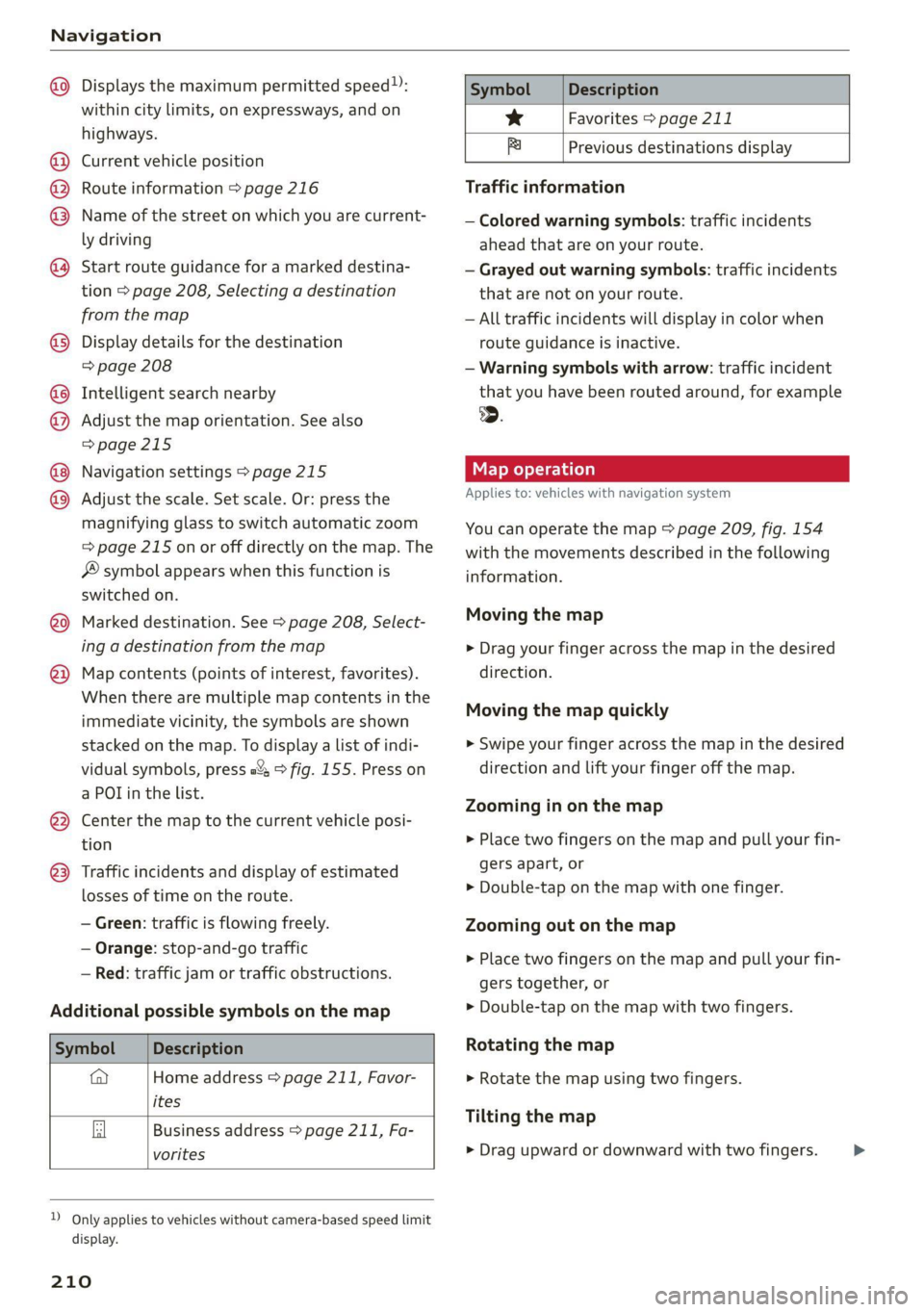
@) Displays the maximum permitted speed):
within city limits, on expressways, and on
highways.
Current vehicle position
Route information > page 216
Name of the street on which you are current-
ly driving
®
O88
Start route guidance for a marked destina-
tion > page 208, Selecting a destination
from the map
Display details for the destination
=> page 208
Intelligent search nearby
Adjust the map orientation. See also
=>page 215
Navigation settings > page 215
©®
OO
©
Adjust the scale. Set scale. Or: press the
magnifying glass to switch automatic zoom
=> page 215 on or off directly on the map. The
® symbol appears when this function is
switched on.
Marked destination. See > page 208, Select-
ing a destination from the map
® ® Map contents (points of interest, favorites).
When there are multiple map contents in the
immediate vicinity, the symbols are shown
stacked on the map. To display a list of indi-
vidual symbols, press #2; > fig. 155. Press on
a POI in the list.
Center the map to the current vehicle posi-
tion
Traffic incidents and display of estimated
losses of time on the route.
— Green: traffic is flowing freely.
— Orange: stop-and-go traffic
— Red: traffic jam or traffic obstructions.
Additional possible symbols on the map
Symbol Description
a Home address © page 211, Favor-
ites
Business address > page 211, Fa-
vorites
2) Only applies to vehicles without camera-based speed limit
display.
210
Symbol Description
* Favorites > page 211
x Previous destinations display
Traffic information
— Colored warning symbols: traffic incidents
ahead that are on your route.
— Grayed out warning symbols: traffic incidents
that are not on your route.
— All traffic incidents will display in color when
route guidance is inactive.
— Warning symbols with arrow: traffic incident
that you have been routed around, for example
@.
Map operation
Applies to: vehicles with navigation system
You can operate the map > page 209, fig. 154
with the movements described in the following
information.
Moving the map
> Drag your finger across the map in the desired
direction.
Moving the map quickly
> Swipe your finger across the map in the desired
direction and lift your finger off the map.
Zooming in on the map
>» Place two fingers on the map and pull your fin-
gers apart, or
> Double-tap on the map with one finger.
Zooming out on the map
> Place two fingers on the map and pull your fin-
gers together, or
> Double-tap on the map with two fingers.
Rotating the map
> Rotate the map using two fingers.
Tilting
the map
> Drag upward or downward with two fingers. >
Page 213 of 332
80B012721BA
Navigation
@) Tips
Certain gestures may not be available on all
touch displays or in every menu.
te guidance
Applies to: vehicles with navigation system and Audi virtual
cockpit
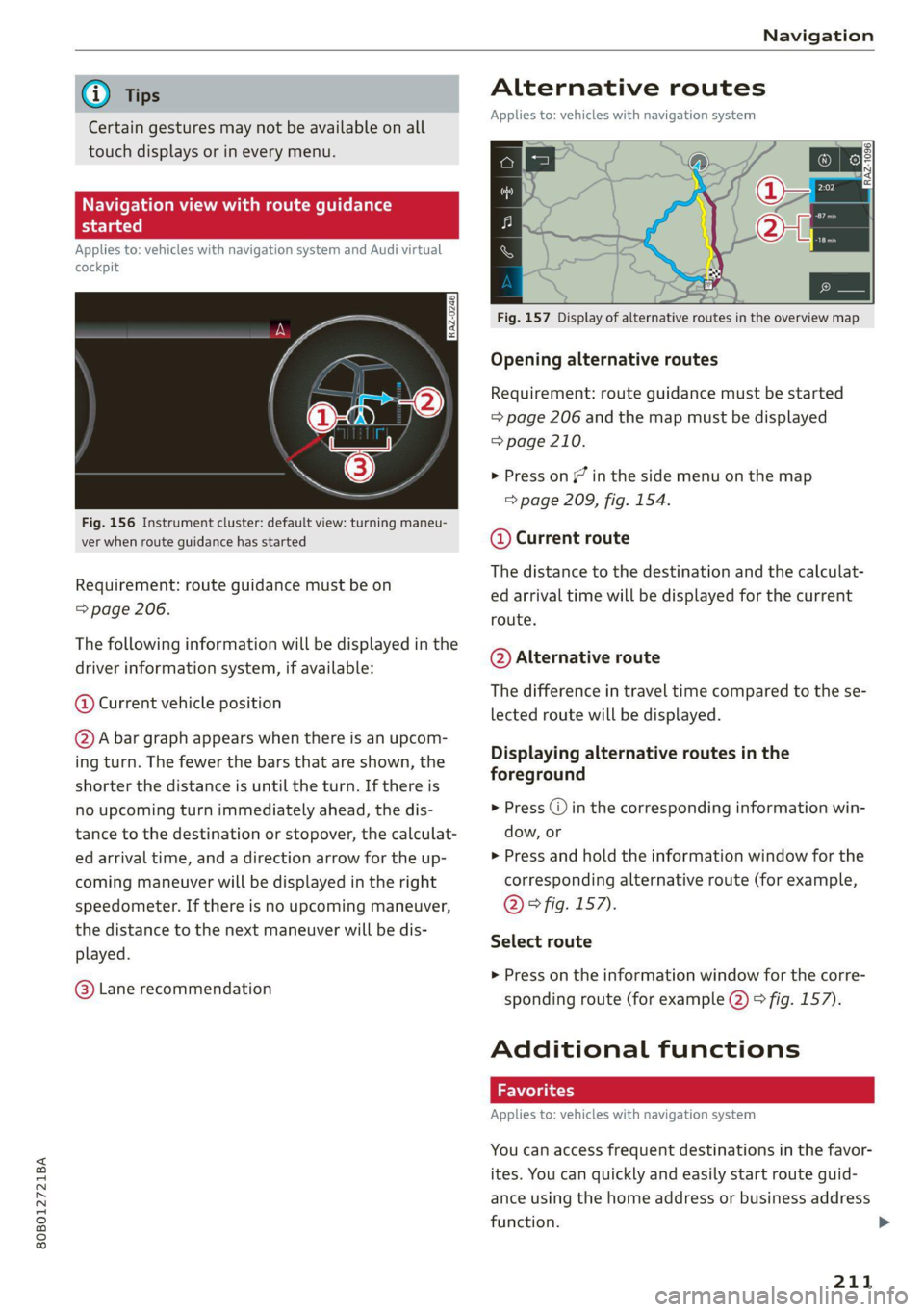
Fig. 156 Instrument cluster: default view: turning maneu-
ver when route guidance has started
Requirement: route guidance must be on
=> page 206.
The following information will be displayed in the
driver information system, if available:
@ Current vehicle position
@A bar graph appears when there is an upcom-
ing turn. The fewer the bars that are shown, the
shorter the distance is until the turn. If there is
no upcoming turn immediately ahead, the dis-
tance to the destination or stopover, the calculat-
ed arrival time, and a direction arrow for the up-
coming maneuver will be displayed in the right
speedometer. If there is no upcoming maneuver,
the distance to the next maneuver will be dis-
played.
@® Lane recommendation
Alternative routes
Applies to: vehicles with navigation system
3 S|
ny < &
Fig. 157 Display of alternative routes in the overview map
Opening alternative routes
Requirement: route guidance must be started
= page 206 and the map must be displayed
=> page 210.
> Press on (7 in the side menu on the map
=> page 209, fig. 154.
@ Current route
The distance to the destination and the calculat-
ed arrival time will be displayed for the current
route.
@ Alternative route
The difference in travel time compared to the se-
lected route will be displayed.
Displaying alternative routes in the
foreground
> Press @ in the corresponding information win-
dow, or
> Press and hold the information window for the
corresponding alternative route (for example,
@° fig. 157).
Select route
> Press on the information window for the corre-
sponding route (for example @) 9 fig. 157).
Additional functions
Favorites
Applies to: vehicles with navigation system
You can access frequent destinations in the favor-
ites. You can quickly and easily start route guid-
ance using the home address or business address
function.
211
Page 217 of 332
80B012721BA
Navigation
OTN eee late celeurl ela)
Applies to: vehicles with navigation system and online traffic
information
The MMI can receive real-time online traffic infor-
mation about congestion, accidents, road con-
struction, and other incidents.
Requirement: the MMI must be connected to the
Internet > page 197, Audi connect. Traffic infor-
mation must be switched on in the MMI
>page 215.
Traffic information will be displayed on the
standard map > page 209, fig. 154.
Online traffic information is also displayed on the
standard map > page 212.
G) Tips
— Having the online traffic information func-
tion switched on provides the most accurate
reports of traffic situations and traffic fore-
casting. Your vehicle transmits and process-
es its anonymous, encrypted position infor-
mation at regular intervals to the traffic da-
ta provider. You can switch off data transfer
at any time > page 305.
— The online traffic information network is
not available in all countries, and the cover-
age is not nationwide.
Settings
Applies to: vehicles with navigation system
You can adjust the navigation system settings in
the instrument cluster and in the MMI display
separately. The settings depend on the country
and vehicle equipment.
Accessing settings
> Applies to: MMI: Select on the home screen:
NAVIGATION > ©}.
Accessing settings using the multifunction
steering wheel
> Applies to: multifunction steering wheel: Select
in the instrument cluster: Navigation tab >
button.
Please note that a setting applied to the multi-
function steering wheel is only valid for the in-
strument cluster map.
Map settings
Satellite map: see > page 212.
Traffic: you can display current traffic informa-
tion on the map.
— Free flow of traffic
— Traffic obstructions
— Traffic information
Map colors
— Automatic: the map display adapts to the light-
ing conditions (for example, by changing from
day to night when driving through a tunnel).
— Day or Night
Map orientation
— 2D heading-up map/2D north-up map: the
current vehicle position is displayed. The map is
oriented in the direction of travel or to the
north.
— 3D heading-up map: the current vehicle posi-
tion is shown on a three-dimensional map and
is aligned to the direction of travel.
— Overview: the entire route from the vehicle po-
sition to the destination or the next stopover is
displayed on the map. The map is oriented to
the north.
Automatic zoom
— On: the map scale is adapted automatically de-
pending on the type of road being traveled (ex-
pressway, highway, other roads) so that you al-
ways have an optimal overview of the road
ahead. When route guidance is active, the scale
is adjusted automatically for a better detailed
view when there are upcoming maneuvers.
— Intersection: when route guidance is active, the
scale is adjusted automatically for a better de-
tailed view when there are upcoming maneu-
vers.
— Off
MMI map contents/Map content: you can switch
the display of additional information (such as
POIs) on the map in the center display on or off. >
215
Page 240 of 332
Additional settings
> Press on the notification, or
> Open the notification in the notification center
on > page 23 and press on the notification.
> Follow the system instructions.
Depending on the scope of the update, the online
system update may only be started if you follow
these instructions:
> Switch the emergency flashers off, if necessary
> Make sure that the starter battery is charged.
> To start the update, exit and lock the vehicle.
The MMI will start the installation. When the up-
date has ended, a notification will be displayed.
Z\ WARNING
Depending on the scope of the installation,
the ignition must not be switched on during
the installation to ensure the installation
completes successfully.
©) Note
Read the information about Audi connect, and
be sure to note the connectivity costs section
=@ in General information on page 197.
@ Tips
The software update may take some time.
WEE Tel
Applies to: vehicles with online system update
Online system update: incomplete. Warning!
Vehicle functions limited
If an error occurs when installing an online sys-
tem update, certain functions such as the emer-
gency call function may not be available. Drive to
an authorized Audi dealer or authorized Audi
Service Facility immediately to have the error cor-
rected.
Connected devices
Displayed connected devices
Requirement: the vehicle must be stationary and
the ignition must be switched on.
> Applies to: MMI: Select on the home screen:
SETTINGS > Connected devices.
238
Possible menu items:
— Telephone 1
— Telephone 2
— Audio player
— Wi-Fi hotspot
— Headset
Audi smartphone interface
You can connect your smartphone to the MMI
=> page 234.
myAudi app
This function is available if the myAudi app is in-
stalled on your mobile device and started, and if
the mobile device is connected with the vehicle’s
Wi-Fi hotspot.
() Note
Read the information about Audi connect, and
be sure to note the connectivity costs section
=> page 197.
Managing connected devices
Requirement: the connected devices menu must
be displayed > page 238.
Connecting a device
Requirement: Bluetooth visibility must be acti-
vated in the MMI & page 237 and mobile device.
> Press on a menu item, such as Telephone 1.
> To search for and connect your mobile device,
press New connection > page 186.
Selecting a connected device
> Press on a menu item, such as Telephone 1.
> Press on the desired mobile device in the list of
displayed devices. The connection will be made.
Disconnecting a connected device
> Press on a menu item, such as Telephone 1.
> Press on the connected mobile device. The se-
lected mobile device will be disconnected from
the MMI.
Deleting a device
> Press on a menu item, such as Telephone 1. >
Page 241 of 332
80B012721BA
Additional settings
> Press and hold an element until the Options
menu is displayed.
> Press Delete.
If a device is listed multiple times, it will be de-
leted from all menu items.
PXe Keli a Cela] Mey Lately
Depending on the selected function, additional
options
may be available.
Requirement: the connected devices menu must
be displayed > page 238.
> Press ona menu item, such as Telephone 1.
» Press and hold an element until the Options
menu is displayed.
Bluetooth profile
You can switch desired profiles on or off sepa-
rately in the MMI.
Favorite
To set a paired mobile device as the default
phone, activate this function in the MMI.
When the mobile device is in range and the Blue-
tooth function on the mobile device and in the
MMI is switched on, the default phone will be
given priority over the other Bluetooth devices
and will be connected directly to the MMI.
Legal information
General information
Information on the software licenses can be
found online at www.audi.com/softwareinfo.
Multi Media Interface
> Applies to: MMI: Select on the home screen:
SETTINGS > General.
Subscriptions
Version information
Legal notes
Possible options:
— Software information
— About Audi connect
ONC lad nel M nail
Applies to: vehicles with Audi smartphone interface
Requirement: a smartphone must be connected
to the MMI > page 234.
> Applies to: MMI: Select on the home screen:
SETTINGS > Connected devices > Audi smart-
phone interface.
> Press and hold an element until the Options
menu is displayed.
> Press Legal notes.
Requirement: the vehicle must be stationary and
the ignition must be switched on.
> Select in the instrument cluster: vehicle func-
tions tab > page 13.
>» Press and hold the E=] button on the multifunc-
tion steering wheel until the display appears.
Possible options:
— Engine code
— Software information
— Version information
Head-up display
Applies to: vehicles with head-up display
Requirement: the vehicle must be stationary and
the ignition must be switched on. The head-up
display is switched off.
> To display the license text in the head-up dis-
play, press and hold the S? button @
=> page 26, fig. 21 until the display appears.
239
Page 261 of 332
80B012721BA
Checking and Filling
> Close the cover on the positive terminal.
> Close the hood > page 247.
ZA WARNING
— Never connect a charging cable or jump
start cable directly to the 12 Volt vehicle
battery. Only use the connections in the en-
gine compartment > page 258.
— A highly explosive mixture of gases can form
when charging batteries. Only charge the
battery in well-ventilated areas.
— A drained battery can freeze at tempera-
tures around 32 °F (0 °C). Do not charge or
use a frozen or thawed battery. If ice forms,
the battery housing can crack and battery
electrolyte can leak out, which increases the
risk of an explosion and chemical burns.
Contact an authorized Audi dealer or author-
ized Audi Service Facility for more informa-
tion.
— Do not connect or disconnect the charging
cable while charging because this increases
the risk of an explosion.
@) Tips
Read all of the manufacturer's instructions
for the charger before charging the battery.
Windshield washer
system
B4M-0135)
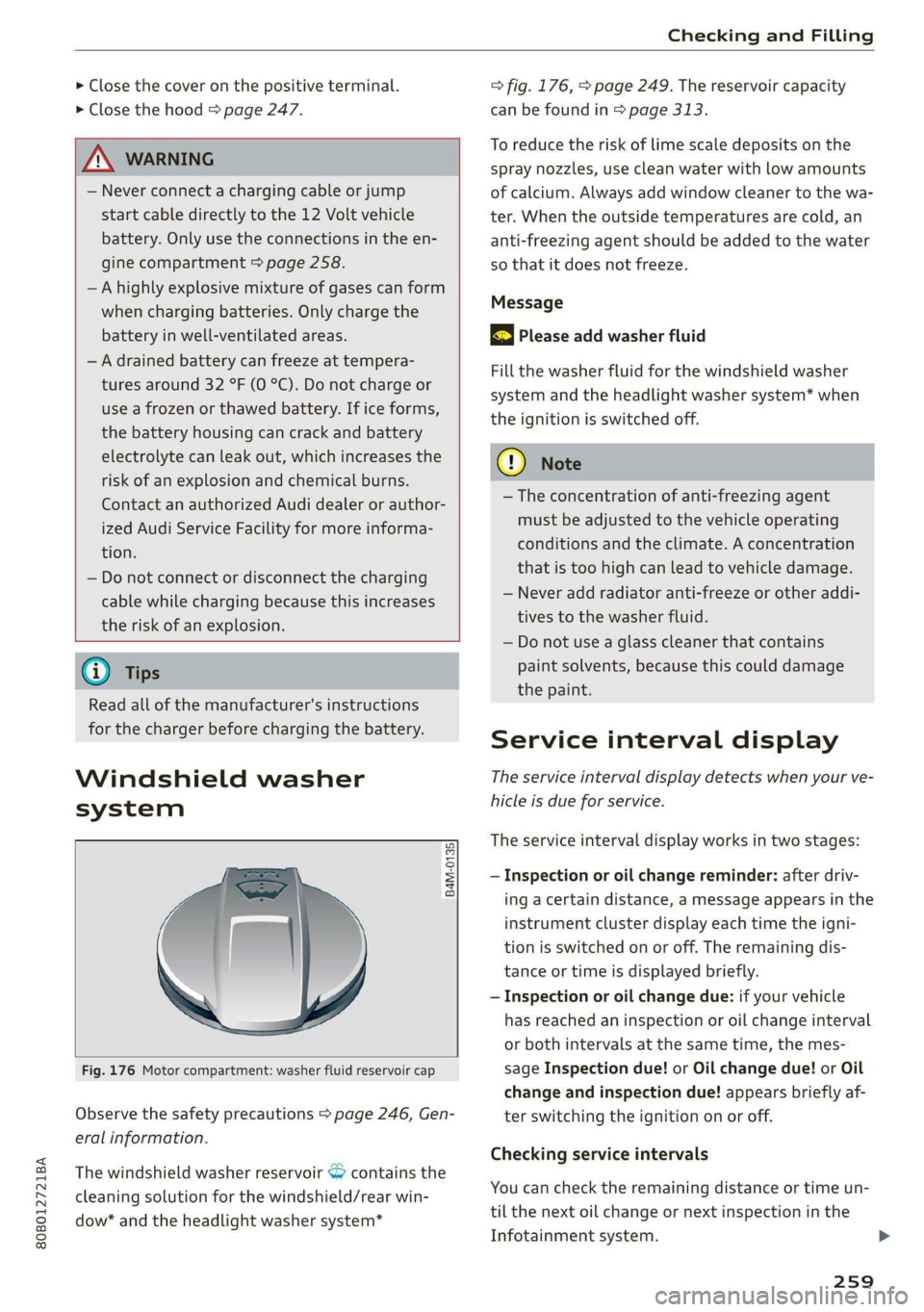
Fig. 176 Motor compartment: washer fluid reservoir cap
Observe the safety precautions > page 246, Gen-
eral information.
The windshield washer reservoir <> contains the
cleaning solution for the windshield/rear win-
dow* and the headlight washer system*
=> fig. 176, > page 249. The reservoir capacity
can be found in > page 313.
To reduce the risk of lime scale deposits on the
spray nozzles, use clean water with low amounts
of calcium. Always add window cleaner to the wa-
ter. When the outside temperatures are cold, an
anti-freezing agent should be added to the water
so that it does not freeze.
Message
BS Please add washer fluid
Fill the washer fluid for the windshield washer
system and the headlight washer system* when
the ignition is switched off.
CG) Note
—The concentration of anti-freezing agent
must be adjusted to the vehicle operating
conditions and the climate. A concentration
that is too high can lead to vehicle damage.
— Never add radiator anti-freeze or other addi-
tives to the washer fluid.
— Do not use a glass cleaner that contains
paint solvents, because this could damage
the paint.
Service interval display
The service interval display detects when your ve-
hicle is due for service.
The service interval display works in two stages:
— Inspection or oil change reminder: after driv-
ing a certain distance, a message appears in the
instrument cluster display each time the igni-
tion is switched on or off. The remaining dis-
tance or time is displayed briefly.
— Inspection or oil change due: if your vehicle
has reached an inspection or oil change interval
or both intervals at the same time, the mes-
sage Inspection due! or Oil change due! or Oil
change and inspection due! appears briefly af-
ter switching the ignition on or off.
Checking service intervals
You can check the remaining distance or time un-
til the next oil change or next inspection in the
Infotainment system.
259
Page 288 of 332
Care and cleaning
ZA\ WARNING
— Never immerse the Audi e-tron charging sys-
tem and connectors in water.
— The Audi e-tron charging system must only
be cleaned when the control unit is com-
pletely disconnected from the power supply
and from the vehicle.
@) Note
— Headlights and tail lights
— Never clean the headlights or tail lights
with a dry cloth or sponge because the
lights could be damaged.
— Do not use any cleaning products that con-
tain alcohol, because they could cause
cracks to form.
— Wheels
— Never use any paint polish or other abra-
sive materials.
— Damage to the protective layer on the
rims, such as stone chips or scratches,
must be repaired immediately.
— Camera lenses
— Never use warm or hot water to remove
snow or ice from the camera lens. This
could cause the lens to crack.
— Never use abrasive cleaning materials or
alcohol to clean the camera lens. This
could cause scratches and cracks.
— Door windows
— Remove snow and ice on windows and ex-
terior mirrors with a plastic scraper. To re-
duce the risk of scratches, move the scra-
per only in one direction and not back and
forth.
— Never remove snow or ice from door win-
dows and mirrors using warm or hot water
because this could cause cracks to form.
—To reduce the risk of damage to the rear
window defogger, do not apply any stick-
ers on the heating wires on the inside of
the window.
— Decorative parts and trim
— Never use chrome care or cleaning prod-
ucts.
— Paint
286
— To reduce the risk of scratches, the vehicle
must be free of dirt and dust before pol-
ishing or waxing.
—To prevent paint damage, do not polish or
wax the vehicle in direct sunlight.
—To reduce the risk of paint damage, do not
polish away rust spots.
— Remove cosmetics and sunscreen immedi-
ately because they could damage the
paint.
— Decorative decals
—To reduce the risk of damage, do not use
any rough powder or abrasive cleaning
products.
—To reduce the risk of damage, do not pol-
ish decorative decals that have a matte or
printed finish.
— Due to the risk of damage, do not use an
ice scraper to remove snow and ice on win-
dows with decorative decals on them.
— Displays and instrument cluster
— Make sure that the display and instrument
cluster are switched off and have cooled
down before cleaning. To switch off the
center display, select on the MMI home
screen: SETTINGS > Display & brightness
> MMI > Screen cleaning.
— Displays, the instrument cluster, and the
trim surrounding it must not be cleaned
with dry cleaning methods because they
could become scratched.
— Make sure no fluids enter the spaces be-
tween the instrument cluster and the
trim, because that could cause damage.
— Controls
— Make sure that no fluids enter the con-
trols, because this could cause damage.
— Safety belts
— Do not remove the safety belts to clean
them.
— Never clean safety belts or their compo-
nents with chemicals or with corrosive flu-
ids or solvents and never allow sharp ob-
jects to come into contact with the safety
belts. This could cause damage to the belt
webbing.
Page 304 of 332
Fuses and bulbs
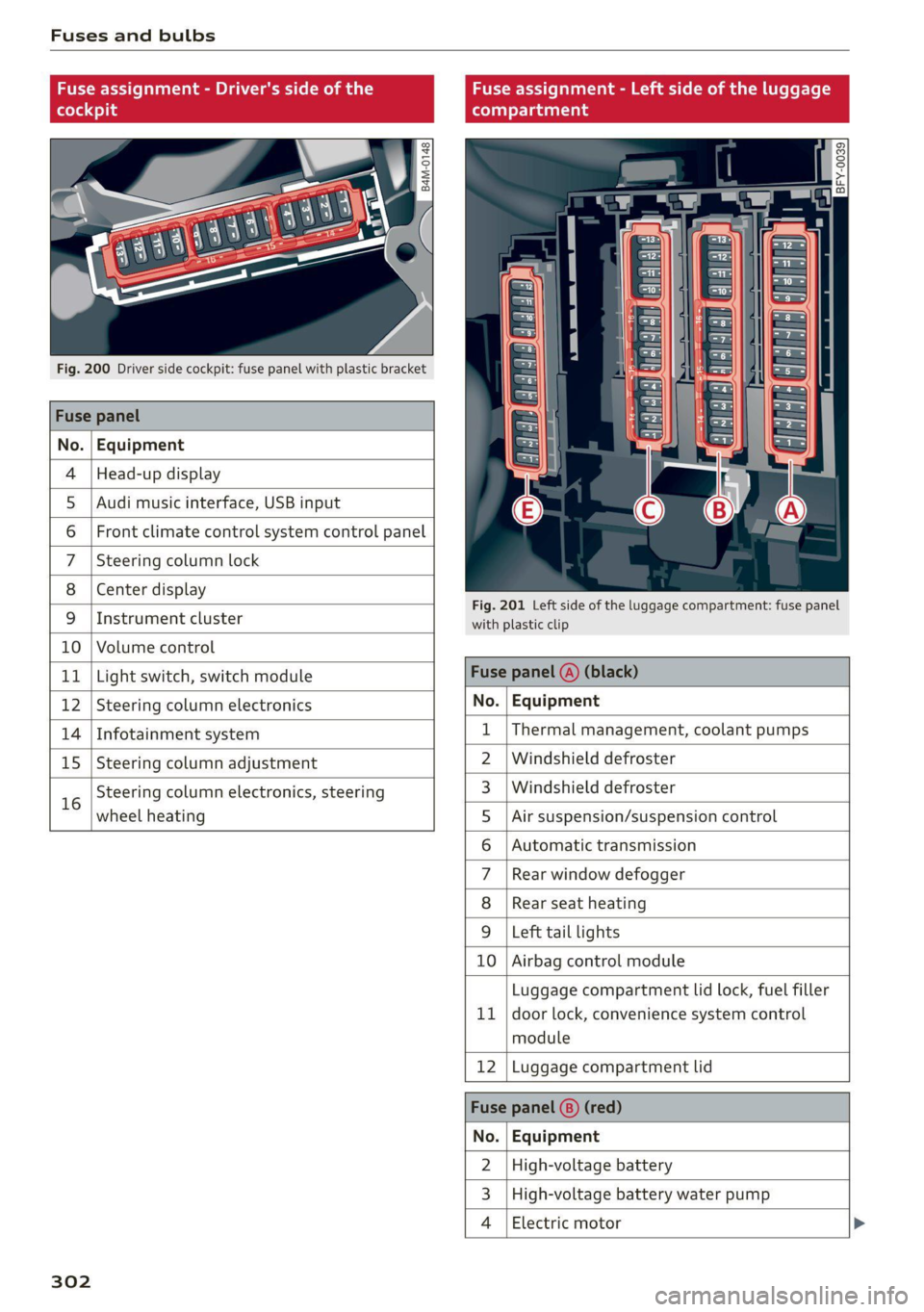
Fuse assignment - Driver's side of the Fuse assignment - Left side of the luggage
(ole 4) g (eT Tata ahg
Q oO
cy ¢
2
= = a
Fig. 200 Driver side cockpit: fuse panel with plastic bracket
Fuse panel
No. | Equipment
4 |Head-up display
5 |Audi music interface, USB input
6 | Front climate control system control panel
7 |Steering column lock
8 | Center display
Fig. 201 Left side of the luggage compartment: fuse panel
9 |Instrument cluster with plastic clip
10 | Volume control
11 | Light switch, switch module Fuse panel (@) (black)
12 | Steering column electronics No. | Equipment
14 | Infotainment system 1 |Thermal management, coolant pumps
15 | Steering column adjustment 2 | Windshield defroster
16 Steering column electronics, steering 3_|Windshield defroster
wheel heating 5 |Air suspension/suspension control
6 | Automatic transmission
7 |Rear window defogger
8 | Rear seat heating
9 |Left tail lights
10 | Airbag control module
Luggage compartment lid lock, fuel filler
11 | door lock, convenience system control
module
12 |Luggage compartment lid
Fuse panel (8) (red)
No. | Equipment
2 |High-voltage battery
3 | High-voltage battery water pump
4 | Electric motor
302
Page 321 of 332
80B012721BA
Index
Environment
Unleaded gasoline.............. eee eee 241
ESC
refer to Electronic Stabilization Control... 119
ESC Offroad... .. eee eee eee 120
eSIM
refer to Embedded SIM card............ 198
Event Data Recorder (EDR).............. 304
EV mode......... cee cece eee eee 105
Exit assistance... 0... cece ee eee 64
EXtEWAETIIG)s « » cases w + ansunas 4 u annanoe #8 sommes 173
EX€CHIOMANTCNNA sinciis « 6 ocnin +s coesan © 6 axesors 188
Exteniorlightiing’ sxcsc: x «suas 2 + menawe ox awweom 50
Exterior itrOrsic. « 2 sor © somes vo orem 9 © ony 55
Folding settings................00 ee eee 35
External voice operation................. 28
F
Factory default settings
Multi Media Interface..............0.. 237
Fast route... .. eee eee eee 206
FAVOTIECSS. 5 2 rccass « « ormane « o: snwanen = suscewone 5 mouse 22
Bluetooth. ........ 0... cee eee 239
Navigation’: « s sae 5 ¢ cews + + sawie « o tems = 207
Telephone cris « «cose « srcusne to wrasse @ 6 oneenie 191
Federal Communications Commission (FCC) . 311
File formats (media drives).............. 231
Filling
Tank. capacities: cu: 2 ewin ee cna ee amor « 313
For the sake of the environment
Disposing of engine oil................ 252
PUGUING's = asses ¢ & aves & © Sates ¢ § Repos 5 E Ber 243
LO aKSiics = 2 ees ee sew 2 wane © were © ¥ were 247
Forward gear
refer to Gears. 1... eee 99
Free text search
Media... .... eee ee eee 230
Ra@iGvcs « = wcme « = wome 5 2 was ¢ 2 wae x coe 219
also refer to Intelligent search.......... 206
Freeze protection
Coolant...... 2... eee eee eee 253
Windshield washer system............. 259
Frequency band.............00--00 ees 217
also refer to Frequency band........... 217
Front center armrest .s..5 0c cces ese as 64
Front passenger’s seat adjustment
Rear... eee eee eee 64
Front wiper blades
CHANGING ss + s weae + 5 wees s ERee a eee Ges 58
Cleaning’: «2 see 2 ¢ swe 2 2 een ooo eee © 2 oe 58
FUG: ¢ agers ¢ ¢ saws oy eee 2s Hee zd ee Yoo 241
AGGIES «scone + cneusne « 1 emowom © eyenems te te 242
Current consumption................... 17
Eueldisplay’: saws x sess «smu te gs ges 12
Gasoline... .... cece eee eee 241
Reducing fuel consumption............ 107
Tank:capacity’s « « weiss s eecew s eeee oe ee 313
Fueling
Fuel filler dor ei ¢ s sissow 2 ena ss wesem a wc 243
Fuel filler door emergency release....... 245
Functions:on demands « + cic + 6 ware © vere 199
Functions that require a license.......... 199
also refer to Functions on demand....... 199
Fuses
Assignment .............0..0.0020005 300
Replacing « seis « enews + g nee + comm & + Her 299
G
Garage door opener............-.000000- 47
GarMenthOOKks some « says ov eee 2 esa 2 ee 83
Gasoline... 2.0.6... cee eee eee eee 241
CGIRIVGS » weiss 3 2 mewn 4 » ney & Pee @ ewe 242
Gasolime MiXtUne cosine =o sewers « 9 sense « 0 one 241
GAWR
refer to Gross Axle Weight Rating (GAWR) . 314
Gears... eee 99
Glossary of tire and loading terminology... 264
Glove compartment.............-0.00005 83
Gross Axle Weight Rating (GAWR)........ 314
Gross Vehicle Weight Rating (GVWR)...... 314
GVWR
refer to Gross Vehicle Weight
Rating (GVWR) ....... 0.0. e cee eee eee 314
H
Handsfree..................0.00000005 187
Hands:Free/Profilez. s . sxiuis so neieos «x semen = 187
Head-up display
Adjusting ........... cece eee eee eee 26
Adjusting the brightness................ 54
Operating’: « = soe « sicsees w snawens ow omens wv on 26
Page 322 of 332
Index
Headlight range control................0. 50
Headlights: « scincs xo snes oe mms 2 o ones ow a0 50
Cleaning......... 0... e eee eee eee 283
Headlight range control................ 50
Washer'system « = ses09 + see ey eeru ee es 57
Washer system (filling washer fluid) ..... 259
Headsrestraints cies m + eassen wo iecwne © o aiemne so 3 67
Heated rear window.............0000 sees 94
Heated steering wheel................0.. 94
HOAtinG cer x = seas & s Kame Fe em ee ew ee 91
HFP
refer to Hands Free Profile............. 186
High:voltagebattery’s « ssw 4s asww s enews « 122
Audi e-tron compact charging system.... 131
Charging.............c eee eee eee 123,125
Charging display on the vehicle......... 127
Charging equipment.................. 129
Charging methods.................04. 123
Charging ports on the vehicle........... 123
Charging time iin: . aici ev eye 3 vere s vs 123
Connecting the charging cable.......... 125
Messages while driving................ 129
Not running for long periods of time..... 124
Opening the charging port door......... 125
Quick charginGiss « ¢ eas sv eee sy eee 2 we 123
Setting the timers. + circ a cane a a sane a ao 127
Transporting charging equipment....... 130
High-voltage system..............0000e 122
High beams
High beam assistant................... 51
Highway lights........ 0.0... eee eee ee eee 50
Hill descentiassist's ccciose oo scarce eo sonsee a a en 114
Hill descenticomtrol. « swssiwe sa ssaiia sv amen 112
Hill hold assist «cco so sewn 6 wane wv wea a oo 99
Home
refer to Home address................ 211
Hometaddnesss, « ws 4s isvawese i « onaseme ow ates 211
HomeLink
refer to Garage door opener............. 47
HOME:SEFEON:. 5 5 worn so cewtei « w veosen « wratess a oo 19
HORM w & ssccase oo asessie wo cecoans © or aoawne © stan B Bees 6
Hotspot
refer to Wi-Fi........ 0... cece eee eee 200
320
I
Idle
TOPE CO'GESISs ween x 3 wean a x woen se weeG ae 99
Ignition
Switching on and off................... 97
Imbalance (wheels) ...........00..00005 270
Immobilizer
refer to Electronic immobilizer........... 38
Tni¢linfometetios. « s eon so wenn vo womens oo nae L13
Indicator lights’; « ese. 5 ¢ eewe ee see se eee 7
Inspection interval..................00. 259
Instrument cluster.............0seeeeuee 12
Adjusting the layout................... 13
Cleaning... ... 2... ee eee eee eee eee ee 285
Failure... 0... eee eee eee eee 12,
MOtorcOdehis « sive « s wena o 2 wee a 2 wane 239
On-board computer............-..00-0- 17
Operating............... 0. cece ee eee 13
Service interval display................ 259
Software information.............0005 239
Switching
tabs......... 0... eee eee eee 13
Switching the VieWir. s + eses « eee xe exw» 13
Vehicle fUNGtIONS). 6 wiicaue as asiere sa uae ao ac 16
Version information.................. 239
Instruments
Adjusting illumination.............00005 55
Integrated Toll Module................. 149
Intelligent search
NaVigatiOticns + ney = yawe so mame x ¢ Hee 206
Interference-Causing Equipment Standard
CIGES) 5 0 mces so sami oe came oo somes 2 x one 312
Interior lighting... e.:3 secs s eee eee 53,54
INteriOr MONICOFING® ss ese « = eoee y 2 wees ae 37
Intermittent mode (windshield wipers) ..... 57
International travel.................5-5 201
Internet
refer to CONNECts « = secs es eeen ee eee ee: 197
Internet radio
refer to Online radio.............. 221, 222
iPhone
refer to Audi music interface........... 226
J
JUMpIStarting, ssw 6 vans a 6 aman w 6 sews ww ae 294