tow AUDI Q5 2021 Owner´s Manual
[x] Cancel search | Manufacturer: AUDI, Model Year: 2021, Model line: Q5, Model: AUDI Q5 2021Pages: 332, PDF Size: 118.86 MB
Page 142 of 332
Trailer towing
You can also increase ground clearance by select-
ing the Audi drive select* Offroad or allroad
modes > page 115.
@) Note
Applies to: vehicles with air suspension
— Changes in temperature or load can affect
the height of the vehicle.
— If the standard vehicle height is not used,
the tongue weight specification is no longer
applicable.
©) Note
Attachments retrofitted on the vehicle may
cause damage, especially on the trailer hitch
ball head. In cases of damage, have the func-
tion checked by an authorized Audi dealer or
authorized Audi Service Facility.
@) Tips
— Block the wheels with chocks when parking
on inclines if the trailer is loaded.
— Audi recommends having the vehicle in-
spected between the inspection intervals if
you tow a trailer frequently.
— Avoid driving with a trailer during the vehi-
cle break-in period.
PTL RR CT Coe
Driving with a trailer requires extra caution.
Speed
Adhere to the legal speed limits. Follow the legal
regulations that are applicable in the country
where you are operating the vehicle.
As the speed increases, the driving stability of
the trailer decreases. Therefore you should not
exceed the maximum legal speed limit when
there are unfavorable road, weather, and/or wind
conditions. This especially applies when driving
downhill.
Hill
When you start driving uphill or downhill, trailers
may tilt or sway sooner than when driving ona
level surface. If small swaying movements have
140
already occurred, you can stabilize the trailer by
firmly braking immediately. Never attempt to
“straighten out” the trailer by accelerating.
Downshift before driving on hills to utilize the en-
gine braking effect > A\.
Brakes
When using a trailer with overrun brakes, first
brake gently then quickly. This reduces the risk of
jerking while braking if the trailer wheels lock up.
Engine coolant temperature
Pay attention specifically to the coolant tempera-
ture display when there are high outside temper-
atures, and when driving on long inclines
= page 14. Shift to a higher gear in a timely man-
ner.
Z\ WARNING
Constant braking causes the brakes to over-
heat and can substantially reduce braking per-
formance, increase braking distance, or cause
complete failure of the brake system.
Page 143 of 332
80B012721BA
Assist systems
Assist systems
General information
Sra eel delay
ZA\ WARNING
— As the driver, you are always completely re-
sponsible for all driving tasks. The assist
systems cannot replace the driver's atten-
tion. Give your full attention to driving the
vehicle, and be ready to intervene in the
traffic situation at all times.
— Activate the assist systems only if the sur-
rounding conditions permit it. Always adapt
your driving style to the current visual,
weather, road, and traffic conditions.
— Loose objects can be thrown around the ve-
hicle interior during sudden driving or brak-
ing maneuvers, which increases the risk of
an accident. Store objects securely while
driving.
— For the assist systems to be able to react
correctly, the function of the sensors and
cameras must not be restricted. Note the in-
formation on sensors and cameras
=> page 142.
@ Tips
— Pay attention to applicable local regulations
relating to driving tasks, leaving space for
emergency vehicles, vehicle distance, speed,
parking location, wheel placement, etc. The
driver is always responsible for following
the laws that are applicable in the location
where the vehicle is being operated.
— You can cancel a steering or braking inter-
vention by the system, by braking or accel-
erating noticeably, steering, or deactivating
the respective assist system.
— Always check the assist systems settings be-
fore driving. The settings could have been
changed, for example by other drivers.
System limitations
ZA\ WARNING
—The use of an assist system cannot over-
come the natural laws of physics. A collision
cannot be prevented in certain circumstan-
ces.
— Warnings, messages, or indicator lights may
not be displayed or initiated on time or cor-
rectly, for example, if vehicles are approach-
ing very fast.
— Corrective interventions by the assist sys-
tems, such as steering or braking interven-
tions, may not be sufficient or they may not
occur. Always be ready to intervene.
@) Tips
— Due to the system limitations when detect-
ing the surrounding area, the systems may
warn or intervene unexpectedly or too late
in certain situations. The assist systems may
also interpret a driving maneuver incorrectly
and then warn the driver unexpectedly.
— The systems may not function as expected
in unusual driving situations, such as driving
offroad, on unpaved roads, on loose ground,
on inclines, or on grooves in the road.
— The systems may not function correctly in
unclear traffic situations, such as turning
lanes, exit ramps, construction zones, rises
or dips that obstruct visibility, intersections,
toll stations, or city traffic.
— The detection of the surrounding area can
be limited, for example by vehicles driving
ahead or by rain, snow, heavy spray, or light
shining into the camera.
—In trailer mode, some assist systems may be
limited, may not react as usual, or may be
unavailable. Please refer to the instructions
for towing a trailer located in > page 138.
— The steering wheel touch recognition may
be limited when you wear gloves. Steering
intervention requests from the steering as-
sist systems may occur more frequently.
— If accessories have been mounted on the
steering wheel, the steering assist systems
may
be limited. The frequency of steering
141
>
Page 153 of 332
Driver assistance
Switching the system on
Applies to: vehicles with cruise control system
Driver assistance
Cruise control system
Applies to: vehicles with cruise control system
BFV-0220
The cruise control system assists the driver in
80B012721BA
maintaining a constant speed above approxi-
mately 15 mph (20 km/h). The system maintains
the desired speed by braking and accelerating.
ZA WARNING
— Always pay attention to the traffic around
your vehicle when the cruise control system
is in operation. As the driver, you are always
responsible for controlling your vehicle
speed and the distance between your vehicle
and
other vehicles.
— For safety reasons, cruise control should not
be used in the city, in stop-and-go traffic, on
winding roads, and when road conditions are
poor (such as ice, fog, gravel, heavy rain,
and conditions that could lead to hydroplan-
ing), because this increases the risk of an ac-
cident.
— Switch the cruise control off temporarily
when driving in turning lanes, highway exits,
or in construction zones.
—To reduce the risk of an accident, you should
only resume the stored speed if it is suitable
for the current traffic conditions.
() Note
— Conventional drive system:Before driving
downhill a long distance on a steep hill, de-
crease your speed and select a lower gear.
This makes use of the engine braking effect
and reduces the load placed on the brakes.
— Plug-in hybrid drive: Before driving downhill
a long distance on a steep hill, decrease
your speed and use the recuperation braking
effect > page 104. This reduces the load on
the brakes.
@ Tips
The brake lights turn on when the brakes are
applied automatically.
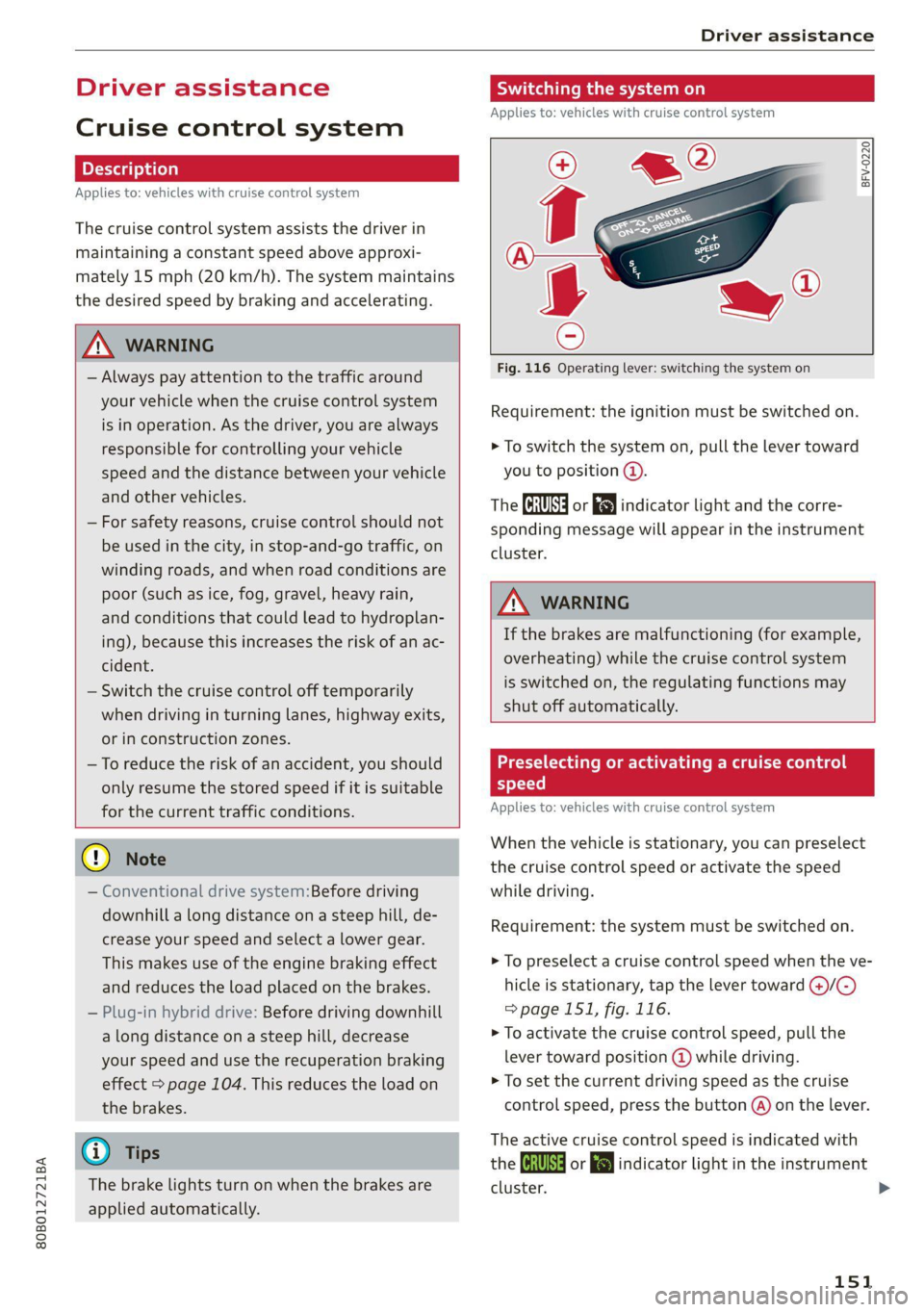
Fig. 116 Operating lever: switching the system on
Requirement: the ignition must be switched on.
> To switch the system on, pull the lever toward
you to position ©.
The Gia or i$) indicator light and the corre-
sponding message will appear in the instrument
cluster.
ZA\ WARNING
If the brakes are malfunctioning (for example,
overheating) while the cruise control system
is switched on, the regulating functions may
shut off automatically.
Preselecting or activating a cruise con
speed
Applies to: vehicles with cruise control system
When the vehicle is stationary, you can preselect
the cruise control speed or activate the speed
while driving.
Requirement: the system must be switched on.
> To preselect a cruise control speed when the ve-
hicle is stationary, tap the lever toward @)/G)
=>page 151, fig. 116.
> To activate the cruise control speed, pull the
lever
toward position @ while driving.
> To set the current driving speed as the cruise
control speed, press the button @) on the lever.
The active cruise control speed is indicated with
the Gg or kl indicator light in the instrument
cluster.
151
Page 154 of 332
Driver assistance
An additional indicator appears in the head-up
display*.
Changing the cruise control speed
Applies to: vehicles with cruise control system
Requirement: the system must be switched on.
> To increase or decrease the cruise control speed
in small increments, tap the lever up to the
first level toward @)/G) > page 151, fig. 116.
> To increase or decrease the cruise control speed
in larger increments, tap the lever up to the
second level toward @)/G).
> To increase or decrease the cruise control speed
continuously, tap and hold the lever at the first
or second level toward @)/G).
Overriding or deactivating the cruise
control speed
Applies to: vehicles with cruise control system
You can override or deactivate the cruise control
system. When you deactivate the system, your
cruise control speed will be stored and you can
resume that speed.
Requirement: the system must be switched on
and the regulated speed must be activated.
Overriding
> To temporarily override the cruise control
speed, press the accelerator pedal.
> To resume the stored regulated speed, remove
your foot from the accelerator pedal.
If you override the cruise control system for a
long period of time, the cruise control system
will be deactivated. The [Ud or [RM indicator
light will be displayed and the cruise control
speed will be saved.
Deactivating
> To deactivate the cruise control speed, press
the lever toward @) (not locked into place)
=> page 151, fig. 116, or
> Press the brake pedal.
152
ZA WARNING
Resting your foot on the accelerator pedal
could override the cruise control. This will pre-
vent braking interventions by the system.
See me Lai
Applies to: vehicles with cruise control system
When you switch the system off, the cruise con-
trol speed will be erased.
Requirement: the system must be switched on.
> To switch the system off, press the lever toward
@ (locked into place) > page 151, fig. 116, or
> Switch the ignition off.
Applies to: vehicles with cruise control system
Gir / 3) Speed control system: currently un-
available. See owner's manual
If the indicator light turns on and this message
appears, the cruise control system has been deac-
tivated. There is a temporary malfunction, for ex-
ample the brakes are overheating. Switch the
cruise control system on again later.
Efficiency assist
Applies to: vehicles with efficiency assist
Efficiency assist can assist the driver with predic-
tive information in order to reduce fuel consump-
tion. Depending on vehicle equipment, the sys-
tem may access data from the navigation system,
the camera behind the windshield, and the radar
sensors.
Adjusting the efficiency assist
You can adjust efficiency assist functions individ-
ually. The settings depend on the vehicle equip-
ment.
— Predictive messages > page 153.
— Accelerator pedal feedback > page 101.
— Interactive accelerator > page 101.
— Predictive control > page 157.
Page 158 of 332
Driver assistance
ZA\ WARNING
Observe the safety precautions and note the
limits of the assist systems, sensors, and
cameras > page 141.
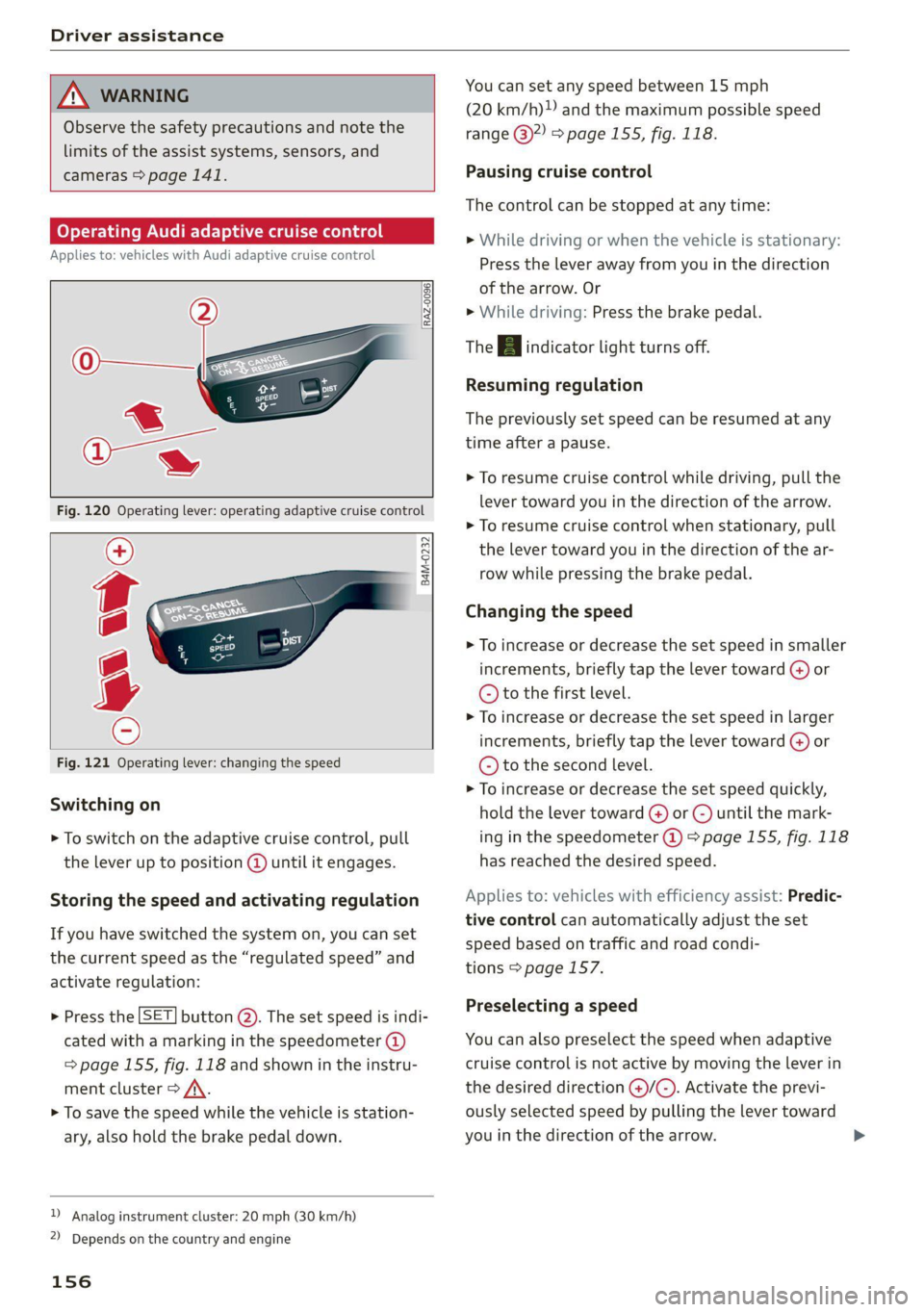
Operating Audi adaptive cruise control
Applies to: vehicles with Audi adaptive cruise control
RAZ-0096
B4M-0232
Fig. 121 Operating lever: changing the speed
Switching on
> To switch on the adaptive cruise control, pull
the lever up to position @ until it engages.
Storing the speed and activating regulation
If you have switched the system on, you can set
the current speed as the “regulated speed” and
activate regulation:
> Press the [SET] button (2). The set speed is indi-
cated with a marking in the speedometer (@)
=> page 155, fig. 118 and shown in the instru-
ment cluster > A\.
> To save the speed while the vehicle is station-
ary, also hold the brake pedal down.
D_ Analog instrument cluster: 20 mph (30 km/h)
2) Depends on the country and engine
156
You can set any speed between 15 mph
(20 km/h)» and the maximum possible speed
range @)?) > page 155, fig. 118.
Pausing cruise control
The control can be stopped at any time:
> While driving or when the vehicle is stationary:
Press the lever away from you in the direction
of the arrow. Or
» While driving: Press the brake pedal.
The Ba indicator light turns off.
Resuming regulation
The previously set speed can be resumed at any
time after a pause.
> To resume cruise control while driving, pull the
lever toward you in the direction of the arrow.
> To resume cruise control when stationary, pull
the lever toward you in the direction of the ar-
row while pressing the brake pedal.
Changing the speed
> To increase or decrease the set speed in smaller
increments, briefly tap the lever toward G) or
© to the first level.
> To increase or decrease the set speed in larger
increments, briefly tap the lever toward () or
© to the second level.
> To increase or decrease the set speed quickly,
hold the lever toward @) or () until the mark-
ing in the speedometer @) > page 155, fig. 118
has reached the desired speed.
Applies to: vehicles with efficiency assist: Predic-
tive control can automatically adjust the set
speed based on traffic and road condi-
tions > page 157.
Preselecting a speed
You can also preselect the speed when adaptive
cruise control is not active by moving the lever in
the desired direction @)/@). Activate the previ-
ously selected speed by pulling the lever toward
you in the direction of the arrow.
Page 161 of 332
80B012721BA
Driver assistance
the speed, the greater the distance that is need-
ed.
> Tap the rocker switch to display the distance
that is currently set.
> To increase or decrease the distance in incre-
ments, tap the switch again toward @) or ().
The newly-set distance will be shown briefly, for
example with the [eg indicator light. In the Driv-
er assistance display, a graphic display is shown
instead of the indicator lights > page 155,
fig. 119. The display matches the functions of
the indicator lights.
When approaching a vehicle driving ahead, the
adaptive cruise control system brakes to match
that vehicle's speed and then adjusts to the set
distance. If the vehicle driving ahead accelerates,
then the adaptive cruise control will accelerate
up to the speed that you have set.
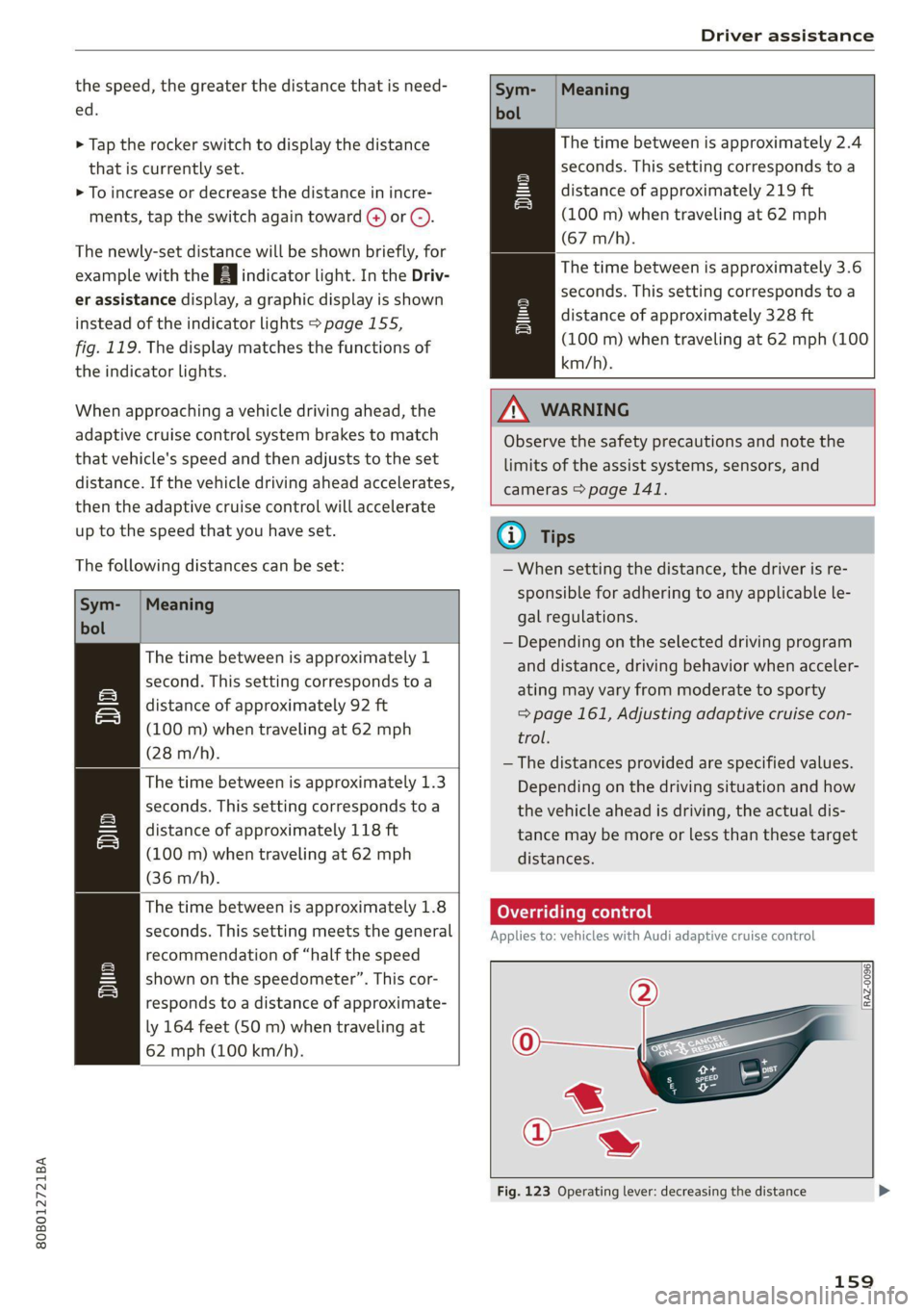
The following distances can be set:
Sym-
bol
Meaning
The time between is approximately 2.4
seconds. This setting corresponds toa
distance of approximately 219 ft
(100 m) when traveling at 62 mph
(67 m/h).
The time between is approximately 3.6
seconds. This setting corresponds toa
distance of approximately 328 ft
(100 m) when traveling at 62 mph (100
km/h).
D
1D
Z\ WARNING
Observe the safety precautions and note the
limits of the assist systems, sensors, and
cameras > page 141.
Meaning
The time between is approximately 1
second. This setting corresponds toa
distance of approximately 92 ft
(100 m) when traveling at 62 mph
(28 m/h).
The time between is approximately 1.3
seconds. This setting corresponds toa
distance of approximately 118 ft
(100 m) when traveling at 62 mph
(36 m/h).
nD
The time between is approximately 1.8
seconds. This setting meets the general
recommendation of “half the speed
shown on the speedometer”. This cor-
responds to a distance of approximate-
ly 164 feet (SO m) when traveling at
62 mph (100 km/h).
(i) Tips
— When setting the distance, the driver is re-
sponsible for adhering to any applicable le-
gal regulations.
— Depending on the selected driving program
and distance, driving behavior when acceler-
ating may vary from moderate to sporty
=> page 161, Adjusting adaptive cruise con-
trol.
— The distances provided are specified values.
Depending on the driving situation and how
the vehicle ahead is driving, the actual dis-
tance may be more or less than these target
distances.
Overriding control
Applies to: vehicles with Audi adaptive cruise control
[RAZ-0096
Fig. 123 Operating lever: decreasing the distance
159
Page 162 of 332
Driver assistance
Requirement: adaptive cruise control must be
switched on.
Overriding control
You can completely override the control, for ex-
ample when passing or if you would like to accel-
erate more quickly.
> To accelerate manually, pull the lever toward
you in the direction of the arrow and hold it
there, or press the accelerator pedal.
> To resume the usual cruise control, release the
lever or remove your foot from the accelerator
pedal.
When you are in the Driver assistance display,
the message Overridden will appear.
Decreasing the distance
The function decreases the set distance and pro-
vides assistance, for example when merging
when a lane is ending.
> To further reduce the distance to the vehicle
ahead temporarily, pull the lever toward your-
self in the direction of the arrow and hold it in
that position.
> To resume the system control, release the lever.
The adaptive cruise control reduces the distance
and, if necessary, accelerates the vehicle above
the set speed.
ZA WARNING
— Observe the safety precautions and note the
limits of the assist systems, sensors, and
cameras © page 141.
— Resting your foot on the accelerator pedal
could override the cruise control. Braking in-
terventions and corrective actions by the
system may not occur.
)) Depending on the engine
160
Driving in stop-and-go traffi
Applies to: vehicles with Audi adaptive cruise control
Applies to: vehicles with safe start monitor
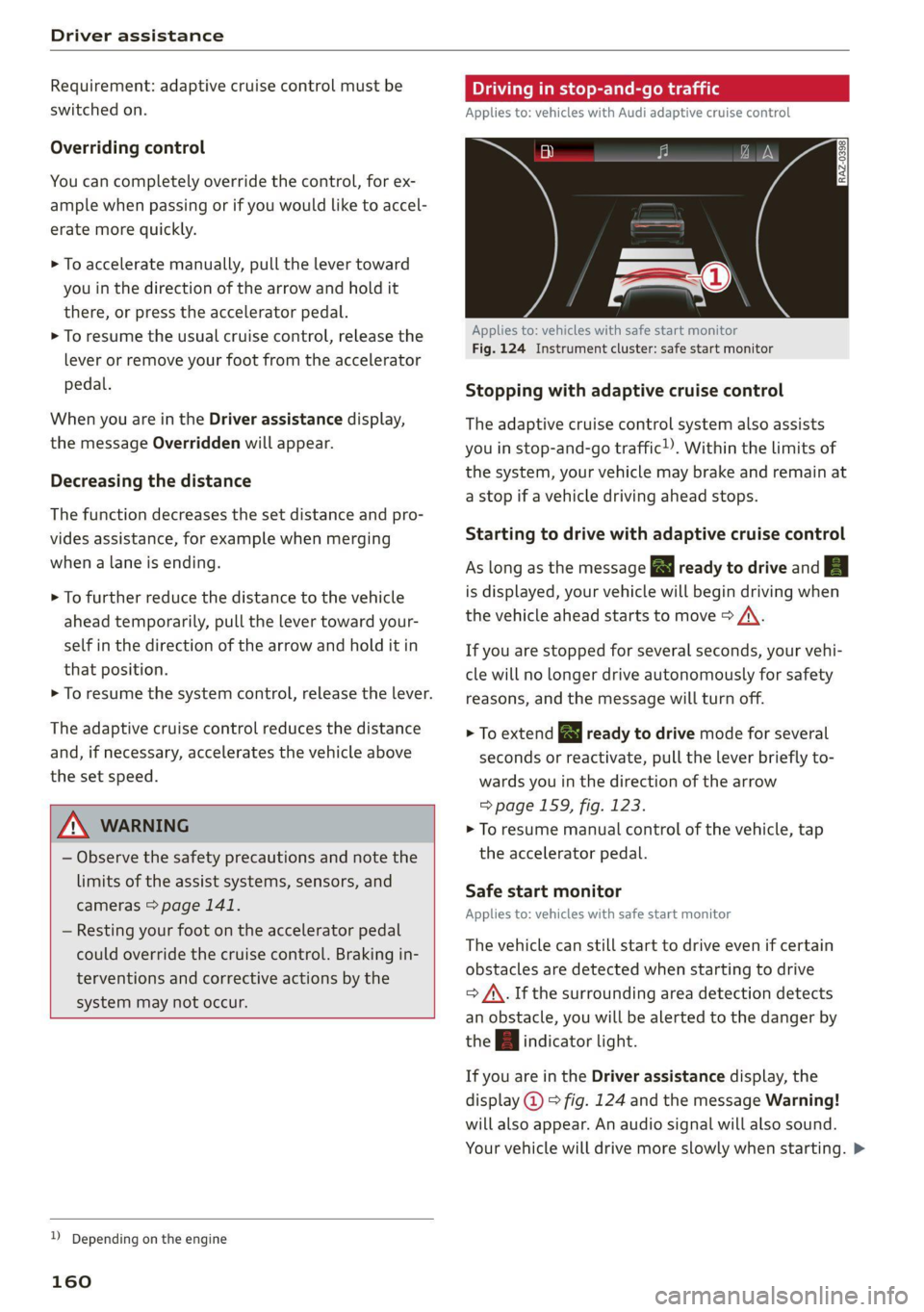
Fig. 124 Instrument cluster: safe start monitor
Stopping with adaptive cruise control
The adaptive cruise control system also assists
you in stop-and-go traffic!). Within the limits of
the system, your vehicle may brake and remain at
a stop if a vehicle driving ahead stops.
Starting to drive with adaptive cruise control
As long as the message a ready to drive and A
is displayed, your vehicle will begin driving when
the vehicle ahead starts to move > /\.
If you are stopped for several seconds, your vehi-
cle will no longer drive autonomously for safety
reasons, and the message will turn off.
> To extend B ready to drive mode for several
seconds or reactivate, pull the lever briefly to-
wards you in the direction of the arrow
=> page 159, fig. 123.
> To resume manual control of the vehicle, tap
the accelerator pedal.
Safe start monitor
Applies to: vehicles with safe start monitor
The vehicle can still start to drive even if certain
obstacles are detected when starting to drive
=> /\. If the surrounding area detection detects
an obstacle, you will be alerted to the danger by
the A indicator light.
If you are in the Driver assistance display, the
display @) © fig. 124 and the message Warning!
will also appear. An audio signal will also sound.
Your vehicle will drive more slowly when starting. >
Page 172 of 332
Driver assistance
ZA\ WARNING
— Observe the safety precautions and note the
limits of the assist systems, sensors, and
cameras > page 141.
— Swerve assist does not react to pedestrians,
animals, crossing objects, and objects not
detected as vehicles.
@) Tips
— System functions may not be available if the
ESC is limited or switched off, or if there is a
malfunction.
— An indicator in the instrument cluster will
inform you when there is an intervention.
seg
Applies to: vehicles with turn assist
When turning left), turn assist can help to re-
duce the risk of a collision with an oncoming ve-
hicle by using braking action to keep your vehicle
in its lane. The function is only available when
the turn signal is turned on and at speeds up to
approximately 6 mph (10 km/h).
ZA\ WARNING
— Observe the safety precautions and note the
limits of the assist systems, sensors, and
cameras > page 141.
— The turn assist does not react to pedes-
trians, animals, crossing objects, and ob-
jects
not detected as vehicles.
@ Tips
— System functions may not be available if the
ESC is limited or switched off, or if there is a
malfunction.
— An indicator in the instrument cluster will
inform you when there is an intervention.
2) When making a right turn in countries with left-hand drive
vehicles.
2) Incertain countries
170
Adjusting Audi pre sense
Applies to: vehicles with Audi pre sense
You can switch Audi pre sense and the associated
systems on or off, or adjust them individually.
The adjustment options depend on the vehicle
equipment.
> Applies to MMI: Select on the home screen: VE-
HICLE > Driver assistance > Audi pre sense.
Setting the prewarning
You can adjust the warning time for the prewarn-
ing2) individually (Early/Medium/Late) or switch
the prewarning off.
Set the warning time for the early warning to
Early at first. If you feel that the prewarnings ap-
pear too early, then set the warning time to Me-
dium. The Late warning time should only be set
in special circumstances.
G) Tips
— If Audi pre sense is switched off, it switches
on again automatically once the ignition is
switched on again2).
— Switch Audi pre sense off when you are not
using public streets, when loading the vehi-
cle onto a vehicle carrier, train, ship, or oth-
er type of transportation, or when towing
the vehicle. This can help to prevent an un-
desired intervention from the Audi pre
sense system.
— Certain settings are automatically stored
and assigned to the remote control key be-
ing used.
Messages
Applies to: vehicles with Audi pre sense
rs or is displayed when there is a malfunc-
tion, the Audi pre sense functions may be un-
available or may be limited.
A message that indicates the cause and possible
solution
may appear with some displays. The
weather conditions may be too poor orasensor >
Page 174 of 332

Driver assistance
— Curves
— High barriers on the side of the road
ZA\ WARNING
— Observe the safety precautions and note the
limits of the assist systems, sensors, and
cameras © page 141.
— The display may not appear on time when
vehicles are approaching or being passed
very quickly.
@) Tips
— If the window glass in the driver's door or
front passenger's door has been tinted, the
display in the exterior mirror may be incor-
rect.
— The system is not available when towing a
trailer. There is no guarantee the system
will switch off when using a retrofitted trail-
er hitch. Do not use these functions when
towing a trailer.
— The system complies with United States FCC
regulations and ISED regulations
=> page 311.
Adjusting side assist
Applies to: vehicles with side assist
You can adjust the side assist to your preferences.
The settings depend on the vehicle equipment.
> Applies to: MMI: Select on the home screen:
VEHICLE > Driver assistance > Side assist.
Possible settings:
The system can be switched on and off. If the sys-
tem is switched on, the displays in the exterior
mirrors will turn on briefly each time the ignition
is switched on.
Brightness - Change the brightness only when
side assist is switched on, so that the selected
setting can be checked in the exterior mirror dis-
plays. Adjust the brightness to a level where the
display will not interfere with your view ahead.
Because the display brightness automatically
adapts to the ambient light, it may have already
been adjusted to the highest or lowest setting
during the automatic adaptation.
172
G) Tips
— If you switch side assist on or off, the exit
warning will also switch on or off.
— Certain settings are automatically stored
and assigned to the remote control key be-
ing used.
Messages
Applies to: vehicles with side assist
fg ° is displayed when there is a malfunc-
tion, the side assist and exit warning system
functions may be unavailable or may be limited.
A message that indicates the cause and possible
solution
may appear with some displays. The
weather conditions may be too poor or a sensor
may be covered. Clean the sensor area at the rear
corners of the vehicle > page 143, fig. 113 and
try to turn the systems on again later.
If the malfunction remains, drive to an author-
ized Audi dealer or authorized Audi Service Facili-
ty immediately to have the malfunction correct-
ed.
Page 175 of 332
80B012721BA
Driver assistance
Exit warning
Applies to: vehicles with exit warning system
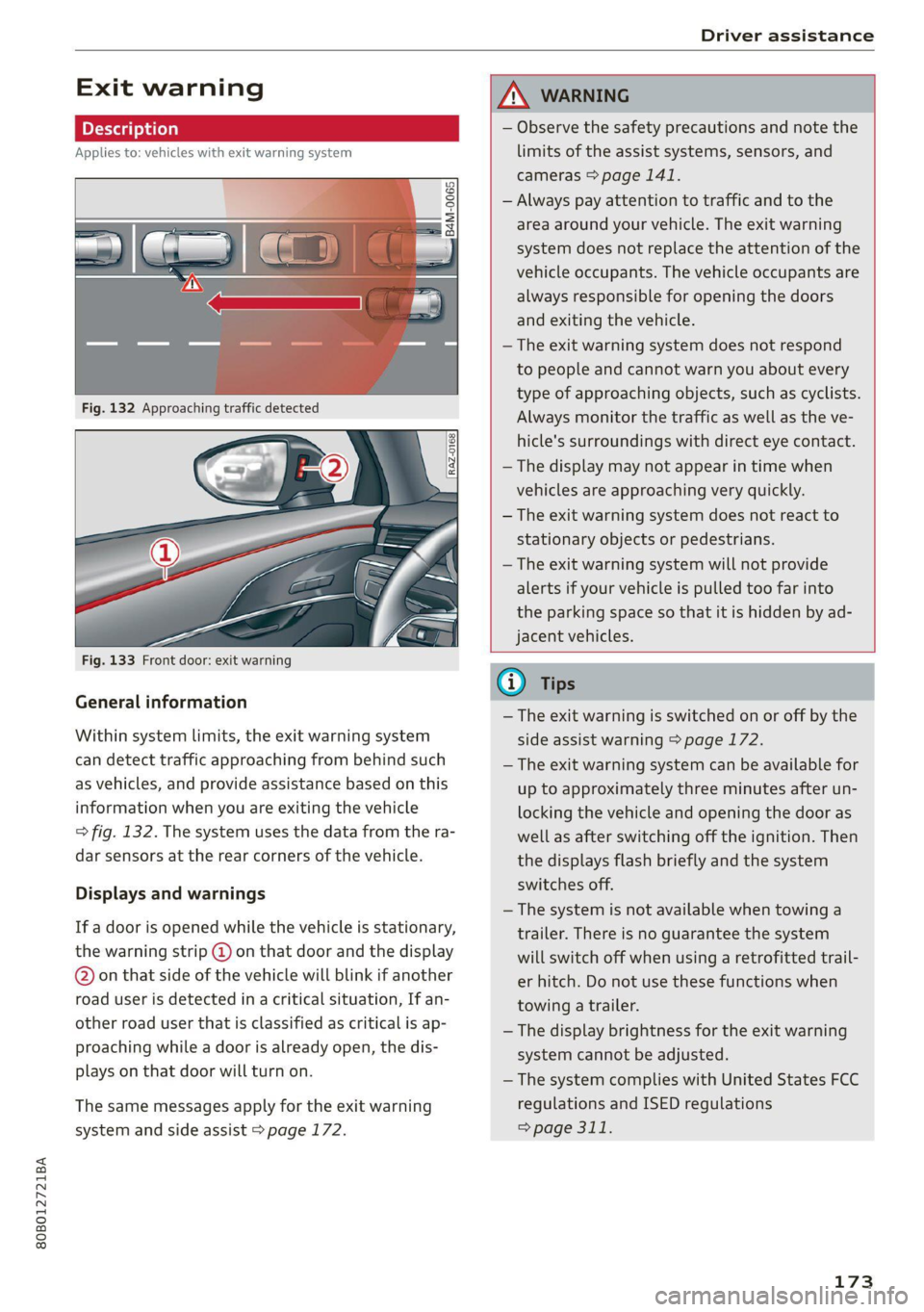
Fig. 133 Front door: exit warning
General information
Within system limits, the exit warning system
can detect traffic approaching from behind such
as vehicles, and provide assistance based on this
information when you are exiting the vehicle
=> fig. 132. The system uses the data from the ra-
dar sensors at the rear corners of the vehicle.
Displays and warnings
If a door is opened while the vehicle is stationary,
the warning strip @ on that door and the display
@ on that side of the vehicle will blink if another
road user is detected in a critical situation, If an-
other road user that is classified as critical is ap-
proaching while a door is already open, the dis-
plays on that door will turn on.
The same messages apply for the exit warning
system and side assist > page 172.
ZX WARNING
— Observe the safety precautions and note the
limits of the assist systems, sensors, and
cameras > page 141.
— Always pay attention to traffic and to the
area around your vehicle. The exit warning
system does not replace the attention of the
vehicle occupants. The vehicle occupants are
always responsible for opening the doors
and exiting the vehicle.
— The exit warning system does not respond
to people and cannot warn you about every
type of approaching objects, such as cyclists.
Always monitor the traffic as well as the ve-
hicle's surroundings with direct eye contact.
— The display may not appear in time when
vehicles are approaching very quickly.
— The exit warning system does not react to
stationary objects or pedestrians.
— The exit warning system will not provide
alerts if your vehicle is pulled too far into
the parking space so that it is hidden by ad-
jacent vehicles.
iG) Tips
— The exit warning is switched on or off by the
side assist warning > page 172.
— The exit warning system can be available for
up to approximately three minutes after un-
locking the vehicle and opening the door as
well as after switching off the ignition. Then
the displays flash briefly and the system
switches off.
— The system is not available when towing a
trailer. There is no guarantee the system
will switch off when using a retrofitted trail-
er hitch. Do not use these functions when
towing a trailer.
— The display brightness for the exit warning
system cannot be adjusted.
— The system complies with United States FCC
regulations and ISED regulations
=> page 311.
173