wheel AUDI Q5 2021 Owner´s Manual
[x] Cancel search | Manufacturer: AUDI, Model Year: 2021, Model line: Q5, Model: AUDI Q5 2021Pages: 332, PDF Size: 118.86 MB
Page 150 of 332
Driving information
— The traffic signs on the road always take pri-
ority over the display. The driver is always
responsible for adhering to the regulations
applicable in the country where the vehicle
is being operated.
— Units of measurement and language set-
tings are displayed based on how they were
set in the MMI system settings > page 236.
Applies to: vehicles with traffic light information
Switching traffic light information on and
off
» Applies to: MMI: Select on the home screen:
VEHICLE > Driver assistance > Traffic light in-
formation.
Accessing traffic light information
> Select in the instrument cluster: vehicle func-
tions tab > Traffic signs.
@® Tips
If another tab or another function is selected
in the instrument cluster, the traffic light in-
formation will appear in the status bar on the
instrument cluster.
Messages
Applies to: vehicles with traffic light information
Malfunction! See owner's manual
The system could not be configured, for example
due to a network malfunction. Switch the igni-
tion off and shut down the vehicle to restart the
system. Wait several minutes until the vehicle
has shut down completely and then switch the
ignition back on.
Function currently unavailable. See owner's
manual
There is a temporary system malfunction. Check
if one or more of the following situations applies
and correct the issue if necessary:
— Traffic light information is switched off
— Data transmission is deactivated
148
— The vehicle is not equipped with traffic sign rec-
ognition.
— There is no valid license
— Traffic light information is not available in that
area
Lap timer
Introduction
Applies to: vehicles with lap timer
You can record and evaluate lap times with the
lap timer. You can operate the lap timer using the
multifunction steering wheel > page 13.
Opening the lap timer
> Select in the instrument cluster: Vehicle func-
tions tab > [| button > Lap times.
An additional indicator appears in the head-up
display*.
ZA\ WARNING
Your focus should always be on driving your
vehicle safely. As the driver, you have com-
plete responsibility for safety in traffic. To re-
duce the risk of an accident, only use the lap
timer functions in such a way that you always
maintain complete control over your vehicle in
all traffic situations.
G) Tips
You can retrieve information from the trip
computer while the lap timer stopwatch is
running.
ey sae |
Applies to: vehicles with lap timer
Requirement: the lap timer must be open
=> page 148.
Timing laps
> To start timing manually, select Start lap 1 in
the menu.
> To start timing automatically as soon as you be-
gin to drive, select Start lap 1 by driving off or
Start by driving off in the menu.
Page 151 of 332

80B012721BA
Driving information
> To start timing a new lap after driving a lap, se-
lect New lap in the menu. This starts timing
the next lap at the same time.
After completing a lap, the difference between
the last lap and the previous best lap time will be
won an indicated with a “~” or “+”.
Pausing timing and displaying a split time
> To insert a pause @ select Pause in the menu.
> To resume timing, select Resume in the menu.
> To display a split time, select Split time in the
menu. The split time appears for approxi-
mately ten seconds in the instrument cluster.
The current lap timing will continue running.
Canceling lap timing
The timing of the current lap will stop. The lap
time will be erased and will not be included in the
statistics.
> Select Cancel lap in the menu.
Resetting the time
> Select Reset lap times in the menu.
G) Tips
— A maximum of 99 lap times can be meas-
ured.
— If timing is paused, you can continue it later
even if you switch the ignition off.
— Saved lap times cannot be individually de-
leted from the total results.
— The saved lap timer values will remain after
switching the ignition off.
yo e-) a(t)
Applies to: vehicles with lap timer
Displaying lap statistics
You can display the number of laps driven
the fastest lap “+”, the slowest lap “-”, and the
average time “®” in the instrument cluster.
> Select in the instrument cluster: Vehicle func-
tions tab > E] button > Lap statistics.
> Turn the thumbwheel down or up to display the
individual lap times.
> To return to the lap timing that was started, se-
lect the [I button > Lap times.
Resetting lap statistics
Requirement: the lap statistics menu must be
displayed.
> To reset the lap statistics, press and hold the
left thumbwheel until the message No lap
times have been recorded yet. appears.
@) Tips
The lap statistics list the lap times for the last
30 laps. The fastest and slowest lap times out
of up to 99 measured laps are also displayed.
Integrated Toll Module
Applies to: vehicles with Integrated Toll Module
Depending on the region, you can pay toll fees in
certain countries using the Integrated Toll Mod-
ule (ITM). It replaces a separate transponder for
detecting toll fees. The system electronics are in-
tegrated in the rearview mirror housing.
Gi) Tips
The system complies with United States FCC
regulations and ISED regulations > page 311.
Applies to: vehicles with Integrated Toll Module
To use the ITM in toll zones, you must register
and activate it.
Registration
> Applies to MMI: Select on the home screen: VE-
HICLE > Settings & Service > Vehicle informa-
tion Toll module.
> Note the Integrated Toll Module ID.
> To register the ITM, go to the displayed web ad-
dress and follow the instructions.
Activation
> To activate the ITM, press CD in the MMI.
Entering the number of passengers
Depending on the number of passengers and the
region, a lower toll fee may be charged. You must
either enter the number of passengers or
149
>
Page 157 of 332
80B012721BA
Driver assistance
— The system does not react to a stationary vehi- @ - @, you can find more detailed information
cle in the same lane if it expects that you can about the system. The displays depend on the
easily drive around the stationary vehicle by country and equipment.
turning the steering wheel.
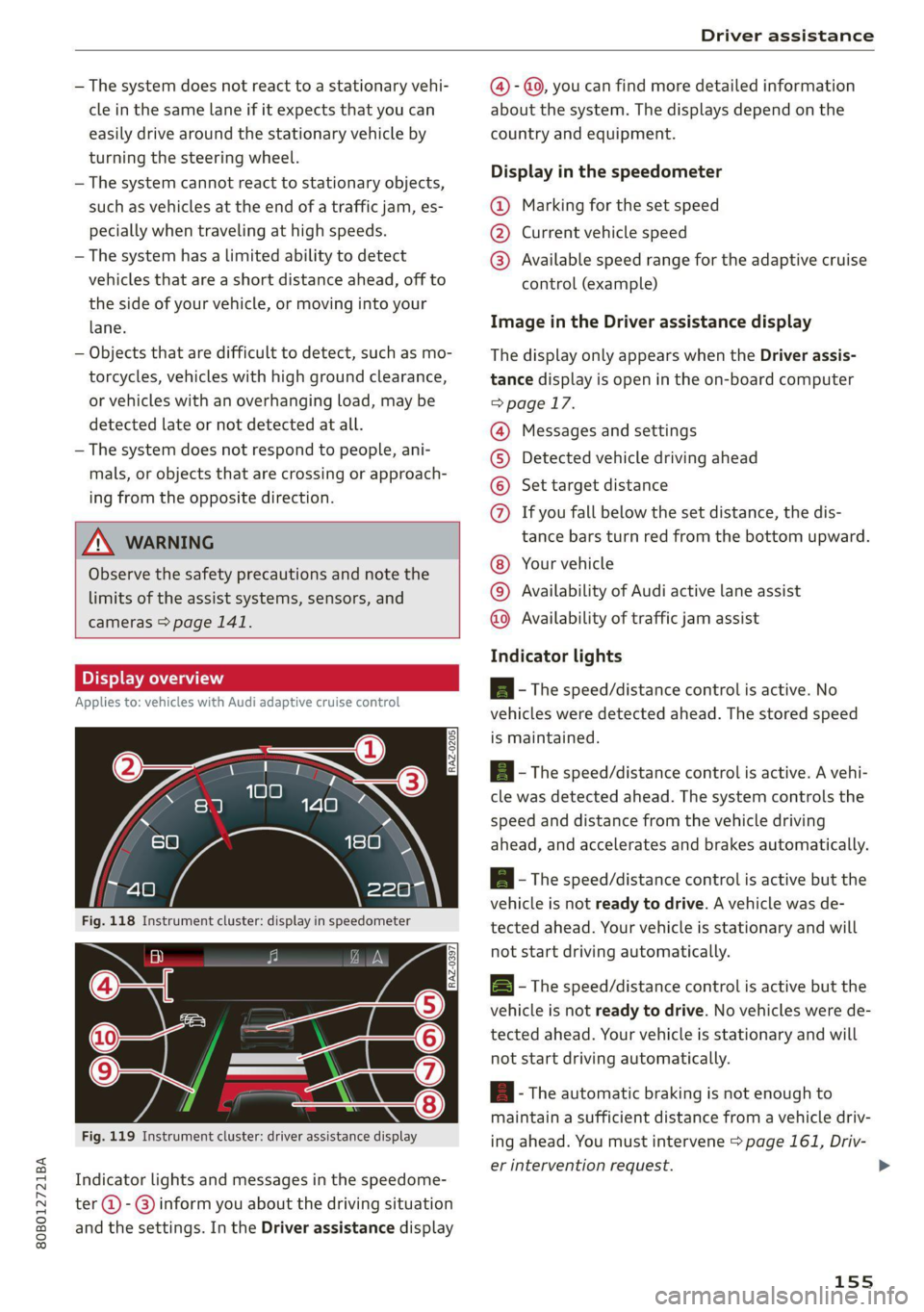
— The system cannot react to stationary objects, Display th thespeedsmeter
such as vehicles at the end of a traffic jam, es- @ Marking for the set speed
pecially when traveling at high speeds. @ Current vehicle speed
— The system has a limited ability to detect © Available speed range for the adaptive cruise
vehicles that are a short distance ahead, off to control (example)
the side of your vehicle, or moving into your
iane: Image in the Driver assistance display
— Objects that are difficult to detect, such as mo- The display only appears when the Driver assis-
torcycles, vehicles with high ground clearance, tance display is open in the on-board computer
or vehicles with an overhanging load, may be > page 17.
detected late or not detected at all.
— The system does not respond to people, ani-
mals, or objects that are crossing or approach-
ing from the opposite direction.
Messages and settings
Detected vehicle driving ahead
Set target distance
If you fall below the set distance, the dis-
tance bars turn red from the bottom upward.
ZA WARNING
Observe the safety precautions and note the
limits of the assist systems, sensors, and
cameras > page 141. Your
vehicle
Availability of Audi active lane assist
©O©©OQ®
COG®
Availability of traffic jam assist
Indicator lights
BI alo A - The speed/distance control is active. No
Applies to: vehicles with Audi adaptive cruise control
vehicles were detected ahead. The stored speed
is maintained.
RAZ-0205. a - The speed/distance control is active. A vehi-
cle was detected ahead. The system controls the
speed and distance from the vehicle driving
ahead, and accelerates and brakes automatically.
A - The speed/distance control is active but the
vehicle is not ready to drive. A vehicle was de-
tected ahead. Your vehicle is stationary and will
not start driving automatically. BI 3 9) nN | fac B - The speed/distance control is active but the
vehicle is not ready to drive. No vehicles were de-
tected ahead. Your vehicle is stationary and will
not start driving automatically.
aA - The automatic braking is not enough to
maintain a sufficient distance from a vehicle driv-
Fig. 119 Instrument cluster: driver assistance display ing ahead. You must intervene > page 161, Driv-
er intervention request. >
Indicator lights and messages in the speedome-
ter @ -@ inform you about the driving situation
and the settings. In the Driver assistance display
155
Page 159 of 332
80B012721BA
Driver assistance
Switching off
If you do not want to use the adaptive cruise con-
trol for a long period of time, you can switch it
off.
> Push the lever away from you into position @)
until it clicks into place.
The indicator light and the set speed will turn off.
Z\ WARNING
— Observe the safety precautions and note the
limits of the assist systems, sensors, and
cameras > page 141.
— The activated adaptive cruise control is only
an assist system, and the driver is still re-
sponsible for controlling the vehicle. The
driver is especially responsible for braking,
steering, starting to drive, and controlling
the speed and the distance from other
vehicles.
— Turn on the adaptive cruise control only if
the surrounding conditions permit it. Always
adapt your driving style to the current visu-
al, weather, road, and traffic conditions.
— Switch adaptive cruise control off temporari-
ly when driving in turning lanes, on express-
way exits or in construction zones. This pre-
vents the vehicle from accelerating to the
stored speed when in these situations.
— If you press the [SET] button @) when driv-
ing at speeds below 15 mph (20 km/h)»,
the minimum possible speed that the sys-
tem can maintain will be set. If no vehicle is
detected ahead of you, the vehicle will accel-
erate up to that speed.
(i) Tips
— Always keep your hands on the steering
wheel so you can be ready to steer at any
time. The driver is always responsible for
adhering to the regulations applicable in
the country where the vehicle is being oper-
ated.
) Analog instrument cluster: 20 mph (30 km/h)
— If you switch the ignition or the adaptive
cruise control system off, the set speed is
erased for safety reasons.
— When adaptive cruise control is switched
on, the ESC and ASR automatically switch
on.
— The system cannot be switched off or it may
be interrupted if the road exceeds the maxi-
mum possible grade for safe operation.
Predictive control
Applies to: vehicles with Audi adaptive cruise control and effi-
ciency assist
With predictive control, efficiency assist adapts
the set speed in adaptive cruise control @
=> page 155 based on detected speed limits and
the upcoming route. Once the system no longer
detects any incidents ahead, adaptive cruise con-
trol will accelerate back up to the last speed that
the driver set. After switching on the ignition, the
availability of predictive control is indicated by a
message when the adaptive cruise control is first
activated.
Incident symbols indicate the situation to which
predictive control is reacting > page 153, Situa-
tion symbols.
Requirements
— Predictive control is switched on in the MMI
=> page 161.
— Adaptive cruise control is actively regulating
=> page 156.
— The system can only react to speed limits that
are 15 mph (20 km/h)” or higher.
Overriding control
The driver can override the predictive control to
the route ahead at any time by pressing the ac-
celerator or brake pedal. If the system changes
the vehicle speed to adapt to speed limits, you
can change the speed using the lever
=> page 156, fig. 121.
157
Page 164 of 332
Driver assistance
handling with predictive control, for example the
speed for driving through curves.
@) Tips
Certain settings are automatically stored and
assigned to the remote control key being
used.
Applies to: vehicles with Audi adaptive cruise control
If or is displayed when there is a mal-
function, the adaptive cruise control or traffic
jam assist functions may be unavailable or may
be limited.
A message that indicates the cause and possible
solution may appear with some displays. The
weather conditions may be too poor or a sensor
may be covered. Clean the area in front of the
sensors > page 143 and try to turn on the sys-
tems again later.
If the malfunction remains, drive to an author-
ized Audi dealer or authorized Audi Service Facili-
ty immediately to have the malfunction correct-
ed.
Please take over!
This message appears if the vehicle rolls back
when starting on a slight incline, even though the
systems are active. Press the brake pedal to pre-
vent the vehicle from rolling or starting to move.
Traffic jam assist
Applies to: vehicles with traffic jam assist
B8V-0692
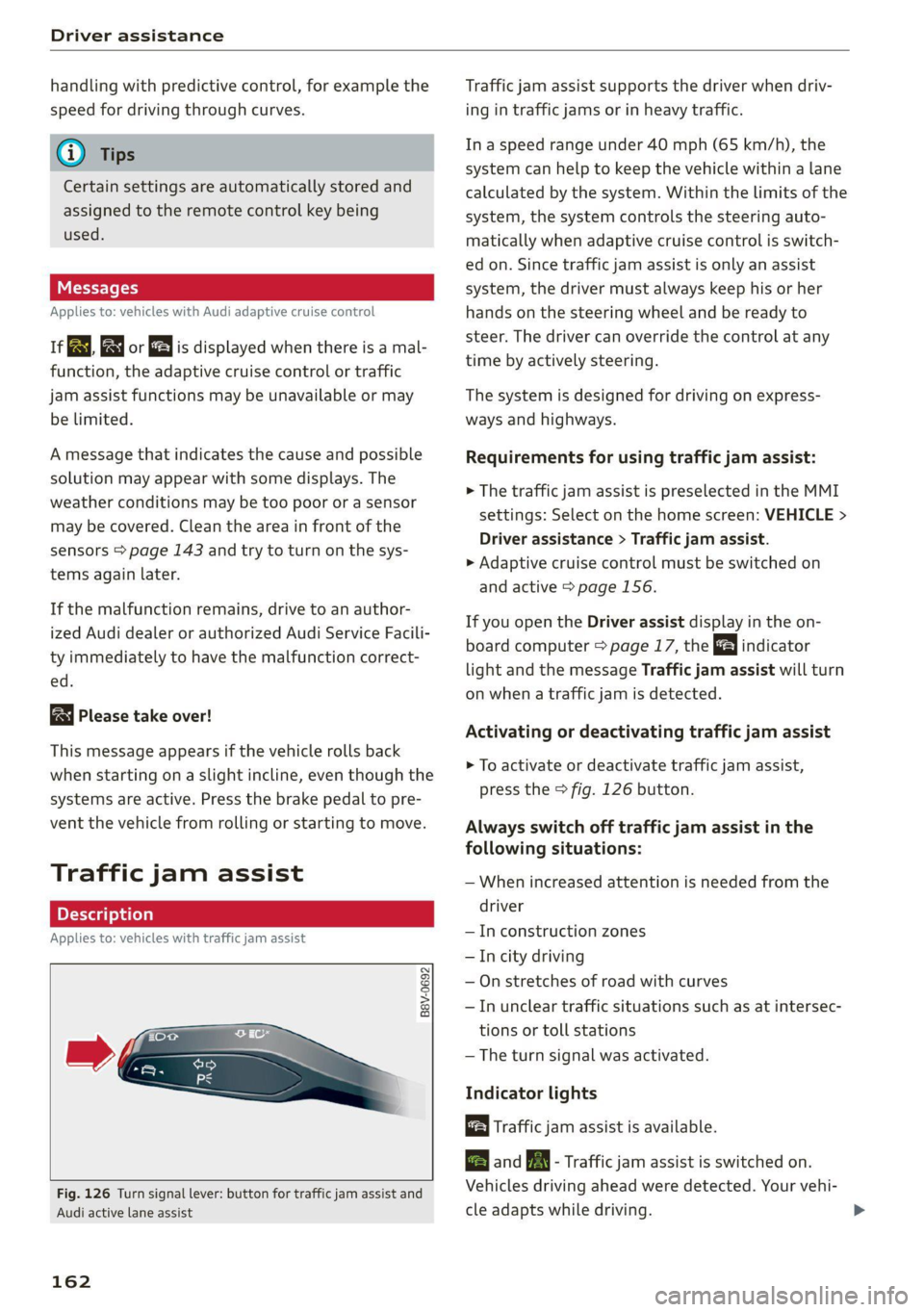
Fig. 126 Turn signal lever: button for traffic jam assist and
Audi active lane assist
162
Traffic jam assist supports the driver when driv-
ing in traffic jams or in heavy traffic.
In a speed range under 40 mph (65 km/h), the
system can help to keep the vehicle within a lane
calculated by the system. Within the limits of the
system, the system controls the steering auto-
matically when adaptive cruise control is switch-
ed on. Since traffic jam assist is only an assist
system, the driver must always keep his or her
hands on the steering wheel and be ready to
steer. The driver can override the control at any
time by actively steering.
The system is designed for driving on express-
ways and highways.
Requirements for using traffic jam assist:
> The traffic jam assist is preselected in the MMI
settings: Select on the home screen: VEHICLE >
Driver assistance > Traffic jam assist.
> Adaptive cruise control must be switched on
and active > page 156.
If you open the Driver assist display in the on-
board computer = page 17, the indicator
light and the message Traffic jam assist will turn
on when a traffic jam is detected.
Activating or deactivating traffic jam assist
> To activate or deactivate traffic jam assist,
press the > fig. 126 button.
Always switch off traffic jam assist in the
following situations:
— When increased attention is needed from the
driver
— In construction zones
— In city driving
— On stretches of road with curves
—In unclear traffic situations such as at intersec-
tions or toll stations
— The turn signal was activated.
Indicator lights
Traffic jam assist is available.
B and B - Traffic jam assist is switched on.
Vehicles driving ahead were detected. Your vehi-
cle adapts while driving.
Page 165 of 332
80B012721BA
Driver assistance
B - Traffic jam assist switches off if the driver
does not take over steering after multiple driver
intervention requests. The system brakes the ve-
hicle until it is stationary.
Steering intervention request
If no steering activity is detected or the steering
power from the system is not sufficient, the driv-
er steering intervention request will alert the
driver using audio and visual signals, such as
or E. Take over the steering and keep your
hands on the steering wheel so that you will be
ready to steer at any time.
If the driver does not take over steering, adaptive
cruise control (with traffic jam assist) will be
switched off. The system brakes the vehicle until
it is stationary.*
ZA WARNING
— Observe the safety precautions and note the
limits of the assist systems, sensors, and
cameras © page 141.
— The activated traffic jam assist is only an as-
sist system, and the driver is still responsi-
ble for controlling the vehicle. The driver is
especially responsible for braking, steering,
starting to drive, and controlling the speed
and the distance from other vehicles.
— Turn on the traffic jam assist only if the sur-
rounding conditions permit it. Always adapt
your driving style to the current visual,
weather, road, and traffic conditions.
— Switch the traffic jam assist off temporarily
when driving in turning lanes or highway ex-
its. This prevents the vehicle from accelerat-
ing to the stored speed when in these situa-
tions.
@) Tips
— Always keep your hands on the steering
wheel. The driver is always responsible for
adhering to the regulations applicable in
the country where the vehicle is being oper-
ated.
— Pay attention to applicable local regulations
relating to driving tasks, leaving space for
emergency vehicles, etc. The driver is always
responsible for following the laws that are
applicable in the location where the vehicle
is being operated.
— If traffic jam assist was deactivated through
the MMI, you can continue operating the
Audi active lane assist using the > fig. 126
button > page 165. The traffic jam assist
functions are no longer available.
— You are not necessarily guided to the center
of your lane.
Messages
Applies to: vehicles with traffic jam assist
if &. or |i is displayed when there is a mal-
function, the traffic jam assist functions may be
unavailable or may be limited.
A message that indicates the cause and possible
solution may appear with some displays. The
weather conditions may be too poor or a sensor
may be covered. Clean the area in front of the
sensors > page 143 and try to turn on the sys-
tems again later.
If the malfunction remains, drive to an author-
ized Audi dealer or authorized Audi Service Facili-
ty immediately to have the malfunction correct-
ed.
163
Page 167 of 332
80B012721BA
Driver assistance
Audi active lane assist/ The system functions in the speed range of ap-
lane departure warning OMe mph 155 imph (65 kmzh -
m. #
General information . ; -
Applies to: vehicles with Audi adaptive cruise control and traf-
Applies to: vehicles with Audi active lane assist fic jam assist
If the conditions are met, traffic jam assist
switches on at speeds under approximately
40 mph (65 km/h) > page 162.
The active lane assist/lane departure warning
(called only active lane assist in the vehicle dis-
plays and in the information that follows in this
Owner's Manual) can detect lane marker lines AK WARNING
within the limits of the system. If you are ap-
proaching a detected lane marker and it appears Observe the safety precautions and note the
likely that you will leave the lane, the system can limits of the assist systems, sensors, and
warn you with corrective steering and a steering cameras > page 141.
wheel vibration, if necessary.
Applies to: vehicles with Audi active lane assist
Display and warning
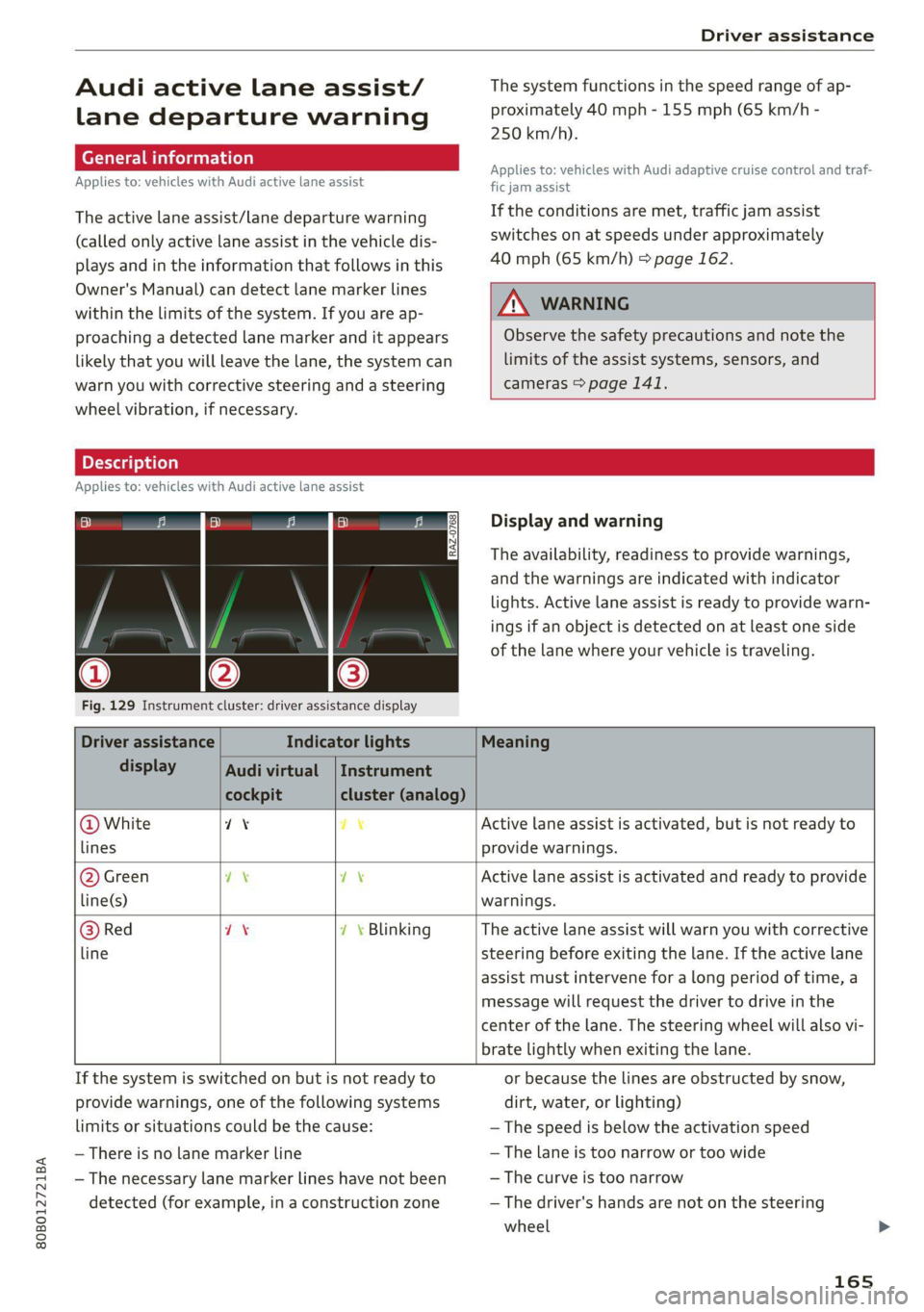
The availability, readiness to provide warnings,
and the warnings are indicated with indicator
lights. Active lane assist is ready to provide warn-
ings if an object is detected on at least one side
of the lane where your vehicle is traveling.
Fig. 129 Instrument cluster: driver assistance display
Driver assistance Indicator lights Meaning
display Audi virtual | Instrument
cockpit cluster (analog)
@ White 71% 7% Active lane assist is activated, but is not ready to
lines provide warnings.
@ Green ex 7\ Active lane assist is activated and ready to provide
line(s) warnings.
@ Red 7X 7 \ Blinking The active lane assist will warn you with corrective
line steering before exiting the lane. If the active lane
assist must intervene for a long period of time, a
message will request the driver to drive in the
center of the lane. The steering wheel will also vi-
brate lightly when exiting the lane.
If the system is switched on but is not ready to or because the lines are obstructed by snow,
provide warnings, one of the following systems dirt, water, or lighting)
limits or situations could be the cause: — The speed is below the activation speed
— There is no lane marker line — The lane is too narrow or too wide
— The necessary lane marker lines have not been — The curve is too narrow
detected (for example, in a construction zone — The driver's hands are not on the steering
wheel
165
Page 168 of 332
Driver assistance
— Visibility is obstructed by a rise or dip.
Steering intervention request
If the active lane assist intervenes multiple times
when no steering activity is detected, the steer-
ing intervention request will provide a warning
using audio and visual signals, such as EE. Take
over the steering and keep your hands on the
steering wheel so that you will be ready to steer
at any time. The system may no longer be ready
to provide warnings after a short time, and it will
only become active again later.
If the driver does not take over steering, active
lane assist will be switched off.
Behavior when a turn signal is active
Applies to: vehicles with side assist: The system
will not warn you if you activate a turn signal be-
fore crossing the lane marker line. In this case, it
assumes that you are changing lanes intentional-
ly.
Applies to: vehicles with side assist: If the turn
signal is activated, lane assist is ready, and a lane
change has been classified as critical by lane as-
sist due to vehicles traveling beside you or due to
approaching vehicles, then a noticeable correc-
tive steering movement will occur briefly before
exiting the lane. This will attempt to keep your
vehicle in the lane.
Z\ WARNING
— Observe the safety precautions and note the
limits of the assist systems, sensors, and
cameras > page 141.
— The system warns the driver that the vehicle
is leaving the lane using corrective steering.
The driver is always responsible for keeping
the vehicle within the lane.
— Corrective steering may not occur at all in
certain situations, such as during heavy
braking. Always be ready to intervene.
@) Tips
— Always keep your hands on the steering
wheel so you can be ready to steer at any
time. The driver is always responsible for
adhering to the regulations applicable in
166
the country where the vehicle is being oper-
ated.
— The system does not provide any corrective
steering or steering wheel vibrations if it de-
tects that you are passing another vehicle.
— The image in the Driver assistance display
only appears if it was opened in the on-
board computer > page 17.
See moll
Applies to: vehicles with Audi active lane assist
B8V-0692
Fig. 130 Turn signal lever: button for Audi active lane as-
sist
> To switch the system on or off, press the button
on the turn signal lever > fig. 130. The respec-
tive indicator light in the instrument cluster
will turn off or on.
Z\ WARNING
Observe the safety precautions and note the
limits of the assist systems, sensors, and
cameras > page 141.
Adjusting Audi active lane assist
Applies to: vehicles with Audi active lane assist
You can adjust active lane assist individually. The
settings depend on the vehicle equipment.
» Applies to: MMI: Select on the home screen:
VEHICLE > Driver assistance. > Audi active
lane assist/Lane departure warning.
Possible settings:
— Steering correction - In the Late setting, the
steering correction will only occur shortly be-
fore a wheel crosses a detected lane marker
line. In the Early setting, steering correction >
Page 169 of 332
80B012721BA
Driver assistance
occurs continuously in order to help the driver
keep the vehicle in the center of the lane. If the
steering correction cannot be set, the steering
correction will function in the Late setting.
— Vibration warning - You can select if you would
also like to be warned using a vibration in the
steering wheel.
@) Tips
Certain settings are automatically stored and
assigned to the remote control key being
used.
Applies to: vehicles with Audi active lane assist
iri or is displayed when there is a malfunc-
tion, the active lane assist functions may be un-
available or limited.
A message that indicates the cause and possible
solution may appear with some displays. The
weather conditions may be too poor or the cam-
era may be covered. Clean the area in front of the
camera > page 143 and try to turn on the sys-
tems again later.
If the malfunction remains, drive to an author-
ized Audi dealer or authorized Audi Service Facili-
ty immediately to have the malfunction correct-
ed.
Audi pre sense
Introduction
Applies to: vehicles with Audi pre sense
Within the limits of the system, the Audi pre
sense functions can initiate measures in certain
driving situations to protect the vehicle occu-
pants and other road users. Depending on the ve-
hicle equipment, various Audi pre sense systems
may
be installed:
— Audi pre sense basic can react during emergen-
cy and dangerous braking maneuvers and un-
stable driving situations (such as oversteering
or understeering).
— Audi pre sense city and Audi pre sense front
can detect an impending frontal impact and re-
act with warnings, braking interventions, and
preemptive safety measures for the vehicle oc-
cupants.
— Audi pre sense rear monitors the rear traffic
behind your vehicle and can react to an impend-
ing rear impact.
— The swerve assist can help you to steer the ve-
hicle around an obstacle during an evasive ma-
neuver that is detected as critical.
— The turn assist can detect vehicles in the oppo-
site lane as critical during a turning maneuver
and react with braking maneuvers.
PNM eA ELT)
Applies to: vehicles with Audi pre sense
Depending on the vehicle speed and the vehicle
equipment, the following functions may be initi-
ated in certain situations:
— Visual and audio warnings
— Reversible tensioning of safety belts
— Closing the windows and panoramic glass roof
— Adjusting the seats
— Other preemptive safety measures by individual
systems
Z\ WARNING
Observe the safety precautions and note the
limits of the assist systems, sensors, and
cameras > page 141.
@) Tips
— Depending on the risk situation that is de-
tected and the selected Audi drive select*
mode, not all preemptive safety measures
may be initiated under certain circumstan-
ces. Certain functions can be adjusted or
skipped if necessary.
— Audi pre sense may be restricted or unavail-
able under certain circumstances, for exam-
ple if:
— There are passengers with unfastened
safety belts
— After turning on the ignition, as long as
the [BJ or indicator light is on.
— When driving in reverse
— The front passenger's airbag is switched
off
167
Page 171 of 332
80B012721BA
Driver assistance
taking risks. This could increase your risk of
a collision.
— Audi pre sense city does not react to certain
objects, such as animals, crossing or oncom-
ing vehicles, bars, railings, or railcars.
— Audi pre sense may be limited or unavailable
in curves or when it is dark.
— Loose objects can be thrown around the ve-
hicle interior during sudden driving or brak-
ing maneuvers, which increases the risk of
an accident. Store objects securely while
driving.
— In trailer mode, the braking behavior of the
trailer can be different than usual during au-
tomatic braking.
@) Tips
Certain system functions may not be available
if the ESC is limited or switched off
=> page 120, if there is a malfunction, or if the
hill hold assist* is switched on > page 114.
Audi pre sense front
Applies to: vehicles with Audi pre sense front
Audi pre sense front provides the same scope of
functions as Audi pre sense city, with a few ex-
ceptions > page 168. The system has an exten-
sive field of view due to additional sensors that
are installed. Because of this, vehicles that are
braking or traveling significantly more slowly can
be detected earlier and more clearly, depending
on the limits of the system.
The following features apply to Audi pre sense
front:
— Automatic braking interventions are available
at vehicle speeds up to approximately 155 mph
(250 km/h)
— The system does not detect pedestrians
Z\ WARNING
— Observe the safety precautions > A\ in Audi
pre sense city on page 168.
— Observe the safety precautions and note the
limits of the assist systems, sensors, and
cameras > page 141.
— Audi pre sense front does not react to cer-
tain objects, such as pedestrians, animals,
crossing or oncoming vehicles, bars, railings,
or railcars.
Audi pre sense rear
Applies to: vehicles with Audi pre sense rear
Within the limits of the system, Audi pre sense
rear uses data from radar sensors at the rear cor-
ners of the vehicle and calculates the probability
of a rear-end collision with the vehicle behind
you.
Audi pre sense preemptive safety measures can
be initiated if the risk of a collision with the vehi-
cle behind you is detected.
Z\ WARNING
— Observe the safety precautions and note the
limits of the assist systems, sensors, and
cameras > page 141.
— Audi pre sense rear does not react to pedes-
trians, animals, crossing objects, and ob-
jects not detected as vehicles.
@) Tips
— Audi pre sense rear functions switch off
when trailer mode is detected. There is no
guarantee the functions will switch off
when using a retrofitted trailer hitch.
— Audi pre sense rear functions may also
switch off if there is a malfunction in the
side assist system.
ai
Applies to: vehicles with swerve assist
The swerve assist can help you to steer the vehi-
cle around an obstacle detected in a critical area.
If you avoid an obstacle after the acute warning,
then the swerve assist assists you by applying
slight steering adjustment to correct your steer-
ing wheel angle as long as you are actively steer-
ing. Swerve assist is available at speeds between
approximately 20 mph (30 km/h) and 90 mph
(150 km/h).
169