center AUDI Q5 2021 Owner´s Manual
[x] Cancel search | Manufacturer: AUDI, Model Year: 2021, Model line: Q5, Model: AUDI Q5 2021Pages: 332, PDF Size: 118.86 MB
Page 191 of 332
80B012721BA
Telephone
Charging a mobile device wirelessly
Applies to: vehicles with Audi phone box
You can charge your mobile device wirelessly us-
ing
the Audi phone box.
Requirement: the ignition must be switched on.
Your mobile device must meet the Qi standard.
> Make sure that the wireless charging function is
switched on:
> Applies to: MMI: Select on the home screen:
SETTINGS > General > Reminder signal and
mobile device charging.
> Switch the Mobile device wireless charging
function on.
> To charge your mobile device wirelessly, lay it
on the @ symbol @ © page 188, fig. 146 in the
center of the Audi phone box with the display
facing up.
ZA\ WARNING
— The mobile device may become hot during
wireless charging. Pay attention to the tem-
perature of your mobile device and be care-
ful when removing it from the Audi phone
box.
— An alternating magnetic field is used for
wireless charging. Maintain a minimum dis-
tance of approximately 2.4 in (6 cm) to the
Audi phone box charging plate. The thresh-
olds for prolonged exposure at this distance
comply with ICNIRP1998. Therefore, inter-
actions such as irritation of sensory organs,
malfunctions of active implants (such as
pacemakers, infusion pumps, or neurosti-
mulators) or effects on passive implants
(such as prosthetic limbs) is highly unlikely.
If you have an implant, consult a medical
specialist if you have any questions. You can
also switch the function for wireless charg-
ing in the Audi phone box on and off. You
can continue to charge your mobile device
using a cable connection.
CG) Note
Applicable to U.S.A.
Operation of the Audi phone box is subject to
the following requirements of the Federal
Communications Commission:
—This is a CONSUMER device.
— BEFORE USE, you MUST REGISTER THIS DE-
VICE with your wireless provider and have
your provider’s consent. Most wireless pro-
viders consent to the use of signal boosters.
Some providers may not consent to the use
of this device on their network. If you are
unsure, contact your service provider.
— You MUST operate this device with approved
antennas and cables as specified by the
manufacturer. Antennas MUST be installed
at least 20 cm (8 inches) from any person.
— You MUST cease operating this device im-
mediately if requested by the FCC or a li-
censed wireless service provider.
— WARNING: E911 location information may
not be provided or may be inaccurate for
calls served by using this device.
@) Note
Applicable to Canada
In Canada, operation of a Zone Enhancer,
such as an Audi Phone Box, is subject to the
following requirements of the Innovation,
Science and Economic Development Canada
(ISED):
—This is a CONSUMER device.
— BEFORE USE, you MUST meet all require-
ments set out in CPC-2-1-05.
— You MUST operate this device with approved
antennas and cables as specified by the
manufacturer. Antennas MUST NOT be in-
stalled within 20 cm of any person.
— You MUST cease operating this device im-
mediately if requested by ISED or a licensed
wireless service provider.
— WARNING: £911 location information may
not be provided or may be inaccurate for
calls served by using this device.
(i) Tips
—The maximum charging output is 5 W.
189
Page 192 of 332
Telephone
— The charging time and temperature will vary
depending on the mobile device being used.
— At the time of printing this manual, the
CPC-2-1-05 was available at the following
web page http://www.ic.gc.ca/eic/site/
smt-gst.nsf/eng/sf08942.html
Mobile device reminder signal
Applies to: vehicles with Audi phone box/Audi phone box light
When the device reminder signal is switched on,
you will be notified that your mobile device is still
in the Audi phone box when you leave the vehicle.
Requirement: your mobile device must be located
in the Audi phone box (if Qi-capable) or connect-
ed to the Audi music interface with a USB adapt-
er, and the Audi smartphone interface must be
active or your iPhone must be connected to the
MMI via Bluetooth and charging using a USB
adapter connected to the Audi music interface.
> Applies to: MMI: Select on the home screen:
SETTINGS > General > Reminder signal and
mobile device charging.
The following settings may be available, depend-
ing on vehicle equipment:
— Signal tone
— Off
Spoken cue
this setting is switched on at the factory.
Mobile device notes: reminder, charge level
When this function is switched on, the charge
status of your mobile device is displayed. You will
also be reminded not to forget your mobile de-
vice when leaving the vehicle.
190
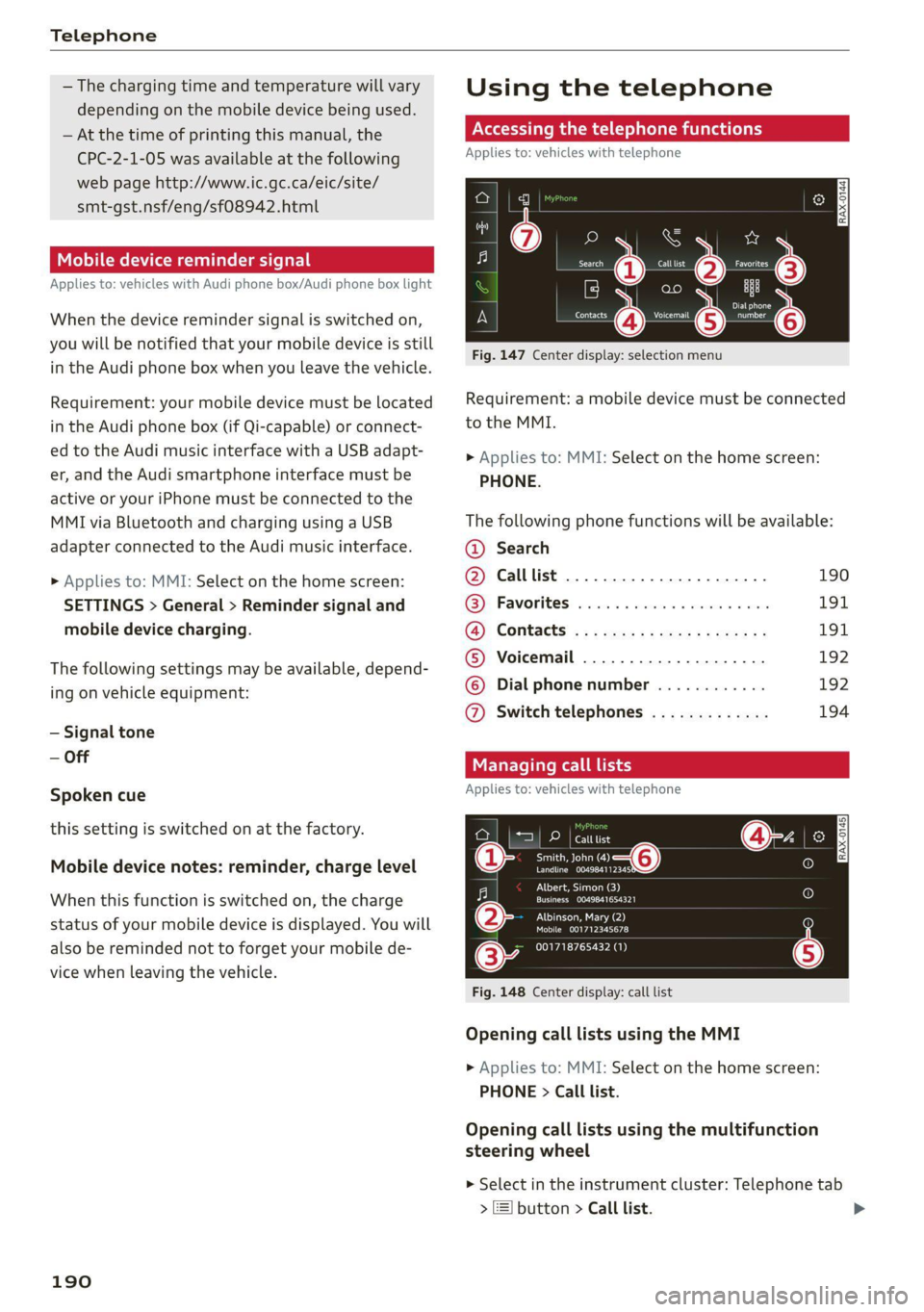
Using the telephone
Accessing the telephone functions
Applies to: vehicles with telephone
cd
ee ers. Calltist = far P;)
bet
Peter
Contacts eee re
Fig. 147 Center display: selection menu
Requirement: a mobile device must be connected
to the MMI.
> Applies to: MMI: Select on the home screen:
PHONE.
The following phone functions will be available:
@ Search
@ Calllist ......0.0.0.0.0.0.0000. 190
@® Favorites .................000. 191
a)? Contacts «5 x sews s x ww sees cs 191
©® Voicemail .................... 192
© Dial phone number ............ 192
@ Switch telephones ............. 194
Managing call lists
Applies to: vehicles with telephone
DP | catttist
Smith, John “—@
eran.
CN Tee ed)
Crem aL eoEy |
PILE laa ea
Mobile 001712345678
001718765432 (1)
Fig. 148 Center display: call list
Opening call lists using the MMI
> Applies to: MMI: Select on the home screen:
PHONE > Call list.
Opening call lists using the multifunction
steering wheel
> Select in the instrument cluster: Telephone tab
> ) button > Call list.
Page 204 of 332
Emergency call
Emergency call
Overview
Applies to: vehicles with emergency call function
An emergency call is a combination of data trans-
mission and a phone call. The data transmission
from your vehicle forwards important informa-
tion, such as the vehicle and position data, to the
emergency call center.
Depending on the country and the vehicle equip-
ment, the following functions may be available:
With the emergency call, you can call for help in
dangerous situations as quickly as possible. Use
this function when emergency help is needed
=> page 202.
— Audi connect emergency call (TPS emergency
call). This eCall system uses emergency call
centers operated by third party providers.
With online roadside assistance, you can request
assistance if there is a breakdown or a minor acci-
dent > page 203.
A WARNING
In areas with poor GPS reception or outside
the coverage range of the respective cell
phone service provider, some functions and/or
services may not be available, it may not be
possible to send or receive data, or functional-
ity may be limited.
iG) Tips
To see which data can be transmitted, visit
your Audi country or sales region website at
www.audi.com.
Emergency call
Applies to: vehicles with emergency call function
The services are provided through a SIM card in-
stalled in the vehicle. Services are provided as-
suming that the cell phone network required for
the installed SIM card is functioning and availa-
ble for use. The services made availably by Audi
are only available within the mobile phone net-
202
work coverage area for the mobile phone service
provider selected by Audi.
@ Tips
— The emergency call function cannot be deac-
tivated in the Infotainment system settings.
— The availability of the TPS emergency call is
limited to certain times.
—The costs for call and data connections for
TPS emergency calls is included in the price
of the services.
Functions
Applies to: vehicles with emergency call function
A TPS emergency call can be made manually or
automatically > page 202.
Making an emergency call
Applies to: vehicles with emergency call function
i l
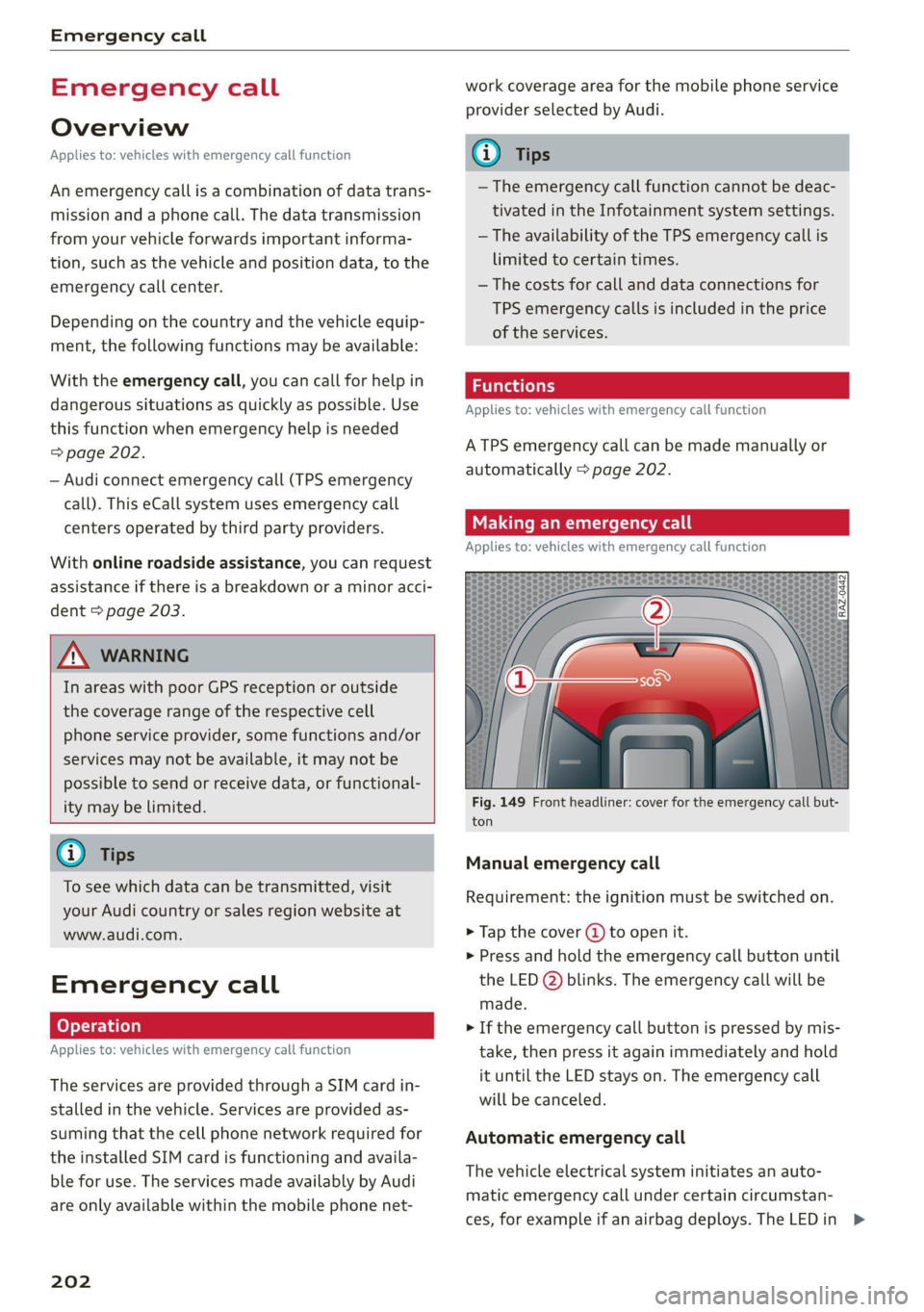
Fig. 149 Front headliner: cover for the emergency call but-
ton
Manual emergency call
Requirement: the ignition must be switched on.
> Tap the cover (J) to open it.
> Press and hold the emergency call button until
the LED @) blinks. The emergency call will be
made.
> If the emergency call button is pressed by mis-
take, then press it again immediately and hold
it until the LED stays on. The emergency call
will be canceled.
Automatic emergency call
The vehicle electrical system initiates an auto-
matic emergency call under certain circumstan-
ces, for example if an airbag deploys. The LEDin >
Page 205 of 332
80B012721BA
Emergency call
the emergency call button (2) will blink. The
emergency call will be made. The emergency call
cannot be canceled.
LED status
— Green - The emergency call function is availa-
ble.
— Red - There is a malfunction in the emergency
call function. Contact an authorized Audi dealer
or authorized Audi Service Facility. Note the
messages about the availability of the emer-
gency function > page 203.
— Off - The emergency call function is not availa-
ble, perhaps because no network is available.
Warnings
If there is a critical system failure in the emer-
gency call systems, the vehicle occupants will re-
ceive the following warning: see > page 203, LED
status and > page 203, Messages.
@) Tips
If the emergency call is canceled due toa
poor connection, then the system automati-
cally tries to connect again.
Messages
Applies to: vehicles with emergency call function
& Emergency call function: malfunction! Lim-
ited availability. Please contact Service
If this indicator light turns on and this message
appears, the emergency call function is restrict-
ed. For example, you cannot call the emergency
call center, but data may still be transmitted un-
der certain circumstances. Drive to an authorized
Audi dealer or authorized Audi Service Facility im-
mediately to have the malfunction corrected.
&S Emergency call function: malfunction! Func-
tion unavailable. Please contact Service
If this indicator light turns on and this message
appears, you cannot make an emergency call.
Drive to an authorized Audi dealer or authorized
)) The availability of the services offered depends on the
country and may change in the future.
Audi Service Facility immediately to have the
malfunction corrected.
Online roadside
assistance
Applies to: vehicles with online roadside assistance
An online roadside assistance call )) is a combina-
tion of data transmission and a phone call. The
data transmission from your vehicle forwards im-
portant information to the Audi service center,
such as the vehicle and position data.
Cee Te Re tee cary
Applies to: vehicles with online roadside assistance
RAZ-0443
Fig. 150 Front headliner: online roadside assistance but-
ton
Calling online roadside assistance
> Press the button (@). The LED in the button
turns red. The online roadside assistance call
will be made.
> If you press the button () by mistake, then
press it again.
Audi incident assistance
A minor accident may be detected by the vehicle
electrical system. You are able to select between
online roadside assistance and an emergency call
in the MMI. >
203
Page 207 of 332
80B012721BA
Navigation
Navigation
Opening navigation
Applies to: vehicles with navigation system
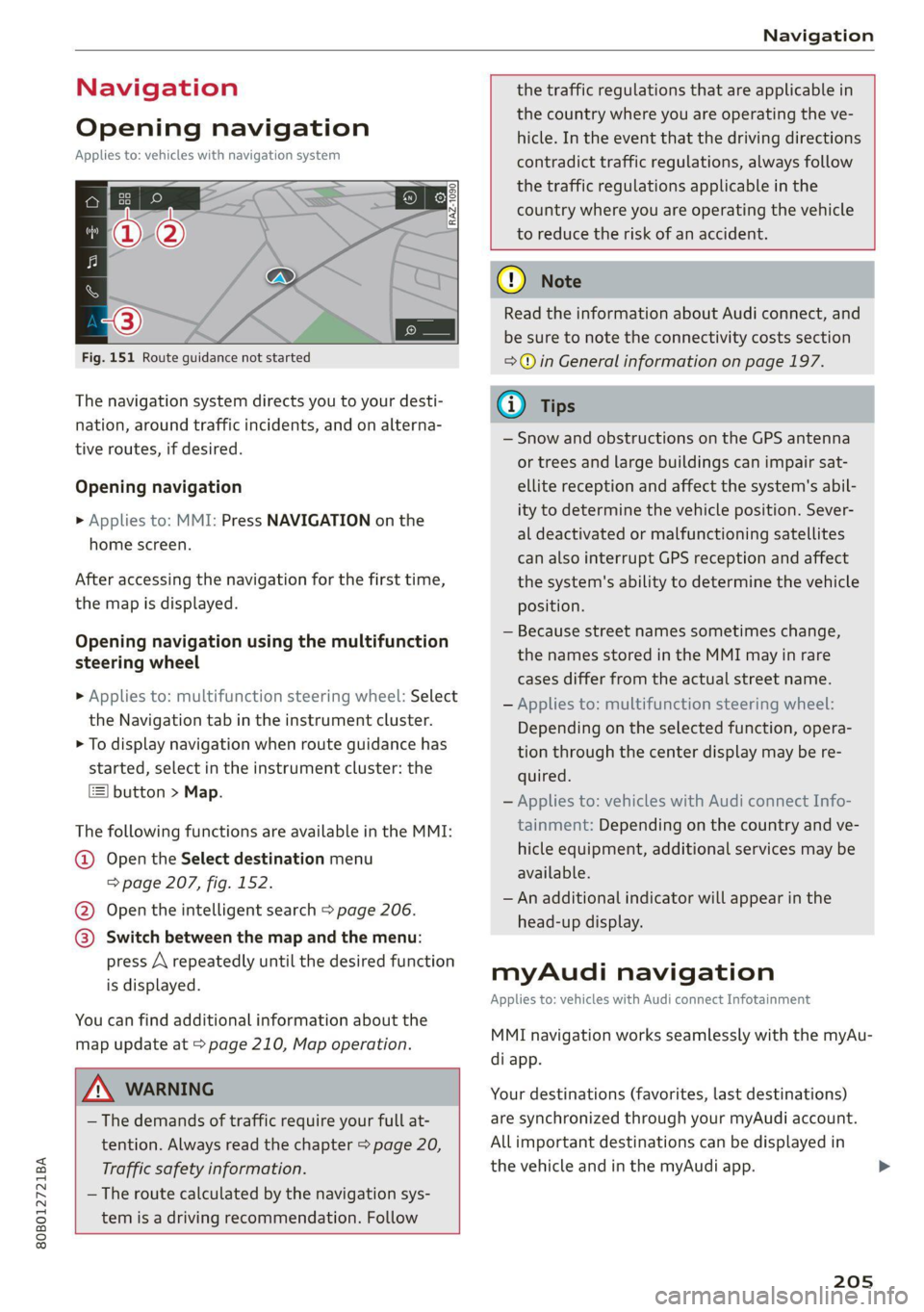
Fig. 151 Route guidance not started
The navigation system directs you to your desti-
nation, around traffic incidents, and on alterna-
tive routes, if desired.
Opening navigation
» Applies to: MMI: Press NAVIGATION on the
home screen.
After accessing the navigation for the first time,
the map is displayed.
Opening navigation using the multifunction
steering wheel
> Applies to: multifunction steering wheel: Select
the Navigation tab in the instrument cluster.
> To display navigation when route guidance has
started, select in the instrument cluster: the
button > Map.
The following functions are available in the MMI:
@ Open the Select destination menu
=> page 207, fig. 152.
@ Open the intelligent search > page 206.
@ Switch between the map and the menu:
press A repeatedly until the desired function
is displayed.
You can find additional information about the
map update at > page 210, Map operation.
the traffic regulations that are applicable in
the country where you are operating the ve-
hicle. In the event that the driving directions
contradict traffic regulations, always follow
the traffic regulations applicable in the
country where you are operating the vehicle
to reduce the risk of an accident.
ZA WARNING
— The demands of traffic require your full at-
tention. Always read the chapter > page 20,
Traffic safety information.
— The route calculated by the navigation sys-
tem is a driving recommendation. Follow
() Note
Read the information about Audi connect, and
be sure to note the connectivity costs section
=@ in General information on page 197.
(i) Tips
— Snow and obstructions on the GPS antenna
or trees and large buildings can impair sat-
ellite reception and affect the system's abil-
ity to determine the vehicle position. Sever-
al deactivated or malfunctioning satellites
can also interrupt GPS reception and affect
the system's ability to determine the vehicle
position.
— Because street names sometimes change,
the names stored in the MMI may in rare
cases differ from the actual street name.
— Applies to: multifunction steering wheel:
Depending on the selected function, opera-
tion through the center display may be re-
quired.
— Applies to: vehicles with Audi connect Info-
tainment: Depending on the country and ve-
hicle equipment, additional services may be
available.
— An additional indicator will appear in the
head-up display.
myAudi navigation
Applies to: vehicles with Audi connect Infotainment
MMI navigation works seamlessly with the myAu-
di app.
Your destinations (favorites, last destinations)
are synchronized through your myAudi account.
All important destinations can be displayed in
the vehicle and in the myAudi app.
205
Page 212 of 332
Navigation
@) Displays the maximum permitted speed):
within city limits, on expressways, and on
highways.
Current vehicle position
Route information > page 216
Name of the street on which you are current-
ly driving
®
O88
Start route guidance for a marked destina-
tion > page 208, Selecting a destination
from the map
Display details for the destination
=> page 208
Intelligent search nearby
Adjust the map orientation. See also
=>page 215
Navigation settings > page 215
©®
OO
©
Adjust the scale. Set scale. Or: press the
magnifying glass to switch automatic zoom
=> page 215 on or off directly on the map. The
® symbol appears when this function is
switched on.
Marked destination. See > page 208, Select-
ing a destination from the map
® ® Map contents (points of interest, favorites).
When there are multiple map contents in the
immediate vicinity, the symbols are shown
stacked on the map. To display a list of indi-
vidual symbols, press #2; > fig. 155. Press on
a POI in the list.
Center the map to the current vehicle posi-
tion
Traffic incidents and display of estimated
losses of time on the route.
— Green: traffic is flowing freely.
— Orange: stop-and-go traffic
— Red: traffic jam or traffic obstructions.
Additional possible symbols on the map
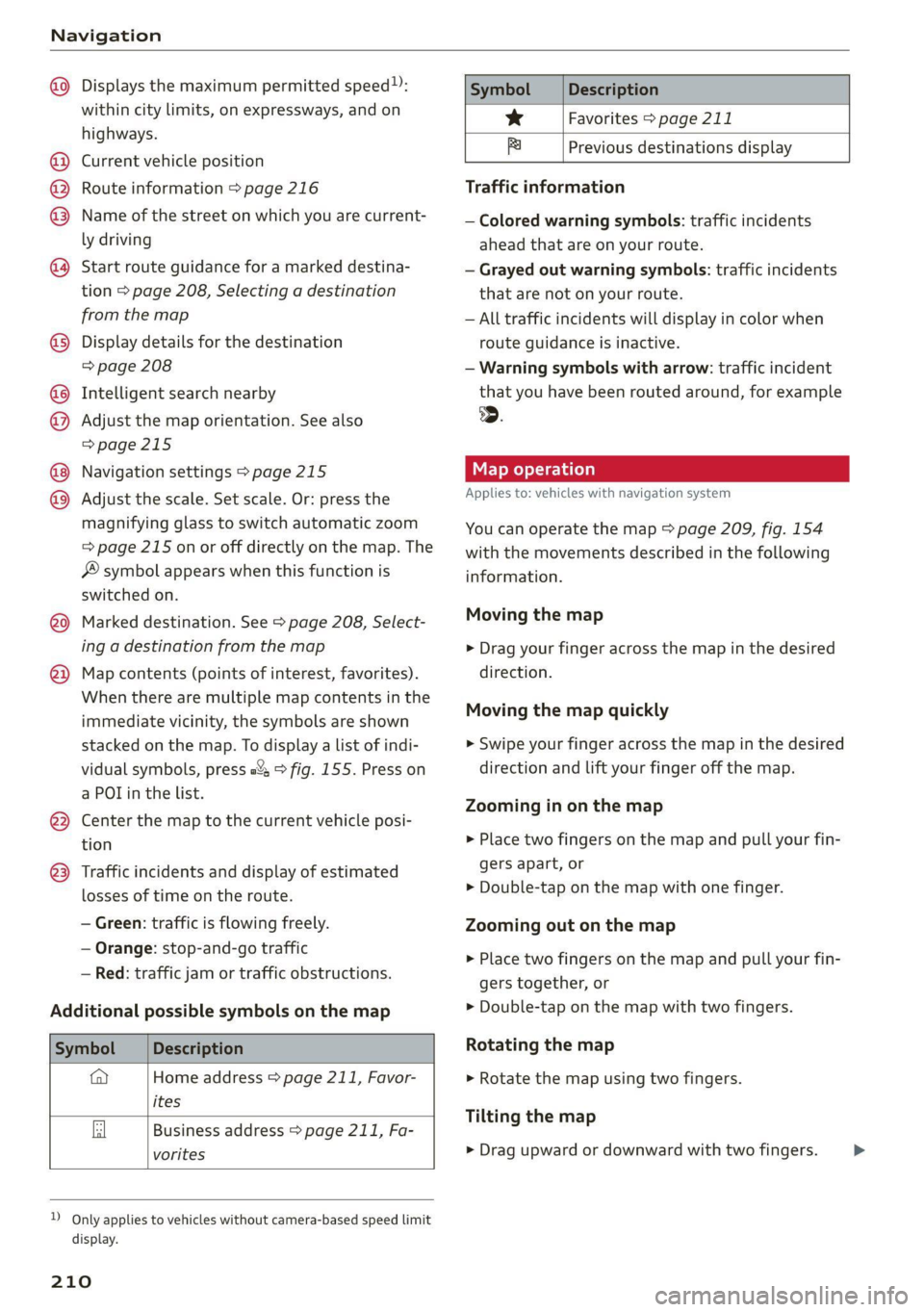
Symbol Description
a Home address © page 211, Favor-
ites
Business address > page 211, Fa-
vorites
2) Only applies to vehicles without camera-based speed limit
display.
210
Symbol Description
* Favorites > page 211
x Previous destinations display
Traffic information
— Colored warning symbols: traffic incidents
ahead that are on your route.
— Grayed out warning symbols: traffic incidents
that are not on your route.
— All traffic incidents will display in color when
route guidance is inactive.
— Warning symbols with arrow: traffic incident
that you have been routed around, for example
@.
Map operation
Applies to: vehicles with navigation system
You can operate the map > page 209, fig. 154
with the movements described in the following
information.
Moving the map
> Drag your finger across the map in the desired
direction.
Moving the map quickly
> Swipe your finger across the map in the desired
direction and lift your finger off the map.
Zooming in on the map
>» Place two fingers on the map and pull your fin-
gers apart, or
> Double-tap on the map with one finger.
Zooming out on the map
> Place two fingers on the map and pull your fin-
gers together, or
> Double-tap on the map with two fingers.
Rotating the map
> Rotate the map using two fingers.
Tilting
the map
> Drag upward or downward with two fingers. >
Page 214 of 332
Navigation
Accessing favorites
> Applies to: MMI: Select on the home screen:
NAVIGATION > (8) > Favorites.
If you use myAudi navigation, your favorites will
be synchronized with your myAudi account
=> page 205.
Storing favorites
> Press YY in the Details menu > page 208,
fig. 153.
Storing a home address or business address
> Press Home address or Business address.
When accessed for the first time, you will be
prompted to set the address.
> Select: Create now > enter a destination > OK.
Editing a favorite
Requirement: the favorites list must be dis-
played.
> Setting a favorite as a destination: press ona
favorite.
> Deleting favorites: in the Details menu, press
¥& © page 208, fig. 153, or select: Z > one or
more entries or Select all > Delete > (Done).
> Moving a favorite: press Z. Touch the sym-
bol and move the entry to the desired position.
Press Done.
@ Tips
— After deleting the home address or business
address, only the address is deleted and the
entry will still be displayed in the favorites.
— Please note when moving favorites that
items 1 and 2 are reserved for the home ad-
dress and business address.
On-street parking
Applies
to: navigation system and on-street parking
In supported areas, you can display parking along
the route.
)) Audi provides access to services from third party provid-
ers. Permanent availability cannot be guaranteed, because
that depends on the third party provider.
212
Requirement: the Parking notification must be
switched on > page 23, Notification center. The
MMI must be connected to the Internet
=> page 197, Audi connect. Route guidance must
be active, you must be close to your destination,
and a notification must be displayed or an item
on the map must be marked.
> Press on the notification. Or: press on | on the
map.
> To navigate to a parking: space, press ona col-
ored marking on the map.
> Select: 2 > Start.
Depending on availability, colored markings on
the map indicate the probability of open parking
spaces.
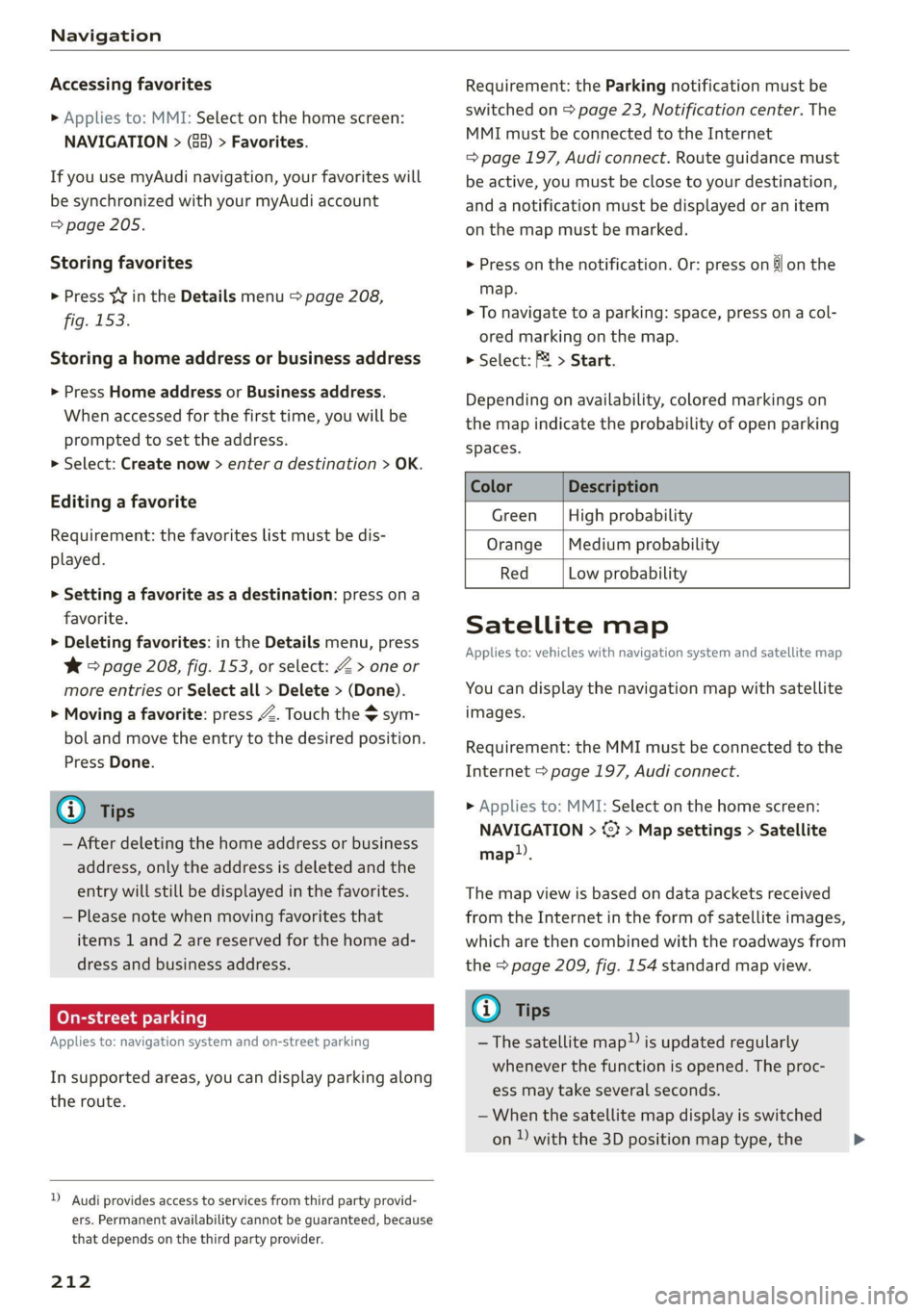
Color Description
Green High probability
Orange |Medium probability
Red Low probability
Satellite map
Applies to: vehicles with navigation system and satellite map
You can display the navigation map with satellite
images.
Requirement: the MMI must be connected to the
Internet > page 197, Audi connect.
> Applies to: MMI: Select on the home screen:
NAVIGATION > ©} > Map settings > Satellite
map).
The map view is based on data packets received
from the Internet in the form of satellite images,
which are then combined with the roadways from
the > page 209, fig. 154 standard map view.
(i) Tips
—The satellite map!) is updated regularly
whenever the function is opened. The proc-
ess may take several seconds.
— When the satellite map display is switched
on ) with the 3D position map type, the >
Page 215 of 332
80B012721BA
Navigation
display automatically switches to the 2D
map type when driving through tunnels.
— Depending on the Internet connection, the
standard map may also be displayed when
the satellite map is switched on )).
Map update
Applies to: vehicles with navigation system
You can update the map data in the MMI witha
map update. The functions depend on the coun-
try and vehicle equipment.
— Map update through online map update
> page 213.
— Map update through the myAudi app.
— Import a map update from the USB connection
to your MMI > page 214.
— Map update at an authorized Audi dealer or au-
thorized Audi Service Facility. This can result in
additional costs.
Online map update
Applies to: vehicles with online map update
Using map update online, you can update the
map material in your navigation system directly
from your vehicle.
The MMI determines regions based on the vehicle
position. Based on this, update data for these re-
gions are available for your MMI.
Start map update
Applies to: MMI
Requirement: the MMI must be connected to the
Internet > page 197, Audi connect.
> To always allow automatic map updates, select
on the home screen: SETTINGS > System main-
tenance > Automatic online map update. The
MMI starts the map update automatically in
the background when new map material is
available.
)) Audi provides access to services from third party provid-
ers. Permanent availability cannot be guaranteed, because
that depends on the third party provider.
You can check the status of the download process
and the installation in the notification center
> page 23.
@) Note
Read the information about Audi connect, and
be sure to note the connectivity costs section
=> in General information on page 197.
@ Tips
Because of the high volume of data, Audi rec-
ommends performing the map update using
the USB connection > page 214.
Map update through the myAudi App
Applies to: vehicles with map update through the myAudi app
With the map update through the myAudi app,
you can update the map material in your naviga-
tion system.
Downloading updates
Requirement: you must have a registered myAudi
account. Your vehicle must be registered in your
myAudi account.
> Install the myAudi app on your mobile device
and log in with your login information. Use the
same myAudi account that you use in the vehi-
cle for your myAudi user.
> Download the map material in the myAudi app.
Installing updates
> Log in as a myAudi user in the vehicle
=> page 31.
> Connect your smartphone to the vehicle’s Wi-Fi
hotspot > page 198. The MMI detects the map
material on your smartphone. The map update
will start automatically.
You can check the status of the installation in the
notification center > page 23.
213
Page 216 of 332
Navigation
Map update using the USB connection
Applies to: vehicle map updates using the USB connection
With the map update, you can update the map
material in your navigation system.
Requirement: you must have created a myAudi
account at my.audi.com. Your vehicle must be
registered in your myAudi account.
Downloading updates
> Download the map update at my.audi.com and
store it on a USB flash drive. For additional in-
formation, visit my.audi.com.
Installing updates
> Connect the USB flash drive to the Audi music
interface > page 226.
> Open the notification in the notification center
on > page 23 and press on the notification.
> Press Next. The status of the installation is
shown in the display.
Traffic information
Introduction
Applies to: vehicles with navigation system and online traffic
information
ites
The current delay along the route is 30 min.
earch Ogata
Abetter route is available. Time saved: 15 min
[RAX-0180]
a
ocd ec
nN
b> Nt)
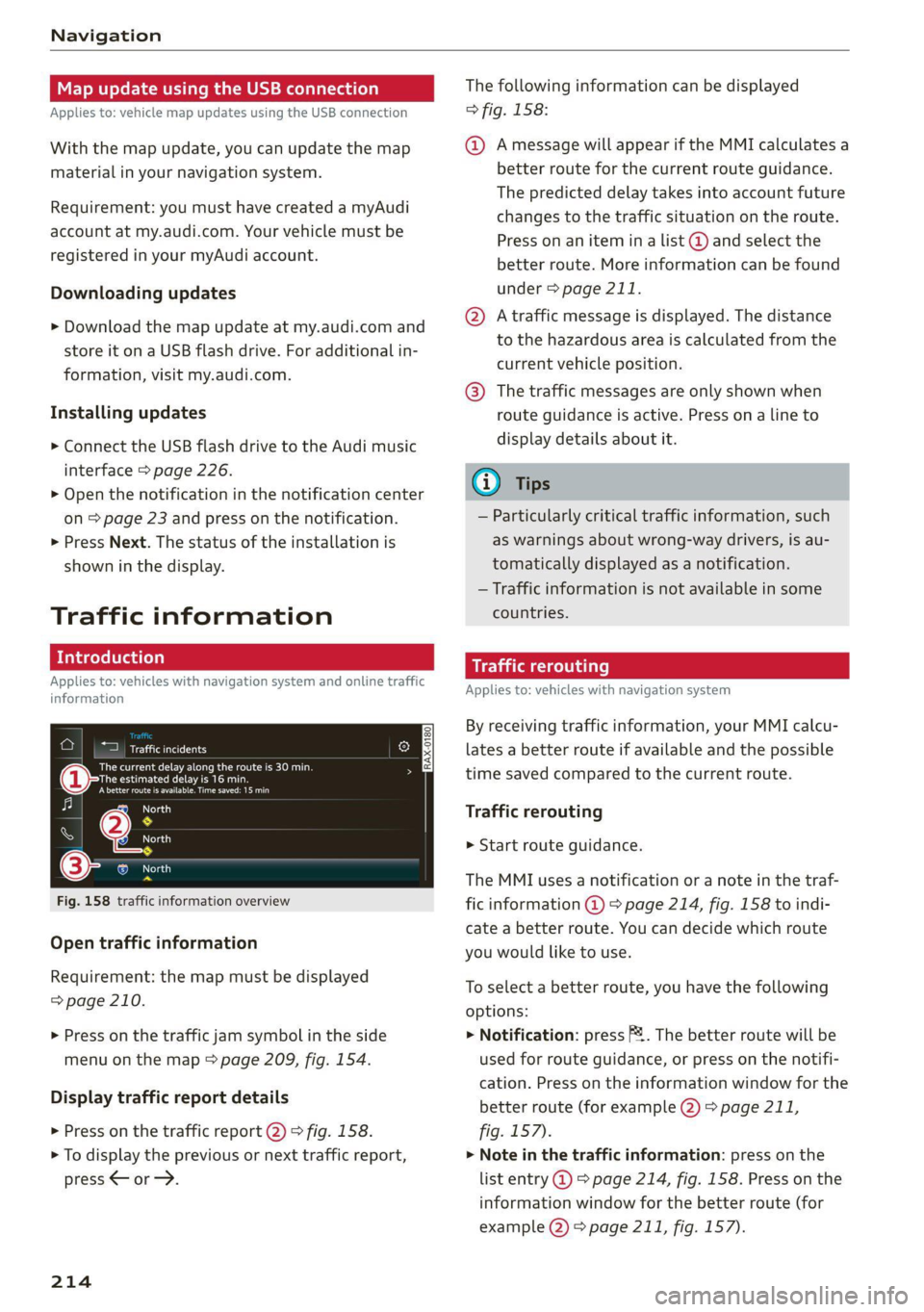
Fig. 158 traffic information overview
North
Open traffic information
Requirement: the map must be displayed
=> page 210.
> Press on the traffic jam symbol in the side
menu on the map > page 209, fig. 154.
Display traffic report details
> Press on the traffic report @) > fig. 158.
> To display the previous or next traffic report,
press < or.
214
The following information can be displayed
> fig. 158:
@ Amessage will appear if the MMI calculates a
better route for the current route guidance.
The predicted delay takes into account future
changes to the traffic situation on the route.
Press on an item ina list @ and select the
better route. More information can be found
under > page 211.
@ Atraffic message is displayed. The distance
to the hazardous area is calculated from the
current vehicle position.
@® The traffic messages are only shown when
route guidance is active. Press ona line to
display details about it.
G) Tips
— Particularly critical traffic information, such
as warnings about wrong-way drivers, is au-
tomatically displayed as a notification.
— Traffic information is not available in some
countries.
Traffic rerouting
Applies to: vehicles with navigation system
By receiving traffic information, your MMI calcu-
lates a better route if available and the possible
time saved compared to the current route.
Traffic rerouting
> Start route guidance.
The MMI uses a notification or a note in the traf-
fic information @ > page 214, fig. 158 to indi-
cate a better route. You can decide which route
you would like to use.
To select a better route, you have the following
options:
> Notification: press F. The better route will be
used for route guidance, or press on the notifi-
cation. Press on the information window for the
better route (for example @) > page 211,
fig. 157).
> Note in the traffic information: press on the
list entry @ > page 214, fig. 158. Press on the
information window for the better route (for
example 2) > page 211, fig. 157).
Page 217 of 332
80B012721BA
Navigation
OTN eee late celeurl ela)
Applies to: vehicles with navigation system and online traffic
information
The MMI can receive real-time online traffic infor-
mation about congestion, accidents, road con-
struction, and other incidents.
Requirement: the MMI must be connected to the
Internet > page 197, Audi connect. Traffic infor-
mation must be switched on in the MMI
>page 215.
Traffic information will be displayed on the
standard map > page 209, fig. 154.
Online traffic information is also displayed on the
standard map > page 212.
G) Tips
— Having the online traffic information func-
tion switched on provides the most accurate
reports of traffic situations and traffic fore-
casting. Your vehicle transmits and process-
es its anonymous, encrypted position infor-
mation at regular intervals to the traffic da-
ta provider. You can switch off data transfer
at any time > page 305.
— The online traffic information network is
not available in all countries, and the cover-
age is not nationwide.
Settings
Applies to: vehicles with navigation system
You can adjust the navigation system settings in
the instrument cluster and in the MMI display
separately. The settings depend on the country
and vehicle equipment.
Accessing settings
> Applies to: MMI: Select on the home screen:
NAVIGATION > ©}.
Accessing settings using the multifunction
steering wheel
> Applies to: multifunction steering wheel: Select
in the instrument cluster: Navigation tab >
button.
Please note that a setting applied to the multi-
function steering wheel is only valid for the in-
strument cluster map.
Map settings
Satellite map: see > page 212.
Traffic: you can display current traffic informa-
tion on the map.
— Free flow of traffic
— Traffic obstructions
— Traffic information
Map colors
— Automatic: the map display adapts to the light-
ing conditions (for example, by changing from
day to night when driving through a tunnel).
— Day or Night
Map orientation
— 2D heading-up map/2D north-up map: the
current vehicle position is displayed. The map is
oriented in the direction of travel or to the
north.
— 3D heading-up map: the current vehicle posi-
tion is shown on a three-dimensional map and
is aligned to the direction of travel.
— Overview: the entire route from the vehicle po-
sition to the destination or the next stopover is
displayed on the map. The map is oriented to
the north.
Automatic zoom
— On: the map scale is adapted automatically de-
pending on the type of road being traveled (ex-
pressway, highway, other roads) so that you al-
ways have an optimal overview of the road
ahead. When route guidance is active, the scale
is adjusted automatically for a better detailed
view when there are upcoming maneuvers.
— Intersection: when route guidance is active, the
scale is adjusted automatically for a better de-
tailed view when there are upcoming maneu-
vers.
— Off
MMI map contents/Map content: you can switch
the display of additional information (such as
POIs) on the map in the center display on or off. >
215