center AUDI Q5 2021 Owner´s Manual
[x] Cancel search | Manufacturer: AUDI, Model Year: 2021, Model line: Q5, Model: AUDI Q5 2021Pages: 332, PDF Size: 118.86 MB
Page 219 of 332
80B012721BA
Radio
Radio
General information
Selecting the radio
ey
ney) os 2 )
\) ea
102.9 1) 2 FM-HDB
(3) OME 4)
aa
e my 106.7 ama
mee
eo £0010 0—=@)
Saray fa
RAX-0190)
ca
Fig. 160 Center display: SiriusXM station list
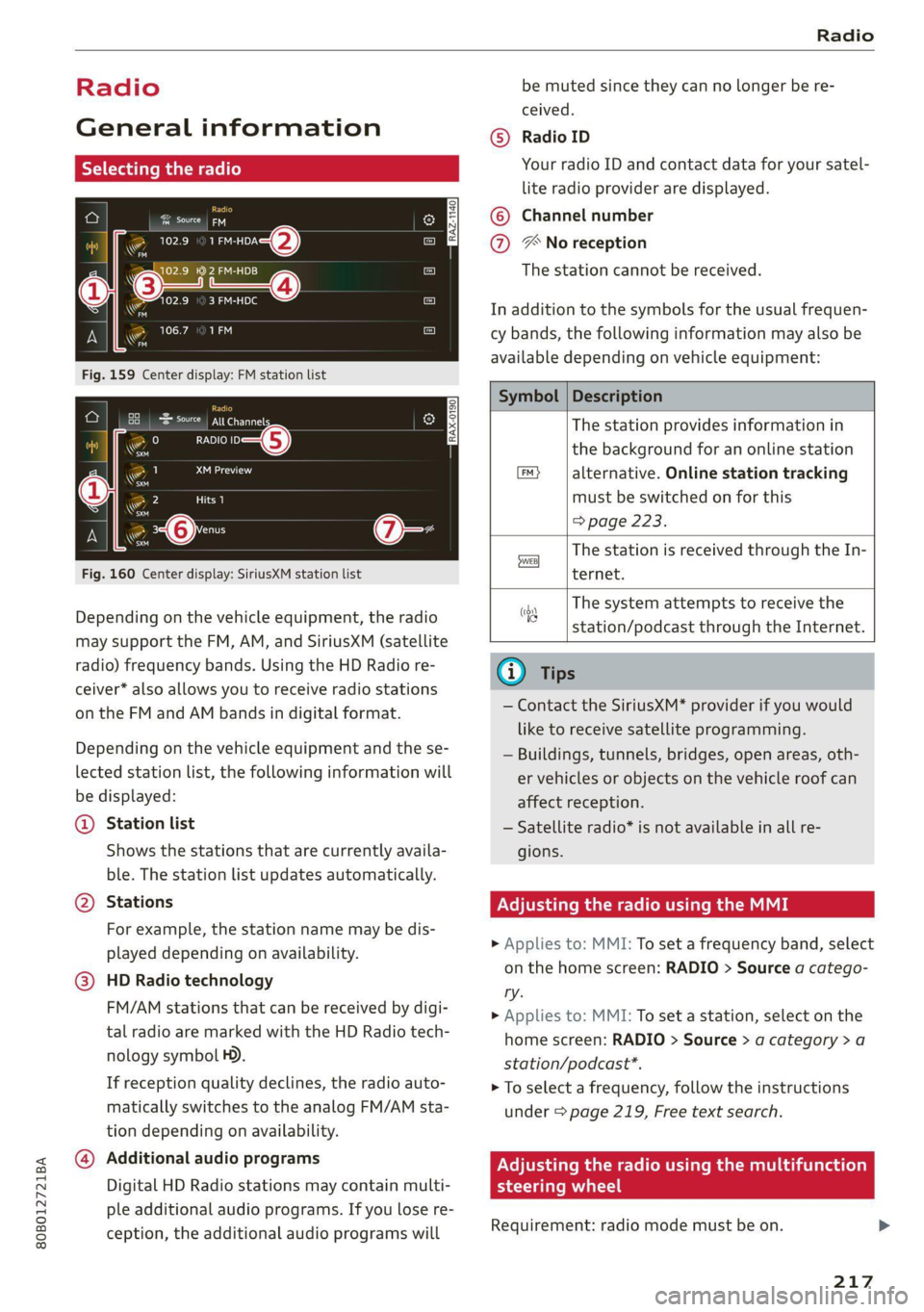
Depending on the vehicle equipment, the radio
may support the FM, AM, and SiriusXM (satellite
radio) frequency bands. Using the HD Radio re-
ceiver* also allows you to receive radio stations
on the FM and AM bands in digital format.
Depending on the vehicle equipment and the se-
lected station list, the following information will
be displayed:
@ Station list
Shows the stations that are currently availa-
ble. The station list updates automatically.
@ Stations
For example, the station name may be dis-
played depending on availability.
@ HD Radio technology
FM/AM stations that can be received by digi-
tal radio are marked with the HD Radio tech-
nology symbol H).
If reception quality declines, the radio auto-
matically switches to the analog FM/AM sta-
tion depending on availability.
@ Additional audio programs
Digital HD Radio stations may contain multi-
ple additional audio programs. If you lose re-
ception, the additional audio programs will
be muted since they can no longer be re-
ceived.
© Radio ID
Your radio ID and contact data for your satel-
lite radio provider are displayed.
Channel number
% No reception e®
The station cannot be received.
In addition to the symbols for the usual frequen-
cy bands, the following information may also be
available depending on vehicle equipment:
Symbol | Description
The station provides information in
the background for an online station
alternative. Online station tracking
must be switched on for this
=> page 223.
The station is received through the In-
ternet.
The system attempts to receive the
station/podcast through the Internet.
G@) Tips
— Contact the SiriusXM* provider if you would
like to receive satellite programming.
— Buildings, tunnels, bridges, open areas, oth-
er vehicles or objects on the vehicle roof can
affect reception.
— Satellite radio* is not available in all re-
gions.
Adjusting the radio using the MMI
> Applies to: MMI: To set a frequency band, select
on the home screen: RADIO > Source a catego-
ry.
> Applies to: MMI: To set a station, select on the
home screen: RADIO > Source > a category >a
station/podcast*.
> To select a frequency, follow the instructions
under > page 219, Free text search.
Adjusting the radio using the multifunction
Tare maa 118
Requirement: radio mode must be on.
217
>
Page 220 of 332
Radio
> Select the radio/media tab in the instrument > To select a station or a source, turn and press
cluster. the left thumbwheel.
> To switch between radio and media, select the
button > Switch to radio/Switch to media. @) Tips
> Turn the left thumbwheel to display the station
Applies to: multifunction steering wheel: De-
list. 5 .
, : = pending on the selected function, operation
> fe switch to a different source, press the [=] through the MMI may be required.
utton.
Radio functions
[RAX-0191
Cora ei)
tee
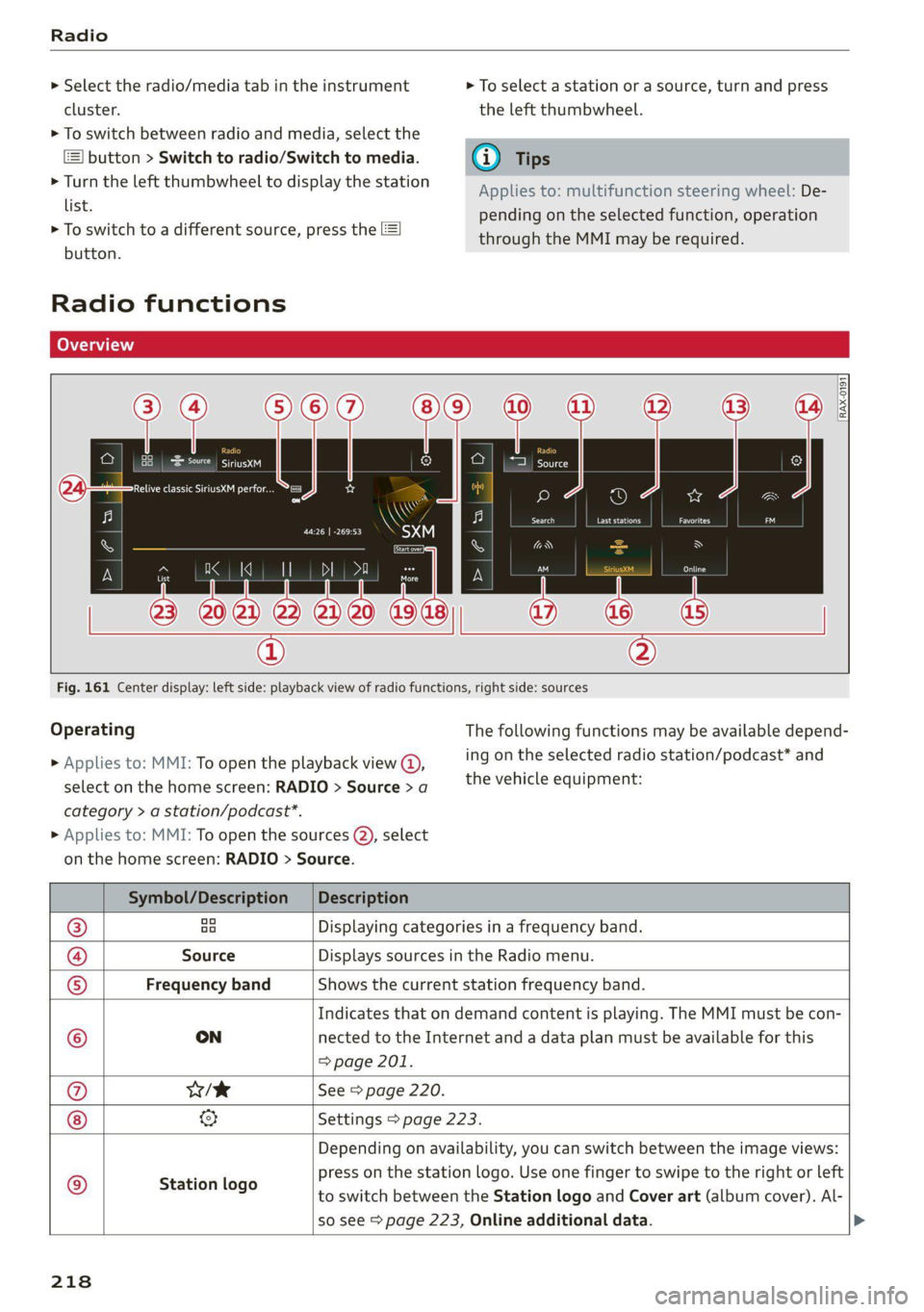
Fig. 161 Center display: left side: playback view of radio functions, right side: sources
Operating The following functions may be available depend-
ing on the selected radio station/podcast* and > Applies to: MMI: To open the playback view @,
the vehicle equipment: select on the home screen: RADIO > Source > a
category > a station/podcast*.
> Applies to: MMI: To open the sources (2), select
on the home screen: RADIO > Source.
Symbol/Description | Description
® ao Displaying categories in a frequency band.
@ Source Displays sources in the Radio menu.
© Frequency band Shows the current station frequency band.
Indicates that on demand content is playing. The MMI must be con-
© ON nected to the Internet and a data plan must be available for this
=> page 201.
@ w/e See > page 220.
& Settings > page 223.
Depending on availability, you can switch between the image views:
press on the station logo. Use one finger to swipe to the right or left
to switch between the Station logo and Cover art (album cover). Al-
so see > page 223, Online additional data.
© Station logo
218
Page 228 of 332
Media
— Note the volume setting on your Bluetooth
device. Audi recommends setting your mo-
bile device to the maximum volume when
using it as a Bluetooth audio player.
—Aselection of supported Bluetooth devices
can be found in the database for tested mo-
bile devices at www.audi.com/bluetooth.
Amazon Alexa
Applies to: vehicles with Amazon Alexa Integration
You can play various Amazon Alexa content using
the MMI. The voice recognition system is used to
operate it.
Requirement: Amazon Alexa must be activated
=> page 28.
> Start Amazon Alexa using the voice recognition
system.
» Applies to: MMI: Select on the home screen:
MEDIA > Source > Amazon Alexa.
@) Note
Read the information about Audi connect, and
be sure to note the connectivity costs section
=> page 197.
Multimedia connections
USB adapter cable
[RAH-9202
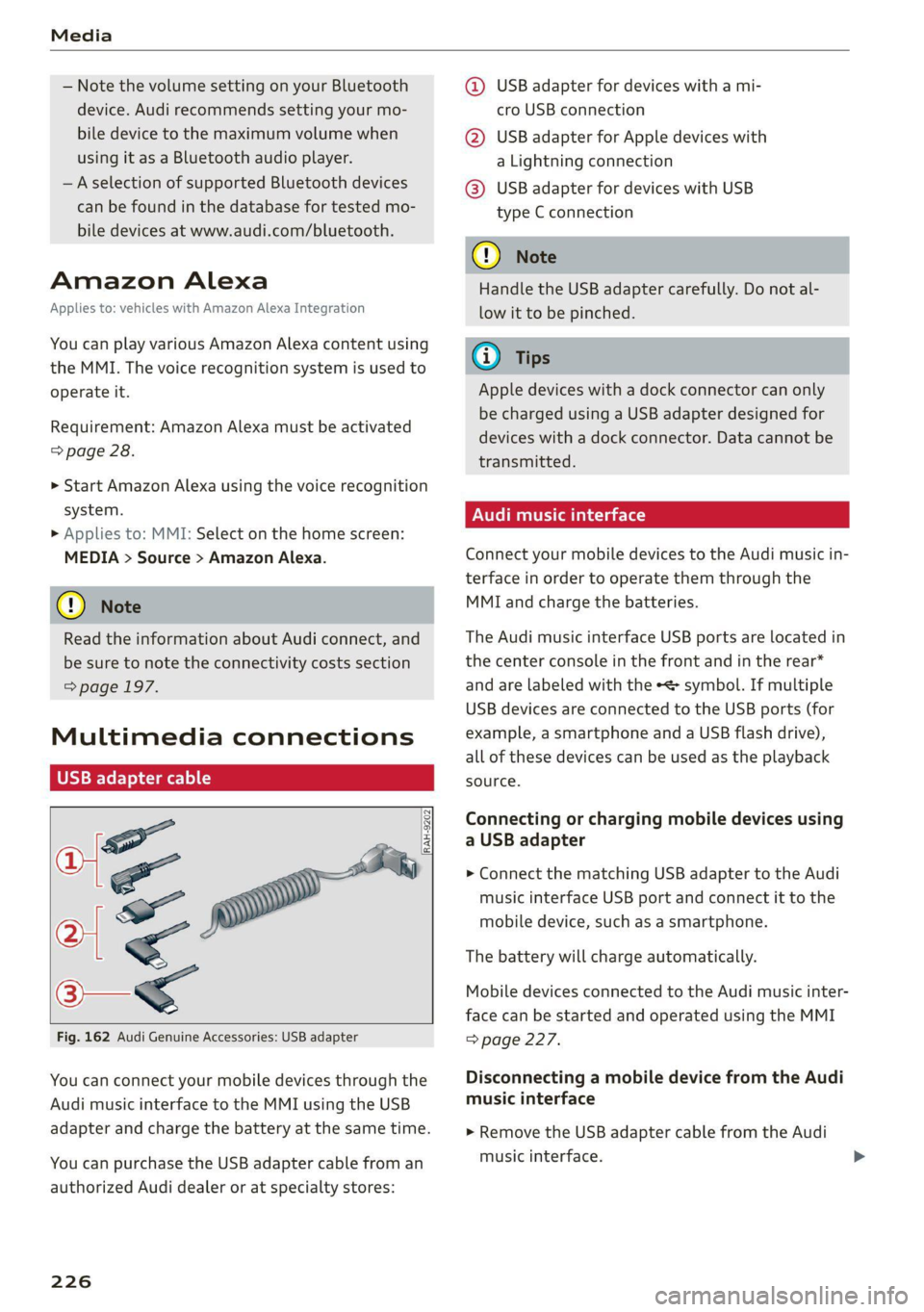
Fig. 162 Audi Genuine Accessories: USB adapter
You can connect your mobile devices through the
Audi music interface to the MMI using the USB
adapter and charge the battery at the same time.
You can purchase the USB adapter cable from an
authorized Audi dealer or at specialty stores:
226
@ USB adapter for devices with a mi-
cro USB connection
@ USB adapter for Apple devices with
a Lightning connection
@ USB adapter for devices with USB
type C connection
() Note
Handle the USB adapter carefully. Do not al-
low it to be pinched.
@ Tips
Apple devices with a dock connector can only
be charged using a USB adapter designed for
devices with a dock connector. Data cannot be
transmitted.
Audi music interface
Connect your mobile devices to the Audi music in-
terface in order to operate them through the
MMI and charge the batteries.
The Audi music interface USB ports are located in
the center console in the front and in the rear*
and are labeled with the «> symbol. If multiple
USB devices are connected to the USB ports (for
example, a smartphone and a USB flash drive),
all of these devices can be used as the playback
source.
Connecting or charging mobile devices using
a USB adapter
> Connect the matching USB adapter to the Audi
music interface USB port and connect it to the
mobile device, such as a smartphone.
The battery will charge automatically.
Mobile devices connected to the Audi music inter-
face can be started and operated using the MMI
=> page 227.
Disconnecting a mobile device from the Audi
music interface
> Remove the USB adapter cable from the Audi
music interface.
Page 229 of 332
80B012721BA
Media
ZA WARNING
Driving requires your complete and undivided
attention. As the driver, you have complete re-
sponsibility for safety in traffic. Never operate
mobile devices while driving, because this in-
creases the risk of an accident.
@) Note
— Pull the cable out of the Audi music inter-
face carefully so that the USB ports are not
damaged.
— Use a USB extension cable to connect devi-
ces that have an integrated USB connector
(such as a USB stick) to reduce the risk of
damage to your USB device and the Audi
music interface.
— Extremely high or low temperatures that
can occur inside vehicles can damage mobile
devices and/or impair their performance.
Never leave mobile devices in the vehicle in
extremely high or low temperatures.
G) Tips
— Always follow the information found in
=> page 82.
—When you switch the ignition off, the USB
ports are still supplied with power until the
energy management intervenes.
— Do not use an additional adapter cable or
USB extension cable to connect mobile devi-
ces to the Audi music interface that already
have a cable or that must be connected with
a USB adapter cable (> page 226, fig. 162).
Using an additional adapter or US extension
cable may impair functionality.
— Functionality is not guaranteed for mobile
devices that do not conform to the USB 2.0
specification.
— USB hubs are not supported.
— Video playback through the Audi music in-
terface is not supported on Apple devices
and MTP devices (such as smartphones).
— iPod touch or iPhone malfunctions also af-
fect the operation of the MMI. Reset your
mobile device in these situations.
— Audi recommends updating the iPod touch
or iPhone software to the latest version. Re-
fer to your mobile device owner's manual
for more information.
— The USB adapter on the Audi music inter-
face will support iPod touch or iPhone devi-
ces from the 5th generation or newer with
the lightning connector.
—Aselection of supported devices can be
found in the database for tested mobile de-
vices at www.audi.com/mp3.
Playing media
The following sources can be selected depending
on the vehicle equipment:
— Amazon Alexa > page 226.
— USB device = page 226.
— External device: you can connect external devi-
ces via Bluetooth and use the Bluetooth audio
player > page 225, or you can connect an exter-
nal device directly to the Audi music interface
=> page 226.
Accessing media
Playing media files using the MMI
> Applies to: MMI: Select on the home screen:
MEDIA > Source > a source. Depending on the
connected device, the symbol for a source may
change. The device name may be displayed (for
example: myPhone).
> Select a track from the categories in the media
center > page 228.
Playing media files using the multifunction
steering wheel
Requirement: a media source must contain me-
dia files > page 227.
> Select the radio/media tab in the instrument
cluster.
> Turn the left thumbwheel to display the play-
list.
> To switch to a different source, press the [=]
button.
> To select a media file or a source, turn and
press the left thumbwheel.
227
Page 230 of 332
![AUDI Q5 2021 Owner´s Manual Media
> To switch between radio and media, select in
the instrument cluster: the =] button > Switch
to radio/Switch to media.
G) Tips
— For safety reasons, the video image is only
displayed](/img/6/40263/w960_40263-229.png "AUDI Q5 2021 Owner´s Manual Media
> To switch between radio and media, select in
the instrument cluster: the =] button > Switch
to radio/Switch to media.
G) Tips
— For safety reasons, the video image is only
displayed")
Media
> To switch between radio and media, select in
the instrument cluster: the =] button > Switch
to radio/Switch to media.
G) Tips
— For safety reasons, the video image is only
displayed when the vehicle is stationary. On-
ly the sound from the video plays while driv-
ing.
— Applies to: multifunction steering wheel:
Depending on the selected function, opera-
tion through the center display may be re-
quired.
canoe ISTE etal g
RAX-0158
Fig. 163 Center display: media center
There are various categories available in the me-
dia center. You can also search for media files
across sources. The current music track continues
playing while you search the MMI.
Opening the media center
> Applies to: MMI: Select on the home screen:
MEDIA > Source > a source > a category.
@ Source symbol
The symbol for the source that is currently in use
is displayed. Depending on the connected device,
the symbol for the source may change. As an ex-
ample, a USB stick is shown connected to the
Audi music interface.
@ Source device name
The device name of the source that is currently in
use is displayed.
228
@ Categories
The media center will display categories depend-
ing on the connected device, the selected source
content, and the connection type.
Last played track
The last played media file will be played.
Artists
All available artists are displayed.
> Select: an artist > an album > a song.
Playlists
All playlists and smart playlists in the source are
displayed.
> Select: a playlist > a song.
Smart playlists
Last played tracks: the tracks that were dis-
played last are displayed.
Most played tracks: the tracks that are played
most frequently are displayed.
Directories
The folder structure or track/chapter list is dis-
played.
> Select: a folder > a song.
Compilations
You can control your compilations through the
MMI.
> Select: a compilation > a song.
Composers
All available composers are displayed.
> Select: a composer > an album > a song.
iTunes Radio
> Press ona radio station.
Audio books
You can control your audio books on the MMI.
> Press on an audio book.
Page 231 of 332
80B012721BA
Media
Podcasts
You can control your podcasts through the MMI.
> Select: a podcast > a podcast episode.
Genres
All available genres are displayed.
>» Select: a genre > an artist > an album > a song.
Videos
All available video files are displayed.
> Press on a video.
Tracks
All available tracks are displayed.
> Press on a track.
Albums
All available albums are displayed.
> Select: an album > a track.
@ Note
Applies to: vehicles with Audi connect Infotainment
— Cloud services and the iTunes radio category
always require an Internet connection.
tele mitardatela ry
— Read the information about Audi connect,
and be sure to note the connectivity costs
section >@ in General information on
page 197.
G@) Tips
— Only the categories supported by the medi-
um are available.
— For safety reasons, the video image is only
displayed when the vehicle is stationary. On-
ly the sound from the video plays while driv-
ing.
—When synchronizing a portable device with
Cloud services, playlists may display incor-
rectly in the MMI. Use the media center in
the device.
— Applies to: iPod touch/iPhone: Note the in-
formation about the Audi music interface
and the supported devices > page 226.
[RAX-0037,
Baa aeCit)
Ca
The Rock Band
The big B
eee)
ns
eae)
nc
@
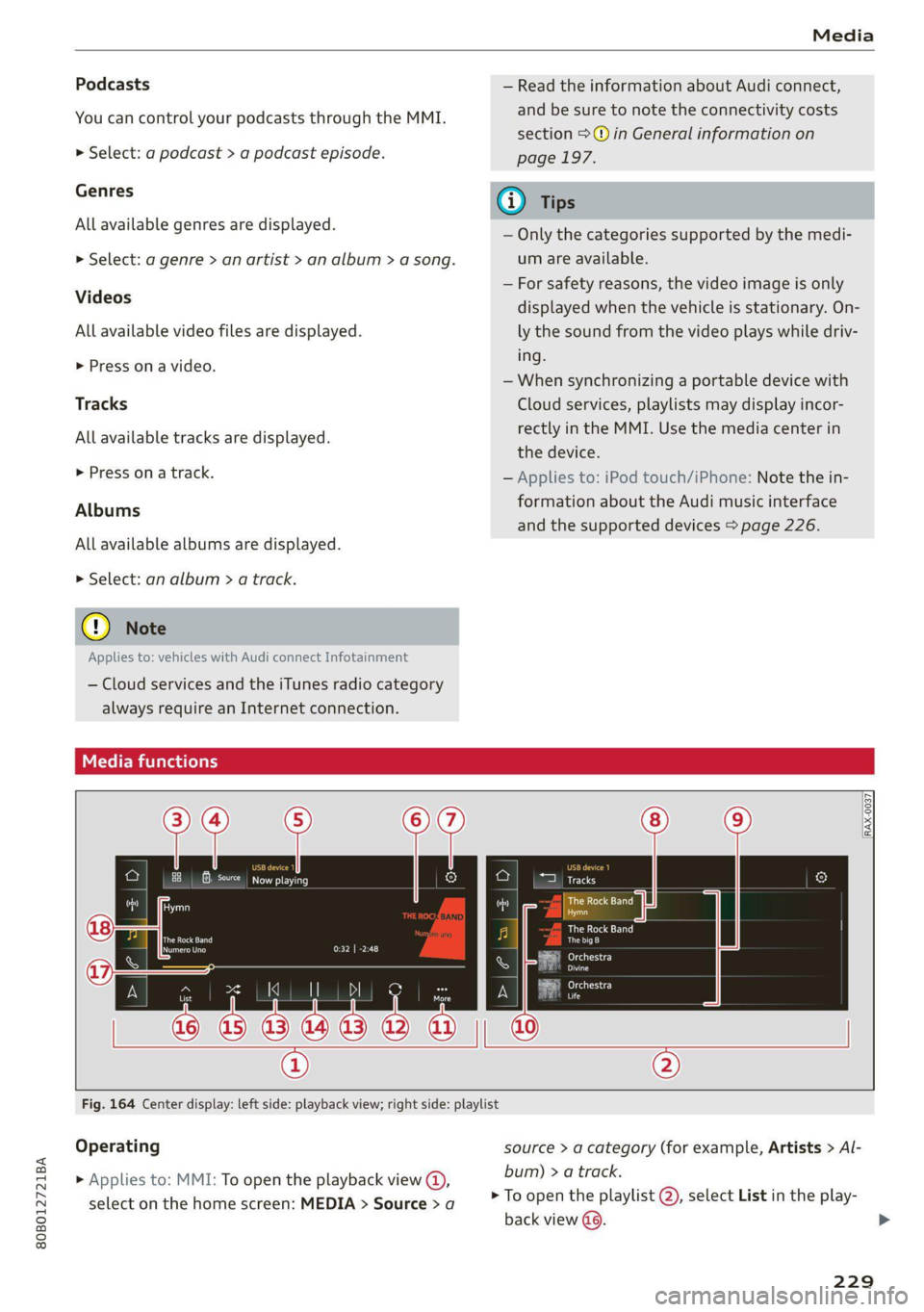
Fig. 164 Center display: left side: playback view; right side: playlist
Operating
> Applies to: MMI: To open the playback view (),
select on the home screen: MEDIA > Source > a
source > a category (for example, Artists > Al-
bum) > a track.
> To open the playlist @, select List in the play-
back view @..
229
Page 232 of 332
Media
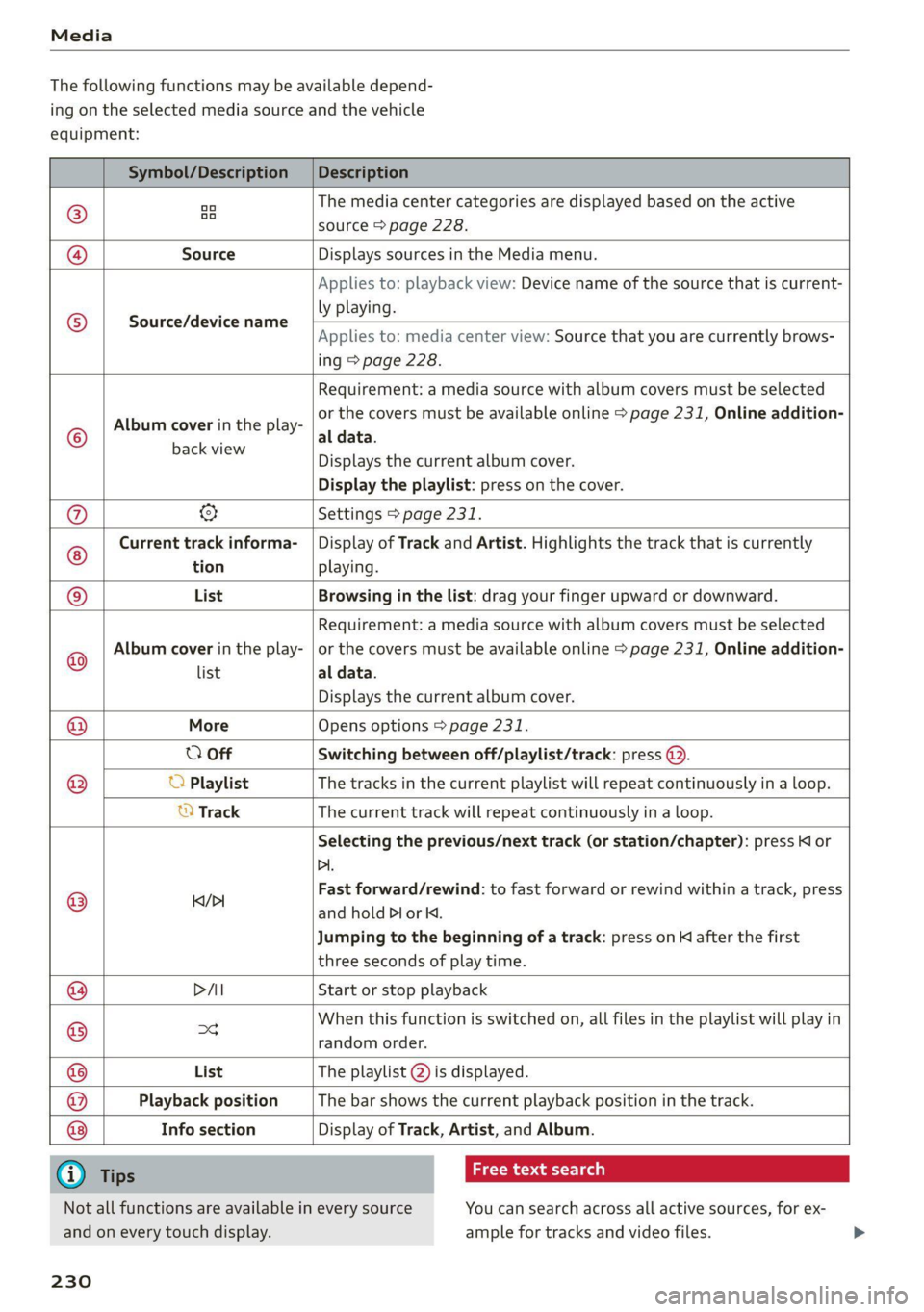
The following functions may be available depend-
ing on the selected media source and the vehicle
equipment:
Symbol/Description Description
©)
oo oo The media center categories are displayed based on the active
source > page 228.
@ Source Displays sources in the Media menu.
Source/device name
Applies to: playback view: Device name of the source that is current-
ly playing.
Applies to: media center view: Source that you are currently brows-
ing > page 228.
©
Album cover in the play-
Requirement: a media source with album covers must be selected
or the covers must be available online > page 231, Online addition-
al data.
Sanaa Displays the current album cover.
Display the playlist: press on the cover.
@ & Settings > page 231.
Current track informa- | Display of Track and Artist. Highlights the track that is currently
tion playing.
List Browsing in the list: drag your finger upward or downward.
Album cover in the play-
Requirement: a media source with album covers must be selected
or the covers must be available online > page 231, Online addition-
Playback position The bar shows the current playback position in the track.
©
© list al data.
Displays the current album cover.
@ More Opens options > page 231.
O Off Switching between off/playlist/track: press @.
® O Playlist The tracks in the current playlist will repeat continuously in a loop.
© Track The current track will repeat continuously in a loop.
Selecting the previous/next track (or station/chapter): press Kl or
Dl.
@ lea/D Fast forward/rewind: to fast forward or rewind within a track, press
and hold PI or K.
Jumping to the beginning of a track: press on K after the first
three seconds of play time.
@ DAI Start or stop playback
@ =d When this function is switched on, all files in the playlist will play in
random order.
@ List The playlist @) is displayed.
@
@ Info section
Display of Track, Artist, and Album.
G) Tips
Not all functions are available in every source
and on every touch display.
230
aay aay laa)
You can search across all active sources, for ex-
ample for tracks and video files.
Page 239 of 332
80B012721BA
Additional settings
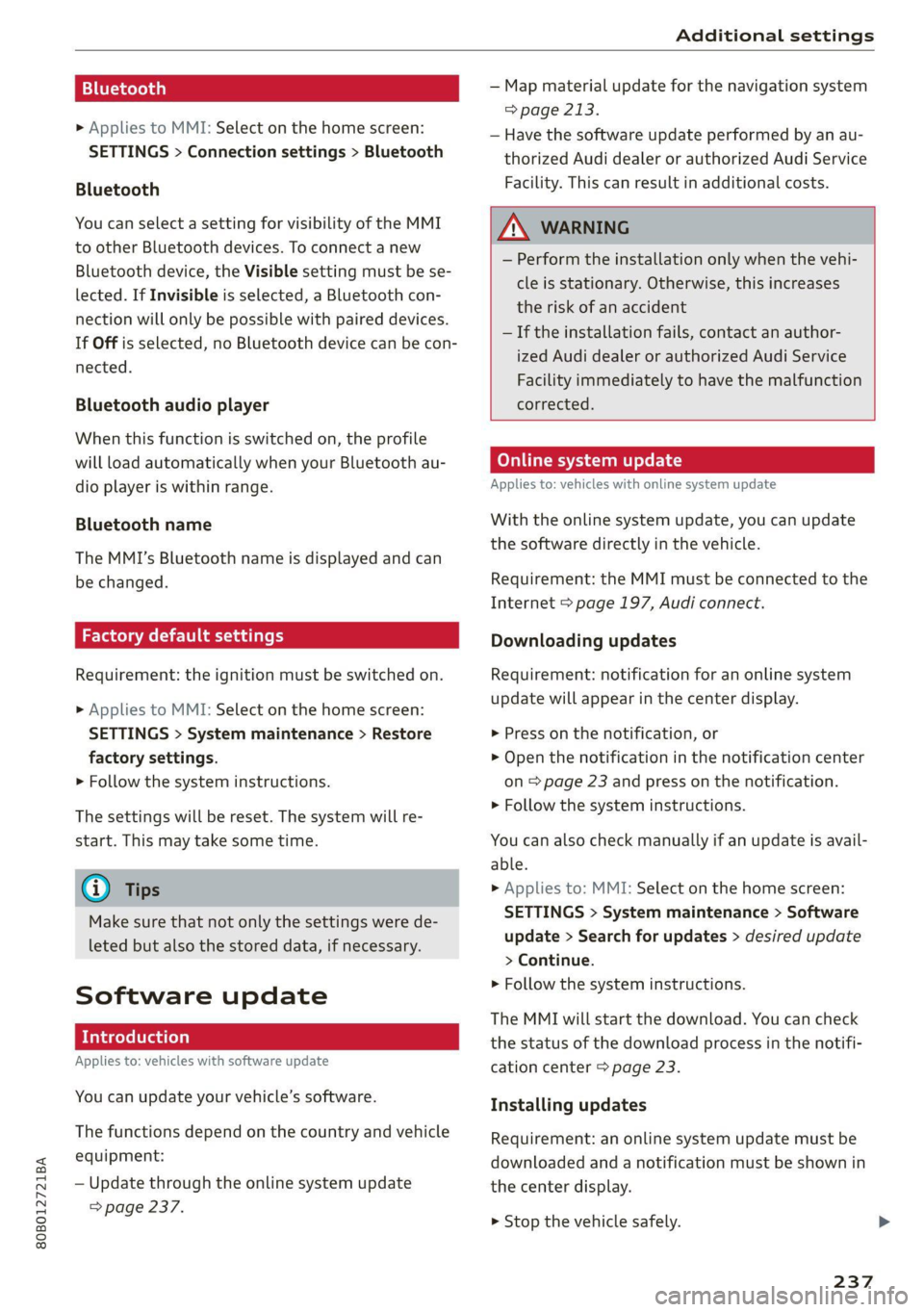
Bluetooth
> Applies to MMI: Select on the home screen:
SETTINGS > Connection settings > Bluetooth
Bluetooth
You can select a setting for visibility of the MMI
to other Bluetooth devices. To connect a new
Bluetooth device, the Visible setting must be se-
lected. If Invisible is selected, a Bluetooth con-
nection will only be possible with paired devices.
If Off is selected, no Bluetooth device can be con-
nected.
Bluetooth audio player
When this function is switched on, the profile
will load automatically when your Bluetooth au-
dio player is within range.
Bluetooth name
The MMI’s Bluetooth name is displayed and can
be changed.
Factory default settings
Requirement: the ignition must be switched on.
> Applies to MMI: Select on the home screen:
SETTINGS > System maintenance > Restore
factory settings.
> Follow the system instructions.
The settings will be reset. The system will re-
start. This may take some time.
@ Tips
Make sure that not only the settings were de-
leted but also the stored data, if necessary.
Software update
Introduction
Applies to: vehicles with software update
You can update your vehicle’s software.
The functions depend on the country and vehicle
equipment:
— Update through the online system update
=> page 237.
— Map material update for the navigation system
> page 213.
— Have the software update performed by an au-
thorized Audi dealer or authorized Audi Service
Facility. This can result in additional costs.
ZA\ WARNING
— Perform the installation only when the vehi-
cle is stationary. Otherwise, this increases
the risk of an accident
— If the installation fails, contact an author-
ized Audi dealer or authorized Audi Service
Facility immediately to have the malfunction
corrected.
Online system update
Applies to: vehicles with online system update
With the online system update, you can update
the software directly in the vehicle.
Requirement: the MMI must be connected to the
Internet > page 197, Audi connect.
Downloading updates
Requirement: notification for an online system
update will appear in the center display.
> Press on the notification, or
> Open the notification in the notification center
on & page 23 and press on the notification.
> Follow the system instructions.
You can also check manually if an update is avail-
able.
> Applies to: MMI: Select on the home screen:
SETTINGS > System maintenance > Software
update > Search for updates > desired update
> Continue.
> Follow the system instructions.
The
MMI will start the download. You can check
the status of the download process in the notifi-
cation center > page 23.
Installing updates
Requirement: an online system update must be
downloaded and a notification must be shown in
the center display.
> Stop the vehicle safely.
237
Page 240 of 332
Additional settings
> Press on the notification, or
> Open the notification in the notification center
on > page 23 and press on the notification.
> Follow the system instructions.
Depending on the scope of the update, the online
system update may only be started if you follow
these instructions:
> Switch the emergency flashers off, if necessary
> Make sure that the starter battery is charged.
> To start the update, exit and lock the vehicle.
The MMI will start the installation. When the up-
date has ended, a notification will be displayed.
Z\ WARNING
Depending on the scope of the installation,
the ignition must not be switched on during
the installation to ensure the installation
completes successfully.
©) Note
Read the information about Audi connect, and
be sure to note the connectivity costs section
=@ in General information on page 197.
@ Tips
The software update may take some time.
WEE Tel
Applies to: vehicles with online system update
Online system update: incomplete. Warning!
Vehicle functions limited
If an error occurs when installing an online sys-
tem update, certain functions such as the emer-
gency call function may not be available. Drive to
an authorized Audi dealer or authorized Audi
Service Facility immediately to have the error cor-
rected.
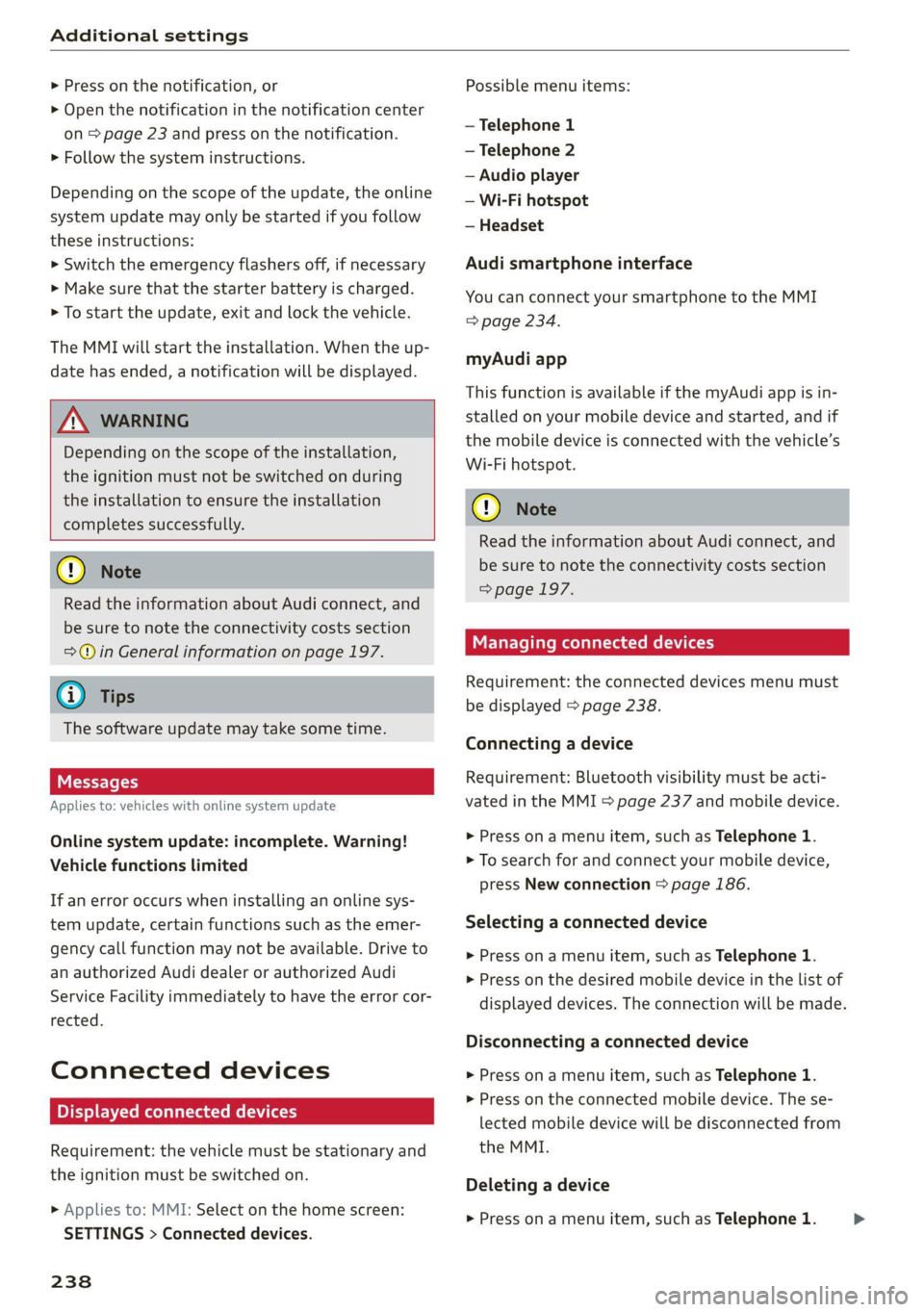
Connected devices
Displayed connected devices
Requirement: the vehicle must be stationary and
the ignition must be switched on.
> Applies to: MMI: Select on the home screen:
SETTINGS > Connected devices.
238
Possible menu items:
— Telephone 1
— Telephone 2
— Audio player
— Wi-Fi hotspot
— Headset
Audi smartphone interface
You can connect your smartphone to the MMI
=> page 234.
myAudi app
This function is available if the myAudi app is in-
stalled on your mobile device and started, and if
the mobile device is connected with the vehicle’s
Wi-Fi hotspot.
() Note
Read the information about Audi connect, and
be sure to note the connectivity costs section
=> page 197.
Managing connected devices
Requirement: the connected devices menu must
be displayed > page 238.
Connecting a device
Requirement: Bluetooth visibility must be acti-
vated in the MMI & page 237 and mobile device.
> Press on a menu item, such as Telephone 1.
> To search for and connect your mobile device,
press New connection > page 186.
Selecting a connected device
> Press on a menu item, such as Telephone 1.
> Press on the desired mobile device in the list of
displayed devices. The connection will be made.
Disconnecting a connected device
> Press on a menu item, such as Telephone 1.
> Press on the connected mobile device. The se-
lected mobile device will be disconnected from
the MMI.
Deleting a device
> Press on a menu item, such as Telephone 1. >
Page 268 of 332
Wheels
Production options weight
means the combined weight of
those installed regular production
options weighing over 5 lbs.
(2.3 kg) in excess of those stand-
ard items which they replace, not
previously considered in curb
weight or accessory weight, in-
cluding heavy duty brakes, ride
levelers, roof rack, heavy duty
battery, and special trim.
Radial ply tire
means a pneumatic tire in which
the ply cords that extend to the
beads are laid at substantially
90 degrees to the centerline of
the tread.
Recommended inflation
pressure
see > page 264, Cold tire infla-
tion pressure.
Reinforced tire
means a tire designed to operate
at higher loads and at higher in-
flation pressures than the corre-
sponding standard tire. Rein-
forced tires may be identified as
“XL”, “xl”, “EXTRA LOAD”, or “RF”
on the sidewall.
266
Rim
means a metal support for a tire
or a tire and tube assembly upon
which the tire beads are seated.
Rim diameter
means nominal diameter of the
bead seat. If you change your
wheel size, you will have to pur-
chase new tires to match the new
rim diameter.
Rim size designation
means rim diameter and width.
Rim width
means nominal distance between
rim flanges.
Sidewall
means that portion of a tire be-
tween the tread and bead.
Speed rating (letter code)
means the speed at which a tire is
designed to be driven for extend-
ed periods of time. The ratings
range from 93 mph (150 km/h)
to 186 mph (298 km/h) > table
on page 262. You may not find
this information on all tires be-
cause it is not required by law.
The speed rating letter code,
where applicable, is molded on
the tire sidewall and indicates the >