add AUDI Q5 2021 Owner´s Manual
[x] Cancel search | Manufacturer: AUDI, Model Year: 2021, Model line: Q5, Model: AUDI Q5 2021Pages: 332, PDF Size: 118.86 MB
Page 227 of 332
80B012721BA
Media
Media
General information
There may be different media sources and con-
nections available depending on the vehicle
equipment. For example, you can play media files
using a connected USB drive or connect your mo-
bile devices to the Audi music interface and oper-
ate them through the MMI.
Media and format restrictions: the MMI (includ-
ing the USB storage device connection) was test-
ed with a variety of products and media on the
market. However, there may be cases where indi-
vidual devices or media and audio/video files may
not be recognized, may play only with restric-
tions, or may not play at all.
Restricted functionality: reset the MMI to the
factory default settings if functionality is restrict-
ed > page 237.
Digital Rights Management: please note that
the
audio/video files are subject to copyright pro-
tection.
Files that are protected by DRM and are identi-
fied with the symbol f@ will not play.
Data security: never store important information
on mobile devices. Audi is not responsible for
damaged or lost files and media.
Loading times: the more files/folders/playlists
there are on a storage medium, the longer it will
take to load. To reduce the amount of time it
takes the audio/video files to load, use a storage
medium that only contains audio/video files, and
create subfolders (for example, for each artist or
album).
Additional information: when playing, audio
files are automatically displayed with any addi-
tional information that is stored (such as the ar-
tist, track and album cover). If this information is
not available on the medium, the MMI will revert
to the local Gracenote metadata database or
search online if necessary. See > page 231, On-
line additional data. However, in some cases, the
additional information may not be displayed.
CG) Note
Read the information about Audi connect, and
be sure to note the connectivity costs section
=@ in General information on page 197.
Bluetooth audio player
With the Bluetooth audio player, you can play
music wirelessly through the MMI from your
Bluetooth-capable mobile device (such as a cell
phone).
Requirement: the vehicle must be stationary and
the ignition must be switched on. The Bluetooth
settings will open on your mobile device during
the connection setup. The Bluetooth function and
visibility of the MMI > page 237 and mobile de-
vice must be switched on.
Connecting a mobile device
> Applies to: MMI: Select on the home screen:
MEDIA > Source > Connect external device >
New connection. The available Bluetooth devi-
ces will be displayed after several seconds.
> Press on the desired mobile device in the list of
displayed Bluetooth devices.
> To update the list, press OQ.
A PIN for a secure Bluetooth connection will be
generated.
> Confirm the PIN on your mobile device.
After
connecting successfully, the mobile device
will be displayed in the Connected devices menu
as a Bluetooth audio player.
Playing media > page 227.
@ Tips
— Check for any connection requests on your
Bluetooth device.
— Multiple Bluetooth audio players can be
paired with the MMI, but only one at a time
can be active as a Bluetooth audio player
> page 238.
— The supported media functions (such as
shuffle, list view, categories, search, op-
tions) depend on the Bluetooth device being
used.
225
>
Page 229 of 332
80B012721BA
Media
ZA WARNING
Driving requires your complete and undivided
attention. As the driver, you have complete re-
sponsibility for safety in traffic. Never operate
mobile devices while driving, because this in-
creases the risk of an accident.
@) Note
— Pull the cable out of the Audi music inter-
face carefully so that the USB ports are not
damaged.
— Use a USB extension cable to connect devi-
ces that have an integrated USB connector
(such as a USB stick) to reduce the risk of
damage to your USB device and the Audi
music interface.
— Extremely high or low temperatures that
can occur inside vehicles can damage mobile
devices and/or impair their performance.
Never leave mobile devices in the vehicle in
extremely high or low temperatures.
G) Tips
— Always follow the information found in
=> page 82.
—When you switch the ignition off, the USB
ports are still supplied with power until the
energy management intervenes.
— Do not use an additional adapter cable or
USB extension cable to connect mobile devi-
ces to the Audi music interface that already
have a cable or that must be connected with
a USB adapter cable (> page 226, fig. 162).
Using an additional adapter or US extension
cable may impair functionality.
— Functionality is not guaranteed for mobile
devices that do not conform to the USB 2.0
specification.
— USB hubs are not supported.
— Video playback through the Audi music in-
terface is not supported on Apple devices
and MTP devices (such as smartphones).
— iPod touch or iPhone malfunctions also af-
fect the operation of the MMI. Reset your
mobile device in these situations.
— Audi recommends updating the iPod touch
or iPhone software to the latest version. Re-
fer to your mobile device owner's manual
for more information.
— The USB adapter on the Audi music inter-
face will support iPod touch or iPhone devi-
ces from the 5th generation or newer with
the lightning connector.
—Aselection of supported devices can be
found in the database for tested mobile de-
vices at www.audi.com/mp3.
Playing media
The following sources can be selected depending
on the vehicle equipment:
— Amazon Alexa > page 226.
— USB device = page 226.
— External device: you can connect external devi-
ces via Bluetooth and use the Bluetooth audio
player > page 225, or you can connect an exter-
nal device directly to the Audi music interface
=> page 226.
Accessing media
Playing media files using the MMI
> Applies to: MMI: Select on the home screen:
MEDIA > Source > a source. Depending on the
connected device, the symbol for a source may
change. The device name may be displayed (for
example: myPhone).
> Select a track from the categories in the media
center > page 228.
Playing media files using the multifunction
steering wheel
Requirement: a media source must contain me-
dia files > page 227.
> Select the radio/media tab in the instrument
cluster.
> Turn the left thumbwheel to display the play-
list.
> To switch to a different source, press the [=]
button.
> To select a media file or a source, turn and
press the left thumbwheel.
227
Page 232 of 332
Media
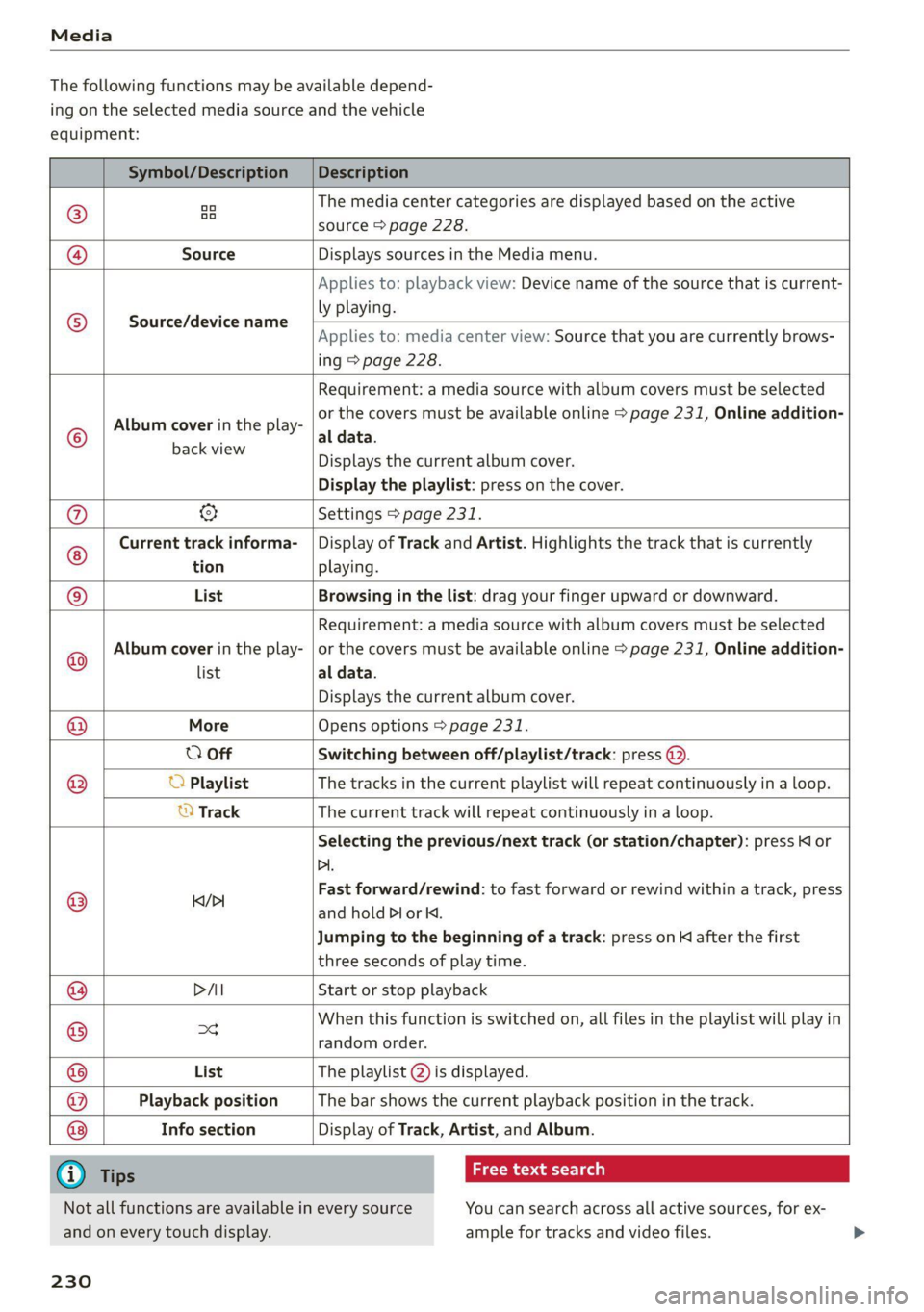
The following functions may be available depend-
ing on the selected media source and the vehicle
equipment:
Symbol/Description Description
©)
oo oo The media center categories are displayed based on the active
source > page 228.
@ Source Displays sources in the Media menu.
Source/device name
Applies to: playback view: Device name of the source that is current-
ly playing.
Applies to: media center view: Source that you are currently brows-
ing > page 228.
©
Album cover in the play-
Requirement: a media source with album covers must be selected
or the covers must be available online > page 231, Online addition-
al data.
Sanaa Displays the current album cover.
Display the playlist: press on the cover.
@ & Settings > page 231.
Current track informa- | Display of Track and Artist. Highlights the track that is currently
tion playing.
List Browsing in the list: drag your finger upward or downward.
Album cover in the play-
Requirement: a media source with album covers must be selected
or the covers must be available online > page 231, Online addition-
Playback position The bar shows the current playback position in the track.
©
© list al data.
Displays the current album cover.
@ More Opens options > page 231.
O Off Switching between off/playlist/track: press @.
® O Playlist The tracks in the current playlist will repeat continuously in a loop.
© Track The current track will repeat continuously in a loop.
Selecting the previous/next track (or station/chapter): press Kl or
Dl.
@ lea/D Fast forward/rewind: to fast forward or rewind within a track, press
and hold PI or K.
Jumping to the beginning of a track: press on K after the first
three seconds of play time.
@ DAI Start or stop playback
@ =d When this function is switched on, all files in the playlist will play in
random order.
@ List The playlist @) is displayed.
@
@ Info section
Display of Track, Artist, and Album.
G) Tips
Not all functions are available in every source
and on every touch display.
230
aay aay laa)
You can search across all active sources, for ex-
ample for tracks and video files.
Page 233 of 332
80B012721BA
Media
Opening the search
Requirement: the selected source must support
the search function.
> Applies to: MMI: Select on the home screen:
MEDIA > Search.
Entries that contain the entered search term are
listed in the results list. Each result is marked
with the symbol for a category in the media cen-
ter > page 228.
You can search for the following categories:
— Artists
— Albums
— Tracks
— Genres
— Videos
Options and settings
Context-dependent functions and settings may
be available depending on the selected source,
the connected mobile device, and the connection
type.
Requirement: the playback view must be dis-
played @) > page 229, fig. 164.
> Press More @).
Play more like this
The track currently playing is quickly analyzed for
features such as artist, genre, mood, and beat,
and a smart playlist with similar tracks will be
shown.
Aspect ratio
Audi recommends the Auto setting for the pic-
ture format. If you press on an aspect ratio, you
will see a preview of the setting on the screen.
Press OK to apply the selected aspect ratio.
The following table gives an overview of the as-
pect ratios. The possible aspect ratios depend on
the source or video file being played.
Aspect ra-
Description
tio B
The MMI detects the picture for-
mat of the source and displays the
image in the optimal ratio.
Auto
The image is fixed in the corre-
sponding ratio. Select one of these
options if the image is distorted or
a section of the image is cut off or
blurry when Auto is selected.
4:3,
16:9
The image is enlarged to fill the en-
an tire display.
The image is displayed in the ratio
of the source format. Select this
option if the image is distorted or a
section of the image is cut off or
blurry when Auto is selected.
Accessing settings
Original
> Applies to: MMI: Select on the home screen:
MEDIA > ©.
Depending on the vehicle equipment, the follow-
ing settings may be available:
Online additional data
Requirement: the MMI must be connected to the
Internet. A data plan must be available
=> page 201.
When the function is switched on, additional in-
formation (such as album cover, artist, track) will
be loaded depending on the availability from the
different providers.
Supported media and file formats
The USB storage device connection supports the
following media file properties:
231
Page 236 of 332
Audi smartphone interface
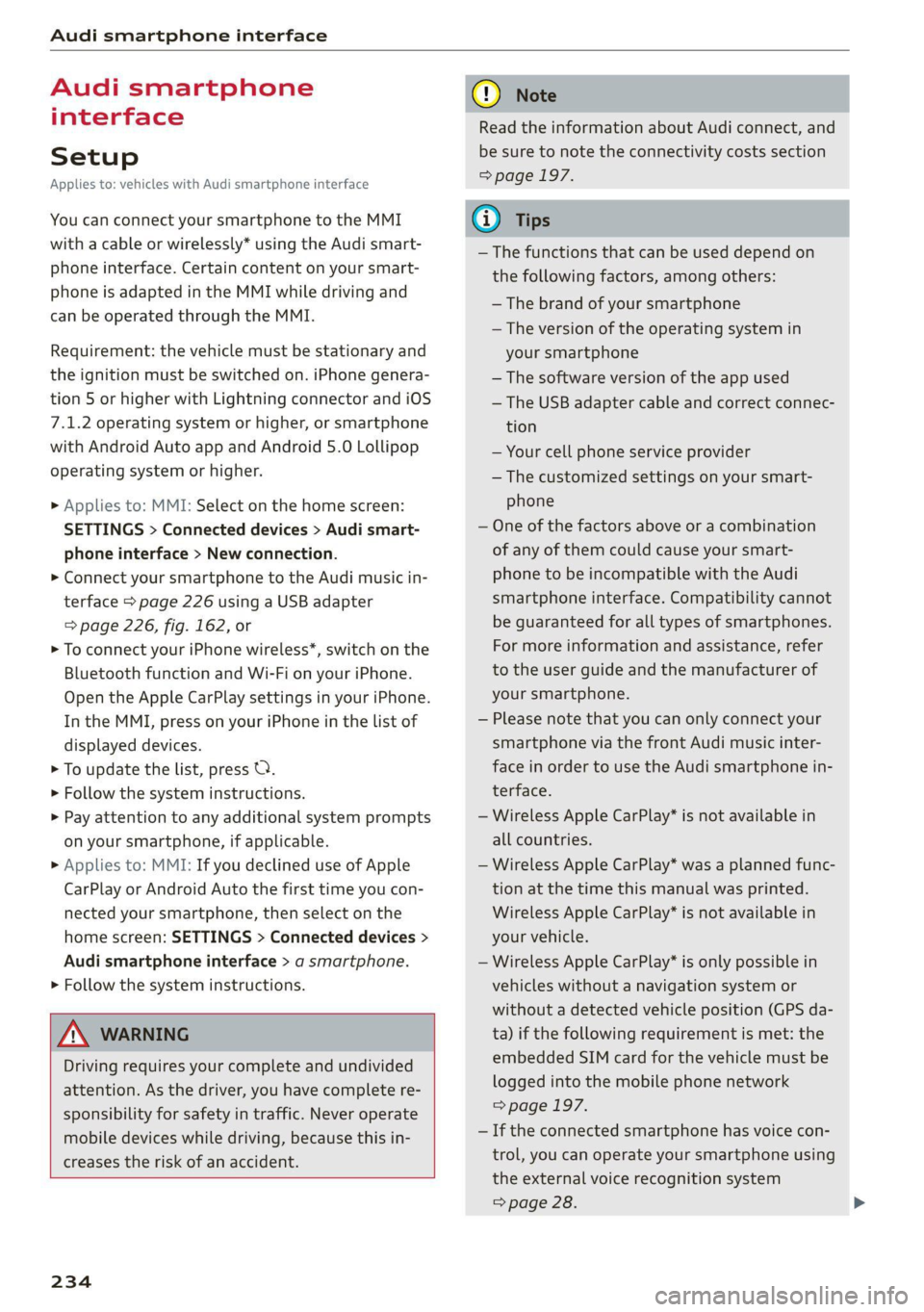
Audi smartphone
interface
Setup
Applies to: vehicles with Audi smartphone interface
You can connect your smartphone to the MMI
with a cable or wirelessly* using the Audi smart-
phone interface. Certain content on your smart-
phone is adapted in the MMI while driving and
can be operated through the MMI.
Requirement: the vehicle must be stationary and
the ignition must be switched on. iPhone genera-
tion 5 or higher with Lightning connector and iOS
7.1.2 operating system or higher, or smartphone
with Android Auto app and Android 5.0 Lollipop
operating system or higher.
> Applies to: MMI: Select on the home screen:
SETTINGS > Connected devices > Audi smart-
phone interface > New connection.
> Connect your smartphone to the Audi music in-
terface > page 226 using a USB adapter
=> page 226, fig. 162, or
> To connect your iPhone wireless*, switch on the
Bluetooth function and Wi-Fi on your iPhone.
Open the Apple CarPlay settings in your iPhone.
In the MMI, press on your iPhone in the list of
displayed devices.
> To update the list, press O.
> Follow the system instructions.
> Pay attention to any additional system prompts
on your smartphone, if applicable.
> Applies to: MMI: If you declined use of Apple
CarPlay or Android Auto the first time you con-
nected your smartphone, then select on the
home screen: SETTINGS > Connected devices >
Audi smartphone interface > a smartphone.
> Follow the system instructions.
Z\ WARNING
Driving requires your complete and undivided
attention. As the driver, you have complete re-
sponsibility for safety in traffic. Never operate
mobile devices while driving, because this in-
creases the risk of an accident.
234
@) Note
Read the information about Audi connect, and
be sure to note the connectivity costs section
=> page 197.
@) Tips
— The functions that can be used depend on
the following factors, among others:
— The brand of your smartphone
— The version of the operating system in
your smartphone
— The software version of the app used
— The USB adapter cable and correct connec-
tion
— Your cell phone service provider
— The customized settings on your smart-
phone
— One of the factors above or a combination
of any of them could cause your smart-
phone to be incompatible with the Audi
smartphone interface. Compatibility cannot
be guaranteed for all types of smartphones.
For more information and assistance, refer
to the user guide and the manufacturer of
your smartphone.
— Please note that you can only connect your
smartphone via the front Audi music inter-
face in order to use the Audi smartphone in-
terface.
— Wireless Apple CarPlay* is not available in
all countries.
— Wireless Apple CarPlay* was a planned func-
tion at the time this manual was printed.
Wireless Apple CarPlay* is not available in
your vehicle.
— Wireless Apple CarPlay* is only possible in
vehicles without a navigation system or
without a detected vehicle position (GPS da-
ta) if the following requirement is met: the
embedded SIM card for the vehicle must be
logged into the mobile phone network
=> page 197.
— If the connected smartphone has voice con-
trol, you can operate your smartphone using
the external voice recognition system
=> page 28.
Page 238 of 332
Additional settings
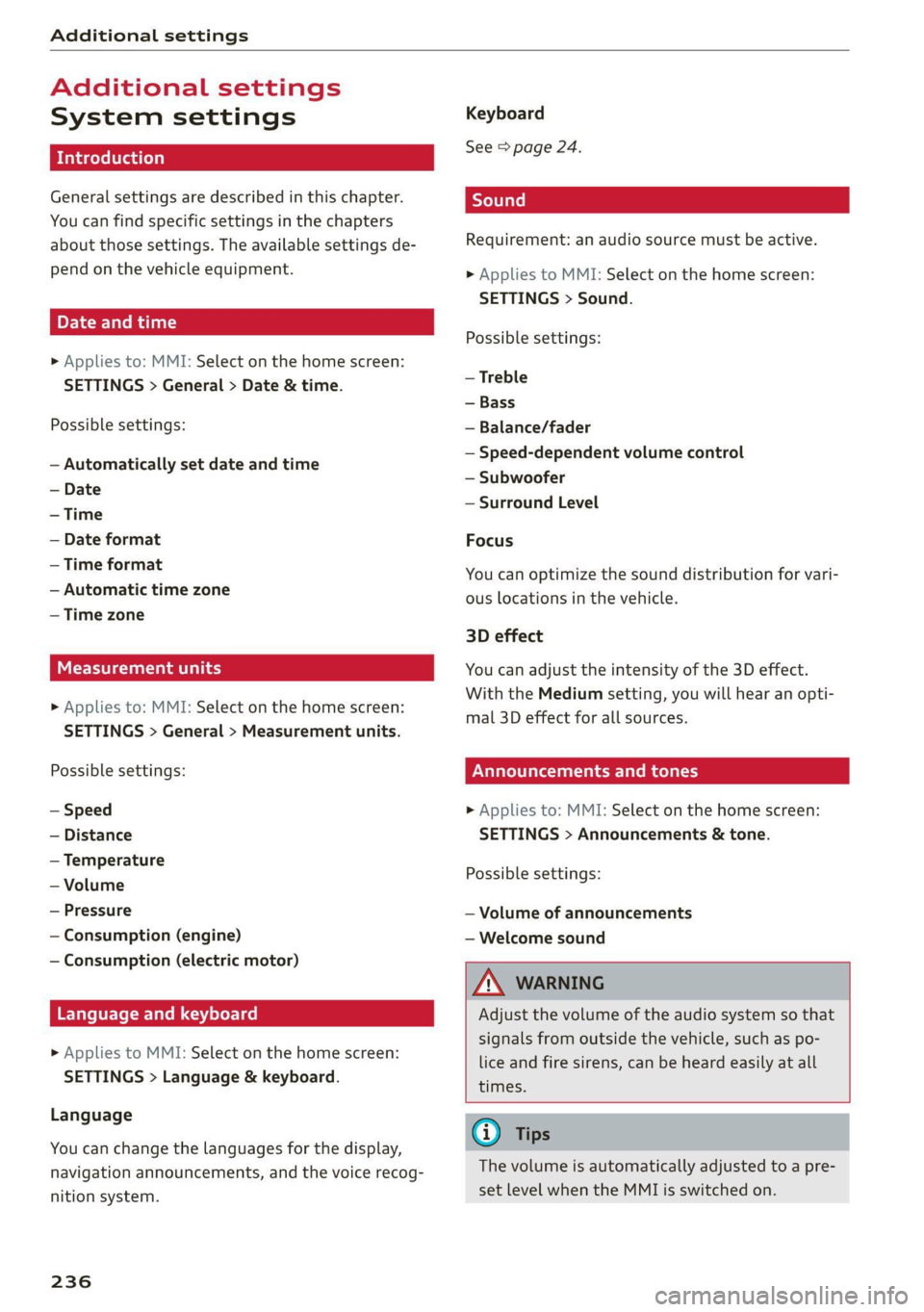
Additional settings
System settings
Introduction
General settings are described in this chapter.
You can find specific settings in the chapters
about those settings. The available settings de-
pend on the vehicle equipment.
Date and time
» Applies to: MMI: Select on the home screen:
SETTINGS > General > Date & time.
Possible settings:
— Automatically set date and time
— Date format
— Time format
— Automatic time zone
— Time zone
Cental ah ey
» Applies to: MMI: Select on the home screen:
SETTINGS > General > Measurement units.
Possible settings:
— Speed
— Distance
— Temperature
— Volume
— Pressure
— Consumption (engine)
— Consumption (electric motor)
Language and keyboard
> Applies to MMI: Select on the home screen:
SETTINGS > Language & keyboard.
Language
You can change the languages for the display,
navigation announcements, and the voice recog-
nition system.
236
Keyboard
See > page 24.
Requirement: an audio source must be active.
» Applies to MMI: Select on the home screen:
SETTINGS > Sound.
Possible settings:
— Treble
— Bass
— Balance/fader
— Speed-dependent volume control
— Subwoofer
— Surround Level
Focus
You can optimize the sound distribution for vari-
ous locations in the vehicle.
3D effect
You can adjust the intensity of the 3D effect.
With the Medium setting, you will hear an opti-
mal 3D effect for all sources.
Plea ee ely
> Applies to: MMI: Select on the home screen:
SETTINGS > Announcements & tone.
Possible settings:
— Volume of announcements
— Welcome sound
ZA WARNING
Adjust the volume of the audio system so that
signals from outside the vehicle, such as po-
lice and fire sirens, can be heard easily at all
times.
Gi) Tips
The volume is automatically adjusted to a pre-
set level when the MMI is switched on.
Page 239 of 332
80B012721BA
Additional settings
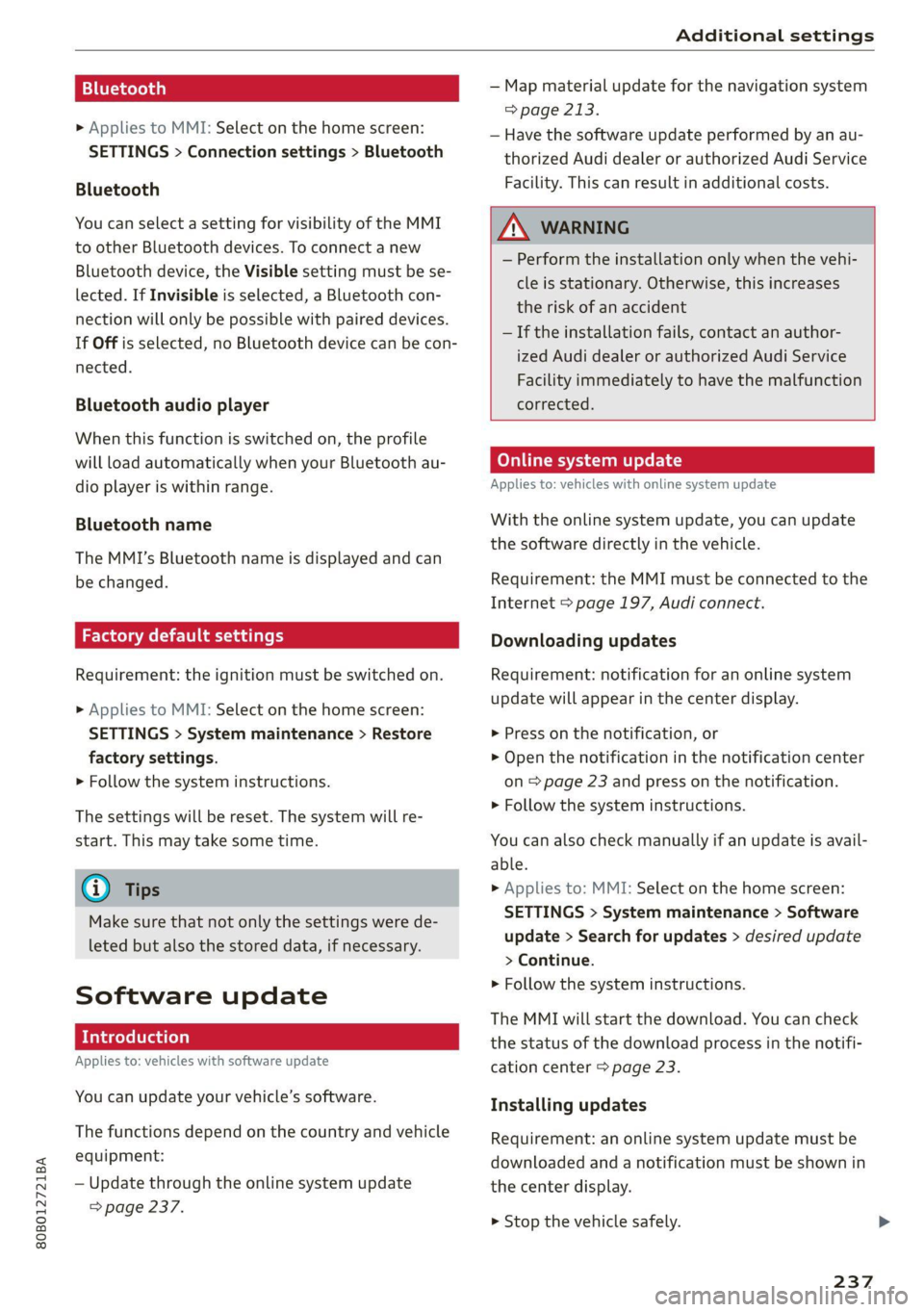
Bluetooth
> Applies to MMI: Select on the home screen:
SETTINGS > Connection settings > Bluetooth
Bluetooth
You can select a setting for visibility of the MMI
to other Bluetooth devices. To connect a new
Bluetooth device, the Visible setting must be se-
lected. If Invisible is selected, a Bluetooth con-
nection will only be possible with paired devices.
If Off is selected, no Bluetooth device can be con-
nected.
Bluetooth audio player
When this function is switched on, the profile
will load automatically when your Bluetooth au-
dio player is within range.
Bluetooth name
The MMI’s Bluetooth name is displayed and can
be changed.
Factory default settings
Requirement: the ignition must be switched on.
> Applies to MMI: Select on the home screen:
SETTINGS > System maintenance > Restore
factory settings.
> Follow the system instructions.
The settings will be reset. The system will re-
start. This may take some time.
@ Tips
Make sure that not only the settings were de-
leted but also the stored data, if necessary.
Software update
Introduction
Applies to: vehicles with software update
You can update your vehicle’s software.
The functions depend on the country and vehicle
equipment:
— Update through the online system update
=> page 237.
— Map material update for the navigation system
> page 213.
— Have the software update performed by an au-
thorized Audi dealer or authorized Audi Service
Facility. This can result in additional costs.
ZA\ WARNING
— Perform the installation only when the vehi-
cle is stationary. Otherwise, this increases
the risk of an accident
— If the installation fails, contact an author-
ized Audi dealer or authorized Audi Service
Facility immediately to have the malfunction
corrected.
Online system update
Applies to: vehicles with online system update
With the online system update, you can update
the software directly in the vehicle.
Requirement: the MMI must be connected to the
Internet > page 197, Audi connect.
Downloading updates
Requirement: notification for an online system
update will appear in the center display.
> Press on the notification, or
> Open the notification in the notification center
on & page 23 and press on the notification.
> Follow the system instructions.
You can also check manually if an update is avail-
able.
> Applies to: MMI: Select on the home screen:
SETTINGS > System maintenance > Software
update > Search for updates > desired update
> Continue.
> Follow the system instructions.
The
MMI will start the download. You can check
the status of the download process in the notifi-
cation center > page 23.
Installing updates
Requirement: an online system update must be
downloaded and a notification must be shown in
the center display.
> Stop the vehicle safely.
237
Page 240 of 332
Additional settings
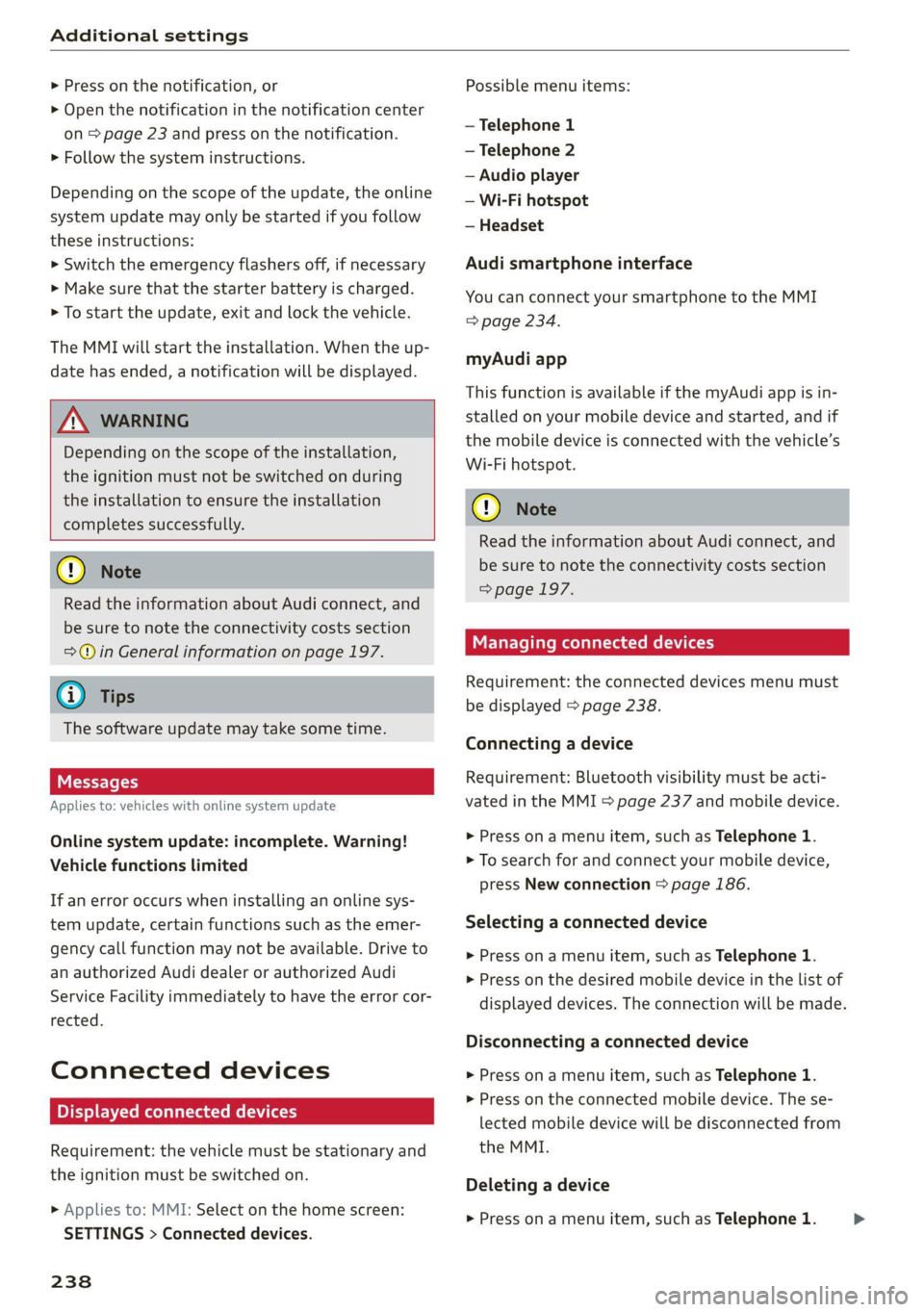
> Press on the notification, or
> Open the notification in the notification center
on > page 23 and press on the notification.
> Follow the system instructions.
Depending on the scope of the update, the online
system update may only be started if you follow
these instructions:
> Switch the emergency flashers off, if necessary
> Make sure that the starter battery is charged.
> To start the update, exit and lock the vehicle.
The MMI will start the installation. When the up-
date has ended, a notification will be displayed.
Z\ WARNING
Depending on the scope of the installation,
the ignition must not be switched on during
the installation to ensure the installation
completes successfully.
©) Note
Read the information about Audi connect, and
be sure to note the connectivity costs section
=@ in General information on page 197.
@ Tips
The software update may take some time.
WEE Tel
Applies to: vehicles with online system update
Online system update: incomplete. Warning!
Vehicle functions limited
If an error occurs when installing an online sys-
tem update, certain functions such as the emer-
gency call function may not be available. Drive to
an authorized Audi dealer or authorized Audi
Service Facility immediately to have the error cor-
rected.
Connected devices
Displayed connected devices
Requirement: the vehicle must be stationary and
the ignition must be switched on.
> Applies to: MMI: Select on the home screen:
SETTINGS > Connected devices.
238
Possible menu items:
— Telephone 1
— Telephone 2
— Audio player
— Wi-Fi hotspot
— Headset
Audi smartphone interface
You can connect your smartphone to the MMI
=> page 234.
myAudi app
This function is available if the myAudi app is in-
stalled on your mobile device and started, and if
the mobile device is connected with the vehicle’s
Wi-Fi hotspot.
() Note
Read the information about Audi connect, and
be sure to note the connectivity costs section
=> page 197.
Managing connected devices
Requirement: the connected devices menu must
be displayed > page 238.
Connecting a device
Requirement: Bluetooth visibility must be acti-
vated in the MMI & page 237 and mobile device.
> Press on a menu item, such as Telephone 1.
> To search for and connect your mobile device,
press New connection > page 186.
Selecting a connected device
> Press on a menu item, such as Telephone 1.
> Press on the desired mobile device in the list of
displayed devices. The connection will be made.
Disconnecting a connected device
> Press on a menu item, such as Telephone 1.
> Press on the connected mobile device. The se-
lected mobile device will be disconnected from
the MMI.
Deleting a device
> Press on a menu item, such as Telephone 1. >
Page 241 of 332
80B012721BA
Additional settings
> Press and hold an element until the Options
menu is displayed.
> Press Delete.
If a device is listed multiple times, it will be de-
leted from all menu items.
PXe Keli a Cela] Mey Lately
Depending on the selected function, additional
options
may be available.
Requirement: the connected devices menu must
be displayed > page 238.
> Press ona menu item, such as Telephone 1.
» Press and hold an element until the Options
menu is displayed.
Bluetooth profile
You can switch desired profiles on or off sepa-
rately in the MMI.
Favorite
To set a paired mobile device as the default
phone, activate this function in the MMI.
When the mobile device is in range and the Blue-
tooth function on the mobile device and in the
MMI is switched on, the default phone will be
given priority over the other Bluetooth devices
and will be connected directly to the MMI.
Legal information
General information
Information on the software licenses can be
found online at www.audi.com/softwareinfo.
Multi Media Interface
> Applies to: MMI: Select on the home screen:
SETTINGS > General.
Subscriptions
Version information
Legal notes
Possible options:
— Software information
— About Audi connect
ONC lad nel M nail
Applies to: vehicles with Audi smartphone interface
Requirement: a smartphone must be connected
to the MMI > page 234.
> Applies to: MMI: Select on the home screen:
SETTINGS > Connected devices > Audi smart-
phone interface.
> Press and hold an element until the Options
menu is displayed.
> Press Legal notes.
Requirement: the vehicle must be stationary and
the ignition must be switched on.
> Select in the instrument cluster: vehicle func-
tions tab > page 13.
>» Press and hold the E=] button on the multifunc-
tion steering wheel until the display appears.
Possible options:
— Engine code
— Software information
— Version information
Head-up display
Applies to: vehicles with head-up display
Requirement: the vehicle must be stationary and
the ignition must be switched on. The head-up
display is switched off.
> To display the license text in the head-up dis-
play, press and hold the S? button @
=> page 26, fig. 21 until the display appears.
239
Page 242 of 332
Additional information
Additional information
Brands and licenses
This manual does not contain any symbols, such
as ® or ™, to identify trademarks or registered
trademarks. However, the absence of these sym-
bols does not constitute a waiver of any rights as-
sociated with these names.
Apple, iPhone, iPod touch, Apple CarPlay, Light-
ning, and iTunes Radio are trademarks of Apple
Inc.
10S is a trademark or, in the USA and other coun-
tries, a registered trademark of Cisco and is used
under license.
Other product and manufacturer names may be
trademarks of their respective owners.
240