add AUDI Q5 2021 Owner´s Manual
[x] Cancel search | Manufacturer: AUDI, Model Year: 2021, Model line: Q5, Model: AUDI Q5 2021Pages: 332, PDF Size: 118.86 MB
Page 150 of 332
Driving information
— The traffic signs on the road always take pri-
ority over the display. The driver is always
responsible for adhering to the regulations
applicable in the country where the vehicle
is being operated.
— Units of measurement and language set-
tings are displayed based on how they were
set in the MMI system settings > page 236.
Applies to: vehicles with traffic light information
Switching traffic light information on and
off
» Applies to: MMI: Select on the home screen:
VEHICLE > Driver assistance > Traffic light in-
formation.
Accessing traffic light information
> Select in the instrument cluster: vehicle func-
tions tab > Traffic signs.
@® Tips
If another tab or another function is selected
in the instrument cluster, the traffic light in-
formation will appear in the status bar on the
instrument cluster.
Messages
Applies to: vehicles with traffic light information
Malfunction! See owner's manual
The system could not be configured, for example
due to a network malfunction. Switch the igni-
tion off and shut down the vehicle to restart the
system. Wait several minutes until the vehicle
has shut down completely and then switch the
ignition back on.
Function currently unavailable. See owner's
manual
There is a temporary system malfunction. Check
if one or more of the following situations applies
and correct the issue if necessary:
— Traffic light information is switched off
— Data transmission is deactivated
148
— The vehicle is not equipped with traffic sign rec-
ognition.
— There is no valid license
— Traffic light information is not available in that
area
Lap timer
Introduction
Applies to: vehicles with lap timer
You can record and evaluate lap times with the
lap timer. You can operate the lap timer using the
multifunction steering wheel > page 13.
Opening the lap timer
> Select in the instrument cluster: Vehicle func-
tions tab > [| button > Lap times.
An additional indicator appears in the head-up
display*.
ZA\ WARNING
Your focus should always be on driving your
vehicle safely. As the driver, you have com-
plete responsibility for safety in traffic. To re-
duce the risk of an accident, only use the lap
timer functions in such a way that you always
maintain complete control over your vehicle in
all traffic situations.
G) Tips
You can retrieve information from the trip
computer while the lap timer stopwatch is
running.
ey sae |
Applies to: vehicles with lap timer
Requirement: the lap timer must be open
=> page 148.
Timing laps
> To start timing manually, select Start lap 1 in
the menu.
> To start timing automatically as soon as you be-
gin to drive, select Start lap 1 by driving off or
Start by driving off in the menu.
Page 154 of 332
Driver assistance
An additional indicator appears in the head-up
display*.
Changing the cruise control speed
Applies to: vehicles with cruise control system
Requirement: the system must be switched on.
> To increase or decrease the cruise control speed
in small increments, tap the lever up to the
first level toward @)/G) > page 151, fig. 116.
> To increase or decrease the cruise control speed
in larger increments, tap the lever up to the
second level toward @)/G).
> To increase or decrease the cruise control speed
continuously, tap and hold the lever at the first
or second level toward @)/G).
Overriding or deactivating the cruise
control speed
Applies to: vehicles with cruise control system
You can override or deactivate the cruise control
system. When you deactivate the system, your
cruise control speed will be stored and you can
resume that speed.
Requirement: the system must be switched on
and the regulated speed must be activated.
Overriding
> To temporarily override the cruise control
speed, press the accelerator pedal.
> To resume the stored regulated speed, remove
your foot from the accelerator pedal.
If you override the cruise control system for a
long period of time, the cruise control system
will be deactivated. The [Ud or [RM indicator
light will be displayed and the cruise control
speed will be saved.
Deactivating
> To deactivate the cruise control speed, press
the lever toward @) (not locked into place)
=> page 151, fig. 116, or
> Press the brake pedal.
152
ZA WARNING
Resting your foot on the accelerator pedal
could override the cruise control. This will pre-
vent braking interventions by the system.
See me Lai
Applies to: vehicles with cruise control system
When you switch the system off, the cruise con-
trol speed will be erased.
Requirement: the system must be switched on.
> To switch the system off, press the lever toward
@ (locked into place) > page 151, fig. 116, or
> Switch the ignition off.
Applies to: vehicles with cruise control system
Gir / 3) Speed control system: currently un-
available. See owner's manual
If the indicator light turns on and this message
appears, the cruise control system has been deac-
tivated. There is a temporary malfunction, for ex-
ample the brakes are overheating. Switch the
cruise control system on again later.
Efficiency assist
Applies to: vehicles with efficiency assist
Efficiency assist can assist the driver with predic-
tive information in order to reduce fuel consump-
tion. Depending on vehicle equipment, the sys-
tem may access data from the navigation system,
the camera behind the windshield, and the radar
sensors.
Adjusting the efficiency assist
You can adjust efficiency assist functions individ-
ually. The settings depend on the vehicle equip-
ment.
— Predictive messages > page 153.
— Accelerator pedal feedback > page 101.
— Interactive accelerator > page 101.
— Predictive control > page 157.
Page 155 of 332
80B012721BA
Driver assistance
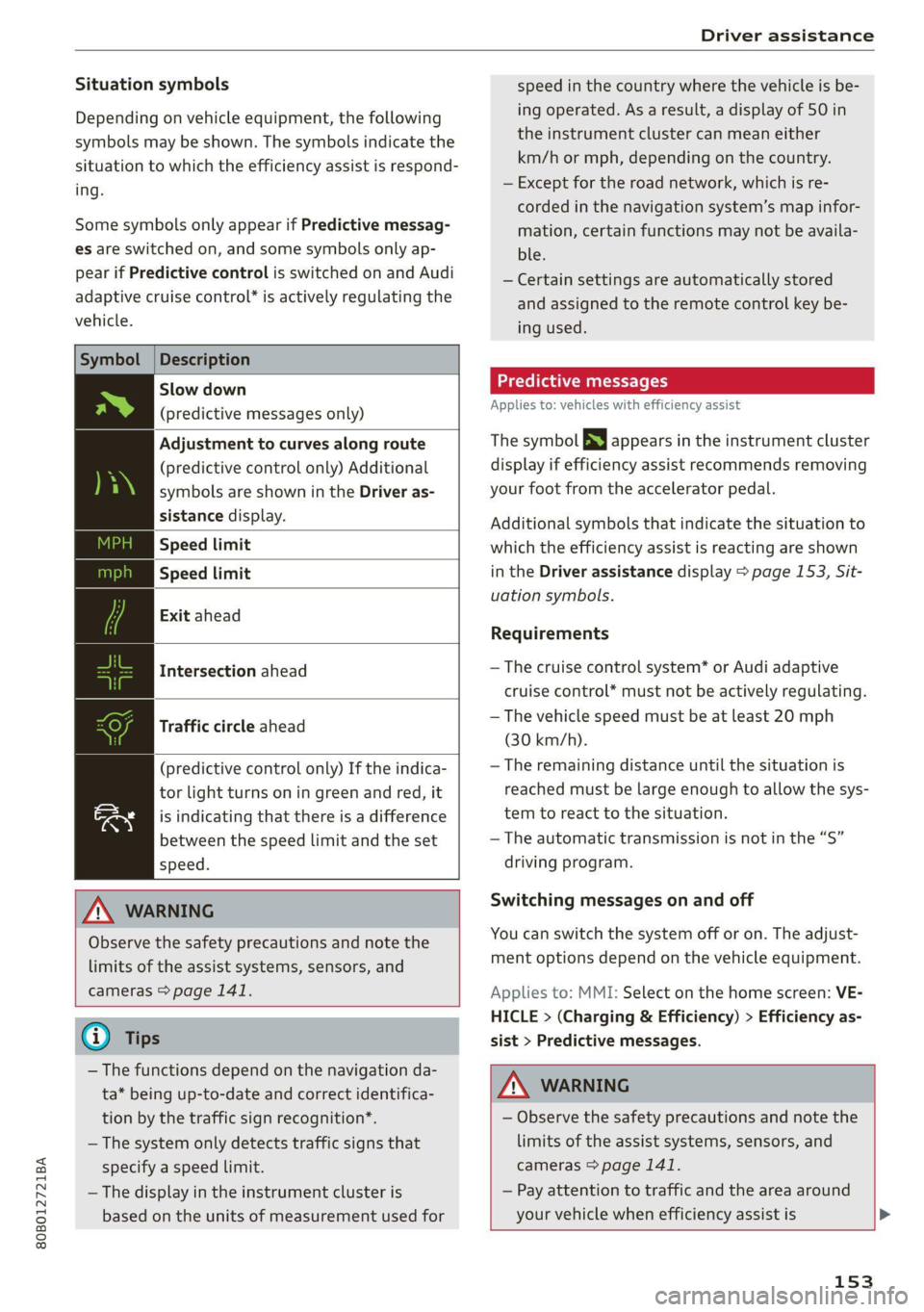
Situation symbols
Depending on vehicle equipment, the following
symbols may be shown. The symbols indicate the
situation to which the efficiency assist is respond-
ing.
Some symbols only appear if Predictive messag-
es are switched on, and some symbols only ap-
pear if Predictive control is switched on and Audi
adaptive cruise control” is actively regulating the
vehicle.
Symbol |Description
Slow down
(predictive messages only)
Adjustment to curves along route
(predictive control only) Additional
symbols are shown in the Driver as-
sistance display.
Speed limit
Speed limit
Exit ahead
Intersection ahead
Traffic circle ahead
(predictive control only) If the indica-
tor light turns on in green and red, it
is indicating that there is a difference
between the speed limit and the set
speed.
ZA WARNING
Observe the safety precautions and note the
limits of the assist systems, sensors, and
cameras > page 141.
@ Tips
— The functions depend on the navigation da-
ta* being up-to-date and correct identifica-
tion by the traffic sign recognition*.
— The system only detects traffic signs that
specify a speed limit.
— The display in the instrument cluster is
based on the units of measurement used for
speed in the country where the vehicle is be-
ing operated. As a result, a display of 50 in
the instrument cluster can mean either
km/h or mph, depending on the country.
— Except for the road network, which is re-
corded in the navigation system’s map infor-
mation, certain functions may not be availa-
ble.
— Certain settings are automatically stored
and assigned to the remote control key be-
ing used.
Predictive messages
Applies to: vehicles with efficiency assist
The symbol BS appears in the instrument cluster
display if efficiency assist recommends removing
your foot from the accelerator pedal.
Additional symbols that indicate the situation to
which the efficiency assist is reacting are shown
in the Driver assistance display > page 153, Sit-
uation symbols.
Requirements
— The cruise control system* or Audi adaptive
cruise control* must not be actively regulating.
— The vehicle speed must be at least 20 mph
(30 km/h).
— The remaining distance until the situation is
reached must be large enough to allow the sys-
tem to react to the situation.
— The automatic transmission is not in the “S”
driving program.
Switching messages on and off
You can switch the system off or on. The adjust-
ment options depend on the vehicle equipment.
Applies to: MMI: Select on the home screen: VE-
HICLE > (Charging & Efficiency) > Efficiency as-
sist > Predictive messages.
Z\ WARNING
— Observe the safety precautions and note the
limits of the assist systems, sensors, and
cameras > page 141.
— Pay attention to traffic and the area around
your vehicle when efficiency assist is >
153
Page 171 of 332
80B012721BA
Driver assistance
taking risks. This could increase your risk of
a collision.
— Audi pre sense city does not react to certain
objects, such as animals, crossing or oncom-
ing vehicles, bars, railings, or railcars.
— Audi pre sense may be limited or unavailable
in curves or when it is dark.
— Loose objects can be thrown around the ve-
hicle interior during sudden driving or brak-
ing maneuvers, which increases the risk of
an accident. Store objects securely while
driving.
— In trailer mode, the braking behavior of the
trailer can be different than usual during au-
tomatic braking.
@) Tips
Certain system functions may not be available
if the ESC is limited or switched off
=> page 120, if there is a malfunction, or if the
hill hold assist* is switched on > page 114.
Audi pre sense front
Applies to: vehicles with Audi pre sense front
Audi pre sense front provides the same scope of
functions as Audi pre sense city, with a few ex-
ceptions > page 168. The system has an exten-
sive field of view due to additional sensors that
are installed. Because of this, vehicles that are
braking or traveling significantly more slowly can
be detected earlier and more clearly, depending
on the limits of the system.
The following features apply to Audi pre sense
front:
— Automatic braking interventions are available
at vehicle speeds up to approximately 155 mph
(250 km/h)
— The system does not detect pedestrians
Z\ WARNING
— Observe the safety precautions > A\ in Audi
pre sense city on page 168.
— Observe the safety precautions and note the
limits of the assist systems, sensors, and
cameras > page 141.
— Audi pre sense front does not react to cer-
tain objects, such as pedestrians, animals,
crossing or oncoming vehicles, bars, railings,
or railcars.
Audi pre sense rear
Applies to: vehicles with Audi pre sense rear
Within the limits of the system, Audi pre sense
rear uses data from radar sensors at the rear cor-
ners of the vehicle and calculates the probability
of a rear-end collision with the vehicle behind
you.
Audi pre sense preemptive safety measures can
be initiated if the risk of a collision with the vehi-
cle behind you is detected.
Z\ WARNING
— Observe the safety precautions and note the
limits of the assist systems, sensors, and
cameras > page 141.
— Audi pre sense rear does not react to pedes-
trians, animals, crossing objects, and ob-
jects not detected as vehicles.
@) Tips
— Audi pre sense rear functions switch off
when trailer mode is detected. There is no
guarantee the functions will switch off
when using a retrofitted trailer hitch.
— Audi pre sense rear functions may also
switch off if there is a malfunction in the
side assist system.
ai
Applies to: vehicles with swerve assist
The swerve assist can help you to steer the vehi-
cle around an obstacle detected in a critical area.
If you avoid an obstacle after the acute warning,
then the swerve assist assists you by applying
slight steering adjustment to correct your steer-
ing wheel angle as long as you are actively steer-
ing. Swerve assist is available at speeds between
approximately 20 mph (30 km/h) and 90 mph
(150 km/h).
169
Page 176 of 332
Parking and maneuvering
Parking and
maneuvering
Introduction
Depending on the vehicle equipment, various
parking aids will help you when parking and ma-
neuvering.
Parking aid
The parking aid plus assists you while parking
using audio and visual signals to warn you about
objects detected in front of, behind, and next to*
the vehicle > page 174.
The rearview camera shows the area behind the
vehicle in the center display. The lines in the rear-
view camera image help you to park and maneu-
ver > page 176.
The peripheral cameras are an addition to the
rearview camera and help you to see various
areas around the vehicle while parking and ma-
neuvering > page 176.
The rear cross-traffic assist can warn you of ap-
proaching cross traffic when driving in reverse or
exiting a parking space > page 180.
Assisted parking
Park assist helps you to locate suitable parking
spaces and to park in them and exit them. Park
assist controls the steering movements when
parking in free parking spaces. The driver is still
responsible for accelerating, braking, and shift-
ing gears. The driver must always monitor the
area around the vehicle and supervise the parking
procedure > page 181.
Settings options
You can adjust parking aid functions individually.
The adjustment options depend on the vehicle
equipment.
— Automatic activation > page 174
— Front and rear volume > page 175
— Entertainment fader > page 175.
— Clean rearview camera > page 177
— Trailer view > page 178
— View > page 179
— Rear cross-traffic assist > page 180
174
ZA WARNING
Observe the safety precautions and note the
limits of the assist systems, sensors, and
cameras > page 141.
@ Tips
Practicing parking in a traffic-free location or
parking lot to become familiar with the sys-
tems is recommended. Practice parking in
good light and weather conditions.
Parking aid plus
Ne ELS EUR
Applies to: vehicles with parking aid plus
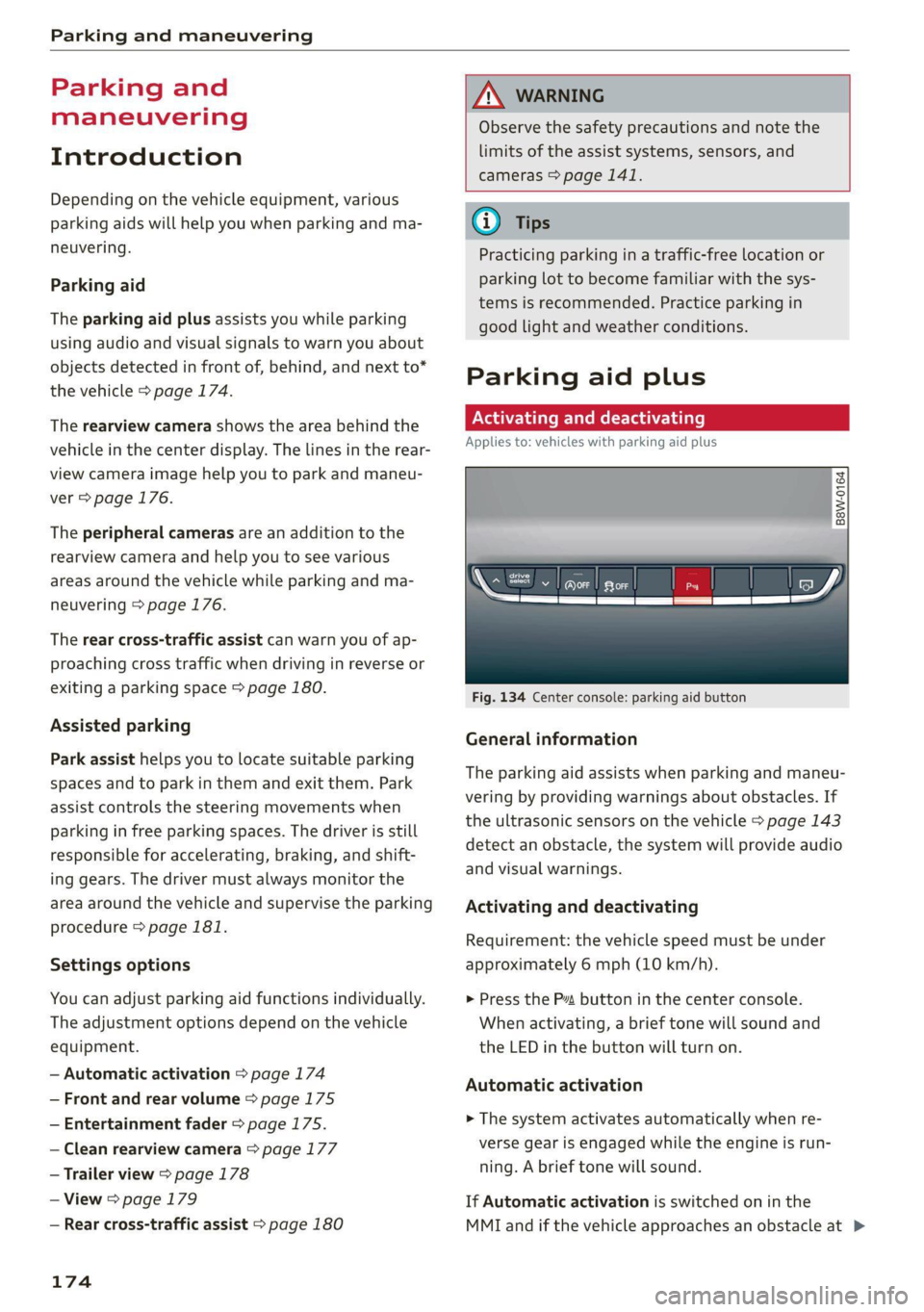
B8W-0164
Fig. 134 Center console: parking aid button
General information
The parking aid assists when parking and maneu-
vering by providing warnings about obstacles. If
the ultrasonic sensors on the vehicle > page 143
detect an obstacle, the system will provide audio
and visual warnings.
Activating and deactivating
Requirement: the vehicle speed must be under
approximately 6 mph (10 km/h).
> Press the P” button in the center console.
When activating, a brief tone will sound and
the LED in the button will turn on.
Automatic activation
> The system activates automatically when re-
verse gear is engaged while the engine is run-
ning. A brief tone will sound.
If Automatic activation is switched on in the
MMI and if the vehicle approaches an obstacle at >
Page 182 of 332
Parking and maneuvering
A WARNING
— Observe the safety precautions and note the
limits of the assist systems, sensors, and
cameras > page 141.
— The Surroundings view is created from the
individual camera images. The vehicle image
is shown by the system. Objects and obsta-
cles above the camera are not displayed.
@® _ Note
— Only use the images provided by the camera
on the rear of the vehicle when the luggage
compartment lid is completely closed. Make
sure any objects you may have mounted on
the luggage compartment lid do not block
the rearview camera.
— The front of the vehicle swings out more
than the rear of the vehicle. Maintain plenty
of distance so that an exterior mirror or a
corner of the vehicle does not collide with
any obstacles.
Gy Tips
— Depending on the selected gear, it will auto-
matically switch between the Front and
Rear views. If you switch the view manually,
the automatic front/rear camera change will
be temporarily deactivated.
— When first activated while a forward gear is
engaged, the Front corner is displayed.
Rear cross-traffic assist
Applies to: vehicles with rear cross-traffic assist
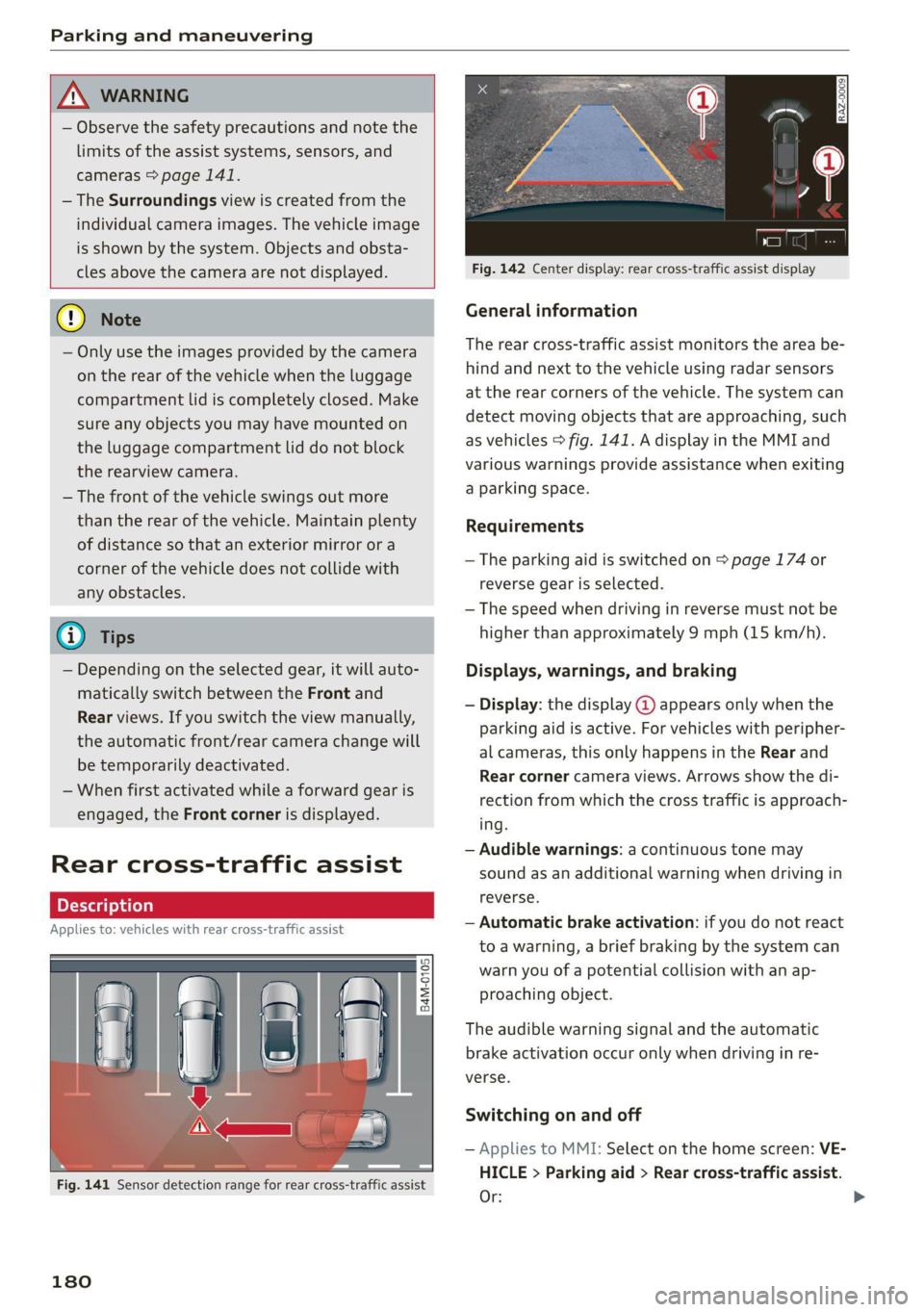
Fig. 141 Sensor detection range for rear cross-traffic assist
180
Fig. 142 Center display: rear cross-traffic assist display
General information
The rear cross-traffic assist monitors the area be-
hind and next to the vehicle using radar sensors
at the rear corners of the vehicle. The system can
detect moving objects that are approaching, such
as vehicles > fig. 141. A display in the MMI and
various warnings provide assistance when exiting
a parking space.
Requirements
— The parking aid is switched on > page 174 or
reverse gear is selected.
— The speed when driving in reverse must not be
higher than approximately 9 mph (15 km/h).
Displays, warnings, and braking
— Display: the display @ appears only when the
parking aid is active. For vehicles with peripher-
al cameras, this only happens in the Rear and
Rear corner camera views. Arrows show the di-
rection from which the cross traffic is approach-
ing.
— Audible warnings: a continuous tone may
sound as an additional warning when driving in
reverse.
— Automatic brake activation: if you do not react
to a warning, a brief braking by the system can
warn you of a potential collision with an ap-
proaching object.
The audible warning signal and the automatic
brake activation occur only when driving in re-
verse.
Switching on and off
— Applies to MMI: Select on the home screen: VE-
HICLE > Parking aid > Rear cross-traffic assist.
Or:
Page 186 of 332

Parking and maneuvering
ZA\ WARNING
— Observe the safety precautions and note the
limits of the assist systems, sensors, and
cameras > page 141.
— The driver is always responsible when enter-
ing or exiting a parking space and during
similar maneuvers.
— Do not use this function if the vehicle cannot
move freely, for example when on a vehicle
jack.
— Sensors and cameras have spots in which
the surrounding area cannot be detected.
Objects, animals, and people may only be
detected with limitations may not be detect-
ed at all. Always monitor the traffic and the
vehicle's surroundings directly and do not
become distracted.
@) Note
— Do not use the park assist systems when
transporting cargo that extends out of the
vehicle, when snow chains are mounted, or
when the parking space is on a hill or in-
cline.
— Park assist guides the vehicle either away
from curbs or onto them if other vehicles
are parked on the curb. Make sure that your
vehicle's tires and rims are not damaged.
Resume control of the vehicle in time or
stop the parking process if needed to pre-
vent damage.
G) Tips
Follow the legal regulations in the country
where you are located when using Park assist.
dem Re eee
Applies to: vehicles with park assist
Requirement: a suitable parking space must be
found and selected > page 181. The vehicle must
initially be stationary.
In the center display, arrows and symbols on the
vehicle roof @) > page 182, fig. 145 indicate
what action is needed, such as applying the
brakes or changing the direction. Park assist au-
184
tomatically steers the vehicle into the parking
space while the driver presses the pedals.
> After stopping the vehicle briefly, make sure
the actual direction the vehicle is traveling
matches the direction indicated by the park as-
sist.
> Remove your hands from the steering wheel.
>» Pay attention to the path of the vehicle. If the
traffic situation permits, accelerate carefully
> AX. The maximum parking speed is approxi-
mately 4 mph (7 km/h).
> Follow the visual instructions in the center dis-
play and the warning tones until the parking
process
has ended.
Z\ WARNING
— Observe the safety precautions and note the
limits of the assist systems, sensors, and
cameras > page 141.
— The park assist is an assist system. The driv-
er is still responsible for monitoring the ve-
hicle's surroundings and preventing colli-
sions when using the system.
— When using park assist to drive into or out
of a parking space, the steering wheel turns
quickly on its own. Reaching into the steer-
ing wheel spokes while this is happening can
result in injury.
G) Tips
You can also cancel the driving direction set
by the system by shifting between a forward
gear and reverse gear. Based on the position
of the vehicle, the system then calculates the
additional steering and driving directions for
maneuvering.
ten Lei ek ace
Applies to: vehicles with park assist
If you parked the vehicle in a parallel parking
space, park assist can help you drive out of it.
Park assist automatically steers the vehicle out of
the parking space while the driver presses the
pedals.
» Start the engine.
> Press the Pe button in the center console.
Page 187 of 332

80B012721BA
Parking and maneuvering
> Wait until a message appears in the center dis-
play that specifies the direction of travel re-
quired to exit the parking space.
> Activate the turn signal on the desired side or
press that side next to the vehicle in the center
display.
» Make sure the actual direction the vehicle is
traveling matches the direction indicated by the
park assist. In the center display, arrows and
symbols on the vehicle roof (2) > page 182,
fig. 145 indicate what action is needed, such as
applying the brakes or changing the direction.
» Remove your hands from the steering wheel.
>» Pay attention to the path of the vehicle. If the
traffic situation permits, accelerate carefully
> AX. The maximum speed for exiting a parking
space is 3 mph (5 km/h).
> Follow the visual instructions in the display and
the warning tones until the vehicle has finished
exiting the parking space.
> The process of exiting the parking space has
ended if additional corrective movements are
no longer necessary and the specified steering
wheel angle is sufficient to drive out of the
parking space. Resume control of the steering
wheel >@).
Z\ WARNING
— Observe the safety precautions and note the
limits of the assist systems, sensors, and
cameras > page 141.
— The park assist is an assist system. The driv-
er is still responsible for monitoring the ve-
hicle's surroundings and preventing colli-
sions when using the system.
— When using park assist to drive into or out
of a parking space, the steering wheel turns
quickly on its own. Reaching into the steer-
ing wheel spokes while this is happening can
result in injury.
@) Note
Resume steering immediately after the last
corrective movement and the takeover
prompt, so that the specified steering wheel
angle is not recentered.
Interrupting the park assists
Applies to: vehicles with park assist
Park assist will be canceled automatically in the
following scenarios:
— You switch the system off.
— You start steering.
— The speed is too high.
—The time limit is exceeded.
— An obstacle is detected.
— ESC intervenes.
Resume control of the vehicle, end the parking
process manually, or:
— You can resume the parking process in some sit-
uations. Press the Pe button in the center con-
sole.
— To continue exiting the parking space, switch
the engine off and on. Press the Pe button.
Z\ WARNING
Observe the safety precautions and note the
limits of the assist systems, sensors, and
cameras > page 141.
Messages
Applies to: vehicles with park assist
If the prof i Pg Pa| indicator light turns on, the
park assist is not available or was interrupted.
A message that indicates the cause and possible
solution may appear with some displays. The
weather conditions may be too poor or a sensor
may be covered. Clean the area in front of the
sensors > page 143 and try to turn on the sys-
tems again later.
If the malfunction remains, drive to an author-
ized Audi dealer or authorized Audi Service Facili-
ty immediately to have the malfunction correct-
ed.
185
Page 189 of 332
80B012721BA
Telephone
Handsfree
Requirement: your cell phone must be connected
to the MMI via a Bluetooth Hands Free Profile
(Bluetooth HFP).
You can use the hands-free system. You can make
calls using the antenna on your mobile device.
Sending and receiving messages
See > page 194.
@ Tips
— Pay attention to any system prompts dis-
played on your mobile device or the MMI,
for example if the system should connect
automatically in the future. Depending on
the mobile device, you may need to down-
load contacts and confirm access to your
messages separately.
— You can also search for the MMI on your mo-
bile device using the Bluetooth device
search.
— You only have to pair your device one time.
Bluetooth devices that are already paired
automatically connect to the MMI when the
Bluetooth function is switched on, when
they are within range, and when the ignition
is switched on. The last connected mobile
device is given first priority.
— You can manage additional settings for con-
nected mobile devices in the Connected de-
vices menu > page 238.
— When leaving the vehicle, the Bluetooth
connection to the mobile device will auto-
matically disconnect. Depending on your
mobile device, phone calls in progress may
be automatically redirected from the MMI
to your mobile device so that you can con-
tinue the call on your phone.
Using two telephones
Applies to: vehicles with telephone, and Audi phone box
You can connect two mobile phones to the MMI
at the same time using the Bluetooth HFP, for ex-
ample a business phone and a private phone. You
can be reached in your vehicle through both mo-
bile phones.
Applies to: mobile devices with Bluetooth Mes-
sage Access Profile (MAP): You can send and re-
ceive messages with both mobile devices
=> page 194.
Connecting another mobile device
Requirement: a mobile device must be connected
to the MMI. The vehicle must be stationary and
the ignition must be switched on. The Bluetooth
settings must be open on your mobile device dur-
ing the connection setup. The mobile device to be
connected must not be actively connected to any
other Bluetooth device.
> Enable the Bluetooth function and visibility on
the MMI = page 237 and the mobile phone.
> Applies to: MMI: Select on the home screen:
PHONE > (°, or
>» Applies to: MMI: Select on the home screen:
SETTINGS > Connected devices > Telephone 1
or Telephone 2 > New connection.
> Follow the system instructions. The available
Bluetooth devices will be displayed after sever-
al seconds.
> Press on the desired mobile device in the list of
displayed Bluetooth devices.
> To update the list, press O.
A PIN for a secure Bluetooth connection will be
generated.
> Confirm the PIN on your mobile device.
> Follow the system instructions.
> Pay attention to any other system prompts on
the MMI and on your cell phone.
After connecting successfully
See > page 186, After connecting successfully.
Switching between two mobile devices
Requirement: phone 1 and phone 2 must be con-
nected to the MMI.
> Applies to: MMI: Select on the home screen:
PHONE > <1.
@) Note
Read the information about Audi connect, and
be sure to note the connectivity costs section
=> page 197.
187
Page 194 of 332
Telephone
@ Tips
— Pay attention to any synchronization
prompts on your mobile device when down-
loading contacts.
— The contacts from the mobile device may
not be transferred in alphabetical order. If
there are too many entries, contacts with
different first letters may be missing in the
MMI.
— Only the contacts from the active connected
mobile device are displayed.
— The contacts in the local MMI memory are
always visible and can be accessed by other
users.
— After switching off the ignition and exiting
the vehicle, the mobile device directory will
be loaded when the MMI is started again if
the mobile device is within range and the
Bluetooth function is switched on in the mo-
bile device and the MMI.
— Only the contacts in the local MMI memory
can be deleted.
Opening business cards
Applies to: vehicles with telephone
The business card shows you details about a con-
tact.
> To open a business card, press ona contact in
the directory, or
> Press © in the call list ©) > page 190, fig. 148.
Possible options in the business card:
> Call: press on a phone number.
> Storing a favorite: press Wy.
> Deleting a favorite: press Ww.
> Sending a text message: press {1
> Starting navigation: press on an address.
> Sending an e-mail: press on an e-mail address.
> Send contact: you can select Text message or
E-mail > page 194.
Listening to voicemail
Applies to: vehicles with telephone
> Applies to: MMI: Select on the home screen:
PHONE > Voicemail.
192
Requirement: there must be no voicemail num-
ber stored.
> Entering the voicemail number: enter the de-
sired number. Press OK.
Requirement: a voicemail number must be stor-
ed.
> Dialing the voicemail number: press Voice-
mail. The call begins immediately.
G) Tips
This service must be set up and activated by
the mobile phone service provider.
Dialing a telephone number
Applies to: vehicles with telephone
Depending on the vehicle equipment, you may
have the following options for dialing a phone
number:
— Using text input in the MMI > page 24.
— Using voice operation > page 27.
Call options
Applies to: vehicles with telephone
> To accept or end a call, press the @ button on
the multifunction steering wheel. Operating
=> page 13 and > page 30.
Depending on your mobile device, the following
options may be available in the MMI when there
is an incoming call:
— Answer
— Decline
— Message
If you exit the vehicle during a phone call, the
Bluetooth connection will be disconnected. De-
pending on your mobile device, phone calls in
progress may be automatically transferred from
the MMI to your mobile device.
(i) Tips
The radio or media playback is muted during a
phone call.