bluetooth AUDI Q7 2017 Owner´s Manual
[x] Cancel search | Manufacturer: AUDI, Model Year: 2017, Model line: Q7, Model: AUDI Q7 2017Pages: 402, PDF Size: 100.39 MB
Page 183 of 402
u co ...... N r-... N ...... 0
0
:E: '
ce ll phone service prov ider or from your cell
phone user guide .
- When leaving the vehicle, the Bl uetooth
connection to the ce ll phone w ill automati
ca lly disconnect . Depending on you r cell
phone, phone ca lls in progress may be auto
matically redirected from the MMI to your
ce ll phone and you ca n cont inue the call o n
you r phone.
- The display of an i ncoming phone call in the
Infotainment system d is p lay may still be
v is ible fo r a few s econds after a call is an
swered/ig nored depending on the cell
p ho ne in us e.
Making an emergency call
Appl ies to: vehicles with telephone
.,. Select: I MENU I but ton > Telephone > left con
t ro l button >
Enter number > Enter emergency
ca ll number (for example, 911) >
OK.
_&. WARNING
- Beca use your p hone wo rks with radio s ig
nals, a connection cannot be guara nteed un
der all ci rcumstances. Do not rely on only
yo ur phone w hen it comes to essent ial com
mu nication (suc h as a med ica l emer gency).
-Always follow the instructions g iven by t he
e me rge ncy perso nnel d uring an emergency
ca ll a nd only end t he call whe n they inst ruct
yo u t o do so.
(j) Tips
Eme rge ncy nu mbers are not the same every
where. Fi nd ou t which eme rge ncy nu mber is
used in yo ur current lo ca ti on .
Favorites
Applies to: vehicl es with telep hone
Up to 50 co n ta cts, in addition to the voicemail
num ber, can be s tored in any order in the fav or
ites lis t.
.,. Se lect: I M ENU I butto n >Telephone > left con
t ro l bu tton .
Telephone
Storing an existing phone number as a
favorite:
-Select an d confirm Call list /Directory.
- Select a contact or phone n umbe r from the list.
- Sele ct: r igh t co ntro l but to n >
Store as favorite .
-En ter a name for the favor ite or s elect a sug-
gestion .
- Select and confirm
Store .
Renaming stored favorites
- Select: Favorites > a favorite from the list.
-Select the right cont ro l button> Rename fa-
vorite .
Moving stored favorites
- Select: Favorites > a favori te from the list .
-Sele ct the rig ht c ontro l bu tton> Move favorite .
-Select an d confirm the loca tion of the selected
favorite .
Deleting a stored favorite
- Select: Favorites > a favorite from the list.
-Select the rig ht cont ro l button > Delete favor-
ite
> Delete this favorite or Delete all favor
ites .
Messages
' Text messages
Applies to: cell phones with Bluetooth Message Access Profile
(MAP)
Depending an the cell phone being used and the
cell phone network contract, you can receive and
send text messages using the
MMI .
Requirement
A cell phone must be connected to the MM I via
B luetoot h MAP ( Message Access Profi le)
c> page 176.
.,. Sele ct: ! ME NUI bu tton> Telephone > left con
trol button >
Text message (MyPhone )/Text
message (secondary phone) *.
Write new text message
Se lect a nd con firm Write new text me ssage .
- Using a template :
select and confirm the de
sired templa te from the list .
181
Page 184 of 402
Telephone
-Writing your ow n te xt*: select and confirm D o
not use t empl ate.
Enter text using the MMI
touch contro l pad* or the letter speller.
- Enter one or mo re recipients.
- Se lect and confirm
Se nd .
lnbox
Displays all received text messages.
S ent
Displays all sent text messages .
Outbox
Displays all text messages to be sent .
Drafts
Displays all text messages that have not yet been
sent and stored text messages.
(D Tips
- Please note that you may have to act ivate
the receiving and sending of text messages
i n your cell phone depend ing on the SIM
card being used (for example, when using a
Multi-SIM). You can obtain mo re informa
tion from your cell phone service provider or
from your cell phone user g uide.
- Fo r more information on suppo rted cell
phones, v is it
www .audiu sa.com /bluetooth
or contact an authorized A udi dealer or au
thorized Audi Service Facility .
- You need a cell phone with Message Access
Profile that also supports the sending func
tion to be able to send text messages
through the MMI.
Message options
Applies to: cell phones with Bluetooth Message Access Profile
(MAP)
.,. Se lect: IT ELI button > left control button > te xt
message (M yPhone )/te xt me ssage (secondary
phone )* > In bo x/S ent/Outbo x
> right control
button.
The fo llow ing options may be availab le depend
ing on the se lected menu .
1> Not available in a ll la n guage s.
182
Storing a text me ssage as a template
Ten text message temp lates are s to red in the
MM I. You can
save up to ten additiona l tem
plates .
- Create a text message.
- Select and confirm
Store a s te mplat e.
Resume l ast te xt mes sage
The last ed ited text message can be resumed.
Reply*
A reply can be sent for the se lected message in
t h e
Inbo x.
Forward
The selected text message ca n be forwarded to a
diffe rent recipient.
Send again*
The selected text message can be resent.
Delete th is te xt me ssage *
The selected text message can be deleted.
Read out1
)
You can have the MMI read an open text mes
sage .
Text messaging settings*
To display when a new text message is received,
activate the
Text mes sage not ificat ion s. New
text messages a re ind icated w ith an enve lope 121
i n the Infotainment system display status l ine .
Connection manager
See¢ page 250.
Wi-Fi setting s
See ¢page 195 .
Telephone settings
See ¢page 186.
Page 185 of 402
u co ...... N r-... N ...... 0
0
:E: '
Messages that are deleted in the MMI are also
de leted in the ce ll phone automatica lly .
E-mail*
App lies to: ce ll pho nes wit h Bl ue tooth Message Access Profile
(MAP)
Depending on the type of cell phone being used,
you con re ceive and send e -mails through the
MMI.
Req uirement: a cell phone mus t be connected to
the M MI via Bluetoot h MAP ( Message Access Pro
fil e) <=:>
page 176 . You c an find ou t in your cell
phone owner's manua l if yo ur ce ll phone sup
ports this f unct ion .
• Se lect :
I MENU I button > Telephone > left con
t ro l bu tton >
E-mail (MyPhone) /E-mail (se con
dary phone )*.
Write new e-mail
Selec t and confi rm Write new e -mail.
- Us ing a template :
select and confi rm the de
sired template from the list.
- Writing your own te xt*: select and confirm Do
not use template .
Enter text using the MMI
touch co ntro l pad* or the letter speller .
- Enter one or more recipients.
- Se lect and confirm
Send .
Inbox
All receive d e-m ails are d isplayed .
Sent
All sent e-ma ils are d isplayed .
Outbox
All e-mails that will be sent are displayed .
Drafts
All saved e -m ail s th at have no t been sent ye t are
d is pla yed.
(D Note
Always follow t he info rma tion fou nd in r:=:>0 in
Wi-Fi ho tsp ot on page 195 .
Telephone
{!) Tips
-For more informat ion on s upported cell
phones, visit
www.audiusa.com/bluetooth
or contact an a uthorized Audi dea ler or au
thorized Aud i Service Fac ility .
- To ensure that you r sent e-ma ils are re
ceived, connect your cell phone to the Wi-Fi
hotspot * in the vehicle so that the e-ma il
app on you r ce ll phone conti nues to have In
t er ne t access. If you are s till not receiving e
m ail s even tho ugh yo u have a successf ul
c o nnec tion, the n c ontact your e-mail se rvice
prov ider o r yo ur c ell ph one serv ice p rovi der.
Message options
Applies to: cell phones w ith Bluetooth Message Access P rofile
(MAP)
• Select: !ME NUI button> Telephone > left con
t rol button >
E-mail (MyPhone) /E -mail (secon
dary phone)* > Inbox /Sent /Outbox
> r igh t
control button.
T he following op tions may be ava ilable depen d
i ng on the selected menu.
Store as template
Ten e-ma il temp lates are stored in the MMI. You
can save up to ten additional templa tes .
- Create an e-mail.
- Select an d confirm
Store as template .
Resume last edited e-mail
T he la st e-ma il in prog ress can be resumed.
Reply*
A reply can be sent for the se lected e-ma il in the
lnbo x.
Reply to all*
A reply can be sent for the se lected e -ma il in the
In bo x and it will be sent to all of the entered re
c ipients.
Forward
The sele cted e -mail can be forwarded to a diffe r-
ent rec ipient .
IJ,,
183
Page 187 of 402
u co ...... N r-... N ...... 0
0
:E: '
the cell phone used. For more information
on supported cell phones, vis it
www.audiusa.com/bluetooth or contact an
authorized Audi dea ler or authorized Audi
Service Fac ility.
- Please note that only the directory from the
primary phone* is always d isplayed.
- The contacts from the cell phone may not
be transferred in alphabet ica l order. If there
are too many entries, contacts w ith differ
ent first letters may be missing in the MMI.
- The contacts in the local MMI memory are
always vis ible and can be accessed by other
users .
Free text search for a contact
Appl ies to: ve hicles with telep hone
~ Se lect : I MENU I button > Telephone > left con
t rol button >
Directory.
~ T o limit the search, enter the initials of the con
tact being searched with each initial separated
by a space in the input field. Enter additional
letters if necessary.
~ Se lect and confirm a contact from the directo
ry . The phone numbers for the selected contact
are displayed .
~ To make the call, select and confirm a phone
number .
- You can scroll through long l ists quickly by
turning the contro l knob quickly. The scroll
i ng speed depends on the number of list en
tries.
- Additional informat ion on free text searches
can be found under
¢page 165.
Telephone
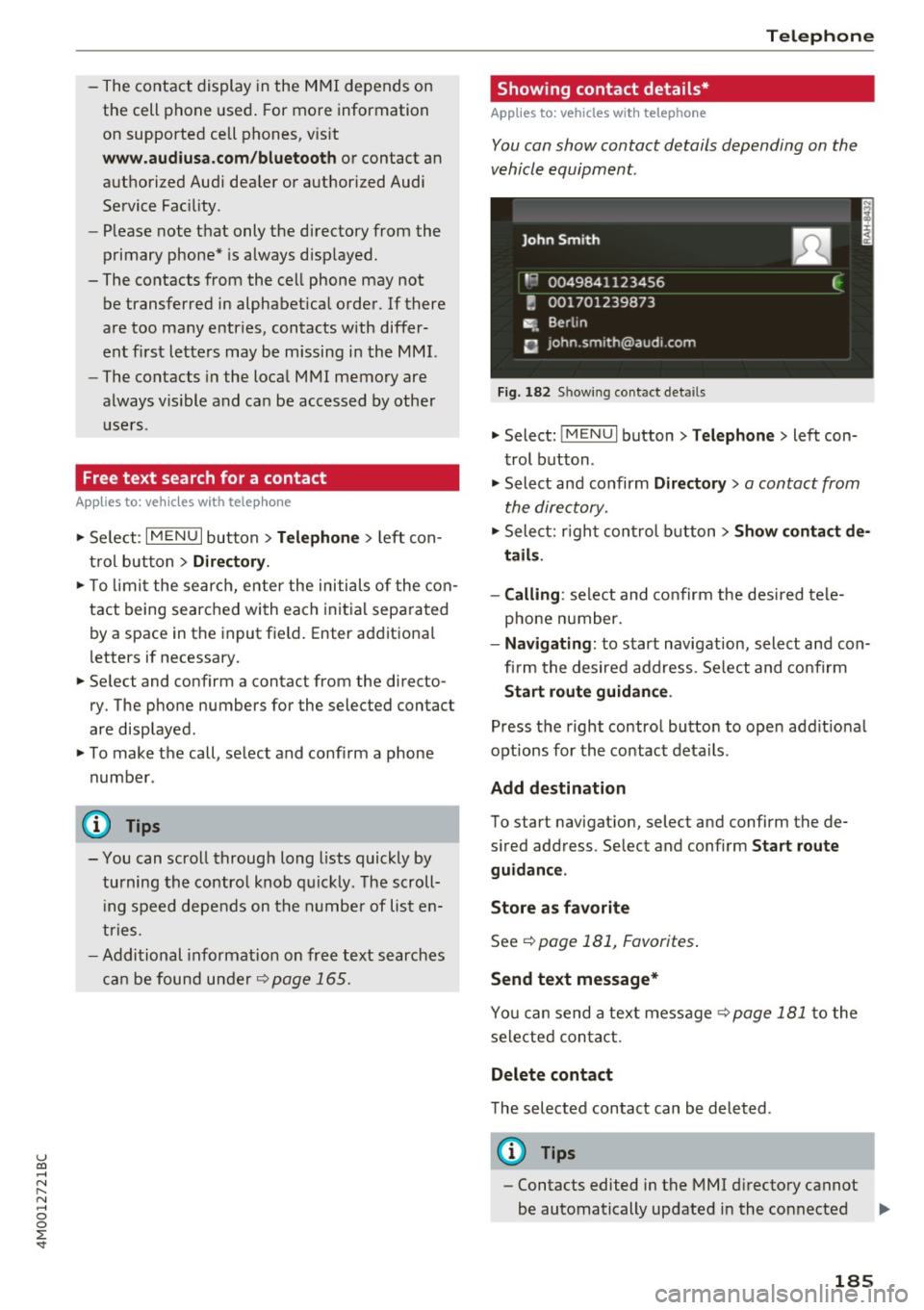
Showing contact details*
Applies to : vehicles wi th telepho ne
You can show contact details depending on the
vehicle equipment.
Fig. 182 Sh owing contact details
~ Select: !MENUI button> Telephone> left con
trol button .
~ Select and confirm Directory > a contact from
the directory.
~ Select: righ t control button > Show contact de
tails .
- Calling :
select and confirm the desired tele
phone number.
- Navigating : to start navigat ion, select and con
fi rm the desired address. Se lect and confirm
Start route guidance .
Press the right control button to open add it ional
options for the contact details.
Add destination
To start navigat ion, select and confirm the de
s ired address. Select and confirm
Start route
guidance .
Store as favorite
See¢ page 181, Favorites.
Send text message*
You can send a text message ¢ page 181 to the
selected contact.
Delete contact
The selected contact can be deleted .
(D Tips
-Contacts edited in the MMI directory cannot
be automatically updated in the connected ..,.
185
Page 189 of 402
u co ...... N r-... N ...... 0
0
:E: '
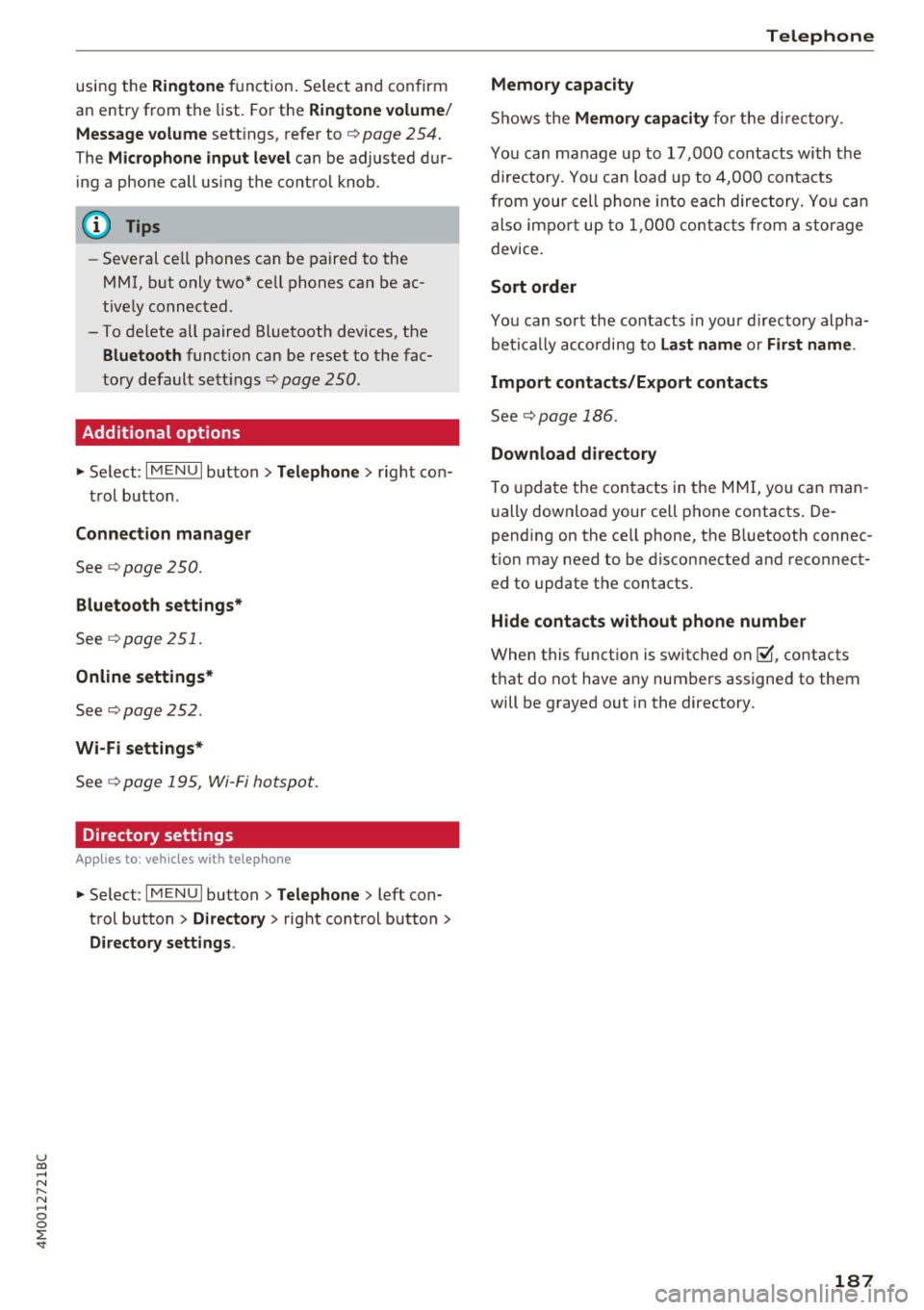
an entry from the list. For the
Ringtone volume/
Message volume
settings, refer to¢ page 254 .
The Microphone input level can be adjusted dur
ing a phone call using the control knob.
- Several cell phones can be paired to the
MMI, but only two* cell phones can be ac
tive ly connected.
- To delete all paired Bluetooth devices, the
Bluetooth function can be reset to the fac
tory default settings¢
page 250.
Additional options
.,. Select: I MENU I button> Telephone > right co n-
trol button.
Connection manager
See ¢ page 250.
Bluetooth settings*
See C) page 251.
Online settings*
See C) page252.
Wi-Fi settings*
See q page 195, Wi-Fi hotspot.
Directory settings
A ppl ies to: ve hicles w ith tele phone
.. Select : I MENU I button >Telephone > left con
trol button
> Directory > right control button>
Directory settings.
Telephone
Memory capacity
Shows the Memory capacity for the directory.
You can manage up to 17,000 contacts with the
directory. You can load up to 4,000 contacts
from your cell phone into each directory. You can
also impo rt up to 1,000 contacts from a storage
device.
Sort order
You can sort the contacts in your d irectory alpha
betically according to
Last name or First name .
Import contacts/Export contacts
See¢ page 186.
Download directory
To update the contacts in the MMI, you can man
ually download your cell phone contacts . De
pending on the ce ll phone, the Bluetooth connec
t ion may need to be disconnected and reconnect
ed to update the contacts.
Hide contacts without phone number
When this function is switched on~, contacts
that do not have any numbers assigned to them
will be grayed out in the directory.
187
Page 190 of 402
Telephone
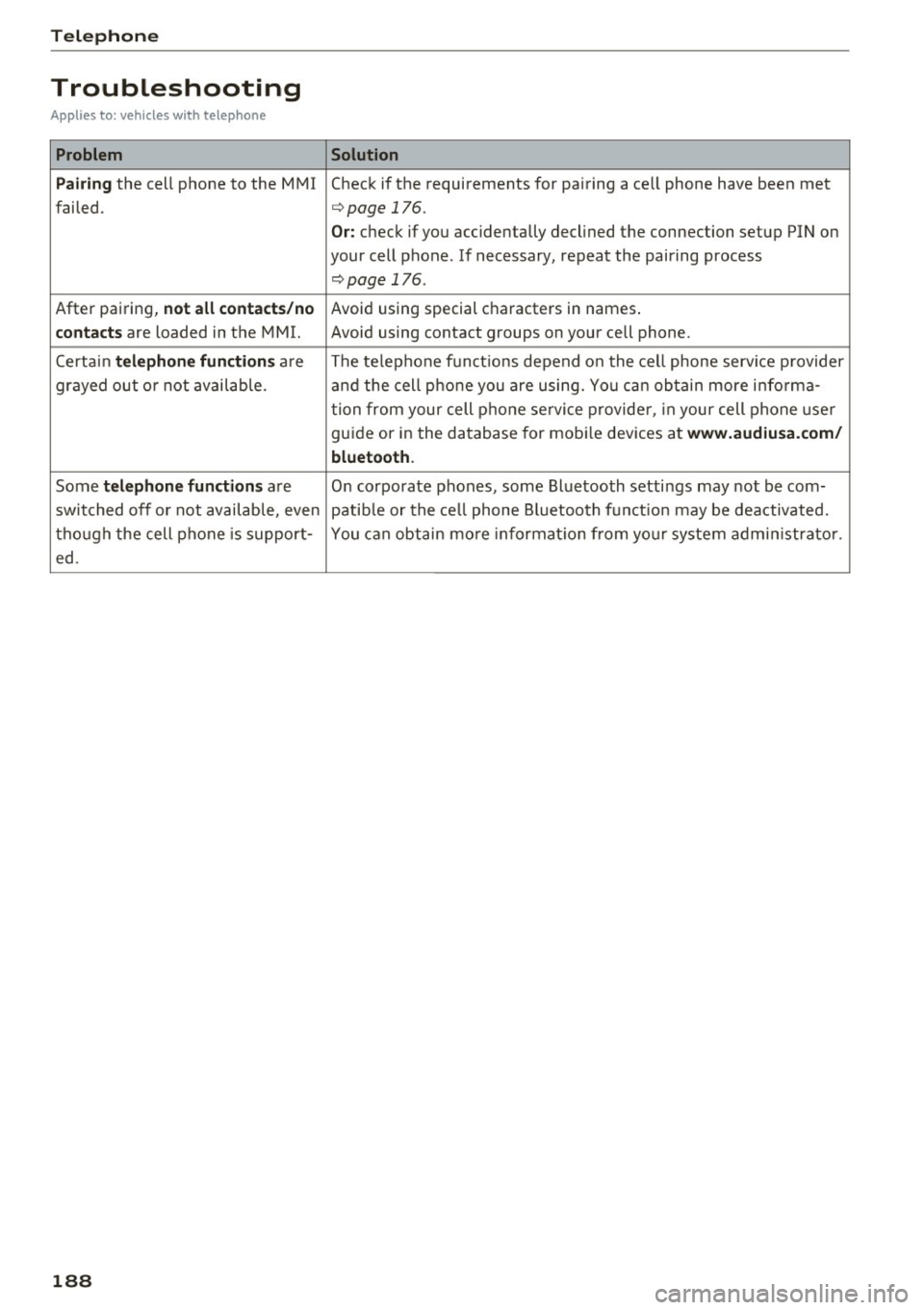
Troubleshooting
Applies to: vehicles with telephone
Problem Solution
P ai ring
the cell phone to the MMI Check if the requirements for pairing a ce ll phone have been met
failed.
¢ page 176.
Or: check if you accidentally declined the connection setup PIN on
your cell phone . If necessary, repeat the pairing process
¢ page 176.
After pairing, not a ll cont act s/ no Avoid using sped.al characters in names .
co ntac ts are loaded in the MMI. Avoid using contact groups on your cell phone .
Certain
t e le ph one func tion s are The te lephone funct ions depend on the cell phone service provider
grayed out o r not availab le. and the cell phone you are using. You can obtain more i nfo rma-
tion from your cell phone se rvice provider, in your cell phone user
gu ide or in the database for mob ile dev ices at
www .audiusa. com /
bluetoo th .
Some te le phone functi ons are O n corporate phones, some Bluetooth settings may not be com-
switched off o r not available, even patib le or the ce ll phone Bluetooth funct ion may be deactivated.
though the cell phone is support- You can obtain more informat io n from you r system admin istrato r.
ed .
188
Page 233 of 402
u co ...... N r--... N ...... 0
0
:E: '
ly sorted into the media center categories based
on the stored additional information
c:>
page 238. The copied video files are stored in
the media center under the
Videos category.
Playing the Jukebox
Requirement: the Jukebox must contain audio/
video files c:>
page 230, Adding files to the Juke
box.
The Jukebox is accessed and operated through
the MMI (Dc:>page237,
fig. 215.
Displaying Jukebox memory capacity
Select: right control button > Jukebox memory
capacity.
Information about the Jukebox memory
capacity and the number of stored tracks is dis
played.
Deleting tracks from the Jukebox1 )
Requirement: the Jukebox must contain audio/
video files.
- Deleting an entry : select an entry from the
Jukebox media center. Select: right control but
ton
> Delete from jukebox> This entry or En
tire list .
- The status of the deleting process is shown in
the MMI. Jukebox playback stops during the de
leting process and starts again automatically
once the deletion is complete.
(D Note
Do not import audio/video files when the en
gine is turned off because this will drain the
vehicle battery.
(D Tips
- Tracks from audio CDs cannot be imported
to the Jukebox for legal reasons .
- Files that have already been imported are
automatically recognized and cannot be
copied to the Jukebox again.
-It is not possible to play audio/video* files
in the CD/DVD* drive while importing them.
l) Not in the Playback view.
Media
- The Jukebox does not provide an export
function due to legal reasons.
- Files or tracks without additional stored in
formation are listed as
Unknown. Audi rec
ommends adding additional information
(such as ID3 tags) to audio files.
- Reset the
Jukebox to the factory default
settings when selling your vehicle
<=:>page 250.
Bluetooth audio player
Applies to: vehicles with Bluetooth audio player
With the Bluetooth audio player, you con ploy
music wirelessly from your Bluetooth-capoble
device (such as a cell phone) through the MMI.
Requirement: the vehicle must be stationary and
the Bluetooth function on your Bluetooth device
and the
Bluetooth audio player c:> page 251 in
the MMI must both be switched on.
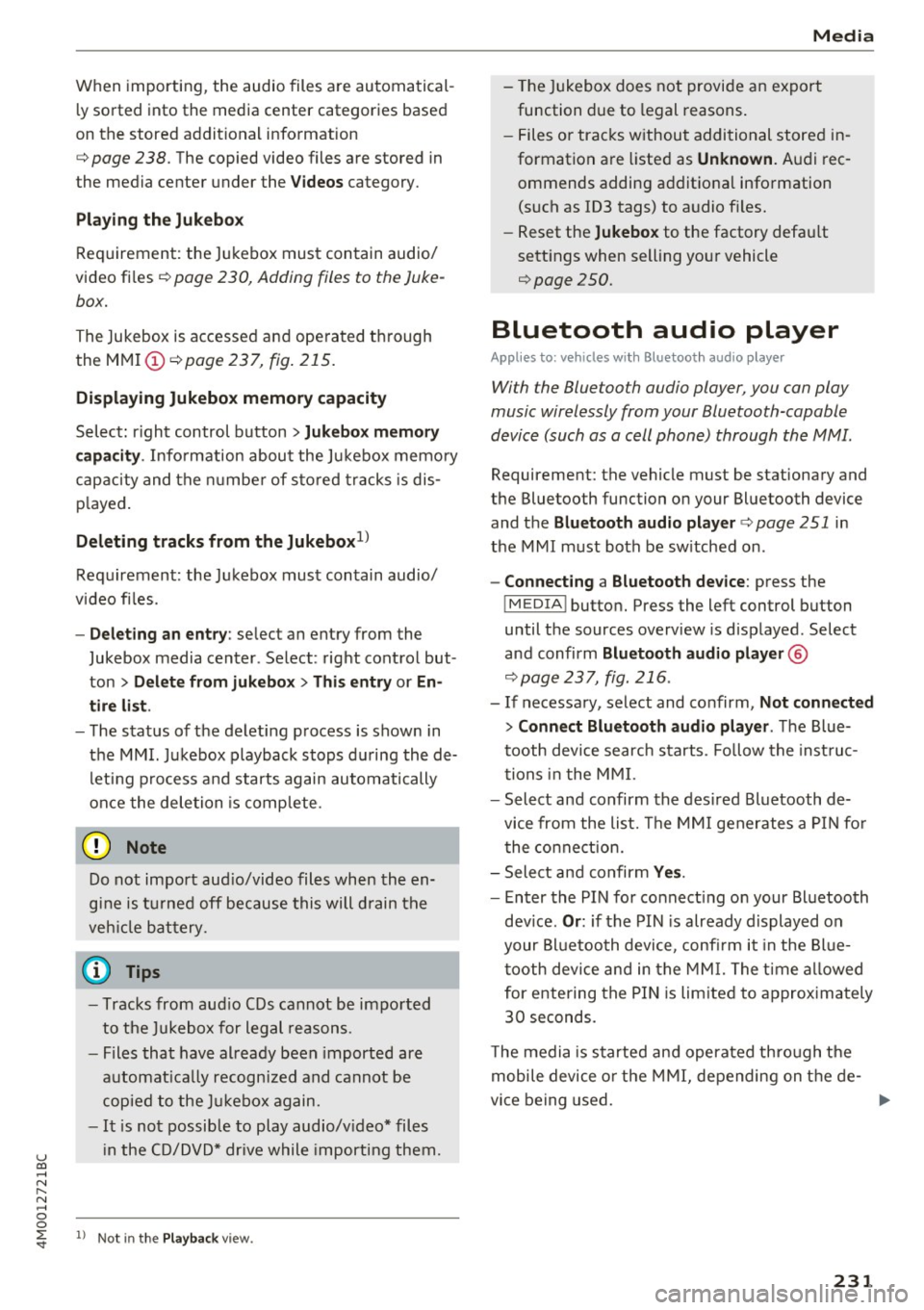
-Connecting a Bluetooth device: press the
!MEDIAi button. Press the left control button
until the sources overview is displayed. Select
and confirm Bluetooth audio player ®
<=:>page 237, fig. 216 .
-If necessary, select and confirm, Not connected
> Connect Bluetooth audio player . The Blue
tooth device search starts. Follow the instruc
tions in the MMI.
- Select and confirm the desired Bluetooth de
vice from the list. The MMI generates a PIN for
the connection.
- Select and confirm
Yes.
- Enter the PIN for connecting on your Bluetooth
device.
Or: if the PIN is already displayed on
your Bluetooth device, confirm it in the Blue
tooth device and in the MMI. The time allowed
for entering the PIN is limited to approximately
30 seconds.
The media is started and operated through the
mobile device or the MMI, depending on the de-
vice being used. ..,.
231
Page 234 of 402

Media
(D Tips
-Check for any connection requests on your
Bluetooth device.
- Multiple Bluetooth audio players can be
connected to the MMI, but only one mobile
device can be active.
- Bluetooth protocols AVRCP (1.0/1.3/1.4)
and A2DP are supported.
- Note the volume setting on your Bluetooth
device. Audi recommends setting your mo
bile device to the maximum volume when
using it as a Bluetooth audio player.
- The supported media functions (such as
shuffle) depend on the Bluetooth device be
ing used.
- For more information on the supported de
vices, visit
www.audiusa.com/bluetooth or
contact an authorized Audi dealer or author
ized Audi Service Facility.
Wi-Fi audio player
Appl ies to: ve hicles w ith Wi-F i audio playe r
Using the Wi-Fi audio player media source on the
MMI, you can connect and operate your Wi-Fi-ca
pable media player (such as a smartphone) to wirelessly play music from your media player
li
brary. The media player is connected through the
vehicle's Wi-Fi hotspot. A UPnP Server opp or an
integrated UPnPIDLNA server on your media
player is required to access your media player
li
brary.
Requirement: the Wi-Fi function on your media
player must be switched on. The
Audi MMI con
nect
app or a UPnP server app must be installed
on your media player .
Or: you must be using a
media player with an integrated UPnP/DLNA
server.
- Connecting a media player: press the I MEDIA !
button. Press the left control button until the
sources overview
¢ page 237 is displayed . Se
lect and confirm
Wi-Fi audio player 0
¢ page 237, fig . 216 .
- If necessary, select and confirm Wi-Fi off>
Turn on Wi-Fi
to activate Wi-Fi in the MMI. Se
lect
Wi-Fi settings, if necessary. Select the
232
same settings on the wireless media player
that are used for the Wi-Fi hotspot.
-Starting the Wi-Fi audio player: start the Audi
MMI connect
app or a UPnP server app, or set
media permissions on your media player.
Operating the media player: the media player is
operated through the MMI.
- Press the left control button repeatedly until
the
Folders menu item appears. Select and con
firm
Folders.
- Playing music from the media player:
select
and confirm
Media center .
A WARNING
-As the driver, do not allow usage of the Wi
Fi hotspot to distract you from driving, as
this could increase the risk of an accident.
- It is only safe to use tablets, laptops, mo
bile devices and other similar devices when
the vehicle is stationary because, like all
loose objects, they could be thrown around
the inside of the vehicle in a crash and cause
serious injuries. Store these types of devices
securely while driving.
- Do not use any wireless devices on the front
seats within range of the airbags while driv
ing. Also read and follow the warnings in
¢ page 2 77, Front airbags.
(D Note
Always follow the information found in ¢(Din
Wi-Fi hotspot on page 195.
(D Tips
- Always read the chapter¢ page 196, Audi
connect (Infotainment) general informa
tion.
- Please note that a Wi-Fi connection does
not automatically make it possible to use
the Internet. For additional information,
see
¢ page 189.
-To avoid interruptions during playback, de
activate the power saving function on the
media player or connect it to a charger.
- The loading times for the audio data depend
on the media player used and the number of
files that it contains .
II>-
Page 242 of 402
Media
Playlist
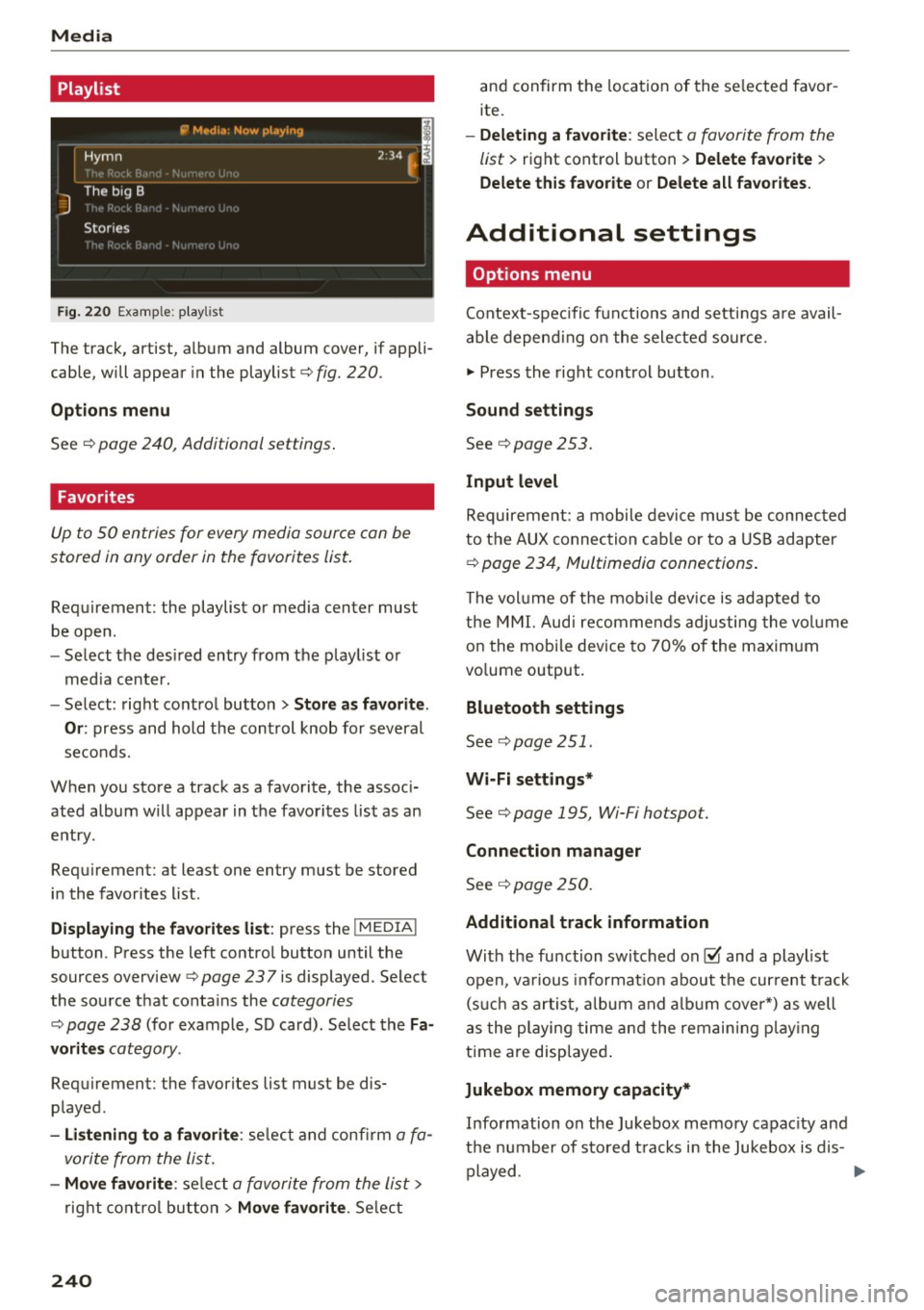
Fig . 2 20 Example: p lay list
The track, artist, album and album cover, if appli
cable, will appear in the playlist
¢ fig. 220 .
Option s menu
See ¢ page 240, Additional settings .
Favorites
Up to 50 entries for every media source can be
stored in any order in the favorites list.
Requirement: the playlist or media center must
be open.
- Select the des ired entry from the play list or
med ia center.
- Select: right control button
> Store a s favorit e.
Or :
press and hold the cont rol knob for several
seco nds.
When you store a track as a favorite, the assoc i
ated album w ill appear in the favorites list as an
entry.
Requirement: at least one entry must be stored
in the favorites list.
Displaying the fa vo rite s list : press the !MEDIA !
button. Press the left contro l button until the
sources overview
c=> page 23 7 is displayed. Select
the source that conta ins the
categories
¢ page 238 (for example, SD card). Select the Fa
v orit es
category .
Requirement: the favorites list must be dis
played.
- List ening to a favorite : select and confirm a fa
vorite from the list.
- Mov e favorite : select a favorite from the list>
right cont rol button > Move fa vorite . Select
240
and confirm the location of the se lected favor
ite.
- Deleting a f avorit e: select a favorite from the
list>
right control b utton> Delete fa vorite >
Delete thi s favorite or Delete all fa vo rite s.
Additional settings
' Options menu
Context-spec ifi c fu nctions and settings a re avail
able depend ing on the sele cted source.
" Press the right control button .
Sound settings
See c:::> page 253.
Input l evel
Requirement: a mobile device mus t be connec ted
to the AUX connection cab le or to a USB adapter
c:::> page 234, f\1ultimedia connections.
The volume of the mob ile dev ice is adapted to
t h e MMI. Aud i recommends adj usting the volume
on the mobi le device to 70% of the maximum
vo lume output.
Bluetooth settings
See c:::> page 2 51.
Wi-Fi settings*
See ¢ page 195, Wi-Fi hotspot.
Connection manager
See c:::> page 250.
Additional track information
With the fu nction switched on~ and a playlist
open, va rious informat io n about t he cur rent t rack
(such as artist, a lbum and alb um cove r*) as well
as the playing time and the remain ing p lay ing
time are displayed .
Jukebox memory capacity*
Information on the Jukebox memory capac ity and
the number of stored t racks i n the Jukebox is dis-
played. ""'
Page 246 of 402

Media
on the system language and canno t always
be g uaranteed . - Some M
TP player f unctions are not s upport
ed, s uch as rating m us ic tracks and v ideo
playback.
- T he man ufa ctu rer of the storage device can
p rovide information about its "USB Device
Subclass" .
CD drive
Applies to: veh icles w ith a CD drive
The following audio file proper ties are supported by the CD drive:
Audio files
Supported
Aud io CDs (up to 8 0 min) wi th CD text (artist, a lb um, t rack) *, C D-RO Ms wi th a capac i-
media ty of up to 700 MB
File system CD file system: IS09660, Joliet, UDF
Metadata Album cover : GIF, J PG, P NG wit h max. 800x800 px. The album cover from the medi-
um may be d isp layed, depend ing on avai lab ility.
Format M PE G 1/ 2 Windows Med ia A u- MP EG 2/4 FLAC
Layer -3 dio 9 and 10
File e xtension .mp3 .wma .m4a; .flac
. m4b ;
. aac
Playlists .M3U ; .P LS ; .WPL; .M3U8; .ASX
Characteristics up to maxim um 320 kbit/s and 48 k Hz sampli ng frequenc ies 48 k Hz sampling
frequency
Number of Maxim um 1,000 f iles pe r medium
files
(D} Tips
- To comp ress MP3 f iles, a bit rate of at least
160 kb it/s is recommended. The display
showing t he remaining play t ime may differ
fo r MP3 files w ith variable bit rate . -
Special cha racters (such as t hose in 1D3 tag
information) display differently depending
on the system language and can not always
be guaranteed .
Troubleshooting
Problem Solution
Audi music interface /Bluetooth
Read the ins tructions in the chapter ~ page 234, Multimedia con-
audio player *: mobile dev ice is nectionsl ~ page 231, 8/uetooth audio pl ayer . You can lear n
not supporte d. abo ut s uppor ted mobi le devices in t he A udi database fo r mobile
dev ices a t
www.audiu sa .com/bluetooth .
Audi music interface:
the volume Ad just the volume of the mobile device to approximate ly 70% of
is too high/too low when start ing the maximum output¢
page 240, Input lev el.
playback thro ugh t he AUX inp ut.
244
...