tire AUDI Q7 2017 Owner´s Manual
[x] Cancel search | Manufacturer: AUDI, Model Year: 2017, Model line: Q7, Model: AUDI Q7 2017Pages: 402, PDF Size: 100.39 MB
Page 104 of 402
Ass is tance sy stems
Assistance systems
Electronic speed Limiter
Your v ehicle may be factory equipped with tires
that are rated for a maximum speed of 130 mph (210 km/h). This is less than the maximum sp eed
of your vehicle . To reduce the risk of sudden tire
failure and loss of control if the vehicle is operat ed at excessive speeds, your vehicle also has an
electronic speed limiter . The electronic speed
lim iter prevents your vehicle from going faster
than the t ire speed rating. For mo re information
<=> page 333.
If the engine control unit receives faulty vehicle
road speed s ignals , the Malfunction Indicator
L amp (MIL)
¢..ffi will illumina te . If this occurs,
con tact the nearest au thorized A ud i dealer for
assistance.
_& WARNING
Always observe the posted speed limits and
adjust you r speed to suit prevailing road, traf
fic and weather conditions. Never drive your
vehicle faster than the maximum speed rating
of the tires installed .
Speed warning system
Introduction
Applies to: vehicles with speed warning system
The speed warning system helps you to stay be
low a specified maximum speed that can be set,
changed or deleted in the Infotainment system.
-
The speed warning system warns you if you are
exceeding the maximum speed that you have set .
A wa rning tone will sound as soon as you r speed
ex ceeds the s tored v alue s light ly. Th e indicato r
light also turns on in the instrument cluster dis
p lay
ct] (USA models)/ [SJ (Canada models) and
a message . The indicator light
(CJ / [SJ and the
message turn off if the speed falls back be low
the stored maximum speed.
Se tting a threshold is recommended if you would
like to be reminded when yo u reach a certain
maximum speed. Situations where you may want
to do so include driving in a country with a gene r-
102
al speed limit or if there is a spec ified maximum
speed for winter tires.
Setting the warning threshold
Se lect in the Infotainment system: I M EN U I but
ton
> Vehicle > left co ntro l bu tton > Driver as sis
tance
> Speed warning > Manu al.
(D Tips
Regardless of the speed warning sys tem, you
shou ld alw ays mo nitor your speed using the
speedometer and make sure yo u are fo llow ing
the lega l speed limit.
Cruise control system
Switching on
Applies to: vehicles with cruise control system
The cruise control sys tem makes it possible to
drive at a constant speed starting at
15 mph
(20kmlh) .
0
f
~
0
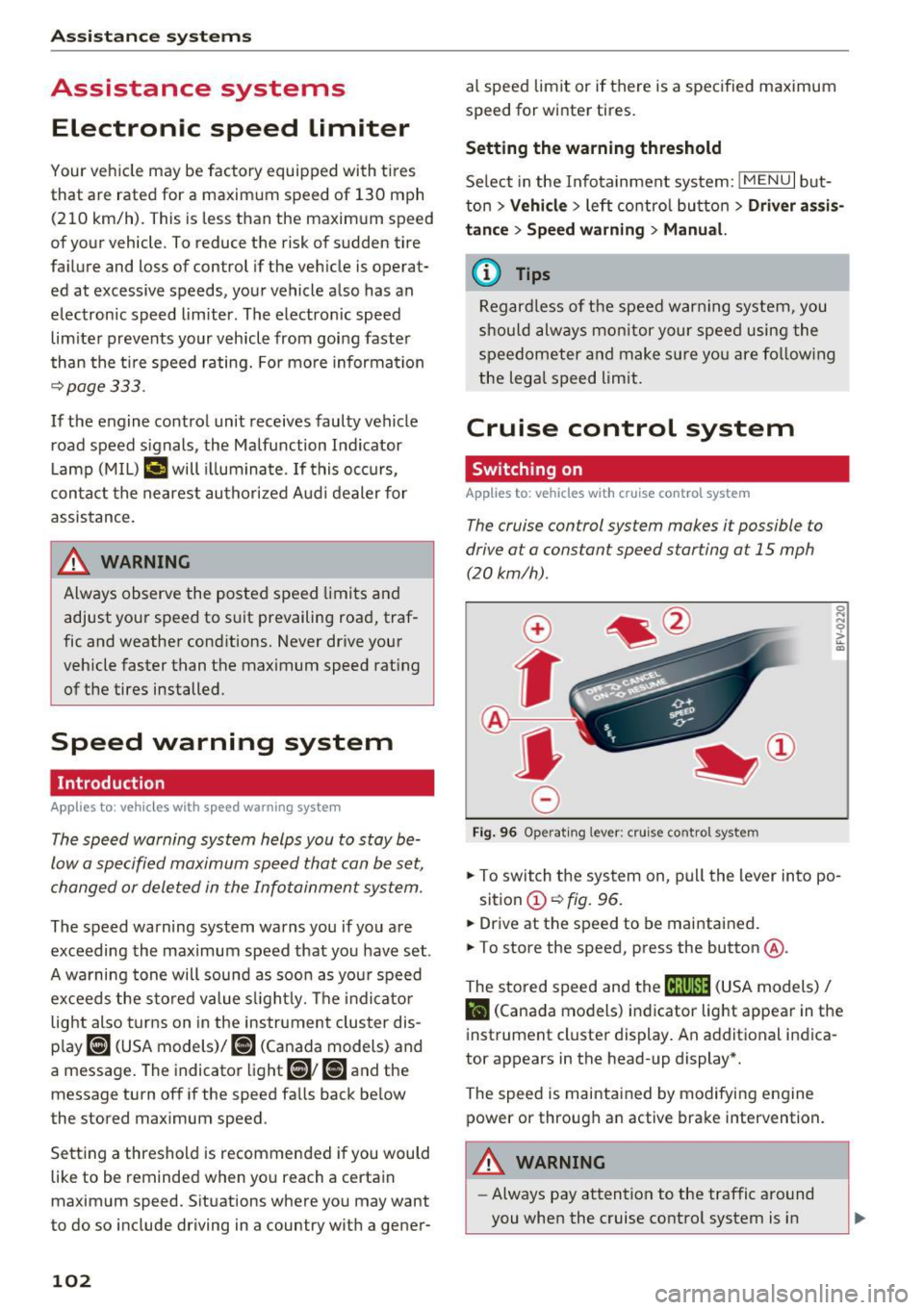
Fig. 9 6 Operat ing lever : cru ise co ntro l sys te m
.,. To switch the system on , pu ll the lever into po -
sition
(D <=> fig. 96 .
.. Drive at the speed to be mai ntained.
.. To store the speed, press the button @.
The stored speed and the
ftji(l)~14 (USA models) I
l'I (Cana da models) indicator light appear in the
instrument cluster display. An additional indica
tor appears in the head-up display *.
The speed is maintained by modifying engine power or through an active brake intervention.
A WARNING
- Always pay attention to the traffic around
you when the cruise control system is in
-
Page 137 of 402
u (0 ...... N r--. N ...... 0
0
:E
The air suspension* is an electronically-control
l ed air suspens ion and damping sys tem . The ad
justment depends on the driving mode selected, steer ing movements, the driver's braking and ac
celeration, and as the road surface, vehicle speed
and load. The vehicle ground clearance depends
on the mode selected and the speed .
The ground clearance increases s ignificantly
when the vehicle is in the
Allroad mode . At
speeds from approximately 50 mph (80 km/h) to
75 mph (120 km/h), the ground clearance re
duces in stages. When the speed decreases, the
ground clearance increases again automat ically .
The ground clearance is the lowest in
Dynamic
mode.
Steering
The power steering adapts. Ind irect steer ing that
moves easily as in
Comfort mode is especially
suited to long drives on highways. The
Dynamic
mode provides sporty, direct steering.
All-wheel steering*
All-wheel steer ing increases driving comfort by
providing addit ional steering ability at the rear
axle . Steer ing in the opposite d irection at low
speeds decreases the turning rad ius. Steering in
the same d irect io n at high speeds improves the
response time while increasing driving stability at
the same time .
Sport differential*
As a component of the all wheel drive system
(quattro)
~ page 152, the sport diffe rential dis
tributes the dr iv ing power to the rear axle de
pending on the situation. The distribution of
power varies depending on the selected mode
from moderate
( Comfort ) to sporty (Dynamic ).
The goal is a high level of agility and ability to ac
celerate on curves . The vehicle is very responsive
to steering.
Adaptive cruise control (ACC)*
The behavior when accelerating can be adjusted
from comfortab le to sporty, depending on the
drive select mode. Adaptive cruise control also
Assistance systems
responds to the driving behavior of the vehicle
ahead in a more conservative or sporty manner.
Engine sound*
T he eng ine sound adapts to the current mode
and can be subtle to sporty .
(D Note
Applies to: vehicles wi th air suspensio n
-Make sure there is enough clearance above
and below the vehicle when parking. The
height of the ve hicle (gro und clearance) can
change once it is parked due to temperature
fluctuations, changes to the load conditions
and changes to the dr iving modes.
- When transporting the vehicle on a car car
rier, train, ship or by other means, only tie
the vehicle down at the running surface of
the tires, which is the outer c ircumference.
Sec uring the vehicle at the axle compo
nents, suspension struts o r towing eyes is
not permitted because the pressure in the
air suspens ion struts can change during
transport. The vehicle may not be secured
sufficiently if this happens.
@ Tips
The S selecto r lever position automatically en
gages when the
Dynamic mode is selected .
Selecting the driving mode
Applies to: vehicles w ith Aud i dr ive select
~- ------ -
~
Fig. 133 Center console: co ntro ls for d rive select
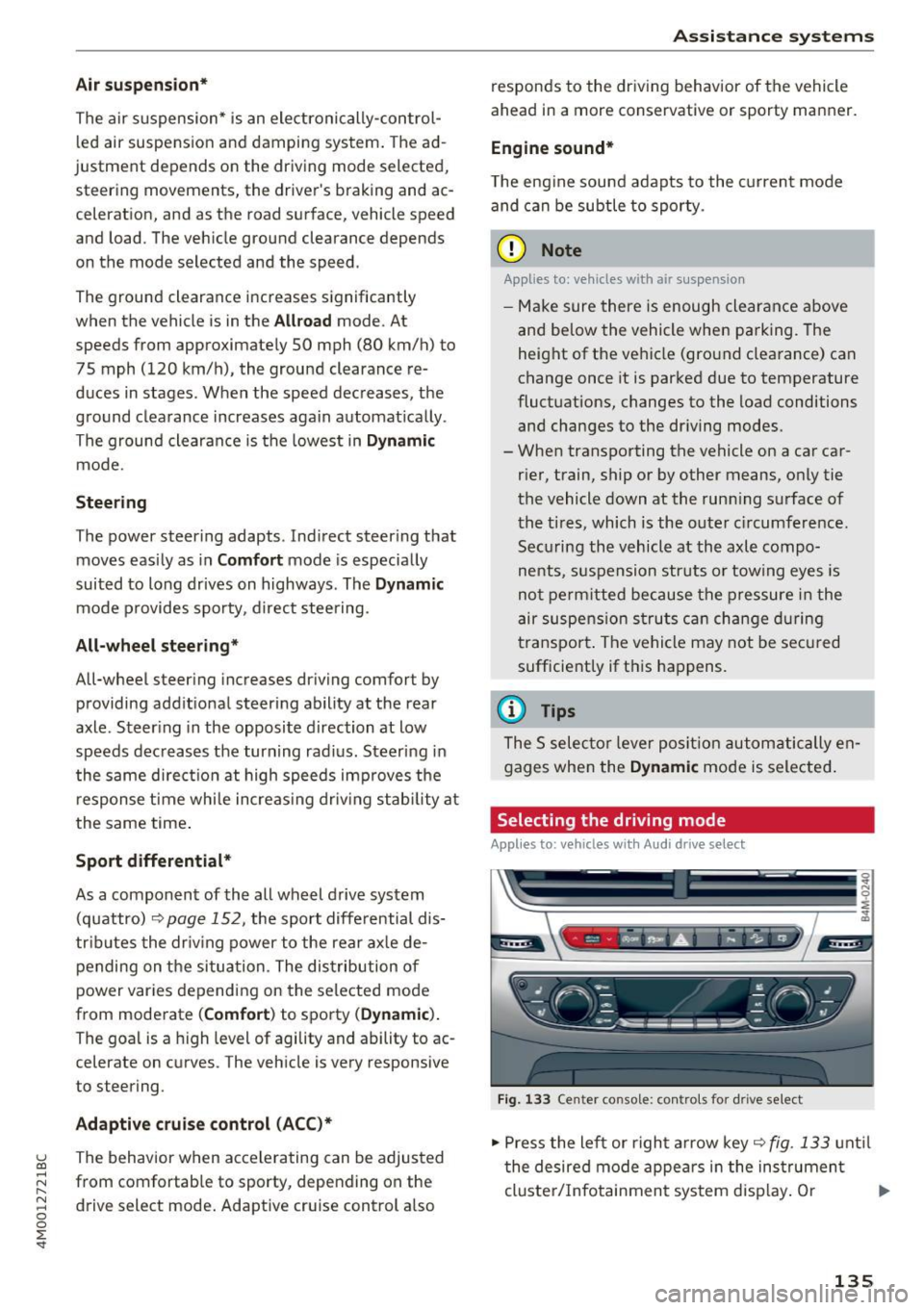
.,. Press the left or right arrow key~ fig. 133 until
the desired mode appears in the instrument
cluste r/Infotainment system disp lay. Or
II>-
135
Page 154 of 402
Intelligent Technology
Electromechanical
steering, all-wheel
steering
The electromechanical steering supports the
driver's steering movements .
Power steering adapts electronically based on
the vehicle speed.
Indicator lights and messages
• Stee ring: malfunction! Please stop vehi cle
If th is ind icator light turns on and stays on and
this message appears, the power steer ing may
have fa iled.
Stop the vehicle in a safe location as soon as pos
sib le. Do
not continue driving. See an author iz ed
Aud i dealer or authori zed Aud i Serv ice Facility for
assistance.
• Steering: malfunction! Please stop vehicle.
Pay attention to distan ce at side
If th is ind icator light turns o n and stays o n and
this message appears, the a ll-wheel steering*
may have failed . The side of the vehicle may need
more space on the road.
Red uce your speed and stop the veh icle in a safe
locat ion wit h enough space on the sides as soon
as possible. Do
not continue d riving . See an au
thor ized Audi dealer or authorized Audi Service
Facility for assistance.
'T@ Steering : malfunction! You may continue
dri ving
If t he indicator lig ht t urns on and the message
appears, the steering wheel may be more diff i
cult to move or mo re sensitive tha n usua l. The
steering whee l may a lso be at an angle when
driving straight.
D rive s low ly to an authorized A udi dealer or au
thor ized Audi Se rvice Facility to have the ma l
function corrected.
'T@ Ste ering : ma lfunction! Adapt driving style .
Larger turning radius
I f the indicator lig ht tu rns on and th is message
appears, the a ll-wheel steering* may have failed .
152
Please note that the vehicle has a larger t urning
radi us and the stabi lity w hen turning a corner is
lik e that of a vehicle without all-whee l steer ing.
The steering wheel may also be at an angle when driv ing straight.
Drive slowly to an a uthorized Audi dea ler or au
thorized Audi Serv ice Facility to have t he mal
funct ion corrected.
(D Tips
- If the . or 'T-ij indicato r light only stays on
for a sho rt time, you may cont inue driving .
- For add itiona l information on all-wheel
steering *, see ¢
page 134 .
All-wheel drive (quattro)
General informat ion
I n all whee l drive, the dr iv ing power is dis trib ut
ed between all four whee ls when needed . This
happens automatically depending on your driving
behavior as we ll as the c urrent road cond it ions.
Also see ¢
page 148, Electronic stabili zation
control (ESC).
The all-whee l drive system distributes the driving
power va riably to the front and rear axle. It works
together with selective wheel torq ue control,
which act ivates when dr iv ing through curves
¢ page 148. With the sport d ifferent ial*, power
dist ribution to the rear wheels is variable and can
be adjusted using the drive se lect
¢ page 134.
The all wheel drive concept is designed for high
engine power . Your vehicle is except iona lly pow
erfu l and has excellent driving charac teristics
bot h unde r normal d riving conditions and o n
snow and i ce. Always read and follow safety pre
c au tions
c:::> .&, .
Winter tires
By using all wheel dr ive, your ve hicle has good
forward motion w ith standard tires in win ter con
dit ions. However, using w in ter or all season t ires
o n
all four wheels in the w inte r is re comme nded,
be cau se th is w ill imp rove t he
braking effe ct. IJII>-
Page 155 of 402
u co ...... N r-... N ...... 0
0
:E: '
If there are snow cha in laws, snow chains must
a lso be used on vehicles with a ll wheel drive
¢ page 349, Snow chains .
Replacing tires
For vehicles w ith all wheel dr ive, only whee ls w ith
the same ro lling circumference shou ld be used .
Avoid using tires w ith different tread depths
¢ page 340, New tires or wheels .
.&_ WARNING
-Also, in vehicles with all wheel drive, adapt
yo ur dr iv ing style to the current road and
traff ic conditions. Do not let the increased
safety provided tempt you into tak ing risks,
because th is increases the r isk of an acci
dent .
- The braking ability of your veh icle is limited
to the tract ion of the wheels . In this way, it
is not diffe rent from a two wheel dr ive vehi
cl e. Do not be tempted to accelerate to a
high speed when the road is slippe ry, be
ca use this increases the risk of an accident.
- Note that on wet streets, the front wheels
can "hyd roplane" if d riving at speeds that
are too high . Unlike front whee l drive
vehicles, the engine does not rev higher su d
denly when the vehicle begins hyd roplaning .
For this reason, adapt your speed to the
road conditions to reduce the risk of an acc i
dent .
Energy management
The starting ability is optimized
The energy management system manages the
electrical energy distribution and optimizes the
availability of electrical energy for starting the
engine.
W hen a ve hicle w ith a convent ional energy sys
tem is not driven for a long tim e, the vehicle bat
t ery is dra ined by equipment (fo r example, the
i mmobilizer). In certain circumstances, there
could may not be enoug h energy to start the en
gine .
Intellig ent Technology
Your vehicle is equipped with an intell igent ener
gy management system for dist ributing electrici
ty . Th is sign ificantly improves the start ing ability
and increases the vehicle battery life.
T he ene rgy management system Is made up of
battery diagnosi s, idling cu rrent management ,
and dynamic energy management .
Battery diagnosis
T he battery diagnos is determines the vehicle ba t
te ry charge level. The sensors determine the bat
te ry vo ltage, the batte ry cu rrent, and the battery
temperat ure. The cur rent charge level and the
performa nee of the vehicle battery a re deter
mined based on this.
Idling current management
T he idling cur rent management decreases the
energy used while parked . With the engine
switched off, it ma nages the energy distribution
to the d ifferent e lectr ica l components . Data from
the battery d iagnosis is taken into account for
th is.
Depending on the vehicle battery charge level,
electrical equ ipment is switched off one item af
ter the other to prevent the vehicle battery from
dra ining and to ma intain the starting ab ility .
Dynamic energy manag ement
While driving, dynamic energy management dis
t ributes the appropr iate amo unt of energy to the
electrical eq uipment. It contro ls the battery
charge level so that the amount of energy is not
greater than the amount being generated in or
der to maintain an optimal vehicle battery charge
level.
(0 Tips
- Energy management cannot overcome the
laws of physics . Note that the charge level
and length of the veh icle bat tery life are
limited.
- Whe n the sta rting ability is endangered, the
i•) in dicator light t urns on r=v page 27.
153
Page 197 of 402

u co ...... N r-... N ...... 0
0
:E: '
See ¢ page 250.
Licen se sub scr ipt ion
The val idity and expirat ion date of your licenses
are displayed . When the function is switched on
~, the message
Warning befor e subscription
e xpire s
will display to warn you that your license
is about to expire.
Refre sh
The content of the selected Audi connect Info
tainment service o r the entire Audi connect (Info
tainment) list is updated.
Wi-Fi hotspot
A ppl ies to: ve hicles with Wi -F i h otspot
You can use the MMI as a Wi-Fi hotspot to con
nect up to eight Wi-Fi devices to the Internet.
While driving, restricted use of unsecured, light,
small wireless devices is only possible from the
rear of the vehicle.
Requirement: the ignition must be switched on.
.,. Se lect :
I MENU I button >Telep ho ne> right con-
trol button
> Wi -Fi settin gs.
The follow ing settings can be selected:
Wi-F i
The MMI Wi-Fi hotspot is deactivated at the fac
tory. Switch the Wi-Fi hotspot to
Hot spo t before
establishing a connection between your vehicle
and your Wi -F i dev ice.
- On: the MMI Wi-Fi hotspot is active and visib le
to other devices . You can connect your Wi-Fi
device to the MMI and use the Internet connec
tion if necessary .
-Off: the MMI Wi-Fi hotspot is deactivated. An
Internet connection for Wi-Fi devices is not
poss ible.
A WARNING
- To reduce the risk of an accident, use the
Audi connect Infotainment serv ices w ith a
Wi -Fi hotspot on ly in the rea r seat when the
-
Audi c onn ect ( Inf ota inm ent )
vehicle is in motion, or only when the vehi
cle is stat ionary.
- It is only safe to use tablets, laptops, mo
bile devices and other similar devices when
the vehicle is stationary because, like all
loose objects, they could be thrown around
the inside of the vehicle in a crash and cause
serio us injuries . Store these types of devices
securely while driving.
- Do not use any wireless dev ices on the front
seats within range of the airbags while dr iv
ing. Also read the warnings in the chapte r
¢ page 2 77, Front airbags.
-As the driver, do not allow usage of the W i
F i hotspot to distract you from driv ing, as
this cou ld increase the r isk of an accident.
(D Note
- Under some conditions, certain mobile devi
ces and ope rating systems may automati
cally sw itch from your vehicle's Wi-Fi hot
spot to the device's mobi le da ta connection.
In that event, standard text and data usage
rates would apply whi le the device's mobile
data connection is in use . Please refer to
documentation provided by your mobile de
vice's manufacture and your data carrier for
details , related terms and privacy state
ment.
- You are responsib le for all precautions tak
en for data protect ion, anti-virus protection
and protection against loss of data on mo
bile devices that are used to access the In
ternet through the Wi-Fi hotspot.
(D Tips
- In vehicles w ithout Audi connect (Infota in
ment)*, the use of the Wi-Fi hotspot is only
possible fo r the W i- Fi aud io player*. A data
c onnect io n to the Inte rnet cannot be es tab
lished.
- For add itiona l information about the Audi
connect Info tainment services, visit
www .audiusa.com /myaudi .
195
Page 219 of 402
u (0 ...... N r--. N ...... 0
0
:E
Day /Night :
the map is displayed with a light/
dark background.
Automatic : the map display adapts to the light
i ng conditions (fo r example, changing from
Day
to Night when driving thro ugh a tunne l).
Map display
Standard :
see c:>page 215, fig. 197 .
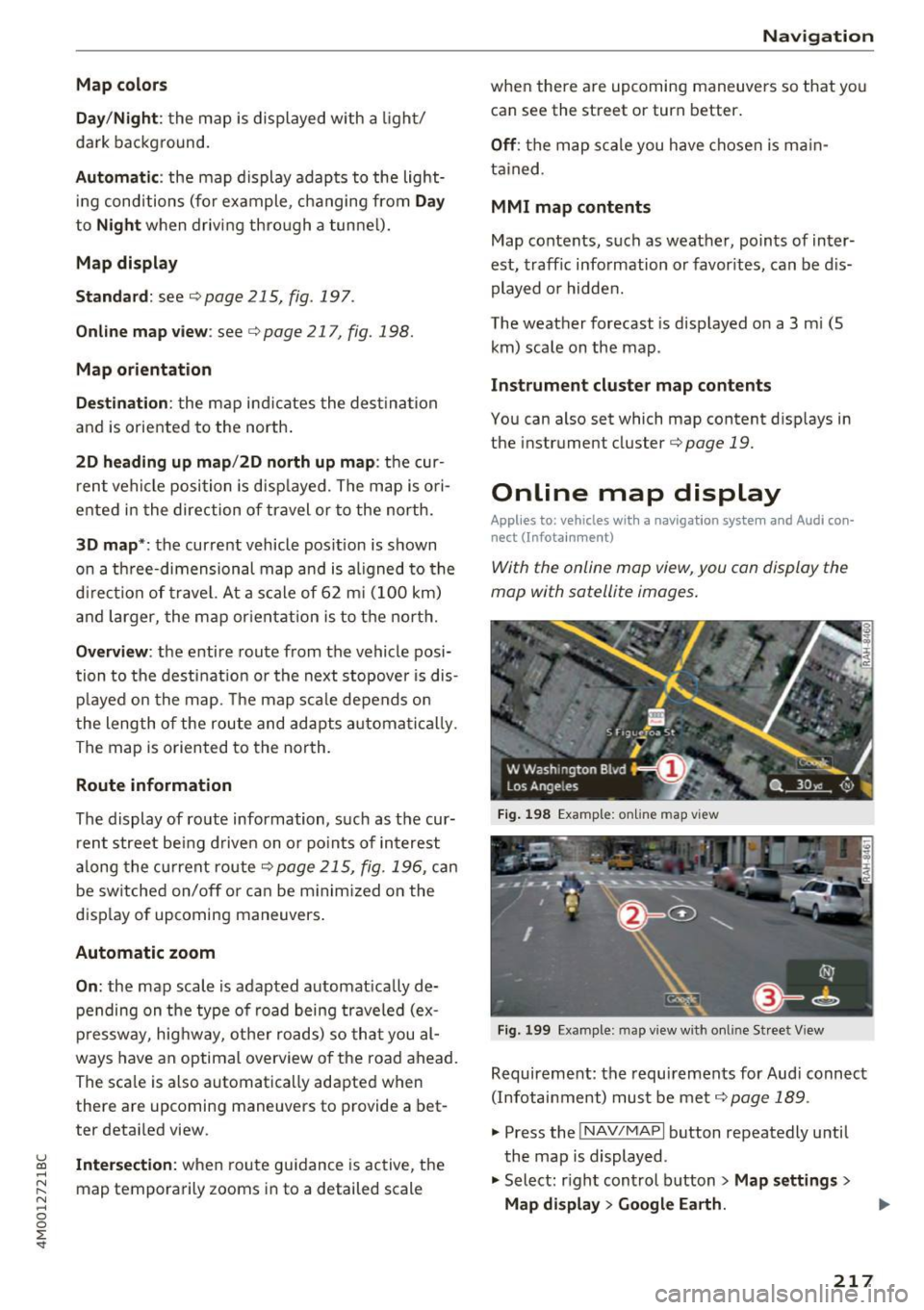
Online map view: see c:> page 217, fig. 198.
Map orientation
Destination :
the map indicates the dest ination
and is oriented to the north.
2D heading up map /2D north up map : the cur
rent vehicle position is dis played. The map is o ri·
ented in the direction of travel or to the north.
3D map *: the current vehicle pos ition is shown
on a th ree-dimensional map and is a ligned to the
d irection of travel. At a scale of 62 mi (100 km)
and larger, the map orientation is to the north.
Overview : the entire route from the vehicle posi·
tion to the destination or the next stopover is dis·
played on the map. The map scale depends on
the length of the route and adapts a utomatica lly.
The map is oriented to the north.
Route information
The display of route information, such as the cur·
rent street being driven on or po ints of in terest
along the current route
c;,page 215, fig. 196, can
be switched on/off or can be m inim ized on the
display of upcoming maneuvers .
Automatic zoom
On :
the map scale is adapted automat ically de·
pending on the type of road being traveled (ex·
pressway, highway, other roads) so that you al
ways have an optimal overview of the road ahead.
The sca le is also automatica lly adapted when
there are upcoming maneuvers to provide a bet·
ter detai led view.
Intersection : when route guidance is active, the
map temporarily zooms in to a detailed scale
Navigation
when there are upcoming maneuvers so that you
can see the street or turn better.
Off : the map scale you have chosen is main·
tained .
MMI map contents
Map contents, such as weather, points of inter·
est, traffic information or favorites, can be dis·
played or hidden.
The weather forecast is displayed on a 3 m i (5
km) scale on the map.
Instrument cluster map contents
You can also set which map content disp lays in
the instrument cluster
c:> page 19.
Online map display
Applies to: vehicles with a navigation system and Audi con·
nect (Infotainment)
With the on line map view, you can display the
map with satellite images.
Fig. 198 Example: on line map v iew
Fig . 199 Example: map view with onli ne St reet V iew
Requirement: the requirements for Aud i connect
(Infotainment) must be met
c:>page 189 .
.,. Press the !NAV/MAPI button repeatedly until
the map is displayed.
.,. Select: r ight control button
> Map settings >
Map display > Google Earth .
217
Page 232 of 402
Media
CD drive
Applies to: vehicles w ith a CD drive
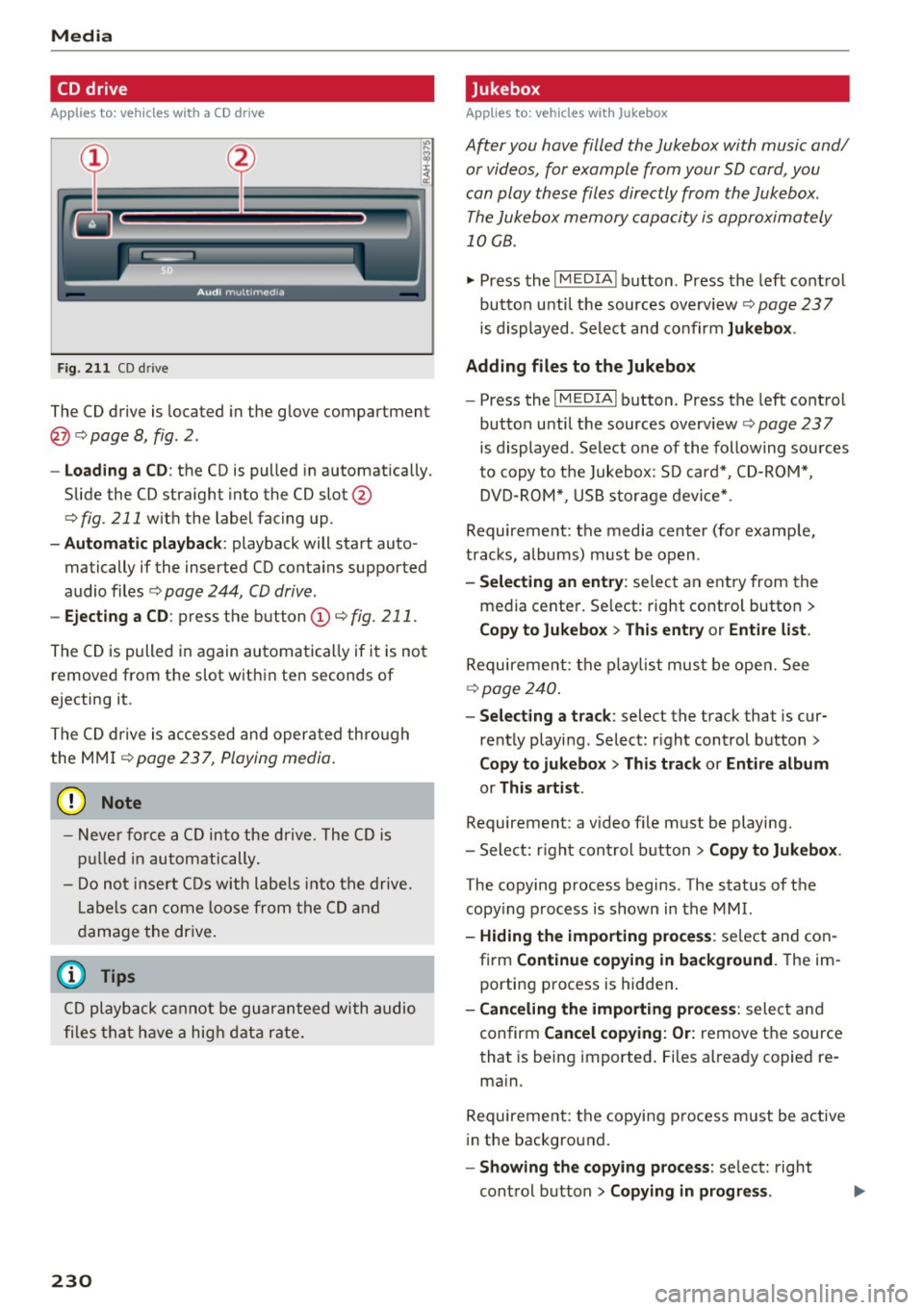
Fig. 2 11 CO drive
The CD drive is located in the glove compartment
@ <=>page 8, fig. 2.
-Loading a CD : the CD is pulled in automatically .
Slide the CD straight into the CD slot@
<=>fig . 211 with the label facing up.
- Automatic playbac k: playback will start auto
matically if the inserted CD conta ins supported
audio files
c:> page 244, CD drive .
-Eje cting a CD : press the button(!)<=> fig. 211 .
The CD is pulled in again automatically if it is not
removed from the slot w ith in ten seconds of
ejecting it.
The CD d rive is accessed and operated thro ugh
the MMI
<=> page 237, Playing media .
(D Note
- Never force a CD into the drive . The CD is
p ull ed in automatically .
- Do not inse rt CDs with labels into the drive.
L abe ls can come loose from the CD and
damage the dr ive.
@ Tips
CD playback ca nnot be guaranteed with audio
files that have a hig h data rate.
230
· Jukebox
App lies to: vehicles wit h Jukebox
After you have filled the Jukebox with music and/
or videos, for example from your SD card , you
can play these files directly from the Jukebox .
The Jukebox memory capacity is approximately
10 GB .
.,. Press the I M EDIA ! button . Press the left control
button unti l the sources overv iew
c:> page 23 7
is displayed. Select and co nfirm
Jukebo x.
Adding files to the Jukebox
- Press the IM EDIA ! button . Press the left control
button until the sources overv iew
c:> page 23 7
is displayed . Select one of the following sou rces
to copy to the Jukebox: SD card*, CD-ROM *,
DVD-ROM*, USB storage devi ce* .
Requirement: the media center (for example,
tracks, albums) must be open .
-Select ing an entr y: select an entry from the
media cente r. Se lect : right contro l button >
Copy to Jukebox > Th is ent ry or Entire list .
Requirement: the p layli st mus t be ope n. See
<=> page 240.
-Selec ting a track : select the track that is cur
rently playing . Select : right control button>
Copy to juk ebo x> This tra ck or Entir e album
or This arti st.
Requirement: a v ideo f ile must be playing.
- Sele ct: r ight cont rol b utton>
C opy to Jukebo x.
The copying process begins. The status of the
copy ing p rocess is shown in the MMI.
- Hiding the importing pro ces s: se lect and con
firm
Continue cop ying in background . The im
porting p rocess is hidden .
-Canceling the impo rt ing process : select and
confirm
Can cel cop ying : O r: remove the source
that is being imported . Files already copied re
ma in.
Requirement: the copying p rocess m ust be active
in the background.
- Showing the copying proces s: select: right
cont rol button >
Copying in progre ss.
Page 233 of 402
u co ...... N r--... N ...... 0
0
:E: '
ly sorted into the media center categories based
on the stored additional information
c:>
page 238. The copied video files are stored in
the media center under the
Videos category.
Playing the Jukebox
Requirement: the Jukebox must contain audio/
video files c:>
page 230, Adding files to the Juke
box.
The Jukebox is accessed and operated through
the MMI (Dc:>page237,
fig. 215.
Displaying Jukebox memory capacity
Select: right control button > Jukebox memory
capacity.
Information about the Jukebox memory
capacity and the number of stored tracks is dis
played.
Deleting tracks from the Jukebox1 )
Requirement: the Jukebox must contain audio/
video files.
- Deleting an entry : select an entry from the
Jukebox media center. Select: right control but
ton
> Delete from jukebox> This entry or En
tire list .
- The status of the deleting process is shown in
the MMI. Jukebox playback stops during the de
leting process and starts again automatically
once the deletion is complete.
(D Note
Do not import audio/video files when the en
gine is turned off because this will drain the
vehicle battery.
(D Tips
- Tracks from audio CDs cannot be imported
to the Jukebox for legal reasons .
- Files that have already been imported are
automatically recognized and cannot be
copied to the Jukebox again.
-It is not possible to play audio/video* files
in the CD/DVD* drive while importing them.
l) Not in the Playback view.
Media
- The Jukebox does not provide an export
function due to legal reasons.
- Files or tracks without additional stored in
formation are listed as
Unknown. Audi rec
ommends adding additional information
(such as ID3 tags) to audio files.
- Reset the
Jukebox to the factory default
settings when selling your vehicle
<=:>page 250.
Bluetooth audio player
Applies to: vehicles with Bluetooth audio player
With the Bluetooth audio player, you con ploy
music wirelessly from your Bluetooth-capoble
device (such as a cell phone) through the MMI.
Requirement: the vehicle must be stationary and
the Bluetooth function on your Bluetooth device
and the
Bluetooth audio player c:> page 251 in
the MMI must both be switched on.
-Connecting a Bluetooth device: press the
!MEDIAi button. Press the left control button
until the sources overview is displayed. Select
and confirm Bluetooth audio player ®
<=:>page 237, fig. 216 .
-If necessary, select and confirm, Not connected
> Connect Bluetooth audio player . The Blue
tooth device search starts. Follow the instruc
tions in the MMI.
- Select and confirm the desired Bluetooth de
vice from the list. The MMI generates a PIN for
the connection.
- Select and confirm
Yes.
- Enter the PIN for connecting on your Bluetooth
device.
Or: if the PIN is already displayed on
your Bluetooth device, confirm it in the Blue
tooth device and in the MMI. The time allowed
for entering the PIN is limited to approximately
30 seconds.
The media is started and operated through the
mobile device or the MMI, depending on the de-
vice being used. ..,.
231
Page 258 of 402
Driving sa fe ty
Driving safety
Basics
Safe driving habits
Please remember -safe ty first!
The individua l safety features of your vehicle can
work together as a system to help protect you
and your passengers in a wide range of accidents.
These features cannot work as a system if they
are not always correctly adjusted and correctly
used .
This chapter contains important informat ion,
tips, instruct ions and warn ings that you need to
read and observe for your own safety, the safety
of your passengers and others . We have summar
ized here what you need to know about safety
be lts , a ir bags, child restra ints as well as child
safety. Yo ur sa fe ty is for us
priority number 1 . Al
ways observe the information and wa rnings in
this section - for your own safety as well as that
of your passengers.
The informa tion in this section applies to all
model ve rsions of your vehicle . Some of the fea
tures described in th is sections may be standard
equipment on some models, or may be optional
equ ipment on others. If you are not sure, ask
your author ized Audi dealer.
A WARNING
- Always make sure that you follow the in
structio ns and heed the WARNINGS in th is
manual. It is in your inte rest and i n the in
te res t of your passengers .
- Always keep all of the Owner 's L ite rature
ma nuals in yo ur Audi when you lend o r sell
yo ur vehicle so tha t t his importa nt info rm a
t ion w ill always be avail able to the dr iver
and passenge rs.
- Alw ays keep t he Owner 's Lite ratu re hand y
so that you can find i t easi ly if yo u have
questions .
256
· Important things to do before driving
Safety is everybody 's job! Vehicle and occupant
safety always depends on the informed and care
ful driver .
For your safety and the safety of your passen
gers,
before d riv ing always:
.. Make sure that a ll lights and signals are operat
ing correctly .
.. Make sure tha t the tire pressure is correct .
.. Make sure that all windows are clean and afford
good vis ibility to the outs ide .
.. Sec ure all luggage and othe r items ca refully
¢ page 261.
.. Mak e sure tha t noth ing ca n interfere with the
pedals .
.. Adjust front seat, head restraint and mirrors
correctly for your height.
.. Instruct passengers to adjust the head re
st raints according to their he ight.
.. Make sure to use the right child restraint cor
rectly to protect children
~ page 295 , Child
safety .
.. Sit proper ly i n yo ur seat a nd make sure t hat
your passengers do the same¢
page 59, Front
seats .
.. Fasten yo ur sa fety belt and wear i t properly . Al
so instruct yo ur passenge rs to fasten their safe
ty be lts prope rly ¢
page 265 .
What impairs driving safety?
Safe driving is directly related to the condition of
the vehicle, the driver as well as the driver's abili
ty to concentrate on the road without being dis
tracted.
The driver is responsible for the safety of the vehicle and a ll of its occupants. If your ability to
drive is impa ired, safety risks for everybody in the
vehicle increase and you a lso become a hazard to
everyone else on the road ¢
,&.. Therefore:
.. Do not let yourse lf be distracted by passenge rs
or by using a cellular telephone .
.. NEVER drive when your driving ability is im
pa ired (by med ications, alcohol, drugs, etc .) .
.. Observe all traffic laws, r ules of the road and
speed lim its and plain common sense . .,.
Page 259 of 402
u (0 ...... N r--. N ...... 0
0
:E
weather conditions .
.. Take frequent breaks on long trips. Do not drive
for more than two hours at a stretch.
.. Do NOT drive when you are tired, under pres
sure or when you are stressed .
A WARNING
Impaired driving safety increases the risk of
ser ious personal inj ury and death whenever a
vehicle is being used .
Correct passenger
seating positions
Proper seating position for the driver
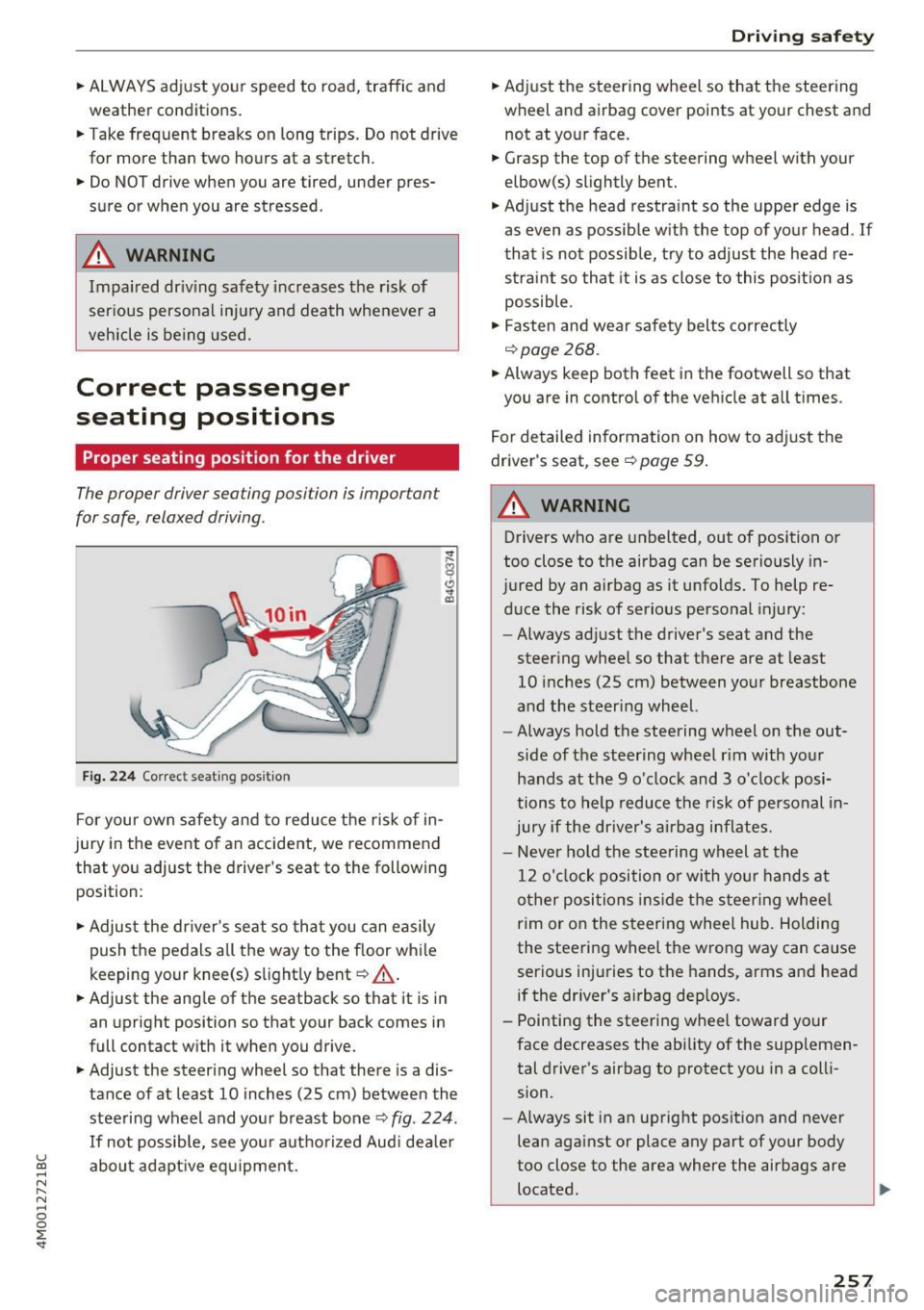
The proper driver seating position is important
for safe, relaxed driving .
Fig . 2 24 Co rrec t seating position
F or your own safety and to reduce the risk of in
jury in the event of an accident,
we recommend
that you adjust the driver 's seat to the following
position:
.. Adjust the dr iver's seat so that you can easily
push the pedals all the way to the f loor wh ile
keeping your knee(s) s lightly bent~
_A.
.. Adjust the ang le of the seatback so that it is in
an upright position so that your back comes in
full contact w ith it when you drive.
.. Adjust the steering wheel so that there is a dis
tance of at least 10 inches (25 cm) between the
steering wheel and you r breast bone~
fig. 224 .
If not possib le, see your autho rized Aud i dea le r
abo ut adapt ive eq uipment.
Dr iving safety
.. Adjust the steering wheel so that the steering
wheel and airbag cover points at your chest and
not at your face.
.. Grasp the top of the steering wheel with your
elbow(s) slightly bent .
.,. Adjust the head restra int so the upper edge is
as even as possible w ith the top of your head . If
that is not possible, t ry to adjust the head re
straint so that it is as close to this posit ion as
possible .
.. Fasten and wear safety belts correctly
~page 268 .
.. Always keep both feet in the footwell so that
you are in control of the veh icle at a ll times.
For detailed information on how to adj ust the
driver's seat, see
~page 59.
A WARNING
-
Drivers who are unbelted, out of position or
too close to the airbag can be seriously in
jured by an airbag as it unfolds. To help re d uce the risk of serious personal injury:
- Always ad just the driver's seat and the
steer ing wheel so that there are at least
10 inc hes (25 cm) between you r breastbone
and the steering wheel.
- Always hold the steering wheel on the out
side of the steering wheel r im with your
hands at the 9 o'clock and 3 o'clock posi
tions to help reduce the risk of personal in
jury if the driver's airbag inflates.
- Never ho ld the stee ring wheel at the
12 o'clock position o r with yo ur hands at
o ther posi tions ins ide the s teer ing whee l
rim or on the steering wheel hub. Holding
the steering wheel the wrong way can cause
serio us injuries to the hands, arms and head
if the dr iver's airbag dep loys .
- Pointing the steering wheel toward your
face decreases the ability of the supplemen tal driver's airbag to protect you in a colli
sion.
- Always sit in an upright position and never
lean aga inst or place any part of your body
too close to the area where the airbags are located .
.,
257