audio AUDI Q7 2017 Owner´s Manual
[x] Cancel search | Manufacturer: AUDI, Model Year: 2017, Model line: Q7, Model: AUDI Q7 2017Pages: 402, PDF Size: 100.39 MB
Page 6 of 402
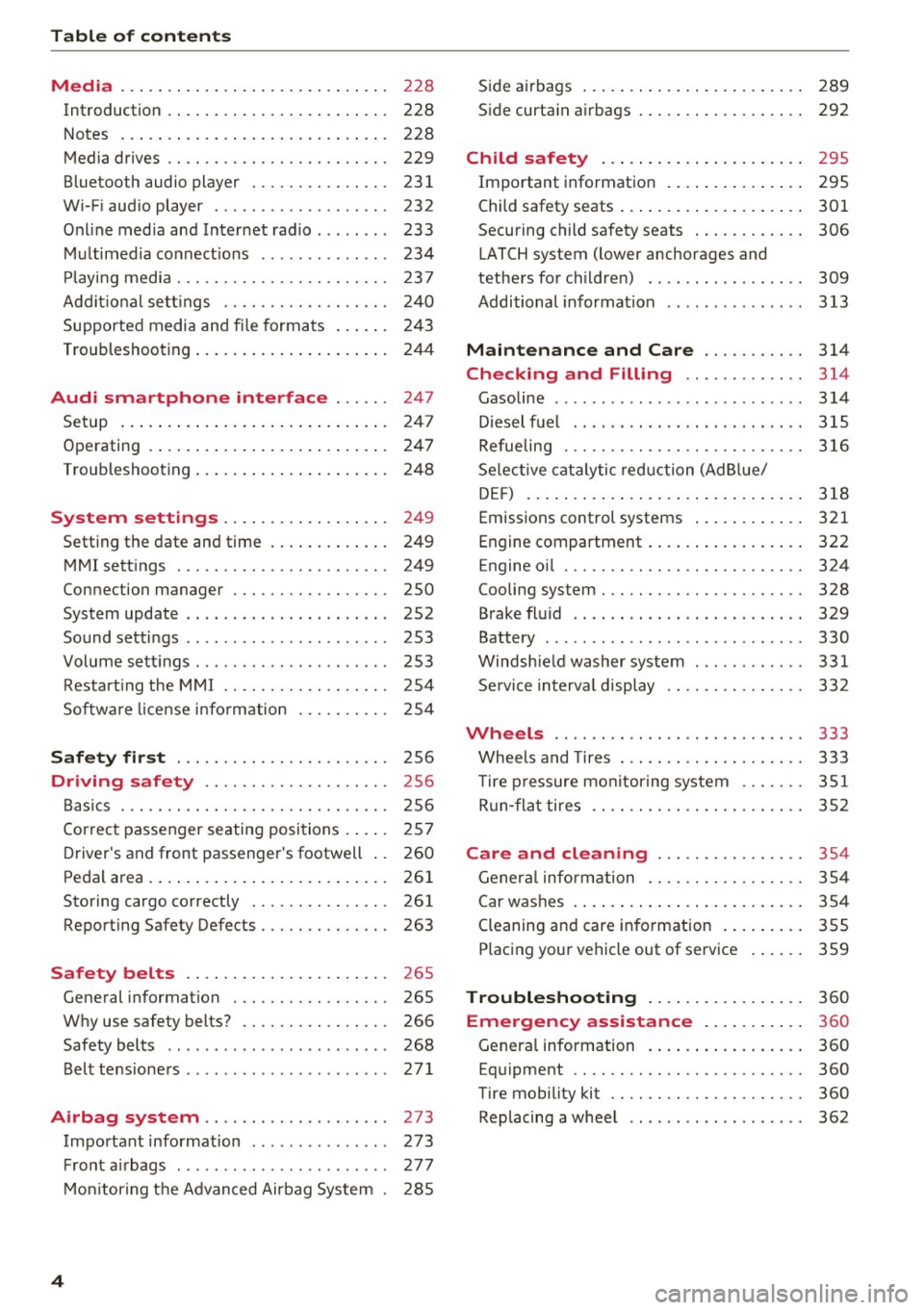
Table of contents Media ... . ... ... .. .......... .. .. ...
228
Introduction . . . . . . . . . . . . . . . . . . . . . . . . 228
Notes ... .. .. .. ... .......... .. .. .. . 228
Media drives . . . . . . . . . . . . . . . . . . . . . . . . 229
Bluetooth audio player . . . . . . . . . . . . . . . 231
Wi -F i aud io player . . . . . . . . . . . . . . . . . . . 232
Online media and Internet radio . . . . . . . . 233
Multimedia connections . . . . . . . . . . . . . . 234
Pla ying media. .. ............. .... .. . 237
Additional settings . . . . . . . . . . . . . . . . . . 240
Supported media and file formats . . . . . . 243
Troubleshooting . . . . . . . . . . . . . . . . . . . . . 244
Audi smartphone interface . . . . . . 247
Setup ... .. .... ... .......... .. .. ... 247
Operating . . . . . . . . . . . . . . . . . . . . . . . . . . 247
Troubleshoot ing. . . . . . . . . . . . . . . . . . . . . 248
System settings . . . . . . . . . . . . . . . . . . 249
Setting the date and time . . . . . . . . . . . . . 249
MMI settings . . . . . . . . . . . . . . . . . . . . . . . 249
Connection manager . . . . . . . . . . . . . . . . . 250
System update . . . . . . . . . . . . . . . . . . . . . . 252
Sound settings . . . . . . . . . . . . . . . . . . . . . . 253
Volume settings . . . . . . . . . . . . . . . . . . . . . 253
Restarting the MMI . . . . . . . . . . . . . . . . . . 254
Software license i nformat ion 254
Safety first . . . . . . . . . . . . . . . . . . . . . . . 256
Driving safety . . . . . . . . . . . . . . . . . . . . 256
Bas ics . . . . . . . . . . . . . . . . . . . . . . . . . . . . . 256
Correct passenger seating positions . . . . . 257
D river's and front passenger's footwell . . 260
Pedal area . . . . . . . . . . . . . . . . . . . . . . . . . . 261
Storing cargo correctly . . . . . . . . . . . . . . . 261
Reporting Safety Defects . . . . . . . . . . . . . . 263
Safety belts . . . . . . . . . . . . . . . . . . . . . . 265
Gene ral information . . . . . . . . . . . . . . . . . 265
Why use safety belts? . . . . . . . . . . . . . . . . 266
Safety belts . . . . . . . . . . . . . . . . . . . . . . . . 268
Belt tensioners . . . . . . . . . . . . . . . . . . . . . . 271
Airbag system . . . . . . . . . . . . . . . . . . . . 273
Important information . . . . . . . . . . . . . . . 273
Front airbags . . . . . . . . . . . . . . . . . . . . . . . 277
Mo nito ring the Advanced Airbag System . 285
4
Side airbags . . . . . . . . . . . . . . . . . . . . . . . . 289
Side curtain airbags . . . . . . . . . . . . . . . . . . 292
Child safety . . . . . . . . . . . . . . . . . . . . . . 295
Important information . . . . . . . . . . . . . . . 295
Child safety seats . . . . . . . . . . . . . . . . . . . . 301
Securing child safety seats . . . . . . . . . . . . 306
LATCH system (lower anchorages and
tethers for c hildren) . . . . . . . . . . . . . . . . . 309
Additional information . . . . . . . . . . . . . . . 313
Maintenance and Care ........... 314
Checking and Filling . . . . . . . . . . . . . 314
Gasoline . . . . . . . . . . . . . . . . . . . . . . . . . . . 314
Diesel fuel . . . . . . . . . . . . . . . . . . . . . . . . . 315
Refueling ..... .. .. .. .. ........... .. 316
Selective catalytic reduction (AdBlue/
DEF) . . . . . . . . . . . . . . . . . . . . . . . . . . . . . . 318
Emissions control systems . . . . . . . . . . . . 321
Engine compartment . . . . . . . . . . . . . . . . . 322
Engine o il . . . . . . . . . . . . . . . . . . . . . . . . . . 324
Cooling system . . . . . . . . . . . . . . . . . . . . . . 328
Brake fluid . . . . . . . . . . . . . . . . . . . . . . . . . 329
Battery . . . . . . . . . . . . . . . . . . . . . . . . . . . . 330
Windshield washer system . . . . . . . . . . . . 331
Service interva l display 332
Wheels ........ ... ...... ....... ... 333
Wheels and Tires . . . . . . . . . . . . . . . . . . . . 333
T ire pressure monitoring system . . . . . . . 351
Run-flat tires . . . . . . . . . . . . . . . . . . . . . . . 352
Care and cleaning .... .......... .. 354
General informat ion . . . . . . . . . . . . . . . . . 354
Car washes . . . . . . . . . . . . . . . . . . . . . . . . . 354
Cleaning and care information . . . . . . . . . 355
P lac ing your vehicle out of service . . . . . . 359
Troubleshooting . . . . . . . . . . . . . . . . . 360
Emergency assistance . . . . . . . . . . . 360
Genera l information . . . . . . . . . . . . . . . . . 360
Eq uip ment . . . . . . . . . . . . . . . . . . . . . . . . . 360
Tire mobility kit . . . . . . . . . . . . . . . . . . . . . 360
Replacing a whee l . . . . . . . . . . . . . . . . . . . 362
Page 11 of 402
u co ...... N r-... N ...... 0
0
:E: '
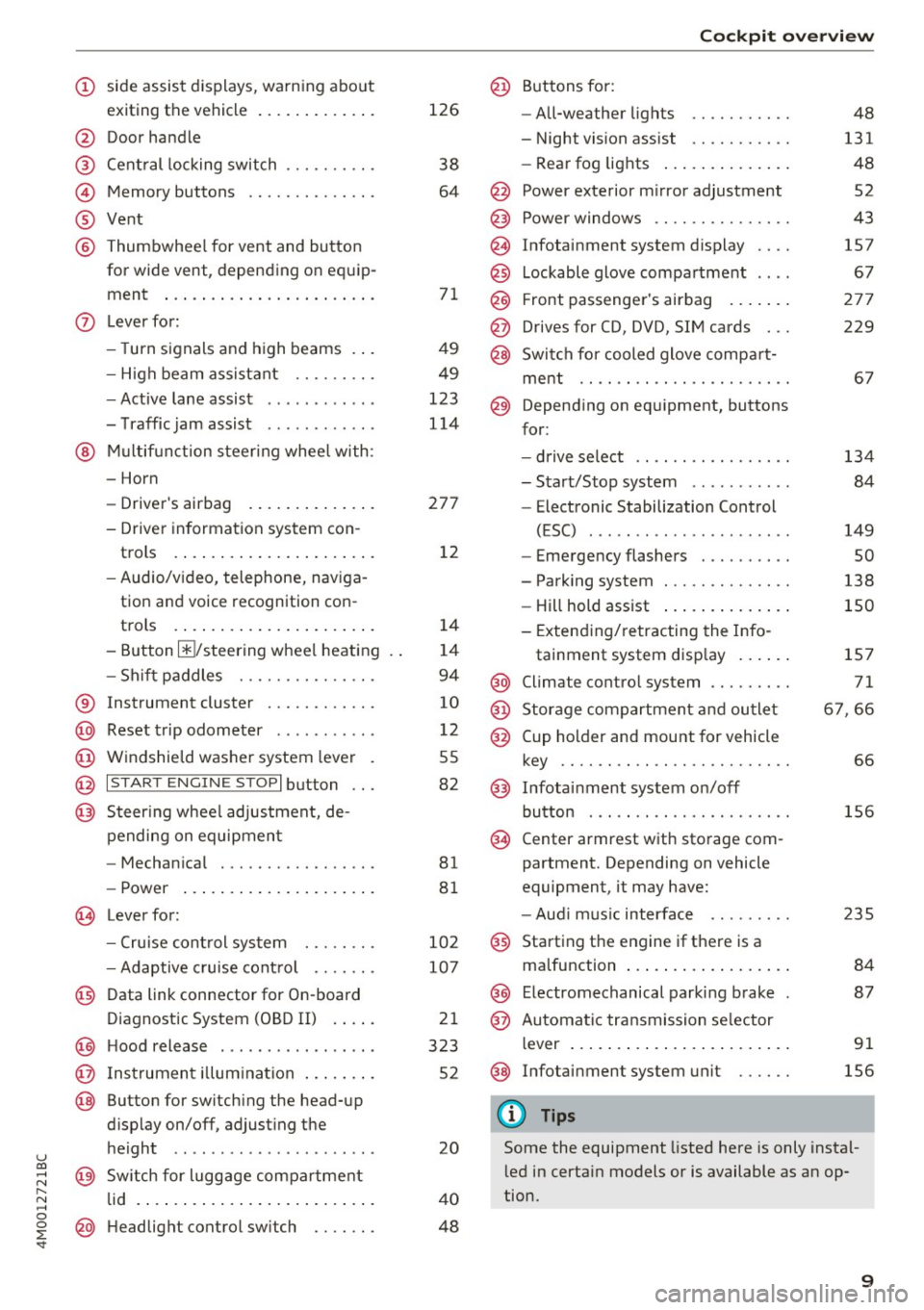
exiting the vehicle ..... ... .. .. .
@ Door handle
@ Cent ral locking switch ....... .. .
@ Memory buttons ........... .. .
® Vent
® Thumbwhee l for vent and button
for wide vent, depending on equip-
ment ... .. .... .. .... ... ... . .
0 Lever for:
- T urn s ignals and high beams . . .
- High beam assistant .... .. .. .
- Active lane assist ........... .
- T raffic jam assist ........... .
@ Mu lt if unction steer ing whee l with:
- Horn
- Drive r's airbag . ..... ... .. .. .
- Drive r informat ion system con -
trols . ... .... .. .... ... .. .. .
- Audio/v ideo, telephone, nav iga
tion and voice recognition con -
t rols .. .. ... .. ..... ... .. .. .
- Button @/steering wheel heating
- Sh if t paddles .......... .. .. .
® Instrument cluster ........... .
@ Reset t rip odometer ...... .. .. .
@ W indshield washe r system lever
@ I STAR T ENGINE ST OPI button .. .
@ Steer ing whee l adjustment, de -
pending on equipmen t
- Mechan ica l .............. .. .
- Power .... .. .. ..... ... .. .. .
@ Leverfo r:
- C ruise cont rol sys tem
- Adaptive cruise cont rol ...... .
@ Data link connector for On-board
Diagnostic System (OBD II) . ... .
@ H ood release .... . .... .... ... .
@ Ins trumen t illum ination ... .. .. .
@ Button for switch ing the head-up
d isplay on/off, adjust ing the
height .. .. ........ ..... .. .. .
@ Sw itch for lugg age compa rtment
lid . ... .. .. .. .. .. .... ... .. .. .
@ H eadlight control sw itch .... .. .
126
38
64
7 1
49
49
123
114
27 7
1 2
14
1 4
94
10
12
55
82
81
8 1
10 2
107
2 1
323
52
20
4 0
48
Coc kpit o ve rv iew
@ Buttons fo r:
- All-weather lights
- Night vision assist .......... .
- Rea r fog lights ..... . ..... .. .
@ Power exte rior m irror adjustment
@ Power windows .............. .
@ Infotainment system display
@ Lockable glove compa rtme nt
@) Front passenger 's airbag .... .. .
@ Drives for CD, DVD, SI M cards .. .
@ Swi tch for cooled glove compa rt-
me nt ...... ................ .
@ Depend ing on equ ipment, buttons
for :
- drive select ................ .
- Sta rt/Stop system ... ..... .. .
- Electronic Stabilization Control
(ESC) . .. .. .. .. ... ....... .. -
- Emergency flashers ......... .
- Parking system ............. .
- Hill hold ass ist .. .. .. ..... .. .
- Extend ing/retracting the Info-
tainment system disp lay ... .. .
@ Climate contro l system .... ... . .
@) Storage compartment and outlet
@ Cup holder and mount for vehicle
key .... .... .. .. ............ .
@ Infotai nment system on/off
button . .. .. . ............... .
@ Center armrest w ith sto rage com
partment. Depending on vehicle
equipment, it may have:
- Aud i m usic interface ........ .
@ Starting the engine if the re is a
malfunction ... .. ... .. ..... .. .
@ E lectromechanical parking brake
@ Automa tic tr ansmission se lector
lever ... .. .. .. ... .. .. ..... .. .
@ Infotainment system unit
(D Tips
48
131
48
52
43
157
67
27 7
229
6 7
134 84
149
so
138
150
1S7
71
6 7,66
66
156
2 35
84
87
91
156
Some the equipment listed here is only instal
l ed in certa in models or is available as an op
tion.
9
Page 16 of 402
Cockpit overview
Right control button
- Opening/closing the options menu :
press the
respective right control button on the steering
whee l~
fig. 8 . You can change any context-de
pendent functions and settings using the left
thumbwheel (for example, additional station information).
(D Tips
The availability of a se lection menu or options
menu depends on the function that is select
ed.
Switching views
Applies to: vehicles with Audi virtual cockpit
F ig. 9 Expanded v iew
Applies to: vehicles with Audi virtual cockpit
Fig. 10 Classic view
Applies to: vehicles with Audi virtual cockpit
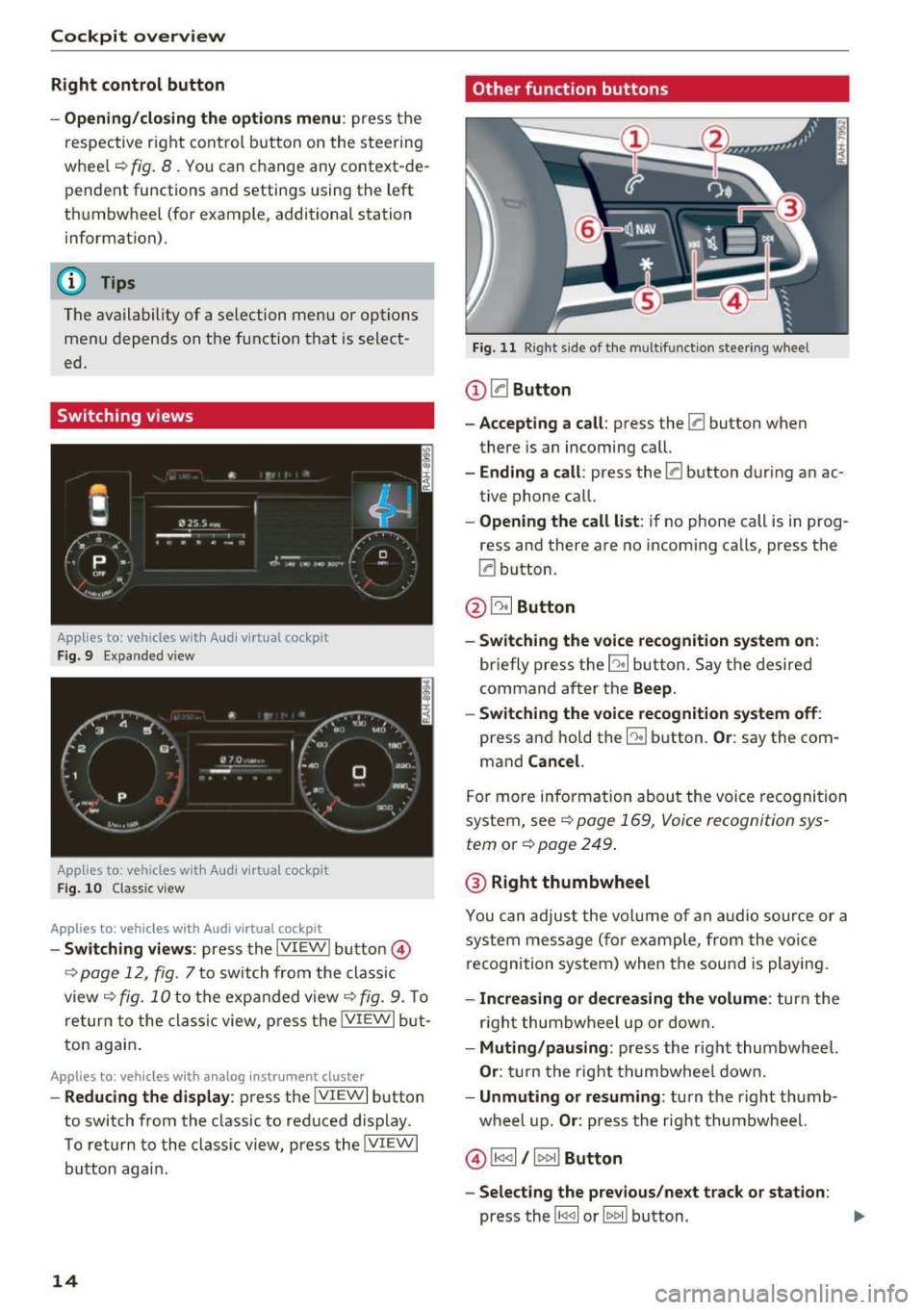
- Switching views : press the IVIEW ! button @)
~ page 12, fig. 7 to sw itch from the classic
view ~
fig. 10 to the expanded view~ fig. 9. To
return to the classic view, press the IVIEW I but
ton again .
Applies to: vehicles with analog instrument cluster
-Reducing the display : press the IVIEW I button
to switch from the classic to reduced d isplay .
To return to the class ic view, press the !VIEWI
button aga in.
14
Other function buttons
Fig. 11 Right side of the multifunction steering wheel
(D 0Button
- Accepting a call:
press the 0 button when
there is an incoming call.
-Ending a call: press the 0 button during an ac
tive phone call.
- Opening the call list: if no phone call is in prog
ress and there are no incoming calls, press the
0 button.
@ ~ Button
- Switching the voice recognition system on:
briefly press the E:9 button. Say the desired
command after the
Beep.
- Switching the voice recognition system off:
press and hold the [:9 button. Or: say the com
mand
Cancel.
For more information about the voice recognition
system, see
~ page 169, Voice recognition sys
tem
or Q page 249.
@ Right thumbwheel
You can adjust the volume of an audio source or a
system message (f or example, from the voice
recognition system) when the sound is playing.
-Increasing or decreasing the volume: turn the
r ig ht thumbwheel up or down.
-Muting/pausing : press the right thumbwheel.
Or: turn the right thumbwheel down.
-Unmuting or resuming : turn the right thumb
wheel up.
Or: press the right thumbwheel.
© !1441 / l t>t>I! Button
- Selecting the previous/next track or station :
press the l1<1 <1I or lt>t> II button . .,,.
Page 17 of 402
u co ...... N r-... N ...... 0
0
:E: '
and hold the
l 1
l ocation in the fi le is reached.
®0 button I steering wheel heating ~
- Steering wheel heating (analog instrument
cluster) :
for additional information, see
¢page 77.
-Programmable steering wheel button -open
ing a function :
press them button on the mul
tifunction steering whee l.
-Programmable steering wheel button -re
questing a function :
press and hold the m but
ton .
-Programmable steering wheel button -chang·
ing a function :
press and hold the m button.
Se lect and confirm an entry.
Or
- Se lect in the Infotainment system: !MENUI but
ton >
Vehicle > left contro l button > Vehicle
settings
> Steering wheel button assignment .
® I q .. vl Button
- Repeating the last navigation prompt :
press
the
l a,w l button when route guidance is act ive .
-Changing the voice guidance volume: when
route guidance is active, tur n the right t humb
whee l upward or downward during a navigation
prompt.
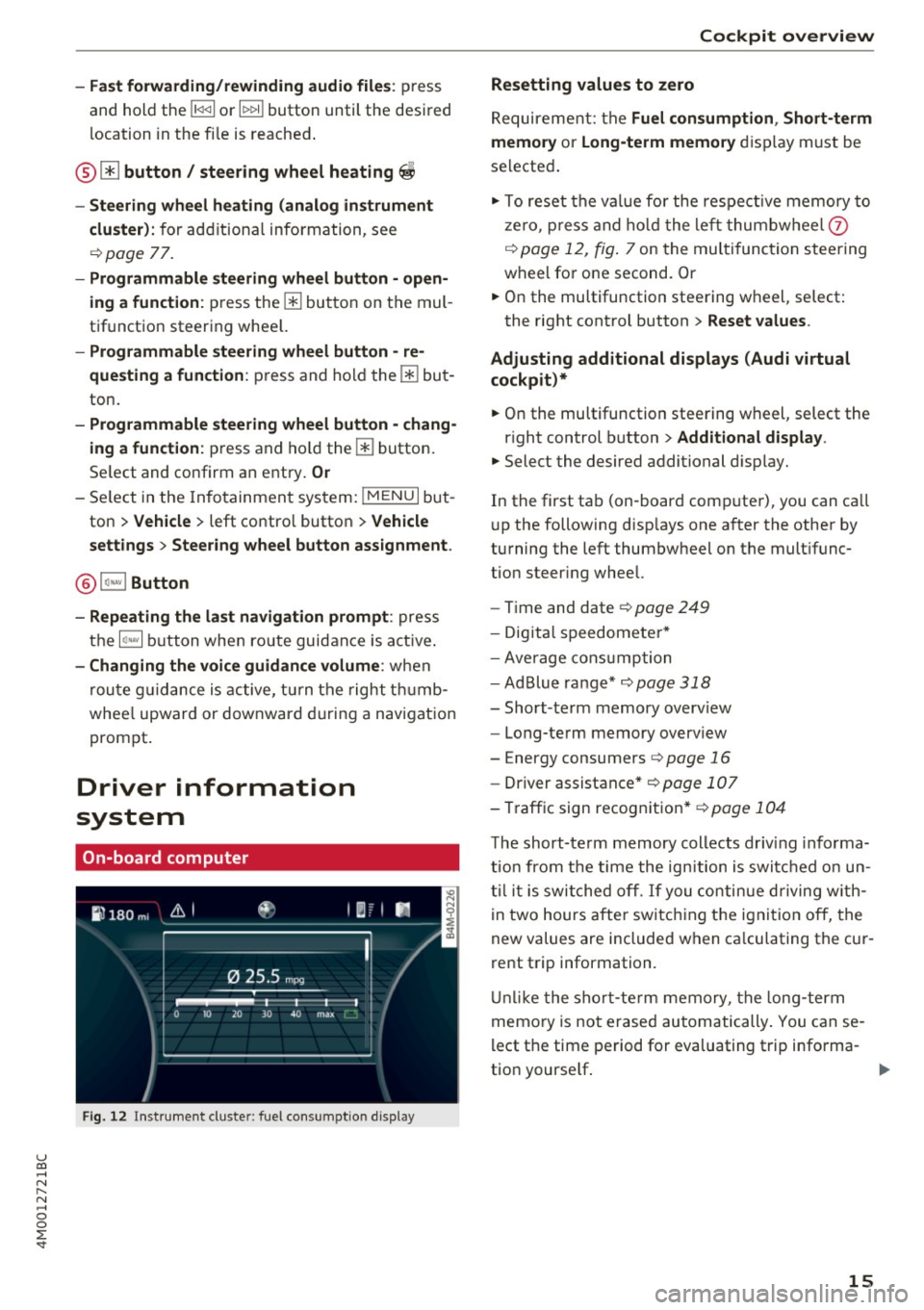
Driver information
system
On-board computer
Fig. 12 Instrument cluster: fuel consumption disp lay
Cockpit overview
Resetting values to zero
Requirement: the Fuel consumption , Short-term
memory or Long-term memory
display must be
selected.
"' To reset the val ue for the respect ive memory to
zero, press and hold the left thumbwheel
0
¢ page 12, fig. 7 on the multi function steering
wheel for one second. Or
"' On the multifunction steering wheel, select:
the right control button>
Reset values .
Adjusting additional displays (Audi virtual
cockpit)*
"' On the multifunction steering wheel, select the
right control button >
Additional display .
"'Select the desired additional display.
In the first tab (on -board comp uter), you can ca ll
u p the following disp lays one after the other by
turning the left thumbwheel on the mult ifunc
tion steer ing wheel.
- Time and date¢
page 249
-Digita l speedomete r*
- Average consum ption
- AdBlue range*
¢page 318
-Short-term memory overview
- Long-term memory overview
- Energy consumers ¢
page 16
-Driver assistance * ¢page 107
-Tra ffic sign recognition* ¢page 104
The short-te rm memory collects driv ing informa
tion from the time the ignition is switched on un
til it is switched off.
If you continue driving with
in two hours after switching the ignition
off, the
new values are included when ca lculating the cur
rent trip information.
Unlike the short-term memory, the long-term
memo ry is not erased automatically. You can se
lect the time period for evaluating trip informa-
t ion yourse lf . ..,.
15
Page 18 of 402
Cockpit over view
Fuel consumption
The current fue l cons umption can be shown us
ing a bar graph¢
fig. 12. The ave rage cons ump
tion stored in the short-term memory is also dis
p layed . If the ba r is green, your vehicle is saving
fue l through the following function:
- Recuperati on: electrica l energy can be stored in
the ve hicle battery when t he vehicle is coasting
or driving downhi ll. The bar will move toward
0 .
@ Tips
The date, time of day and t ime and date for
mat can be set in the Infotainment system
¢page 249 .
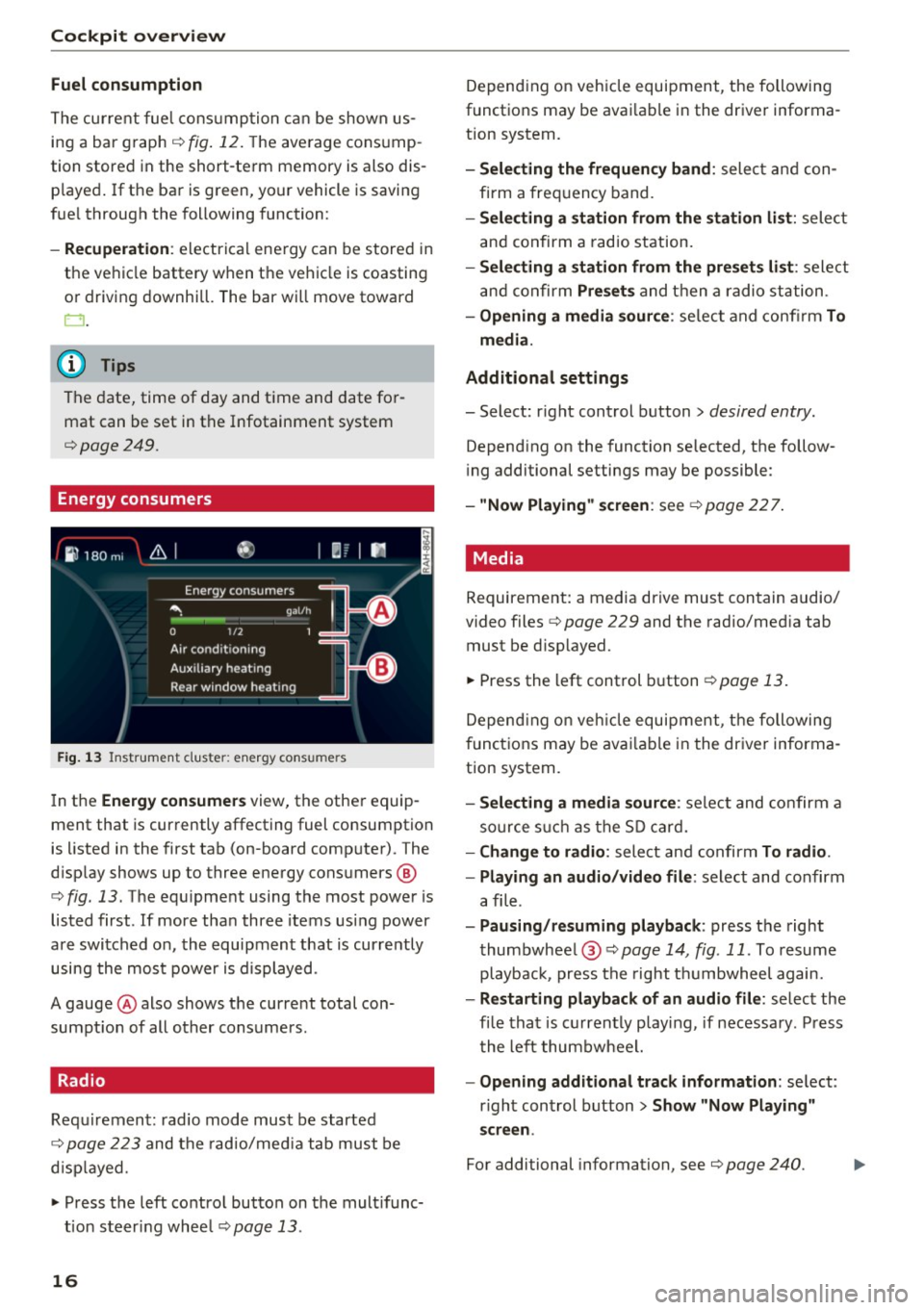
Energy consumers
Fig . 1 3 Instrument cluste r: energy cons umers
I n the Energ y consume rs view, the othe r equip
ment that is currently affecting fuel consumption
is listed in the first tab (on-board computer) . The
d isplay shows up to three energy consumers @
¢
fig. 13 . The equ ipment using the most power is
listed first . If more tha n three items us ing power
are switched on, the equipment that is currently
using the most power is d isplayed.
A gauge @also shows the current total con
sumpt io n of all other consumers.
Radio
Requ irement: radio mode must be started
¢
page 223 and the radio/med ia tab must be
d isp layed .
.. Press the left control button on the mult ifunc
tion steer ing whee l
¢page 13.
16
Depend ing on veh icle equipment, the following
functions may be avai lable in the driver informa
t ion system.
- Selecting the frequen cy band : select and con
firm a freq uency band .
-Selecting a station fr om the station li st: select
and confirm a rad io station.
- Selecting a station from the pre set s list: select
and confirm
Pre set s and then a radio station .
-Opening a media sour ce : se lect and confi rm To
media .
Addition al sett ings
- Select: r ight control button> desired entry.
Depend ing on the function selected, the follow
i ng additional settings may be possible :
-"Now Pla ying" screen : see ¢page 227.
' Media
Requirement: a media drive must contain audio/
video files¢
page 229 and the radio/med ia tab
must be d isp layed .
.. Press the left control button
r=;, page 13.
Depend ing on veh icle equipment, t he following
f unct ions may be ava ilable in the dr iver informa
tion system.
- Selecting a media sour ce : select and confirm a
so urce s uch a s the S D card.
- Change to radio : select and confirm To radio.
- Playing an audio /video file :
select and confirm
a file .
-Paus ing /resuming playback : press the right
thumbwhee l@ ¢page
14 , fig .11. To resume
playback, press the right t humbwheel again.
-Restarting p la y back of an audio fi le: select the
fi le that is currently playing , if necessary . Pr ess
t he left thumbwheel.
- Opening additional tra ck information : select:
r ight control button >
Show "Now Pl aying"
s creen .
For additional information , see ¢ page 240.
Page 43 of 402
~ Press the handle in the luggage compartment
lid. The luggage compartment lid will automat
ically lower and close¢.&_ .
Storin g the luggag e compartm ent lid
op ening posit ion
~ Bring the luggage compartment lid into the de
sired open position. Th e position must b e at a
certain height or higher to sto re .
~ Press and hold the cs but ton for at least four
seconds to store the new open position . A visu
al and audio signal w ill follow .
~ To set a higher open position, wait at least five
seconds and then carefully press the luggage
compartment lid upward.
~ Press and hold the cs button again for at least
four seconds to store the desired opening posi
tion .
The opening/closing process w ill stop immed i
ately if :
- You pull/ release the
cs switch in t he driver's
door , or
- Applies to: vehicles with convenience key:
Press/release the
cs button on the remote
contro l key , or
- Applies to: vehicles with conve nience key : Press
the
cs button or the {f) button in the luggage
compartment lid, or
- You push the handle in the luggage compart
ment lid , or
- When something b locks the luggage compart
ment lid or makes it diff icu lt for the lid to
move .
If you press the handle or one of the cs or tfl but
tons (vehicles w ith convenience key*) now , the
l uggage compartment lid wi ll either open or
close, depending on its angle.
_& WARNING
- After closing the luggage compartment lid,
make sure that it is latched. Otherwise the
luggage compa rtment lid could open sud
denly when driving, which increases the risk
u of an accident. co
~ - Pay careful attent ion when closing the lug-
8 gage compartment lid. Otherw ise, you could
0 :E: '
cause serious injury to yourse lf or others de
spite the pinch protection.
- To reduce the risk of pinching injuries, al
ways make sure that no one is in the operat ing area of the luggage compartment lid; in
cluding the hinge areas and the upper and lower edge of the luggage compartment lid .
- Never drive with the luggage compartment
lid ajar or open, because poisonous gases
can enter the vehicle interior and create the
risk of asphyx iat ion .
- If there is a luggage rack (such as a bicycle
rack) on the luggage compartment lid, the
luggage compartment lid may not open
comp letely under certa in ci rc u mstances or it
could close by itself if open due to the ext ra
weight. To reduce the risk of injury, the
open luggage compartment lid must there
fore have additional support or the cargo must first be removed from the rack .
(D Note
The luggage compartment lid can bump into
objects s uch as the garage ceiling when open
i ng and become damaged.
(D Tips
- The settings in the Infotainment system de
termine if the luggage compartment lid can be opened using the hand le
¢ page 39.
- T here are aud io signa ls when closing the
luggage compartment lid with the remote
cont rol key (vehicles with convenience key*)
or with the
cs button in the dr iver's door.
- When the vehicle is locked, the luggage
compartment lid can be unlocked separately
by pressing the
cs button on the remote
control key. The luggage compartment lid
locks automatically when it is closed again .
- Applies to: vehicles with convenience key:
The luggage compartment lid can be closed
with the convenience from a distance up to
approximately 9 ft (3 m).
- The luggage compartment lid can be oper ated manually if the vehicle battery is low .
It is necessary to use more force when do ing .,.
41
Page 113 of 402
u (0 ...... N r--. N ...... 0
0
- your vehicle is not stationary for mo re than
three minutes
Safe start monitor
If an obstacle is detected when you start driving,
you will be alerted to the danger by the. indi
cator light and the image in the instrument clus
ter disp lay<=>
fig. 107 <=> & .An audio signal will
also sound . Your vehicle will drive more s lowly
when starting. This may also happen in some sit
uations when there is no apparent obstacle.
- Press the brake pedal to slow your vehicle
down.
.&_ WARNING
If the message ACC: automatic go1> appears,
your vehicle will start driving even if there is an obstacle between your vehicle and the ve
hicle driv ing ahead . This increases the risk of
an acc ident.
@ Tips
If adaptive cruise control is active and your
veh icle does not start driving even though the
message
ACC: automatic go1
) appears, you
can start driving by tapping the accelerator
pedal.
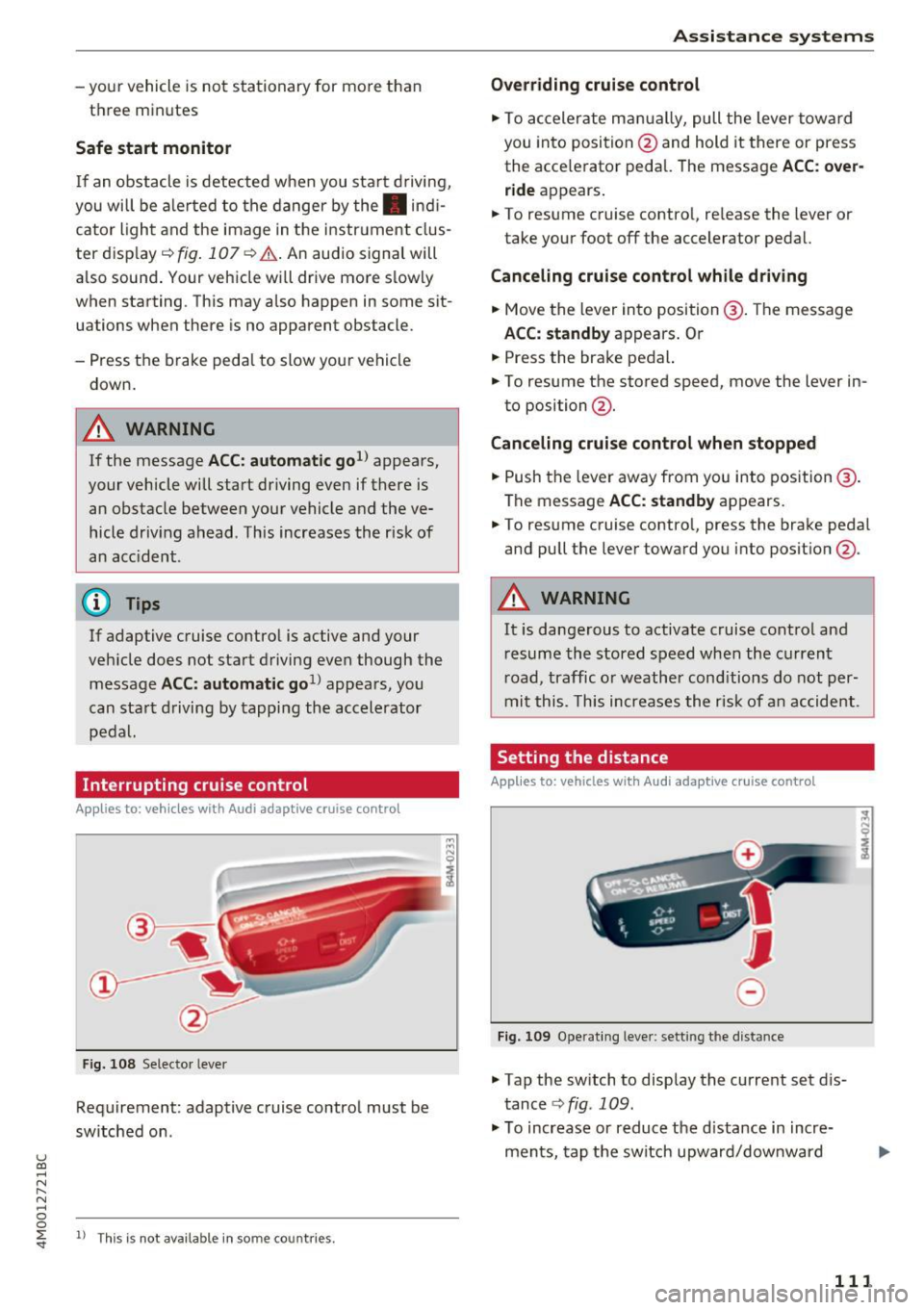
Interrupting cruise control
Applies to: vehicles with Audi adaptive cruise control
Fig. 108 Selec to r leve r
Requirement: adaptive cruise control must be
switched on .
~ ll This is no t ava ila ble in so m e co untries.
Assistance systems
Overriding cruise control
.,. To accelerate manually, pull the lever toward
you into position @and hold it there or press
the acce le rator pedal. The message
ACC: over
ride
appears .
.,. To resume cruise control, release the lever or
take your foot off the accelerator pedal.
Canceling cruise control while driving
.,. Move the lever into position @. Th e message
ACC: standby appears . Or
.,. Press the brake pedal.
.,. To resume the stored speed, move the lever in
to position @ .
Canceling cruise control when stopped
.,. Push the lever away from you into position@.
The message
ACC: standby appears.
.,. To resume cruise contro l, press the brake pedal
and pull the lever toward you into posit ion @.
.&_ WARNING
-==
It is dangerous to activate cruise control and
resume the stored speed when the current
road, traffic o r weather conditions do not per
mit this . This increases the risk of an accident.
Setting the distance
Applies to: vehicles wit h Audi adaptive cruise control
,
0
Fig. 109 Operat ing leve r: sett ing t he dist ance
.,. Tap the switch to display the current set d is
tance
<=> fig . 109.
.,. To increase or reduce the d istance in incre
ments, tap the switch upward/downward
111
Page 141 of 402

u (0 ...... N r--. N ...... 0
0
:E
Description
Applies to: vehicles with rear parking aid
The rear parking system is an audible parking
aid .
Desc rip tion
There is a sensor in the rear bumper cover. If
these detect an obstacle, audible signals warn
you .
Make sure the sensors are not covered by stick
ers, deposits or any other obstructions as it may
impair the function of the system . For informa
tion on cleaning, see
c::;,page 354.
The range at which the sensors begin to measure
is approximately:
side 3 ft (0.90 m)
rear
center 5.2 ft (1.60 m)
The closer you get to the obstacle, the shorter
the interval between the audible signals . A con
tinuous tone sounds when the obstacle is less
than approximately 1 foot (0.30 meters) away. Do not continue backing up
c::;, &. in General infor
ma tion on page 138,
c::;, (D in General information
on page
138!
If the distance to an obstacle remains constant,
the volume of the distance warning gradually lowers after a few seconds until it is muted (this
i s not apply in the continuous tone range). If the
obstacle becomes closer than it was before the
sound was muted, the tone will sound again . If
the obs ta cl e is father away tha n it was before the
sound was muted, no tone w ill sound . Pay atten
tion to the vehicle's surroundings when you start
to drive.
Activating
The rear parking assist activates automat ica lly
when the reverse gear is engaged. A br ief conf ir
mat io n tone will sound.
Parking systems
Parking aid plus
Description
Applies to: veh icles w ith park ing system plus
Parking system plus provides audio and visual
signals when parking.
F ig . 1 35 Illust rat io n:
Sensors are located in the front and rear bump
ers. If these detect an obstacle, audib le and visu
al signals warn you .
Make s ure the sensors a re not cove red by st ick
ers, deposits or any other obst ructions as it may
i mpa ir t he function of the system. For informa
tion on cleaning, see
c::;, page 354.
The displ ay field beg ins approx imately at:
® 4 ft (1.20 m)
® 3 ft (0 .90 m)
© 5 .2 ft (1.60 m)
@ 3 ft (0 .90 m)
T he close r you get to the obstacle , the shorter
t h e i nterval be twee n the audible signa ls . A con
t inu ous tone sounds when the obs tacle is less
than approxim ately 1 foot (0.30 meters) away .
Do not continue dr iving forward or in reverse
c::;, &. in General information on page 138, c::;, (i) in
General information on page 138!
If the distance to an obstacle remains cons tant ,
the volume of the distance warn ing gradua lly
l owers after a few seconds until it is muted (this
is not apply in the continuous tone range).
If the
obstacle becomes closer than it was before the
sound was muted , the tone will sound aga in . If
the obstacle is father away than it was before the .,_
139
Page 159 of 402
u (0 ...... N r--. N ...... 0
0
:E
On/Off knob
CD ¢ fig. 158 until the MMI
switches off. If the MMI has been sw itched off
manually, it does
not switch on again automati
ca lly the next time the ignition is switched on .
Addition al functions :
- Ad ju sting th e volum e:
turn the On/Off knob CD
<=>fig . 158 .
-Muting : press the On/Off knob CD c> fig. 158
briefly .
-Select ing the pre viou s/nex t fun ct ion ( for ex
amp le , a radi o stat ion /tra ck ):
press the On/Off
knob
CD <=> fig . 158 brief ly toward the left l
t>r>I .
-Fast forwardi ng/rew inding (for example
so ng s):
press and hold the On/Off knob CD
¢ fig. 158 toward the left l
.,& WARNING
Adjust the volume of the audio system so that
signa ls from outside the vehicle, such as po
lice and fire sirens, can be heard eas ily at all
times.
@ Tips
The MM I switches off au tomatically if the en
gi ne is not r unning and the vehicle battery is
low.
Infotainment system
display
E xtending /retrac ting
The Infotainment system d isplay automatically
extends and retracts when you switch the MMI
on and off.
- Manuall y extending /retracting : press the C:I
button @ c> page 8, fig. 2.
When the MMI is switched on and the display is retracted, you can use certa in functio ns with the
On/Off knob and the MMI joystick funct ion
¢ page 156.
Multi M edia I nterfac e
(D Tips
-If the vehicle has a cell phone prep*, the In
fotainment system display will automat ica l
ly extend whenever there is an incoming
phone call.
- There may be delays when extending or re
tracting the display.
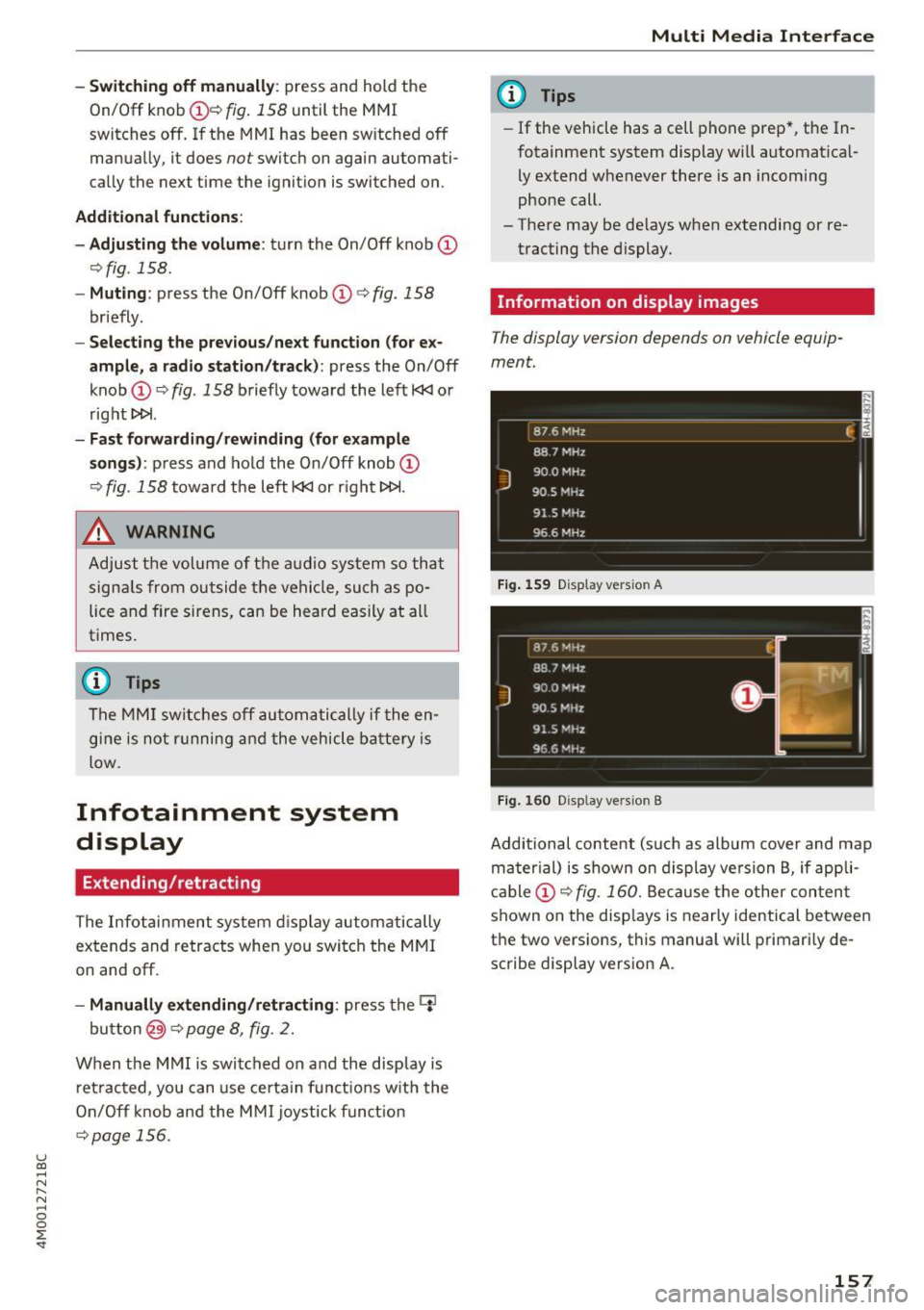
Information on display images
T he display version depends on v ehicle equip
ment.
87 6 MHz
88.7 MHz
J
900 MHz
90.5 MHz
91 5 MHz
96 6 MHz
·--------·----
F ig . 1 59 Display ve rs io n A
Fi g. 160 Disp la y ve rs ion B
f
Additional content (such as album cover and map
ma ter ial) is shown on display ve rsion B, if appli
cable
CD <=> fig . 160. Because the other conten t
shown on the disp lays is nearly identical between
the two versions, this manua l will primari ly de
scribe display version A .
157
Page 168 of 402
Multi Media Interface
It is often enough just to enter the first letters of
the search term in order for it to display in the re
sults list . For example, in the
Telephone* menu,
write the in itials of the contact being searched
separated by a space.
Selecting the input suggestion to complete
the entry
Requirement: an input suggestion to complete
the entry* ®
r:> fig. 173 must be displayed.
.,. MMI touch input* : press the control knob. Or:
press on the MMI touch control pad *.
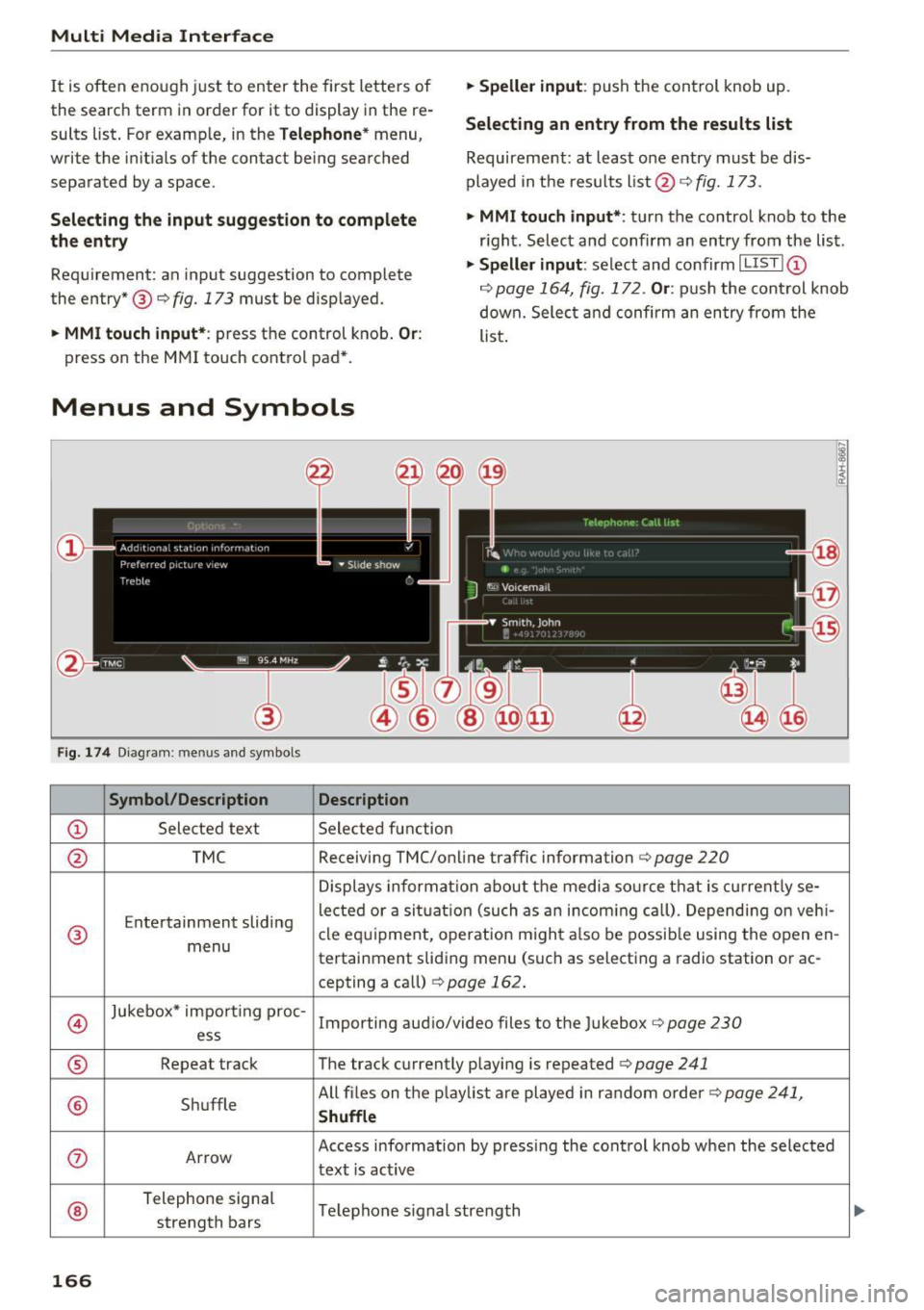
Menus and Symbols
F ig. 174 Diag ram : me nus and symbols
Symbol /Description Description
@ Selected text Selected function
.,. Speller input : push the control knob up.
Selecting an entry from the results list
Requirement: at least one entry must be dis
played in the results list @ ¢
fig. 173.
.,. MMI touch input*:
turn the control knob to the
r ight. Select and confirm an entry from the list .
.,. Speller input: select and confirm I LIST!@
c:> page 164, fig. 172. Or : push the cont rol knob
down. Select and confirm an entry from the
list .
@ TMC Receiving TMC/online traffic
information
c:::> page 220
Displays informat ion about the media source that is current ly se-
Entertainment sliding lected or a
situation (such as an incom ing call) . Depending on veh i-
® cle
equipment, operation m ight also be possible using the open en-
menu tertainment sliding menu (such as selecting a radio station or ac-
cepting a call)
¢ page 162.
©
Jukebox* impo rt ing proc-
Importing audio/video files to the Jukebox r:> page 230
ess
® Repeat track The track currently playing is repeated <=:>page 241
® Shuffle All files on the
playlist are played in random order c:>page 241,
Shuffle
(J) Arrow Access information by pressing the control knob when the selected
text
is act ive
®
Telephone signal
Telephone s ignal strength
strength bars
166