turn signal AUDI Q7 2017 Owner´s Manual
[x] Cancel search | Manufacturer: AUDI, Model Year: 2017, Model line: Q7, Model: AUDI Q7 2017Pages: 402, PDF Size: 100.39 MB
Page 128 of 402

Assistance systems
Audi side assist
Description
Applies to: vehicles with Aud i side ass ist
0 9
!
F ig. 119 Sensor detec tfon range
Fig. 120 Display on the exterior m irro r
Side assist (lane change assist) helps you monitor
your blind spot and traffic behind your vehicle.
W ith in the limits of the system, it warns you
about vehicles that are coming close r or that are
traveling with you w ithin sensor range(!)
c>fig. 119. If a lane change is classified as criti
cal, the disp lay@ in the exterior mirror turns on
c>fig . 120.
The display in the left exter ior mirror provides as
sistance when making a lane change to the left,
while the disp lay in the right exterior mirror pro
vides assistance when making a lane change to
the right .
Information stage
As long as you do not activate the turn signal,
side assist
informs you about vehicl es that are
detected and classified as critical. The disp lay in
the mirror turns on, but is dim .
The display remains dim in the information stage
so that your view toward the front is not distur
bed.
126
Warning stage
If the display in a mirror blinks brightly when you
activate a turn signal, side assist is
warning you
about detected vehicles that it has classified as critical.
If this happens, check traffic by glancing
in the exterior mirrors and over your shoulder
c> .&. in General information on page 127.
Applies to: vehicles with active lane assist: the
display in the mirror can also blink if you have not
activated a turn signal: if you are approaching a
detected lane marker line and it appears you will
be leaving the lane, side assist will warn you
about detected vehicles that it has class ified as
critical.
(D Tips
You can adjust the br ightness on of the d is
play on the rearview mirror
c> page 128.
Page 134 of 402
Ass is tance sy stems
Highlighting detected pedestrians and wild
animals
Applies to: vehicles with night vision ass ist
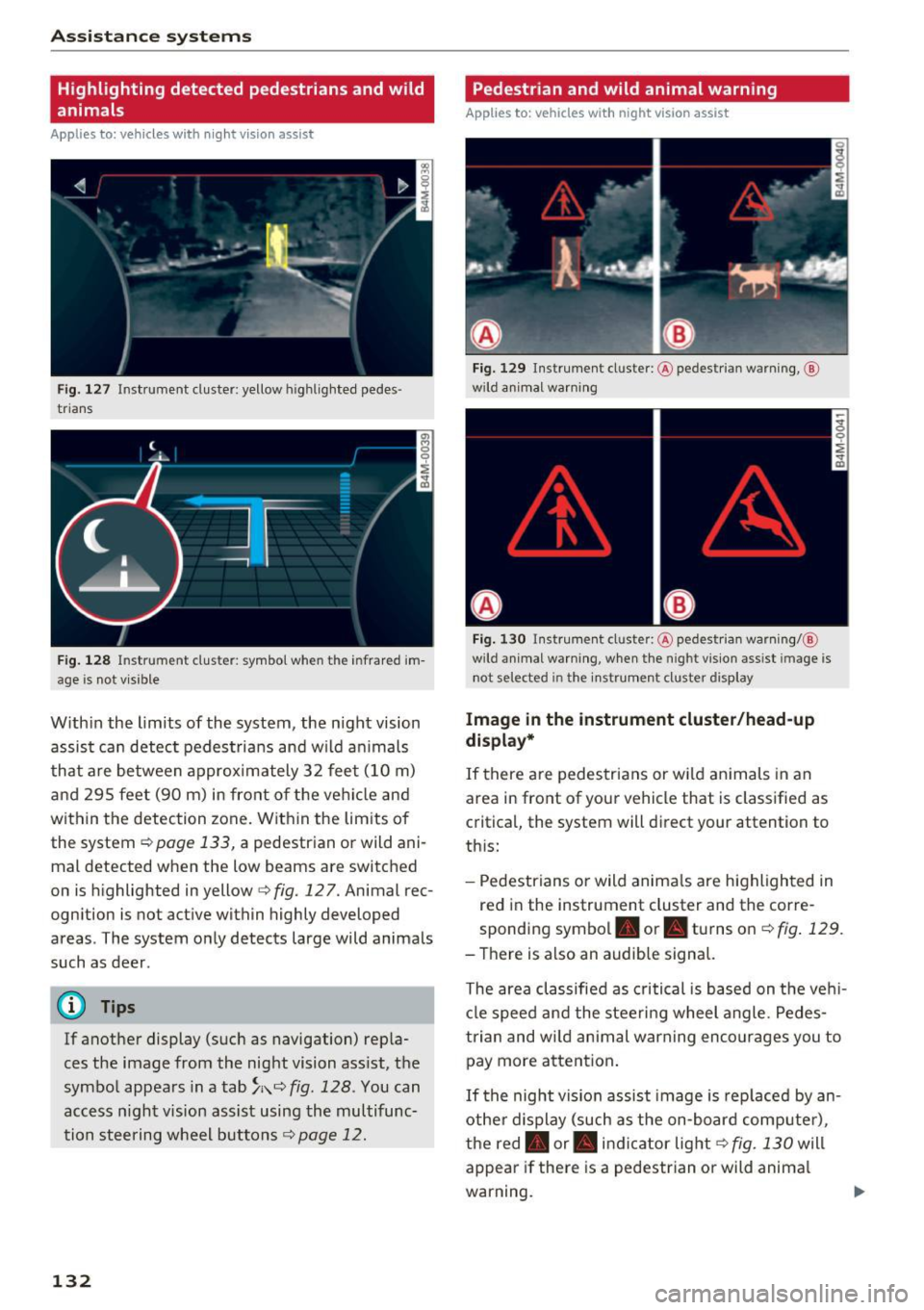
F ig. 127 Instrument cluster: yellow highl ighted pedes
trians
F ig . 128 Instrument cluster: symbol when the infrared im
age is not vi sible
With in the limits of the system, the night vision
assist can detect pedes tria ns and w ild an imals
that are between approximately 32 feet (10 m)
and 295 feet (90 m) in front of the vehicle and
within the detection zone. Within the limits of
the system
r:::;, page 133, a pedestrian or wild ani
mal detected when the low beams are switched
on is highlighted in yellow
i=> fig. 127. Animal rec
ognition is not active within highly developed
areas . The system only detects large wild animals
such as deer .
@ Tips
If another display (such as navigation) repla
ces the image from the night vision ass ist, the
symbol appears in a tab
~ i\. r:::;, fig. 128 . You can
access n ight vision assist using the multifunc
tion steering wheel buttons
r:::;, page 12.
132
Pedestrian and wild animal warning
Applies to: vehicles with night vision assist
Fig. 12 9 Instrument cl uster: @ pedest rian warning, @
wild anim al warn ing
Fi g. 130 Instr ument clus ter: @pedest ria n warning/ @
wild animal warning, when the nigh t vision ass ist im age is
not selected in the instru men t cluste r display
Image in the instrument cluster /head-up
di spl ay *
If there are pedes trians or wild an imals in an
area in front of your vehicle that is classified as
critical, the system will direct your attention to
th is:
- Pedestrians or wild anima ls are highlighted in
red in the instrument cluster and the corre
sponding symbol. or. turns on
r:::;, fig. 129 .
- There is also an audible signal.
The area classified as c ritical is based on the veh i
cle speed and the steeri ng wheel angle . Pedes
trian and wild animal warning enco urages you to
pay more attention.
If the night vision assist image is rep laced by an
othe r d isplay (such as the on-board compute r),
the red. or. in di cator light
r:::;, fig. 130 will
appear if there is a pedestrian or wild anima l
warning.
Page 142 of 402
Parking systems
sound was muted, no tone will sound. Pay atten
tion to the vehicle's surroundings when you start
to drive.
Switching on /off
A pp lies to: ve hicles w ith pa rkin g system plus
~ --- ---=--
-§
- --:,j;
--~------ --------- ~
,c
., r~ . "'.::. ..:: r~ "
- - -~l ~i~~
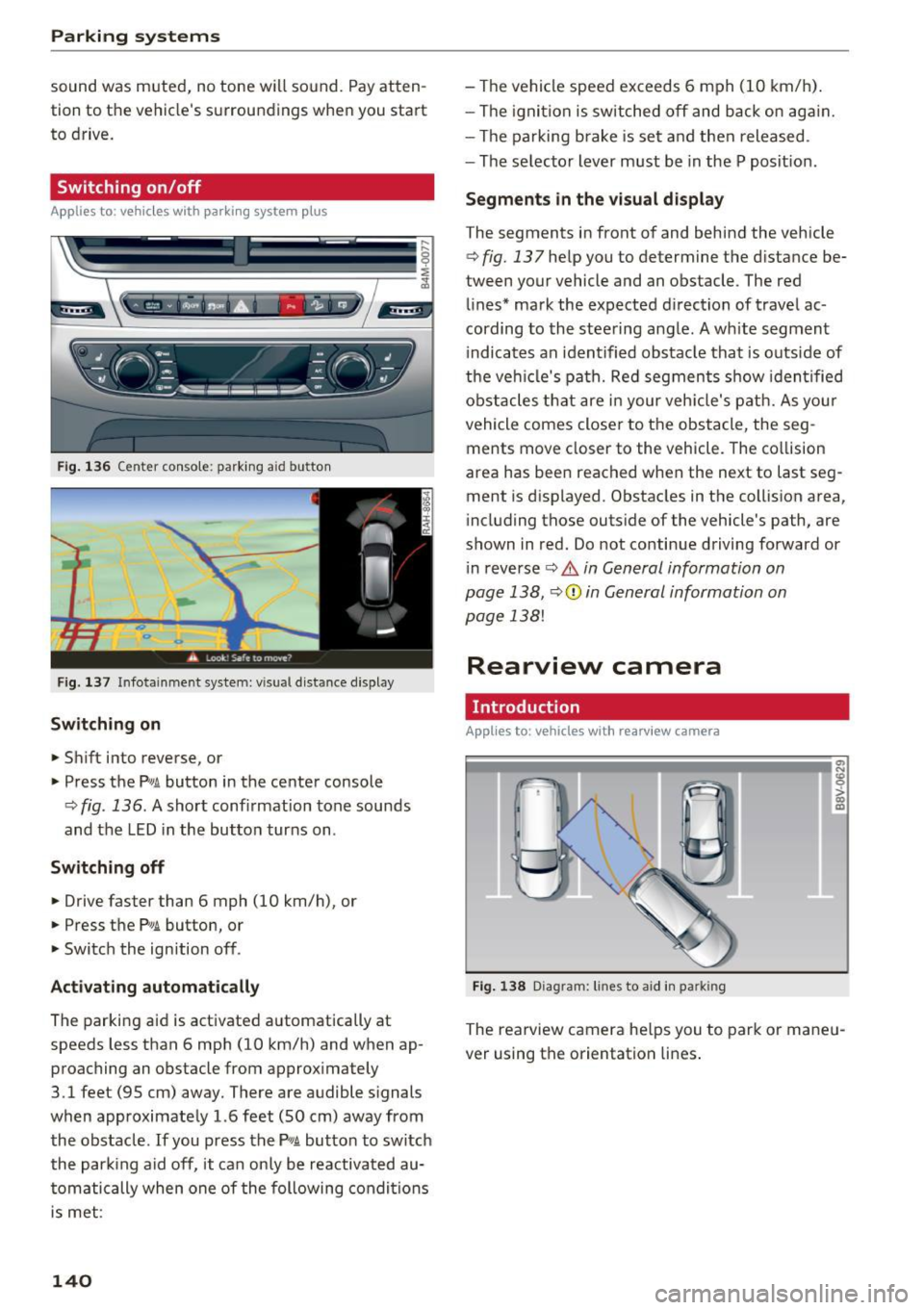
Fig . 136 Center console: parking aid button
Fig. 137 In fotainment system: vi sual distance d isplay
Switching on
... Shift into reverse, or
" Press the
P'"A button in the center console
¢
fig . 136 . A short conf irmation tone sounds
and the LED in the button turns on .
Switching off
"Drive faster than 6 mph (10 km/h), or
" Press the
Pw .6. button , or
" Switch the ign ition off.
Activating automatically
The parking aid is activated automatically at
speeds less than 6 mph (10 km/h) and when ap
proaching an obstacle from approximately
3.1 feet (95 cm) away. There are audible signals
when approximately 1.6 feet (SO cm) away from
the obstacle.
If you press the P,,1A button to switch
the park ing aid off, it can only be reactivated au
tomatically when one of the following conditions
is met :
140
-The vehicle speed exceeds 6 mph (10 km/h).
- The ignition is switched off and back on again.
- The parking brake is set and then released .
- The se lector lever must be in the P posit ion .
Segments in the visual display
The segments in front of and behind the vehicle
¢
fig. 137 help you to determine the d istance be
tween your vehicle and an obstacle . The red
lines* mark the expected d irection of travel ac
cording to the steering angle . A white segment
i ndicates an identified obstacle that is outside of
the vehicl e's path. Red segments show iden tified
obstacles that are in your veh icle's path. As you r
vehicle comes closer to the obstacle, the seg
ments move closer to the vehicle. The collision
area has been reached when the next to last seg
ment is displayed. Obstacles in the collision area,
i ncluding those outs ide of the vehicle's path, are
shown in red. Do not continue driving forward or
i n reverse ¢
& in General information on
page 138,
¢ (1) in General information on
page 138!
Rearview camera
Introduction
App lies to : vehicles with rearv iew camera
Fig. 138 Diagram : lines to aid in pa rkin g
0,
"'
~ co a,
The rearview camera he lps you to park or maneu
ver using the orientation lines .
Page 144 of 402
Parking systems
.,. Press the Pw~ button in the center console
¢ page 140 , fig. 136. A short confirmation
tone sounds and the LED in the button turns
on.
Switching off
.,. Drive faster than 6 mph (10 km/h), or
.,. Press the
p,q~ button, or
.,. Switch the ignition off.
@ Tips
- The visual display in the right part of the
display should help you detect the critical
vehicle area.
- You can change the volume of the signals and the display
¢page 146.
Perpendicular parking
App lies to : ve hicles w ith rearview ca mera
This view may be used when parking in a garage
or in a parking space.
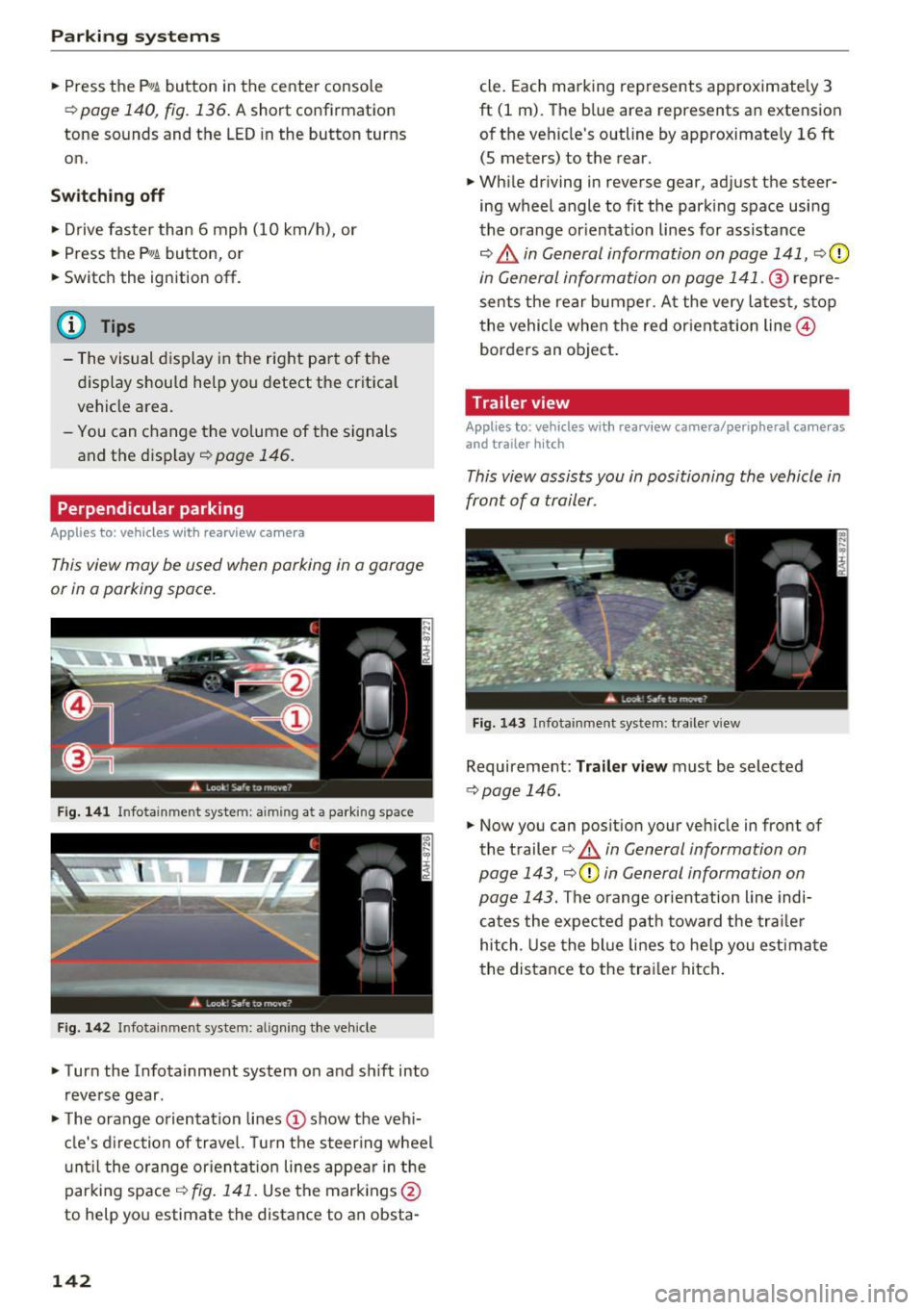
Fig. 141 In fotainme nt system: aim ing at a park ing space
Fig . 142 Infotainment syste m: alig ning the vehicle
.,. Turn the Infota inment system on and shift into
reverse gear .
.,. The orange orientation lines(!) show the vehi
cle's direction of travel. Turn the steering wheel
until the orange orientat ion lines appear in the
parking space ¢
fig. 141. Use the markings @
to help you estimate the distance to an obsta-
142
cle. Each marking represents approximately 3
ft (1 m). The blue area represents an extension
of the vehicle's outline by approximate ly
16 ft
(5 meters) to the rear.
.,. While driving in reverse gear, adjust the steer
ing wheel angle to fit the parking space using
the orange orientat ion lines for assistance
¢ .&, in General information on page 141, ¢(D
in General information on page 141 . ® repre
sents the rear bumper. At the very latest, stop
the vehicle when the red orientation line@
borders an object.
Trailer view
Appl ies to : vehicles wit h rearview camera/peripheral ca meras
and trailer hitch
This view assists you in positioning the vehicle in
front of a trailer.
Fig. 143 Infota inment system : tra iler view
Requirement : Trailer view must be selected
~page 146.
.,. Now you can position your vehicle in front of
the trailer
¢ .&, in General information on
page 143, ¢(Din General information on
page 143.
The orange orientation line indi
cates the expected path toward the trailer
hitch . Use the blue lines to help you estimate
the distance to the trailer hitch.
Page 152 of 402
Intelligent Technology
_&. WARNING
You should only switch offroad mode on or
switch ESC/ ASR off if your driving abilities
and the traff ic conditions perm it. There is a
r isk of slid ing.
- The stabilization function is limited when
offroad mode is switched on. The driving
wheels co uld spin and the vehicle could
swerve , especially on slick or slippery road
surfaces.
- T here is no vehicle stab ilizat ion when ESC/
ASR are switched off .
Hill descent assist
Hill descent assist makes it possible to drive
down a hill at a constant speed.
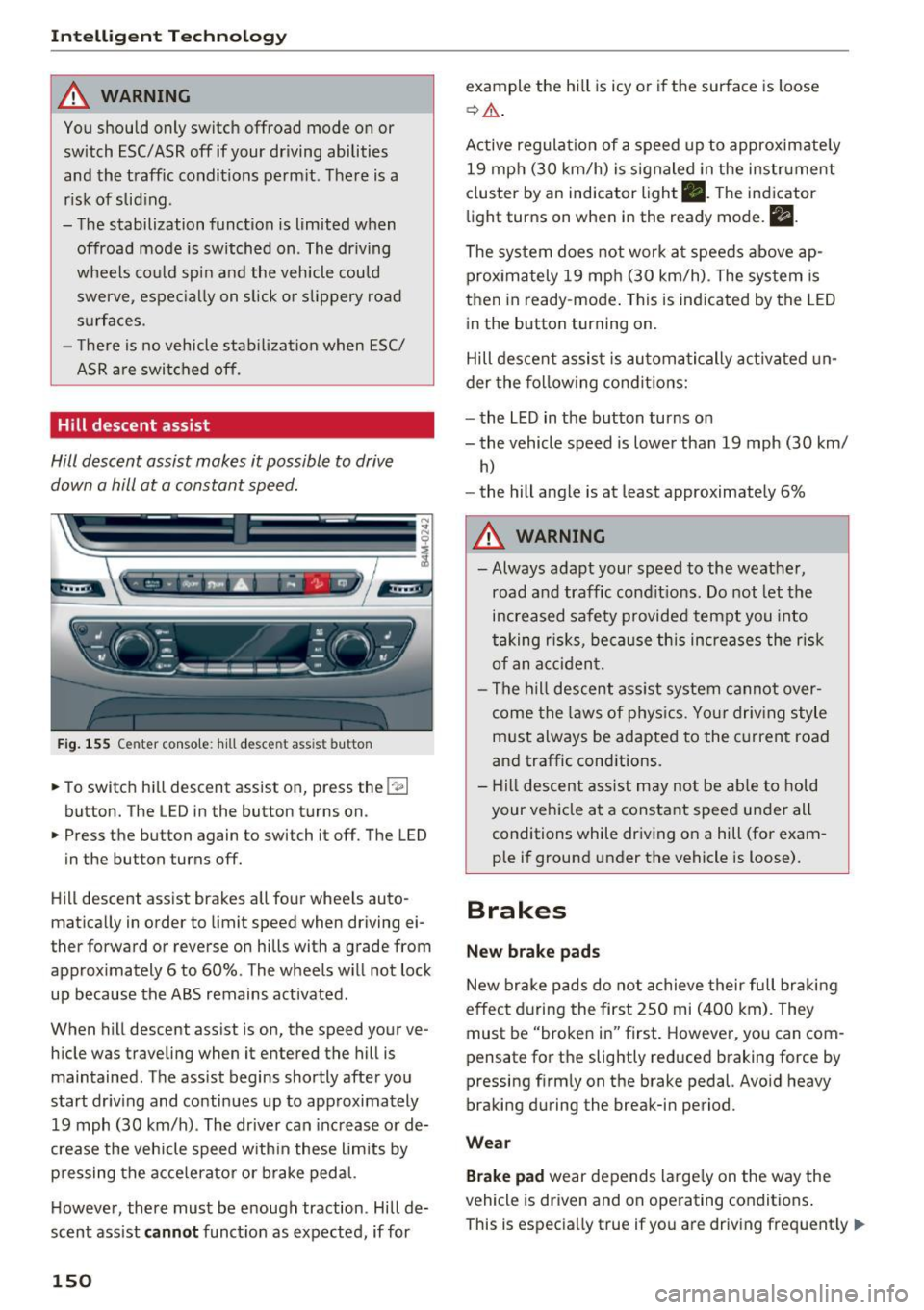
Fig. 155 Center console: hill descent ass ist button
.. To switch hill descent assist on, press the 1-
.. Press the button again to switch it off. The LED
in the button turns off.
Hill descent assist brakes all four wheels auto
matically in order to limit speed when driving ei
ther forward or reverse on hills with a grade from approximately 6 to 60%. The wheels w ill not lock
up because the ABS remains activated.
When hill descent assist is on, the speed your ve
hicle was traveling when it entered the hill is maintained. The assist begins shortly after you
start driv ing and continues up to approximately
19 mph (30 km/h). The driver can increase or de
crease the vehicle speed w ith in these limits by
pressing the accelerato r or brake pedal.
H owever, there must be enough traction. Hill de
scent assist
cannot function as expected, if for
150
example the hill is icy or if the surface is loose
~ & .
Active regulat ion of a speed up to approximately
19 mph (30 km/h) is signaled in the instrument
cluster by an indicator light •. T he indicator
light turns on when in the ready mode.
II.
The system does not work at speeds above ap
proximately 19 mph (30 km/h). The system is
then in ready-mode . This is indicated by the LED
in the button turning on.
Hill descent assist is automatically activated un
der the following conditions:
- the LED in the button turns on
- the vehicle speed is lower than 19 mph (30 km/
h)
-the hill angle is at least approximately 6%
_&. WARNING
-
- Always adapt your speed to the weather,
road and traffic conditions. Do not let the
increased safety provided tempt you into
taking risks, because this increases the risk
of an accident.
- The hill descent assist system cannot over
come the laws of phys ics. Your driving style
must always be adapted to the current road
and traffic cond itions .
- Hill descent assist may not be able to hold
your vehicle at a constant speed under all
conditions while driving on a hill (for exam
ple if ground under the vehicle is loose).
Brakes
New brake pads
New brake pads do not achieve their full braking
effect during the first 250 mi (400 km). They
must be "broken in" first. However, you can com
pensate for the slightly reduced braking force by
pressing f irmly on the brake pedal. Avo id heavy
braking during the break-in period.
Wear
Brake pad wear depends largely on the way the
vehicle is driven and on operating conditions .
This is especially true if you are driv ing frequent ly
IJ,,
Page 168 of 402
Multi Media Interface
It is often enough just to enter the first letters of
the search term in order for it to display in the re
sults list . For example, in the
Telephone* menu,
write the in itials of the contact being searched
separated by a space.
Selecting the input suggestion to complete
the entry
Requirement: an input suggestion to complete
the entry* ®
r:> fig. 173 must be displayed.
.,. MMI touch input* : press the control knob. Or:
press on the MMI touch control pad *.
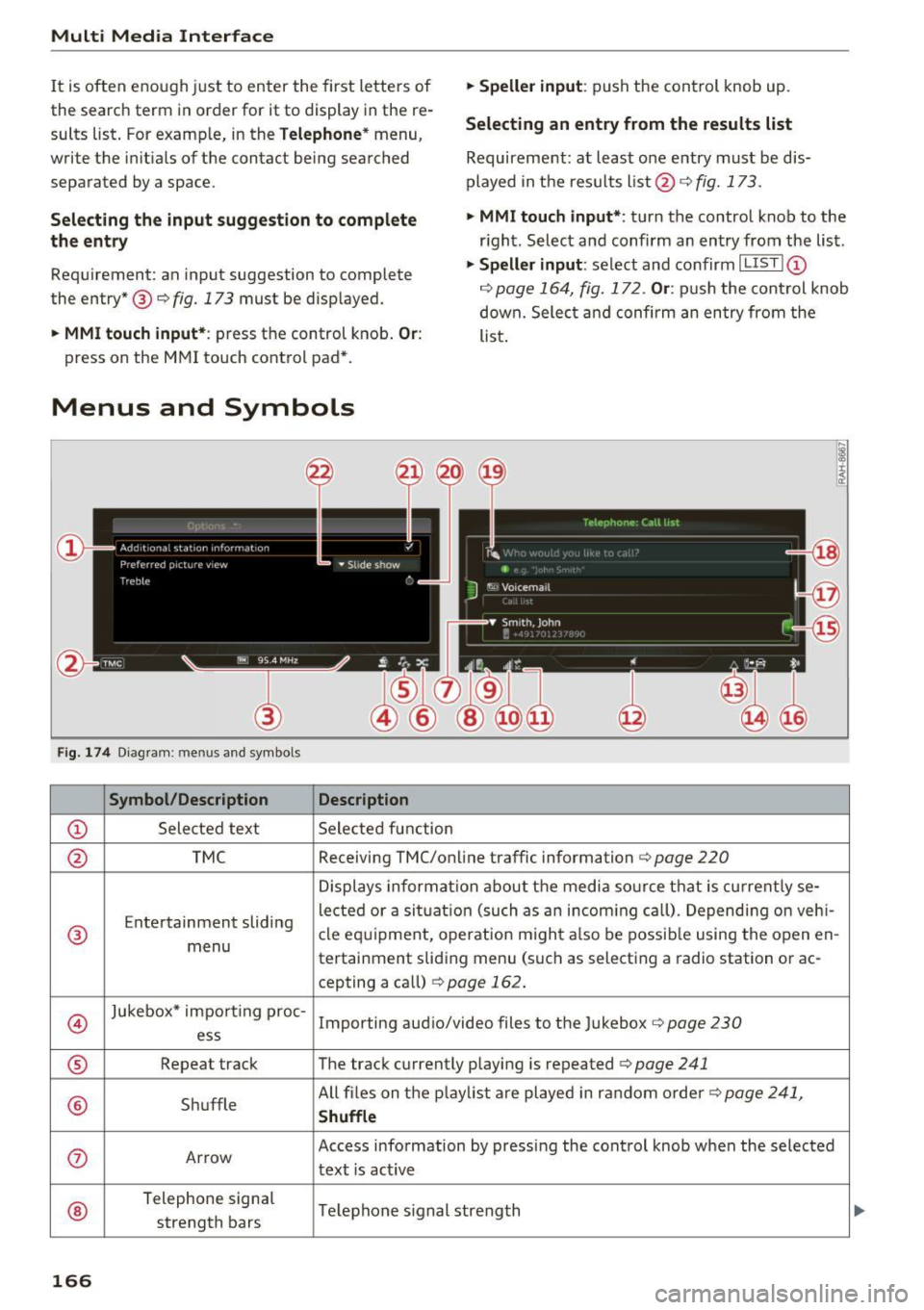
Menus and Symbols
F ig. 174 Diag ram : me nus and symbols
Symbol /Description Description
@ Selected text Selected function
.,. Speller input : push the control knob up.
Selecting an entry from the results list
Requirement: at least one entry must be dis
played in the results list @ ¢
fig. 173.
.,. MMI touch input*:
turn the control knob to the
r ight. Select and confirm an entry from the list .
.,. Speller input: select and confirm I LIST!@
c:> page 164, fig. 172. Or : push the cont rol knob
down. Select and confirm an entry from the
list .
@ TMC Receiving TMC/online traffic
information
c:::> page 220
Displays informat ion about the media source that is current ly se-
Entertainment sliding lected or a
situation (such as an incom ing call) . Depending on veh i-
® cle
equipment, operation m ight also be possible using the open en-
menu tertainment sliding menu (such as selecting a radio station or ac-
cepting a call)
¢ page 162.
©
Jukebox* impo rt ing proc-
Importing audio/video files to the Jukebox r:> page 230
ess
® Repeat track The track currently playing is repeated <=:>page 241
® Shuffle All files on the
playlist are played in random order c:>page 241,
Shuffle
(J) Arrow Access information by pressing the control knob when the selected
text
is act ive
®
Telephone signal
Telephone s ignal strength
strength bars
166
Page 225 of 402
u (0 .-I N r--. N .-I 0
0
:E
Opening the radio
The radio supports the FM , A M and SiriusXM *
(satellite radio) bands. Using the HO Radio re
ceiver also allows you to receive radio stations
on the FM and AM bands in digital format.
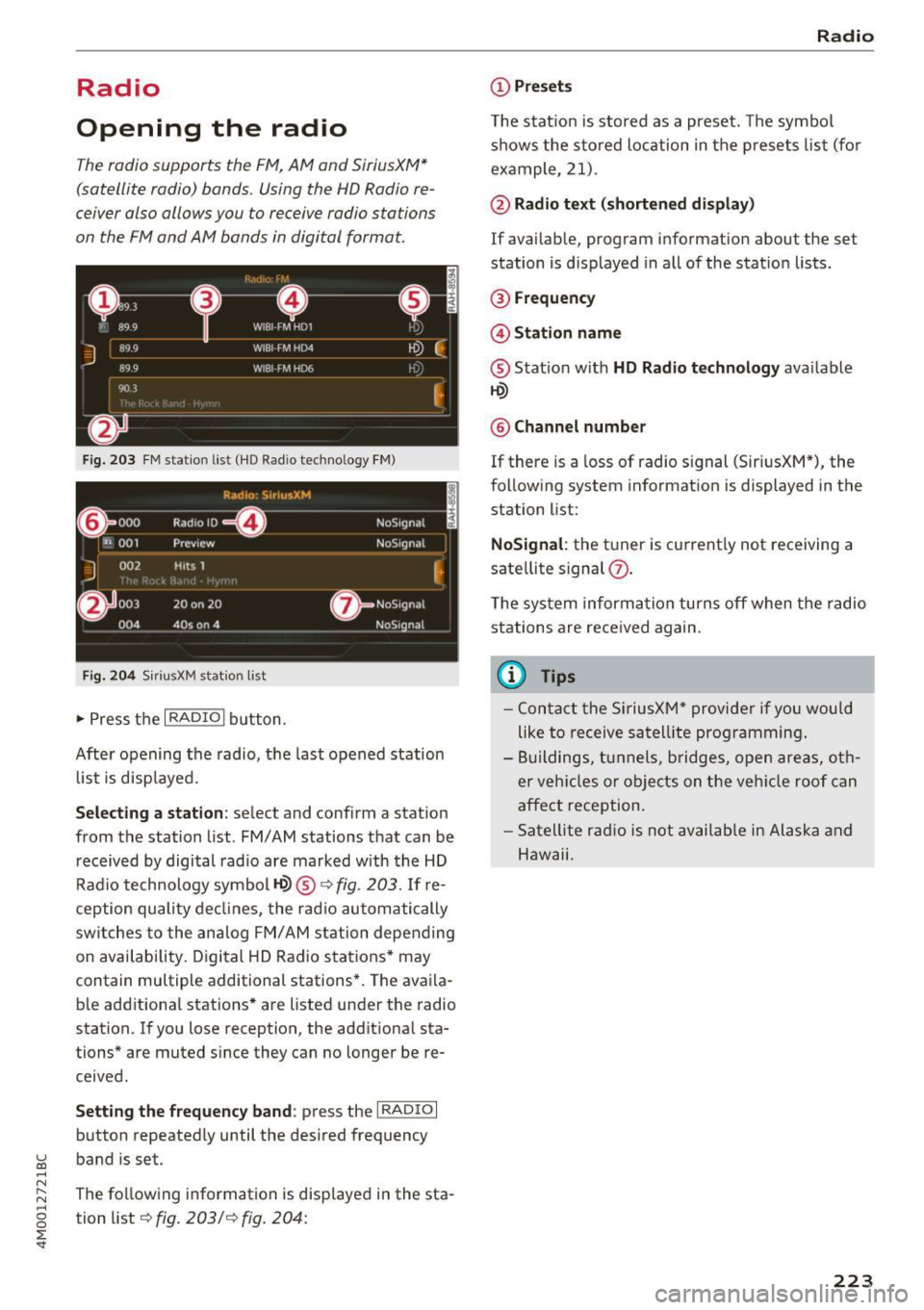
Fig . 203 F M stat ion list ( HO Ra dio tec hn ology FM)
R.td10: SiriusXM
~000 ---=0---Radio ID ,
NoS19nal
... 001 Prev iew N oS19nal
J 002 H its 1
~
f) 003 20 on 20 N
oS19na l
004 40s on 4 NoS19nal
F ig. 204 S iri usXM station list
.. Press the I RAD IO I bu tton .
Afte r opening the rad io, t he last opened station
lis t is disp laye d.
.
I
Selecting a station : select and confirm a stat io n
from the station list . FM/ AM stations t hat can be
received by digital rad io are ma rked w ith the HD
R adio technology symbol
tQ) ® ¢fig. 203 . If re
ception quality decl ines, the r adio automatically
switches to the analog FM/AM station depe nding
on availability . D igi tal HD Radio s ta tions * may
contain multiple additional stations* . The ava ila
b le add itiona l stations* are listed under the radio
station. I f you lose reception, the add it iona l sta
tions* are muted since they can no longer be re
ceived.
Setting the frequency band : press the I RADIO I
button repeated ly until the desired frequency
band is set.
The follow ing information is displayed in the sta
tion list ¢
fig. 203/ ¢ fig . 204:
Radio
(D Presets
The s tat ion is stored as a preset. The symbo l
shows the s to red lo cation in the prese ts list (fo r
example, 21) .
@Radio text (shortened display )
If avai lab le, program info rmation about the set
station is d isplayed in a ll of the statio n lists.
@ Frequency
@ Station name
® Stat io n w ith HD Radio t echnolog y available
tQ)
® Channel number
If there is a loss of radio signal (Sir iusXM*), the
fo llowing system in format ion is displayed in the
station list:
NoSignal : the tu ner is cu rrent ly not receiving a
sate llite s ignal
(j) .
The system informa tion turns off when the radio
st ations are rece ived again.
(D Tips
- Con tact the SiriusXM" provider if you would
like to receive sa tel lit e programming .
- B uilding s, tu nnels, b ridges, ope n area s, oth
er veh icles or objects o n the veh icle roof can
affect reception.
- Satel lite ra dio is not availab le in Alaska and
Hawaii.
223
Page 251 of 402

u co ...... N r-... N ...... 0
0
:E: '
Setting the date and
time
You can set the clock time manually or using the
CPS*.
.,. Select : I MENU I button> Settings> left control
button >
MMI settings> Date & t ime .
.,. Or:
select : IMENUI button> Vehicle > left con-
trol button >
Vehicle settings> Date & time.
Automatic setting
When this function is switched on~. the time
and date are automatically set.
Time
Requirement: the Automatic setting must be
switched
off .
Press the control knob. You can set the Time
manually by turning and pressing the control
knob.
Date
Requirement: the Automatic setting must be
switched
off.
Press the control knob . You can set the Date
manually by turning and press ing the cont rol
knob.
Time zone
When selecting the appropriate time zone, a
sampling of countr ies in this zone will be listed .
Automatic time zone*
When this function is switched on~. the time
will automatically adjust to the corresponding
time zone.
Automatic daylight saving time*
When this function is switched on~. the time
will automatically switch to daylight saving time .
Time format
If you select 24h, the clock will disp lay, for ex
ample ,
13:00 . If you se lect AM/PM , the clock
will disp lay, for example,
1:00 PM .
System settings
Date format
If you select DD.MM .YYYY , the date display will
show, for example,
31.08.2018. If you select
MM/DD/YYYY , the date display will show, for ex
ample,
08/31/2018. If you select YYYY-MM
DD ,
the date display will show, for example,
2018-08-31 .
MMI settings
.,. Select: !MENUI button> Settings> left control
button >
MMI settings .
Language
You can change the display language as well as
the language for the voice guidance* and voice
recognition system*.
T he number of languages available depends on
the market.
Measurement units
The following measurement units can be set de
pending on availab ility:
Speed , Distance , Tem
perature , Fuel consumption , Volume , Pressure.
Tool tips
When this function is switched on~' your MMI
shows you tips for input . The frequency of how
often it displays decreases with time.
Speech dialog system
Applies to: vehicles wit h voice recognition system
Depending on vehicle equipment, the following
functions may be available:
Command display : when this function is switch
ed on ~, the MMI will show you the possible
commands for voice input in the respective
menu.
Short dialog : when this function is switched on
~. a shorter form of the prompts is used .
Command during voice output*: this function is
switched on at the factory . When this function is
switched on~. you can say new commands dur-
ing announcements. You do not need to wait for
the signal tone (beep) during an announcement.
When the funct ion is switched off
0, you need to .,,.
249
Page 252 of 402
System settings
wait for the signal tone (beep) to say a new
command.
Volume: yo u can adjust the volume of the
p rompts by turning the control knob.
Individual speech training (only when the vehi
cle is stat ionary): you can adapt the voice recog
n it ion system to your voice or pronunciation in
order to improve the system's ability to recognize
your speech . Individua l training is comprised of
20 speech entries that consist of commands and
sequences of numbers. You can delete the pro
grammed voice tra ining w ith the
Reset individu
al speech training
function.
Display brightness
You can adjust the brightness of the Infotain
m ent system disp lay by turning the contro l knob.
Factory settings
The following functions can be reset to the facto
ry default settings :
-Sound settings
- Radio
- Media settings
- Jukebox *
- Directory
-Telephone
- Bluetooth and Wi-Fi*
- Navigation settings*
- Navigation and online memory *
- Voice recognition system*
- Shortcut keys
- Message settings*
-Apps*
-Tool tips
- Audi connect *
- Audi smartphone interface*
You can se lect the desired functions individually
or all at once with the option
Select all entries .
Select and confirm Restore factory settings .
(D Tips
Make sure that not only the settings were de
leted but also the stored data, if applicable .
250
Connection manager
' Introduction
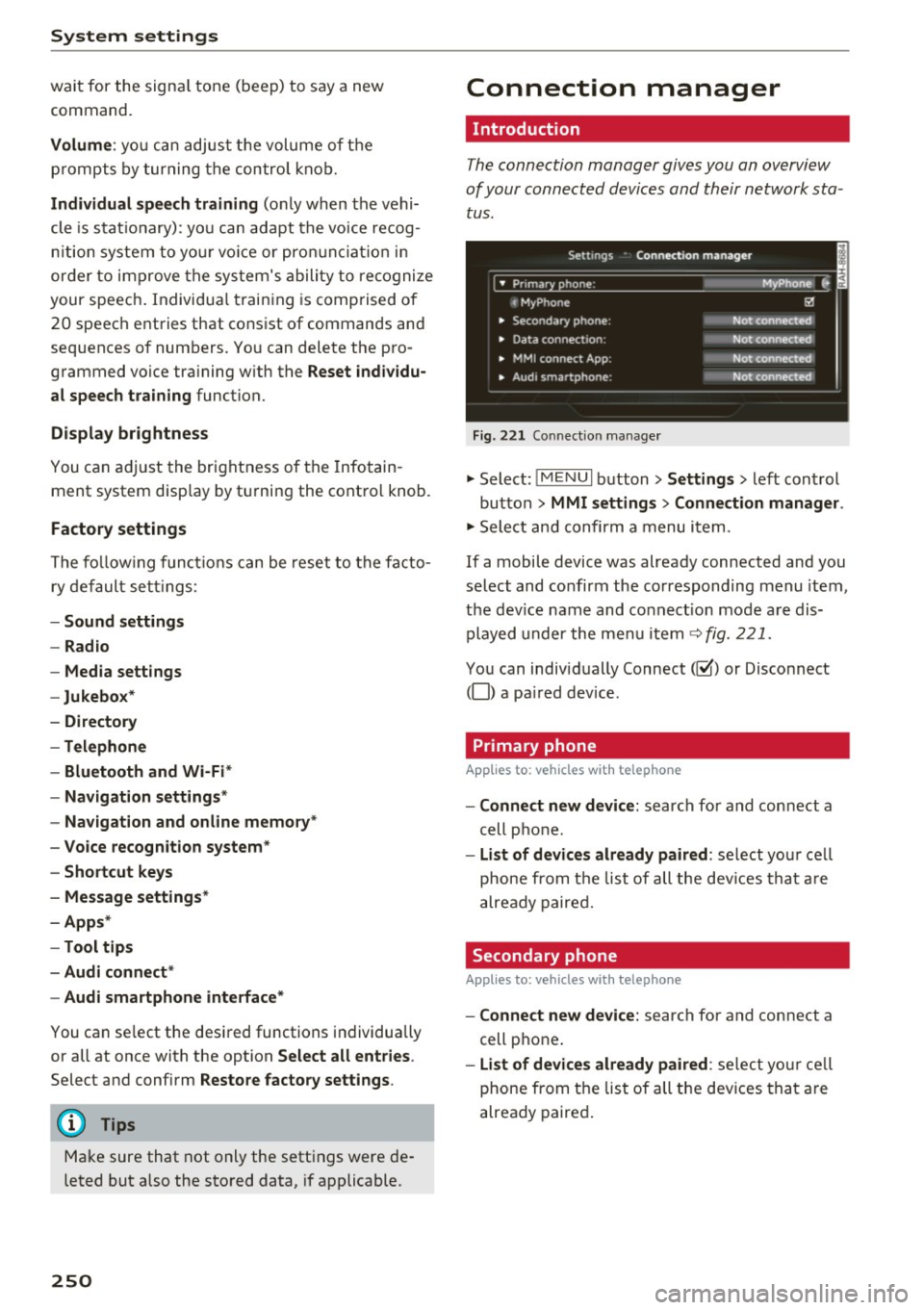
The connection manager gives you an overview
of your connected devices and their network sta
tus.
Settings Conne·ction manager I
====- .. · ~•_P_n_m_•~~-h~o_n~e_: ________ _____ M_ y ~ Phone ~
, MyPhone
• Secondary phone:
• Data connection :
• MMI connect App:
" Audi smartphone:
Fig. 221 Connect io n manager
@
Not connected
Not connected
Not connected
Not connected
"Select : !M ENUI button> Settings > left control
button >
MMI settings> Connection manager .
"Select and confirm a menu item.
If a mobile device was already connected and you
select and confirm the corresponding menu item,
the dev ice name and co nnect ion mode are dis
played under the menu item
c:!;> fig. 221.
You can individually Connect(~ or Disconnect
(0) a paired device .
' Primary phone
Applies to: vehicles with telephone
- Connect new device: search for and connect a
cell phone.
- List of devices already paired : select you r cell
phone from the list of all the devices that are
already paired.
Secondary phone
Applies to: vehicles with telephone
-Connect new device: search for and connect a
cell phone .
-list of devices already paired : select yo ur cell
phone from the list of all the devices that are
already paired.
Page 255 of 402
Sound settings
The sound distribution and volume of the MMI
can be adjusted individually. The settings depend
on vehicle equipment.
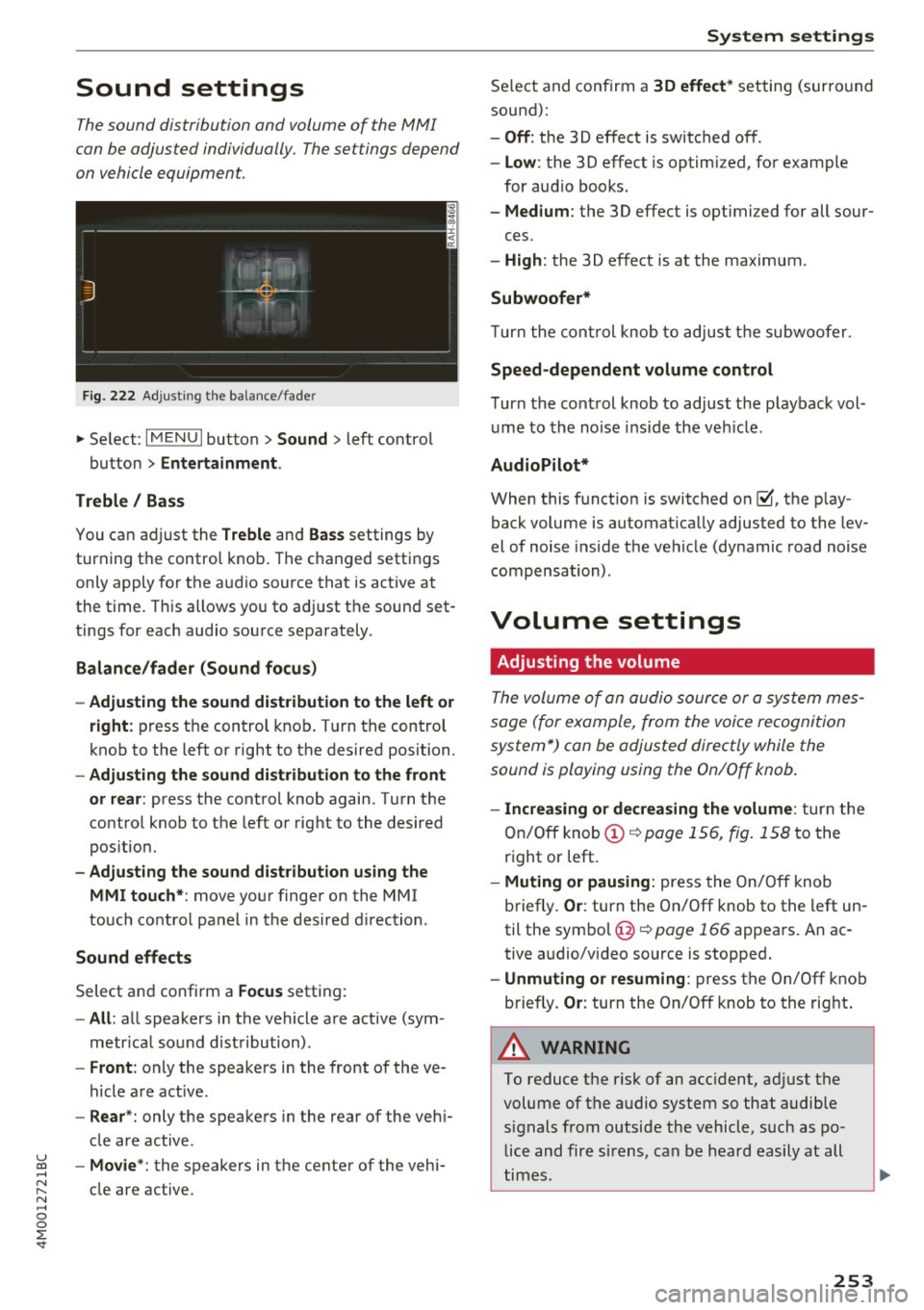
F ig . 222 Adjust ing the balance/fade r
... Se lect : I MENU I button> Sound > left contro l
button >
Entertainment .
Treble / Bass
You can adjust the Treble and Bas s settings by
turning the control knob . The changed settings
only apply for the a udio source that is act ive at
the t ime. T his allows you to ad just the sound set
tings for each audio source separately .
Balance/fader (Sound focu s)
- Adjusting the sound dist ribution to the left or
right :
press t he control knob . T ur n the control
knob to the left or right to the desired position.
- Adjusting the sound d ist ribution to the front
or rea r:
press the contro l knob again. Turn t he
contro l knob to the left o r right to the desired
pos itio n.
- Adjusting the sound d istribution using the
MMI touch* :
move your finger on the MMI
touch co ntrol panel in the desired d irection .
Sound effects
Select and confirm a Focus setting:
-All : all speakers in the vehicle are active (sym
metr ica l sound distribution) .
-Front : only the speakers i n the front of the ve
hicle are active .
-Rear *: only the speakers in the rear of the veh i-
cle are active.
u ~ - Mo vie *: the speakers in the center of the vehi-
~ cle are active. N .... 0
0
:E: '
Se lect and confirm a 30 effect * setting (surro und
sound):
- Off : the 30 effect is switched off .
-Low : the 3D effect is optimized, for example
for aud io books.
- Medium : the 3D effect is optimi zed for all sour-
ces.
- High : the 3D effect is at the maximum.
Subwoofer*
Turn the cont rol knob to adjust the subwoofer.
Speed-dependent volume control
T urn the cont rol knob to ad just the p layback vol
ume to the no ise inside the veh icle .
AudioPilot*
When this f unct ion is switched on~. the play
back volume is automat ica lly adjusted to the lev
el of noise inside the vehicle (dynamic road noise
compensation) .
Volume settings
Adjusting the volume
The volume of an audio sour ce or a sys tem mes
sage (for example, from the voice recognition
system*) can be adjusted directly while the
sound is playing using the On/Off knob.
- Increasing or dec reasing the volume : turn the
On/Off knob(!)¢
page 156, fig. 158 to the
right or left.
- Muting or pausing : press the On/ Off knob
briefly .
Or: turn the On/Off knob to the left un
til the symbol @¢
page 166 appea rs. An ac
tive audio/v ideo source is stopped.
- Unmuting or re suming : press the On/Off kno b
briefly.
Or : turn the On/Off knob to the right .
A WARNING
'-
To reduce the risk of an accident, ad just the
volume of the audio system so that audible signals from outside the vehicle, such as police and fire s irens, can be heard easily at all
times.
-
253