navigation AUDI Q7 2018 Owner´s Manual
[x] Cancel search | Manufacturer: AUDI, Model Year: 2018, Model line: Q7, Model: AUDI Q7 2018Pages: 398, PDF Size: 185.58 MB
Page 219 of 398
a co ...... N r--. N ...... 0
0
:E '
appears in the Infota inment system disp lay
¢ fig . 196.
Selecting th e onlin e map upda te
- Se lect an update package from the list(~)@
<=>fig. 196.
-Confirm you r se lection with the I BACK I button
and go back to the selection.
- The number and amount of data fo r th e select
ed update package are now disp layed in the I n
fotainment system .
Starting the download
-Se lect and confirm Start downlo ad .
- Confirm the secur ity prompt by selecting S tart
download
again .
T he update pack ages begin to down load and the
status of the download progres s is shown in the
Infotainment system display .
Install ation of onlin e map update s
The downloaded map mater ia l installs after you
stop your vehicl e. T he new update packages in
stall only after you switch off the ignition . After
restarting the MMI , the Infota inment system dis
play ind icates if the updates installed successful
ly .
- Confirm the successful update with
OK .
The new map materia l can now be used for navi
gation.
(D Tips
- Always read the chap ter ~ page 18 7 .
- The amou nt of available on line map up-
dates in the vehicle is lim ited. To update
more regions, use the map update via SD
card at www .audiusa.com/myaudi.
- Always read the chap ter ¢
page 194, Audi
connect (Infotainment) general informa
tion . Na
viga tion
Traffic information
Introduction
Applies to: veh icles w ith navigation system
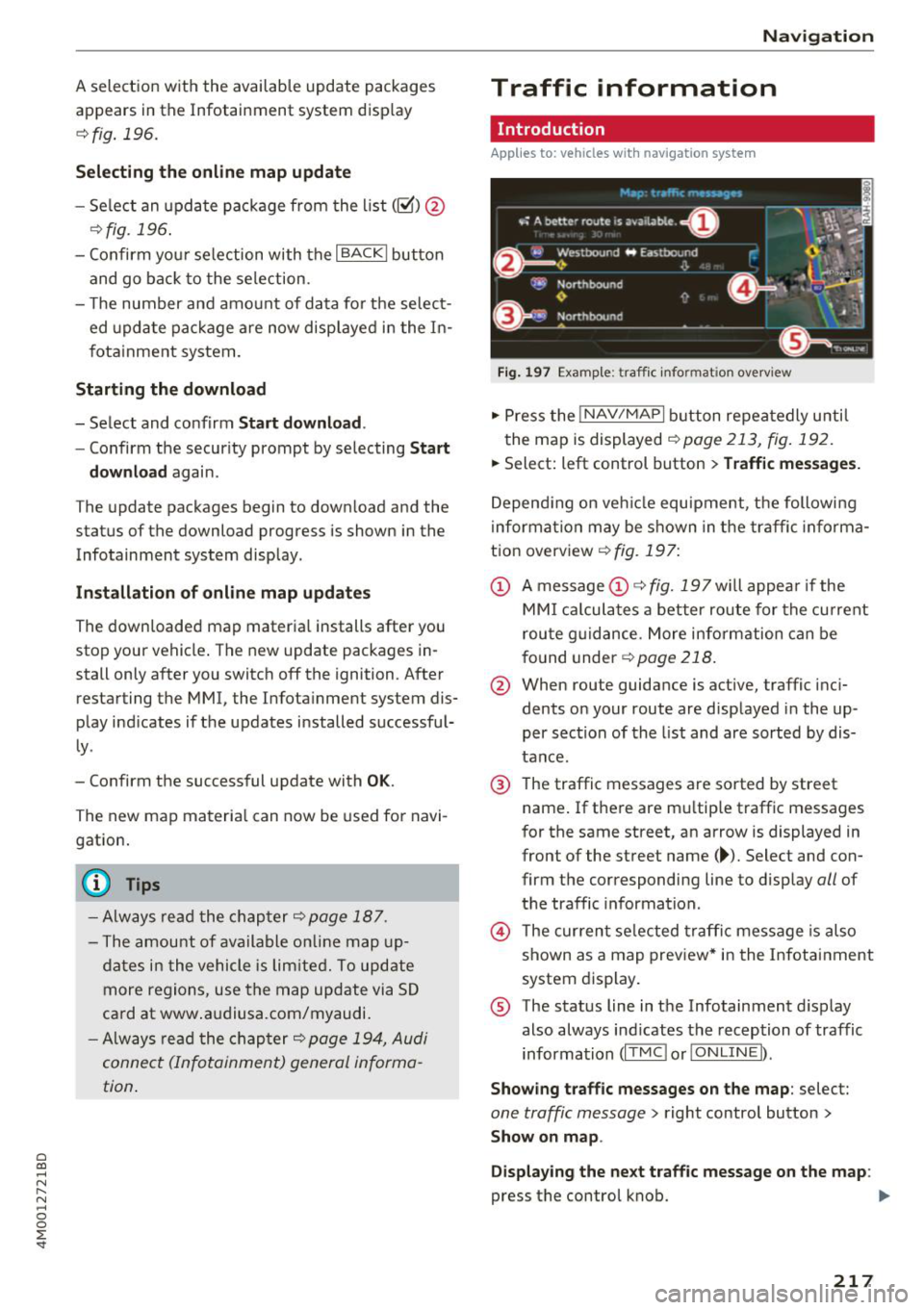
Fig . 1 97 Example: traffic info rm ation overv iew
.,. Press the INAV /MAPI button repea tedly u nti l
the map is displayed
~ page 213, fig. 192.
.,. Select: left control button > Traffic mes sage s.
Depending on veh icle equipment, the following
i nforma tion may be shown in the traffic informa
tion overview ¢
fig. 197:
CD A message CD ¢ fig. 197wi ll appea r if the
MM I ca lculates a better route for the cu rrent
rou te g uidance. More information can be
f o und under
¢ page 218.
@ When route guidance is active, traffic inci
dents on your route are displayed in the up
per section of the list and are sorted by dis
tance.
@ T he traffic messages are sorted by street
name . If there are mu ltip le traffic messages
for the same street, an arrow is displayed in
front of the st reet name (~ ). Select and con
firm the corresponding line to disp lay
all of
t h e traffic information .
@ The cur rent se lected traffi c message is also
shown as a map preview* i n the Infotainment
system display .
® The status line in t he Infotainment d isplay
also always ind icates the reception of traffic
information (IT MC !orlO NLIN EI).
Show ing tra ffic messages on the map : select:
one traffic message > right control button >
Show on map .
Di splaying the ne xt t raffi c message o n the map :
press the control knob. ..,.
217
Page 220 of 398
Navigation
Traffic information display on the map /Map
pre view*
Color -co ded mark ings a long the route indicate
the t raff ic flow:
Green : traffic is flow ing free ly .
Yellow: stop-and-go traffic.
Red : congest io n.
Shaded mar kin gs in dicate the le ngth of the area
with congestion .
Colored warning symbols: an impendi ng tr affic
i n cident d irect ly ahead on your route .
All t raff ic incide nts will display in colo r whe n
ro ute guid ance is in active .
Grayed out warning symbols: traffic inc iden ts
t ha t are not on yo ur route .
Warning symbols with~: avoided traffic inc i
dents .
The display of colored markings, warning sym
bols, etc . can be set in the
Map content menu
,=;,page 215.
(D Tips
Particu larly cr it ica l traff ic information, s uc h
as warnings about wrong-way drivers , is auto
mat ically displayed. To hide the traffic infor
mat ion , press the
I BACK I button o r the con
t rol k nob .
Traffic information (TMC)
App lies to: ve hicles w ith navigat ion system
Rece iv ing t raff ic informa tion th rough TMC is
sw itche d on a t the fac to ry .
.,. Press t he
I N AV/MAP I button repeated ly un til
t h e map is d is pl ayed .
.,. Se lect : left con trol button
> Traffic messages .
An overv iew of a ll the traffic messages is dis
p layed in the I nfota inme nt system .
-Opening a detailed view of traffic information :
select and confirm the traffic info rmat ion from
the list .
218
(D Tips
-TMC traffic reports are not available in Can
ada . For more informat io n, please contact
S ir ius Cana da.
- Cr itica l t raff ic information, s uch as wa rn
ings about wrong-way drivers, is au tomati
cally d isp layed. To h ide the t raffic info rma
t io n, p ress th e
I BACK I button o r th e control
knob.
Better route
App lies to: vehicles wit h navigat ion syste m and better ro ute
By receiving traffic information through TMC,
your MMI calculates a better route -if available -
and the possible tim e saved for the curr ent rout e
guidance . You can decide yourself which route
you would like to use.
.. Press the I NAV/M API bu tton re peatedly unti l
t he map is displayed .
Requirement: route g uidance must be active.
If your MMI has ca lculated a better ro ute than
t h e cur rent route g uidance, t he message
A better
route is available.
appears for severa l seconds
alo ng with the time that may be saved. A better
r ou te is ind icated in the map view by the symbol
tS ,=;,page 213, fig . 193 .
A message also appea rs in the traffic in fo rmat ion
ove rview (i)c;,page217,
fig.197.
Apply better route
-Press the right con trol but ton .
- S elect a nd c onfir m th e bett er ro ute.
Or : sele ct
an d con firm
Details to d is pla y det ails about the
optimized ro ute . You can zoom in or out on t he
ma p usin g the M MI touch cont rol pa d. Requ ir e
ment : there must be more than one opt imized
route calcu lated. Press the contro l knob to
sw itch to the next rou te in the detailed view .
Closing the detailed view : press the I BACK I
button .
- After you have selected a better route, t he
route w ill be recalc ulated .
Page 221 of 398
Cl a:, ...... N
" N ...... 0
0
::r '
Applies to: vehicles with a navigation system and Audi con
nect (Infotainment)
The MMI con receive real-time online traffic in
formation about congestion, accidents, road
construction and other incidents.
R equirement: the requirements for Audi connect
(Infotainment) m ust be met ¢
page 187.
~ Switching online traffic information on and
off:
select I NAV /MAP I button > rig ht control
button
> Online traffic data on(@°) or off ( 0 ).
~ Press the I NAV/MAPI button repeated ly until
the map is displayed .
~ Select: left control button > Traffic messages .
The on line traffic information will also be dis
p layed on the sate llite map
l) ¢ page 215 or on
the standard map
¢ page 213, fig. 192.
IflON LINEl traffic information cannot be re
ceived, then traffic information wi ll automatica l
ly be received through ITMCI
¢ page 218.
Troubleshooting
Applies to: vehicles with navigation system
Problem Solution Navigation
(D Tips
-
Online traffic information is not available in
Canada .
- Always read the chapter¢
page 194, Audi
connect (Infotainment) general informa
tion.
- Having the Online traffic data function
switched on provides the most accurate re
ports of traffic situations as well as traffic
forecasting. Your vehicle transmits and processes its anonymo us, encrypted posi
tion inform ation at regular intervals to the
traffic data provider. If you do not want to
use this, you can switch off the
online traf
fic information
function at any time .
- The
online traffic information network is
curr ently not available in all countries, and
the coverage is not nationwide. For addi
tional information, visit www.a ud iusa.com .
Free text search : the desired des- The dest ination might not be entered in the navigation database.
ti nation cannot be found .
Or: check the spelling of the term that was searched . Check if the
desired country/state was selected for the free text search using
the
Country/state selection ¢ page 204 or the option All coun-
tries/states .
l) A U DI AG prov ides access to se rv ices from thi rd pa rty pro
v id ers. Perm anent ava ilabil ity can not be g uaranteed , be
c ause that depends on the th ird party prov ider.
219
Page 223 of 398
Radio functions
Free text search
App lies to: ve hicles with free text search
Using the free text search, you can select the or
der that the search terms are entered in the in
put field . Search in all frequency bands for a sta
tion name or program type, such as
News .
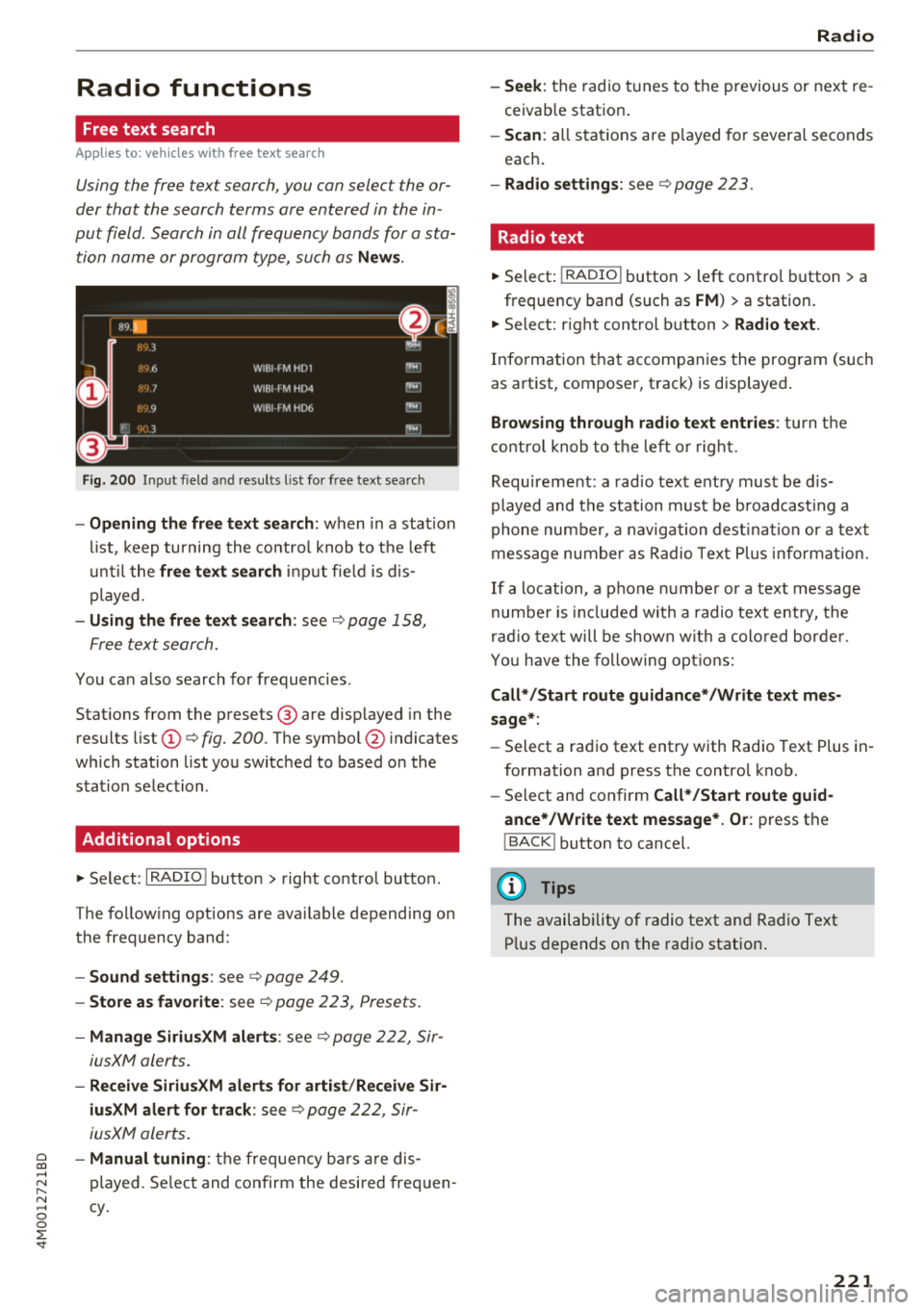
Fig. 200 Input field and results l ist for free text search
- Opening the free text search: when in a stat ion
list, keep turning the control knob to the left
until the
free text search input fie ld is dis
played.
- Using the free text search: see¢ page 158,
Free text search.
You can also search for frequencies .
Stations from the presets ® are disp layed in the
results list
(D ¢ fig. 200. The symbol @ indicates
which station list you switched to based on the
stat ion selection .
Additional options
"'Se lect: I RADIO ! button > right control button.
The following options are ava ilable depending on
the frequency band:
- Sound settings: see ¢page 249.
-Store as favorite : see ¢ page 223, Presets .
-Manage SiriusXM alerts: see¢ page 222, Sir-
iusXM alerts.
- Receive SiriusXM alerts for artist /Receive Sir
iusXM alert for track :
see¢ page 222, Sir
iusXM alerts.
~ - Manual tuning: the frequency bars are dis-
~ played. Select and confirm the desired frequen-
"' ,...., cy. 0
0
::r '
-Seek : the radio tunes to the previous or next re
ceivab le station .
-Scan : all stations are played for severa l seconds
each.
- Radio settings: see ¢page 223.
Radio text
"' Select: I RADIO I button > left control button > a
frequency band (such as
FM ) > a station.
"' Select: right control button
> Radio text .
Information that accompanies the program (such
as artist, composer, track) is disp layed .
Browsing through radio text entries: turn the
control knob to the left o r right.
Requirement: a radio text entry must be dis
played and the station must be broadcast ing a
phone number, a navigation destination or a text
message number as Radio Text Plus informat ion.
If a location, a phone number or a text message
numbe r is incl uded with a radio text entry, the
radio text will be shown with a colo red border .
You have the following options:
Call* /Start route guidance* /Write text mes
sage*:
- Select a radio text entry with Radio Text Plus in
formation and press the control knob.
- Select and confirm
Call*/Start route guid
ance*/Write text message* . Or :
press the
I BACK ! button to cancel.
(D Tips
The availability of radio text and Radio Text
P lu s depends on the radio station.
221
Page 224 of 398
Radio
SiriusXM alerts
Applies to: ve hicles w ith S iriusXM
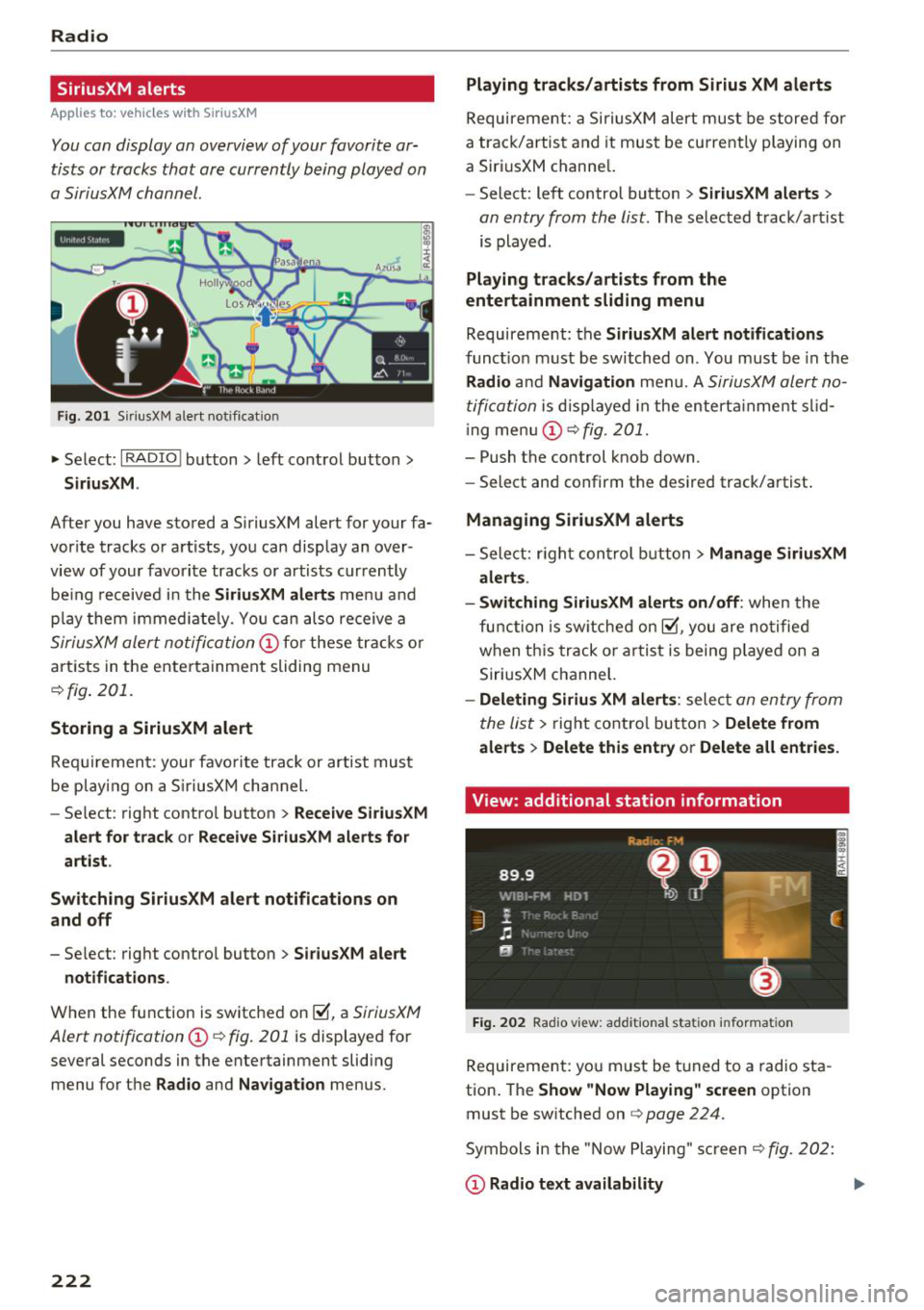
You can display an overview of your favorite ar
tists or tracks that are currently being played on
a SiriusXM channel.
Y.MMMiiiA
Fig . 201 SiriusXM ale rt not ificat io n
~ Se lect : I RADIO I button > left control button >
SiriusXM.
After you have stored a SiriusXM alert for your fa
vor ite tracks or artists, you can display an over
view of your favorite tracks or artists currently
be ing re ceived i n the
SiriusXM alerts menu and
p la y them immed iately. You can also receive a
SiriusXM alert notifi cation @ for these tracks or
artists in the entertainment sliding menu
¢fig . 201.
Storing a SiriusXM alert
Requirement: your favorite track or artist must
be play ing on a SiriusXM channel.
- Se lect : right contro l button >
Receive SiriusXM
alert for track
or Receive SiriusXM alerts for
artist .
Switching SiriusXM alert notifications on
and off
- Select : right contro l button > SiriusXM alert
notifications .
When the function is switched on~, a SiriusXM
Alert notification @¢ fig . 201
is displayed for
several seconds in the entertainment sliding
menu for the
Radio and Navigation menus.
222
Playing tracks/artists from Sirius XM alerts
Requireme nt: a SiriusXM alert must be stored for
a track/artis t and it must be currently playing on
a SiriusXM channe l.
- Select: left control button
> SiriusXM alerts >
an entry from the list . The selected track/artist
is played .
Playing tracks/artists from the
entertainment sliding menu
Requirement: the SiriusXM alert notifications
functio n must be switched on. You must be in the
Radio and Navigation men u. A SiriusXM alert no
tification
is displayed in the enterta inment slid
i ng menu
(D ¢fig. 201.
- Push the control knob down.
- Select and confirm the desired track/artist .
Managing SiriusXM alerts
-Select: r ight control button> Manage SiriusXM
alerts .
- Switching SiriusXM alerts on/off :
when the
function is sw itched on~, you are notified
when this track or artist is being p layed on a
SiriusXM channel.
- Deleting Sirius XM alerts : select an entry from
the list>
right control button > Delete from
alerts
> Delete this entry or Delete all entries.
View: additional station information
Fig. 202 Rad io v iew: add it io nal stati on informa tion
Requirement: you must be tuned to a radio sta
tion . The
Show "Now Playing " screen option
must be switched on
q page 224.
Symbols in the "Now Playing" screen¢ fig. 202:
(D Radio text availability
Page 248 of 398
System settings
wait for the sig nal t one (bee p) to say a new
command.
Volume : you can a djust th e vol ume of th e
p romp ts by turning the con tro l k no b.
Individual speech training (on ly when the v ehi
cle is s ta ti onary): yo u ca n ad apt the vo ice recog
ni tion sy ste m to your voic e or pro nunciati on in
or der to im prove the sys tem's a bili ty to re co gni ze
your speec h. Indivi dua l speech train ing is com
p rised of 20 s peech ent ries t hat consist o f com
mands and sequences of numbers . You can de
lete the p rogrammed voice t rain ing with the
Re
set individual speech training
function.
Display brightness
You can a djust the brigh tness o f the Info tain
ment system disp lay by t urning the cont ro l knob.
Factory settings
D epe ndi ng on t he ve hicle eq uipme nt, th e fo llow
i ng fu nctio ns ca n b e rese t to factory se ttings :
-Sound settings
- Radio
- Media settings
- Jukebox *
- Directory
-Telephone
- Bluetooth and Wi-Fi*
- Navigation settings*
- Navigation and online memory *
- Voice recognition system*
- Shortcut keys
- Message settings *
-Apps *
- Tool tips
- Audi connect *
- Audi smartphone interface *
You can select the desi red functio ns i nd ividua lly
or all at once with the option
Select all entries .
Select and confirm Restore factory settings .
(D Tips
Make sure that not o nly the sett ings were de
leted but a lso the sto red data, if ap plicable.
246
Connection manager
Introduction
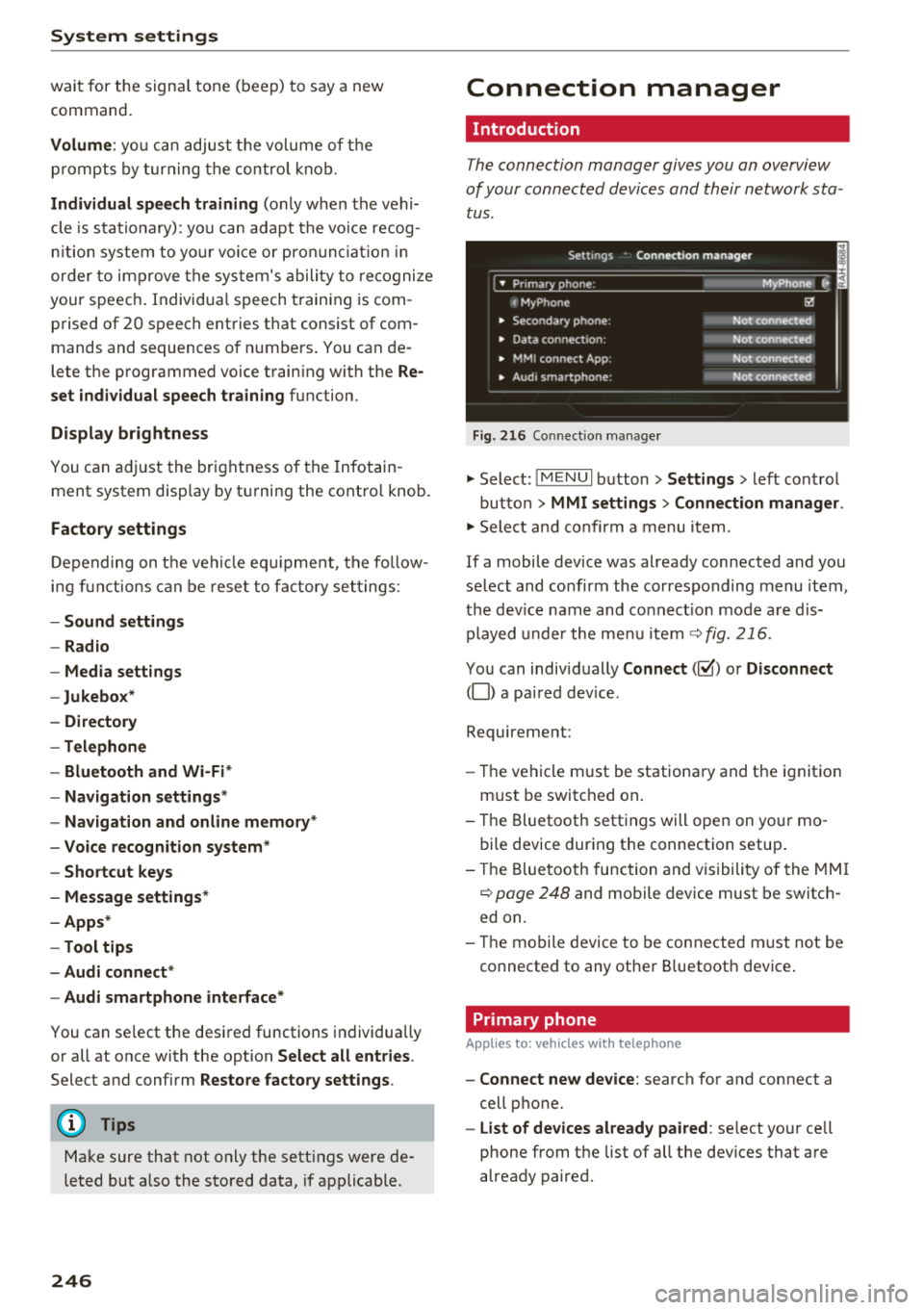
The connection manager gives you an overview
of your conn ected devic es and th eir network sta
tus .
Settings Conne-ction manager I
-====- ,.· • Prima hone: MyPhone .,.
c MyPhone
• Second ary phone :
• Data conn ection :
• MM I
connect App :
• Audi smartpho ne:
Fig. 216 Co nnec tion man ag er
Ii'!
Not connected
Not conn.,ct.,d
Not connected
Not conn..cted
"'Select : !ME NUI bu tton> Settings > left con trol
bu tton >
MMI settings > Connection manager .
"'Sele ct and confirm a menu item.
If a mobile device was already connected and you
select and co nfirm the co rresponding menu item,
t h e dev ice name and co nnect ion mode a re dis
p layed under the menu i tem
r:!;> fig. 216.
Yo u can indiv id ually Connect (~ ) or Disconnect
(0) a pa ired device .
Requirement:
- The ve hicl e m ust be statio na ry and the ignit io n
m ust be switc hed on .
- Th e Bluetooth sett ings will open on yo ur mo
bi le device dur ing the connection setup .
- T he Blue tooth func tion and v is ibili ty of the MMI
c:!;> page 24 8 and mobile device must be switc h
ed on.
- T he mo bile device to be con nected m ust not be
connected to any othe r Bluetoot h dev ice .
Primary phone
App lies to: vehicles wit h telepho ne
- Connect new device: search for and connect a
cell p hone.
- List of devices already paired : select yo ur cell
phone from the list of all the dev ices that a re
already paired.
Page 252 of 398
System settin gs
& WARNING
To reduce the risk of an accident, adjust the
volume of the aud io system so that aud ible
signals from outside the vehicle, such as po
lice and fire sirens, can be heard easily at all
times .
(D Tips
Volumes that are too h igh or too low are a u
tomatically adjusted to a set leve l w hen the
MMI is switched on .
Adjusting the system volume
.,. Se lect : I MENU I button> Sound > left contro l
button.
Telephone
App lies to: veh icles with telephone
.
Mute telephone : messages and ringtones are set
to mute .
Ringtone : see c:> page 185, Ringtone and volum e
s etting s.
Rington e volume :
you can adjust the volume of
the selected ringtone by turning the cont ro l
knob .
Messag e v olume: you ca n ad just the volume of
the notification for an incoming text m essage by
turning the control knob.
Microphone input level : you can adjust the call
volume during a phone ca ll by turning the contro l
knob.
Navigation
Applies to: vehicles with navigation system
Voice guidance : see c:>page 212.
Voice guidance dur ing phon e call : see
c:> page 212 .
Voice guidance volume : you can ad just the vo ice
gu idance volume by tur ning the control knob.
O r:
you can adjust the vo ice guidance volume during
active route guidance by turning the On/Off knob.
250
Entert ainme nt fader : the volume o f audio p lay
back can be temporarily lowered when the park
i ng system or voice guidance is active .
Voice recognition sy stem
Applies to: vehicles with voice recognition system
Command di splay : see c:> page 245.
Short dia log : see c:> page 245.
Volume : see c:>page 245.
Indi vidual speech t ra inin g: see ¢ page 245.
Parking aid*
You can adjust the vol ume of the signal tone by
turning the contro l knob .
-Adjusting the Front volum e: select and con
firm
High , Medium or Low .
- Adjus ting
the Rear volume : select and confirm
H igh , Medium or Low .
MMI touch*
Turn the control knob to adjust the volume of the
spoken prompts from the MM I touch*.
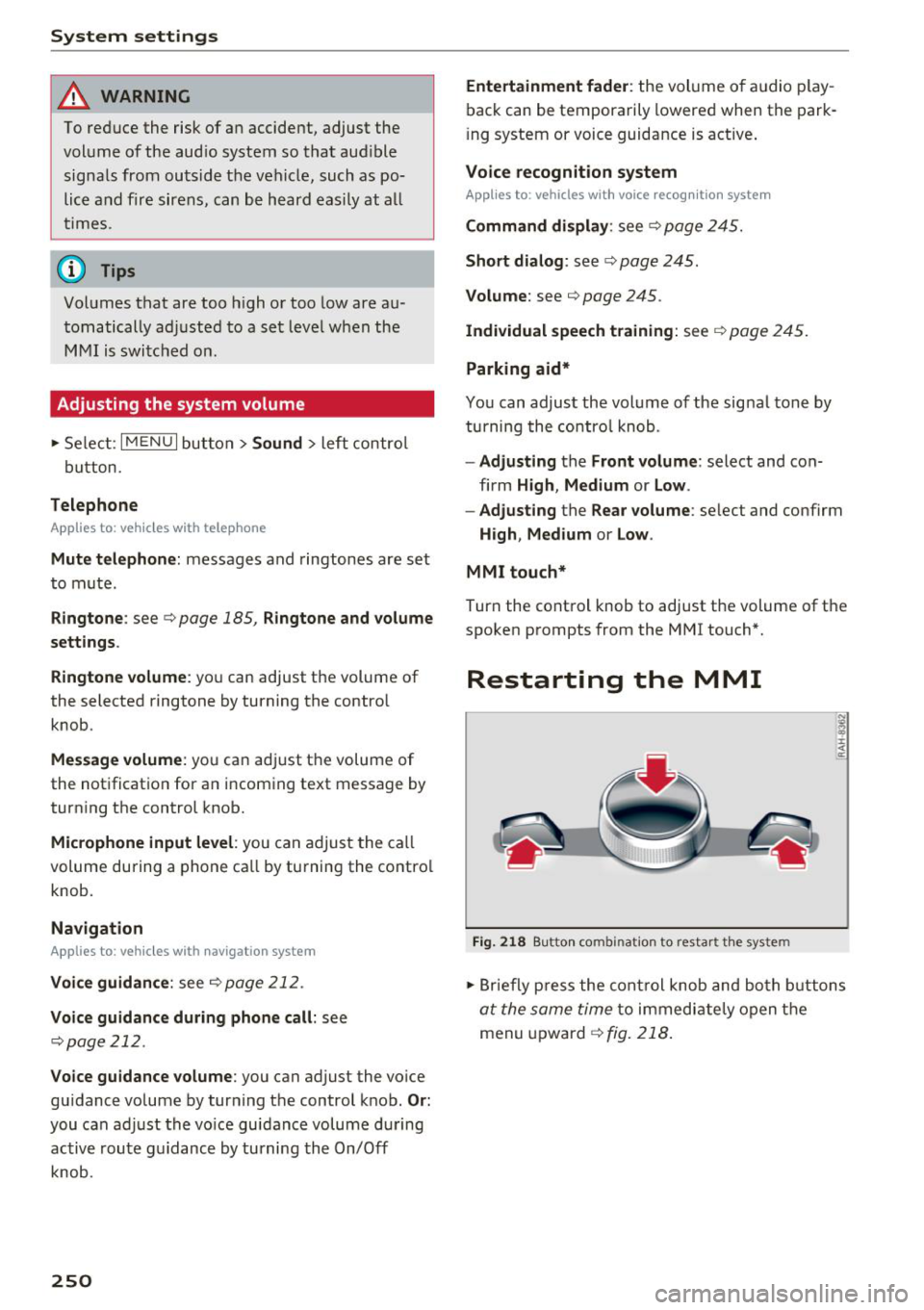
Restarting the MMI
Fig. 218 Bu tton co m bin at ion to re sta rt t he s yst em
.,. Briefly p ress the cont rol knob and both b uttons
at the same time to immediate ly open the
menu upward
¢ fig. 218 .
Page 276 of 398
Airbag syste m
-Never hold the steering whee l at the 12
o'clock pos it ion or w ith your han ds any
where inside the steering wheel or on the steering wheel hub. Holding t he steering
wheel the wrong way increases the risk of severe injury to the arms, hands, and head if
the d river a irbag deploys.
A WARNING
Objects between you and the a irbag w il l in
crease the risk of inj ury in a crash by interfer
ing w ith the way the airbag unfo lds and/or by
being pushed into you as the airbag inflates .
- Always make sure nothing is in the front air-
bag deployment zone that could be str uck
by the airbag when it inflates.
-
- Objects in the zone of a deploying airbag
can become projectiles when the airbag de
ploys and cause serious persona l injury .
- Never hold th ings in your hands or on your
lap when the vehicle is in use.
- Never place accessor ies or other objec ts
(s uch as c up ho lders, telephone brackets,
note pads, navigation systems, or things
that are large, heavy, o r bulky) on the doors;
never attach then to the doors or the wind
shield; never place them over or near or at
tach them to the area marked ,,AIRBAG" on
the steering wheel, instrument panel or the seat backrests; never p lace them between
these a reas and yo u or any other person in
the vehicle.
- Never attach objects to the w indshield
above the passenger front airbag, s uch as
accessory GPS navigation uni ts or mus ic
players . S uch objects could ca use serio us in
jury in a collision, especially when the air bags inflate.
- Never recline the front passenger seat to transport objects . Items can also move into
the deployment area of the side a irbags or
the front a irbag during breaking o r in a sud
den maneuver. Objects near the airbags can
fly dangerous ly through the passenger com
partment and cause injury, particularly
when the seat is reclined and the airbags in
flate.
274
A WARNING
A person on the front passenger seat, espe
cially infants and small ch ildren, wi ll receive
serious in juries and can even be k illed by be
ing too close to the airbag when it inflates .
- Although the Advanced Airbag System in your veh icle is designed to turn off the front
passenger airbag if an infant o r a small child
is on the fron t passenger sea t, nobody can
absolu tely guarantee tha t deployment un
de r these specia l condi tions is impossible in
all conceivable situations that may happen
during the useful life of yo ur vehicle.
- The Advanced Airbag System can dep loy in
accordance with the ,.low risk" option for 3-
and 6-year-old children under the U.S. Fed
eral Standard if a child w ith electrical capac
itance greater than the combined capac i
tance of a typical one-year o ld infant re
strained in one of the forward facing or rea r
ward-facing chi ld seats with which yo ur ve
hicle was certified is on the front passenger
seat and the o ther conditions for airbag de-
ployment are me t.
- Accident s tatisti cs have shown th at children
are generally safer in the rear seat are a than
in the front seat ing pos ition.
- For their own s afety, all ch ildren, especi ally
12 years and younger, should alw ays ride in
the back proper ly restrained for their age
and size .
Advanced front airbag system
Your vehicle is equipped with a front Advanced
Airbag System in compliance with United States
Federal Motor Vehicle Safety Standard (FMVSS)
208, as well as Canada Motor Vehicle Safety
Standard (CMVSS) 208 as applicable at the t ime
you r vehicle was manufactured .
-
The front Advanced Airbag System supplements
the safety belts to provide add itiona l protect ion
for the driver 's and front passenger's heads and
upper bod ies in fronta l crashes. The a irbags in
flate only in frontal impacts when the vehicle de-
ce le ra tion is high e no ugh.
II>-
Page 379 of 398
Cl a:, ...... N
" N ...... 0
0
::r '
Warranty coverages
Your Audi i s co vered by the following warran
tie s:
- New Vehicle Limited Warranty
- Limited Warranty Against Corrosion Perfora-
tion
- Emissions Control System Warranty
- Emissions Performance Warranty
- California Emissions Control Warranty (USA
vehicles only)
- California Emissions Performance Warranty
(USA vehicles only)
Detailed information regarding your warranties
can be found in your
Warranty & Maintenance
booklet .
Operating your vehicle
outside the U.S.A. or
Canada
Government regulati ons in the United States and
Canada require that automobiles meet specific
emission regulations and safety standards.
Therefore, vehicles built for the U.S.A. and Cana
da differ from vehicles sold in other countries.
If you p lan to take you r vehicle outside the conti
nenta l limits of the United States or Canada,
there is the possibility that:
- un leaded fue ls for vehicles with catalytic con
verter may not be available;
- fuel may have a conside rably lower octane rat
ing . Improper fuel may cause engine damage;
- service may be inadequate due to lack of proper
service facilities, tools or testing eq uipment;
- r eplacement parts may not be readily available.
- Navigation systems for veh icles built for the
U.S .A . and Canada w ill not necessarily work in
Eur ope, and may not wo rk in other countries
outside of North America.
Consumer Information
@ Note
Audi cannot be responsib le for mechanical
damage that could resu lt from inadequate
fuel, service or parts ava ilability.
Audi Service Repair
Manuals and Literature
Audi Official Factory Service Manuals and Litera
ture are published as soon as poss ible after mod
el introduction. Se rvice Ma nuals and literature
are available to order from the Audi Tec hni cal Lit
erature Orde ring Center at :
www.audi.techliterature.com
Maintenance
General
Your vehicle has been designed to help keep
maintenance requirements to a minimum. How
ever, a certain amount of regular maintenance is
still necessary to assure your vehicle's safety,
economy and reliab ility . For detailed vehicle
maintenance consult your Warranty & Mainte
nance booklet .
Under difficult operating conditions, for exam
ple at extremely low outside temperatures, in
very dusty regions, when tow ing a trailer very fre
quently, etc., some service wo rk shou ld be per
formed between the intervals specified. This ap
plies particularly to:
- oil changes, and
- cleaning or replac ing the a ir filter .
® For the sake of the environment
By regularly maintain ing your vehicle, you
help make sure that emiss io n standards are
maintained, thus min imiz ing adverse effects
on the environment .
Important considerations for you and your
vehicle
The increasing use of electronics, sophisticated
fuel injection and emission control systems, and
the genera lly increasing technica l complexity of .,.
377
Page 387 of 398
Cl a:, ...... N
" N ...... 0
0
::r '
Economical route . . . . . . . . . . . . . . . . . . . . . 210
E DS . . . . . . . . . . . . . . . . . . . . . . . . . . . . . . . . 142
E lectromechanical parking brake . . . . . . . . . 81
Electromechanical steering . . . . . . . . . . . . . 146
Electronic immobilizer . . . . . . . . . . . . . . . . . . 30
E lectronic stab ilization control
refer to ESC . . . . . . . . . . . . . . . . . . . . 142 , 143
Emergency assistance . . . . . . . . . . . . . . . . . 357
Emergency braking function . . . . . . . . . . . . . 82
Emergency call function
Aud i connect emergency cal l and serv ice . 201
Emergency flashers . . . . . . . . . . . . . . . . . . . . 45
Emergency operation
Fu el fi ller door . . . . . . . . . . . . . . . . . . . . . . 314
E mergency starting . . . . . . . . . . . . . . . . . . . 369
Emissions control system . . . . . . . . . . . . . . 317
Energy management . . . . . . . . . . . . . . . . . . 147
Engine Coolant . . . . . . . . . . . . . . . . . . . . . . . . . . . . 324
Start/Stop system . . . . . . . . . . . . . . . . . . . . 79
Starting/stopping . . . . . . . . . . . . . . . . . . . . 77
Starting with jumper cab les . . . . . . . . . . . 369
Engine compartment
Opening/closing the hood . . . . . . . . . . . . . 320
Overview. .. .. ............. .. .. .. .. . 321
Safety precautions . . . . . . . . . . . . . . . . . . . 319
Engine oil Adding . . . . . . . . . . . . . . . . . . . . . . . . . . . . 321
Changing . . . . . . . . . . . . . . . . . . . . . . . . . . 323
Checking oi l level . . . . . . . . . . . . . . . . . . . . 321
Consumption . . . . . . . . . . . . . . . . . . . . . . . 321
Temperature display . . . . . . . . . . . . . . . . . . 17
Engine sound . . . . . . . . . . . . . . . . . . . . . . . . 128
Engine Start/Stop mode
refer to Start/Stop system . . . . . . . . . . 79, 81
E ng ine stop
refer to Sta rt/Stop system 79,81
Enhanced view . . . . . . . . . . . . . . . . . . . . . . . . 14
Entering characters/numbers (speller) . . . . 157
E nter ing letters (speller) . . . . . . . . . . . . . . . 157
Entertainment sliding menu . . . . . . . . . . . . 155
Entry/exit lighting . . . . . . . . . . . . . . . . . . . . . 45
Entry assistance
Rear seats . . . . . . . . . . . . . . . . . . . . . . . . . . . 56
Index
Environment
Proper disposa l of drained engine oil 323
Unleaded gasoline . . . . . . . . . . . . . . . . . . . 310
ESC . . . . . . . . . . . . . . . . . . . . . . . . . . . . . . . . 142
Hi ll descent assist . . . . . . . . . . . . . . . . . . . 144
Offroad mode . . . . . . . . . . . . . . . . . . . . . . . 143
Evasive steering support . . . . . . . . . . . . . . . 113
Event Data Recorder ( EDR) . . . . . . . . . . . . . 14 7
Exterior lighting . . . . . . . . . . . . . . . . . . . . . . . 43
Exterior mirrors . . . . . . . . . . . . . . . . . . . . . . . 4 7
Externa l voice operation . . . . . . . . . . . . . . . . 172
F
Factory default settings
Multi Media Interface . . . . . . . . . . . . . . . . 246
Fader (sound) . . . . . . . . . . . . . . . . . . . . . . . . 249
Fastening Booster seats . . . . . . . . . . . . . . . . . . . . . . . 301
Convertible child safety seats . . . . . . . . . . 299
Infant seats . . . . . . . . . . . . . . . . . . . . . . . . 297
Fast forwarding/rewinding (audio/video
file) . . . . . . . . . . . . . . . . . . . . . . . . . . . . . . . . 234
Fast forwarding (audio/video file) . . . . . . . . 234
Fast route 210
Favorites Media . . . . . . . . . . . . . . . . . . . . . . . . . . . . . 237
Navigation . . . . . . . . . . . . . . . . . . . . . . . . . 205
Telephone. .. .. .. ................. .. 179
Federal Communications Commission (FCC) 380
File formats (media drives) . . . . . . . . . . . . . 240
Floor mats . . . . . . . . . . . . . . . . . . . . . . . . . . . 257
Folding the backrest down/up . . . . . . . . . . . . 57
Foot pedals . . . . . . . . . . . . . . . . . . . . . . . . . . 256
For the sake of the environment Environmentally-friendly driving . . . . . . . . 74
Fueling . . . . . . . . . . . . . . . . . . . . . . . . . . . . 312
Leaks. .... .. .. .. ................. .. 320
Warming up the engine . . . . . . . . . . . . . . . . 77
Free text search . . . . . . . . . . . . . . . . . . . . . . 158
Media . . . . . . . . . . . . . . . . . . . . . . . . . . . . . 236
Navigation . . . . . . . . . . . . . . . . . . . . . . . . . 204
Radio . . . . . . . . . . . . . . . . . . . . . . . . . . . . . 221
Telephone . . . . . . . . . . . . . . . . . . . . . . . . . . 183
Freeze protection Coolant . . . . . . . . . . . . . . . . . . . . . . . . . . . . 324
Frequency band . . . . . . . . . . . . . . . . . . 220, 223
385